 Скачать презентацию Best Practices for Implementing Unicenter Service Desk r
0e72de90ed2d3d48bd1df5623a841b55.ppt
- Количество слайдов: 126



Best Practices for Implementing Unicenter Service Desk r 11. x in an HA MSCS Environment - Part 3: HA Primary Server Revised January 02, 2009 Although this document discusses Service Desk the same procedures can be followed for installing CMDB either in Standalone mode or Combined with Service Desk.
Agenda - This presentation details the installation of a Unicenter Service Desk (USD) Primary Server and Remote Components in an MSCS environment. It includes the following topics: - Installing non-HA e. IAM without MDB - Installing HA Primary Server - Customization - Primary Server Failover Test - MDB Failover Test - Installing non-HA Secondary Server - Note that installation of HA Remote Components is covered in Part I of this presentation series 2 Copyright © 2006 CA. All rights reserved. All trademarks, trade names, services marks and logos referenced herein belong to their respective companies.
Support Considerations - USD does not currently provide support for High Availability architectures, however, the following best practices demonstrate how a degree of High Availability can be achieved when implemented with assistance from your local CA Technical Services (CATS) team. - The failover process is not entirely automatic. If the MDB fails over to another cluster node, active clients will need to re-login to USD. - Additional questions regarding these guidelines can be directed to Imp. CDFeedback@ca. com and every effort will be made to respond as quickly as possible. ” 3 Copyright © 2006 CA. All rights reserved. All trademarks, trade names, services marks and logos referenced herein belong to their respective companies.
Glossary The following terms and abbreviations are used in this presentation: - “HA” = Highly Available - “USD” = Unicenter Service Desk - “e. IAM” = CA e. Trust Embedded Identity and Access Management - “MSCS” = Microsoft Cluster Server - “Cluster Name” = Network name associated with the cluster group 4 Copyright © 2006 CA. All rights reserved. All trademarks, trade names, services marks and logos referenced herein belong to their respective companies.
References - Best Practices for Implementing Unicenter Service Desk r 11. x in an HA MSCS Environment – Part I Remote Components - This describes how to install USD r 11. 1 or r 11. 2 remote components including creating an HA MDB in a Microsoft Cluster environment - Best Practices for Implementing Unicenter Service Desk r 11. x in an HA MSCS Environment – Part 4 HA e. IAM 5 Copyright © 2006 CA. All rights reserved. All trademarks, trade names, services marks and logos referenced herein belong to their respective companies.
Introduction
Setup - HA SQL MDB is created on the same cluster - Primary Server will be installed on same cluster but in a different Cluster Resource Group - This procedure can also be adapted to install HA Primary Server and HA MDB on two different clusters 7 Copyright © 2006 CA. All rights reserved. All trademarks, trade names, services marks and logos referenced herein belong to their respective companies.
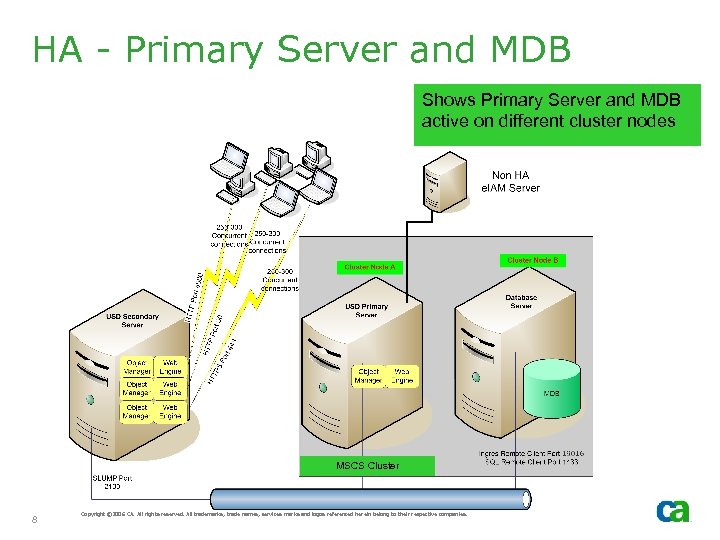
HA - Primary Server and MDB Shows Primary Server and MDB active on different cluster nodes MSCS Cluster 8 Copyright © 2006 CA. All rights reserved. All trademarks, trade names, services marks and logos referenced herein belong to their respective companies.
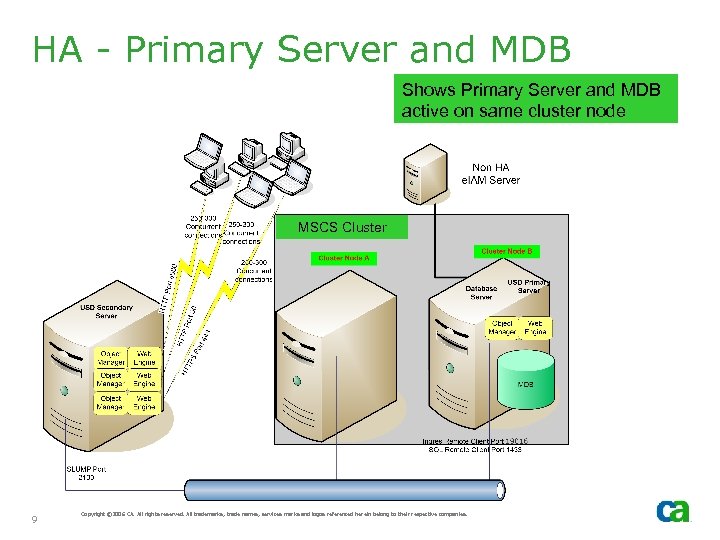
HA - Primary Server and MDB Shows Primary Server and MDB active on same cluster node MSCS Cluster 9 Copyright © 2006 CA. All rights reserved. All trademarks, trade names, services marks and logos referenced herein belong to their respective companies.
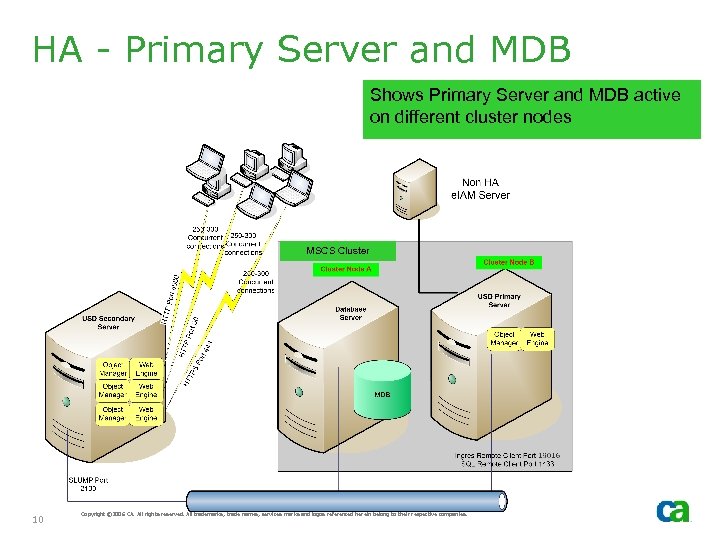
HA - Primary Server and MDB Shows Primary Server and MDB active on different cluster nodes MSCS Cluster 10 Copyright © 2006 CA. All rights reserved. All trademarks, trade names, services marks and logos referenced herein belong to their respective companies.
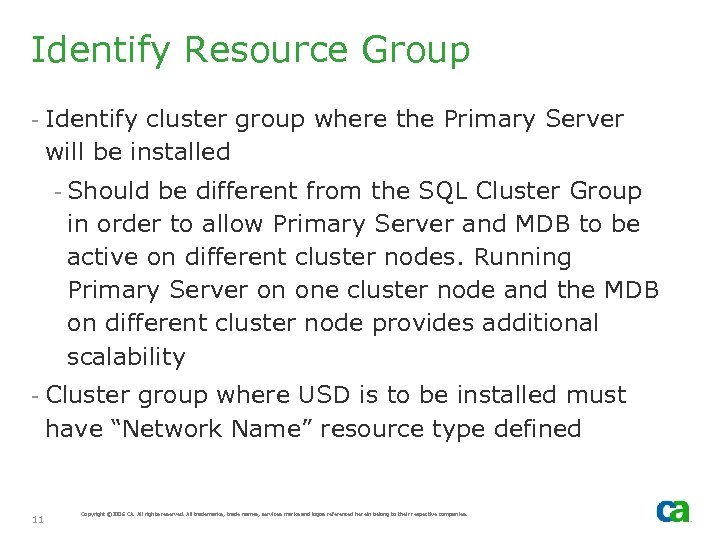
Identify Resource Group - Identify cluster group where the Primary Server will be installed - Should be different from the SQL Cluster Group in order to allow Primary Server and MDB to be active on different cluster nodes. Running Primary Server on one cluster node and the MDB on different cluster node provides additional scalability - Cluster group where USD is to be installed must have “Network Name” resource type defined 11 Copyright © 2006 CA. All rights reserved. All trademarks, trade names, services marks and logos referenced herein belong to their respective companies.
Verify Shared Disk - Verify the shared disk on which the USD folder will be installed has adequate free space (approx. 2 GB) - This estimate does not include the MDB since it will be installed on a different shared disk 12 Copyright © 2006 CA. All rights reserved. All trademarks, trade names, services marks and logos referenced herein belong to their respective companies.
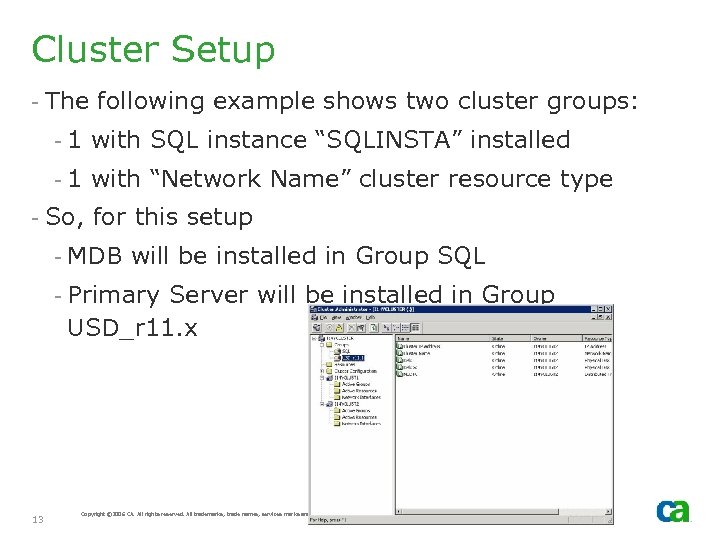
Cluster Setup - The following example shows two cluster groups: - 1 with SQL instance “SQLINSTA” installed - 1 with “Network Name” cluster resource type - So, for this setup - MDB will be installed in Group SQL - Primary Server will be installed in Group USD_r 11. x 13 Copyright © 2006 CA. All rights reserved. All trademarks, trade names, services marks and logos referenced herein belong to their respective companies.
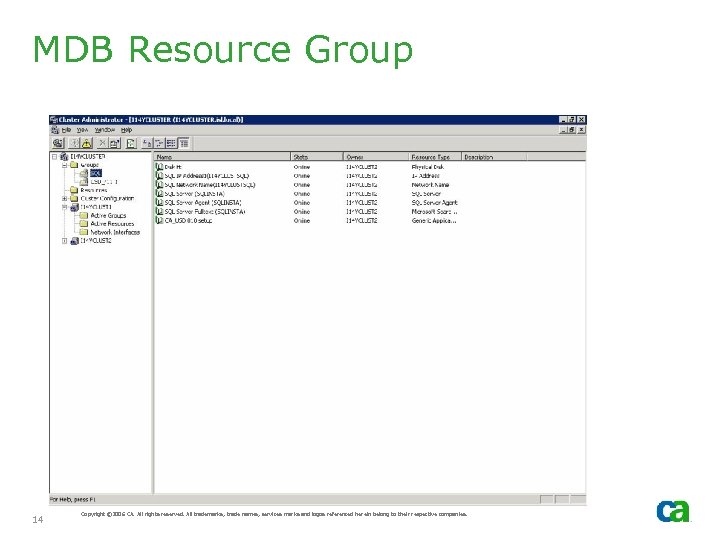
MDB Resource Group 14 Copyright © 2006 CA. All rights reserved. All trademarks, trade names, services marks and logos referenced herein belong to their respective companies.
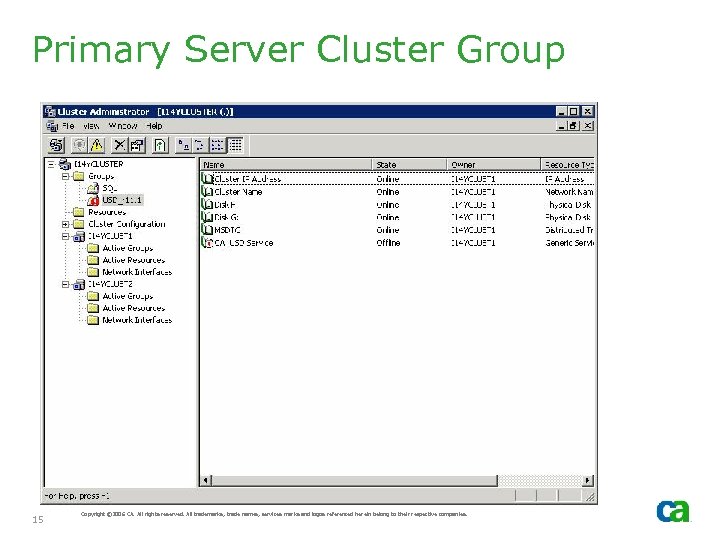
Primary Server Cluster Group 15 Copyright © 2006 CA. All rights reserved. All trademarks, trade names, services marks and logos referenced herein belong to their respective companies.
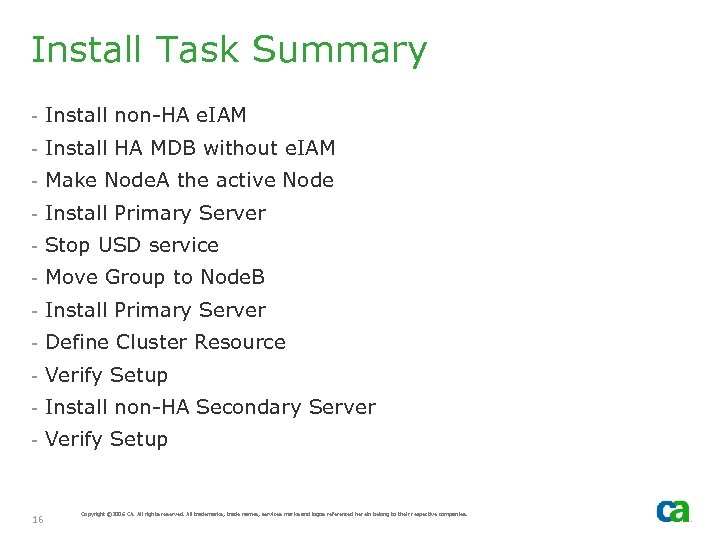
Install Task Summary - Install non-HA e. IAM - Install HA MDB without e. IAM - Make Node. A the active Node - Install Primary Server - Stop USD service - Move Group to Node. B - Install Primary Server - Define Cluster Resource - Verify Setup - Install non-HA Secondary Server - Verify Setup 16 Copyright © 2006 CA. All rights reserved. All trademarks, trade names, services marks and logos referenced herein belong to their respective companies.
USD r 11. 2 Install Caveat - USD r 11. 2 install process includes a check to determine if the pm. xml and wl. xml files already exist in the CATALINA_BASEwebapps folder - If they are not detected, the install copies the epdc. jar file from the CATALINA _BASEcommonlib to the tomcat4. 1. 31commonlib directory in Shared Components. - OK for first node on cluster - On subsequent nodes, because the install detects the files, an upgrade is performed instead - Since the epdc. jar file copy step is not included in an upgrade, the following error will be generated. Cannot load JDBC driver class 'com. ca. common. Encoded. Pw. Driver‘ - To avoid this, manually copy epdc. jar to the Shared Componentstom cat4. 1. 31commonlib before starting the service on subsequent cluster nodes - This only applies to USD r 11. 2 - it does not affect r 11. 1. 17 Copyright © 2006 CA. All rights reserved. All trademarks, trade names, services marks and logos referenced herein belong to their respective companies.
Walk-Through Installation of non-HA e. IAM
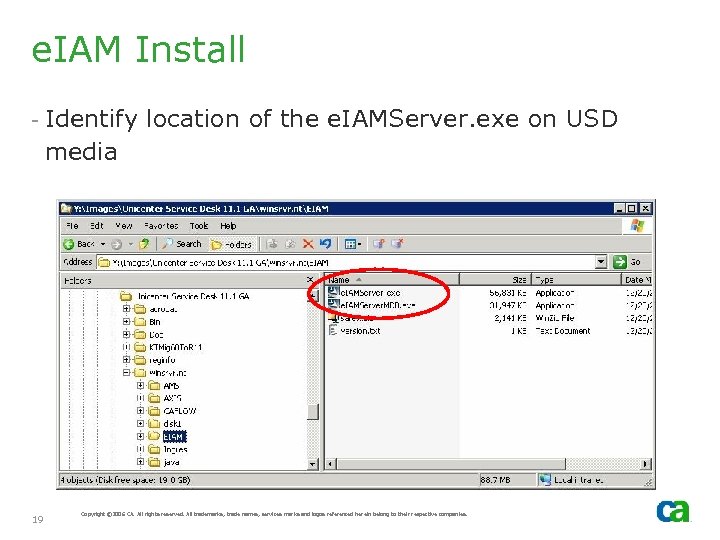
e. IAM Install - Identify location of the e. IAMServer. exe on USD media 19 Copyright © 2006 CA. All rights reserved. All trademarks, trade names, services marks and logos referenced herein belong to their respective companies.
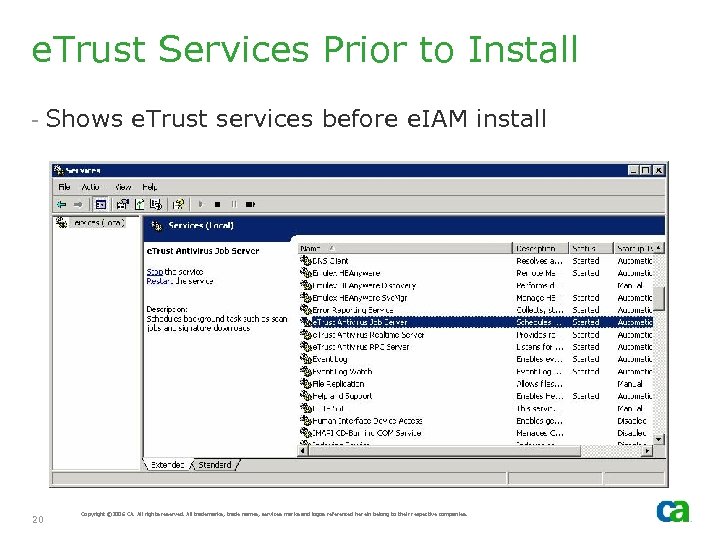
e. Trust Services Prior to Install - Shows e. Trust services before e. IAM install 20 Copyright © 2006 CA. All rights reserved. All trademarks, trade names, services marks and logos referenced herein belong to their respective companies.
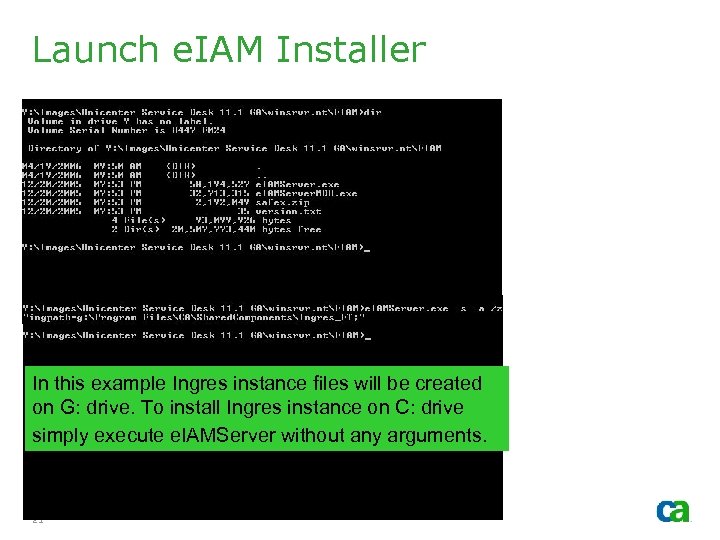
Launch e. IAM Installer In this example Ingres instance files will be created on G: drive. To install Ingres instance on C: drive simply execute e. IAMServer without any arguments. 21 Copyright © 2006 CA. All rights reserved. All trademarks, trade names, services marks and logos referenced herein belong to their respective companies.
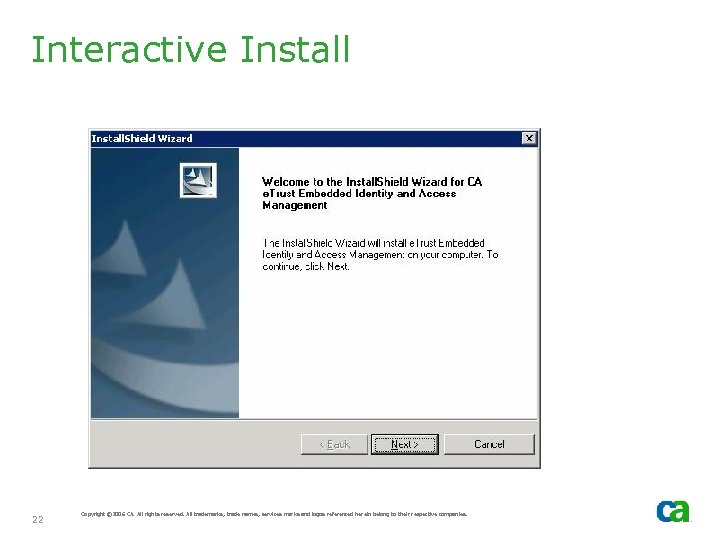
Interactive Install 22 Copyright © 2006 CA. All rights reserved. All trademarks, trade names, services marks and logos referenced herein belong to their respective companies.
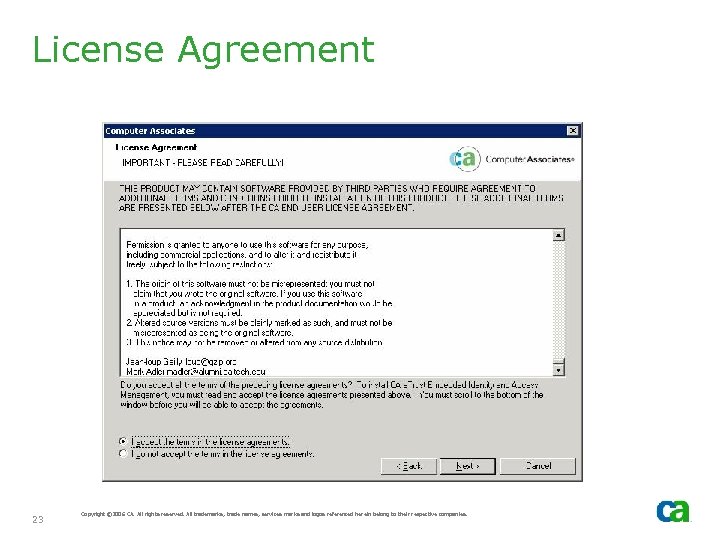
License Agreement 23 Copyright © 2006 CA. All rights reserved. All trademarks, trade names, services marks and logos referenced herein belong to their respective companies.
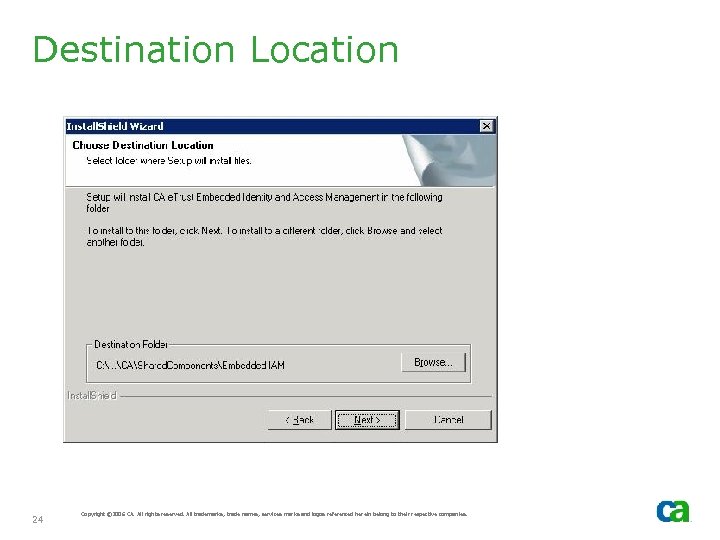
Destination Location 24 Copyright © 2006 CA. All rights reserved. All trademarks, trade names, services marks and logos referenced herein belong to their respective companies.
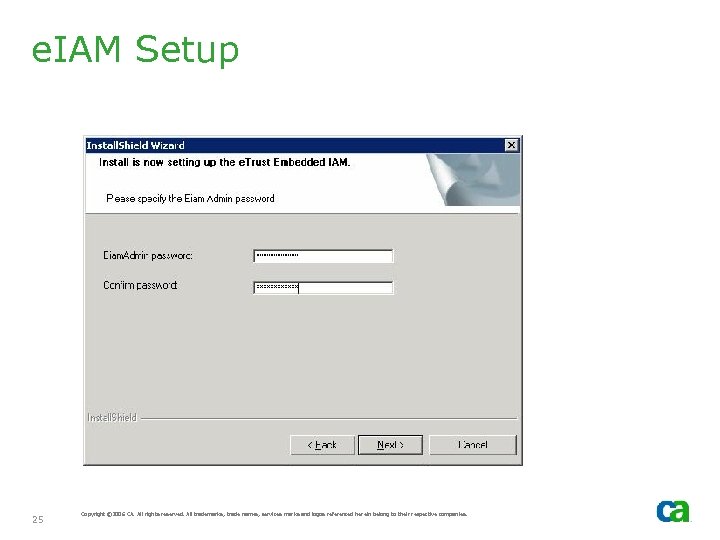
e. IAM Setup 25 Copyright © 2006 CA. All rights reserved. All trademarks, trade names, services marks and logos referenced herein belong to their respective companies.
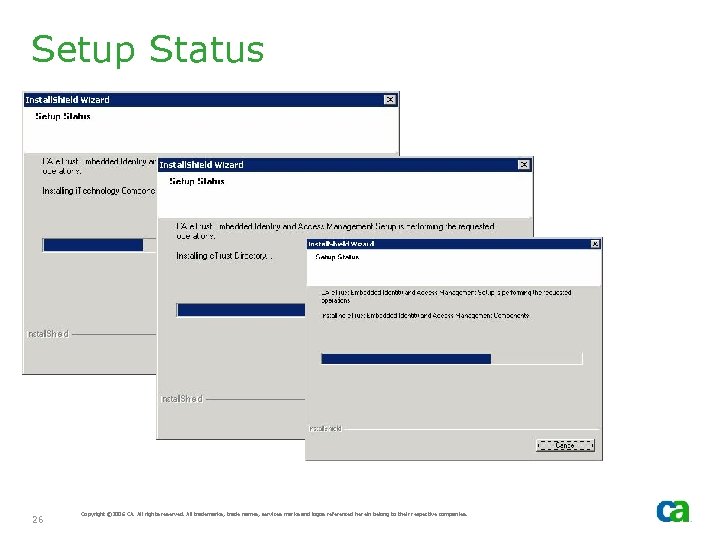
Setup Status 26 Copyright © 2006 CA. All rights reserved. All trademarks, trade names, services marks and logos referenced herein belong to their respective companies.
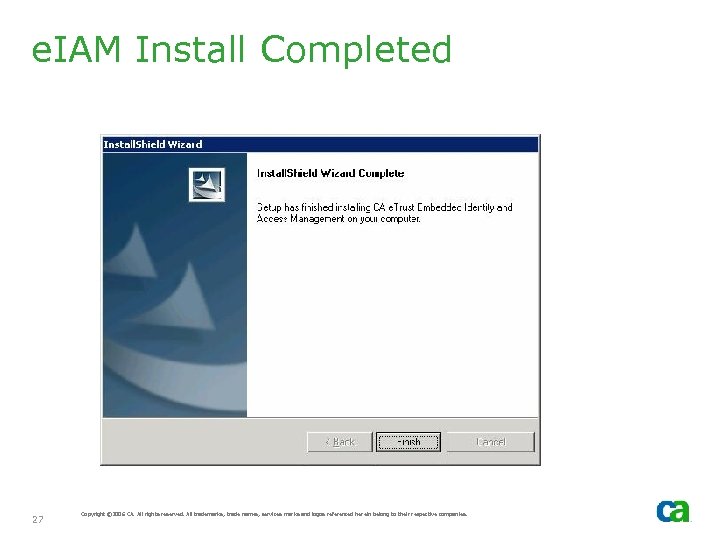
e. IAM Install Completed 27 Copyright © 2006 CA. All rights reserved. All trademarks, trade names, services marks and logos referenced herein belong to their respective companies.
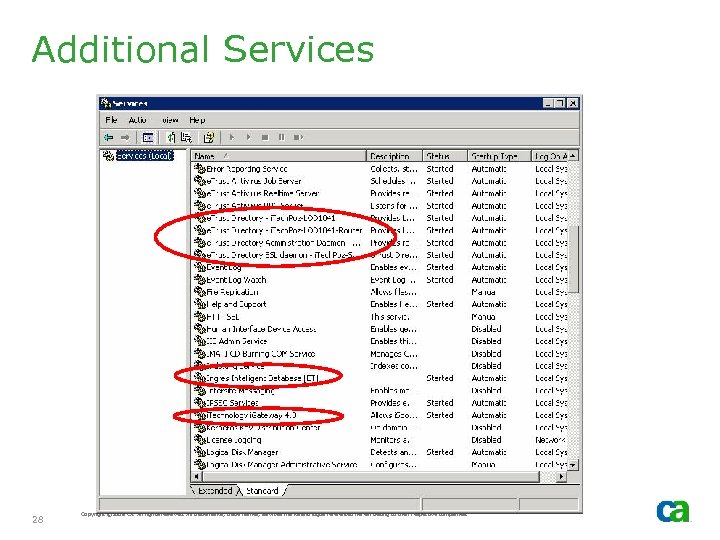
Additional Services 28 Copyright © 2006 CA. All rights reserved. All trademarks, trade names, services marks and logos referenced herein belong to their respective companies.
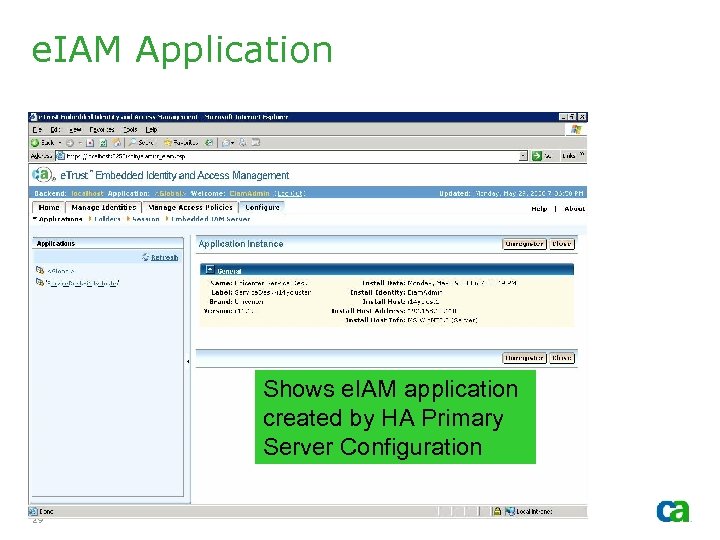
e. IAM Application Shows e. IAM application created by HA Primary Server Configuration 29 Copyright © 2006 CA. All rights reserved. All trademarks, trade names, services marks and logos referenced herein belong to their respective companies.
e. IAM and MDB - e. IAM provides option to store global users and global groups internally in the MDB - The install process described in this section does not create an MDB on the e. IAM server, so this option cannot be used. If the global users must be stored in the MDB, then install USD Remote Component on the e. IAM server. This will create MDB and install e. IAM as well. - Option to reference global users and groups from an external directory (such as Active Directory) does not require MDB and will work fine 30 Copyright © 2006 CA. All rights reserved. All trademarks, trade names, services marks and logos referenced herein belong to their respective companies.
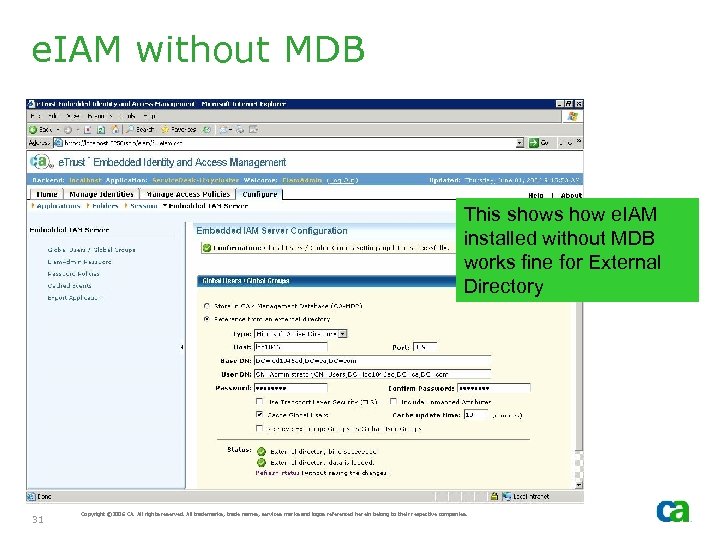
e. IAM without MDB This shows how e. IAM installed without MDB works fine for External Directory 31 Copyright © 2006 CA. All rights reserved. All trademarks, trade names, services marks and logos referenced herein belong to their respective companies.
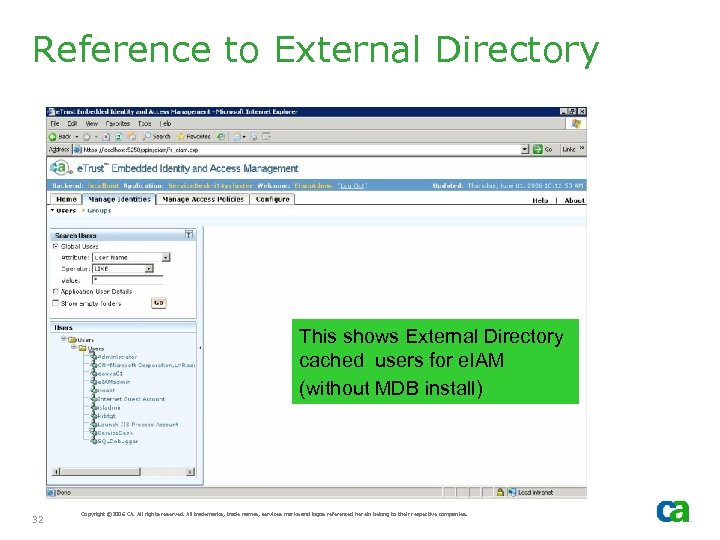
Reference to External Directory This shows External Directory cached users for e. IAM (without MDB install) 32 Copyright © 2006 CA. All rights reserved. All trademarks, trade names, services marks and logos referenced herein belong to their respective companies.
HA e. IAM - If e. IAM is placed on separate server, it generates approximately 6 KB of network traffic between e. IAM server and Primary Server for each web client user authentication - If you wish to install e. IAM on the same server as Primary Server, then review Part 4 of this presentation series 33 Copyright © 2006 CA. All rights reserved. All trademarks, trade names, services marks and logos referenced herein belong to their respective companies.
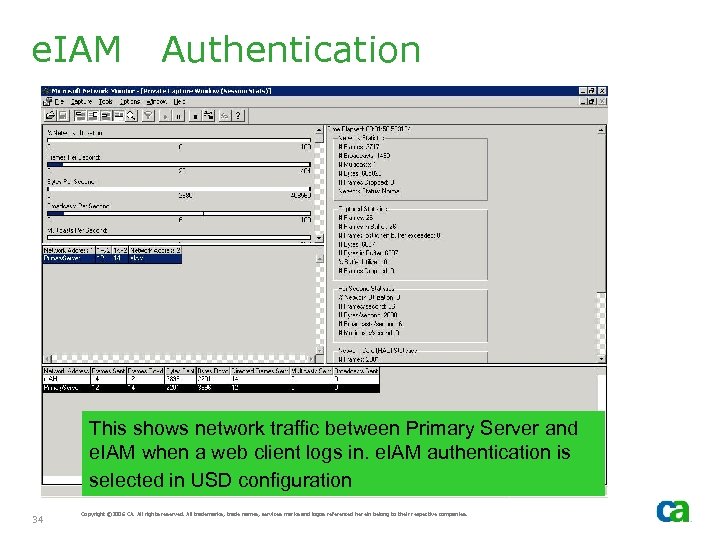
e. IAM Authentication This shows network traffic between Primary Server and e. IAM when a web client logs in. e. IAM authentication is selected in USD configuration 34 Copyright © 2006 CA. All rights reserved. All trademarks, trade names, services marks and logos referenced herein belong to their respective companies.
Install HA MDB without e. IAM
HA MDB - Review “Best Practices for Implementing Unicenter Service Desk r 11. x in an HA MSCS Environment: Part 1” - In that presentation, Remote Components are installed on all cluster nodes (which is true if the Primary Server is installed in a different server or cluster) - In this case, Primary Server is installed on the same Cluster. Thus, there is no requirement to install Remote Components without e. IAM on all Cluster Nodes. 36 Copyright © 2006 CA. All rights reserved. All trademarks, trade names, services marks and logos referenced herein belong to their respective companies.
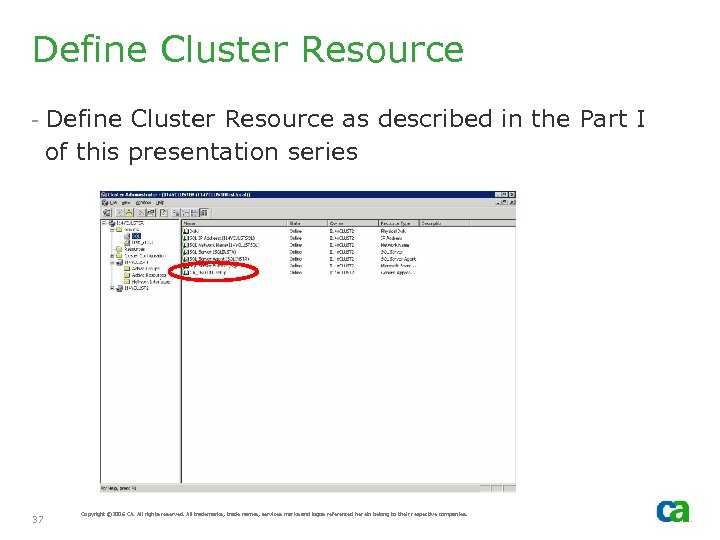
Define Cluster Resource - Define Cluster Resource as described in the Part I of this presentation series 37 Copyright © 2006 CA. All rights reserved. All trademarks, trade names, services marks and logos referenced herein belong to their respective companies.
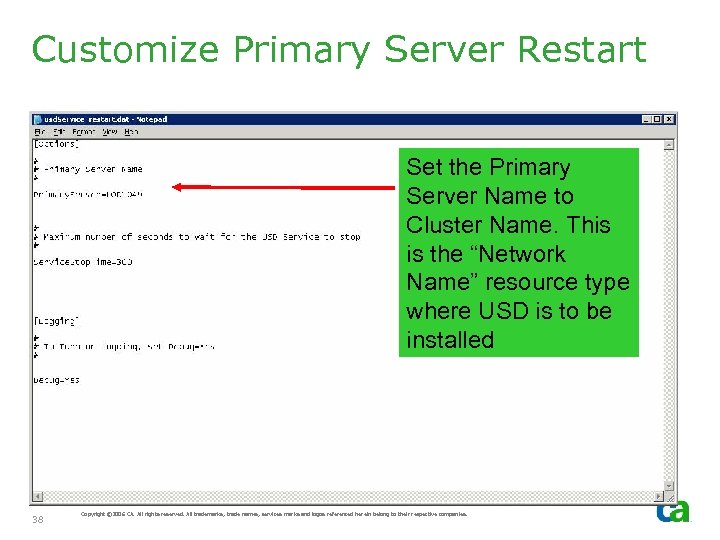
Customize Primary Server Restart Set the Primary Server Name to Cluster Name. This is the “Network Name” resource type where USD is to be installed 38 Copyright © 2006 CA. All rights reserved. All trademarks, trade names, services marks and logos referenced herein belong to their respective companies.
Walk-Through Installation of HA Primary Server on Node. A
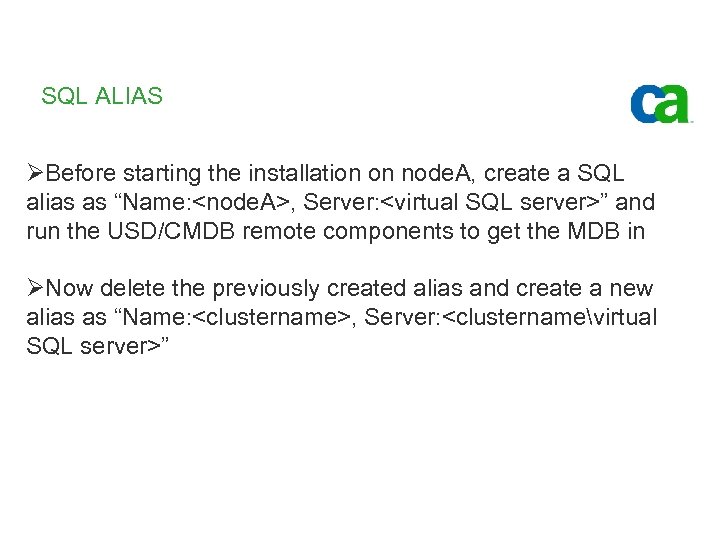
SQL ALIAS ØBefore starting the installation on node. A, create a SQL alias as “Name: <node. A>, Server: <virtual SQL server>” and run the USD/CMDB remote components to get the MDB in ØNow delete the previously created alias and create a new alias as “Name: <clustername>, Server: <clusternamevirtual SQL server>”
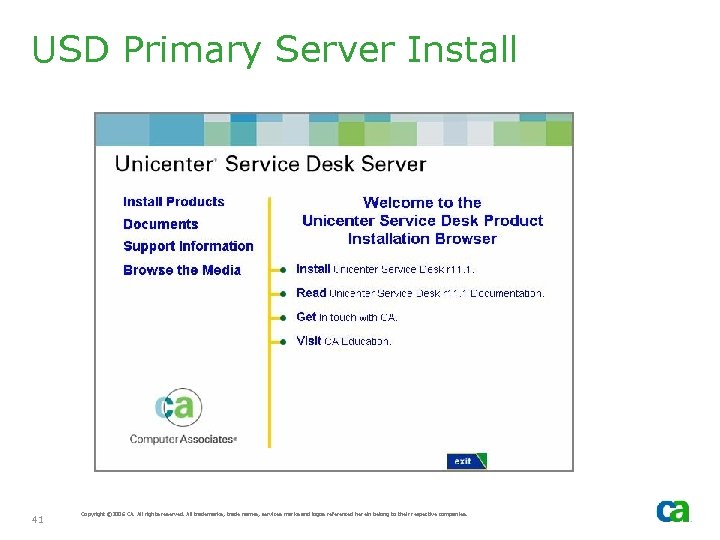
USD Primary Server Install 41 Copyright © 2006 CA. All rights reserved. All trademarks, trade names, services marks and logos referenced herein belong to their respective companies.
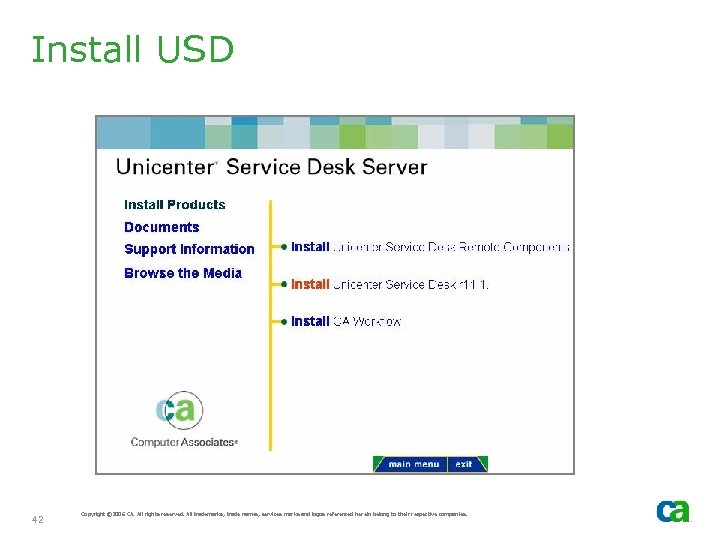
Install USD 42 Copyright © 2006 CA. All rights reserved. All trademarks, trade names, services marks and logos referenced herein belong to their respective companies.
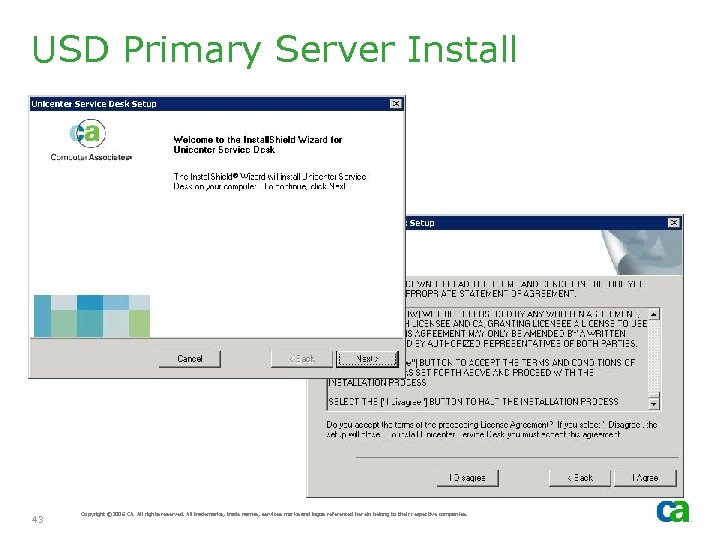
USD Primary Server Install 43 Copyright © 2006 CA. All rights reserved. All trademarks, trade names, services marks and logos referenced herein belong to their respective companies.
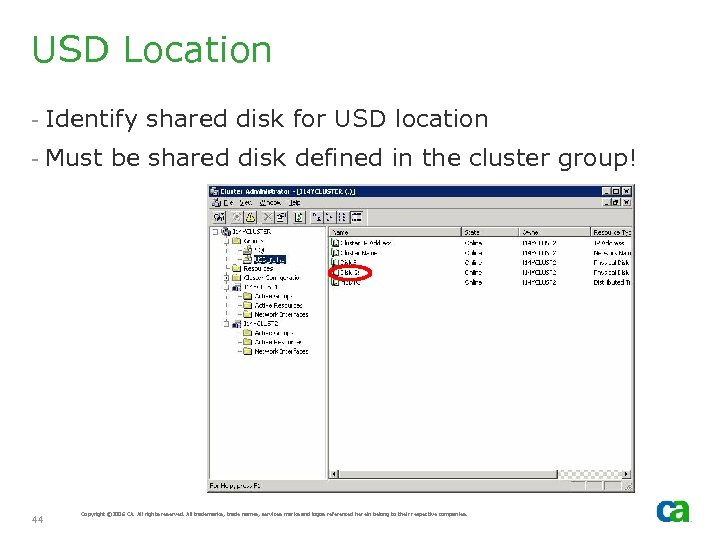
USD Location - Identify shared disk for USD location - Must be shared disk defined in the cluster group! 44 Copyright © 2006 CA. All rights reserved. All trademarks, trade names, services marks and logos referenced herein belong to their respective companies.
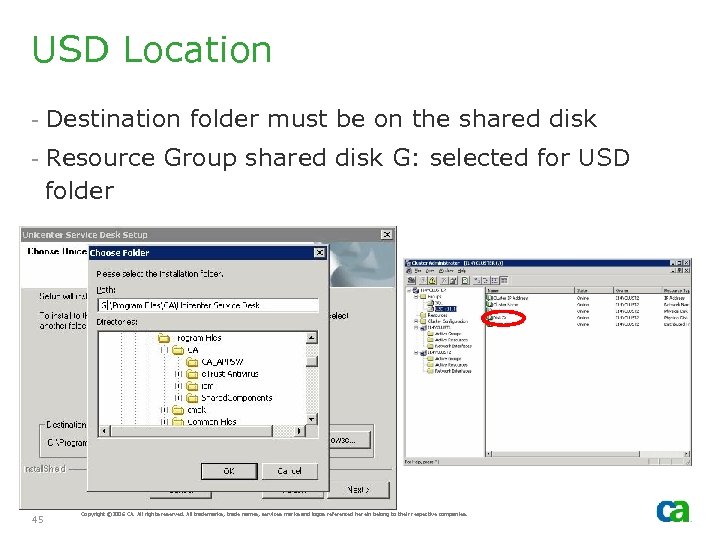
USD Location - Destination folder must be on the shared disk - Resource Group shared disk G: selected for USD folder 45 Copyright © 2006 CA. All rights reserved. All trademarks, trade names, services marks and logos referenced herein belong to their respective companies.
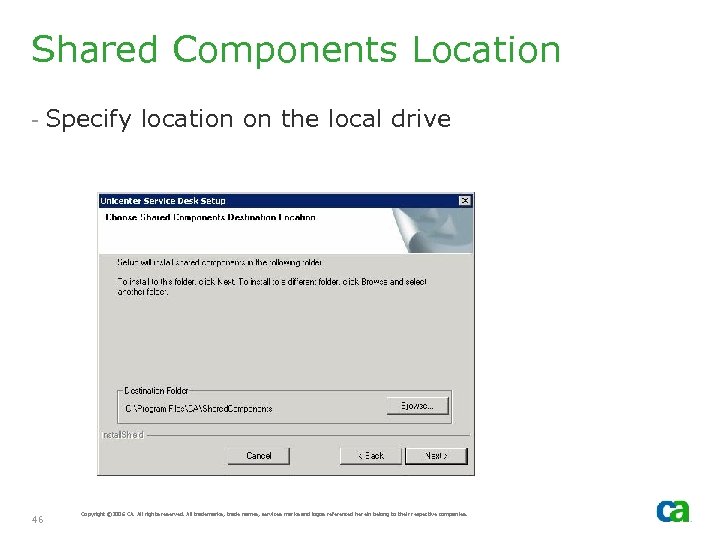
Shared Components Location - Specify location on the local drive 46 Copyright © 2006 CA. All rights reserved. All trademarks, trade names, services marks and logos referenced herein belong to their respective companies.
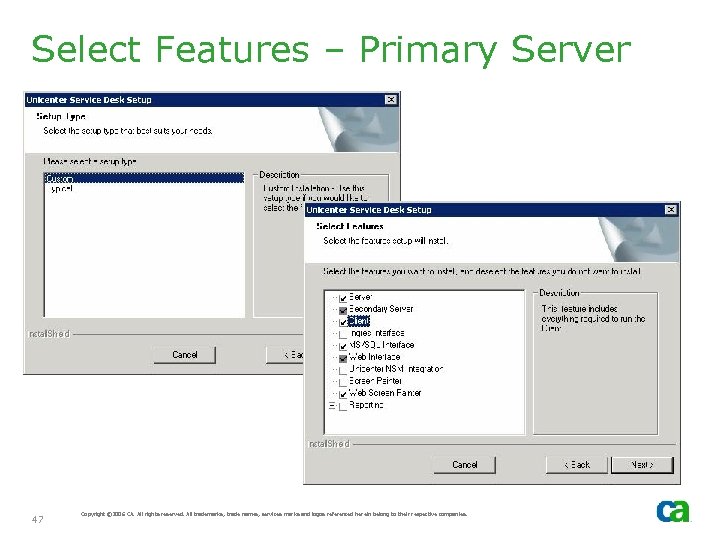
Select Features – Primary Server 47 Copyright © 2006 CA. All rights reserved. All trademarks, trade names, services marks and logos referenced herein belong to their respective companies.
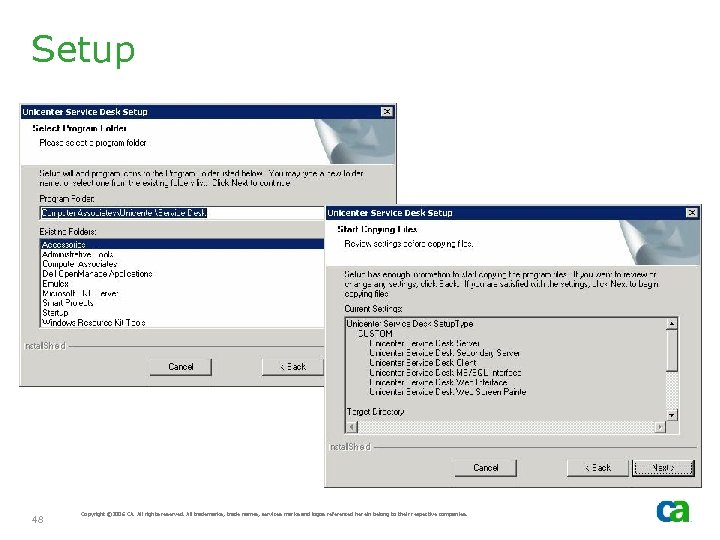
Setup 48 Copyright © 2006 CA. All rights reserved. All trademarks, trade names, services marks and logos referenced herein belong to their respective companies.
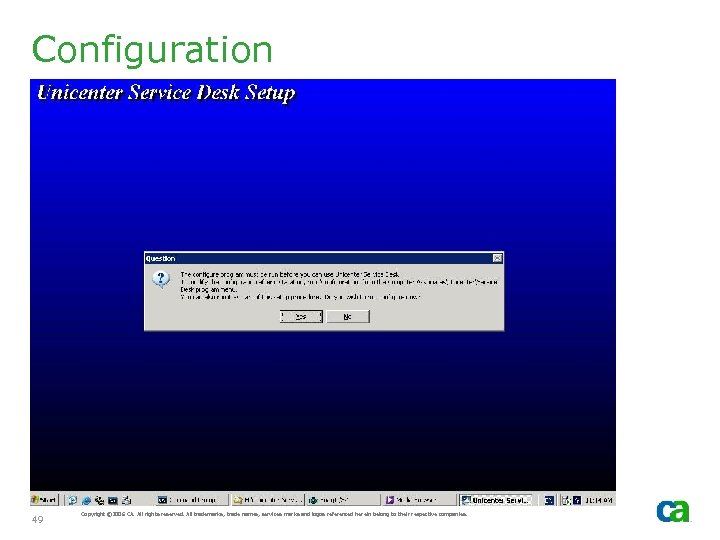
Configuration 49 Copyright © 2006 CA. All rights reserved. All trademarks, trade names, services marks and logos referenced herein belong to their respective companies.
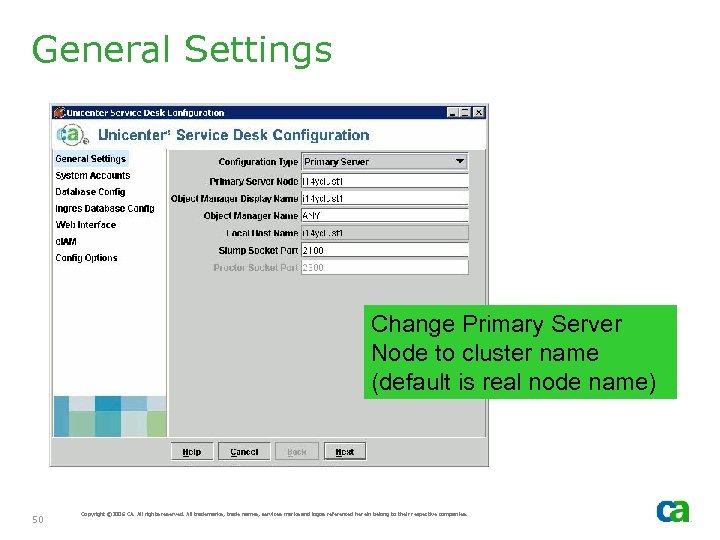
General Settings Change Primary Server Node to cluster name (default is real node name) 50 Copyright © 2006 CA. All rights reserved. All trademarks, trade names, services marks and logos referenced herein belong to their respective companies.
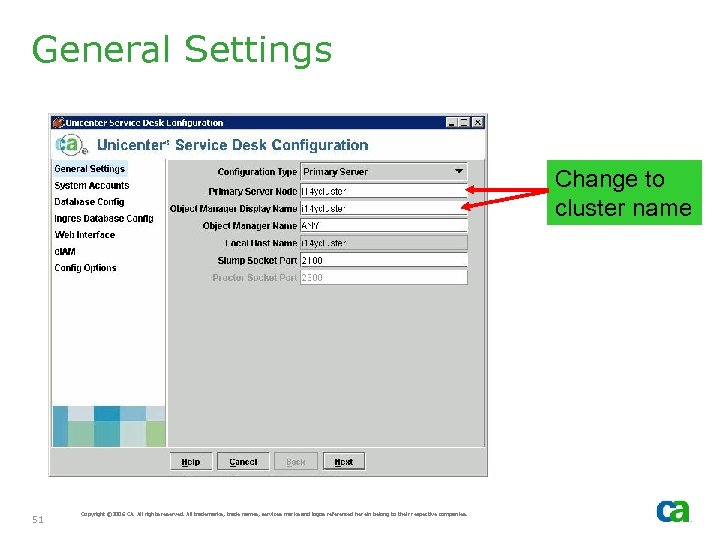
General Settings Change to cluster name 51 Copyright © 2006 CA. All rights reserved. All trademarks, trade names, services marks and logos referenced herein belong to their respective companies.
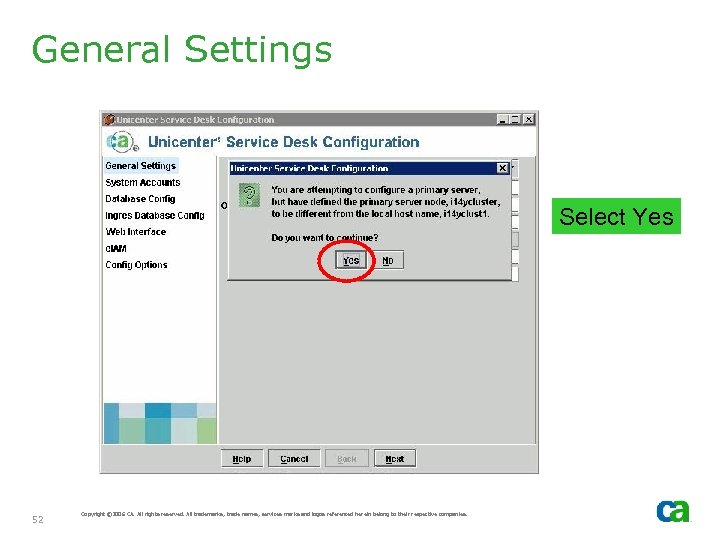
General Settings Select Yes 52 Copyright © 2006 CA. All rights reserved. All trademarks, trade names, services marks and logos referenced herein belong to their respective companies.
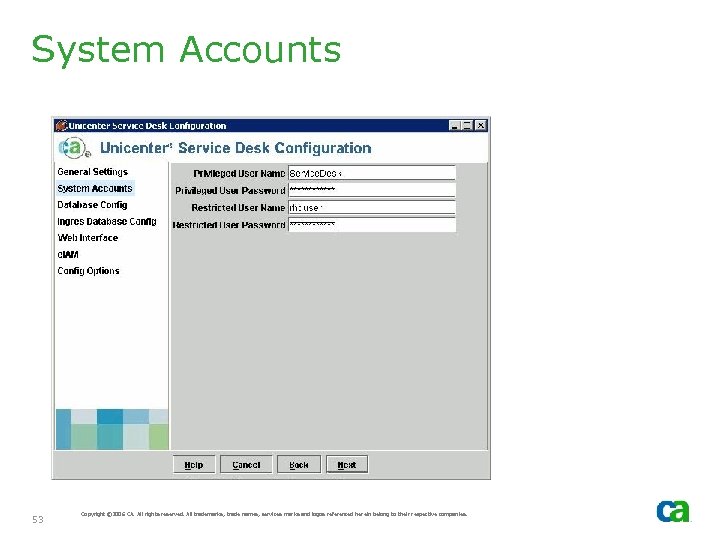
System Accounts 53 Copyright © 2006 CA. All rights reserved. All trademarks, trade names, services marks and logos referenced herein belong to their respective companies.
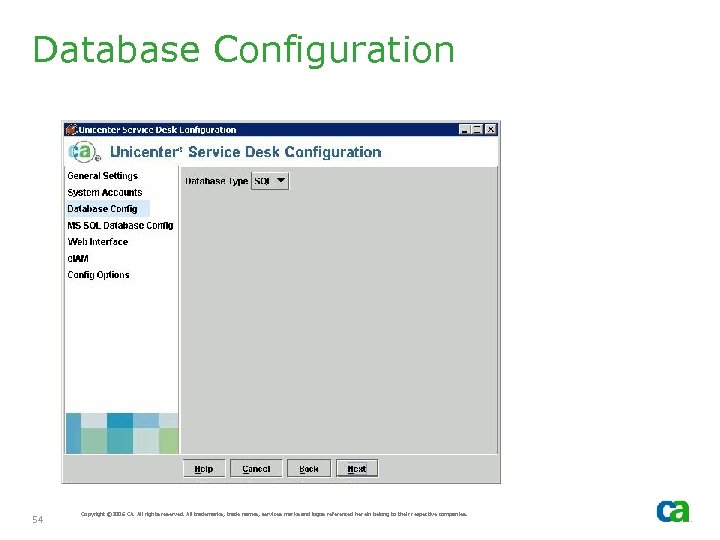
Database Configuration 54 Copyright © 2006 CA. All rights reserved. All trademarks, trade names, services marks and logos referenced herein belong to their respective companies.
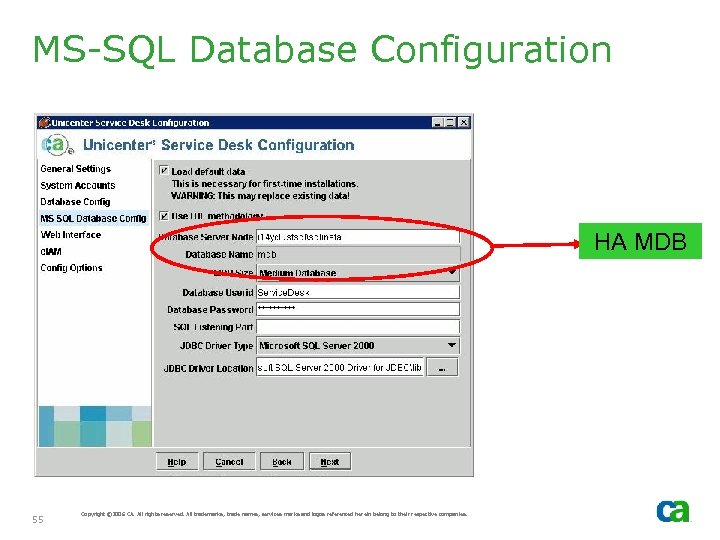
MS-SQL Database Configuration HA MDB 55 Copyright © 2006 CA. All rights reserved. All trademarks, trade names, services marks and logos referenced herein belong to their respective companies.
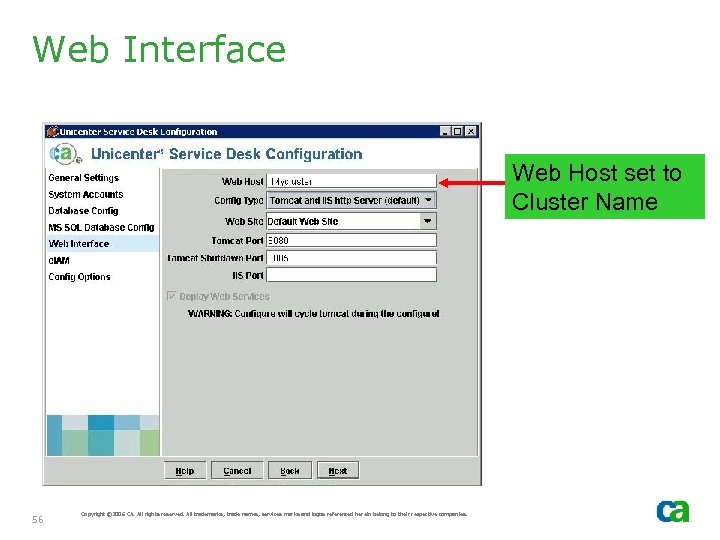
Web Interface Web Host set to Cluster Name 56 Copyright © 2006 CA. All rights reserved. All trademarks, trade names, services marks and logos referenced herein belong to their respective companies.
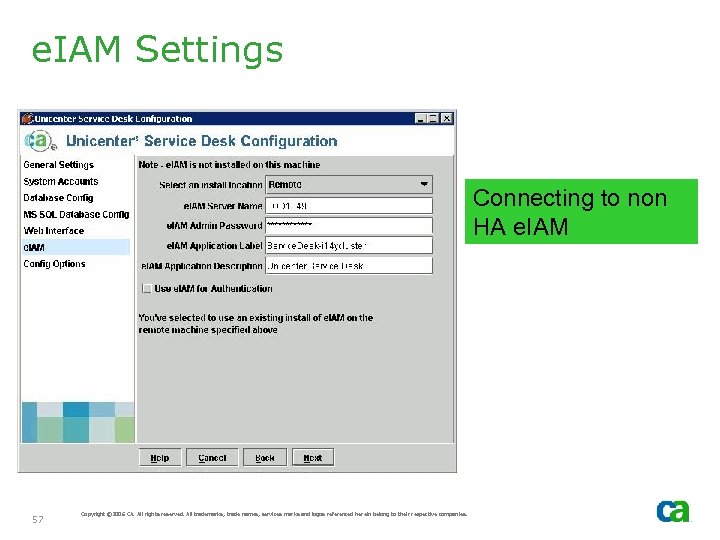
e. IAM Settings Connecting to non HA e. IAM 57 Copyright © 2006 CA. All rights reserved. All trademarks, trade names, services marks and logos referenced herein belong to their respective companies.
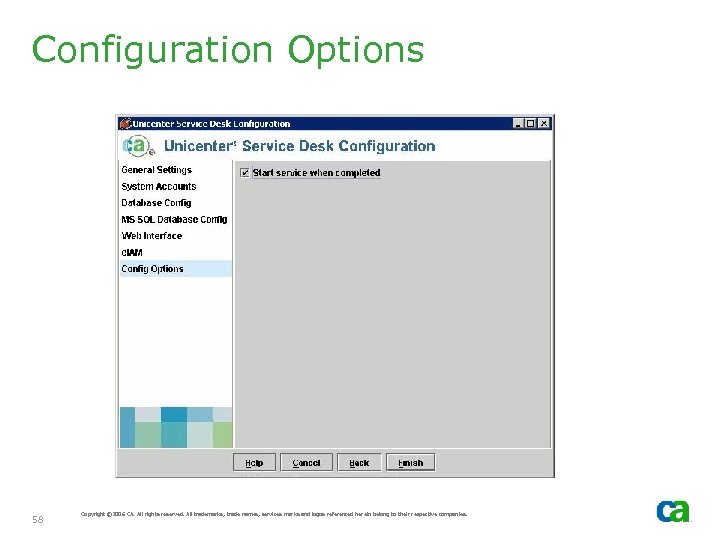
Configuration Options 58 Copyright © 2006 CA. All rights reserved. All trademarks, trade names, services marks and logos referenced herein belong to their respective companies.
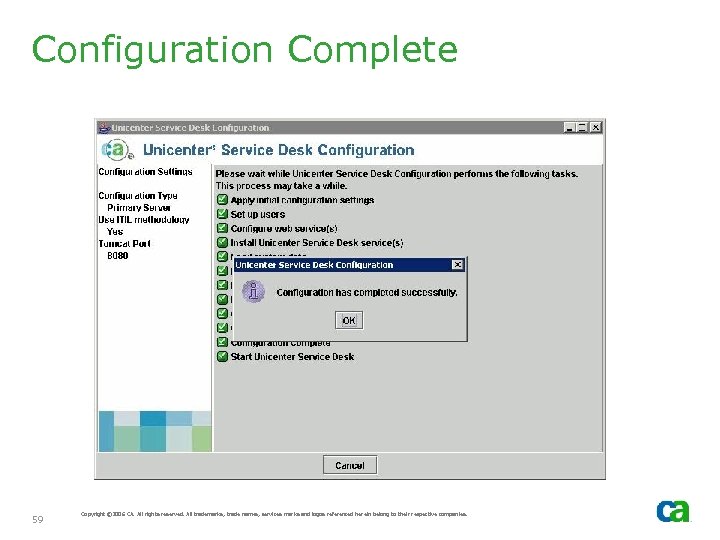
Configuration Complete 59 Copyright © 2006 CA. All rights reserved. All trademarks, trade names, services marks and logos referenced herein belong to their respective companies.
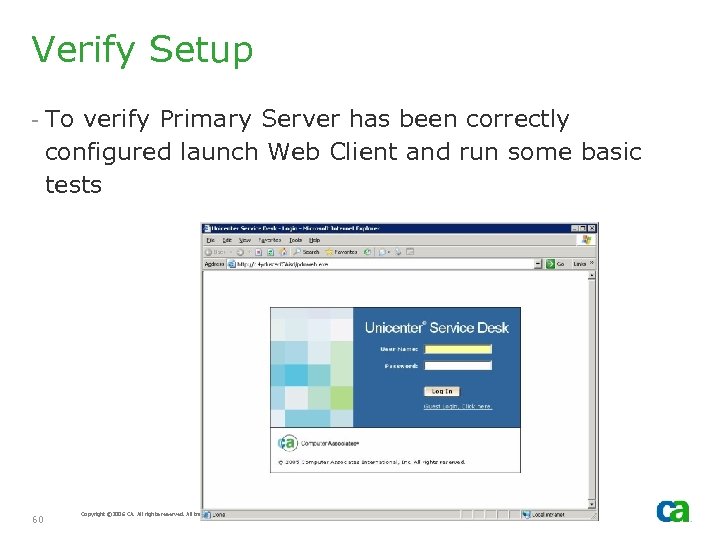
Verify Setup - To verify Primary Server has been correctly configured launch Web Client and run some basic tests 60 Copyright © 2006 CA. All rights reserved. All trademarks, trade names, services marks and logos referenced herein belong to their respective companies.
Manually deploy Web Services - If you want to use Service Desk Web Services then follow the procedures noted on the next 3 slides as appropriate - If installing the CA CMDB Visualizer on this cluster you must manually deploy Web Services before Installing CA CMDB Visualizer 61 Copyright © 2006 CA. All rights reserved. All trademarks, trade names, services marks and logos referenced herein belong to their respective companies.
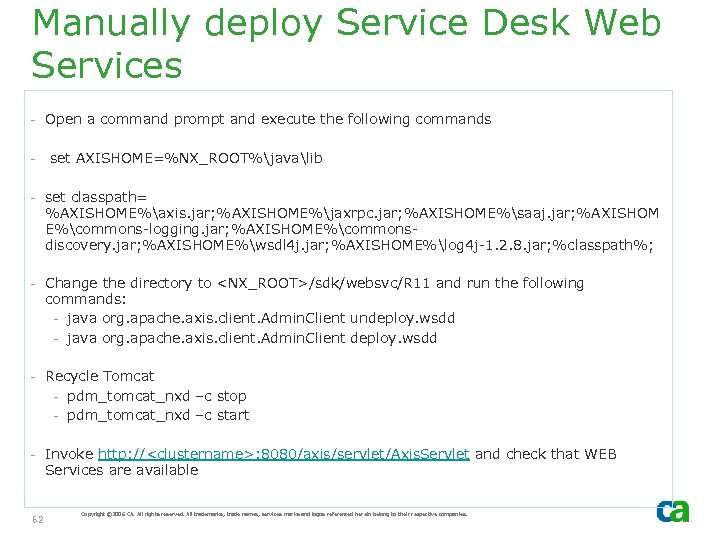
Manually deploy Service Desk Web Services - Open a command prompt and execute the following commands - set AXISHOME=%NX_ROOT%javalib - set classpath= %AXISHOME%axis. jar; %AXISHOME%jaxrpc. jar; %AXISHOME%saaj. jar; %AXISHOM E%commons-logging. jar; %AXISHOME%commonsdiscovery. jar; %AXISHOME%wsdl 4 j. jar; %AXISHOME%log 4 j-1. 2. 8. jar; %classpath%; - Change the directory to <NX_ROOT>/sdk/websvc/R 11 and run the following commands: - java org. apache. axis. client. Admin. Client undeploy. wsdd - java org. apache. axis. client. Admin. Client deploy. wsdd - Recycle Tomcat - pdm_tomcat_nxd –c stop - pdm_tomcat_nxd –c start - Invoke http: //<clustername>: 8080/axis/servlet/Axis. Servlet and check that WEB Services are available 62 Copyright © 2006 CA. All rights reserved. All trademarks, trade names, services marks and logos referenced herein belong to their respective companies.
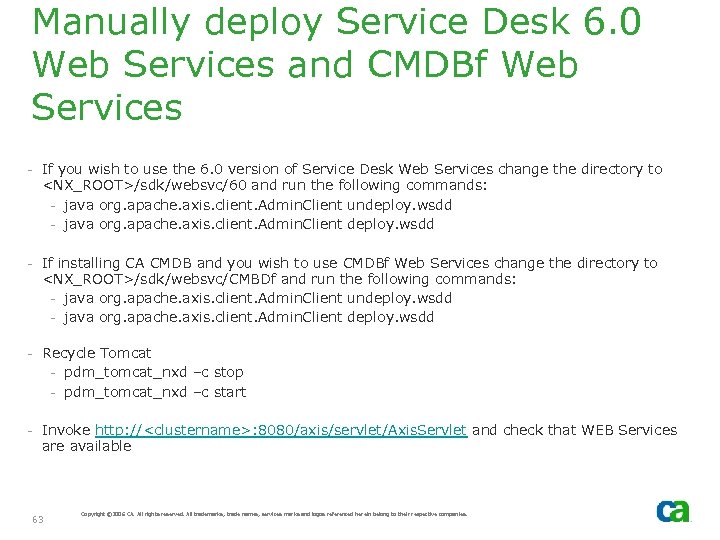
Manually deploy Service Desk 6. 0 Web Services and CMDBf Web Services - If you wish to use the 6. 0 version of Service Desk Web Services change the directory to <NX_ROOT>/sdk/websvc/60 and run the following commands: - java org. apache. axis. client. Admin. Client undeploy. wsdd - java org. apache. axis. client. Admin. Client deploy. wsdd - If installing CA CMDB and you wish to use CMDBf Web Services change the directory to <NX_ROOT>/sdk/websvc/CMBDf and run the following commands: - java org. apache. axis. client. Admin. Client undeploy. wsdd - java org. apache. axis. client. Admin. Client deploy. wsdd - Recycle Tomcat - pdm_tomcat_nxd –c stop - pdm_tomcat_nxd –c start - Invoke http: //<clustername>: 8080/axis/servlet/Axis. Servlet and check that WEB Services are available 63 Copyright © 2006 CA. All rights reserved. All trademarks, trade names, services marks and logos referenced herein belong to their respective companies.
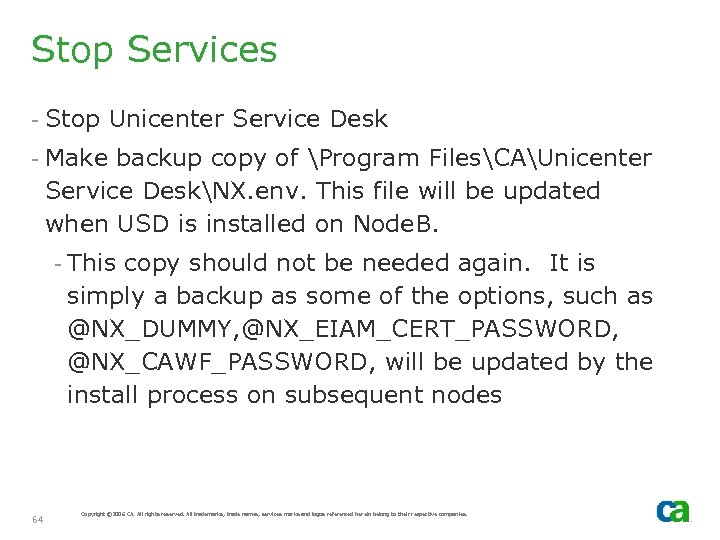
Stop Services - Stop Unicenter Service Desk - Make backup copy of Program FilesCAUnicenter Service DeskNX. env. This file will be updated when USD is installed on Node. B. - This copy should not be needed again. It is simply a backup as some of the options, such as @NX_DUMMY, @NX_EIAM_CERT_PASSWORD, @NX_CAWF_PASSWORD, will be updated by the install process on subsequent nodes 64 Copyright © 2006 CA. All rights reserved. All trademarks, trade names, services marks and logos referenced herein belong to their respective companies.
Move Group - Move Group so that USD can be installed on the other cluster nodes 65 Copyright © 2006 CA. All rights reserved. All trademarks, trade names, services marks and logos referenced herein belong to their respective companies.
Walk-Through Installation of HA Primary Server Node B
SQL ALIAS ØBefore starting the installation on node. B, create a SQL alias as “Name: <node. A>, Server: <virtual SQL server>” and run the USD/CMDB remote components to get the MDB in ØNow delete the previously created alias and create a new alias as “Name: <clustername>, Server: <clusternamevirtual SQL server>”
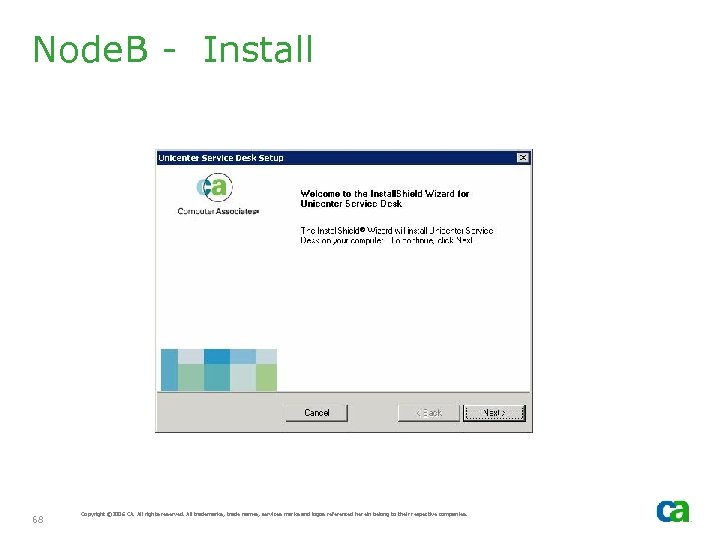
Node. B - Install 68 Copyright © 2006 CA. All rights reserved. All trademarks, trade names, services marks and logos referenced herein belong to their respective companies.
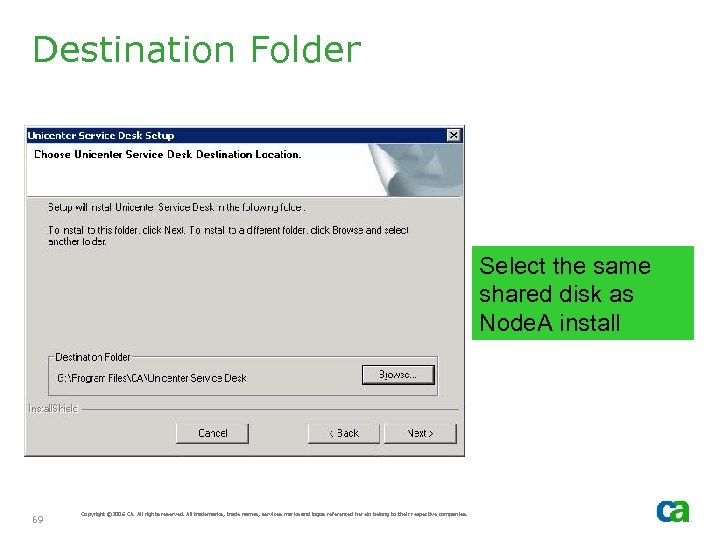
Destination Folder Select the same shared disk as Node. A install 69 Copyright © 2006 CA. All rights reserved. All trademarks, trade names, services marks and logos referenced herein belong to their respective companies.
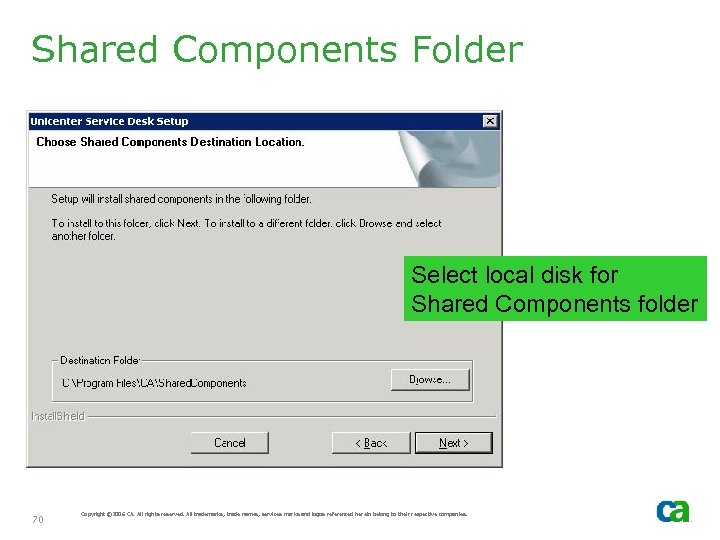
Shared Components Folder Select local disk for Shared Components folder 70 Copyright © 2006 CA. All rights reserved. All trademarks, trade names, services marks and logos referenced herein belong to their respective companies.
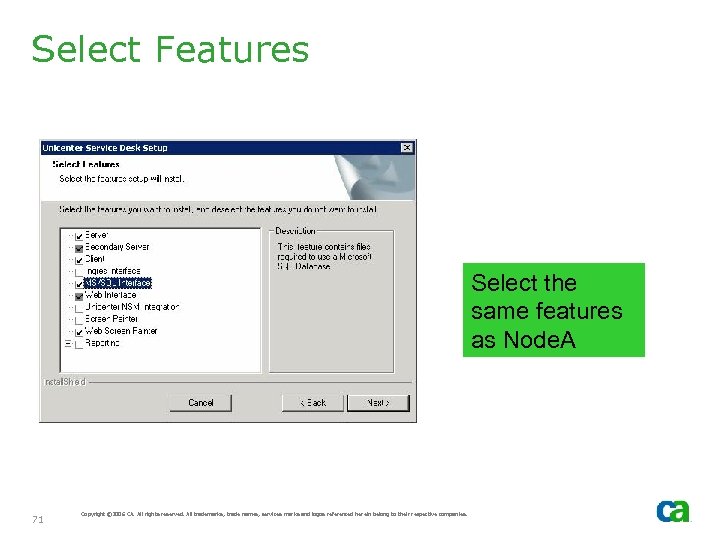
Select Features Select the same features as Node. A 71 Copyright © 2006 CA. All rights reserved. All trademarks, trade names, services marks and logos referenced herein belong to their respective companies.
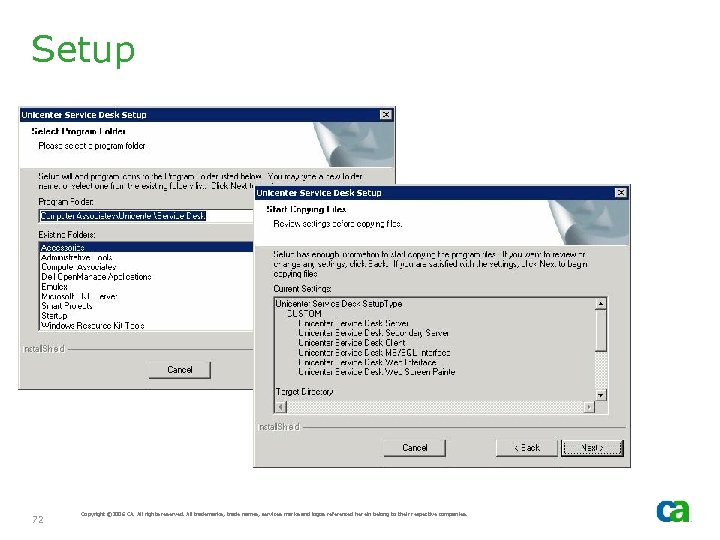
Setup 72 Copyright © 2006 CA. All rights reserved. All trademarks, trade names, services marks and logos referenced herein belong to their respective companies.
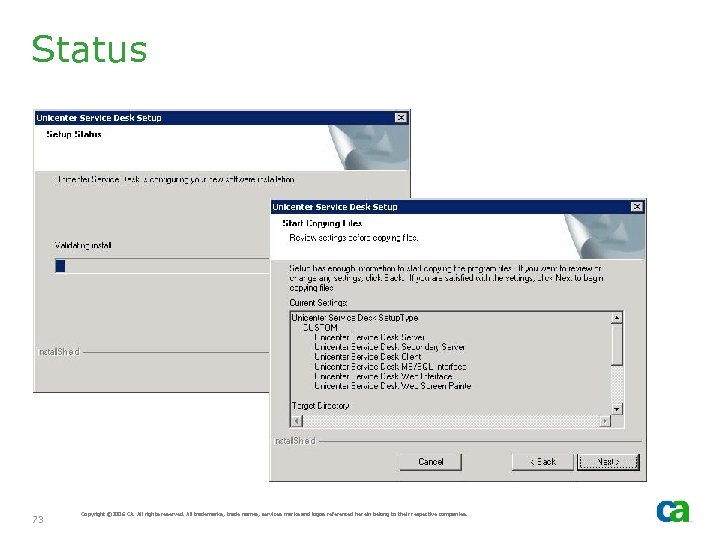
Status 73 Copyright © 2006 CA. All rights reserved. All trademarks, trade names, services marks and logos referenced herein belong to their respective companies.
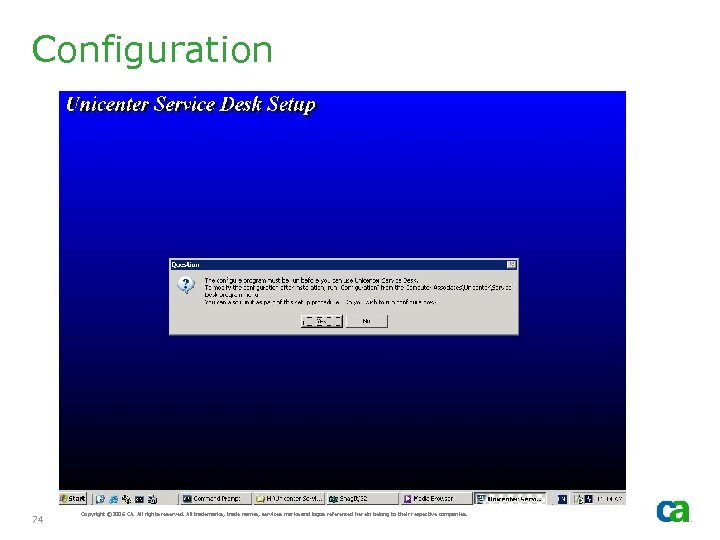
Configuration 74 Copyright © 2006 CA. All rights reserved. All trademarks, trade names, services marks and logos referenced herein belong to their respective companies.
Configuration - USD folder is shared by Node. A and Node. B - Thus nx. env will be shared by Node. A and Node. B - Node. B configuration will display same options as Node. A 75 Copyright © 2006 CA. All rights reserved. All trademarks, trade names, services marks and logos referenced herein belong to their respective companies.
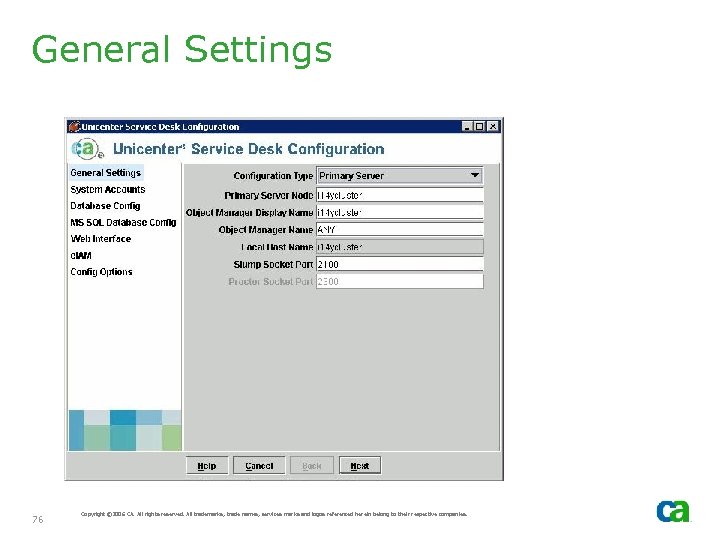
General Settings 76 Copyright © 2006 CA. All rights reserved. All trademarks, trade names, services marks and logos referenced herein belong to their respective companies.
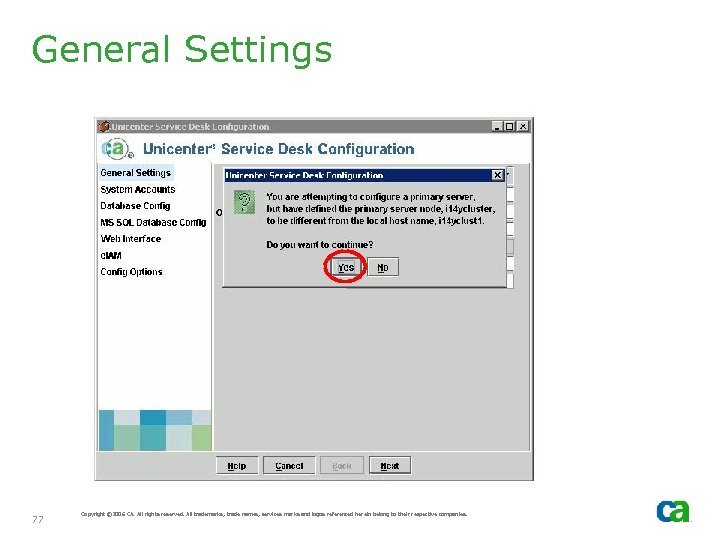
General Settings 77 Copyright © 2006 CA. All rights reserved. All trademarks, trade names, services marks and logos referenced herein belong to their respective companies.
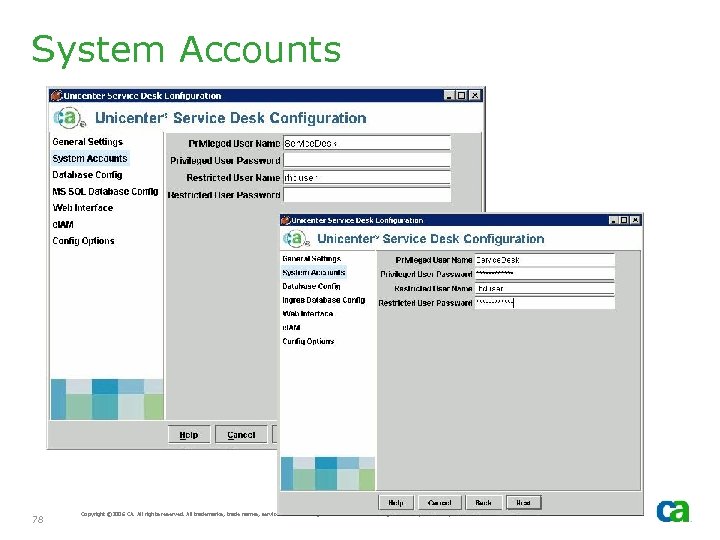
System Accounts 78 Copyright © 2006 CA. All rights reserved. All trademarks, trade names, services marks and logos referenced herein belong to their respective companies.
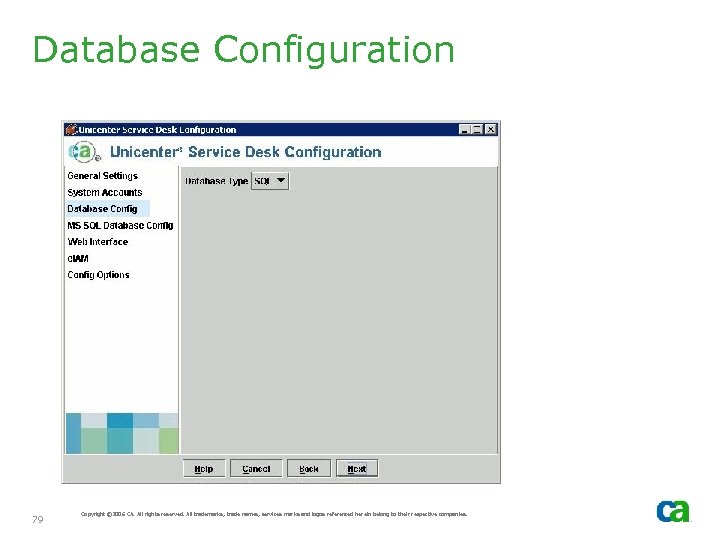
Database Configuration 79 Copyright © 2006 CA. All rights reserved. All trademarks, trade names, services marks and logos referenced herein belong to their respective companies.
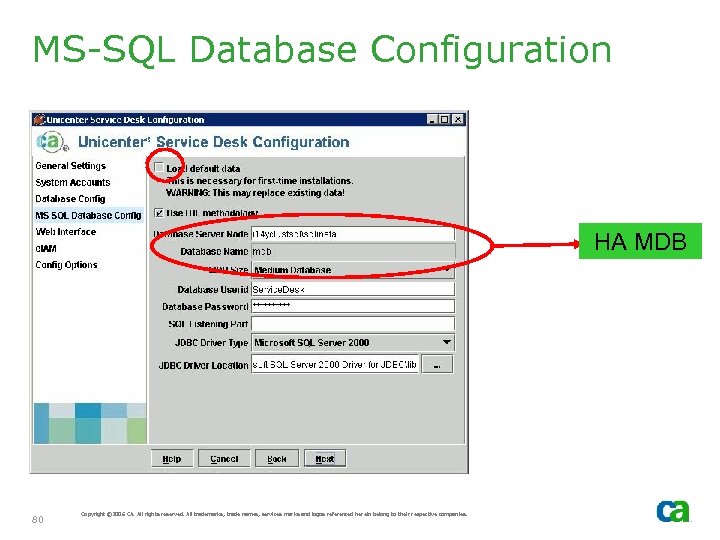
MS-SQL Database Configuration HA MDB 80 Copyright © 2006 CA. All rights reserved. All trademarks, trade names, services marks and logos referenced herein belong to their respective companies.
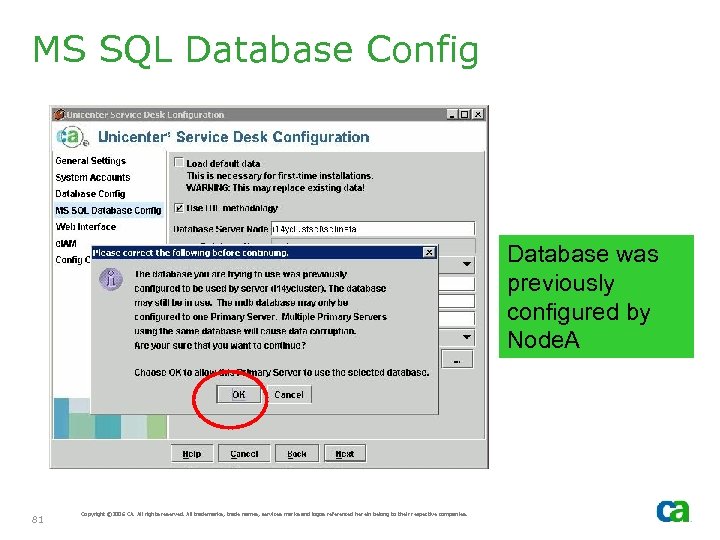
MS SQL Database Config Database was previously configured by Node. A 81 Copyright © 2006 CA. All rights reserved. All trademarks, trade names, services marks and logos referenced herein belong to their respective companies.
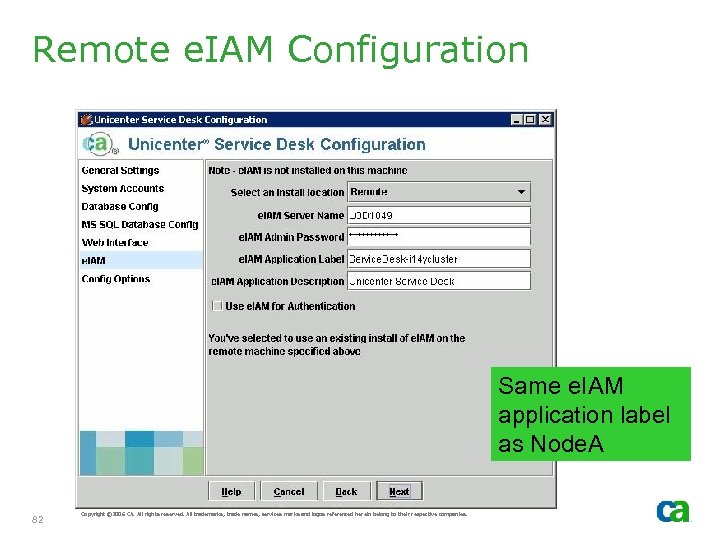
Remote e. IAM Configuration Same e. IAM application label as Node. A 82 Copyright © 2006 CA. All rights reserved. All trademarks, trade names, services marks and logos referenced herein belong to their respective companies.
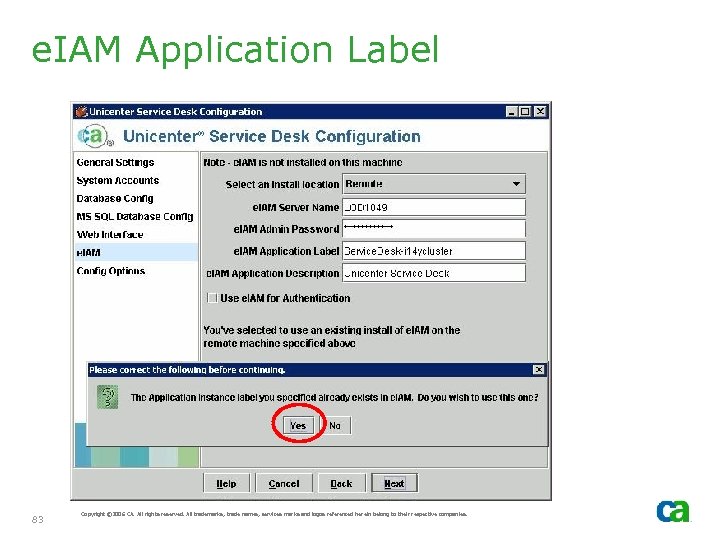
e. IAM Application Label 83 Copyright © 2006 CA. All rights reserved. All trademarks, trade names, services marks and logos referenced herein belong to their respective companies.
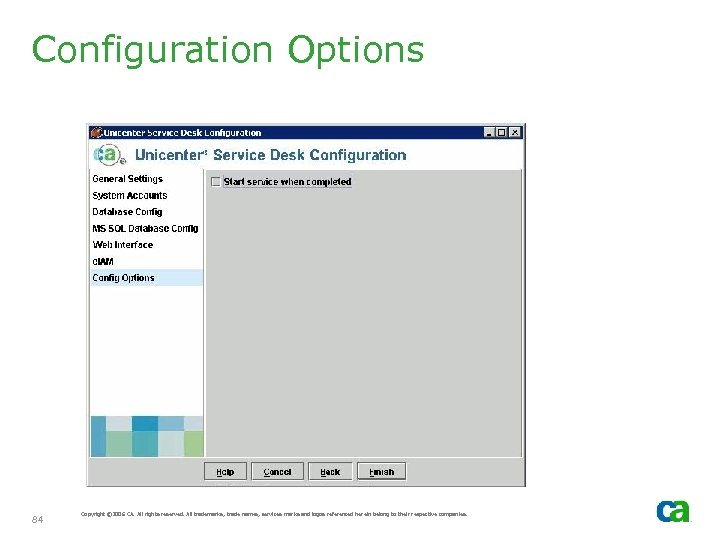
Configuration Options 84 Copyright © 2006 CA. All rights reserved. All trademarks, trade names, services marks and logos referenced herein belong to their respective companies.
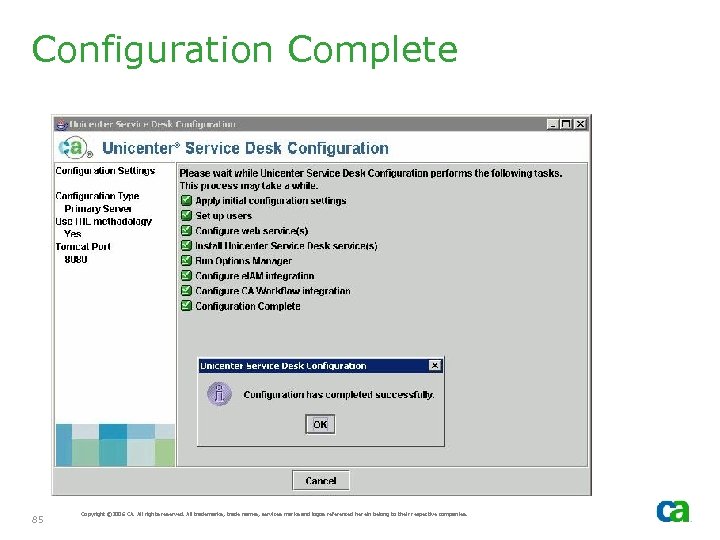
Configuration Complete 85 Copyright © 2006 CA. All rights reserved. All trademarks, trade names, services marks and logos referenced herein belong to their respective companies.
Manually deploy Web Services - If you want to use Service Desk Web Services then follow the procedures noted on the next 3 slides as appropriate - If installing the CA CMDB Visualizer on this cluster you must manually deploy Web Services before Installing CA CMDB Visualizer 86 Copyright © 2006 CA. All rights reserved. All trademarks, trade names, services marks and logos referenced herein belong to their respective companies.
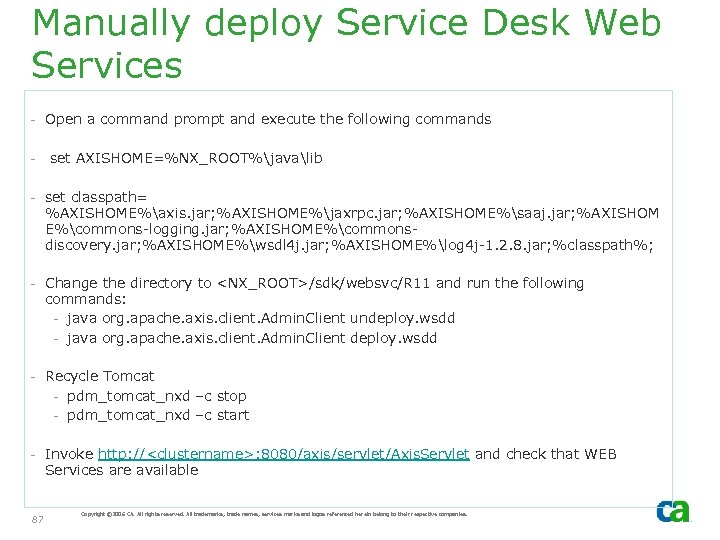
Manually deploy Service Desk Web Services - Open a command prompt and execute the following commands - set AXISHOME=%NX_ROOT%javalib - set classpath= %AXISHOME%axis. jar; %AXISHOME%jaxrpc. jar; %AXISHOME%saaj. jar; %AXISHOM E%commons-logging. jar; %AXISHOME%commonsdiscovery. jar; %AXISHOME%wsdl 4 j. jar; %AXISHOME%log 4 j-1. 2. 8. jar; %classpath%; - Change the directory to <NX_ROOT>/sdk/websvc/R 11 and run the following commands: - java org. apache. axis. client. Admin. Client undeploy. wsdd - java org. apache. axis. client. Admin. Client deploy. wsdd - Recycle Tomcat - pdm_tomcat_nxd –c stop - pdm_tomcat_nxd –c start - Invoke http: //<clustername>: 8080/axis/servlet/Axis. Servlet and check that WEB Services are available 87 Copyright © 2006 CA. All rights reserved. All trademarks, trade names, services marks and logos referenced herein belong to their respective companies.
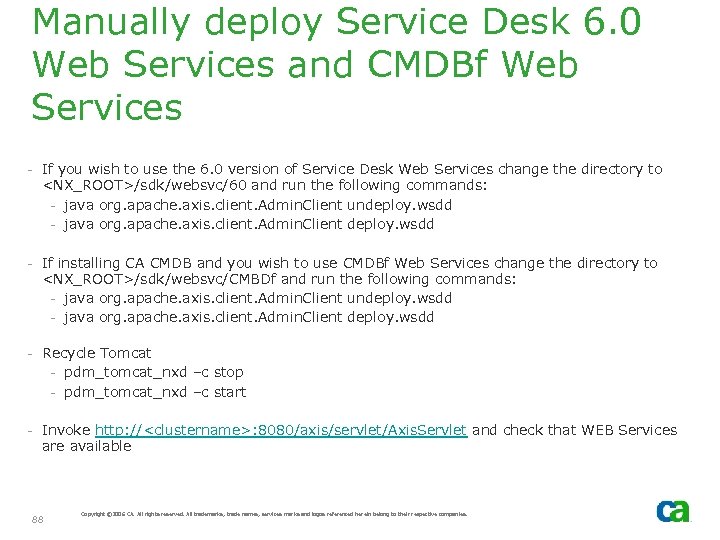
Manually deploy Service Desk 6. 0 Web Services and CMDBf Web Services - If you wish to use the 6. 0 version of Service Desk Web Services change the directory to <NX_ROOT>/sdk/websvc/60 and run the following commands: - java org. apache. axis. client. Admin. Client undeploy. wsdd - java org. apache. axis. client. Admin. Client deploy. wsdd - If installing CA CMDB and you wish to use CMDBf Web Services change the directory to <NX_ROOT>/sdk/websvc/CMBDf and run the following commands: - java org. apache. axis. client. Admin. Client undeploy. wsdd - java org. apache. axis. client. Admin. Client deploy. wsdd - Recycle Tomcat - pdm_tomcat_nxd –c stop - pdm_tomcat_nxd –c start - Invoke http: //<clustername>: 8080/axis/servlet/Axis. Servlet and check that WEB Services are available 88 Copyright © 2006 CA. All rights reserved. All trademarks, trade names, services marks and logos referenced herein belong to their respective companies.
Walk-Through Installation of Visualizer Note: the following steps are only necessary if installing CMDB. The Visualizer is not available with Service Desk
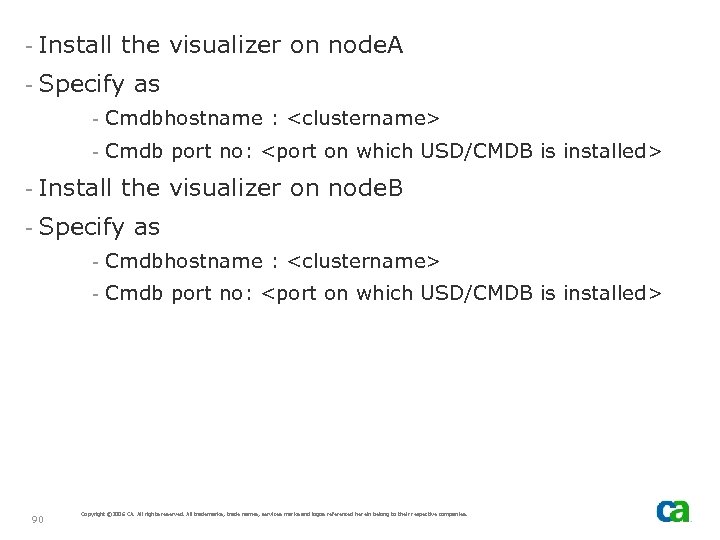
- Install the visualizer on node. A - Specify as - Cmdbhostname : <clustername> - Cmdb port no: <port on which USD/CMDB is installed> - Install the visualizer on node. B - Specify as - Cmdbhostname : <clustername> - Cmdb port no: <port on which USD/CMDB is installed> 90 Copyright © 2006 CA. All rights reserved. All trademarks, trade names, services marks and logos referenced herein belong to their respective companies.
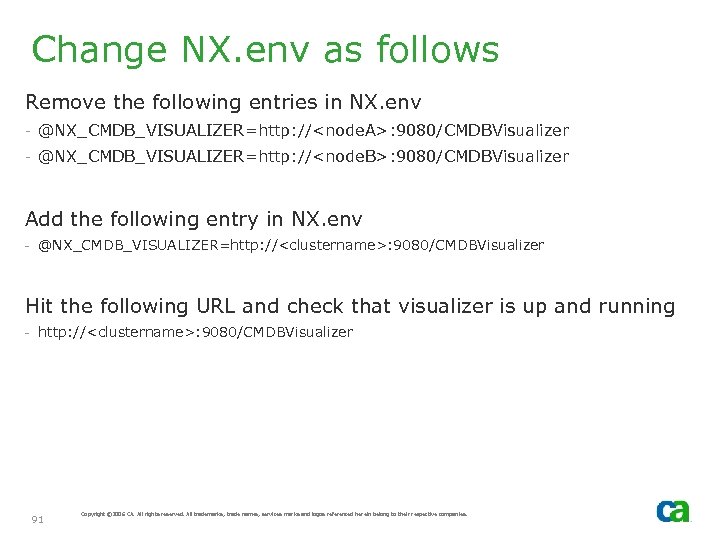
Change NX. env as follows Remove the following entries in NX. env - @NX_CMDB_VISUALIZER=http: //<node. A>: 9080/CMDBVisualizer - @NX_CMDB_VISUALIZER=http: //<node. B>: 9080/CMDBVisualizer Add the following entry in NX. env - @NX_CMDB_VISUALIZER=http: //<clustername>: 9080/CMDBVisualizer Hit the following URL and check that visualizer is up and running - http: //<clustername>: 9080/CMDBVisualizer 91 Copyright © 2006 CA. All rights reserved. All trademarks, trade names, services marks and logos referenced herein belong to their respective companies.
Customization
Customization - USD Install on Node. A and Node. B is now complete - Define Cluster Resource for USD Service (pdm_daemon_manager) 93 Copyright © 2006 CA. All rights reserved. All trademarks, trade names, services marks and logos referenced herein belong to their respective companies.
Task Summary - Node. B is active node - Launch web client to verify setup - Stop USD service - Define Cluster Resource - Online Cluster Resource - Move Group - Launch web client to verify setup 94 Copyright © 2006 CA. All rights reserved. All trademarks, trade names, services marks and logos referenced herein belong to their respective companies.
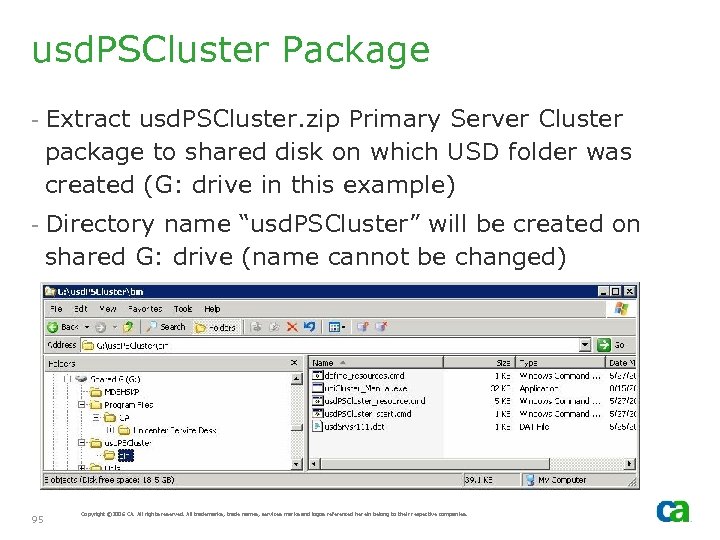
usd. PSCluster Package - Extract usd. PSCluster. zip Primary Server Cluster package to shared disk on which USD folder was created (G: drive in this example) - Directory name “usd. PSCluster” will be created on shared G: drive (name cannot be changed) 95 Copyright © 2006 CA. All rights reserved. All trademarks, trade names, services marks and logos referenced herein belong to their respective companies.
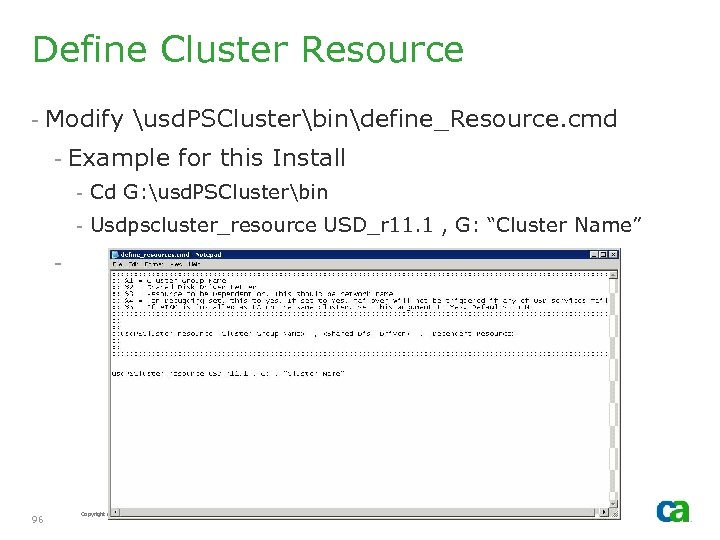
Define Cluster Resource - Modify usd. PSClusterbindefine_Resource. cmd - Example for this Install - Cd G: usd. PSClusterbin - Usdpscluster_resource USD_r 11. 1 , G: “Cluster Name” - 96 Copyright © 2006 CA. All rights reserved. All trademarks, trade names, services marks and logos referenced herein belong to their respective companies.
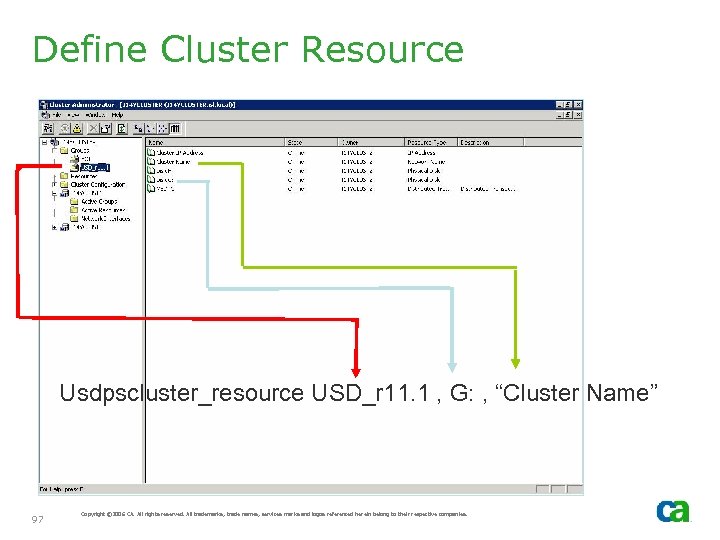
Define Cluster Resource Usdpscluster_resource USD_r 11. 1 , G: , “Cluster Name” 97 Copyright © 2006 CA. All rights reserved. All trademarks, trade names, services marks and logos referenced herein belong to their respective companies.
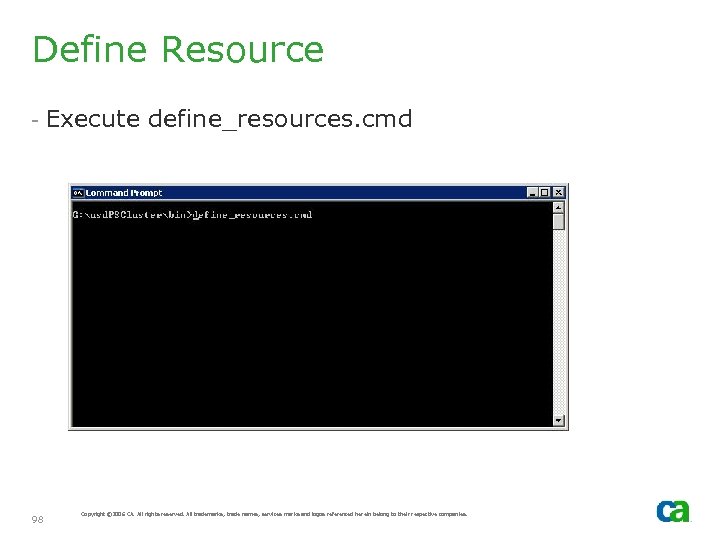
Define Resource - Execute define_resources. cmd 98 Copyright © 2006 CA. All rights reserved. All trademarks, trade names, services marks and logos referenced herein belong to their respective companies.
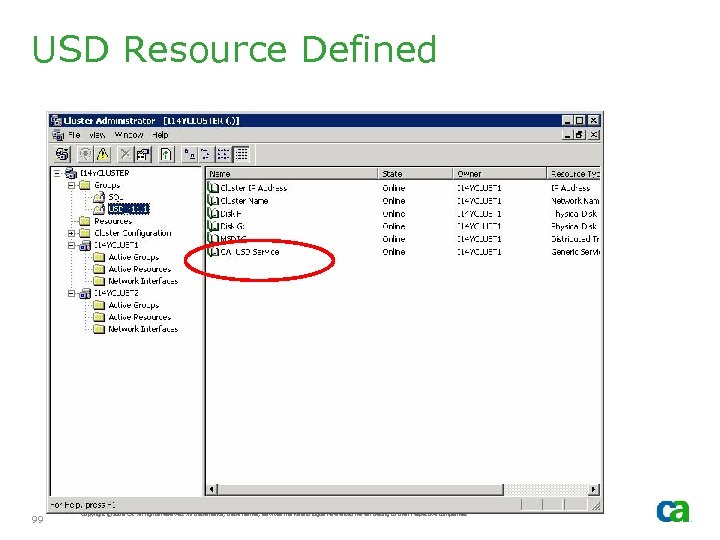
USD Resource Defined 99 Copyright © 2006 CA. All rights reserved. All trademarks, trade names, services marks and logos referenced herein belong to their respective companies.
Simulate Failover - Online USD Resource “CAUSD Service” - Move Group to simulate failover 100 Copyright © 2006 CA. All rights reserved. All trademarks, trade names, services marks and logos referenced herein belong to their respective companies.
Primary Server Failover - If the primary server fails over, the web clients will detect that the Primary Server service restarted and report accordingly - Web client users will be returned to the login screen 101 Copyright © 2006 CA. All rights reserved. All trademarks, trade names, services marks and logos referenced herein belong to their respective companies.
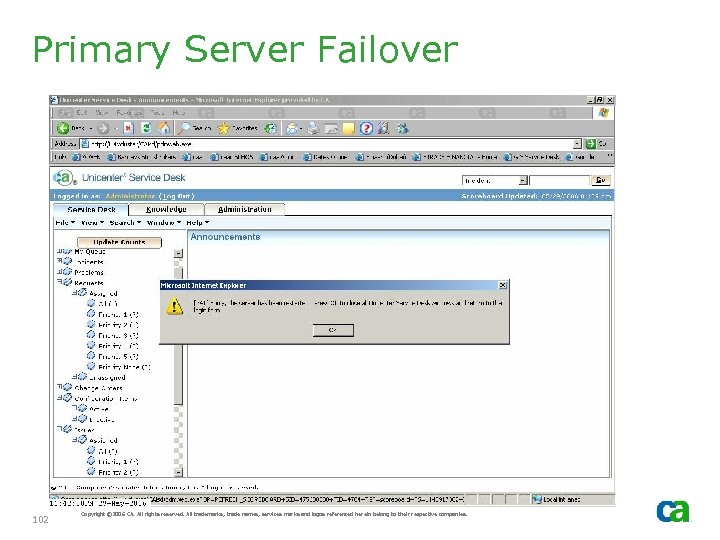
Primary Server Failover 102 Copyright © 2006 CA. All rights reserved. All trademarks, trade names, services marks and logos referenced herein belong to their respective companies.
Configuration - Any further Primary Server Configuration requires the service to be stopped and restarted. - If special care is not taken, the Primary Server will move from one node to another - Thus, prior to Configuration, change the Cluster Resource to “offline” - In most cases, Configuration should not be required on all cluster nodes – only the active node should suffice. However, there may some changes, such as passwords, that require configuration to be run on all cluster nodes 103 Copyright © 2006 CA. All rights reserved. All trademarks, trade names, services marks and logos referenced herein belong to their respective companies.
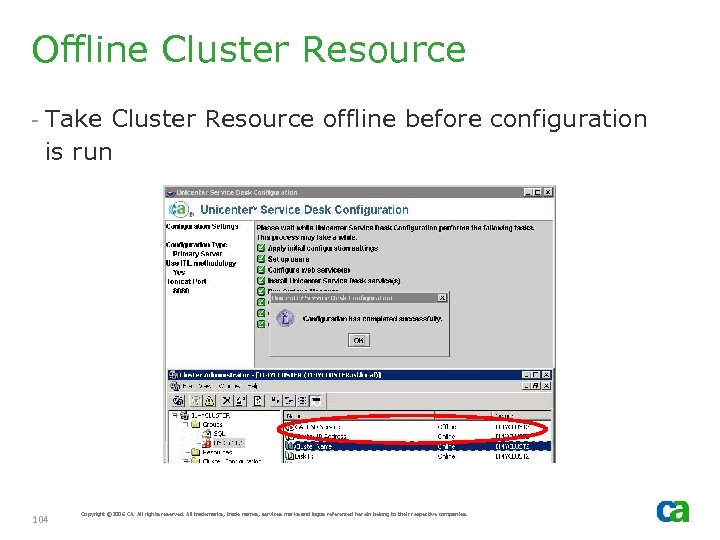
Offline Cluster Resource - Take Cluster Resource offline before configuration is run 104 Copyright © 2006 CA. All rights reserved. All trademarks, trade names, services marks and logos referenced herein belong to their respective companies.
Failover Test for Primary Server
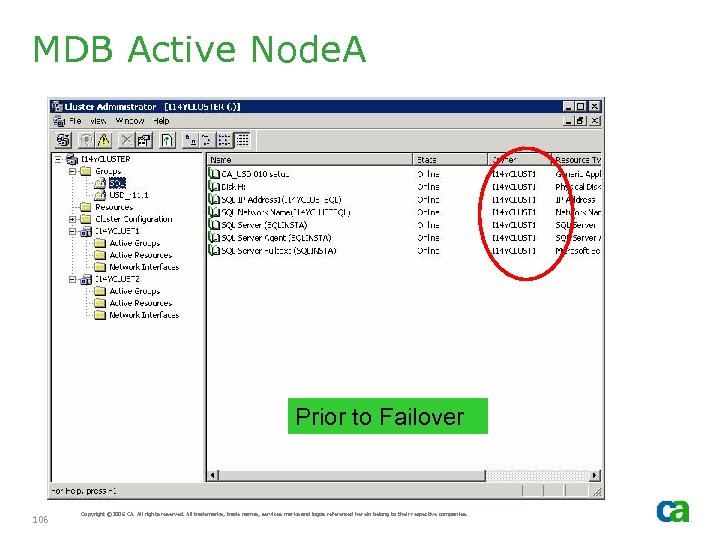
MDB Active Node. A Prior to Failover 106 Copyright © 2006 CA. All rights reserved. All trademarks, trade names, services marks and logos referenced herein belong to their respective companies.
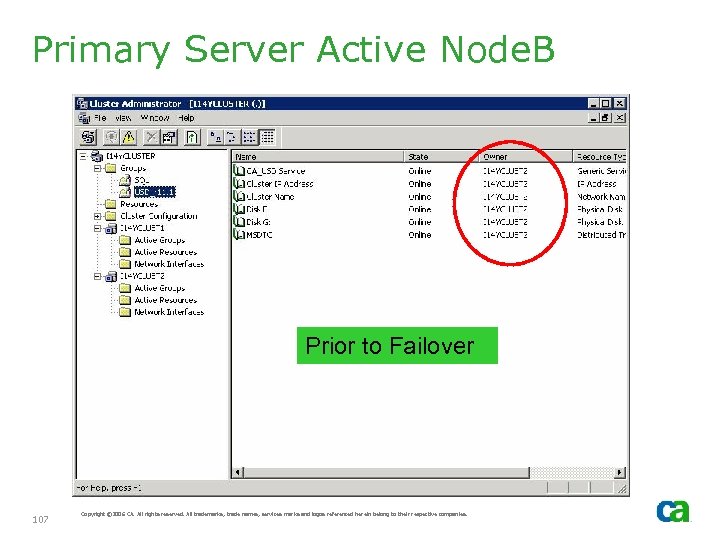
Primary Server Active Node. B Prior to Failover 107 Copyright © 2006 CA. All rights reserved. All trademarks, trade names, services marks and logos referenced herein belong to their respective companies.
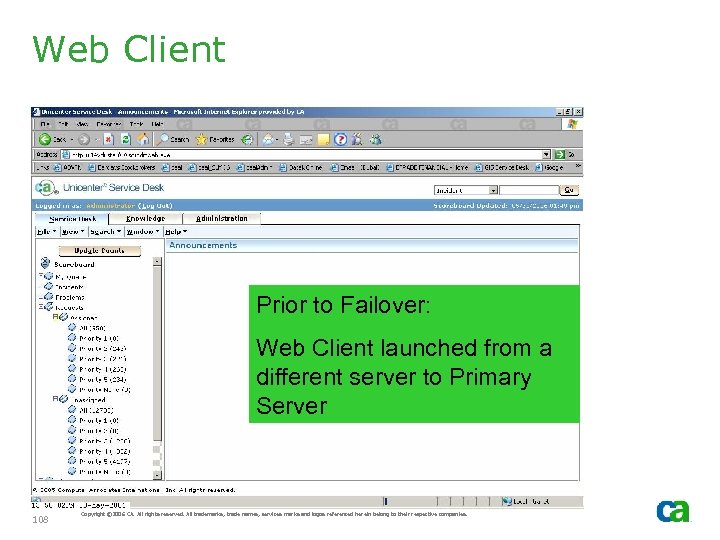
Web Client Prior to Failover: Web Client launched from a different server to Primary Server 108 Copyright © 2006 CA. All rights reserved. All trademarks, trade names, services marks and logos referenced herein belong to their respective companies.
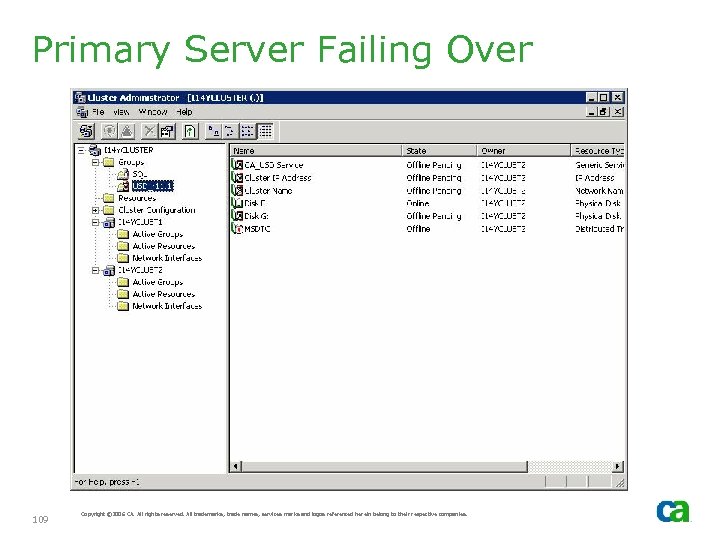
Primary Server Failing Over 109 Copyright © 2006 CA. All rights reserved. All trademarks, trade names, services marks and logos referenced herein belong to their respective companies.
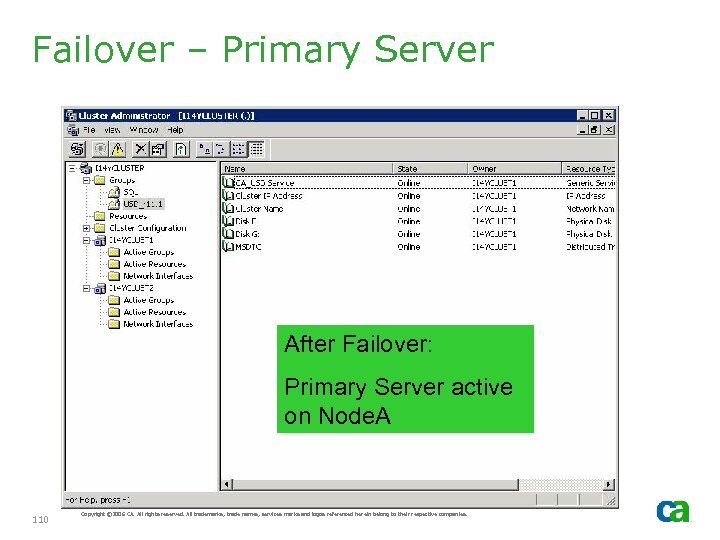
Failover – Primary Server After Failover: Primary Server active on Node. A 110 Copyright © 2006 CA. All rights reserved. All trademarks, trade names, services marks and logos referenced herein belong to their respective companies.
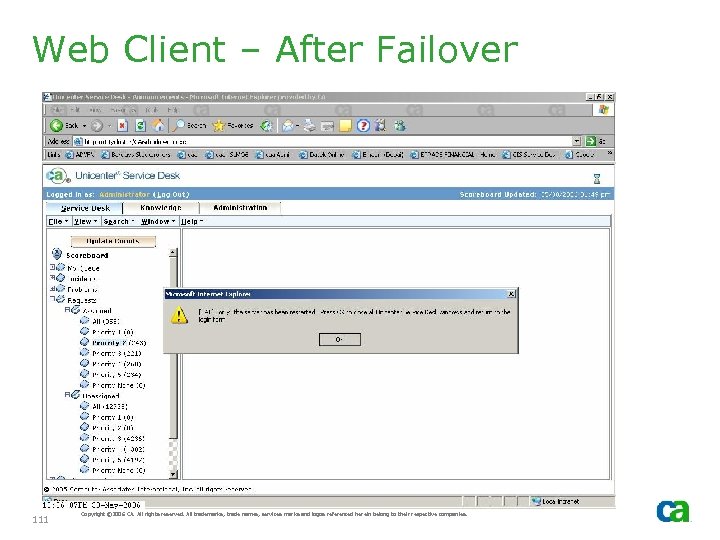
Web Client – After Failover 111 Copyright © 2006 CA. All rights reserved. All trademarks, trade names, services marks and logos referenced herein belong to their respective companies.
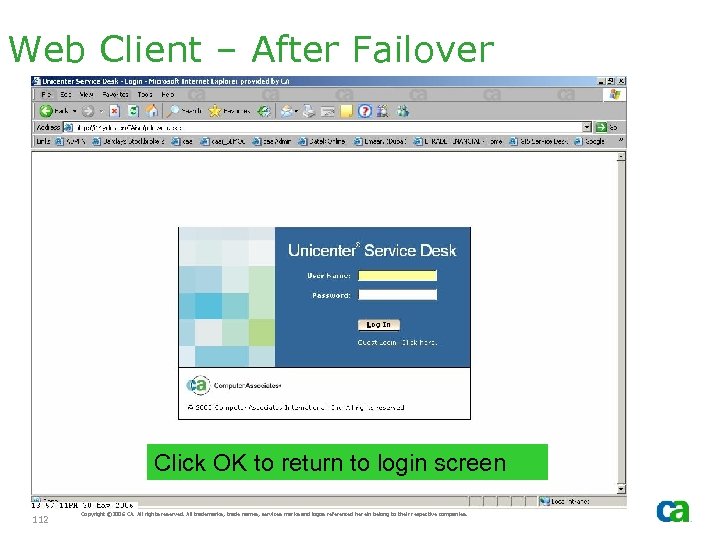
Web Client – After Failover Click OK to return to login screen 112 Copyright © 2006 CA. All rights reserved. All trademarks, trade names, services marks and logos referenced herein belong to their respective companies.
Failover Test for MDB
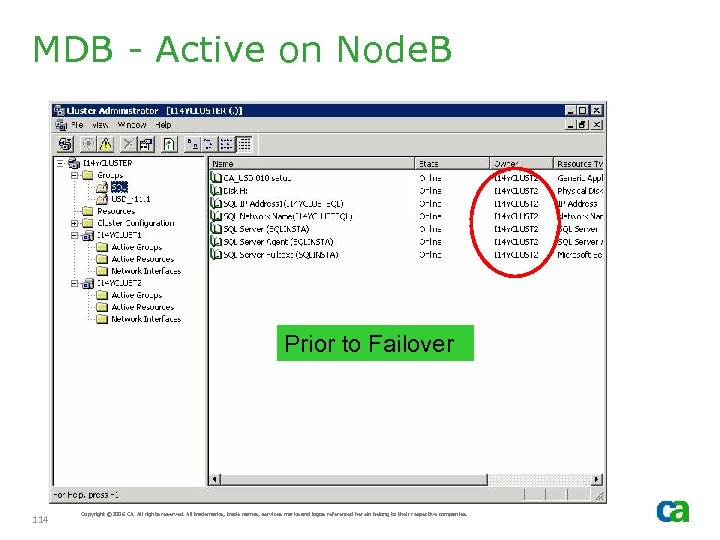
MDB - Active on Node. B Prior to Failover 114 Copyright © 2006 CA. All rights reserved. All trademarks, trade names, services marks and logos referenced herein belong to their respective companies.
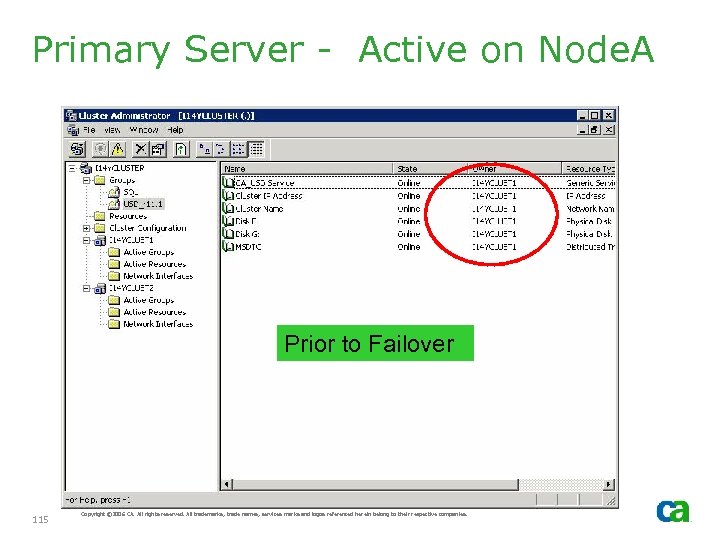
Primary Server - Active on Node. A Prior to Failover 115 Copyright © 2006 CA. All rights reserved. All trademarks, trade names, services marks and logos referenced herein belong to their respective companies.
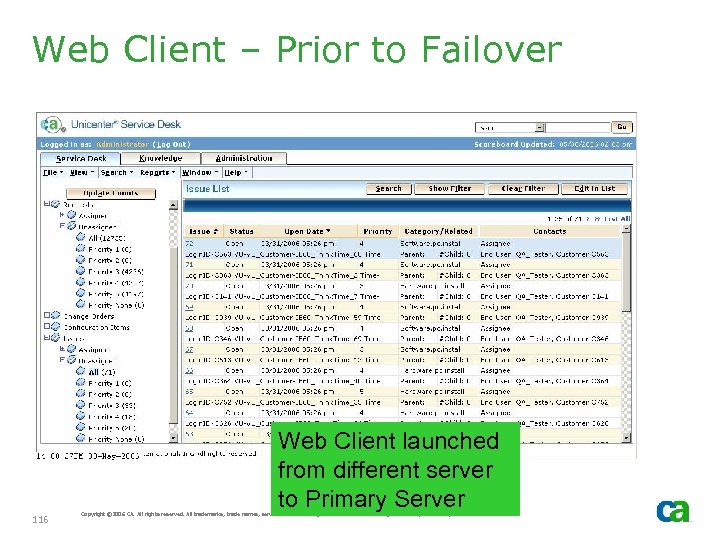
Web Client – Prior to Failover Web Client launched from different server to Primary Server 116 Copyright © 2006 CA. All rights reserved. All trademarks, trade names, services marks and logos referenced herein belong to their respective companies.
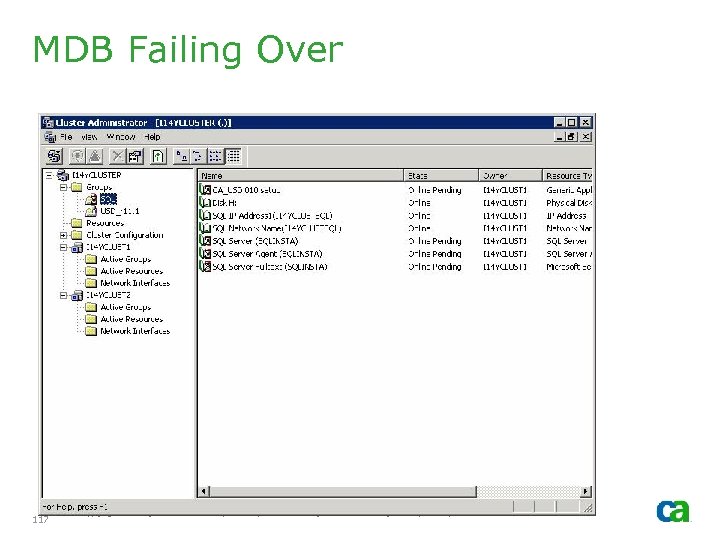
MDB Failing Over 117 Copyright © 2006 CA. All rights reserved. All trademarks, trade names, services marks and logos referenced herein belong to their respective companies.
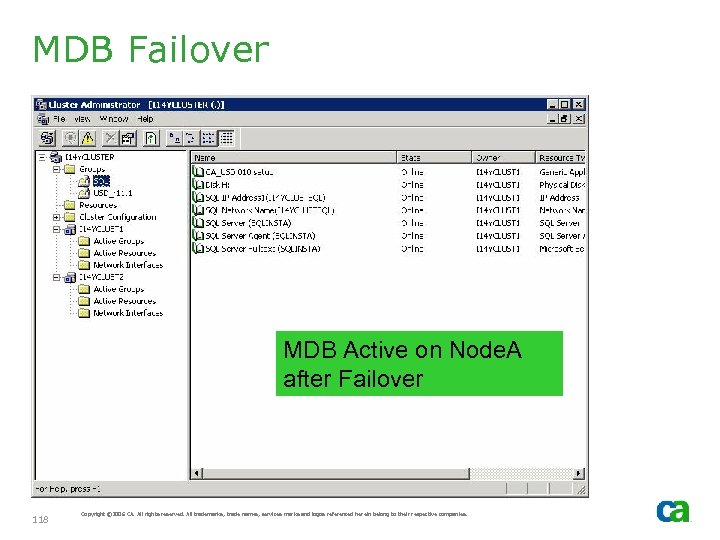
MDB Failover MDB Active on Node. A after Failover 118 Copyright © 2006 CA. All rights reserved. All trademarks, trade names, services marks and logos referenced herein belong to their respective companies.
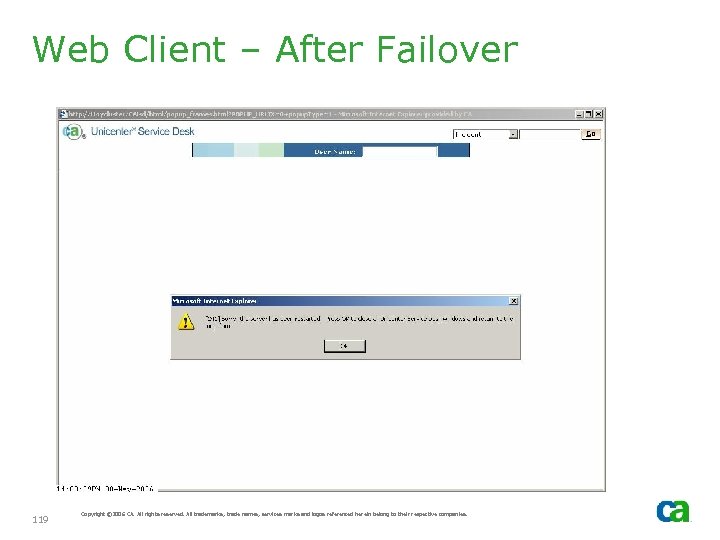
Web Client – After Failover 119 Copyright © 2006 CA. All rights reserved. All trademarks, trade names, services marks and logos referenced herein belong to their respective companies.
Secondary Server
Secondary Server - No additional considerations for the Secondary Server if using HA Primary Server - During Secondary Server configuration, identify cluster name (i. e. , network name for your USD cluster group) as the Primary Server name 121 Copyright © 2006 CA. All rights reserved. All trademarks, trade names, services marks and logos referenced herein belong to their respective companies.
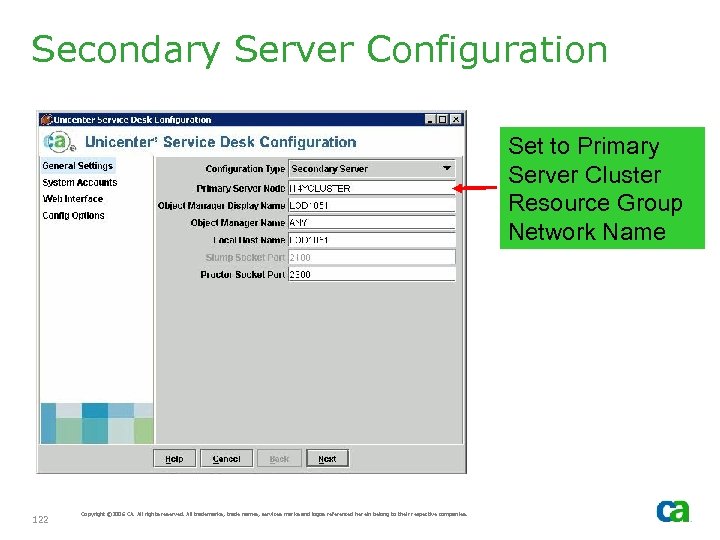
Secondary Server Configuration Set to Primary Server Cluster Resource Group Network Name 122 Copyright © 2006 CA. All rights reserved. All trademarks, trade names, services marks and logos referenced herein belong to their respective companies.
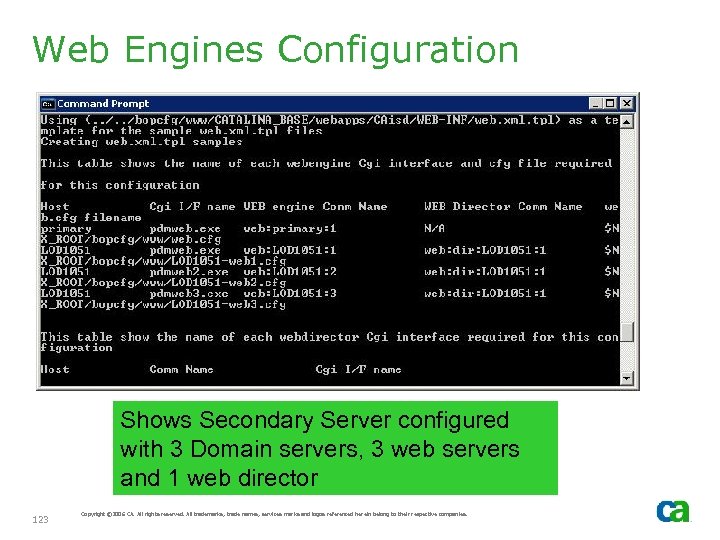
Web Engines Configuration Shows Secondary Server configured with 3 Domain servers, 3 web servers and 1 web director 123 Copyright © 2006 CA. All rights reserved. All trademarks, trade names, services marks and logos referenced herein belong to their respective companies.
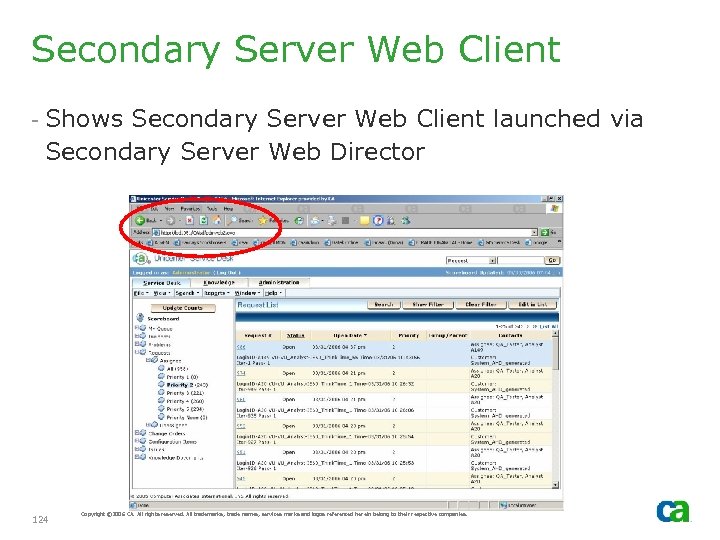
Secondary Server Web Client - Shows Secondary Server Web Client launched via Secondary Server Web Director 124 Copyright © 2006 CA. All rights reserved. All trademarks, trade names, services marks and logos referenced herein belong to their respective companies.
Primary Server Failover - If Primary Server fails over, web clients launched via Secondary Server will detect that the Primary Server has been restarted and will return back to the login screen 125 Copyright © 2006 CA. All rights reserved. All trademarks, trade names, services marks and logos referenced herein belong to their respective companies.
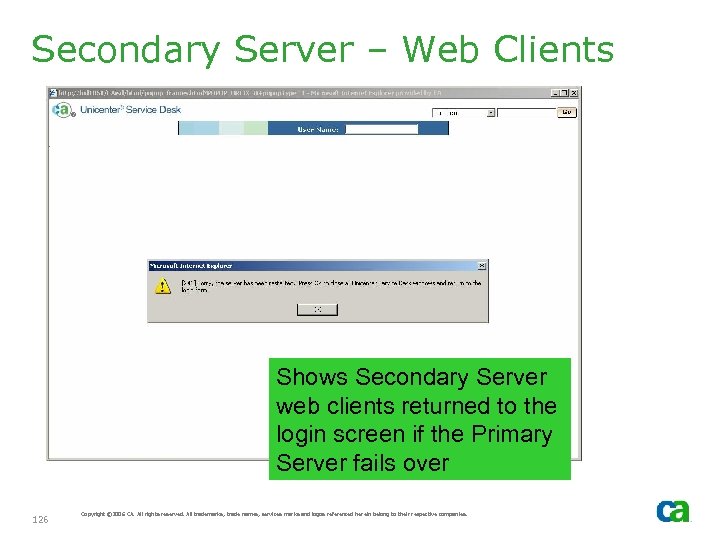
Secondary Server – Web Clients Shows Secondary Server web clients returned to the login screen if the Primary Server fails over 126 Copyright © 2006 CA. All rights reserved. All trademarks, trade names, services marks and logos referenced herein belong to their respective companies.
Скачать презентацию Best Practices for Implementing Unicenter Service Desk r
0e72de90ed2d3d48bd1df5623a841b55.ppt