 Скачать презентацию Best Practices for Implementing Unicenter NSM r 11
f25e6bcac5d06084177c382b22a1fed1.ppt
- Количество слайдов: 54



Best Practices for Implementing Unicenter NSM r 11 in an HA MSCS Environment Part I - Last Revision April 24, 2006
Agenda - This presentation will cover the following topics: - Introduction to High Availability (HA) and Microsoft Cluster Server (MSCS) - Preparing Unicenter NSM release 11 for MSCS - Failover considerations - Installing Unicenter NSM r 11 - Ingres Server / Client considerations 2 © 2005 Computer Associates International, Inc. (CA). All trademarks, trade names, services marks and logos referenced herein belong to their respective companies.
Disclaimer - Although the focus of this presentation is on 2 node clusters, Microsoft Cluster supports more than 2 server nodes. The concepts that apply to 2 node clusters also apply to multiple server node clusters. - The topics and procedures provided in this presentation pertain to Unicenter NSM r 11 which uses an Ingres based MDB - MS-SQL based MDBs are supported in Unicenter NSM r 11. 1 only. Best practices for r 11. 1 are provided in a separate presentation. 3 © 2005 Computer Associates International, Inc. (CA). All trademarks, trade names, services marks and logos referenced herein belong to their respective companies.
References - For additional information, review “Appendix A: Making Components Cluster Aware and Highly Available” in the Unicenter NSM r 11 Administrator Guide 4 © 2005 Computer Associates International, Inc. (CA). All trademarks, trade names, services marks and logos referenced herein belong to their respective companies.
Introduction
Why Highly Available (HA)? - This presentation assumes you are already familiar with Microsoft Cluster and the benefits of HA solution. - The main objective of HA solutions is to aim for zero downtime 6 © 2005 Computer Associates International, Inc. (CA). All trademarks, trade names, services marks and logos referenced herein belong to their respective companies.
What is “HAS”? - High Availability Service - Part of CA Common Services (CCS) and is automatically included when NSM r 11 is installed in MSCS environment - Specifically designed to exploit full functionality of MSCS clustering and other vendor clusters on different platforms - Automates process of detecting the active cluster node and manages components such as Agent Technology aws_dsm and aws_wvgate 7 © 2005 Computer Associates International, Inc. (CA). All trademarks, trade names, services marks and logos referenced herein belong to their respective companies.
How does HAS work? - HAS should be active on all server nodes in the cluster. - Highly available CA Applications register components with HAS - HAS monitors registered cluster resources and notifies them of failed and newly active nodes - When notification is received from HAS, HA CA Application stops the component on the failed node and starts it on the newly active node - Agent Technology exploits this feature by registering aws_dsm component with HAS 8 © 2005 Computer Associates International, Inc. (CA). All trademarks, trade names, services marks and logos referenced herein belong to their respective companies.
HAS Library - Some CA applications call HAS library to check if the application is running in a cluster environment and to gather other cluster details (e. g. , cluster name) - Several CA applications exploit this library support, including CAM, CCI, Install Process, Agent Technology, World View, etc. 9 © 2005 Computer Associates International, Inc. (CA). All trademarks, trade names, services marks and logos referenced herein belong to their respective companies.
Multiple Server Nodes Cluster - Windows Server 2003, Enterprise Edition and Datacenter Edition, support 8 node clusters - HAS also supports more than 2 node clusters 10 © 2005 Computer Associates International, Inc. (CA). All trademarks, trade names, services marks and logos referenced herein belong to their respective companies.
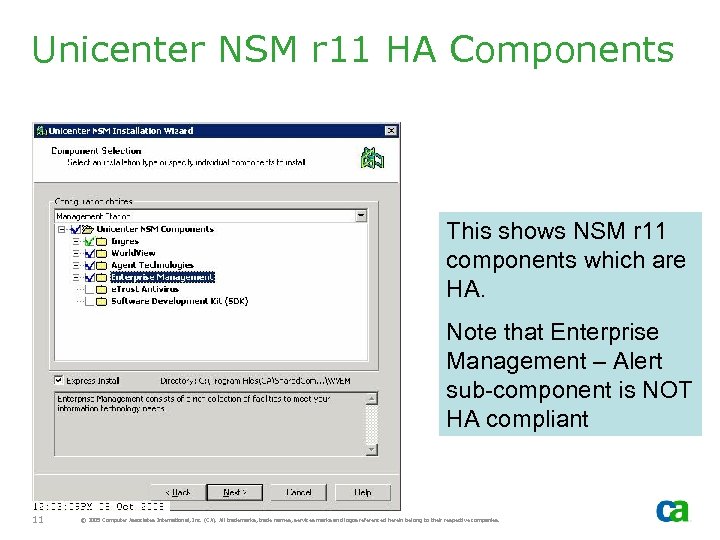
Unicenter NSM r 11 HA Components This shows NSM r 11 components which are HA. Note that Enterprise Management – Alert sub-component is NOT HA compliant 11 © 2005 Computer Associates International, Inc. (CA). All trademarks, trade names, services marks and logos referenced herein belong to their respective companies.
HA Agents - The following agents support cluster installation: - Windows System Agent - Windows Log Agent - The install process will not display other agents for selection - Active Directory Agent - AS 400 Agent - WMI agent 12 © 2005 Computer Associates International, Inc. (CA). All trademarks, trade names, services marks and logos referenced herein belong to their respective companies.
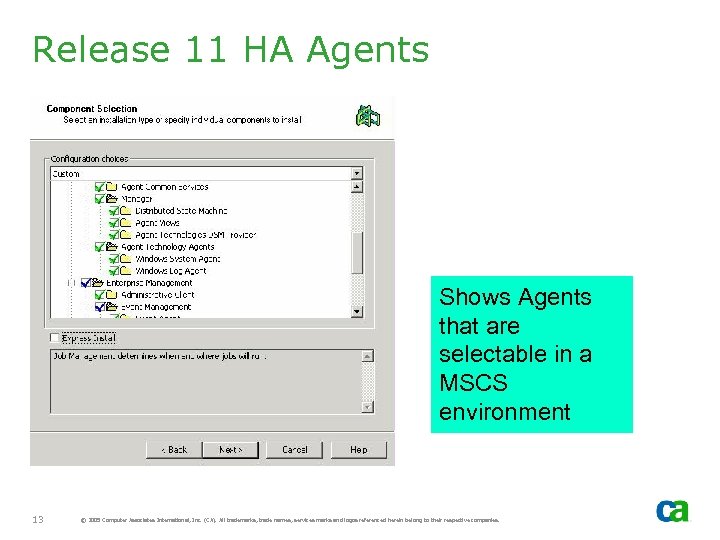
Release 11 HA Agents Shows Agents that are selectable in a MSCS environment 13 © 2005 Computer Associates International, Inc. (CA). All trademarks, trade names, services marks and logos referenced herein belong to their respective companies.
Preparing Unicenter NSM r 11 for MSCS - Note: If you are installing r 11. 1, skip this section
Virtual Storage - Prior to installation, verify you have minimum of 2 GB of virtual free storage for local Ingres MDB (if Ingres Server is not installed, virtual storage free storage size requirements will be much smaller) - This requirement is NOT specific to installing in a HA environment - If required minimum virtual storage is not available, the install process may fail during configuration of WV, AT or EM. 15 © 2005 Computer Associates International, Inc. (CA). All trademarks, trade names, services marks and logos referenced herein belong to their respective companies.
Identify Resource Group - Cluster resource group for NSM r 11 must have the following: - Shared disk where some NSM shared files will be created (preferably NOT the QUORUM disk) - Network Name, IP Address and Physical Disk resource types - If these resource types are NOT included in the resource group, then that resource group cannot be used for NSM r 11 HA! 16 © 2005 Computer Associates International, Inc. (CA). All trademarks, trade names, services marks and logos referenced herein belong to their respective companies.
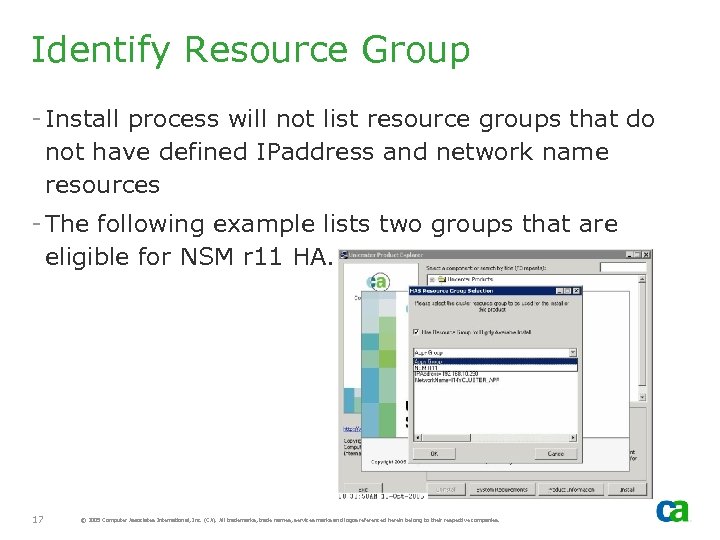
Identify Resource Group - Install process will not list resource groups that do not have defined IPaddress and network name resources - The following example lists two groups that are eligible for NSM r 11 HA. 17 © 2005 Computer Associates International, Inc. (CA). All trademarks, trade names, services marks and logos referenced herein belong to their respective companies.
Shared Disk Requirements - During the install, if NSM is selected as HA and Ingres Server option is selected, then the MDB will be created on the shared disk - This shared disk must have adequate free space for the MDB and for database related files (including Ingres MDB data files, log files, journal files, checkpoint files, etc. ). These files require approx. 4. 0 GB minimum. - This requirement will increase over time as more product-related data is saved. For example: - When the Word. View discovery is run, it creates WV objects and stores these objects in the MDB. - Additional checkpoints will increase the size accordingly. - In addition, other files (Unicenter Console Logs, Agent Technology NSM Store, AIS catalog, etc) are created on the same shared disk (space requirements for these files will vary depending on usage) - End Result: Local MDB will require approximately 100 GB of free space on the shared disk – though this size may vary if there is a large number objects in the MDB and/or large number of checkpoint sequences kept online 18 © 2005 Computer Associates International, Inc. (CA). All trademarks, trade names, services marks and logos referenced herein belong to their respective companies.
Verify Cluster Setup - Identify the cluster resource group for NSM r 11 - MOVE GROUP to verify cluster setup is correctly defined - If any problems with move group, resolve them PRIOR to the install of NSM r 11. CA Support cannot address system setup issues 19 © 2005 Computer Associates International, Inc. (CA). All trademarks, trade names, services marks and logos referenced herein belong to their respective companies.
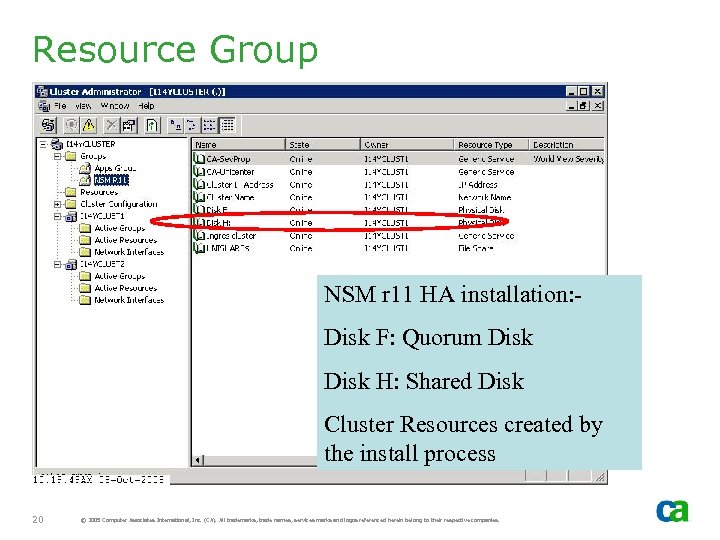
Resource Group NSM r 11 HA installation: Disk F: Quorum Disk H: Shared Disk Cluster Resources created by the install process 20 © 2005 Computer Associates International, Inc. (CA). All trademarks, trade names, services marks and logos referenced herein belong to their respective companies.
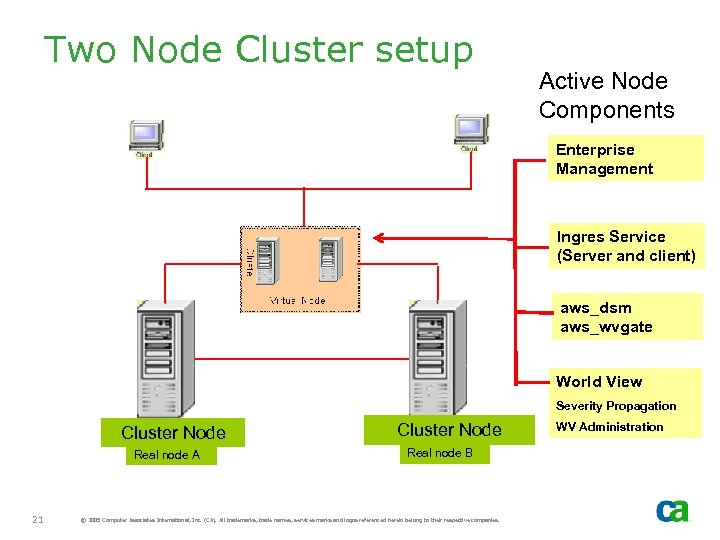
Two Node Cluster setup Active Node Components Enterprise Management Ingres Service (Server and client) aws_dsm aws_wvgate World View Severity Propagation Cluster Node Real node A 21 Cluster Node Real node B © 2005 Computer Associates International, Inc. (CA). All trademarks, trade names, services marks and logos referenced herein belong to their respective companies. WV Administration
Failover Considerations
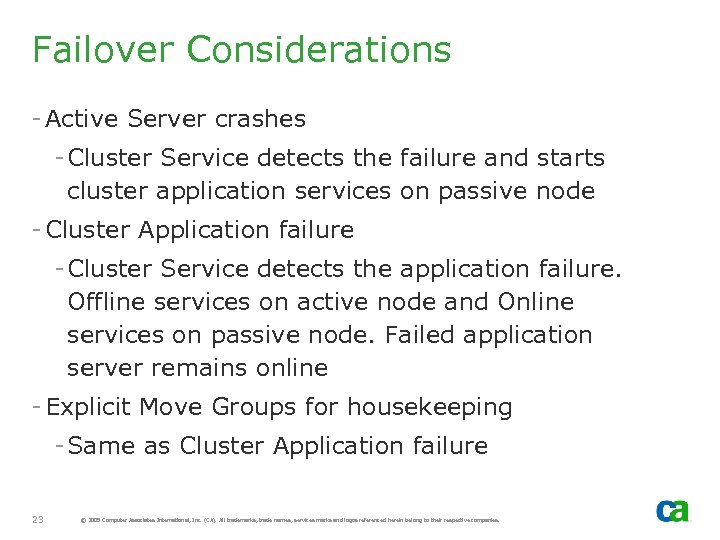
Failover Considerations - Active Server crashes - Cluster Service detects the failure and starts cluster application services on passive node - Cluster Application failure - Cluster Service detects the application failure. Offline services on active node and Online services on passive node. Failed application server remains online - Explicit Move Groups for housekeeping - Same as Cluster Application failure 23 © 2005 Computer Associates International, Inc. (CA). All trademarks, trade names, services marks and logos referenced herein belong to their respective companies.
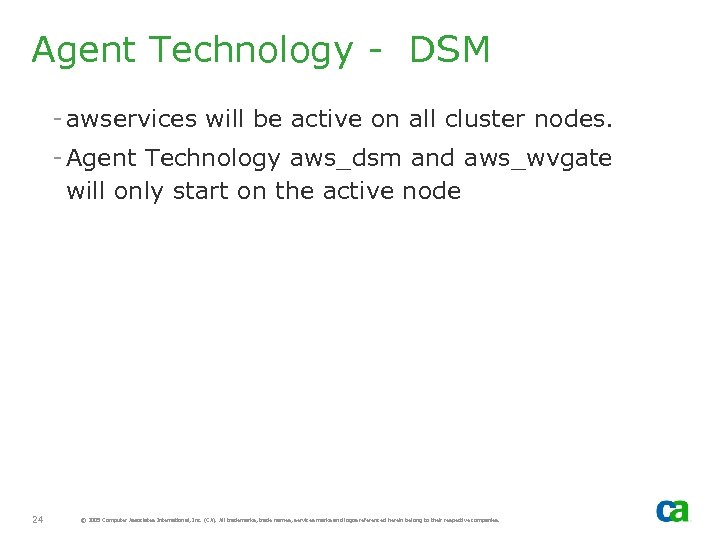
Agent Technology - DSM - awservices will be active on all cluster nodes. - Agent Technology aws_dsm and aws_wvgate will only start on the active node 24 © 2005 Computer Associates International, Inc. (CA). All trademarks, trade names, services marks and logos referenced herein belong to their respective companies.
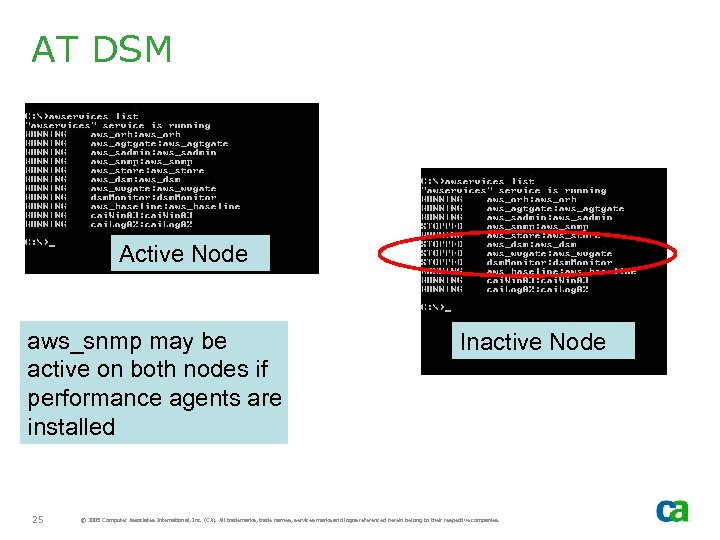
AT DSM Active Node aws_snmp may be active on both nodes if performance agents are installed 25 Inactive Node © 2005 Computer Associates International, Inc. (CA). All trademarks, trade names, services marks and logos referenced herein belong to their respective companies.
Installing Unicenter NSM r 11 - Note: If you are installing r 11. 1, skip this section
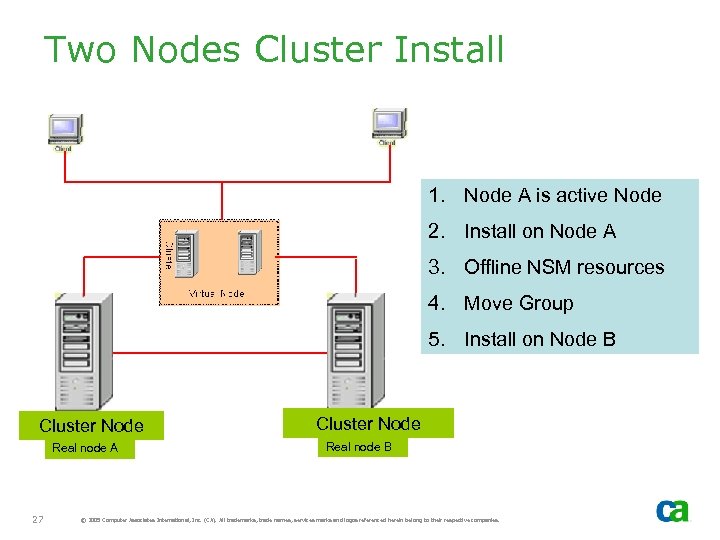
Two Nodes Cluster Install 1. Node A is active Node 2. Install on Node A 3. Offline NSM resources 4. Move Group 5. Install on Node B Cluster Node Real node A 27 Cluster Node Real node B © 2005 Computer Associates International, Inc. (CA). All trademarks, trade names, services marks and logos referenced herein belong to their respective companies.
Install Tasks - Move Groups to verify cluster is setup correctly - Verify adequate free virtual storage - Verify adequate free space on a shared disk - Identify the Cluster resource group for NSM r 11 - Verify NSM is not previously installed as non-HA - Move Group to Cluster Node A if Cluster Node A is not active node. - Install NSM components on Node A - Do not perform any customization 28 © 2005 Computer Associates International, Inc. (CA). All trademarks, trade names, services marks and logos referenced herein belong to their respective companies.
Install Tasks - From Cluster Administrator, offline NSM resources - Move Group to Cluster Node B. As resources are offline, they will not start on Node B - Cluster Resource Group Selection windows is not displayed when installing on second or subsequent nodes – it is only displayed for first node. - Install NSM components on Node B. Select the same options as install on Node A. - Once the install on Node B is completed, the system is ready for customization 29 © 2005 Computer Associates International, Inc. (CA). All trademarks, trade names, services marks and logos referenced herein belong to their respective companies.
MDB - MDB is created during install on each Cluster Node - Any changes made to MDB objects (new or updates to existing) prior to installing NSM on all cluster nodes will be lost 30 © 2005 Computer Associates International, Inc. (CA). All trademarks, trade names, services marks and logos referenced herein belong to their respective companies.
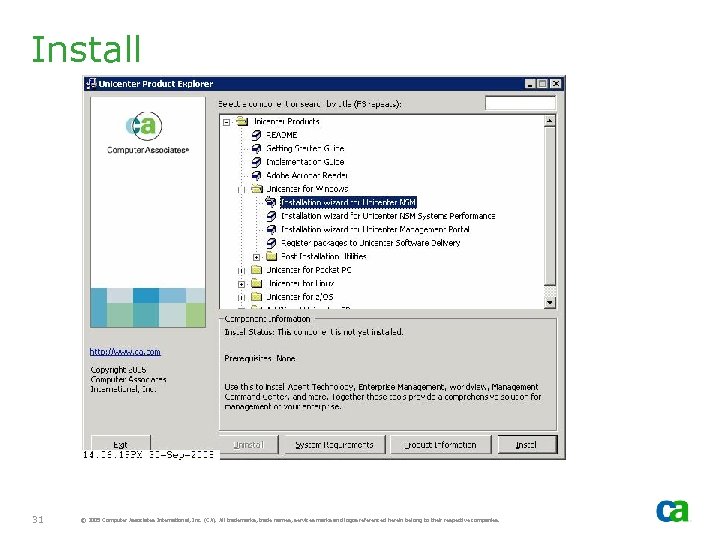
Install 31 © 2005 Computer Associates International, Inc. (CA). All trademarks, trade names, services marks and logos referenced herein belong to their respective companies.
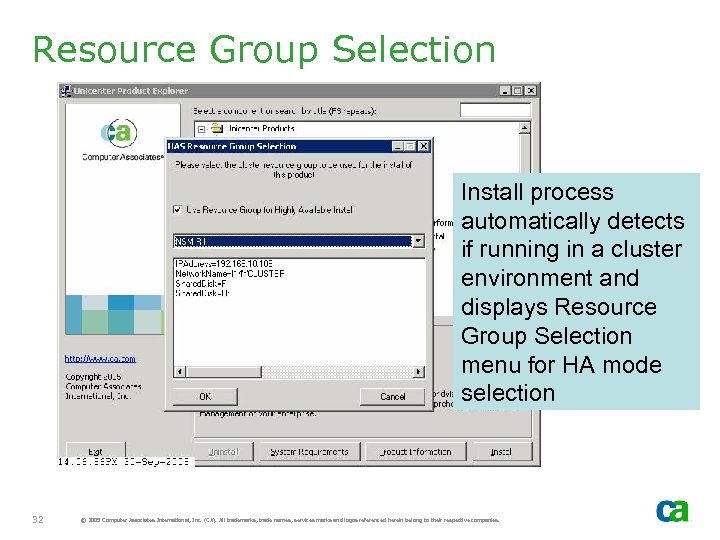
Resource Group Selection Install process automatically detects if running in a cluster environment and displays Resource Group Selection menu for HA mode selection 32 © 2005 Computer Associates International, Inc. (CA). All trademarks, trade names, services marks and logos referenced herein belong to their respective companies.
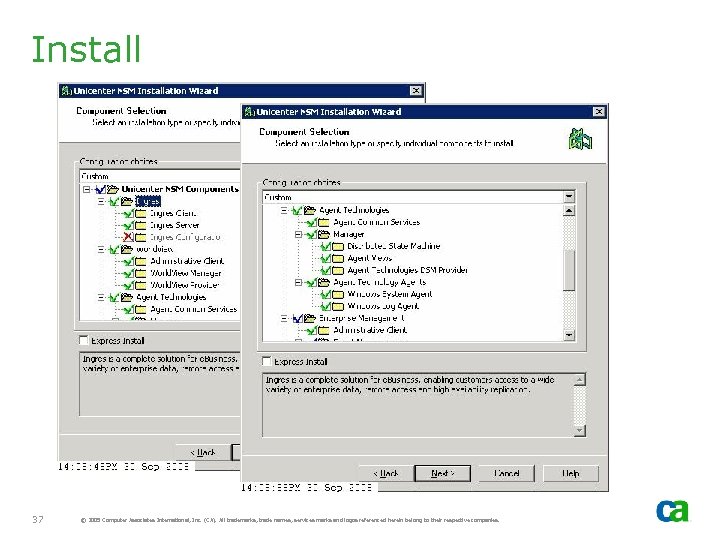
HA vs. Non-HA - Install process performs several checks prior to displaying HAS Resource Group Selection window - Install process does not permit mix of non-HA components with HA components if there is any interdependency between them. For example: - If Ingres Server, Client and Agent Technology manager was installed as NON-HA and later you decide to add an EM component, EM will be forced to be NON-HA and the Resource Group Selection window will not be displayed. 33 © 2005 Computer Associates International, Inc. (CA). All trademarks, trade names, services marks and logos referenced herein belong to their respective companies.
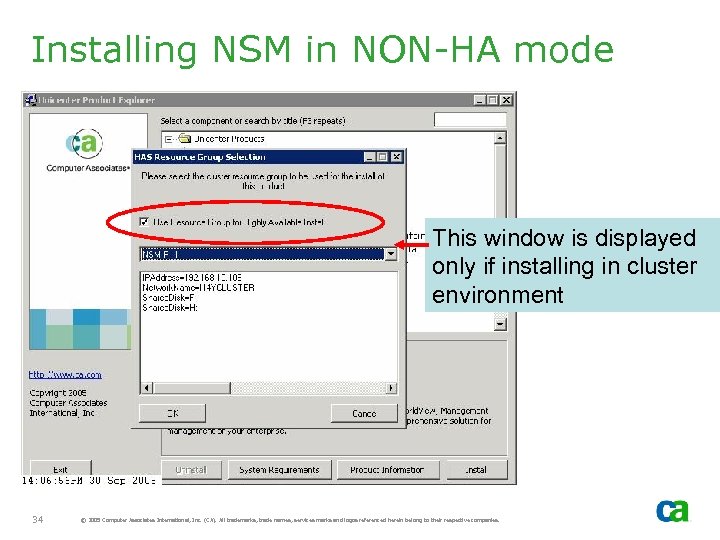
Installing NSM in NON-HA mode This window is displayed only if installing in cluster environment 34 © 2005 Computer Associates International, Inc. (CA). All trademarks, trade names, services marks and logos referenced herein belong to their respective companies.
Installing NSM in NON-HA mode - If NSM r 11 is installed in MSCS environment and the install process is not forced into non-HA mode due to interdependency mix, the HAS Resource Group Selection window will be displayed - If you wish to install in NON-HA mode, then deselect “Use Resource Group for HA install” option - If this option is not selected, NSM r 11 will be installed in NON-HA mode 35 © 2005 Computer Associates International, Inc. (CA). All trademarks, trade names, services marks and logos referenced herein belong to their respective companies.
Install 36 © 2005 Computer Associates International, Inc. (CA). All trademarks, trade names, services marks and logos referenced herein belong to their respective companies.
Install 37 © 2005 Computer Associates International, Inc. (CA). All trademarks, trade names, services marks and logos referenced herein belong to their respective companies.
Install 38 © 2005 Computer Associates International, Inc. (CA). All trademarks, trade names, services marks and logos referenced herein belong to their respective companies.
Install 39 © 2005 Computer Associates International, Inc. (CA). All trademarks, trade names, services marks and logos referenced herein belong to their respective companies.
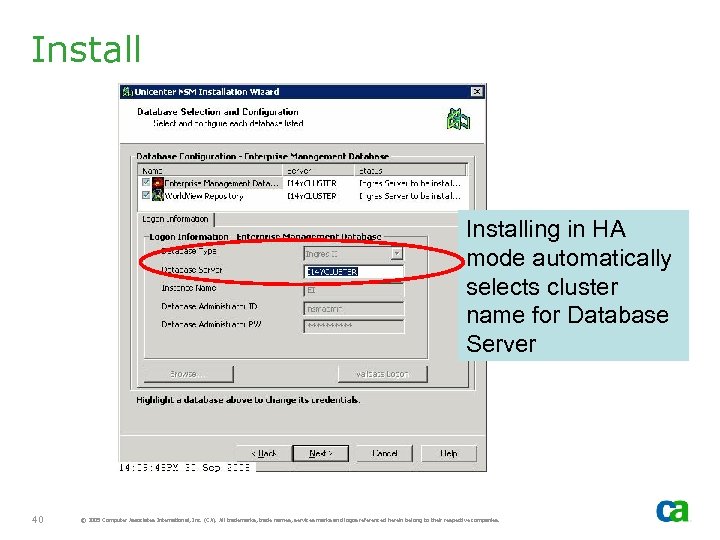
Installing in HA mode automatically selects cluster name for Database Server 40 © 2005 Computer Associates International, Inc. (CA). All trademarks, trade names, services marks and logos referenced herein belong to their respective companies.
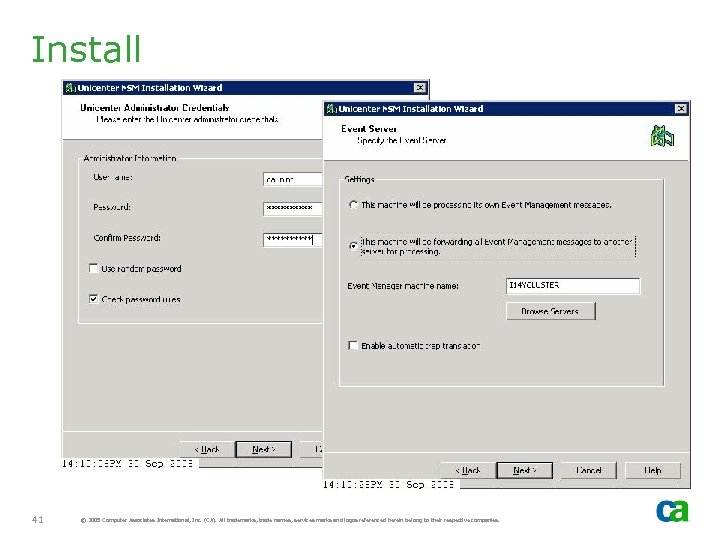
Install 41 © 2005 Computer Associates International, Inc. (CA). All trademarks, trade names, services marks and logos referenced herein belong to their respective companies.
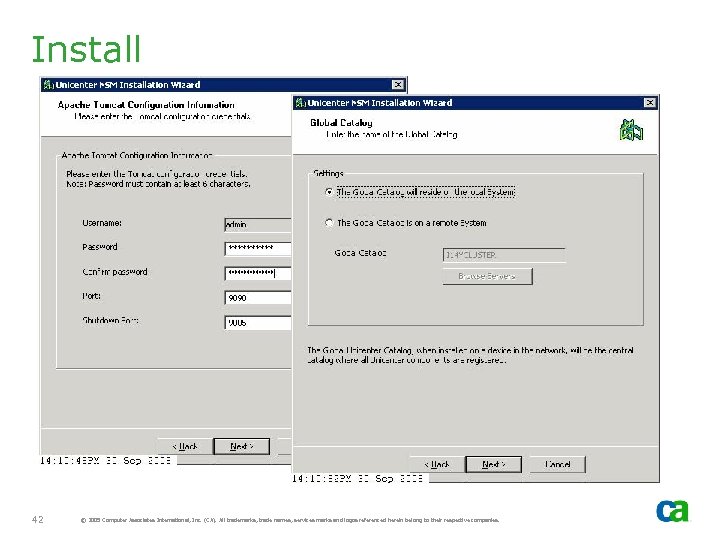
Install 42 © 2005 Computer Associates International, Inc. (CA). All trademarks, trade names, services marks and logos referenced herein belong to their respective companies.
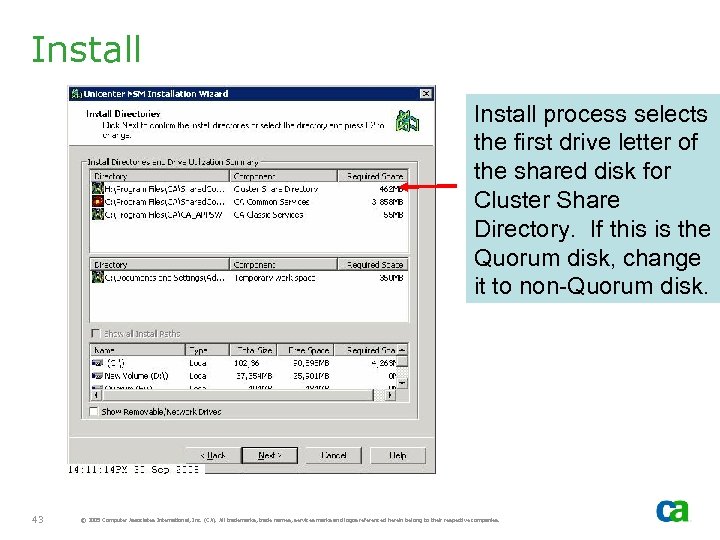
Install process selects the first drive letter of the shared disk for Cluster Share Directory. If this is the Quorum disk, change it to non-Quorum disk. 43 © 2005 Computer Associates International, Inc. (CA). All trademarks, trade names, services marks and logos referenced herein belong to their respective companies.
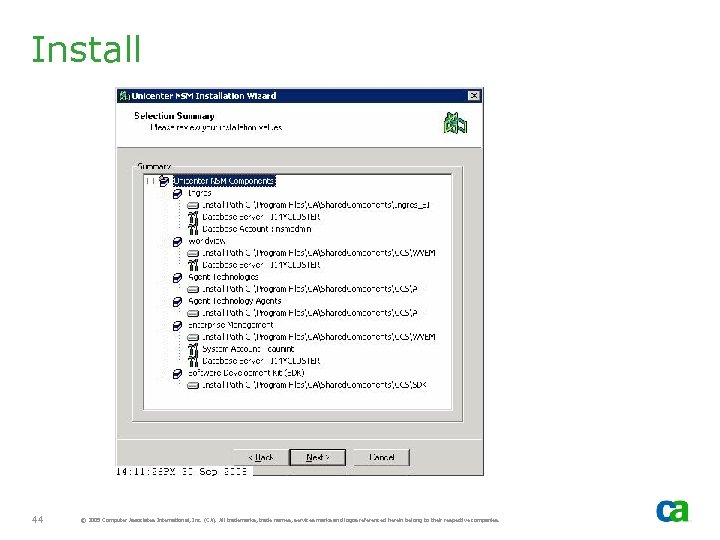
Install 44 © 2005 Computer Associates International, Inc. (CA). All trademarks, trade names, services marks and logos referenced herein belong to their respective companies.
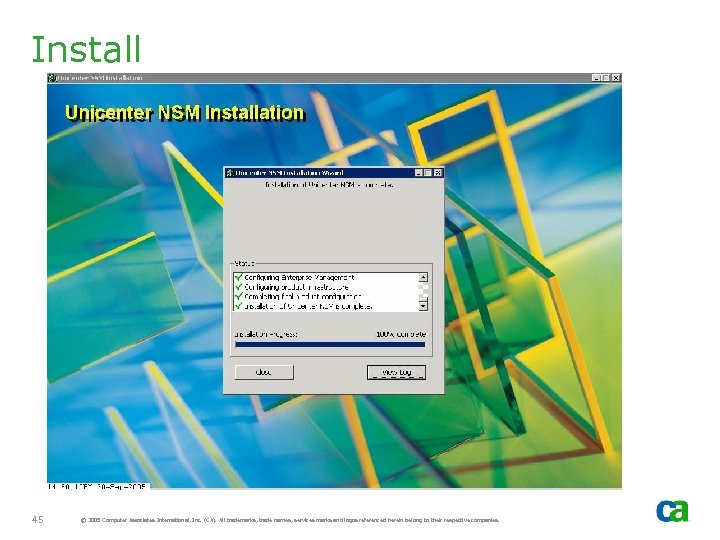
Install 45 © 2005 Computer Associates International, Inc. (CA). All trademarks, trade names, services marks and logos referenced herein belong to their respective companies.
Offline Resources - Switch NSM Resources offline prior to moving group so that NSM can be installed on other cluster nodes - If NSM Resources are not offline, it will attempt to start NSM components with move group and will fail as components are not yet installed on the new active node - Note: Ingres Cluster Resource is defined with registry replication. Thus, if Unicenter resources are not offlined, the install process on second node may complain Ingres is already installed 46 © 2005 Computer Associates International, Inc. (CA). All trademarks, trade names, services marks and logos referenced herein belong to their respective companies.
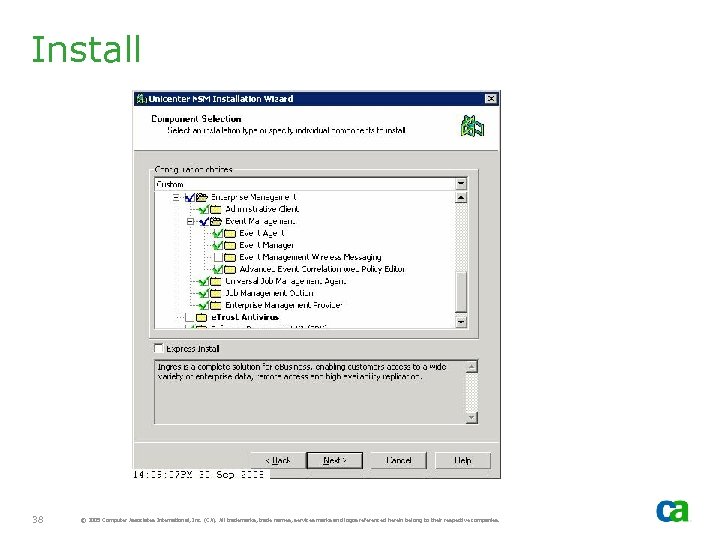
Install on Cluster Node B - Install NSM Components on cluster Node B will be active after Move Group - Use same options (e. g. , directory names, shared disk, etc. ) - Subcomponents can be different if necessary, however, this requirement should be reviewed carefully as you may comprise HA. For example: - Enterprise Management subcomponent Job Management Option (JMO) was selected on Node A but not on Node B. If Node A fails, then the Workload Manager will not run on Node B – potentially compromising failover of JMO. 47 © 2005 Computer Associates International, Inc. (CA). All trademarks, trade names, services marks and logos referenced herein belong to their respective companies.
Reboot - After the install completes on all cluster nodes, start the customization - If the install process requires reboot, do the following: - Move Group to Cluster Node A. If reboot was required on Node A, this should have been carried out while Node B was active - Put NSM cluster resources online if they are offline - Reboot Cluster Node B 48 © 2005 Computer Associates International, Inc. (CA). All trademarks, trade names, services marks and logos referenced herein belong to their respective companies.
Ingres Server / Client
Ingres - Ingres ServerClient started on active node only - Ingres Client not available on inactive cluster server nodes - As a result, tools that require Ingres Connection should NOT be launched from inactive node. E. g. , - Classic GUI 2 dmap - Dscvrbe - Ingres startup attempt on inactive node will fail but will start some of the Ingres Client processes (e. g. , iigcn). In this case, failback will fail since Ingres will not start. 50 © 2005 Computer Associates International, Inc. (CA). All trademarks, trade names, services marks and logos referenced herein belong to their respective companies.
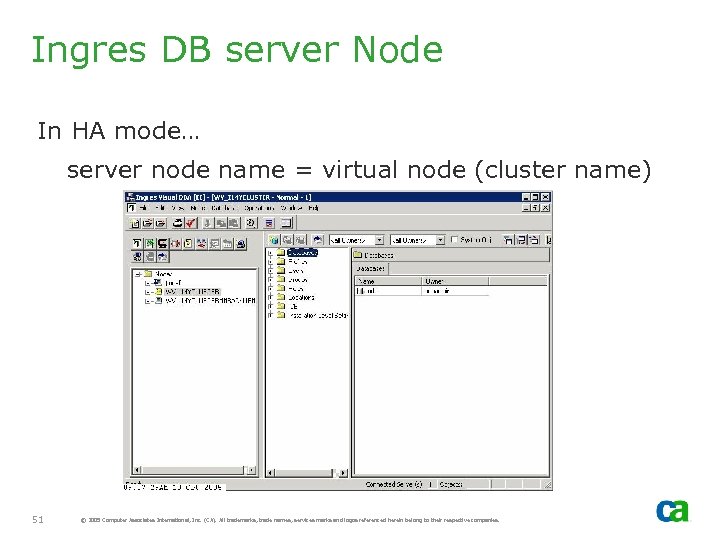
Ingres DB server Node In HA mode… server node name = virtual node (cluster name) 51 © 2005 Computer Associates International, Inc. (CA). All trademarks, trade names, services marks and logos referenced herein belong to their respective companies.
MDB on Shared Disk Ingres MDB is created on the shared disk along with the following related files: - CKP - DATA - DMP - JNL - LOG 52 © 2005 Computer Associates International, Inc. (CA). All trademarks, trade names, services marks and logos referenced herein belong to their respective companies.
Failover - When failover occurs, Ingres server is started on other cluster node. The MDB will be in the same state as the failed node. - Rollback and uncommitted transactions - Similar to server crash on NON-HA mode. 53 © 2005 Computer Associates International, Inc. (CA). All trademarks, trade names, services marks and logos referenced herein belong to their respective companies.
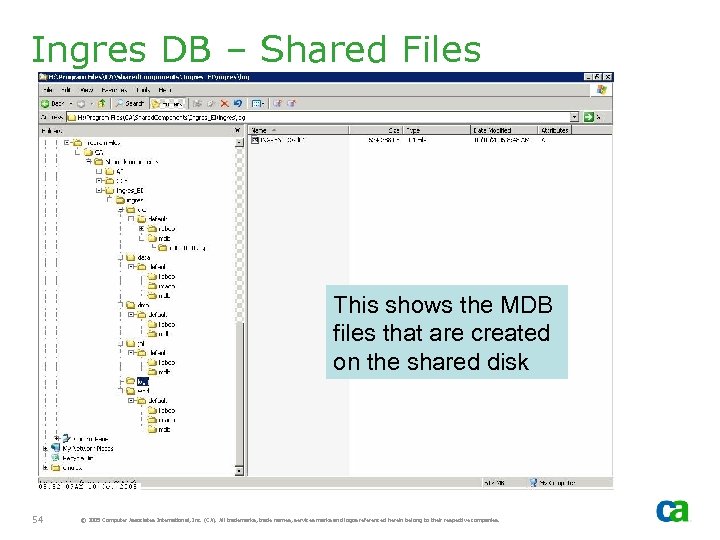
Ingres DB – Shared Files This shows the MDB files that are created on the shared disk 54 © 2005 Computer Associates International, Inc. (CA). All trademarks, trade names, services marks and logos referenced herein belong to their respective companies.
Скачать презентацию Best Practices for Implementing Unicenter NSM r 11
f25e6bcac5d06084177c382b22a1fed1.ppt