 Скачать презентацию BCD Travel Online Approval Manual Executive Overview
3d8b38022a2e3a4df2e20113ee466cfb.ppt
- Количество слайдов: 29



BCD Travel Online Approval Manual
Executive Overview Your Organization is improving the process for booking & authorizing business travel within the company and have partnered with BCD Travel in order to benefit from an on-line booking & automated approval system. Notifications will automatically be generated via e-mail and SMS for approval to the pre-defined authorizer in accordance with your travel Policy or procurement system. As an approver you will have many different options of processing requisition request, instructions & screen shots for authorizers are included in this presentation. Please take time to read these instructions in order to ensure that the authorization process is done correctly. It is important to understand that travel bookings have expiring deadlines and if requisitions are not approved in time it could lead to bookings expiring resulting in the loss of the booking and possibly cost savings if bookings have to be re-created 2 Copyright BCD Travel 2012
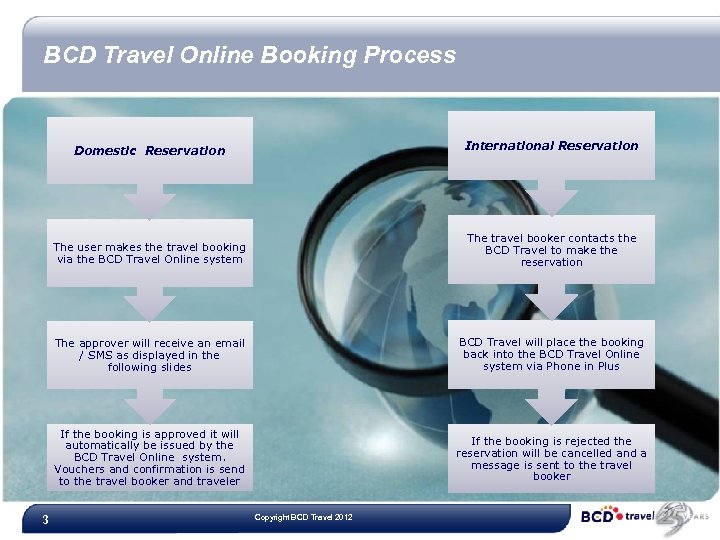
BCD Travel Online Booking Process Domestic Reservation The user makes the travel booking via the BCD Travel Online system The travel booker contacts the BCD Travel to make the reservation The approver will receive an email / SMS as displayed in the following slides BCD Travel will place the booking back into the BCD Travel Online system via Phone in Plus If the booking is approved it will automatically be issued by the BCD Travel Online system. Vouchers and confirmation is send to the travel booker and traveler 3 International Reservation If the booking is rejected the reservation will be cancelled and a message is sent to the travel booker Copyright BCD Travel 2012
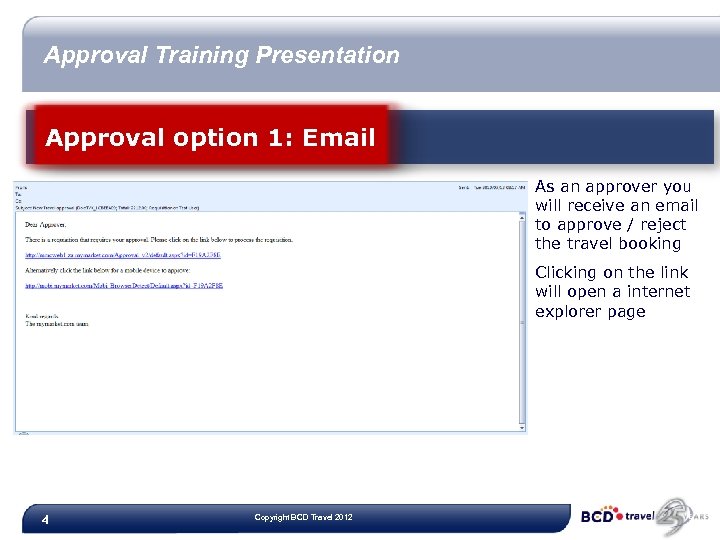
Approval Training Presentation Approval option 1: Email As an approver you will receive an email to approve / reject the travel booking Clicking on the link will open a internet explorer page 4 Copyright BCD Travel 2012
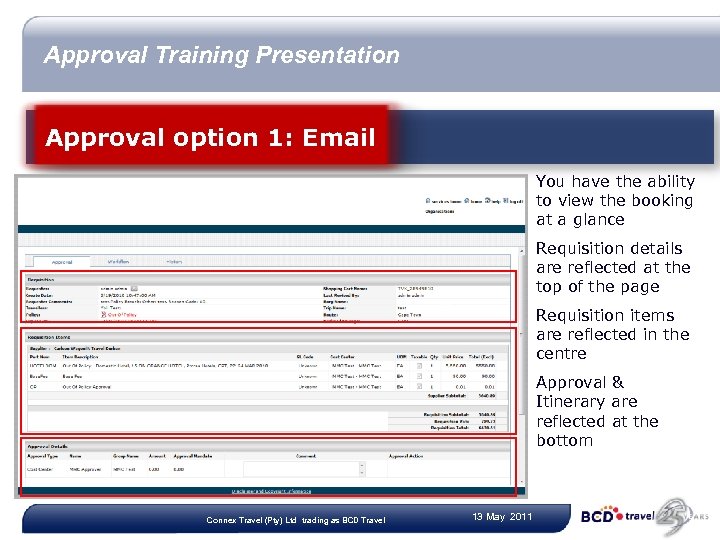
Approval Training Presentation Approval option 1: Email You have the ability to view the booking at a glance Requisition details are reflected at the top of the page Requisition items are reflected in the centre Approval & Itinerary are reflected at the bottom Connex Travel (Pty) Ltd trading as BCD Travel 13 May 2011
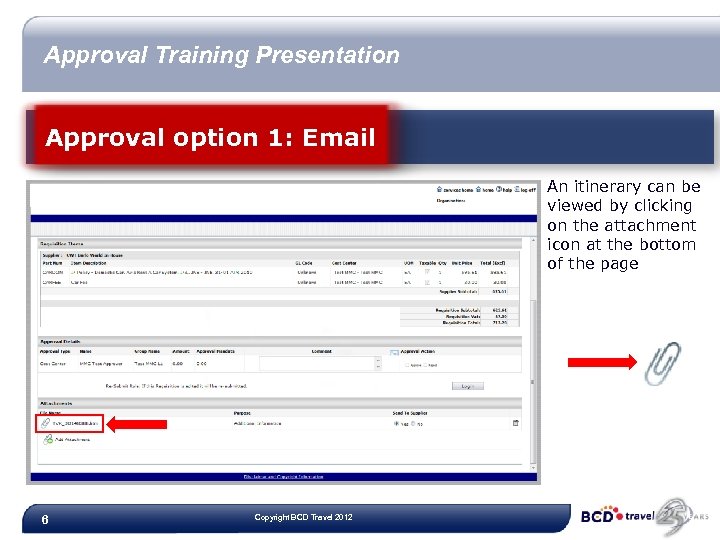
Approval Training Presentation Approval option 1: Email An itinerary can be viewed by clicking on the attachment icon at the bottom of the page 6 Copyright BCD Travel 2012
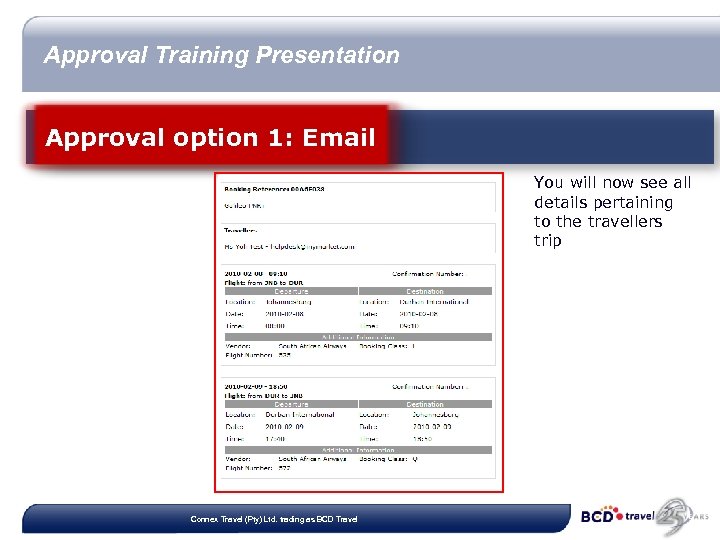
Approval Training Presentation Approval option 1: Email You will now see all details pertaining to the travellers trip Connex Travel (Pty) Ltd. trading as BCD Travel
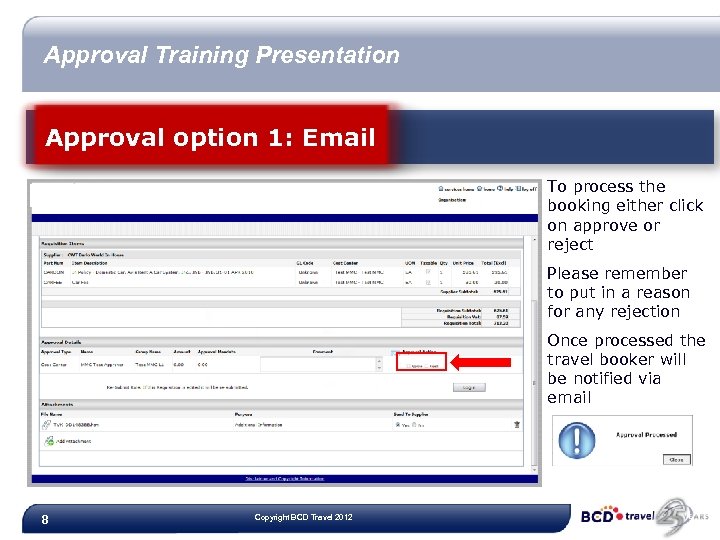
Approval Training Presentation Approval option 1: Email To process the booking either click on approve or reject Please remember to put in a reason for any rejection Once processed the travel booker will be notified via email 8 Copyright BCD Travel 2012
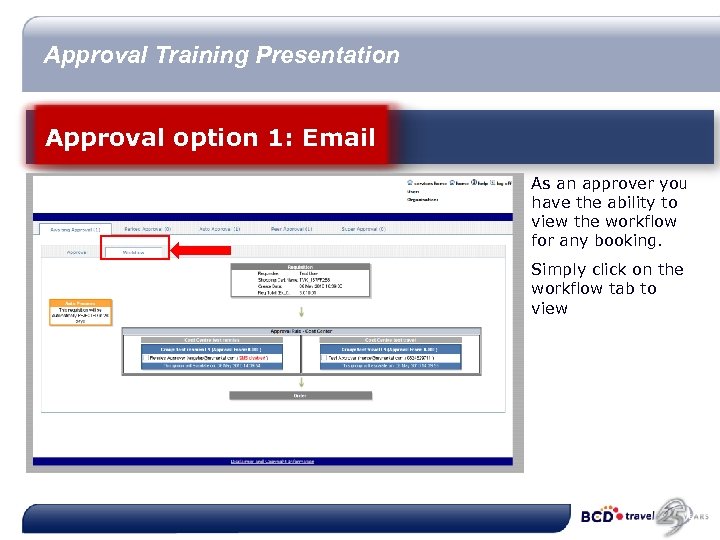
Approval Training Presentation Approval option 1: Email As an approver you have the ability to view the workflow for any booking. Simply click on the workflow tab to view
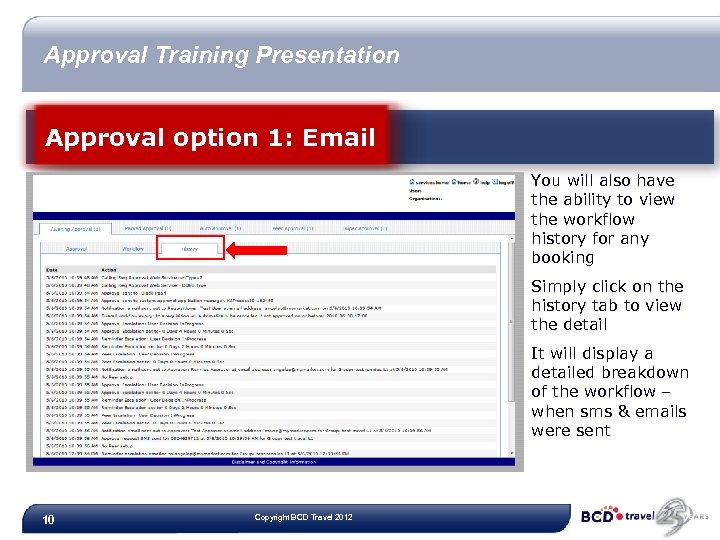
Approval Training Presentation Approval option 1: Email You will also have the ability to view the workflow history for any booking Simply click on the history tab to view the detail It will display a detailed breakdown of the workflow – when sms & emails were sent 10 Copyright BCD Travel 2012
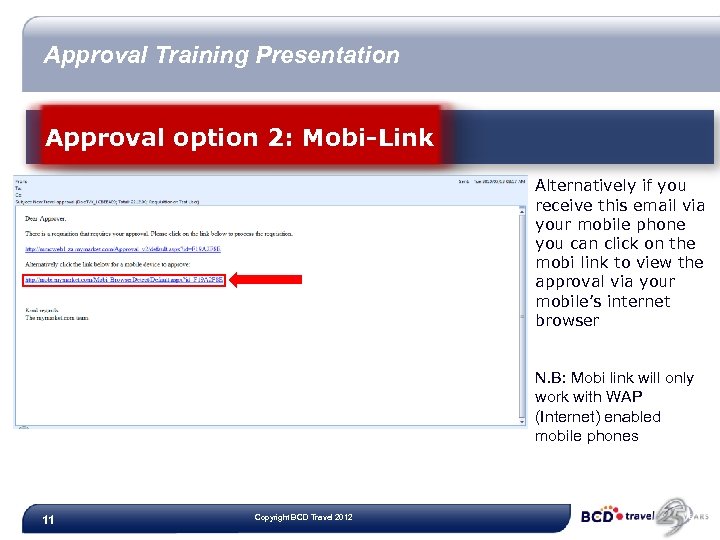
Approval Training Presentation Approval option 2: Mobi-Link Alternatively if you receive this email via your mobile phone you can click on the mobi link to view the approval via your mobile’s internet browser N. B: Mobi link will only work with WAP (Internet) enabled mobile phones 11 Copyright BCD Travel 2012
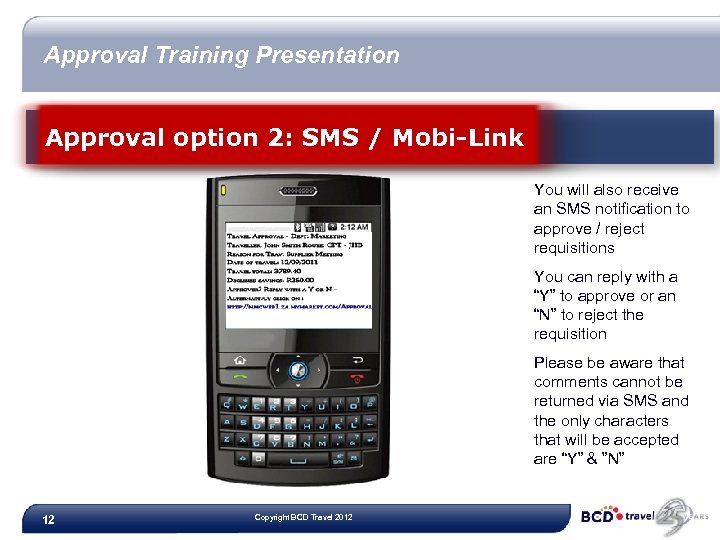
Approval Training Presentation Approval option 2: SMS / Mobi-Link You will also receive an SMS notification to approve / reject requisitions You can reply with a “Y” to approve or an “N” to reject the requisition Please be aware that comments cannot be returned via SMS and the only characters that will be accepted are “Y” & ”N” 12 Copyright BCD Travel 2012
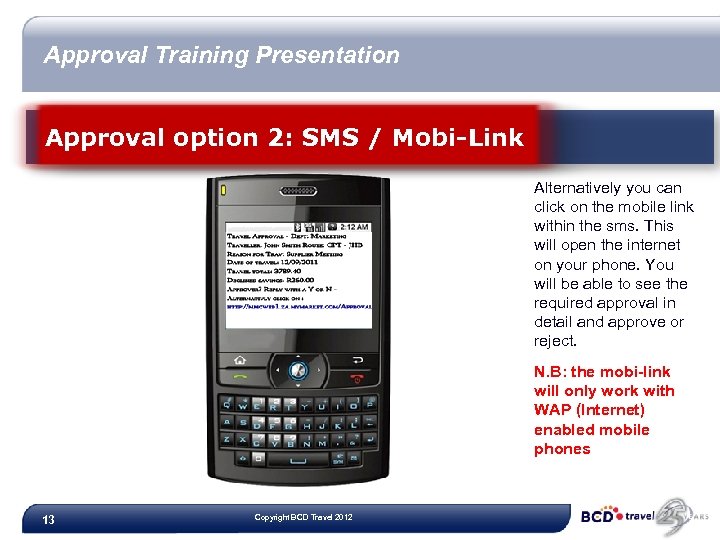
Approval Training Presentation Approval option 2: SMS / Mobi-Link Alternatively you can click on the mobile link within the sms. This will open the internet on your phone. You will be able to see the required approval in detail and approve or reject. N. B: the mobi-link will only work with WAP (Internet) enabled mobile phones 13 Copyright BCD Travel 2012
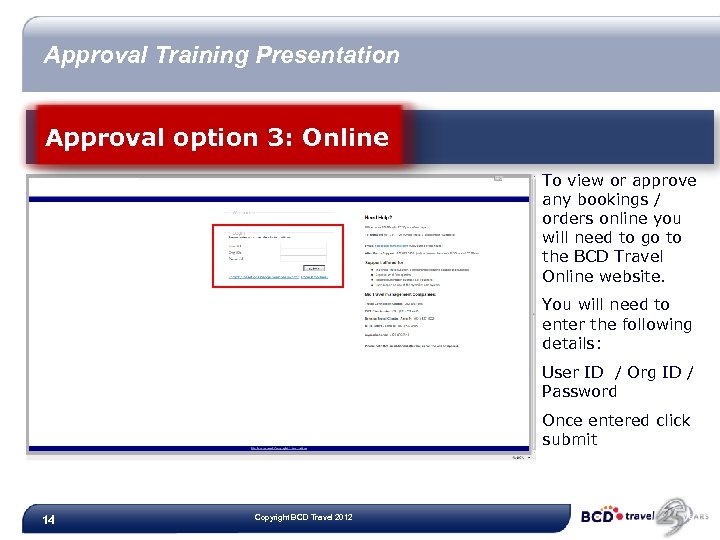
Approval Training Presentation Approval option 3: Online To view or approve any bookings / orders online you will need to go to the BCD Travel Online website. You will need to enter the following details: User ID / Org ID / Password Once entered click submit 14 Copyright BCD Travel 2012
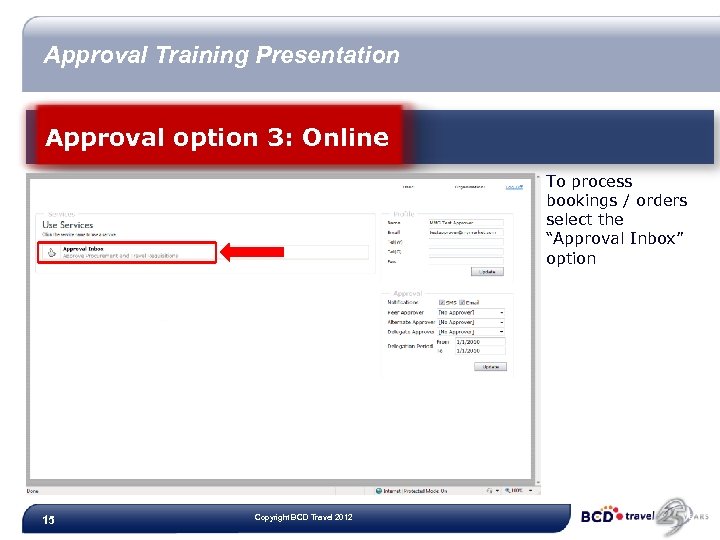
Approval Training Presentation Approval option 3: Online To process bookings / orders select the “Approval Inbox” option 15 Copyright BCD Travel 2012
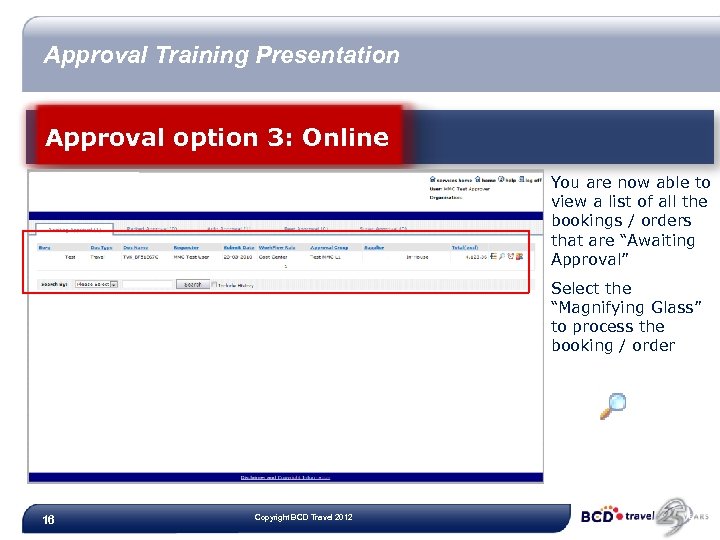
Approval Training Presentation Approval option 3: Online You are now able to view a list of all the bookings / orders that are “Awaiting Approval” Select the “Magnifying Glass” to process the booking / order 16 Copyright BCD Travel 2012
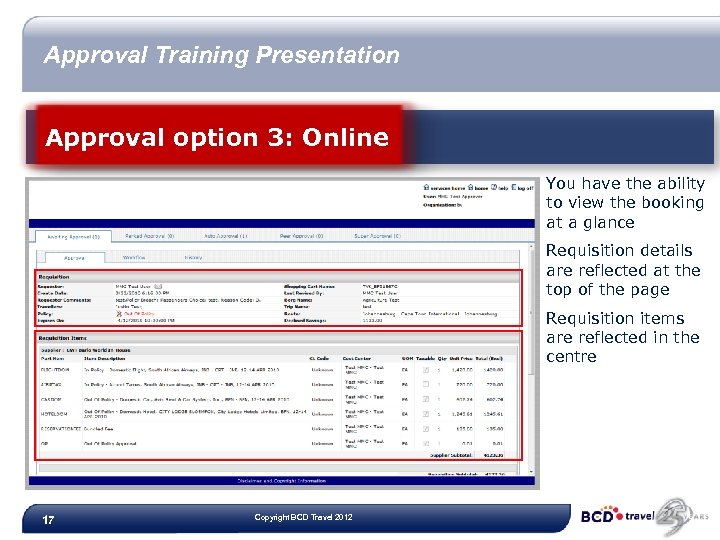
Approval Training Presentation Approval option 3: Online You have the ability to view the booking at a glance Requisition details are reflected at the top of the page Requisition items are reflected in the centre 17 Copyright BCD Travel 2012
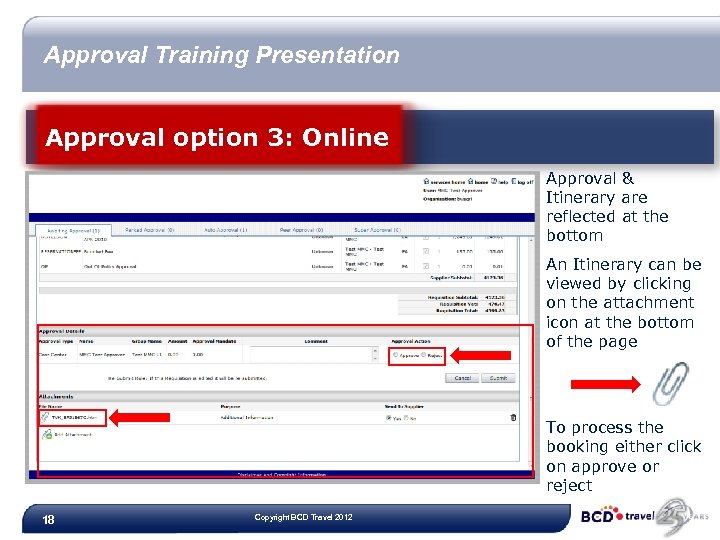
Approval Training Presentation Approval option 3: Online Approval & Itinerary are reflected at the bottom An Itinerary can be viewed by clicking on the attachment icon at the bottom of the page To process the booking either click on approve or reject 18 Copyright BCD Travel 2012
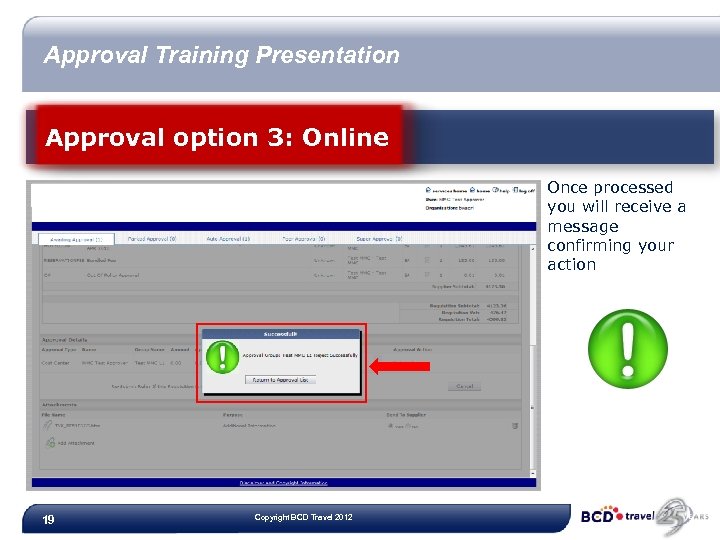
Approval Training Presentation Approval option 3: Online Once processed you will receive a message confirming your action 19 Copyright BCD Travel 2012
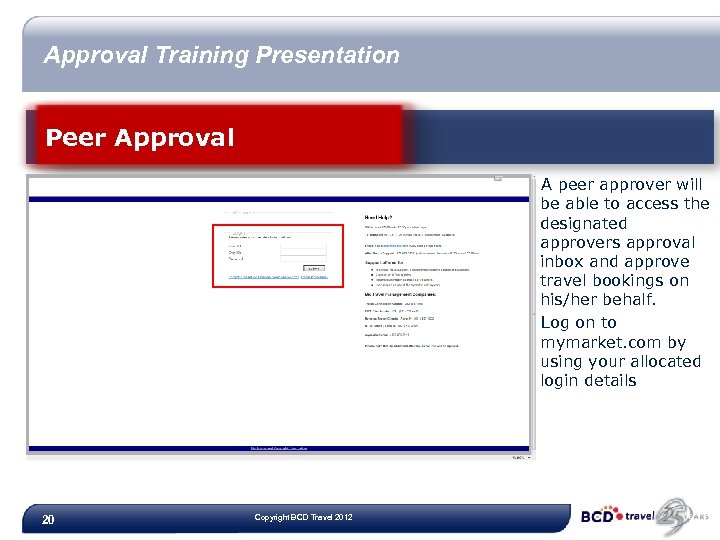
Approval Training Presentation Peer Approval A peer approver will be able to access the designated approvers approval inbox and approve travel bookings on his/her behalf. Log on to mymarket. com by using your allocated login details 20 Copyright BCD Travel 2012
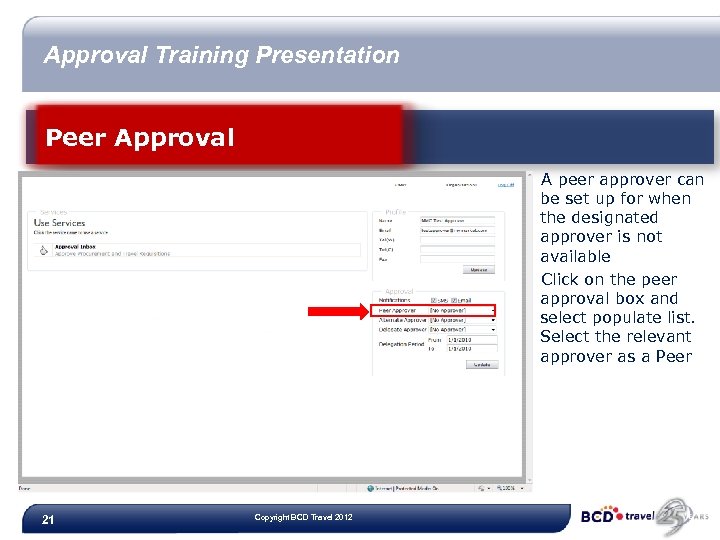
Approval Training Presentation Peer Approval A peer approver can be set up for when the designated approver is not available Click on the peer approval box and select populate list. Select the relevant approver as a Peer 21 Copyright BCD Travel 2012
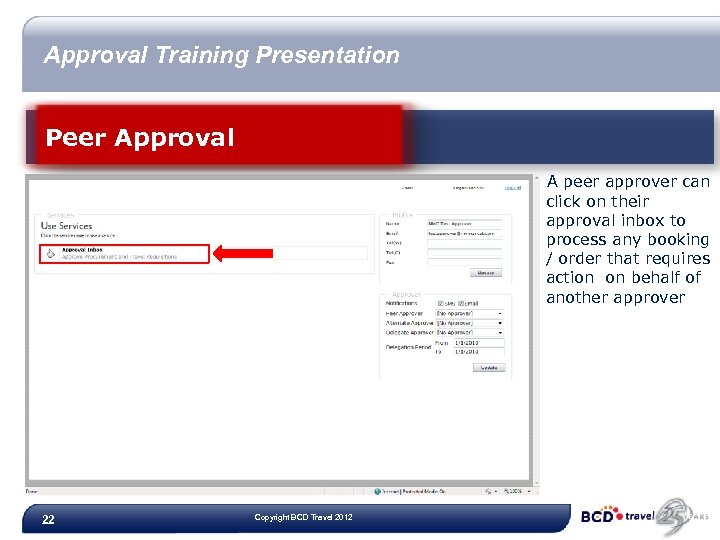
Approval Training Presentation Peer Approval A peer approver can click on their approval inbox to process any booking / order that requires action on behalf of another approver 22 Copyright BCD Travel 2012
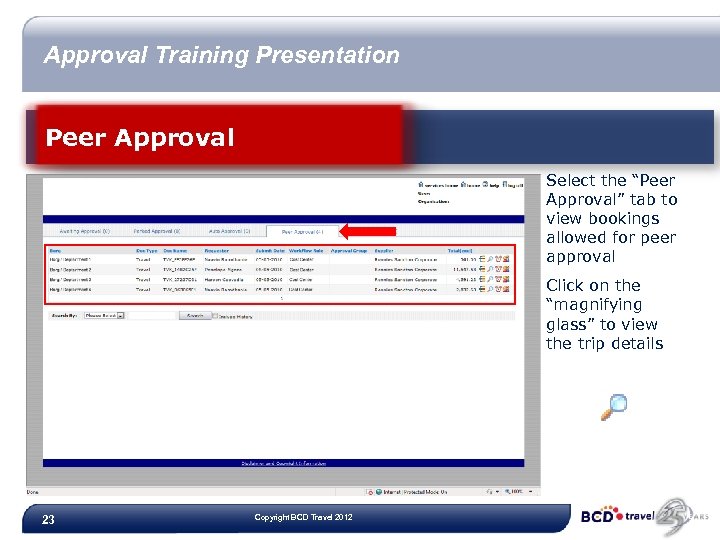
Approval Training Presentation Peer Approval Select the “Peer Approval” tab to view bookings allowed for peer approval Click on the “magnifying glass” to view the trip details 23 Copyright BCD Travel 2012
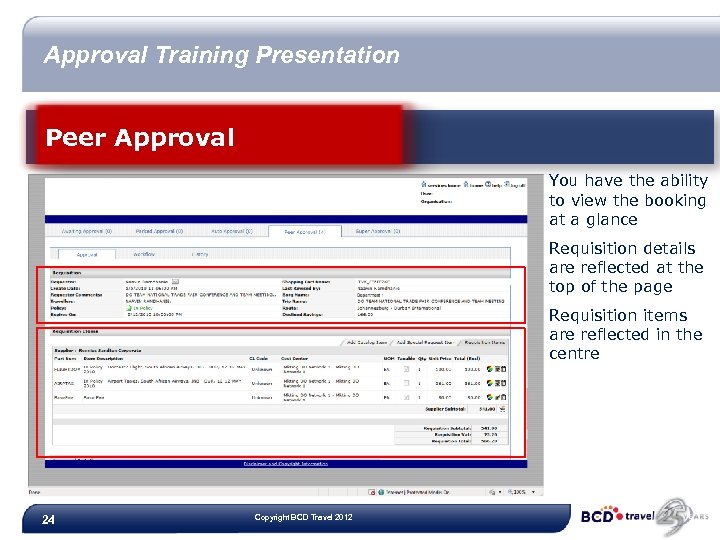
Approval Training Presentation Peer Approval You have the ability to view the booking at a glance Requisition details are reflected at the top of the page Requisition items are reflected in the centre 24 Copyright BCD Travel 2012
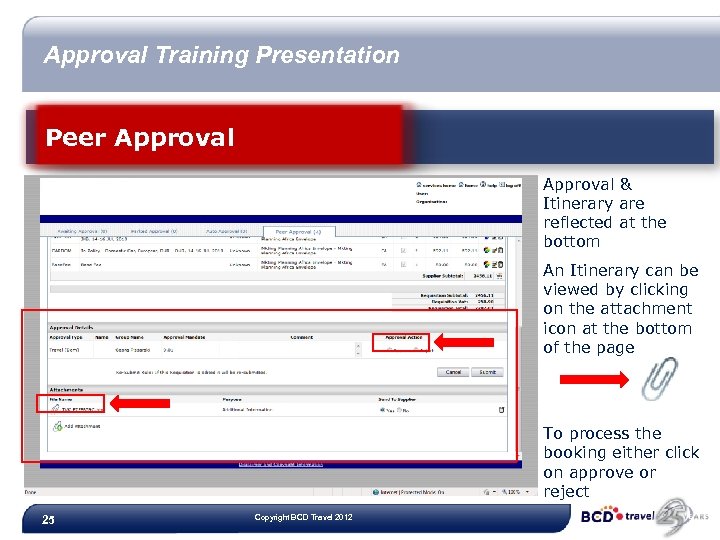
Approval Training Presentation Peer Approval & Itinerary are reflected at the bottom An Itinerary can be viewed by clicking on the attachment icon at the bottom of the page To process the booking either click on approve or reject 25 Copyright BCD Travel 2012
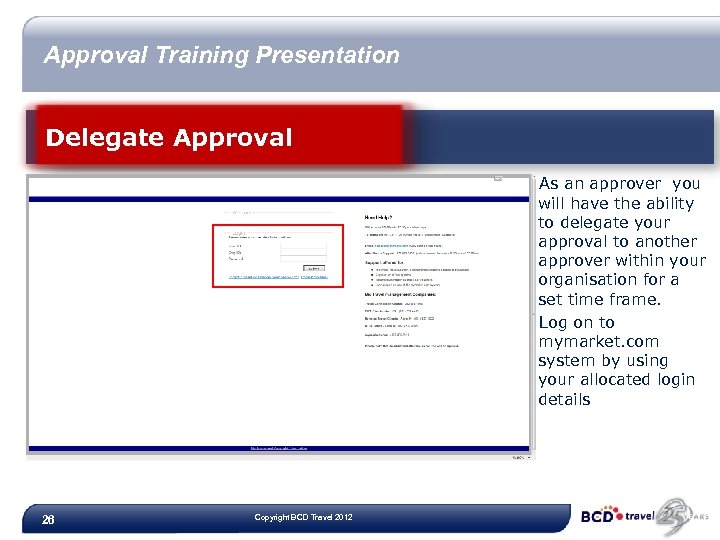
Approval Training Presentation Delegate Approval As an approver you will have the ability to delegate your approval to another approver within your organisation for a set time frame. Log on to mymarket. com system by using your allocated login details 26 Copyright BCD Travel 2012
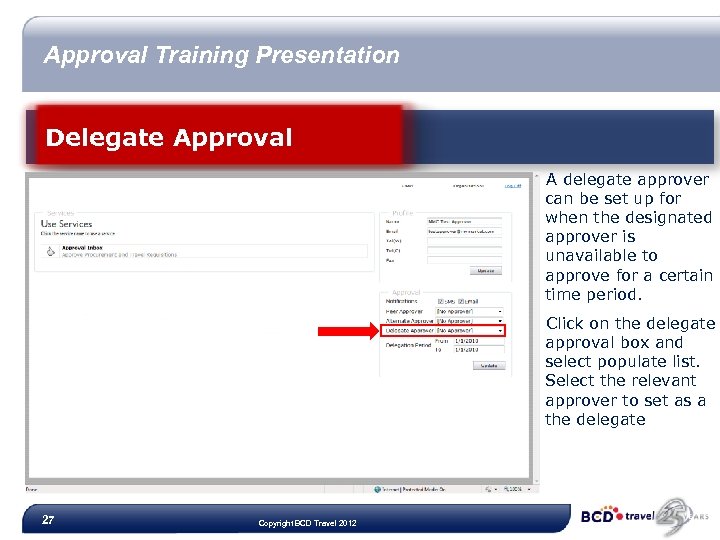
Approval Training Presentation Delegate Approval A delegate approver can be set up for when the designated approver is unavailable to approve for a certain time period. Click on the delegate approval box and select populate list. Select the relevant approver to set as a the delegate 27 Copyright BCD Travel 2012
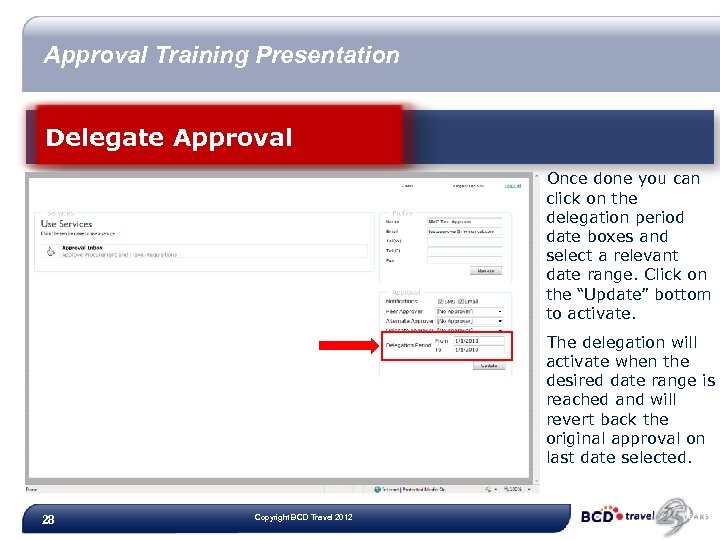
Approval Training Presentation Delegate Approval Once done you can click on the delegation period date boxes and select a relevant date range. Click on the “Update” bottom to activate. The delegation will activate when the desired date range is reached and will revert back the original approval on last date selected. 28 Copyright BCD Travel 2012
Approval Training Presentation Help & Support If at any point you require any help or support with anything mentioned above please contact your Super User. Alternatively contact us: • BCD Travel E-Centre: (011) 274 4032 • BCD Travel E-Centre email: ukznonline@bcdtravel. co. za 29 Copyright BCD Travel 2012
Скачать презентацию BCD Travel Online Approval Manual Executive Overview
3d8b38022a2e3a4df2e20113ee466cfb.ppt