 Скачать презентацию Bare-Bones R A Brief Introductory Guide Thomas P
6fa514e6047555e8c34a11b5d9266eff.ppt
- Количество слайдов: 84



Bare-Bones R A Brief Introductory Guide Thomas P. Hogan University of Scranton 2010 All Rights Reserved
Citation and Usage This set of Power. Point slides is keyed to Bare-Bones R: A Brief Introductory Guide, by Thomas P. Hogan, SAGE Publications, 2010. All are welcome to use and/or adapt the slides without seeking further permission but with the usual professional acknowledgment of source.
Part 1: Base R n 1 -1 What is R n A computer language, with orientation toward statistical applications n Relatively new n Growing rapidly in use
1 -2 n Plusses n n R’s Ups and Downs Completely free, just download from Internet Many add-on packages for specialized uses Open source Minuses n Obscure terms, intimidating manuals, odd symbols, inelegant output (except graphics)
1 -3 Getting Started: Loading R n n n Have Internet connection Go to http: //cran. r-project/ R for Windows screen, click “base” Find, click on download R Click Run, OK, or Next for all screens End up with R icon on desktop
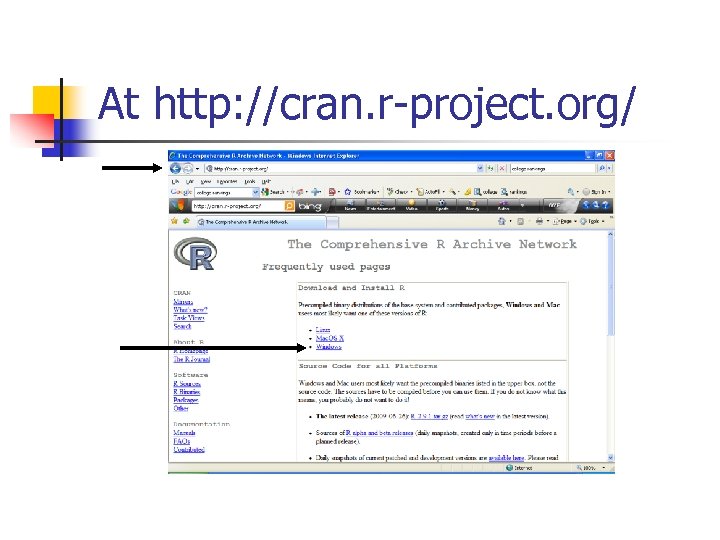
At http: //cran. r-project. org/
![Downloading Base R [Figs 1. 1 – 1. 4] n Click on Windows n](https://present5.com/presentation/6fa514e6047555e8c34a11b5d9266eff/image-7.jpg "Downloading Base R [Figs 1. 1 – 1. 4] n Click on Windows n")
Downloading Base R [Figs 1. 1 – 1. 4] n Click on Windows n Then in next screen, click on “base” n Then screens for Run, OK, or Next n And finally “Finish” n will put R icon on desktop
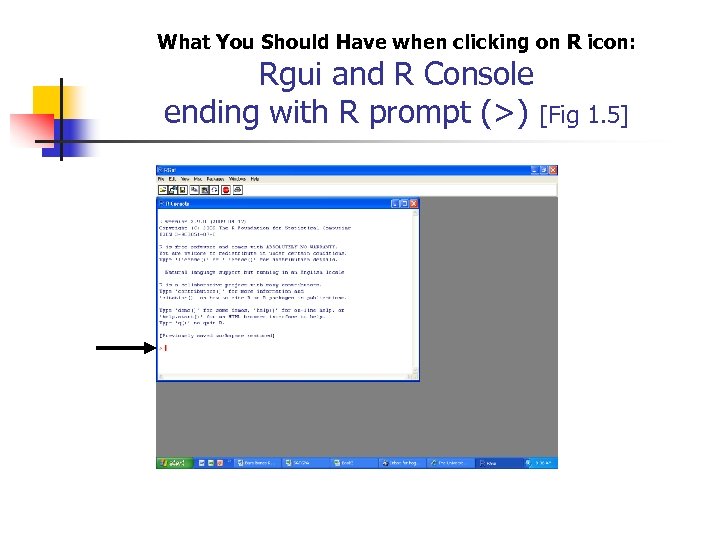
What You Should Have when clicking on R icon: Rgui and R Console ending with R prompt (>) [Fig 1. 5]
The R prompt (>) n > This is the “R prompt. ” It says R is ready to take your command.
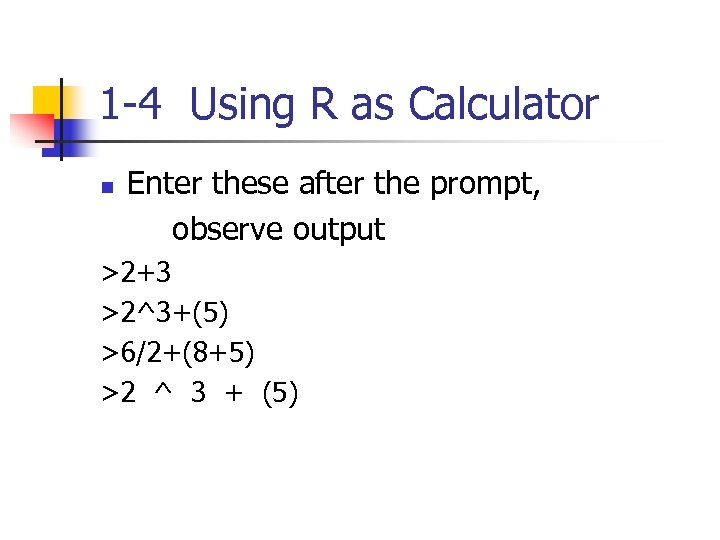
1 -4 Using R as Calculator n Enter these after the prompt, observe output >2+3 >2^3+(5) >6/2+(8+5) >2 ^ 3 + (5)
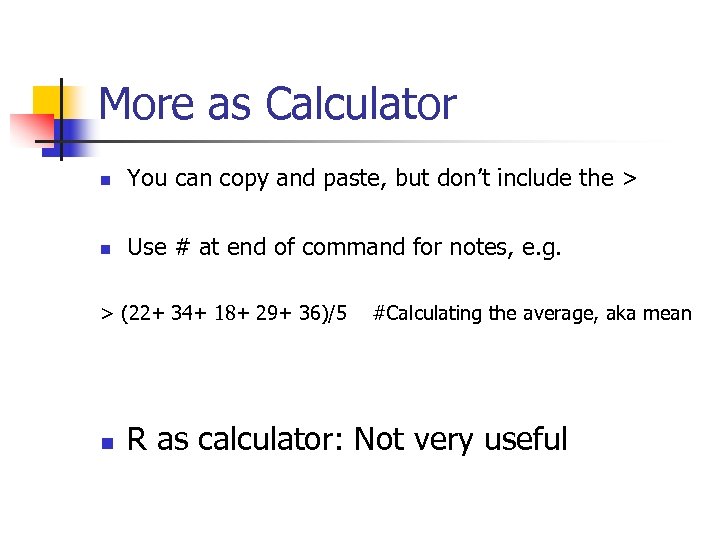
More as Calculator n You can copy and paste, but don’t include the > n Use # at end of command for notes, e. g. > (22+ 34+ 18+ 29+ 36)/5 n #Calculating the average, aka mean R as calculator: Not very useful
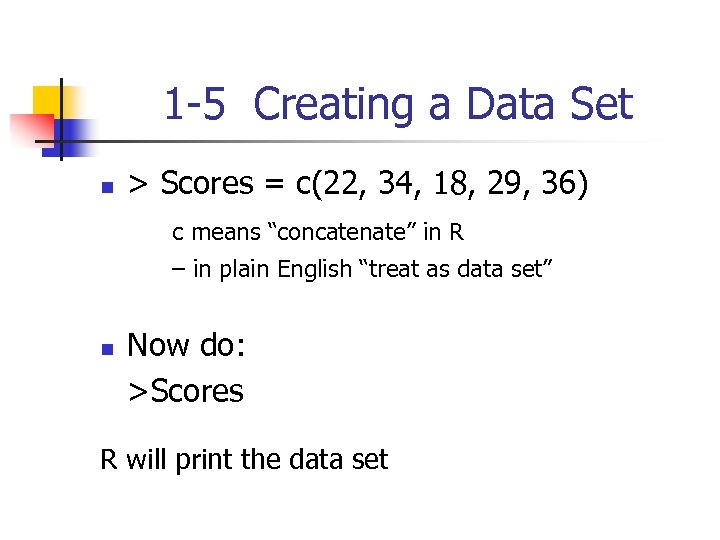
1 -5 Creating a Data Set n > Scores = c(22, 34, 18, 29, 36) c means “concatenate” in R – in plain English “treat as data set” n Now do: >Scores R will print the data set
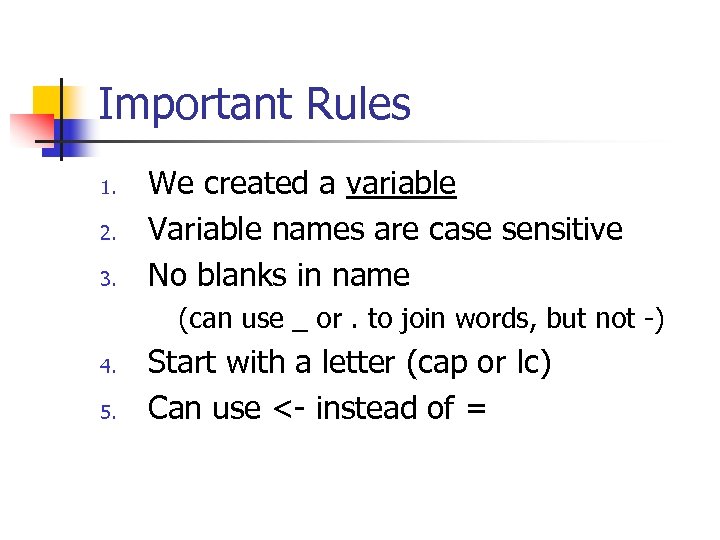
Important Rules 1. 2. 3. We created a variable Variable names are case sensitive No blanks in name (can use _ or. to join words, but not -) 4. 5. Start with a letter (cap or lc) Can use <- instead of =
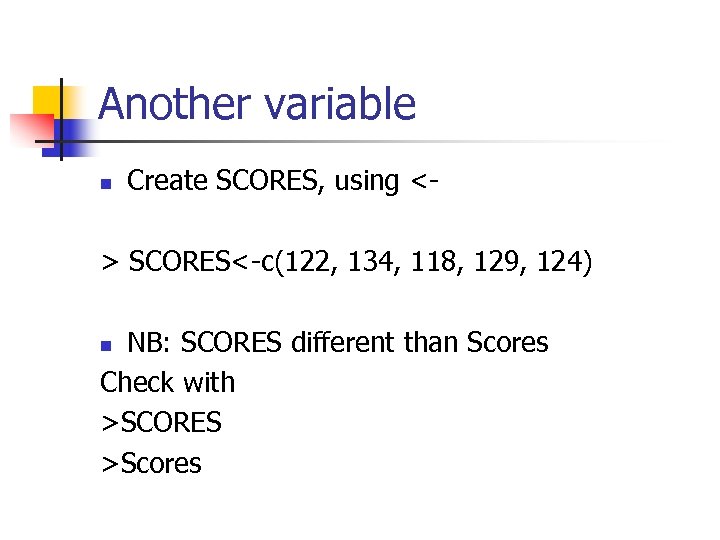
Another variable n Create SCORES, using <- > SCORES<-c(122, 134, 118, 129, 124) NB: SCORES different than Scores Check with >SCORES >Scores n
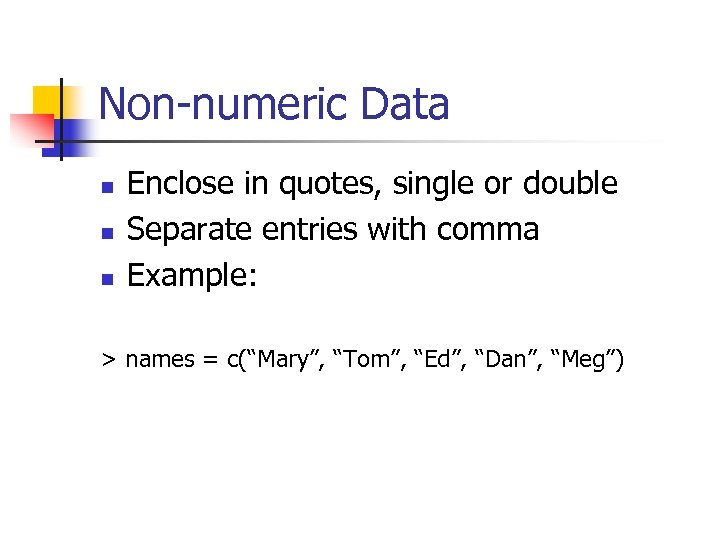
Non-numeric Data n n n Enclose in quotes, single or double Separate entries with comma Example: > names = c(“Mary”, “Tom”, “Ed”, “Dan”, “Meg”)
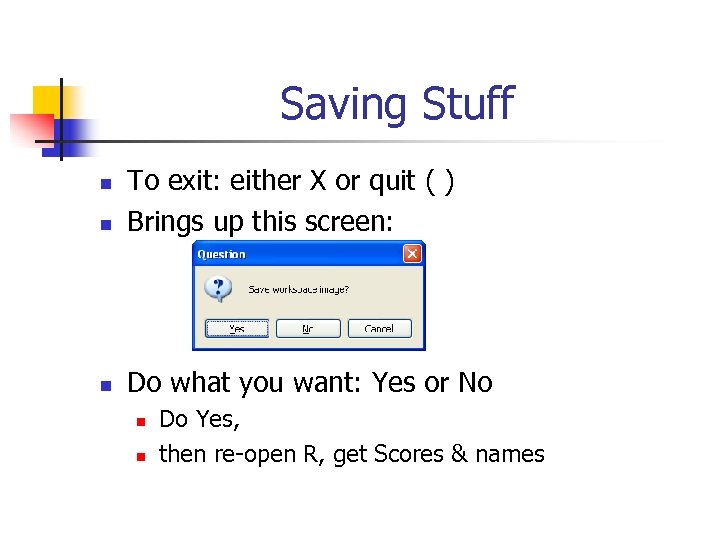
Saving Stuff n To exit: either X or quit ( ) Brings up this screen: n Do what you want: Yes or No n n n Do Yes, then re-open R, get Scores & names
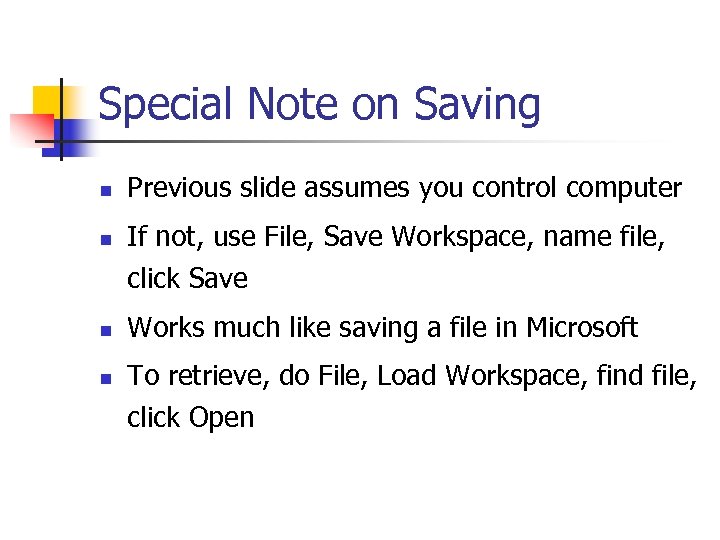
Special Note on Saving n Previous slide assumes you control computer n If not, use File, Save Workspace, name file, click Save n Works much like saving a file in Microsoft n To retrieve, do File, Load Workspace, find file, click Open
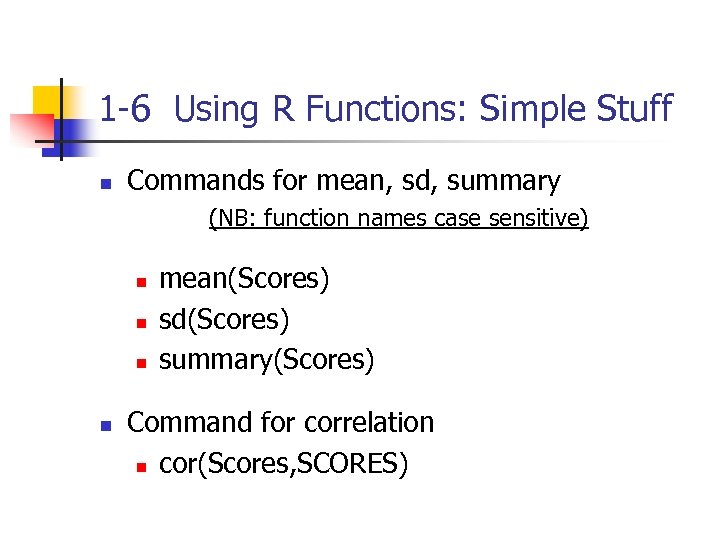
1 -6 Using R Functions: Simple Stuff n Commands for mean, sd, summary (NB: function names case sensitive) n n mean(Scores) sd(Scores) summary(Scores) Command for correlation n cor(Scores, SCORES)
R functions n n n A zillion of ‘em R’s big strength, most common use For examples: n Help n n n R functions(text) Enter name of a function (e. g. , sd) Yields lots (!) of information
1 -7 Reading in Larger Data Sets n In Excel, enter (or download) the SATGPA 20 file n Save as. xls n Then save as Text (tab delimited) file n Will have. txt extension
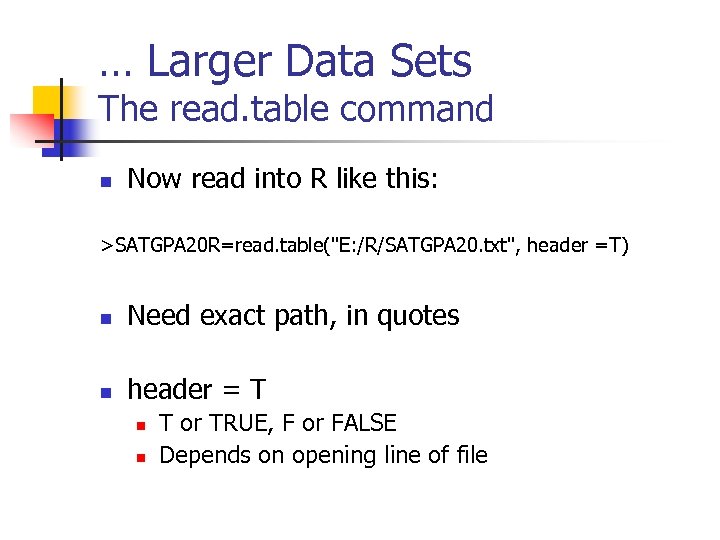
… Larger Data Sets The read. table command n Now read into R like this: >SATGPA 20 R=read. table("E: /R/SATGPA 20. txt", header =T) n Need exact path, in quotes n header = T n n T or TRUE, F or FALSE Depends on opening line of file
The file. choose ( ) command n n n At > enter file. choose ( ) Accesses your system’s files, much like Open in Microsoft Find the file, click on it R prints the exact path in R Console Can copy and paste into read. table
Checking what you’ve got: n Enter >SATGPA 20 R n Then >mean (SATGPA 20 R) n Try >mean (GPA)
The attach Command To access individual variables, do this: >attach(SATGPA 20 R) n Now try: >mean(GPA) n
The data. frame Command n Let’s create these 3 variables with c > IQ = c(110, 95, 140, 89, 102) > CS = c(59, 40, 62, 40, 55) > WQ = c(2, 4, 5, 1, 3) n Then put them together with: >All_Data = data. frame(IQ, CS, WQ) n Check with: >mean(All_Data)
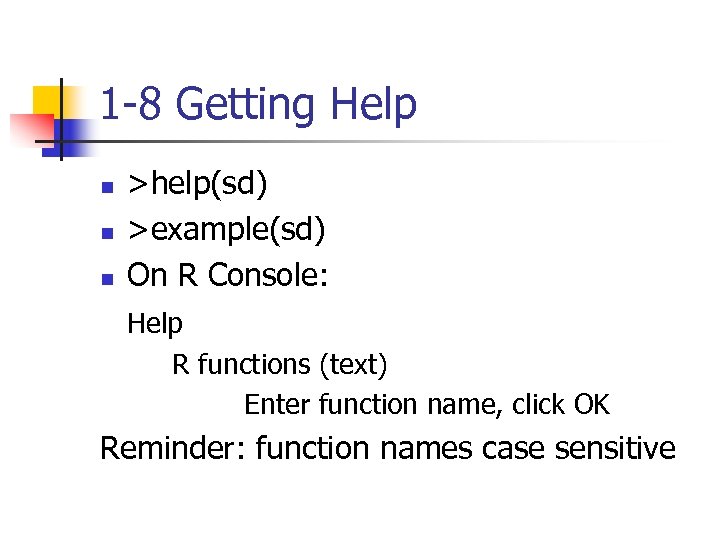
1 -8 Getting Help n n n >help(sd) >example(sd) On R Console: Help R functions (text) Enter function name, click OK Reminder: function names case sensitive
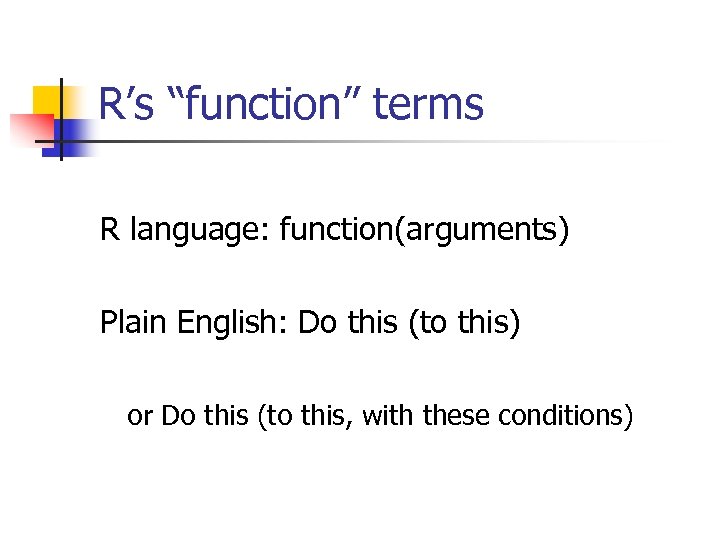
R’s “function” terms R language: function(arguments) Plain English: Do this (to this) or Do this (to this, with these conditions)
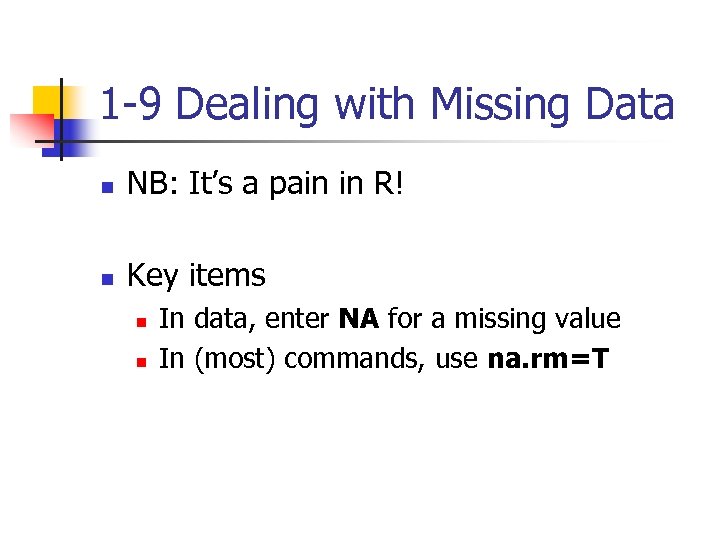
1 -9 Dealing with Missing Data n NB: It’s a pain in R! n Key items n n In data, enter NA for a missing value In (most) commands, use na. rm=T
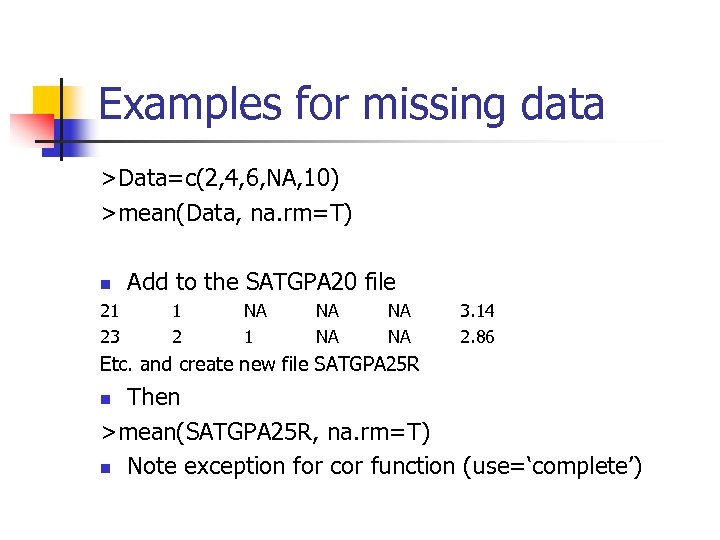
Examples for missing data >Data=c(2, 4, 6, NA, 10) >mean(Data, na. rm=T) n 21 23 Add to the SATGPA 20 file 1 2 NA 1 NA NA 3. 14 2. 86 Etc. and create new file SATGPA 25 R Then >mean(SATGPA 25 R, na. rm=T) n Note exception for cor function (use=‘complete’) n
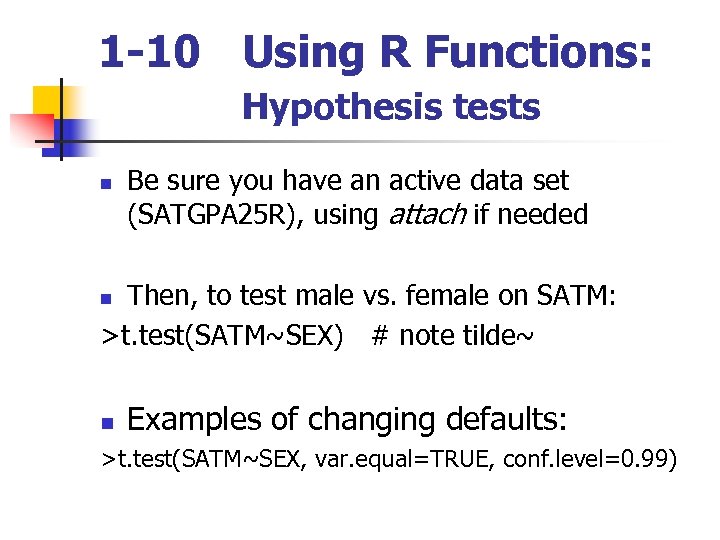
1 -10 Using R Functions: Hypothesis tests n Be sure you have an active data set (SATGPA 25 R), using attach if needed Then, to test male vs. female on SATM: >t. test(SATM~SEX) # note tilde~ n n Examples of changing defaults: >t. test(SATM~SEX, var. equal=TRUE, conf. level=0. 99)
Hypothesis tests: Chi-square n n Using SEX and State variables in SATGPA 25 R chisq. test (SEX, State)
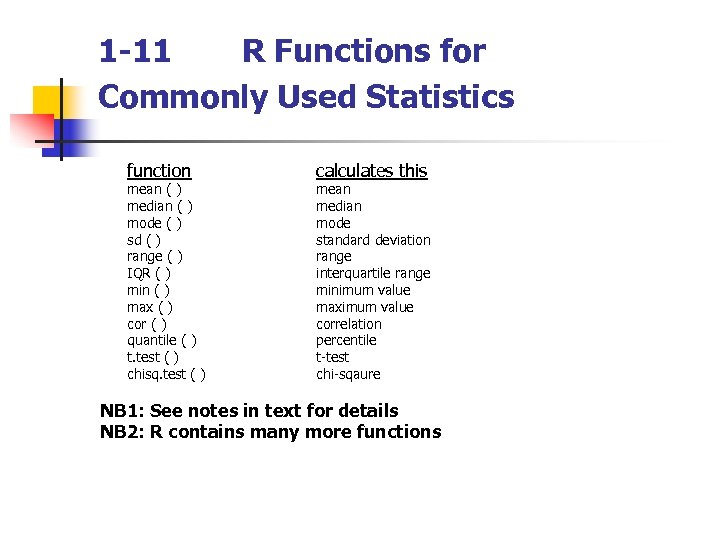
1 -11 R Functions for Commonly Used Statistics function mean ( ) median ( ) mode ( ) sd ( ) range ( ) IQR ( ) min ( ) max ( ) cor ( ) quantile ( ) t. test ( ) chisq. test ( ) calculates this mean median mode standard deviation range interquartile range minimum value maximum value correlation percentile t-test chi-sqaure NB 1: See notes in text for details NB 2: R contains many more functions
1 -12 Two Commands for Managing Your Files > ls ( ) Will list your currently saved files > rm (file) Insert file name; this will remove the file NB: R has many such commands
1 -13 R Graphics n n R graphs: good, simple Let’s start with hist and boxplot with the SATGPA 25 R file >hist(SATM) >boxplot(SATV, SATM) n R Graphics window opens, need to minimize to get R Console
More Graphics: plot n Create these variables >RS=c(12, 14, 16, 18, 25) >MS=c(10, 8, 16, 12, 20) n Now do this: >plot(RS, MS)
Line of Best Fit n Do these for the RS and MS variables: > lm(MS~RS) # lm means linear model > res=lm(MS~RS) # res means residuals > abline(res) # read as ‘a-b’ line
Controlling Your Graphics: A Brief Look n n R has many (often obscure) ways for controlling graphics; we’ll look at a few Basically, we’ll change “defaults” Examples (try each one): Limits (ranges) for X and Y axes >plot(RS, MS, xlim = c(5, 25), ylim = c(5, 25)) n
Controlling Graphs: More Examples Plot characters: >plot(RS, MS, pch=3) n Line widths >plot(RS, MS, pch=3, lwd=5) n n Axis labels >plot(RS, MS, xlab = “Reading Score”, ylab = “Math Score”) n You can put them all together in one command
Part 2: R Commander n 2 -1 What is R Commander? n n n Point and click version of R Uses (and prints) base R commands Loading: Easy – it’s just a package n See next slide
Loading Rcmdr n n On R Gui, top menu bar click Packages, then Install package(s). Pick a CRAN mirror site (nearby), click OK. From the list of packages , scroll to Rcmdr, highlight it, click OK After it loads, do these: n n Check with: >library ( ) Activate with: >library (Rcmdr)
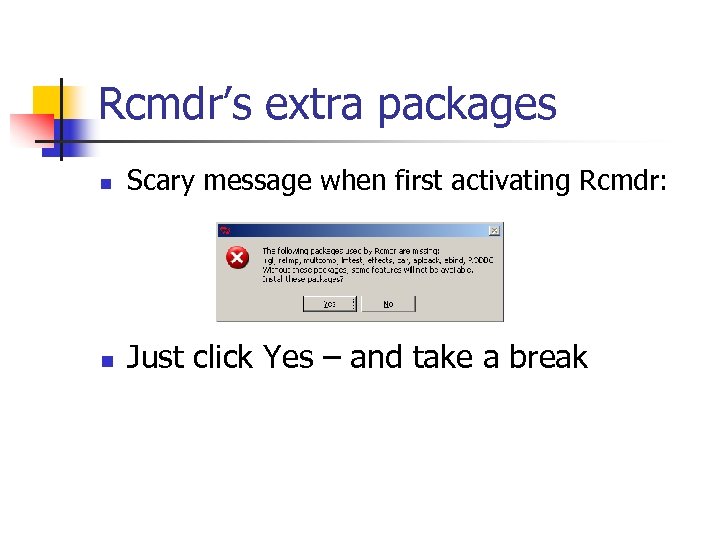
Rcmdr’s extra packages n Scary message when first activating Rcmdr: n Just click Yes – and take a break
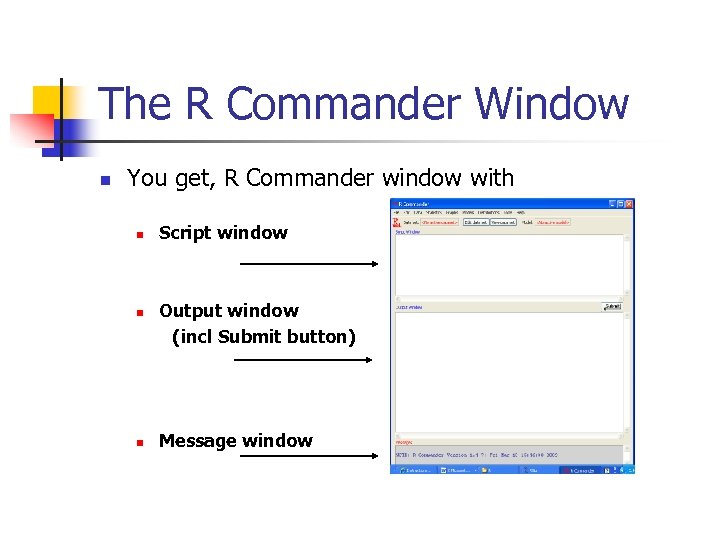
The R Commander Window n You get, R Commander window with n n n Script window Output window (incl Submit button) Message window
2 -2 R Commander Windows and Menus n n n n n File Edit Data Statistics Graphs Models Distributions Tools Help ** ** ** Most important for us
Our Lesser Used Menus n File n n n Much like in Microsoft Manage files Edit n n [Table 2. 1] [Table 2. 2] Much like in Microsoft Can do with right click of mouse
Our Lesser Used Menus (cont) n Models n Distributions n Mostly more advanced stats Tools n n n Load packages Options – change output defaults Help n n Searchable index R Commander manual
2 -3 The Data Menu (very important) (Submenus for creating/getting data sets) n New data set – create new data set n Load data set – only for existing. rda data n Import data – import from various file types n Data in packages – not important for us
Data Menu (cont. ) (Submenus for managing data sets) n Active data set n n Do stuff with current data set Manage variables in active data set n Do stuff with variables in current data set
![New data set [Fig. 2. 3] n Click on it, brings up spreadsheet n](https://present5.com/presentation/6fa514e6047555e8c34a11b5d9266eff/image-48.jpg "New data set [Fig. 2. 3] n Click on it, brings up spreadsheet n")
New data set [Fig. 2. 3] n Click on it, brings up spreadsheet n Name it Sample. Data
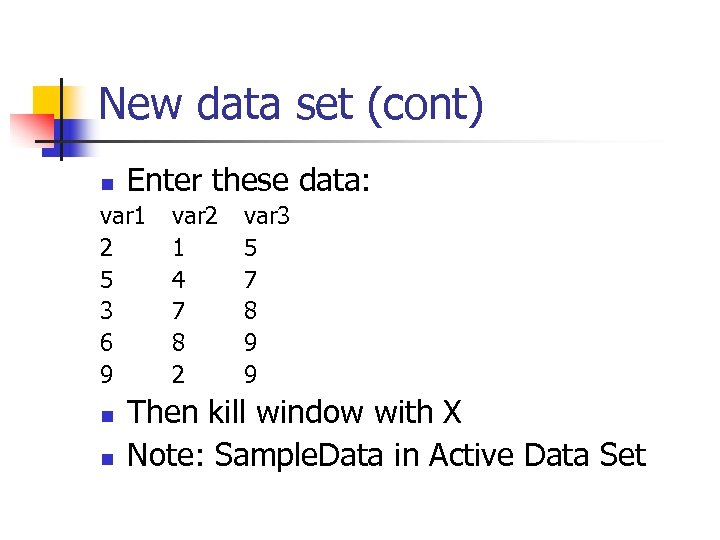
New data set (cont) n Enter these data: var 1 2 5 3 6 9 n n var 2 1 4 7 8 2 var 3 5 7 8 9 9 Then kill window with X Note: Sample. Data in Active Data Set
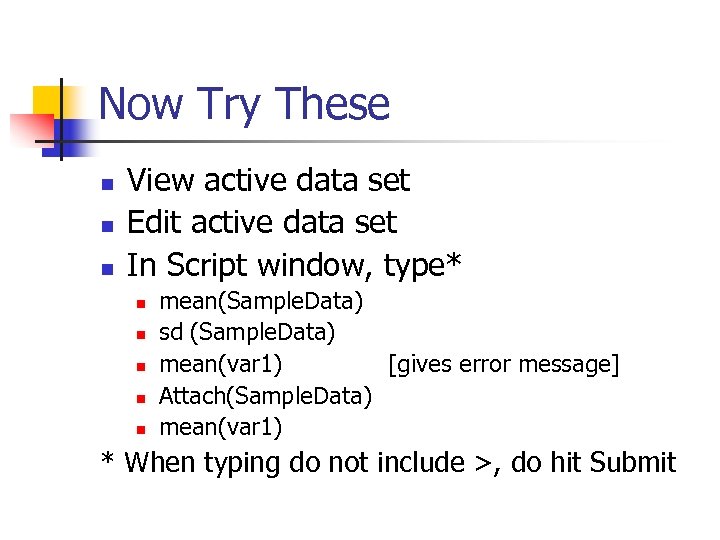
Now Try These n n n View active data set Edit active data set In Script window, type* n n n mean(Sample. Data) sd (Sample. Data) mean(var 1) [gives error message] Attach(Sample. Data) mean(var 1) * When typing do not include >, do hit Submit
Changing “var” names Data Manage variables in active data set Rename variables Change names to Rater 1, Rater 2, Rater 3 n n Then check with mean(Sample. Data) mean(Rater 1)
Compute new variable n n Data Manage variables in active data set Compute new variable Give name to new variable, call it Total In ‘Expression to compute’, enter Rater 1+Rater 2+Rater 3 Check with n n View data set mean (Sample. Data)
Import data (very important submenu) n Allows importing from n n n . txt file SPSS file Excel file Several others Try it with a. txt file n (must already exist; try with SATGPA 25. txt)
Convert Numeric Variables to Factors n n n Recall types of scales (esp. nominal) Rcmdr assumes numeric To convert to nominal (factor) n n Data, then Manage variables in active data set, and Convert numeric variables to factors. Highlight the variable you want to convert, click OK. In the next window, give labels to the levels of the variable. Try with SEX and State in SATGPA 25 R
2 -4 The Statistics Menu n n Obviously very important Most pretty clear how to do n n Some go beyond intro stats Some surprises on what’s where We’ll just sample some of them Put SATGPA 25 R in Active data set
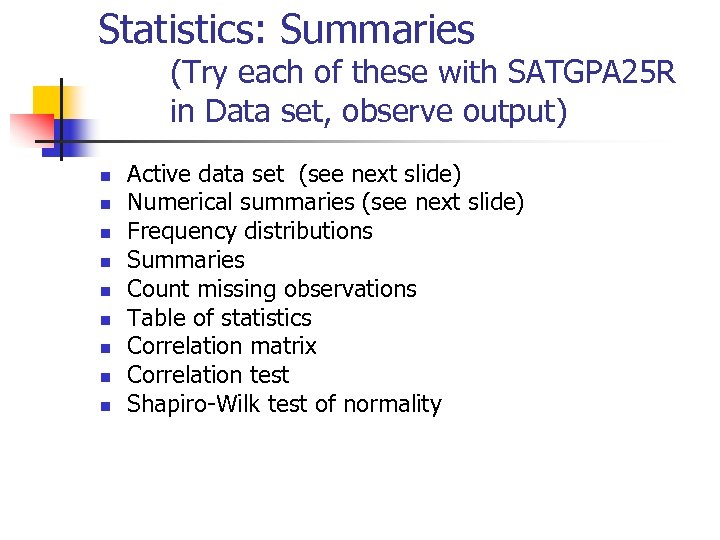
Statistics: Summaries (Try each of these with SATGPA 25 R in Data set, observe output) n n n n n Active data set (see next slide) Numerical summaries (see next slide) Frequency distributions Summaries Count missing observations Table of statistics Correlation matrix Correlation test Shapiro-Wilk test of normality
Getting started on Stat menu n n n Statistics – Summaries - Active data set Statistics – Summaries – Numerical summaries Etc. with others
![Numerical Summaries Screen [Fig 2. 4]](https://present5.com/presentation/6fa514e6047555e8c34a11b5d9266eff/image-58.jpg "Numerical Summaries Screen [Fig 2. 4]")
Numerical Summaries Screen [Fig 2. 4]
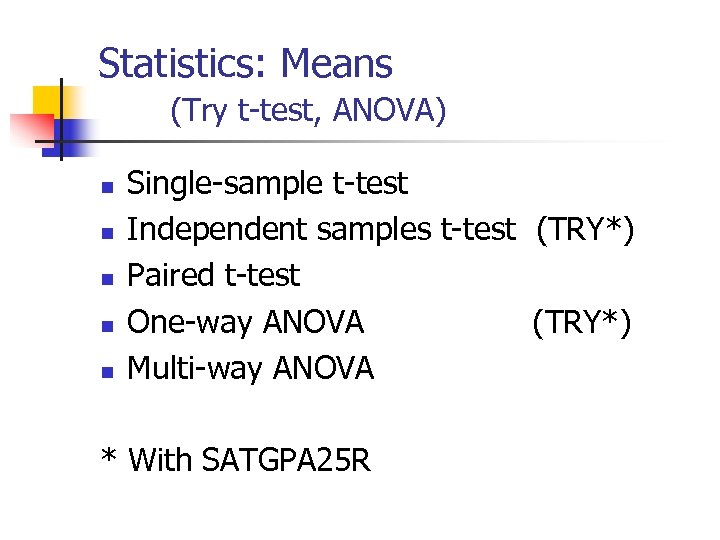
Statistics: Means (Try t-test, ANOVA) n n n Single-sample t-test Independent samples t-test (TRY*) Paired t-test One-way ANOVA (TRY*) Multi-way ANOVA * With SATGPA 25 R
![Independent Samples t-test (Do SATM by SEX) [Fig 2. 7]](https://present5.com/presentation/6fa514e6047555e8c34a11b5d9266eff/image-60.jpg "Independent Samples t-test (Do SATM by SEX) [Fig 2. 7]")
Independent Samples t-test (Do SATM by SEX) [Fig 2. 7]
![One-Way ANOVA (Do GPA by State) [Fig 2. 8]](https://present5.com/presentation/6fa514e6047555e8c34a11b5d9266eff/image-61.jpg "One-Way ANOVA (Do GPA by State) [Fig 2. 8]")
One-Way ANOVA (Do GPA by State) [Fig 2. 8]
![Two-Way Table (chi-square) n [Fig 2. 9] Statistics - Contingency tables - Two-Way table](https://present5.com/presentation/6fa514e6047555e8c34a11b5d9266eff/image-62.jpg "Two-Way Table (chi-square) n [Fig 2. 9] Statistics - Contingency tables - Two-Way table")
Two-Way Table (chi-square) n [Fig 2. 9] Statistics - Contingency tables - Two-Way table
2 -5 n n The Graphics Menu All pretty intuitive (if you know the graph) Try with SATGPA 25 R n n Pie: State Histogram: SATM Boxplot by group: SATM by SEX Scatterplot: GPA from SATV
Changing Graphs Appearance n Rcmdr Graphs uses defaults n Change them in Script window n Use commands given earlier n Many ways to do; not terribly intuitive n See example on next slide
Changing Graphs Defaults: Example n Histogram of GPA (with defaults): Hist(SATGPA 25 R$GPA, scale="frequency", breaks="Sturges", col="darkgray") [copy, paste, change, Submit] Hist(SATGPA 25 R$GPA, scale="frequency", breaks=4, col="black", lwd=3)
2 -6 The Distributions Menu: Two Quick Examples n n Distributions Continuous distributions Normal distribution Normal probabilities [insert -1. 5] Distributions Continuous distributions t distribution t probabilities [insert 1. 71, df 28]
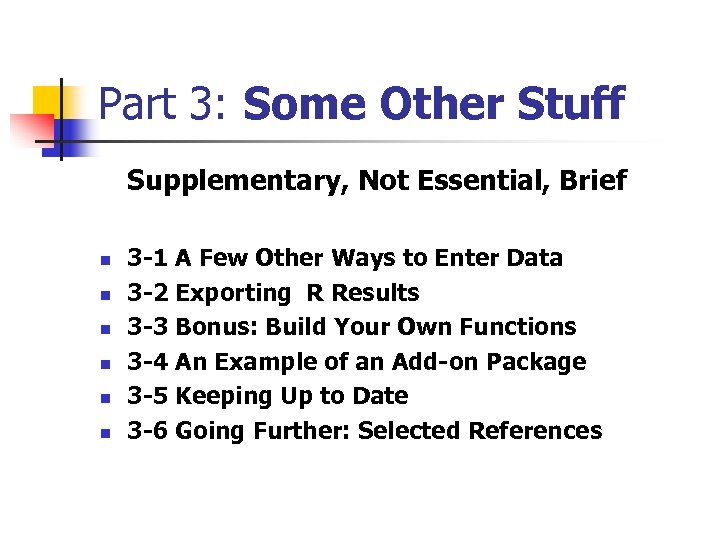
Part 3: Some Other Stuff Supplementary, Not Essential, Brief n n n 3 -1 A Few Other Ways to Enter Data 3 -2 Exporting R Results 3 -3 Bonus: Build Your Own Functions 3 -4 An Example of an Add-on Package 3 -5 Keeping Up to Date 3 -6 Going Further: Selected References
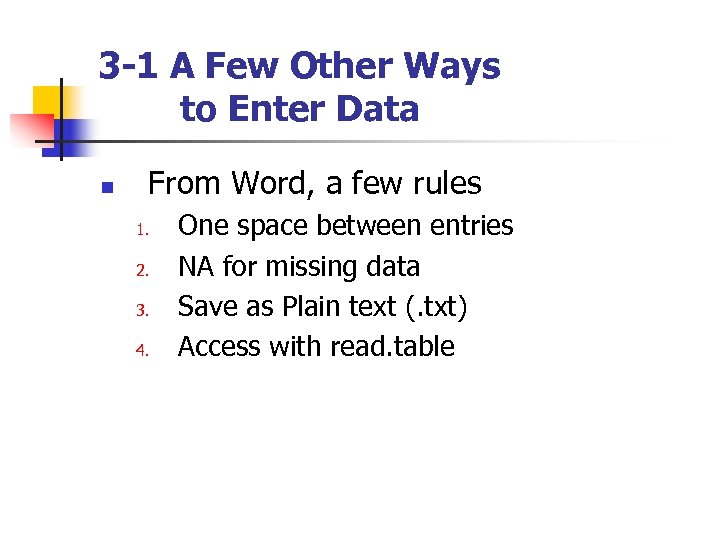
3 -1 A Few Other Ways to Enter Data n From Word, a few rules 1. 2. 3. 4. One space between entries NA for missing data Save as Plain text (. txt) Access with read. table
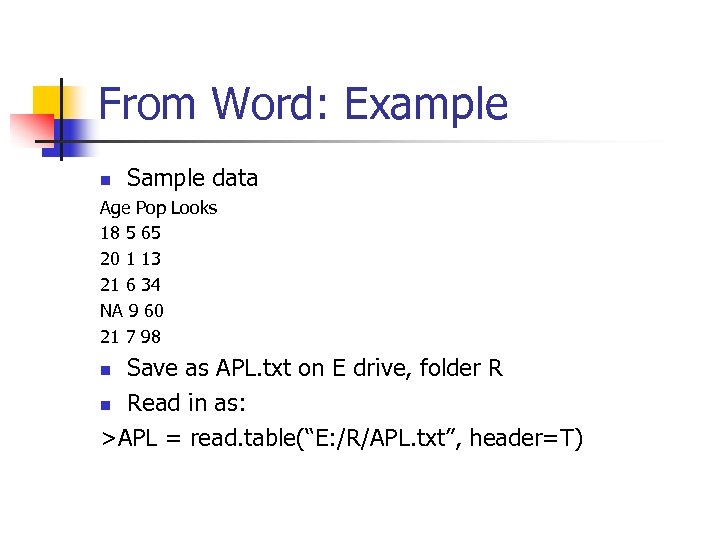
From Word: Example n Sample data Age Pop Looks 18 5 65 20 1 13 21 6 34 NA 9 60 21 7 98 Save as APL. txt on E drive, folder R n Read in as: >APL = read. table(“E: /R/APL. txt”, header=T) n
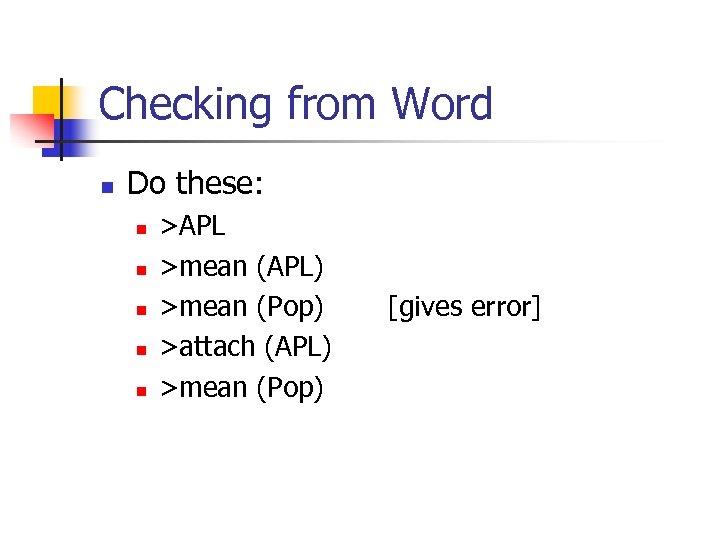
Checking from Word n Do these: n n n >APL >mean (APL) >mean (Pop) >attach (APL) >mean (Pop) [gives error]
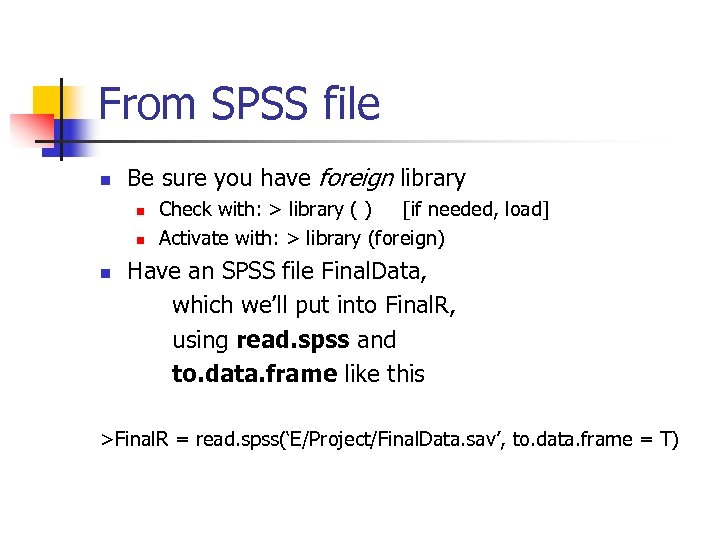
From SPSS file n Be sure you have foreign library n n n Check with: > library ( ) [if needed, load] Activate with: > library (foreign) Have an SPSS file Final. Data, which we’ll put into Final. R, using read. spss and to. data. frame like this >Final. R = read. spss(‘E/Project/Final. Data. sav’, to. data. frame = T)
3 -2 Exporting R Results n n n For most intro applications, you’ll be content with output on R Console or Rcmdr Output window You can copy and paste to Word Hint: Use monospaced font for better alignment Can also save to a variety of formats from Base R or Rcmdr
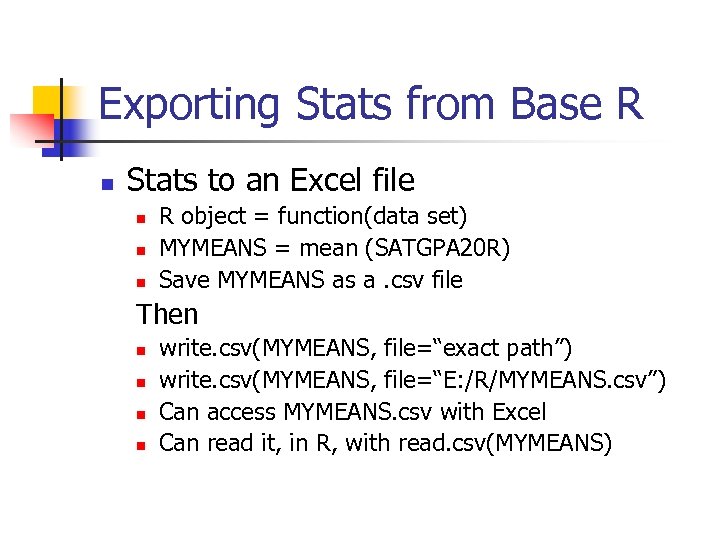
Exporting Stats from Base R n Stats to an Excel file n n n R object = function(data set) MYMEANS = mean (SATGPA 20 R) Save MYMEANS as a. csv file Then n n write. csv(MYMEANS, file=“exact path”) write. csv(MYMEANS, file=“E: /R/MYMEANS. csv”) Can access MYMEANS. csv with Excel Can read it, in R, with read. csv(MYMEANS)
Exporting Graphs from Base R n n Easy in R Graphics window and works same for base R and Rcmdr Right click on the graph Copy as metafile (and paste wherever) Save as metafile (and save wherever)
Exporting from R Commander n n Easy, works much like in Word After running a stat, n n n Go to File menu, Save output as, give file a name and destination, click Save Note file saved as a. txt file Saving graphs: Same as from Base R
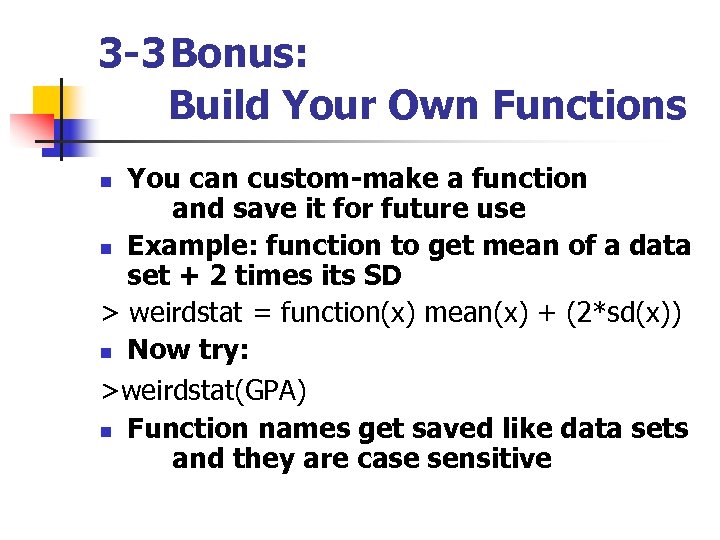
3 -3 Bonus: Build Your Own Functions You can custom-make a function and save it for future use n Example: function to get mean of a data set + 2 times its SD > weirdstat = function(x) mean(x) + (2*sd(x)) n Now try: >weirdstat(GPA) n Function names get saved like data sets and they are case sensitive n
3 -4 An Example of an Add-on Package n Getting Info about Packages n n n (need Internet) Take it slowly Go to Task Views in http: //cran. r-project. org/ Gives categories of packages (23 now) Click on link for a category Package names: usually cryptic, often obscure To see what’s in a package: n n Click on its link Look at its Reference Manual
Installing an Add-on Package n Follow usual steps for download n n n Using an Add-on Package n n Be sure to activate with >library(pkg) Download psychometric package Basically a collection of functions Examples with psychometric package n n r. nil(r, n) rdif. nul(r 1, r 2, n 1, n 2)
3 -5 Keeping Up to Date n All parts of R (base, Commander, addon packages) periodically updated n Check cran-r site for updates n Update by downloading new version (need Internet connection for this)
3 -6 Selected References n Key URLs n n n R home: http: //www. r-project. org/ Download: http: //cran. r-project. org/ For many other introductions to R: http: //cran. r-project. org/other-docs. html
References (cont) n Some ‘Official’ books – online as pdfs n Fox, J. (2005). Getting started with the R Commander n R Development Core Team (2009). R Data Import/Export version 2. 9. 0. n Venables, W. N. , Smith, D. M. , & the R Development Core Team (2009). An introduction to R. Notes on R: A programming environment for data analysis and graphics version 2. 9. 0.
References (cont) n Some other books n n n Dalgaard, P. (2008). Introductory statistics with R (2 nd ed. ). New York: Springer. Everitt, B. S. , & Hothorn, T. (2006). A handbook of statistical analyses using R. Boca Raton, FL: Chapman and Hall. Murrell, P. (2005). R graphics. Boca Raton, FL: Chapman and Hall.
To cite use of R n To cite the use of R for statistical work, R documentation recommends the following: R Development Core Team (2009). R: A language and environment for statistical computing. R Foundation for Statistical Computing, Vienna, Austria. ISBN 3 -900051 -07 -0, URL http: //www. R-project. org. n Get the latest citation by typing citation ( ) at the > prompt in the R Console.
The End
Скачать презентацию Bare-Bones R A Brief Introductory Guide Thomas P
6fa514e6047555e8c34a11b5d9266eff.ppt