 Скачать презентацию Bank Reconciliation 2013 Objectives Reconcile your checking
4aca7f1612c08ef5cf8a66396e0938cd.ppt
- Количество слайдов: 17



Bank Reconciliation 2013
Objectives Reconcile your checking account Create bank reconciliation reports Find errors during reconciliation Correct errors found during reconciliation Make corrections when Quick. Books automatically adjusts the balance in a bank account Handle bounced checks Reconcile credit card accounts and record a bill for later payment Online Banking
Reconciling Bank Accounts Bank account should be reconciled each month To reconcile a bank account: ◦ Select the Banking menu, and then select Reconcile and select account ◦ Check Beginning balance should match the bank beginning balance ◦ Enter statement date, Ending balance, service charge and Interest earned
Reconciling Bank Accounts (cont. ) Match each line with the bank statement: ◦ Match the deposits and other credits ◦ Match the checks and other withdrawals on the bank statement Difference field should be 0. 00 when finished Click Reconcile Now To pause reconciliation, click Leave
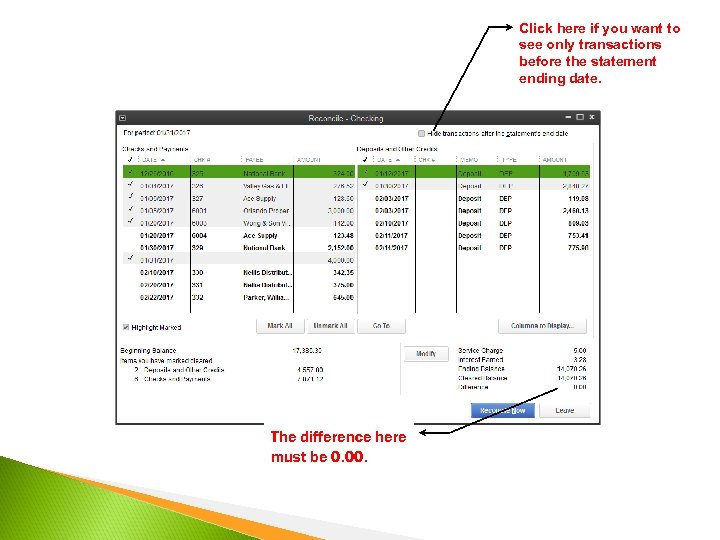
Click here if you want to see only transactions before the statement ending date. The difference here must be 0. 00.
Bank Reconciliation Reports After a successful reconciliation you can generate ◦ Reconciliation Summary report ◦ Reconciliation Detail report Select Previous Reconciliation Report displays: ◦ Select Summary or Detail option ◦ Click Display to view the report ◦ Click Print to print the report
Finding Errors during Bank Reconciliation The Beginning Balance Field error: ◦ One or more reconciled transactions were voided, deleted, or changed since the last reconciliation ◦ A user removed the checkmark from one or more reconciled transactions in the account register since the last reconciliation Incorrectly Recorded transactions ◦ Discrepancy between a transaction in Quick. Books and a transaction on the bank statement
Correct Beginning Balance Option 1: Use the Reconciliation Discrepancy Report ◦ Review the report for any changes to cleared transactions ◦ Enter the corrections Option 2: Undo the Bank Reconciliation ◦ In the Begin Reconciliation window, select the bank Account and click Locate Discrepancies ◦ Click Undo Last Reconciliation
Edit Transactions in Current Accounting Period If you made the error ◦ Make the correction If the bank made an error ◦ Enter a transaction in the bank account register to adjust your balance for the error To void a check, double-click the transaction in the Reconcile window, select the Edit menu and select Void Check and then return to Reconcile window
Edit Transactions in Closed Accounting Periods Quick. Books automatically makes a reversing entry using the date of the current bank statement and same account that you used on the original transaction The two transactions cancel each other out
Quick. Books Automatically Adjusts your Balance If the difference is not zero when you click Reconcile Now in the Reconcile window: ◦ A transaction is created in the bank account for the difference ◦ The transaction is coded to the Reconciliation Discrepancies expense account To Correct the problem: ◦ Delete the transaction that is coded to Reconciliation Discrepancies ◦ Undo the Last Reconciliation ◦ Perform the bank reconciliation again correctly
Customer’s Check Bounces Bounced checks are also know as NSF (nonsufficient funds) Add two new transactions to your bank account register: ◦ one for the amount of the check that bounced ◦ one for the fee charged by the bank To charge your customers a service fee for processing their NSF check, enter an Invoice for the customer
When Your Check Bounces Enter transaction in the bank account register and code it to Bank Service Charges using the actual date that the bank charged your account If your vendor charges an extra fee for bouncing a check, enter a Bill (or use Write Checks) and code the charge to the Bank Service Charge account
Reconciling Credit Cards Accounts and Paying the Bill Credit card accounts should be reconciled every month After the reconciliation of credit cards, Quick. Books asks if it should: ◦ Write a check for payment now ◦ Enter a bill for payment later If you don’t want to pay the whole amount due on a credit card, edit the original Bill to match the amount you actually intend to pay
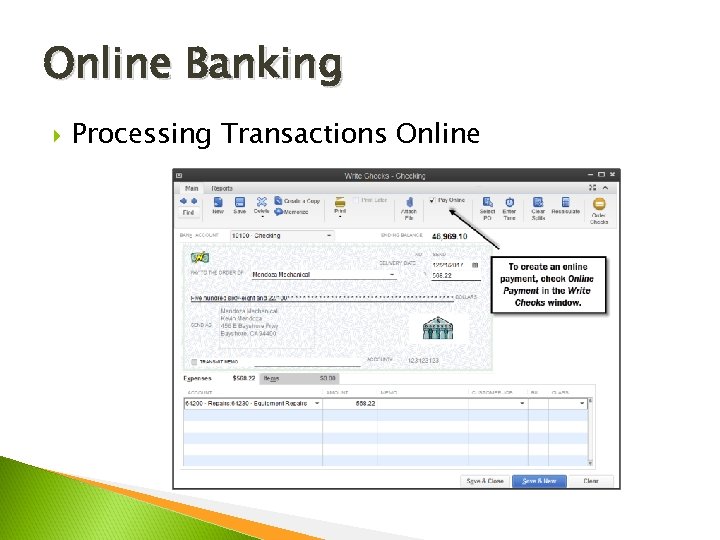
Online Banking Processing Transactions Online
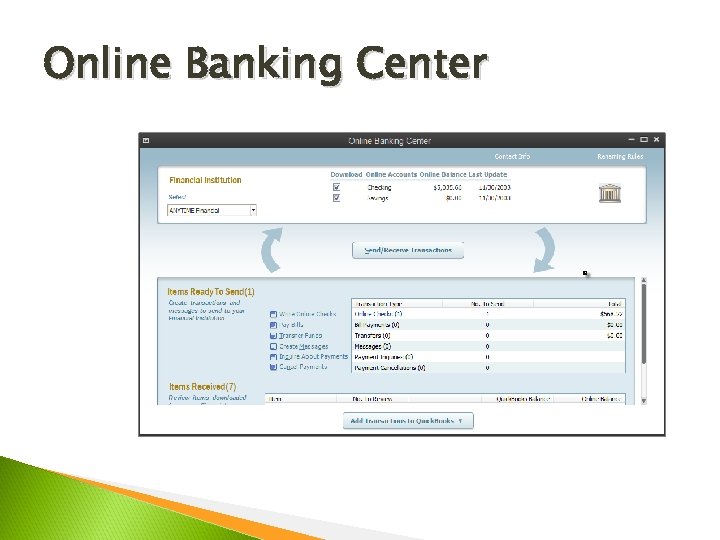
Online Banking Center
Summary of Key Points Reconcile your checking account Create bank reconciliation reports Find errors during reconciliation Correct errors found during reconciliation Make corrections when Quick. Books automatically adjusts the balance in a bank account Handle bounced checks Reconcile credit card accounts and record a bill for later payment Online Banking
Скачать презентацию Bank Reconciliation 2013 Objectives Reconcile your checking
4aca7f1612c08ef5cf8a66396e0938cd.ppt