


 Скачать презентацию AVIT Video Conferencing Training Module Lectures Video
1f4d1a625ea3118bab4b8ed668589bcb.ppt
- Количество слайдов: 36
 AVIT Video Conferencing Training Module Lectures
 Video Conferencing is mainly used for meetings, lectures and tutorials l It is cost effective and time efficient l To achieve a successful video conference, users need to be familiar and confident using the medium, and encourage an interactive environment l
 Why VC Lectures? Ability to communicate with multiple sites l Off-site communication and learning l Opportunity for students and staff to incorporate this technology with rural teaching and learning l
 A Successful VC Lecture The essential ingredients: l Booking of Sites and Bridge l www. avit. med. usyd. edu. au Contact with the Video Conferencing Unit l Learning VC Basics l Knowing What to Expect at a Lecture l Preparing Presentation Material l Effective Communication l
 VC Lecture Basics Screen Layout l Camera l Microphone l Standard Lecture Theatre Setup l During the Lecture l Presentations l What to do on the day of your lecture l
 What You See - Screen Layout There are three main types of screen layout: l Voice Activated Video l Quad Split l Picture in a Picture
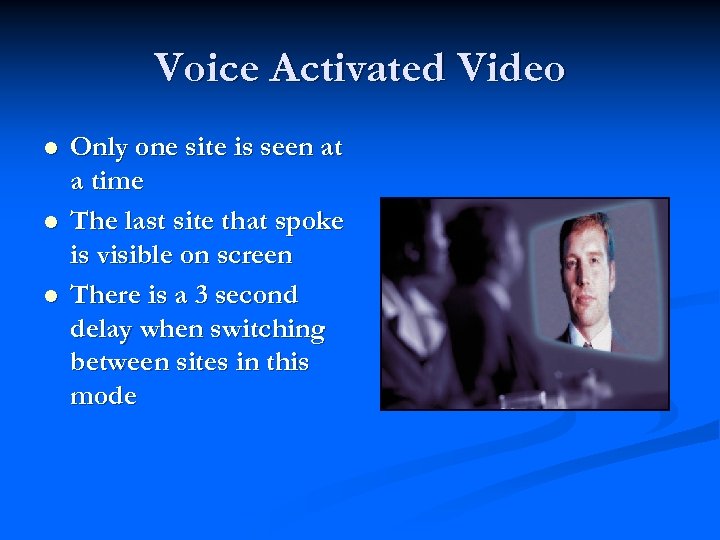 Voice Activated Video l l l Only one site is seen at a time The last site that spoke is visible on screen There is a 3 second delay when switching between sites in this mode
 Quad Split Screen Layout The screen is divided into 4 quadrants l The Bridge controls which site is visible in which quadrant l If there are 6 or more sites, the 4 th quadrant works in Voice Activated Video mode l Things to Consider: l Small screen problems l Increased importance of camera setup l Problems showing presentation material l
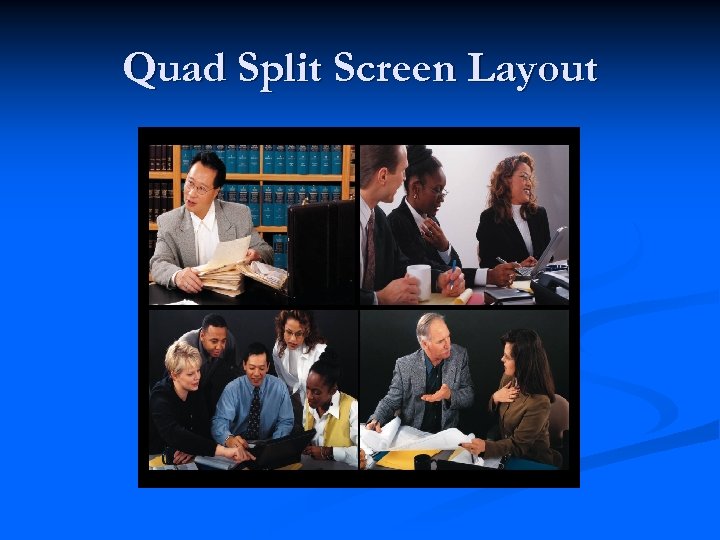 Quad Split Screen Layout
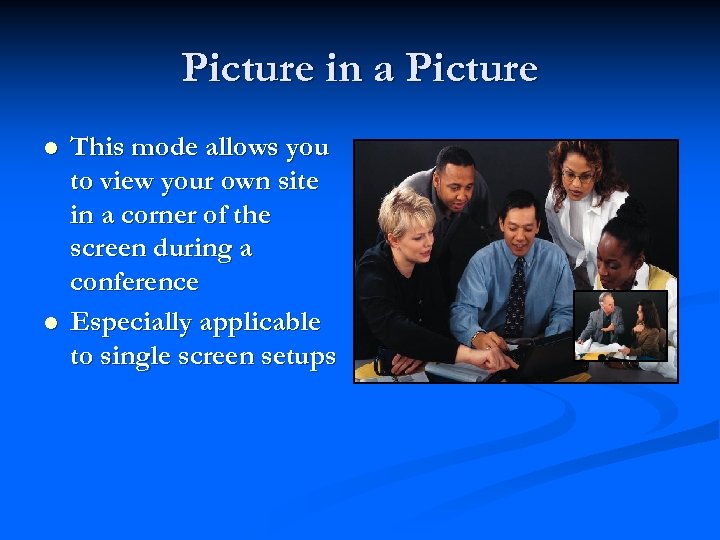 Picture in a Picture l l This mode allows you to view your own site in a corner of the screen during a conference Especially applicable to single screen setups
 Camera presets l Good Camera Control l l Camera on lecturer, on presentation, on audience, depending on who is speaking Stay within Camera Shot l Maintain eye contact with your video conference audience as well as the physical audience l
 Microphones Proper microphone positioning is vital l All attendees at a site need to heard as well as possible l At the beginning of a conference, or when a new site joins in, test that all sites can hear one another l What if they can’t hear me? l
 Microphones Ideally, use a lapel microphone l If unavailable, speak very clearly and at a moderate speed towards the lectern microphone l
 Standard Lecture Theatre Setup Lectern l 2 screens (both data projection) l Microphones – lectern, audience l Cameras – audience, lecturer/presentation l
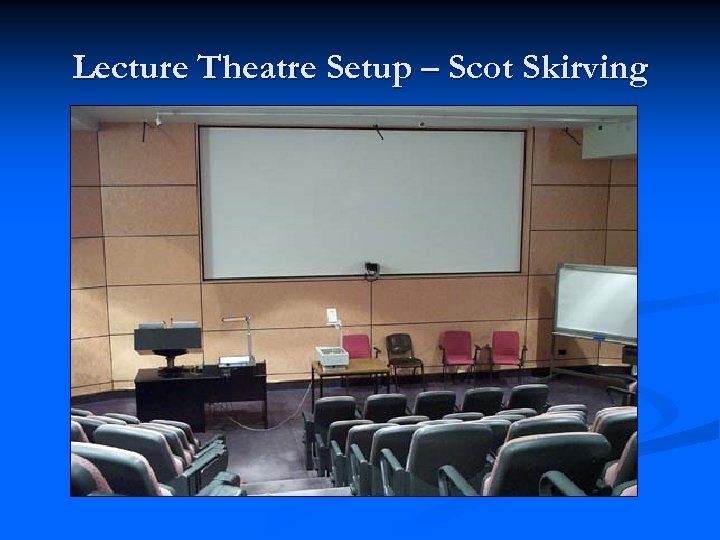 Lecture Theatre Setup – Scot Skirving
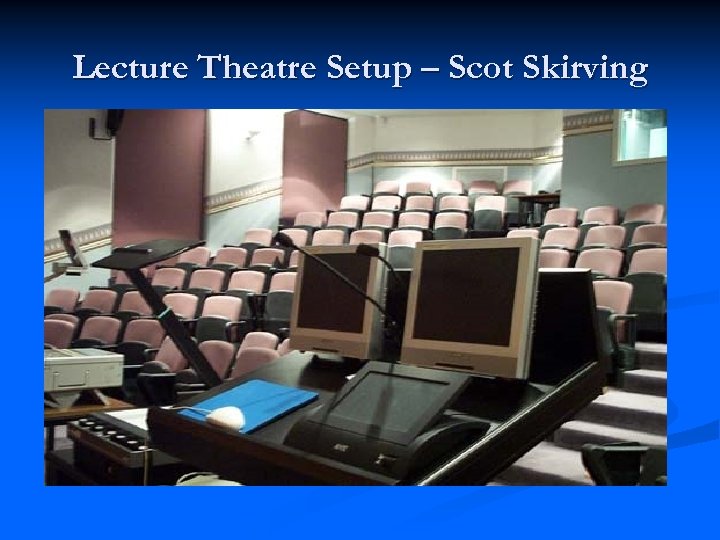 Lecture Theatre Setup – Scot Skirving
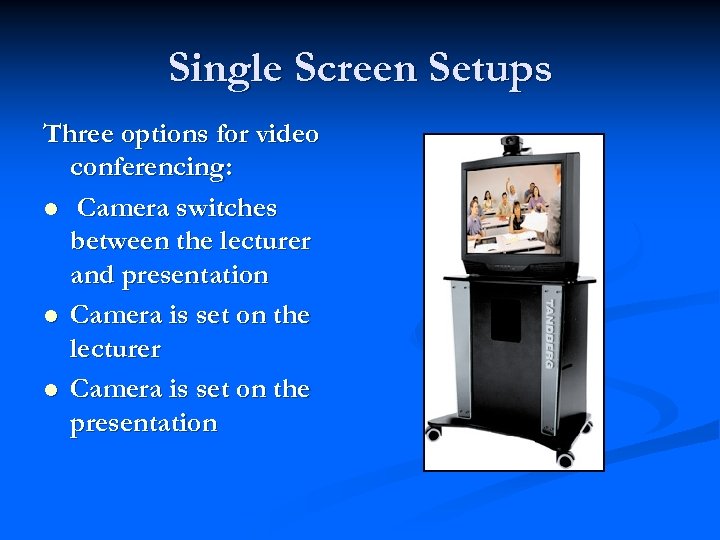 Single Screen Setups Three options for video conferencing: l Camera switches between the lecturer and presentation l Camera is set on the lecturer l Camera is set on the presentation
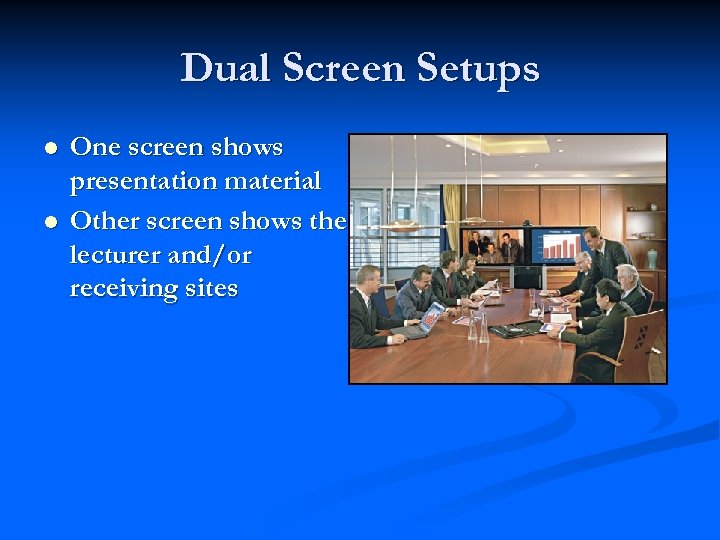 Dual Screen Setups l l One screen shows presentation material Other screen shows the lecturer and/or receiving sites
 Presentations l Modes of presentation available: Power. Point l Document Camera l Overhead Projector l Whiteboard l VCR l DVD l
 Presentations Consult the Video Conferencing Unit l All sites should have a hardcopy l Use camera presets to view both the presenter and the presentation material l Picture Quality l Site specificity of presentation equipment l
 Power. Point Presentations Power. Point is the preferred mode of presentation l Use the mouse as a pointer, rather than a laser pointer l Provide extra verbal description of what is shown l Emphasis on clarity rather than beauty! l
 Power. Point Presentations Text at least size 25 l Use font of uniform thickness l Less than 10 lines per slide l Dark uniform background l Optimal colours – jet blue background with yellow font l Make images as large as possible l
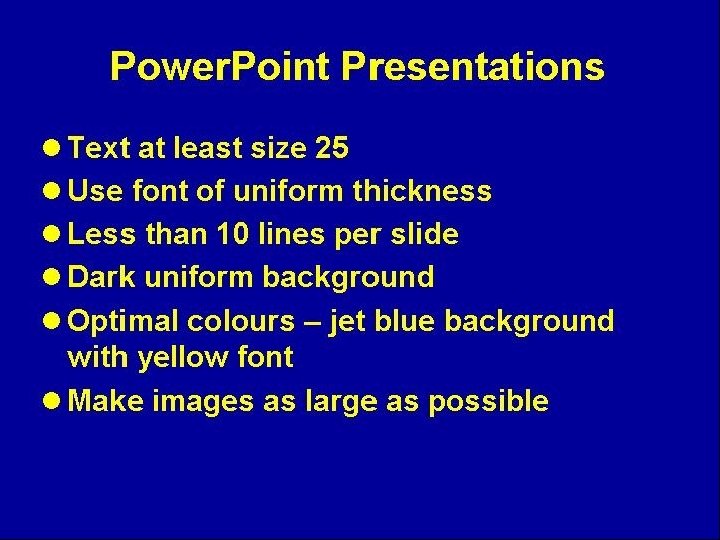 Example Power. Point Presentation
 Document Camera Can show paper, books, transparencies and small models l TV quality vs computer (XGA) quality l If viewing smaller objects/text use the ‘zoom’ function l Book the document camera to ensure that it is available for use during your lecture l
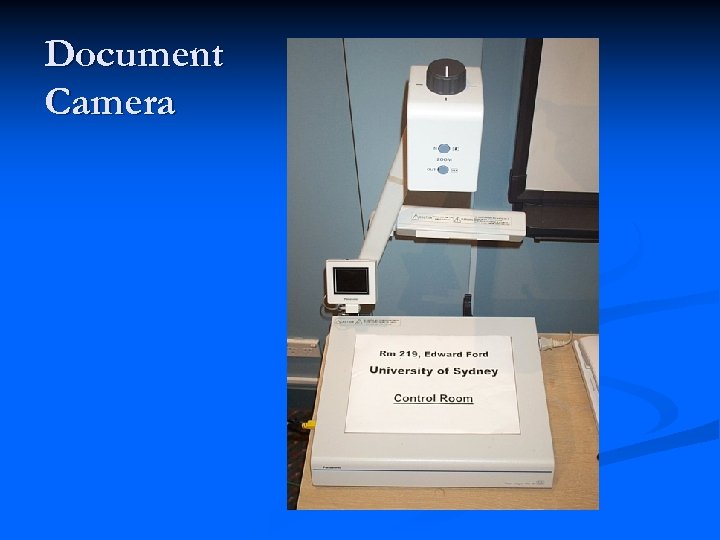 Document Camera
 Overhead Projectors & Whiteboards Should be avoided l Poor quality transmission via video l Handouts should be used instead l
 DVD & VCR Can show clips of VCR or DVD footage over video conference l Check availability of equipment at your site l
 Presentation Handouts It is best practice to provide all students with a paper handout of presentation material l Handouts help to overcome the difficulties for participants of seeing the material clearly, and the camera can be focused on the lecturer l
 Process for Handout Distribution Lecturer sends a copy of the presentation to the local education officer l Education Officer sends the material to the receiving sites l The presentation is then printed out (ppt handout with 6 slides per page) l A copy is made available for all participants l
 Presentations & the Camera During a presentation, the camera will switch between lecturer and presentation – controlled by technical assistant on-site l Camera will view the presentation briefly; maximising the time the lecturer spends on camera l Increased satisfaction and attention from the receiving sites l
 Effective VC Communication l The lecturer facilitates successful: Participation l Communication l Etiquette l Be aware that you are usually communicating to multiple sites l Participants at receiving sites do not have the full benefits of being in the lecture theatre with the lecturer l
 Participation l l Maintain constant contact with all sites using the camera Aim for equal participation at each site Keep attention levels high – do not forget or ignore the students or staff participating via video conference Communicate directly to participating sites l l l Questions Comments This helps to overcome the barrier of distance and technology
 Communication Talk clearly, one at a time l No multiple discussions l Talk towards the microphone, considering your position and the range of the microphone l
 Etiquette Video conferencing greatly benefits from orderly and clear conduct l Avoid all unnecessary movement and noise l Presume that you are always being watched and heard l Using the ‘Mute’ function l
 Question and Answer Sessions Be aware that all questions asked by students at the sending site must be heard at the receiving sites l Questions should be asked using a hand held microphone, or the questions should be repeated by the lecturer l Students at receiving sites need enough time to ‘Unmute’ to answer any questions l
 What to do on the Day Arrive 15 minutes early l Contact with VCU or On-Site Help Person to load presentation material onto local computer l When lecturing – interact, include, engage l Ensure that all participants can see/hear throughout lecture l For lectures, on-site technical assistant will supervise audio and camera view l