


 Скачать презентацию Automated Scheduling and E-mailing from within Discoverer —
bb5d1c6cd5bd94bedce17d25b7c3cb28.ppt
- Количество слайдов: 59
 Automated Scheduling and E-mailing from within Discoverer - and more… ODTUG 2007 Michael Armstrong-Smith Consulting
 Art of managing Discoverer Data is limited – imagination knows no bounds Managing Discoverer is an art – not a science Please turn cell phones to mute If you must make or take a call, please step outside
 About Michael Member of Oracle’s customer advisory board for business intelligence Co-author of Oracle Discoverer Handbook Presenter at IOUG, OAUG, ODTUG and Sungard Summit Fellow of Institute of Analysts and Programmers Meta. Link and OTN Forum panel expert 9 years experience of Discoverer and Oracle Applications Over 25 years IT experience Designated an Oracle ACE in 2006
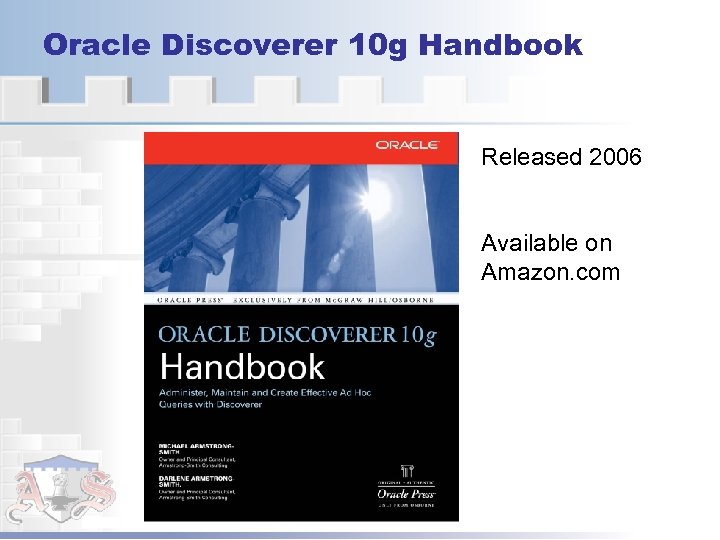 Oracle Discoverer 10 g Handbook Released 2006 Available on Amazon. com
 About Armstrong-Smith Consulting A business intelligence company founded 2003 Partnerships Microsoft Oracle Sungard Higher Education Market segments, among: Advertising, Government, Heath Care, Manufacturing, Oil Exploration, Higher Education, Pharmaceuticals, Utilities
 Our Services ASC offers services in the following: Business Intelligence Strategic Planning Corporate Reporting Dashboard creation using Oracle Portal Data Warehousing OWB Analysis and Design Construction Planning Oracle E-Business Suite training All modules
 Our Discoverer Services ASC offers the following Discoverer services: Customized and standard Discoverer training Standard Training – End User – 3 days, – Admin – 2 days Customized Training – we train on your data Consultancy Installation; EUL creation; report creation; system evaluation; security setup Remote support Let us manage your Discoverer environment for you
 Session Objectives This session covers: The limitations to scheduling The four steps to automation Setting up the scheduling Bonus Discoverer snippet Q&A – 10 minutes at the end
 The limitations to scheduling
 Limitations of Discoverer Scheduler No export feature within the scheduler No E-Mail feature within the scheduler Discoverer Desktop does not have an export to PDF Oracle is reviewing Discoverer’s scheduling functionality.
 The four steps to automation
 Four steps to automation 1. Schedule using Discoverer Desktop’s command line interface 2. Use a third-party scheduler tool 3. Use a third-party PDF tool 4. Use a third-party E-mail tool
 Using Desktop’s command line
 Using Desktop’s command line One of the less-known capabilities of Desktop is the ability to execute many of its functions direct from the command line Without opening Desktop, using the command line, you can Run queries Automate printing Export the results
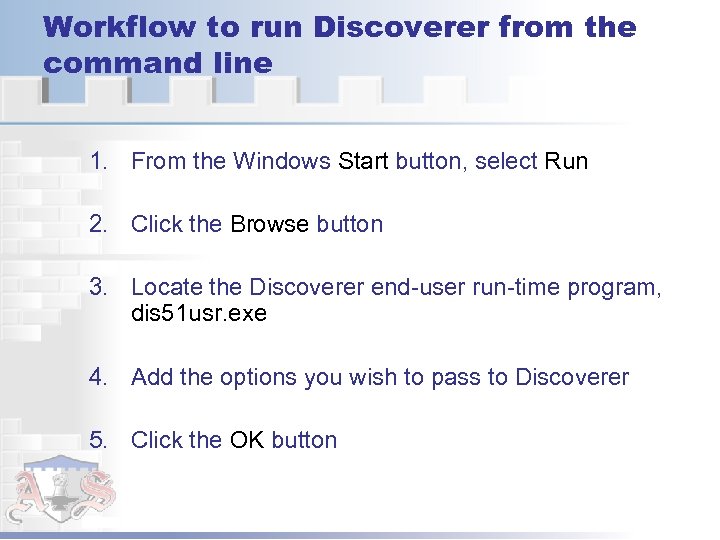 Workflow to run Discoverer from the command line 1. From the Windows Start button, select Run 2. Click the Browse button 3. Locate the Discoverer end-user run-time program, dis 51 usr. exe 4. Add the options you wish to pass to Discoverer 5. Click the OK button
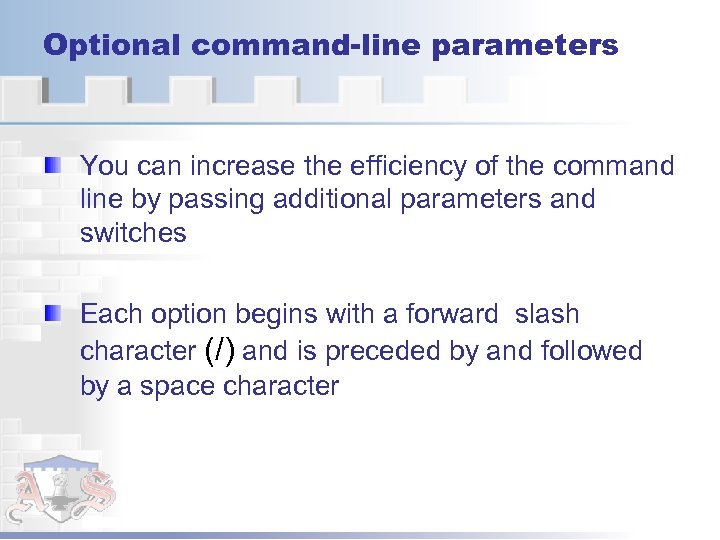 Optional command-line parameters You can increase the efficiency of the command line by passing additional parameters and switches Each option begins with a forward slash character (/) and is preceded by and followed by a space character
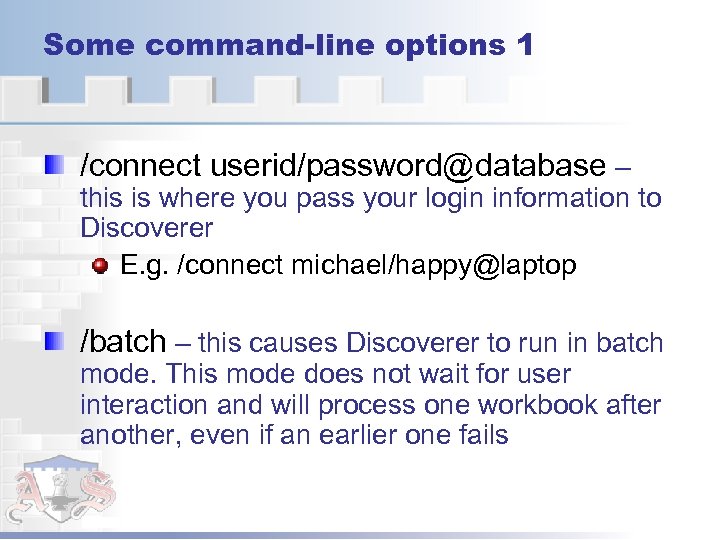 Some command-line options 1 /connect userid/password@database – this is where you pass your login information to Discoverer E. g. /connect michael/happy@laptop /batch – this causes Discoverer to run in batch mode. This mode does not wait for user interaction and will process one workbook after another, even if an earlier one fails
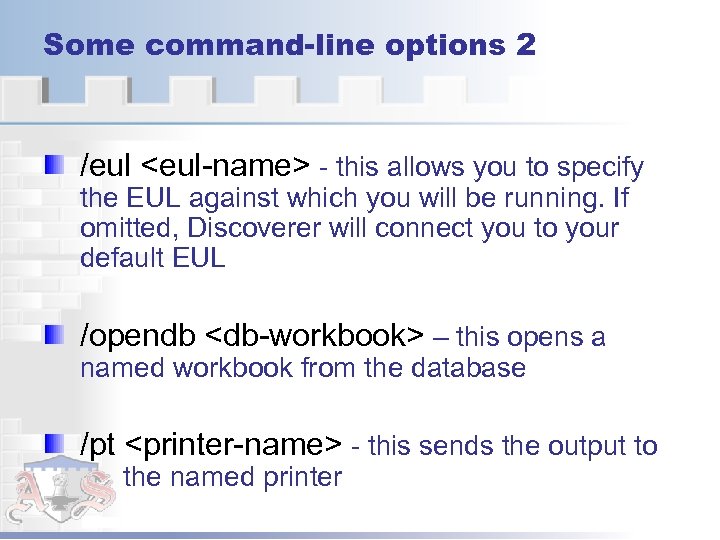 Some command-line options 2 /eul
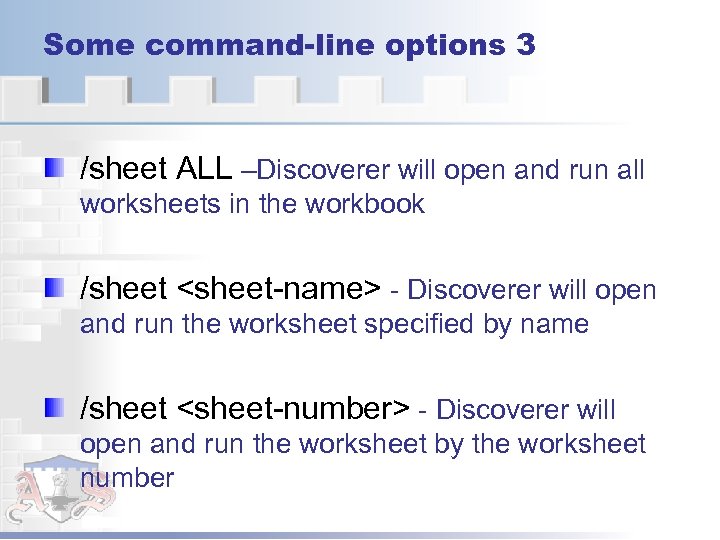 Some command-line options 3 /sheet ALL –Discoverer will open and run all worksheets in the workbook /sheet
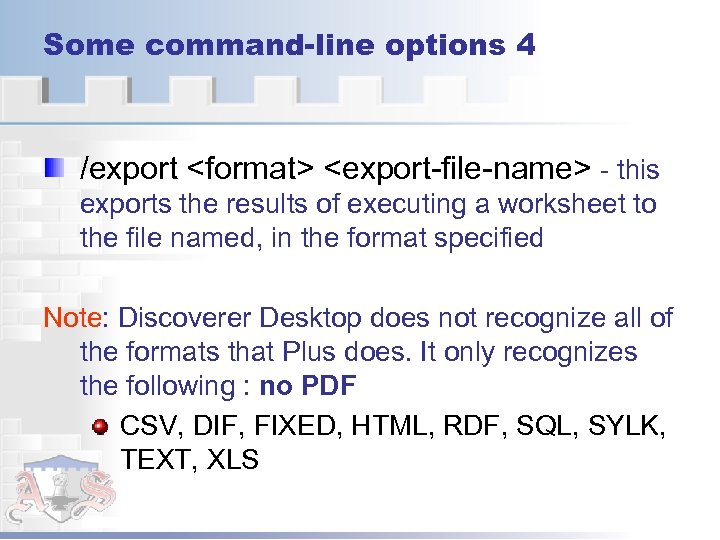 Some command-line options 4 /export
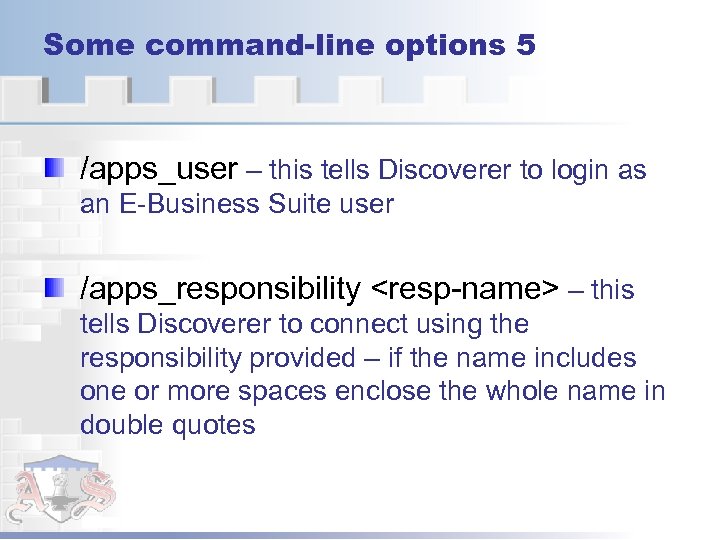 Some command-line options 5 /apps_user – this tells Discoverer to login as an E-Business Suite user /apps_responsibility
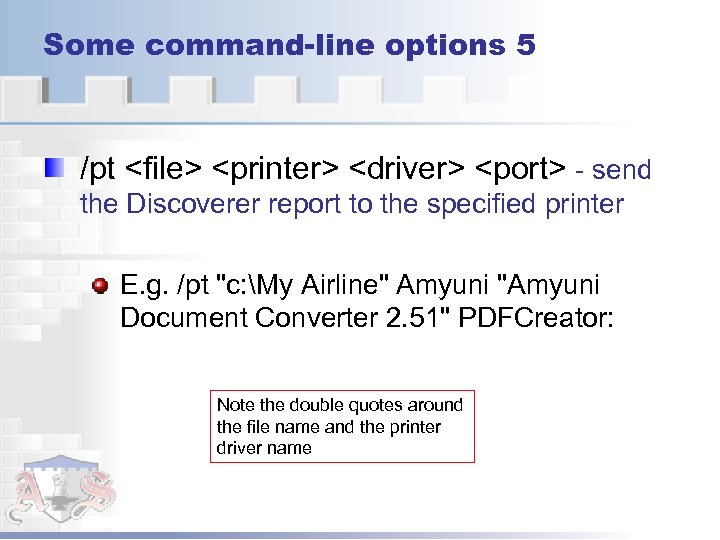 Some command-line options 5 /pt
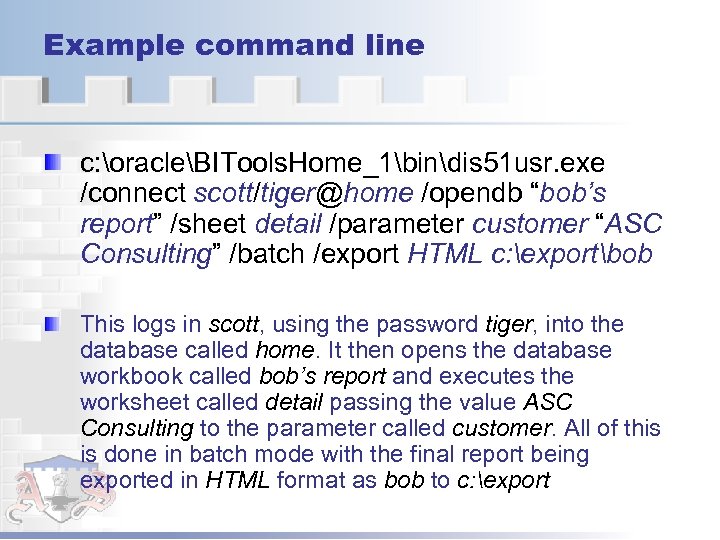 Example command line c: oracleBITools. Home_1bindis 51 usr. exe /connect scott/tiger@home /opendb “bob’s report” /sheet detail /parameter customer “ASC Consulting” /batch /export HTML c: exportbob This logs in scott, using the password tiger, into the database called home. It then opens the database workbook called bob’s report and executes the worksheet called detail passing the value ASC Consulting to the parameter called customer. All of this is done in batch mode with the final report being exported in HTML format as bob to c: export
 Using a third-party scheduler
 Third-party scheduling Many third-party schedulers on the market Winat – The Windows NT scheduler AT – The Windows XP scheduler JIT – a freeware utility Norton Program Scheduler – the Norton Utilites scheduler
 Using AT Using XP’s native scheduler, you can: Schedule a new task in XP Set scheduling properties Modify a scheduled task Remove a scheduled task Pause and restart scheduled tasks
 Workflow to use AT - 1 1. Click the Windows Start button 2. Navigate to: Programs | Accessories | System Tools | Scheduled Tasks 3. Double-click Add Scheduled Task, then click the Next button to display the file selection screen Note: do not schedule Discoverer directly because all that will happen is that Desktop will launch
 Workflow to use AT - 2 4. Click the Browse button and navigate to a batch file you have created to execute Discoverer via the command line 5. Highlight the file you want then click Open 6. In the Frequency window, give the task a suitable name, select a frequency for how often the task should run, then click the Next button
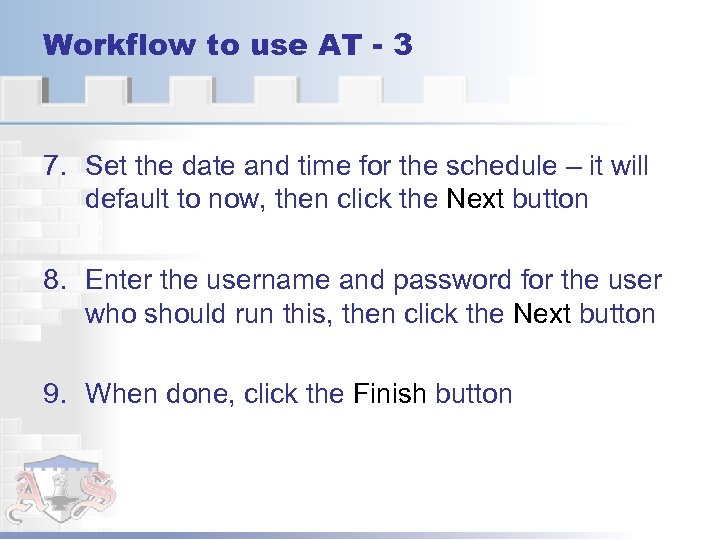 Workflow to use AT - 3 7. Set the date and time for the schedule – it will default to now, then click the Next button 8. Enter the username and password for the user who should run this, then click the Next button 9. When done, click the Finish button
 Using a third-party PDF tool
 Third-party PDF creation Why use a third-party PDF creation tool? Because Discoverer Desktop cannot export to PDF directly However, if you have a third-party PDF creation tool you can print to it
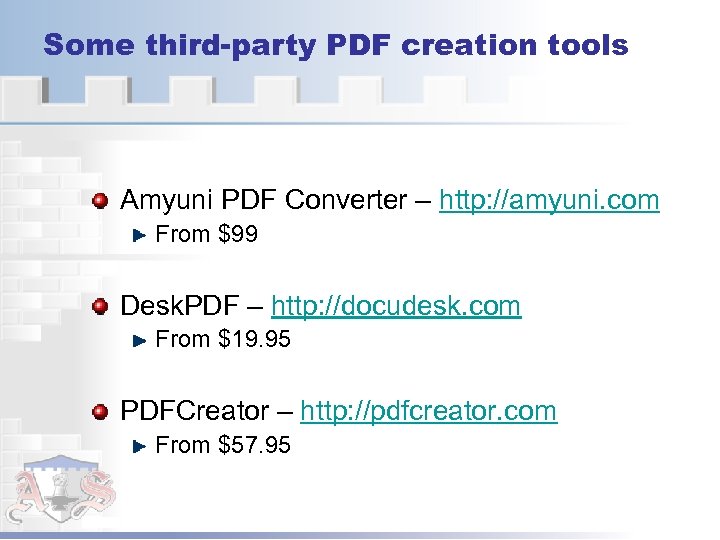 Some third-party PDF creation tools Amyuni PDF Converter – http: //amyuni. com From $99 Desk. PDF – http: //docudesk. com From $19. 95 PDFCreator – http: //pdfcreator. com From $57. 95
 How they work They all work the same way They install as printers on your machine You just send your file to the PDF printer If you have more than one PDF creator installed they will all use the same printer port
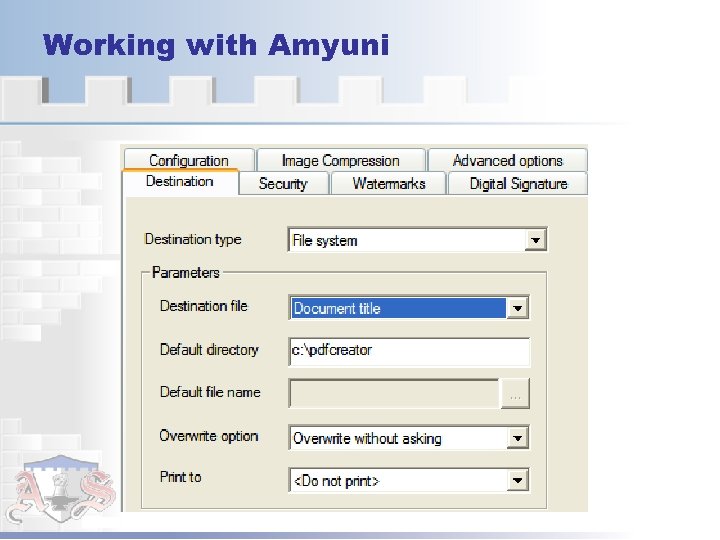 Working with Amyuni
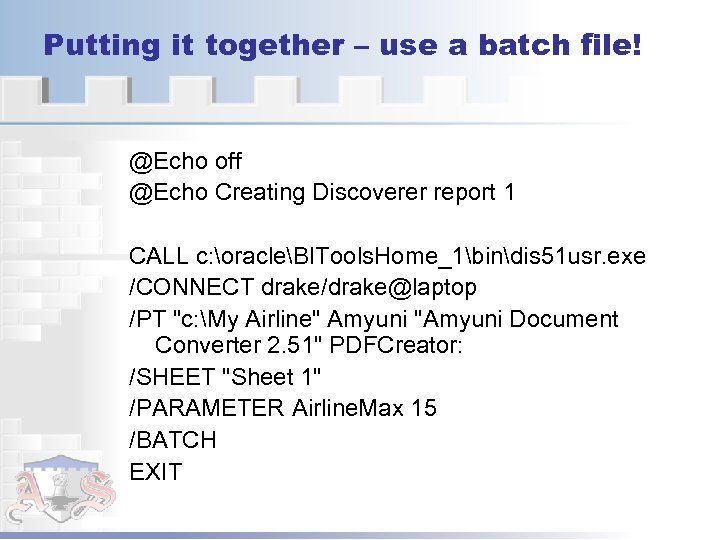 Putting it together – use a batch file! @Echo off @Echo Creating Discoverer report 1 CALL c: oracleBITools. Home_1bindis 51 usr. exe /CONNECT drake/drake@laptop /PT "c: My Airline" Amyuni "Amyuni Document Converter 2. 51" PDFCreator: /SHEET "Sheet 1" /PARAMETER Airline. Max 15 /BATCH EXIT
 Using a third-party E-mail tool
 Some third-party E-mail tools Febooti – http: //febooti. com From $44. 95 Softabar Command Line Email Client http: //softabar. com From $59. 95
 Using Febooti – some features Send email from command line to any number of recipients. Send email from Scheduled Tasks, any software that execute external commands, CGI scripts (ASP, PHP, etc. ). Use SMTP mail server authentication (AUTH PLAIN, LOGIN, NTLM, CRAM-MD 5, AUTO) before sending email. Send email using CC (Carbon Copy) and / or BCC (Blind Carbon Copy). Send email with unlimited attachments. Send email message using plain text or HTML message with embedded pictures. Set alternate text for email programs that do not support HTML formatted messages
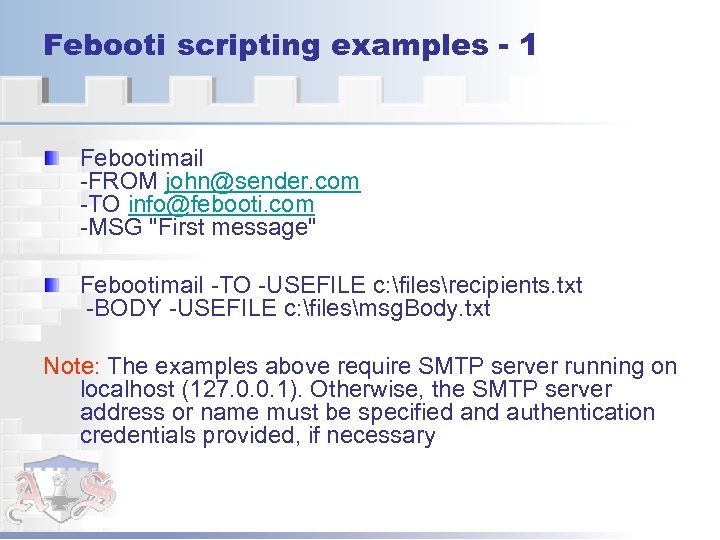 Febooti scripting examples - 1 Febootimail -FROM john@sender. com -TO info@febooti. com -MSG "First message" Febootimail -TO -USEFILE c: filesrecipients. txt -BODY -USEFILE c: filesmsg. Body. txt Note: The examples above require SMTP server running on localhost (127. 0. 0. 1). Otherwise, the SMTP server address or name must be specified and authentication credentials provided, if necessary
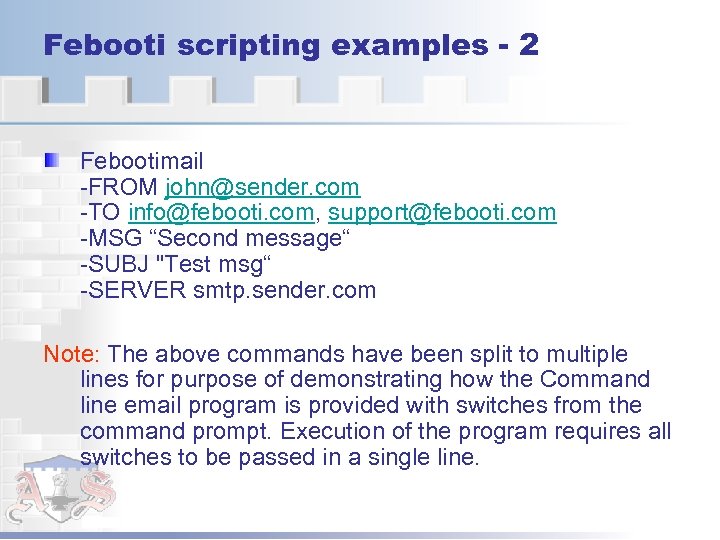 Febooti scripting examples - 2 Febootimail -FROM john@sender. com -TO info@febooti. com, support@febooti. com -MSG “Second message“ -SUBJ "Test msg“ -SERVER smtp. sender. com Note: The above commands have been split to multiple lines for purpose of demonstrating how the Command line email program is provided with switches from the command prompt. Execution of the program requires all switches to be passed in a single line.
 Setting up the scheduling
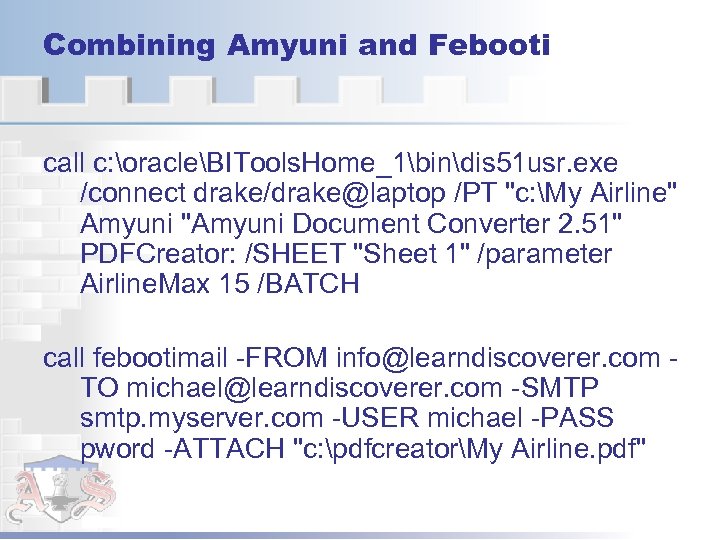 Combining Amyuni and Febooti call c: oracleBITools. Home_1bindis 51 usr. exe /connect drake/drake@laptop /PT "c: My Airline" Amyuni "Amyuni Document Converter 2. 51" PDFCreator: /SHEET "Sheet 1" /parameter Airline. Max 15 /BATCH call febootimail -FROM info@learndiscoverer. com TO michael@learndiscoverer. com -SMTP smtp. myserver. com -USER michael -PASS pword -ATTACH "c: pdfcreatorMy Airline. pdf"
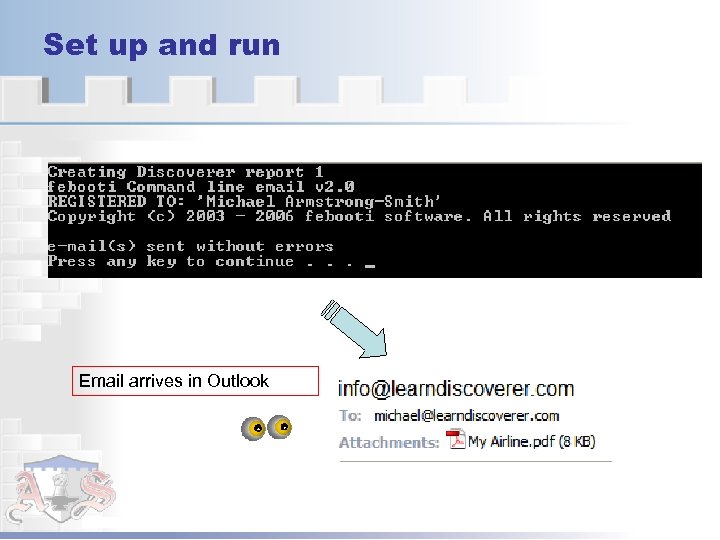 Set up and run Email arrives in Outlook
 A Bonus Discoverer Feature
 Creating indexed items Question: Is it possible to make Discoverer lists of values display the lookup description e. g. a Department Name, but then return the code, namely, Department Id, when working with parameters for example? Answer: Yes – read on
 Requirements In order to make this happen we need to have the following: A table that has an item and a code, making sure that there is a one-to-one relationship between the item and the code Make sure that there are indexes on both items Note: this is perfect for dimension tables in a data warehouse that contains unique codes and items.
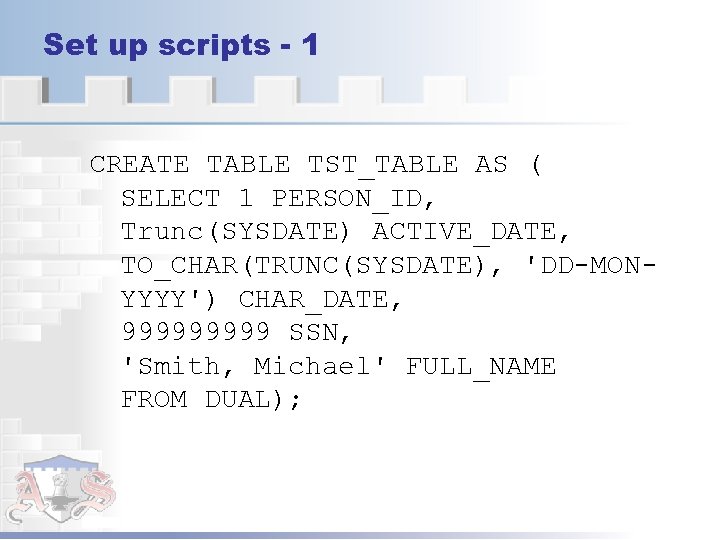 Set up scripts - 1 CREATE TABLE TST_TABLE AS ( SELECT 1 PERSON_ID, Trunc(SYSDATE) ACTIVE_DATE, TO_CHAR(TRUNC(SYSDATE), 'DD-MONYYYY') CHAR_DATE, 99999 SSN, 'Smith, Michael' FULL_NAME FROM DUAL);
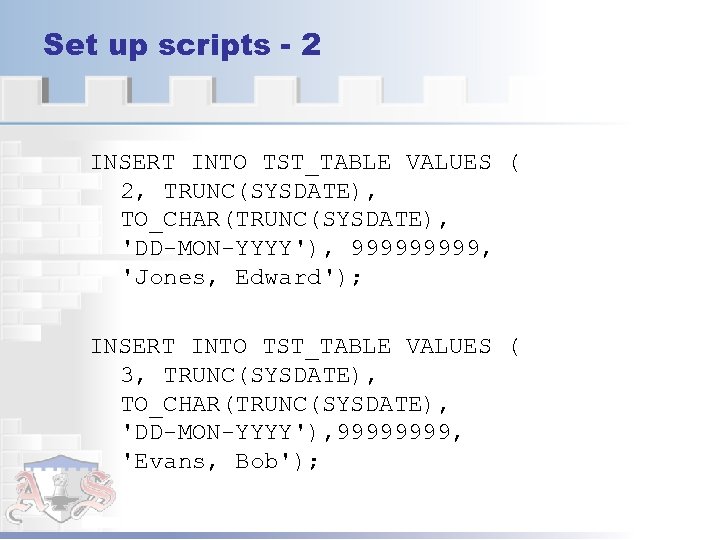 Set up scripts - 2 INSERT INTO TST_TABLE VALUES ( 2, TRUNC(SYSDATE), TO_CHAR(TRUNC(SYSDATE), 'DD-MON-YYYY'), 99999, 'Jones, Edward'); INSERT INTO TST_TABLE VALUES ( 3, TRUNC(SYSDATE), TO_CHAR(TRUNC(SYSDATE), 'DD-MON-YYYY'), 9999, 'Evans, Bob');
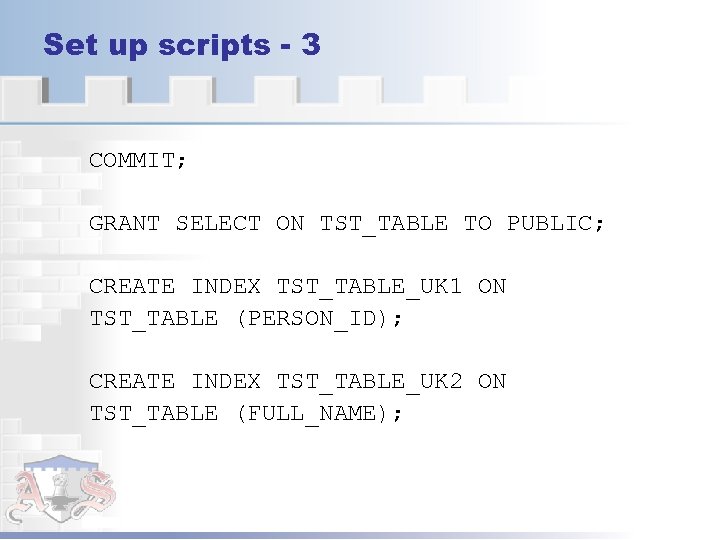 Set up scripts - 3 COMMIT; GRANT SELECT ON TST_TABLE TO PUBLIC; CREATE INDEX TST_TABLE_UK 1 ON TST_TABLE (PERSON_ID); CREATE INDEX TST_TABLE_UK 2 ON TST_TABLE (FULL_NAME);
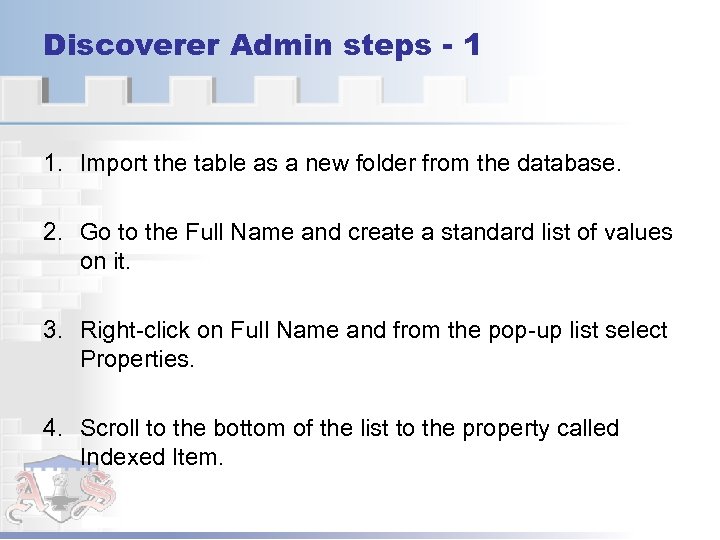 Discoverer Admin steps - 1 1. Import the table as a new folder from the database. 2. Go to the Full Name and create a standard list of values on it. 3. Right-click on Full Name and from the pop-up list select Properties. 4. Scroll to the bottom of the list to the property called Indexed Item.
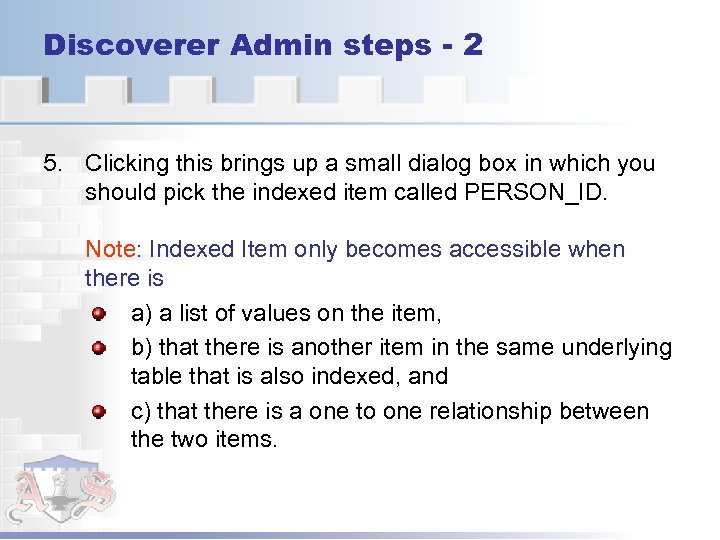 Discoverer Admin steps - 2 5. Clicking this brings up a small dialog box in which you should pick the indexed item called PERSON_ID. Note: Indexed Item only becomes accessible when there is a) a list of values on the item, b) that there is another item in the same underlying table that is also indexed, and c) that there is a one to one relationship between the two items.
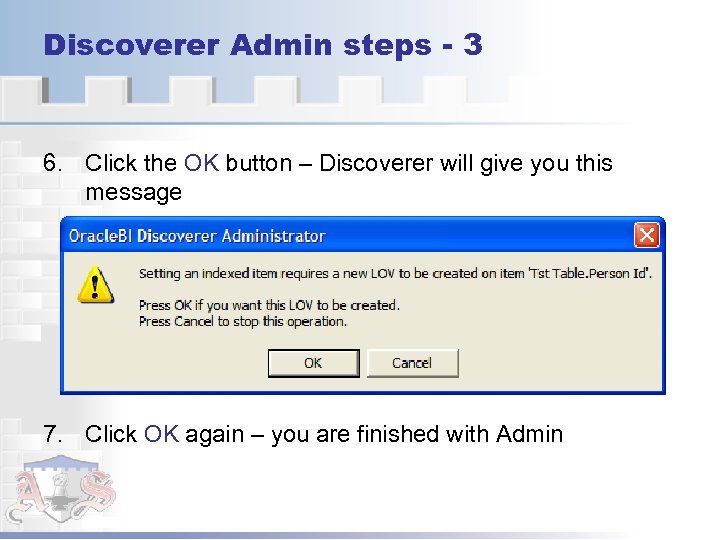 Discoverer Admin steps - 3 6. Click the OK button – Discoverer will give you this message 7. Click OK again – you are finished with Admin
 Working in Plus - 1 1. Create a new worksheet that includes the original item, FULL NAME 2. Create a new condition for the item, using a parameter for the operand 3. On the right-hand side of the New Parameter dialog box, as shown on the next screen, is a checkbox called Enable users to select either indexes or values – check it
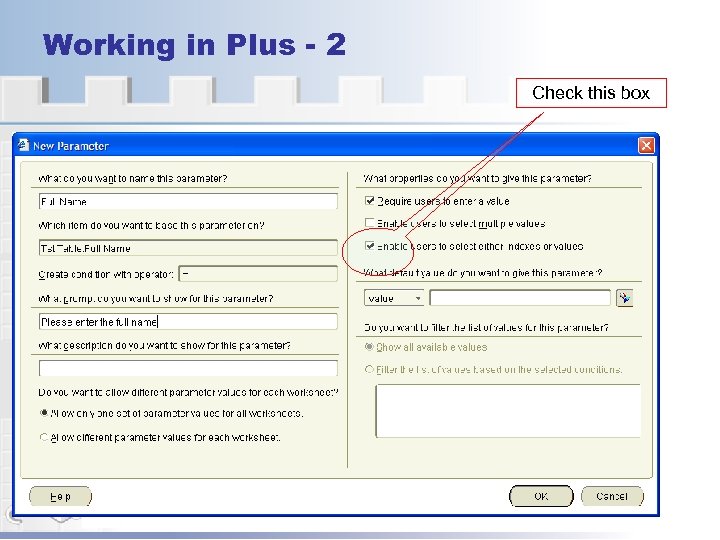 Working in Plus - 2 Check this box
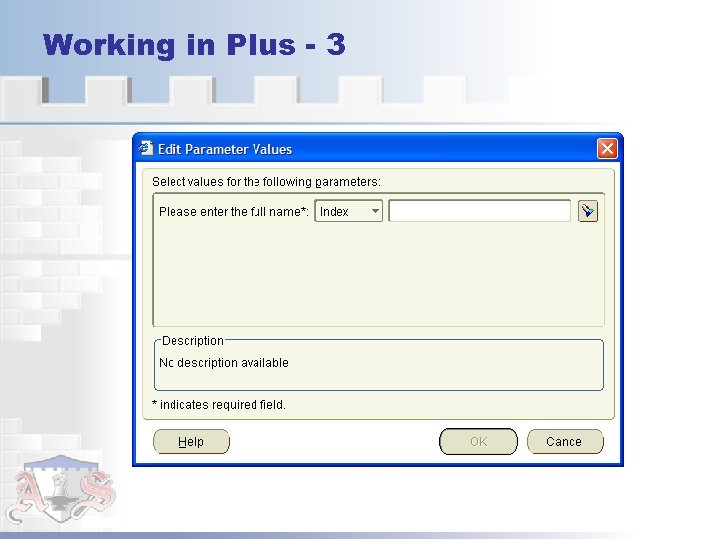 Working in Plus - 3
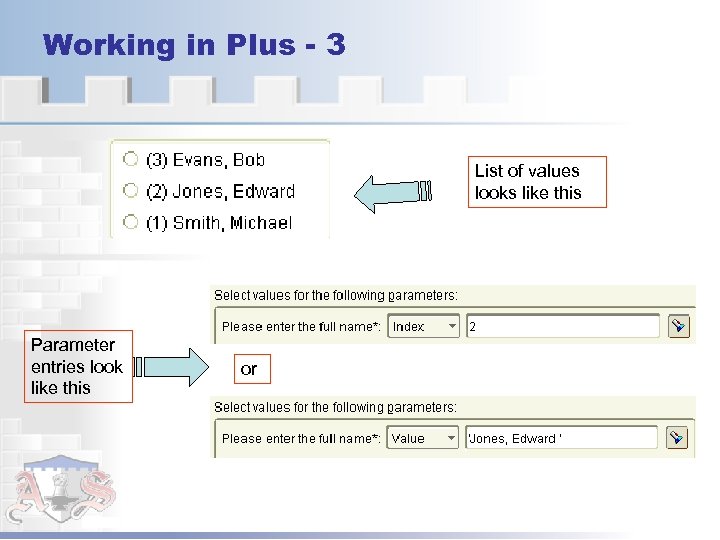 Working in Plus - 3 List of values looks like this Parameter entries look like this or
 Q&A
Q&A
 Thank You Please remember to complete your evaluation form Presenter - Michael Armstrong-Smith Session name – Automated Scheduling and E-mailing from Within Discoverer For more information about security or to get help about Discoverer please contact Michael michael@learndiscoverer. com
 Copyright The content provided as papers and presentations from the ODTUG conferences is copyrighted by the authors, and has been licensed to the ODTUG. It is only authorized for the personal use of ODTUG members and ODTUG conference attendees directly through the ODTUG web site. Downloading the files, placing them on other web sites, sharing them with other individuals or third parties is prohibited, unless permission to do so has been granted by the authors or ODTUG.