


 Скачать презентацию Assistive Technology Tools for Writing Sessions 71 or
f29cab3c47408992aa6dc44ed6247659.ppt
- Количество слайдов: 53
 Assistive Technology Tools for Writing Sessions 71 or 82 (Beginning/Intermediate) 2008 National Autism Conference State College, Pennsylvania Presented by Scott A. Dougherty IDEA Training and Consultation Coordinator, Assistive Technology 1
 About Me • • Certified Teacher of the Deaf and Hard of Hearing Certified Teacher in Elementary Education Certified Instructional Technology Specialist Transitional Program Instructor for Deaf/Hard of Hearing adults for five years • Pa. TTAN Educational Consultant for two years • AIU Assistive Technology Coordinator since October, 2001 2
 The Big Disclaimers • Not a company representative • Not a shopping list writer - other products will: – – Do some things in a better way Do some things in the same way Do some things in a worse way Do some totally different things • What you see is NOT all you can get • Products are not specific to autism • We ARE dealing with silicon 3
 Housekeeping • Feel free to ask questions as they come to you • We will take a break mid-session, but feel free to move around • Materials are available for download at http: //www. aiu 3. net/Level 3. aspx? id=3822 4
 Session Goals • Provide an overview of assistive technology software • Demonstrate the use and application of several programs to aid writing • Discuss implementation of software tools as part of daily learning experiences 5
 Learning Outcomes • List 3 examples each of notech, low-tech, and hightech AT supports for writing • List 5 AT tools for writing and identify two key features of each • Identify 5 writing tasks performed by a student and generate a list of AT tools that could support each task 6
 Definitions AT Services “Any services that directly assist in the selection, acquisition, or use of an assistive technology device. ” AT Device “Any item, piece of equipment, or product system, whether acquired commercially off the shelf, modified or customized, that is used to increase, maintain, or improve the functional capabilities of individuals with disabilities. ” (PL 100 -407, Section 3, 1988) 7
 And in English? • Any tool that helps you to accommodate a student’s needs so that: – Curricular demands are met – IEP goals are attained – Communication is aided – Independence is fostered 8
 When Should AT Be Considered? • During the IEP/IFSP process • When a disability impacts the performance or potential of a person in any of several areas: – – – Play Accessing environments Communication Writing Accessing print and auditory information • When progress is flat or negative in direction • After someone asks “Should we consider AT? ” 9
 Range of Assistive Technology Supports for Writing 10
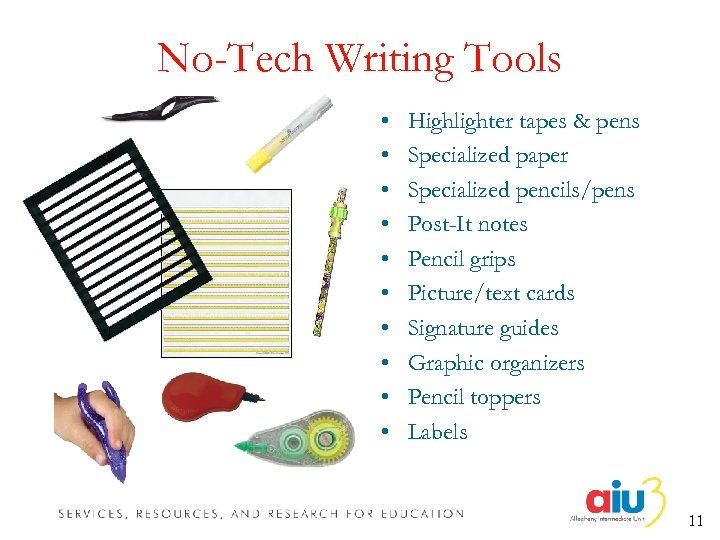 No-Tech Writing Tools • • • Highlighter tapes & pens Specialized paper Specialized pencils/pens Post-It notes Pencil grips Picture/text cards Signature guides Graphic organizers Pencil toppers Labels 11
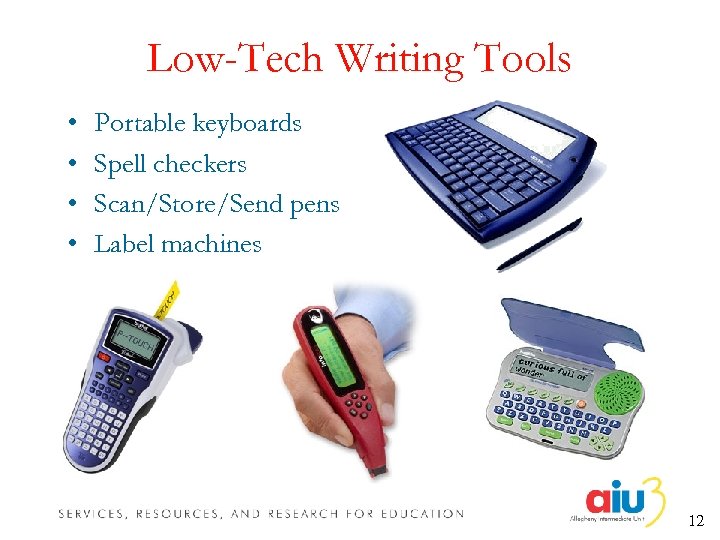 Low-Tech Writing Tools • • Portable keyboards Spell checkers Scan/Store/Send pens Label machines 12
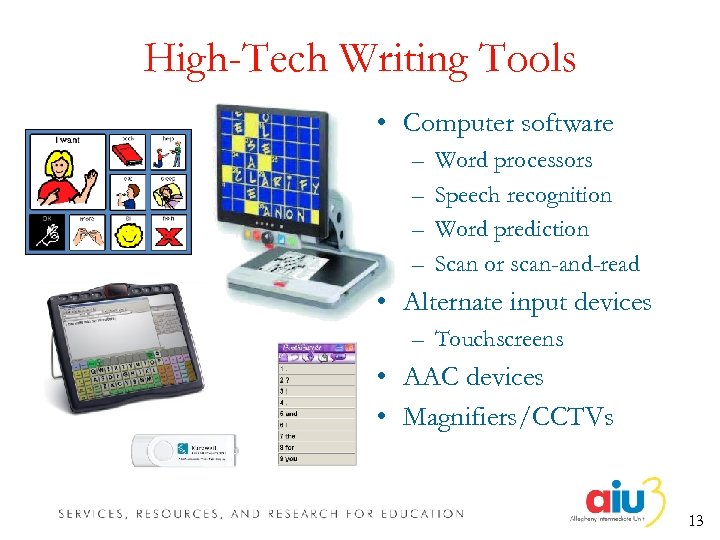 High-Tech Writing Tools • Computer software – – Word processors Speech recognition Word prediction Scan or scan-and-read • Alternate input devices – Touchscreens • AAC devices • Magnifiers/CCTVs 13
 Words of Caution • High-tech is not automatically synonymous with appropriate or useful • Technology does not replace instruction • Assistive technology can’t work if it isn’t used • “Buy-in” is everything • Success is not instantaneous • “One size does not fit all” 14
 Making Technology Work • Determine the student needs and goals • Investigate application features • Match student needs to AT features 15
 Acquiring Software and Devices • Lending Programs – Pa. TTAN Short Term Loan – Pennsylvania’s Initiative on Assistive Technology – Community Agencies – Intermediate Units • District, IU, School, or OVR Purchase • Individual Purchase – Teacher – Family – Student 16
 Tools of the Trade 17
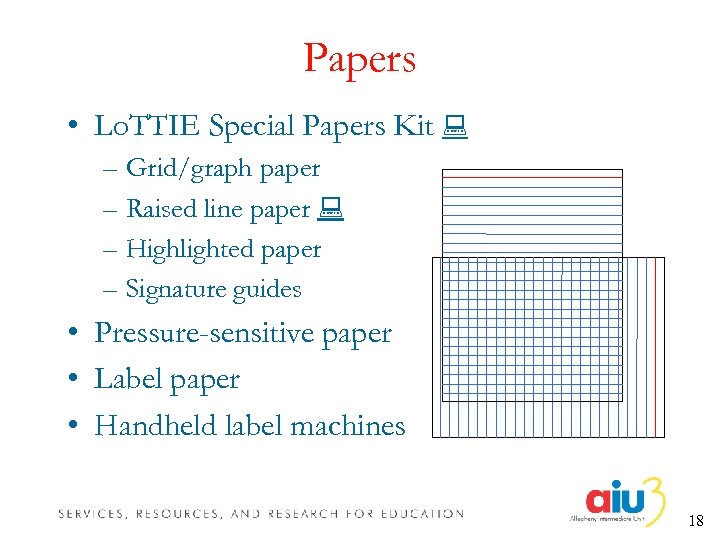 Papers • Lo. TTIE Special Papers Kit – Grid/graph paper – Raised line paper – Highlighted paper – Signature guides • Pressure-sensitive paper • Label paper • Handheld label machines 18
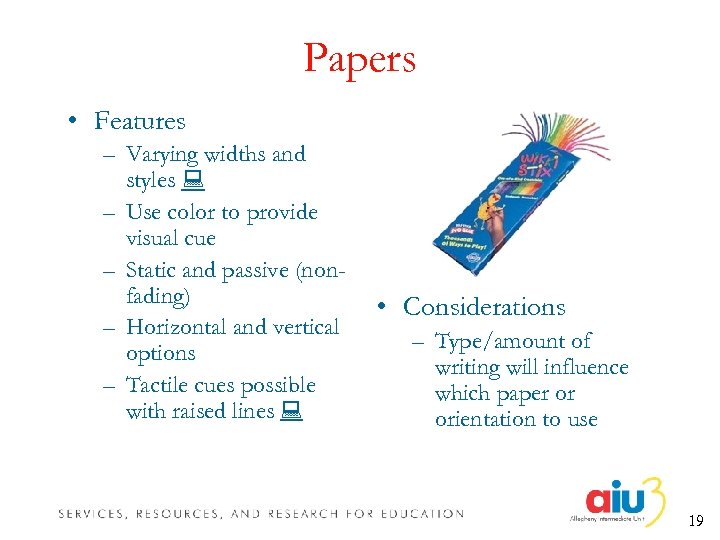 Papers • Features – Varying widths and styles – Use color to provide visual cue – Static and passive (nonfading) – Horizontal and vertical options – Tactile cues possible with raised lines • Considerations – Type/amount of writing will influence which paper or orientation to use 19
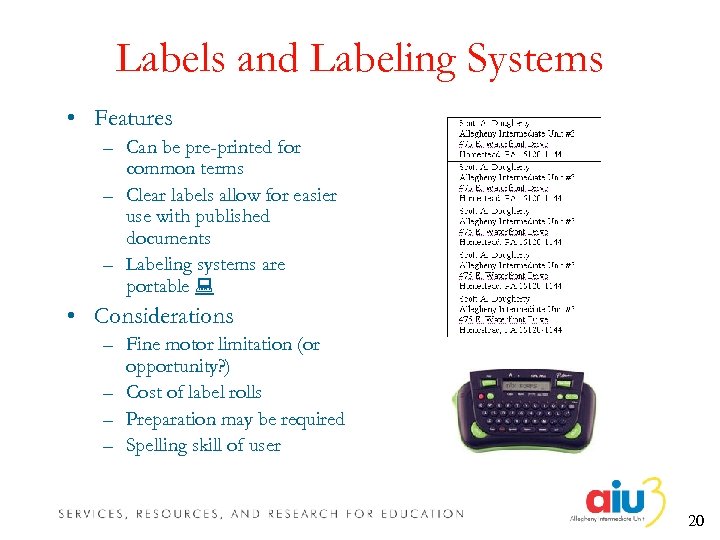 Labels and Labeling Systems • Features – Can be pre-printed for common terms – Clear labels allow for easier use with published documents – Labeling systems are portable • Considerations – Fine motor limitation (or opportunity? ) – Cost of label rolls – Preparation may be required – Spelling skill of user 20
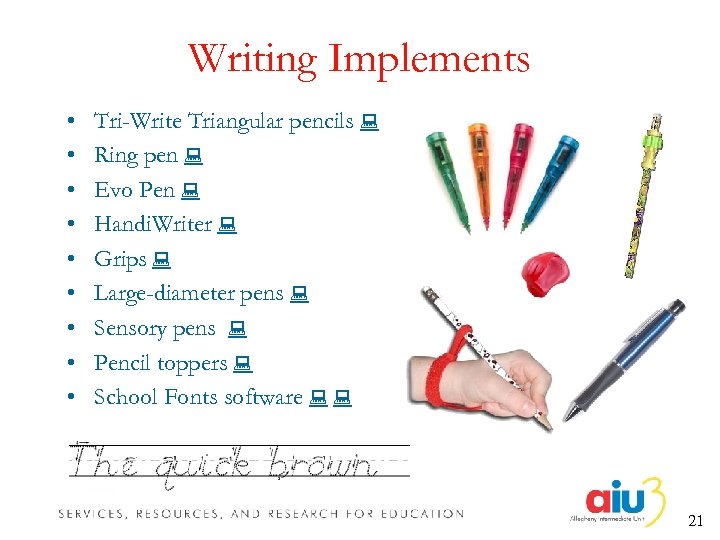 Writing Implements • • • Tri-Write Triangular pencils Ring pen Evo Pen Handi. Writer Grips Large-diameter pens Sensory pens Pencil toppers School Fonts software 21
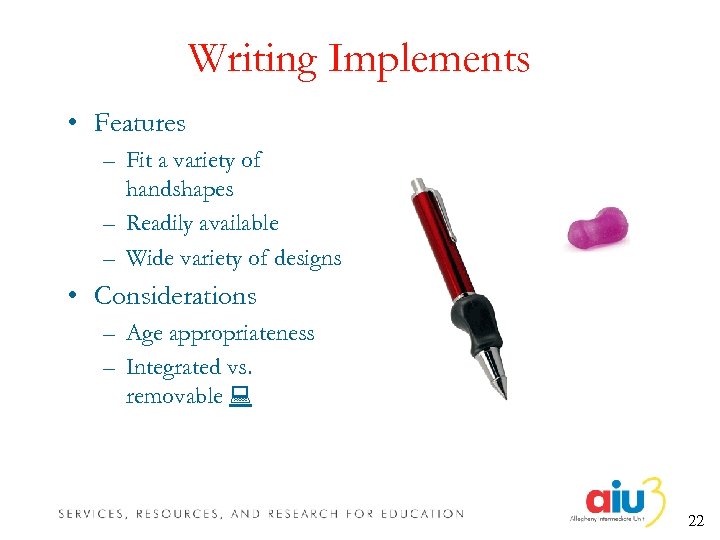 Writing Implements • Features – Fit a variety of handshapes – Readily available – Wide variety of designs • Considerations – Age appropriateness – Integrated vs. removable 22
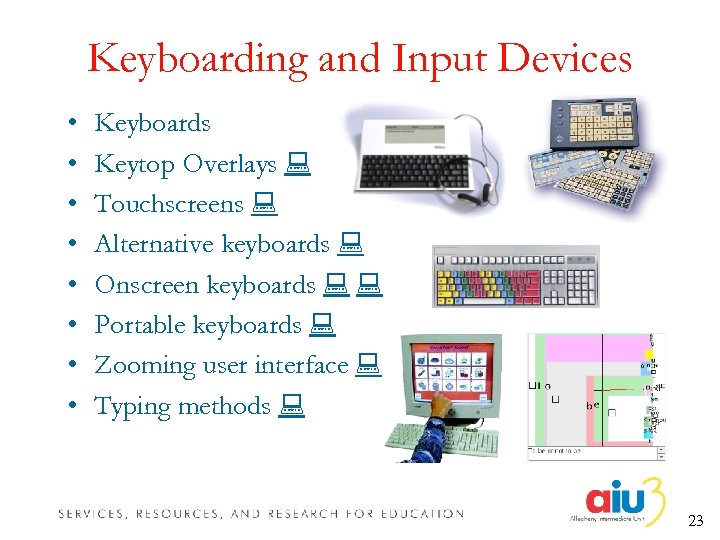 Keyboarding and Input Devices • • Keyboards Keytop Overlays Touchscreens Alternative keyboards Onscreen keyboards Portable keyboards Zooming user interface Typing methods 23
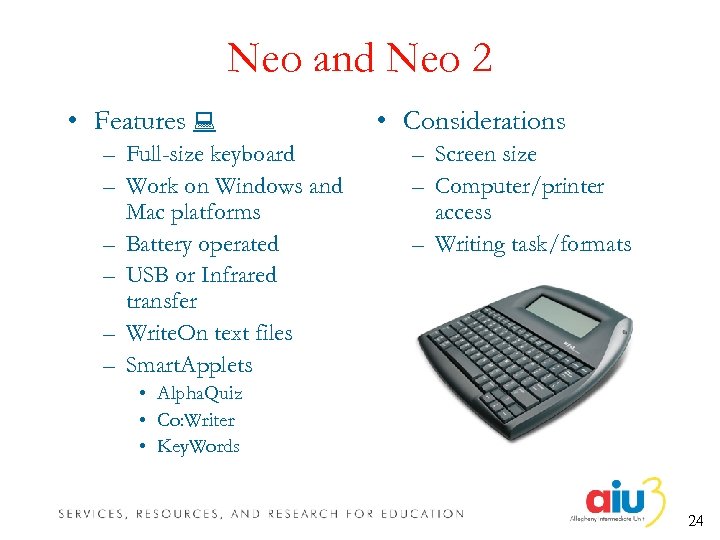 Neo and Neo 2 • Features – Full-size keyboard – Work on Windows and Mac platforms – Battery operated – USB or Infrared transfer – Write. On text files – Smart. Applets • Considerations – Screen size – Computer/printer access – Writing task/formats • Alpha. Quiz • Co: Writer • Key. Words 24
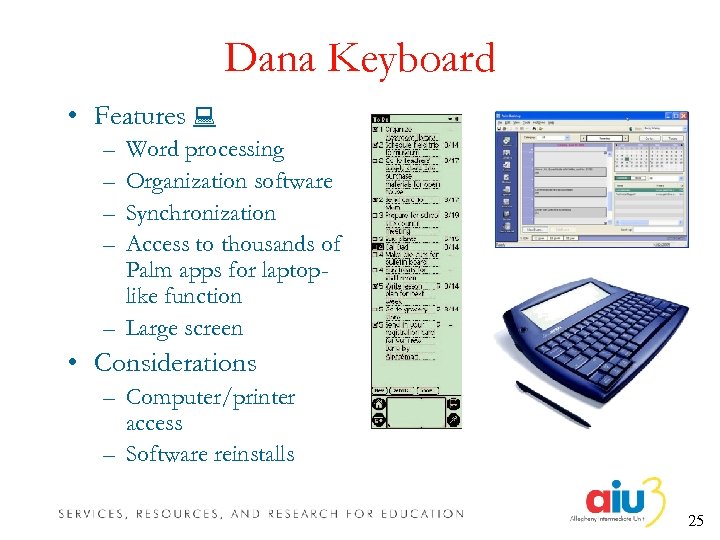 Dana Keyboard • Features – – Word processing Organization software Synchronization Access to thousands of Palm apps for laptoplike function – Large screen • Considerations – Computer/printer access – Software reinstalls 25
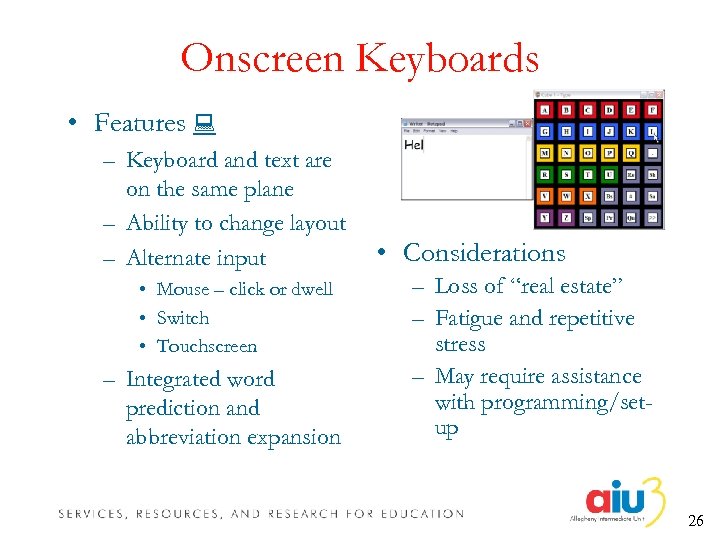 Onscreen Keyboards • Features – Keyboard and text are on the same plane – Ability to change layout – Alternate input • Mouse – click or dwell • Switch • Touchscreen – Integrated word prediction and abbreviation expansion • Considerations – Loss of “real estate” – Fatigue and repetitive stress – May require assistance with programming/setup 26
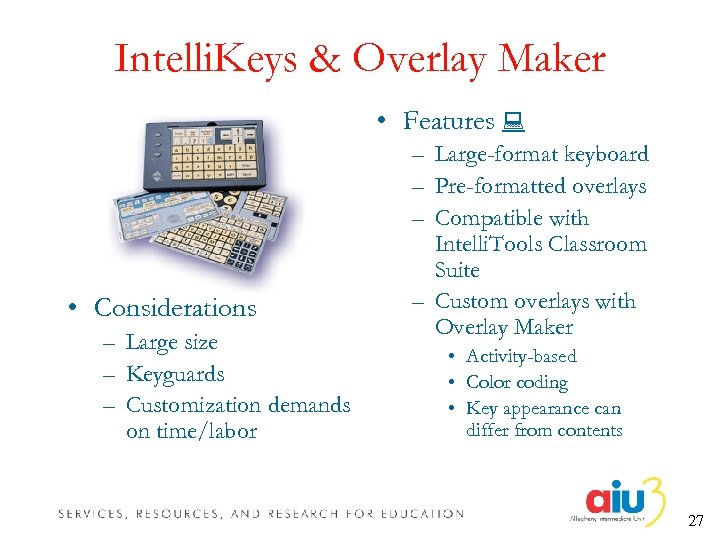 Intelli. Keys & Overlay Maker • Features • Considerations – Large size – Keyguards – Customization demands on time/labor – Large-format keyboard – Pre-formatted overlays – Compatible with Intelli. Tools Classroom Suite – Custom overlays with Overlay Maker • Activity-based • Color coding • Key appearance can differ from contents 27
 Word Processors • Portable • Standard word processors • Stripped-down word processors • Text-to-speech word processors • Cloze-style word processors • Symbol/Grid-based word processors • Online word processors • Useful Features – – – – – Highlighting Auto correction Spell check Grammar check Word completion Word prediction Abbreviation expansion Drawing Scanning 28
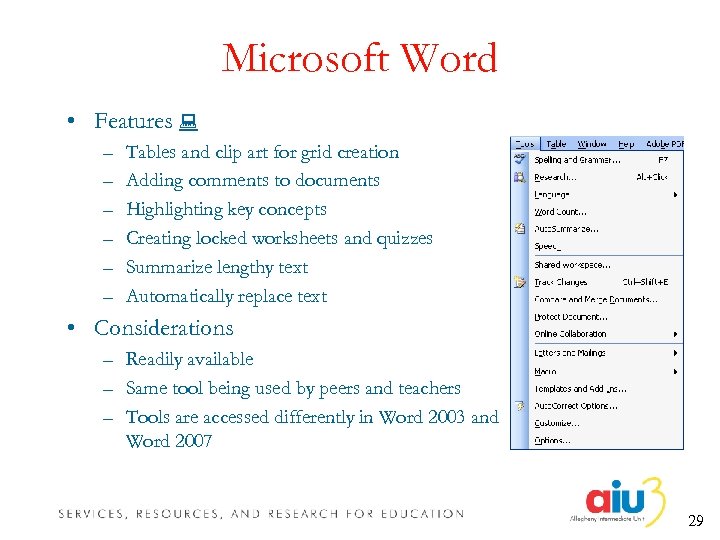 Microsoft Word • Features – – – Tables and clip art for grid creation Adding comments to documents Highlighting key concepts Creating locked worksheets and quizzes Summarize lengthy text Automatically replace text • Considerations – Readily available – Same tool being used by peers and teachers – Tools are accessed differently in Word 2003 and Word 2007 29
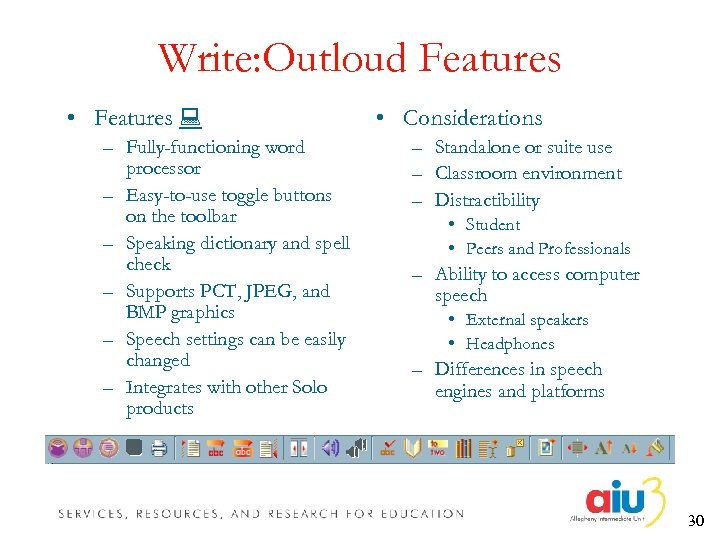 Write: Outloud Features • Features – Fully-functioning word processor – Easy-to-use toggle buttons on the toolbar – Speaking dictionary and spell check – Supports PCT, JPEG, and BMP graphics – Speech settings can be easily changed – Integrates with other Solo products • Considerations – Standalone or suite use – Classroom environment – Distractibility • Student • Peers and Professionals – Ability to access computer speech • External speakers • Headphones – Differences in speech engines and platforms 30
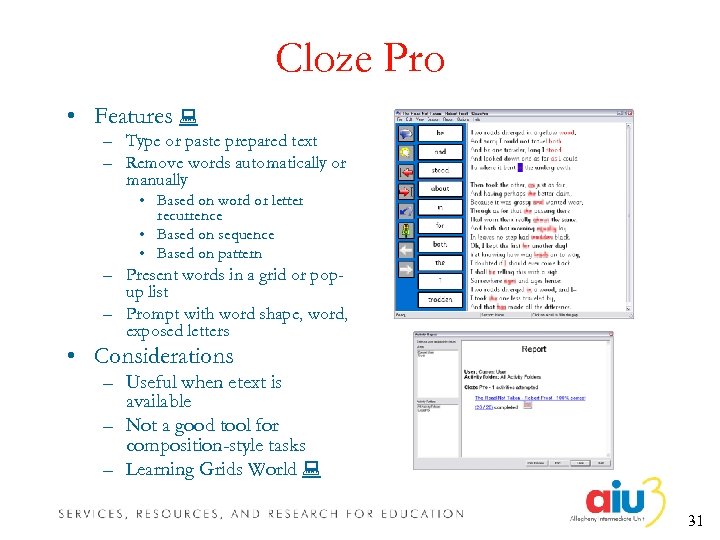 Cloze Pro • Features – Type or paste prepared text – Remove words automatically or manually • Based on word or letter recurrence • Based on sequence • Based on pattern – Present words in a grid or popup list – Prompt with word shape, word, exposed letters • Considerations – Useful when etext is available – Not a good tool for composition-style tasks – Learning Grids World 31
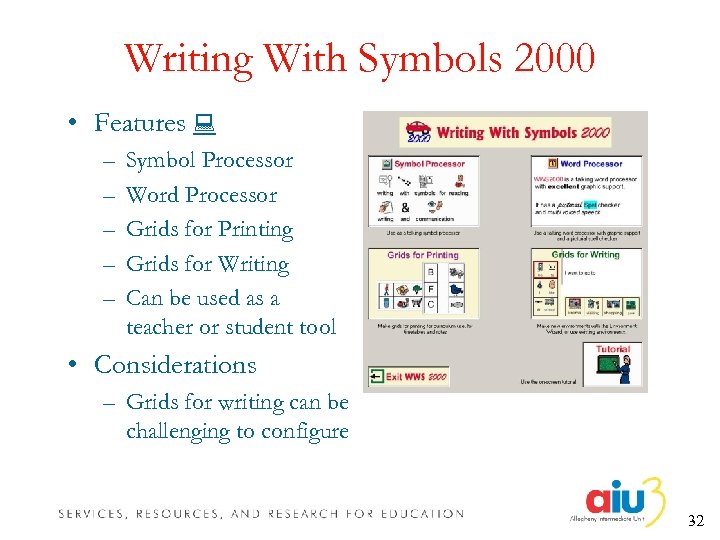 Writing With Symbols 2000 • Features – – – Symbol Processor Word Processor Grids for Printing Grids for Writing Can be used as a teacher or student tool • Considerations – Grids for writing can be challenging to configure 32
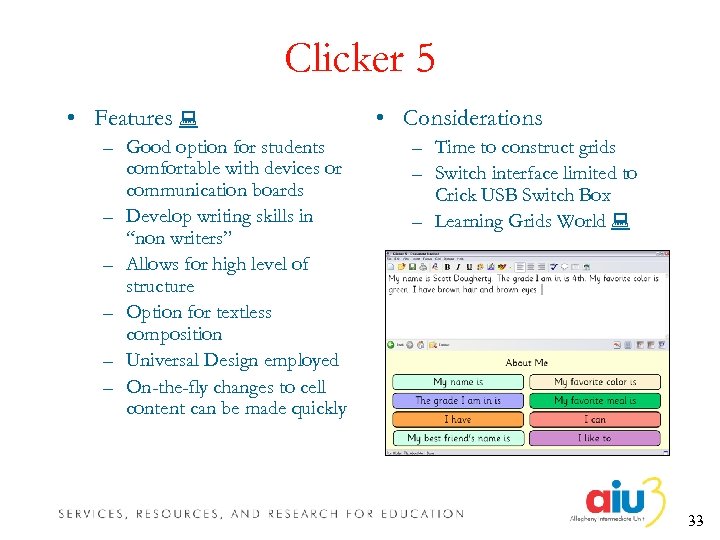 Clicker 5 • Features – Good option for students comfortable with devices or communication boards – Develop writing skills in “non writers” – Allows for high level of structure – Option for textless composition – Universal Design employed – On-the-fly changes to cell content can be made quickly • Considerations – Time to construct grids – Switch interface limited to Crick USB Switch Box – Learning Grids World 33
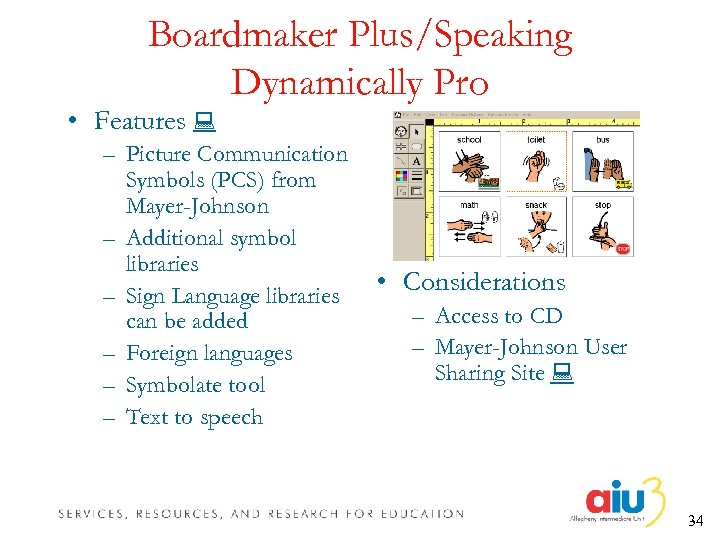 Boardmaker Plus/Speaking Dynamically Pro • Features – Picture Communication Symbols (PCS) from Mayer-Johnson – Additional symbol libraries – Sign Language libraries can be added – Foreign languages – Symbolate tool – Text to speech • Considerations – Access to CD – Mayer-Johnson User Sharing Site 34
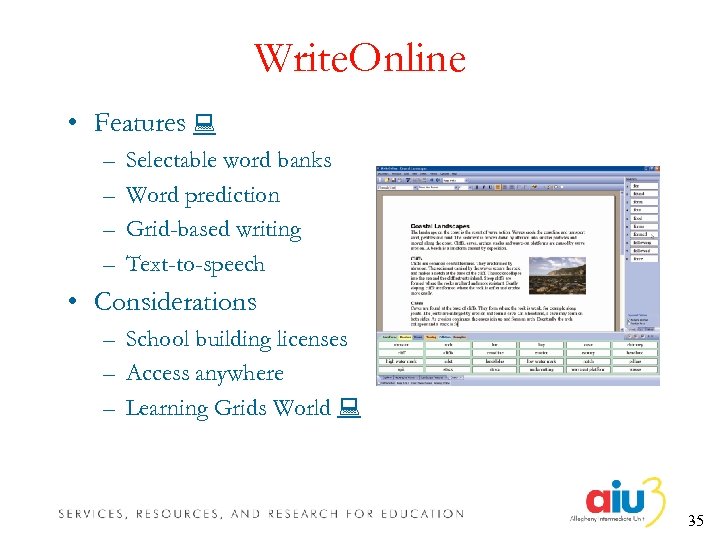 Write. Online • Features – – Selectable word banks Word prediction Grid-based writing Text-to-speech • Considerations – School building licenses – Access anywhere – Learning Grids World 35
 Word Prediction • Features – Increase the rate of output – Improve legibility – Reduce fatigue – Ease frustration in writing – Assist students with limited skills in spelling, vocabulary, and grammar • Considerations – Integrated or adjunctive – Spelling/typing errors • Frequent transpositions • Phonetic – Need for specialized lists – Always on vs. on demand 36
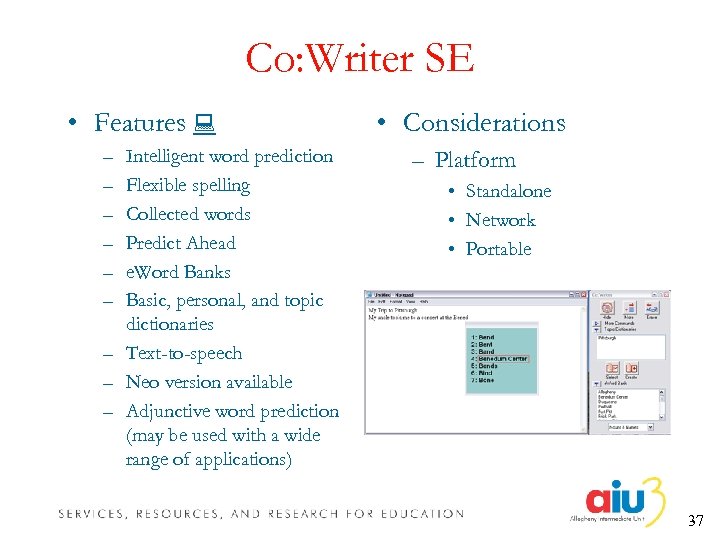 Co: Writer SE • Features – – – Intelligent word prediction Flexible spelling Collected words Predict Ahead e. Word Banks Basic, personal, and topic dictionaries – Text-to-speech – Neo version available – Adjunctive word prediction (may be used with a wide range of applications) • Considerations – Platform • Standalone • Network • Portable 37
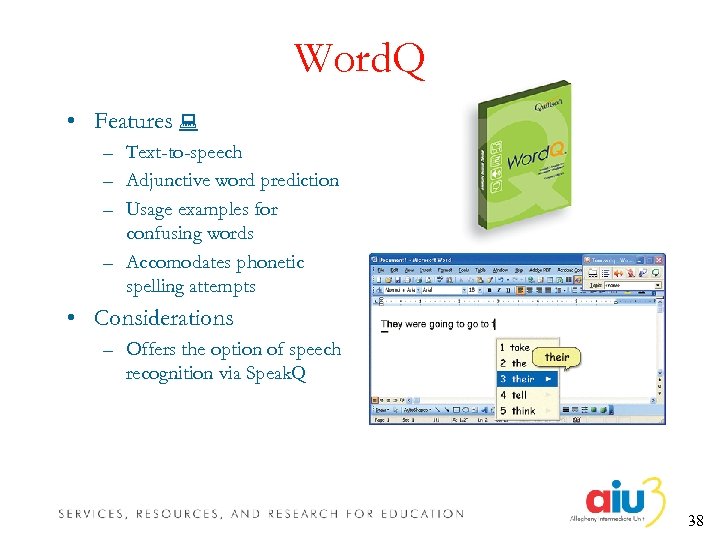 Word. Q • Features – Text-to-speech – Adjunctive word prediction – Usage examples for confusing words – Accomodates phonetic spelling attempts • Considerations – Offers the option of speech recognition via Speak. Q 38
 Scan-and-Read Software • Purposes – Provide bi-modal access to materials used in a district’s curriculum – Promote independence in reading, writing, and study skills – Provide a plethora of reading and writing supports to perform a wide variety of tasks • Scan and Read Titles – – Kurzweil 3000 WYNN Test Talker Read & Write Gold 39
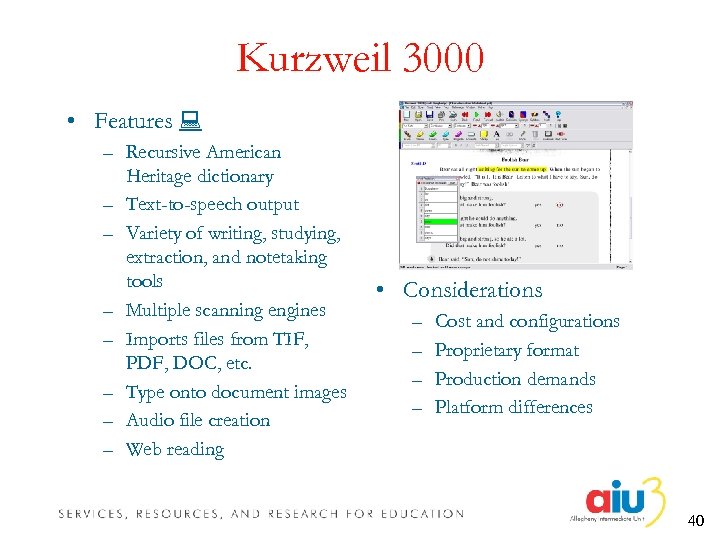 Kurzweil 3000 • Features – Recursive American Heritage dictionary – Text-to-speech output – Variety of writing, studying, extraction, and notetaking tools – Multiple scanning engines – Imports files from TIF, PDF, DOC, etc. – Type onto document images – Audio file creation – Web reading • Considerations – – Cost and configurations Proprietary format Production demands Platform differences 40
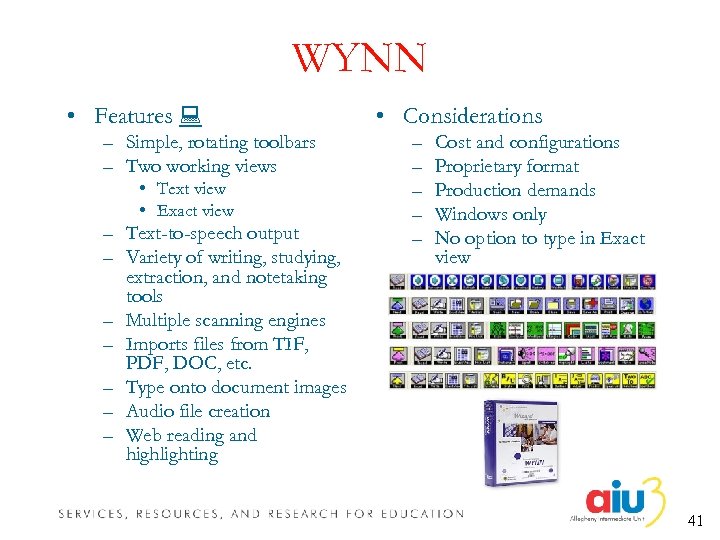 WYNN • Features – Simple, rotating toolbars – Two working views • Text view • Exact view – Text-to-speech output – Variety of writing, studying, extraction, and notetaking tools – Multiple scanning engines – Imports files from TIF, PDF, DOC, etc. – Type onto document images – Audio file creation – Web reading and highlighting • Considerations – – – Cost and configurations Proprietary format Production demands Windows only No option to type in Exact view 41
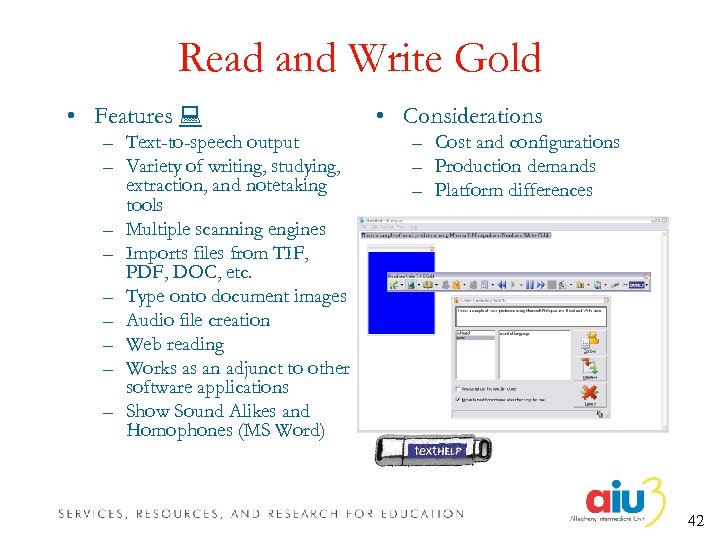 Read and Write Gold • Features – Text-to-speech output – Variety of writing, studying, extraction, and notetaking tools – Multiple scanning engines – Imports files from TIF, PDF, DOC, etc. – Type onto document images – Audio file creation – Web reading – Works as an adjunct to other software applications – Show Sound Alikes and Homophones (MS Word) • Considerations – Cost and configurations – Production demands – Platform differences 42
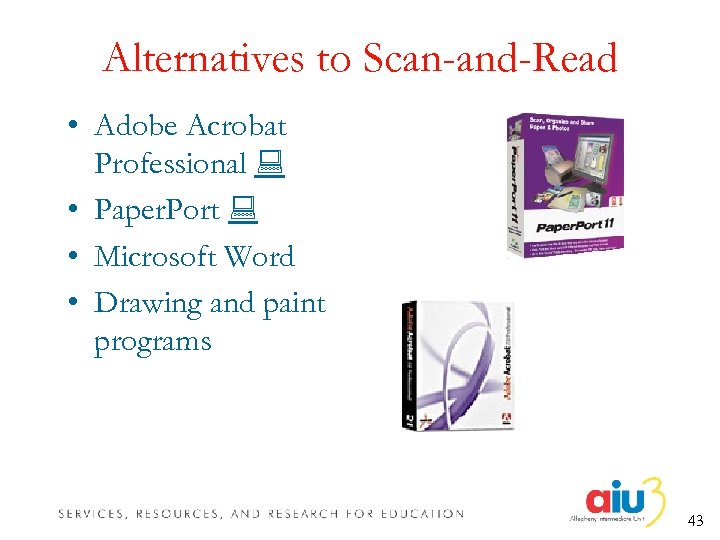 Alternatives to Scan-and-Read • Adobe Acrobat Professional • Paper. Port • Microsoft Word • Drawing and paint programs 43
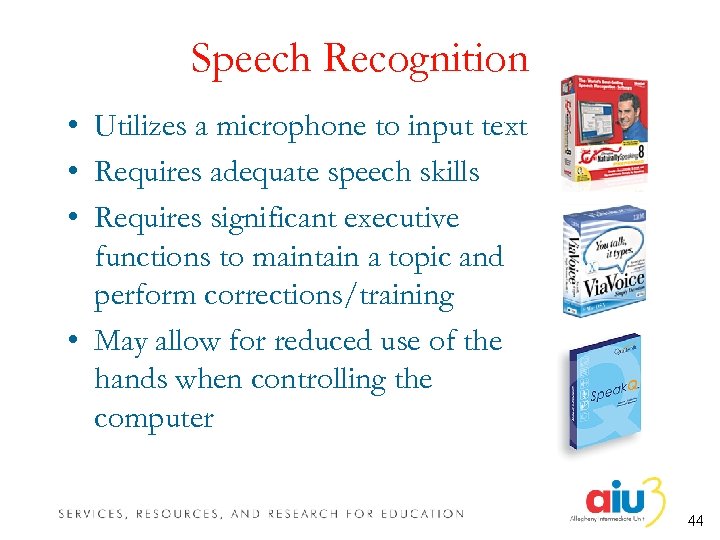 Speech Recognition • Utilizes a microphone to input text • Requires adequate speech skills • Requires significant executive functions to maintain a topic and perform corrections/training • May allow for reduced use of the hands when controlling the computer 44
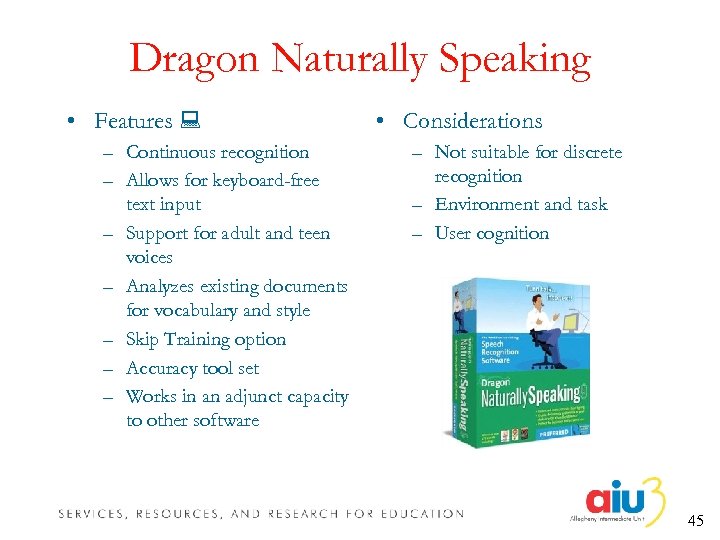 Dragon Naturally Speaking • Features – Continuous recognition – Allows for keyboard-free text input – Support for adult and teen voices – Analyzes existing documents for vocabulary and style – Skip Training option – Accuracy tool set – Works in an adjunct capacity to other software • Considerations – Not suitable for discrete recognition – Environment and task – User cognition 45
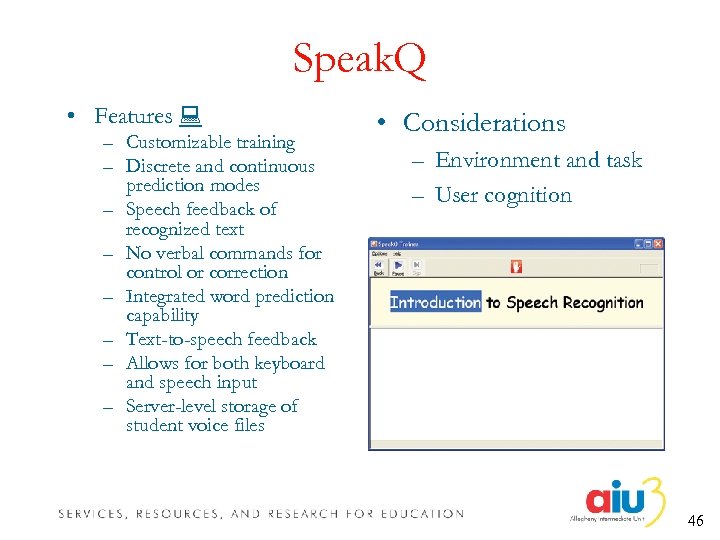 Speak. Q • Features – Customizable training – Discrete and continuous prediction modes – Speech feedback of recognized text – No verbal commands for control or correction – Integrated word prediction capability – Text-to-speech feedback – Allows for both keyboard and speech input – Server-level storage of student voice files • Considerations – Environment and task – User cognition 46
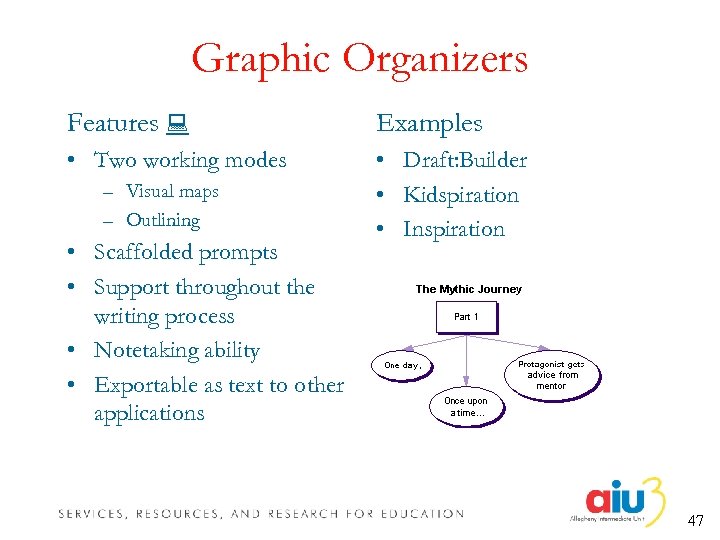 Graphic Organizers Features Examples • Two working modes • Draft: Builder • Kidspiration • Inspiration – Visual maps – Outlining • Scaffolded prompts • Support throughout the writing process • Notetaking ability • Exportable as text to other applications 47
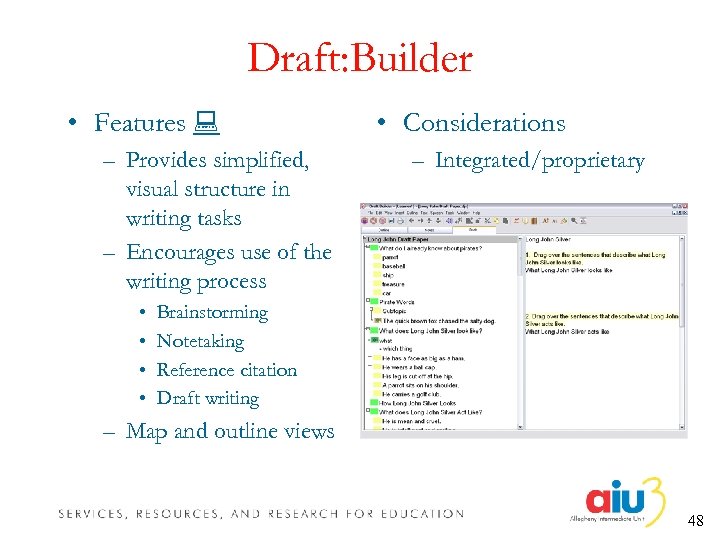 Draft: Builder • Features – Provides simplified, visual structure in writing tasks – Encourages use of the writing process • • • Considerations – Integrated/proprietary Brainstorming Notetaking Reference citation Draft writing – Map and outline views 48
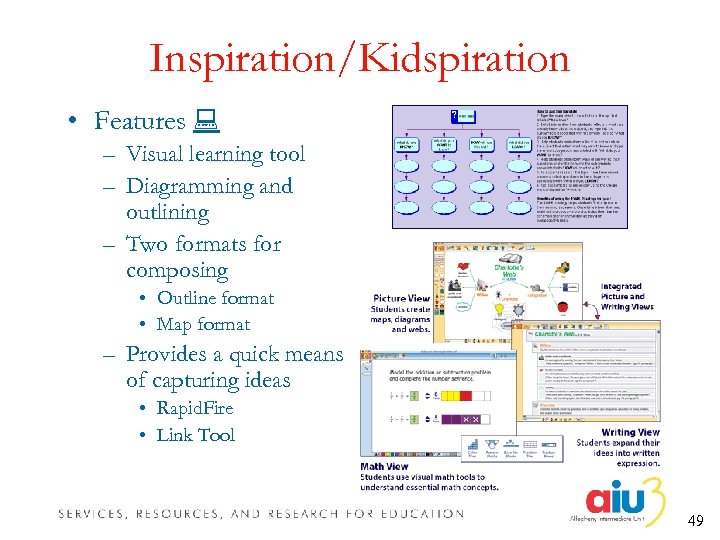 Inspiration/Kidspiration • Features – Visual learning tool – Diagramming and outlining – Two formats for composing • Outline format • Map format – Provides a quick means of capturing ideas • Rapid. Fire • Link Tool 49
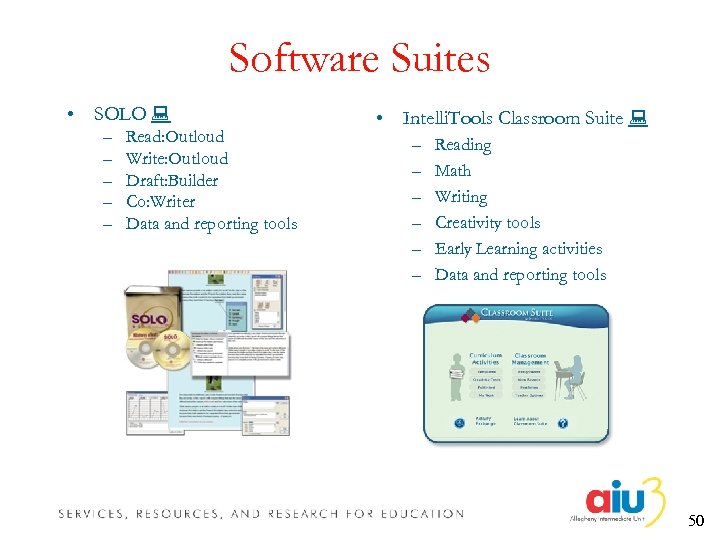 Software Suites • SOLO – – – Read: Outloud Write: Outloud Draft: Builder Co: Writer Data and reporting tools • Intelli. Tools Classroom Suite – – – Reading Math Writing Creativity tools Early Learning activities Data and reporting tools 50
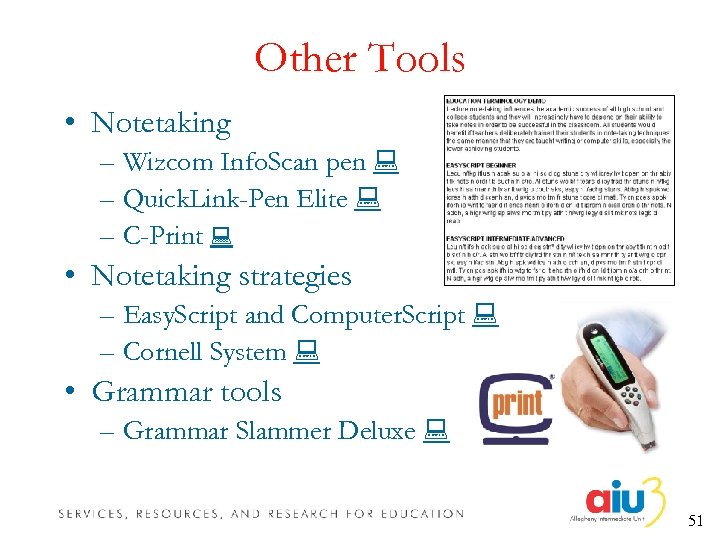 Other Tools • Notetaking – Wizcom Info. Scan pen – Quick. Link-Pen Elite – C-Print • Notetaking strategies – Easy. Script and Computer. Script – Cornell System • Grammar tools – Grammar Slammer Deluxe 51
 Questions & Evaluations • Is there a question you haven’t asked yet? • What further information do you need? • Please take a minute or two to: – Complete the Session Evaluation – Provide written comments and suggestions – Complete the Learning Outcomes sheet and turn in the back copy 52
 Contact Information Scott A. Dougherty IDEA Training and Consultation Coordinator, Assistive Technology Allegheny Intermediate Unit #3 475 East Waterfront Drive Homestead, PA 15120 -1144 scott. dougherty@aiu 3. net ● 412 -394 -1375 ● 412 -394 -5992 (Fax) AIU Assistive Technology Home Page http: //www. aiu 3. net/Level 3. aspx? id=1220 53