 Скачать презентацию Assessing Wireless Security Using Open Source Tools By
47d093c6bc7101fba078e0072b9d073e.ppt
- Количество слайдов: 53



Assessing Wireless Security Using Open Source Tools By: Matthew Neely Presented: May 5 th 2009 at Pittsburgh ISSA
Speaker Biography • Matt Neely CISSP, CTGA, GCIH, GCWN - Manager of the Profiling team at Secure. State: – Areas of expertise include: wireless security, penetration testing, physical security, security convergence and incident response – Formed and ran the TSCM team at a Fortune 200 company – 10 years of security experience • Outside of work: – Co-host of the Security Justice Podcast – Board member for the North Eastern Ohio Information Security Forum – Licensed ham radio operator (Technician) for almost 20 years

What concerns do you have about wireless?
Agenda • • • Overview of the 802. 11 standard Hardware - Requirements and recommendations Discovering wireless networks Introduction to Kismet Lab – Discovering and enumerating wireless network using Kismet Demo – Aircrack-ng How to tell if an AP is on your network Wireless security recommendations Conclusion

OVERVIEW OF 802. 11
What is 802. 11 • Set of wireless local area network (WLAN) standards developed by the IEEE • Uses the standard Ethernet protocol • Adds special media access control process
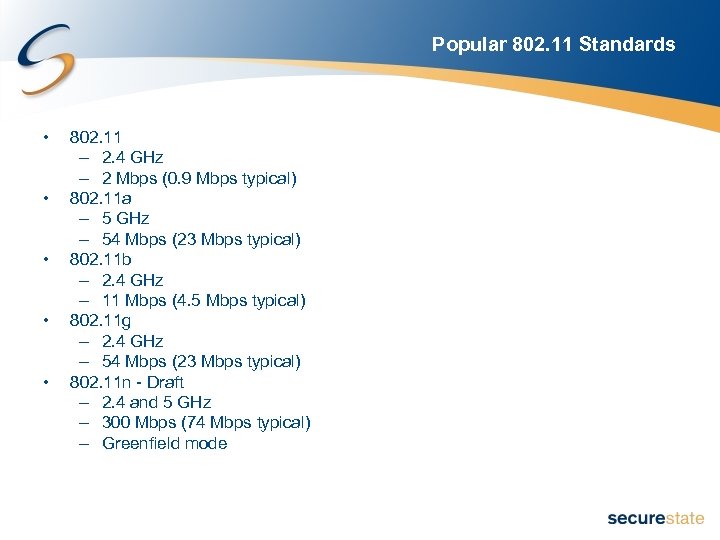
Popular 802. 11 Standards • • • 802. 11 – 2. 4 GHz – 2 Mbps (0. 9 Mbps typical) 802. 11 a – 5 GHz – 54 Mbps (23 Mbps typical) 802. 11 b – 2. 4 GHz – 11 Mbps (4. 5 Mbps typical) 802. 11 g – 2. 4 GHz – 54 Mbps (23 Mbps typical) 802. 11 n - Draft – 2. 4 and 5 GHz – 300 Mbps (74 Mbps typical) – Greenfield mode
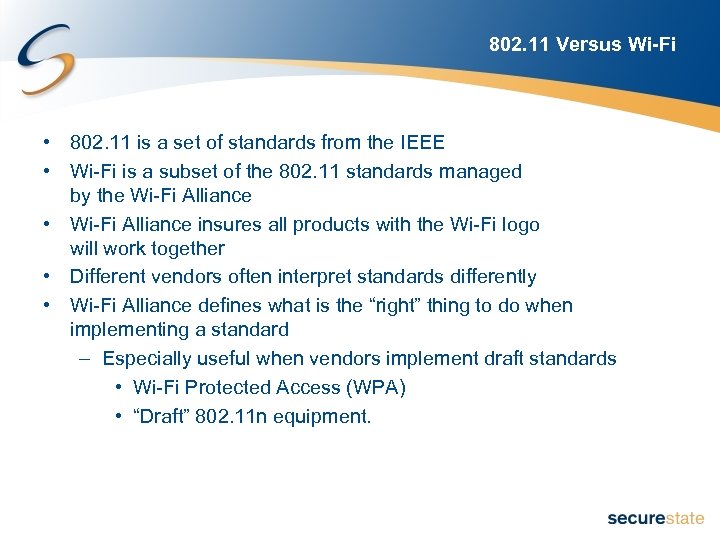
802. 11 Versus Wi-Fi • 802. 11 is a set of standards from the IEEE • Wi-Fi is a subset of the 802. 11 standards managed by the Wi-Fi Alliance • Wi-Fi Alliance insures all products with the Wi-Fi logo will work together • Different vendors often interpret standards differently • Wi-Fi Alliance defines what is the “right” thing to do when implementing a standard – Especially useful when vendors implement draft standards • Wi-Fi Protected Access (WPA) • “Draft” 802. 11 n equipment.
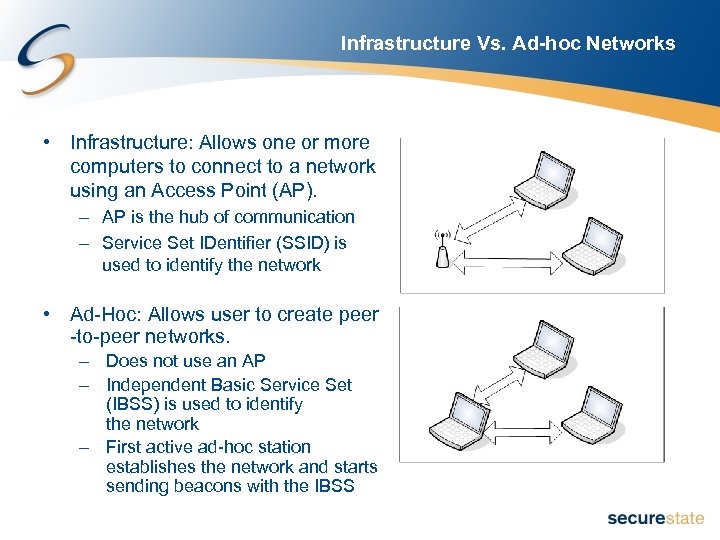
Infrastructure Vs. Ad-hoc Networks • Infrastructure: Allows one or more computers to connect to a network using an Access Point (AP). – AP is the hub of communication – Service Set IDentifier (SSID) is used to identify the network • Ad-Hoc: Allows user to create peer -to-peer networks. – Does not use an AP – Independent Basic Service Set (IBSS) is used to identify the network – First active ad-hoc station establishes the network and starts sending beacons with the IBSS
HOW CLIENTS FIND WIRELESS NETWORKS
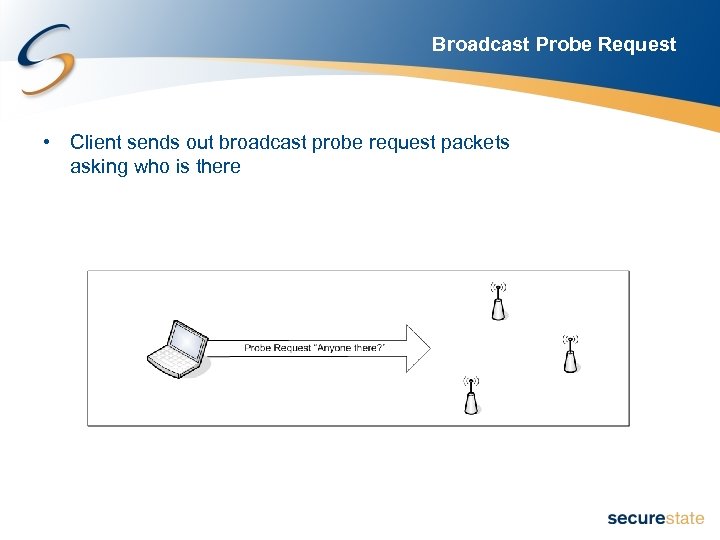
Broadcast Probe Request • Client sends out broadcast probe request packets asking who is there
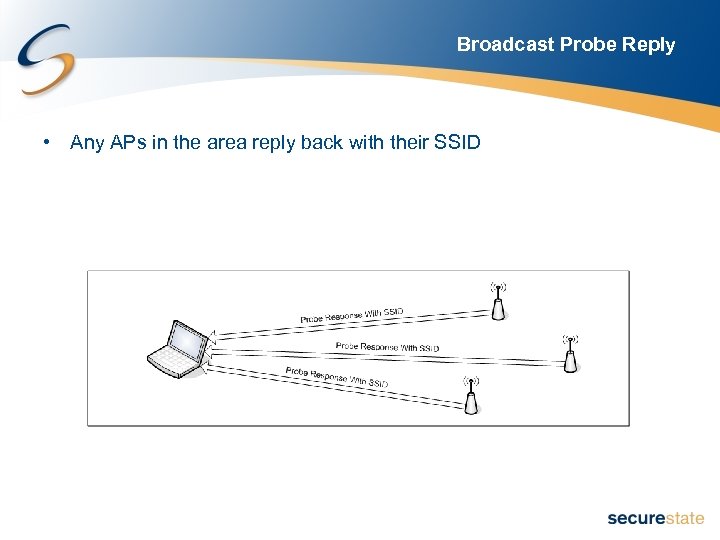
Broadcast Probe Reply • Any APs in the area reply back with their SSID
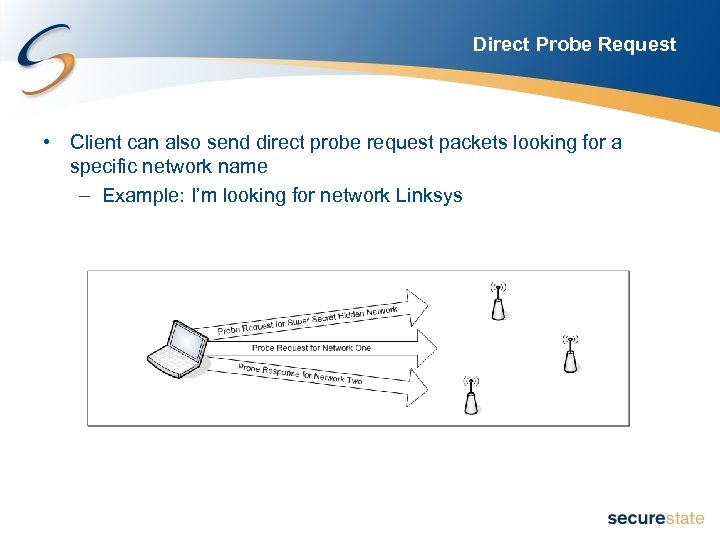
Direct Probe Request • Client can also send direct probe request packets looking for a specific network name – Example: I’m looking for network Linksys
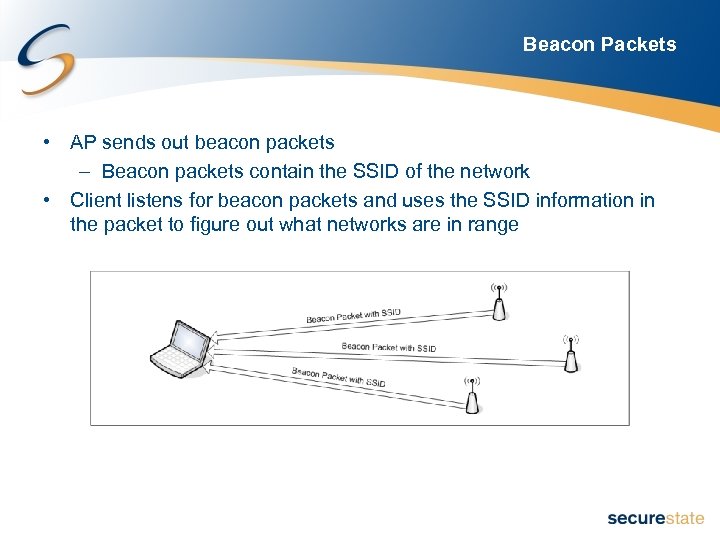
Beacon Packets • AP sends out beacon packets – Beacon packets contain the SSID of the network • Client listens for beacon packets and uses the SSID information in the packet to figure out what networks are in range
Hidden APs • Beaconless APs – AKA “disabled broadcast SSID”, “cloaked” or “closed” • Some APs do not send beacon packets when clients are not connected • Other APs still send a beacon packet but leave the SSID field blank • Attempts to prevent malicious users from finding the AP
Requirement and Recommendations HARDWARE
Hardware • Required – Computer - Running or capable of running Linux • Install Linux on a laptop • Use a Live. Linux distro such as Back. Track – Wireless card • Optional – External Antenna – Pigtail – GPS
Back. Track • Live. Linux distro containing a large number of pre-configured attack tools • Variety of wireless drivers come pre-loaded • Plug and play support for many wireless cards • Available in two formats: – Bootable CD – Bootable thumb drive • Contains more tools • Data written to the thumb drive persists across reboots • Download: – http: //www. remote-exploit. org/backtrack_download. html
Backtrack in VMWare • Back. Track can not directly access a PCMCIA or mini-pci card – Limits what fun stuff can be done • Can use a USB dongle with a supported chipset – Temperamental and unstable at times • For just about everything except wireless related tasks, I run Back. Track inside VMWare • When I need to run wireless tools in Back. Track I prefer to run Back. Track on the bare hardware
Saving Data on Back. Track • When run from a CD all saved data will be erased on reboot • Solution 1: – Run Back. Track from a bootable thumb drive • Solution 2: – Mount a thumb drive and save your data – Command: mount /dev/sdb 1 • Solution 3: – Save your data to a network share before rebooting
Wireless Card • Hopefully your internal wireless card works – Centrino or Atheros cards generally work well – Broadcom cards are a problem • Can use an external wireless card if the internal card does not work
Determining What Wireless Type • Look up the specs for your laptop • Query the USB or PCI bus inside of Linux – lspci – Linux command that lists the devices attached to the PCI bus • Useful for gathering information on internal wireless cards – lsusb – Linux command that list devices attached to the USB bus
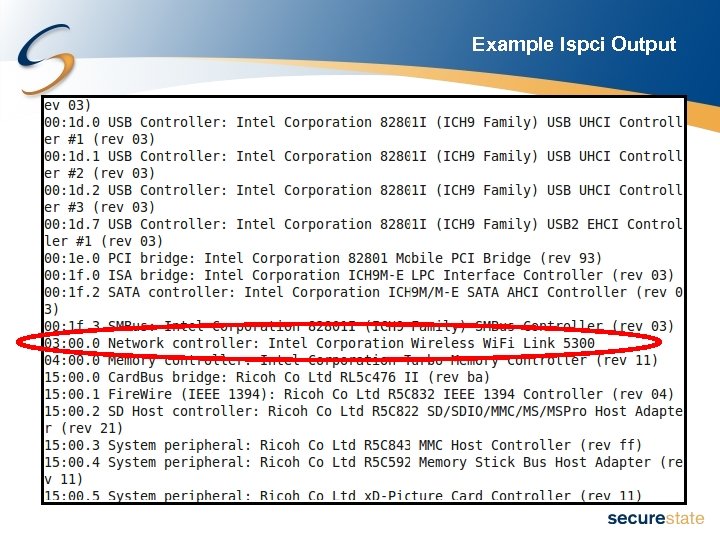
Example lspci Output
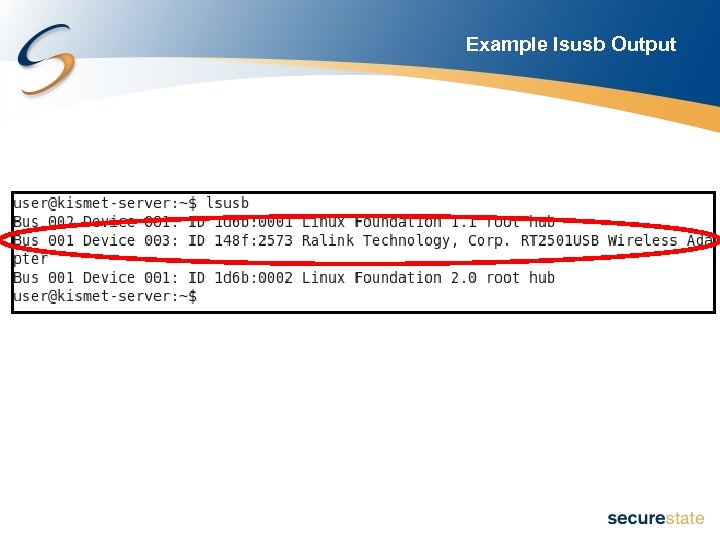
Example lsusb Output
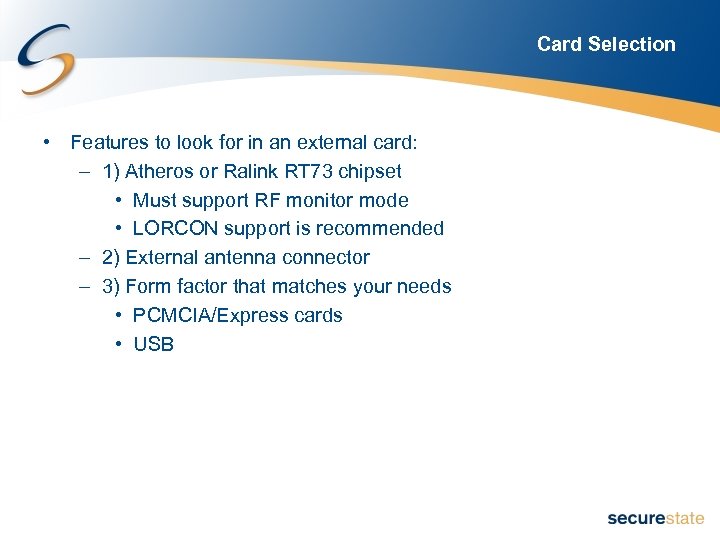
Card Selection • Features to look for in an external card: – 1) Atheros or Ralink RT 73 chipset • Must support RF monitor mode • LORCON support is recommended – 2) External antenna connector – 3) Form factor that matches your needs • PCMCIA/Express cards • USB
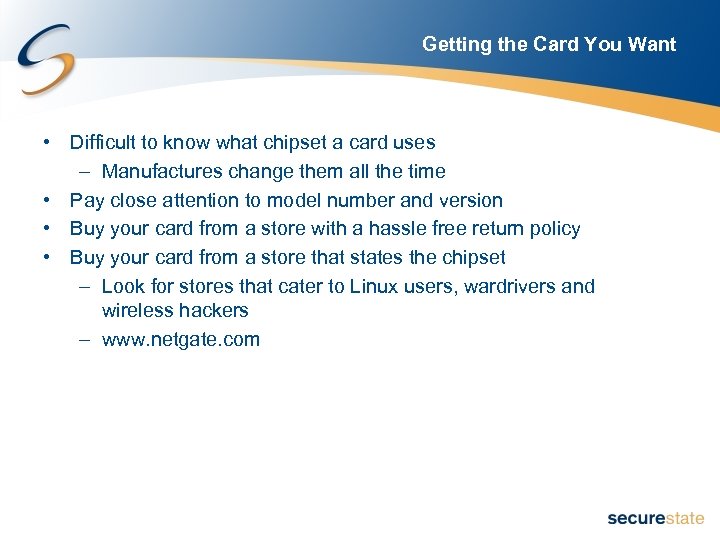
Getting the Card You Want • Difficult to know what chipset a card uses – Manufactures change them all the time • Pay close attention to model number and version • Buy your card from a store with a hassle free return policy • Buy your card from a store that states the chipset – Look for stores that cater to Linux users, wardrivers and wireless hackers – www. netgate. com
Card Chipset Information • Card Chipset Lists – Atheros. rapla. net – Ralink. rapla. net – Broadcom. rapla. net – Avoid – www. seattlewireless. net/index. cgi/Hardware. Comparison • Backtrack website: – wiki. remote-exploit. org/index. php/HCL: Wireless • Aircrack-ng webiste: – www. aircrack-ng. org/doku. php? id=compatibility_drivers
External Antennas • Greatly increases performance • Useful when: – Performing audits from inside a vehicle – Triangulating the location of an AP – Measuring RF leakage from a building • Antennas are tuned to work on specific frequencies • Need to select antennas that are tuned to the frequency range being used – 2. 4 GHz is the most common • Used by b, g and n networks • Same frequency used by Bluetooth – 5 GHz is needed for a and n networks
Types of Antennas • Omni-directional – Increases reception in all directions – Magnetic mount omni-directional antennas are useful for mounting on cars • Directional – Focuses the signal like a spot light – Can be used to triangulate the location of a signal
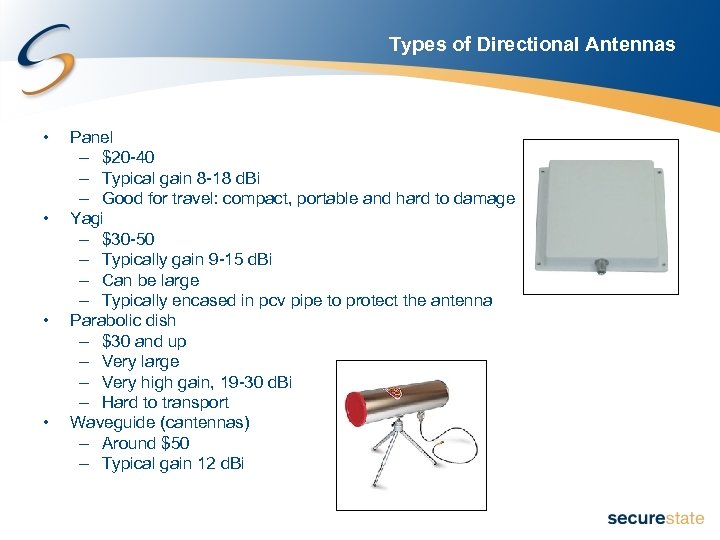
Types of Directional Antennas • • Panel – $20 -40 – Typical gain 8 -18 d. Bi – Good for travel: compact, portable and hard to damage Yagi – $30 -50 – Typically gain 9 -15 d. Bi – Can be large – Typically encased in pcv pipe to protect the antenna Parabolic dish – $30 and up – Very large – Very high gain, 19 -30 d. Bi – Hard to transport Waveguide (cantennas) – Around $50 – Typical gain 12 d. Bi
Antenna Recommendation • Get two antennas • Directional – Either a panel or small yagi • Omni-direction – Magnetic mount is very helpful if you spend time doing surveys outside a building • Good source: www. hyperlinktech. com
Pigtails and Adapters • Pigtail – Converts the small connector on the card to the connector used on the antenna • Do not buy cheap cables! – Where most signal loss occurs – Good quality pigtails cost around $10 -20 – Only use cabled designed for use in the 2. 4 or 5 GHz range • Pigtails should probably end in a N-Type male jack – Most antennas have a N-Type female jack • Good source: www. hyperlinktech. com • Pictures of common Wi-Fi antenna connectors: – wireless. gumph. org/content/3/7/011 -cable-connectors. html
GPS • Allows data to be placed onto a map for analysis • Only get an NMEA compatible GPS • Interface type: – Serial: Does not require a driver and just about always works – USB: Requires drivers which can be tricky in Linux – Bluetooth: Avoid because it operates in the 2. 4 GHz spectrum • If you run Linux and do not have a serial port, the safest option is a serial GPS and a USB-to-serial adaptor – Buy a USB adaptor that is Linux friendly
DISCOVERING WIRELESS NETWORKS
Active Network Discovery • • Official way to find networks Client sends out a broadcast probe request looking for networks Client listens for beacon packets from APs Cons: – Requires the client to be within transmission range of the AP – Cannot find beaconless/hidden network • Pros: – Every wireless card supports this method – Does not require a card or driver that supports RF monitor mode • Windows tools such as Net. Stumbler use active network discovery
Passive Network Discovery • Card listens to the airwaves and extracts information about the networks in the area from the packets it sees • Requires cards that support RF monitor mode – Not all cards and drivers support RF monitor mode • Pros: – Client only needs to be within receiving range – Can detect networks with the beacon turned off – Can gain more information about the network • Cons: – Requires a card and driver that supports full RF monitor mode – No free Windows program supports passive network discovery
Kismet • • http: //www. kismetwireless. net/ Passive scanner OS: Linux and other Unix systems Kismet is really two programs – kismet_server: Collects the packets – kismet_client: User interface • Pros: – Will find hidden networks – GPS support • Cons: – Complicated installation and configuration
Kismet Classic Versus Newcore • “Classic” is the present stable release of Kismet • Kismet-newcore is a rewrite of Kismet – Still under development – Supports plugins • Example: DECT support • Avoid newcore unless you have a specific reason to use it or like to tinker
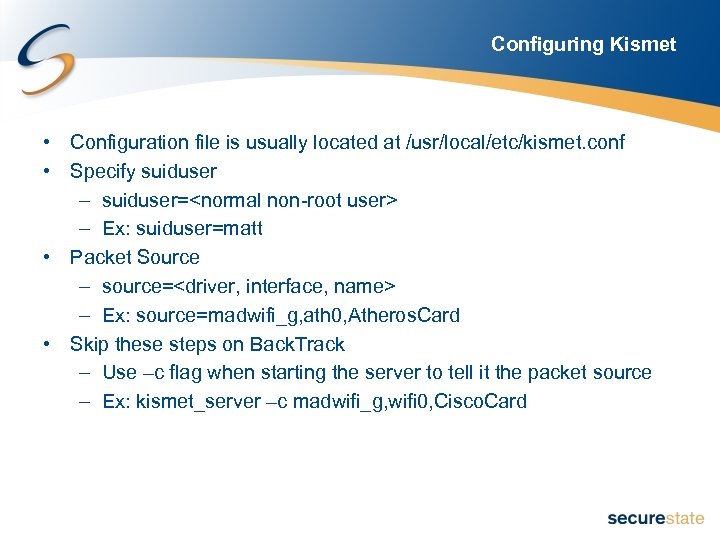
Configuring Kismet • Configuration file is usually located at /usr/local/etc/kismet. conf • Specify suiduser – suiduser=<normal non-root user> – Ex: suiduser=matt • Packet Source – source=<driver, interface, name> – Ex: source=madwifi_g, ath 0, Atheros. Card • Skip these steps on Back. Track – Use –c flag when starting the server to tell it the packet source – Ex: kismet_server –c madwifi_g, wifi 0, Cisco. Card
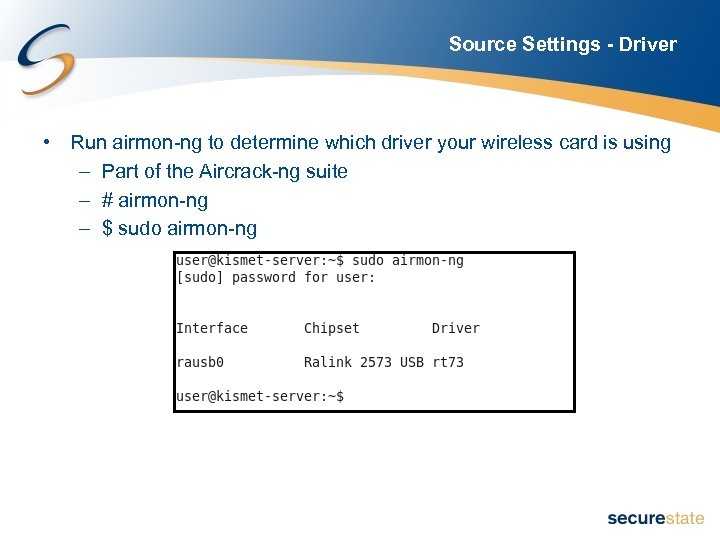
Source Settings - Driver • Run airmon-ng to determine which driver your wireless card is using – Part of the Aircrack-ng suite – # airmon-ng – $ sudo airmon-ng
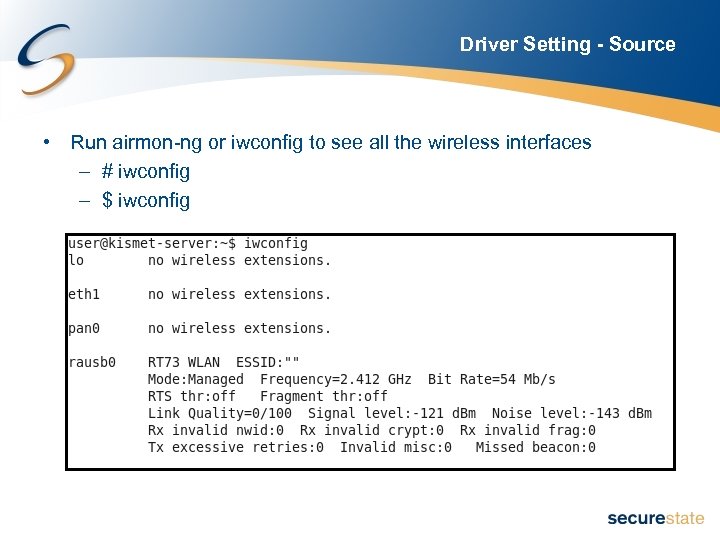
Driver Setting - Source • Run airmon-ng or iwconfig to see all the wireless interfaces – # iwconfig – $ iwconfig
LAB: DISCOVERING AND ENUMERATING WIRELESS NETWORK USING KISMET
Accessing the Lab Server • Connect to wireless network – Lab-Connect_Here • Windows Telnet: – Start -> Run -> cmd. exe – telnet 192. 168. 102 –t vt 100 • SSH (Putty or other SSH client) – Connect to 192. 168. 102 • Once connected login – Username: kismet – Password: kismet
DEMO: AIRODUMP-NG
How to Tell if an AP is on Your Network • Direction/Location – GPS – Use a directional antenna • Connect to the network and check: – If a traceroute shows the traffic traversing your network – If you can contact an internal server – DNS server address • Do not rely on the assigned IP address

SECURITY RECOMMENDATIONS
General Security Recommendations • Make the network difficult to find – Limit AP power output – Use RF shielding to prevent RF leakage – Only use 802. 11 a APs • Do not use hidden APs – Could make it easier to attack your wireless Windows clients • Windows prefers visible networks over hidden networks • Attackers can trick users into connecting to a malicious AP • MAC filtering – Not recommended – Easy to by-pass and adds a lot of complexity in a large environment – Minimal level of protection is generally not worth the effort
Wireless IDS • Consider deploying a wireless IDS • Can detect: – De-auth attacks – RTS and CTS attacks denial of service attacks – Rogue APs • Both on and off your network • Remember IDS is only detection and not prevention • Be very careful with wireless IPS – IPS system could end up attacking neighboring networks
Wireless Encryption and Authentication • Do not use WEP • Migrate from LEAP – Known weaknesses and attack tools for LEAP – If you can not migrate from LEAP be sure you enforce a strong password policy • Use WPA or WPA 2 – Prefer WPA 2 – Both can be secured fairly well
WPA-PSK Recommendations • WPA-PSK (Pre-Shared Key) • AKA WPA Home • Choose a long and complex passphrase – Prevents bruteforce attacks from tools like Cowpatty • Choose a unique SSID – Prevents using pre-compiled tables to speed up bruteforce attacks
WPA Enterprise Recommendations • Generally more secure than WPA-PSK – Also more complex • Requires a RADIUS server • Use an authentication type that provides mutual authentication • With PEAP and EAP-TTLS insure the client is properly configured • Consider using two-factor authentication
Conclusion • Kismet are free tools that can be used to locate wireless networks • Selecting the right card is critical when using Kismet • Finding N Greenfield mode networks could be a challenge in the future • Do not use WEP to secure a wireless network • Use WPA 2 Enterprise with multi-factor authentication • Insure the wireless client is properly configured and secured
QUESTIONS? More Information: www. securestate. com www. matthewneely. com mneely@securestate. com
Скачать презентацию Assessing Wireless Security Using Open Source Tools By
47d093c6bc7101fba078e0072b9d073e.ppt