Скачать презентацию Arc GIS Pro Virtualizing in Citrix Xen App
3a9528564dee3105e0bf8cd13f74d48b.ppt
- Количество слайдов: 32
 Arc. GIS Pro: Virtualizing in Citrix Xen. App and Xen. Desktop Emily Apsey – Performance Engineer
 Presentation Overview • What it takes to successfully virtualize Arc. GIS Pro in Citrix Xen. App and Xen. Desktop - • Shareable GPU, hardware and software configuration and areas of optimization Esri Performance Testing initiatives - Performance and VM/GPU density Virtualizing in Citrix Xen. App & Xen. Desktop
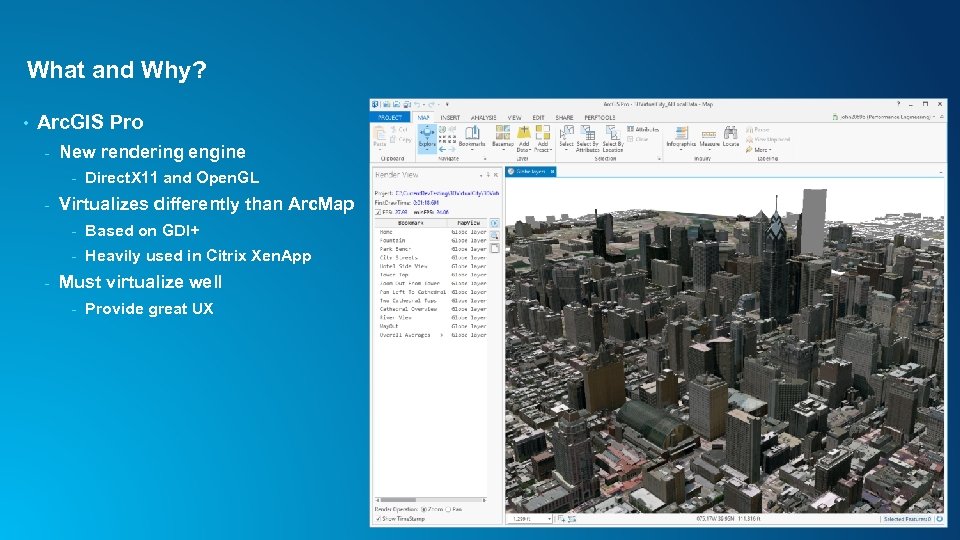 What and Why? • Arc. GIS Pro - New rendering engine - - Direct. X 11 and Open. GL Virtualizes differently than Arc. Map - - Based on GDI+ Heavily used in Citrix Xen. App Must virtualize well - Provide great UX
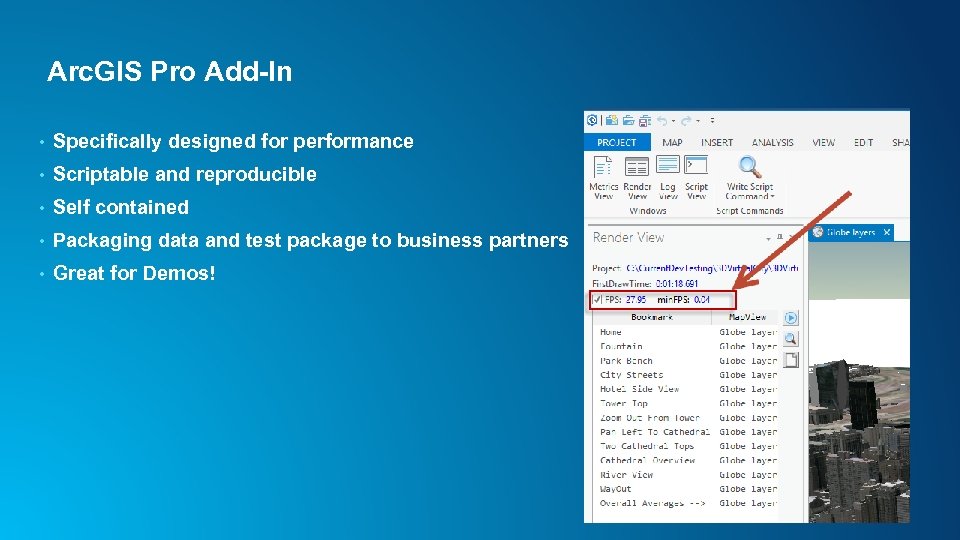 Arc. GIS Pro Add-In • Specifically designed for performance • Scriptable and reproducible • Self contained • Packaging data and test package to business partners • Great for Demos!
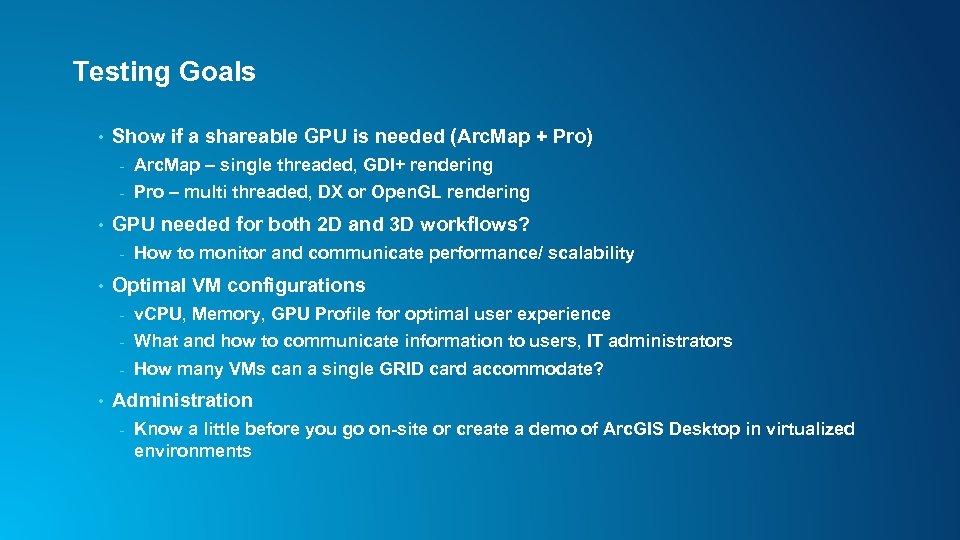 Testing Goals • Show if a shareable GPU is needed (Arc. Map + Pro) - • Arc. Map – single threaded, GDI+ rendering Pro – multi threaded, DX or Open. GL rendering GPU needed for both 2 D and 3 D workflows? - • How to monitor and communicate performance/ scalability Optimal VM configurations - What and how to communicate information to users, IT administrators - • v. CPU, Memory, GPU Profile for optimal user experience How many VMs can a single GRID card accommodate? Administration - Know a little before you go on-site or create a demo of Arc. GIS Desktop in virtualized environments
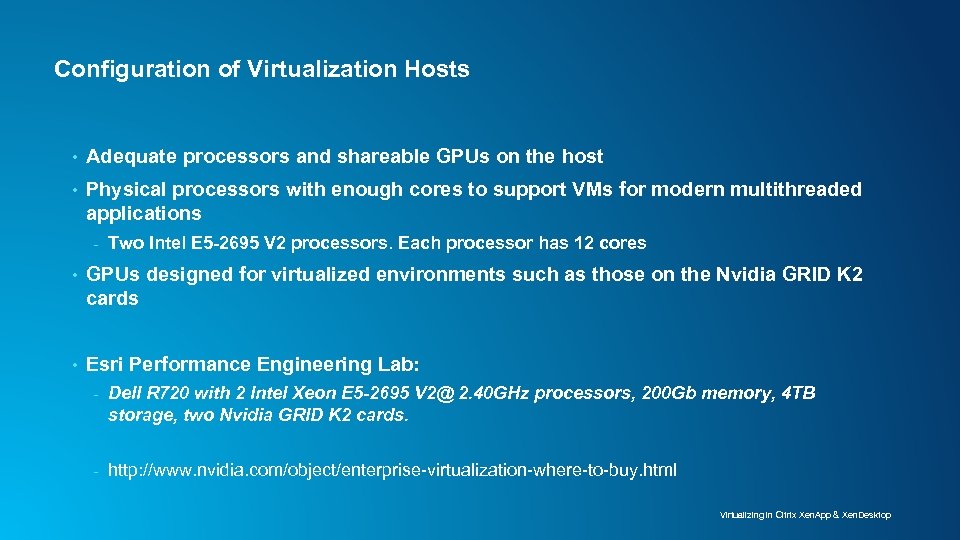 Configuration of Virtualization Hosts • Adequate processors and shareable GPUs on the host • Physical processors with enough cores to support VMs for modern multithreaded applications - Two Intel E 5 -2695 V 2 processors. Each processor has 12 cores • GPUs designed for virtualized environments such as those on the Nvidia GRID K 2 cards • Esri Performance Engineering Lab: - Dell R 720 with 2 Intel Xeon E 5 -2695 V 2@ 2. 40 GHz processors, 200 Gb memory, 4 TB storage, two Nvidia GRID K 2 cards. - http: //www. nvidia. com/object/enterprise-virtualization-where-to-buy. html Virtualizing in Citrix Xen. App & Xen. Desktop
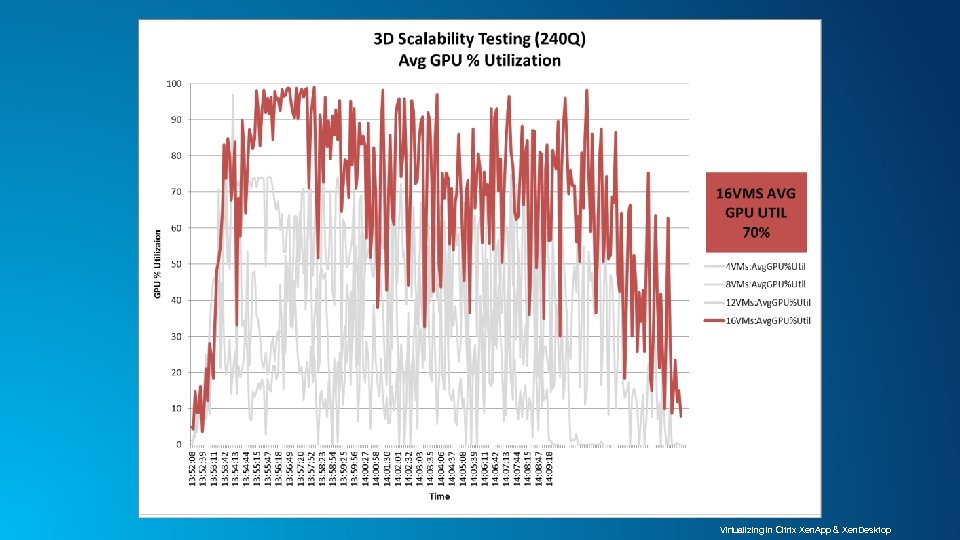
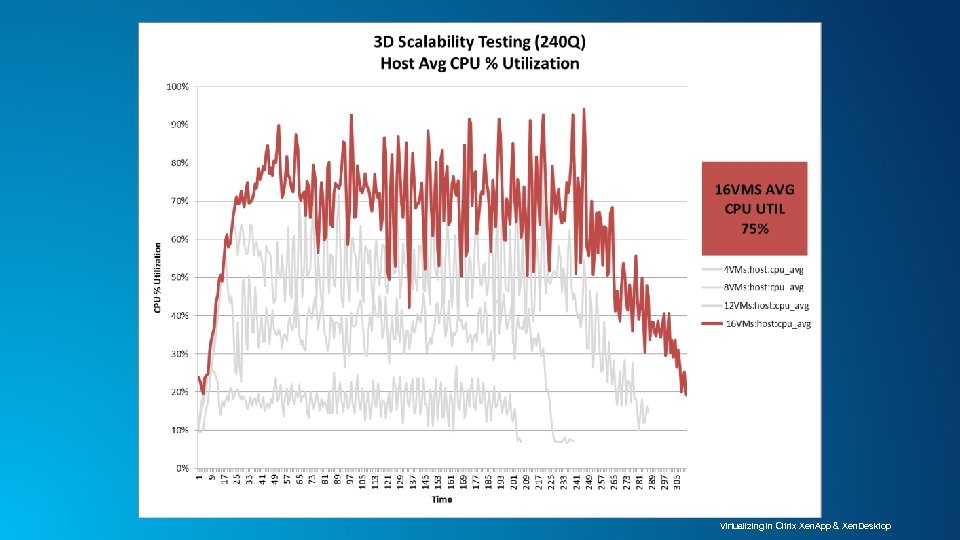
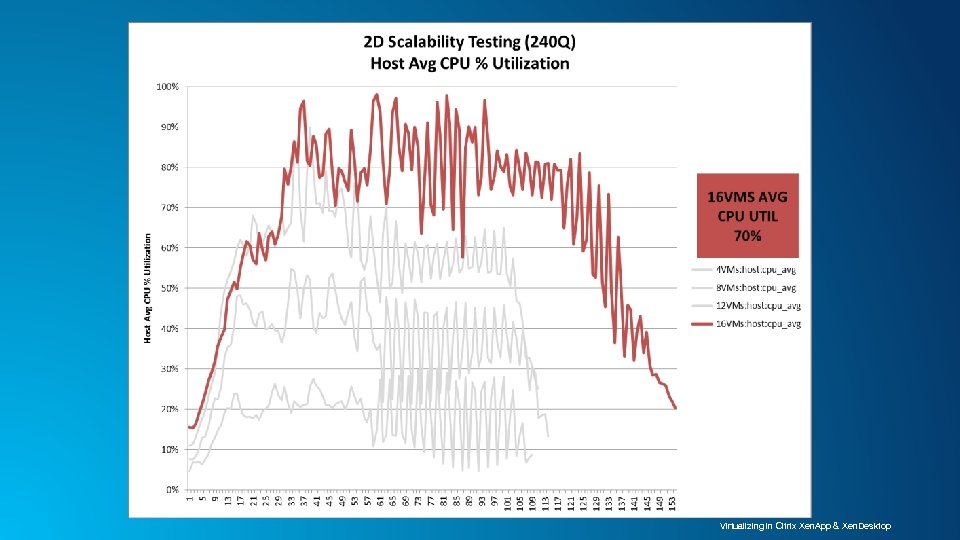
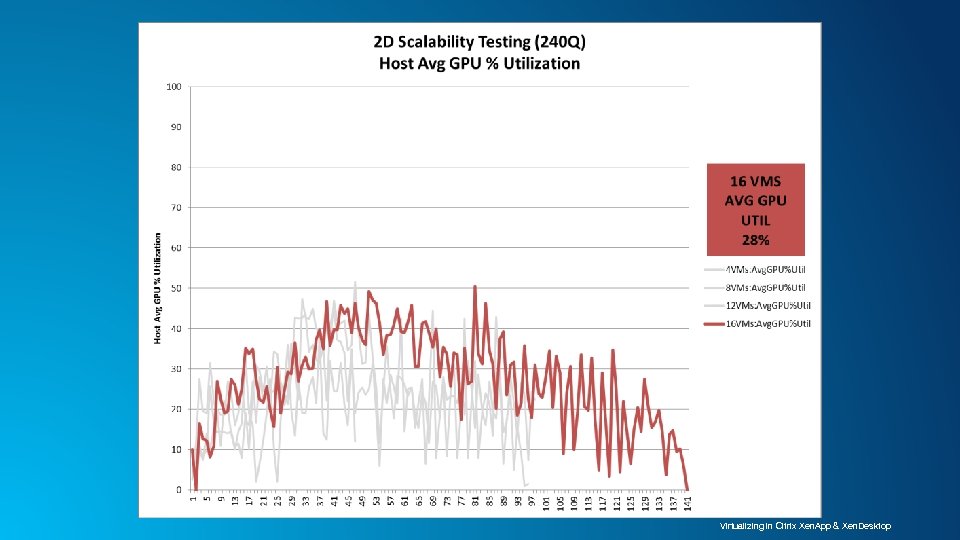
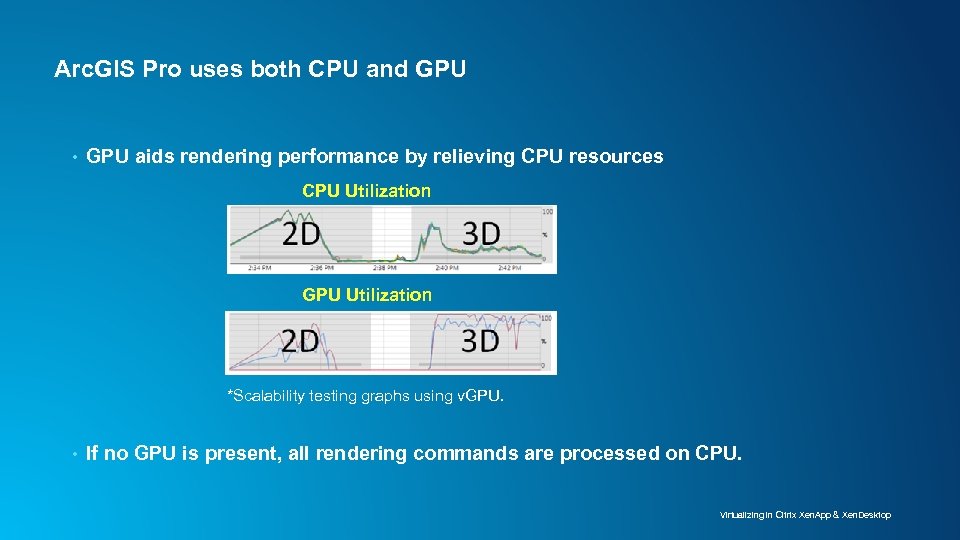 Arc. GIS Pro uses both CPU and GPU • GPU aids rendering performance by relieving CPU resources CPU Utilization GPU Utilization *Scalability testing graphs using v. GPU. • If no GPU is present, all rendering commands are processed on CPU. Virtualizing in Citrix Xen. App & Xen. Desktop
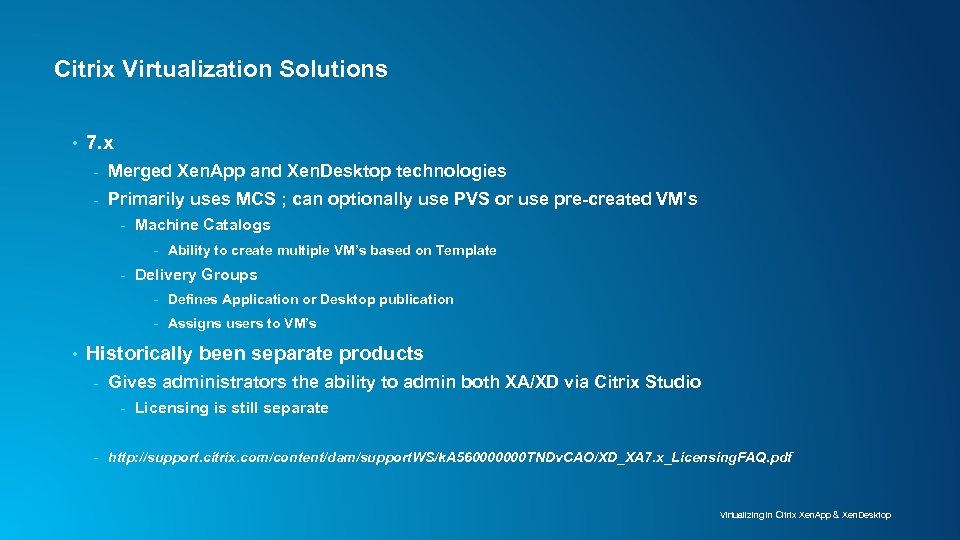 Citrix Virtualization Solutions • 7. x - Merged Xen. App and Xen. Desktop technologies - Primarily uses MCS ; can optionally use PVS or use pre-created VM’s - Machine Catalogs - Ability to create multiple VM’s based on Template - Delivery Groups - Defines Application or Desktop publication - Assigns users to VM’s • Historically been separate products - Gives administrators the ability to admin both XA/XD via Citrix Studio - Licensing is still separate - http: //support. citrix. com/content/dam/support. WS/k. A 560000000 TNDv. CAO/XD_XA 7. x_Licensing. FAQ. pdf Virtualizing in Citrix Xen. App & Xen. Desktop
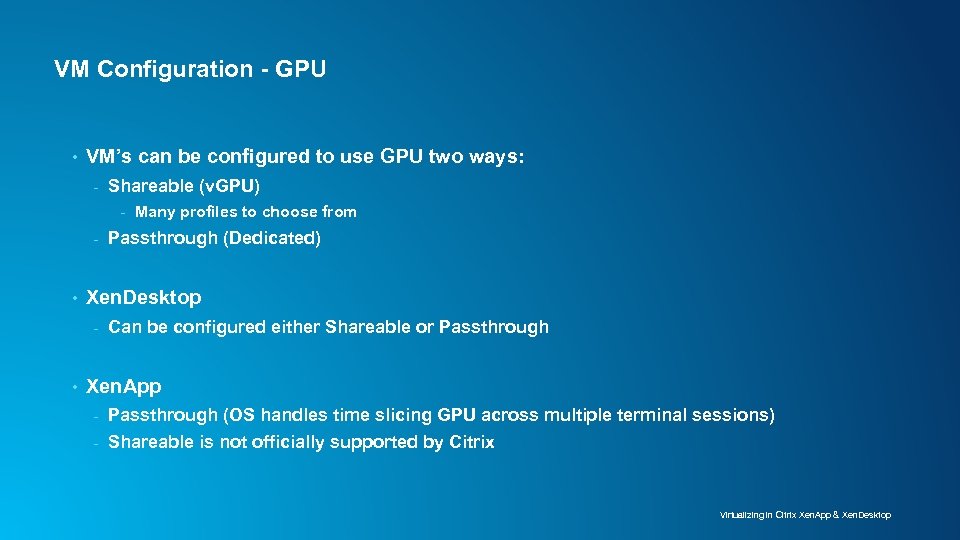 VM Configuration - GPU • VM’s can be configured to use GPU two ways: - Shareable (v. GPU) - - • Passthrough (Dedicated) Xen. Desktop - • Many profiles to choose from Can be configured either Shareable or Passthrough Xen. App - Passthrough (OS handles time slicing GPU across multiple terminal sessions) - Shareable is not officially supported by Citrix Virtualizing in Citrix Xen. App & Xen. Desktop
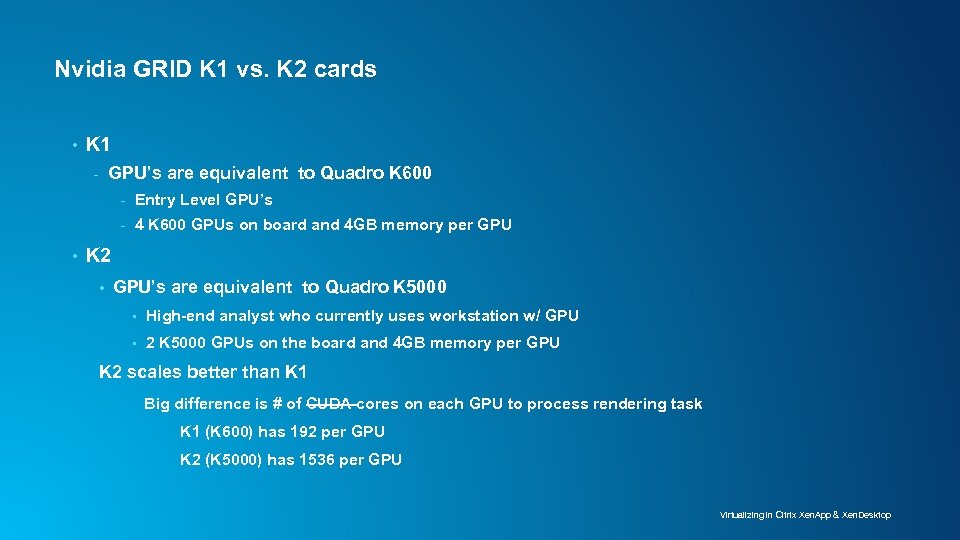 Nvidia GRID K 1 vs. K 2 cards • K 1 - GPU’s are equivalent to Quadro K 600 - • Entry Level GPU’s 4 K 600 GPUs on board and 4 GB memory per GPU K 2 • GPU’s are equivalent to Quadro K 5000 • High-end analyst who currently uses workstation w/ GPU • 2 K 5000 GPUs on the board and 4 GB memory per GPU K 2 scales better than K 1 Big difference is # of CUDA cores on each GPU to process rendering task K 1 (K 600) has 192 per GPU K 2 (K 5000) has 1536 per GPU Virtualizing in Citrix Xen. App & Xen. Desktop
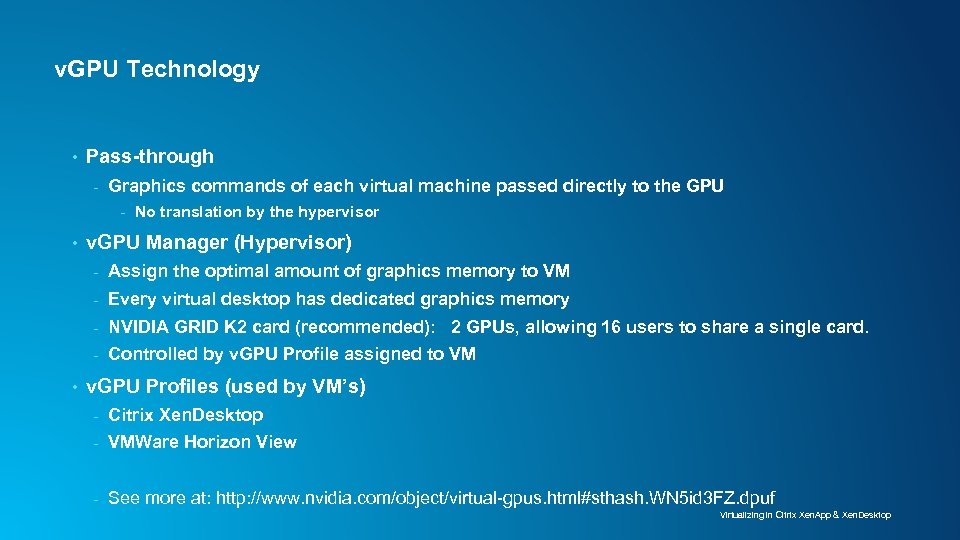 v. GPU Technology • Pass-through - Graphics commands of each virtual machine passed directly to the GPU - • No translation by the hypervisor v. GPU Manager (Hypervisor) - Every virtual desktop has dedicated graphics memory - NVIDIA GRID K 2 card (recommended): 2 GPUs, allowing 16 users to share a single card. - • Assign the optimal amount of graphics memory to VM Controlled by v. GPU Profile assigned to VM v. GPU Profiles (used by VM’s) - Citrix Xen. Desktop - VMWare Horizon View - See more at: http: //www. nvidia. com/object/virtual-gpus. html#sthash. WN 5 id 3 FZ. dpuf Virtualizing in Citrix Xen. App & Xen. Desktop
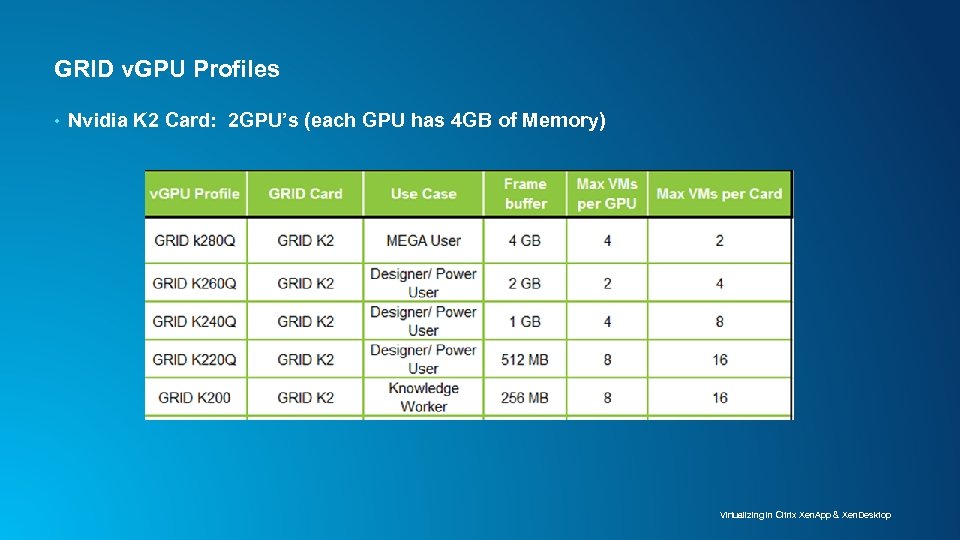 GRID v. GPU Profiles • Nvidia K 2 Card: 2 GPU’s (each GPU has 4 GB of Memory) Virtualizing in Citrix Xen. App & Xen. Desktop
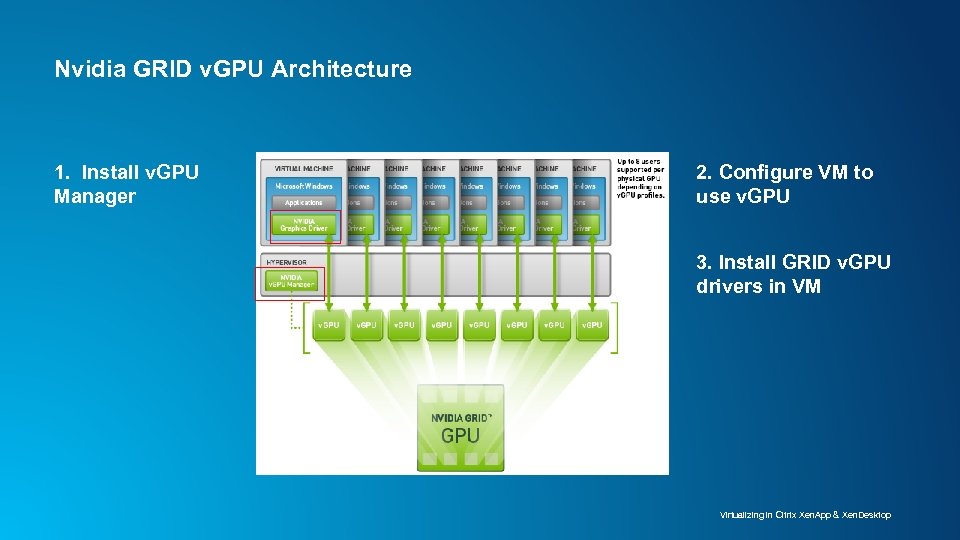 Nvidia GRID v. GPU Architecture 1. Install v. GPU Manager 2. Configure VM to use v. GPU 3. Install GRID v. GPU drivers in VM Virtualizing in Citrix Xen. App & Xen. Desktop
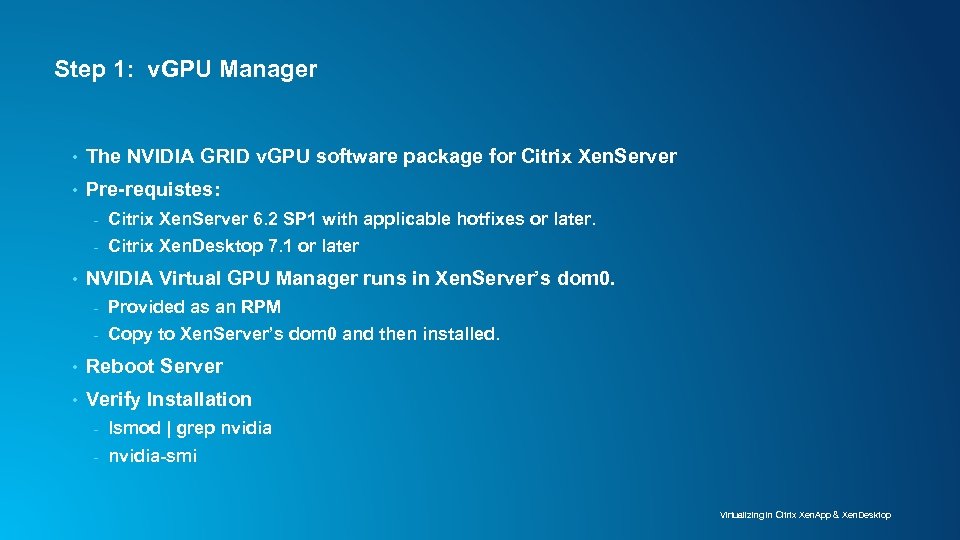 Step 1: v. GPU Manager • The NVIDIA GRID v. GPU software package for Citrix Xen. Server • Pre-requistes: - • Citrix Xen. Server 6. 2 SP 1 with applicable hotfixes or later. Citrix Xen. Desktop 7. 1 or later NVIDIA Virtual GPU Manager runs in Xen. Server’s dom 0. - Provided as an RPM - Copy to Xen. Server’s dom 0 and then installed. • Reboot Server • Verify Installation - lsmod | grep nvidia - nvidia-smi Virtualizing in Citrix Xen. App & Xen. Desktop
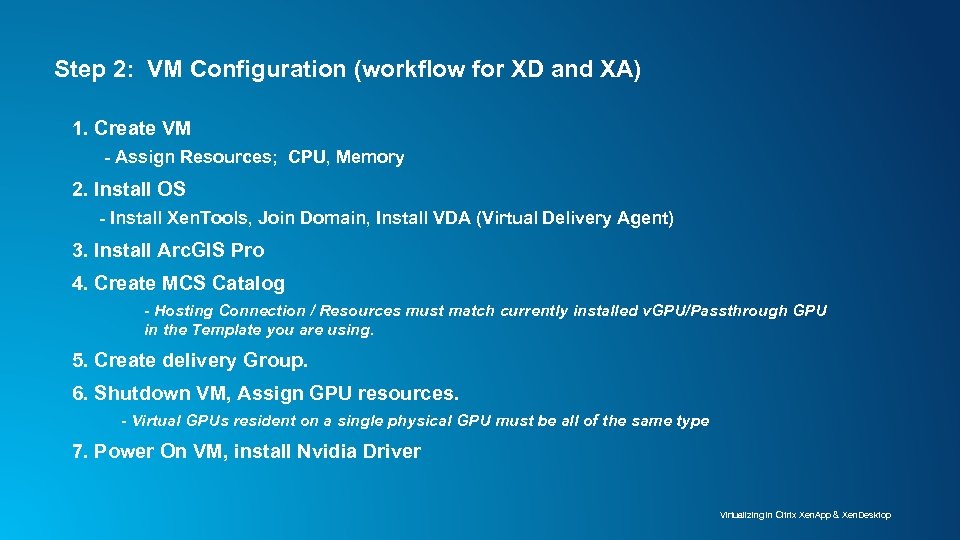 Step 2: VM Configuration (workflow for XD and XA) 1. Create VM - Assign Resources; CPU, Memory 2. Install OS - Install Xen. Tools, Join Domain, Install VDA (Virtual Delivery Agent) 3. Install Arc. GIS Pro 4. Create MCS Catalog - Hosting Connection / Resources must match currently installed v. GPU/Passthrough GPU in the Template you are using. 5. Create delivery Group. 6. Shutdown VM, Assign GPU resources. - Virtual GPUs resident on a single physical GPU must be all of the same type 7. Power On VM, install Nvidia Driver Virtualizing in Citrix Xen. App & Xen. Desktop
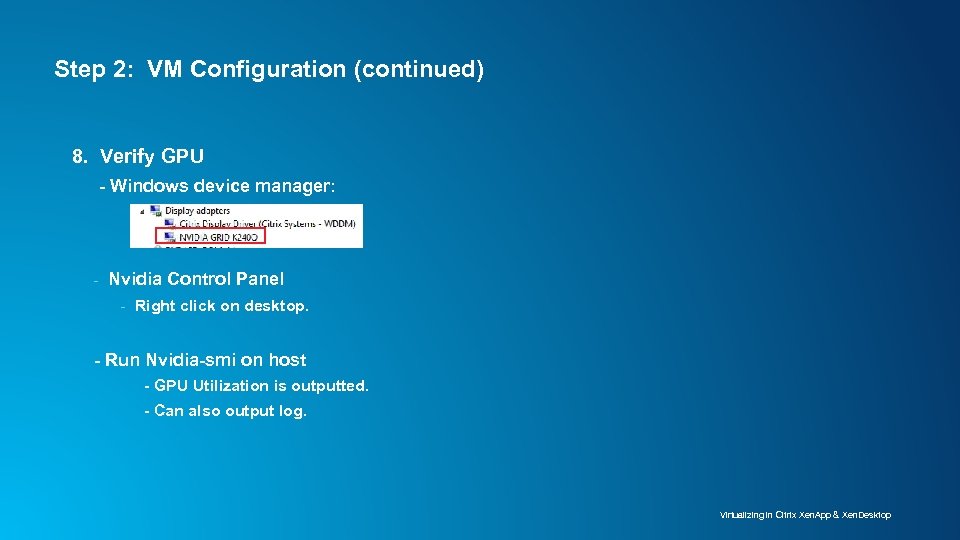 Step 2: VM Configuration (continued) 8. Verify GPU - Windows device manager: - Nvidia Control Panel - Right click on desktop. - Run Nvidia-smi on host - GPU Utilization is outputted. - Can also output log. Virtualizing in Citrix Xen. App & Xen. Desktop
 Xen. Desktop Test Results Virtualizing in Citrix Xen. App & Xen. Desktop
 Virtualizing in Citrix Xen. App & Xen. Desktop
 Virtualizing in Citrix Xen. App & Xen. Desktop
 Virtualizing in Citrix Xen. App & Xen. Desktop
 Virtualizing in Citrix Xen. App & Xen. Desktop
 Virtualizing in Citrix Xen. App & Xen. Desktop
 Xen. App Test Results Virtualizing in Citrix Xen. App & Xen. Desktop
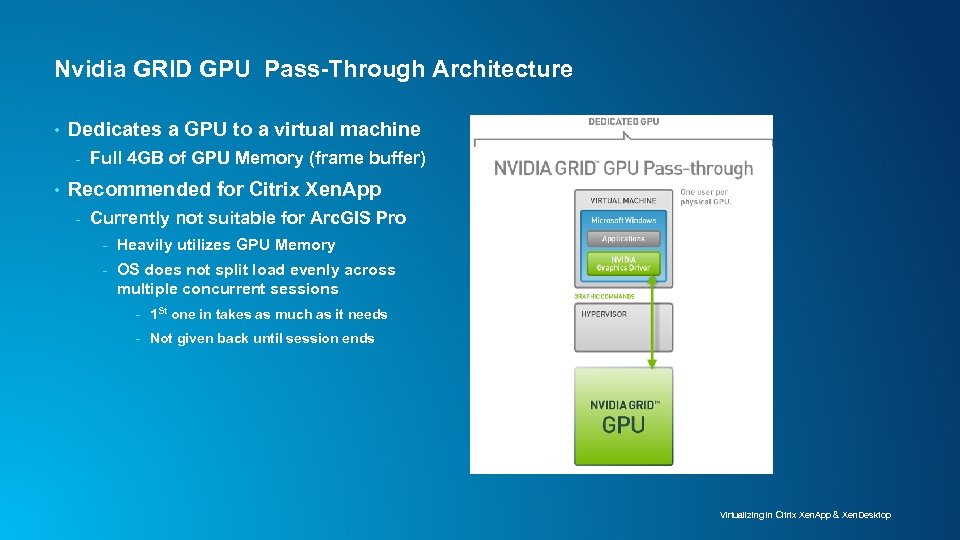 Nvidia GRID GPU Pass-Through Architecture • Dedicates a GPU to a virtual machine - • Full 4 GB of GPU Memory (frame buffer) Recommended for Citrix Xen. App - Currently not suitable for Arc. GIS Pro - Heavily utilizes GPU Memory - OS does not split load evenly across multiple concurrent sessions - 1 St one in takes as much as it needs - Not given back until session ends Virtualizing in Citrix Xen. App & Xen. Desktop
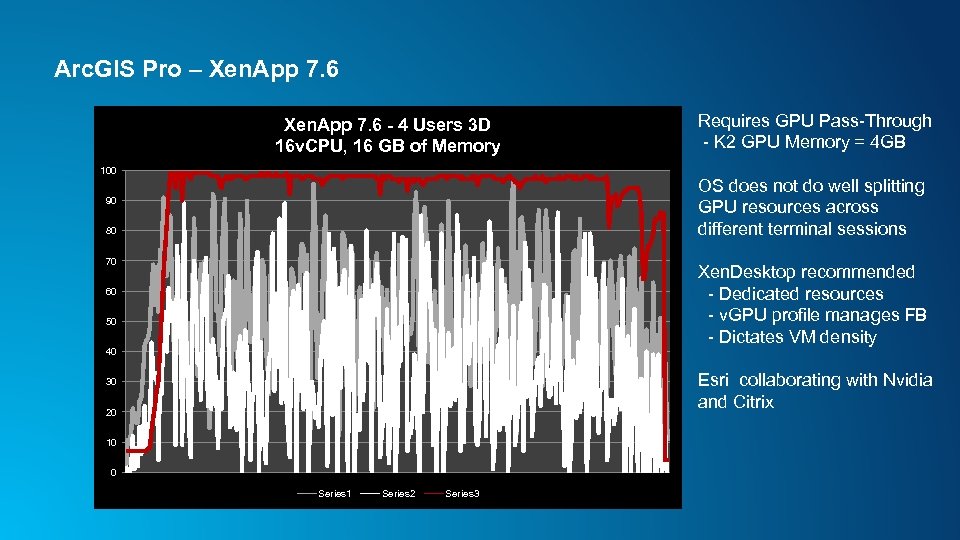 Arc. GIS Pro – Xen. App 7. 6 - 4 Users 3 D 16 v. CPU, 16 GB of Memory 100 Requires GPU Pass-Through - K 2 GPU Memory = 4 GB OS does not do well splitting GPU resources across different terminal sessions 90 80 70 Xen. Desktop recommended - Dedicated resources - v. GPU profile manages FB - Dictates VM density 60 50 40 Esri collaborating with Nvidia and Citrix 30 20 10 0 Series 1 Series 2 Series 3
 VM Configuration Recommendations Virtualizing in Citrix Xen. App & Xen. Desktop
 Test Results: v. CPU Recommendation • Multiple threaded nature of Arc. GIS Pro - Direct correlation between v. CPU and amount of threads - Analysis of Total Task Time and Hung Time • 6 v. CPU for most 3 D and 2 D data and workflows • 4 v. CPU may be suitable for simple 2 D data and workflows Virtualizing in Citrix Xen. App & Xen. Desktop
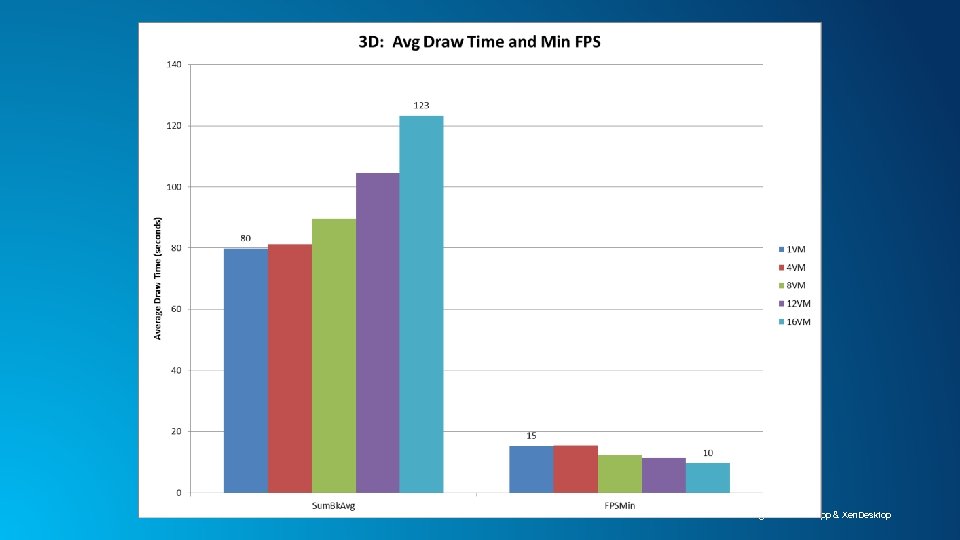
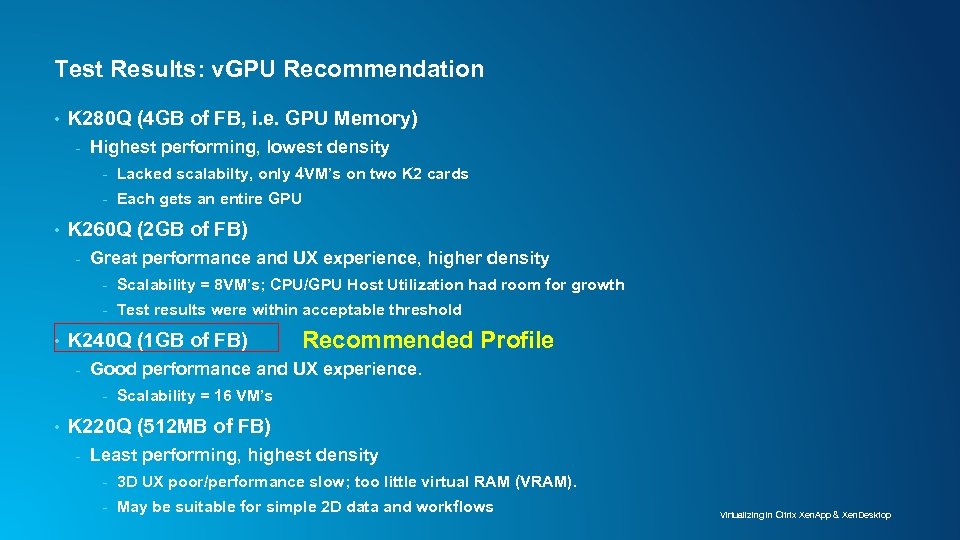 Test Results: v. GPU Recommendation • K 280 Q (4 GB of FB, i. e. GPU Memory) - Highest performing, lowest density - • Lacked scalabilty, only 4 VM’s on two K 2 cards Each gets an entire GPU K 260 Q (2 GB of FB) - Great performance and UX experience, higher density - • Scalability = 8 VM’s; CPU/GPU Host Utilization had room for growth Test results were within acceptable threshold K 240 Q (1 GB of FB) - Good performance and UX experience. - • Recommended Profile Scalability = 16 VM’s K 220 Q (512 MB of FB) - Least performing, highest density - 3 D UX poor/performance slow; too little virtual RAM (VRAM). - May be suitable for simple 2 D data and workflows Virtualizing in Citrix Xen. App & Xen. Desktop
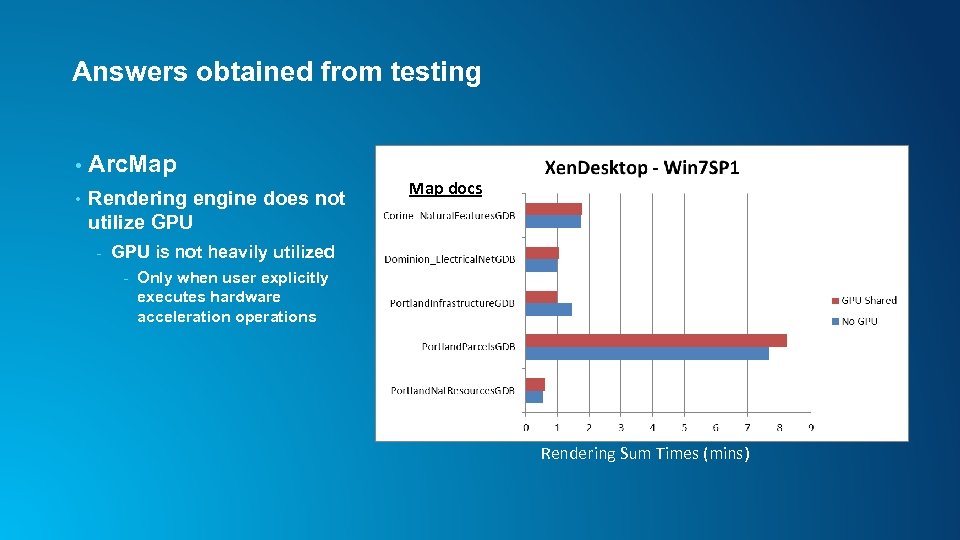 Answers obtained from testing • Arc. Map • Rendering engine does not utilize GPU - Map docs GPU is not heavily utilized - Only when user explicitly executes hardware acceleration operations Rendering Sum Times (mins)
 Future testing • Mixed workflows - Initial testing focused on rendering pipeline - Add analytical operations (CPU intensive) - • Mixed Virtualization Vendor Solutions - • VMWare ESXi Xen. Desktop Storage – SAN - • How GPU Utilization and density is affected when users are simultaneously running a CPU intensive geoprocessing task? More realistic – large infrastructure don’t use SSDs Cloud based VDI (Daa. S) - Increasing questions and interest - Distributors – Europe, NZ, US - Esri Redlands – Ed Services, Customer Holistic Testing
 Questions? • Visit us at the Expo Hall - Desktop Island - Arc. GIS Pro: virtualizing in VMWare Horizon View and Microsoft Hyper-V (Room 02) - - Noon Tomorrow eapsey@esri. com