 Скачать презентацию AQS Basics Data Entry and Maintenance Table
54394fc0991a4e9ea9952b306d4a84a1.ppt
- Количество слайдов: 72



AQS Basics Data Entry and Maintenance
Table of Contents AQS Background AQS User Interface and Logging on to AQS Security (Screening Groups) AQS Batch Data Submissions Correcting Data in AQS Data Formats Online Updates of Data 2 AQS Concepts
AQS Background
What is AQS? EPA’s Database Application used to House and Store Ambient Air Quality Data Centralizes the Location of Data Used to Determine if areas are meeting the National Ambient Air Quality Standards (NAAQS) Used by Universities and Institutes to Perform Health Studies 4 AQS Concepts
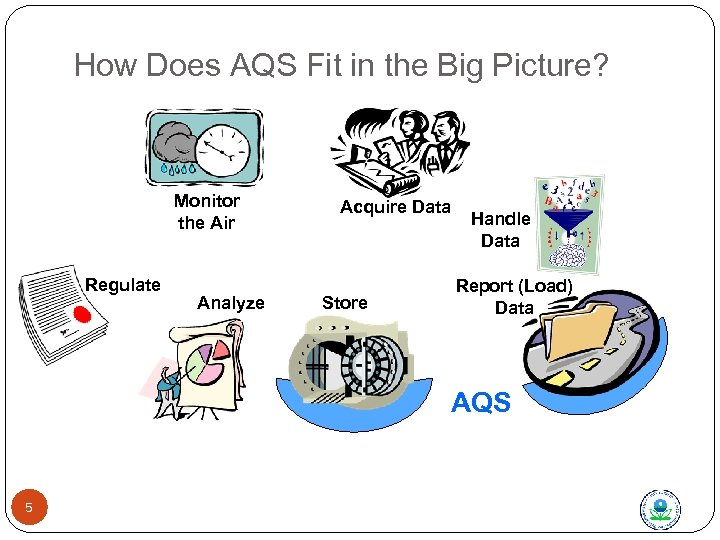
How Does AQS Fit in the Big Picture? Monitor the Air Regulate Analyze Acquire Data Store Handle Data Report (Load) Data AQS 5
AQS and the CFR = Code of Federal Regulations Chapter 40 of the CFR deals with the environment Part 50 deals with NATIONAL PRIMARY AND SECONDARY AMBIENT AIR QUALITY STANDARDS (NAAQS). AQS changes often made when NAAQS changes (Example: 2015 Ozone standard). Part 58 deals with AMBIENT AIR QUALITY SURVEILLANCE (a/k/a Monitoring) AQS changes made when monitoring program change. Examples include NPAP, and QA Program Re-engineering. 6 AQS Concepts
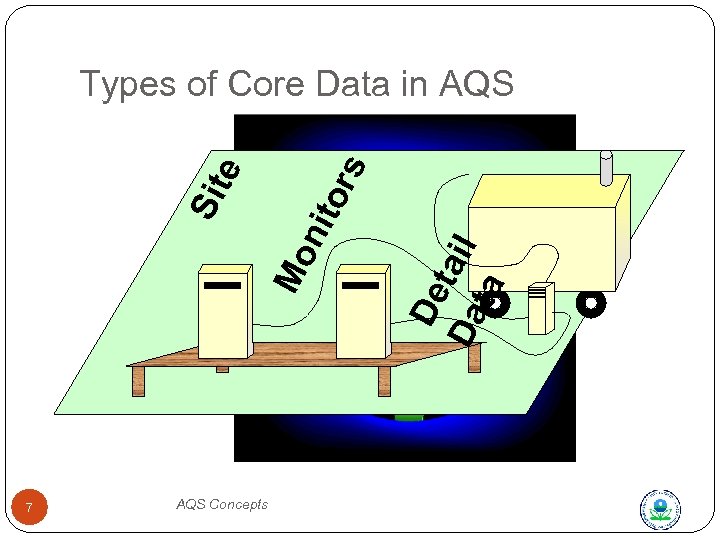
7 AQS Concepts De Da tail ta Mo n ito Sit e rs Types of Core Data in AQS
Types of Data in AQS (Site and Monitor) Site Data Physical Location (Latitude and longitude, Street Address) Site Characteristics (Nearby Streets, primary Monitor) Site Identifier (State – County –Site ID or Tribal Code – Site ID Monitor data How is a given Pollutant measured (When Sampling Began, networks, Agencies, Objectives, Obstructions and/or Roads nearby, Collocation, sampling frequency Identified by AQS Site ID + Parameter Code + POC 8 AQS Concepts
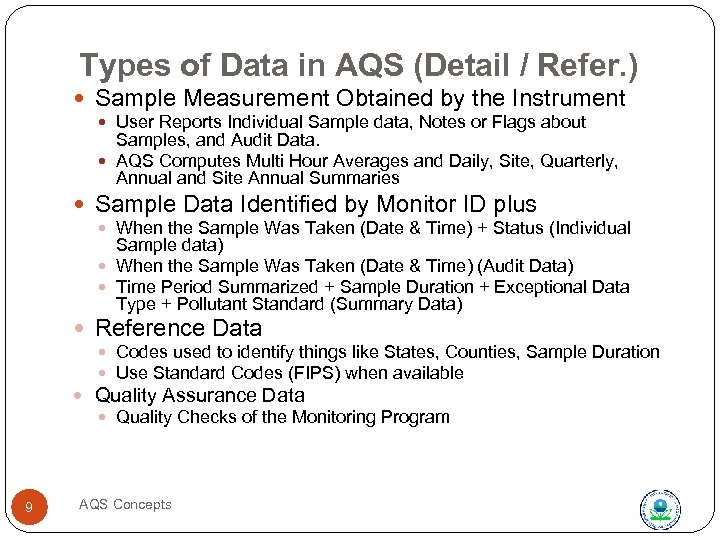
Types of Data in AQS (Detail / Refer. ) Sample Measurement Obtained by the Instrument User Reports Individual Sample data, Notes or Flags about Samples, and Audit Data. AQS Computes Multi Hour Averages and Daily, Site, Quarterly, Annual and Site Annual Summaries Sample Data Identified by Monitor ID plus When the Sample Was Taken (Date & Time) + Status (Individual Sample data) When the Sample Was Taken (Date & Time) (Audit Data) Time Period Summarized + Sample Duration + Exceptional Data Type + Pollutant Standard (Summary Data) Reference Data Codes used to identify things like States, Counties, Sample Duration Use Standard Codes (FIPS) when available Quality Assurance Data Quality Checks of the Monitoring Program 9 AQS Concepts
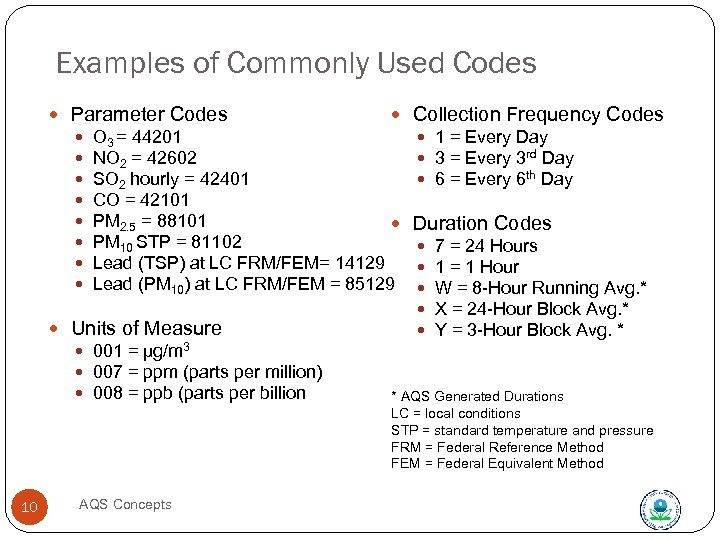
Examples of Commonly Used Codes Parameter Codes O 3 = 44201 NO 2 = 42602 SO 2 hourly = 42401 CO = 42101 PM 2. 5 = 88101 PM 10 STP = 81102 Lead (TSP) at LC FRM/FEM= 14129 Lead (PM 10) at LC FRM/FEM = 85129 Units of Measure 001 = µg/m 3 007 = ppm (parts per million) 008 = ppb (parts per billion 10 AQS Concepts Collection Frequency Codes 1 = Every Day 3 = Every 3 rd Day 6 = Every 6 th Day Duration Codes 7 = 24 Hours 1 = 1 Hour W = 8 -Hour Running Avg. * X = 24 -Hour Block Avg. * Y = 3 -Hour Block Avg. * * AQS Generated Durations LC = local conditions STP = standard temperature and pressure FRM = Federal Reference Method FEM = Federal Equivalent Method
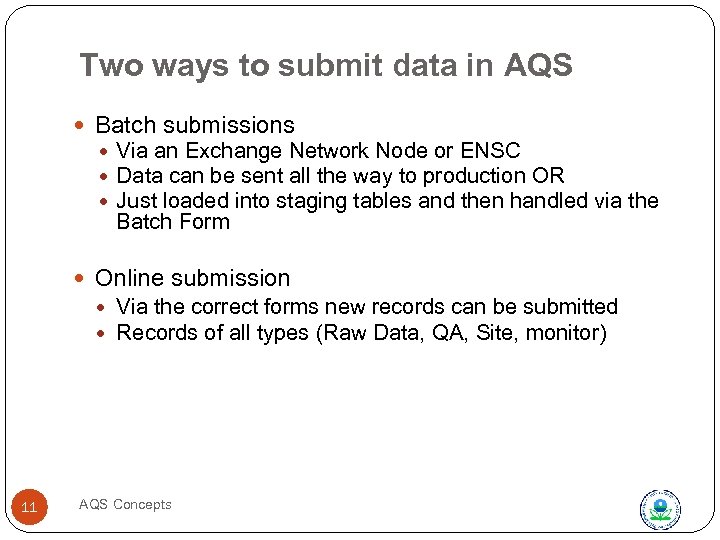
Two ways to submit data in AQS Batch submissions Via an Exchange Network Node or ENSC Data can be sent all the way to production OR Just loaded into staging tables and then handled via the Batch Form Online submission Via the correct forms new records can be submitted Records of all types (Raw Data, QA, Site, monitor) 11 AQS Concepts
AQS User Interface
User Interface Parts (aka “Oracle Forms and Reports”) Forms: Present information and accept input. Reports: Present formatted data for printing (reports) or input by other software (workfiles) Menus: Select a form or execute an action Icons: Execute an action 13 AQS Concepts
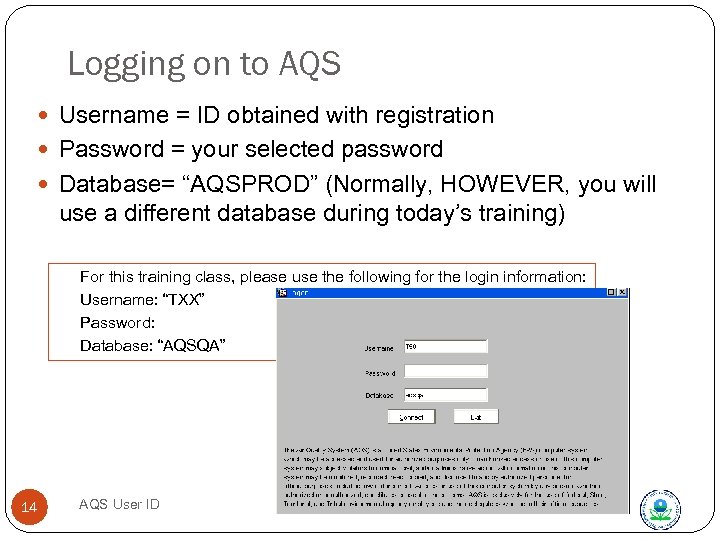
Logging on to AQS Username = ID obtained with registration Password = your selected password Database= “AQSPROD” (Normally, HOWEVER, you will use a different database during today’s training) For this training class, please use the following for the login information: Username: “TXX” Password: Database: “AQSQA” 14 AQS User ID
Account management Change password every 90 days You receive an automated reminder You can change your passwords in AQS at any time After 180 days of inactivity, your user account is locked You receive an automated reminder If your account is locked, you must call the EPA Helpdesk to have it unlocked After 365 days of inactivity, your user account is removed You receive an automated reminder You must go through the user registration process 15 AQS User ID
Password Rules Must be between 8 -15 characters Must contain at least 1 uppercase, 1 lowercase and 1 number Must not BEGIN with a number Must be changed every 90 days At least three characters or character positions of the new password must differ from the old “Novemb 3 r” could be changed to “Decemb 3 r” “Fido 1 smydog” could be changed to “mydog 1 s. Fido” NOT Allowed: Special characters (eg, !@#$%^&*) Your first or last name Any common word found in a dictionary followed by digits Your 3 -digit AQS username (in forward or reverse order) The letters “AQS” The word “password” Password or account problems? Call the EPA Call Center at 866 -411 -4372 16 AQS User ID
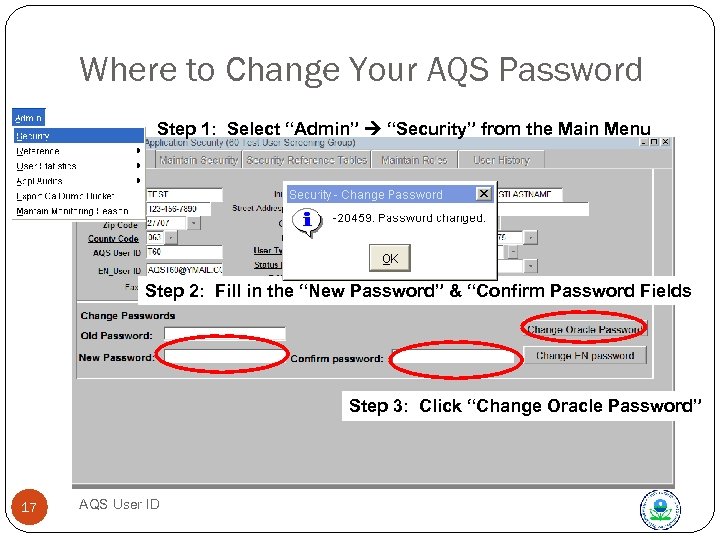
Where to Change Your AQS Password Step 1: Select “Admin” “Security” from the Main Menu Step 2: Fill in the “New Password” & “Confirm Password Fields Step 3: Click “Change Oracle Password” 17 AQS User ID
Put it into Practice: Exercise 1 Perform Exercise 1 QA URL: https: //aqs. epa. gov/aqs Exercise 1 Location: https: //aqs. epa. gov/aqsweb/Exercises/Exercise 1_201 6. doc l 18 Correct
AQS Security (Screening groups)
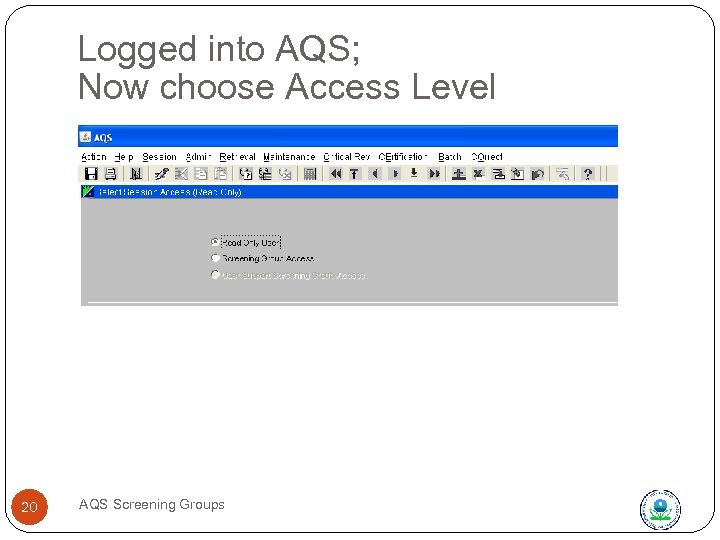
Logged into AQS; Now choose Access Level 20 AQS Screening Groups
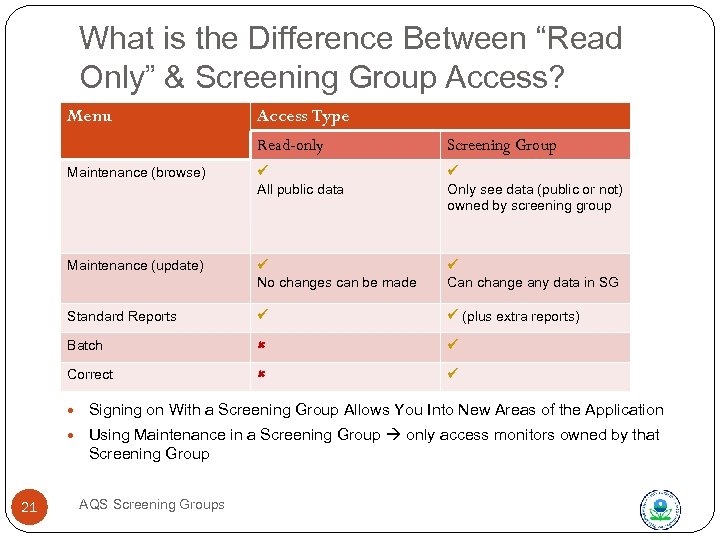
What is the Difference Between “Read Only” & Screening Group Access? Menu Access Type Read-only Screening Group Maintenance (browse) All public data Only see data (public or not) owned by screening group Maintenance (update) No changes can be made Can change any data in SG Standard Reports (plus extra reports) Batch Correct Signing on With a Screening Group Allows You Into New Areas of the Application Using Maintenance in a Screening Group only access monitors owned by that Screening Group 21 AQS Screening Groups
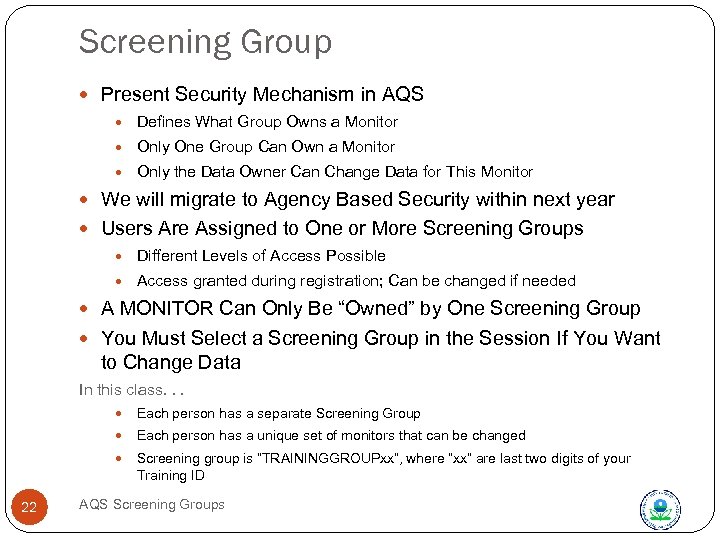
Screening Group Present Security Mechanism in AQS Defines What Group Owns a Monitor Only One Group Can Own a Monitor Only the Data Owner Can Change Data for This Monitor We will migrate to Agency Based Security within next year Users Are Assigned to One or More Screening Groups Different Levels of Access Possible Access granted during registration; Can be changed if needed A MONITOR Can Only Be “Owned” by One Screening Group You Must Select a Screening Group in the Session If You Want to Change Data In this class. . . Each person has a unique set of monitors that can be changed 22 Each person has a separate Screening Group Screening group is “TRAININGGROUPxx”, where “xx” are last two digits of your Training ID AQS Screening Groups
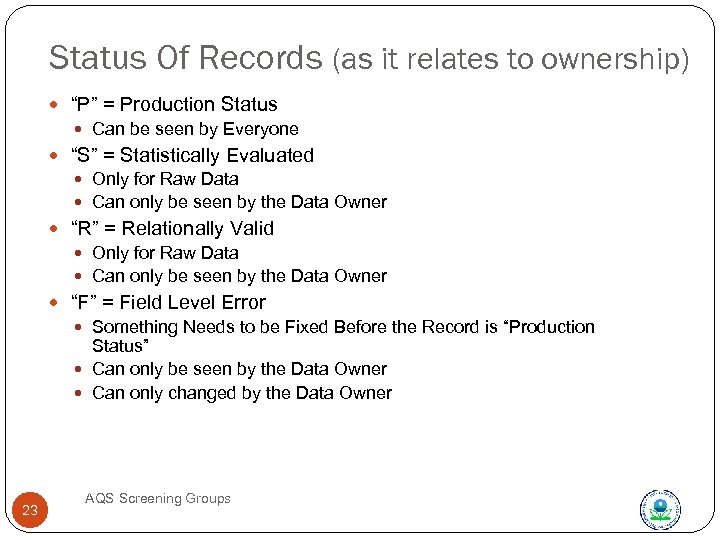
Status Of Records (as it relates to ownership) “P” = Production Status Can be seen by Everyone “S” = Statistically Evaluated Only for Raw Data Can only be seen by the Data Owner “R” = Relationally Valid Only for Raw Data Can only be seen by the Data Owner “F” = Field Level Error Something Needs to be Fixed Before the Record is “Production Status” Can only be seen by the Data Owner Can only changed by the Data Owner 23 AQS Screening Groups
AQS Batch Updates of Data
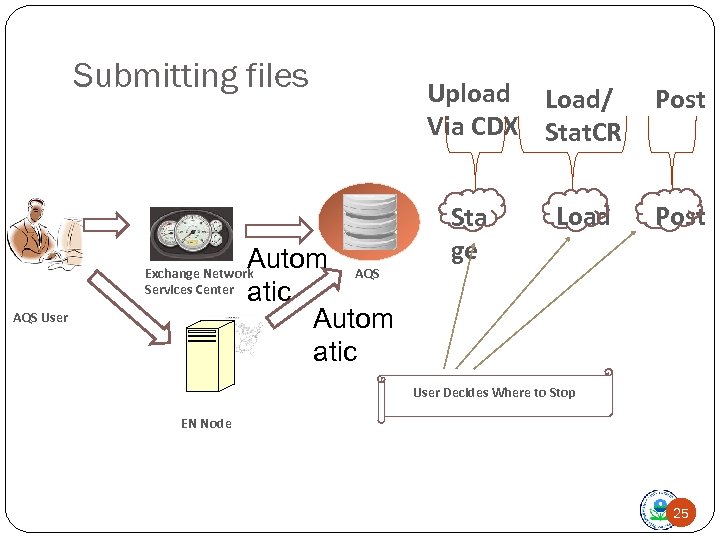
Submitting files Autom AQS atic Autom atic Exchange Network Services Center AQS User Upload Load/ Via CDX Stat. CR Sta ge Load Post User Decides Where to Stop EN Node 25
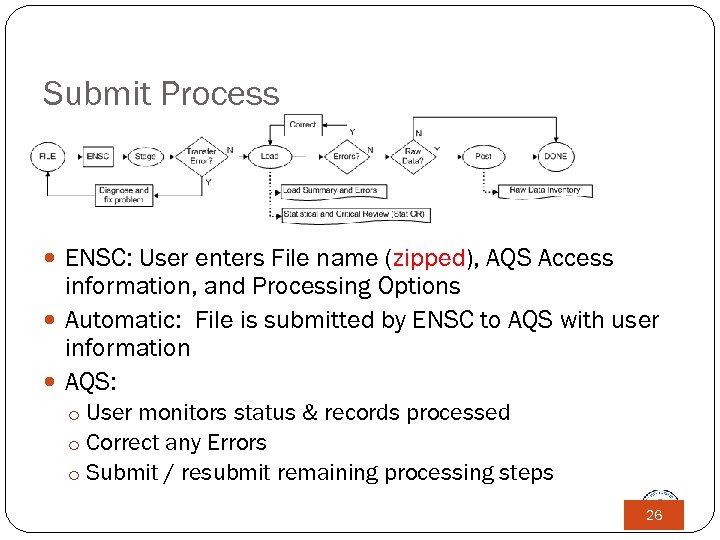
Submit Process ENSC: User enters File name (zipped), AQS Access information, and Processing Options Automatic: File is submitted by ENSC to AQS with user information AQS: o User monitors status & records processed o Correct any Errors o Submit / resubmit remaining processing steps 26
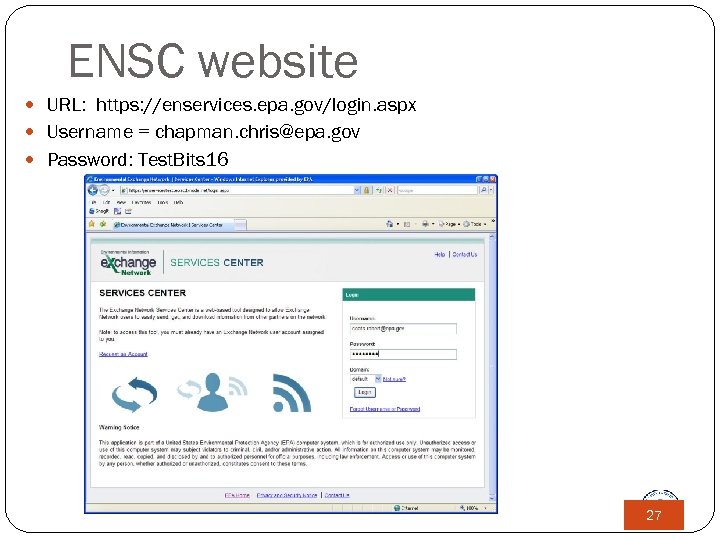
ENSC website URL: https: //enservices. epa. gov/login. aspx Username = chapman. chris@epa. gov Password: Test. Bits 16 27
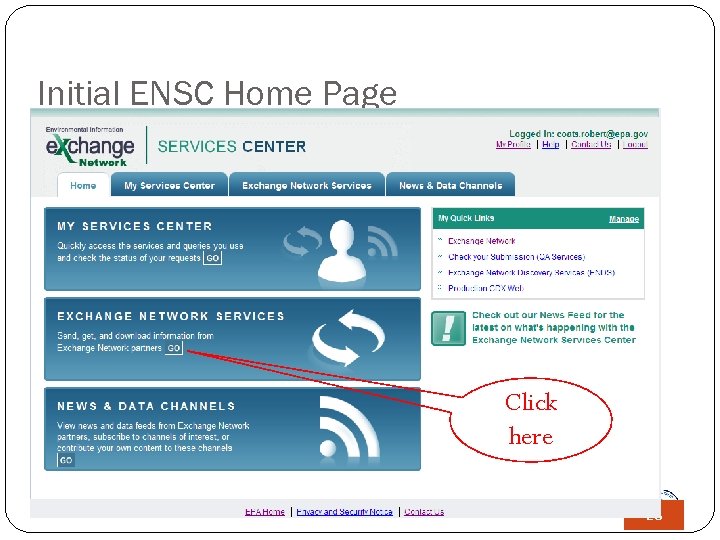
Initial ENSC Home Page Click here 28
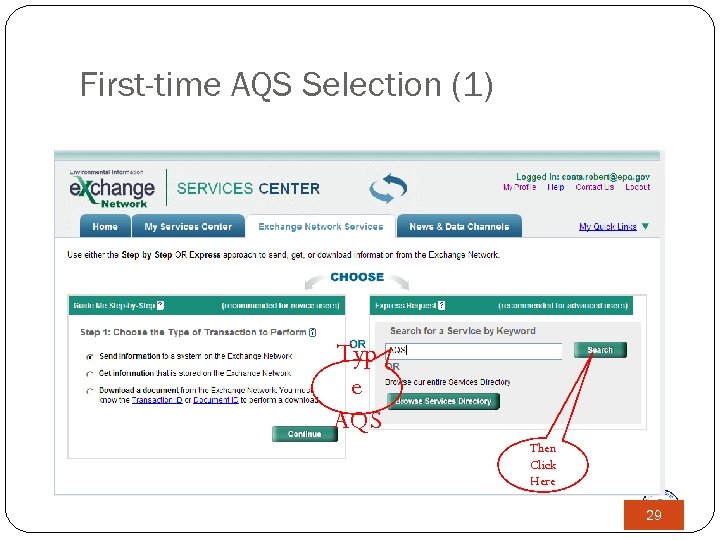
First-time AQS Selection (1) Typ e AQS Then Click Here 29
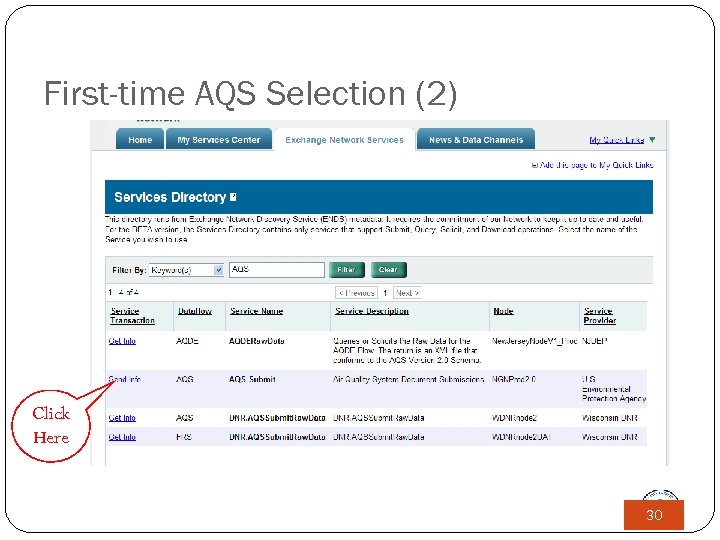
First-time AQS Selection (2) Click Here 30
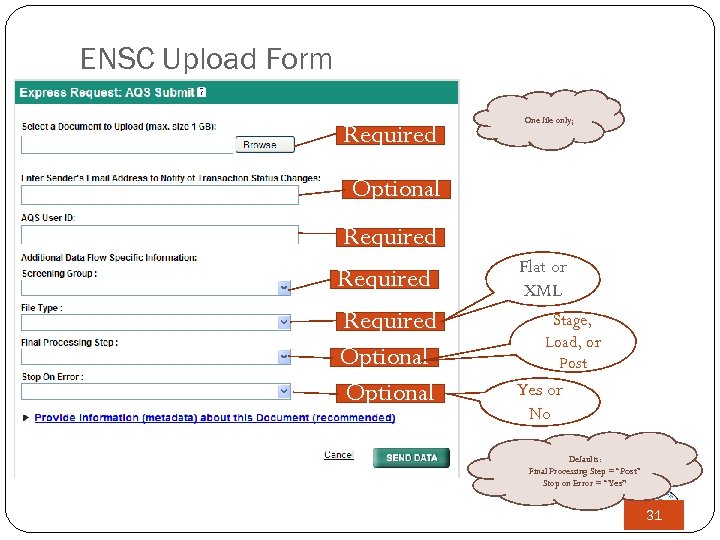
ENSC Upload Form One file only; Required File to Upload Optional Email address AQS User ID Required Screening Flat or Required XML Group Stage, Required File Type Load, or Optional Post Yes or Optional No Stop on Error: Defaults: Final Processing Step = “Post” Stop on Error = “Yes” 31
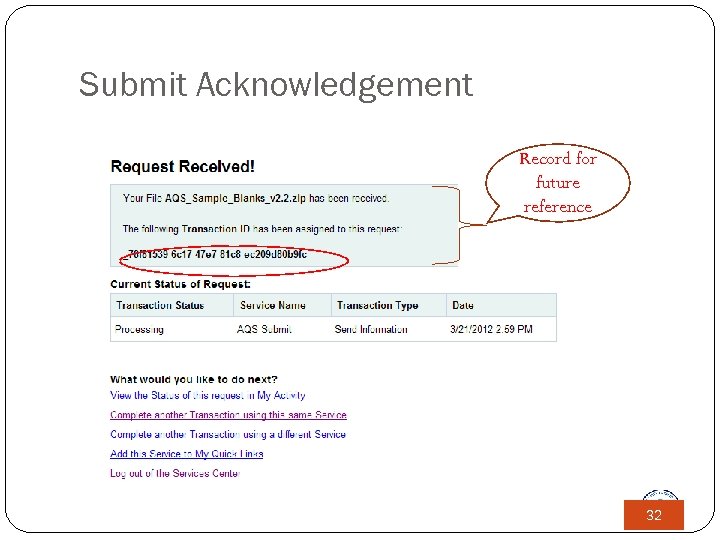
Submit Acknowledgement Record for future reference 32
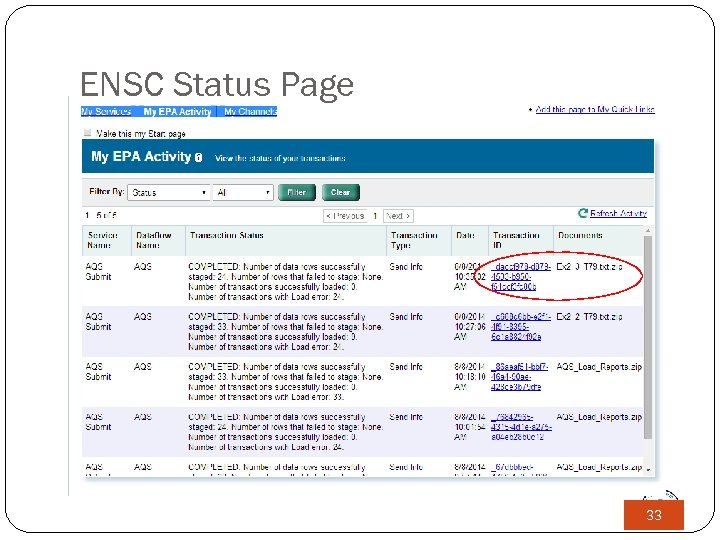
ENSC Status Page 33
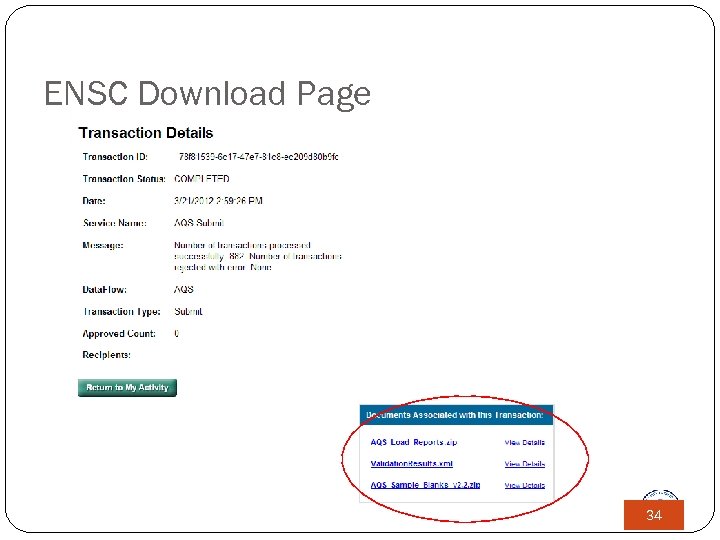
ENSC Download Page 34
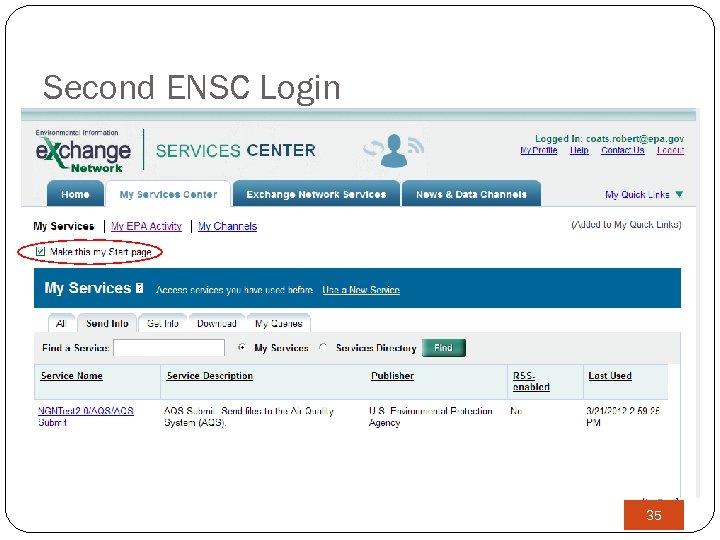
Second ENSC Login 35
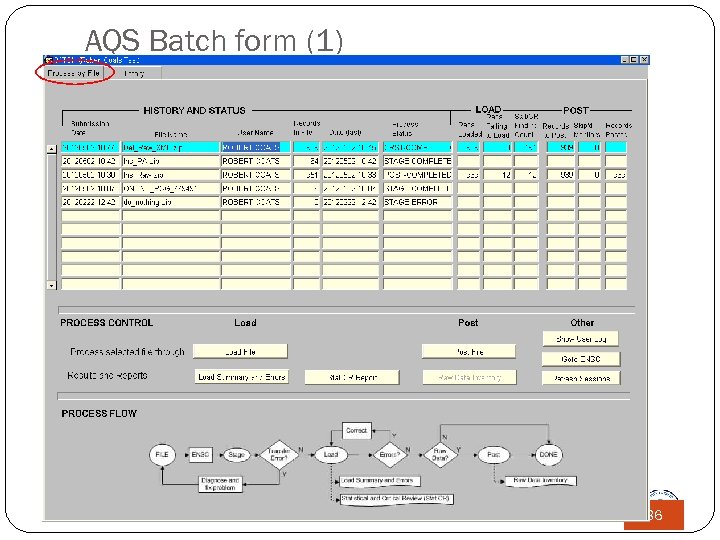
AQS Batch form (1) 36
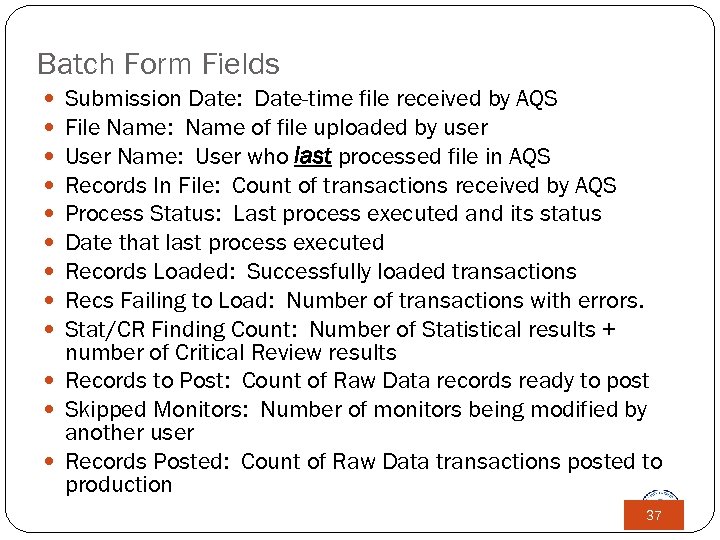
Batch Form Fields Submission Date: Date-time file received by AQS File Name: Name of file uploaded by user User Name: User who last processed file in AQS Records In File: Count of transactions received by AQS Process Status: Last process executed and its status Date that last process executed Records Loaded: Successfully loaded transactions Recs Failing to Load: Number of transactions with errors. Stat/CR Finding Count: Number of Statistical results + number of Critical Review results Records to Post: Count of Raw Data records ready to post Skipped Monitors: Number of monitors being modified by another user Records Posted: Count of Raw Data transactions posted to production 37
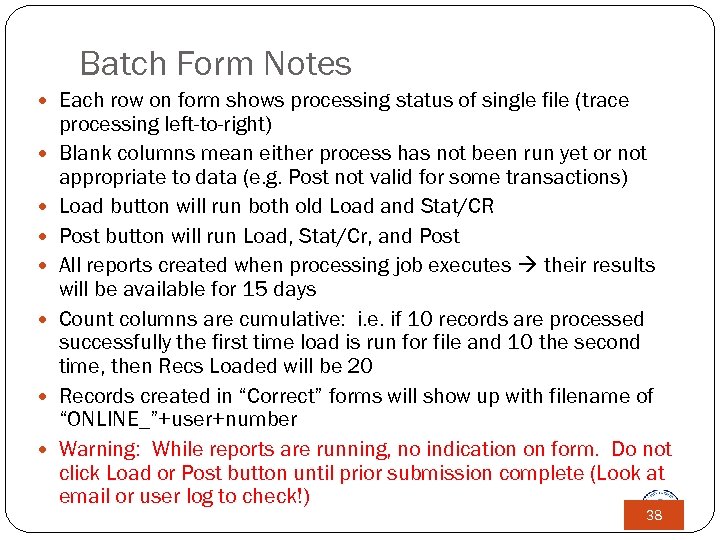
Batch Form Notes Each row on form shows processing status of single file (trace processing left-to-right) Blank columns mean either process has not been run yet or not appropriate to data (e. g. Post not valid for some transactions) Load button will run both old Load and Stat/CR Post button will run Load, Stat/Cr, and Post All reports created when processing job executes their results will be available for 15 days Count columns are cumulative: i. e. if 10 records are processed successfully the first time load is run for file and 10 the second time, then Recs Loaded will be 20 Records created in “Correct” forms will show up with filename of “ONLINE_”+user+number Warning: While reports are running, no indication on form. Do not click Load or Post button until prior submission complete (Look at email or user log to check!) 38
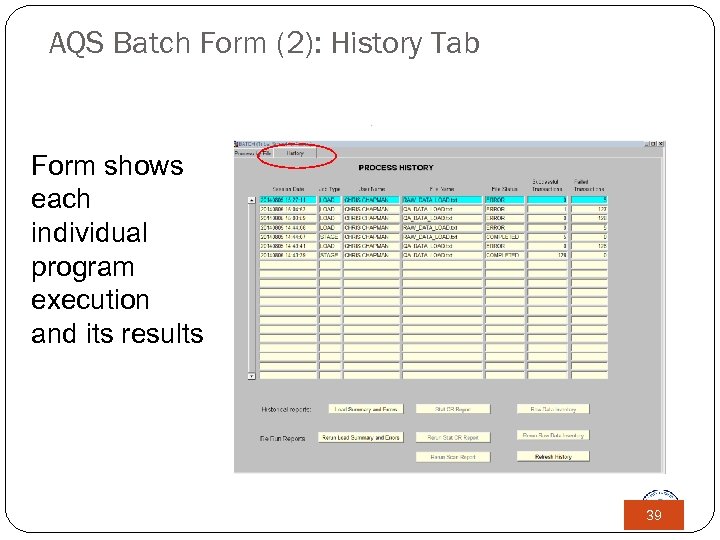
AQS Batch Form (2): History Tab Form shows each individual program execution and its results 39
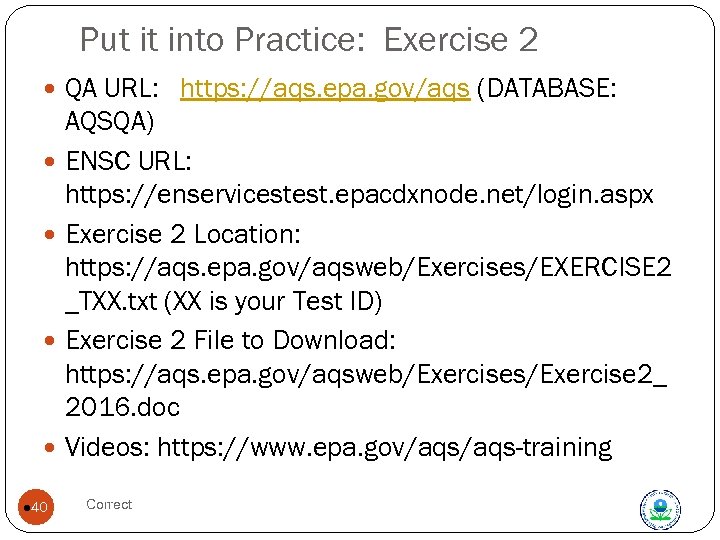
Put it into Practice: Exercise 2 QA URL: https: //aqs. epa. gov/aqs (DATABASE: AQSQA) ENSC URL: https: //enservicestest. epacdxnode. net/login. aspx Exercise 2 Location: https: //aqs. epa. gov/aqsweb/Exercises/EXERCISE 2 _TXX. txt (XX is your Test ID) Exercise 2 File to Download: https: //aqs. epa. gov/aqsweb/Exercises/Exercise 2_ 2016. doc Videos: https: //www. epa. gov/aqs-training l 40 Correct
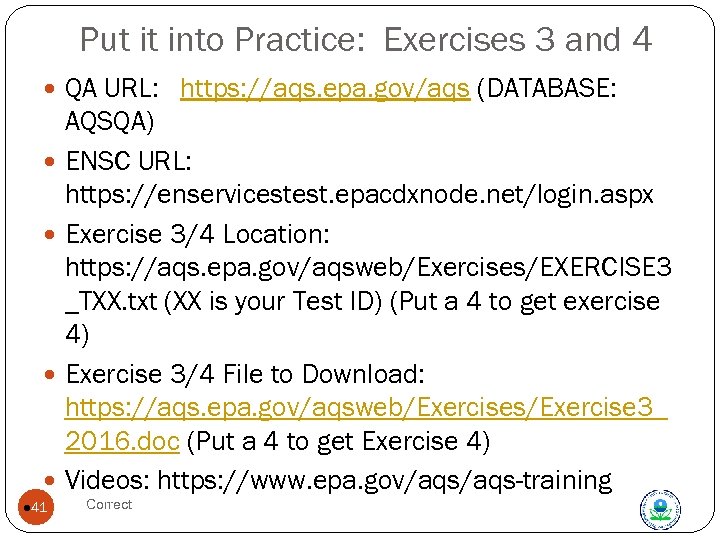
Put it into Practice: Exercises 3 and 4 QA URL: https: //aqs. epa. gov/aqs (DATABASE: AQSQA) ENSC URL: https: //enservicestest. epacdxnode. net/login. aspx Exercise 3/4 Location: https: //aqs. epa. gov/aqsweb/Exercises/EXERCISE 3 _TXX. txt (XX is your Test ID) (Put a 4 to get exercise 4) Exercise 3/4 File to Download: https: //aqs. epa. gov/aqsweb/Exercises/Exercise 3_ 2016. doc (Put a 4 to get Exercise 4) Videos: https: //www. epa. gov/aqs-training l 41 Correct
Correct Function
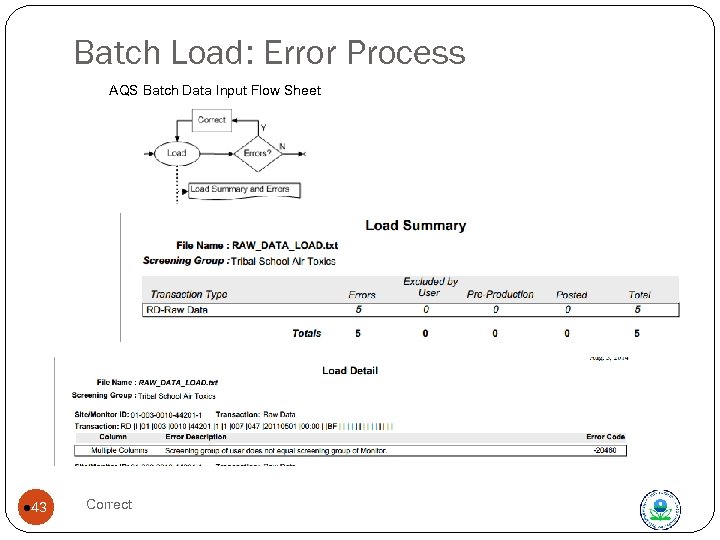
Batch Load: Error Process AQS Batch Data Input Flow Sheet l 43 Correct
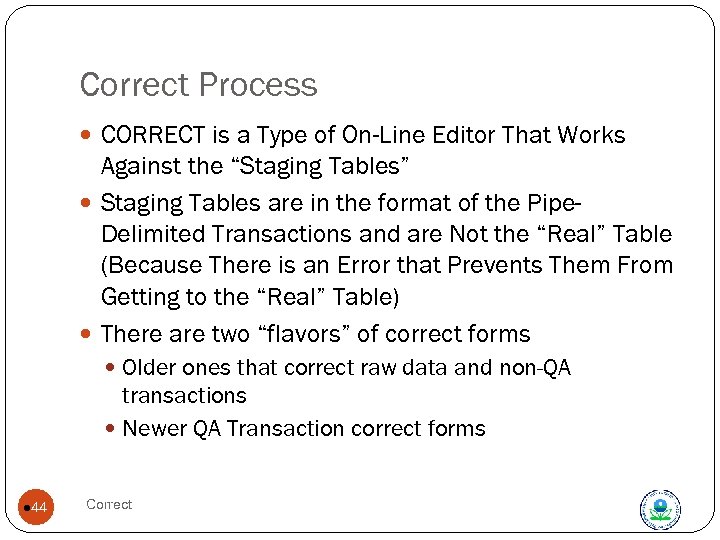
Correct Process CORRECT is a Type of On-Line Editor That Works Against the “Staging Tables” Staging Tables are in the format of the Pipe. Delimited Transactions and are Not the “Real” Table (Because There is an Error that Prevents Them From Getting to the “Real” Table) There are two “flavors” of correct forms Older ones that correct raw data and non-QA transactions Newer QA Transaction correct forms l 44 Correct
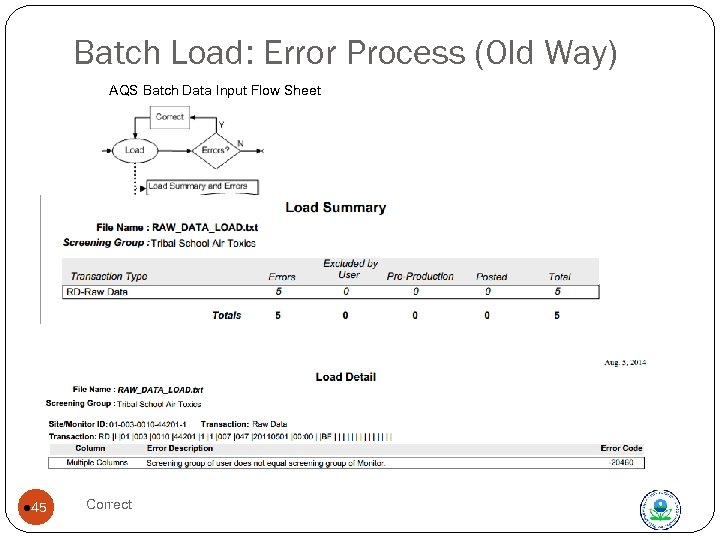
Batch Load: Error Process (Old Way) AQS Batch Data Input Flow Sheet l 45 Correct
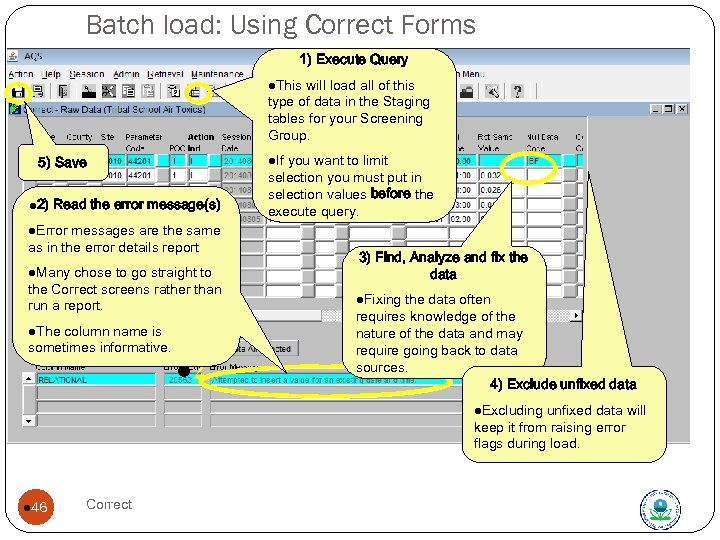
Batch load: Using Correct Forms 1) Execute Query l. This will load all of this type of data in the Staging tables for your Screening Group. l. If 5) Save l 2) Read the error message(s) messages are the same as in the error details report you want to limit selection you must put in selection values before the execute query. l. Error l. Many chose to go straight to the Correct screens rather than run a report. l. The column name is sometimes informative. l 2 3) Find, Analyze and fix the data l. Fixing the data often requires knowledge of the nature of the data and may require going back to data sources. 4) Exclude unfixed data l. Excluding unfixed data will keep it from raising error flags during load. l 46 Correct
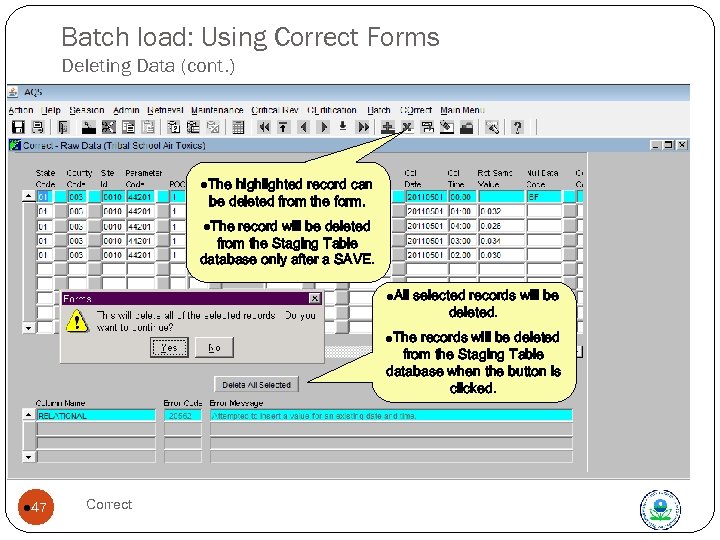
Batch load: Using Correct Forms Deleting Data (cont. ) l. The highlighted record can be deleted from the form. l. The record will be deleted from the Staging Table database only after a SAVE. l. All selected records will be deleted. l. The records will be deleted from the Staging Table database when the button is clicked. l 47 Correct
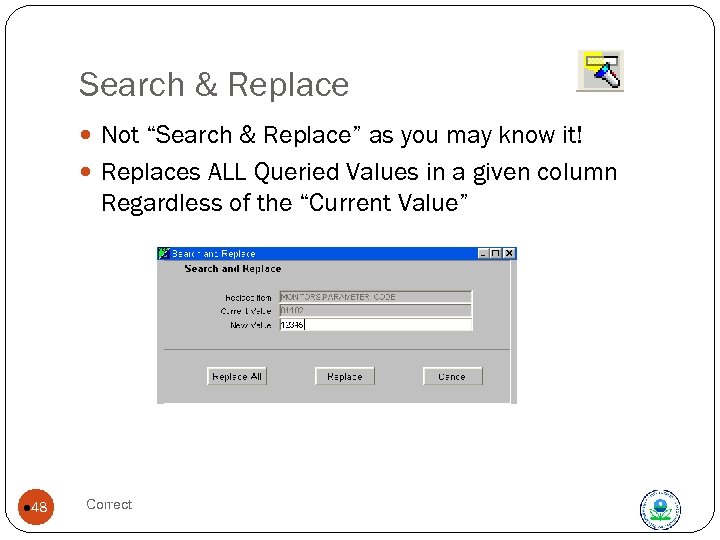
Search & Replace Not “Search & Replace” as you may know it! Replaces ALL Queried Values in a given column Regardless of the “Current Value” l 48 Correct
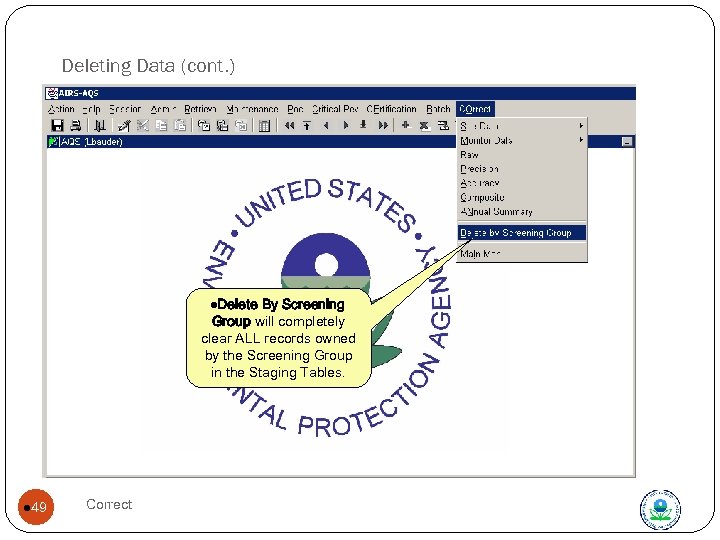
Deleting Data (cont. ) Delete by Screening group l. Delete By Screening Group will completely clear ALL records owned by the Screening Group in the Staging Tables. l 49 Correct
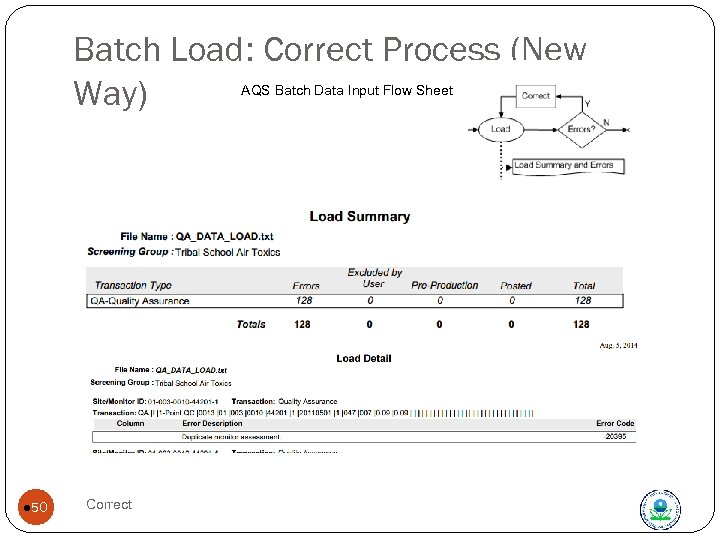
Batch Load: Correct Process (New Way) AQS Batch Data Input Flow Sheet l 50 Correct
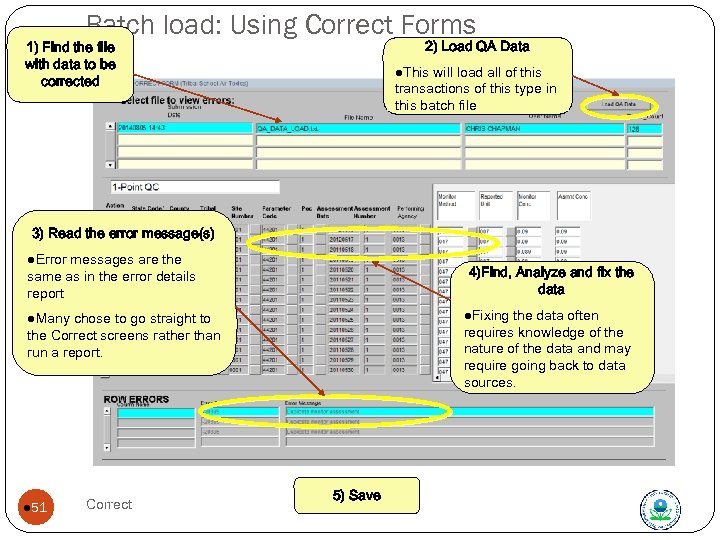
Batch load: Using Correct Forms 2) Load QA Data 1) Find the file with data to be corrected l. This will load all of this transactions of this type in this batch file 3) Read the error message(s) l. Error messages are the same as in the error details report 4)Find, Analyze and fix the data l. Fixing the data often requires knowledge of the nature of the data and may require going back to data sources. l. Many chose to go straight to the Correct screens rather than run a report. l 51 Correct 5) Save
Correct Features New transactions may be entered using Correct forms After making changes/additions on Correct screen, SAVE changes “Delete All Selected” button will delete according to “Execute Query” selection criteria for the form; it will ignore subsequent changes. Can use “Delete by screening group” to completely eliminate all records in staging tables for your screening group l. Be sure this is what you want to do. It works quickly and it deletes EVERYTHING for the screening group, including data entered by other users in your screening group. l 52 Correct
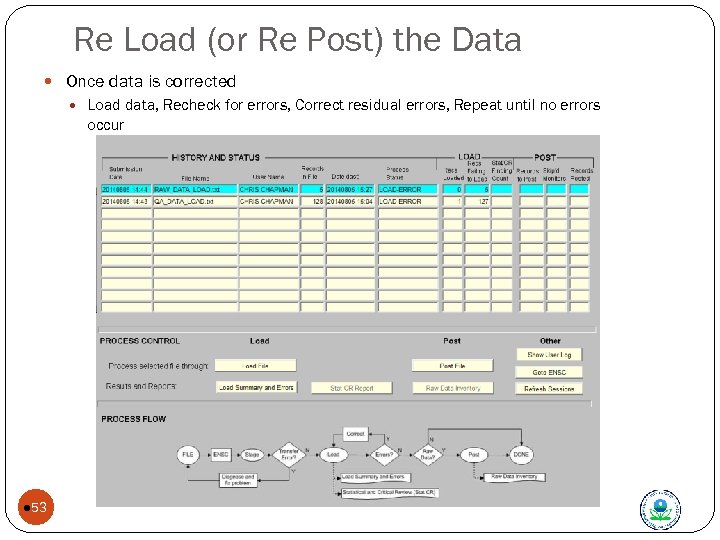
Re Load (or Re Post) the Data Once data is corrected Load data, Recheck for errors, Correct residual errors, Repeat until no errors occur l 53
Put it into Practice: Exercises 3 and 4 Analyze and correct the following Batch load error types Raw Data (Exercise 3) Quality Assurance Data (Exercise 4) l 54 Correct
Data Formats
Data Formats Overview 2 types supported “Pipe-delimited” format “|” One format for each type of data supported through the system “Data Input Formats for the Re-engineered AQS” https: //aqs. epa. gov/aqsweb/documents/Transaction. Formats. html XML AQS XML Schema definition can be found at http: //www. exchangenetwork. net/data-exchange/aqs/ 56 Data Formats
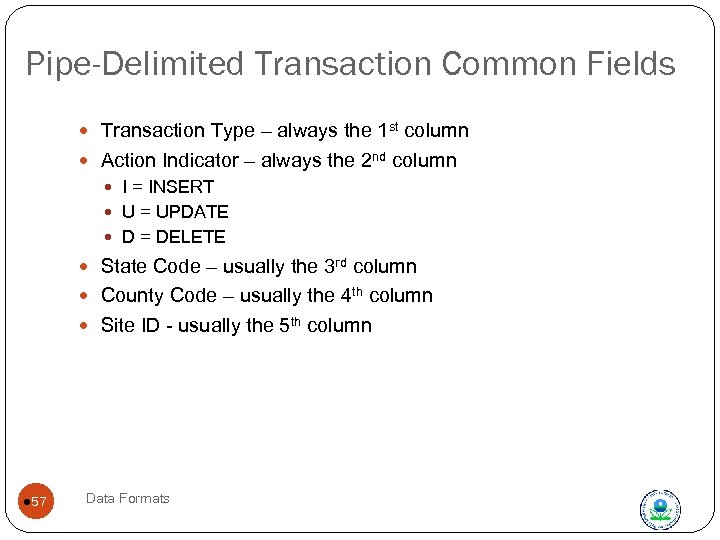
Pipe-Delimited Transaction Common Fields Transaction Type – always the 1 st column Action Indicator – always the 2 nd column I = INSERT U = UPDATE D = DELETE State Code – usually the 3 rd column County Code – usually the 4 th column Site ID - usually the 5 th column l 57 Data Formats
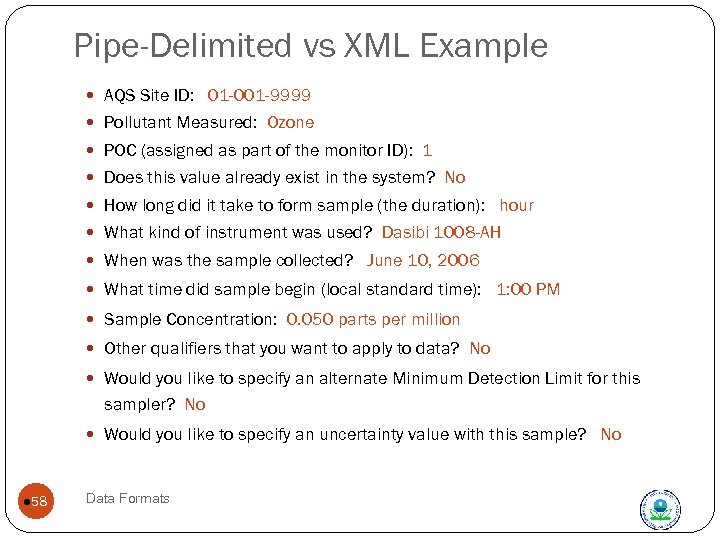
Pipe-Delimited vs XML Example AQS Site ID: 01 -001 -9999 Pollutant Measured: Ozone POC (assigned as part of the monitor ID): 1 Does this value already exist in the system? No How long did it take to form sample (the duration): hour What kind of instrument was used? Dasibi 1008 -AH When was the sample collected? June 10, 2006 What time did sample begin (local standard time): 1: 00 PM Sample Concentration: 0. 050 parts per million Other qualifiers that you want to apply to data? No Would you like to specify an alternate Minimum Detection Limit for this sampler? No Would you like to specify an uncertainty value with this sample? No l 58 Data Formats
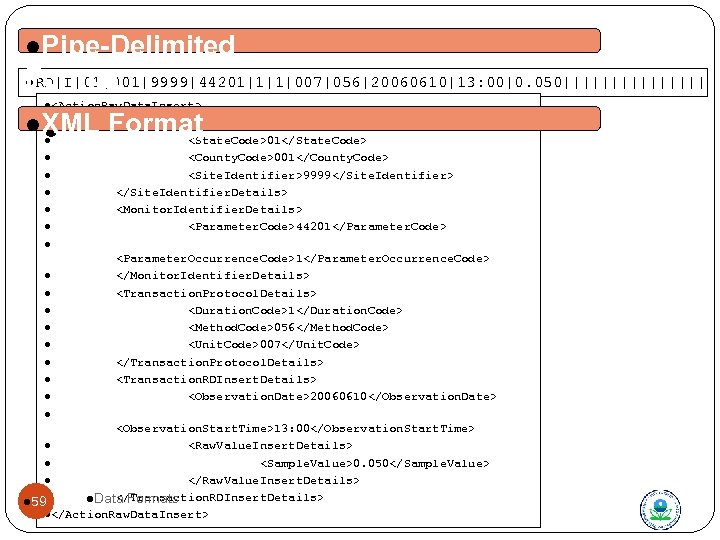
l. Pipe-Delimited l. RD|I|01|001|9999|44201|1|1|007|056|20060610|13: 00|0. 050|||||||| Format l<Action. Raw. Data. Insert> l <Site. Identifier. Details> l. XML Format l. XML F ormat l l l <State. Code>01</State. Code> <County. Code>001</County. Code> <Site. Identifier>9999</Site. Identifier> </Site. Identifier. Details> <Monitor. Identifier. Details> <Parameter. Code>44201</Parameter. Code> l l l l l <Parameter. Occurrence. Code>1</Parameter. Occurrence. Code> </Monitor. Identifier. Details> <Transaction. Protocol. Details> <Duration. Code>1</Duration. Code> <Method. Code>056</Method. Code> <Unit. Code>007</Unit. Code> </Transaction. Protocol. Details> <Transaction. RDInsert. Details> <Observation. Date>20060610</Observation. Date> l <Observation. Start. Time>13: 00</Observation. Start. Time> l <Raw. Value. Insert. Details> Data Formats l <Sample. Value>0. 050</Sample. Value> l </Raw. Value. Insert. Details> l </Transaction. RDInsert. Details> l. Data Formats l 59 l</Action. Raw. Data. Insert>
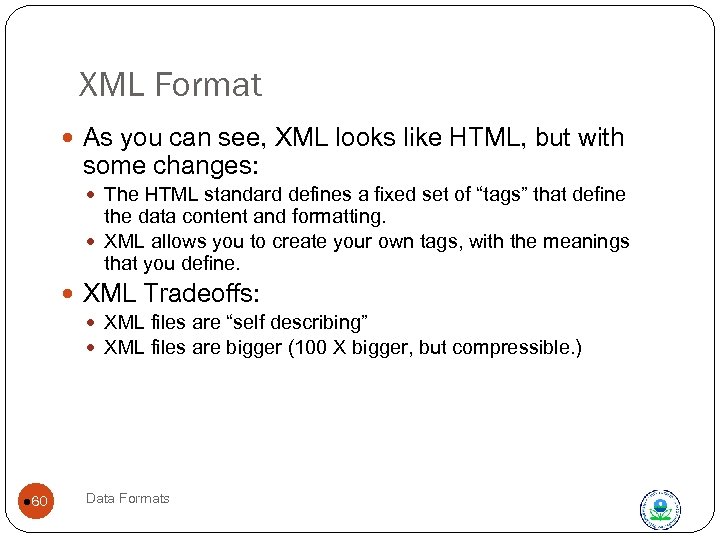
XML Format As you can see, XML looks like HTML, but with some changes: The HTML standard defines a fixed set of “tags” that define the data content and formatting. XML allows you to create your own tags, with the meanings that you define. XML Tradeoffs: XML files are “self describing” XML files are bigger (100 X bigger, but compressible. ) l 60 Data Formats
Online Updates of Data
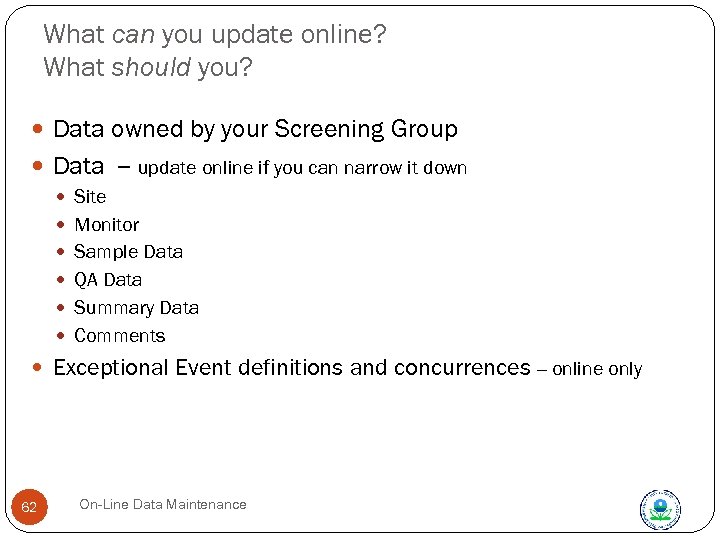
What can you update online? What should you? Data owned by your Screening Group Data -- update online if you can narrow it down Site Monitor Sample Data QA Data Summary Data Comments Exceptional Event definitions and concurrences -- online only 62 On-Line Data Maintenance
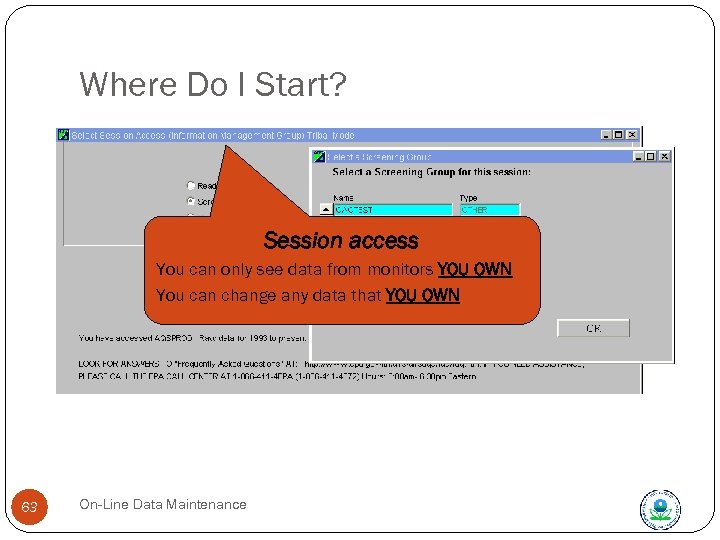
Where Do I Start? Session access You can only see data from monitors YOU OWN You can change any data that YOU OWN 63 On-Line Data Maintenance
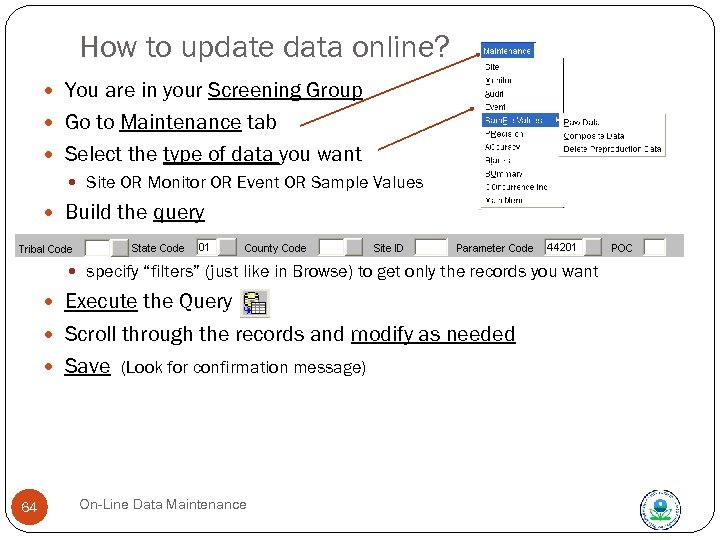
How to update data online? You are in your Screening Group Go to Maintenance tab Select the type of data you want Site OR Monitor OR Event OR Sample Values Build the query specify “filters” (just like in Browse) to get only the records you want Execute the Query Scroll through the records and modify as needed Save (Look for confirmation message) 64 On-Line Data Maintenance
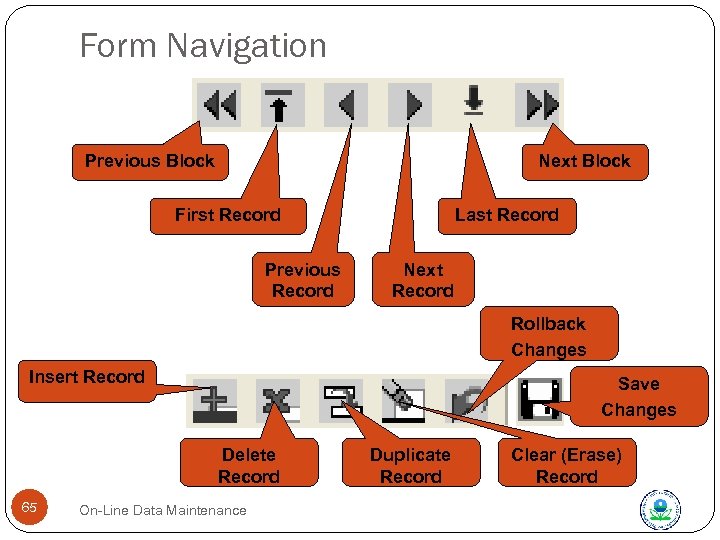
Form Navigation Previous Block Next Block First Record Previous Record Last Record Next Record Rollback Changes Insert Record Save Changes Delete Record 65 On-Line Data Maintenance Duplicate Record Clear (Erase) Record
Save & Rollback Throws away all changes back to the last time you Saved. Cannot “undo” a Rollback Save None of the changes you make take effect until you save. 66 On-Line Data Maintenance
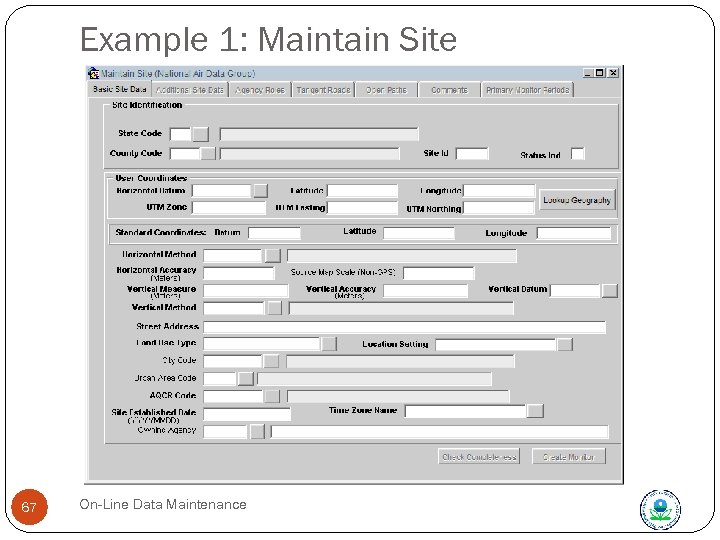
Example 1: Maintain Site 67 On-Line Data Maintenance
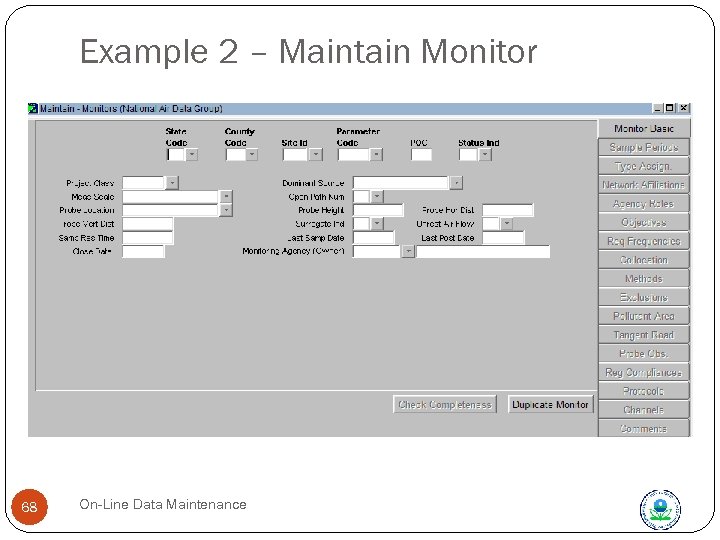
Example 2 – Maintain Monitor 68 On-Line Data Maintenance
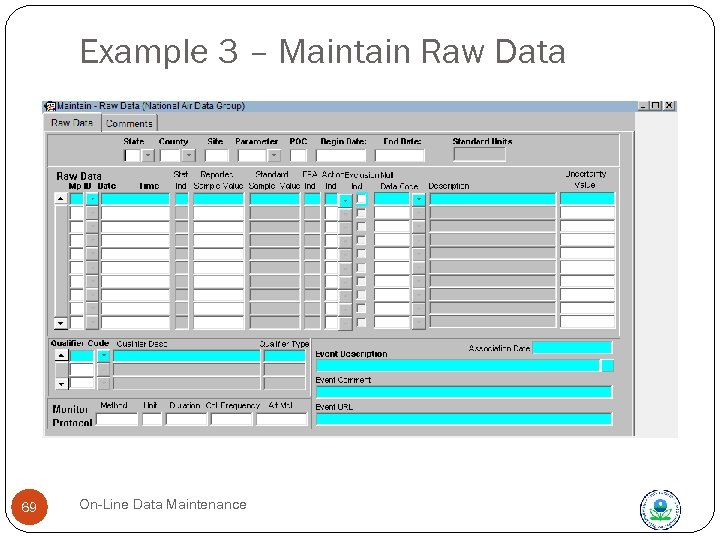
Example 3 – Maintain Raw Data 69 On-Line Data Maintenance
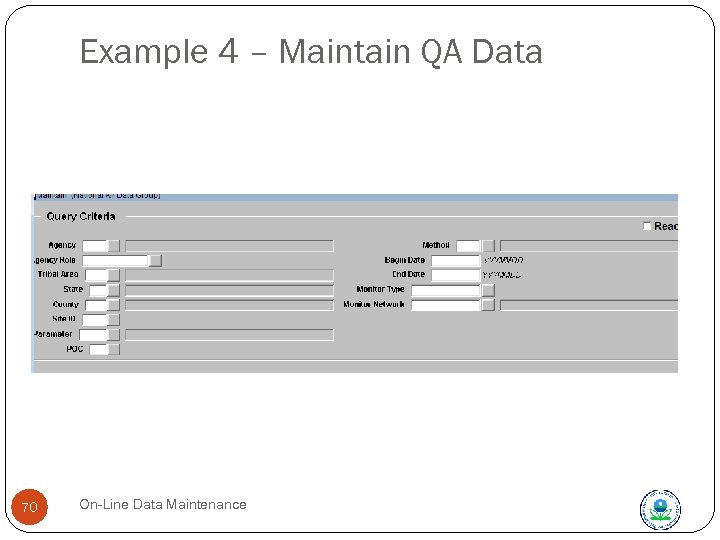
Example 4 – Maintain QA Data 70 On-Line Data Maintenance
Put it into practice – Exercise 5 Create Online Data 71 On-Line Data Maintenance
END OF LOAD PORTION
Скачать презентацию AQS Basics Data Entry and Maintenance Table
54394fc0991a4e9ea9952b306d4a84a1.ppt