Скачать презентацию APS training program 1 Welcome Training Program of
de120f10dbf2f364c5d234ede3c9a35d.ppt
- Количество слайдов: 84
 APS training program 1 Welcome Training Program of bilingual software APS Corporate 2000++ Release 2003 by VSOFT Services Pvt. Ltd.
 APS training program ÌããèÔããù¹ã‹› ÔããäÌãÃÔãñÔã ¹ãÆã. ãäÊã. ½ãìâºãƒÃ, ¼ããÀ¦ããè¾ã ¼ããÓããâ‚ããò ‡ãŠã ÔãâØã¥ã‡ãŠ ½ãò ¹ãƾããñØã
 Introduction APS training program APS is an interface to facilitate the use of Indian language on MS Windows platform. User can type letters, prepare charts or tables, generate training program and send email in Indian language.
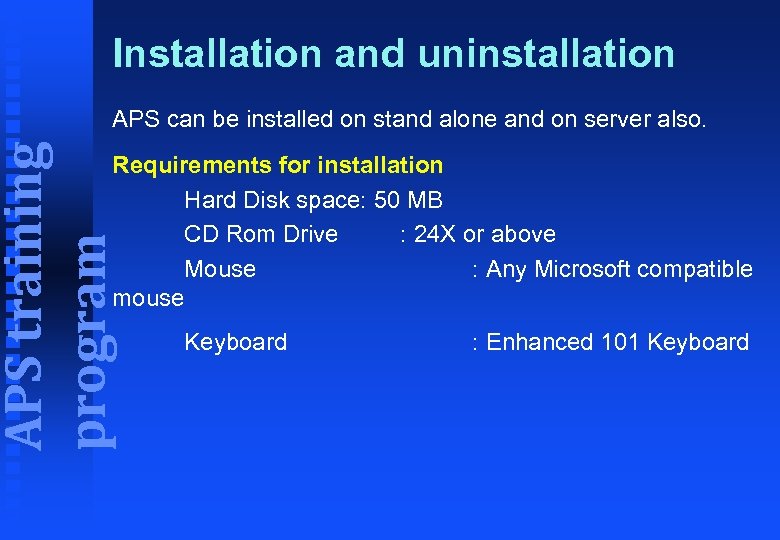 Installation and uninstallation APS training program APS can be installed on stand alone and on server also. Requirements for installation Hard Disk space: 50 MB CD Rom Drive : 24 X or above Mouse : Any Microsoft compatible mouse Keyboard : Enhanced 101 Keyboard
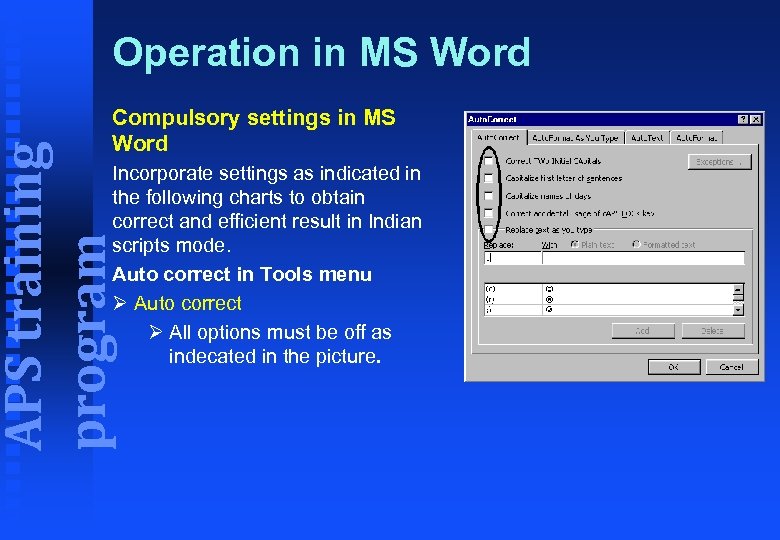 Operation in MS Word APS training program Compulsory settings in MS Word Incorporate settings as indicated in the following charts to obtain correct and efficient result in Indian scripts mode. Auto correct in Tools menu Ø Auto correct Ø All options must be off as indecated in the picture.
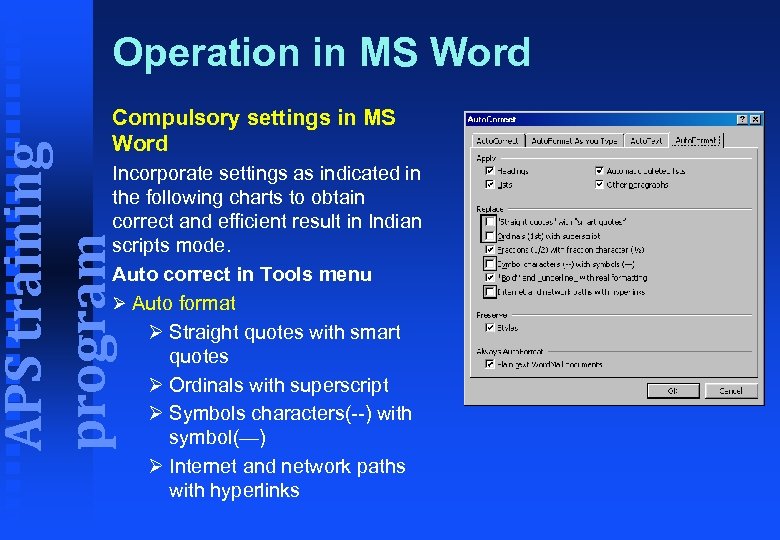 Operation in MS Word APS training program Compulsory settings in MS Word Incorporate settings as indicated in the following charts to obtain correct and efficient result in Indian scripts mode. Auto correct in Tools menu Ø Auto format Ø Straight quotes with smart quotes Ø Ordinals with superscript Ø Symbols characters(--) with symbol(—) Ø Internet and network paths with hyperlinks
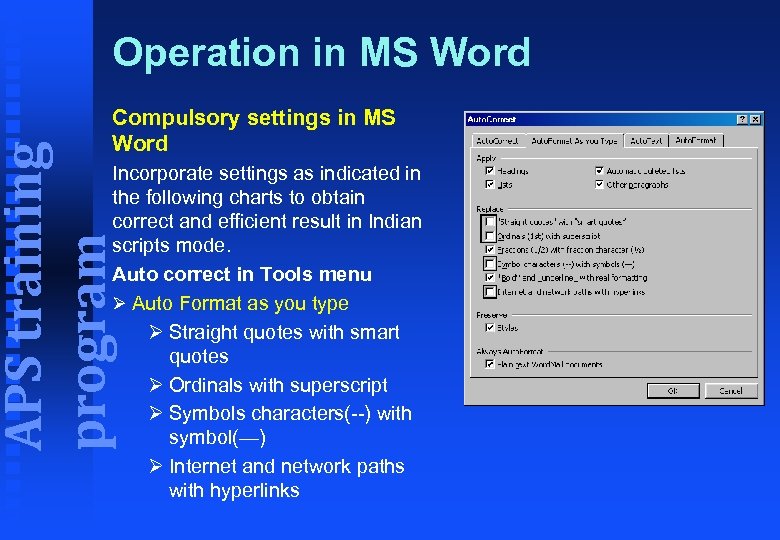 Operation in MS Word APS training program Compulsory settings in MS Word Incorporate settings as indicated in the following charts to obtain correct and efficient result in Indian scripts mode. Auto correct in Tools menu Ø Auto Format as you type Ø Straight quotes with smart quotes Ø Ordinals with superscript Ø Symbols characters(--) with symbol(—) Ø Internet and network paths with hyperlinks
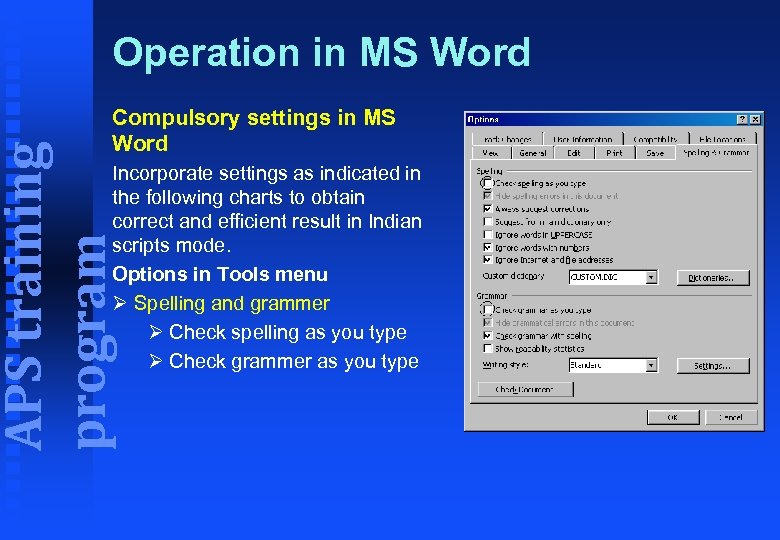 Operation in MS Word APS training program Compulsory settings in MS Word Incorporate settings as indicated in the following charts to obtain correct and efficient result in Indian scripts mode. Options in Tools menu Ø Spelling and grammer Ø Check spelling as you type Ø Check grammer as you type
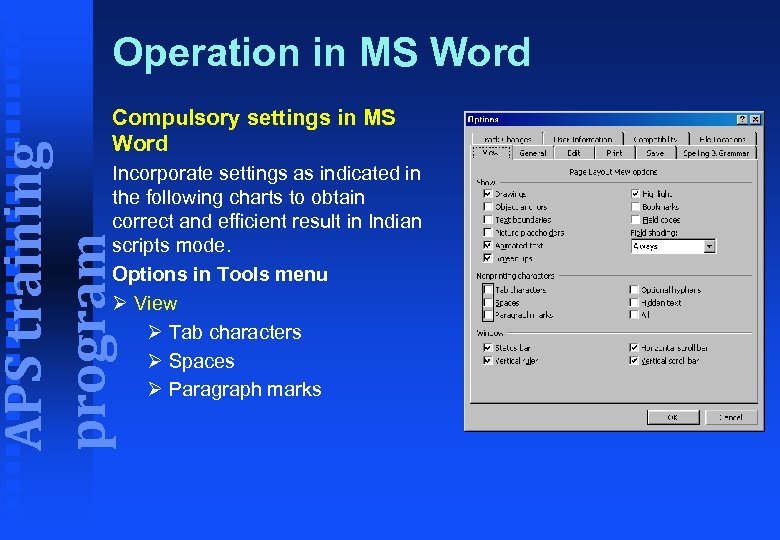 Operation in MS Word APS training program Compulsory settings in MS Word Incorporate settings as indicated in the following charts to obtain correct and efficient result in Indian scripts mode. Options in Tools menu Ø View Ø Tab characters Ø Spaces Ø Paragraph marks
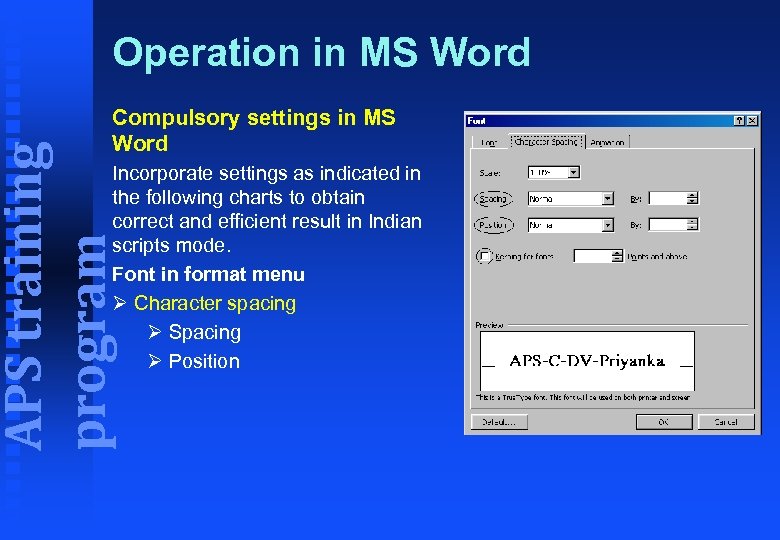 Operation in MS Word APS training program Compulsory settings in MS Word Incorporate settings as indicated in the following charts to obtain correct and efficient result in Indian scripts mode. Font in format menu Ø Character spacing Ø Spacing Ø Position
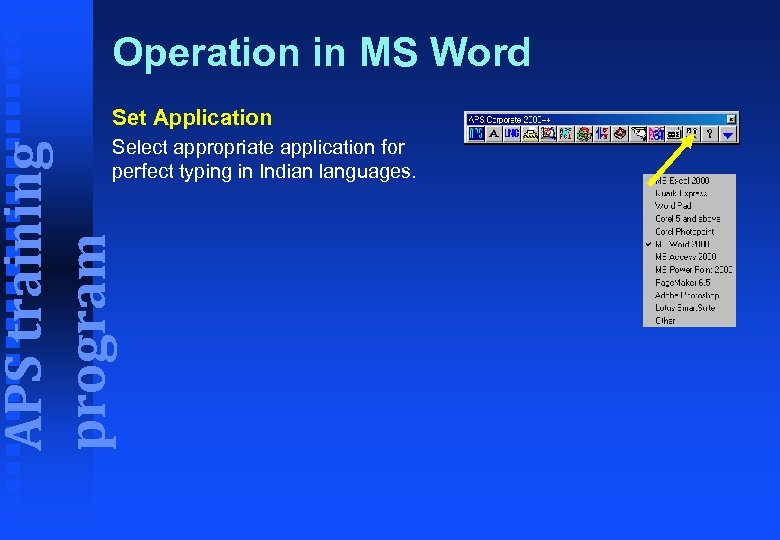 Operation in MS Word Set Application APS training program Select appropriate application for perfect typing in Indian languages.
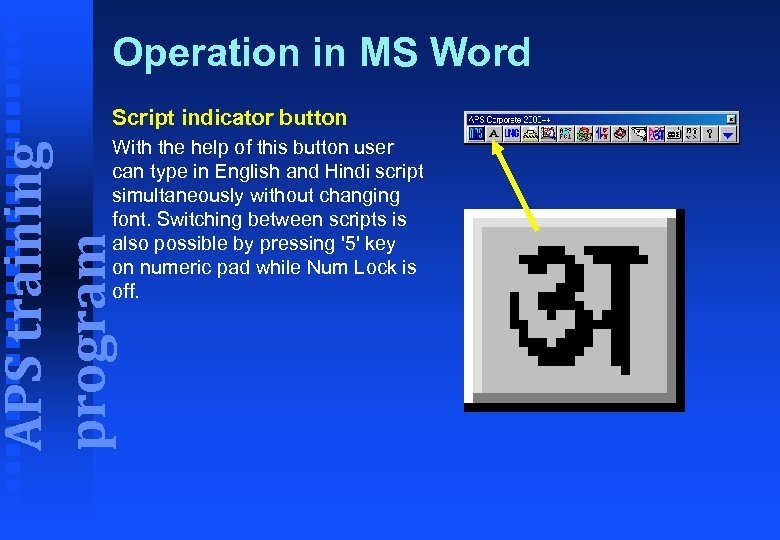 Operation in MS Word Script indicator button APS training program With the help of this button user can type in English and Hindi script simultaneously without changing font. Switching between scripts is also possible by pressing '5' key on numeric pad while Num Lock is off.
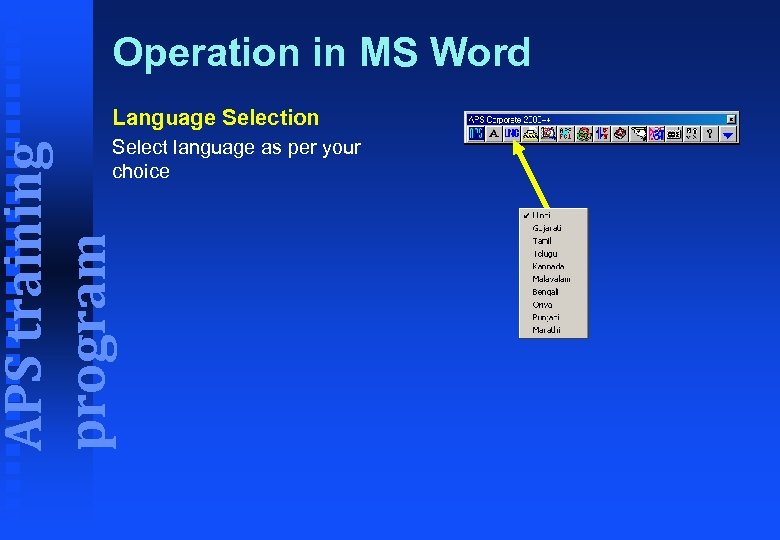 Operation in MS Word Language Selection APS training program Select language as per your choice
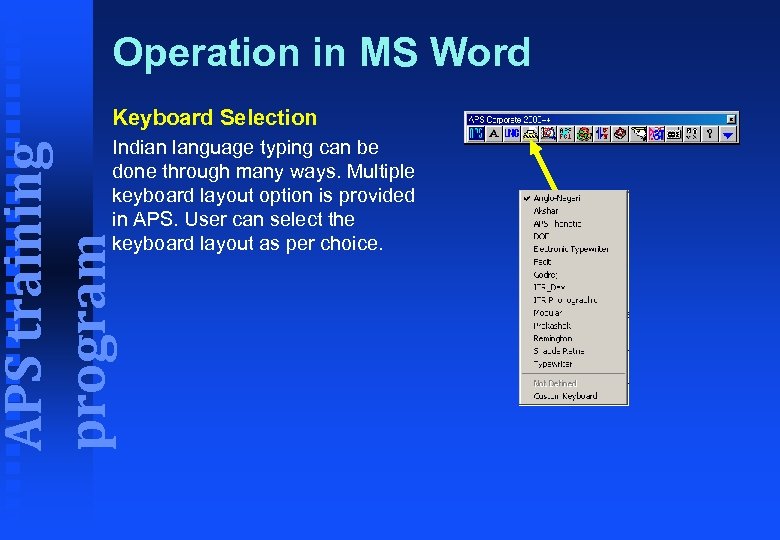 Operation in MS Word Keyboard Selection APS training program Indian language typing can be done through many ways. Multiple keyboard layout option is provided in APS. User can select the keyboard layout as per choice.
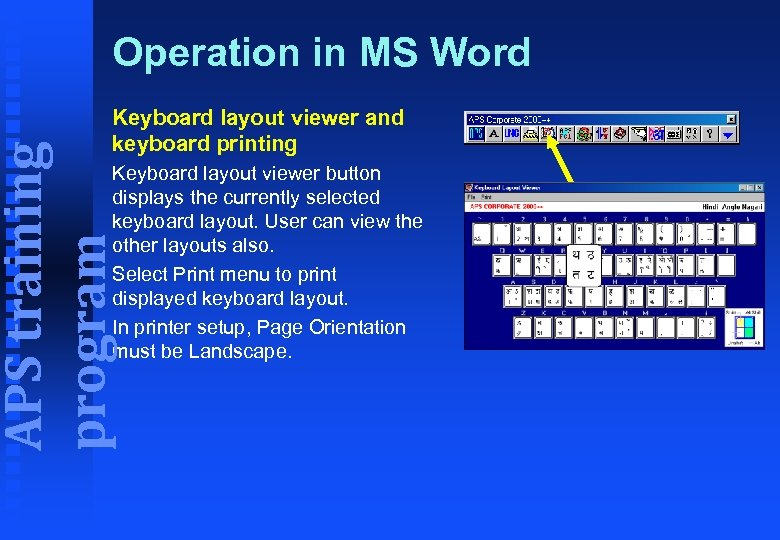 Operation in MS Word APS training program Keyboard layout viewer and keyboard printing Keyboard layout viewer button displays the currently selected keyboard layout. User can view the other layouts also. Select Print menu to print displayed keyboard layout. In printer setup, Page Orientation must be Landscape.
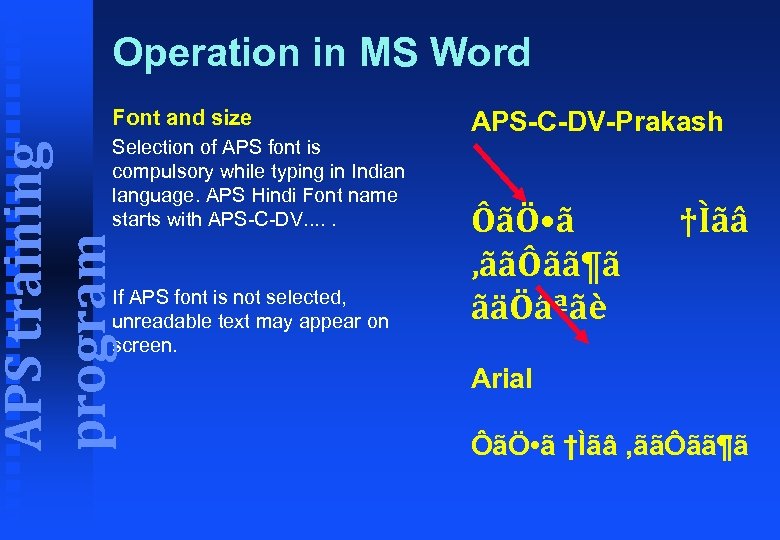 Operation in MS Word Font and size APS training program Selection of APS font is compulsory while typing in Indian language. APS Hindi Font name starts with APS-C-DV. . . If APS font is not selected, unreadable text may appear on screen. APS-C-DV-Prakash ÔãÖ • ã ‚ããÔãã¶ã ãäÖâªãè †Ìãâ Arial ÔãÖ • ã †Ìãâ ‚ããÔãã¶ã
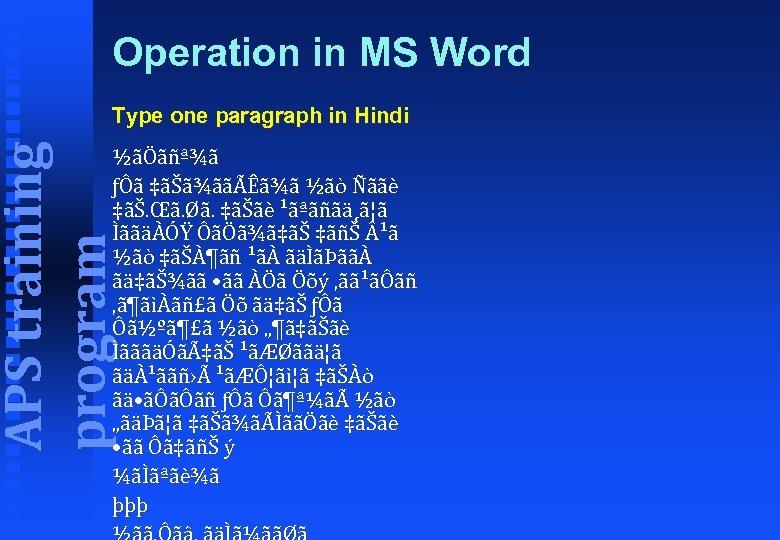 Operation in MS Word APS training program Type one paragraph in Hindi ½ãÖãñª¾ã ƒÔã ‡ãŠã¾ããÃÊã¾ã ½ãò Ñããè ‡ãŠ. Œã. Øã. ‡ãŠãè ¹ãªãñãä¸ã¦ã ÌããäÀÓŸ ÔãÖã¾ã‡ãŠ ‡ãñŠ ¹ã ½ãò ‡ãŠÀ¶ãñ ¹ãÀ ãäÌãÞããÀ ãä‡ãŠ¾ãã • ãã ÀÖã Öõý ‚ãã¹ãÔãñ ‚ã¶ãìÀãñ£ã Öõ ãä‡ãŠ ƒÔã Ô㽺㶣㠽ãò „¶ã‡ãŠãè ÌãããäÓãÇ㊠¹ãÆØããä¦ã ãäÀ¹ããñ›Ã ¹ãÆÔ¦ãì¦ã ‡ãŠÀò ãä • ãÔãÔãñ ƒÔã Ô㶪¼ãà ½ãò „ãäÞã¦ã ‡ãŠã¾ãÃÌããÖãè ‡ãŠãè • ãã Ôã‡ãñŠ ý ¼ãÌãªãè¾ã þþþ
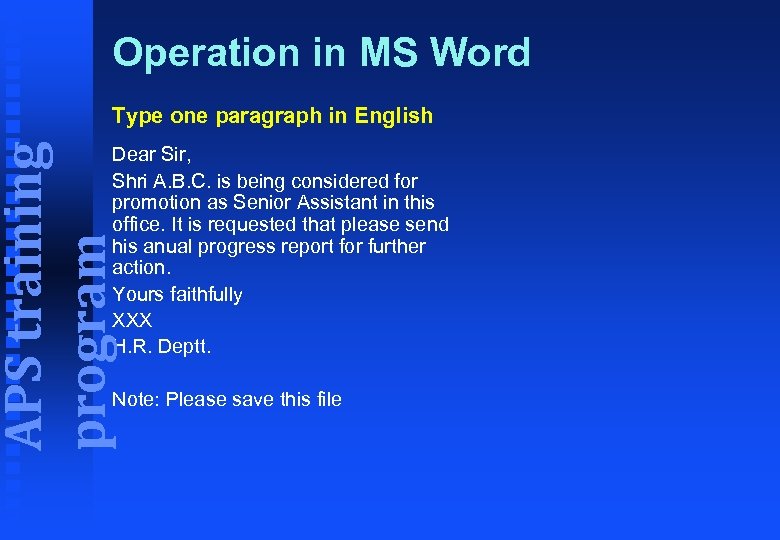 Operation in MS Word APS training program Type one paragraph in English Dear Sir, Shri A. B. C. is being considered for promotion as Senior Assistant in this office. It is requested that please send his anual progress report for further action. Yours faithfully XXX H. R. Deptt. Note: Please save this file
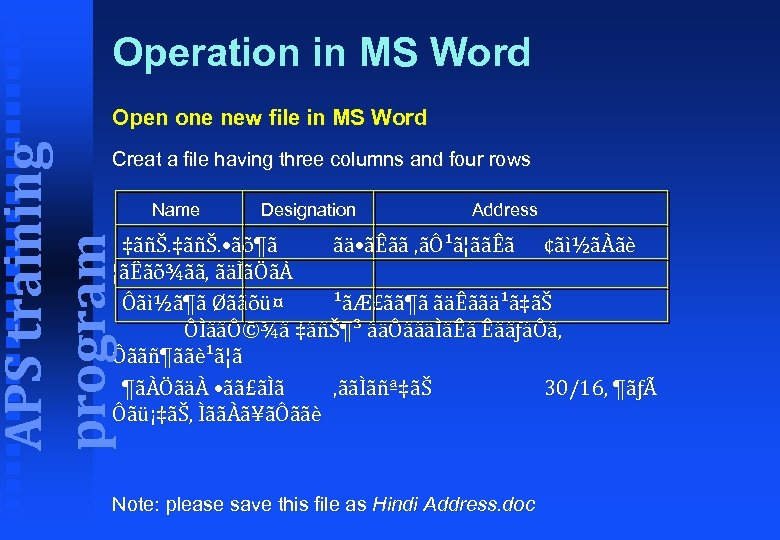 Operation in MS Word APS training program Open one new file in MS Word Creat a file having three columns and four rows Name Designation Address ‡ãñŠ. • ãõ¶ã ãä • ãÊãã ‚ãÔ¹ã¦ããÊã ¢ãì½ãÀãè ¦ãÊãõ¾ãã, ãäÌãÖãÀ Ôãì½ã¶ã Øããõü¤ ¹ãÆ£ãã¶ã ãäÊããä¹ã‡ãŠ ÔÌããÔ©¾ã ‡ãñŠ¶³ ãäÔããäÌãÊã ÊããƒâÔã, Ôããñ¶ããè¹ã¦ã ¶ãÀÖãäÀ • ãã£ãÌã ‚ããÌãñª‡ãŠ 30/16, ¶ãƒÃ Ôãü¡‡ãŠ, ÌããÀã¥ãÔããè Note: please save this file as Hindi Address. doc
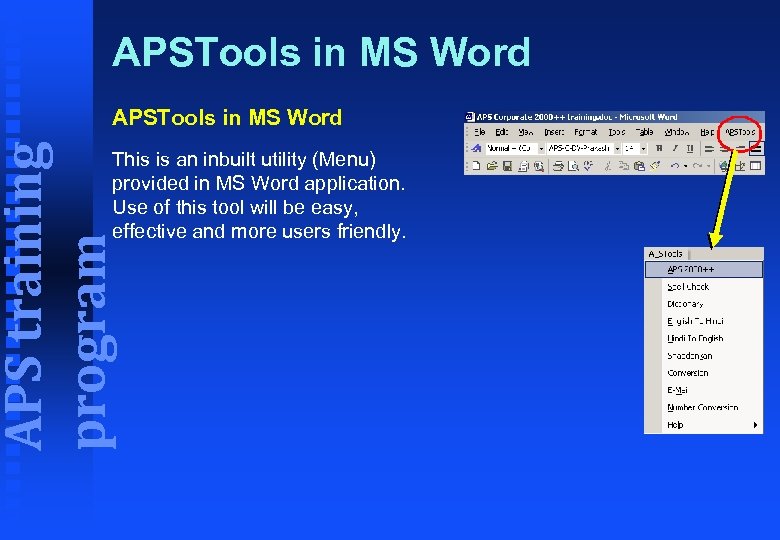 APSTools in MS Word APS training program APSTools in MS Word This is an inbuilt utility (Menu) provided in MS Word application. Use of this tool will be easy, effective and more users friendly.
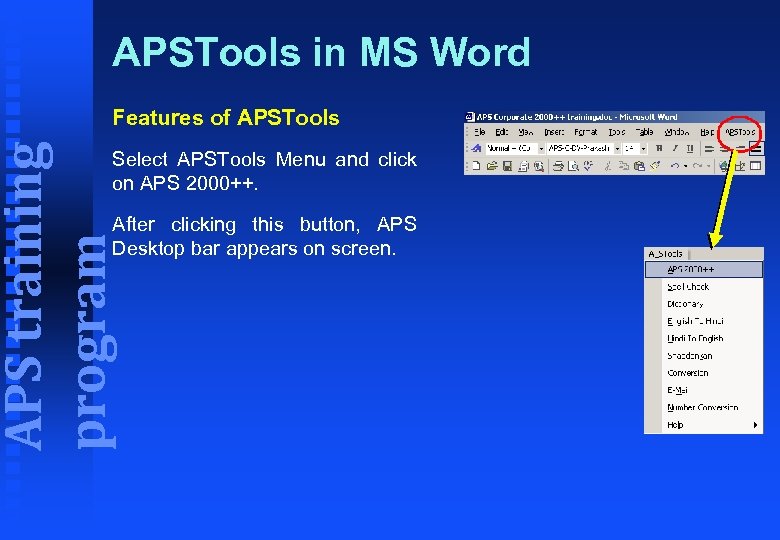 APSTools in MS Word APS training program Features of APSTools Select APSTools Menu and click on APS 2000++. After clicking this button, APS Desktop bar appears on screen.
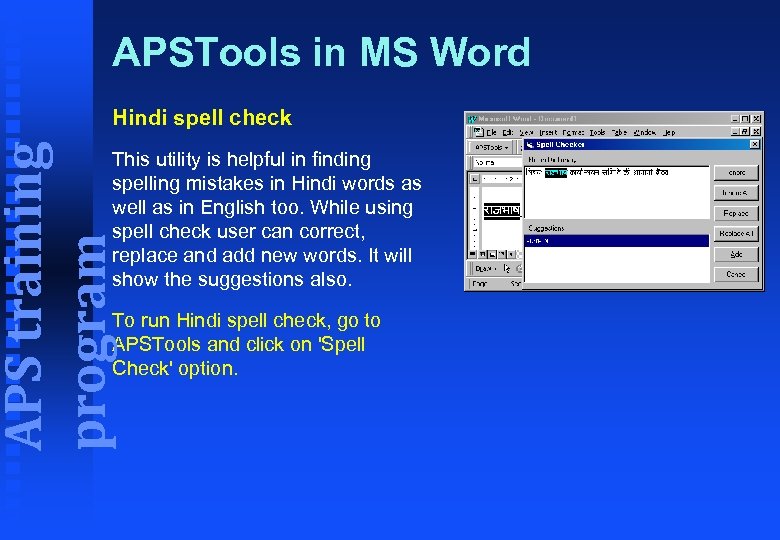 APSTools in MS Word APS training program Hindi spell check This utility is helpful in finding spelling mistakes in Hindi words as well as in English too. While using spell check user can correct, replace and add new words. It will show the suggestions also. To run Hindi spell check, go to APSTools and click on 'Spell Check' option.
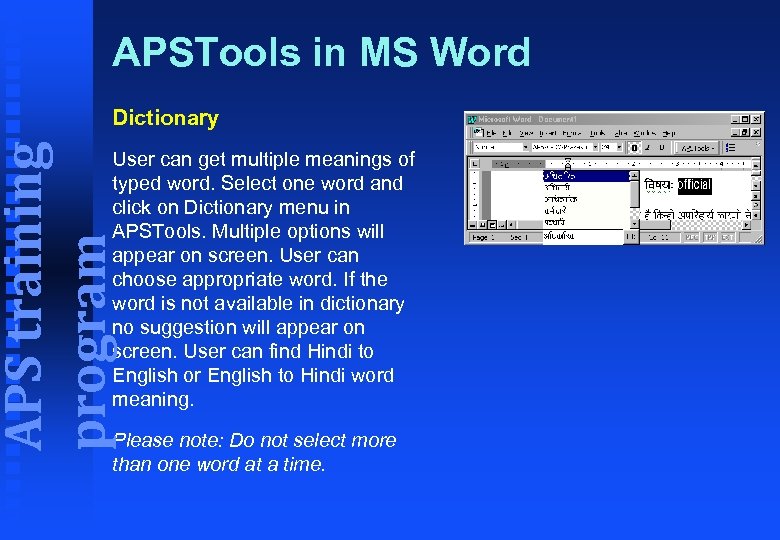 APSTools in MS Word APS training program Dictionary User can get multiple meanings of typed word. Select one word and click on Dictionary menu in APSTools. Multiple options will appear on screen. User can choose appropriate word. If the word is not available in dictionary no suggestion will appear on screen. User can find Hindi to English or English to Hindi word meaning. Please note: Do not select more than one word at a time.
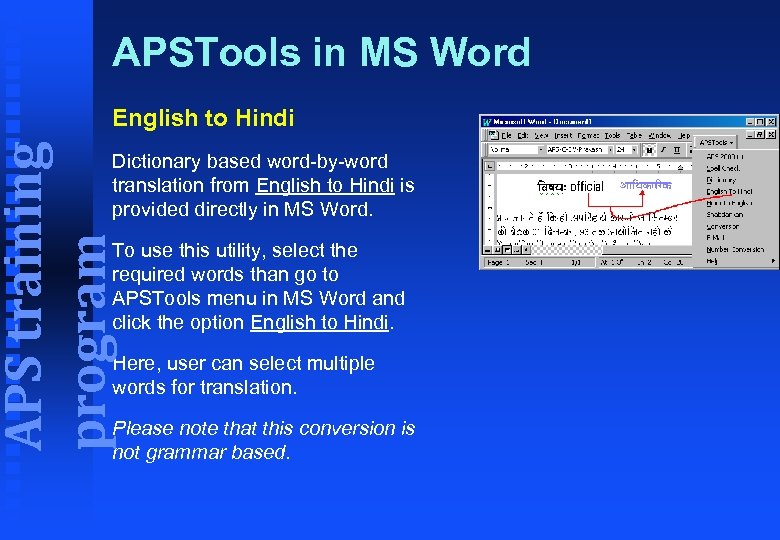 APSTools in MS Word APS training program English to Hindi Dictionary based word-by-word translation from English to Hindi is provided directly in MS Word. To use this utility, select the required words than go to APSTools menu in MS Word and click the option English to Hindi. Here, user can select multiple words for translation. Please note that this conversion is not grammar based.
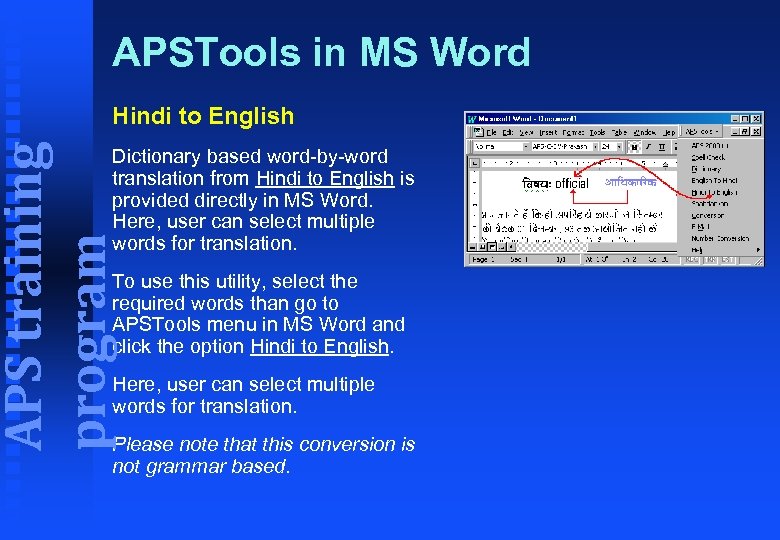 APSTools in MS Word APS training program Hindi to English Dictionary based word-by-word translation from Hindi to English is provided directly in MS Word. Here, user can select multiple words for translation. To use this utility, select the required words than go to APSTools menu in MS Word and click the option Hindi to English. Here, user can select multiple words for translation. Please note that this conversion is not grammar based.
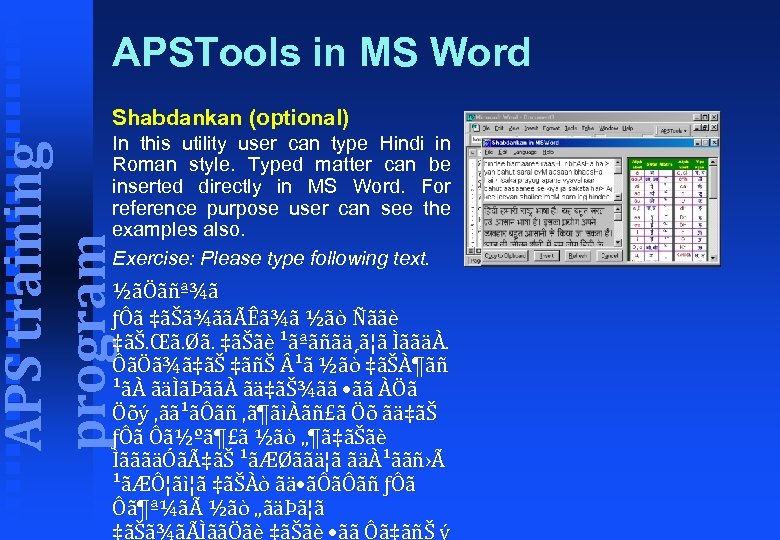 APSTools in MS Word Shabdankan (optional) APS training program In this utility user can type Hindi in Roman style. Typed matter can be inserted directly in MS Word. For reference purpose user can see the examples also. Exercise: Please type following text. ½ãÖãñª¾ã ƒÔã ‡ãŠã¾ããÃÊã¾ã ½ãò Ñããè ‡ãŠ. Œã. Øã. ‡ãŠãè ¹ãªãñãä¸ã¦ã ÌããäÀ. ÔãÖã¾ã‡ãŠ ‡ãñŠ ¹ã ½ãò ‡ãŠÀ¶ãñ ¹ãÀ ãäÌãÞããÀ ãä‡ãŠ¾ãã • ãã ÀÖã Öõý ‚ãã¹ãÔãñ ‚ã¶ãìÀãñ£ã Öõ ãä‡ãŠ ƒÔã Ô㽺㶣㠽ãò „¶ã‡ãŠãè ÌãããäÓãÇ㊠¹ãÆØããä¦ã ãäÀ¹ããñ›Ã ¹ãÆÔ¦ãì¦ã ‡ãŠÀò ãä • ãÔãÔãñ ƒÔã Ô㶪¼ãà ½ãò „ãäÞã¦ã ‡ãŠã¾ãÃÌããÖãè ‡ãŠãè • ãã Ôã‡ãñŠ ý
 APSTools in MS Word APS training program Conversion (one vendor to other vendor format) This utility converts. RTF or. DOC files prepared in other vendor's font format. This utility can convert multiple opened files at a time also. Uniqueness of this utility is that after conversion layout will not change. Steps of conversion Ø Open source file Ø Click on conversion button in "APS Tools".
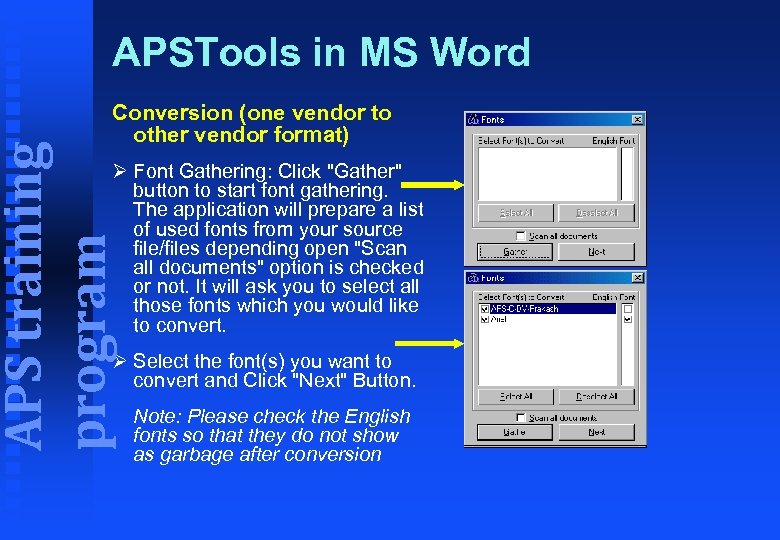 APSTools in MS Word APS training program Conversion (one vendor to other vendor format) Ø Font Gathering: Click "Gather" button to start font gathering. The application will prepare a list of used fonts from your source file/files depending open "Scan all documents" option is checked or not. It will ask you to select all those fonts which you would like to convert. Ø Select the font(s) you want to convert and Click "Next" Button. Note: Please check the English fonts so that they do not show as garbage after conversion
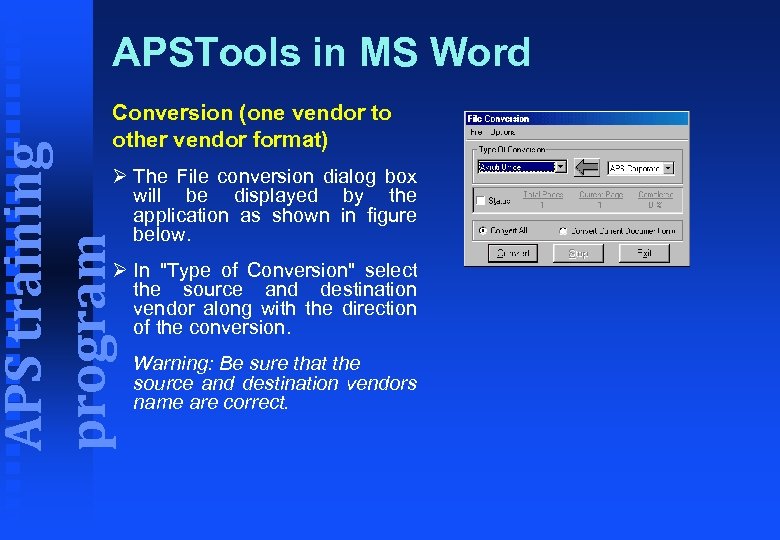 APSTools in MS Word APS training program Conversion (one vendor to other vendor format) Ø The File conversion dialog box will be displayed by the application as shown in figure below. Ø In "Type of Conversion" select the source and destination vendor along with the direction of the conversion. Warning: Be sure that the source and destination vendors name are correct.
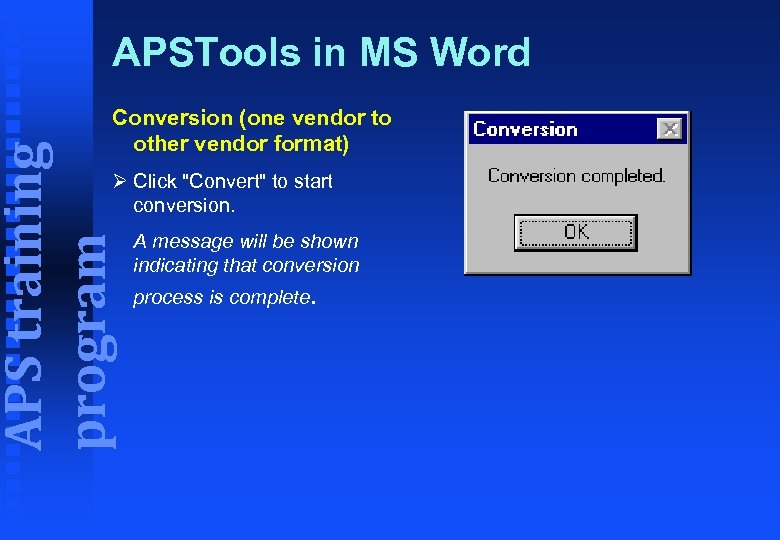 APSTools in MS Word APS training program Conversion (one vendor to other vendor format) Ø Click "Convert" to start conversion. A message will be shown indicating that conversion process is complete.
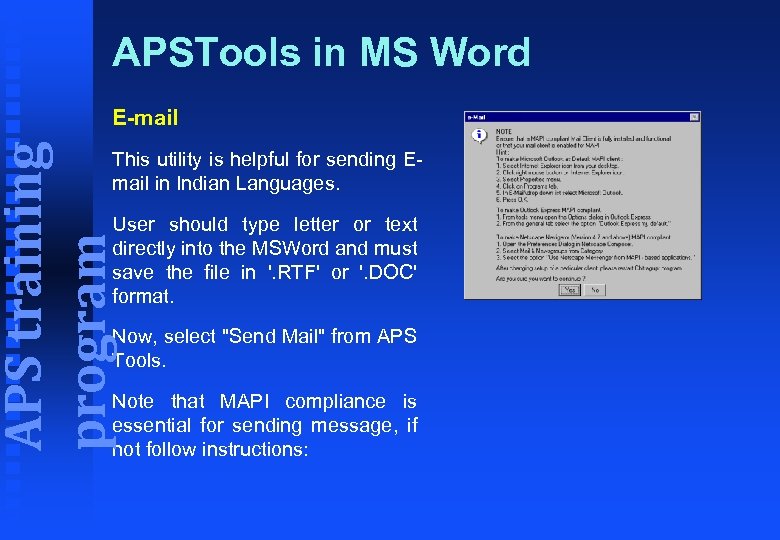 APSTools in MS Word APS training program E-mail This utility is helpful for sending Email in Indian Languages. User should type letter or text directly into the MSWord and must save the file in '. RTF' or '. DOC' format. Now, select "Send Mail" from APS Tools. Note that MAPI compliance is essential for sending message, if not follow instructions:
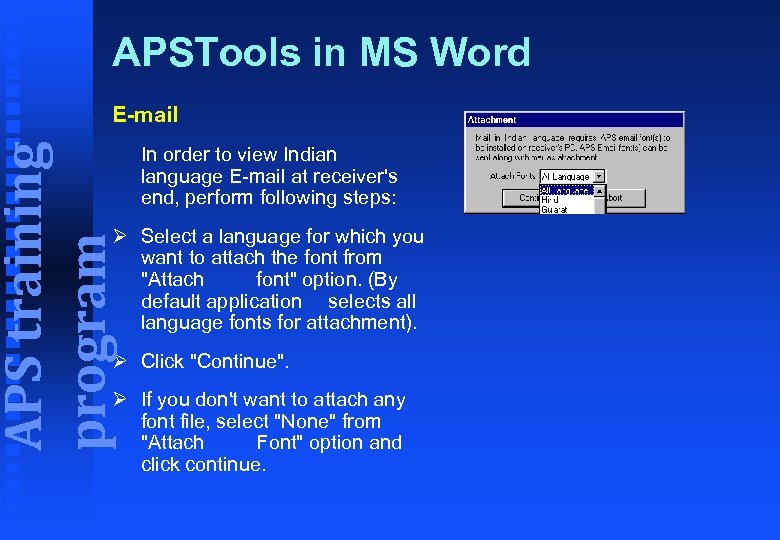 APSTools in MS Word APS training program E-mail In order to view Indian language E-mail at receiver's end, perform following steps: Ø Select a language for which you want to attach the font from "Attach font" option. (By default application selects all language fonts for attachment). Ø Click "Continue". Ø If you don't want to attach any font file, select "None" from "Attach Font" option and click continue.
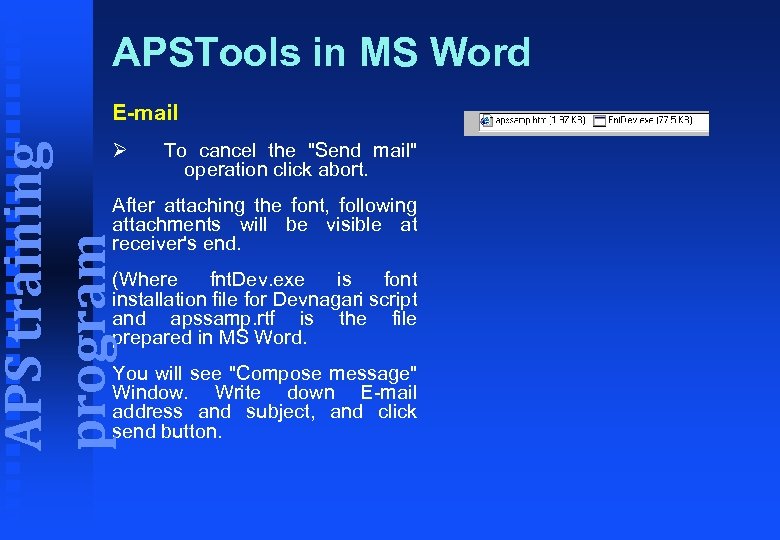 APSTools in MS Word E-mail APS training program Ø To cancel the "Send mail" operation click abort. After attaching the font, following attachments will be visible at receiver's end. (Where fnt. Dev. exe is font installation file for Devnagari script and apssamp. rtf is the file prepared in MS Word. You will see "Compose message" Window. Write down E-mail address and subject, and click send button.
 APSTools in MS Word APS training program E-mail This is the table of font(s) exe for respective scripts All Language Fnt. All. exe Hindi Fnt. Dev. exe Gujarati Fnt. Guj. exe Tamil Fnt. Tam. exe Telugu Fnt. Tel. exe Kannada Fnt. Kan. exe Malayalam Fnt. Mal. exe Bengali Fnt. Ben. exe
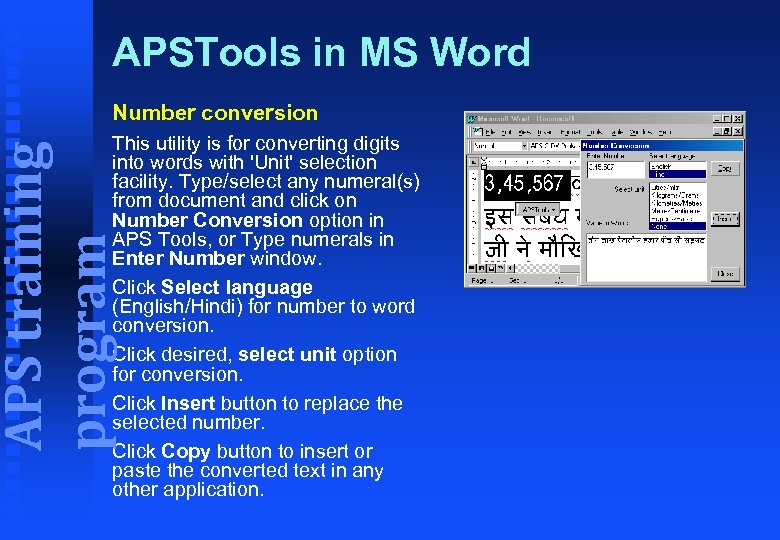 APSTools in MS Word Number conversion APS training program This utility is for converting digits into words with 'Unit' selection facility. Type/select any numeral(s) from document and click on Number Conversion option in APS Tools, or Type numerals in Enter Number window. Click Select language (English/Hindi) for number to word conversion. Click desired, select unit option for conversion. Click Insert button to replace the selected number. Click Copy button to insert or paste the converted text in any other application.
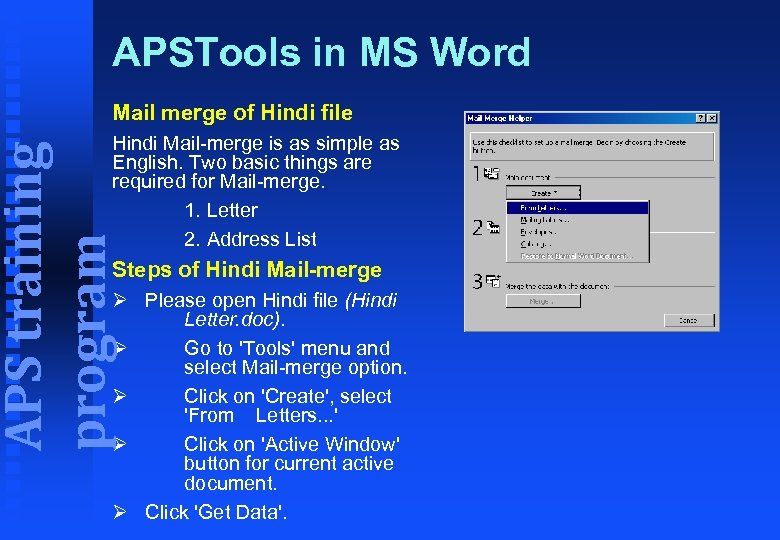 APSTools in MS Word Mail merge of Hindi file APS training program Hindi Mail-merge is as simple as English. Two basic things are required for Mail-merge. 1. Letter 2. Address List Steps of Hindi Mail-merge Ø Please open Hindi file (Hindi Letter. doc). Ø Go to 'Tools' menu and select Mail-merge option. Ø Click on 'Create', select 'From Letters. . . ' Ø Click on 'Active Window' button for current active document. Ø Click 'Get Data'.
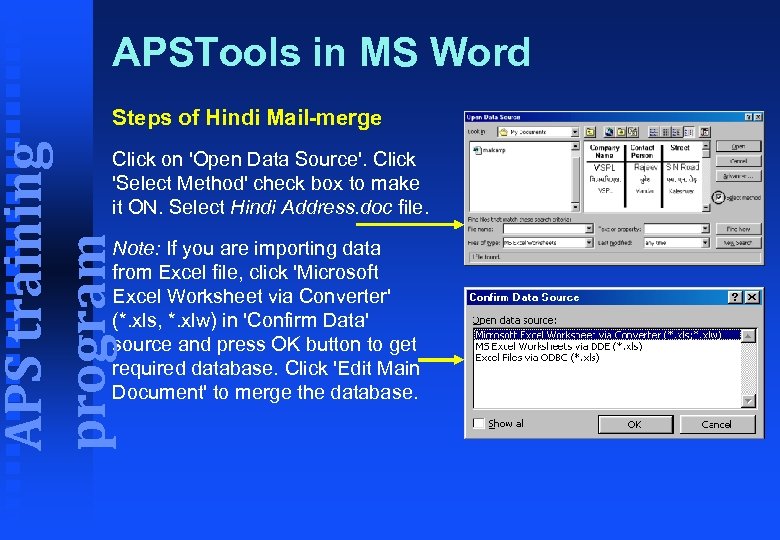 APSTools in MS Word APS training program Steps of Hindi Mail-merge Click on 'Open Data Source'. Click 'Select Method' check box to make it ON. Select Hindi Address. doc file. Note: If you are importing data from Excel file, click 'Microsoft Excel Worksheet via Converter' (*. xls, *. xlw) in 'Confirm Data' source and press OK button to get required database. Click 'Edit Main Document' to merge the database.
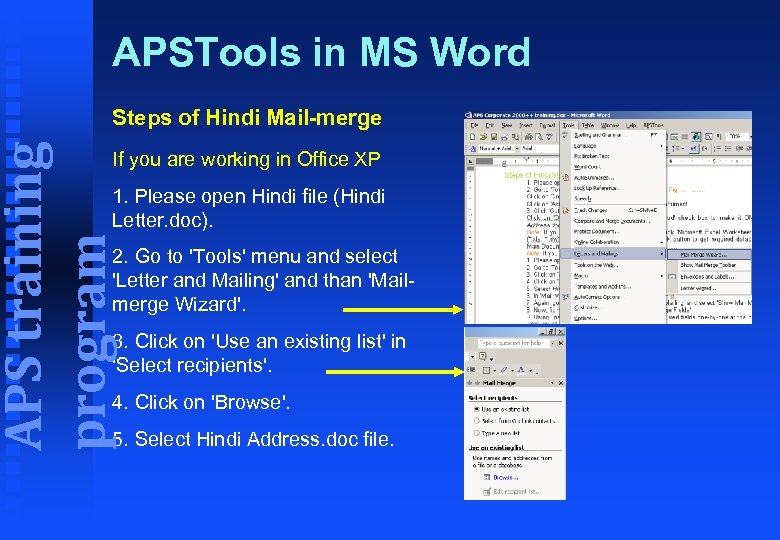 APSTools in MS Word APS training program Steps of Hindi Mail-merge If you are working in Office XP 1. Please open Hindi file (Hindi Letter. doc). 2. Go to 'Tools' menu and select 'Letter and Mailing' and than 'Mailmerge Wizard'. 3. Click on 'Use an existing list' in 'Select recipients'. 4. Click on 'Browse'. 5. Select Hindi Address. doc file.
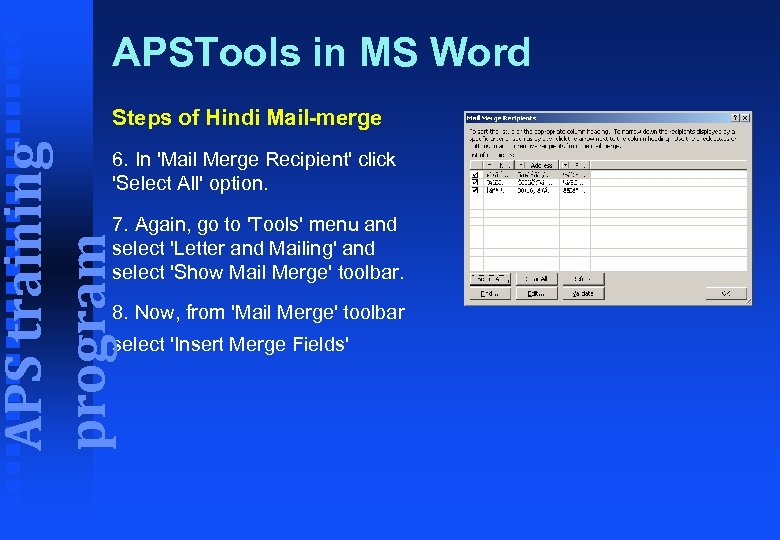 APSTools in MS Word APS training program Steps of Hindi Mail-merge 6. In 'Mail Merge Recipient' click 'Select All' option. 7. Again, go to 'Tools' menu and select 'Letter and Mailing' and select 'Show Mail Merge' toolbar. 8. Now, from 'Mail Merge' toolbar select 'Insert Merge Fields'
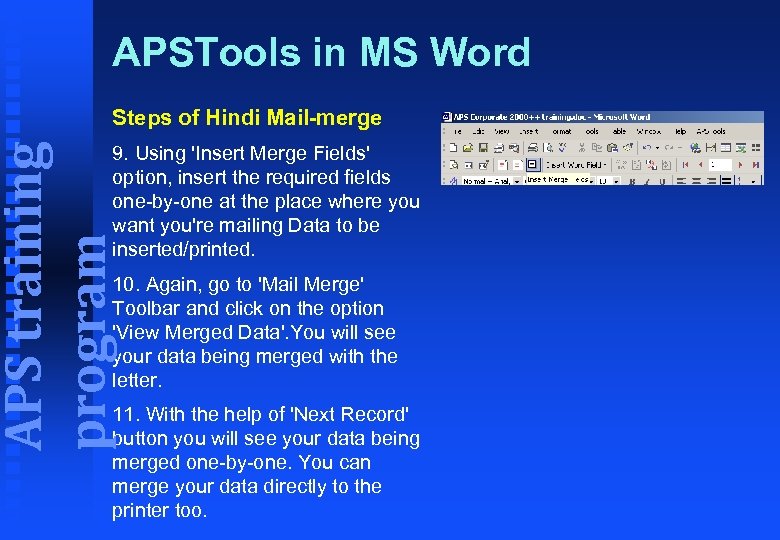 APSTools in MS Word Steps of Hindi Mail-merge APS training program 9. Using 'Insert Merge Fields' option, insert the required fields one-by-one at the place where you want you're mailing Data to be inserted/printed. 10. Again, go to 'Mail Merge' Toolbar and click on the option 'View Merged Data'. You will see your data being merged with the letter. 11. With the help of 'Next Record' button you will see your data being merged one-by-one. You can merge your data directly to the printer too.
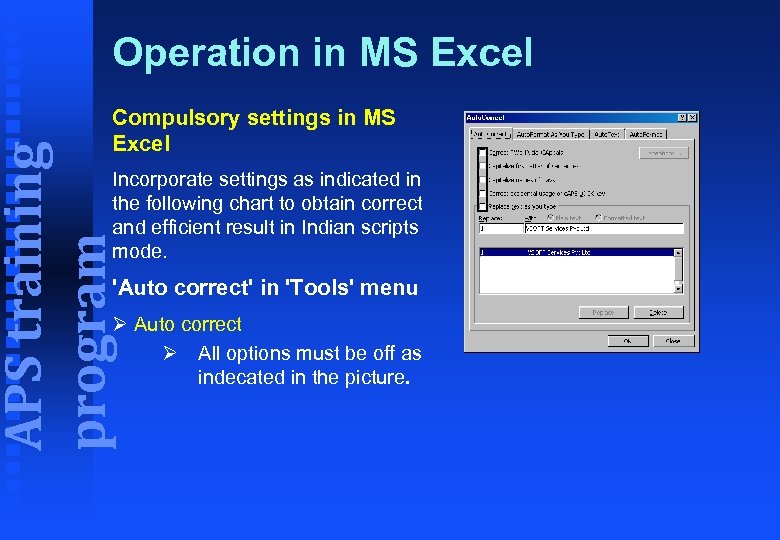 Operation in MS Excel APS training program Compulsory settings in MS Excel Incorporate settings as indicated in the following chart to obtain correct and efficient result in Indian scripts mode. 'Auto correct' in 'Tools' menu Ø Auto correct Ø All options must be off as indecated in the picture.
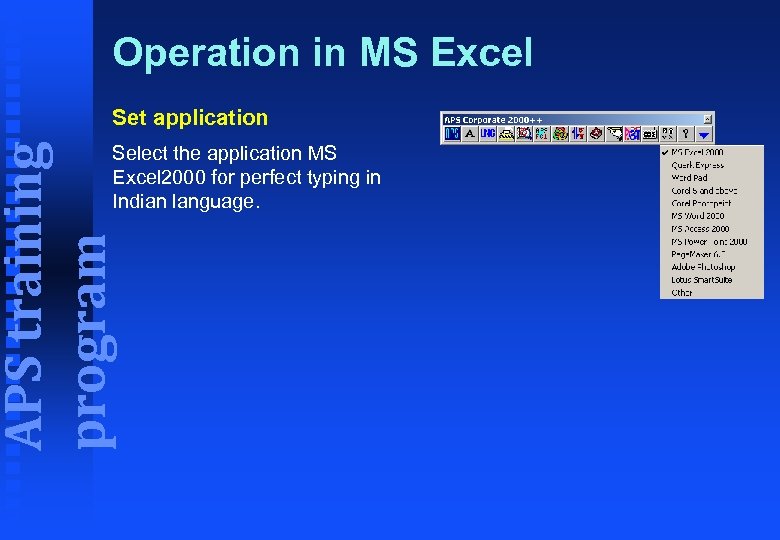 Operation in MS Excel Set application APS training program Select the application MS Excel 2000 for perfect typing in Indian language.
 Operation in MS Excel Font and size APS training program You can set default Hindi Font and its size for entire application. To set a default Hindi font, you go to 'Style' (Format menu). In the next appearing window click 'Modify'. 'Format Cells' option will appear on your screen. Click on the option 'Font'. New window appears as shown in the next figure. Now you can select your choice of Hindi font along with its size and style.
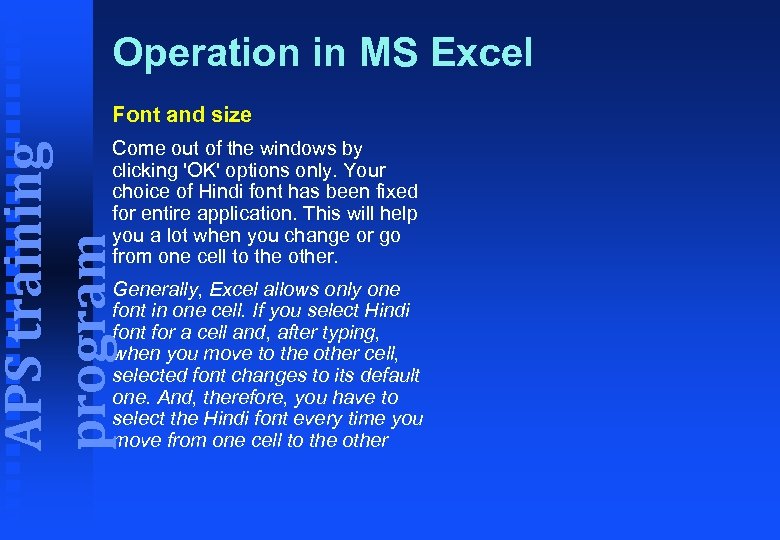 Operation in MS Excel Font and size APS training program Come out of the windows by clicking 'OK' options only. Your choice of Hindi font has been fixed for entire application. This will help you a lot when you change or go from one cell to the other. Generally, Excel allows only one font in one cell. If you select Hindi font for a cell and, after typing, when you move to the other cell, selected font changes to its default one. And, therefore, you have to select the Hindi font every time you move from one cell to the other
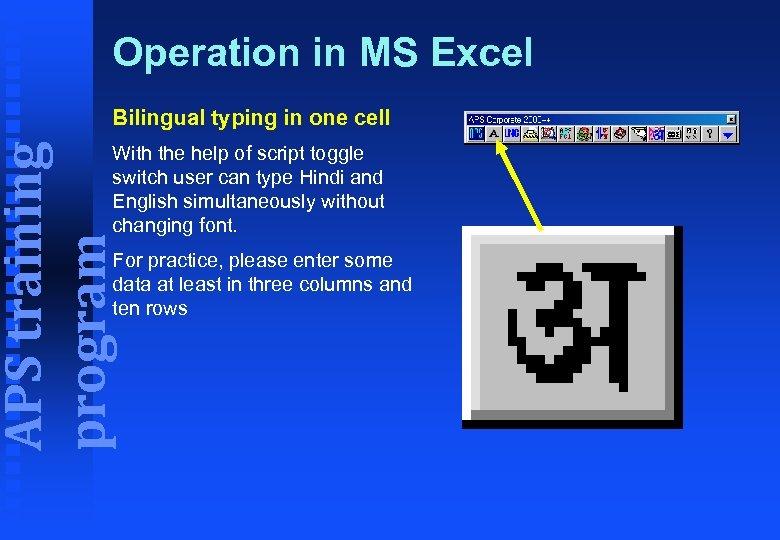 Operation in MS Excel Bilingual typing in one cell APS training program With the help of script toggle switch user can type Hindi and English simultaneously without changing font. For practice, please enter some data at least in three columns and ten rows
 APSTools in MS Excel APS training program This is an inbuilt utility (Menu) provided in MS Excel application. Use of this tool will be easy, effective and more users friendly.
 APSTools in MS Excel APS training program Features of APSTools Select APSTools Menu and click on APS 2000++. After clicking this button, APS Desktop bar appears on screen.
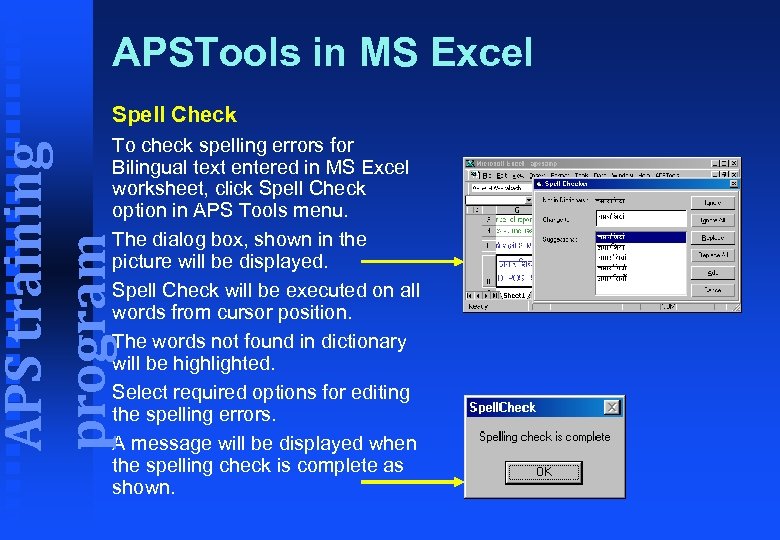 APSTools in MS Excel Spell Check APS training program To check spelling errors for Bilingual text entered in MS Excel worksheet, click Spell Check option in APS Tools menu. The dialog box, shown in the picture will be displayed. Spell Check will be executed on all words from cursor position. The words not found in dictionary will be highlighted. Select required options for editing the spelling errors. A message will be displayed when the spelling check is complete as shown.
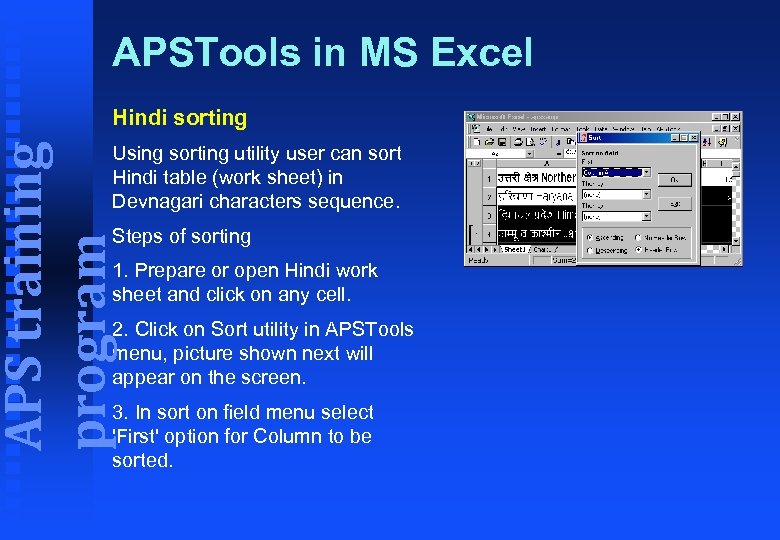 APSTools in MS Excel Hindi sorting APS training program Using sorting utility user can sort Hindi table (work sheet) in Devnagari characters sequence. Steps of sorting 1. Prepare or open Hindi work sheet and click on any cell. 2. Click on Sort utility in APSTools menu, picture shown next will appear on the screen. 3. In sort on field menu select 'First' option for Column to be sorted.
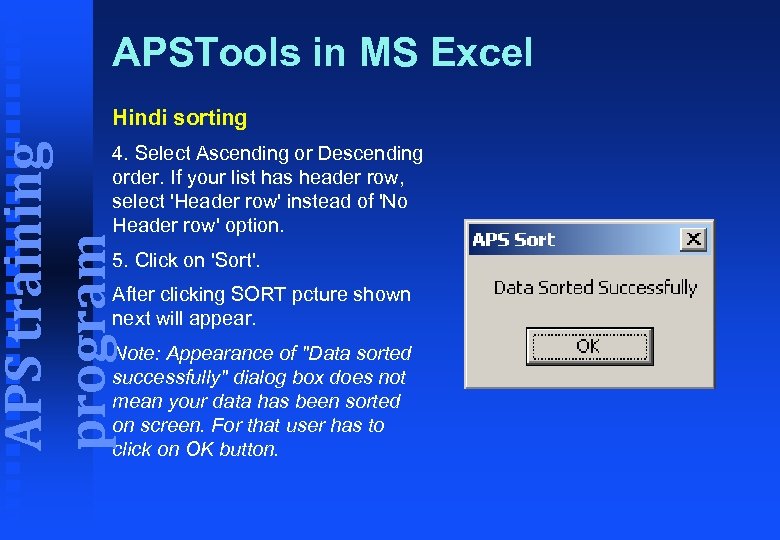 APSTools in MS Excel Hindi sorting APS training program 4. Select Ascending or Descending order. If your list has header row, select 'Header row' instead of 'No Header row' option. 5. Click on 'Sort'. After clicking SORT pcture shown next will appear. Note: Appearance of "Data sorted successfully" dialog box does not mean your data has been sorted on screen. For that user has to click on OK button.
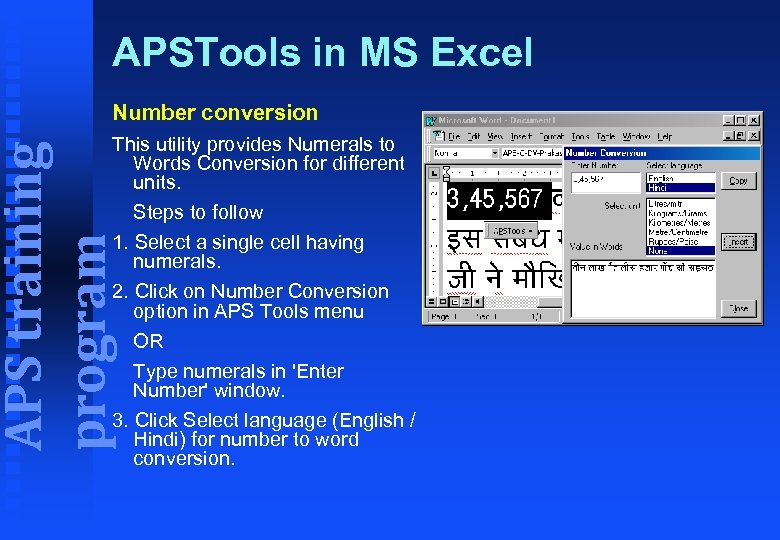 APSTools in MS Excel Number conversion APS training program This utility provides Numerals to Words Conversion for different units. Steps to follow 1. Select a single cell having numerals. 2. Click on Number Conversion option in APS Tools menu OR Type numerals in 'Enter Number' window. 3. Click Select language (English / Hindi) for number to word conversion.
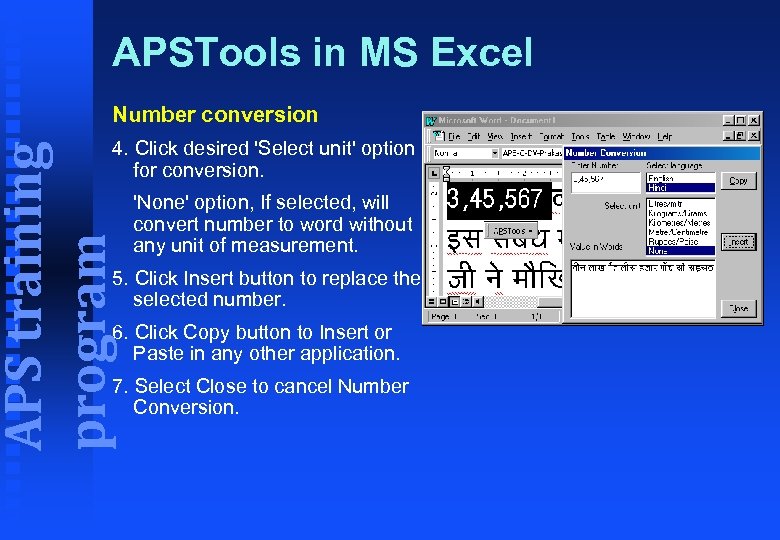 APSTools in MS Excel Number conversion APS training program 4. Click desired 'Select unit' option for conversion. 'None' option, If selected, will convert number to word without any unit of measurement. 5. Click Insert button to replace the selected number. 6. Click Copy button to Insert or Paste in any other application. 7. Select Close to cancel Number Conversion.
 Operation in MS Power. Point APS training program Using APS software, bilingual presentations, training programs and tutorials etc. can be generated in MS Power Point.
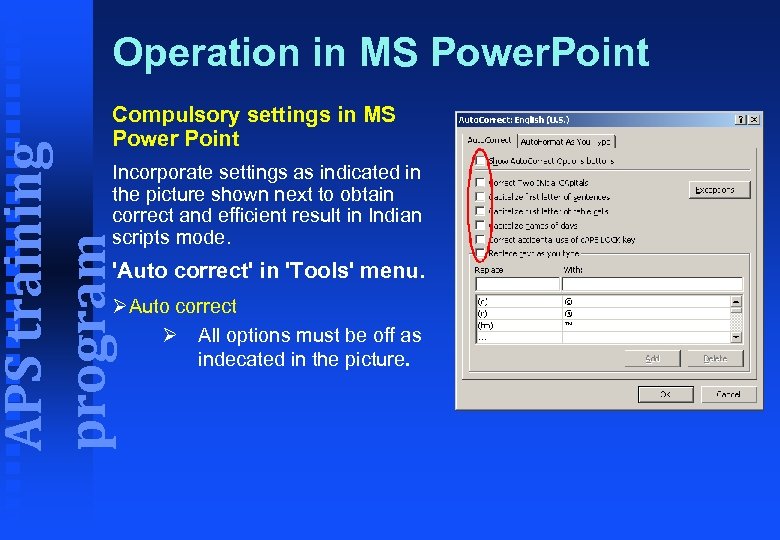 Operation in MS Power. Point APS training program Compulsory settings in MS Power Point Incorporate settings as indicated in the picture shown next to obtain correct and efficient result in Indian scripts mode. 'Auto correct' in 'Tools' menu. ØAuto correct Ø All options must be off as indecated in the picture.
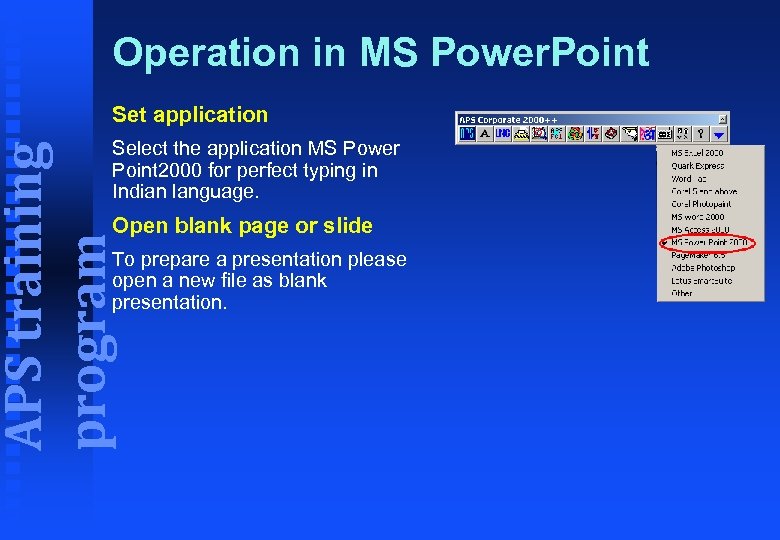 Operation in MS Power. Point Set application APS training program Select the application MS Power Point 2000 for perfect typing in Indian language. Open blank page or slide To prepare a presentation please open a new file as blank presentation.
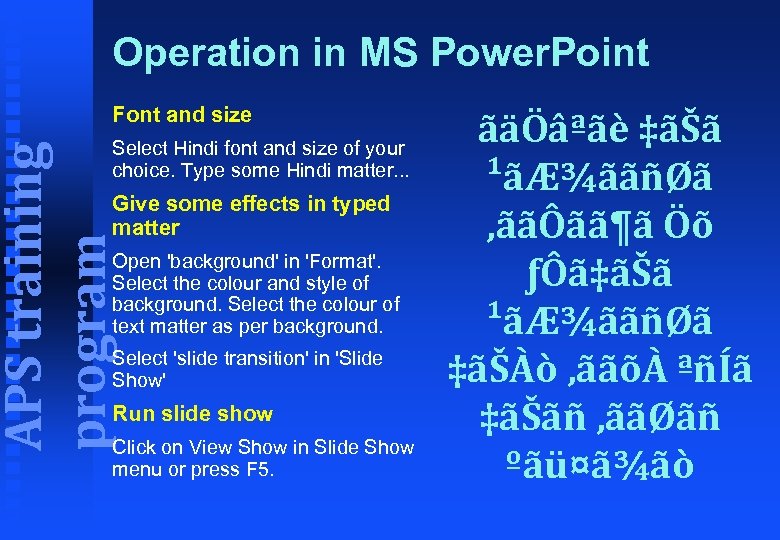 Operation in MS Power. Point Font and size APS training program Select Hindi font and size of your choice. Type some Hindi matter. . . Give some effects in typed matter Open 'background' in 'Format'. Select the colour and style of background. Select the colour of text matter as per background. Select 'slide transition' in 'Slide Show' Run slide show Click on View Show in Slide Show menu or press F 5. ãäÖâªãè ‡ãŠã ¹ãƾããñØã ‚ããÔãã¶ã Öõ ƒÔã‡ãŠã ¹ãƾããñØã ‡ãŠÀò ‚ããõÀ ªñÍã ‡ãŠãñ ‚ããØãñ ºãü¤ã¾ãò
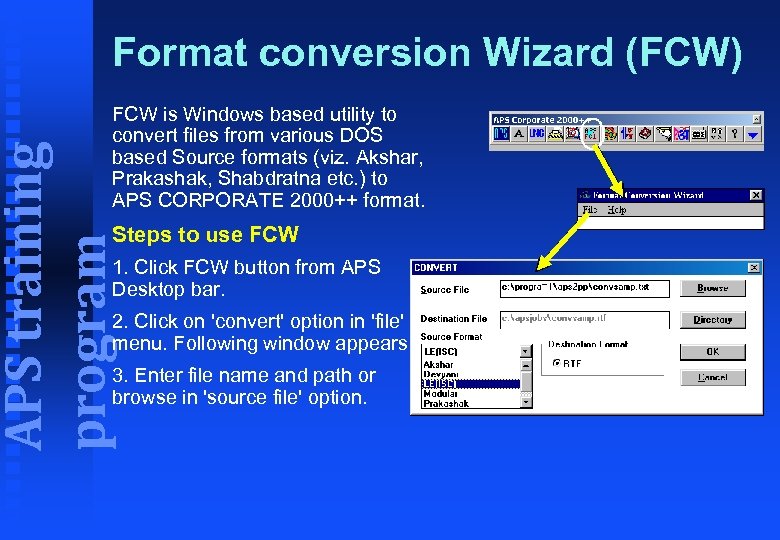 Format conversion Wizard (FCW) APS training program FCW is Windows based utility to convert files from various DOS based Source formats (viz. Akshar, Prakashak, Shabdratna etc. ) to APS CORPORATE 2000++ format. Steps to use FCW 1. Click FCW button from APS Desktop bar. 2. Click on 'convert' option in 'file' menu. Following window appears. 3. Enter file name and path or browse in 'source file' option.
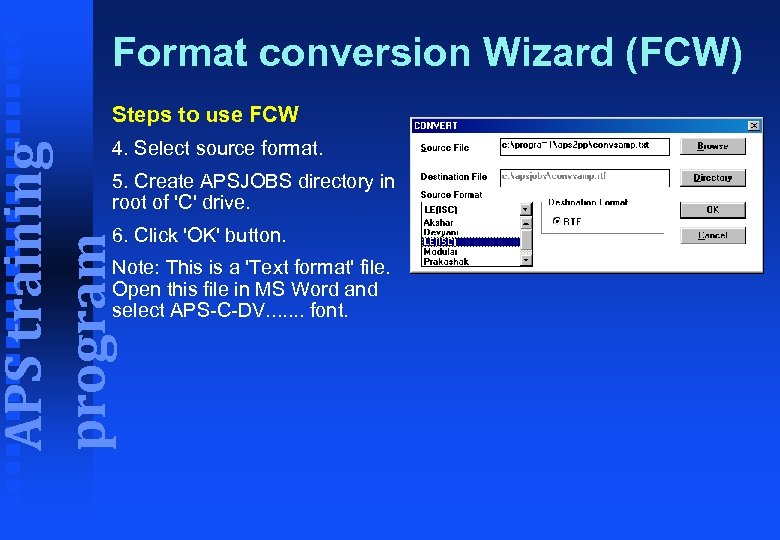 Format conversion Wizard (FCW) Steps to use FCW APS training program 4. Select source format. 5. Create APSJOBS directory in root of 'C' drive. 6. Click 'OK' button. Note: This is a 'Text format' file. Open this file in MS Word and select APS-C-DV. . . . font.
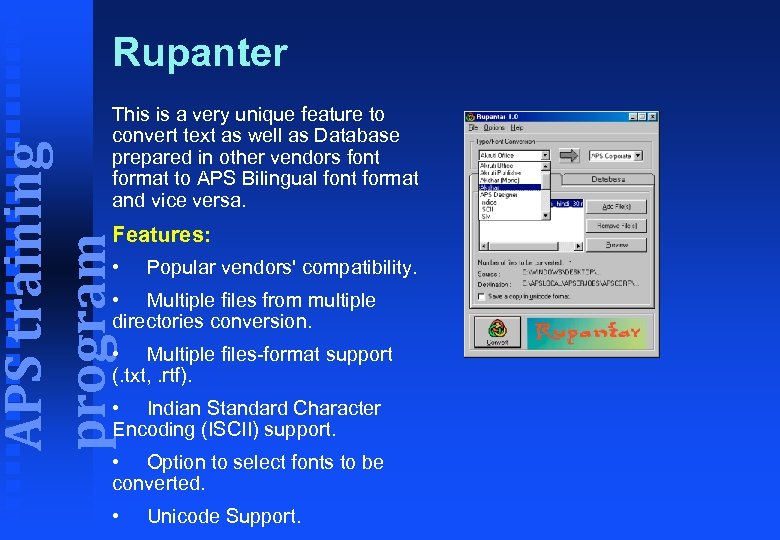 Rupanter APS training program This is a very unique feature to convert text as well as Database prepared in other vendors font format to APS Bilingual font format and vice versa. Features: • Popular vendors' compatibility. • Multiple files from multiple directories conversion. • Multiple files-format support (. txt, . rtf). • Indian Standard Character Encoding (ISCII) support. • Option to select fonts to be converted. • Unicode Support.
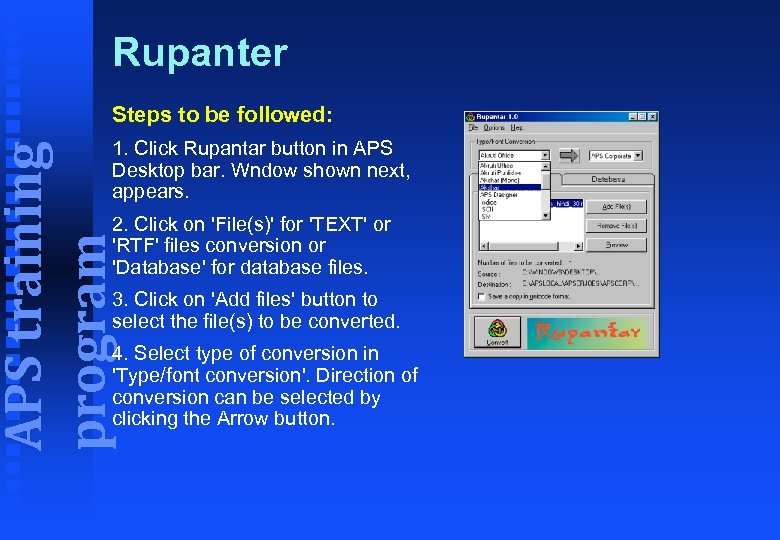 Rupanter Steps to be followed: APS training program 1. Click Rupantar button in APS Desktop bar. Wndow shown next, appears. 2. Click on 'File(s)' for 'TEXT' or 'RTF' files conversion or 'Database' for database files. 3. Click on 'Add files' button to select the file(s) to be converted. 4. Select type of conversion in 'Type/font conversion'. Direction of conversion can be selected by clicking the Arrow button.
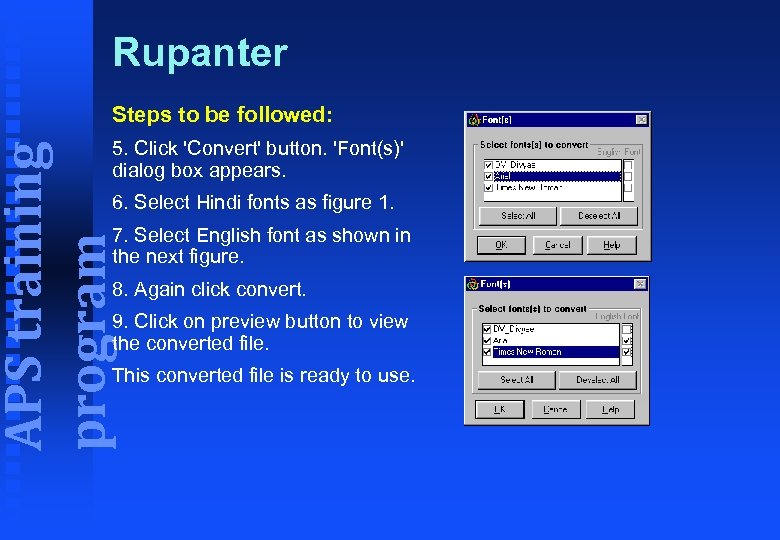 Rupanter Steps to be followed: APS training program 5. Click 'Convert' button. 'Font(s)' dialog box appears. 6. Select Hindi fonts as figure 1. 7. Select English font as shown in the next figure. 8. Again click convert. 9. Click on preview button to view the converted file. This converted file is ready to use.
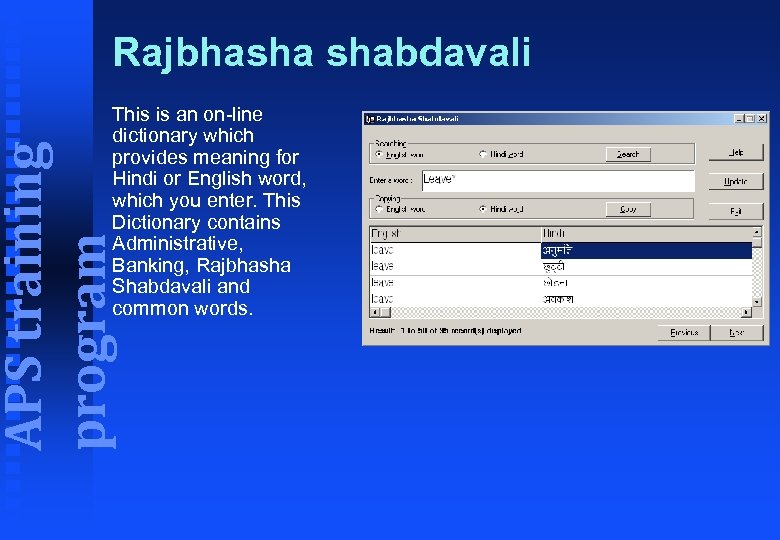 Rajbhasha shabdavali APS training program This is an on-line dictionary which provides meaning for Hindi or English word, which you enter. This Dictionary contains Administrative, Banking, Rajbhasha Shabdavali and common words.
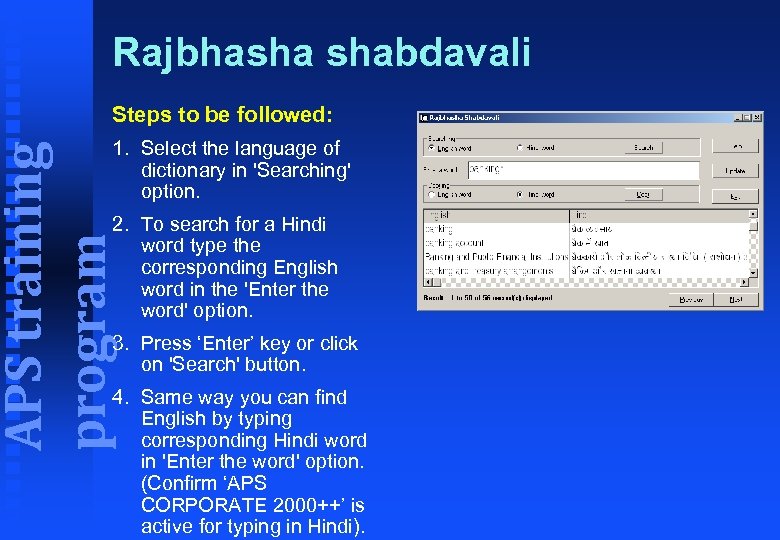 Rajbhasha shabdavali Steps to be followed: APS training program 1. Select the language of dictionary in 'Searching' option. 2. To search for a Hindi word type the corresponding English word in the 'Enter the word' option. 3. Press ‘Enter’ key or click on 'Search' button. 4. Same way you can find English by typing corresponding Hindi word in 'Enter the word' option. (Confirm ‘APS CORPORATE 2000++’ is active for typing in Hindi).
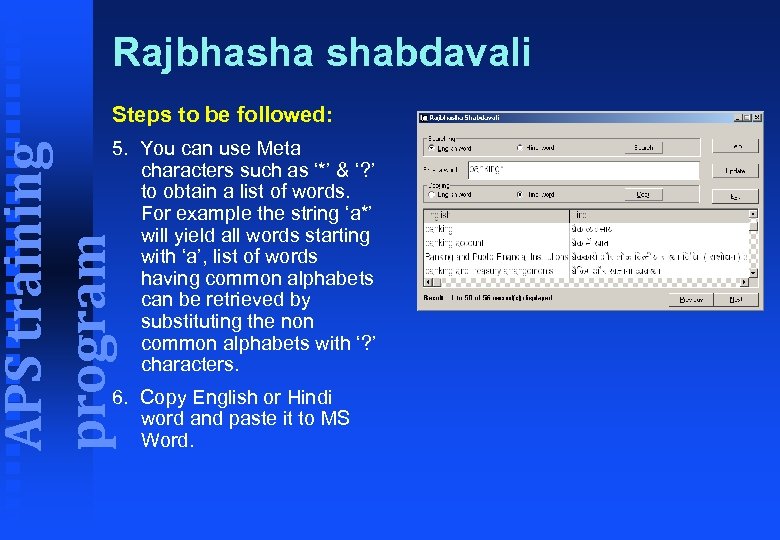 Rajbhasha shabdavali Steps to be followed: APS training program 5. You can use Meta characters such as ‘*’ & ‘? ’ to obtain a list of words. For example the string ‘a*’ will yield all words starting with ‘a’, list of words having common alphabets can be retrieved by substituting the non common alphabets with ‘? ’ characters. 6. Copy English or Hindi word and paste it to MS Word.
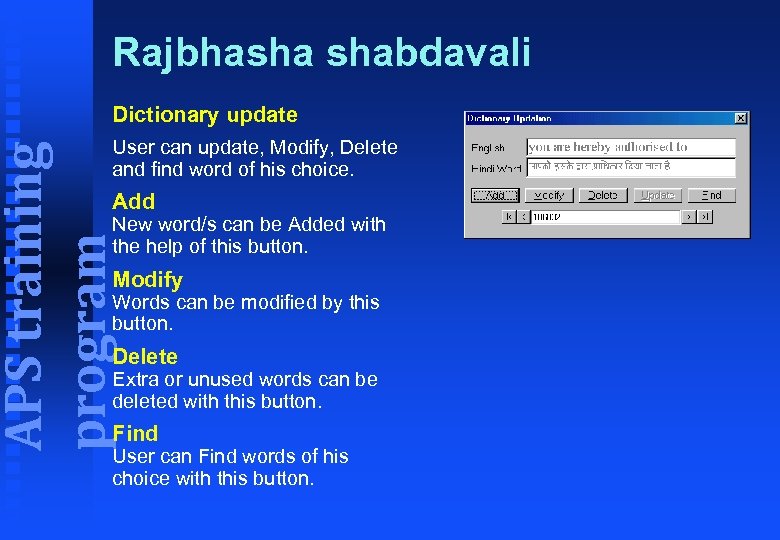 Rajbhasha shabdavali Dictionary update APS training program User can update, Modify, Delete and find word of his choice. Add New word/s can be Added with the help of this button. Modify Words can be modified by this button. Delete Extra or unused words can be deleted with this button. Find User can Find words of his choice with this button.
 Chitragupt APS training program This is a simple Word Processor available with APS Corporate 2000++ Software. This is helpful when there is no other application available. Chitragupt has following features for text preparation: Ø Create a new document Ø Save changes to a document Ø Save a copy as HTML Ø Save a copy in ISCII Text Format Ø Save a copy in UNICODE Format Ø Open a document
 Chitragupt Working with Text APS training program Following featurs are available with this: Ø Undo your last action Ø Delete text Ø Search for text Ø Search and Replace text Format Text Ø Change the way text wraps on your screen Ø Create a bullet list Ø Select a font type style or size Ø Format a paragraph
 Chitragupt Printing APS training program Following featurs are available with this: Ø Set page margins Ø Change printers and printing options Tools Ø Spell Check Ø Number Conversion Ø Insert Date & Time These features work as they have been explained earlier in APSTools etc.
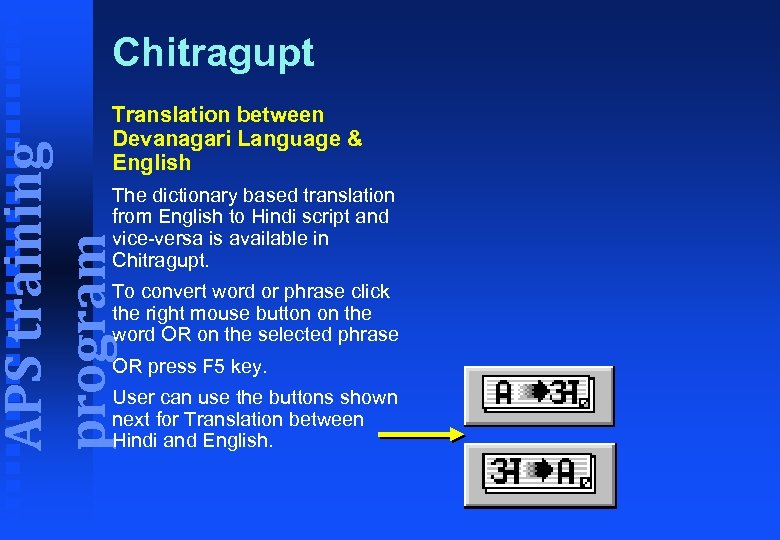 Chitragupt APS training program Translation between Devanagari Language & English The dictionary based translation from English to Hindi script and vice-versa is available in Chitragupt. To convert word or phrase click the right mouse button on the word OR on the selected phrase OR press F 5 key. User can use the buttons shown next for Translation between Hindi and English.
 Chitragupt APS training program Send E-mails in Indian Script To Send E-mail in Indian script along with English: Type your message in Chitragupt editor. Select "Send Mail" from the file menu. Follow rest of the steps as mentioned in the APSTools.
 Chitragupt Send E-mails in Intranet Setup APS training program To Send E-mail in Intranet Setup Select MS Outlook as default MAPI client by following the steps given below : Ø Select Internet Explorer icon from your Desktop Ø Click right mouse button on internet explorer icon. Ø Select Properties menu. Ø Click on Program tab button. Ø In E-mail drop down list select MS Outlook. Ø Press OK.
 Chitragupt Send E-mails in Intranet Setup APS training program Ø Press button to access E-mail address list (eg. , Global Address List). Ø Select a particular user name from list and press OK button. Ø Click Send button to send E-mail.
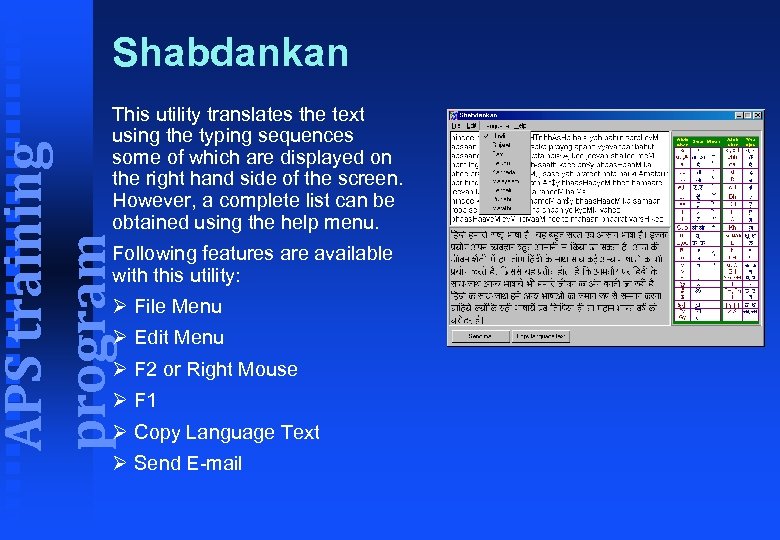 Shabdankan APS training program This utility translates the text using the typing sequences some of which are displayed on the right hand side of the screen. However, a complete list can be obtained using the help menu. Following features are available with this utility: Ø File Menu Ø Edit Menu Ø F 2 or Right Mouse Ø F 1 Ø Copy Language Text Ø Send E-mail
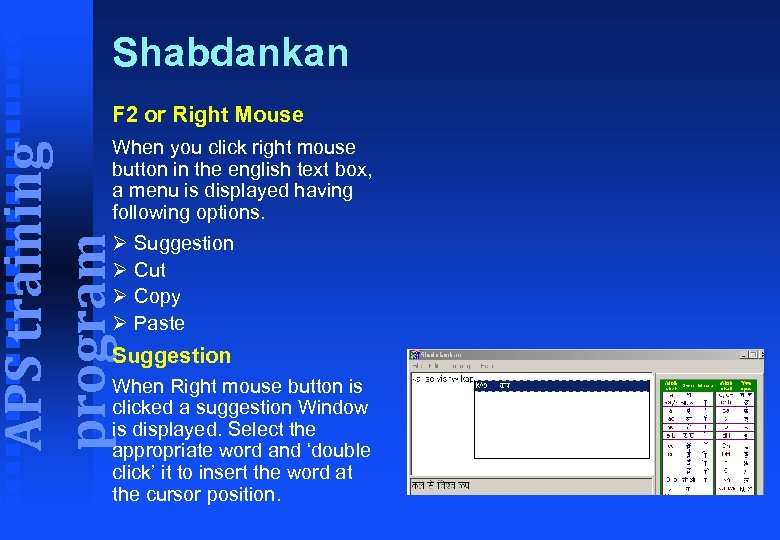 Shabdankan F 2 or Right Mouse APS training program When you click right mouse button in the english text box, a menu is displayed having following options. Ø Suggestion Ø Cut Ø Copy Ø Paste Suggestion When Right mouse button is clicked a suggestion Window is displayed. Select the appropriate word and ‘double click’ it to insert the word at the cursor position.
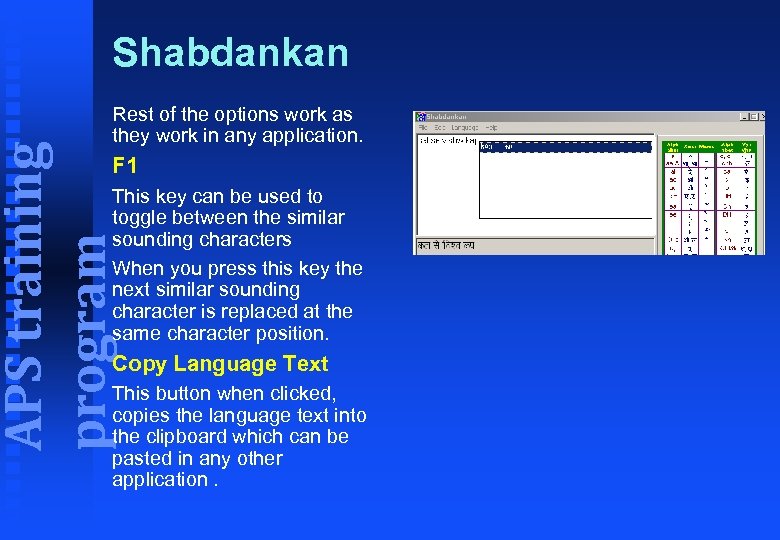 Shabdankan APS training program Rest of the options work as they work in any application. F 1 This key can be used to toggle between the similar sounding characters When you press this key the next similar sounding character is replaced at the same character position. Copy Language Text This button when clicked, copies the language text into the clipboard which can be pasted in any other application.
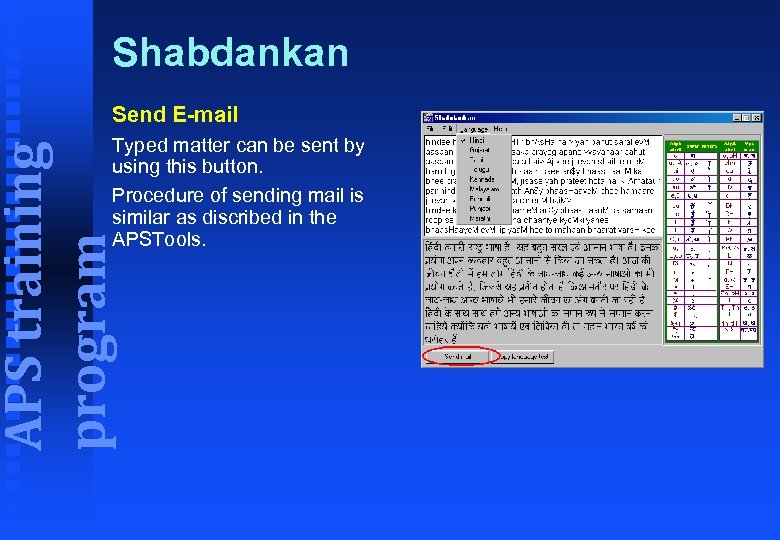 Shabdankan Send E-mail APS training program Typed matter can be sent by using this button. Procedure of sending mail is similar as discribed in the APSTools.
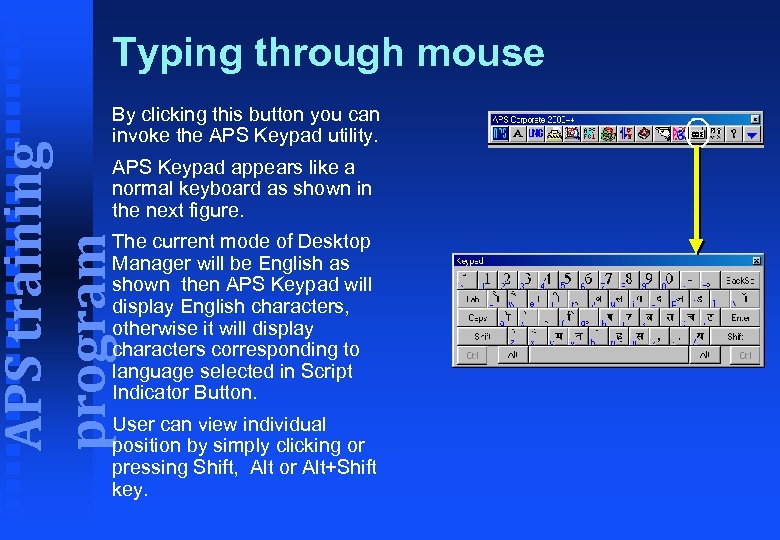 Typing through mouse APS training program By clicking this button you can invoke the APS Keypad utility. APS Keypad appears like a normal keyboard as shown in the next figure. The current mode of Desktop Manager will be English as shown then APS Keypad will display English characters, otherwise it will display characters corresponding to language selected in Script Indicator Button. User can view individual position by simply clicking or pressing Shift, Alt or Alt+Shift key.
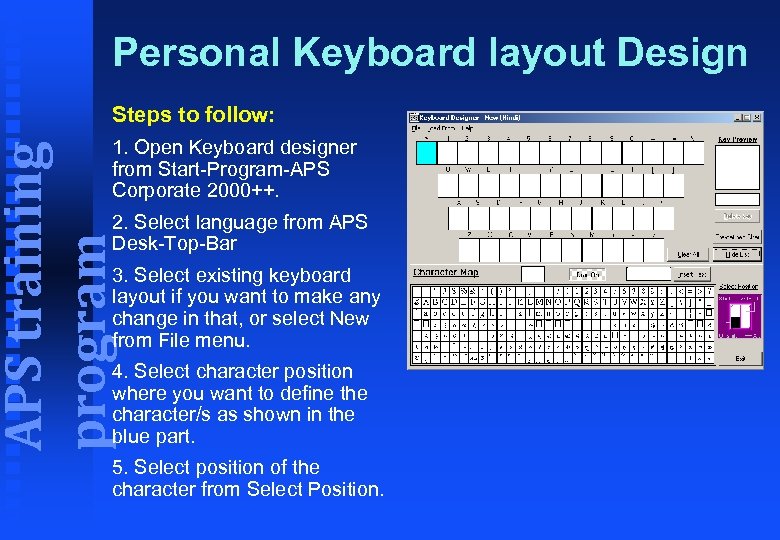 Personal Keyboard layout Design Steps to follow: APS training program 1. Open Keyboard designer from Start-Program-APS Corporate 2000++. 2. Select language from APS Desk-Top-Bar 3. Select existing keyboard layout if you want to make any change in that, or select New from File menu. 4. Select character position where you want to define the character/s as shown in the blue part. 5. Select position of the character from Select Position.
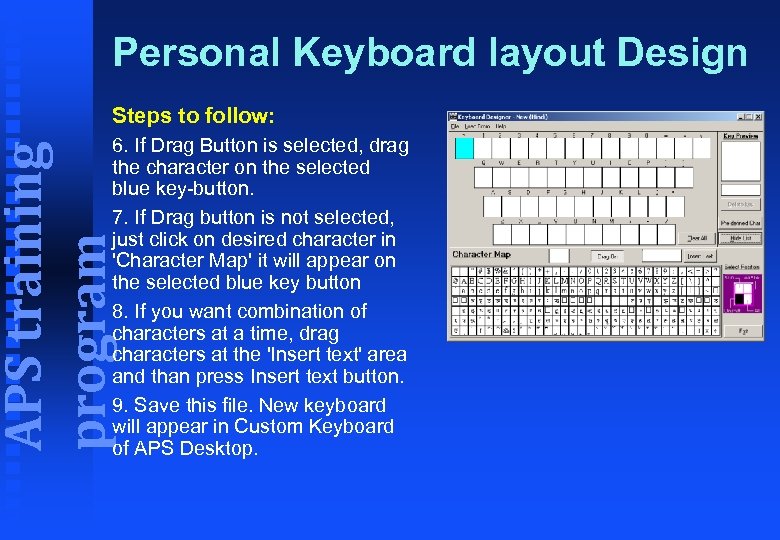 Personal Keyboard layout Design Steps to follow: APS training program 6. If Drag Button is selected, drag the character on the selected blue key-button. 7. If Drag button is not selected, just click on desired character in 'Character Map' it will appear on the selected blue key button 8. If you want combination of characters at a time, drag characters at the 'Insert text' area and than press Insert text button. 9. Save this file. New keyboard will appear in Custom Keyboard of APS Desktop.
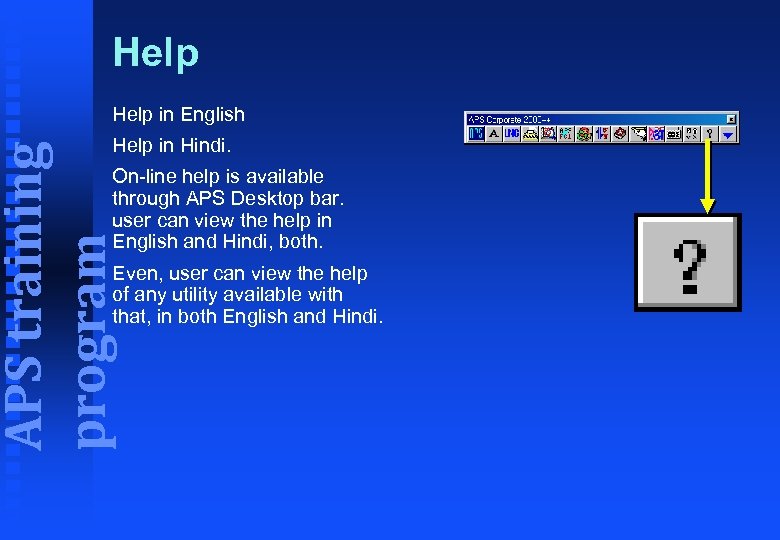 Help in English APS training program Help in Hindi. On-line help is available through APS Desktop bar. user can view the help in English and Hindi, both. Even, user can view the help of any utility available with that, in both English and Hindi.
 Precautions APS training program 1. Before typing in Indian language please select APSC-. . . font of particular script. 2. Select the keyboard layout of your choice. 3. Check 'Set application' settings. 4. Always save file name in English mode only.
 Trouble shootings APS training program 1. Garbage character appears in dailog boxes. Always keep the script indecator button in "A" mode. 2. Garbage character appears on screen while typing. Confirm that you have selected proper APS font and also that script indecator button corresponds to the language you are trying to type.
 Trouble shootings APS training program 3. Some characters don't appear properly on screen or get changed after pressing Space bar. 'Auto Correct' text setting must be on. Please follow the "Compulsory setting in MS Word" topic and do the needful changes for perfect typing result.