


 Скачать презентацию Android OS 6 0 Marshmallow Galaxy S 6
Android_OS_6.0_Marshmallow_Galaxy_S6_Customer_Consultant_Guide_Ver_1.12.pptx
- Количество слайдов: 25
 Android OS 6. 0 Marshmallow Galaxy S 6
 Introduction The aim of the document is to introduce some of the key differences in the “Functionality” and “Look” between Samsung Android 6. 0(Marshmallow) and previous Android OS versions. Device used in the following slides; Galaxy S 6 edge (SM-G 925) 2
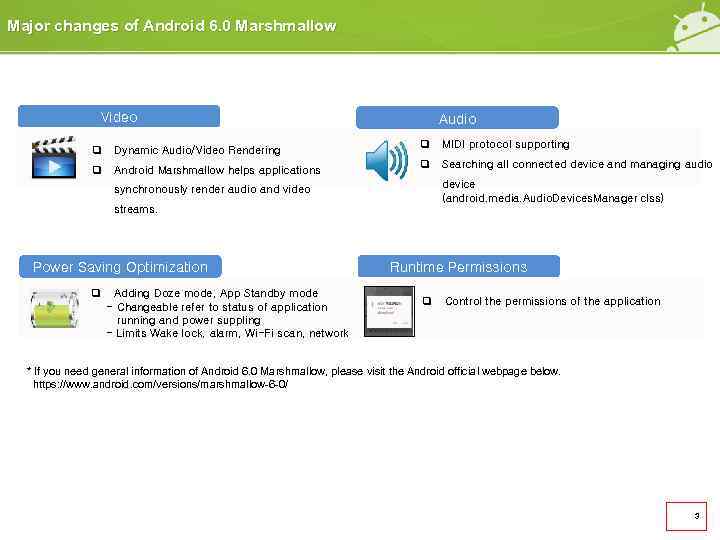 Major changes of Android 6. 0 Marshmallow Video Audio q Dynamic Audio/Video Rendering q MIDI protocol supporting q Android Marshmallow helps applications q Searching all connected device and managing audio device (android. media. Audio. Devices. Manager clss) synchronously render audio and video streams. Power Saving Optimization q Adding Doze mode, App Standby mode - Changeable refer to status of application running and power suppling - Limits Wake lock, alarm, Wi-Fi scan, network Runtime Permissions q Control the permissions of the application * If you need general information of Android 6. 0 Marshmallow, please visit the Android official webpage below. https: //www. android. com/versions/marshmallow-6 -0/ 3
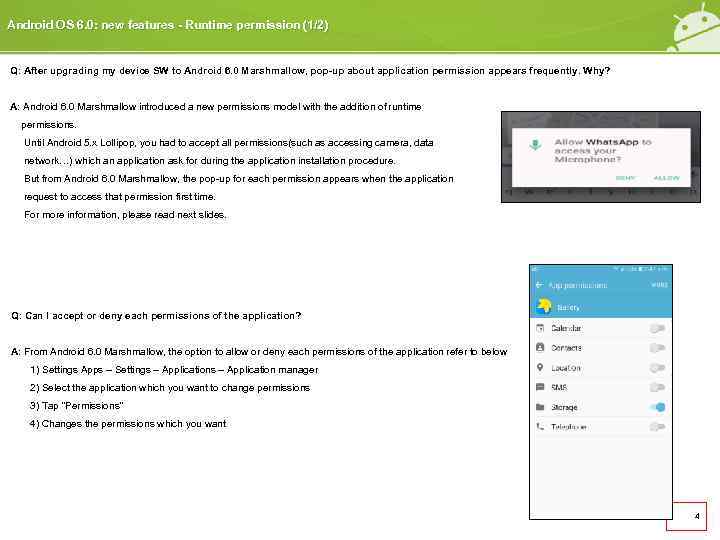 Android OS 6. 0: new features - Runtime permission (1/2) Q: After upgrading my device SW to Android 6. 0 Marshmallow, pop-up about application permission appears frequently. Why? A: Android 6. 0 Marshmallow introduced a new permissions model with the addition of runtime permissions. Until Android 5. x Lollipop, you had to accept all permissions(such as accessing camera, data network…) which an application ask for during the application installation procedure. But from Android 6. 0 Marshmallow, the pop-up for each permission appears when the application request to access that permission first time. For more information, please read next slides. Q: Can I accept or deny each permissions of the application? A: From Android 6. 0 Marshmallow, the option to allow or deny each permissions of the application refer to below 1) Settings Apps – Settings – Application manager 2) Select the application which you want to change permissions 3) Tap “Permissions” 4) Changes the permissions which you want 4
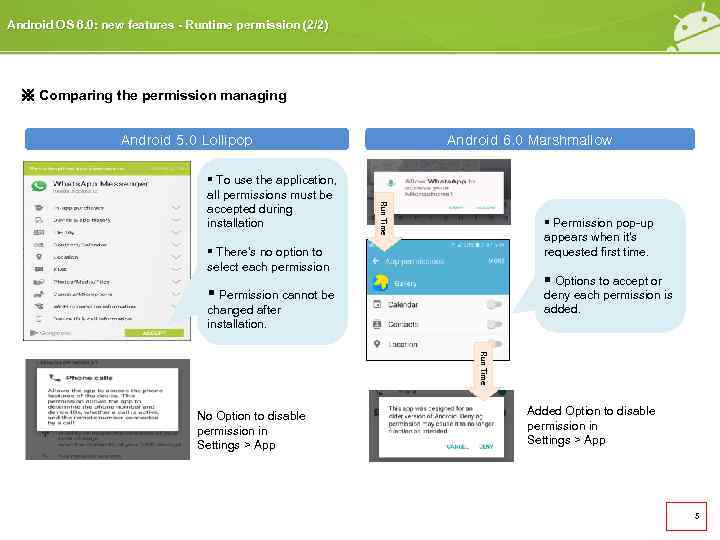 Android OS 6. 0: new features - Runtime permission (2/2) ※ Comparing the permission managing Android 5. 0 Lollipop Run Time § To use the application, all permissions must be accepted during installation Android 6. 0 Marshmallow § Permission pop-up appears when it’s requested first time. § There’s no option to select each permission § Options to accept or § Permission cannot be deny each permission is added. changed after installation. Run Time No Option to disable permission in Settings > App Added Option to disable permission in Settings > App 5
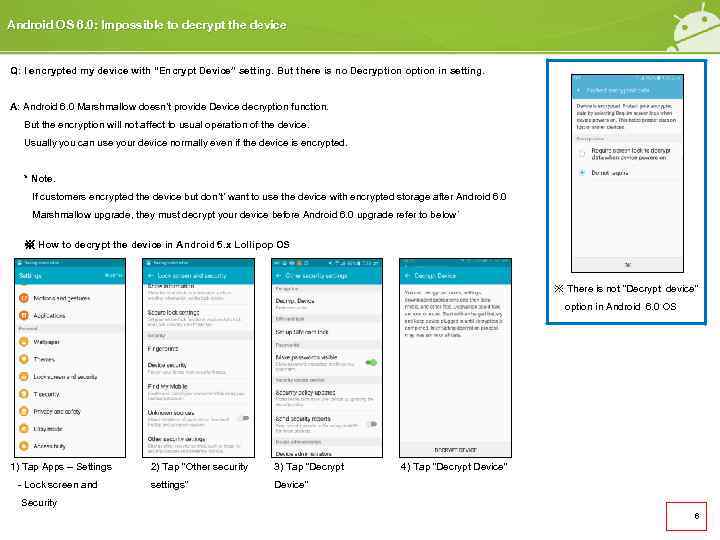 Android OS 6. 0: Impossible to decrypt the device Q: I encrypted my device with “Encrypt Device” setting. But there is no Decryption option in setting. A: Android 6. 0 Marshmallow doesn’t provide Device decryption function. But the encryption will not affect to usual operation of the device. Usually you can use your device normally even if the device is encrypted. * Note. If customers encrypted the device but don’t’ want to use the device with encrypted storage after Android 6. 0 Marshmallow upgrade, they must decrypt your device before Android 6. 0 upgrade refer to below` ※ How to decrypt the device in Android 5. x Lollipop OS ※ There is not “Decrypt device” option in Android 6. 0 OS 1) Tap Apps – Settings 2) Tap “Other security 3) Tap “Decrypt - Lock screen and settings” 4) Tap “Decrypt Device” Security 6
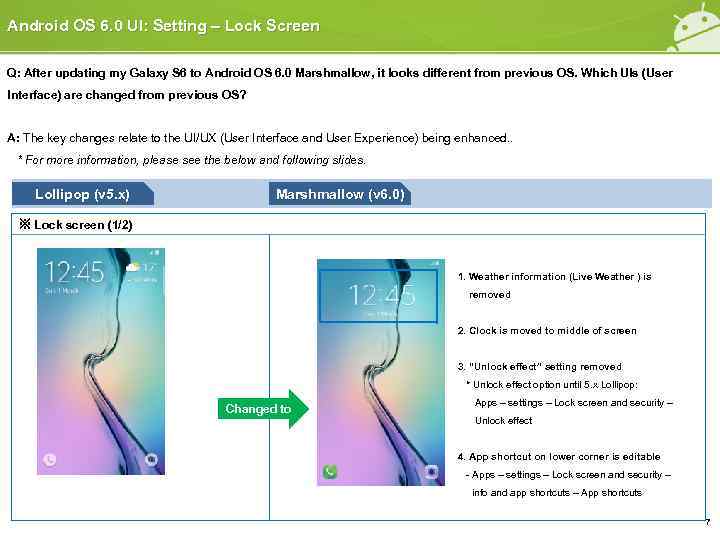 Android OS 6. 0 UI: Setting – Lock Screen Q: After updating my Galaxy S 6 to Android OS 6. 0 Marshmallow, it looks different from previous OS. Which UIs (User Interface) are changed from previous OS? A: The key changes relate to the UI/UX (User Interface and User Experience) being enhanced. . * For more information, please see the below and following slides. Lollipop (v 5. x) Marshmallow (v 6. 0) ※ Lock screen (1/2) 1. Weather information (Live Weather ) is removed 2. Clock is moved to middle of screen 3. “Unlock effect” setting removed * Unlock effect option until 5. x Lollipop: Changed to Apps – settings – Lock screen and security – Unlock effect 4. App shortcut on lower corner is editable - Apps – settings – Lock screen and security – info and app shortcuts – App shortcuts 7
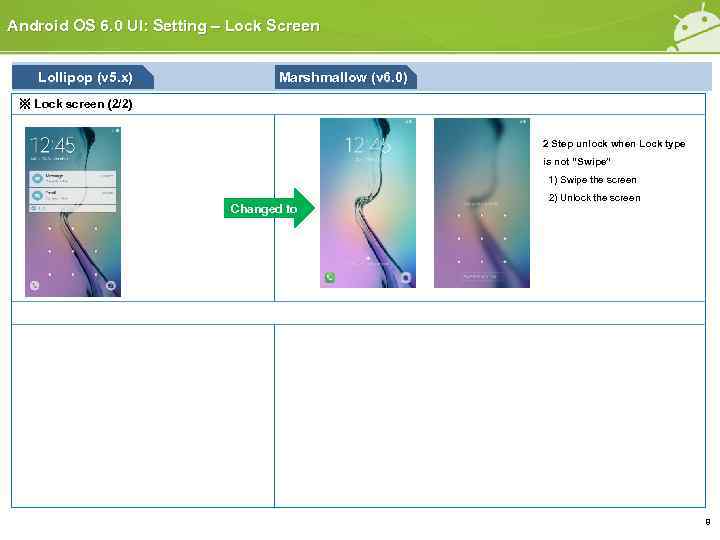 Android OS 6. 0 UI: Setting – Lock Screen Lollipop (v 5. x) Marshmallow (v 6. 0) ※ Lock screen (2/2) 2 Step unlock when Lock type is not “Swipe” 1) Swipe the screen Changed to 2) Unlock the screen 8
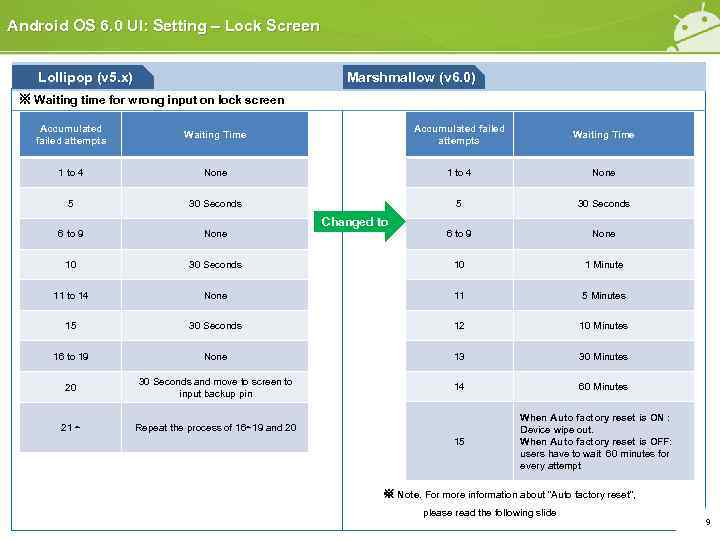 Android OS 6. 0 UI: Setting – Lock Screen Lollipop (v 5. x) Marshmallow (v 6. 0) ※ Waiting time for wrong input on lock screen Accumulated failed attempts Waiting Time 1 to 4 None 5 30 Seconds 6 to 9 None 10 30 Seconds 10 1 Minute 11 to 14 None 11 5 Minutes 15 30 Seconds 12 10 Minutes 16 to 19 None 13 30 Minutes 20 30 Seconds and move to screen to input backup pin 14 60 Minutes 21 ~ Repeat the process of 16~19 and 20 Changed to 15 When Auto factory reset is ON : Device wipe out. When Auto factory reset is OFF: users have to wait 60 minutes for every attempt ※ Note. For more information about “Auto factory reset”, please read the following slide 9
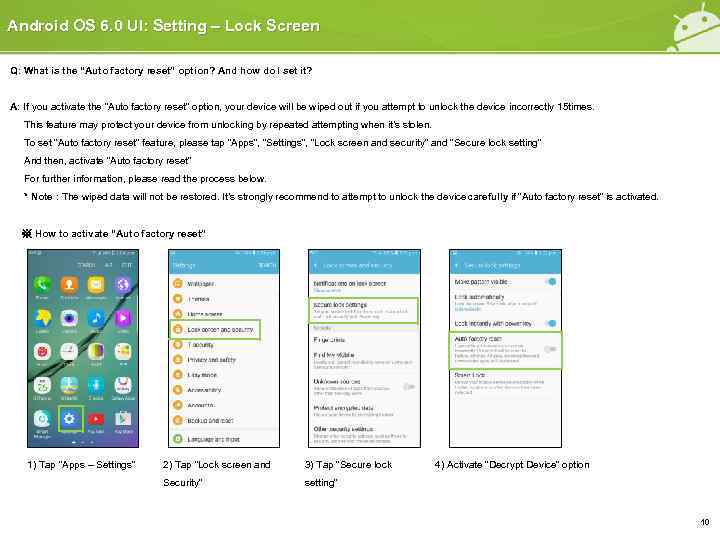 Android OS 6. 0 UI: Setting – Lock Screen Q: What is the “Auto factory reset” option? And how do I set it? A: If you activate the “Auto factory reset” option, your device will be wiped out if you attempt to unlock the device incorrectly 15 times. This feature may protect your device from unlocking by repeated attempting when it’s stolen. To set “Auto factory reset” feature, please tap “Apps”, “Settings”, “Lock screen and security” and “Secure lock setting” And then, activate “Auto factory reset” For further information, please read the process below. * Note : The wiped data will not be restored. It’s strongly recommend to attempt to unlock the device arefully if “Auto factory reset” is activated. c ※ How to activate “Auto factory reset” 1) Tap “Apps – Settings” 2) Tap “Lock screen and 3) Tap “Secure lock Security” 4) Activate “Decrypt Device” option setting” 10
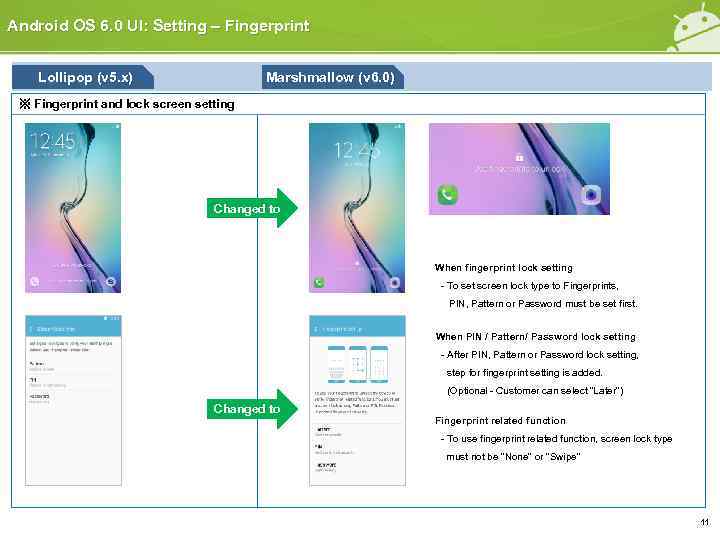 Android OS 6. 0 UI: Setting – Fingerprint Lollipop (v 5. x) Marshmallow (v 6. 0) ※ Fingerprint and lock screen setting Changed to When fingerprint lock setting - To set screen lock type to Fingerprints, PIN, Pattern or Password must be set first. When PIN / Pattern/ Password lock setting - After PIN, Pattern or Password lock setting, step for fingerprint setting is added. (Optional - Customer can select “Later”) Changed to Fingerprint related function - To use fingerprint related function, screen lock type must not be “None” or “Swipe” 11
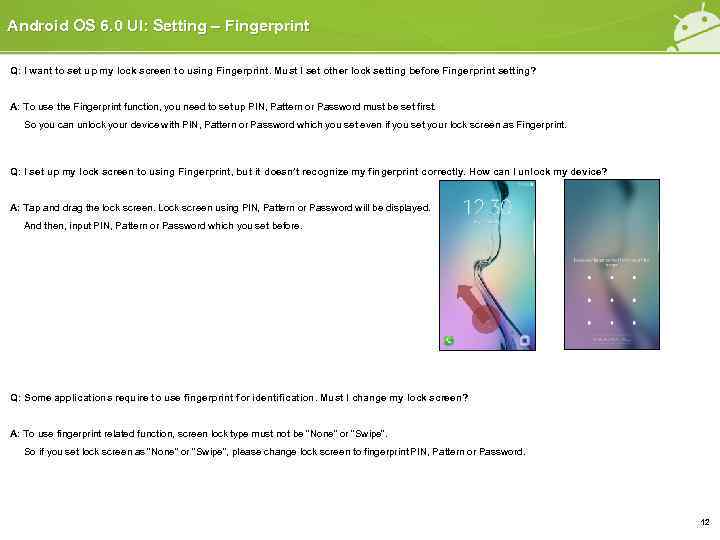 Android OS 6. 0 UI: Setting – Fingerprint Q: I want to set up my lock screen to using Fingerprint. Must I set other lock setting before Fingerprint setting? A: To use the Fingerprint function, you need to set up PIN, Pattern or Password must be set first. So you can unlock your device with PIN, Pattern or Password which you set even if you set your lock screen as Fingerprint. Q: I set up my lock screen to using Fingerprint, but it doesn’t recognize my fingerprint correctly. How can I unlock my device? A: Tap and drag the lock screen. Lock screen using PIN, Pattern or Password will be displayed. And then, input PIN, Pattern or Password which you set before. Q: Some applications require to use fingerprint for identification. Must I change my lock screen? A: To use fingerprint related function, screen lock type must not be “None” or “Swipe”. So if you set lock screen as “None” or “Swipe”, please change lock screen to fingerprint PIN, Pattern or Password. 12
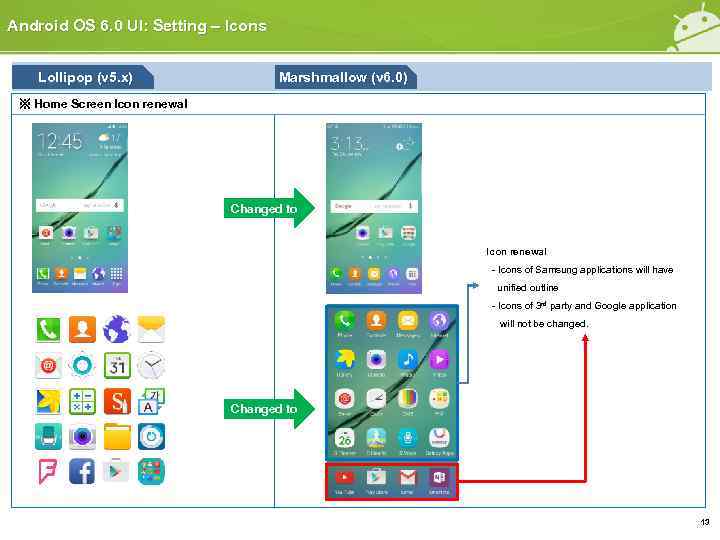 Android OS 6. 0 UI: Setting – Icons Lollipop (v 5. x) Marshmallow (v 6. 0) ※ Home Screen Icon renewal Changed to Icon renewal - Icons of Samsung applications will have unified outline - Icons of 3 rd party and Google application will not be changed. Changed to 13
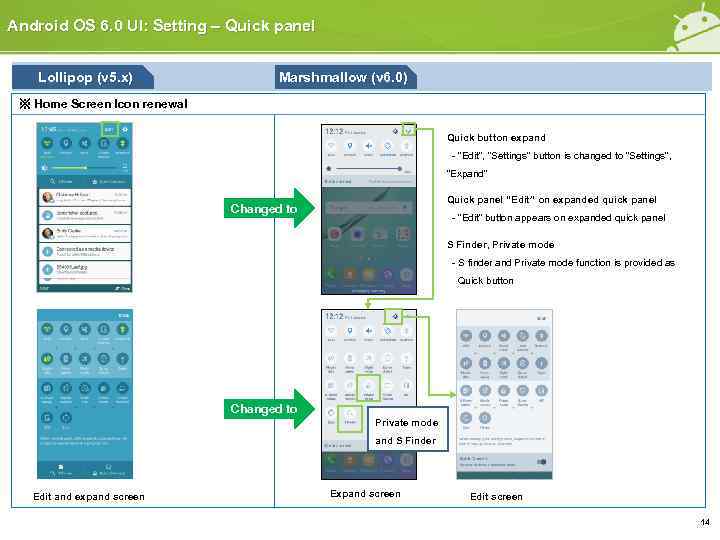 Android OS 6. 0 UI: Setting – Quick panel Lollipop (v 5. x) Marshmallow (v 6. 0) ※ Home Screen Icon renewal Quick button expand - “Edit”, “Settings” button is changed to “Settings”, “Expand” Quick panel “Edit” on expanded quick panel Changed to - “Edit” button appears on expanded quick panel S Finder, Private mode - S finder and Private mode function is provided as Quick button Changed to Private mode and S Finder Edit and expand screen Edit screen 14
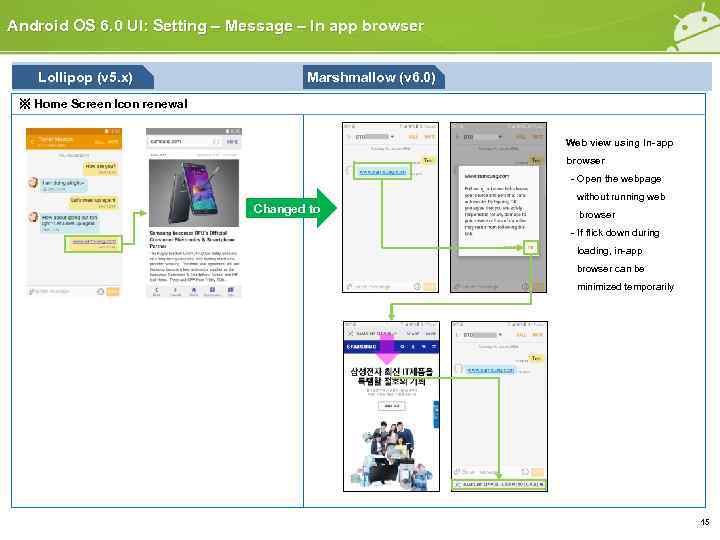 Android OS 6. 0 UI: Setting – Message – In app browser Lollipop (v 5. x) Marshmallow (v 6. 0) ※ Home Screen Icon renewal Web view using In-app browser - Open the webpage Changed to without running web browser - If flick down during loading, in-app browser can be minimized temporarily 15
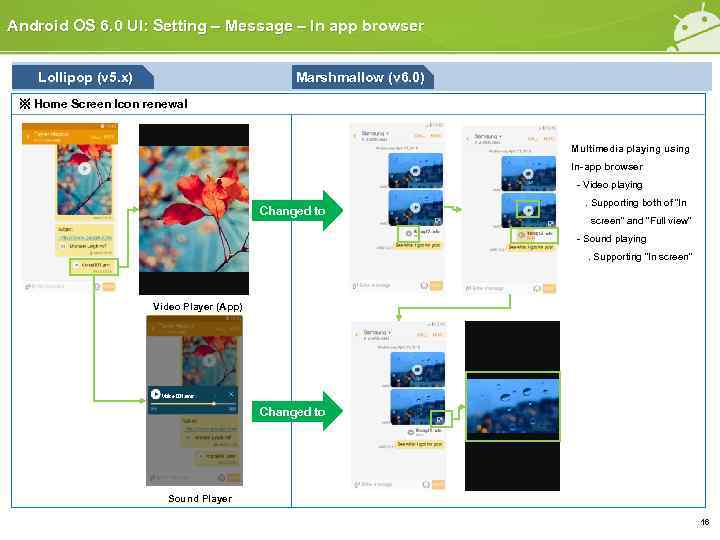 Android OS 6. 0 UI: Setting – Message – In app browser Lollipop (v 5. x) Marshmallow (v 6. 0) ※ Home Screen Icon renewal Multimedia playing using In-app browser - Video playing Changed to . Supporting both of “In screen” and “Full view” - Sound playing . Supporting “In screen” Video Player (App) Voice 001. amr Changed to Sound Player 16
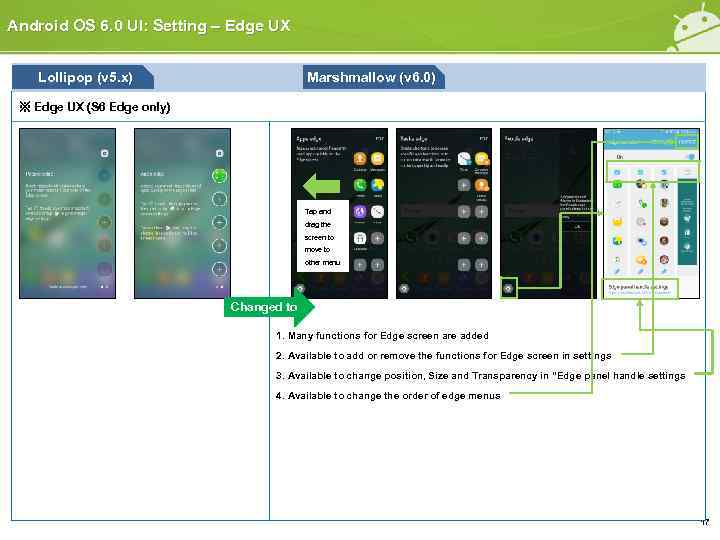 Android OS 6. 0 UI: Setting – Edge UX Lollipop (v 5. x) Marshmallow (v 6. 0) ※ Edge UX (S 6 Edge only) Tap and drag the screen to move to other menu Changed to 1. Many functions for Edge screen are added 2. Available to add or remove the functions for Edge screen in settings 3. Available to change position, Size and Transparency in “Edge panel handle settings 4. Available to change the order of edge menus 17
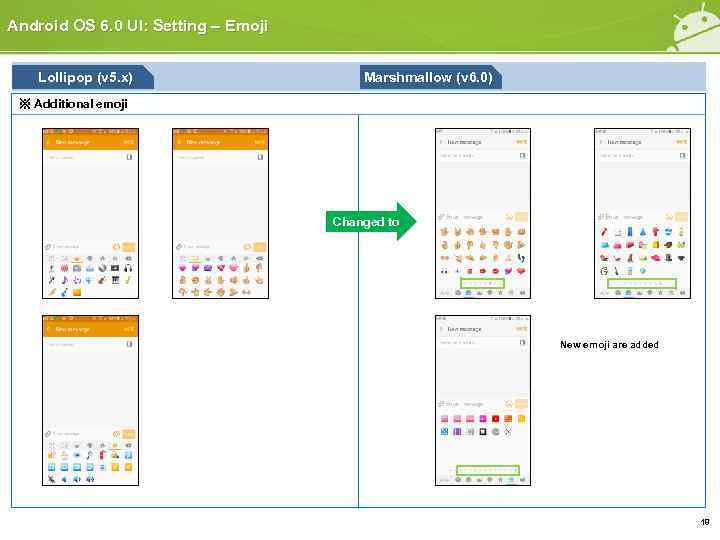 Android OS 6. 0 UI: Setting – Emoji Lollipop (v 5. x) Marshmallow (v 6. 0) ※ Additional emoji Changed to New emoji are added 18
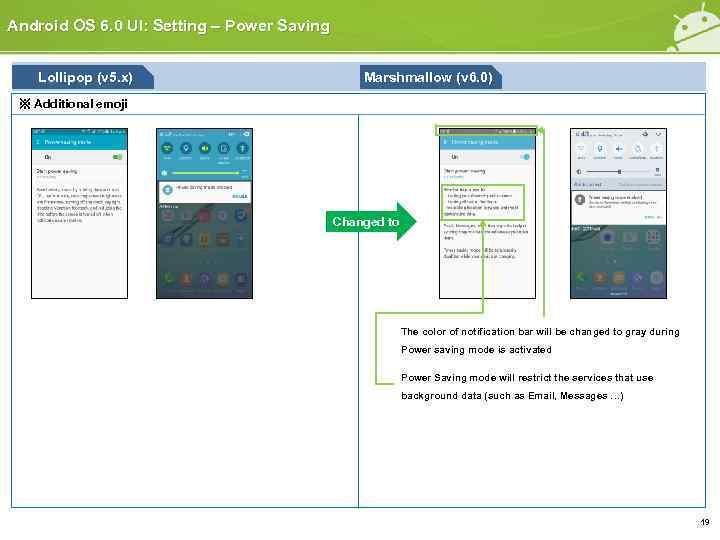 Android OS 6. 0 UI: Setting – Power Saving Lollipop (v 5. x) Marshmallow (v 6. 0) ※ Additional emoji Changed to The color of notification bar will be changed to gray during Power saving mode is activated Power Saving mode will restrict the services that use background data (such as Email, Messages …) 19
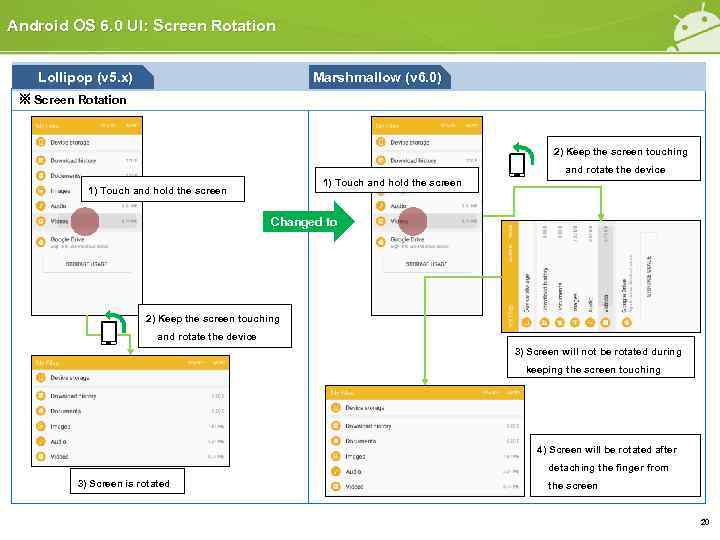 Android OS 6. 0 UI: Screen Rotation Lollipop (v 5. x) Marshmallow (v 6. 0) ※ Screen Rotation 2) Keep the screen touching and rotate the device 1) Touch and hold the screen Changed to 2) Keep the screen touching and rotate the device 3) Screen will not be rotated during keeping the screen touching 4) Screen will be rotated after detaching the finger from 3) Screen is rotated the screen 20
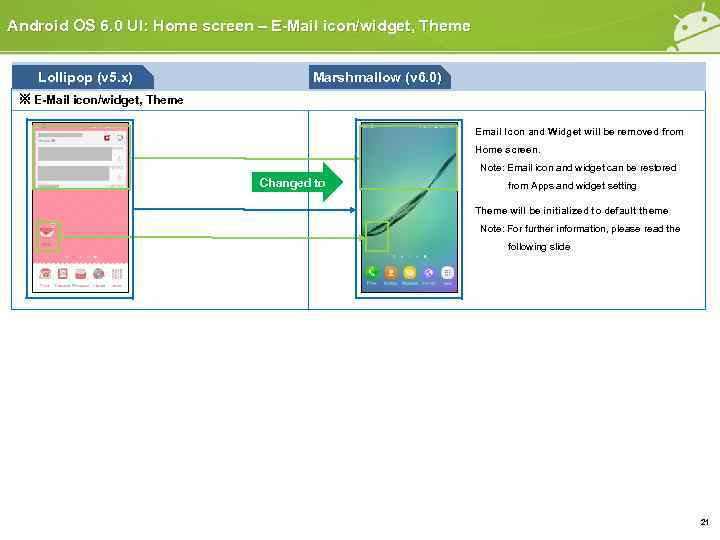 Android OS 6. 0 UI: Home screen – E-Mail icon/widget, Theme Lollipop (v 5. x) Marshmallow (v 6. 0) ※ E-Mail icon/widget, Theme Email Icon and Widget will be removed from Home screen. Note: Email icon and widget can be restored Changed to from Apps and widget setting Theme will be initialized to default theme Note: For further information, please read the following slide 21
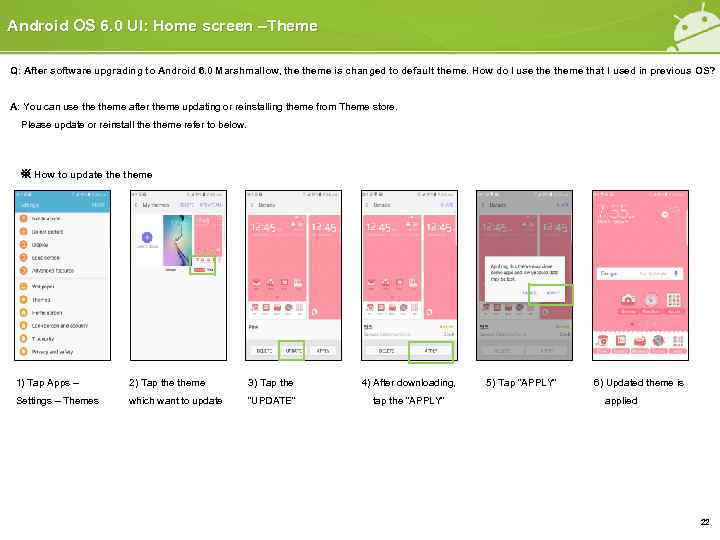 Android OS 6. 0 UI: Home screen –Theme Q: After software upgrading to Android 6. 0 Marshmallow, theme is changed to default theme. How do I use theme that I used in previous OS? A: You can use theme after theme updating or reinstalling theme from Theme store. Please update or reinstall theme refer to below. ※ How to update theme 1) Tap Apps – 2) Tap theme 3) Tap the 4) After downloading, Settings – Themes which want to update “UPDATE” tap the “APPLY” 5) Tap “APPLY” 6) Updated theme is applied 22
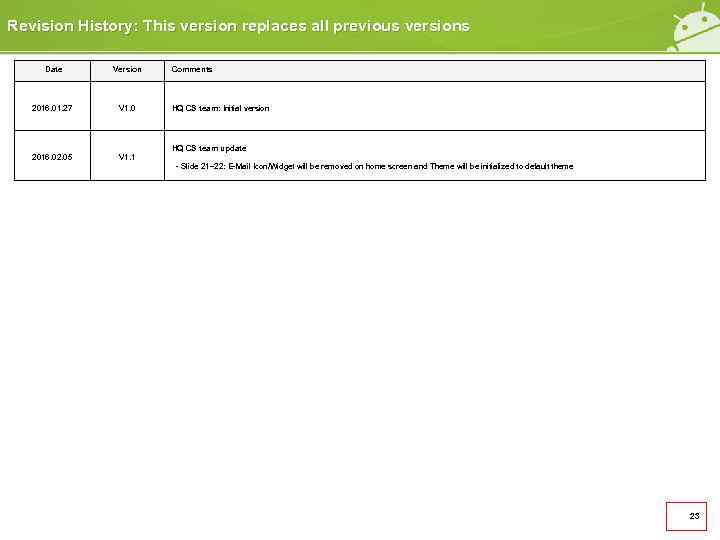 Revision History: This version replaces all previous versions Date Version 2016. 01. 27 V 1. 0 2016. 02. 05 Comments V 1. 1 HQ CS team: Initial version HQ CS team update - Slide 21~22: E-Mail Icon/Widget will be removed on home screen and Theme will be initialized to default theme 23
 Spec: Notice: All functionality, features, specifications and other product information provided in this document including, but not limited to, the benefits, design, pricing, components, performance, availability, and capabilities of the product are subject to change without notice or obligation. Samsung reserves the right to make changes to this document and the product described herein, at anytime, without obligation on Samsung to provide notification of such change. 24
 END Customer Consultant Guide Android mobile technology platform Language : English 25