



 Android 4. 0 user Guide 1
 Index Select one of the following topics and discover functionality ALCATEL ONETOUCH Smartphone • • Set up your phone • Get around • Use the lock screen • Search your phone & the web • Make yourself at home • Set ringtone & other sounds • • Arrange & work with apps • Add widgets • Manage notifications • Use your Camera • Tune performance • Use the Apps screen • Learn the Phone app • Enter & edit text Touch & Type • Get your contacts Make a phone call 2
 Índice Select one of the following topics and discover functionality ALCATEL ONETOUCH Smartphone • Tips & shortcuts • Connect to networks & devices • Connect to a Windows computer via USB • Share your mobile data connection • Search by text & voice • Manage accounts • Change backup & reset options • Secure your phone 3
 4
4
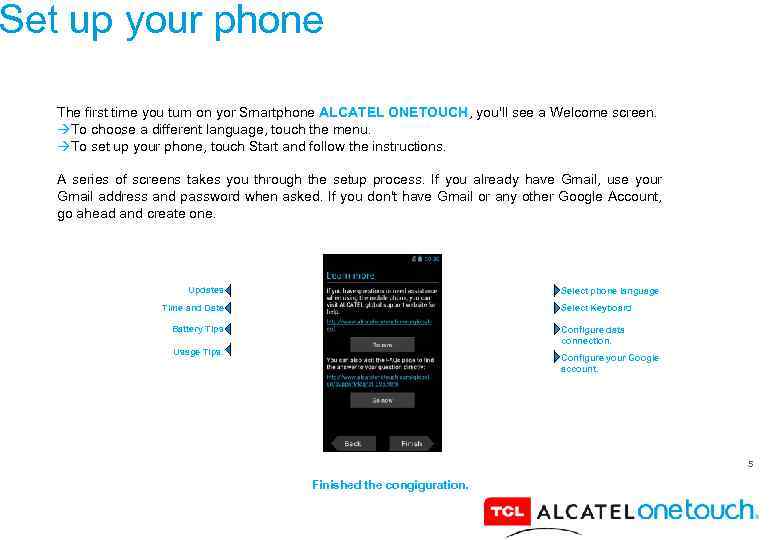 Set up your phone The first time you turn on yor Smartphone ALCATEL ONETOUCH, you'll see a Welcome screen. To choose a different language, touch the menu. To set up your phone, touch Start and follow the instructions. A series of screens takes you through the setup process. If you already have Gmail, use your Gmail address and password when asked. If you don't have Gmail or any other Google Account, go ahead and create one. Updates Select phone language Time and Date Select Keyboard Battery Tips Configure data connection. Usage Tips. Configure your Google account. 5 Finished the congiguration.
 Set up your phone Why use a Google Account? A Google Account lets you organize and access your personal information from any computer or mobile device: Never lose your contacts again. When you sign in to your phone with a Google account, all the contacts you associate with that account in the People app are automatically backed up. As a result, they're always accessible through your Gmail account from any computer. Synchronize and back up everything. Whether you draft an email, add a contact's phone number, add an event to your calendar, or take a photo, your work gets backed up continuously by Google and synchronized with any computer where you use the same Google Account. Access from anywhere. Check your latest calendar, email, text messages, or social stream, wherever you are, no matter what computer or mobile device you're using. Keep your stuff secure and available. Google works round the clock to protect your personal data from unauthorized access and to ensure that you get it when you need it, wherever you need it. Use other Google services. Your Google Account also lets you take full advantage of any other Google apps and services that you may want to use, such as Gmail, Google Maps, Navigation, Android Market, You. Tube, Google Talk, Messaging, and many more. 6
 7
7
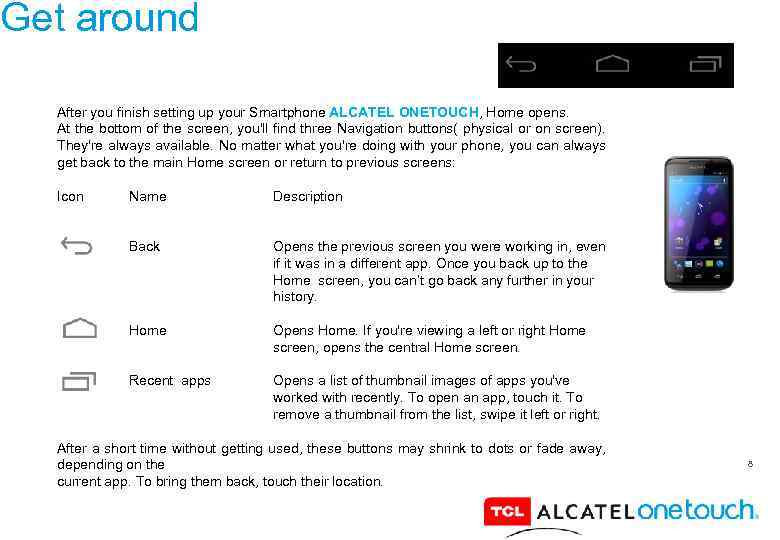 Get around After you finish setting up your Smartphone ALCATEL ONETOUCH, Home opens. At the bottom of the screen, you'll find three Navigation buttons( physical or on screen). They're always available. No matter what you're doing with your phone, you can always get back to the main Home screen or return to previous screens: Icon Name Description Back Opens the previous screen you were working in, even if it was in a different app. Once you back up to the Home screen, you can’t go back any further in your history. Home Opens Home. If you're viewing a left or right Home screen, opens the central Home screen. Recent apps Opens a list of thumbnail images of apps you've worked with recently. To open an app, touch it. To remove a thumbnail from the list, swipe it left or right. After a short time without getting used, these buttons may shrink to dots or fade away, depending on the current app. To bring them back, touch their location. 8
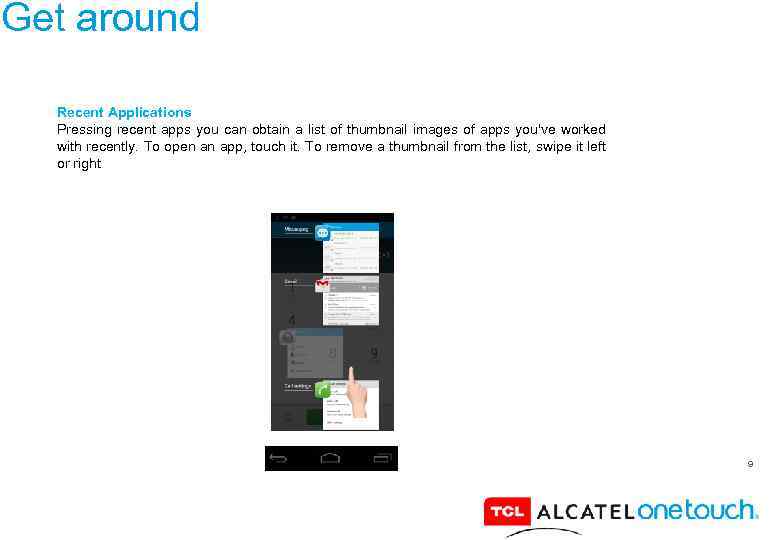 Get around Recent Applications Pressing recent apps you can obtain a list of thumbnail images of apps you've worked with recently. To open an app, touch it. To remove a thumbnail from the list, swipe it left or right 9
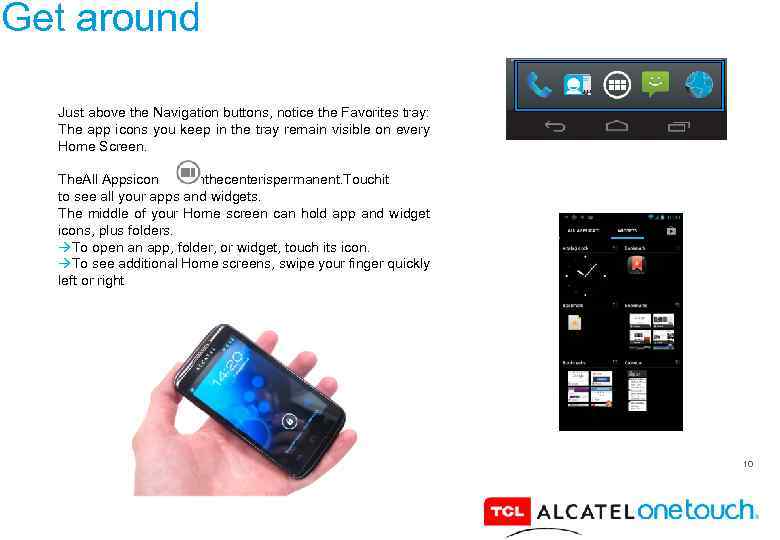 Get around Just above the Navigation buttons, notice the Favorites tray: The app icons you keep in the tray remain visible on every Home Screen. The. All Appsicon inthecenterispermanent. Touchit to see all your apps and widgets. The middle of your Home screen can hold app and widget icons, plus folders. To open an app, folder, or widget, touch its icon. To see additional Home screens, swipe your finger quickly left or right 10
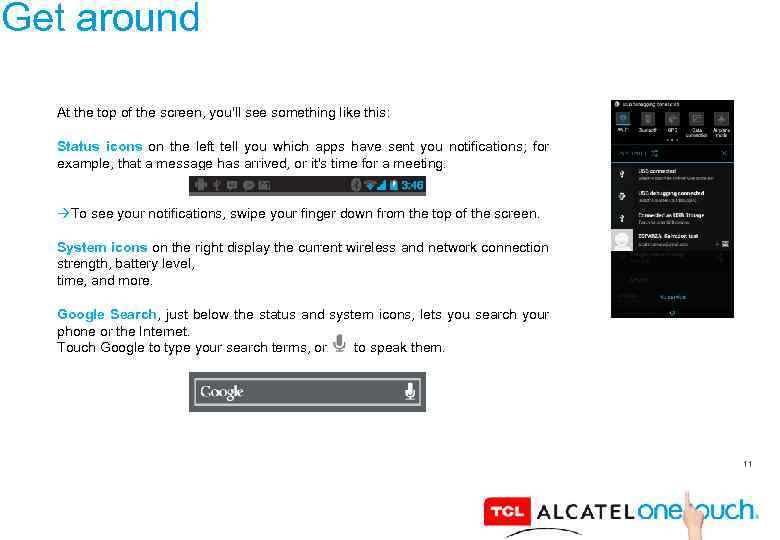 Get around At the top of the screen, you'll see something like this: Status icons on the left tell you which apps have sent you notifications; for example, that a message has arrived, or it's time for a meeting. To see your notifications, swipe your finger down from the top of the screen. System icons on the right display the current wireless and network connection strength, battery level, time, and more. Google Search, just below the status and system icons, lets you search your phone or the Internet. Touch Google to type your search terms, or to speak them. 11
 12
12
 Touch & type Use your fingers to manipulate icons, buttons, menus, the onscreen keyboard, and other items on the touchscreen. You can also change the screen's orientation. To select or activate something, touch it. To type something, such as a name, password, or search terms, just touch where you want to type. A keyboard pops up that lets you type into the field. Other common gestures include: Touch & hold: Touch & hold an item on the screen by touching it and not lifting your finger until an action occurs. Drag: Touch & hold an item for a moment and then, without lifting your finger, move your finger on the screen until you reach the target position. For example, you can drag to reposition shortcuts on the Home screen. Swipe or slide: Quickly move your finger across the surface of the screen, without pausing when you first touch (so you don't drag something instead). For example, you can slide a Home screen left or right to view the other Home screens. Double-tap: Tap quickly twice on a webpage, map, or other screen to zoom. For example, doubletap a webpage in Browser to zoom in, and double-tap again to zoom out. Pinch: In some apps (such as Maps, Browser, and Gallery), you can zoom in and out by placing two fingers on the screen at once and pinching them together (to zoom out) or spreading them apart (to zoom in). 13
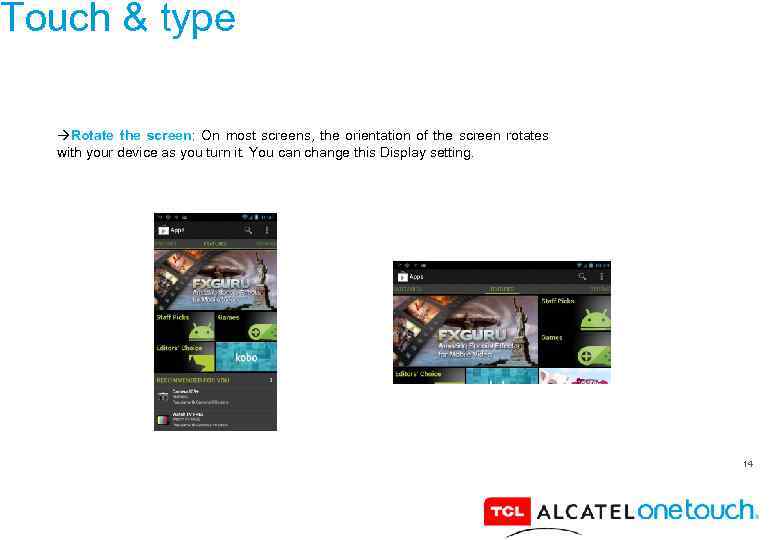 Touch & type Rotate the screen: On most screens, the orientation of the screen rotates with your device as you turn it. You can change this Display setting. 14
 15
15
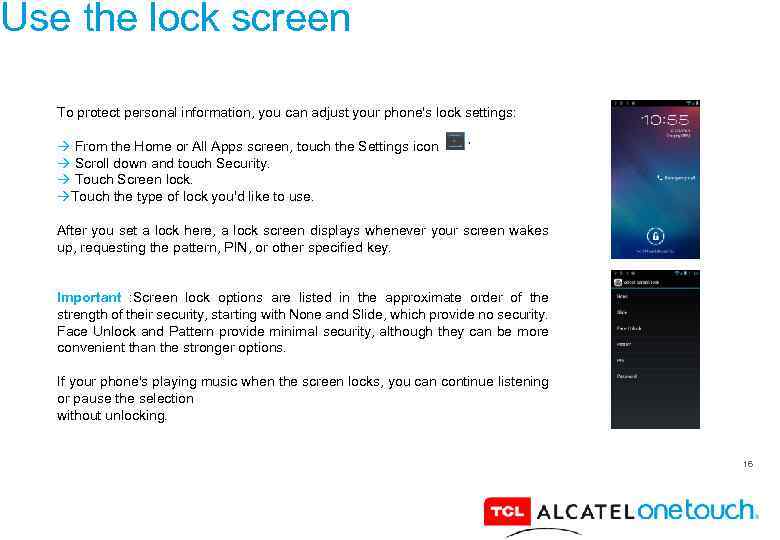 Use the lock screen To protect personal information, you can adjust your phone's lock settings: From the Home or All Apps screen, touch the Settings icon. Scroll down and touch Security. Touch Screen lock. Touch the type of lock you'd like to use. After you set a lock here, a lock screen displays whenever your screen wakes up, requesting the pattern, PIN, or other specified key. Important : Screen lock options are listed in the approximate order of the strength of their security, starting with None and Slide, which provide no security. Face Unlock and Pattern provide minimal security, although they can be more convenient than the stronger options. If your phone's playing music when the screen locks, you can continue listening or pause the selection without unlocking. 16
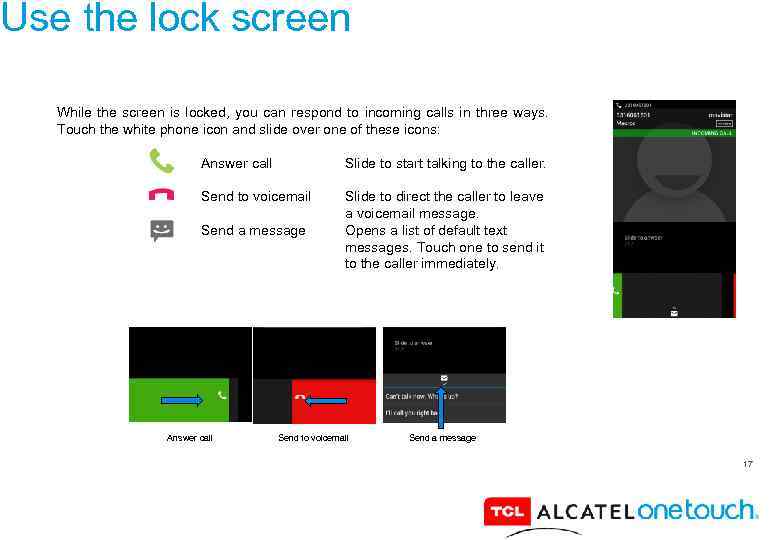 Use the lock screen While the screen is locked, you can respond to incoming calls in three ways. Touch the white phone icon and slide over one of these icons: Answer call Slide to start talking to the caller. Send to voicemail Slide to direct the caller to leave a voicemail message. Opens a list of default text messages. Touch one to send it to the caller immediately. Send a message Answer call Send to voicemail Send a message 17
 18
18
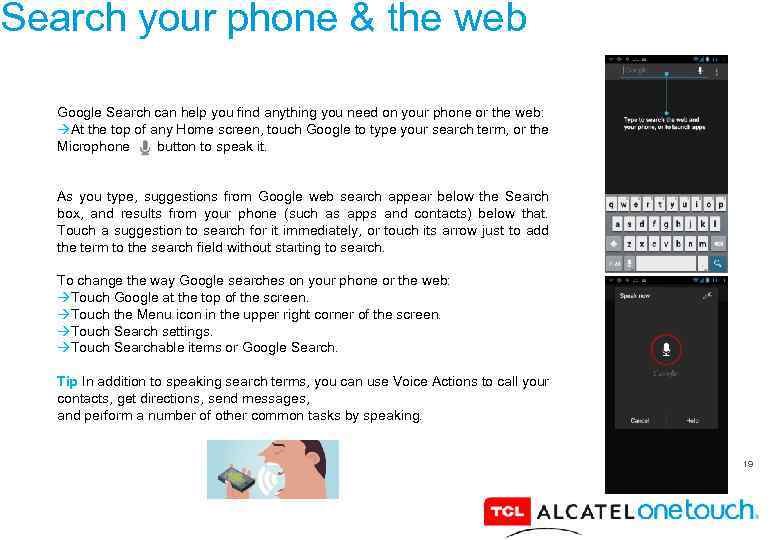 Search your phone & the web Google Search can help you find anything you need on your phone or the web: At the top of any Home screen, touch Google to type your search term, or the Microphone button to speak it. As you type, suggestions from Google web search appear below the Search box, and results from your phone (such as apps and contacts) below that. Touch a suggestion to search for it immediately, or touch its arrow just to add the term to the search field without starting to search. To change the way Google searches on your phone or the web: Touch Google at the top of the screen. Touch the Menu icon in the upper right corner of the screen. Touch Search settings. Touch Searchable items or Google Search. Tip In addition to speaking search terms, you can use Voice Actions to call your contacts, get directions, send messages, and perform a number of other common tasks by speaking. 19
 20
20
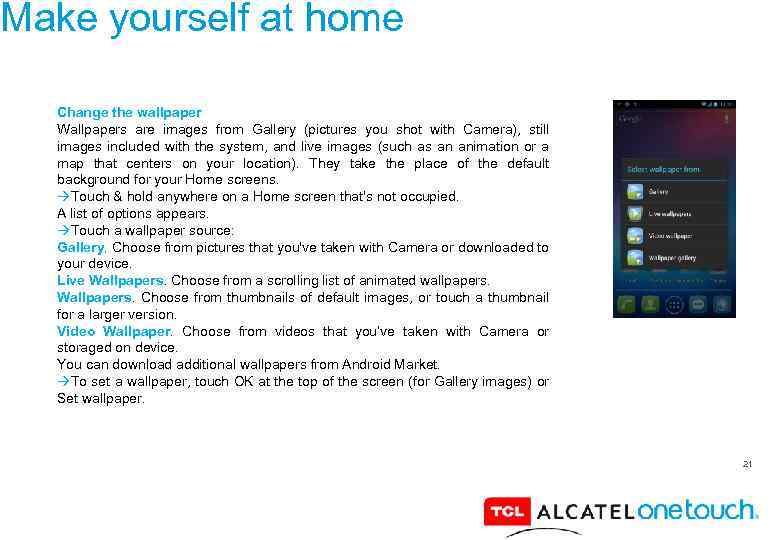 Make yourself at home Change the wallpaper Wallpapers are images from Gallery (pictures you shot with Camera), still images included with the system, and live images (such as an animation or a map that centers on your location). They take the place of the default background for your Home screens. Touch & hold anywhere on a Home screen that's not occupied. A list of options appears. Touch a wallpaper source: Gallery. Choose from pictures that you've taken with Camera or downloaded to your device. Live Wallpapers. Choose from a scrolling list of animated wallpapers. Wallpapers. Choose from thumbnails of default images, or touch a thumbnail for a larger version. Video Wallpaper. Choose from videos that you’ve taken with Camera or storaged on device. You can download additional wallpapers from Android Market. To set a wallpaper, touch OK at the top of the screen (for Gallery images) or Set wallpaper. 21
 22
22
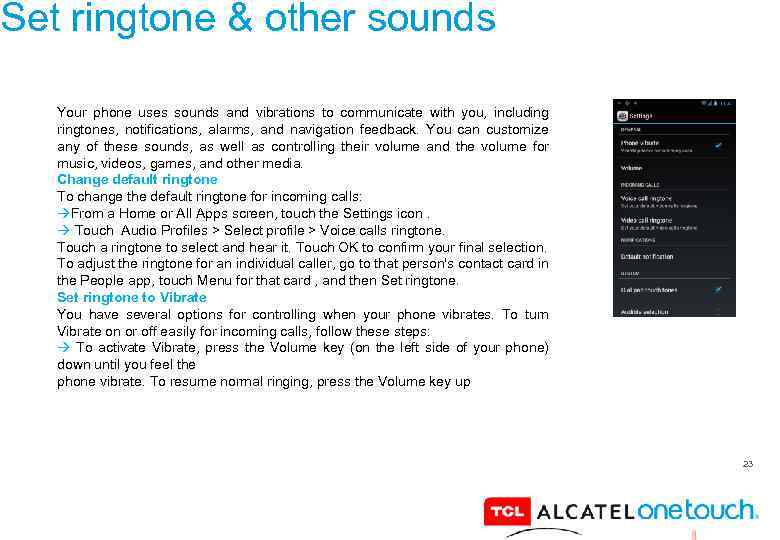 Set ringtone & other sounds Your phone uses sounds and vibrations to communicate with you, including ringtones, notifications, alarms, and navigation feedback. You can customize any of these sounds, as well as controlling their volume and the volume for music, videos, games, and other media. Change default ringtone To change the default ringtone for incoming calls: From a Home or All Apps screen, touch the Settings icon. Touch Audio Profiles > Select profile > Voice calls ringtone. Touch a ringtone to select and hear it. Touch OK to confirm your final selection. To adjust the ringtone for an individual caller, go to that person's contact card in the People app, touch Menu for that card , and then Set ringtone to Vibrate You have several options for controlling when your phone vibrates. To turn Vibrate on or off easily for incoming calls, follow these steps: To activate Vibrate, press the Volume key (on the left side of your phone) down until you feel the phone vibrate. To resume normal ringing, press the Volume key up 23
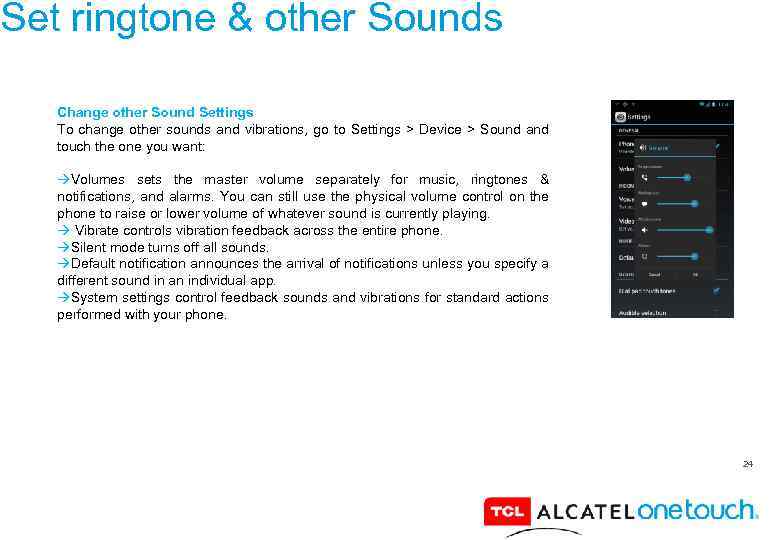 Set ringtone & other Sounds Change other Sound Settings To change other sounds and vibrations, go to Settings > Device > Sound and touch the one you want: Volumes sets the master volume separately for music, ringtones & notifications, and alarms. You can still use the physical volume control on the phone to raise or lower volume of whatever sound is currently playing. Vibrate controls vibration feedback across the entire phone. Silent mode turns off all sounds. Default notification announces the arrival of notifications unless you specify a different sound in an individual app. System settings control feedback sounds and vibrations for standard actions performed with your phone. 24
 25
25
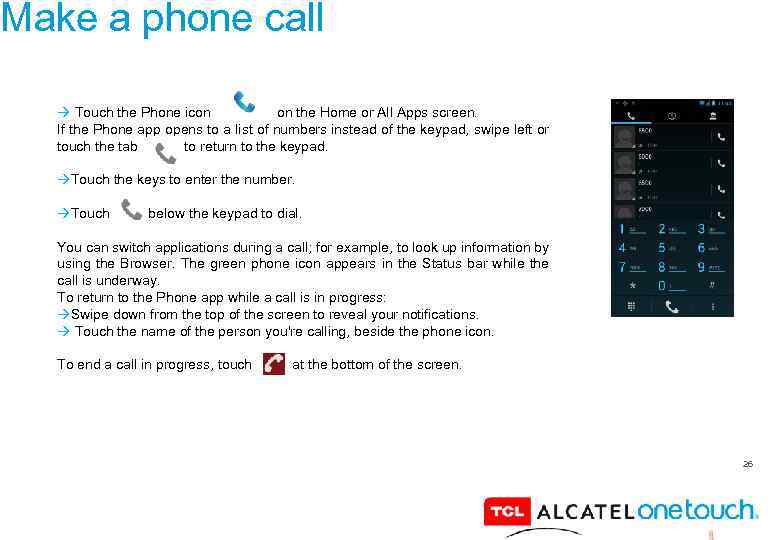 Make a phone call Touch the Phone icon on the Home or All Apps screen. If the Phone app opens to a list of numbers instead of the keypad, swipe left or touch the tab to return to the keypad. Touch the keys to enter the number. Touch below the keypad to dial. You can switch applications during a call; for example, to look up information by using the Browser. The green phone icon appears in the Status bar while the call is underway. To return to the Phone app while a call is in progress: Swipe down from the top of the screen to reveal your notifications. Touch the name of the person you're calling, beside the phone icon. To end a call in progress, touch at the bottom of the screen. 26
 27
27
 Get your contacts If you have a Google Account, any contacts associated with that account are automatically backed up by Google. This means all your contacts are always available on the web and can be synced to any Android phone that's set up with the same account. As a result, even if you lose your phone, switch to a new phone, or use a desktop computer, your contacts are always available. To get your phone numbers and other contact information into your Google account, you have options: Import your contacts directly into your phone from your SIM card. See the instructions below. Regardless of the method, you only need to import your contacts once. After you start using a Google Account, all your contacts stay in sync, even if you get a new phone or other mobile device. To view your contacts: 28
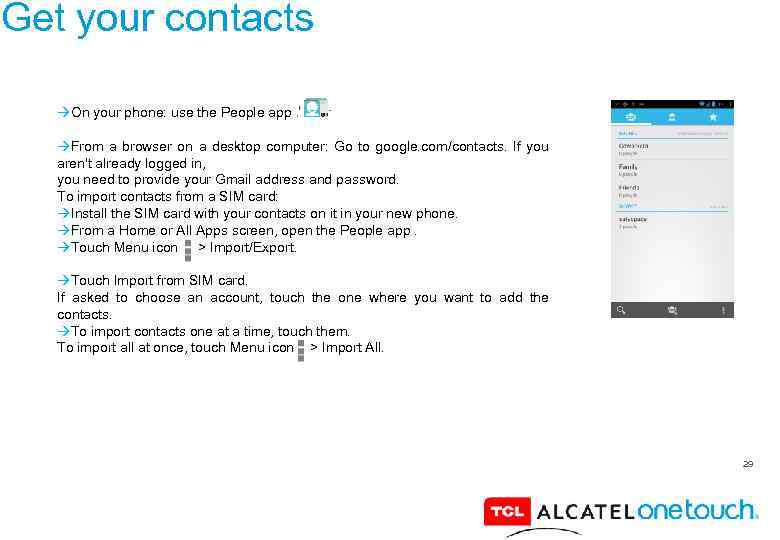 Get your contacts On your phone: use the People app. From a browser on a desktop computer: Go to google. com/contacts. If you aren't already logged in, you need to provide your Gmail address and password. To import contacts from a SIM card: Install the SIM card with your contacts on it in your new phone. From a Home or All Apps screen, open the People app. Touch Menu icon > Import/Export. Touch Import from SIM card. If asked to choose an account, touch the one where you want to add the contacts. To import contacts one at a time, touch them. To import all at once, touch Menu icon > Import All. 29
 30
30
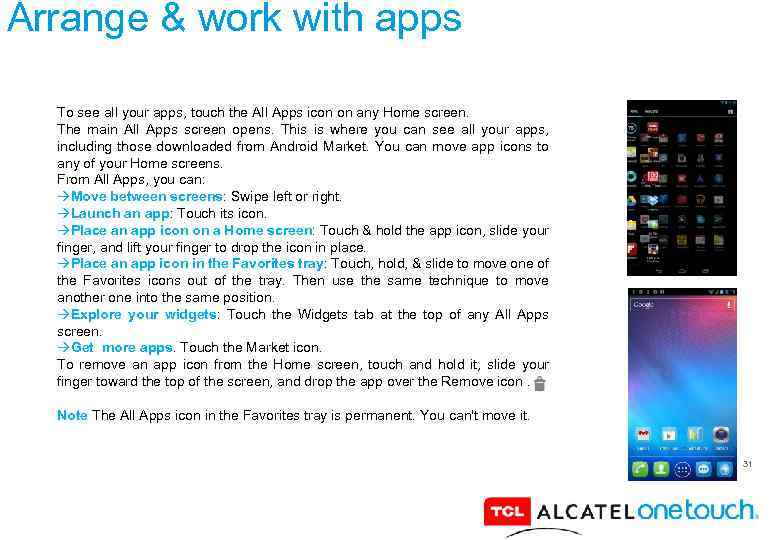 Arrange & work with apps To see all your apps, touch the All Apps icon on any Home screen. The main All Apps screen opens. This is where you can see all your apps, including those downloaded from Android Market. You can move app icons to any of your Home screens. From All Apps, you can: Move between screens: Swipe left or right. Launch an app: Touch its icon. Place an app icon on a Home screen: Touch & hold the app icon, slide your finger, and lift your finger to drop the icon in place. Place an app icon in the Favorites tray: Touch, hold, & slide to move one of the Favorites icons out of the tray. Then use the same technique to move another one into the same position. Explore your widgets: Touch the Widgets tab at the top of any All Apps screen. Get more apps. Touch the Market icon. To remove an app icon from the Home screen, touch and hold it, slide your finger toward the top of the screen, and drop the app over the Remove icon. Note The All Apps icon in the Favorites tray is permanent. You can't move it. 31
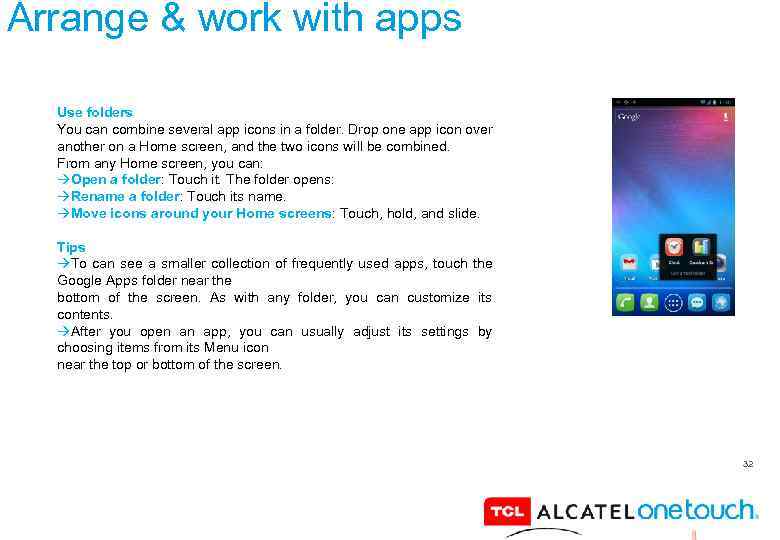 Arrange & work with apps Use folders You can combine several app icons in a folder. Drop one app icon over another on a Home screen, and the two icons will be combined. From any Home screen, you can: Open a folder: Touch it. The folder opens: Rename a folder: Touch its name. Move icons around your Home screens: Touch, hold, and slide. Tips To can see a smaller collection of frequently used apps, touch the Google Apps folder near the bottom of the screen. As with any folder, you can customize its contents. After you open an app, you can usually adjust its settings by choosing items from its Menu icon near the top or bottom of the screen. 32
 33
33
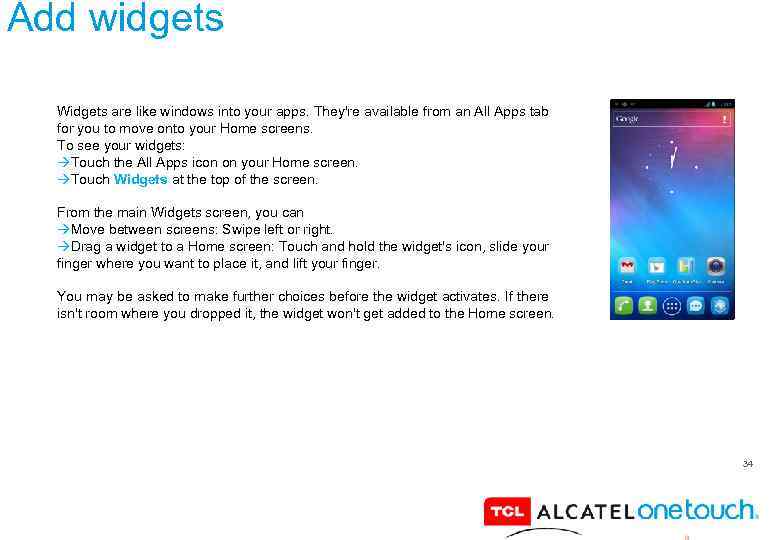 Add widgets Widgets are like windows into your apps. They're available from an All Apps tab for you to move onto your Home screens. To see your widgets: Touch the All Apps icon on your Home screen. Touch Widgets at the top of the screen. From the main Widgets screen, you can Move between screens: Swipe left or right. Drag a widget to a Home screen: Touch and hold the widget's icon, slide your finger where you want to place it, and lift your finger. You may be asked to make further choices before the widget activates. If there isn't room where you dropped it, the widget won't get added to the Home screen. 34
 35
35
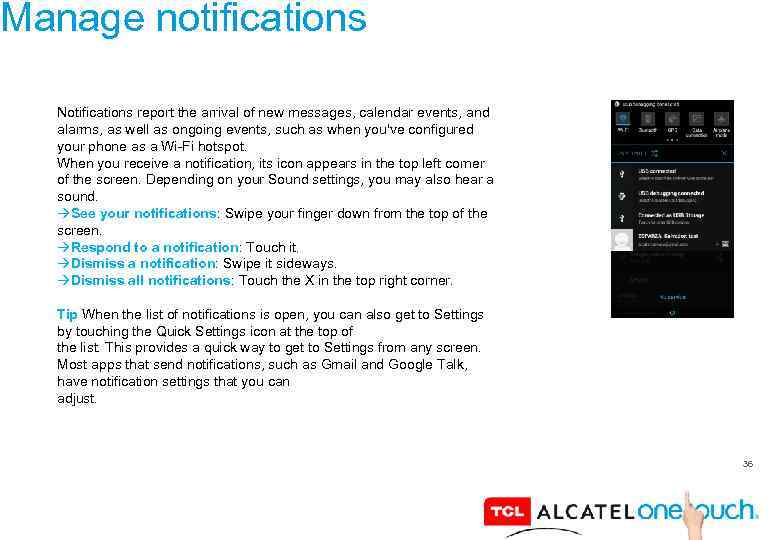 Manage notifications Notifications report the arrival of new messages, calendar events, and alarms, as well as ongoing events, such as when you've configured your phone as a Wi-Fi hotspot. When you receive a notification, its icon appears in the top left corner of the screen. Depending on your Sound settings, you may also hear a sound. See your notifications: Swipe your finger down from the top of the screen. Respond to a notification: Touch it. Dismiss a notification: Swipe it sideways. Dismiss all notifications: Touch the X in the top right corner. Tip When the list of notifications is open, you can also get to Settings by touching the Quick Settings icon at the top of the list. This provides a quick way to get to Settings from any screen. Most apps that send notifications, such as Gmail and Google Talk, have notification settings that you can adjust. 36
 37
37
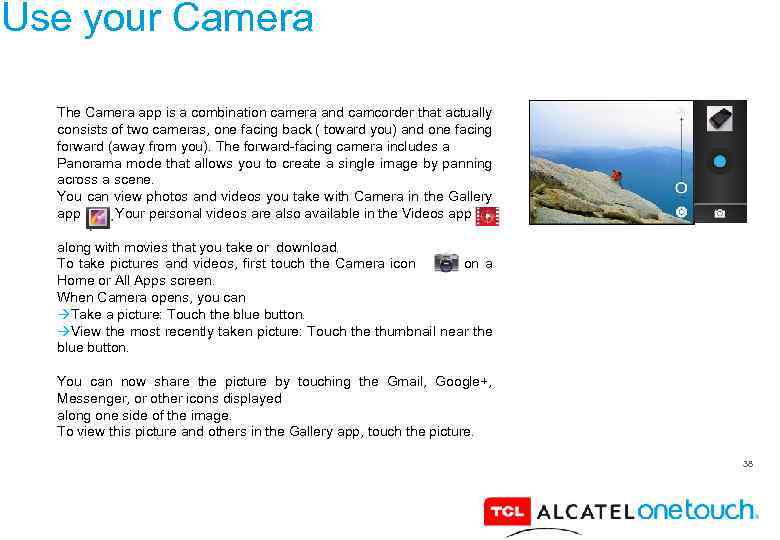 Use your Camera The Camera app is a combination camera and camcorder that actually consists of two cameras, one facing back ( toward you) and one facing forward (away from you). The forward-facing camera includes a Panorama mode that allows you to create a single image by panning across a scene. You can view photos and videos you take with Camera in the Gallery app. Your personal videos are also available in the Videos app along with movies that you take or download. To take pictures and videos, first touch the Camera icon on a Home or All Apps screen. When Camera opens, you can Take a picture: Touch the blue button. View the most recently taken picture: Touch the thumbnail near the blue button. You can now share the picture by touching the Gmail, Google+, Messenger, or other icons displayed along one side of the image. To view this picture and others in the Gallery app, touch the picture. 38
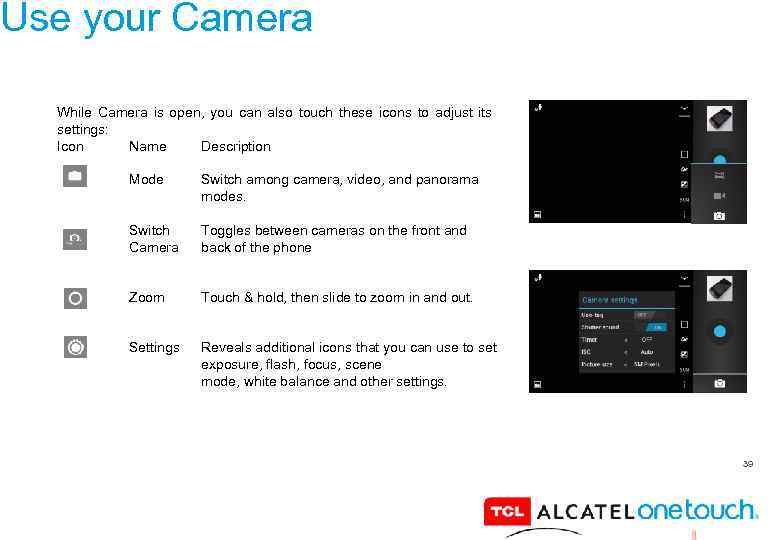 Use your Camera While Camera is open, you can also touch these icons to adjust its settings: Icon Name Description Mode Switch among camera, video, and panorama modes. Switch Camera Toggles between cameras on the front and back of the phone Zoom Touch & hold, then slide to zoom in and out. Settings Reveals additional icons that you can use to set exposure, flash, focus, scene mode, white balance and other settings. 39
 40
40
 Tune performance Optimize battery life You can extend your battery's life between charges by turning off features that you don't need. You can also monitor how apps and system resources consume battery power. To adjust the settings described here, first touch the Settings icon on a Home or All Apps screen. Extend the life of your battery • If you aren't using Wi-Fi, Bluetooth, or GPS, use the Settings app to turn them off. The GPS setting is located in Settings > Personal > Location services. • Don't leave the Maps or Navigation apps open on the screen when you're not using them. They use GPS (and thus more power) only when they're running. • Turn down screen brightness and set a shorter Sleep timeout: Settings > Device > Display. • If you don't need it, turn off automatic syncing for all apps: Settings > Personal > Accounts & sync. Note that this means you need to sync manually to collect messages, email, and other recent information, and won't receive notifications when updates occur. • If you know you won't be near a mobile or Wi-Fi network for a while, switch to Airplane mode: Press and hold the power switch until the Phone options dialog appears. Then touch Airplane Mode. 41
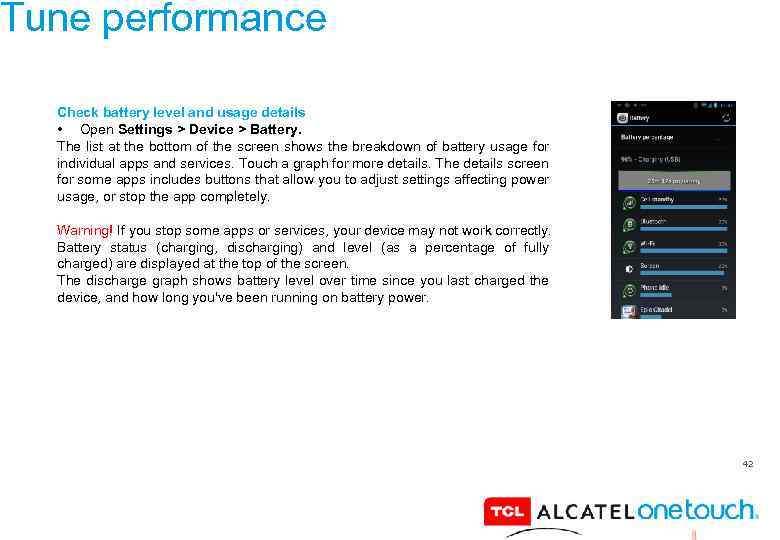 Tune performance Check battery level and usage details • Open Settings > Device > Battery. The list at the bottom of the screen shows the breakdown of battery usage for individual apps and services. Touch a graph for more details. The details screen for some apps includes buttons that allow you to adjust settings affecting power usage, or stop the app completely. Warning! If you stop some apps or services, your device may not work correctly. Battery status (charging, discharging) and level (as a percentage of fully charged) are displayed at the top of the screen. The discharge graph shows battery level over time since you last charged the device, and how long you've been running on battery power. 42
 Tune performance Optimize data usage Data usage refers to the amount of data uploaded or downloaded by your device during a given period. Depending on the device and your wireless plan, you may be charged additional fees when your data usage exceeds your plan's limit. To monitor your data usage, adjust your data usage settings. First check your plan and determine what data limits may apply. Warning! The usage displayed on the data usage settings screen is measured by your phone. Your carrier's data usage accounting may differ. Usage in excess of your carrier plan's data limits can result in steep overage charges. The feature described here can help you track your usage, but is not guaranteed to prevent additional charges. Data usage settings allow you to: • Set the data usage level at which you'll receive a warning. • Set a data usage limit. • View or restrict data usage by app. 43
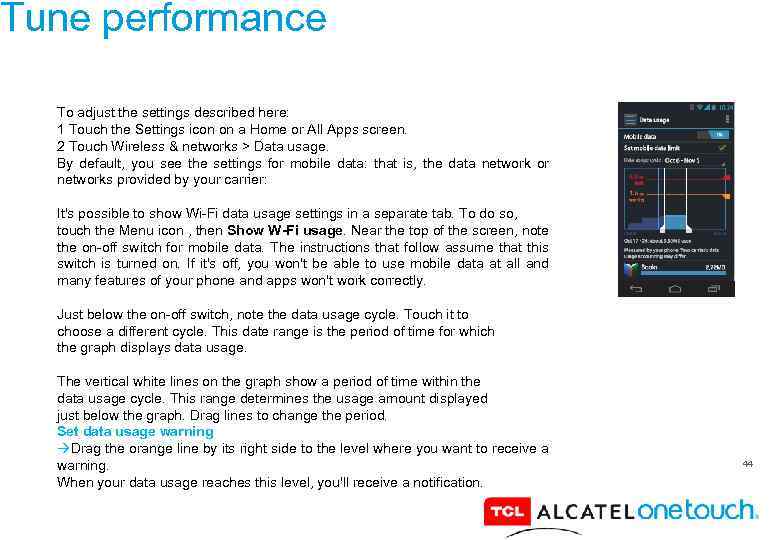 Tune performance To adjust the settings described here: 1 Touch the Settings icon on a Home or All Apps screen. 2 Touch Wireless & networks > Data usage. By default, you see the settings for mobile data: that is, the data network or networks provided by your carrier: It's possible to show Wi-Fi data usage settings in a separate tab. To do so, touch the Menu icon , then Show W-Fi usage. Near the top of the screen, note the on-off switch for mobile data. The instructions that follow assume that this switch is turned on. If it's off, you won't be able to use mobile data at all and many features of your phone and apps won't work correctly. Just below the on-off switch, note the data usage cycle. Touch it to choose a different cycle. This date range is the period of time for which the graph displays data usage. The vertical white lines on the graph show a period of time within the data usage cycle. This range determines the usage amount displayed just below the graph. Drag lines to change the period. Set data usage warning Drag the orange line by its right side to the level where you want to receive a warning. When your data usage reaches this level, you'll receive a notification. 44
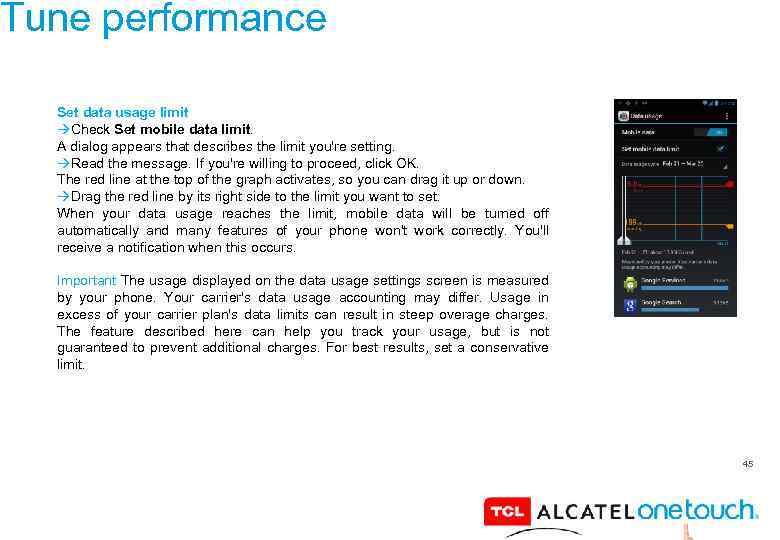 Tune performance Set data usage limit Check Set mobile data limit. A dialog appears that describes the limit you're setting. Read the message. If you're willing to proceed, click OK. The red line at the top of the graph activates, so you can drag it up or down. Drag the red line by its right side to the limit you want to set. When your data usage reaches the limit, mobile data will be turned off automatically and many features of your phone won't work correctly. You'll receive a notification when this occurs. Important The usage displayed on the data usage settings screen is measured by your phone. Your carrier's data usage accounting may differ. Usage in excess of your carrier plan's data limits can result in steep overage charges. The feature described here can help you track your usage, but is not guaranteed to prevent additional charges. For best results, set a conservative limit. 45
 46
46
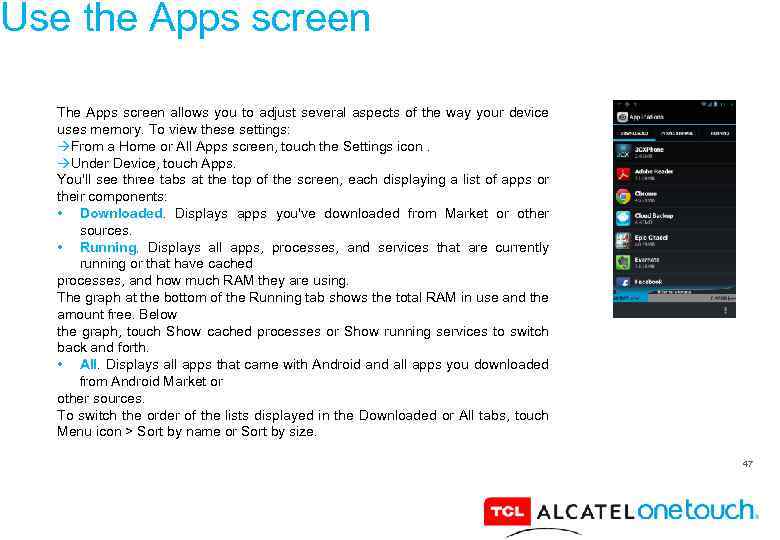 Use the Apps screen The Apps screen allows you to adjust several aspects of the way your device uses memory. To view these settings: From a Home or All Apps screen, touch the Settings icon. Under Device, touch Apps. You'll see three tabs at the top of the screen, each displaying a list of apps or their components: • Downloaded. Displays apps you've downloaded from Market or other sources. • Running. Displays all apps, processes, and services that are currently running or that have cached processes, and how much RAM they are using. The graph at the bottom of the Running tab shows the total RAM in use and the amount free. Below the graph, touch Show cached processes or Show running services to switch back and forth. • All. Displays all apps that came with Android and all apps you downloaded from Android Market or other sources. To switch the order of the lists displayed in the Downloaded or All tabs, touch Menu icon > Sort by name or Sort by size. 47
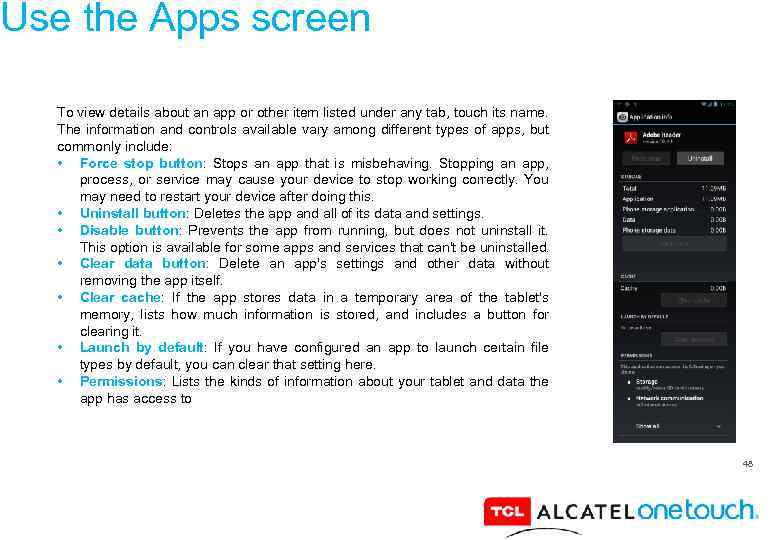 Use the Apps screen To view details about an app or other item listed under any tab, touch its name. The information and controls available vary among different types of apps, but commonly include: • Force stop button: Stops an app that is misbehaving. Stopping an app, process, or service may cause your device to stop working correctly. You may need to restart your device after doing this. • Uninstall button: Deletes the app and all of its data and settings. • Disable button: Prevents the app from running, but does not uninstall it. This option is available for some apps and services that can't be uninstalled. • Clear data button: Delete an app's settings and other data without removing the app itself. • Clear cache: If the app stores data in a temporary area of the tablet's memory, lists how much information is stored, and includes a button for clearing it. • Launch by default: If you have configured an app to launch certain file types by default, you can clear that setting here. • Permissions: Lists the kinds of information about your tablet and data the app has access to 48
 49
49
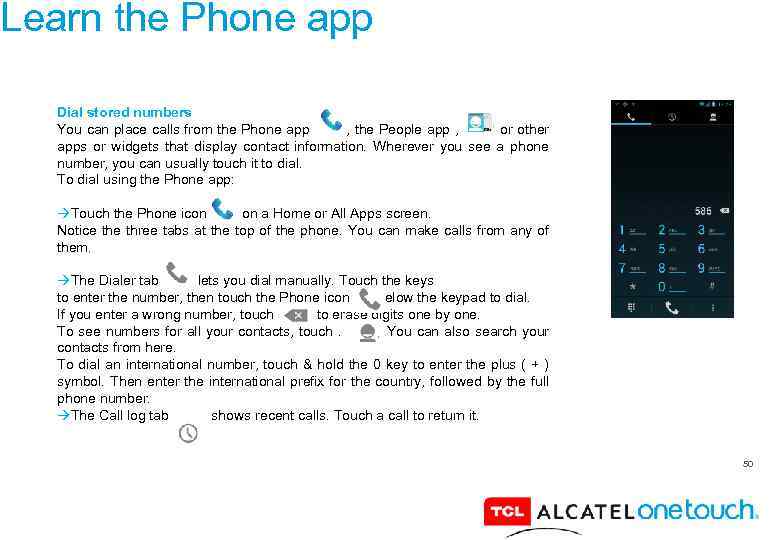 Learn the Phone app Dial stored numbers You can place calls from the Phone app , the People app , or other apps or widgets that display contact information. Wherever you see a phone number, you can usually touch it to dial. To dial using the Phone app: Touch the Phone icon on a Home or All Apps screen. Notice three tabs at the top of the phone. You can make calls from any of them. The Dialer tab lets you dial manually. Touch the keys to enter the number, then touch the Phone icon below the keypad to dial. If you enter a wrong number, touch to erase digits one by one. To see numbers for all your contacts, touch. You can also search your contacts from here. To dial an international number, touch & hold the 0 key to enter the plus ( + ) symbol. Then enter the international prefix for the country, followed by the full phone number. The Call log tab shows recent calls. Touch a call to return it. 50
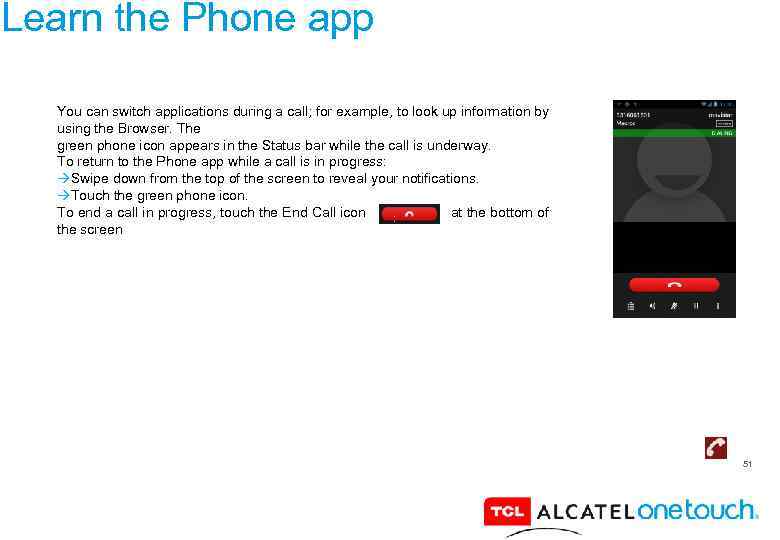 Learn the Phone app You can switch applications during a call; for example, to look up information by using the Browser. The green phone icon appears in the Status bar while the call is underway. To return to the Phone app while a call is in progress: Swipe down from the top of the screen to reveal your notifications. Touch the green phone icon. To end a call in progress, touch the End Call icon at the bottom of the screen 51
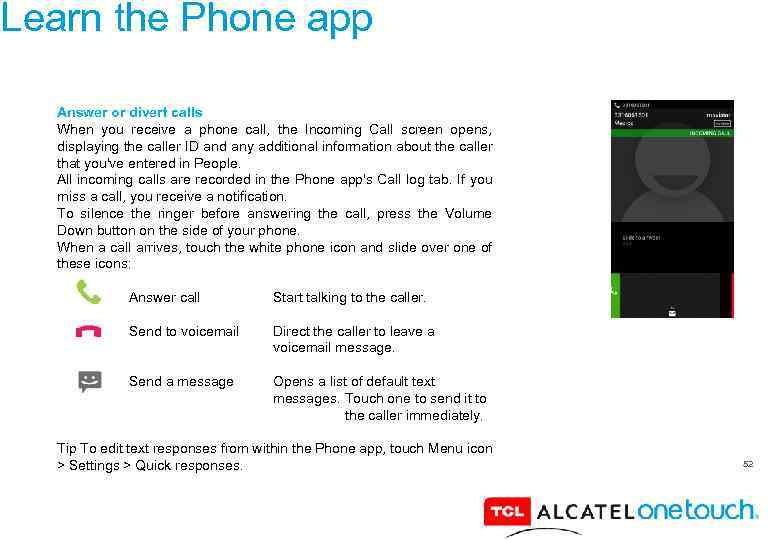 Learn the Phone app Answer or divert calls When you receive a phone call, the Incoming Call screen opens, displaying the caller ID and any additional information about the caller that you've entered in People. All incoming calls are recorded in the Phone app's Call log tab. If you miss a call, you receive a notification. To silence the ringer before answering the call, press the Volume Down button on the side of your phone. When a call arrives, touch the white phone icon and slide over one of these icons: Answer call Start talking to the caller. Send to voicemail Direct the caller to leave a voicemail message. Send a message Opens a list of default text messages. Touch one to send it to the caller immediately. Tip To edit text responses from within the Phone app, touch Menu icon > Settings > Quick responses. 52
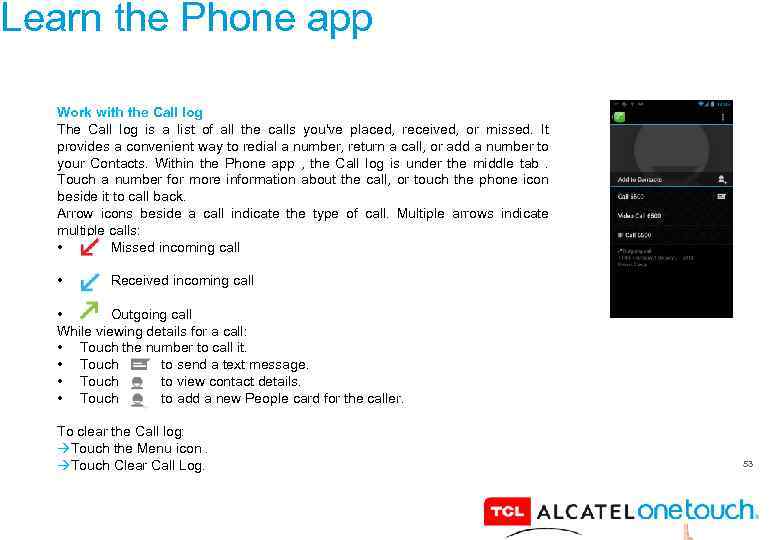 Learn the Phone app Work with the Call log The Call log is a list of all the calls you've placed, received, or missed. It provides a convenient way to redial a number, return a call, or add a number to your Contacts. Within the Phone app , the Call log is under the middle tab. Touch a number for more information about the call, or touch the phone icon beside it to call back. Arrow icons beside a call indicate the type of call. Multiple arrows indicate multiple calls: • Missed incoming call • Received incoming call • Outgoing call While viewing details for a call: • Touch the number to call it. • Touch to send a text message. • Touch to view contact details. • Touch to add a new People card for the caller. To clear the Call log: Touch the Menu icon. Touch Clear Call Log. 53
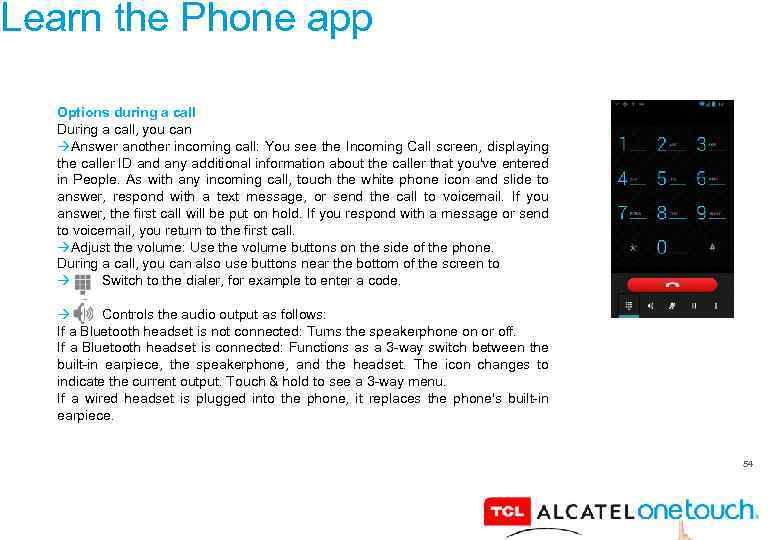 Learn the Phone app Options during a call During a call, you can Answer another incoming call: You see the Incoming Call screen, displaying the caller ID and any additional information about the caller that you've entered in People. As with any incoming call, touch the white phone icon and slide to answer, respond with a text message, or send the call to voicemail. If you answer, the first call will be put on hold. If you respond with a message or send to voicemail, you return to the first call. Adjust the volume: Use the volume buttons on the side of the phone. During a call, you can also use buttons near the bottom of the screen to Switch to the dialer, for example to enter a code. Controls the audio output as follows: If a Bluetooth headset is not connected: Turns the speakerphone on or off. If a Bluetooth headset is connected: Functions as a 3 -way switch between the built-in earpiece, the speakerphone, and the headset. The icon changes to indicate the current output. Touch & hold to see a 3 -way menu. If a wired headset is plugged into the phone, it replaces the phone's built-in earpiece. 54
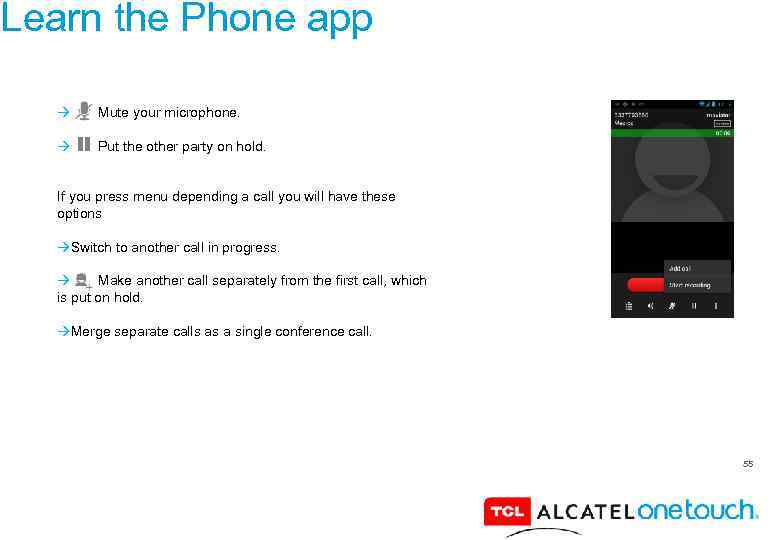 Learn the Phone app Mute your microphone. Put the other party on hold. If you press menu depending a call you will have these options Switch to another call in progress. Make another call separately from the first call, which is put on hold. Merge separate calls as a single conference call. 55
 56
56
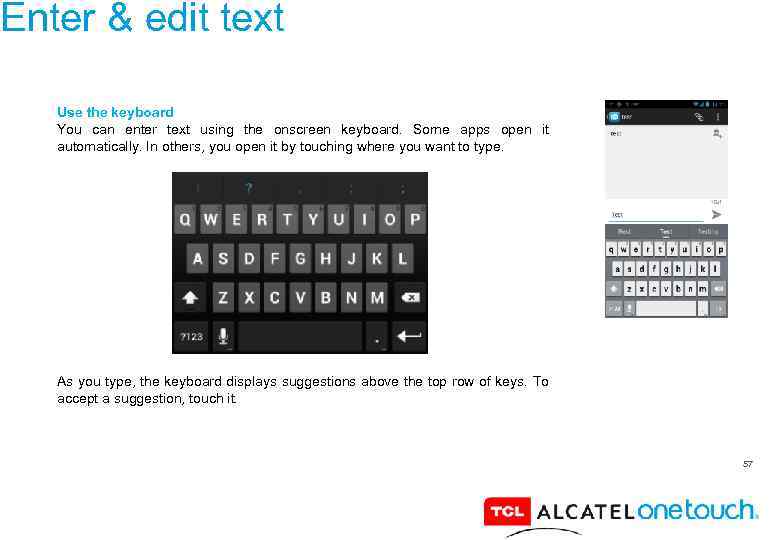 Enter & edit text Use the keyboard You can enter text using the onscreen keyboard. Some apps open it automatically. In others, you open it by touching where you want to type. As you type, the keyboard displays suggestions above the top row of keys. To accept a suggestion, touch it. 57
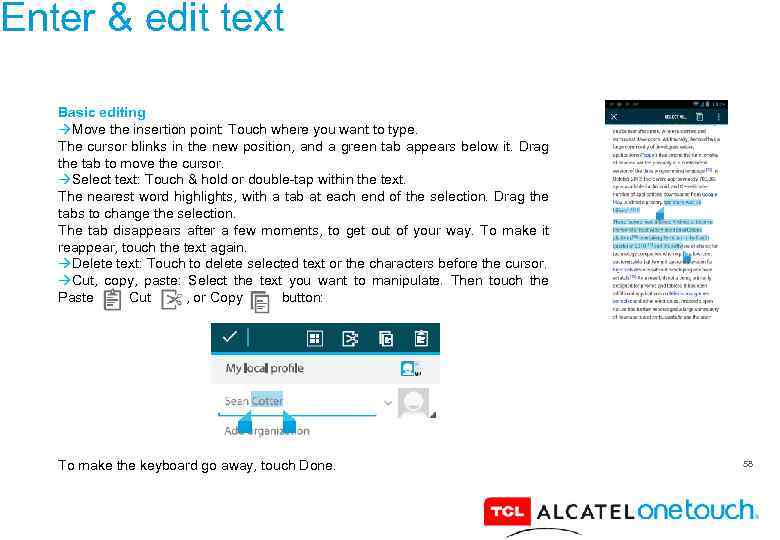 Enter & edit text Basic editing Move the insertion point: Touch where you want to type. The cursor blinks in the new position, and a green tab appears below it. Drag the tab to move the cursor. Select text: Touch & hold or double-tap within the text. The nearest word highlights, with a tab at each end of the selection. Drag the tabs to change the selection. The tab disappears after a few moments, to get out of your way. To make it reappear, touch the text again. Delete text: Touch to delete selected text or the characters before the cursor. Cut, copy, paste: Select the text you want to manipulate. Then touch the Paste , Cut , or Copy button: To make the keyboard go away, touch Done. 58
 59
59
 Tips & shortcuts Type capital letters: Touch the Shift key once to switch to capital letters for one letter. Or touch & hold the Shift key while you type. When you release the key, the lowercase letters reappear. Turn caps lock on: Double-tap or touch & hold the Shift key , so it changes to. Touch the Shift key again to return to lowercase. Show numbers or symbols: Touch the ? 123 key. To see more choices, touch the = < key. Quickly access common punctuation and symbols: Touch & hold the key to the right of the space bar (period key). Type special characters: Touch & hold the Shift key while you touch a key with a small gray character in its corner to enter the gray character. Touch & hold any key to see alternative letters, symbols, or numbers, which you can then touch to type. 60
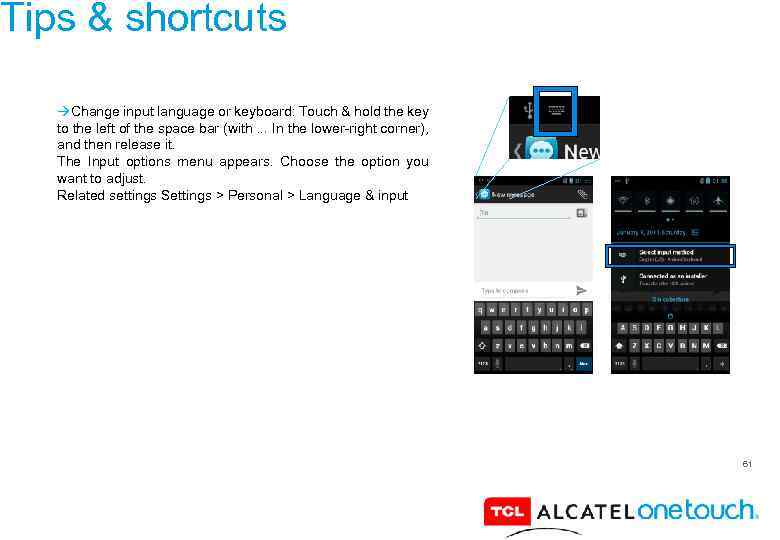 Tips & shortcuts Change input language or keyboard: Touch & hold the key to the left of the space bar (with. . . In the lower-right corner), and then release it. The Input options menu appears. Choose the option you want to adjust. Related settings Settings > Personal > Language & input 61
 62
62
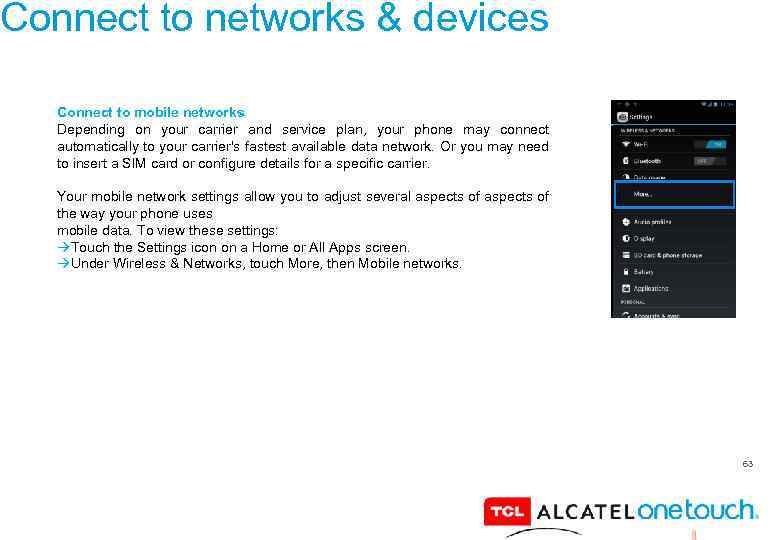 Connect to networks & devices Connect to mobile networks Depending on your carrier and service plan, your phone may connect automatically to your carrier's fastest available data network. Or you may need to insert a SIM card or configure details for a specific carrier. Your mobile network settings allow you to adjust several aspects of the way your phone uses mobile data. To view these settings: Touch the Settings icon on a Home or All Apps screen. Under Wireless & Networks, touch More, then Mobile networks. 63
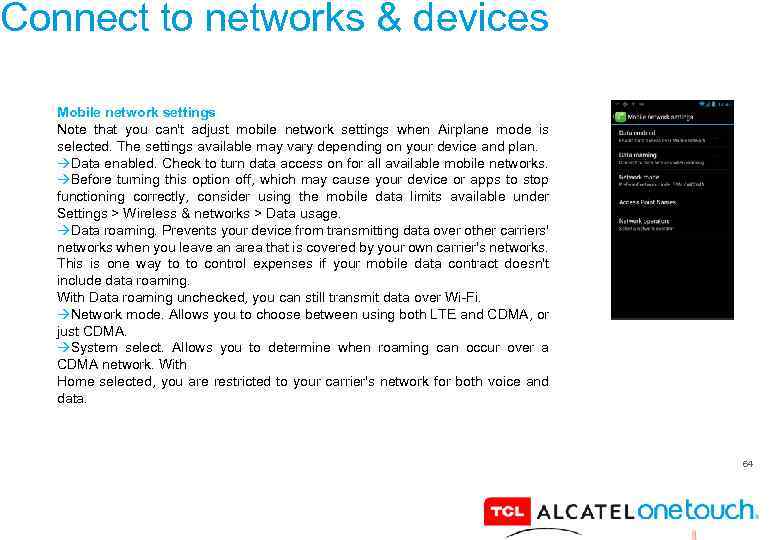 Connect to networks & devices Mobile network settings Note that you can't adjust mobile network settings when Airplane mode is selected. The settings available may vary depending on your device and plan. Data enabled. Check to turn data access on for all available mobile networks. Before turning this option off, which may cause your device or apps to stop functioning correctly, consider using the mobile data limits available under Settings > Wireless & networks > Data usage. Data roaming. Prevents your device from transmitting data over other carriers' networks when you leave an area that is covered by your own carrier's networks. This is one way to to control expenses if your mobile data contract doesn't include data roaming. With Data roaming unchecked, you can still transmit data over Wi-Fi. Network mode. Allows you to choose between using both LTE and CDMA, or just CDMA. System select. Allows you to determine when roaming can occur over a CDMA network. With Home selected, you are restricted to your carrier's network for both voice and data. 64
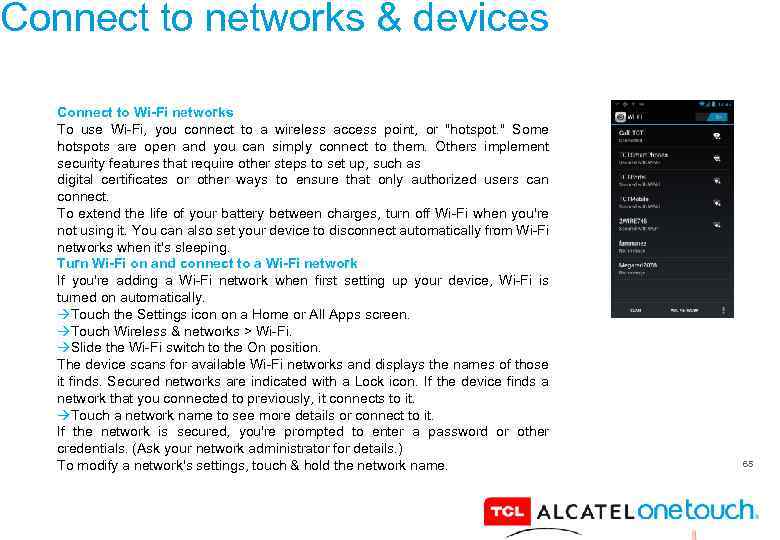 Connect to networks & devices Connect to Wi-Fi networks To use Wi-Fi, you connect to a wireless access point, or "hotspot. " Some hotspots are open and you can simply connect to them. Others implement security features that require other steps to set up, such as digital certificates or other ways to ensure that only authorized users can connect. To extend the life of your battery between charges, turn off Wi-Fi when you're not using it. You can also set your device to disconnect automatically from Wi-Fi networks when it's sleeping. Turn Wi-Fi on and connect to a Wi-Fi network If you're adding a Wi-Fi network when first setting up your device, Wi-Fi is turned on automatically. Touch the Settings icon on a Home or All Apps screen. Touch Wireless & networks > Wi-Fi. Slide the Wi-Fi switch to the On position. The device scans for available Wi-Fi networks and displays the names of those it finds. Secured networks are indicated with a Lock icon. If the device finds a network that you connected to previously, it connects to it. Touch a network name to see more details or connect to it. If the network is secured, you're prompted to enter a password or other credentials. (Ask your network administrator for details. ) To modify a network's settings, touch & hold the network name. 65
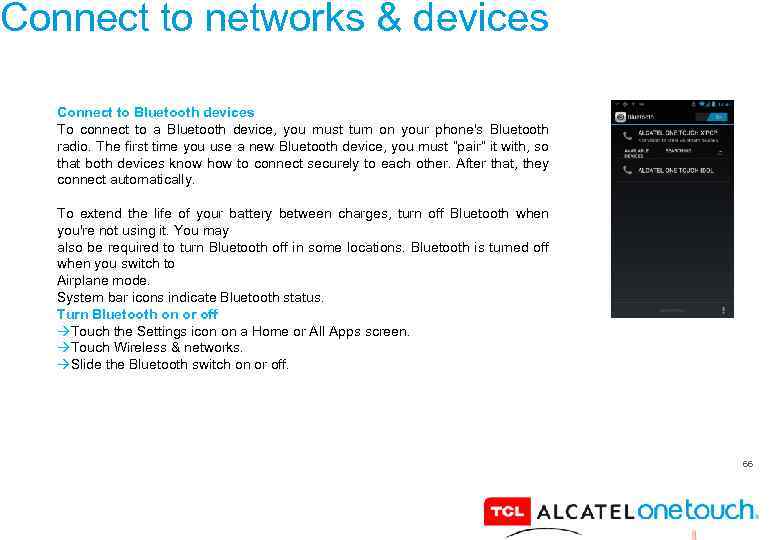 Connect to networks & devices Connect to Bluetooth devices To connect to a Bluetooth device, you must turn on your phone's Bluetooth radio. The first time you use a new Bluetooth device, you must “pair” it with, so that both devices know how to connect securely to each other. After that, they connect automatically. To extend the life of your battery between charges, turn off Bluetooth when you're not using it. You may also be required to turn Bluetooth off in some locations. Bluetooth is turned off when you switch to Airplane mode. System bar icons indicate Bluetooth status. Turn Bluetooth on or off Touch the Settings icon on a Home or All Apps screen. Touch Wireless & networks. Slide the Bluetooth switch on or off. 66
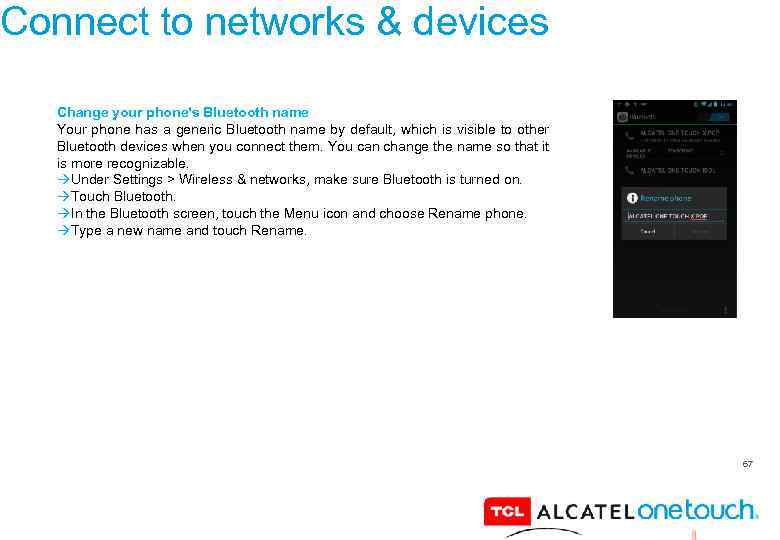 Connect to networks & devices Change your phone's Bluetooth name Your phone has a generic Bluetooth name by default, which is visible to other Bluetooth devices when you connect them. You can change the name so that it is more recognizable. Under Settings > Wireless & networks, make sure Bluetooth is turned on. Touch Bluetooth. In the Bluetooth screen, touch the Menu icon and choose Rename phone. Type a new name and touch Rename. 67
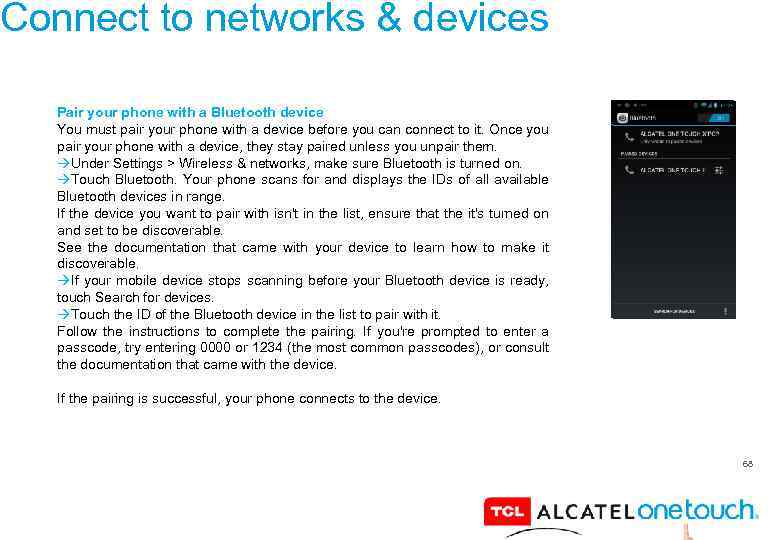 Connect to networks & devices Pair your phone with a Bluetooth device You must pair your phone with a device before you can connect to it. Once you pair your phone with a device, they stay paired unless you unpair them. Under Settings > Wireless & networks, make sure Bluetooth is turned on. Touch Bluetooth. Your phone scans for and displays the IDs of all available Bluetooth devices in range. If the device you want to pair with isn't in the list, ensure that the it's turned on and set to be discoverable. See the documentation that came with your device to learn how to make it discoverable. If your mobile device stops scanning before your Bluetooth device is ready, touch Search for devices. Touch the ID of the Bluetooth device in the list to pair with it. Follow the instructions to complete the pairing. If you're prompted to enter a passcode, try entering 0000 or 1234 (the most common passcodes), or consult the documentation that came with the device. If the pairing is successful, your phone connects to the device. 68
 69
69
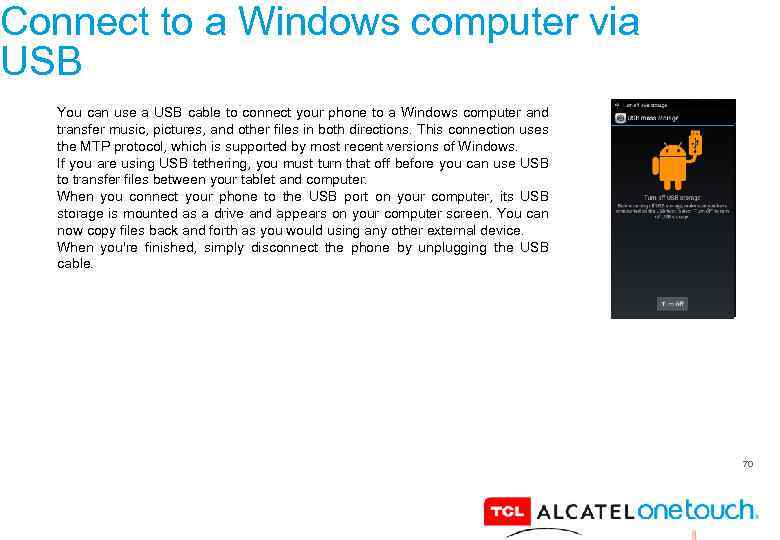 Connect to a Windows computer via USB You can use a USB cable to connect your phone to a Windows computer and transfer music, pictures, and other files in both directions. This connection uses the MTP protocol, which is supported by most recent versions of Windows. If you are using USB tethering, you must turn that off before you can use USB to transfer files between your tablet and computer. When you connect your phone to the USB port on your computer, its USB storage is mounted as a drive and appears on your computer screen. You can now copy files back and forth as you would using any other external device. When you're finished, simply disconnect the phone by unplugging the USB cable. 70
 71
71
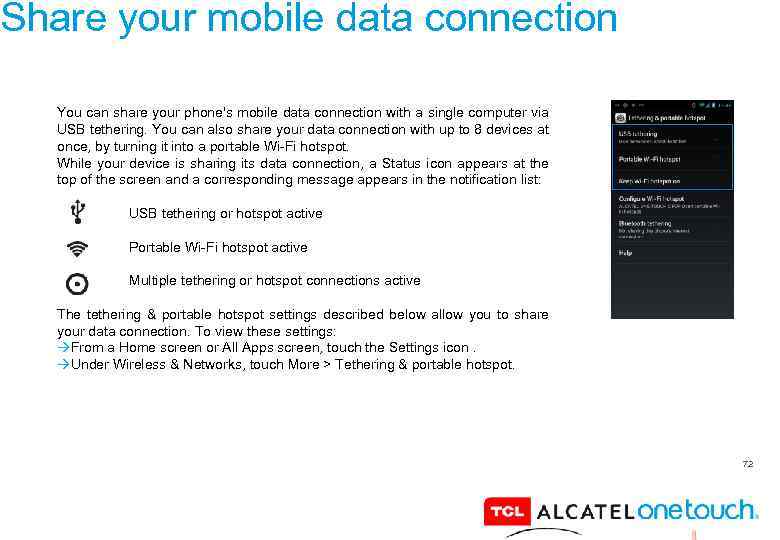 Share your mobile data connection You can share your phone's mobile data connection with a single computer via USB tethering. You can also share your data connection with up to 8 devices at once, by turning it into a portable Wi-Fi hotspot. While your device is sharing its data connection, a Status icon appears at the top of the screen and a corresponding message appears in the notification list: USB tethering or hotspot active Portable Wi-Fi hotspot active Multiple tethering or hotspot connections active The tethering & portable hotspot settings described below allow you to share your data connection. To view these settings: From a Home screen or All Apps screen, touch the Settings icon. Under Wireless & Networks, touch More > Tethering & portable hotspot. 72
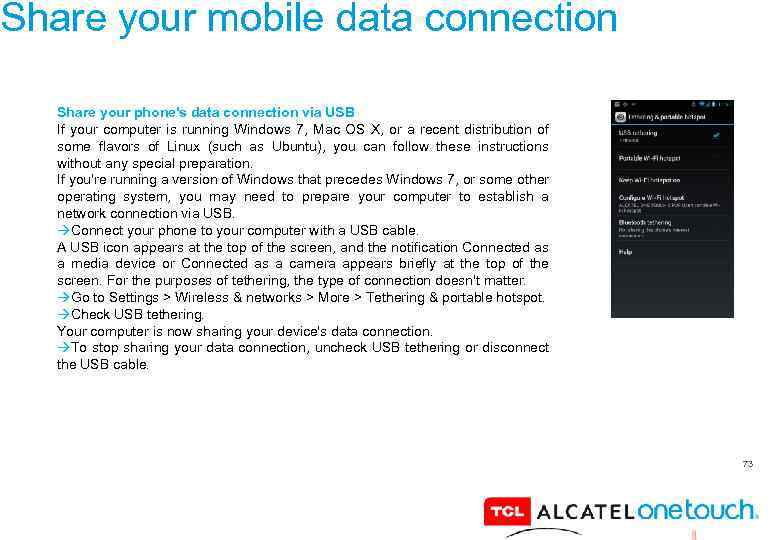 Share your mobile data connection Share your phone's data connection via USB If your computer is running Windows 7, Mac OS X, or a recent distribution of some flavors of Linux (such as Ubuntu), you can follow these instructions without any special preparation. If you're running a version of Windows that precedes Windows 7, or some other operating system, you may need to prepare your computer to establish a network connection via USB. Connect your phone to your computer with a USB cable. A USB icon appears at the top of the screen, and the notification Connected as a media device or Connected as a camera appears briefly at the top of the screen. For the purposes of tethering, the type of connection doesn't matter. Go to Settings > Wireless & networks > More > Tethering & portable hotspot. Check USB tethering. Your computer is now sharing your device's data connection. To stop sharing your data connection, uncheck USB tethering or disconnect the USB cable. 73
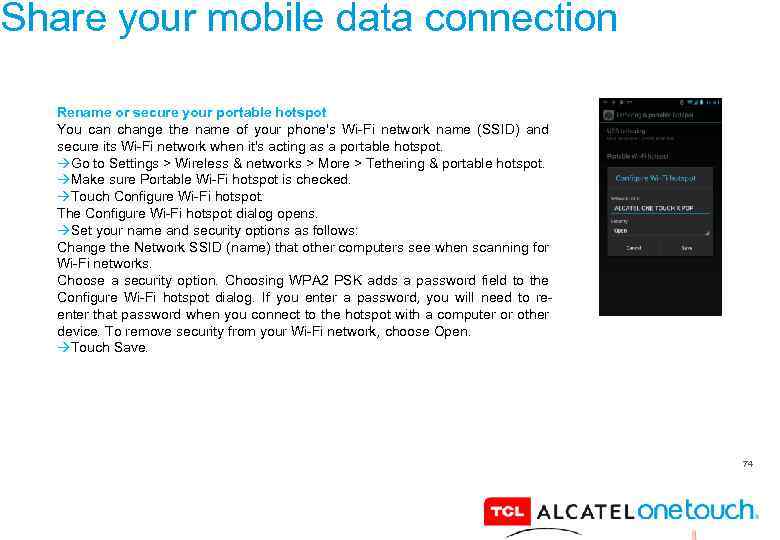 Share your mobile data connection Rename or secure your portable hotspot You can change the name of your phone's Wi-Fi network name (SSID) and secure its Wi-Fi network when it's acting as a portable hotspot. Go to Settings > Wireless & networks > More > Tethering & portable hotspot. Make sure Portable Wi-Fi hotspot is checked. Touch Configure Wi-Fi hotspot. The Configure Wi-Fi hotspot dialog opens. Set your name and security options as follows: Change the Network SSID (name) that other computers see when scanning for Wi-Fi networks. Choose a security option. Choosing WPA 2 PSK adds a password field to the Configure Wi-Fi hotspot dialog. If you enter a password, you will need to reenter that password when you connect to the hotspot with a computer or other device. To remove security from your Wi-Fi network, choose Open. Touch Save. 74
 75
75
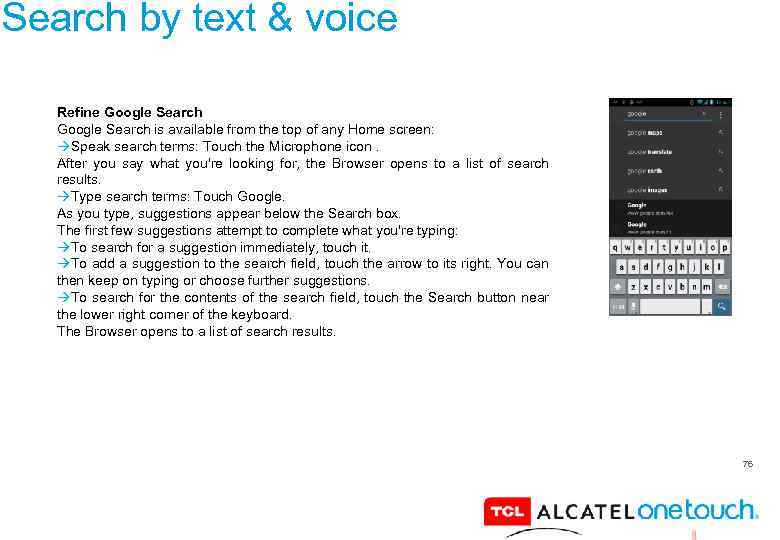 Search by text & voice Refine Google Search is available from the top of any Home screen: Speak search terms: Touch the Microphone icon. After you say what you're looking for, the Browser opens to a list of search results. Type search terms: Touch Google. As you type, suggestions appear below the Search box. The first few suggestions attempt to complete what you're typing: To search for a suggestion immediately, touch it. To add a suggestion to the search field, touch the arrow to its right. You can then keep on typing or choose further suggestions. To search for the contents of the search field, touch the Search button near the lower right corner of the keyboard. The Browser opens to a list of search results. 76
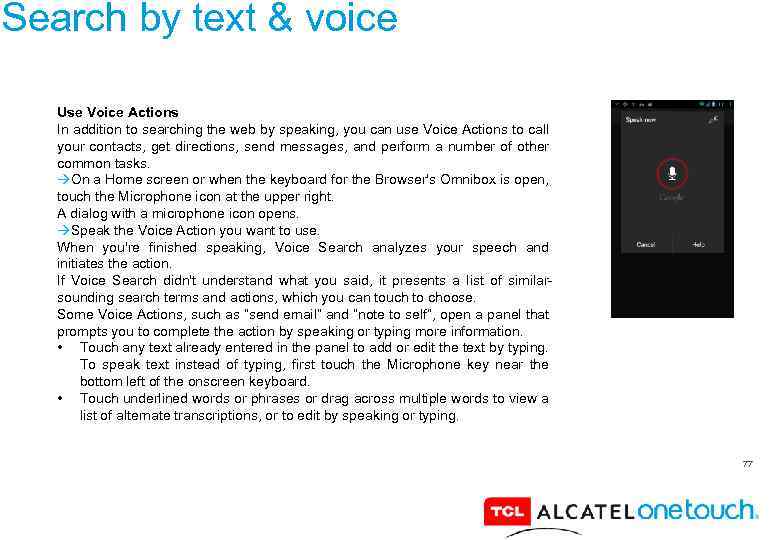 Search by text & voice Use Voice Actions In addition to searching the web by speaking, you can use Voice Actions to call your contacts, get directions, send messages, and perform a number of other common tasks. On a Home screen or when the keyboard for the Browser's Omnibox is open, touch the Microphone icon at the upper right. A dialog with a microphone icon opens. Speak the Voice Action you want to use. When you're finished speaking, Voice Search analyzes your speech and initiates the action. If Voice Search didn't understand what you said, it presents a list of similarsounding search terms and actions, which you can touch to choose. Some Voice Actions, such as “send email” and “note to self”, open a panel that prompts you to complete the action by speaking or typing more information. • Touch any text already entered in the panel to add or edit the text by typing. To speak text instead of typing, first touch the Microphone key near the bottom left of the onscreen keyboard. • Touch underlined words or phrases or drag across multiple words to view a list of alternate transcriptions, or to edit by speaking or typing. 77
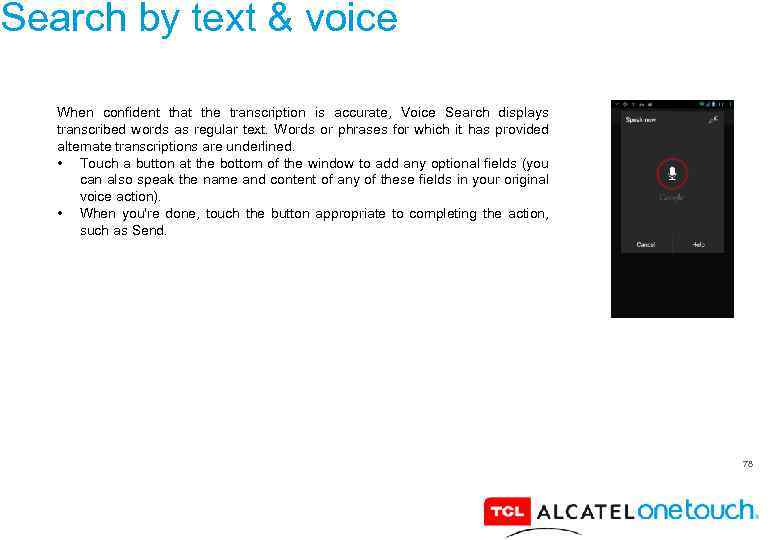 Search by text & voice When confident that the transcription is accurate, Voice Search displays transcribed words as regular text. Words or phrases for which it has provided alternate transcriptions are underlined. • Touch a button at the bottom of the window to add any optional fields (you can also speak the name and content of any of these fields in your original voice action). • When you're done, touch the button appropriate to completing the action, such as Send. 78
 Search by text & voice Voice Action commands Voice Actions let you text your friends, get directions, send email, and perform a number of other common tasks by speaking to your phone. For example, you can say: • "Set alarm for 8: 30 a. m. " • "Send email to Marcus Foster. Subject: Coming tonight? Message: Hope to see you later. " • "Navigate to Mike's Bikes in Palo Alto" If Voice Search doesn't understand you, it lists a set of possible meanings. Just touch the one you want. You can search and control your phone with the following Voice Action commands. 79
 80
80
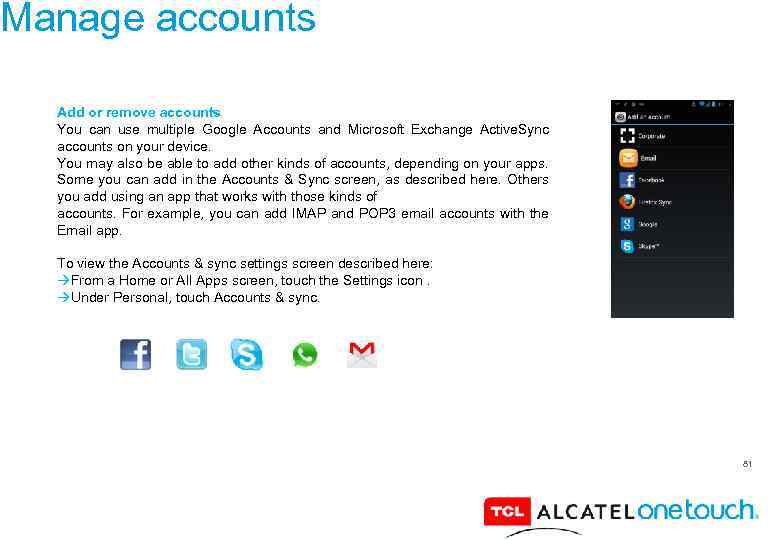 Manage accounts Add or remove accounts You can use multiple Google Accounts and Microsoft Exchange Active. Sync accounts on your device. You may also be able to add other kinds of accounts, depending on your apps. Some you can add in the Accounts & Sync screen, as described here. Others you add using an app that works with those kinds of accounts. For example, you can add IMAP and POP 3 email accounts with the Email app. To view the Accounts & sync settings screen described here: From a Home or All Apps screen, touch the Settings icon. Under Personal, touch Accounts & sync. 81
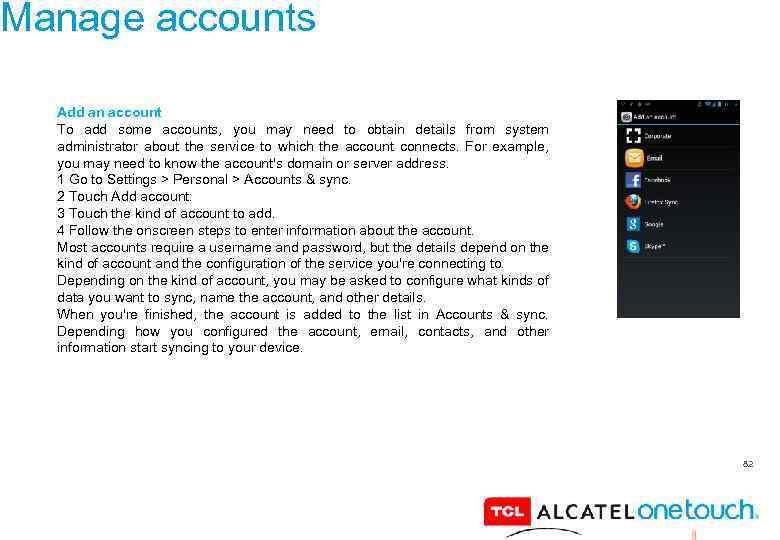 Manage accounts Add an account To add some accounts, you may need to obtain details from system administrator about the service to which the account connects. For example, you may need to know the account's domain or server address. 1 Go to Settings > Personal > Accounts & sync. 2 Touch Add account. 3 Touch the kind of account to add. 4 Follow the onscreen steps to enter information about the account. Most accounts require a username and password, but the details depend on the kind of account and the configuration of the service you're connecting to. Depending on the kind of account, you may be asked to configure what kinds of data you want to sync, name the account, and other details. When you're finished, the account is added to the list in Accounts & sync. Depending how you configured the account, email, contacts, and other information start syncing to your device. 82
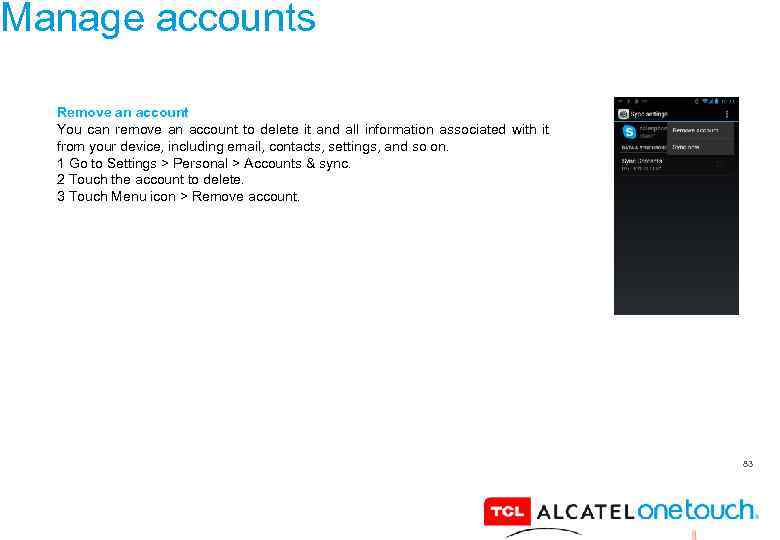 Manage accounts Remove an account You can remove an account to delete it and all information associated with it from your device, including email, contacts, settings, and so on. 1 Go to Settings > Personal > Accounts & sync. 2 Touch the account to delete. 3 Touch Menu icon > Remove account. 83
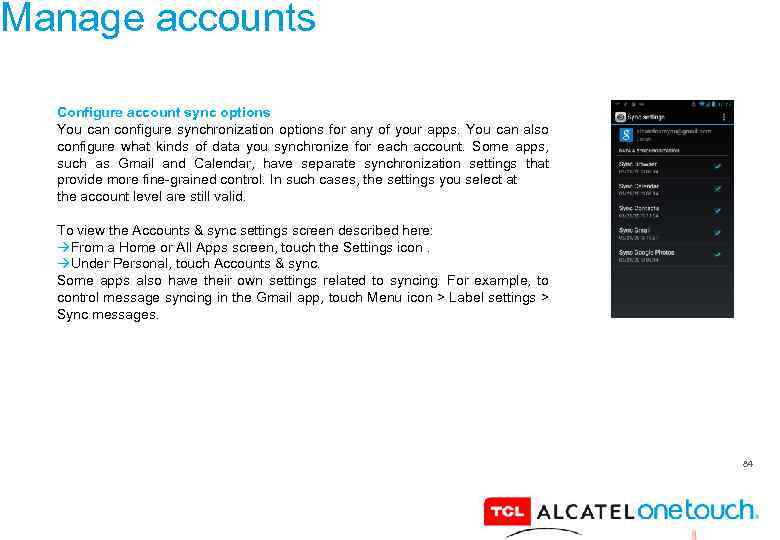 Manage accounts Configure account sync options You can configure synchronization options for any of your apps. You can also configure what kinds of data you synchronize for each account. Some apps, such as Gmail and Calendar, have separate synchronization settings that provide more fine-grained control. In such cases, the settings you select at the account level are still valid. To view the Accounts & sync settings screen described here: From a Home or All Apps screen, touch the Settings icon. Under Personal, touch Accounts & sync. Some apps also have their own settings related to syncing. For example, to control message syncing in the Gmail app, touch Menu icon > Label settings > Sync messages. 84
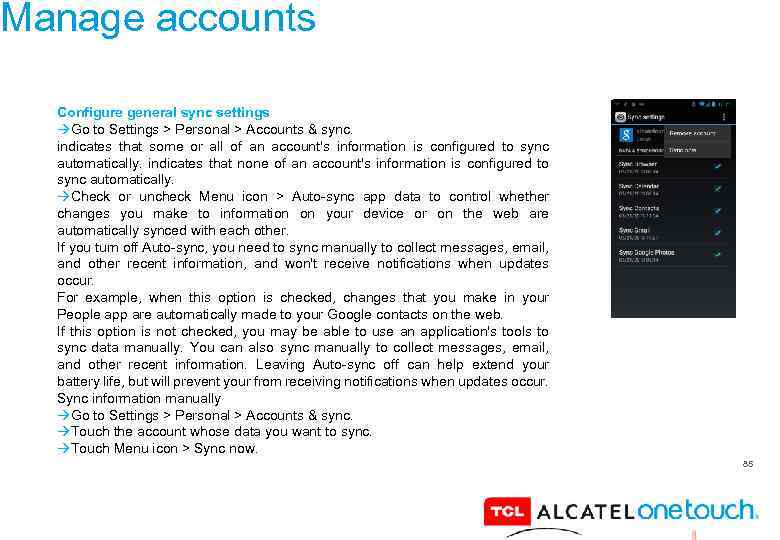 Manage accounts Configure general sync settings Go to Settings > Personal > Accounts & sync. indicates that some or all of an account's information is configured to sync automatically. indicates that none of an account's information is configured to sync automatically. Check or uncheck Menu icon > Auto-sync app data to control whether changes you make to information on your device or on the web are automatically synced with each other. If you turn off Auto-sync, you need to sync manually to collect messages, email, and other recent information, and won't receive notifications when updates occur. For example, when this option is checked, changes that you make in your People app are automatically made to your Google contacts on the web. If this option is not checked, you may be able to use an application's tools to sync data manually. You can also sync manually to collect messages, email, and other recent information. Leaving Auto-sync off can help extend your battery life, but will prevent your from receiving notifications when updates occur. Sync information manually Go to Settings > Personal > Accounts & sync. Touch the account whose data you want to sync. Touch Menu icon > Sync now. 85
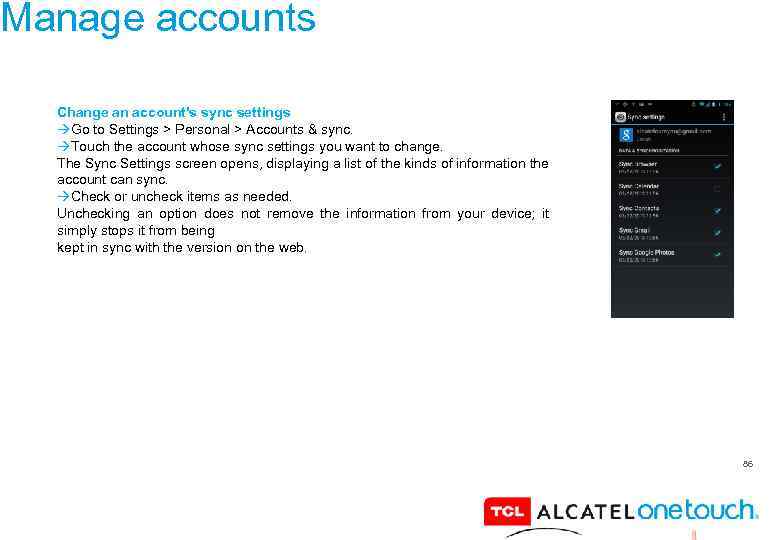 Manage accounts Change an account's sync settings Go to Settings > Personal > Accounts & sync. Touch the account whose sync settings you want to change. The Sync Settings screen opens, displaying a list of the kinds of information the account can sync. Check or uncheck items as needed. Unchecking an option does not remove the information from your device; it simply stops it from being kept in sync with the version on the web. 86
 87
87
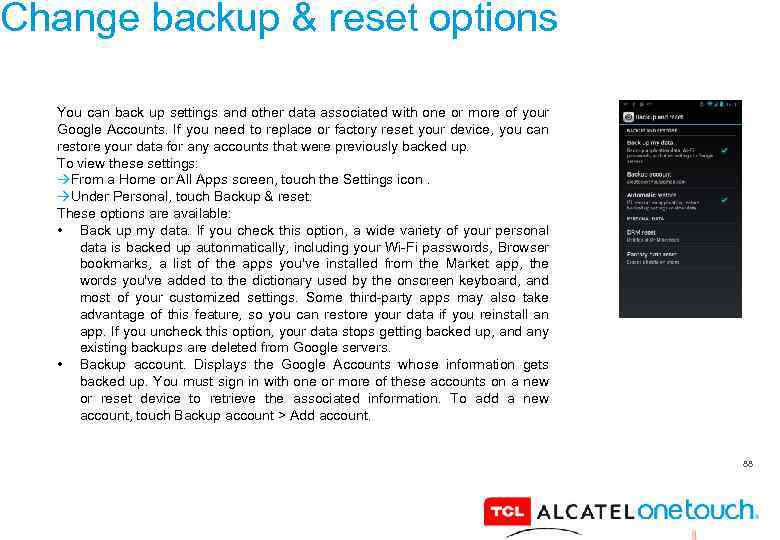 Change backup & reset options You can back up settings and other data associated with one or more of your Google Accounts. If you need to replace or factory reset your device, you can restore your data for any accounts that were previously backed up. To view these settings: From a Home or All Apps screen, touch the Settings icon. Under Personal, touch Backup & reset. These options are available: • Back up my data. If you check this option, a wide variety of your personal data is backed up autonmatically, including your Wi-Fi passwords, Browser bookmarks, a list of the apps you've installed from the Market app, the words you've added to the dictionary used by the onscreen keyboard, and most of your customized settings. Some third-party apps may also take advantage of this feature, so you can restore your data if you reinstall an app. If you uncheck this option, your data stops getting backed up, and any existing backups are deleted from Google servers. • Backup account. Displays the Google Accounts whose information gets backed up. You must sign in with one or more of these accounts on a new or reset device to retrieve the associated information. To add a new account, touch Backup account > Add account. 88
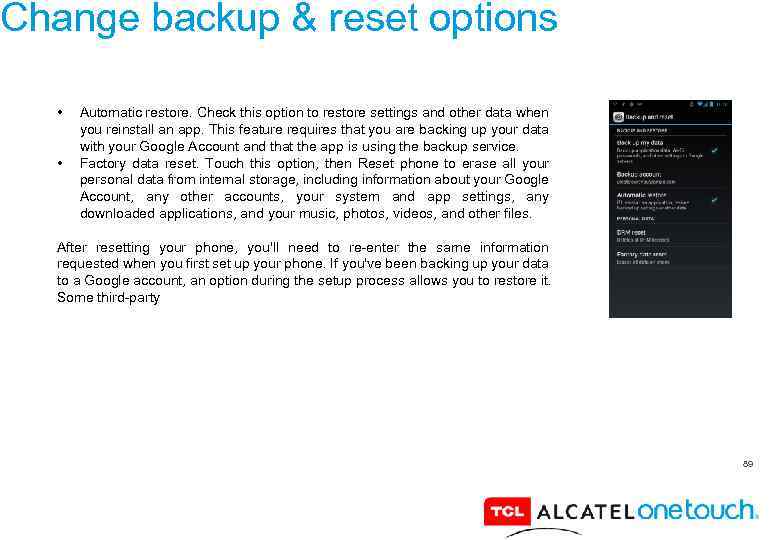 Change backup & reset options • • Automatic restore. Check this option to restore settings and other data when you reinstall an app. This feature requires that you are backing up your data with your Google Account and that the app is using the backup service. Factory data reset. Touch this option, then Reset phone to erase all your personal data from internal storage, including information about your Google Account, any other accounts, your system and app settings, any downloaded applications, and your music, photos, videos, and other files. After resetting your phone, you'll need to re-enter the same information requested when you first set up your phone. If you've been backing up your data to a Google account, an option during the setup process allows you to restore it. Some third-party 89
 90
90
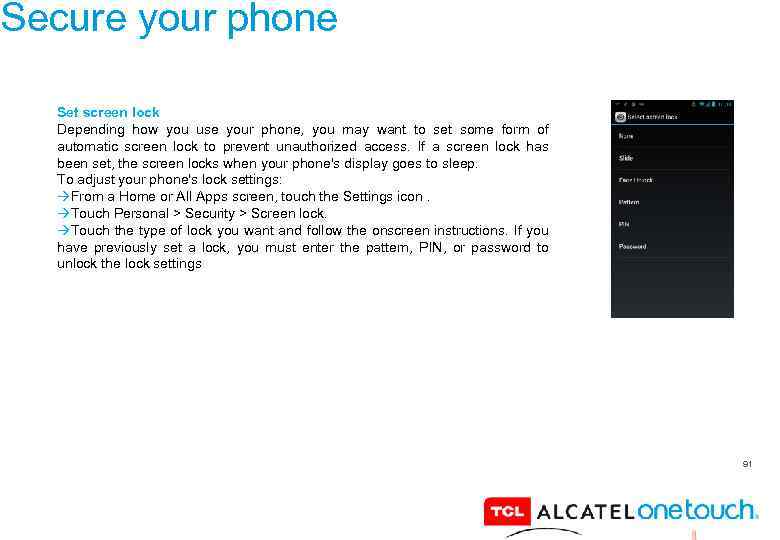 Secure your phone Set screen lock Depending how you use your phone, you may want to set some form of automatic screen lock to prevent unauthorized access. If a screen lock has been set, the screen locks when your phone's display goes to sleep. To adjust your phone's lock settings: From a Home or All Apps screen, touch the Settings icon. Touch Personal > Security > Screen lock. Touch the type of lock you want and follow the onscreen instructions. If you have previously set a lock, you must enter the pattern, PIN, or password to unlock the lock settings 91
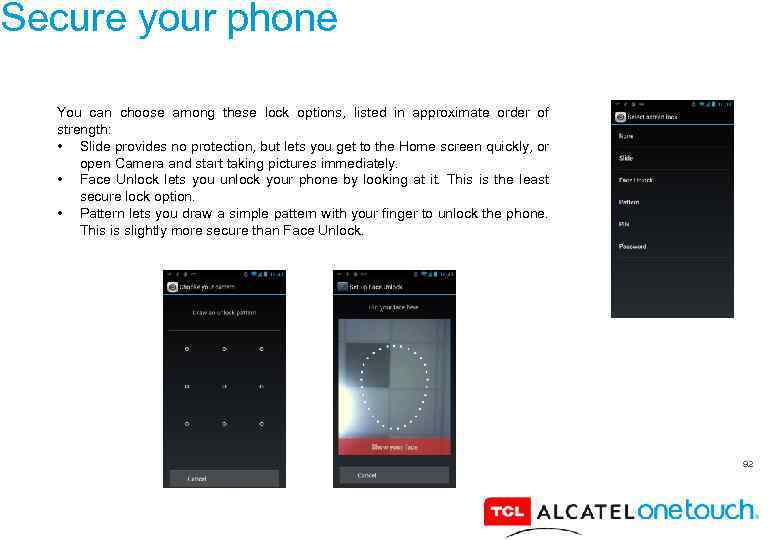 Secure your phone You can choose among these lock options, listed in approximate order of strength: • Slide provides no protection, but lets you get to the Home screen quickly, or open Camera and start taking pictures immediately. • Face Unlock lets you unlock your phone by looking at it. This is the least secure lock option. • Pattern lets you draw a simple pattern with your finger to unlock the phone. This is slightly more secure than Face Unlock. 92
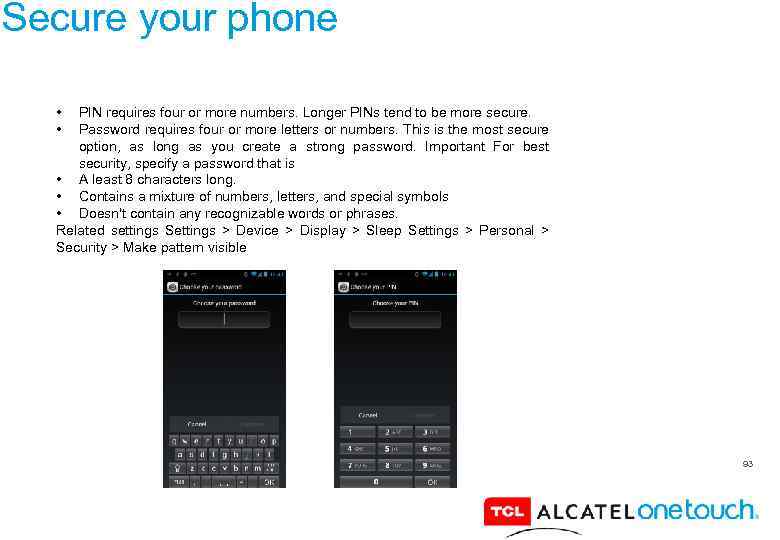 Secure your phone • • PIN requires four or more numbers. Longer PINs tend to be more secure. Password requires four or more letters or numbers. This is the most secure option, as long as you create a strong password. Important For best security, specify a password that is • A least 8 characters long. • Contains a mixture of numbers, letters, and special symbols • Doesn't contain any recognizable words or phrases. Related settings Settings > Device > Display > Sleep Settings > Personal > Security > Make pattern visible 93
 94
94
 Get Support? Feel free to contact our support center, calling our support team or through ONETOUCH SUPPORT tool. 95
 96
96