


 Скачать презентацию and the United Nations Economic Commission for Latin
707ff0fe2e6cebfc48d135bdc5f69427.ppt
- Количество слайдов: 171
 and the United Nations Economic Commission for Latin America and the Caribbean (UNECLAC) WINISIS TRAINING PROGRAMME Dec 1 st - 5 th, 2003
 This course is aimed at helping participants. . . Understand the structure of WINISIS Learn how to create databases Understand basic functions of the formatting language
 Monday System requirements Installation of WINISIS Syspar. par and dbn. par files Overview of the system n Communicating with the system using windows, menus and dialog boxes Data entry
 Tuesday Inverting the database Searching Database definition Database creation
 Wednesday Print Formatting
 Thursday Printing and Sorting Importing and Exporting
 Friday Converting from Cepal to Marc Security Passwords A look at KOHA, Greenstone, Genisis
 Hardware requirements The minimum and recommended hardware requirements for running CDS/ISIS : n n n n CPU: 486 processor at 40 Mhz (Pentium at 100 Mhz or higher recommended) RAM: 8 Mb (16 Mb or more recommended) 1 floppy disk unit 1 hard disk (with at least 4 Mb free) 1 VGA 640 x 480 color screen (super VGA 800 x 600 or higher recommended 1 printer (optional) Windows 3. 1 or higher
 Maximum number of data bases unlimited Maximum number of records in a data base 16 millions (within the limit of 500 Mb) Maximum record size 32000 characters n Note that records larger than 8000 may not be used with the MS-DOS version of CDS/ISIS. If you intend to exchange data with MS-DOS users you should take this into account. Maximum field size 32000 characters Maximum number of fields (defined in FDT) 200 (excluding repetitions of repeatable fields) Maximum number of FST lines 600 Maximum number of stopwords 799 Maximum size of a display format 10000 characters Maximum size of display buffer 64000
 Installing WINISIS To Install n n n Run Setup. exe from diskette 1 or from CD go to CDS/ISIS ->Windows->1. 4 and run install. exe (it is recommended that you accept the proposed defaults but remember to select the language and the data location) At the end of the installation some systems require you to find the ctl 3 d. dll hidden files to copy to the system directory
 INSTALLATION n n NB On some systems, the CTL 3 D. dll file remains compressed after installation. You will need to copy another ctl 3 d. dll file into your Windows folder. This one should be at least 20. 5 kb Alternatively, if you get a message after installation that a file is compressed, go to the folder WIN_ISIS nt and install from there. That ctl 3 d. dll file has been replaced
 WINISIS FILES WINISIS works with files A number of files are created automatically by the system Others are created by the user during database creation
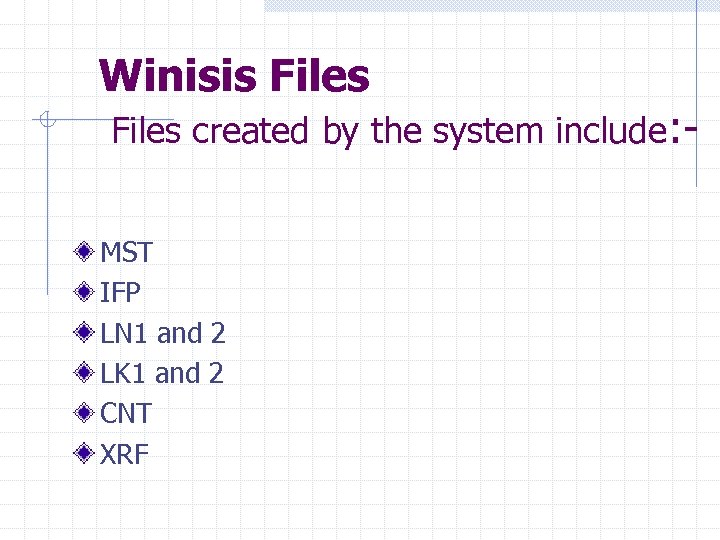 Winisis Files created by the system include: - MST IFP LN 1 and 2 LK 1 and 2 CNT XRF
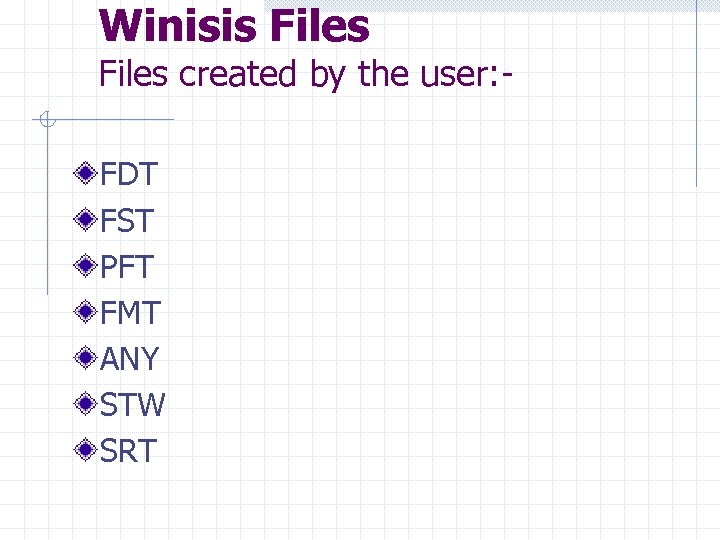 Winisis Files created by the user: FDT FST PFT FMT ANY STW SRT
 Master file (. MST) The Master file contains all the records of a given data base. Each record is identified by a unique number, automatically assigned by CDS/ISIS when it is created, called the Master File Number or MFN.
 Cross reference file -. xrf In order to provide a fast access to each master file record, CDS/ISIS associates a special file to the Master file, called the Cross-reference file, which is in fact an index giving the location of each record in the Master file.
 Master file You may create, modify or delete Master file records by means of the Data Entry services menu option.
 The Inverted file (. IFP) WINISIS allows you to provide a virtually unlimited number of access points for each record through the creation of a special file called the Inverted file. The inverted file (. IFP) allows the retrieval of bibliographic records by author, subject, or by any other data element occurring in the record.
 The Inverted file contains all terms which may be used as access points during retrieval for a given data base, for each term, a list of references to the Master file record(s) from which the term was extracted. The collection of all access points for a given data base is called the dictionary. the Inverted file is an index to the
 SYSPAR. PAR It contains the system setup parameters. It is read each time CDS/ISIS is activated and may be used to override default values the setup program automatically created a SYSPAR. PAR file with the default parameters It is a text file which may be edited with any text editor such as Notepad. Each parameter starts on a new line and has the same general format
 SYSPAR. PAR n=value where: n n n is the parameter number (as explained below); value is the corresponding value The value must immediately follow the equal sign (any space which may follow the equal sign will be taken as being part of the value).
 SYSPAR. PAR You may insert comment lines (which will be ignored by CDS/ISIS) by inserting a semicolon (; ) at the beginning of the line. For example: ; Set default database
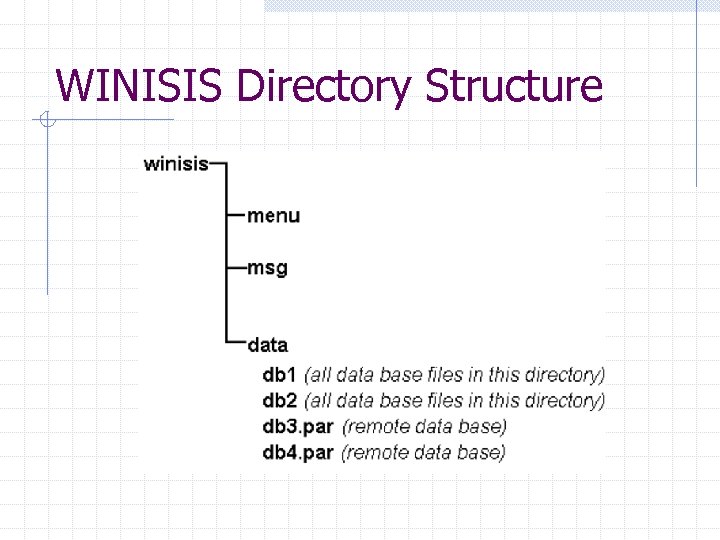
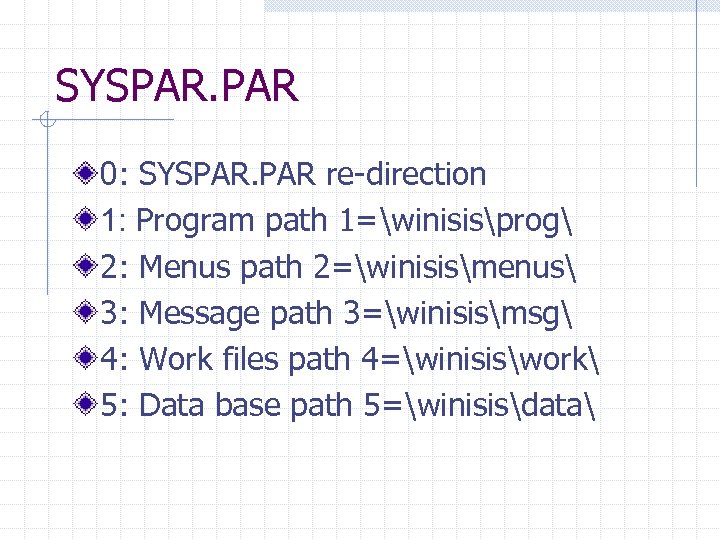 SYSPAR. PAR 0: SYSPAR. PAR re-direction 1: Program path 1=winisisprog 2: Menus path 2=winisismenus 3: Message path 3=winisismsg 4: Work files path 4=winisiswork 5: Data base path 5=winisisdata
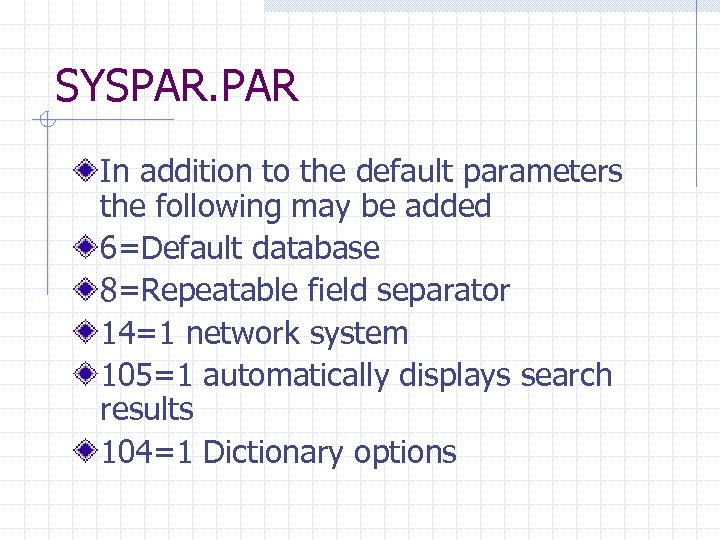 SYSPAR. PAR In addition to the default parameters the following may be added 6=Default database 8=Repeatable field separator 14=1 network system 105=1 automatically displays search results 104=1 Dictionary options
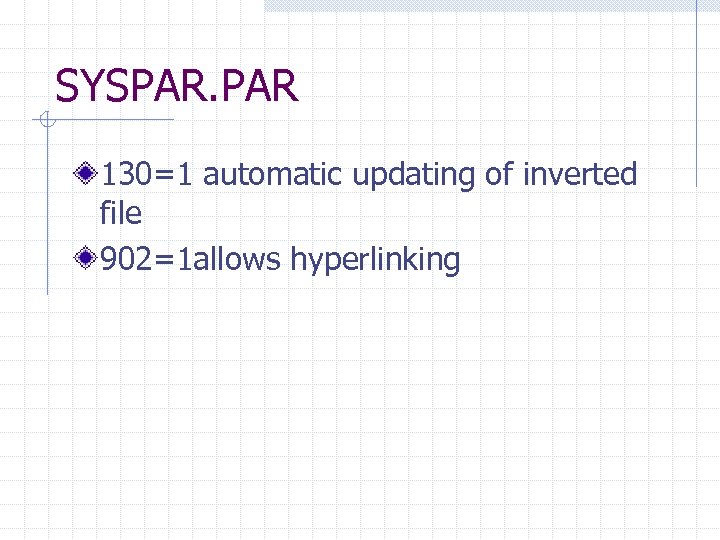 SYSPAR. PAR 130=1 automatic updating of inverted file 902=1 allows hyperlinking
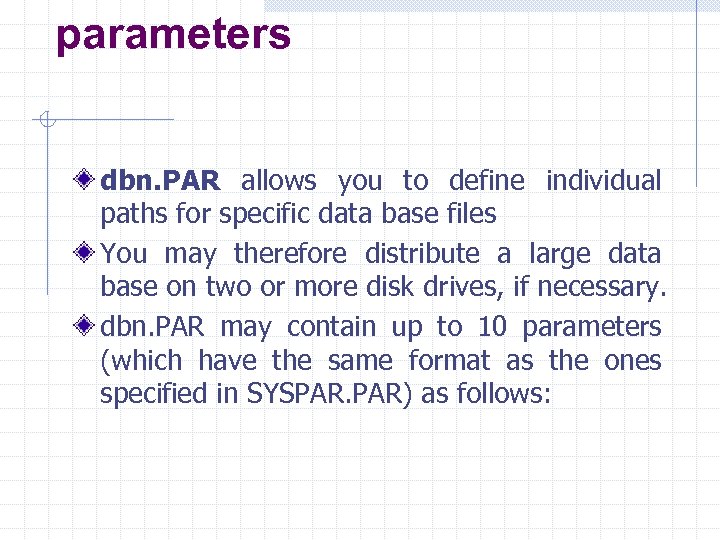 parameters dbn. PAR allows you to define individual paths for specific data base files You may therefore distribute a large data base on two or more disk drives, if necessary. dbn. PAR may contain up to 10 parameters (which have the same format as the ones specified in SYSPAR. PAR) as follows:
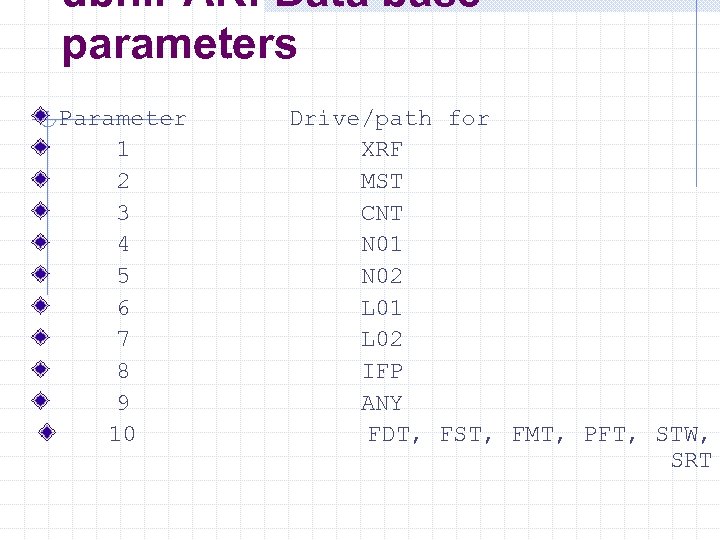 dbn. PAR: Data base parameters Parameter 1 2 3 4 5 6 7 8 9 10 Drive/path for XRF MST CNT N 01 N 02 L 01 L 02 IFP ANY FDT, FST, FMT, PFT, STW, SRT
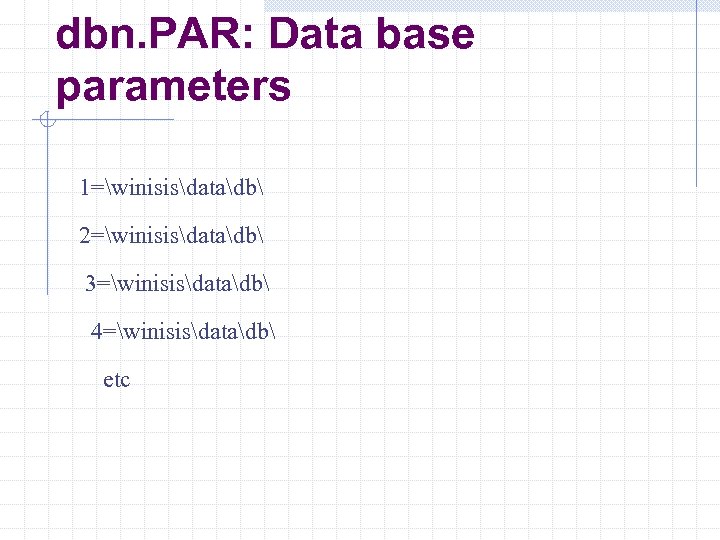 dbn. PAR: Data base parameters 1=winisisdatadb 2=winisisdatadb 3=winisisdatadb 4=winisisdatadb etc
 WINISIS Directory Structure
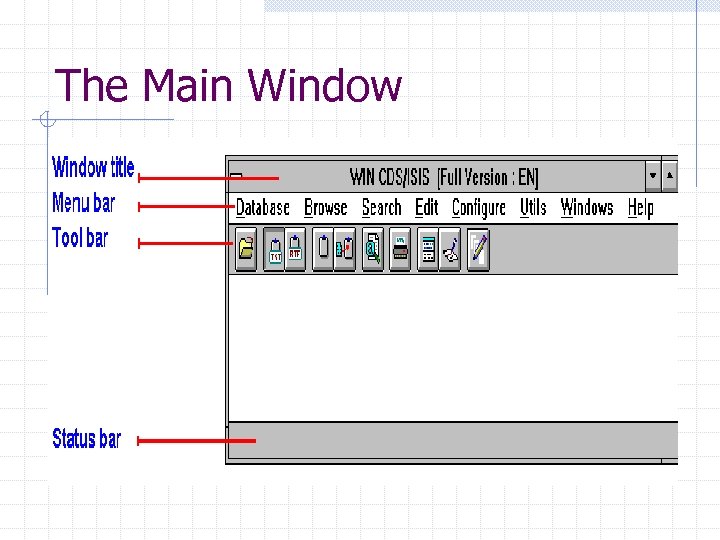
 Communicating with the system WINDOWS MENUS DIALOG BOXES
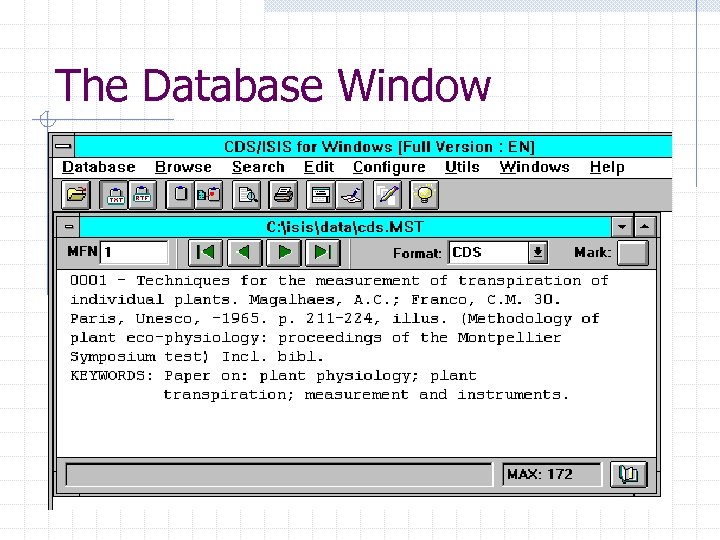
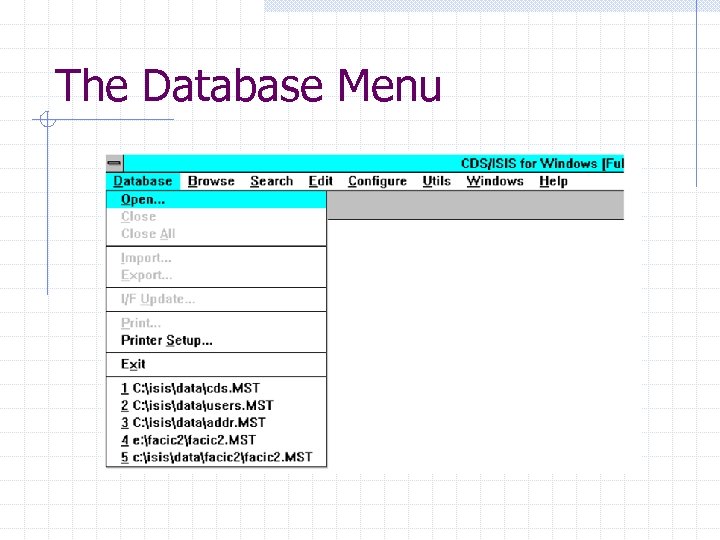
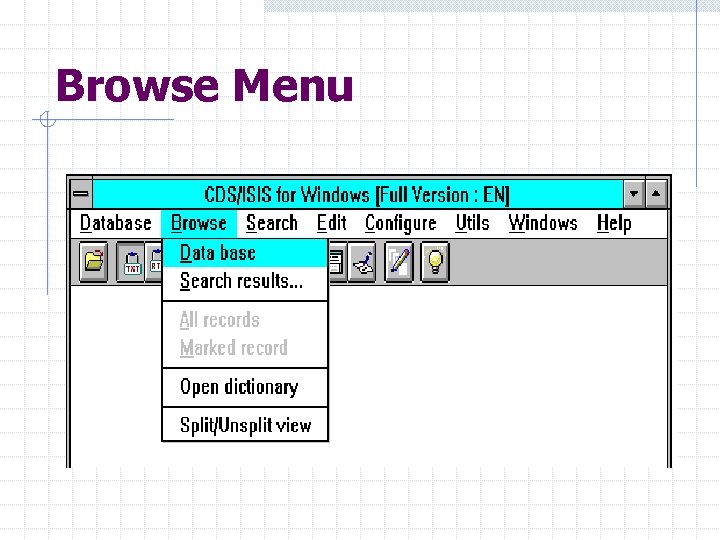
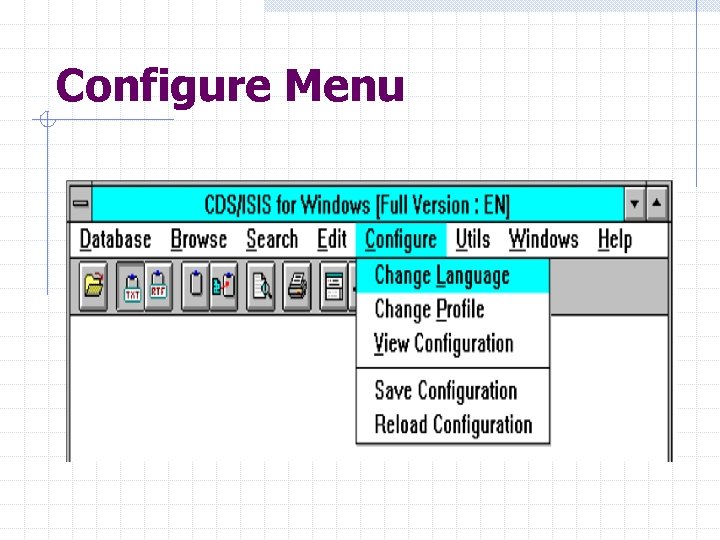
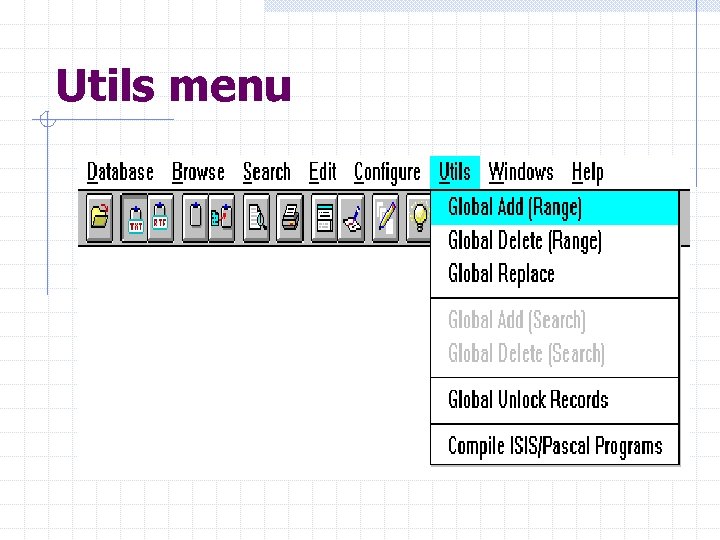
 Communicating with the system Commands are given to the system through the use of menus listing various options Messages are used to convey information to the system users WINISIS uses windows to display different types of information for example. Search results n Progress of importing records or inverting a database The following are some of the menus and windows used by the system- n
 The Main Window
 The Database Window
 The Database Menu
 Browse Menu
 Search Menu
 Configure Menu
 Utils menu
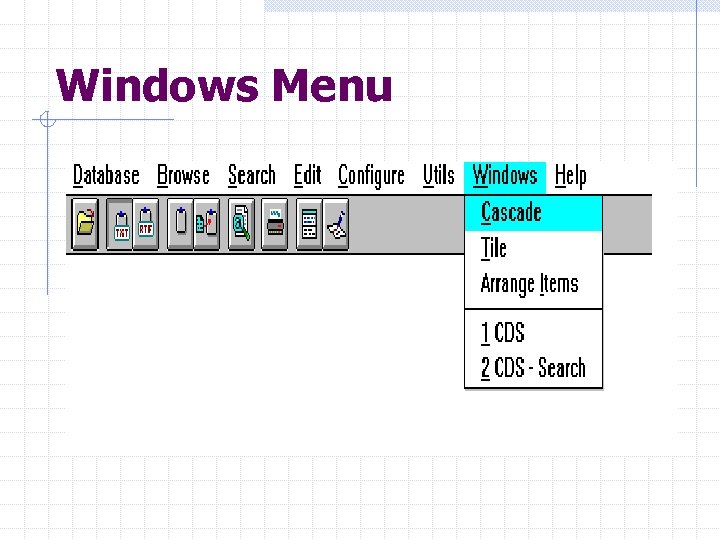 Windows Menu
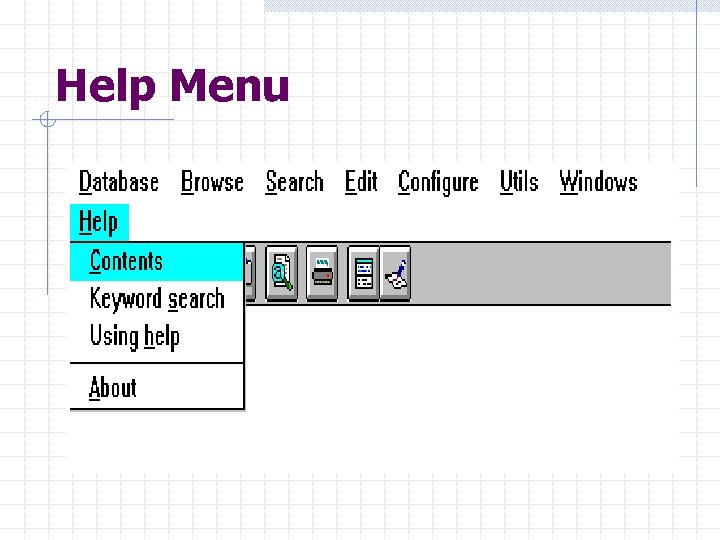 Help Menu
 Dialog Boxes Dialog boxes are screens which allow the user to give certain parameters to the system. n E. g. w Which records are to be printed w Which terms to search on
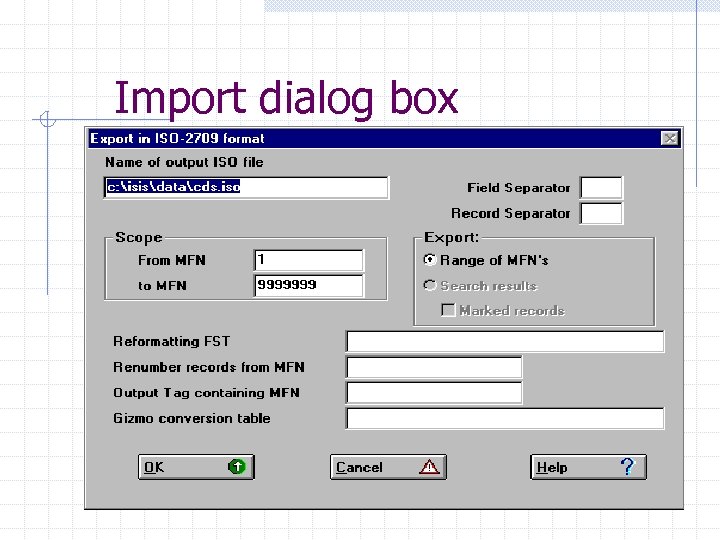 Import dialog box
 DATA ENTRY And don’t forget to invert
 DATA ENTRY Data entry is done by choosing the
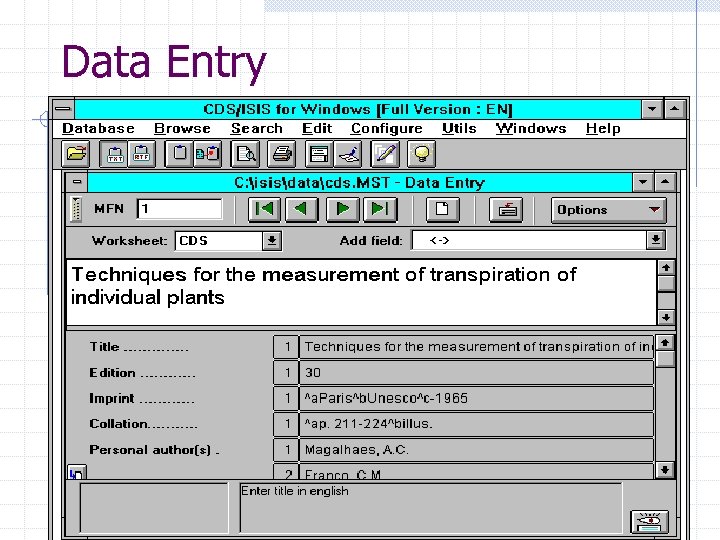
 Data Entry The following window is displayed whenever you select the Data Entry command of the Edit menu. When initially opened, it displays the current record (i. e. the one which is currently displayed in the corresponding data base window). Contents may be modified by selecting applicable commands in the Edit Menu
 Data Entry
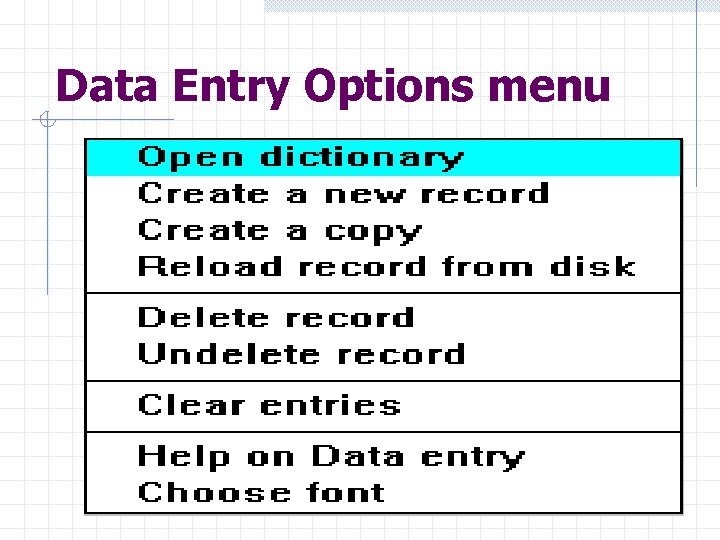 Data Entry Options menu
 Entering Data In editing a field you may use all standard Windows edit function keys. In addition there are the following special keys: w Enter -update the field and select the next field; w Shift+Enter- update the field and select the previous field; w F 2 delete the field; w ESC ignore all changes (field will redisplay as it was before the editing started).
 Entering Data You may change the size of the field edit box by dragging up or down the bar at the bottom of the box. You may also change the font used to display the field by selecting the Choose font option from the Options sub-menu.
 Subfielded Fields When you enter a field containing subfields you must key in the required subfield delimiters in front of each subfield. A subfield delimiter is a 2 -character code preceding and identifying a variable length subfield within a field. It consists of the character ^ followed by an alphabetic or numeric character, e. g. ^a.
 Subfielded Fields If the subfield code is alphabetic, you may enter it in either upper or lower case Do not insert spaces or punctuation marks either before or after the subfield delimiter
 Repeatable fields Enter each occurrence separately, and click on the repeatable field icon (preceding the field name) for each new occurrence to be added. Or type the occurrences in the Field edit box, separating each by a percent (%) sign. In this case do not enter spaces around the % sign this is an installation-dependent parameter
 Control Characters % Repeatable fields Keyword delimiters / / and < > Display format can suppress the brackets but not the slashes
 Filing Information Allows the user to state explicitly how a given field must be sorted by supplying filing information at the time you enter the data. Filing information is permanently recorded in the field. n n
 Inversion After data entry remember that: 1. new records you have added are not available for retrieval; 2. records you have modified are retrievable, but under the old access points; and 3. records you have deleted will still be posted to their access points, although the records themselves are no longer displayed.
 Inversion (cont’d) an Inverted file update may be done at any time by selecting the I/F Update command of the Data base
 Inversion There are three options : Full inverted file generation of the entire database Full inverted file generation of a selected group of MFNs (for testing) Update inverted file
 SEARCHING/ RETRIEVAL ?
 Searching /Boolean Operators AND <*> The set resulting from this operation will yield only records which contain both terms OR <+> The set will contains records which contain either one or the other term NOT <^> The set will contain records which contain one term but not the other
 Searching /Other Boolean Operators (G) This operator indicates that the two terms must be found in the same field (F) This operator indicates that the two terms must be found in the same occurrence of the same field
 Searching It is possible to combine search terms with search operators to specify the relationship between the terms Search elements may be linked with one of the three search operators AND, OR, NOT, (G) and (F)
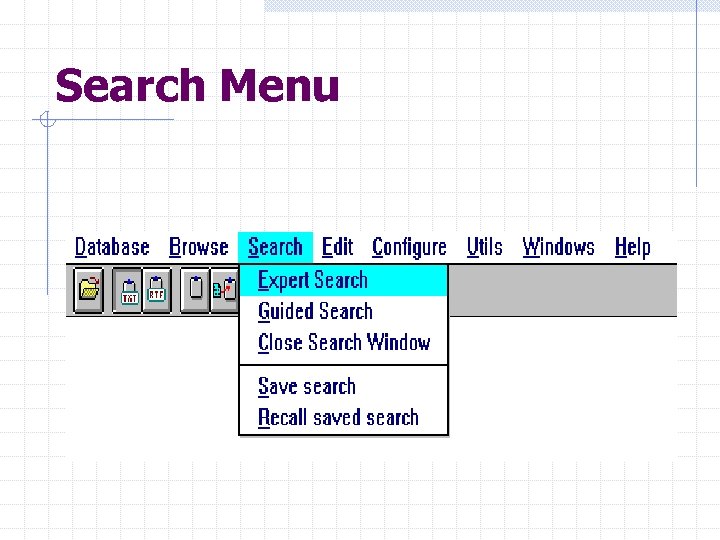
 SEARCHING Query formulation Win. ISIS offers 2 options for searching: · the expert search interface enables execution of any query, including a freetext query; · the guided search interface is used to execute simple queries containing up to four search elements.
 SEARCHING Two other functions available from the menu save a query executed during the current session, · recall a saved query. Executes a query and automatically displays the results in the database window
 SEARCHING Parameter 104: Display dictionary options The value of this parameter can be 0 (default) or 1. It affects the display of the dictionary window when a field is selected. When set to 0 (default) CDS/ISIS displays the complete dictionary, however, terms not occurring in the selected field are displayed in lower case (and will not be selectable). When set to 1 only terms occurring in the selected field are displayed.
 SEARCHING Parameter 105: Automatic display of search results The value of this parameter can be 0 (default) or 1. When you are using expert search mode and this parameter is set to 1 CDS/ISIS automatically displays the results of a search as soon as it is executed. When set to 0 (default) CDS/ISIS remains in search mode.
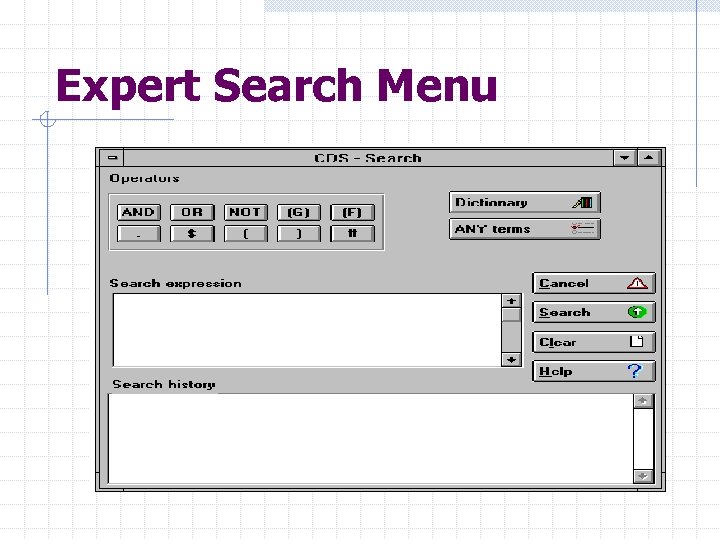 Expert Search Menu
 Free Text Searching V 0 identifies any field of the current record. This non-existing field can be used in a free-text query to specify a text to be searched in all fields. For instance, the query ? v 0: ’abc’ can be used to retrieve all records containing the character string ABC
 Expert Searching The default expert search window contains the following elements: · the search operator buttons, · the Search expression edit box, · the search history box, · the Dictionary button, · the ANY terms button, · the Execute, Clear and Help buttons.
 Expert Searching If the tabular mode of displaying search results is applied this window contains apart from these elements · the Search tips button, · the Display button
 Expert Searching Query elements can be created by· clicking the Dictionary button shows the dictionary window with all terms defined in the dictionary · double clicking such a term copies it as a new query element (if necessary this term is automatically preceded by the + operand;
 Expert Searching clicking the ANY terms button shows all such terms defined for the current database; double clicking such a term copies it as a new query element (if necessary this term is automatically preceded by the + operand);
 Expert Searching – the search history box The Search history window shows in separate lines the summaries of all queries executed during the current session #search_no (dbase) T=hit_no : Search_expression where search_no is the sequential number assigned to this query and hit_no is the number of records retrieved according to the query.
 Expert Searching – the search history box These queries can be used in the following ways: - clicking a query inserts into the Search expression edit box the search number associated with this query (if necessary this number is automatically preceded by the + operand);
 Expert Searching – the search history box Dragging a query and dropping it over the Search expression edit box appends the selected query enclosed into parentheses to the current search expression (if necessary this subexpression is automatically preceded by the + operand);
 Expert Searching – the search history box Double clicking a query displays its results
 Expert Searching – using the # This button # shows a window with the list of queries formulated during the current session. Clicking one of elements from this list inserts into the Search expression edit box the search number associated with the selected query (if necessary this number is automatically preceded by the + operand).
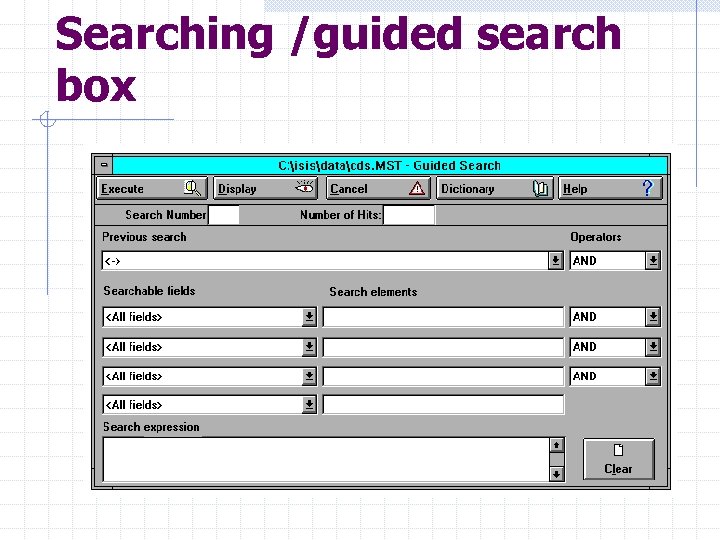 Searching /guided search box
 Guided Search Box This window provides a simplified search interface for inexperienced users. Four text boxes are provided for entering search terms. You may copy terms from those displayed in the Dictionary window Each search element may be associated with a particular field
 Guided Search Box · searchable fields The combo box shown in this column allows to specify a field in which the query element willbe searched. By default the query elements are searched in all fields. If a field has been specified, the dictionary window shows the inverted file terms taken from this field only.
 Guided Search Box · search elements The text box shown in this column stores the query element. Search terms can also be entered from the keyboard, in order to increase the search efficiency the users should be encouraged to use the terms from the dictionary window only.
 Guided Search Box · When the cursor is positioned in a search element box clicking the Dictionary button shows the window with all the inverted file terms defined in of the current database that were taken from the field specified in the Searchable fields column. Double clicking such a term uses it as the search element
 Guided Search Box · operators The combo box shown in this column allows to specify the operator that connects this query
 Truncation Searching can be done on truncated terms by using the $ Econom$ will result in all records in which the root econom occurs. This includes economics and economic planning
 Searching DICTIONARY displays the Dictionary window. ANY terms displays the list of ANY terms for the data base. Clicking on a term will insert it in the Search expression box.
 Searching Any of the operator buttons will insert the corresponding operator in the Search expression box. This edit box contains the current search expression. Experienced users may type the search expression directly in this box Maximum number of characters is 1000
 Searching w EXECUTE pressing this button executes the search expression w CLEAR pressing this button erases the search expression w CANCEL pressing this button returns to the data base window w HELP pressing this button displays the search help topic
 Displaying search results Win. ISIS offers two modes of displaying search results Standard mode By default search results are displayed in the database window. In the very bottom of this window the following message is visible: Search #search_no : ( i / m )
 Displaying search results where search_no is the sequential number assigned to the query which results are being displayed, i is the sequential number of the current record in the set of all records retrieved and m is the total number of records retrieved
 Displaying search results The records retrieved according to the query being currently displayed can be either printed or exported. These operations are executed by the Print and Export functions that are available in the Database menu
 Displaying search results When the database window shows a search results the Mark button is visible in the top of this window next to the Format box. Clicking this button marks the current record (if the record is a marked record the V sign is displayed on the Mark button)
 Displaying search results a variant of the standard mode in which search results are displayed in the database window and the message shown in very bottom of this window is repeated in red color in the first line of the window. This line contains as well the hypertext link
 Displaying search results This effect can be also achieved by checking the option Alternate search result display in the System settings window that can be accessed from the Configure menu.
 Displaying search results Tabular mode In contrast to the standard mode when search results are displayed in the normal database window, in the tabular mode Win. ISIS displays retrieved records in a special window that contains two panes.
 Displaying search results The left pane shows all records retrieved in a table where each row represents a single record. Initially the right pane shows some instructions on using the tabular mode, but when the users clicks a row in the left pane, the right pane shows contents of this record using the current display format
 Displaying search results The Options button shown in the top of the tabular display window provides the following functions: · print the current record, · print all marked records, · print all retrieved records, · export results, · stop browsing results.
 Displaying search results The print function has few parameters. : - the output device box, - the Format box, - the output file box, - the OK. and Cancel buttons
 Displaying search results Win. ISIS applies the tabular mode of displaying search results when the system parameter 980 is set to 1. This effect can be also achieved by checking the option Display search results in a table in the System settings window that can be accessed from the Configure menu. Parameter 144 is another system parameter that controls display of search results in the tabular mode
 Displaying search results Highlighting of retrieved terms If the system parameter 142 has been applied Win. ISIS will highlight retrieved inverted file terms when search results are displayed. If a search term contains several words only the first word of such a term will be highlighted. Win. ISIS will highlight all occurrences of this word in the database window or in the right pane of the tabular display window.
 The Dictionary Window The dictionary window is displayed when the user clicks the Dictionary button available in the database window and in both search windows. Initially the dictionary window shows all the inverted file terms, but by selecting a field from the box shown in the top of the window the user requests Win. ISIS to show only terms taken from this field (application of the system parameter 104=1 is required to achieve this effect).
 The Dictionary Window If the dictionary window was open from the search window or data entry window, the dictionary terms can be easily copied to the search expression box, the current search element box or the field edit box. Copying can be done by double clicking a dictionary term or by dragging a term and dropping it over the appropriate box.
 The Dictionary Window By default all terms of the dictionary are shown, but the terms taken from other fields than the selected one are dimmed and cannot be selected. If order to ensure that only the inverted file terms taken from the specified field are displayed in the dictionary window, the database administrator should apply the parameter 104=1 in the SYSPAR. PAR file.
 Formatting your display You can control which fields are displayed
 Formatting Language To extract a whole field or an entire subfielded field V followed by the field tag w If the field selected is a sub-fielded field the entire field will be printed including the subfield delimiters.
 Formatting Language w. To select a sub-field of a sub-fielded field w vn^x where v is the field selector w n is the Field tag w ^ is the sub-field indicator w x is the sub-field identifier
 Formatting Language w To select part of a field or sub-field w *offset. length w where * is the extraction indicator w offset is a number which indicates the character at which the extraction begins. N. B. the first character is position 0. w length is the number of characters to be extracted. N. B. this command must immediately follow the field or sub-field selector command. Eg. V 1*3. 2
![Formatting Language Repeatable fields v 10[1] retrieves the first occurrence of field 10 v](https://present5.com/presentation/707ff0fe2e6cebfc48d135bdc5f69427/image-106.jpg "Formatting Language Repeatable fields v 10[1] retrieves the first occurrence of field 10 v") Formatting Language Repeatable fields v 10[1] retrieves the first occurrence of field 10 v 10[2. . 4] retrieves the 2 nd through the 4 th occurrence of field 10 v 10[3. . ] retrieves the 3 rd through the last occurrence of field 10 v 10[1]^a retrieves subfield ^a in the 1 st occurrence of field 10
Formatting Language Repeatable fields v 10[1] retrieves the first occurrence of field 10 v 10[2. . 4] retrieves the 2 nd through the 4 th occurrence of field 10 v 10[3. . ] retrieves the 3 rd through the last occurrence of field 10 v 10[1]^a retrieves subfield ^a in the 1 st occurrence of field 10
 Formatting Language w. MFN Commands w MFN -to select the MFN, this will be six digits long w MFN(d) to select the MFN d digits long w F(MFN, 1, 0) to select the minimum length of the MFN without leading zeros or spaces
 Mode Commands w Mode Commands There are three mode commands: P Proof mode - displays data exactly as entered at data entry level eg. Mpl or Mpu H Heading mode - removes "hidden characters" and replaces sub-field delimiters with punctuation eg. Mhl or Mhu.
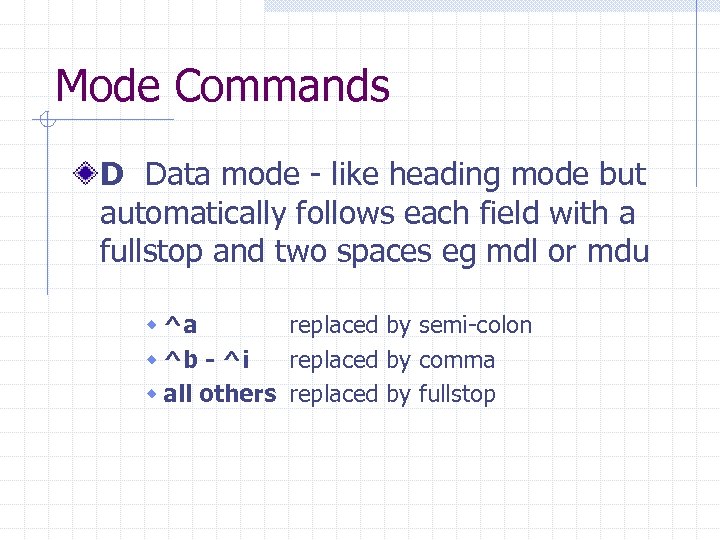 Mode Commands D Data mode - like heading mode but automatically follows each field with a fullstop and two spaces eg mdl or mdu w ^a replaced by semi-colon w ^b - ^i replaced by comma w all others replaced by fullstop
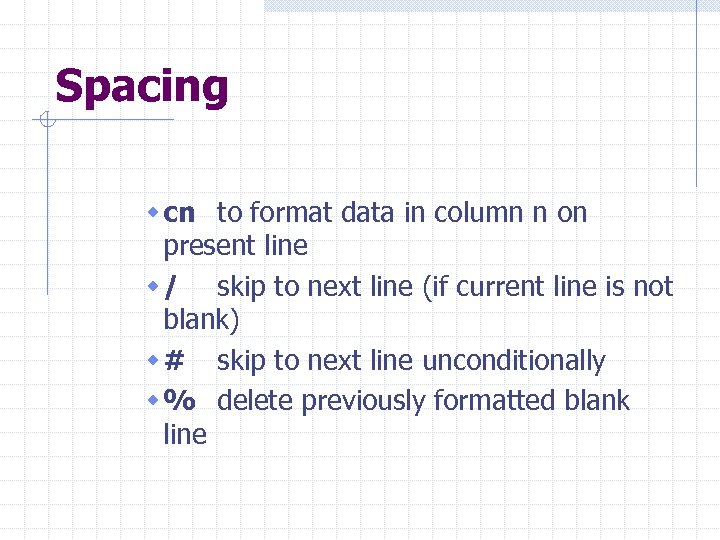 Spacing w cn to format data in column n on present line w / skip to next line (if current line is not blank) w # skip to next line unconditionally w % delete previously formatted blank line
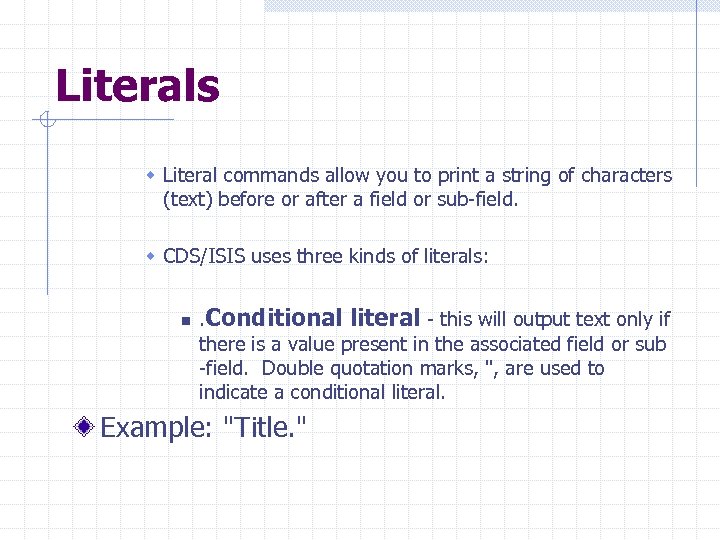 Literals w Literal commands allow you to print a string of characters (text) before or after a field or sub-field. w CDS/ISIS uses three kinds of literals: n . Conditional literal - this will output text only if there is a value present in the associated field or sub -field. Double quotation marks, ", are used to indicate a conditional literal. Example: "Title. "
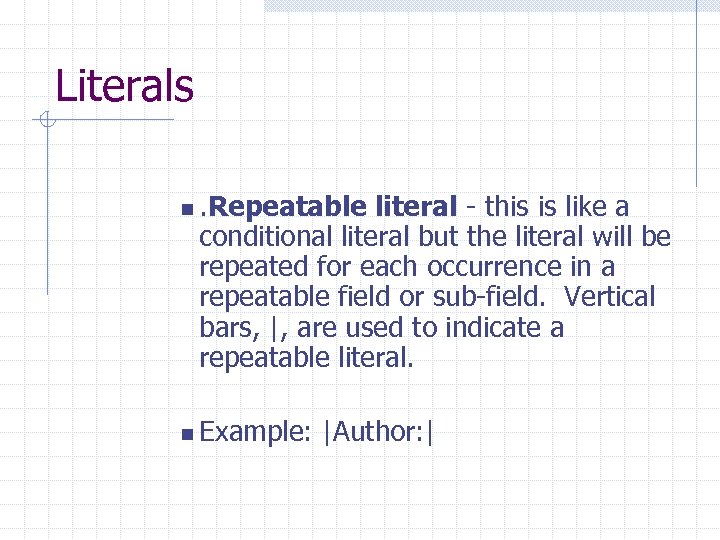 Literals n. Repeatable literal - this is like a conditional literal but the literal will be repeated for each occurrence in a repeatable field or sub-field. Vertical bars, |, are used to indicate a repeatable literal. n Example: |Author: |
 Literals n. Unconditional literal - this will output text whether or not there is a value present in the associated field or sub-field. Single quotation, ', marks are used to indicate an unconditional literal. n Example: 'Summary'
 Literals w. A literal may not contain characters representing that literal, i. e. a conditional literal may not contain double quotation marks although it may contain vertical bars or single quotation marks.
 Literals The position of a conditional or repeatable literal determines where it will be placed in relation to the associated field or sub-field literals preceding the field indicator command (preliterals) will be output before the value of the field or sub-field. Literals following the field indicator command will be output after the value of the field or sub-field.
 Literals If a pre-literal is immediately followed by a + sign, the literal will be output before all but the first occurrence of the field. If a suffix-literal is immediately preceded by a + sign, the literal will be output after all but the last occurrence of the field.
 Indentation You may use the M command to set a global left margin as follows: M ( indent , flindent ) where: n n indent is the indentation of the paragraph from the left margin, and flindent is the indentation of the first line of the paragraph.
 Indentation Both measures are expressed in twips (there are 1440 twips in one inch, and 567 twips in a centimeter).
 Tabulation You may use the TAB command to tabulate to a desired position of the line, as follows: TAB or TAB ( value ) where: position value the of is next character expressed in twips from the current left margin.
 Tabulation If (value) is missing, a default value will be taken. This command is similar to the C command, but it allows you to control more precisely the tabulation value.
 Dummy Field Selectors Allows conditional output of literal based on the presence or absence of a given field. Dt Dt^x Nt Nt^x E. g d 100 “Author given”
 If Then Fi Conditional Statement - If this condition applies then do Must always close an if statement with FI eg. If p(v 10) then v 10 fi eg. If a(v 10) then “ Anon” fi eg If v 10=‘m’ then @books fi eg If v 10= ‘m’ then v 6, v 7, v 8 fi
 Repeatable fields Use Brackets to apply a format to each occurrence of a repeatable field E. g. (mhu, v 650*4/)
 Using external formats You may include an external format in a format by using the @name function, where name is the name of the format to be included. : if v 1=‘BIB’ then @fmt 1 else @fmt 2 fi
 Centre command This command allows you to centre text between the left and the right margin. It is coded as follows: QC
 Justify This command allows you to justify text between the left and the right margin. It is coded as follows: QJ QR
 Box This command allows you to draw a box around a paragraph. The BOX command has two forms, as follows: BOX(n) The first form simply draws a border around the paragraph using the current color
 BOX The second form draws a box around the paragraph, using the current color, and paints the background of the box with color n (as defined in the color table). Note that in this last case the current color must be different from n, otherwise the text inside the box will not be visible, as it will be drawn using the same color as the background color.
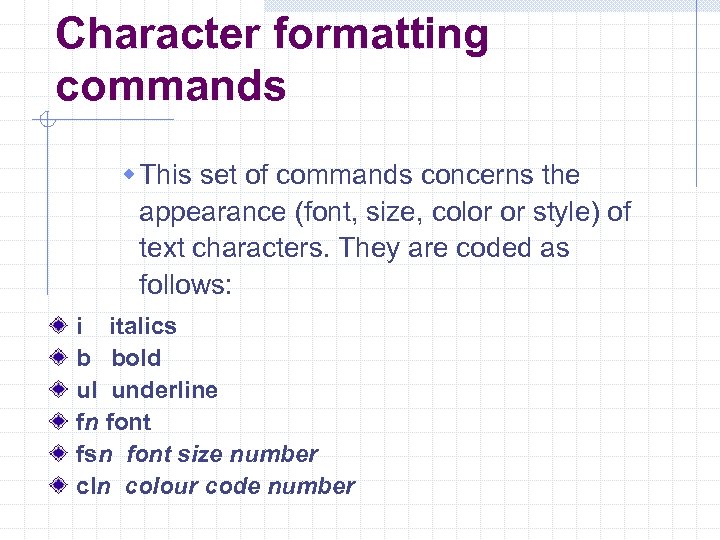 Character formatting commands w This set of commands concerns the appearance (font, size, color or style) of text characters. They are coded as follows: i italics b bold ul underline fn font fsn font size number cln colour code number
 Character formatting commands You may, however, control the applicability of a command by using braces ({}) to delimit its validity. A left brace ({) signals that all subsequent text attributes will only be applied until the corresponding right brace (}), which restores the attributes that were active before.
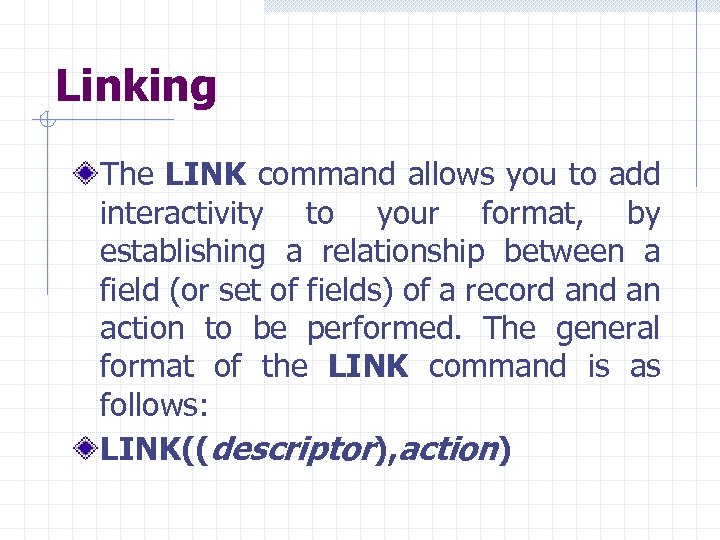 Linking The LINK command allows you to add interactivity to your format, by establishing a relationship between a field (or set of fields) of a record an action to be performed. The general format of the LINK command is as follows: LINK((descriptor), action)
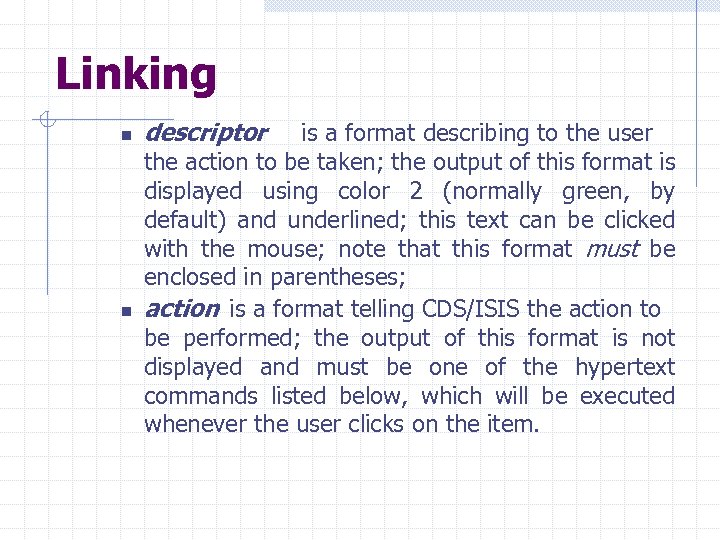 Linking n n descriptor is a format describing to the user the action to be taken; the output of this format is displayed using color 2 (normally green, by default) and underlined; this text can be clicked with the mouse; note that this format must be enclosed in parentheses; action is a format telling CDS/ISIS the action to be performed; the output of this format is not displayed and must be one of the hypertext commands listed below, which will be executed whenever the user clicks on the item.
 Linking all hypertext commands contained in action must be written in uppercase and must be followed by a space. Furthermore, the following special characters contained in any literal must be coded as indicated below: Replace with \ Replace { with { Replace } with}
 Linking both formats (descriptor and action) are mode sensitive. You may therefore have to change the current mode to obtain the desired result.
 CMD Command Runs the Windows or MS-DOS program indicated by command (just like the "File-Run" menu command in the Program Manager). command may include appropriate parameters for the program to be run. Note that for Windows to find the program its path must be either listed in the PATH statement of the autoexec. bat file or you must include it in command.
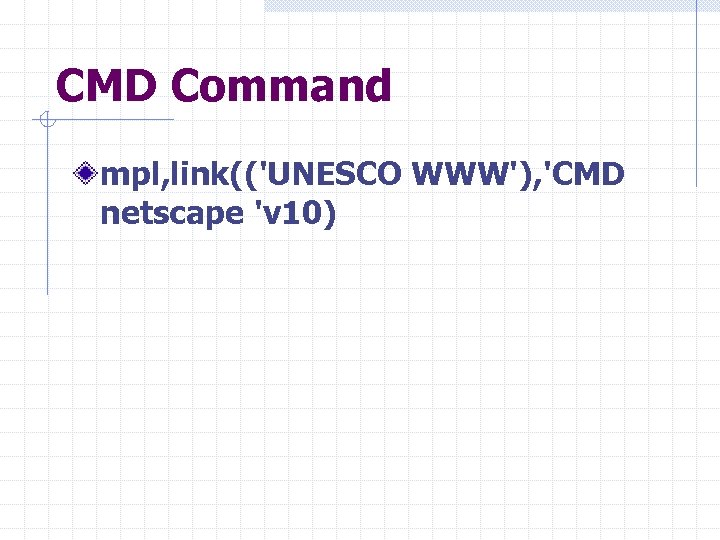 CMD Command mpl, link(('UNESCO WWW'), 'CMD netscape 'v 10)
 Linking GOTO MFN n a. Displays the record whose MFN is mfn is a format which must produce a string containing a valid MFN for the current data base. For example: link(('Show link'), 'GOTO 'v 10)
 CREATING DATABASES
 Creating databases (cont’d) There are two options n n Copy an already defined database into the Data directory From the Main Window choose
 Database definition Four files are essential in order to create a database: n n Field Definition Table (FDT) Data Entry Worksheet(s) (FMT) Display Format(s) (PFT) Field Select Table(s) (FST)
 Field Definition Table-FDT The FDT provides the skeleton on which each record is built. In the FDT the following parameters have to be defined for each field making up the master record: ) Tag - a numeric value between 1 and 32767. The tag is the unique identifier for each field. ) Field Name - an alphanumeric value of up to 30 characters. This is a descriptive name assigned to the field. Field Type - a one-character code indicating the type of data characters assigned to the field.
 Field Select Table(s) used to "define criteria for extracting one or more elements from a master file record”. FSTs produce the Inverted File, in sorting records before printing to reformat records during import or export. elements may be fragments of a record, produced by specific processes. The elements may or may not be words or phrases.
 FST(S) The FST is defined by three parameters: -A field identifier (column ID) -An indexing technique (column IT) -A data extraction formula
 FST(S) n n n . Field Identifier This is a number (1 -32767) given to each element created in the indexing step. In an Inverted File FST the field identifier is used as a qualifier during searching. In a sorting FST the field identifier is used in a user-supplied heading format. In a reformatting FST it is the ISO tag assigned to an exported field or the CDS/ISIS tag to an imported field.
 FST’s Indexing Techniques this is a specific process performed on the data produced by the format resulting in the creation of specific elements. n n IT 0 - Builds an element from each line extracted. This is normally used on whole fields or sub-fields. In conjunction with this the extraction format should output one line for each element to be indexed. IT 1 - Builds an element from each sub-field or line extracted. Proof mode must be specified in the format as CDS/ISIS will look for a sub-field delimiter which will be replaced by punctuation if the data or heading mode is used. IT 1 is a shortcut for IT 0.
 FST’s ( ( ( )IT 2 - Builds an element from each term or phrase in a repeatable field enclosed in triangular brackets (<…>). This technique requires proof mode as the data or heading modes will remove the brackets. )IT 3 - Produces the same output as IT 2 but acts on terms or phrases enclosed in slashes (/…/). )IT 4 - Builds an element from each word in the text extracted. A STOPWORD FILE can be created to stop non-significant words from being indexed. Heading or data mode must be specified so that any delimiters or filing information will be removed before indexing
 Worksheets At least one data entry worksheet must be defined when the database is created Several worksheets may be created for different types of documents
 Display format A default format must be defined The format is used to select fields or parts of fields for display The format Wizard generates a format which lists all the fields that have been defined for the database
 IMPORTING & EXPORTING Sharing data with others
 Importing is done using the import dialog box The parameters must be filled out Name of ISO file- the name of the file you are importing First MFN to be assigned- can be used to renumber the database Enter 1 with Load and one higher than the last number with Merge and update
 Importing Tag containing MFN- you may assign the MFN from a field in the input file you must specify the ISO tag of that field Reformatting FST- Gizmo conversion table- diacritical codes for exchanging between different platforms
 Importing Options Load- rewrites the database Merge- adds records Update- as merge but checks the MFN’s
 Exporting Export Dialog Box Parameters n n n Name of output ISO file Field separator 28 ASCII characcter Record separator 29 Selection parameters- From MFN to or Search results or Marked records Reformatting FST
 Exporting Renumber records from- only affects the output file Output tag containing MFN- the MFN can be exported as a field Gizmo conversion Table
 Printing & Sorting Create bibliographies on the fly
 Printing and Sorting
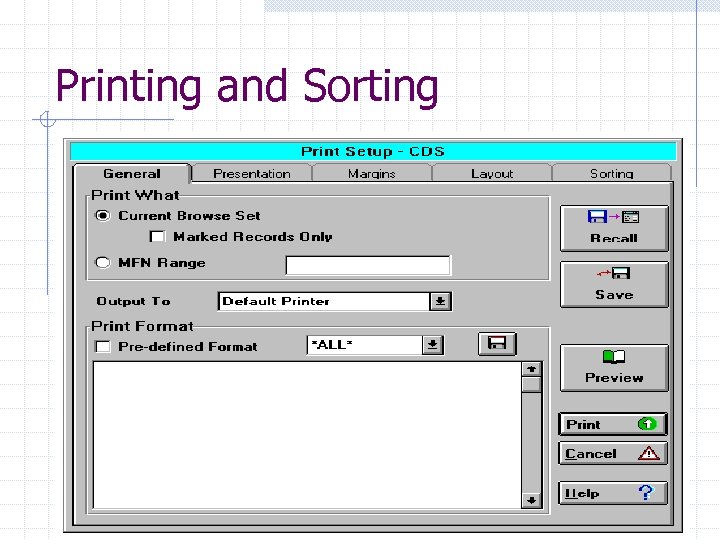
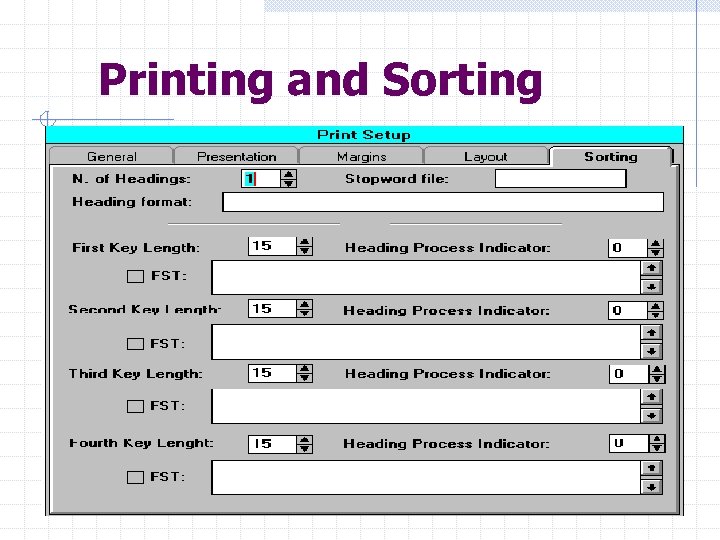
 Printing and Sorting n n n There are five pages in the Print Dialog Box General where you choose what and where to print and the print format you want to use; Presentation where you define titles, headers and footers for your document;
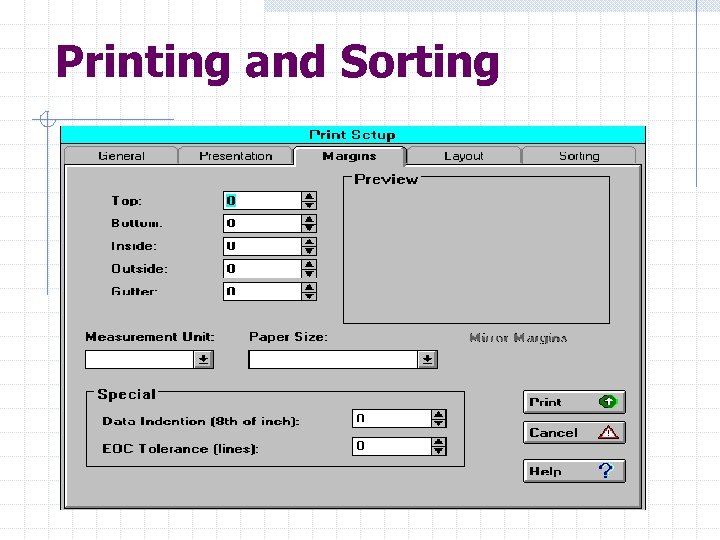
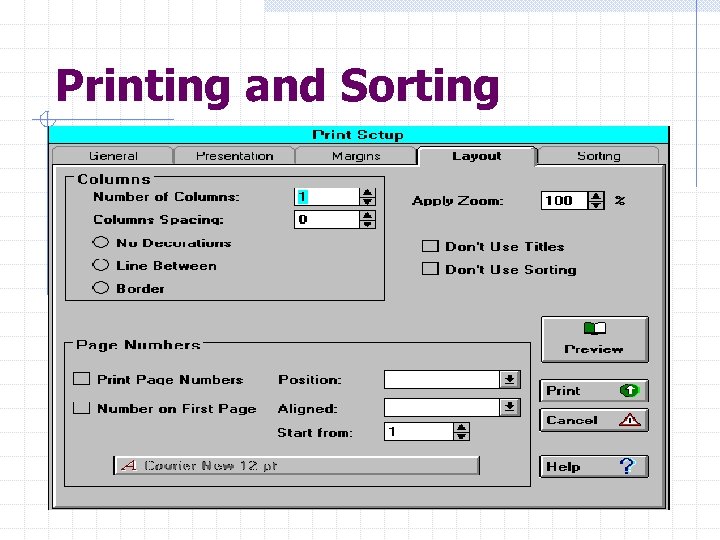
 Printing and Sorting n n n Margins where you define the page printable area; Layout where you define the page layout of your document, such as page numbers and number of columns; Sorting where you define sorting criteria.
 Printing and Sorting In the General page Define the records to be printed Define which fields must be printed Define the output medium:
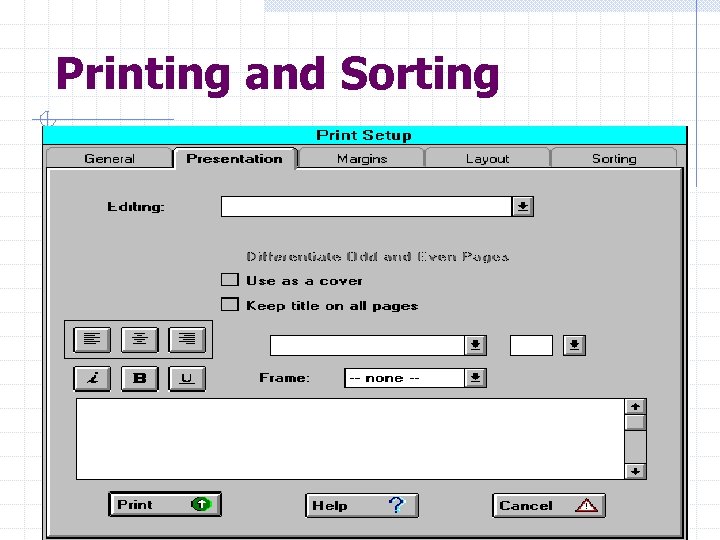
 Printing and Sorting In the Presentation Page Define report titles n n Up to three title lines which will be printed at the beginning of the output May be printed as running titles
 Printing and Sorting
 Printing and Sorting In Margins and Layout Define the page layout n n Line width Lines per page Columns Page Numbering
 Printing and Sorting
 Printing and Sorting
 Printing and Sorting In the Sorting Page n n define the output sequence define the Headings w the fields by which the records are sorted may be used as headings n n eg. If the author is a heading the author’s name may be printed once for all the records having the same author you may decide to have no headings
 Printing and Sorting
 Sorting Up to four sort keys are allowed The first is the primary sort key n If the primary sort key does not extract all records intended the record will not appear in the list
 Sorting FSTs The FST for each sort key follows the same format. ID, Indexing technique, and extraction format. The ID may be !-4 depending on which sort key it is applied to.
 Sorting FSTs It is also possible to have a multi-line FST to sort different groups of fields in one sequence. Eg 1 0 v 100 + 1 0 v 700 Also it is possible to use different Ids if it was necessary to identify each when printing headings. Eg. 1 0 v 100 + 2 0 v 700
 Sorting Heading Processing Indicator n n 0 or 2 Single key generation. Builds an element from the first key produced by the FST 1 or 3 Multiple key generation. Builds an element from each key extracted by the FST To produce unique headings use 0 or 1 2 and 3 will print heading with each record whether they have changed or not. Useful for catalogue cards
 SORTING Key Length Remember to use a key length that would be adequate for sorting. Especially for corporate names the key length should be at least 35 - 40. Eg. Trinidad and Tobago. Ministry of Agriculture, Lands and Marine Resources