Скачать презентацию An Example of a Form The Interaction
3ba98a7f3685025c120c05846baa4dfd.ppt
- Количество слайдов: 59
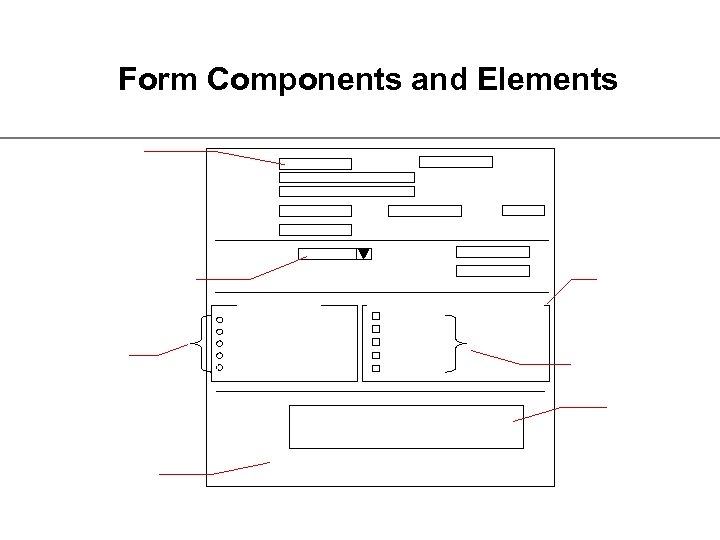
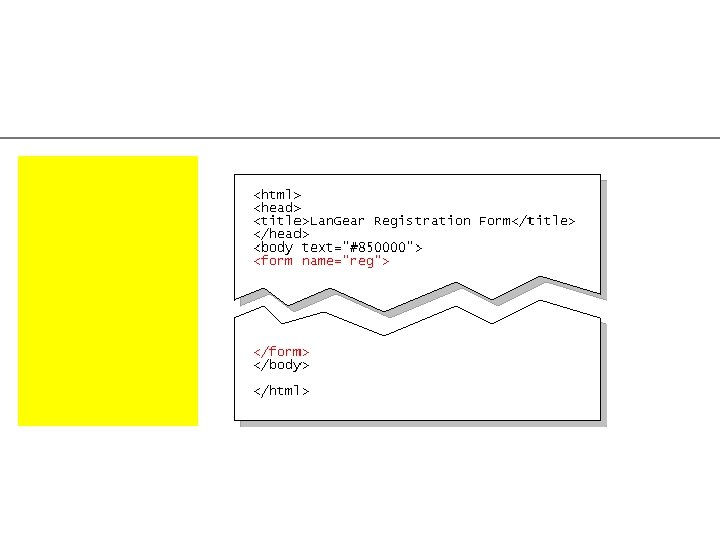
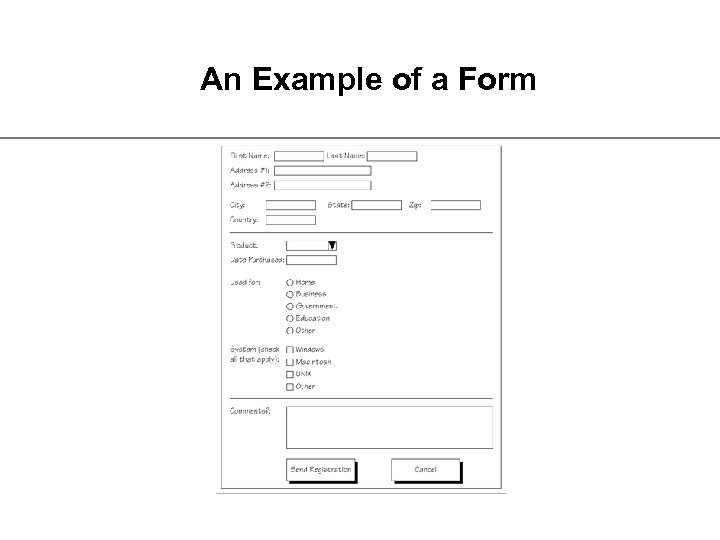 An Example of a Form
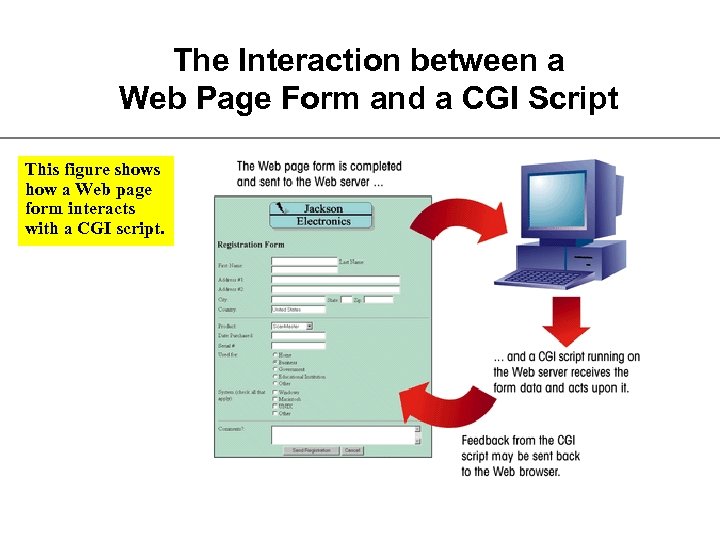 The Interaction between a Web Page Form and a CGI Script This figure shows how a Web page form interacts with a CGI script.
 Working with CGI Scripts
 CGI Scripts and Computer Languages
 Form Components and Elements
 Form Control Elements
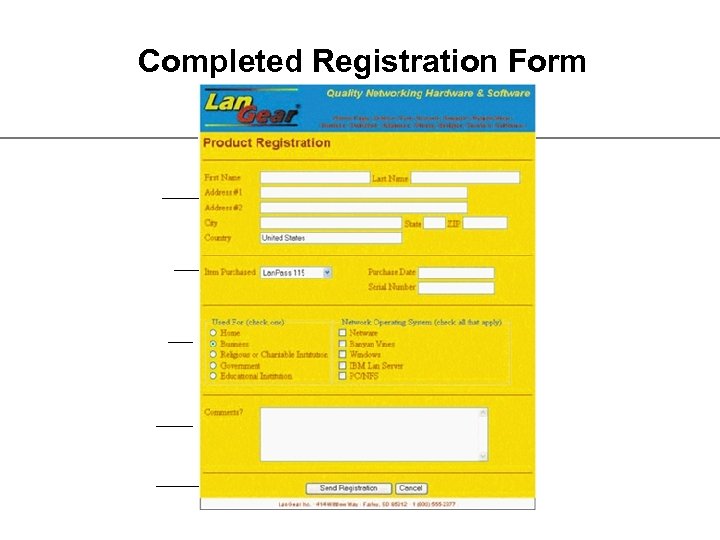 Completed Registration Form
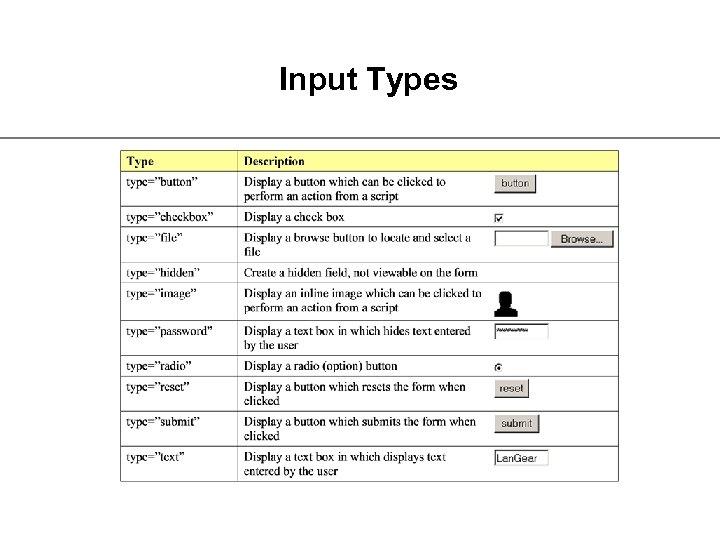 Input Types
 Working with Text Boxes
 Creating a Text Box
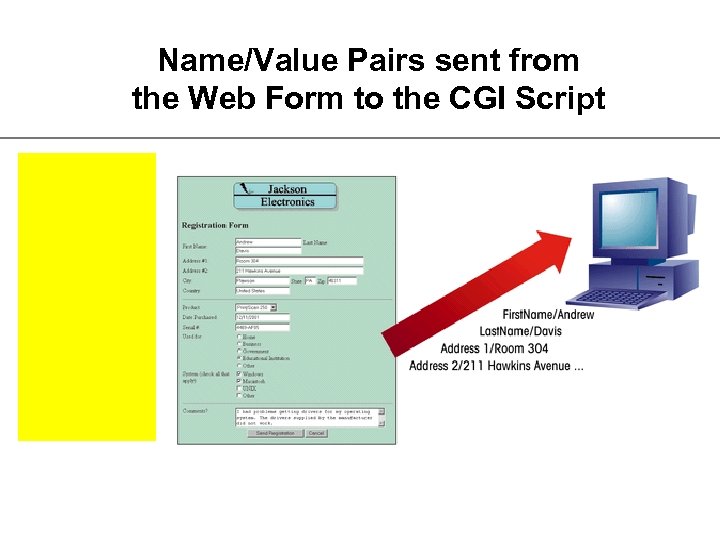 Name/Value Pairs sent from the Web Form to the CGI Script
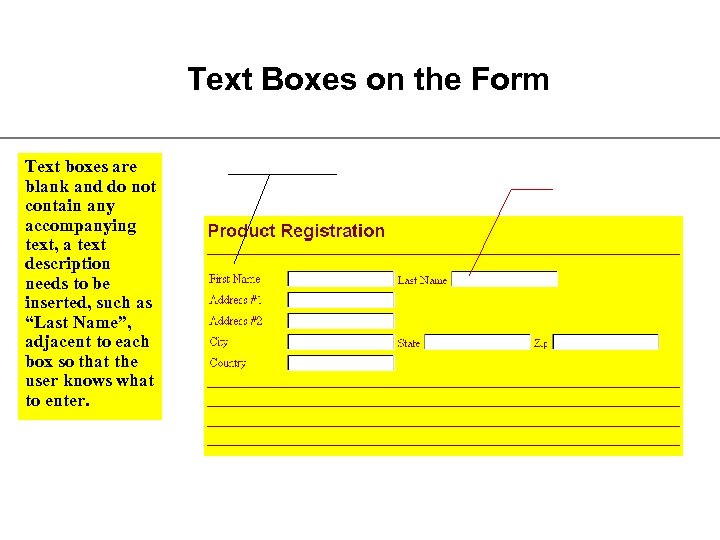 Text Boxes on the Form Text boxes are blank and do not contain any accompanying text, a text description needs to be inserted, such as “Last Name”, adjacent to each box so that the user knows what to enter.
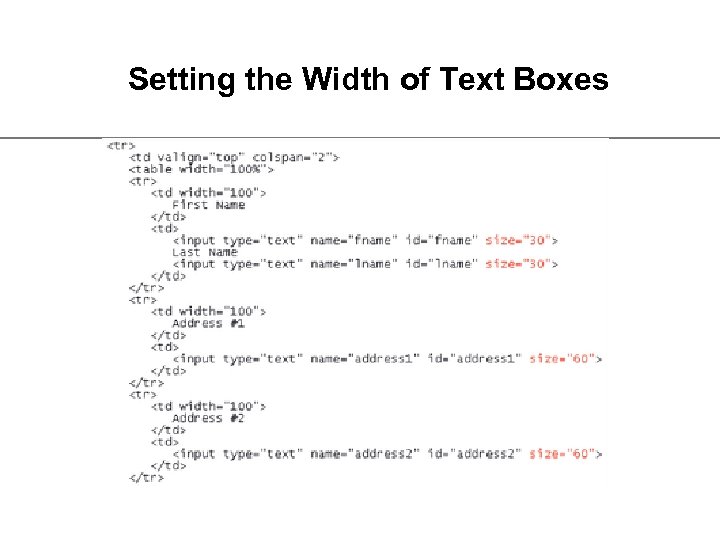 Setting the Width of Text Boxes
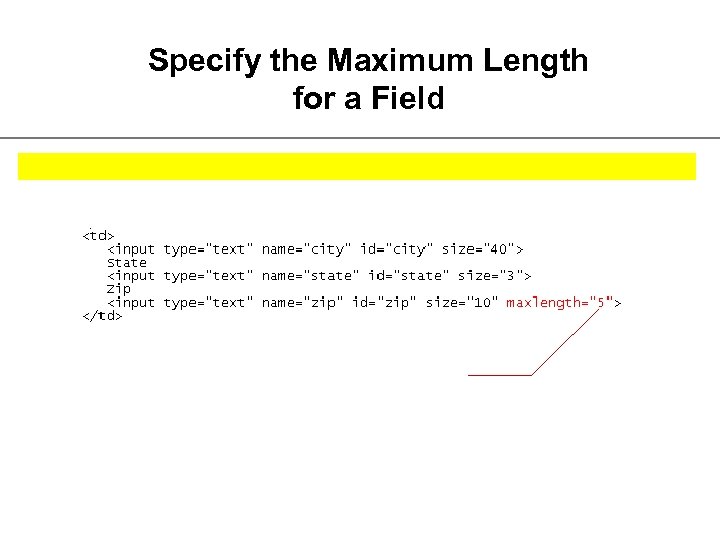 Specify the Maximum Length for a Field
 Setting a Default Value for a Field
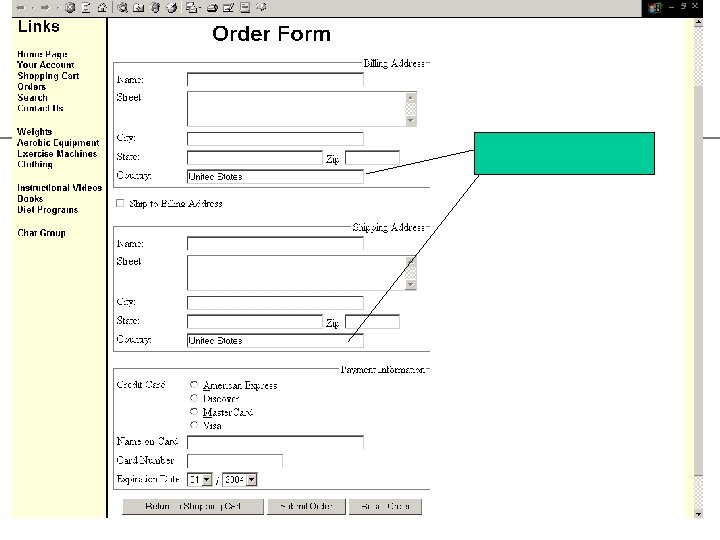
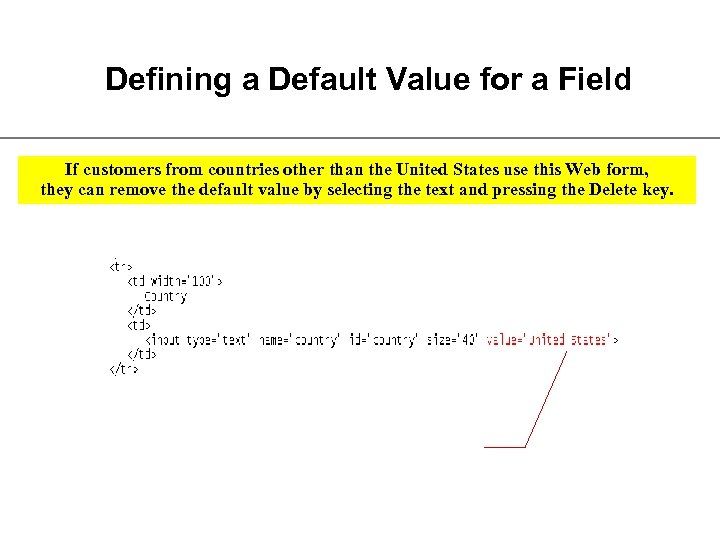 Defining a Default Value for a Field If customers from countries other than the United States use this Web form, they can remove the default value by selecting the text and pressing the Delete key.
 Creating a Password Field
 Form Labels & selection lists
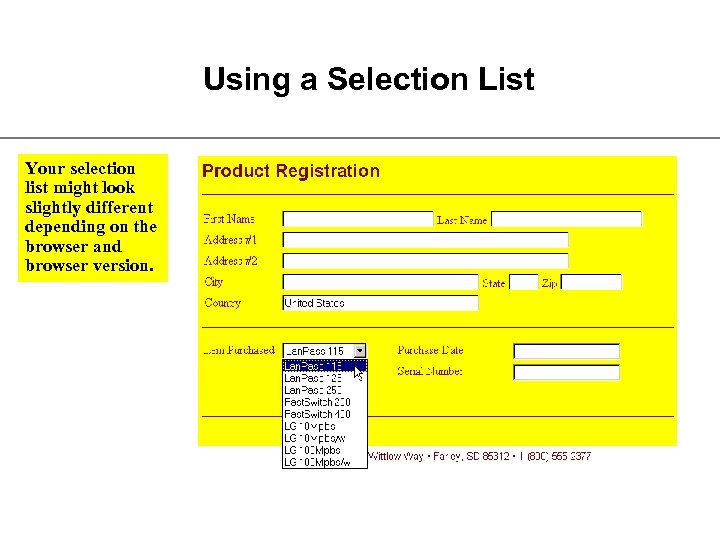 Using a Selection List Your selection list might look slightly different depending on the browser and browser version.
 Creating a Selection List
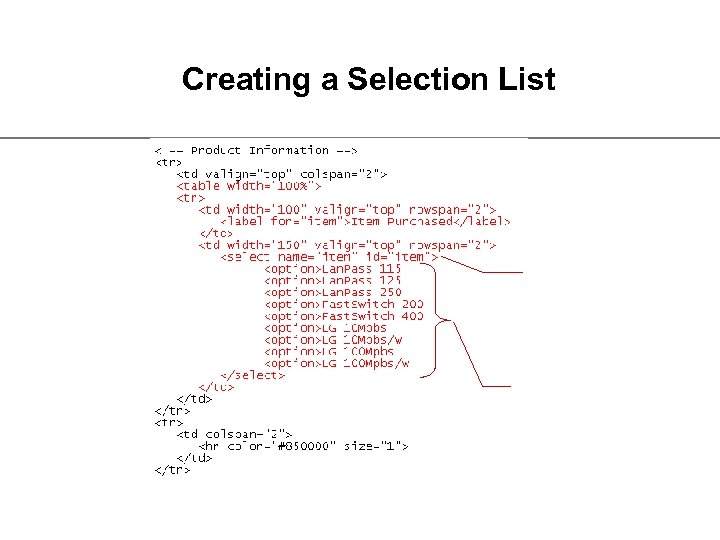 Creating a Selection List
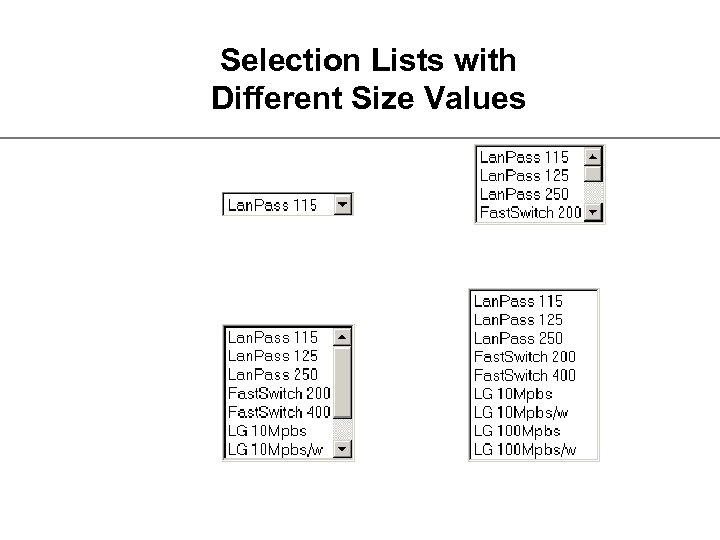 Selection Lists with Different Size Values
 Working with Option Values
 Working with Option Groups
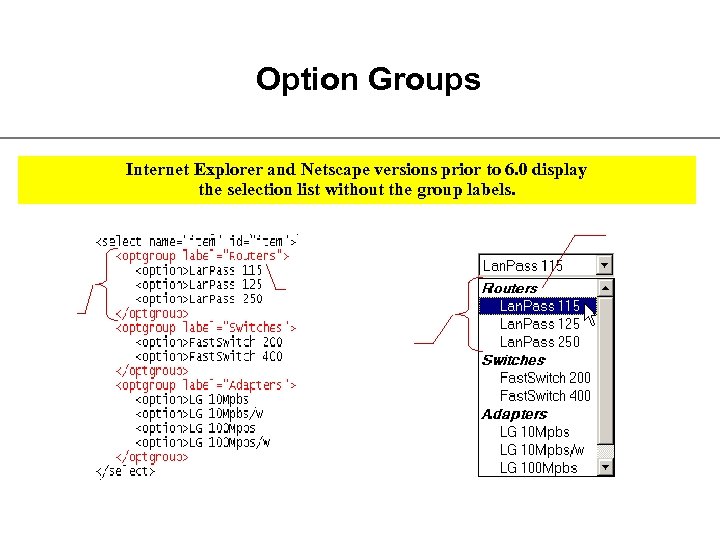 Option Groups Internet Explorer and Netscape versions prior to 6. 0 display the selection list without the group labels.
 Radio Buttons
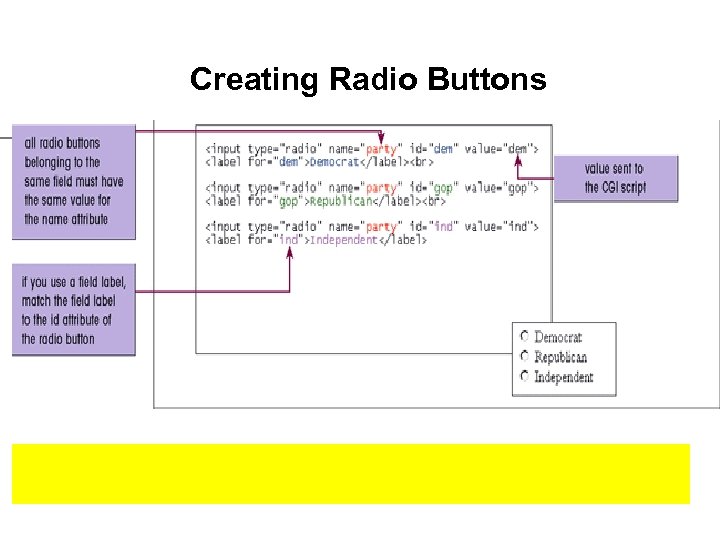 Creating Radio Buttons
 Creating a Group Box
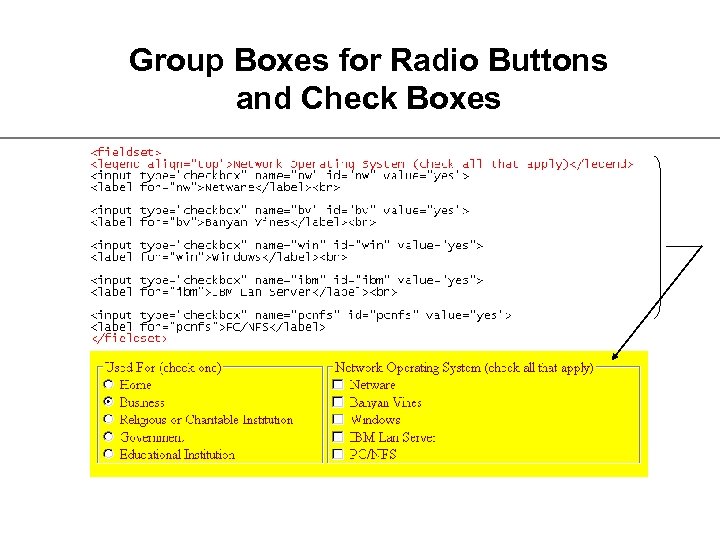 Group Boxes for Radio Buttons and Check Boxes
 Creating a Field Set
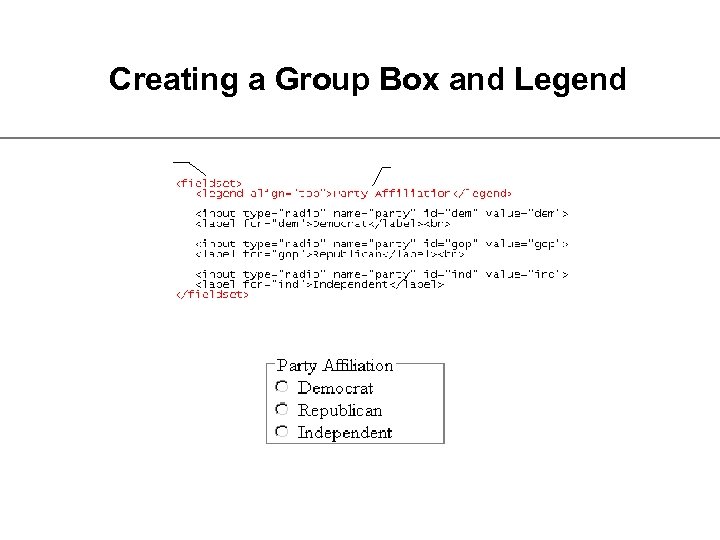 Creating a Group Box and Legend
 Group Box Size
 Working with Check Boxes
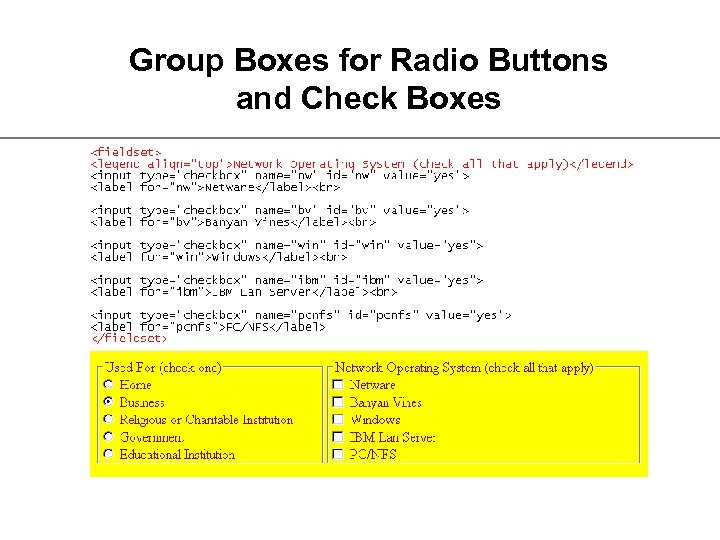 Group Boxes for Radio Buttons and Check Boxes
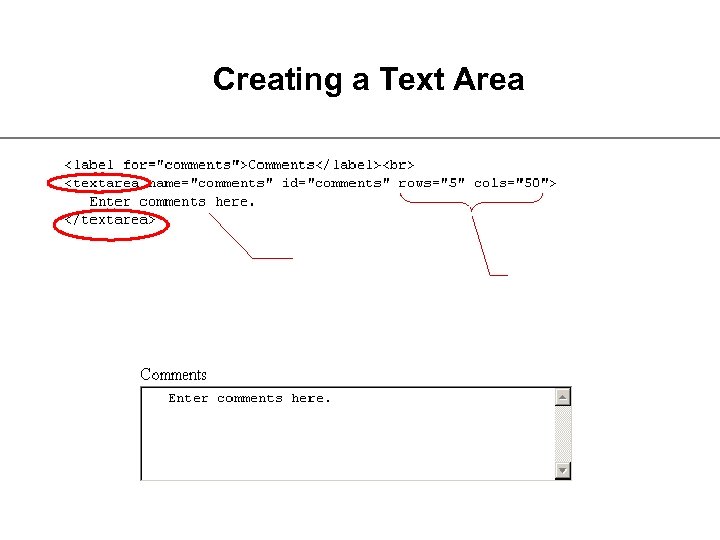 Creating a Text Area
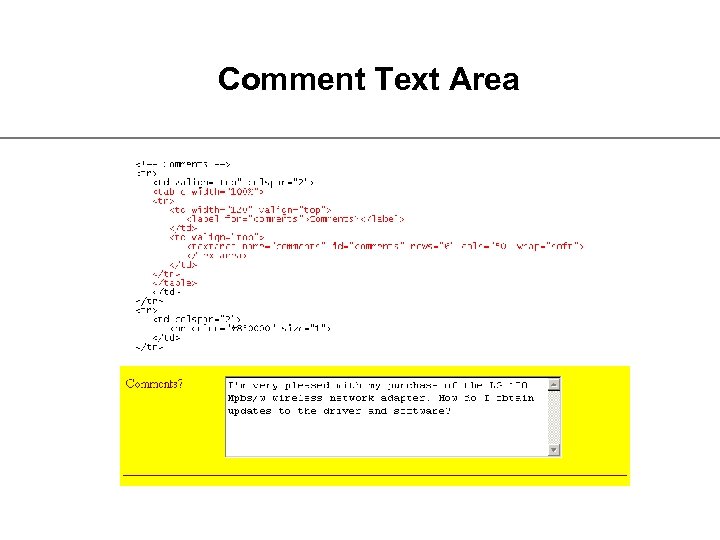 Comment Text Area
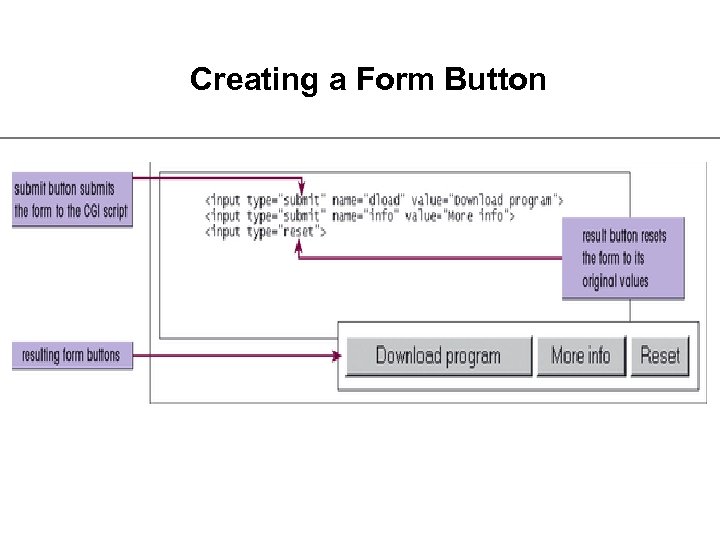 Creating a Form Button
 Creating a Push Button
 Creating Submit and Reset Buttons
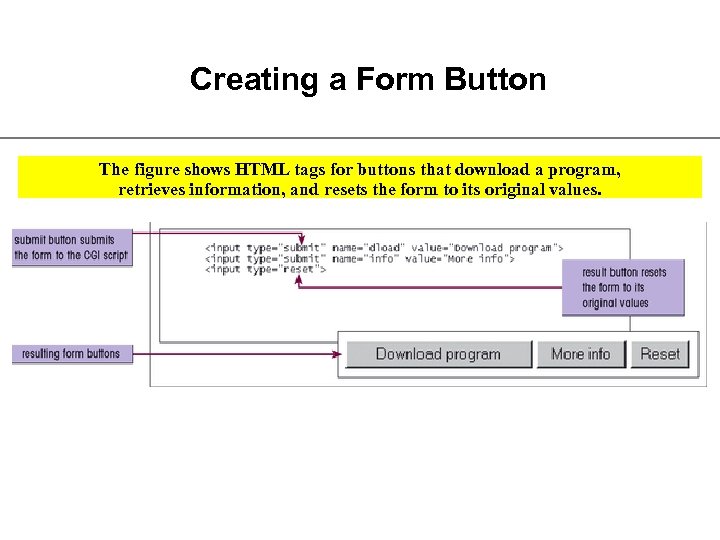 Creating a Form Button The figure shows HTML tags for buttons that download a program, retrieves information, and resets the form to its original values.
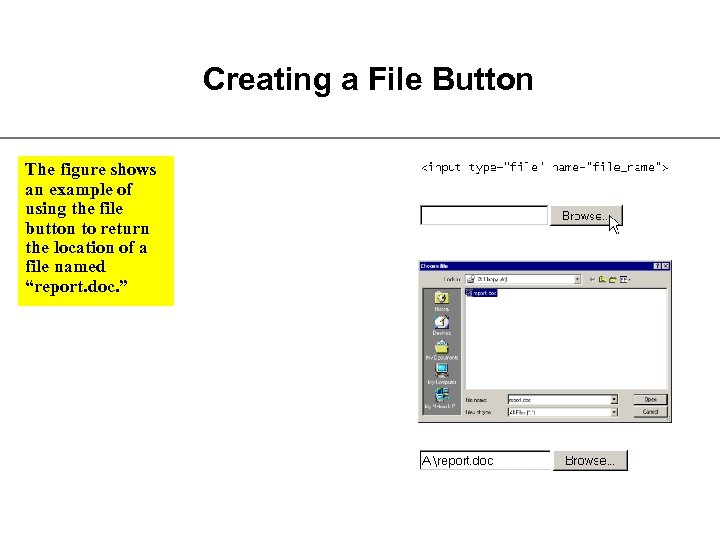 Creating a File Button The figure shows an example of using the file button to return the location of a file named “report. doc. ”
 Working with Hidden Fields
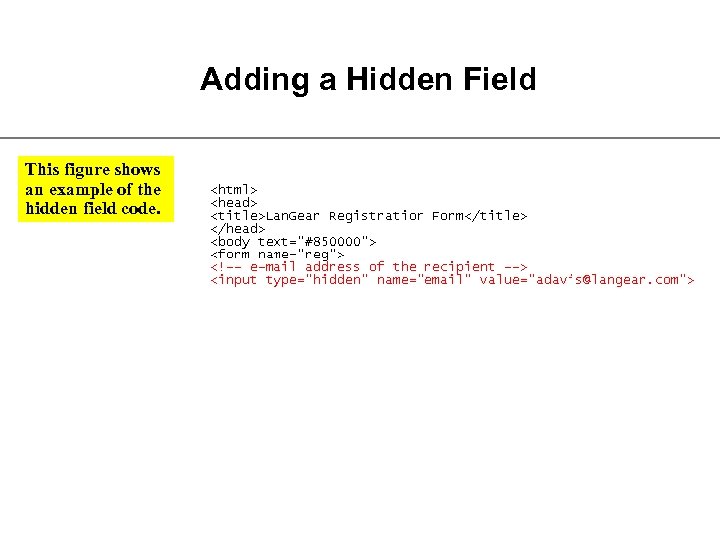 Adding a Hidden Field This figure shows an example of the hidden field code.
 Working with Form Attributes
 Working with Form Attributes
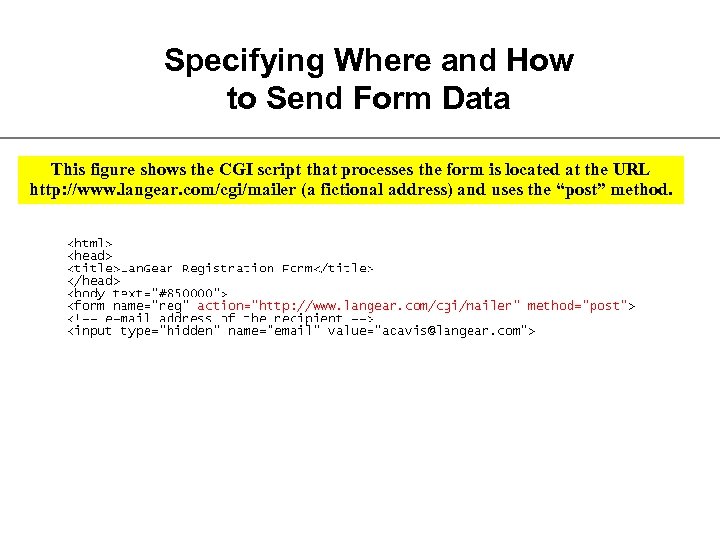 Specifying Where and How to Send Form Data This figure shows the CGI script that processes the form is located at the URL http: //www. langear. com/cgi/mailer (a fictional address) and uses the “post” method.
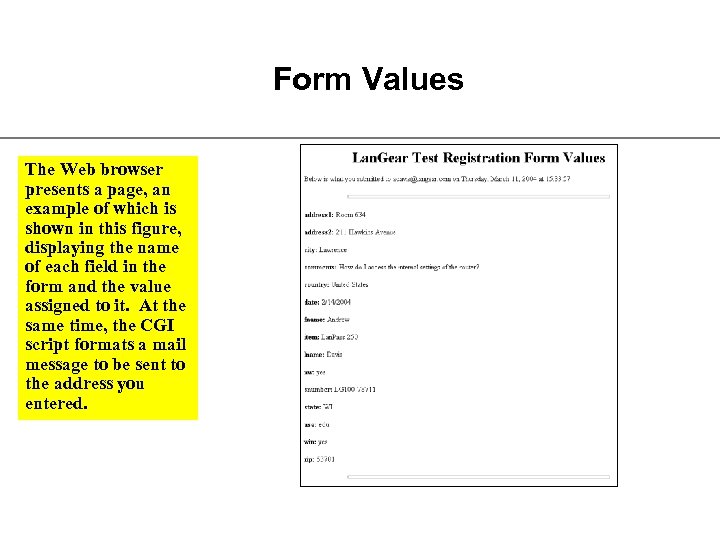 Form Values The Web browser presents a page, an example of which is shown in this figure, displaying the name of each field in the form and the value assigned to it. At the same time, the CGI script formats a mail message to be sent to the address you entered.
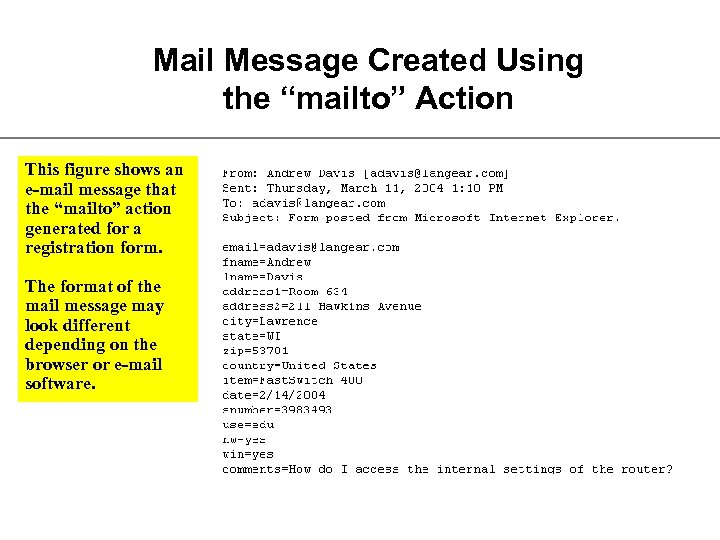 Mail Message Created Using the “mailto” Action This figure shows an e-mail message that the “mailto” action generated for a registration form. The format of the mail message may look different depending on the browser or e-mail software.
 Specifying the Tab Order
 Specifying an Access Key
 7 rows