 Скачать презентацию All you need to know about Western Power s
cda1cb1c8258026bbb211aef5b96411a.ppt
- Количество слайдов: 46



All you need to know about Western Power’s Ariba e-Procurement System
Contents Page Click on a topic to be taken to that slide New User Invitation Email About Ariba and Ariba Commerce Cloud How to Access Sourcing Events the First time You Receive an Email Invitation Complete Registration (First Time User Only) Invitation Email to Suppliers Already Registered on Ariba Commerce Cloud Logging in to Ariba How to Reset Your Password or Retrieve Your Username Accessing Sourcing Event/s Review Event Details Intend to Participate Response Screen Deciding to Respond After Initially Declining Ariba Message Inbox Compose Message Download Attachment Download All attachments Download Reference File Attach a File Free Text Answers Drop-Down List Answers Save Work-in-Progress Submit response Submission errors Revising response Printing your response Ariba help 2 DM#10284162
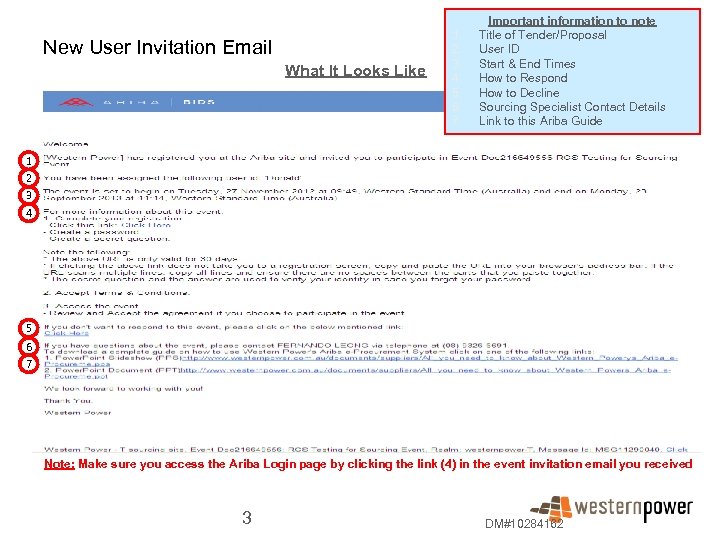
New User Invitation Email What It Looks Like 1. 2. 3. 4. 5. 6. 7. Important information to note Title of Tender/Proposal User ID Start & End Times How to Respond How to Decline Sourcing Specialist Contact Details Link to this Ariba Guide 1 2 3 4 5 6 7 Note: Make sure you access the Ariba Login page by clicking the link (4) in the event invitation email you received 3 DM#10284162
About Ariba and Ariba Commerce Cloud What is the Ariba Commerce Cloud? Ariba is a business commerce network that allows buyers to store contracts; submit and evaluate tenders; and transact with suppliers online. It is a worldwide company that is part of the SAP Company, with over 1, 300 buyers and 700, 000 sellers using and transacting worldwide. As a respondent to a Western Power tender, you will be asked to register for the Ariba Commerce Cloud, to be able to submit your tender response via Ariba. The Ariba Commerce Cloud is a website that allows you to submit your tender responses online. You will have one login and one account that will allow you to submit tenders online with all of your customers transacting through Ariba. If you already have an Ariba Commerce Cloud, Ariba Network or Ariba Discovery account, you can link your sourcing events to your existing Ariba user ID. Ariba Commerce Cloud Profiles Sellers now have a single company profile in the Ariba Commerce Cloud, shared across all Ariba On-Demand solutions and visible to all their potential and existing buyer relationships. Ariba Commerce Cloud profiles include company account and configuration settings, company profile information, and user information. Ariba Commerce Cloud profiles allow you to maintain a single company profile, from one account, for all your customer relationships. Registering on the Ariba Commerce Cloud How to register: please see the information on slides 5 & 6 for instructions on how to register for the Ariba Commerce Cloud 4 DM#10284162
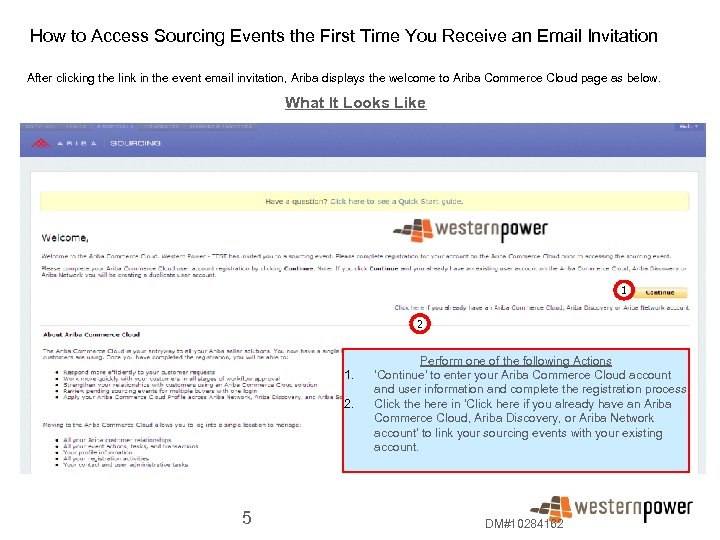
How to Access Sourcing Events the First Time You Receive an Email Invitation After clicking the link in the event email invitation, Ariba displays the welcome to Ariba Commerce Cloud page as below. What It Looks Like 1 2 1. 2. 5 Perform one of the following Actions 'Continue' to enter your Ariba Commerce Cloud account and user information and complete the registration process. Click the here in ‘Click here if you already have an Ariba Commerce Cloud, Ariba Discovery, or Ariba Network account' to link your sourcing events with your existing account. DM#10284162
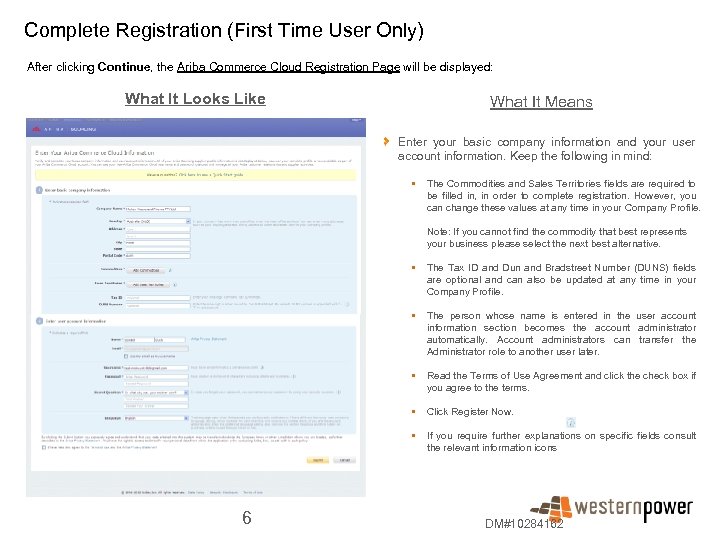
Complete Registration (First Time User Only) After clicking Continue, the Ariba Commerce Cloud Registration Page will be displayed: What It Looks Like What It Means Enter your basic company information and your user account information. Keep the following in mind: • The Commodities and Sales Territories fields are required to be filled in, in order to complete registration. However, you can change these values at any time in your Company Profile. Note: If you cannot find the commodity that best represents your business please select the next best alternative. • • The person whose name is entered in the user account information section becomes the account administrator automatically. Account administrators can transfer the Administrator role to another user later. • Read the Terms of Use Agreement and click the check box if you agree to the terms. • Click Register Now. • 6 The Tax ID and Dun and Bradstreet Number (DUNS) fields are optional and can also be updated at any time in your Company Profile. If you require further explanations on specific fields consult the relevant information icons DM#10284162
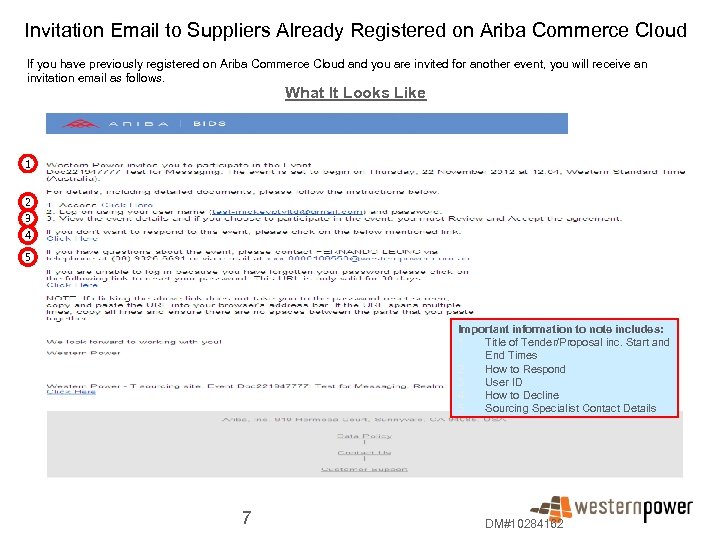
Invitation Email to Suppliers Already Registered on Ariba Commerce Cloud If you have previously registered on Ariba Commerce Cloud and you are invited for another event, you will receive an invitation email as follows. What It Looks Like 1 2 3 4 5 Important information to note includes: 1. Title of Tender/Proposal inc. Start and End Times 2. How to Respond 3. User ID 4. How to Decline 5. Sourcing Specialist Contact Details 7 DM#10284162
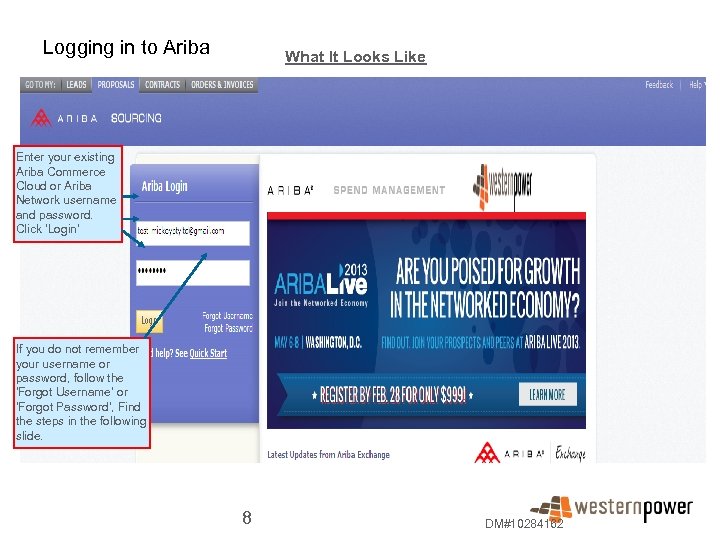
Logging in to Ariba What It Looks Like Enter your existing Ariba Commerce Cloud or Ariba Network username and password. Click ‘Login’ If you do not remember your username or password, follow the 'Forgot Username’ or ‘Forgot Password', Find the steps in the following slide. 8 DM#10284162
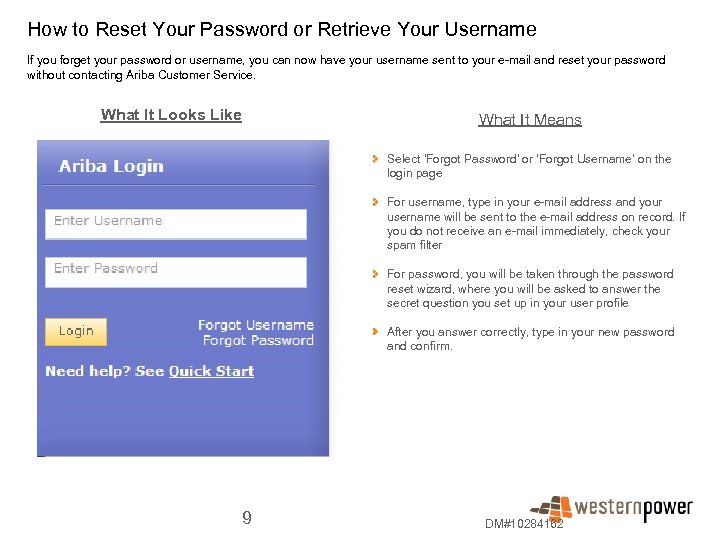
How to Reset Your Password or Retrieve Your Username If you forget your password or username, you can now have your username sent to your e-mail and reset your password without contacting Ariba Customer Service. What It Looks Like What It Means Select 'Forgot Password' or ‘Forgot Username’ on the login page For username, type in your e-mail address and your username will be sent to the e-mail address on record. If you do not receive an e-mail immediately, check your spam filter For password, you will be taken through the password reset wizard, where you will be asked to answer the secret question you set up in your user profile After you answer correctly, type in your new password and confirm. 9 DM#10284162
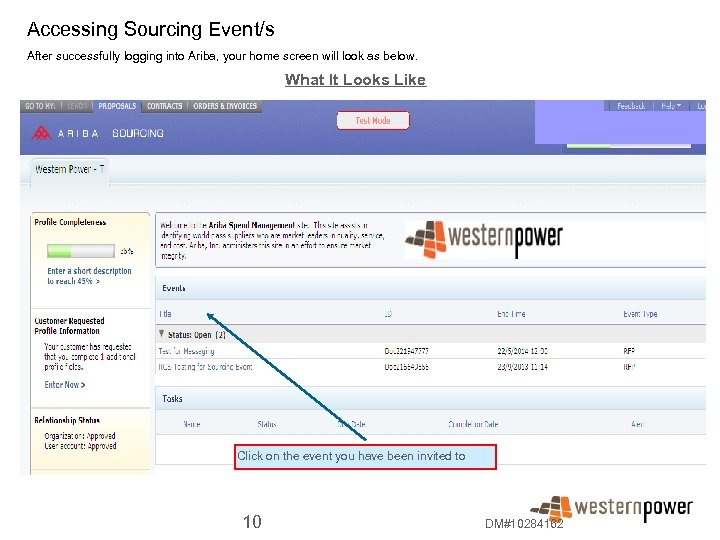
Accessing Sourcing Event/s After successfully logging into Ariba, your home screen will look as below. What It Looks Like Click on the event you have been invited to 10 DM#10284162
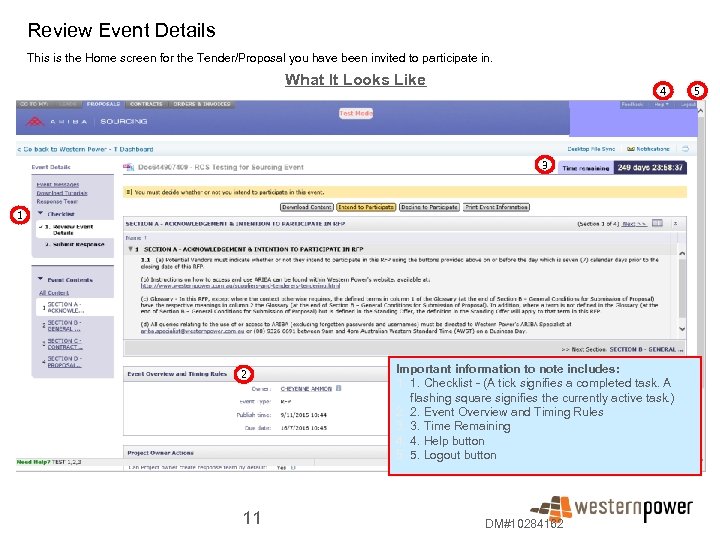
Review Event Details This is the Home screen for the Tender/Proposal you have been invited to participate in. What It Looks Like 4 3 1 2 11 Important information to note includes: 1. 1. Checklist - (A tick signifies a completed task. A flashing square signifies the currently active task. ) 2. 2. Event Overview and Timing Rules 3. 3. Time Remaining 4. 4. Help button 5. 5. Logout button DM#10284162 5
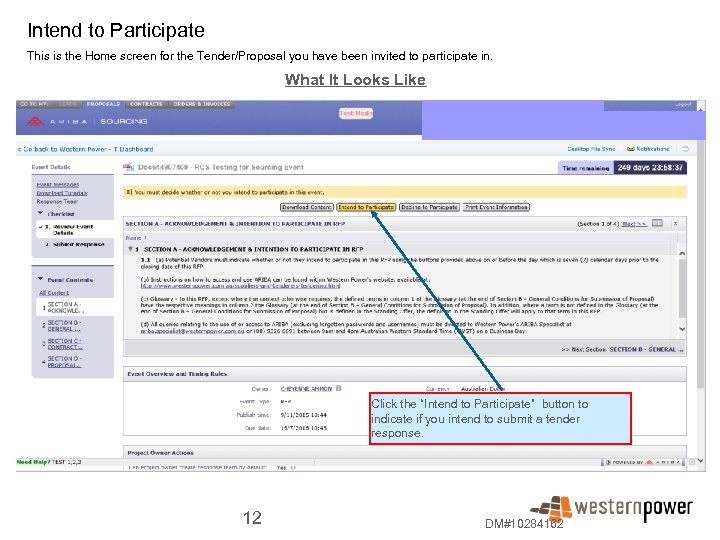
Intend to Participate This is the Home screen for the Tender/Proposal you have been invited to participate in. What It Looks Like Click the “Intend to Participate” button to indicate if you intend to submit a tender response. 12 DM#10284162
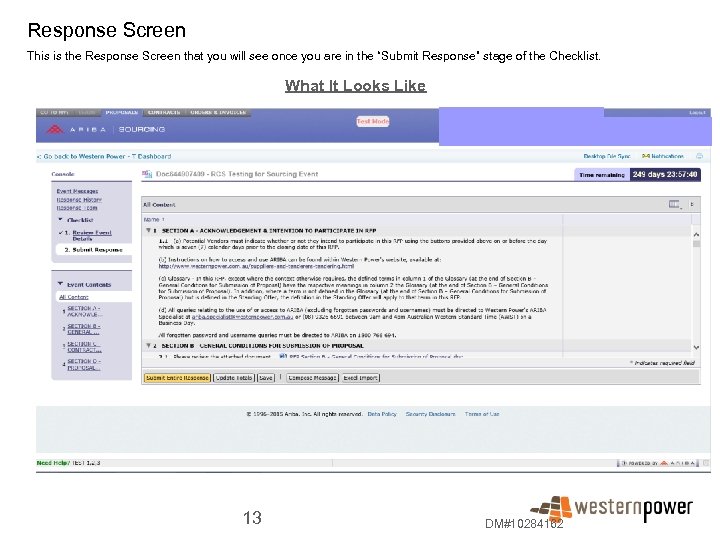
Response Screen This is the Response Screen that you will see once you are in the “Submit Response” stage of the Checklist. What It Looks Like 13 DM#10284162
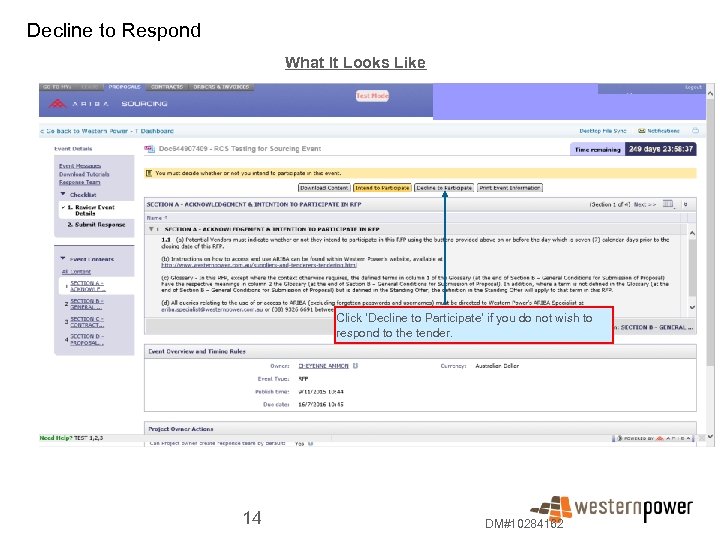
Decline to Respond What It Looks Like Click ‘Decline to Participate' if you do not wish to respond to the tender. 14 DM#10284162
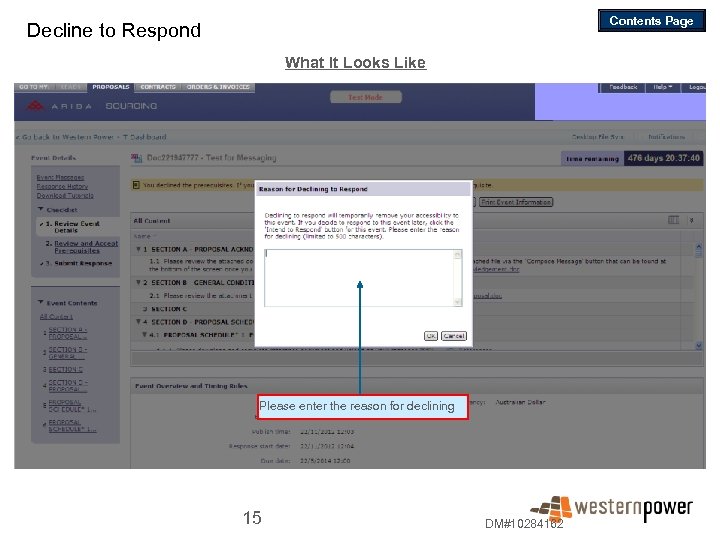
Contents Page Decline to Respond What It Looks Like Please enter the reason for declining 15 DM#10284162
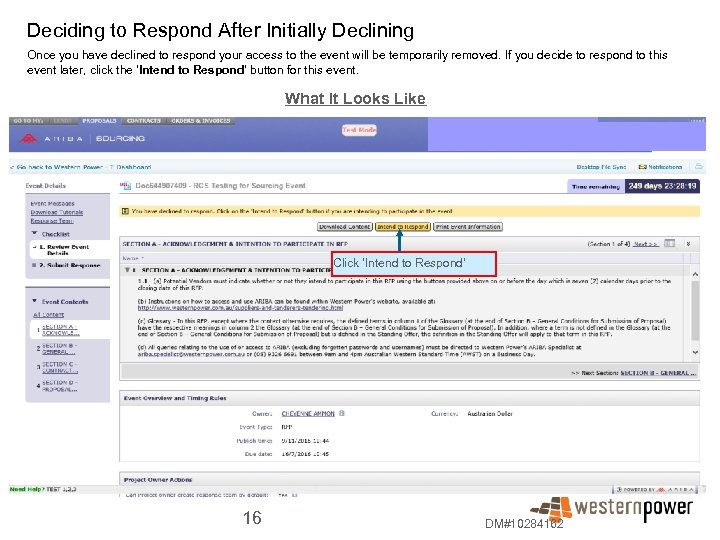
Deciding to Respond After Initially Declining Once you have declined to respond your access to the event will be temporarily removed. If you decide to respond to this event later, click the ‘Intend to Respond’ button for this event. What It Looks Like Click ‘Intend to Respond’ 16 DM#10284162
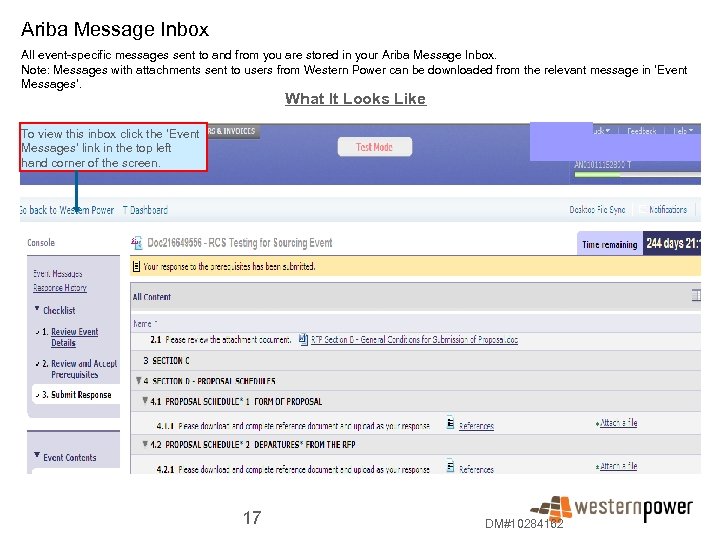
Ariba Message Inbox All event-specific messages sent to and from you are stored in your Ariba Message Inbox. Note: Messages with attachments sent to users from Western Power can be downloaded from the relevant message in ‘Event Messages’. What It Looks Like To view this inbox click the ‘Event Messages’ link in the top left hand corner of the screen. 17 DM#10284162
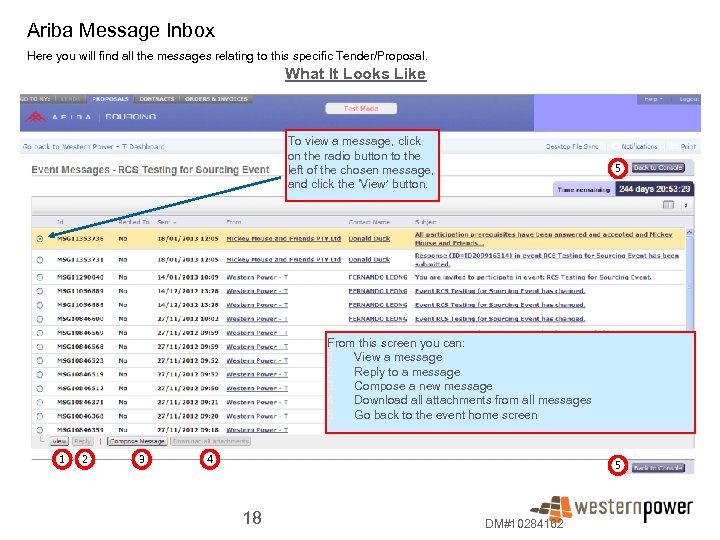
Ariba Message Inbox Here you will find all the messages relating to this specific Tender/Proposal. What It Looks Like To view a message, click on the radio button to the left of the chosen message, and click the 'View’ button. 5 From this screen you can: 1. View a message 2. Reply to a message 3. Compose a new message 4. Download all attachments from all messages 5. Go back to the event home screen 1 2 3 4 5 18 DM#10284162
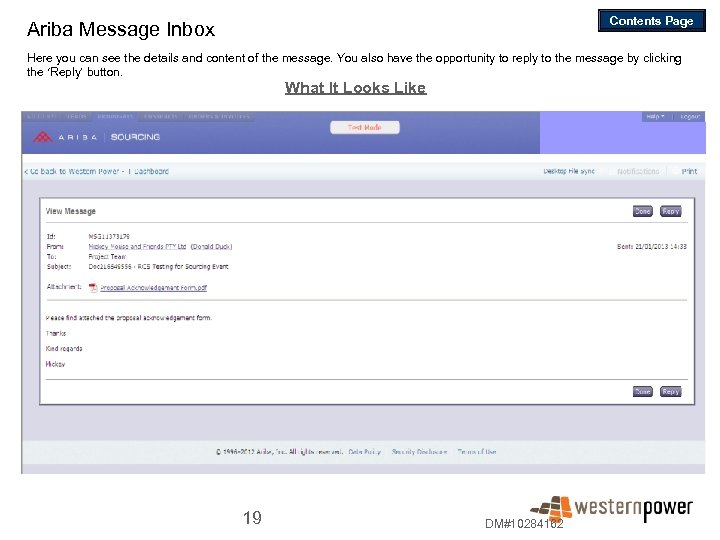
Contents Page Ariba Message Inbox Here you can see the details and content of the message. You also have the opportunity to reply to the message by clicking the ‘Reply’ button. What It Looks Like 19 DM#10284162
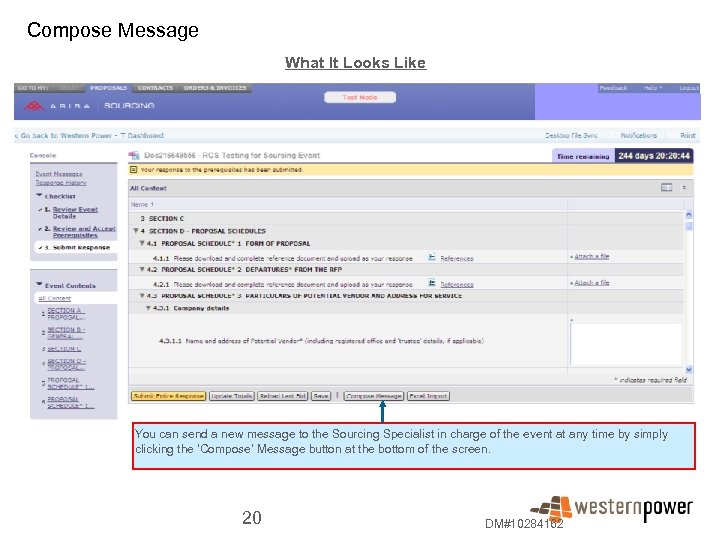
Compose Message What It Looks Like You can send a new message to the Sourcing Specialist in charge of the event at any time by simply clicking the 'Compose' Message button at the bottom of the screen. 20 DM#10284162
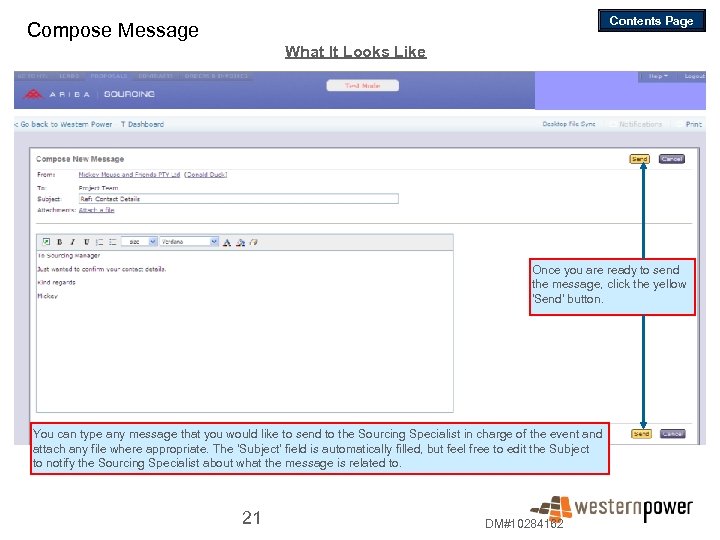
Contents Page Compose Message What It Looks Like Once you are ready to send the message, click the yellow 'Send' button. You can type any message that you would like to send to the Sourcing Specialist in charge of the event and attach any file where appropriate. The 'Subject' field is automatically filled, but feel free to edit the Subject to notify the Sourcing Specialist about what the message is related to. 21 DM#10284162
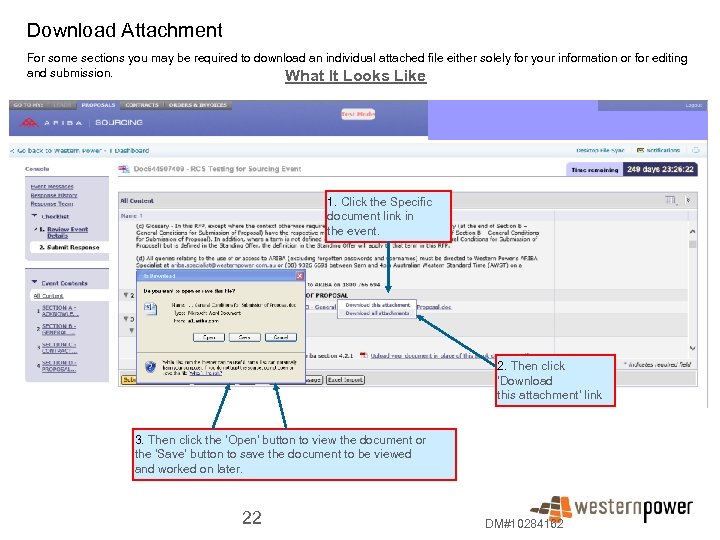
Download Attachment For some sections you may be required to download an individual attached file either solely for your information or for editing and submission. What It Looks Like 1. Click the Specific document link in the event. 2. Then click 'Download this attachment' link 3. Then click the 'Open' button to view the document or the 'Save' button to save the document to be viewed and worked on later. 22 DM#10284162
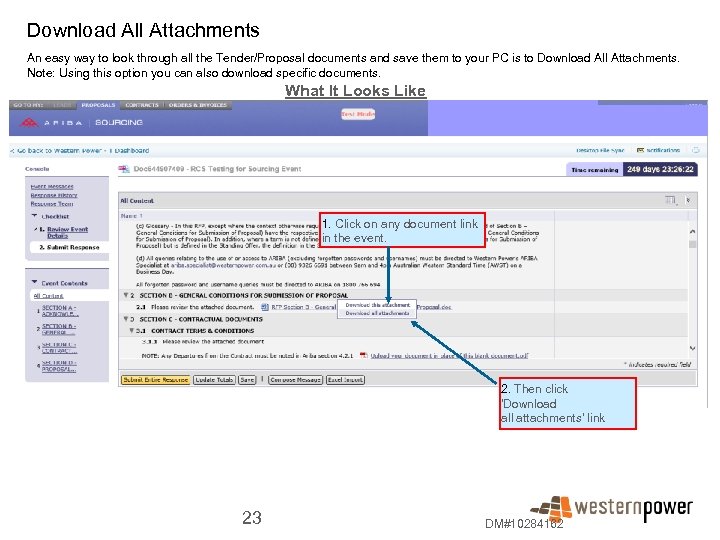
Download All Attachments An easy way to look through all the Tender/Proposal documents and save them to your PC is to Download All Attachments. Note: Using this option you can also download specific documents. What It Looks Like 1. Click on any document link in the event. 2. Then click 'Download all attachments' link 23 DM#10284162
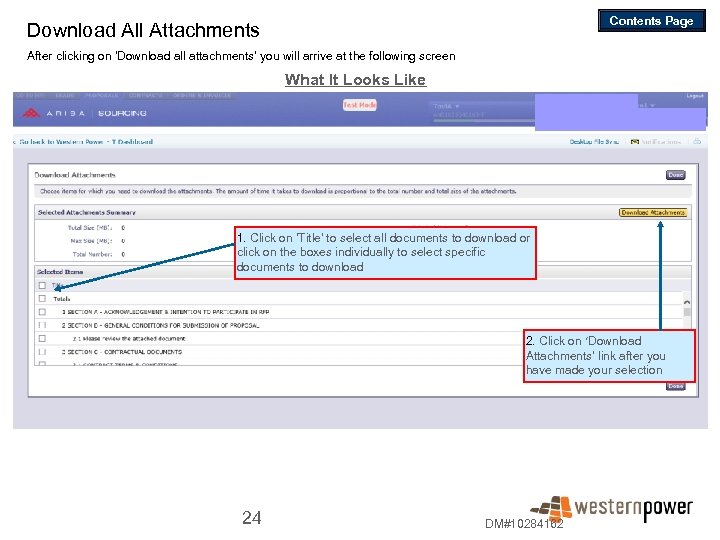
Contents Page Download All Attachments After clicking on 'Download all attachments' you will arrive at the following screen What It Looks Like 1. Click on 'Title' to select all documents to download or click on the boxes individually to select specific documents to download 2. Click on ‘Download Attachments' link after you have made your selection 24 DM#10284162
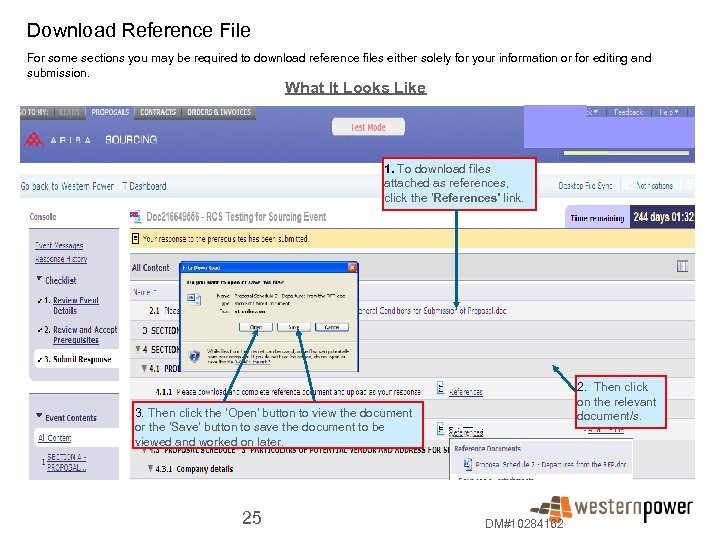
Download Reference File For some sections you may be required to download reference files either solely for your information or for editing and submission. What It Looks Like 1. To download files attached as references, click the 'References' link. 2. Then click on the relevant document/s. 3. Then click the 'Open' button to view the document or the 'Save' button to save the document to be viewed and worked on later. 25 DM#10284162
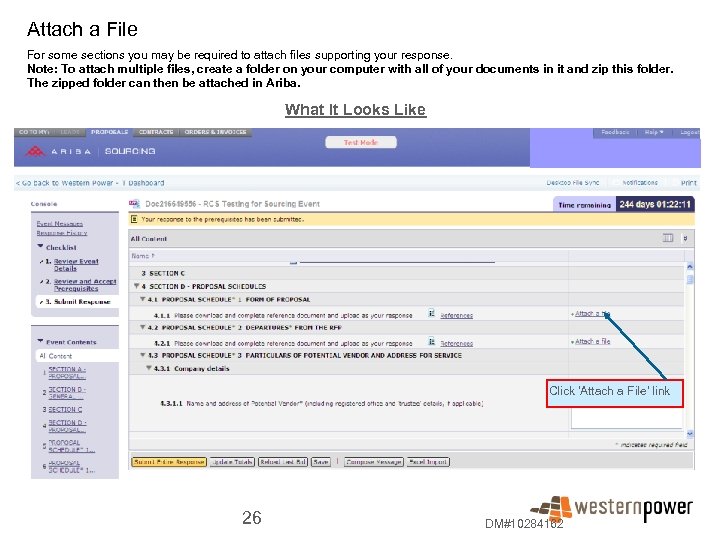
Attach a File For some sections you may be required to attach files supporting your response. Note: To attach multiple files, create a folder on your computer with all of your documents in it and zip this folder. The zipped folder can then be attached in Ariba. What It Looks Like Click 'Attach a File' link 26 DM#10284162
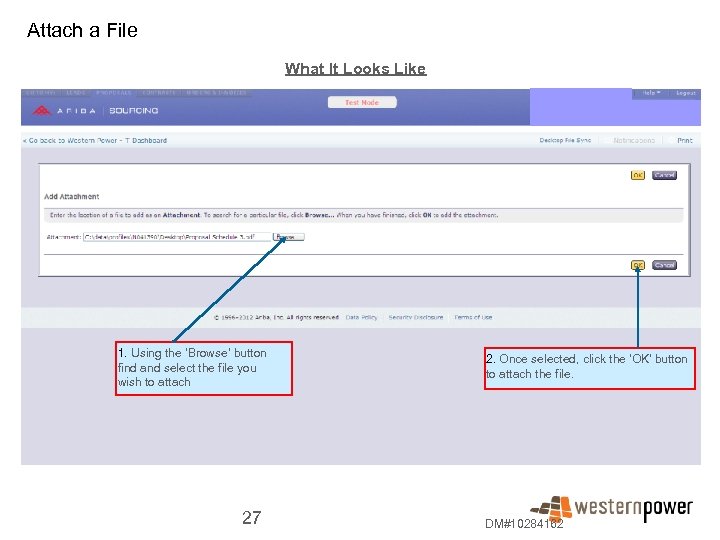
Attach a File What It Looks Like 1. Using the ‘Browse’ button find and select the file you wish to attach 27 2. Once selected, click the 'OK' button to attach the file. DM#10284162
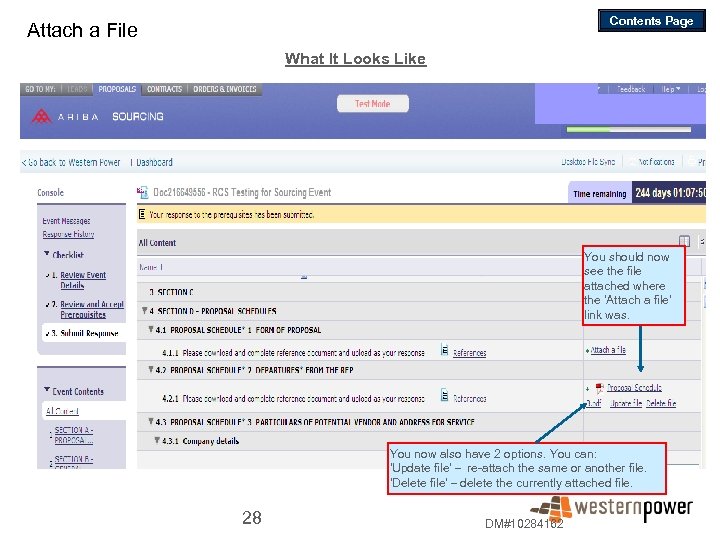
Contents Page Attach a File What It Looks Like You should now see the file attached where the 'Attach a file' link was. You now also have 2 options. You can: 'Update file' – re-attach the same or another file. 'Delete file' – delete the currently attached file. 28 DM#10284162
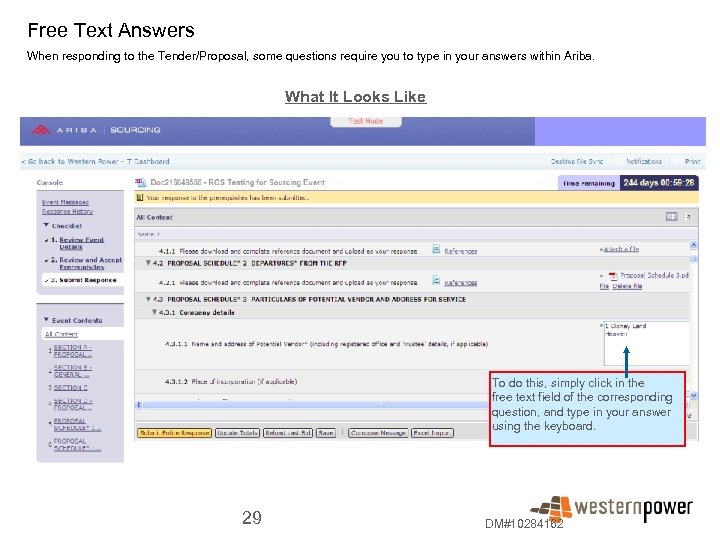
Free Text Answers When responding to the Tender/Proposal, some questions require you to type in your answers within Ariba. What It Looks Like To do this, simply click in the free text field of the corresponding question, and type in your answer using the keyboard. 29 DM#10284162
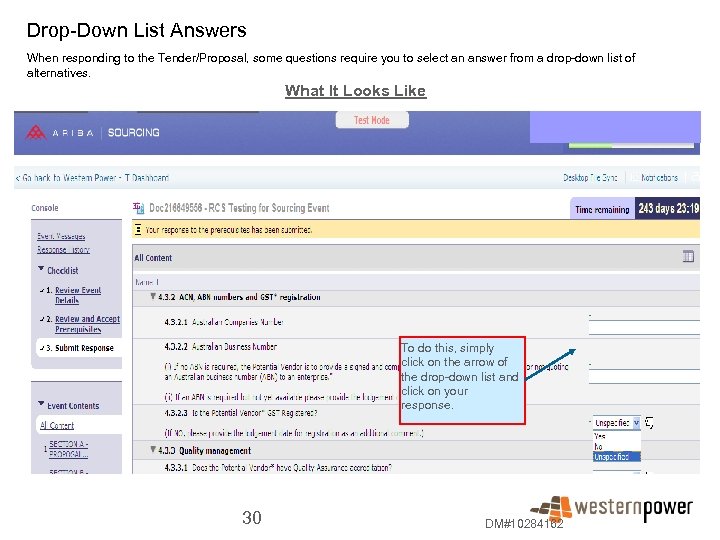
Drop-Down List Answers When responding to the Tender/Proposal, some questions require you to select an answer from a drop-down list of alternatives. What It Looks Like To do this, simply click on the arrow of the drop-down list and click on your response. 30 DM#10284162
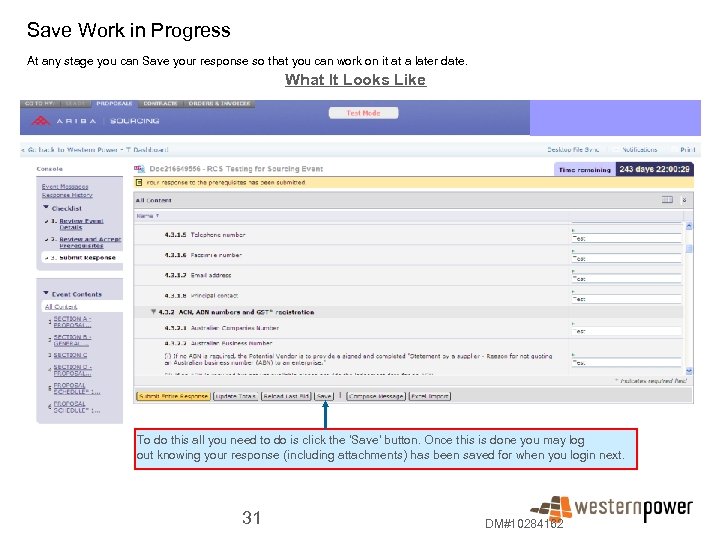
Save Work in Progress At any stage you can Save your response so that you can work on it at a later date. What It Looks Like To do this all you need to do is click the 'Save' button. Once this is done you may log out knowing your response (including attachments) has been saved for when you login next. 31 DM#10284162
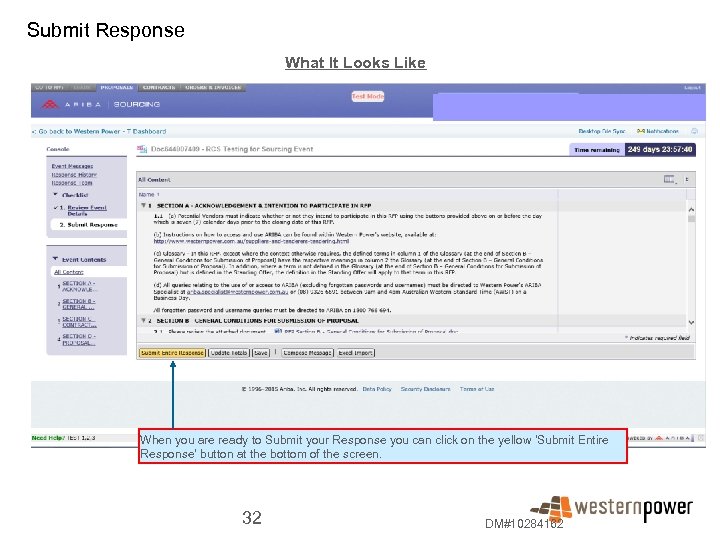
Submit Response What It Looks Like When you are ready to Submit your Response you can click on the yellow 'Submit Entire Response' button at the bottom of the screen. 32 DM#10284162
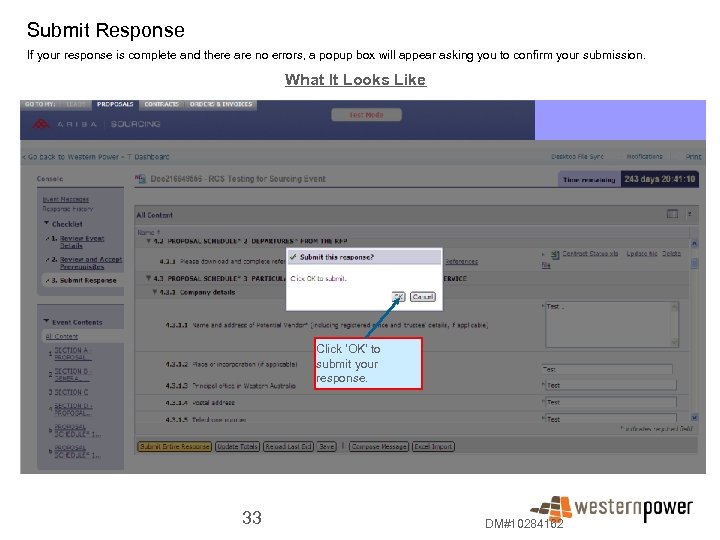
Submit Response If your response is complete and there are no errors, a popup box will appear asking you to confirm your submission. What It Looks Like Click 'OK' to submit your response. 33 DM#10284162
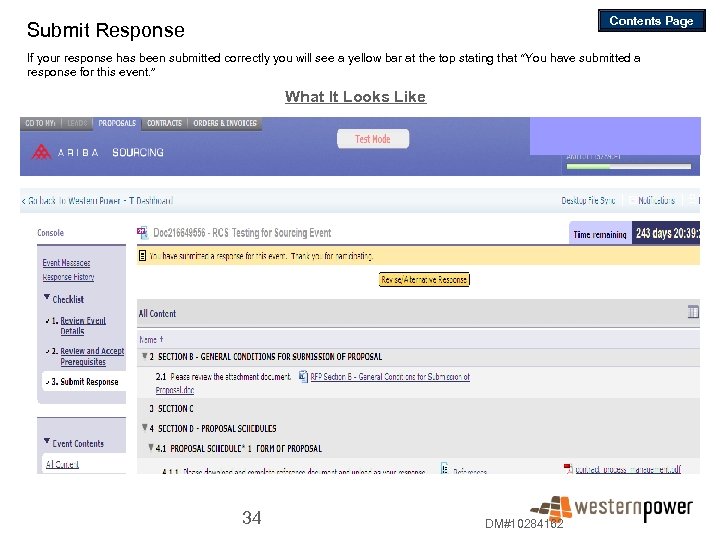
Contents Page Submit Response If your response has been submitted correctly you will see a yellow bar at the top stating that “You have submitted a response for this event. ” What It Looks Like 34 DM#10284162
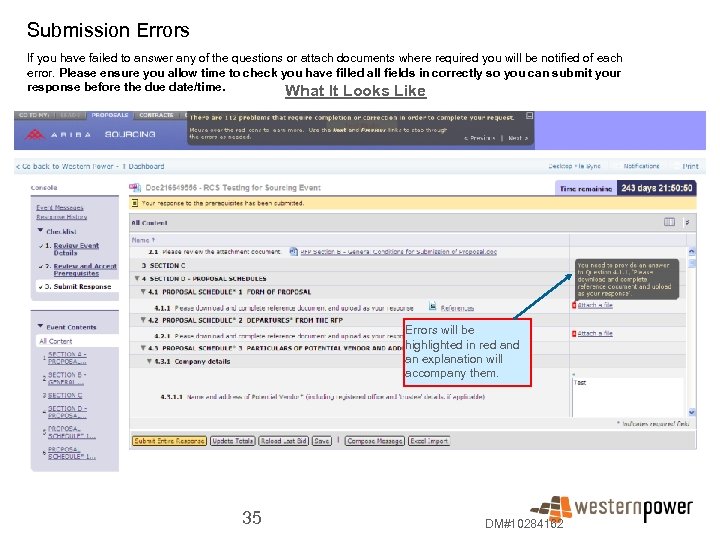
Submission Errors If you have failed to answer any of the questions or attach documents where required you will be notified of each error. Please ensure you allow time to check you have filled all fields in correctly so you can submit your response before the due date/time. What It Looks Like Errors will be highlighted in red an explanation will accompany them. 35 DM#10284162
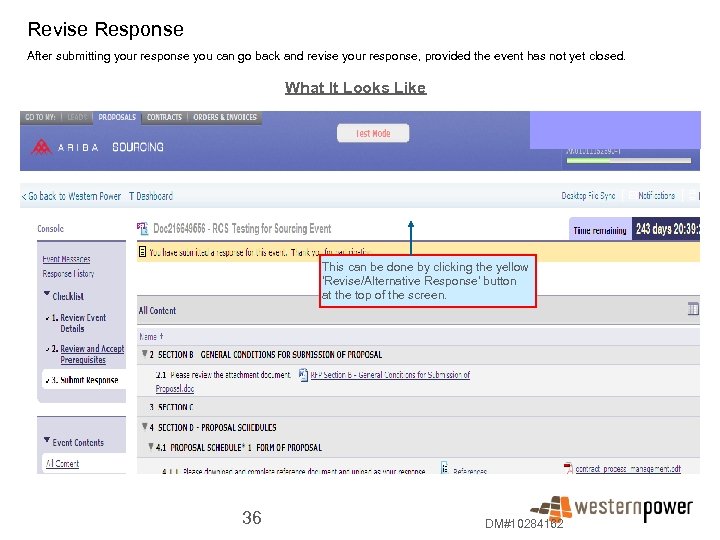
Revise Response After submitting your response you can go back and revise your response, provided the event has not yet closed. What It Looks Like This can be done by clicking the yellow 'Revise/Alternative Response' button at the top of the screen. 36 DM#10284162
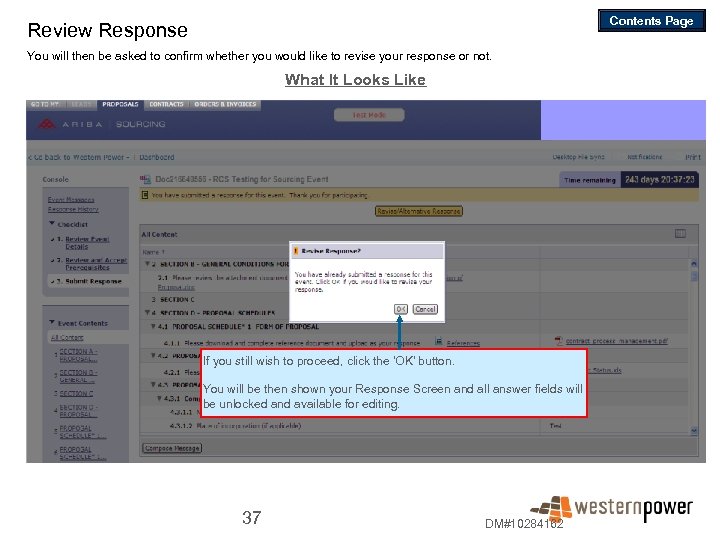
Contents Page Review Response You will then be asked to confirm whether you would like to revise your response or not. What It Looks Like If you still wish to proceed, click the 'OK' button. You will be then shown your Response Screen and all answer fields will be unlocked and available for editing. 37 DM#10284162
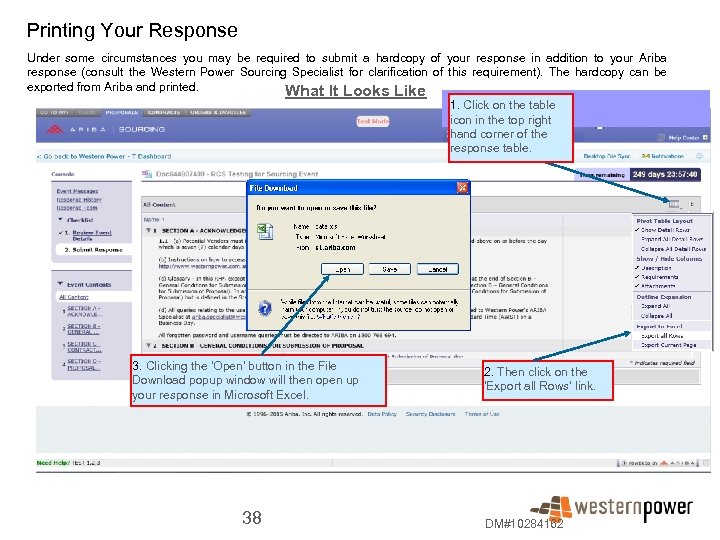
Printing Your Response Under some circumstances you may be required to submit a hardcopy of your response in addition to your Ariba response (consult the Western Power Sourcing Specialist for clarification of this requirement). The hardcopy can be exported from Ariba and printed. What It Looks Like 1. Click on the table icon in the top right hand corner of the response table. 3. Clicking the 'Open' button in the File Download popup window will then open up your response in Microsoft Excel. 38 2. Then click on the 'Export all Rows' link. DM#10284162
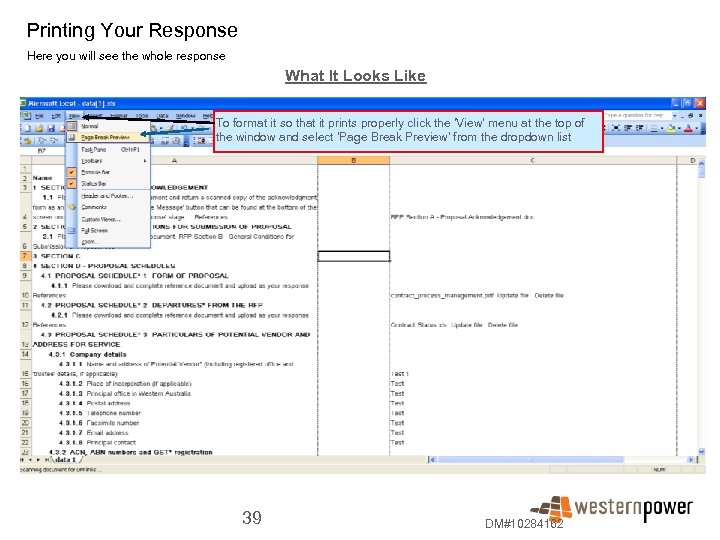
Printing Your Response Here you will see the whole response What It Looks Like To format it so that it prints properly click the 'View' menu at the top of the window and select 'Page Break Preview' from the dropdown list 39 DM#10284162
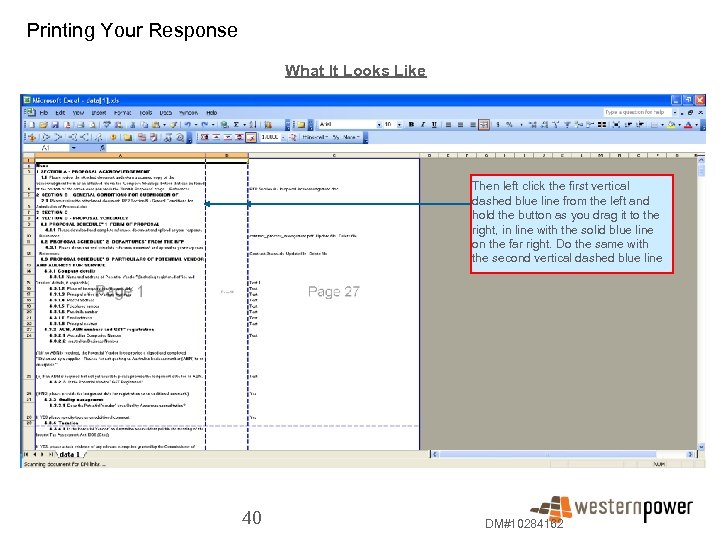
Printing Your Response What It Looks Like Then left click the first vertical dashed blue line from the left and hold the button as you drag it to the right, in line with the solid blue line on the far right. Do the same with the second vertical dashed blue line 40 DM#10284162
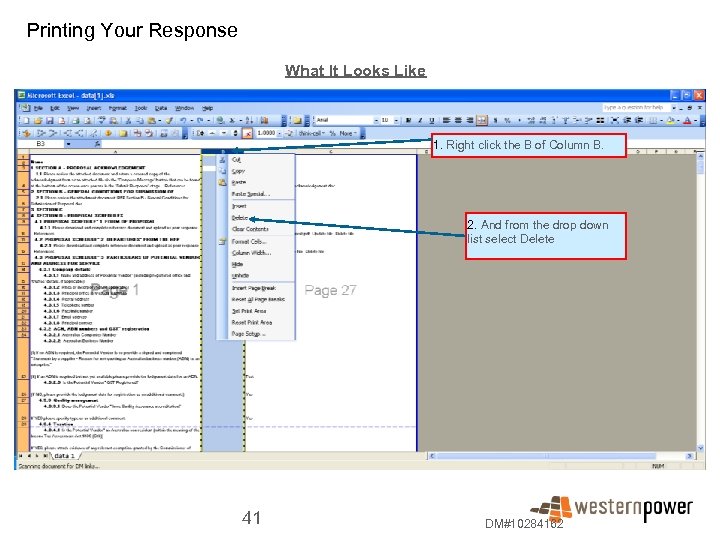
Printing Your Response What It Looks Like 1. Right click the B of Column B. 2. And from the drop down list select Delete 41 DM#10284162
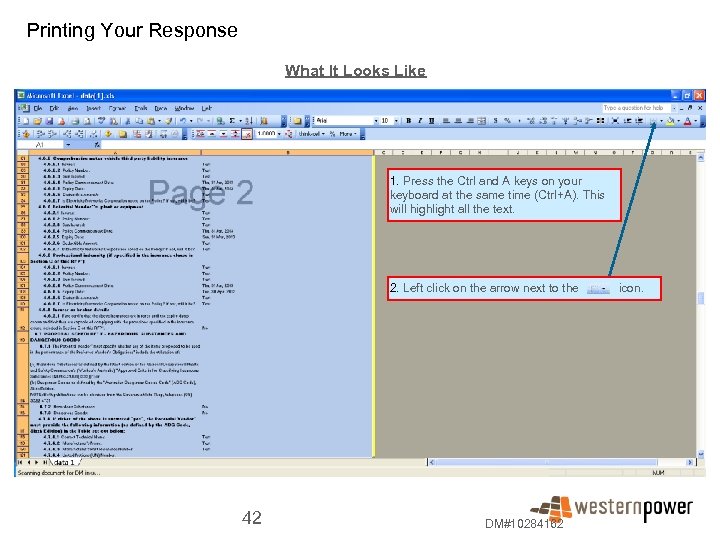
Printing Your Response What It Looks Like 1. Press the Ctrl and A keys on your keyboard at the same time (Ctrl+A). This will highlight all the text. 2. Left click on the arrow next to the 42 DM#10284162 icon.
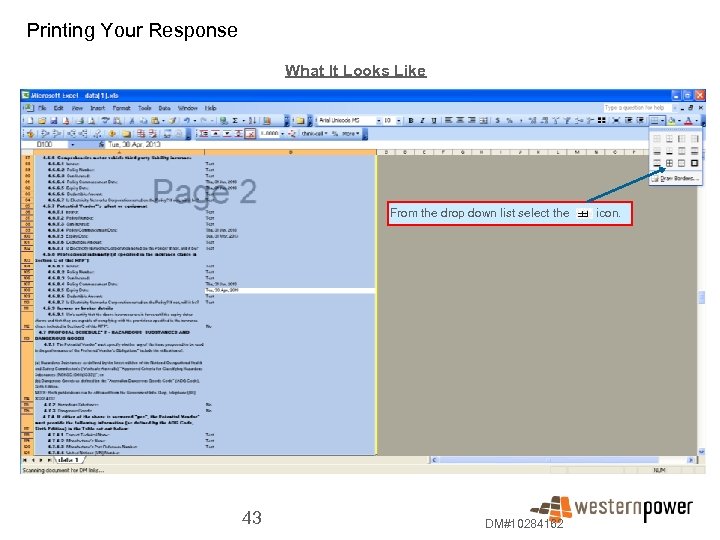
Printing Your Response What It Looks Like From the drop down list select the 43 DM#10284162 icon.
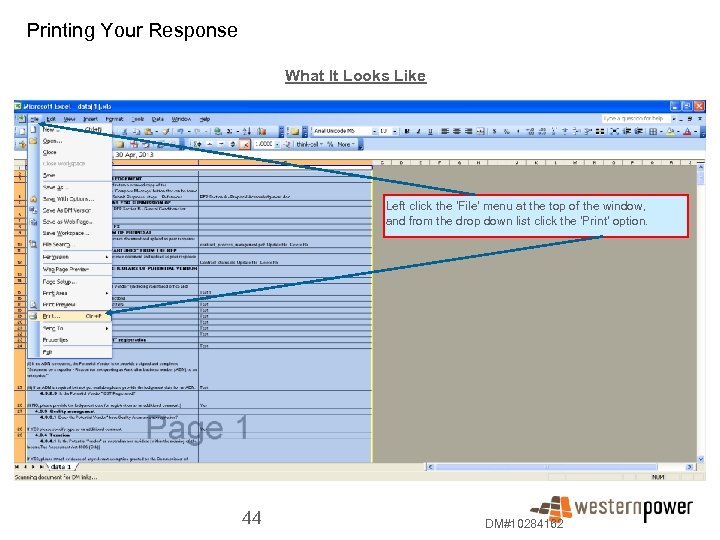
Printing Your Response What It Looks Like Left click the 'File' menu at the top of the window, and from the drop down list click the 'Print' option. 44 DM#10284162
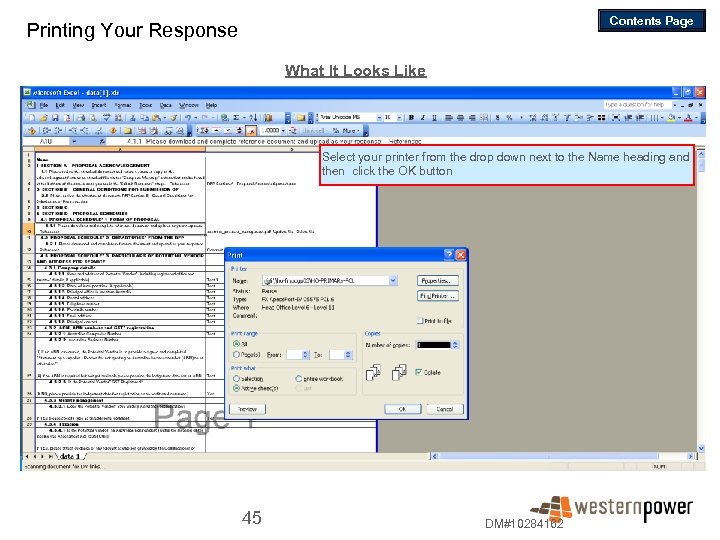
Contents Page Printing Your Response What It Looks Like Select your printer from the drop down next to the Name heading and then click the OK button 45 DM#10284162
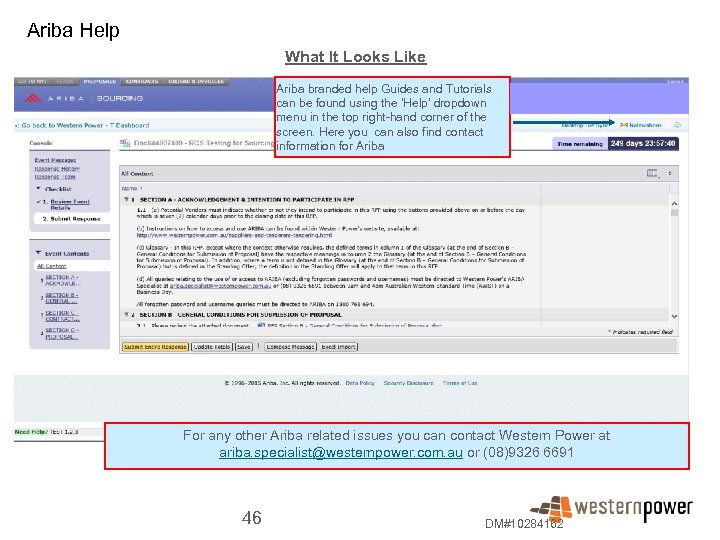
Ariba Help What It Looks Like Ariba branded help Guides and Tutorials can be found using the 'Help' dropdown menu in the top right-hand corner of the screen. Here you can also find contact information for Ariba For any other Ariba related issues you can contact Western Power at ariba. specialist@westernpower. com. au or (08)9326 6691 46 DM#10284162
Скачать презентацию All you need to know about Western Power s
cda1cb1c8258026bbb211aef5b96411a.ppt