 Скачать презентацию AGORA Overview Armenia June July 2009 Հայաստանի Հանրապետություն հունիս
cf37b3d8425f57c343d060309dd38395.ppt
- Количество слайдов: 102



AGORA Overview Armenia, June/July 2009 Հայաստանի Հանրապետություն, հունիս / հուլիս 2009
Welcome to AGORA In this Tutorial You Will Learn 1) what AGORA offers, main features, and appropriate use 2) how to open AGORA, log in and navigate to find journals and download articles 3) how to use CAB Abstracts and publishers’ websites to find citations and download articles
What Is AGORA?
AGORA = Access to Global Online Research in Agriculture
AGORA is Evolving • Changes to the website may occur. • Technical difficulties occasionally arise. • If your password doesn’t work the first time, don’t attempt to log in more than 3 times in a row. • Any ongoing trouble with AGORA, email agora@fao. org (describe problem and include print screen).
Modules in this Tutorial 1. 2. 3. 4. How to Use AGORA How to Use CAB Abstracts Publishers’ Websites AGORA Terms of Use
1. How to Use AGORA
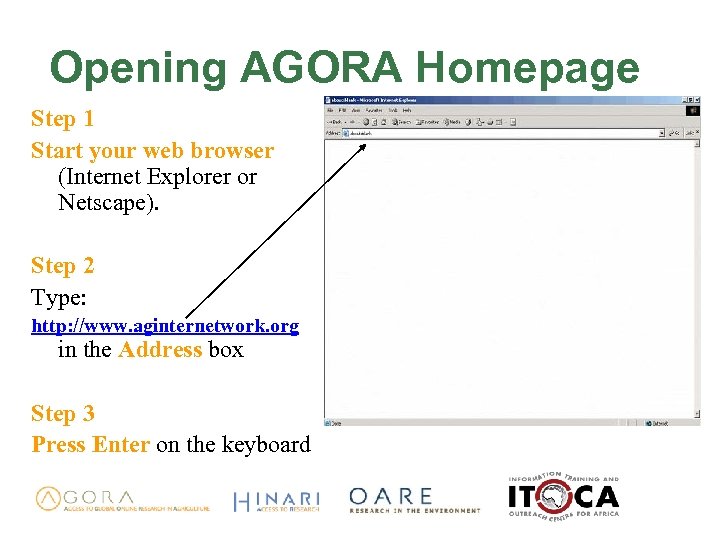
Opening AGORA Homepage Step 1 Start your web browser (Internet Explorer or Netscape). Step 2 Type: http: //www. aginternetwork. org in the Address box Step 3 Press Enter on the keyboard
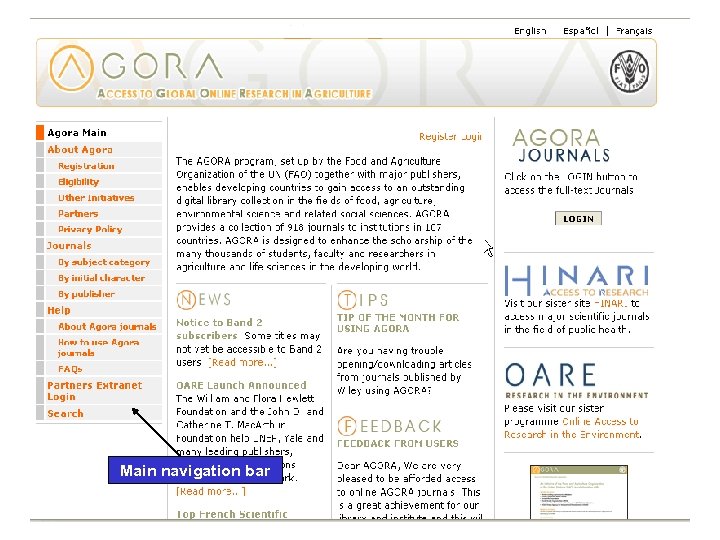
Main navigation bar
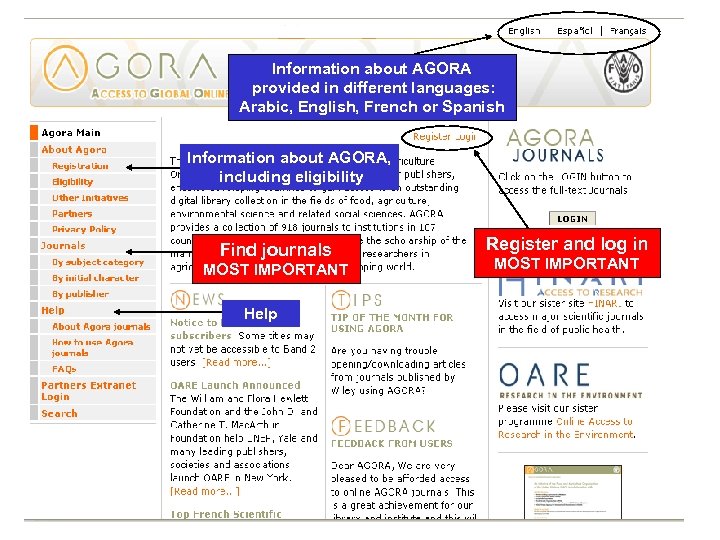
Information about AGORA provided in different languages: Arabic, English, French or Spanish Information about AGORA, including eligibility Find journals MOST IMPORTANT Help Register and log in MOST IMPORTANT
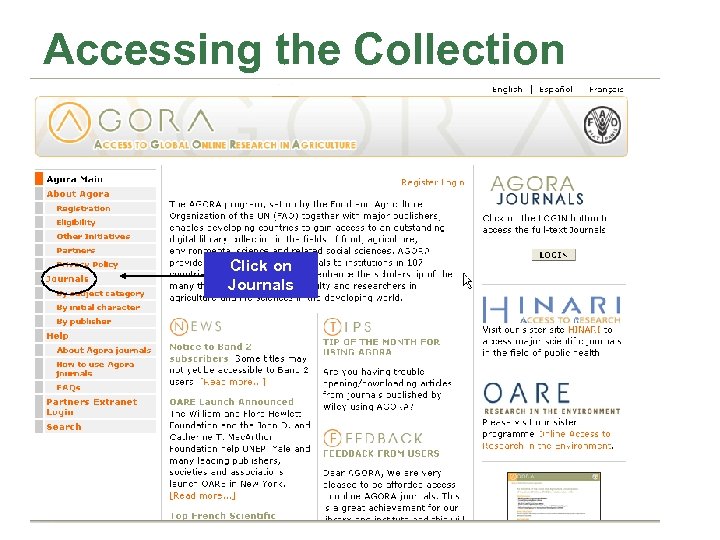
Accessing the Collection Click on Journals
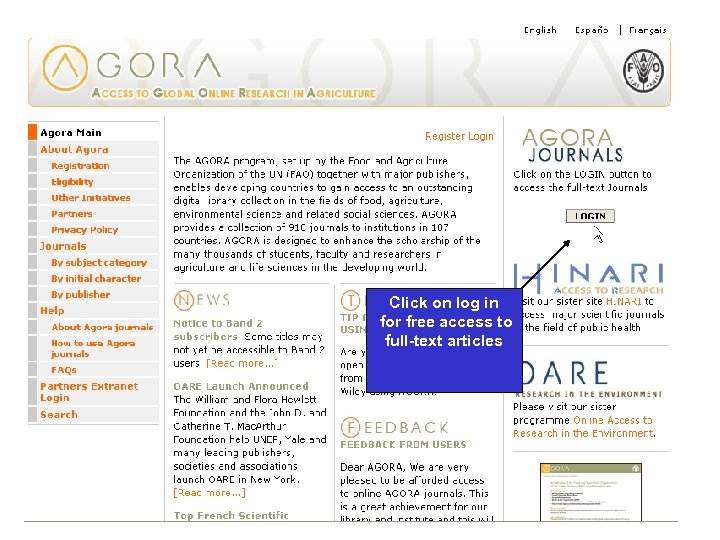
Click on log in for free access to full-text articles
Logging In • For full-text journal articles: – Users’ institutions must be registered – Users must log in using institutional user name and password. NOTE: AGORA log in does not give access to all services offered on publishers’ websites.
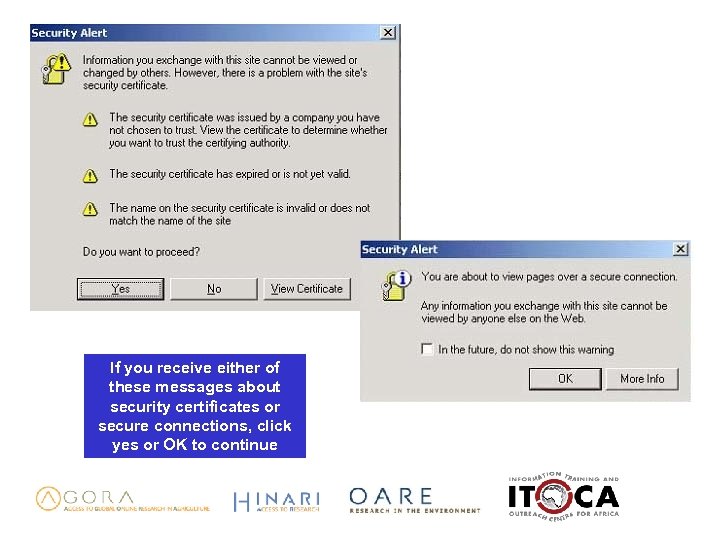
If you receive either of these messages about security certificates or secure connections, click yes or OK to continue
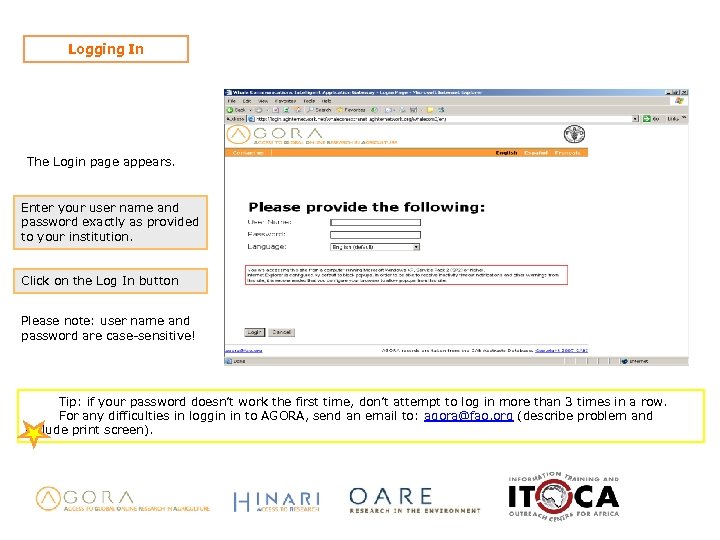
Logging In The Login page appears. Enter your user name and password exactly as provided to your institution. Click on the Log In button Please note: user name and password are case-sensitive! Tip: if your password doesn’t work the first time, don’t attempt to log in more than 3 times in a row. For any difficulties in loggin in to AGORA, send an email to: agora@fao. org (describe problem and include print screen).
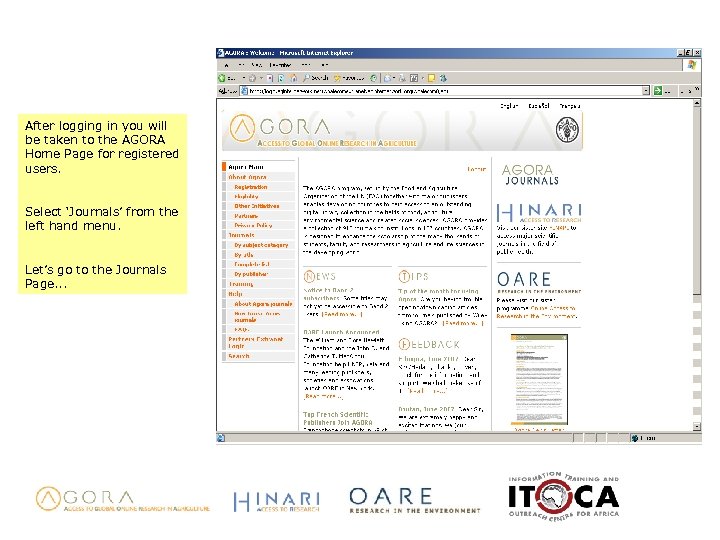
After logging in you will be taken to the AGORA Home Page for registered users. Select ‘Journals’ from the left hand menu. Let’s go to the Journals Page. . .
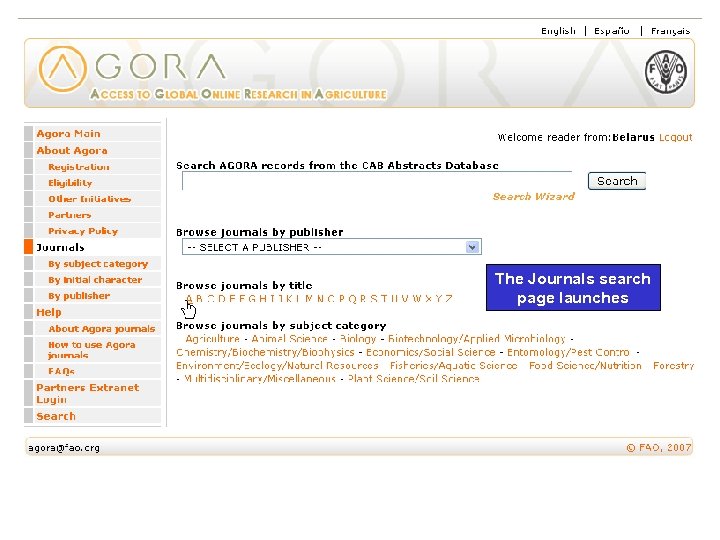
The Journals search page launches
AGORA Is Like Your Library You can… • Browse the collection, just like in a current periodical room • Search for journals in a specific subject area, like departmental libraries • Track down a citation if you have one • Use CAB Abstracts as a powerful tool for discovery
Navigating AGORA to Find What You Need In the next few slides you will learn to: • Browse the entire collection • Locate specific journals, publishers, subjects • Find specific citations
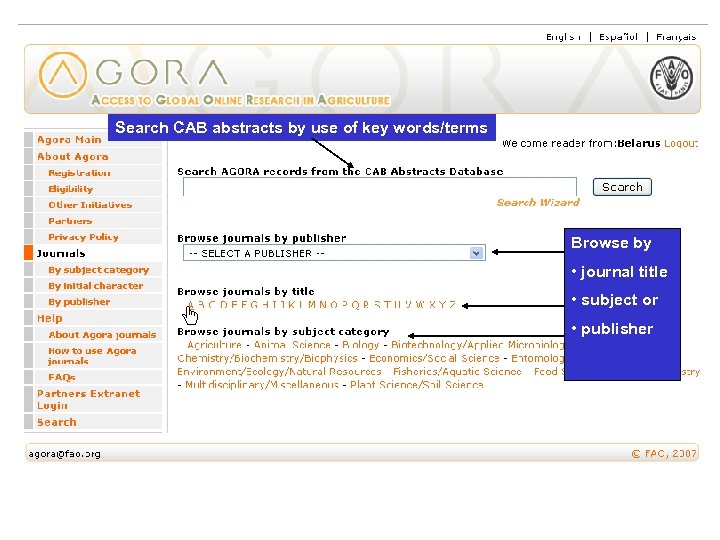
Search CAB abstracts by use of key words/terms Browse by • journal title • subject or • publisher
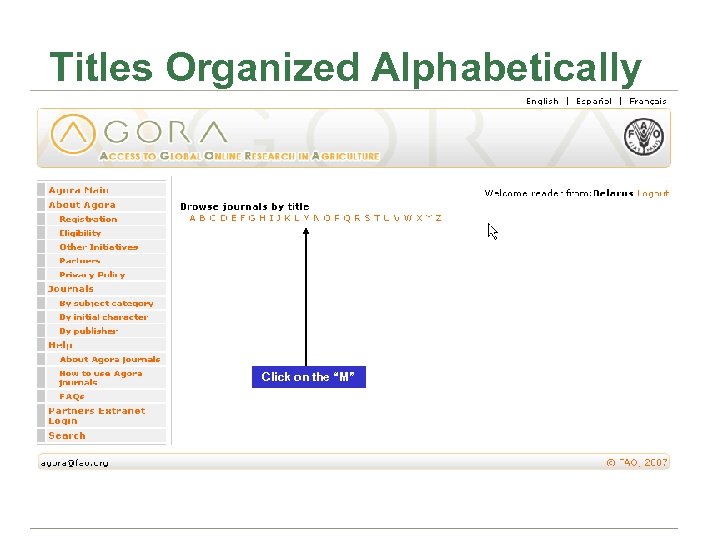
Titles Organized Alphabetically Click on the “M”
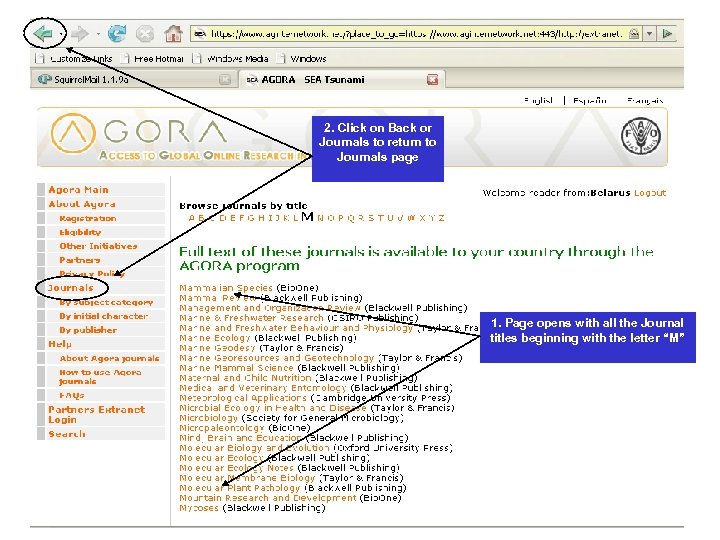
2. Click on Back or Journals to return to Journals page 1. Page opens with all the Journal titles beginning with the letter “M”
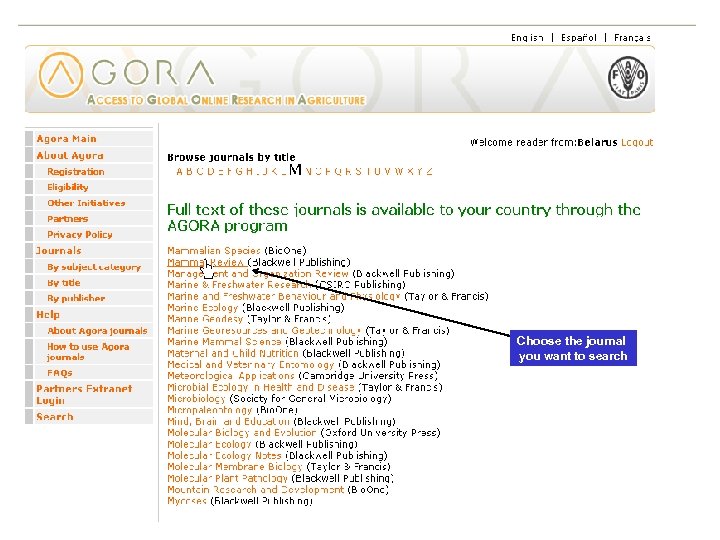
Choose the journal you want to search
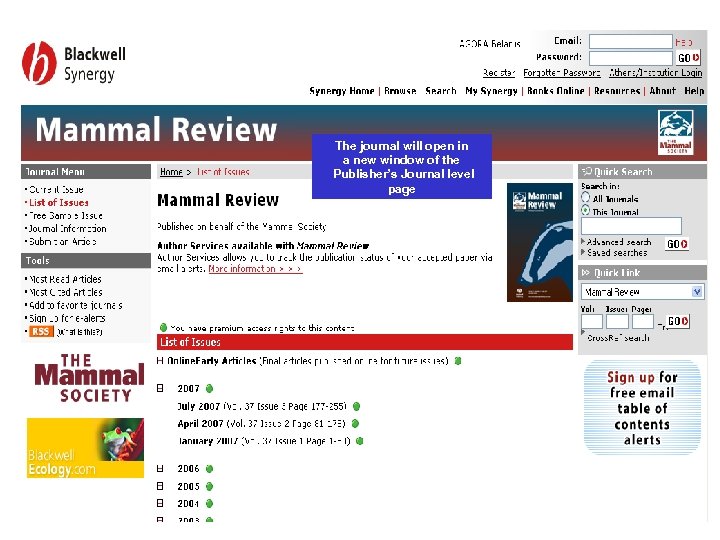
The journal will open in a new window of the Publisher’s Journal level page
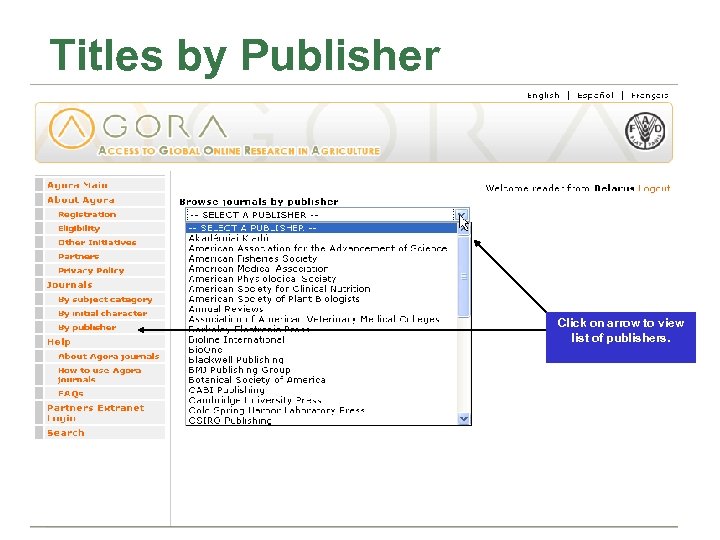
Titles by Publisher Click on arrow to view list of publishers.
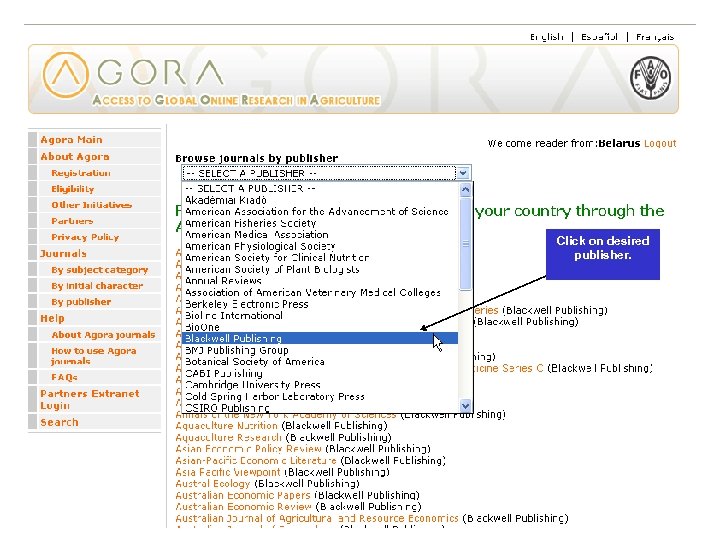
Click on desired publisher.
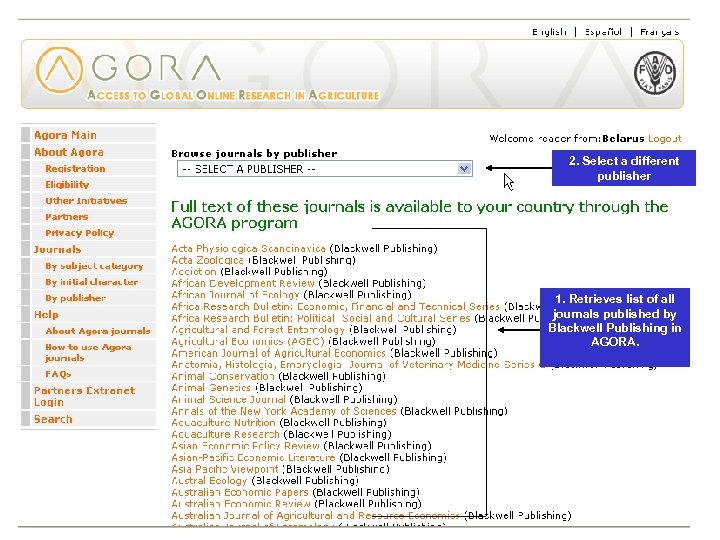
2. Select a different publisher 1. Retrieves list of all journals published by Blackwell Publishing in AGORA.
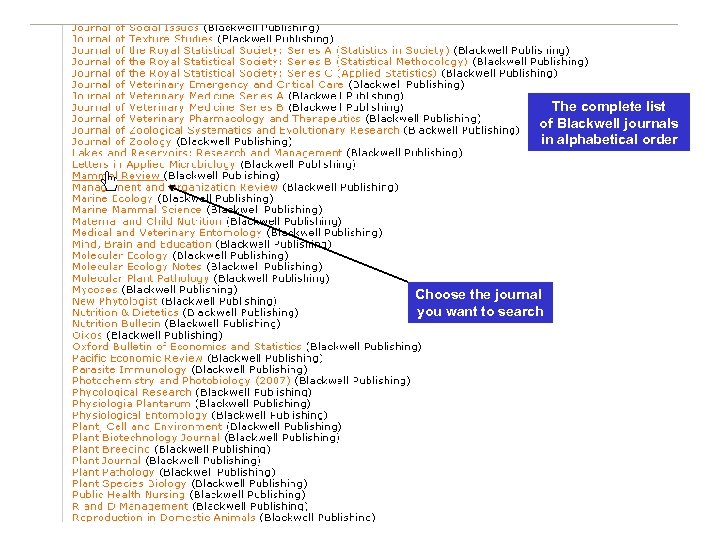
The complete list of Blackwell journals in alphabetical order Choose the journal you want to search
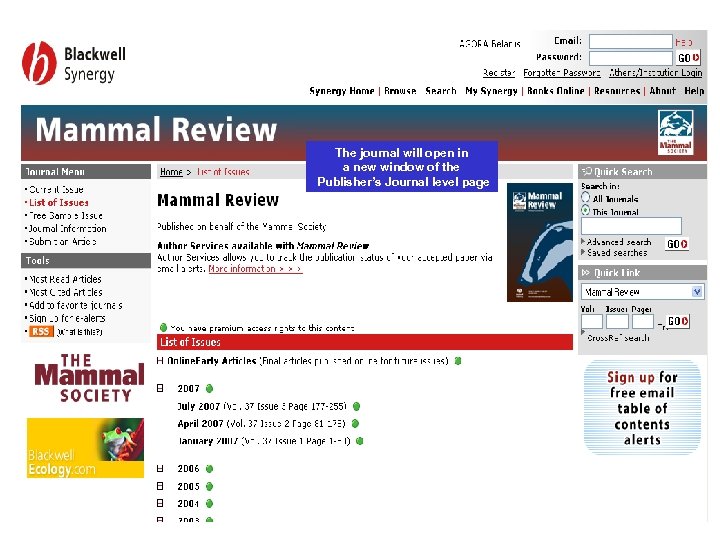
The journal will open in a new window of the Publisher’s Journal level page
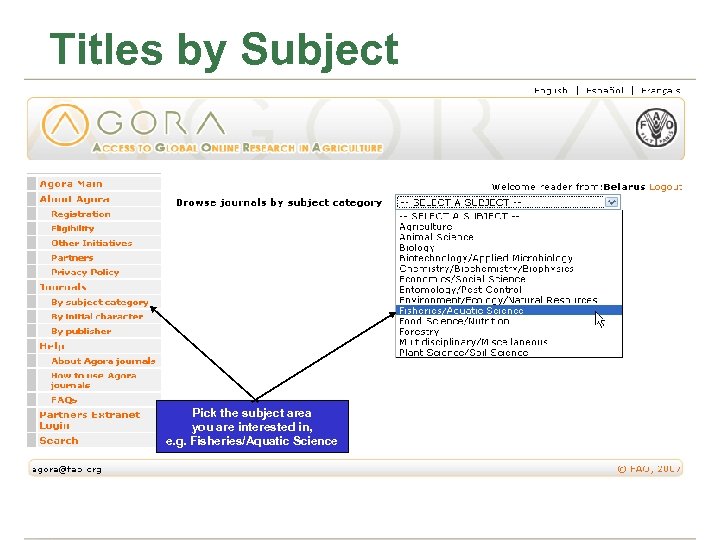
Titles by Subject Pick the subject area you are interested in, e. g. Fisheries/Aquatic Science
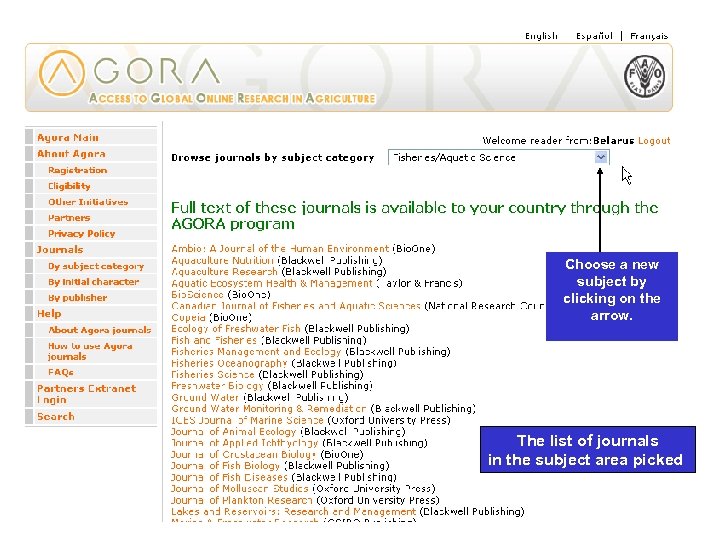
Choose a new subject by clicking on the arrow. The list of journals in the subject area picked
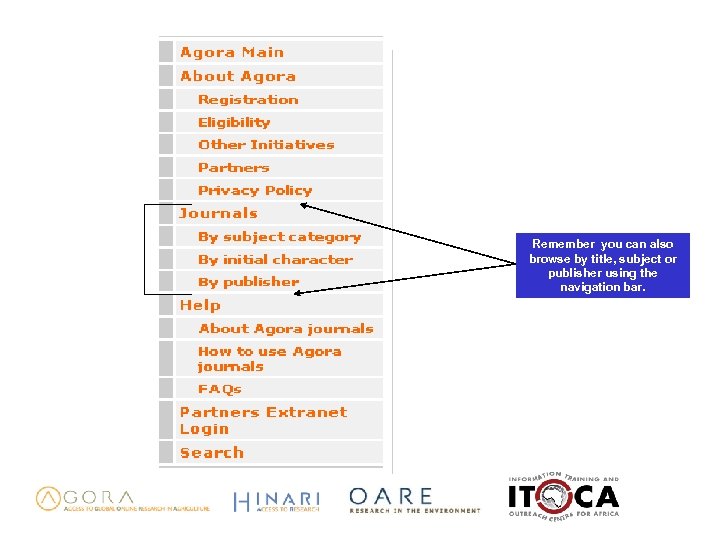
Remember you can also browse by title, subject or publisher using the navigation bar.
Retrieving Full-Text Articles Example
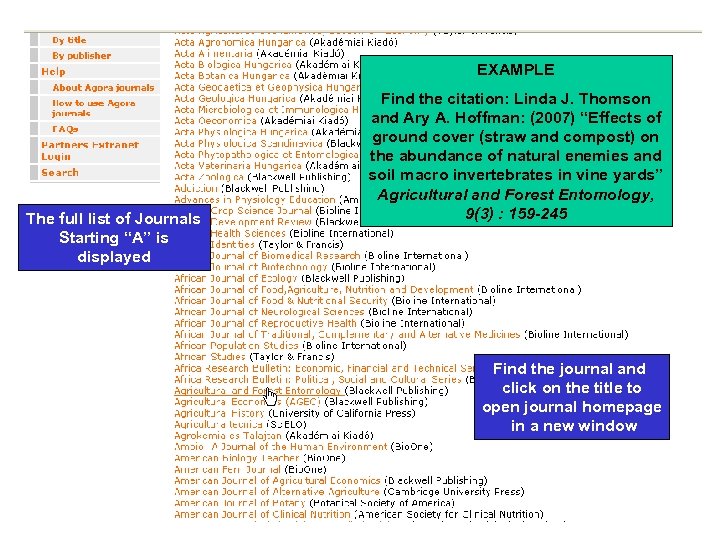
EXAMPLE The full list of Journals Starting “A” is displayed Find the citation: Linda J. Thomson and Ary A. Hoffman: (2007) “Effects of ground cover (straw and compost) on the abundance of natural enemies and soil macro invertebrates in vine yards” Agricultural and Forest Entomology, 9(3) : 159 -245 Find the journal and click on the title to open journal homepage in a new window
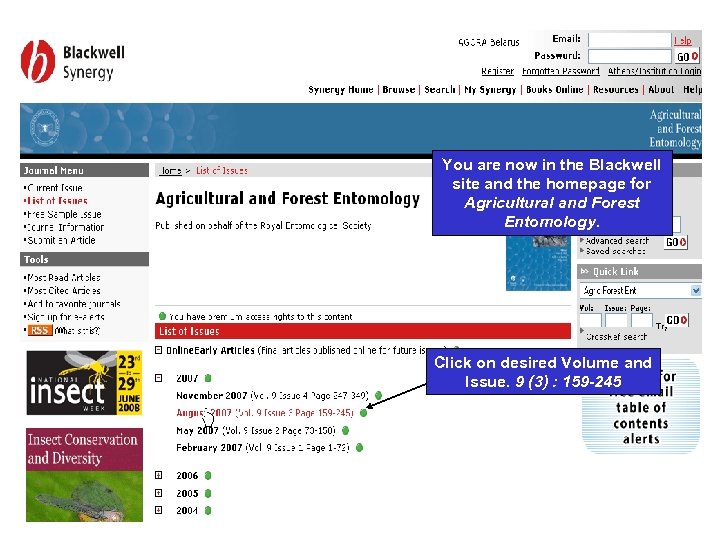
You are now in the Blackwell site and the homepage for Agricultural and Forest Entomology. Click on desired Volume and Issue. 9 (3) : 159 -245
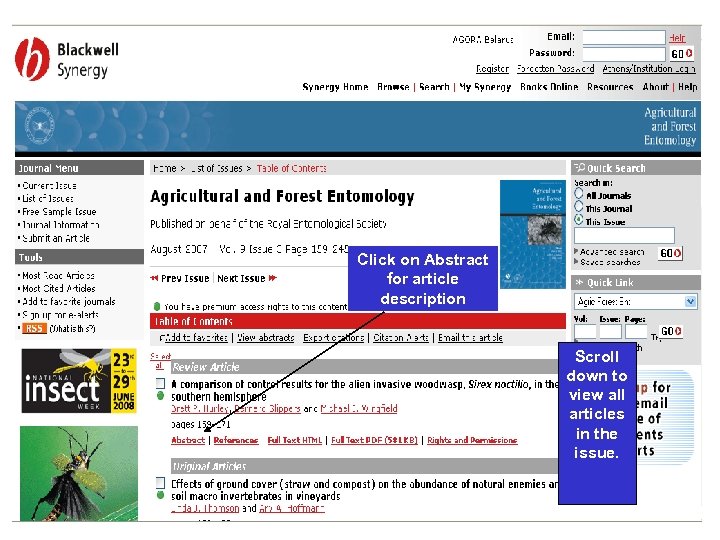
Click on Abstract for article description Scroll down to view all articles in the issue.
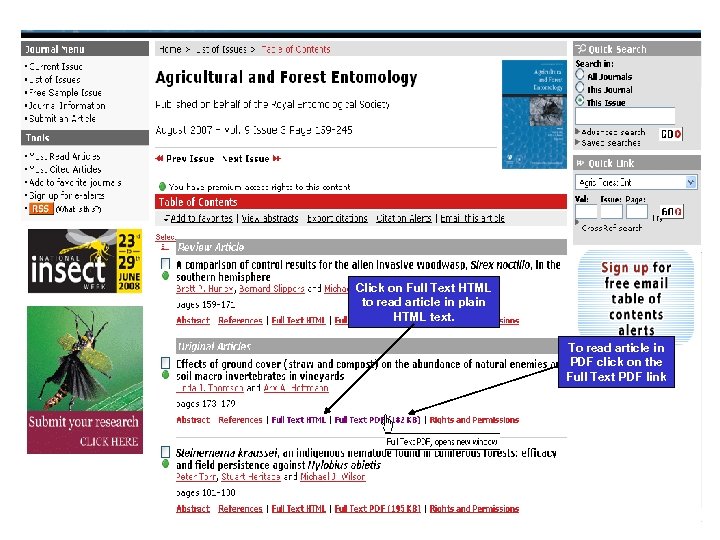
Click on Full Text HTML to read article in plain HTML text. To read article in PDF click on the Full Text PDF link
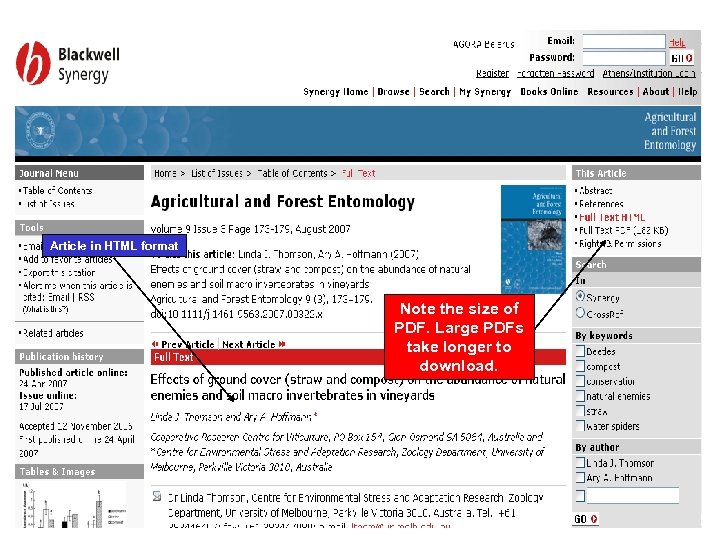
Article in HTML format Note the size of PDF. Large PDFs take longer to download.
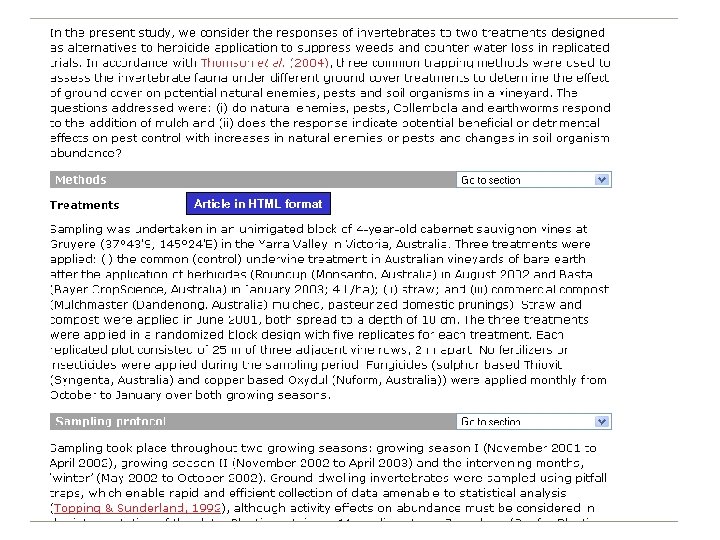
Article in HTML format
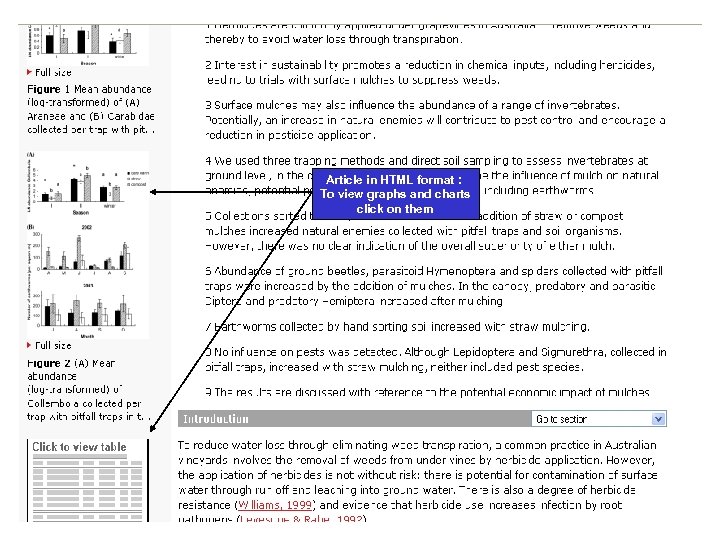
Article in HTML format : To view graphs and charts click on them
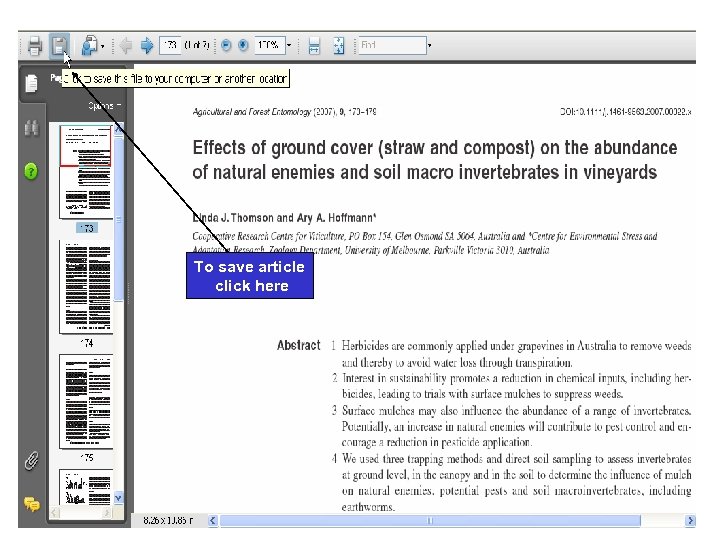
To save article click here
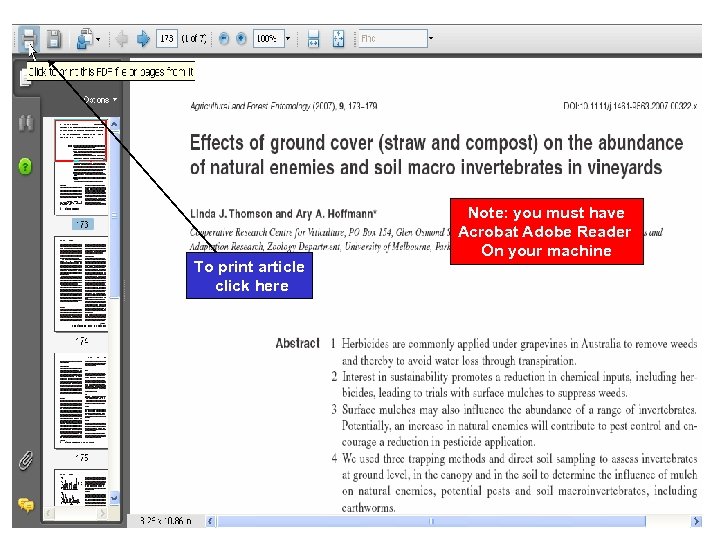
To print article click here Note: you must have Acrobat Adobe Reader On your machine
Let’s Review What We Learned You should now know how to: • Browse journal titles and publishers • Explore a subject area • Find a known citation • Download full-text articles If you are online, try this exercise: Retrieve the full-text article for the following citation. – Elham A. Wassef. . . et. al (2007)“Effect of dietary vegetable oils on health and liver histology of gilthead sea bream (sparus aurata) growers" Aquaculture Research. 38 (8): 852 -861
Problems with the Exercise? • Remember, technical difficulties occasionally arise. • If you have questions about AGORA consult your librarian. • Any ongoing trouble with AGORA, please email agora@fao. org
2. How to Use CAB Abstracts
What Is CAB Abstracts? • Internationally recognized database of information for applied agriculture and life sciences • Covers research and development literature from thousands of international serials • Provides abstracts (brief article descriptions) and links to full-text articles
CAB Abstracts and AGORA • CAB generously offers a subset of CAB Abstracts to AGORA users • It also provides full-text articles found in AGORA • Covers about 80% of journals in AGORA • You must log in to AGORA to gain access to full-text articles and must log in to search CAB.
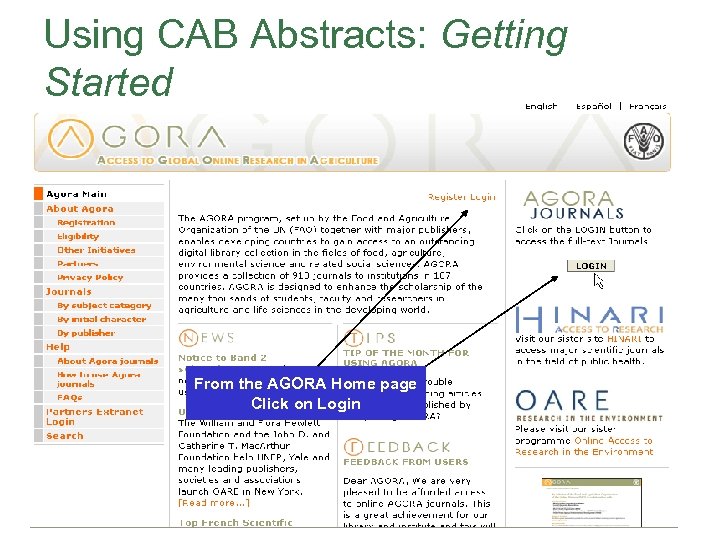
Using CAB Abstracts: Getting Started From the AGORA Home page Click on Login CAB Abstracts
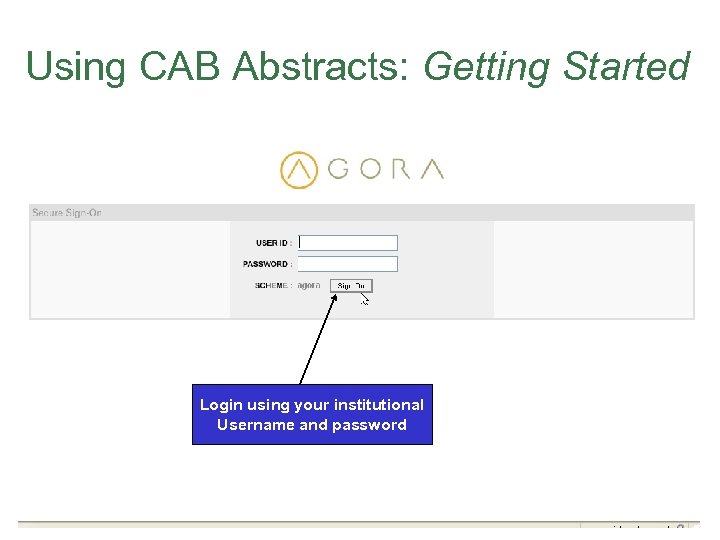
Using CAB Abstracts: Getting Started Login using your institutional Username and password CAB Abstracts
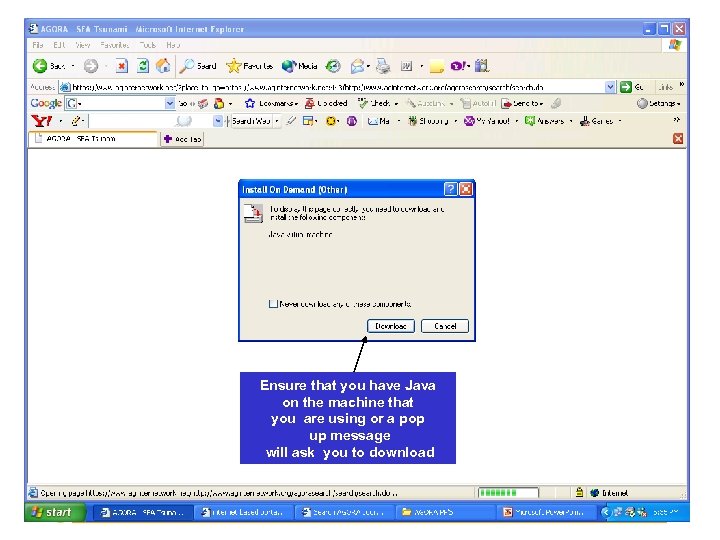
Ensure that you have Java on the machine that you are using or a pop up message will ask you to download CAB Abstracts
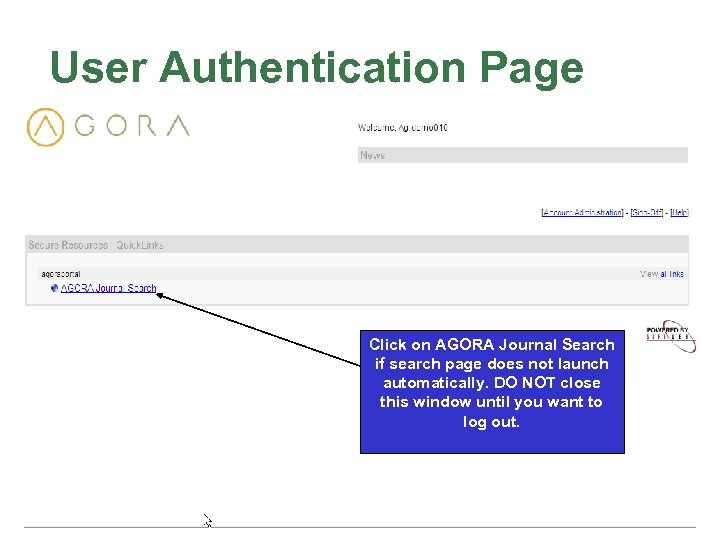
User Authentication Page Click on AGORA Journal Search if search page does not launch automatically. DO NOT close this window until you want to log out. CAB Abstracts
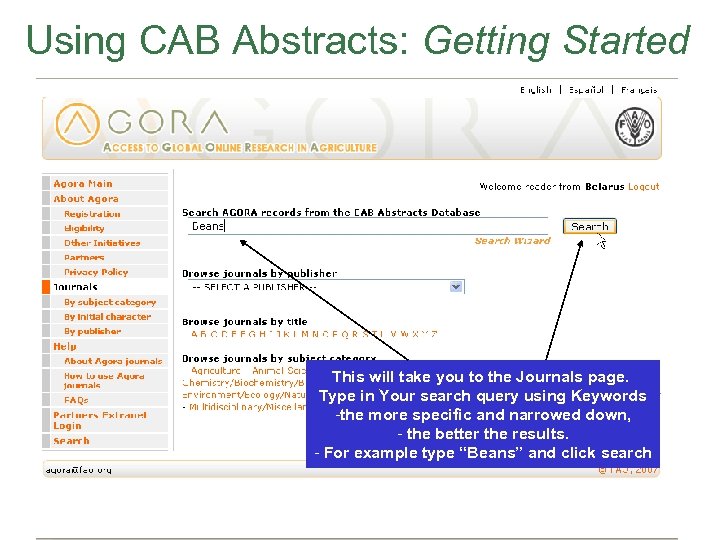
Using CAB Abstracts: Getting Started This will take you to the Journals page. Type in Your search query using Keywords -the more specific and narrowed down, - the better the results. - For example type “Beans” and click search CAB Abstracts
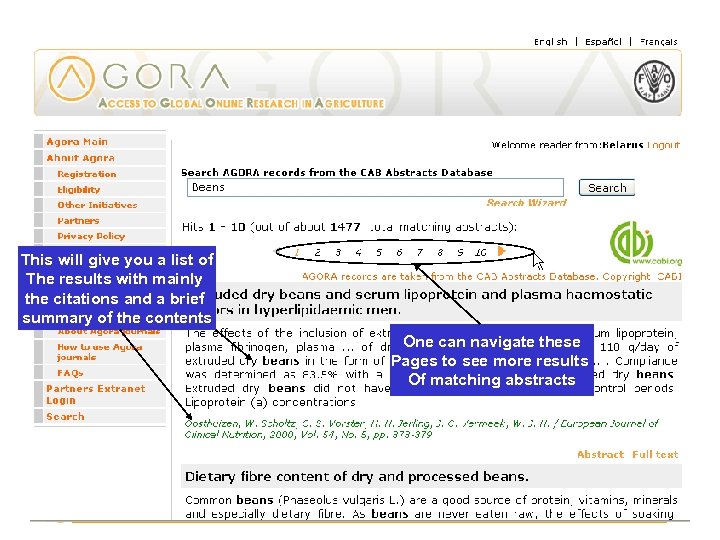
This will give you a list of The results with mainly the citations and a brief summary of the contents One can navigate these Pages to see more results Of matching abstracts CAB Abstracts
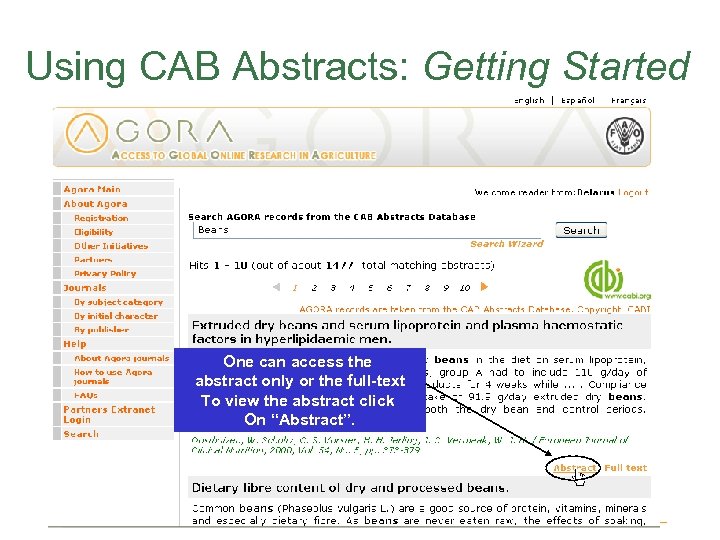
Using CAB Abstracts: Getting Started One can access the abstract only or the full-text To view the abstract click On “Abstract”. CAB Abstracts
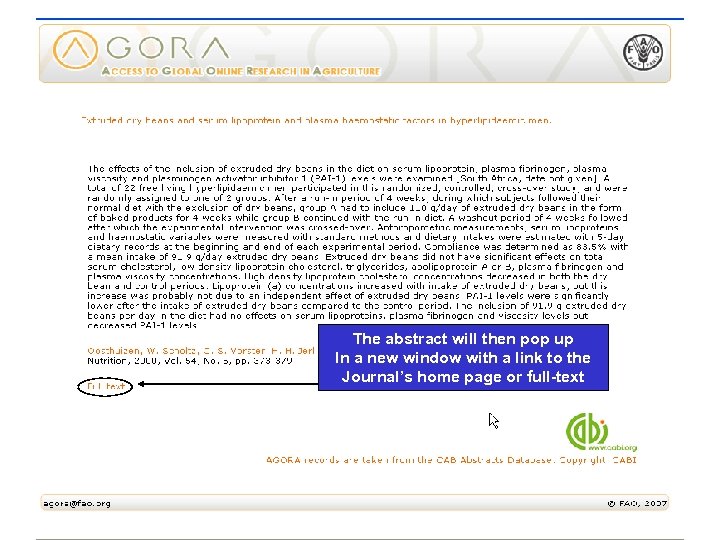
The abstract will then pop up In a new window with a link to the Journal’s home page or full-text CAB Abstracts
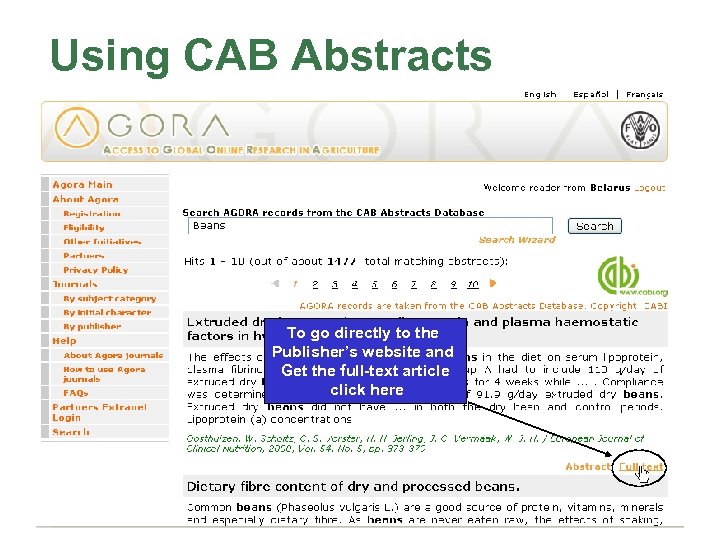
Using CAB Abstracts To go directly to the Publisher’s website and Get the full-text article click here CAB Abstracts
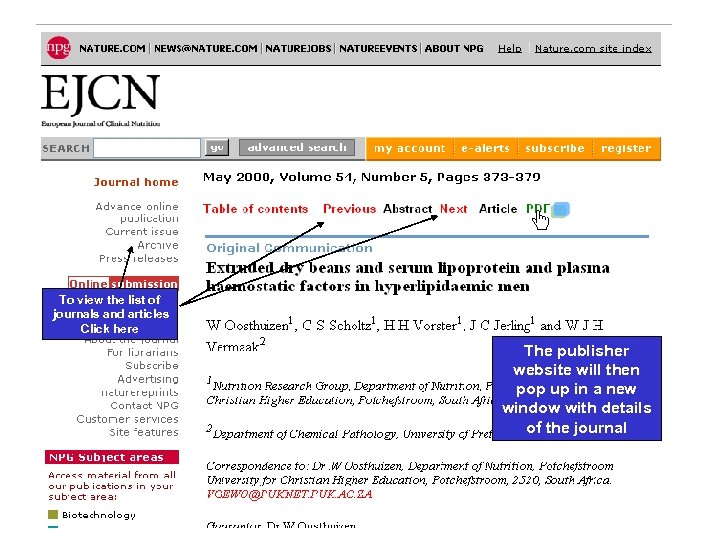
To view the list of journals and articles Click here The publisher website will then pop up in a new window with details of the journal CAB Abstracts
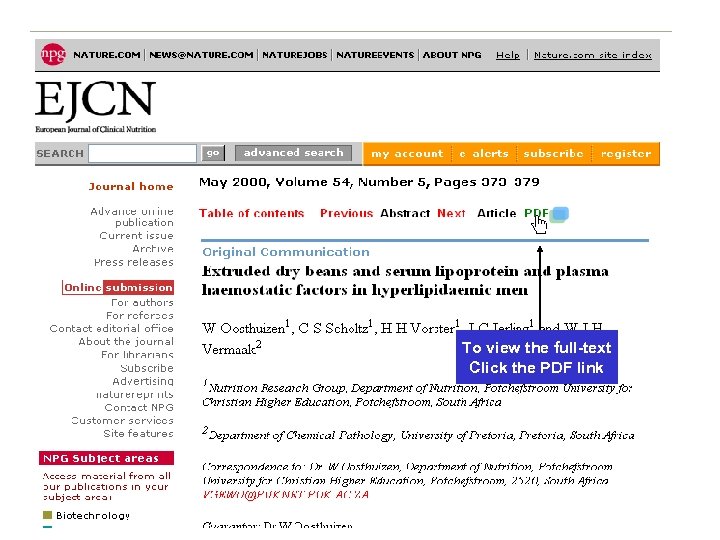
To view the full-text Click the PDF link CAB Abstracts
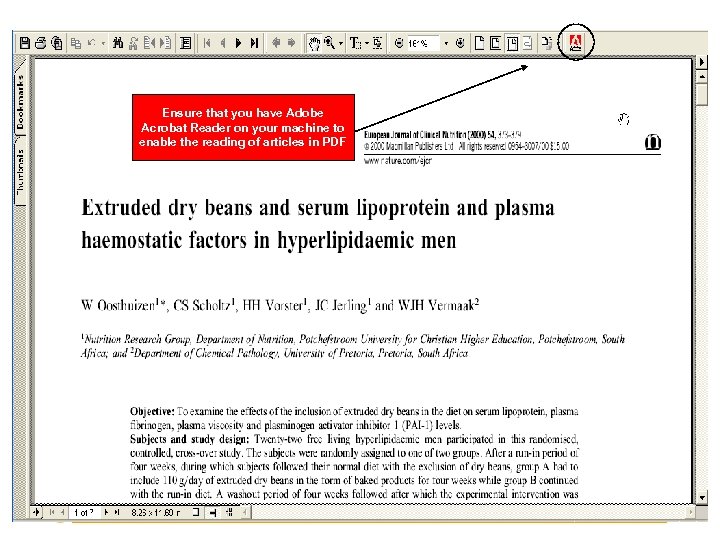
Ensure that you have Adobe Acrobat Reader on your machine to enable the reading of articles in PDF CAB Abstracts
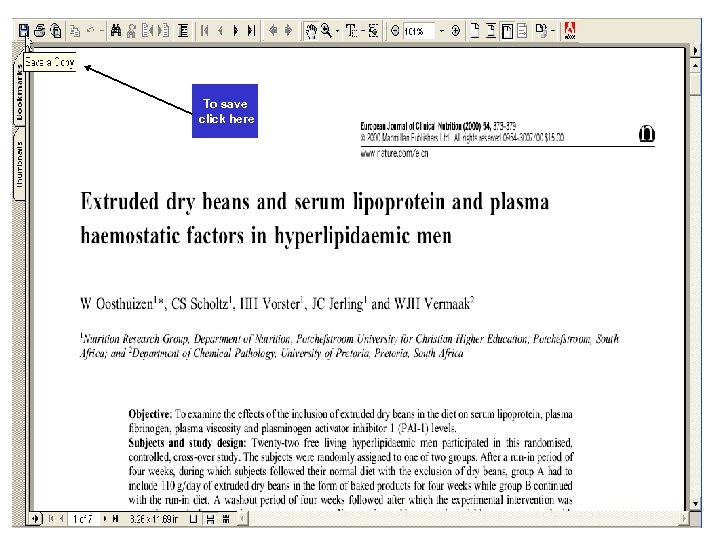
Using CAB Abstracts To save click here CAB Abstracts
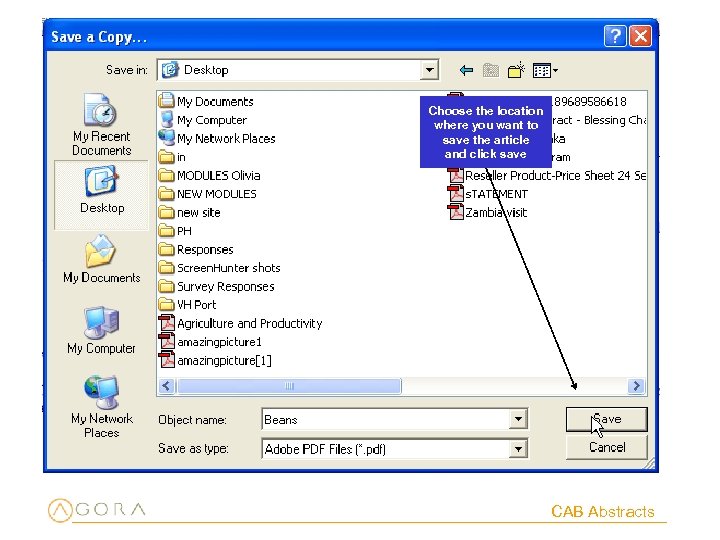
Choose the location where you want to save the article and click save CAB Abstracts
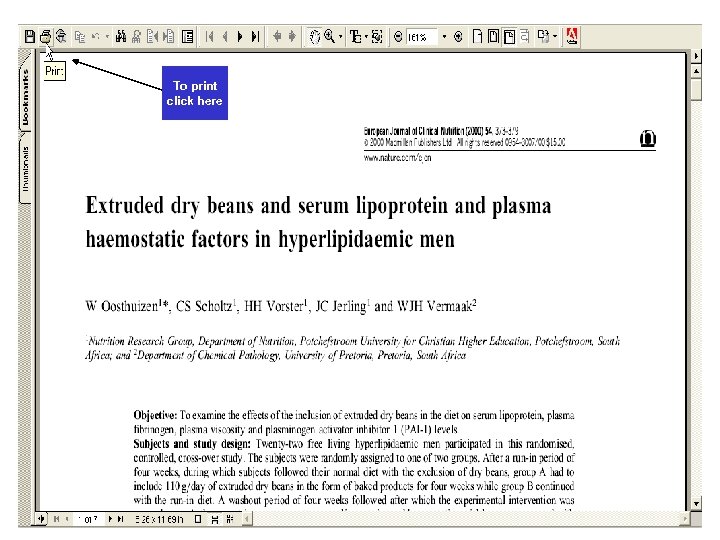
To print click here CAB Abstracts
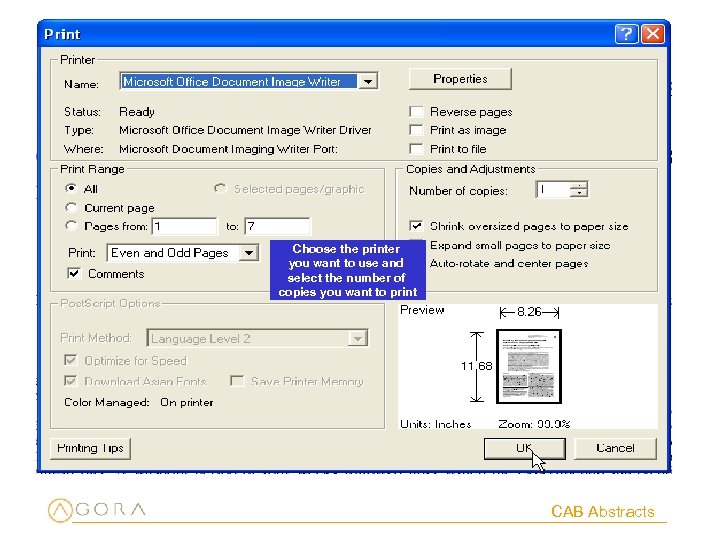
Choose the printer you want to use and select the number of copies you want to print CAB Abstracts
Using the Search Wizard CAB Abstracts
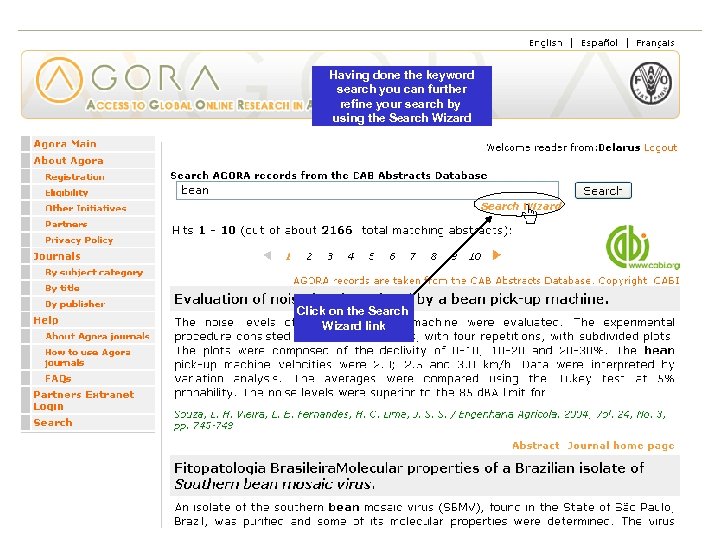
Having done the keyword search you can further refine your search by using the Search Wizard Click on the Search Wizard link CAB Abstracts
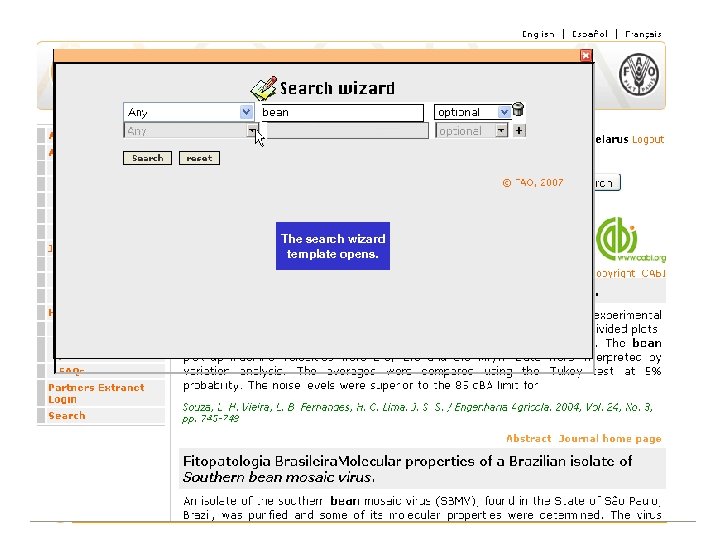
The search wizard template opens. CAB Abstracts
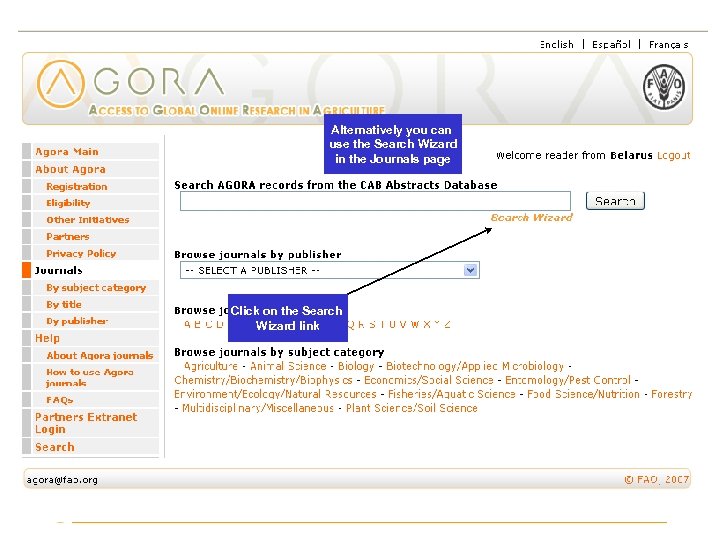
Alternatively you can use the Search Wizard in the Journals page Click on the Search Wizard link CAB Abstracts
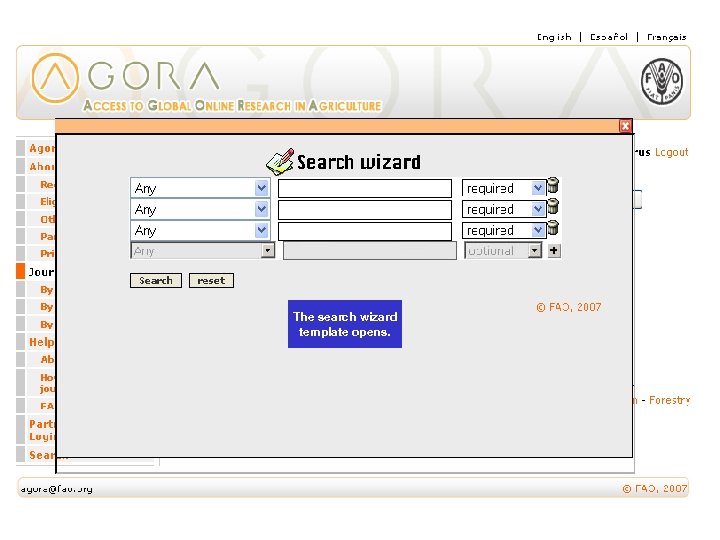
The search wizard template opens. CAB Abstracts
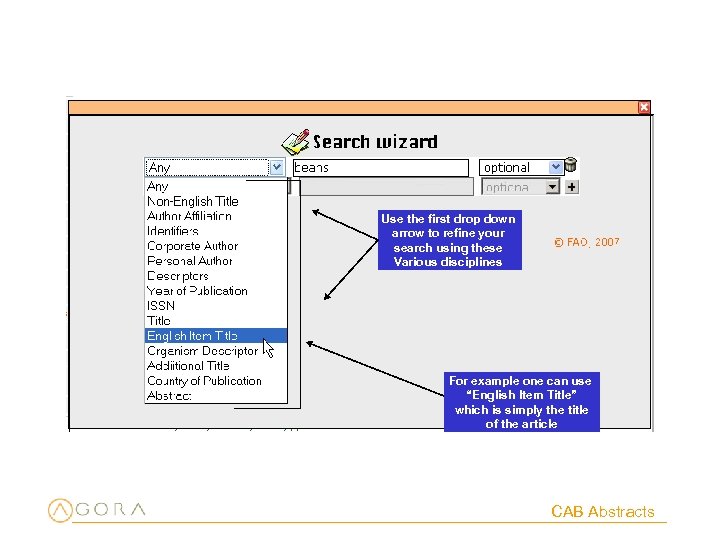
Use the first drop down arrow to refine your search using these Various disciplines For example one can use “English Item Title” which is simply the title of the article CAB Abstracts
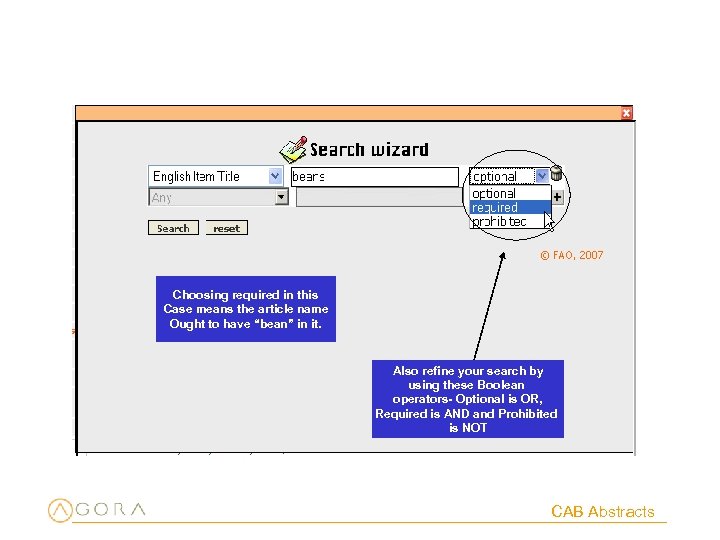
Choosing required in this Case means the article name Ought to have “bean” in it. Also refine your search by using these Boolean operators- Optional is OR, Required is AND and Prohibited is NOT CAB Abstracts
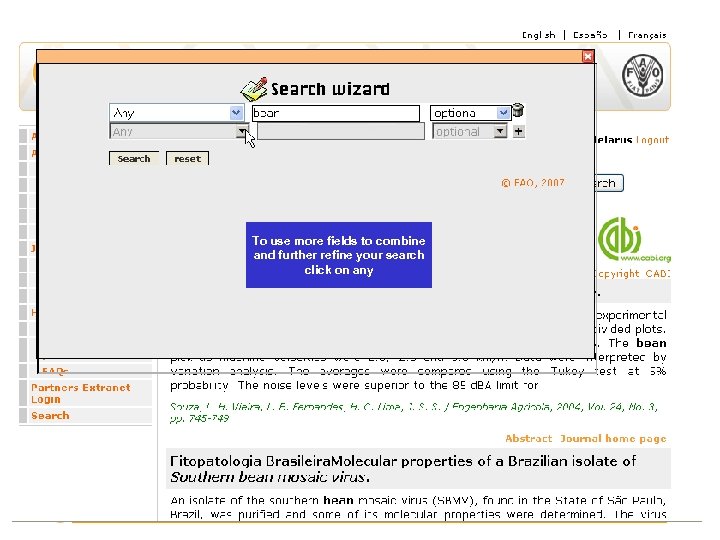
To use more fields to combine and further refine your search click on any CAB Abstracts
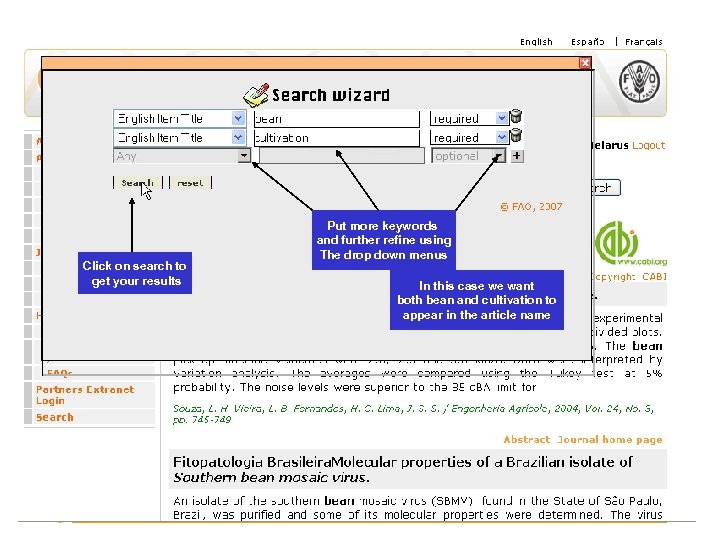
Click on search to get your results Put more keywords and further refine using The drop down menus In this case we want both bean and cultivation to appear in the article name CAB Abstracts
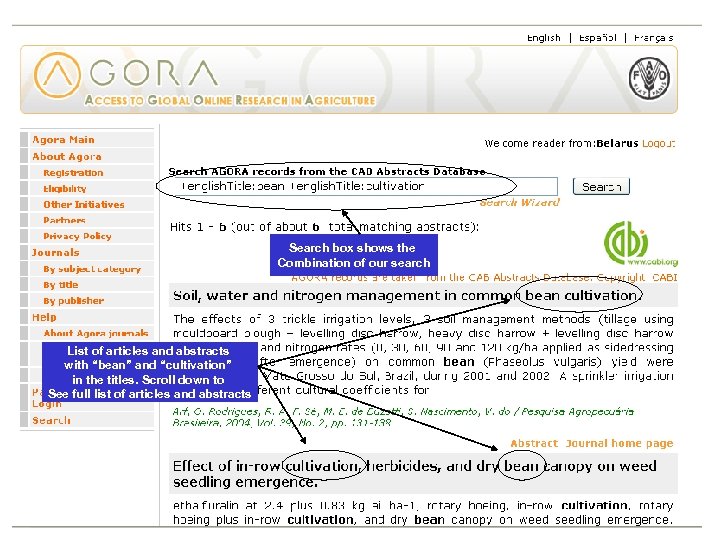
Search box shows the Combination of our search List of articles and abstracts with “bean” and “cultivation” in the titles. Scroll down to See full list of articles and abstracts CAB Abstracts
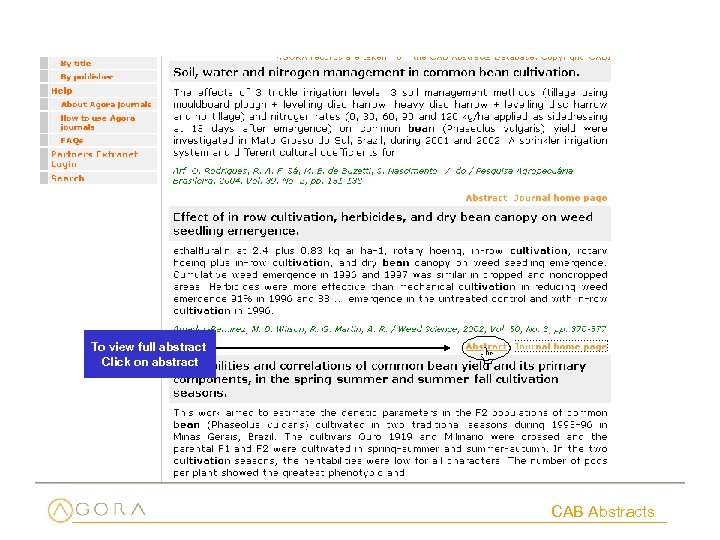
To view full abstract Click on abstract CAB Abstracts
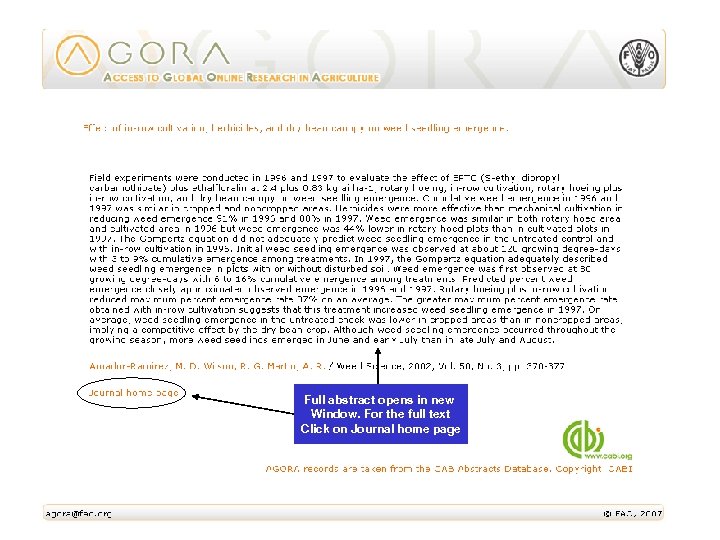
Full abstract opens in new Window. For the full text Click on Journal home page CAB Abstracts
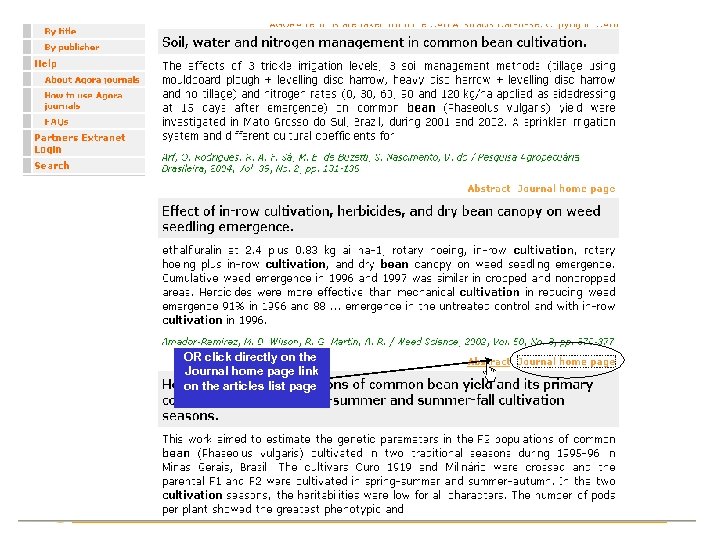
OR click directly on the Journal home page link on the articles list page CAB Abstracts
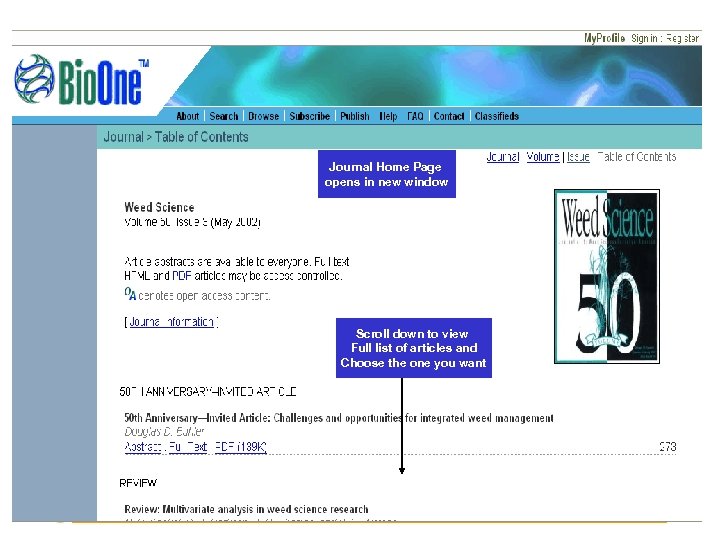
Journal Home Page opens in new window Scroll down to view Full list of articles and Choose the one you want CAB Abstracts

2. ) To download full text in PDF text click here 1. ) To download full text in Plain HTML text click here CAB Abstracts
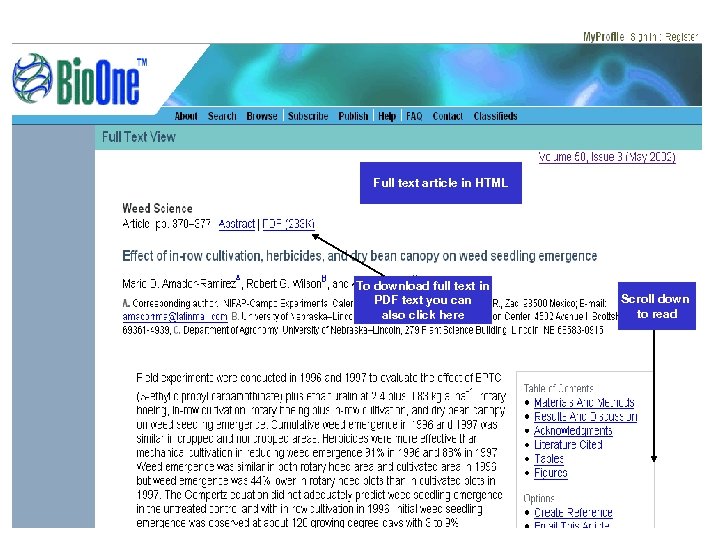
Full text article in HTML To download full text in PDF text you can also click here Scroll down to read CAB Abstracts
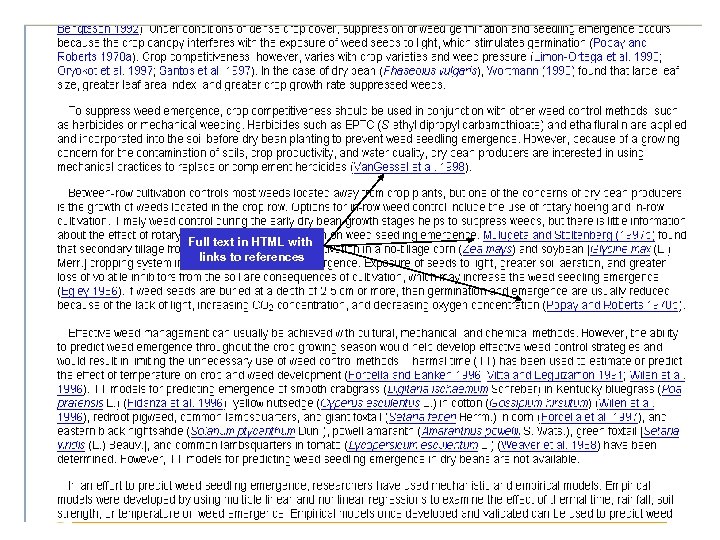
Full text in HTML with links to references CAB Abstracts
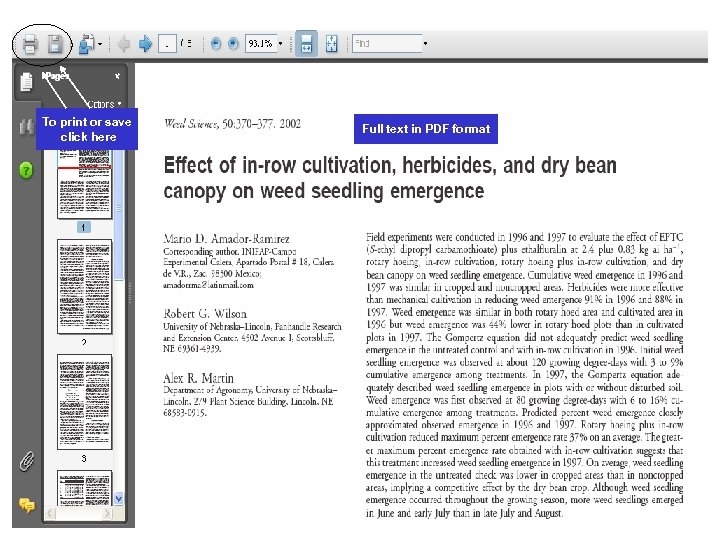
To print or save click here Full text in PDF format CAB Abstracts
3. Navigating Publishers’ Sites
Publishers’ Websites Vary All publishers’ websites are slightly different and even journals within a publisher’s site can vary in appearance and features. –Identical features might be accessed differently or will be located in other places. –Journal coverage (PDF and/or HTML full-text) is generally from 1997 onwards. –Not all publishers offer the same features (e. g. , some have table of contents alerting, some do not).
Some Common Features You can: • Search across all journals on a publisher’s website • Register for some personalized services • Download, print or email citations and/or abstract • Download full-text (PDFs and/or HTML files with hyperlinks to other full-text references or websites)
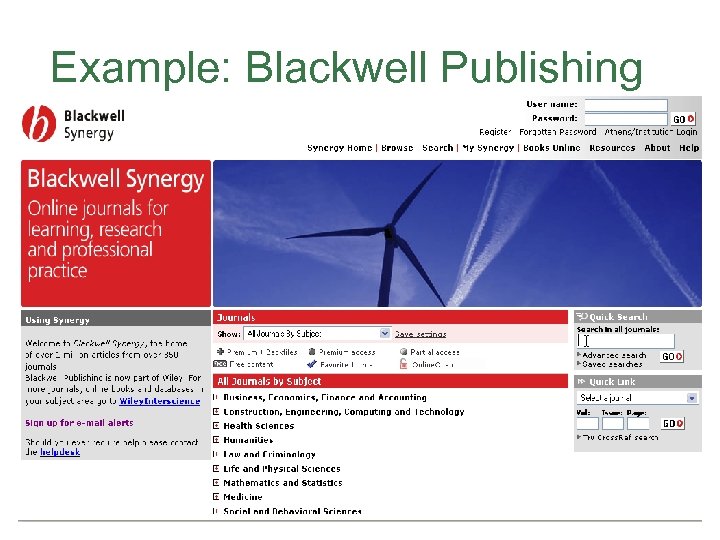
Example: Blackwell Publishing
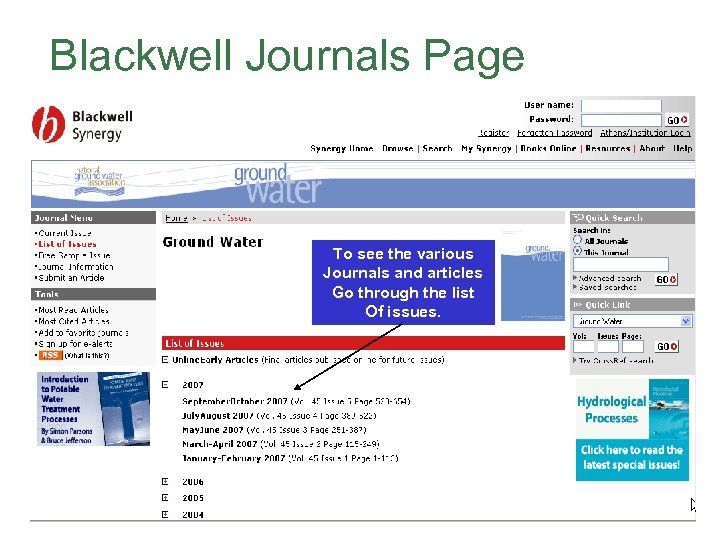
Blackwell Journals Page To see the various Journals and articles Go through the list Of issues.
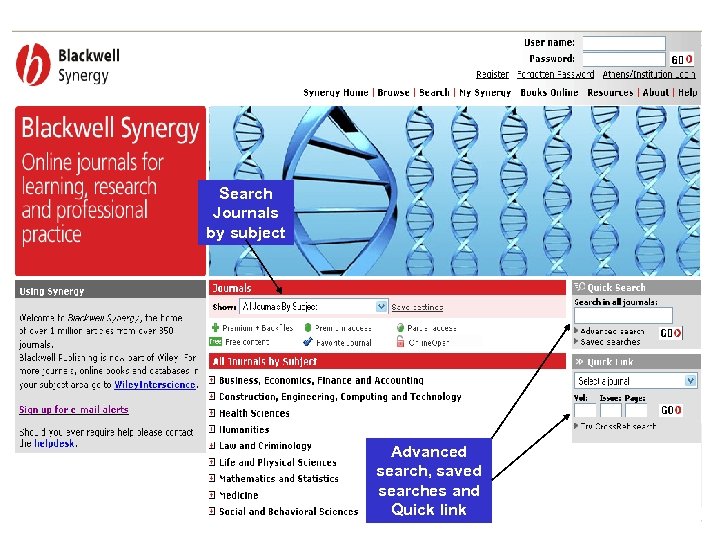
Search Journals by subject Advanced search, saved searches and Quick link
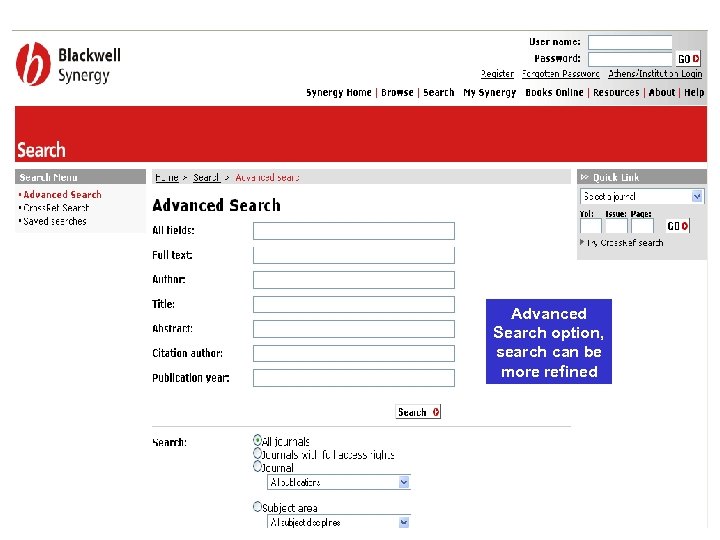
Advanced Search option, search can be more refined
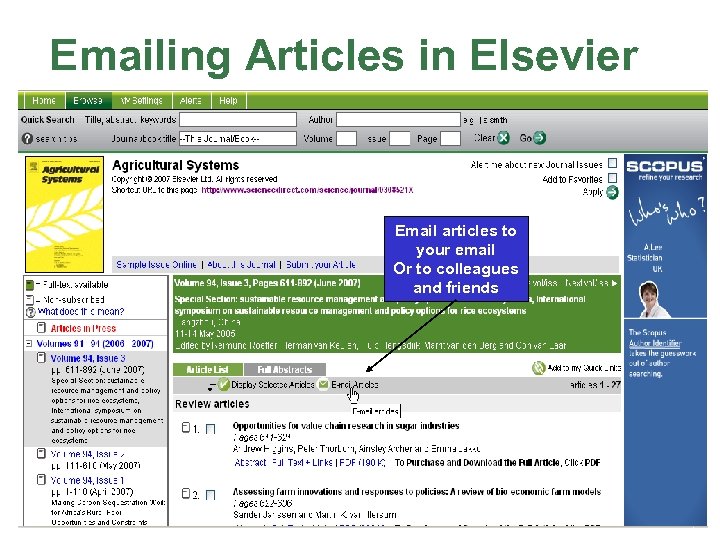
Emailing Articles in Elsevier Email articles to your email Or to colleagues and friends
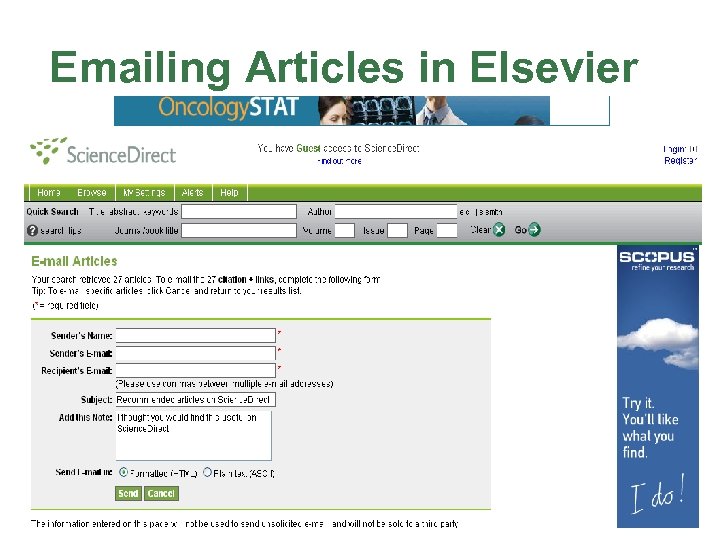
Emailing Articles in Elsevier
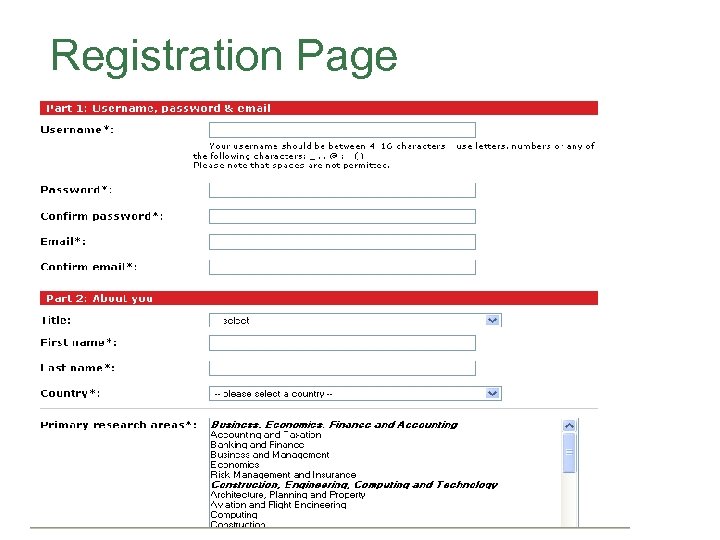
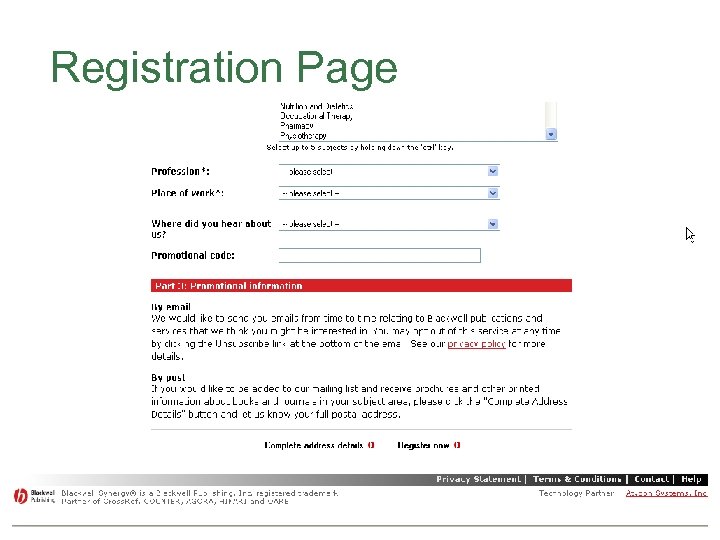
Personalized Services Registration is often required to: • Receive email table of contents alerts • Save searches and results for later use • Re-run searches and email results automatically • Link to your favourite journals and articles
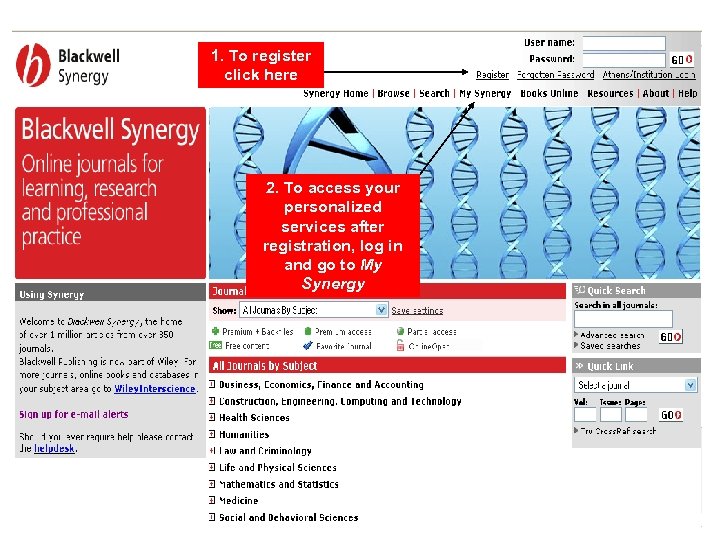
1. To register click here 2. To access your personalized services after registration, log in and go to My Synergy
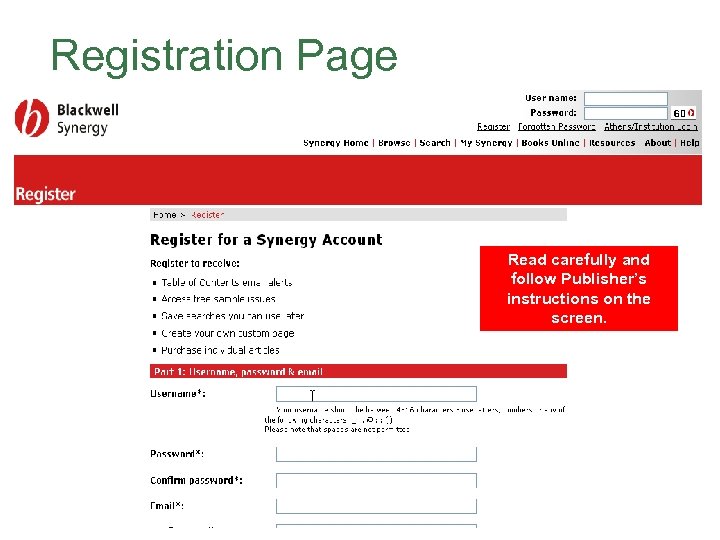
Registration Page Read carefully and follow Publisher’s instructions on the screen.
Registration Page
Registration Page
4. Conditions of Use

AGORA User Agreement • All registered institutions must sign a User Agreement covering: – Use of the AGORA password – Copyright and Fair Use • Ask your librarian about the terms of the AGORA User Agreement
Use of the AGORA Password • DO Share AGORA username and password with colleagues, students, faculty in your institution. • Do NOT Share outside your institution. • Do NOT Use outside your country.
Copyright/Fair Use of Articles • Typical copyright and fair use principles apply It is OK to: – Download or print up to 15% of a journal issue or book – Use material for educational purposes (course packs or reserves) – Make copies for institution members – Charge for printing costs for recovery costs • Always credit sources • Be cautious but sensible
Abuse of Publisher Privileges • It is NOT OK to: – Charge for documents, except for cost recovery for teaching materials – Post content to websites – Change content – Download all articles from a single issue • Violations result in the ENTIRE country denied access for up to a week, until the problem is resolved.
Questions? • Contact your Librarian OR • Contact the AGORA team with any questions or comments. We want/need to hear from users! agora@fao. org

շնորհակալ եմ
Скачать презентацию AGORA Overview Armenia June July 2009 Հայաստանի Հանրապետություն հունիս
cf37b3d8425f57c343d060309dd38395.ppt