


 Скачать презентацию Agenda XV 400 XVH 300 — Hardware overview Schutzvermerk
216c92032b5f49035e6bae3e0644fbe8.ppt
- Количество слайдов: 35
 Agenda XV 400/XVH 300 - Hardware overview Schutzvermerk nach DIN 34 beachten Exercise Examples -Defining tags -Selection Switch -Value entry and display -Bargraph and Trend -Recipe management -Password management -Errors, Alarms, Messages -Help object Process link via Ethernet and CAN open Galileo_gb 15. 03. 2018 Seite 2
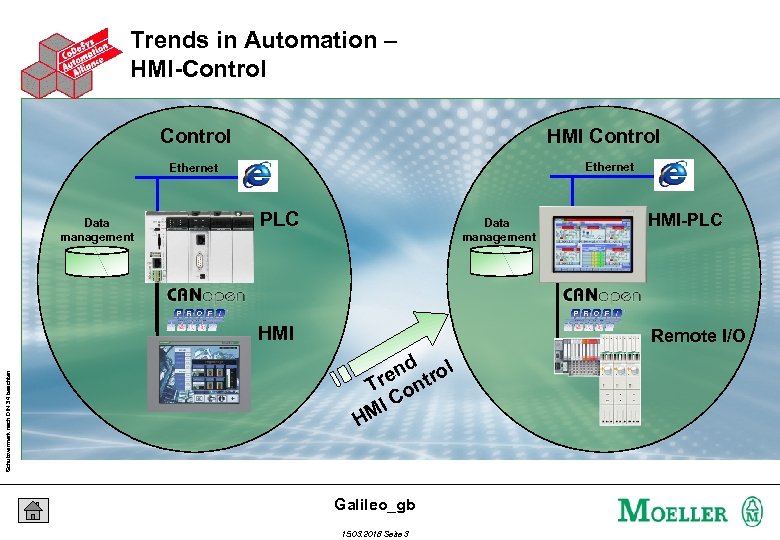 Trends in Automation – HMI-Control HMI Control Ethernet Data management PLC Data management Schutzvermerk nach DIN 34 beachten HMI-PLC Remote I/O d en ntrol Tr o IC M H Galileo_gb 15. 03. 2018 Seite 3
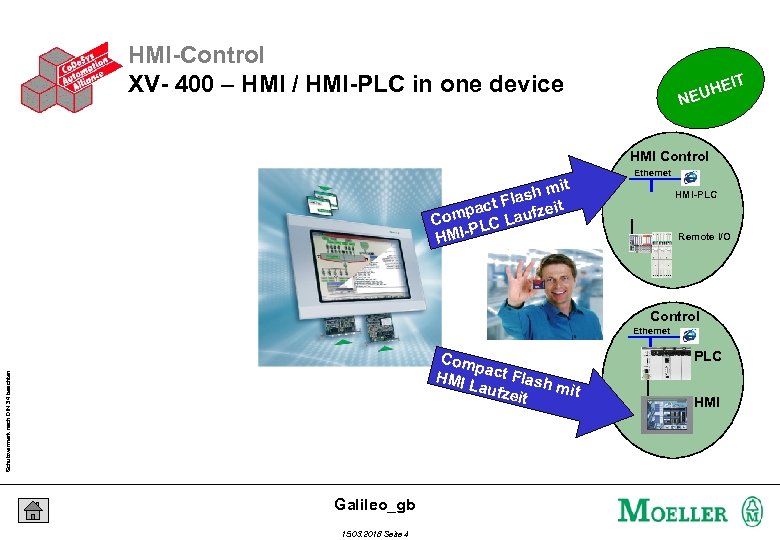 HMI-Control XV- 400 – HMI / HMI-PLC in one device IT UHE NE HMI Control mit ash Fl pact aufzeit Com LC L P HMI- Ethernet HMI-PLC Remote I/O Control Ethernet Schutzvermerk nach DIN 34 beachten Com p HMI act Flash Lauf mit zeit Galileo_gb 15. 03. 2018 Seite 4 PLC HMI
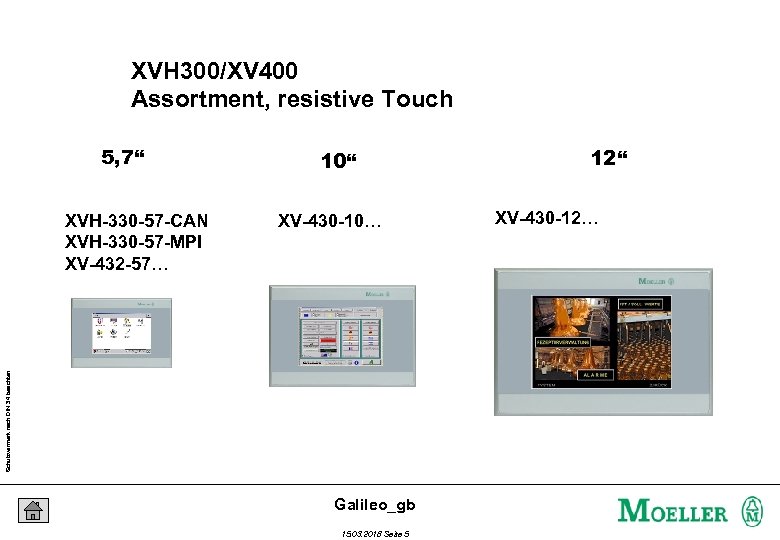 XVH 300/XV 400 Assortment, resistive Touch 5, 7“ XV-430 -10… Schutzvermerk nach DIN 34 beachten XVH-330 -57 -CAN XVH-330 -57 -MPI XV-432 -57… 10“ Galileo_gb 15. 03. 2018 Seite 5 12“ XV-430 -12…
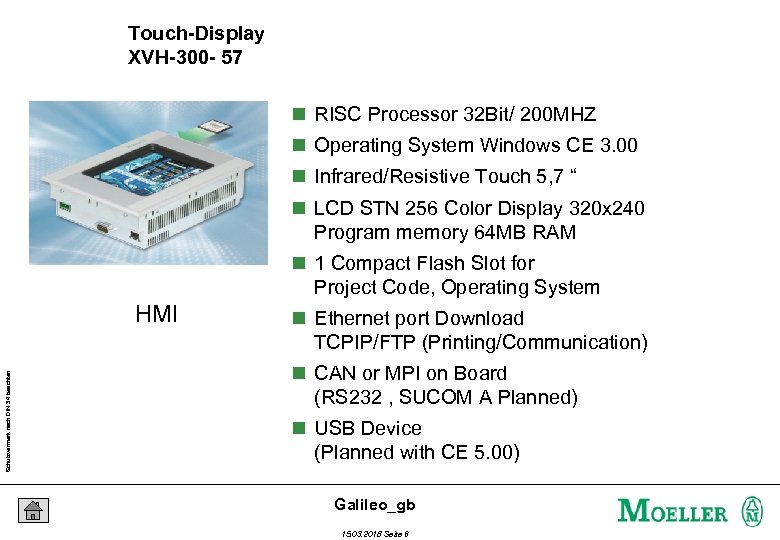 Touch-Display XVH-300 - 57 n RISC Processor 32 Bit/ 200 MHZ n Operating System Windows CE 3. 00 n Infrared/Resistive Touch 5, 7 “ n LCD STN 256 Color Display 320 x 240 Program memory 64 MB RAM n 1 Compact Flash Slot for Project Code, Operating System Schutzvermerk nach DIN 34 beachten HMI n Ethernet port Download TCPIP/FTP (Printing/Communication) n CAN or MPI on Board (RS 232 , SUCOM A Planned) n USB Device (Planned with CE 5. 00) Galileo_gb 15. 03. 2018 Seite 6
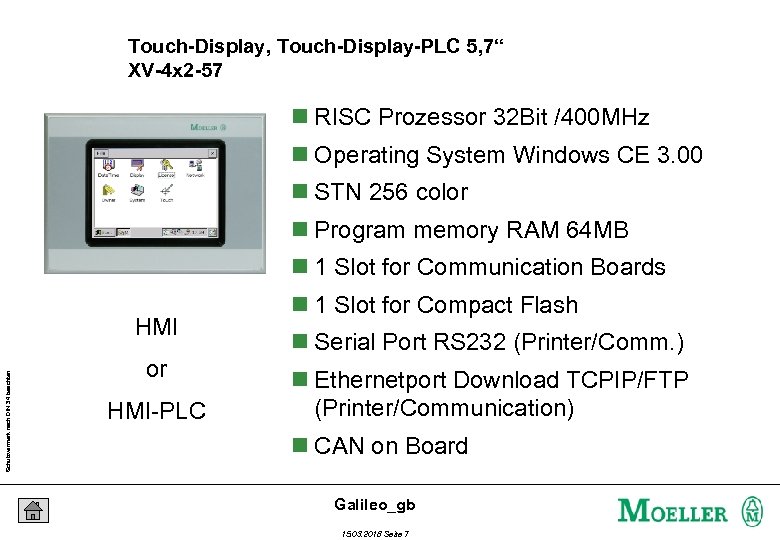 Touch-Display, Touch-Display-PLC 5, 7“ XV-4 x 2 -57 n RISC Prozessor 32 Bit /400 MHz n Operating System Windows CE 3. 00 n STN 256 color n Program memory RAM 64 MB n 1 Slot for Communication Boards Schutzvermerk nach DIN 34 beachten HMI or HMI-PLC n 1 Slot for Compact Flash n Serial Port RS 232 (Printer/Comm. ) n Ethernetport Download TCPIP/FTP (Printer/Communication) n CAN on Board Galileo_gb 15. 03. 2018 Seite 7
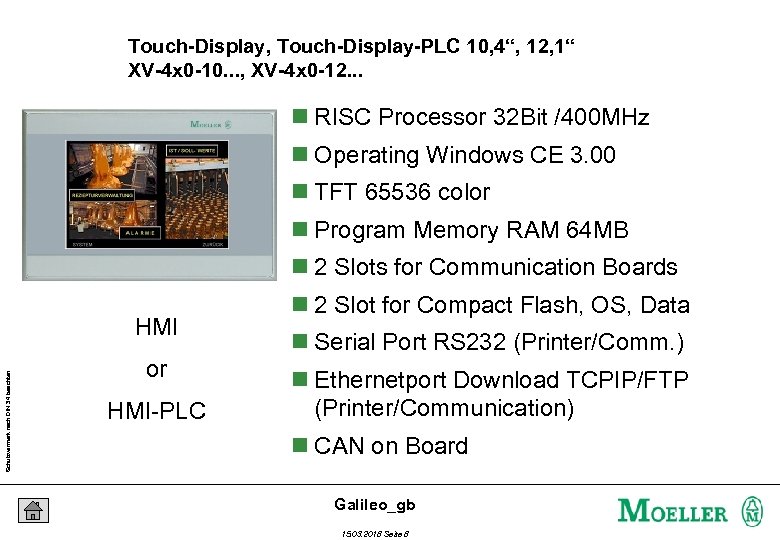 Touch-Display, Touch-Display-PLC 10, 4“, 12, 1“ XV-4 x 0 -10. . . , XV-4 x 0 -12. . . n RISC Processor 32 Bit /400 MHz n Operating Windows CE 3. 00 n TFT 65536 color n Program Memory RAM 64 MB n 2 Slots for Communication Boards Schutzvermerk nach DIN 34 beachten HMI or HMI-PLC n 2 Slot for Compact Flash, OS, Data n Serial Port RS 232 (Printer/Comm. ) n Ethernetport Download TCPIP/FTP (Printer/Communication) n CAN on Board Galileo_gb 15. 03. 2018 Seite 8
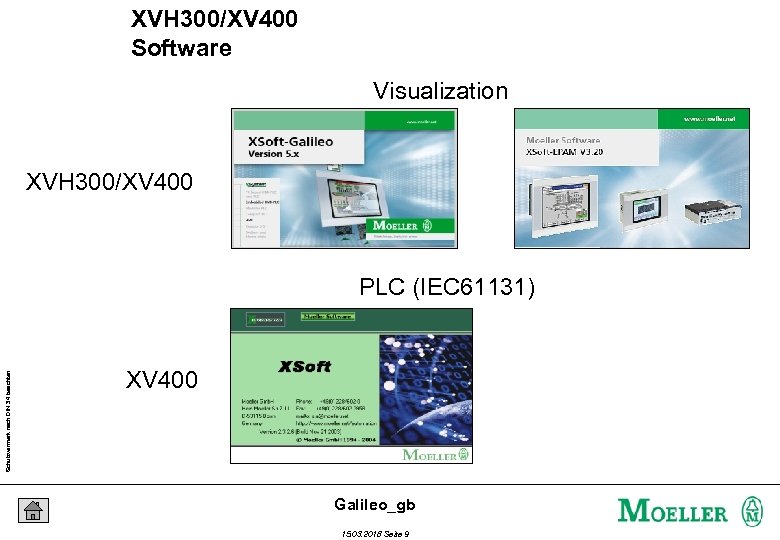 XVH 300/XV 400 Software Visualization XVH 300/XV 400 Schutzvermerk nach DIN 34 beachten PLC (IEC 61131) XV 400 Galileo_gb 15. 03. 2018 Seite 9
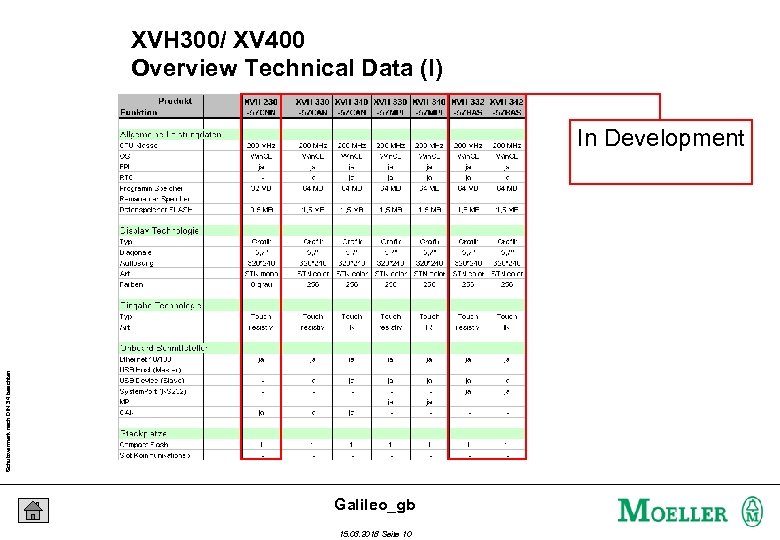 XVH 300/ XV 400 Overview Technical Data (I) Schutzvermerk nach DIN 34 beachten In Development Galileo_gb 15. 03. 2018 Seite 10
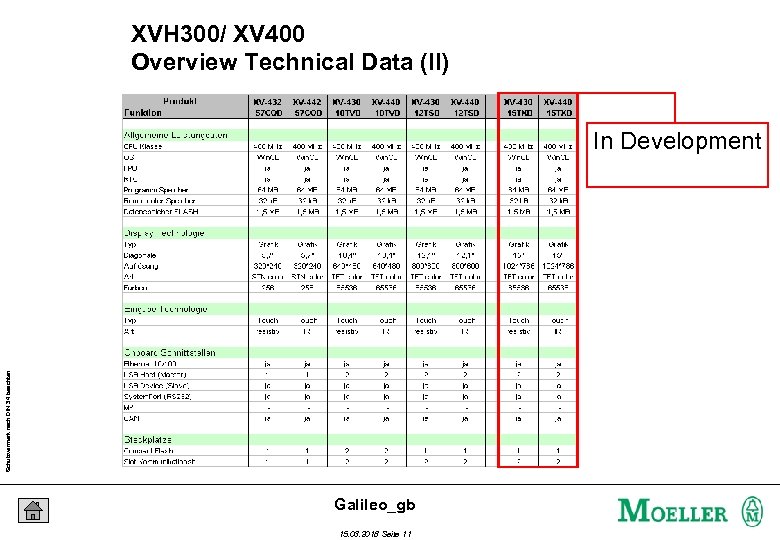 XVH 300/ XV 400 Overview Technical Data (II) Schutzvermerk nach DIN 34 beachten In Development Galileo_gb 15. 03. 2018 Seite 11
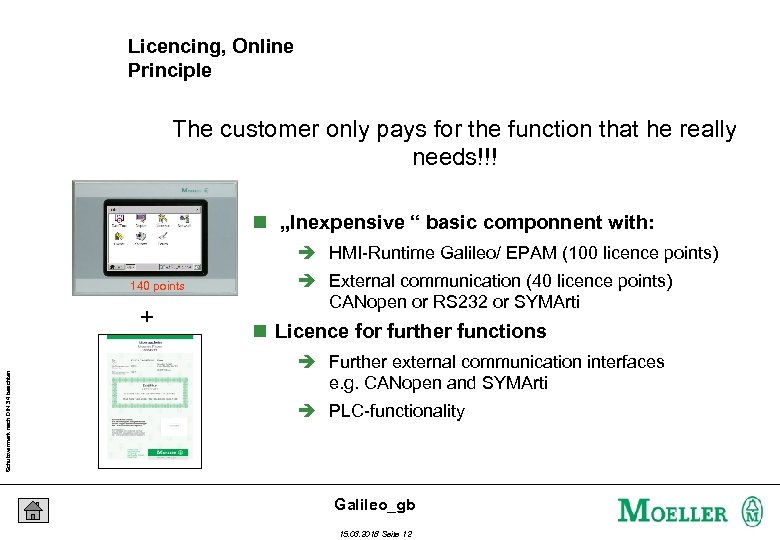 Licencing, Online Principle The customer only pays for the function that he really needs!!! n „Inexpensive “ basic componnent with: è HMI-Runtime Galileo/ EPAM (100 licence points) 140 points Schutzvermerk nach DIN 34 beachten + è External communication (40 licence points) CANopen or RS 232 or SYMArti n Licence for further functions è Further external communication interfaces e. g. CANopen and SYMArti è PLC-functionality Galileo_gb 15. 03. 2018 Seite 12
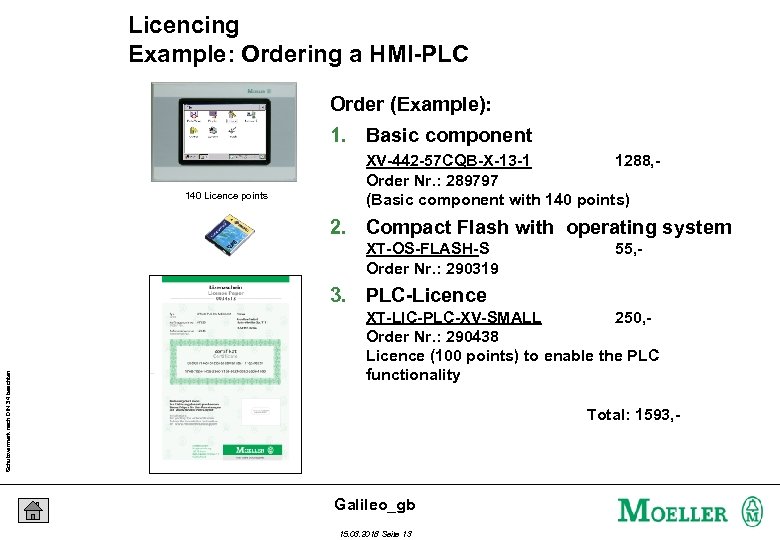 Licencing Example: Ordering a HMI-PLC Order (Example): 1. Basic component 140 Licence points XV-442 -57 CQB-X-13 -1 1288, Order Nr. : 289797 (Basic component with 140 points) 2. Compact Flash with operating system XT-OS-FLASH-S Order Nr. : 290319 55, - Schutzvermerk nach DIN 34 beachten 3. PLC-Licence XT-LIC-PLC-XV-SMALL 250, Order Nr. : 290438 Licence (100 points) to enable the PLC functionality Total: 1593, - Galileo_gb 15. 03. 2018 Seite 13
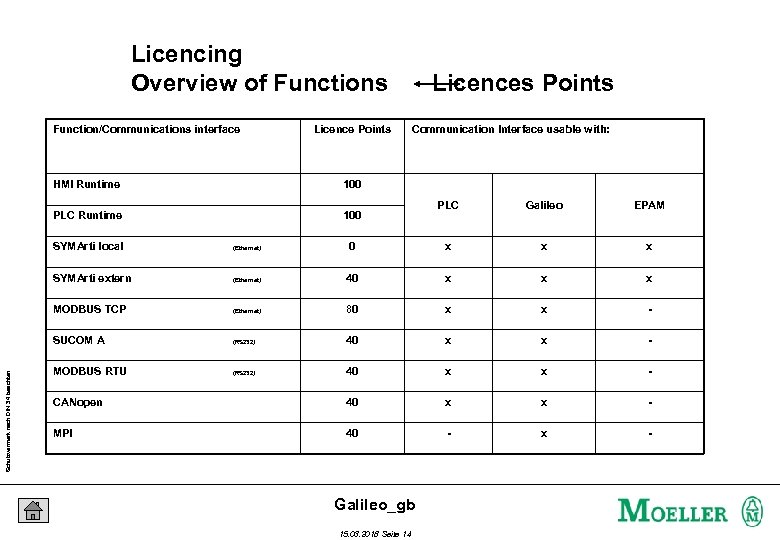 Licencing Overview of Functions Function/Communications interface Licence Points HMI Runtime Communication Interface usable with: 100 PLC Runtime Licences Points 100 PLC Galileo EPAM (Ethernet) 0 x x x SYMArti extern (Ethernet) 40 x x x MODBUS TCP (Ethernet) 80 x x - SUCOM A Schutzvermerk nach DIN 34 beachten SYMArti local (RS 232) 40 x x - MODBUS RTU (RS 232) 40 x x - CANopen 40 x x - MPI 40 - x - Galileo_gb 15. 03. 2018 Seite 14
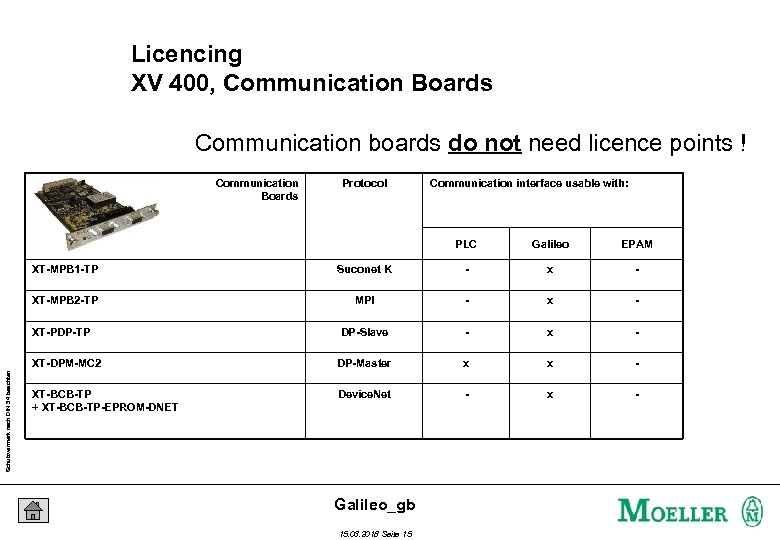 Licencing XV 400, Communication Boards Communication boards do not need licence points ! Communication Boards Protocol Communication interface usable with: PLC Galileo EPAM XT-MPB 1 -TP Suconet K - x - XT-MPB 2 -TP MPI - x - DP-Slave - x - XT-DPM-MC 2 DP-Master x x - XT-BCB-TP + XT-BCB-TP-EPROM-DNET Device. Net - x - Schutzvermerk nach DIN 34 beachten XT-PDP-TP Galileo_gb 15. 03. 2018 Seite 15
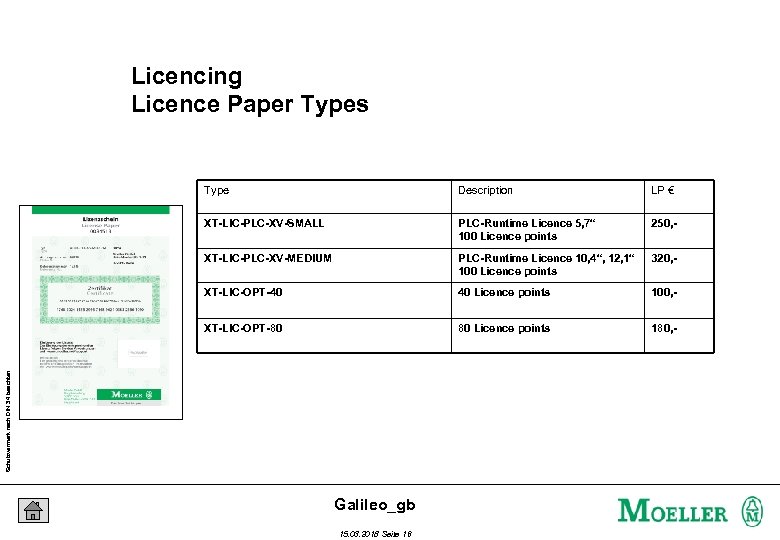 Licencing Licence Paper Types Description LP € XT-LIC-PLC-XV-SMALL PLC-Runtime Licence 5, 7“ 100 Licence points 250, - XT-LIC-PLC-XV-MEDIUM PLC-Runtime Licence 10, 4“, 12, 1“ 100 Licence points 320, - XT-LIC-OPT-40 40 Licence points 100, - XT-LIC-OPT-80 80 Licence points 180, - Schutzvermerk nach DIN 34 beachten Type Galileo_gb 15. 03. 2018 Seite 16
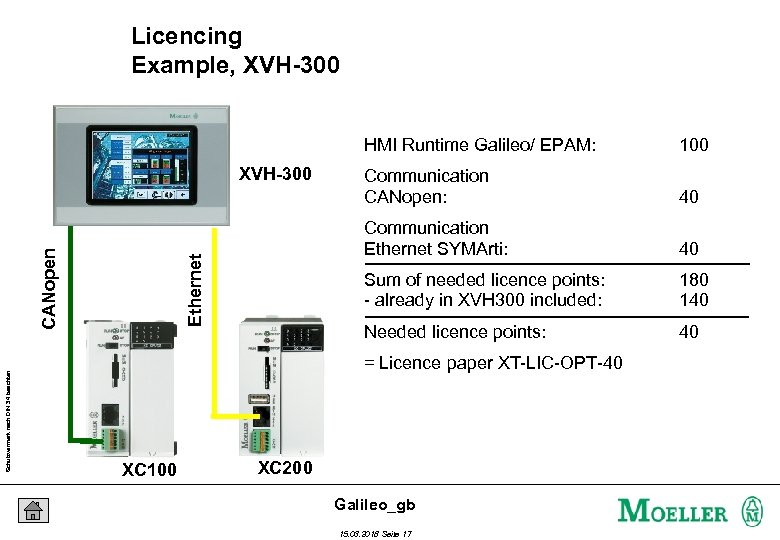 Licencing Example, XVH-300 HMI Runtime Galileo/ EPAM: 40 40 Sum of needed licence points: - already in XVH 300 included: 180 140 Needed licence points: Ethernet CANopen Schutzvermerk nach DIN 34 beachten Communication CANopen: Communication Ethernet SYMArti: XVH-300 100 40 = Licence paper XT-LIC-OPT-40 XC 100 XC 200 Galileo_gb 15. 03. 2018 Seite 17
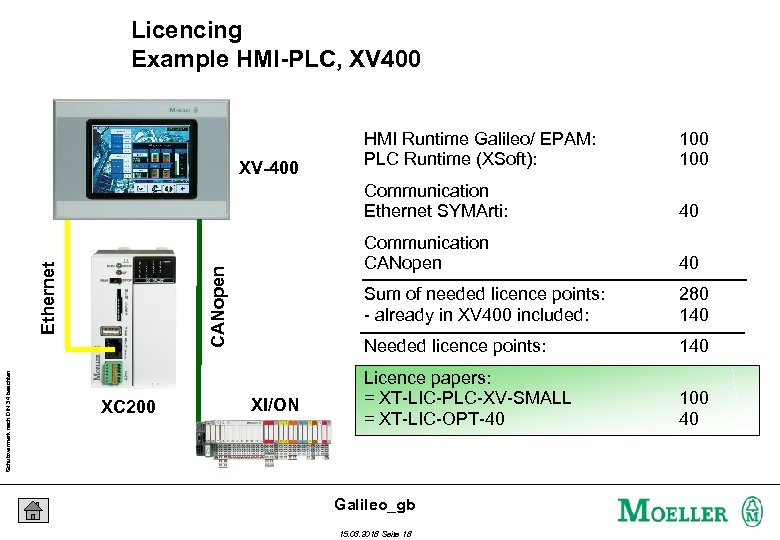 Licencing Example HMI-PLC, XV 400 40 Sum of needed licence points: - already in XV 400 included: 280 140 Needed licence points: XI/ON 40 Communication CANopen Ethernet Schutzvermerk nach DIN 34 beachten XC 200 100 Communication Ethernet SYMArti: XV-400 HMI Runtime Galileo/ EPAM: PLC Runtime (XSoft): 140 Licence papers: = XT-LIC-PLC-XV-SMALL = XT-LIC-OPT-40 100 40 Galileo_gb 15. 03. 2018 Seite 18
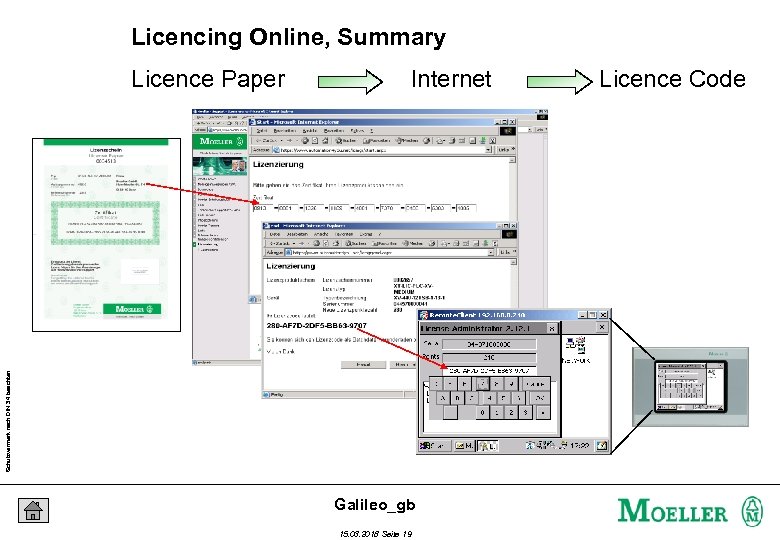 Licencing Online, Summary Internet Schutzvermerk nach DIN 34 beachten Licence Paper Galileo_gb 15. 03. 2018 Seite 19 Licence Code
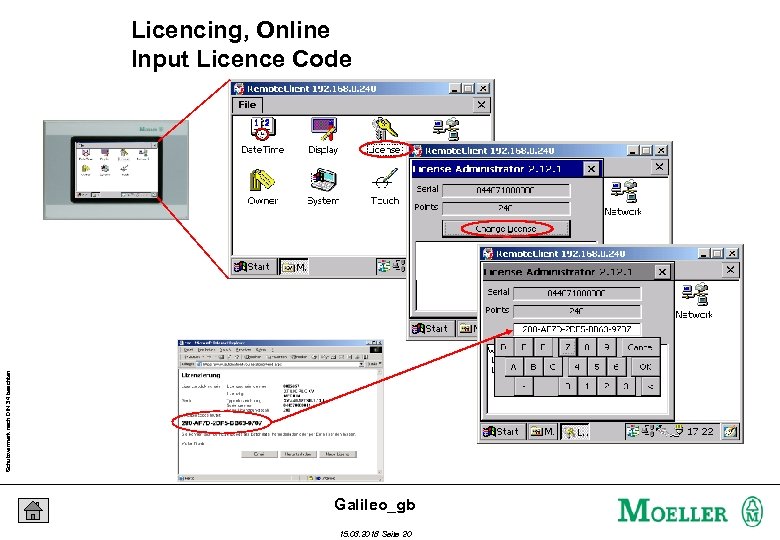 Schutzvermerk nach DIN 34 beachten Licencing, Online Input Licence Code Galileo_gb 15. 03. 2018 Seite 20
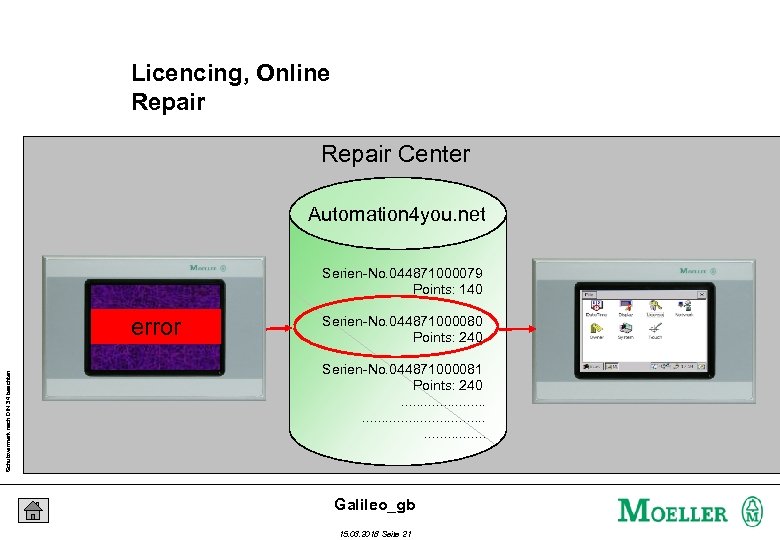 Licencing, Online Repair Center Automation 4 you. net Serien-No. 044871000079 Points: 140 Schutzvermerk nach DIN 34 beachten error Serien-No. 044871000080 Points: 240 Serien-No. 044871000081 Points: 240. . . . . Galileo_gb 15. 03. 2018 Seite 21
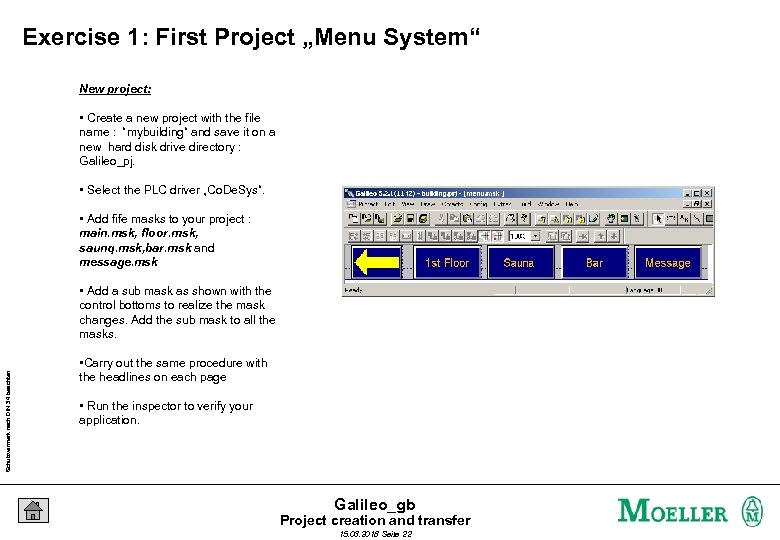 Exercise 1: First Project „Menu System“ New project: • Create a new project with the file name : “mybuilding“ and save it on a new hard disk drive directory : Galileo_pj. • Select the PLC driver „Co. De. Sys“. • Add fife masks to your project : main. msk, floor. msk, saunq. msk, bar. msk and message. msk Schutzvermerk nach DIN 34 beachten • Add a sub mask as shown with the control bottoms to realize the mask changes. Add the sub mask to all the masks. • Carry out the same procedure with the headlines on each page • Run the inspector to verify your application. Galileo_gb Project creation and transfer 15. 03. 2018 Seite 22
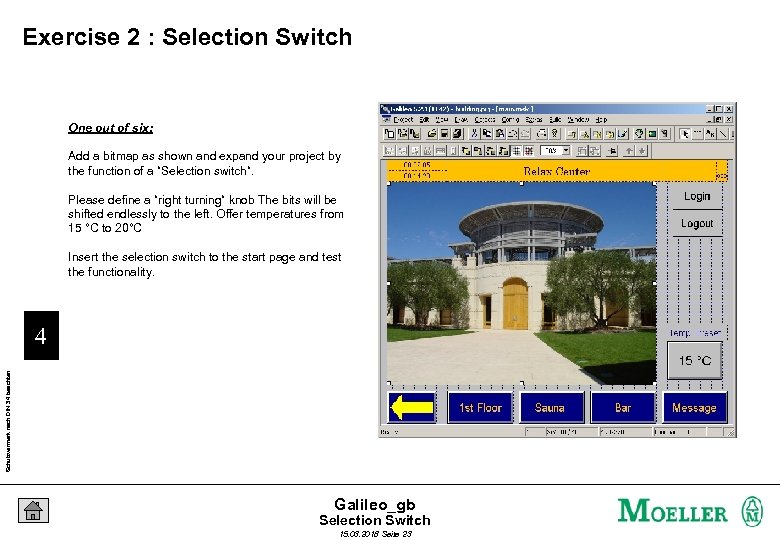 Exercise 2 : Selection Switch One out of six: Add a bitmap as shown and expand your project by the function of a “Selection switch“. Please define a “right turning“ knob The bits will be shifted endlessly to the left. Offer temperatures from 15 °C to 20°C Insert the selection switch to the start page and test the functionality. Schutzvermerk nach DIN 34 beachten 4 Galileo_gb Selection Switch 15. 03. 2018 Seite 23
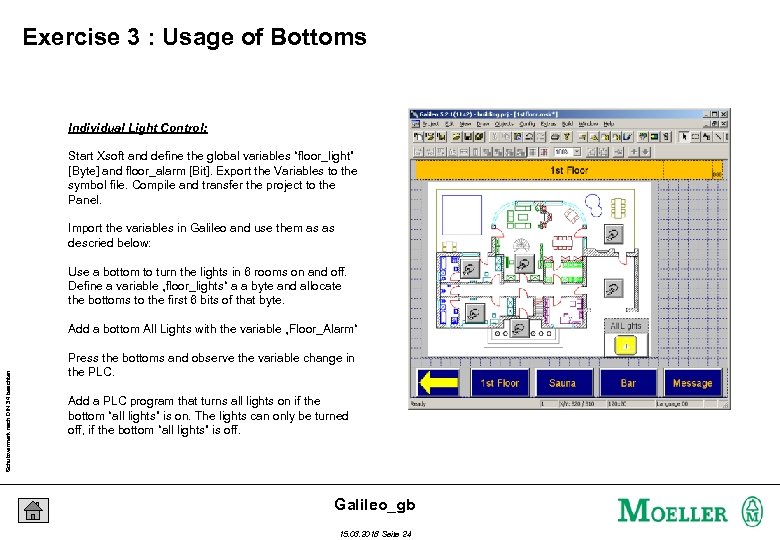 Exercise 3 : Usage of Bottoms Individual Light Control: Start Xsoft and define the global variables “floor_light” [Byte] and floor_alarm [Bit]. Export the Variables to the symbol file. Compile and transfer the project to the Panel. Import the variables in Galileo and use them as as descried below: Use a bottom to turn the lights in 6 rooms on and off. Define a variable „floor_lights“ a a byte and allocate the bottoms to the first 6 bits of that byte. Schutzvermerk nach DIN 34 beachten Add a bottom All Lights with the variable „Floor_Alarm“ Press the bottoms and observe the variable change in the PLC. Add a PLC program that turns all lights on if the bottom “all lights” is on. The lights can only be turned off, if the bottom “all lights” is off. Galileo_gb 15. 03. 2018 Seite 24
![Exercise 4 : Bargraphs Water Temperature preset: Add the variable “floor_water_preset” [byte] in the](https://present5.com/presentation/216c92032b5f49035e6bae3e0644fbe8/image-24.jpg "Exercise 4 : Bargraphs Water Temperature preset: Add the variable “floor_water_preset” [byte] in the") Exercise 4 : Bargraphs Water Temperature preset: Add the variable “floor_water_preset” [byte] in the Xsoft and in Galileo. A numeric keypad has to pop up if the bar graph is touched. Show the decimal value on top of the graph. Schutzvermerk nach DIN 34 beachten Observe the value change in the Xsoft. Galileo_gb 15. 03. 2018 Seite 25
Exercise 4 : Bargraphs Water Temperature preset: Add the variable “floor_water_preset” [byte] in the Xsoft and in Galileo. A numeric keypad has to pop up if the bar graph is touched. Show the decimal value on top of the graph. Schutzvermerk nach DIN 34 beachten Observe the value change in the Xsoft. Galileo_gb 15. 03. 2018 Seite 25
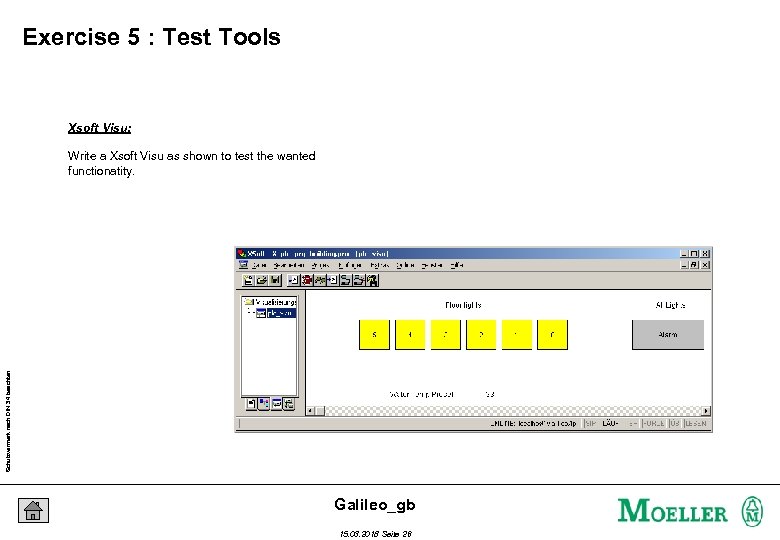 Exercise 5 : Test Tools Xsoft Visu: Schutzvermerk nach DIN 34 beachten Write a Xsoft Visu as shown to test the wanted functionatity. Galileo_gb 15. 03. 2018 Seite 26
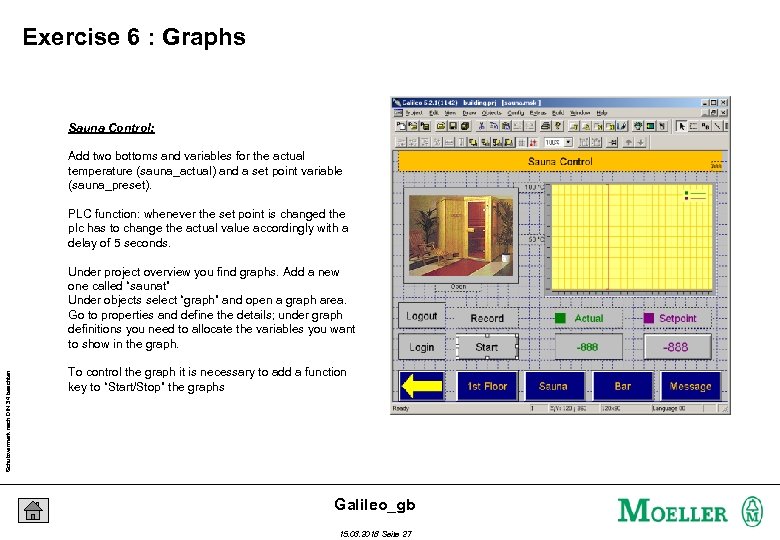 Exercise 6 : Graphs Sauna Control: Add two bottoms and variables for the actual temperature (sauna_actual) and a set point variable (sauna_preset). PLC function: whenever the set point is changed the plc has to change the actual value accordingly with a delay of 5 seconds. Schutzvermerk nach DIN 34 beachten Under project overview you find graphs. Add a new one called “saunat” Under objects select “graph” and open a graph area. Go to properties and define the details; under graph definitions you need to allocate the variables you want to show in the graph. To control the graph it is necessary to add a function key to “Start/Stop” the graphs Galileo_gb 15. 03. 2018 Seite 27
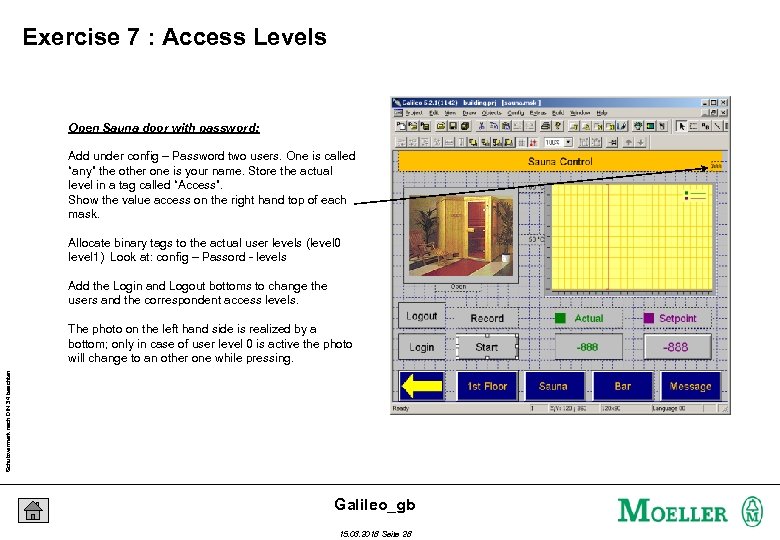 Exercise 7 : Access Levels Open Sauna door with password: Add under config – Password two users. One is called “any” the other one is your name. Store the actual level in a tag called “Access”. Show the value access on the right hand top of each mask. Allocate binary tags to the actual user levels (level 0 level 1) Look at: config – Passord - levels Add the Login and Logout bottoms to change the users and the correspondent access levels. Schutzvermerk nach DIN 34 beachten The photo on the left hand side is realized by a bottom; only in case of user level 0 is active the photo will change to an other one while pressing. Galileo_gb 15. 03. 2018 Seite 28
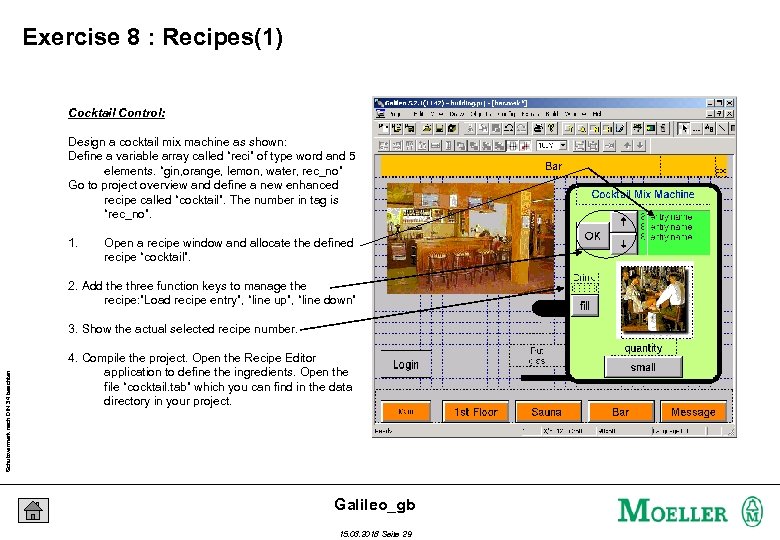 Exercise 8 : Recipes(1) Cocktail Control: Design a cocktail mix machine as shown: Define a variable array called “reci” of type word and 5 elements. “gin, orange, lemon, water, rec_no” Go to project overview and define a new enhanced recipe called “cocktail”. The number in tag is “rec_no”. 1. Open a recipe window and allocate the defined recipe “cocktail”. 2. Add the three function keys to manage the recipe: ”Load recipe entry”, “line up”, “line down” Schutzvermerk nach DIN 34 beachten 3. Show the actual selected recipe number. 4. Compile the project. Open the Recipe Editor application to define the ingredients. Open the file “cocktail. tab” which you can find in the data directory in your project. Galileo_gb 15. 03. 2018 Seite 29
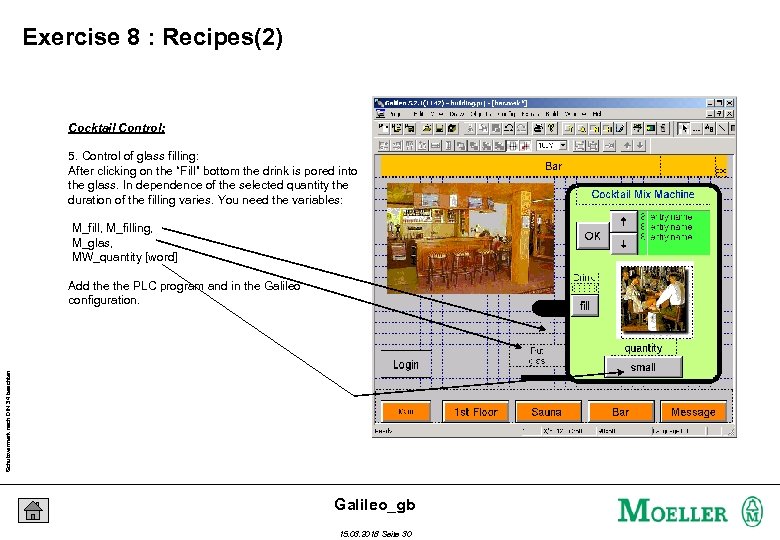 Exercise 8 : Recipes(2) Cocktail Control: 5. Control of glass filling: After clicking on the “Fill” bottom the drink is pored into the glass. In dependence of the selected quantity the duration of the filling varies. You need the variables: M_fill, M_filling, M_glas, MW_quantity [word] Schutzvermerk nach DIN 34 beachten Add the PLC program and in the Galileo configuration. Galileo_gb 15. 03. 2018 Seite 30
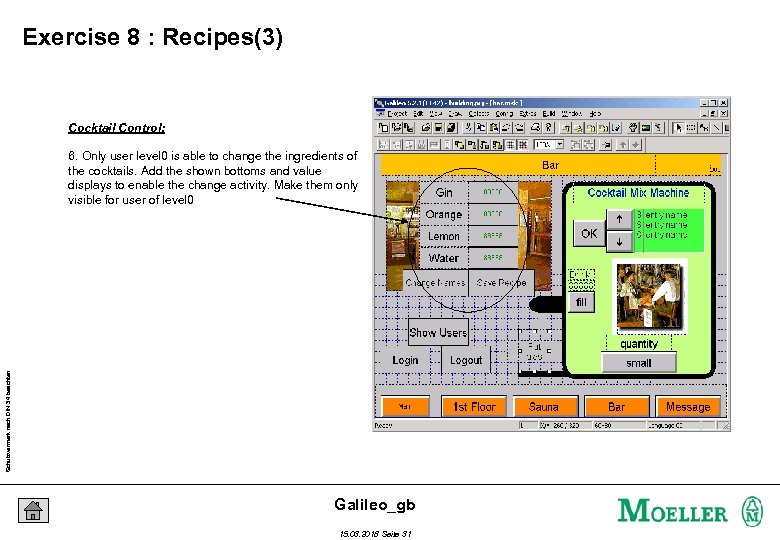 Exercise 8 : Recipes(3) Cocktail Control: Schutzvermerk nach DIN 34 beachten 6. Only user level 0 is able to change the ingredients of the cocktails. Add the shown bottoms and value displays to enable the change activity. Make them only visible for user of level 0 Galileo_gb 15. 03. 2018 Seite 31
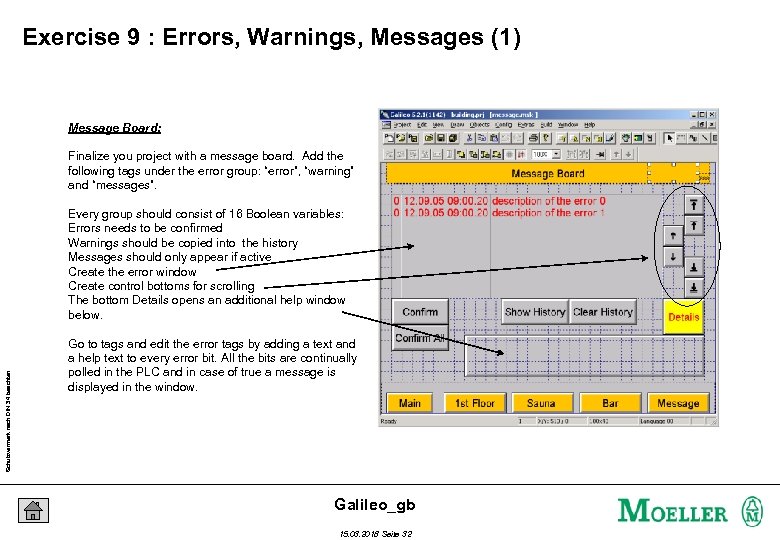 Exercise 9 : Errors, Warnings, Messages (1) Message Board: Finalize you project with a message board. Add the following tags under the error group: “error”, “warning” and “messages”. Schutzvermerk nach DIN 34 beachten Every group should consist of 16 Boolean variables: Errors needs to be confirmed Warnings should be copied into the history Messages should only appear if active Create the error window Create control bottoms for scrolling The bottom Details opens an additional help window below. Go to tags and edit the error tags by adding a text and a help text to every error bit. All the bits are continually polled in the PLC and in case of true a message is displayed in the window. Galileo_gb 15. 03. 2018 Seite 32
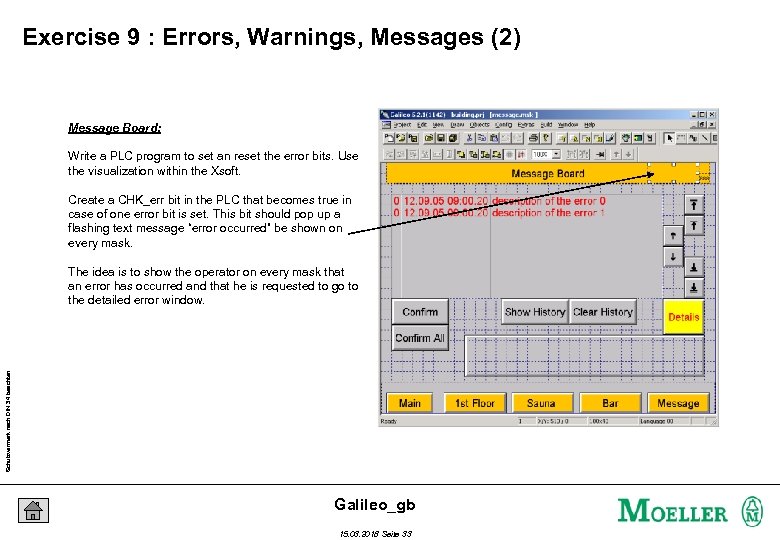 Exercise 9 : Errors, Warnings, Messages (2) Message Board: Write a PLC program to set an reset the error bits. Use the visualization within the Xsoft. Create a CHK_err bit in the PLC that becomes true in case of one error bit is set. This bit should pop up a flashing text message “error occurred” be shown on every mask. Schutzvermerk nach DIN 34 beachten The idea is to show the operator on every mask that an error has occurred and that he is requested to go to the detailed error window. Galileo_gb 15. 03. 2018 Seite 33
 Schutzvermerk nach DIN 34 beachten Notice Galileo_gb 15. 03. 2018 Seite 34
 Schutzvermerk nach DIN 34 beachten Notice Galileo_gb 15. 03. 2018 Seite 35
 Schutzvermerk nach DIN 34 beachten Notice Galileo_gb 15. 03. 2018 Seite 36