 Скачать презентацию AESOP For Principals and Secretaries Automated Substitute Placement
b3284f04bdbf70f3281b667887625e12.ppt
- Количество слайдов: 42



AESOP For Principals and Secretaries Automated Substitute Placement and Employee Absence Management System
OBJECTIVES: n n n Review of AESOP Reports Tools to train employees
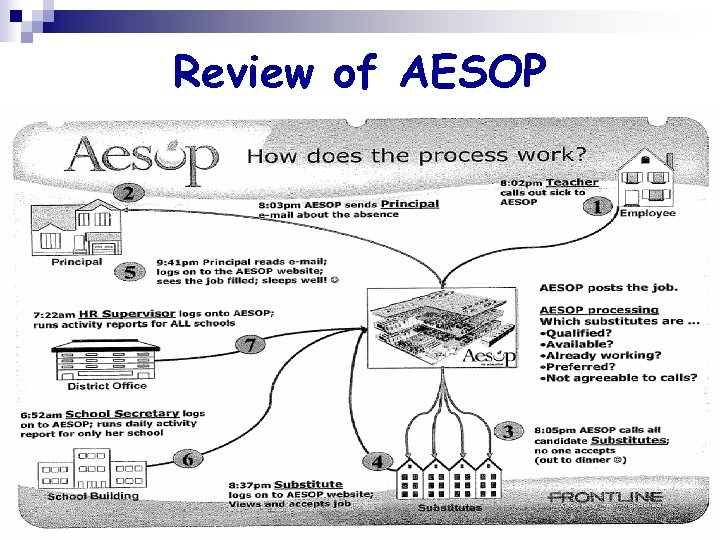
Review of AESOP
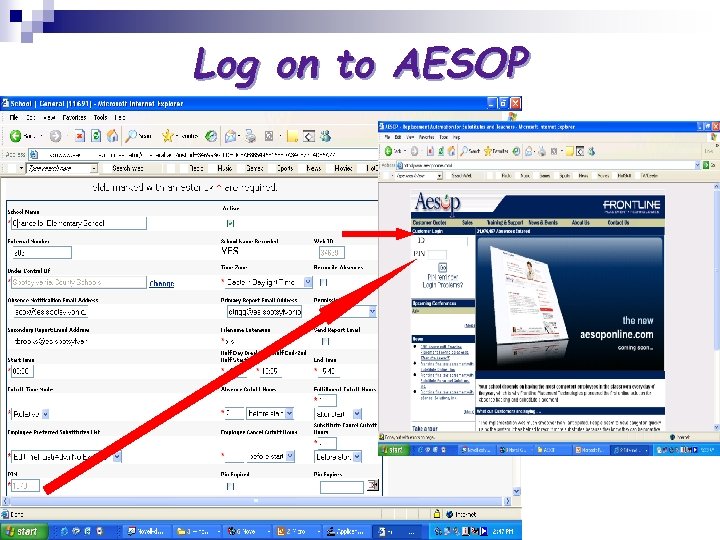
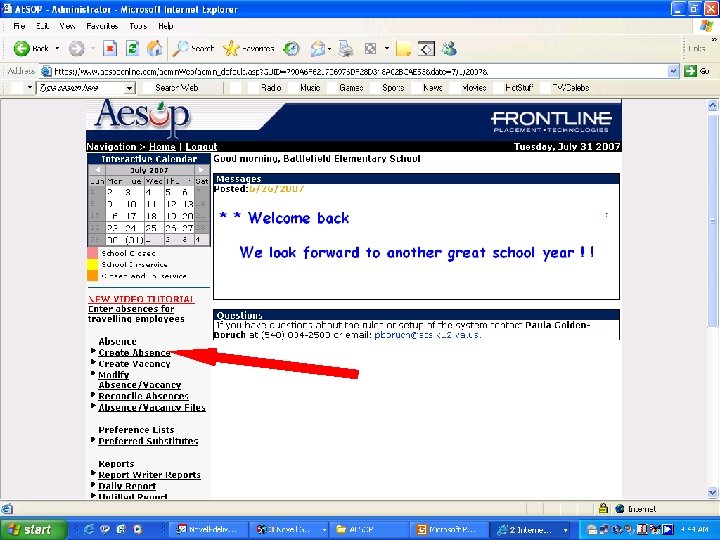
Log on to AESOP
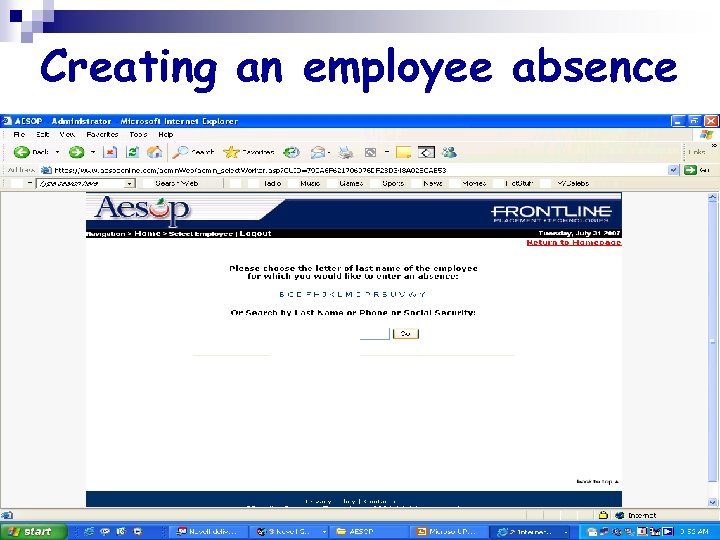
Creating an employee absence
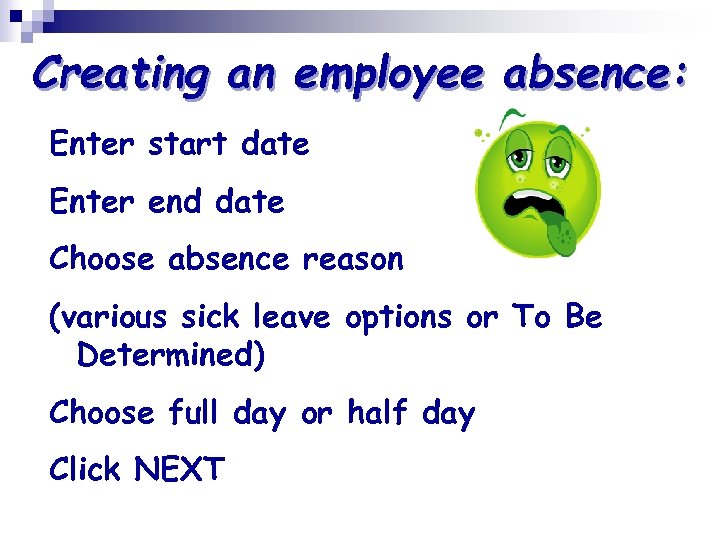
Creating an employee absence: Enter start date Enter end date Choose absence reason (various sick leave options or To Be Determined) Choose full day or half day Click NEXT
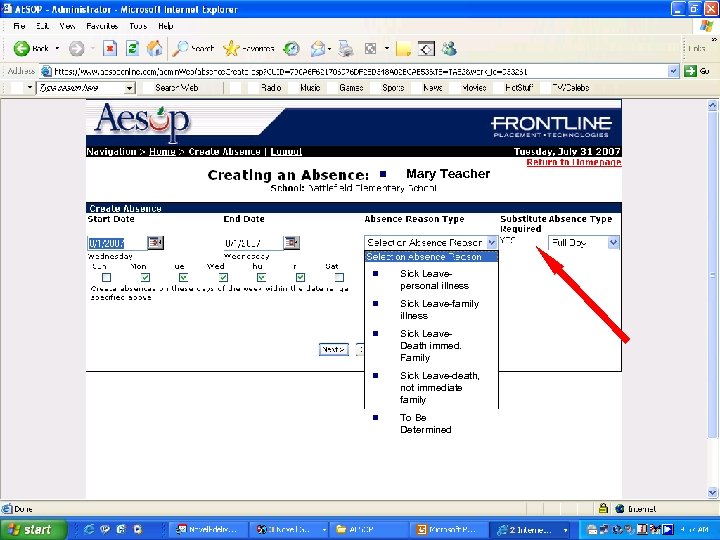
n Mary Teacher n Sick Leavepersonal illness n Sick Leave-family illness n Sick Leave. Death immed. Family n Sick Leave-death, not immediate family n To Be Determined
Creating an employee absence cont… Verify all information! Enter notes for substitute (optional) You may also attach lesson plan files Enter notes for administrator (optional) Administrator can add private notes (optional)
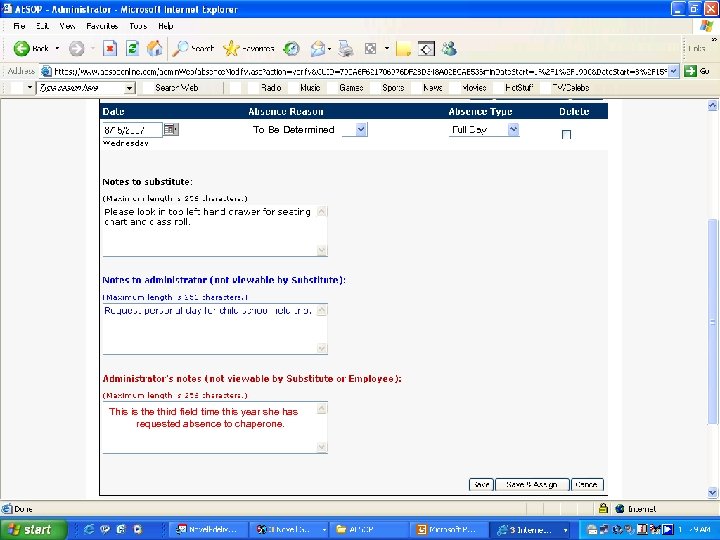
To Be Determined This is the third field time this year she has requested absence to chaperone.
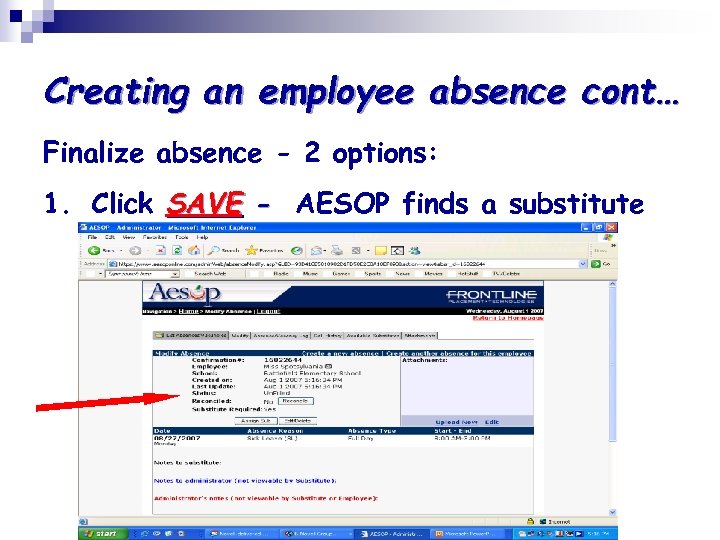
Creating an employee absence cont… Finalize absence - 2 options: 1. Click SAVE - AESOP finds a substitute
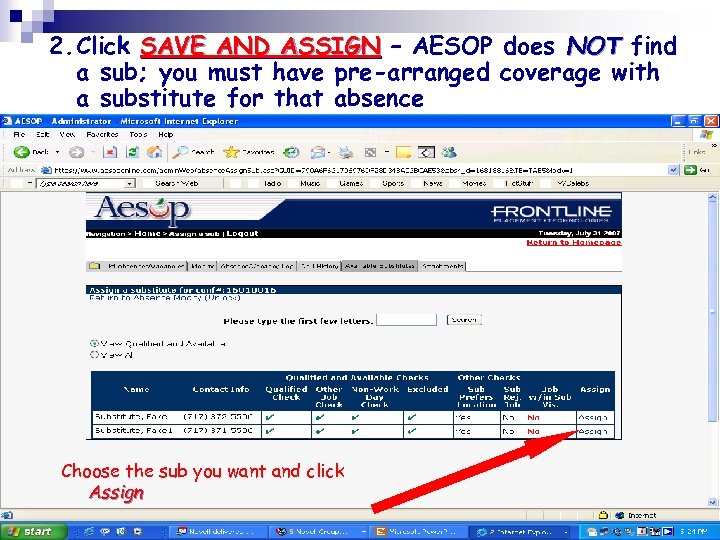
2. Click SAVE AND ASSIGN – AESOP does NOT find a sub; you must have pre-arranged coverage with a substitute for that absence Choose the sub you want and click Assign
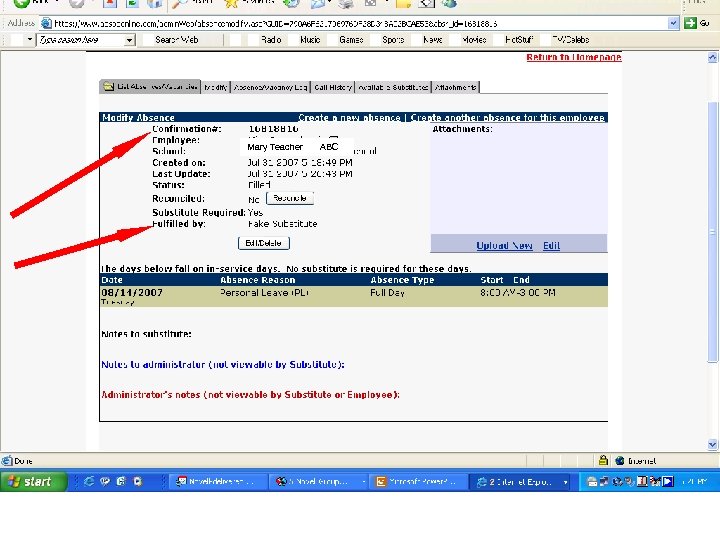
Mary Teacher ABC
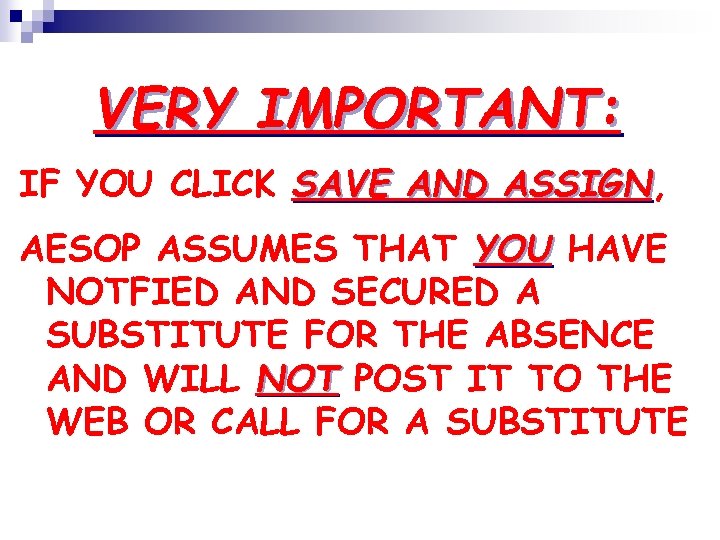
VERY IMPORTANT: IF YOU CLICK SAVE AND ASSIGN, ASSIGN AESOP ASSUMES THAT YOU HAVE NOTFIED AND SECURED A SUBSTITUTE FOR THE ABSENCE AND WILL NOT POST IT TO THE WEB OR CALL FOR A SUBSTITUTE
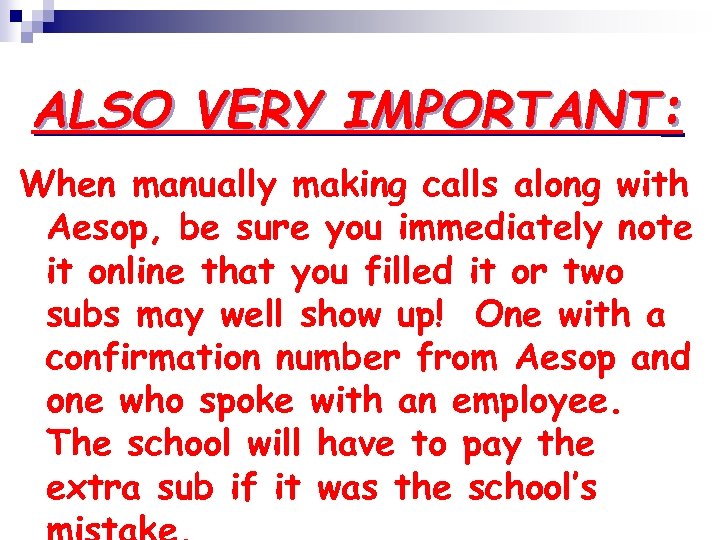
ALSO VERY IMPORTANT: When manually making calls along with Aesop, be sure you immediately note it online that you filled it or two subs may well show up! One with a confirmation number from Aesop and one who spoke with an employee. The school will have to pay the extra sub if it was the school’s
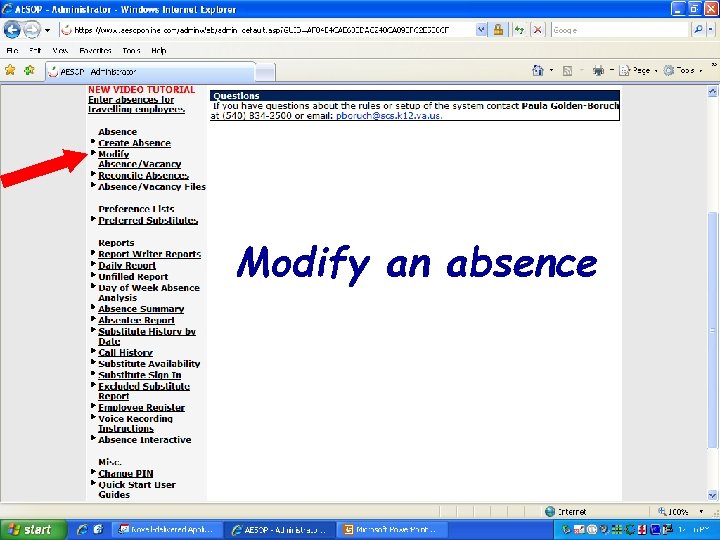
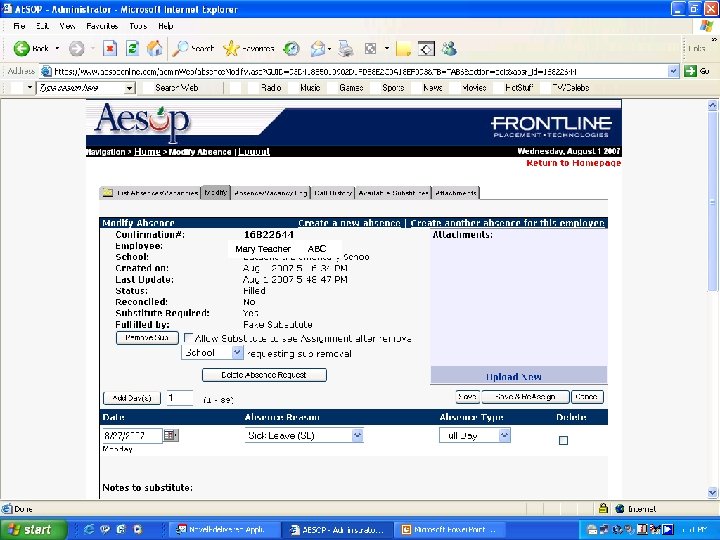
Modify an absence
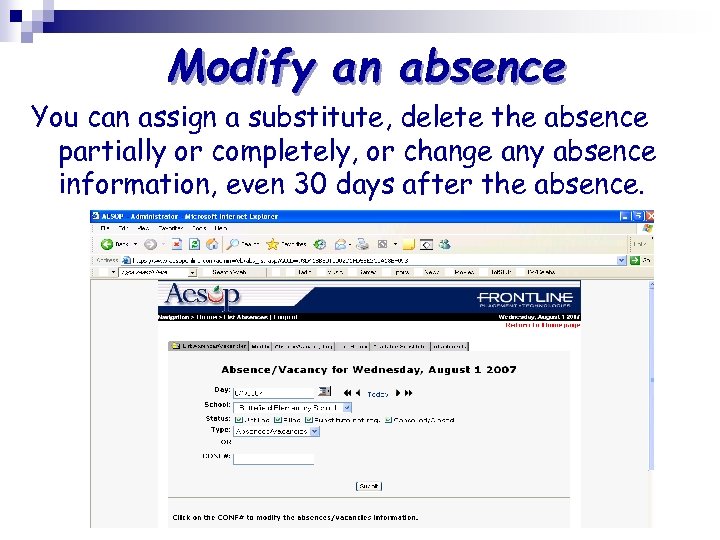
Modify an absence You can assign a substitute, delete the absence partially or completely, or change any absence information, even 30 days after the absence.
Mary Teacher ABC
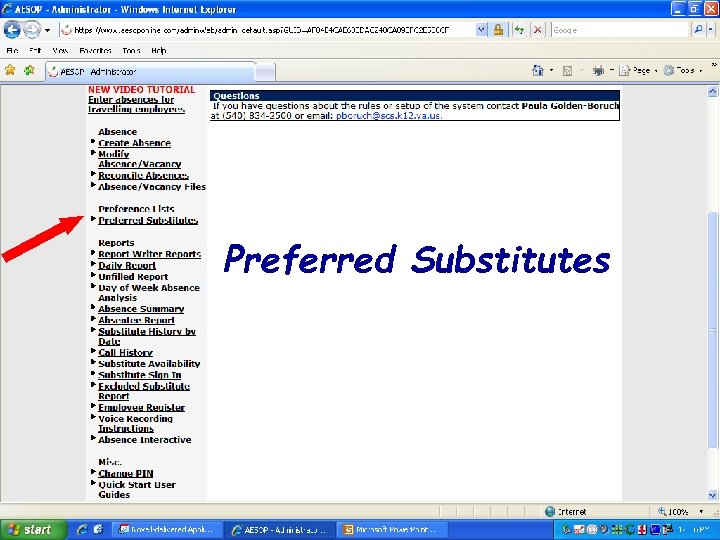
Preferred Substitutes
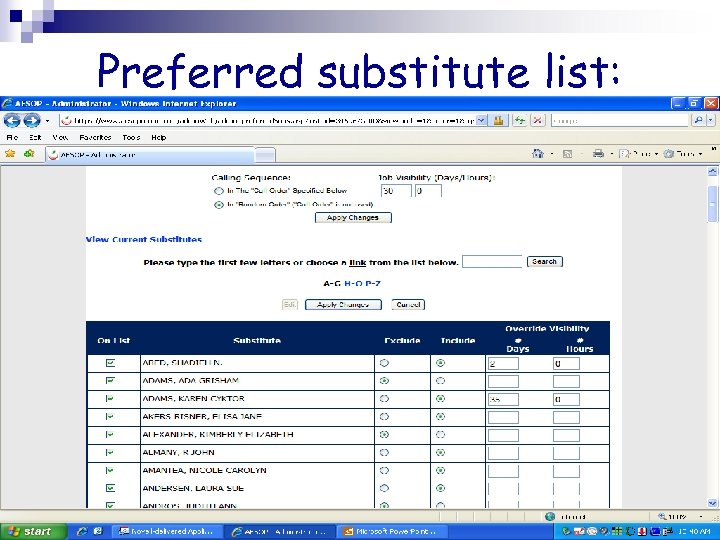
Preferred substitute list:
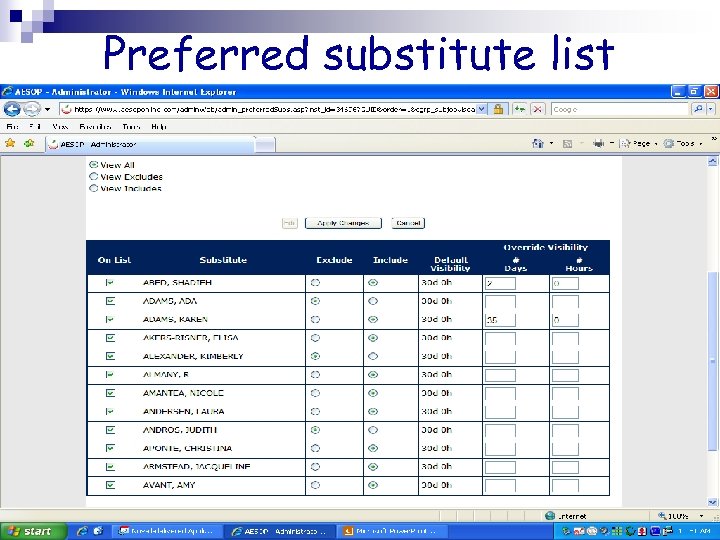
Preferred substitute list

Reports
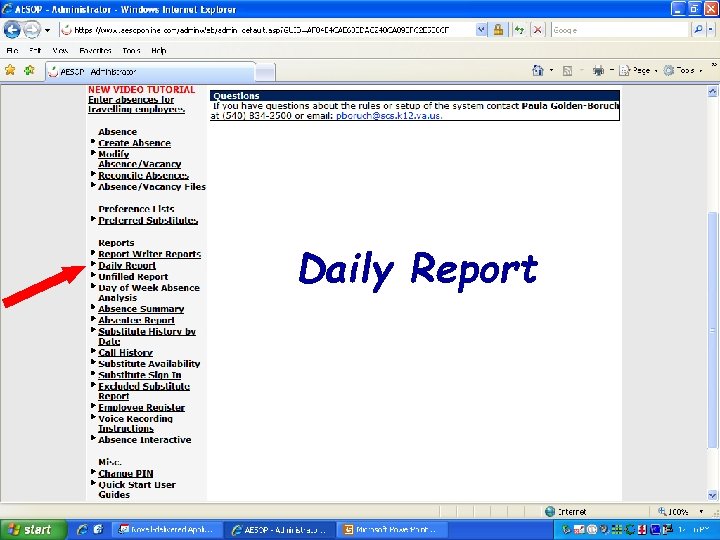
Daily Report
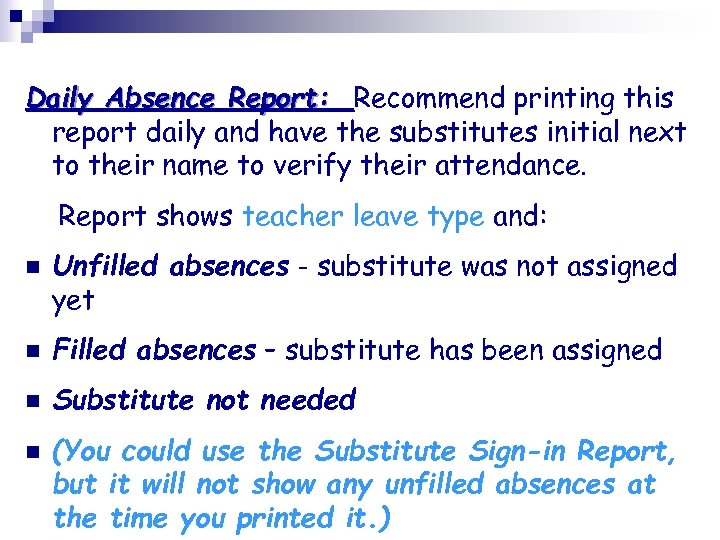
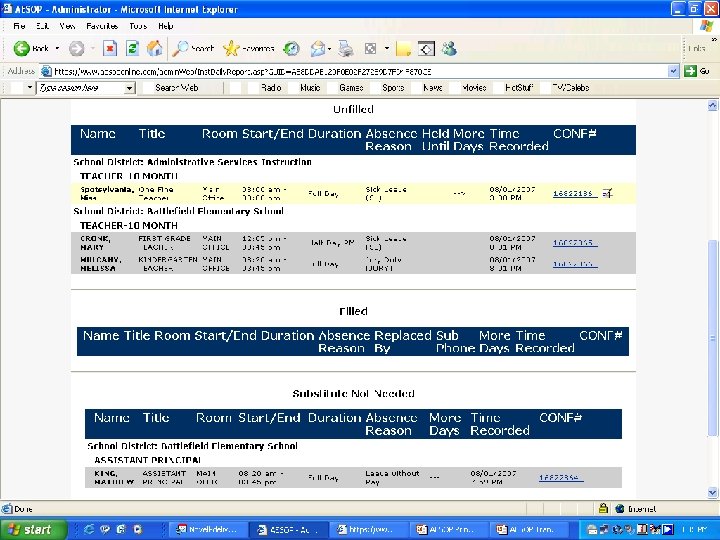
Daily Absence Report: Recommend printing this report daily and have the substitutes initial next to their name to verify their attendance. Report shows teacher leave type and: n Unfilled absences - substitute was not assigned yet n Filled absences – substitute has been assigned n Substitute not needed n (You could use the Substitute Sign-in Report, but it will not show any unfilled absences at the time you printed it. )
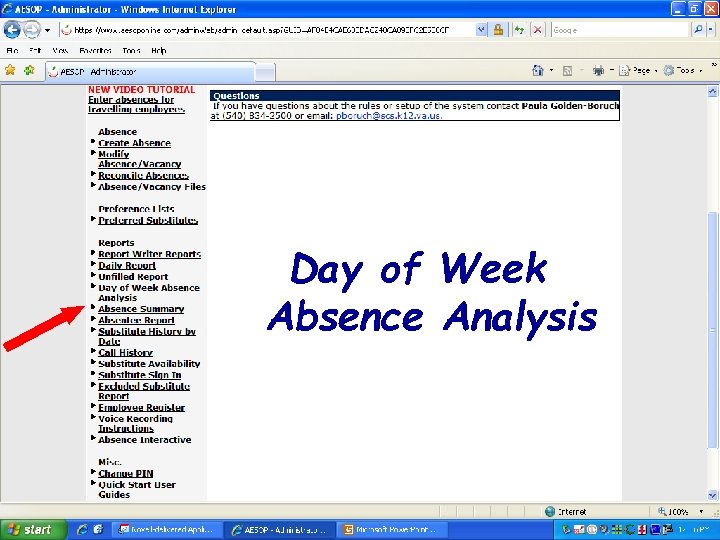
Day of Week Absence Analysis
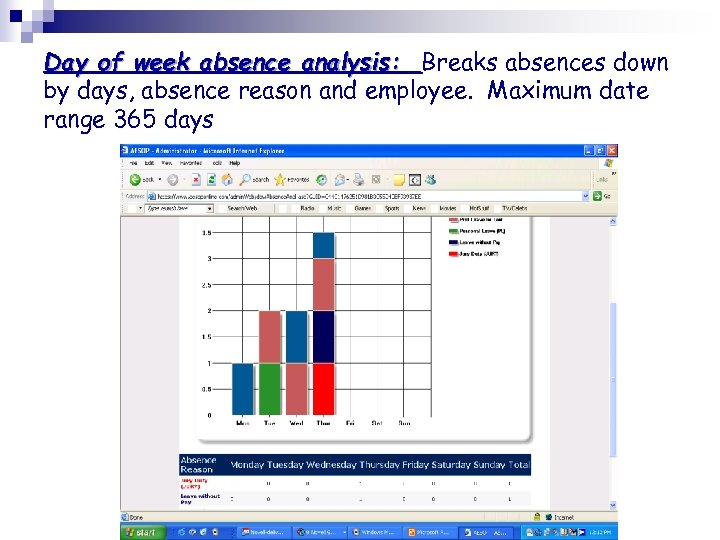
Day of week absence analysis: Breaks absences down by days, absence reason and employee. Maximum date range 365 days
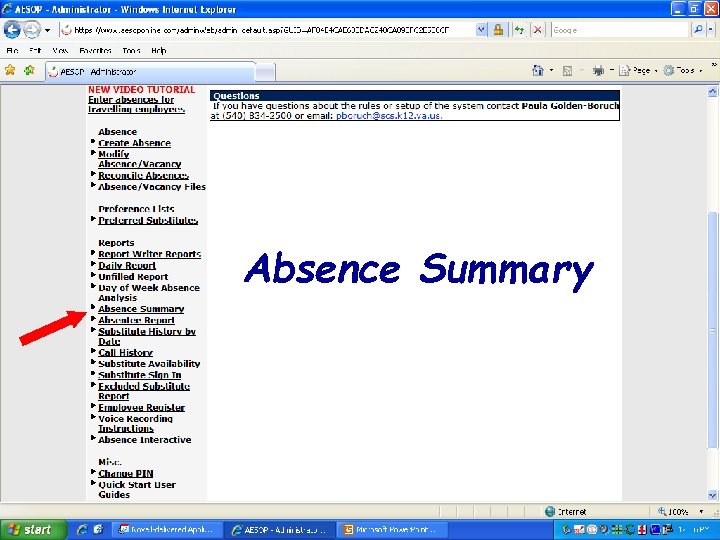
Absence Summary
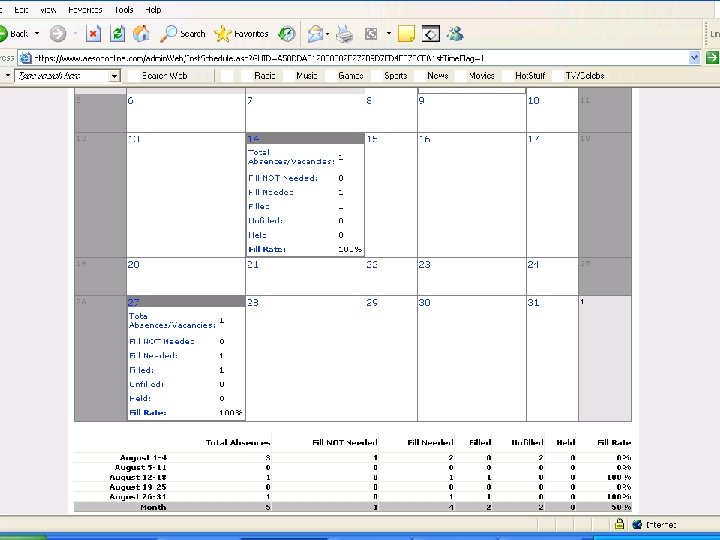
Absence Summary Report: A monthly calendar that includes daily totals and a monthly re-cap summary at the bottom
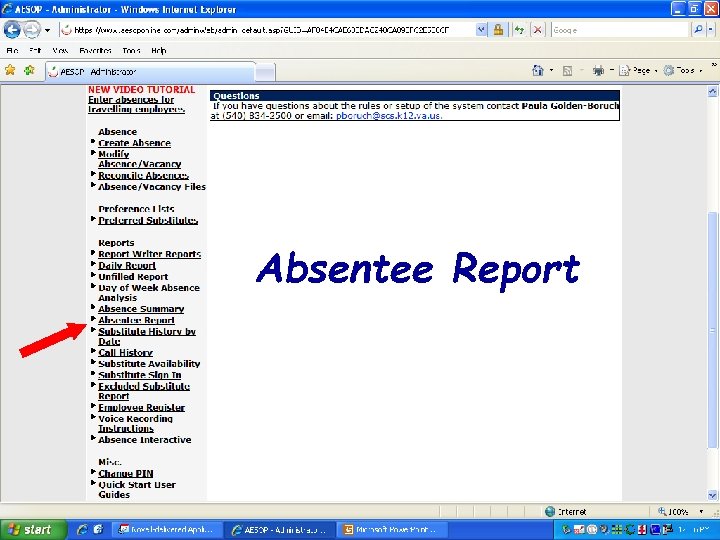
Absentee Report
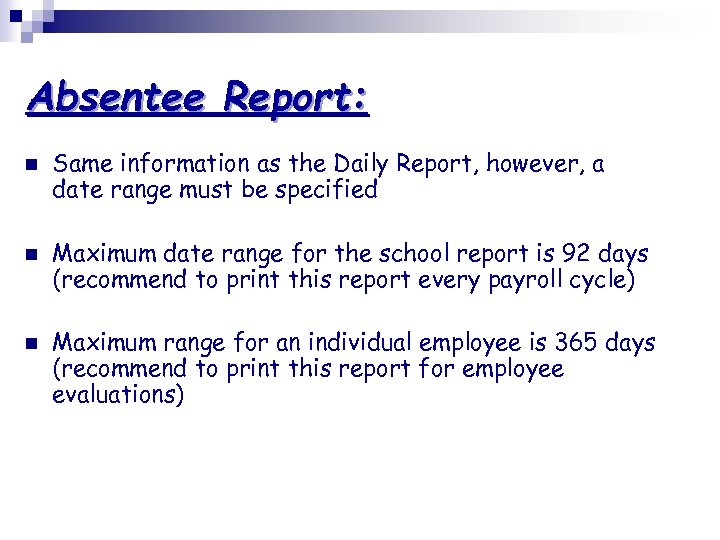
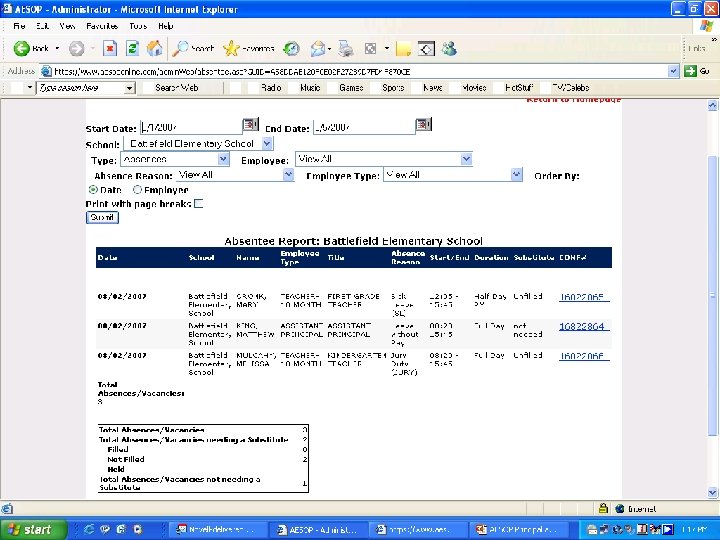
Absentee Report: n n n Same information as the Daily Report, however, a date range must be specified Maximum date range for the school report is 92 days (recommend to print this report every payroll cycle) Maximum range for an individual employee is 365 days (recommend to print this report for employee evaluations)
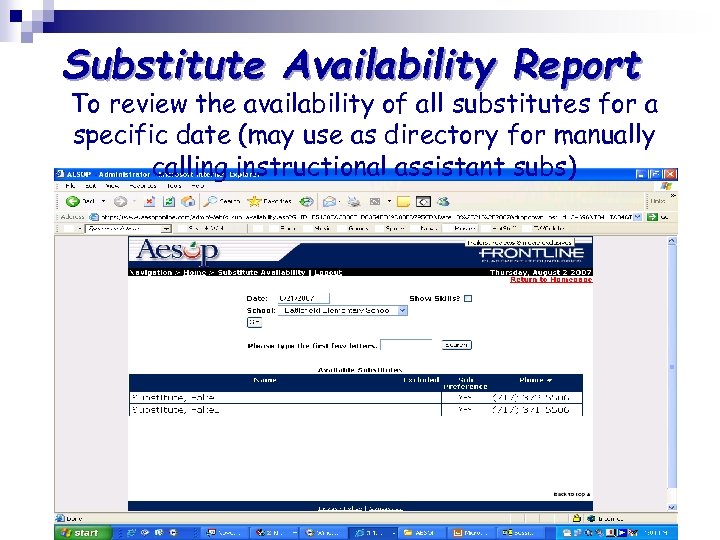
Substitute Availability Report To review the availability of all substitutes for a specific date (may use as directory for manually calling instructional assistant subs)
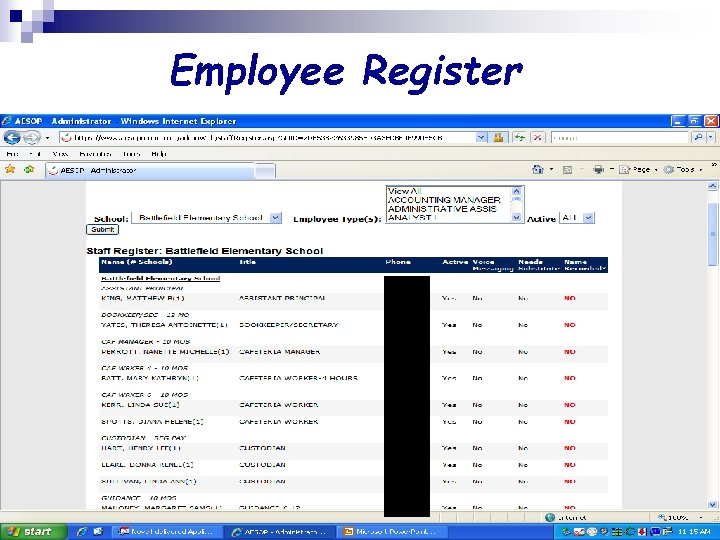
Employee Register
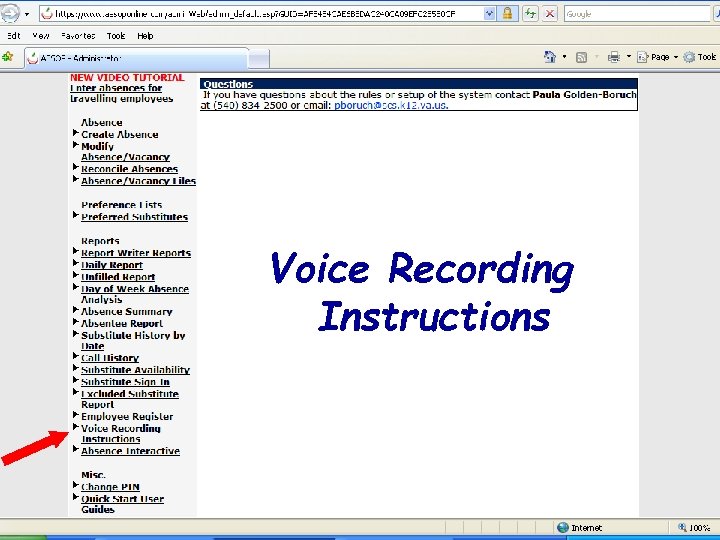
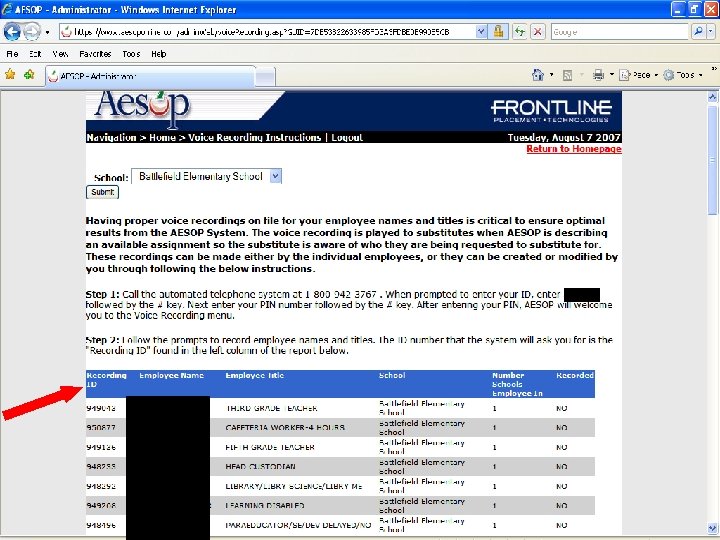
Voice Recording Instructions
Voice recording for employees: • You have the OPTION to voice record your employees name and title for them (Ex. Mary Teacher, Grade 5 or Mary Teacher, Special Education Math) • Click on Voice Recording Instructions and AESOP will prompt you for the Recording ID
Training Tools for your Employees Welcome letter n Phone System Instructions Brochure n Powerpoint for employees who require a substitute n Powerpoint for employees who do not require a substitute n Basic / Advanced Training Video n
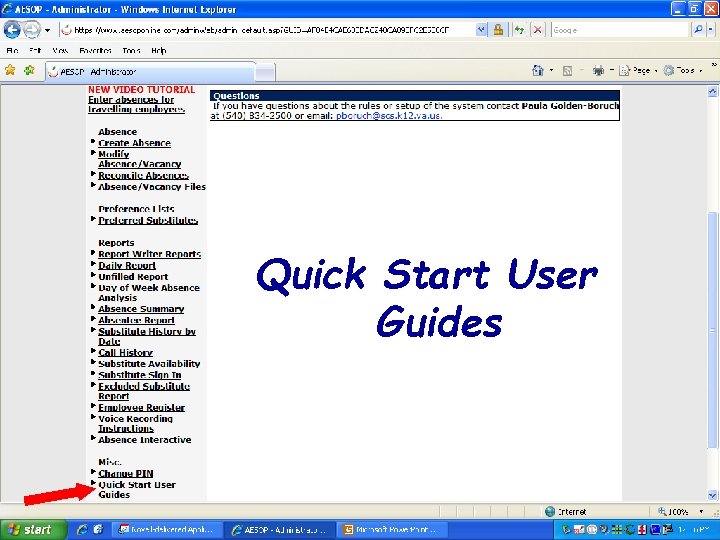
Quick Start User Guides
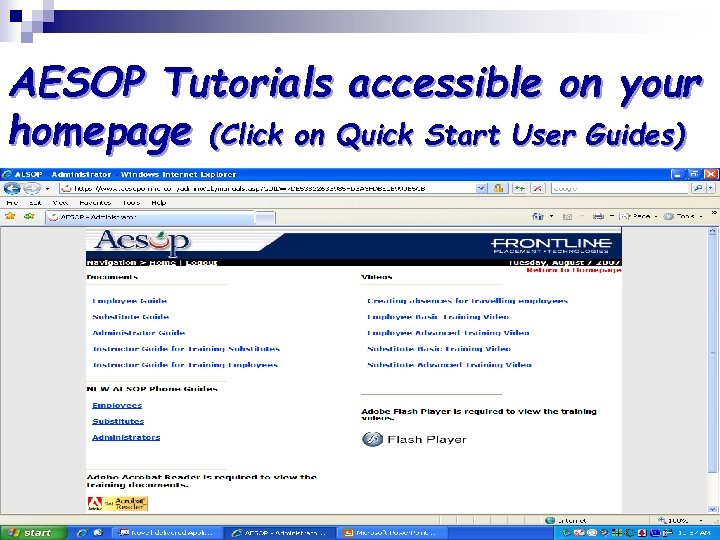
AESOP Tutorials accessible on your homepage (Click on Quick Start User Guides)

Questions?
Скачать презентацию AESOP For Principals and Secretaries Automated Substitute Placement
b3284f04bdbf70f3281b667887625e12.ppt