


 Скачать презентацию Advancing Your e-Learning Program Day 1 What s New
1445b6f9cae7da5dd3a6648dfa1d1d55.ppt
- Количество слайдов: 85
 Advancing Your e-Learning Program Day 1: What’s New Overview and Course Building & Management provided for the staff of The Chartered Institute of Personnel and Development Jarl Jonas, Senior Consultant 1
 Morning Jog ü Login to Blackboard (ndu. blackboard. com) ü Enter Jarl’s Course ü Go to the Assignment & Tests area ü Take the Day 1 Review Quiz ü Answer the questions provided within the first Forum, What Have You Learned? in the Discussion Board 2
 Weekly Training Agenda ü Tuesday What’s New & Building & Managing Course Tools ü Wednesday Assessment & Communication Tools ü Thursday Learning System Administration & Domains 3
 Meet the Instructor Jarl Jonas Senior Consultant, Blackboard Training Additional Experience: ü Online Course Developer & Instructor Blackboard Certification Series & Advanced Courses ü Director for Online and Corporate Learning Development New York University School of Continuing and Professional Studies ü Faculty Development Coordinator New York University Faculty Resource Network ü Secondary Language Arts Teacher North Brunswick Township, New Jersey 4
 Introduction Exercise: Part 1 Introduce yourself describing the following: 1. Name (of course!) 2. Your favorite tool/feature in Blackboard and how you use it. 3. Your most frustrating experience with Blackboard and how you overcame it. 4. 1 thing you hope to learn from the workshop 5
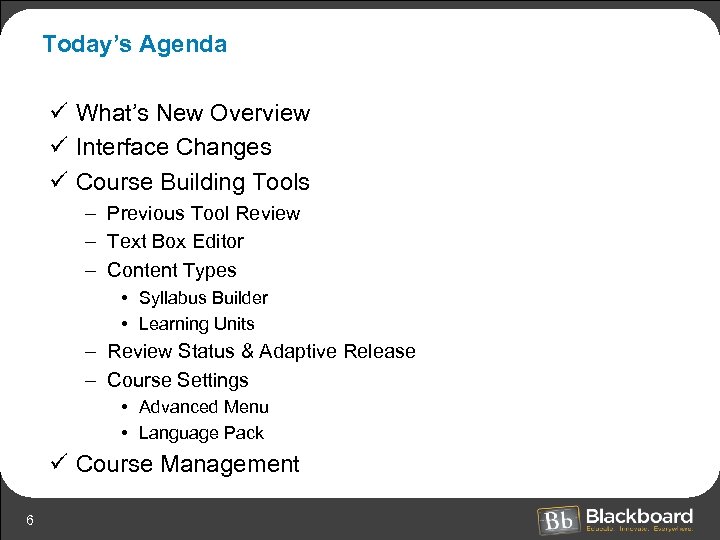 Today’s Agenda ü What’s New Overview ü Interface Changes ü Course Building Tools – Previous Tool Review – Text Box Editor – Content Types • Syllabus Builder • Learning Units – Review Status & Adaptive Release – Course Settings • Advanced Menu • Language Pack ü Course Management 6
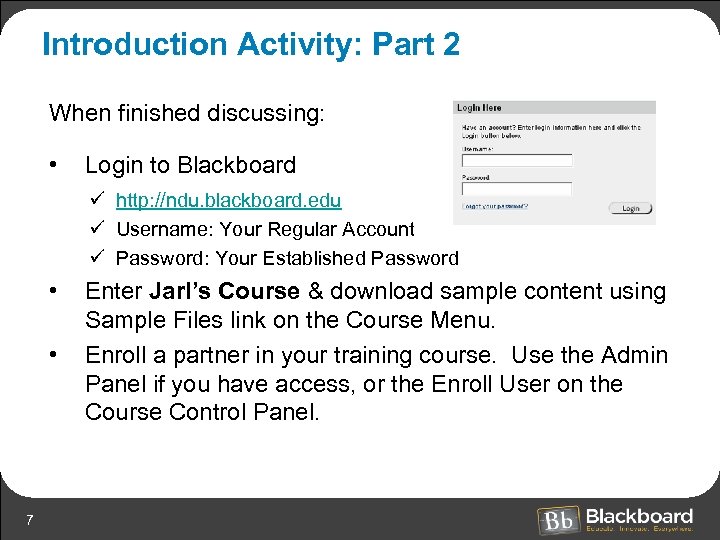 Introduction Activity: Part 2 When finished discussing: • Login to Blackboard ü http: //ndu. blackboard. edu ü Username: Your Regular Account ü Password: Your Established Password • • 7 Enter Jarl’s Course & download sample content using Sample Files link on the Course Menu. Enroll a partner in your training course. Use the Admin Panel if you have access, or the Enroll User on the Course Control Panel.
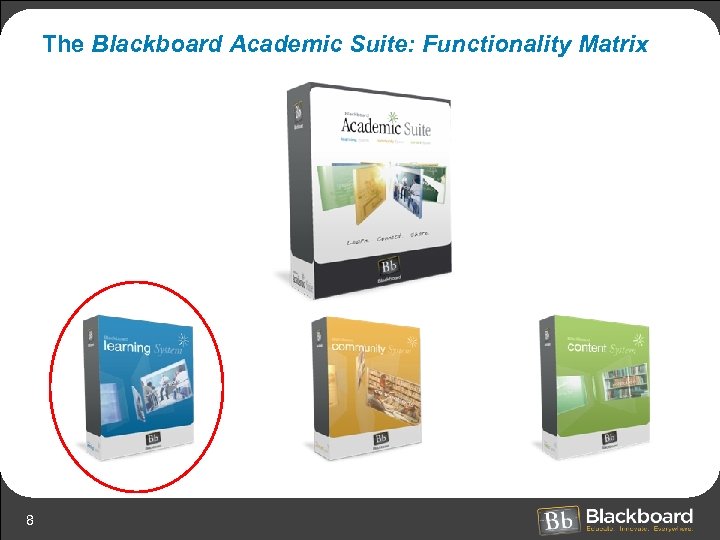 The Blackboard Academic Suite: Functionality Matrix 8
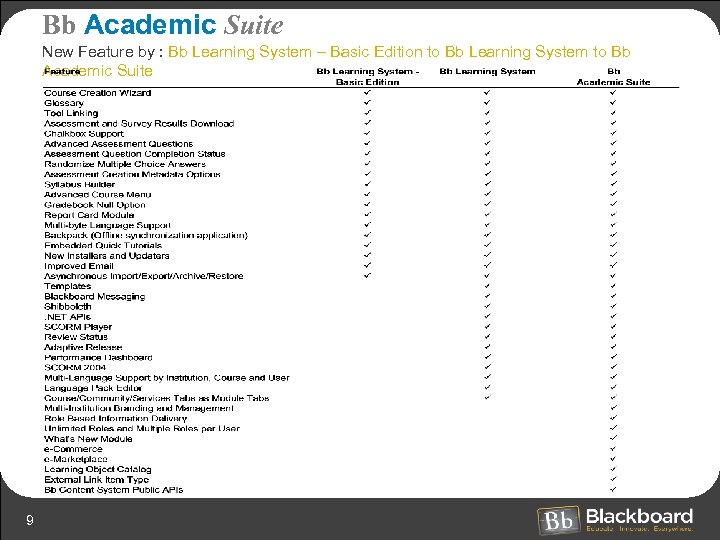 Bb Academic Suite New Feature by : Bb Learning System – Basic Edition to Bb Learning System to Bb Academic Suite 9
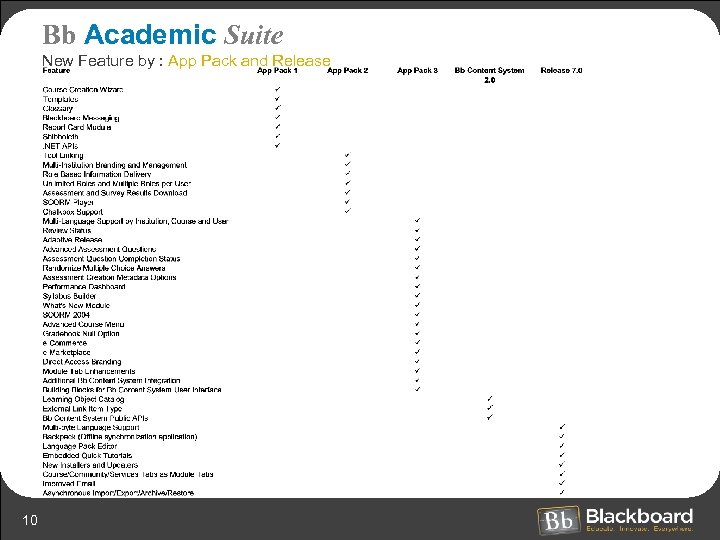 Bb Academic Suite New Feature by : App Pack and Release 10
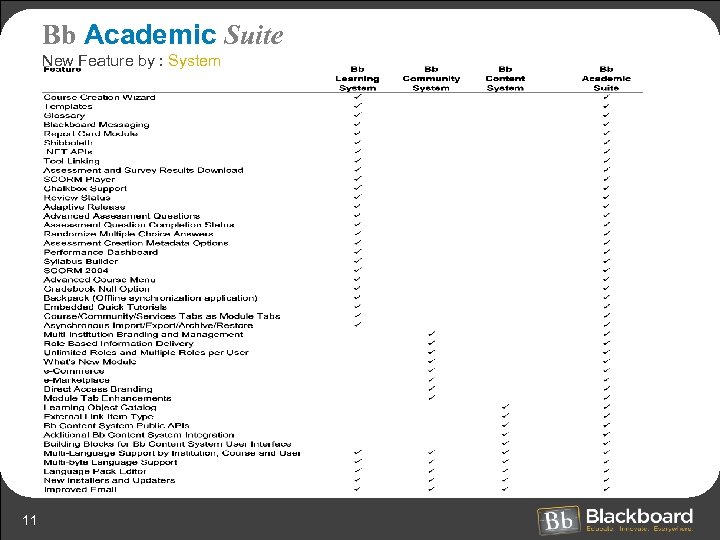 Bb Academic Suite New Feature by : System 11
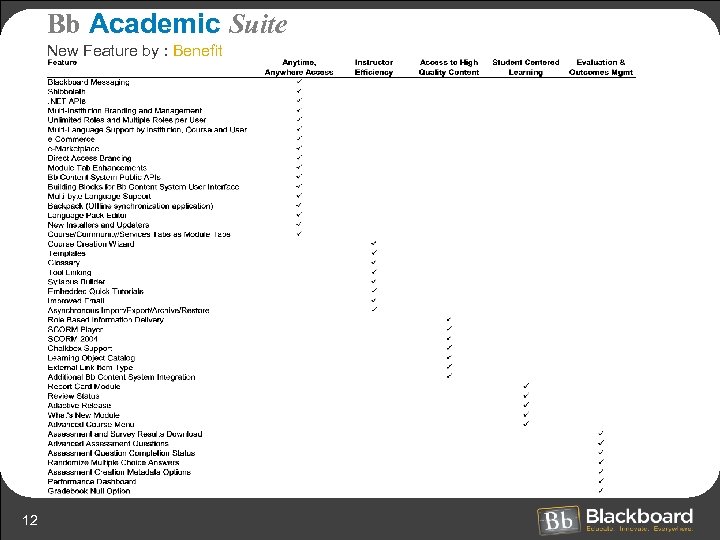 Bb Academic Suite New Feature by : Benefit 12
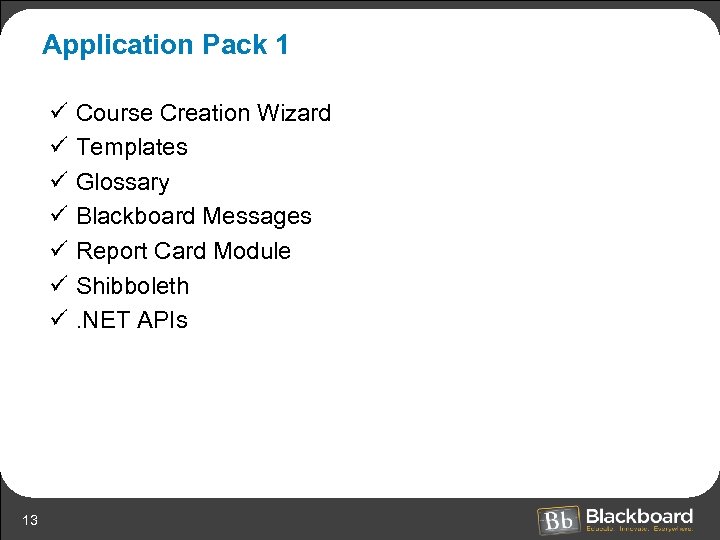 Application Pack 1 ü ü ü ü 13 Course Creation Wizard Templates Glossary Blackboard Messages Report Card Module Shibboleth . NET APIs
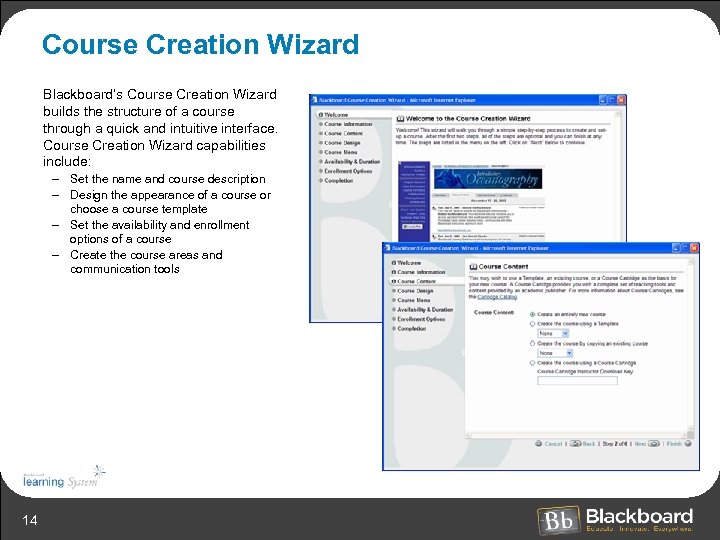 Course Creation Wizard Blackboard’s Course Creation Wizard builds the structure of a course through a quick and intuitive interface. Course Creation Wizard capabilities include: – Set the name and course description – Design the appearance of a course or choose a course template – Set the availability and enrollment options of a course – Create the course areas and communication tools 14
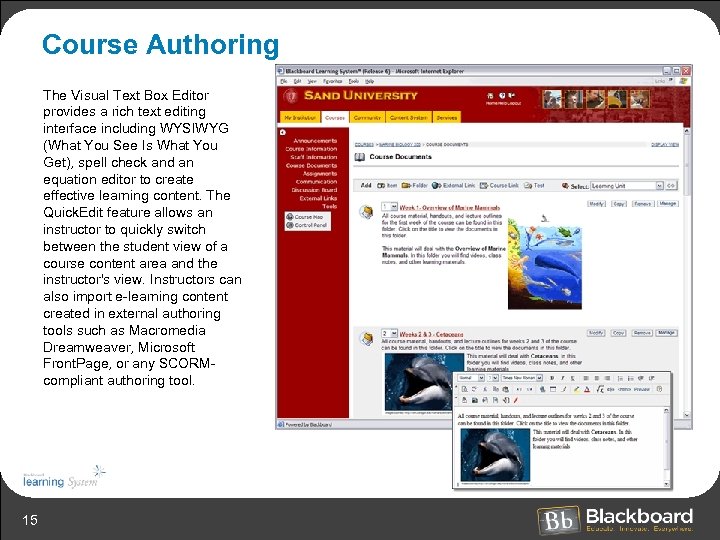 Course Authoring The Visual Text Box Editor provides a rich text editing interface including WYSIWYG (What You See Is What You Get), spell check and an equation editor to create effective learning content. The Quick. Edit feature allows an instructor to quickly switch between the student view of a course content area and the instructor's view. Instructors can also import e-learning content created in external authoring tools such as Macromedia Dreamweaver, Microsoft Front. Page, or any SCORMcompliant authoring tool. 15
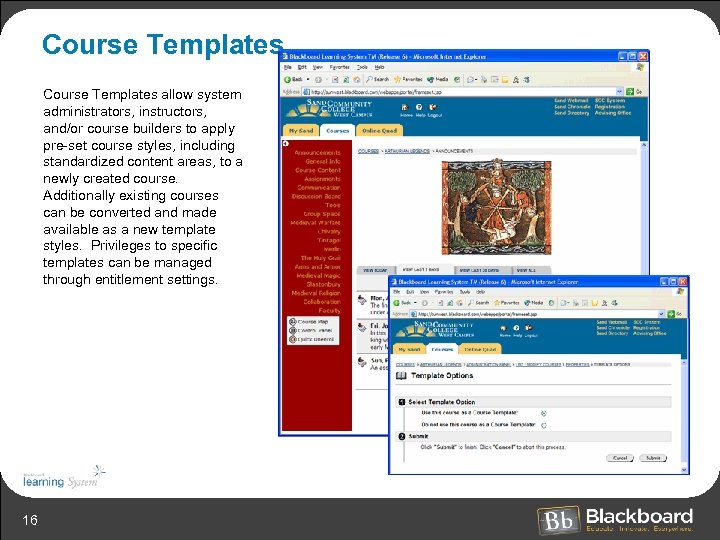 Course Templates allow system administrators, instructors, and/or course builders to apply pre-set course styles, including standardized content areas, to a newly created course. Additionally existing courses can be converted and made available as a new template styles. Privileges to specific templates can be managed through entitlement settings. 16
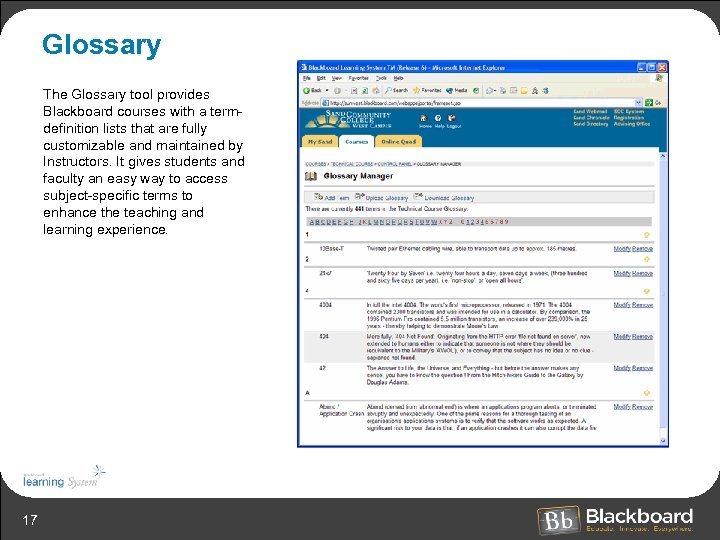 Glossary The Glossary tool provides Blackboard courses with a termdefinition lists that are fully customizable and maintained by Instructors. It gives students and faculty an easy way to access subject-specific terms to enhance the teaching and learning experience. 17
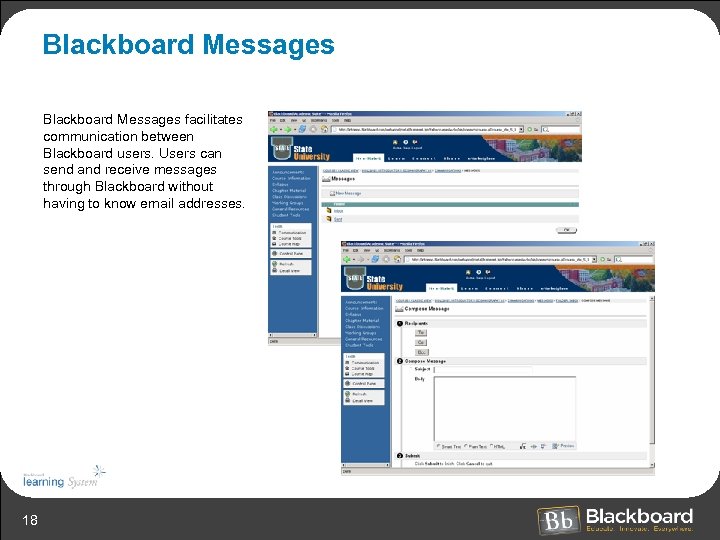 Blackboard Messages facilitates communication between Blackboard users. Users can send and receive messages through Blackboard without having to know email addresses. 18
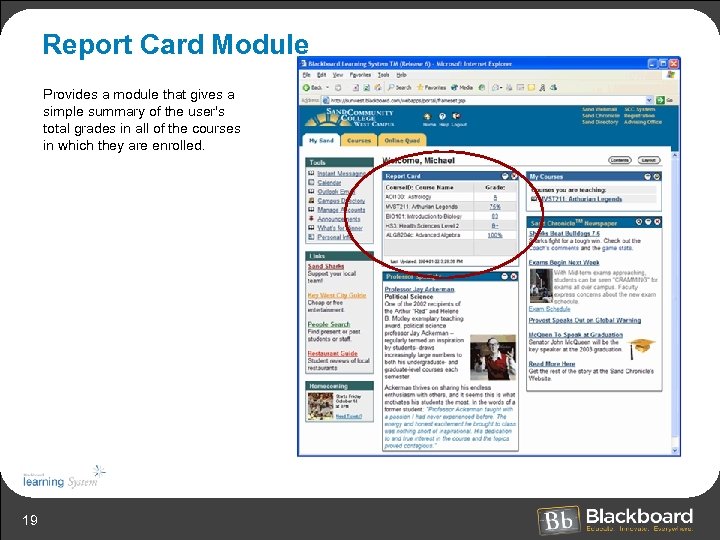 Report Card Module Provides a module that gives a simple summary of the user's total grades in all of the courses in which they are enrolled. 19
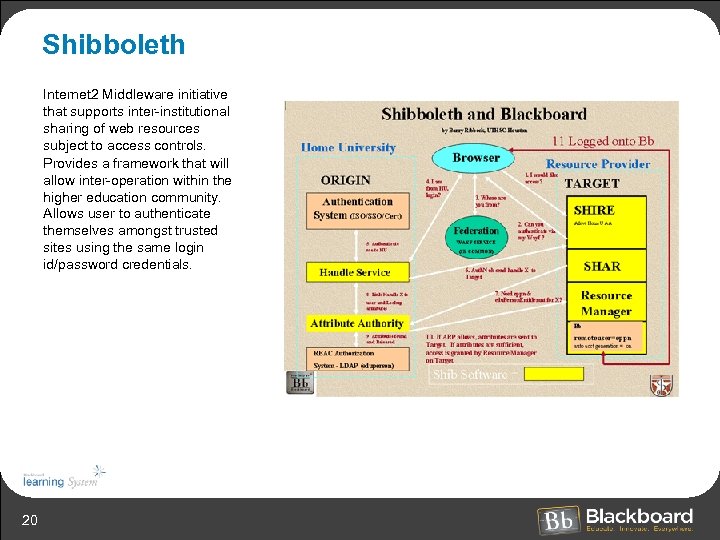 Shibboleth Internet 2 Middleware initiative that supports inter-institutional sharing of web resources subject to access controls. Provides a framework that will allow inter-operation within the higher education community. Allows user to authenticate themselves amongst trusted sites using the same login id/password credentials. 20
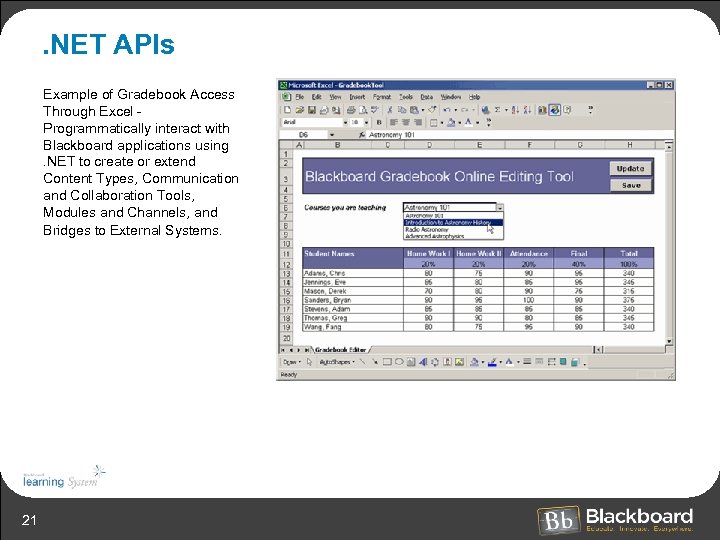 . NET APIs Example of Gradebook Access Through Excel - Programmatically interact with Blackboard applications using . NET to create or extend Content Types, Communication and Collaboration Tools, Modules and Channels, and Bridges to External Systems. 21
 Application Pack 2 ü ü 22 Tool Linking Assessment and Survey Results Download SCORM Player Chalk. Box Support
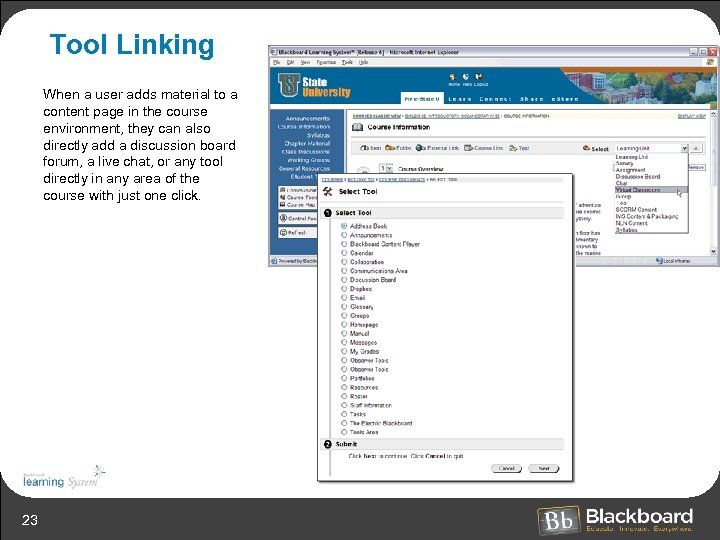 Tool Linking When a user adds material to a content page in the course environment, they can also directly add a discussion board forum, a live chat, or any tool directly in any area of the course with just one click. 23
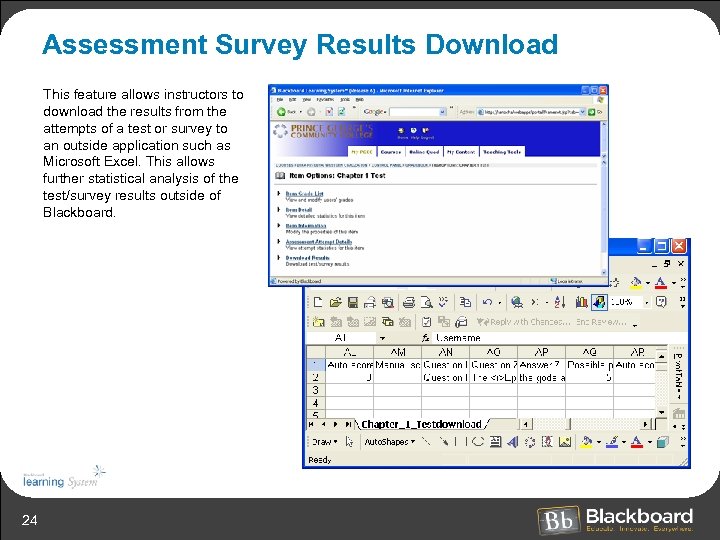 Assessment Survey Results Download This feature allows instructors to download the results from the attempts of a test or survey to an outside application such as Microsoft Excel. This allows further statistical analysis of the test/survey results outside of Blackboard. 24
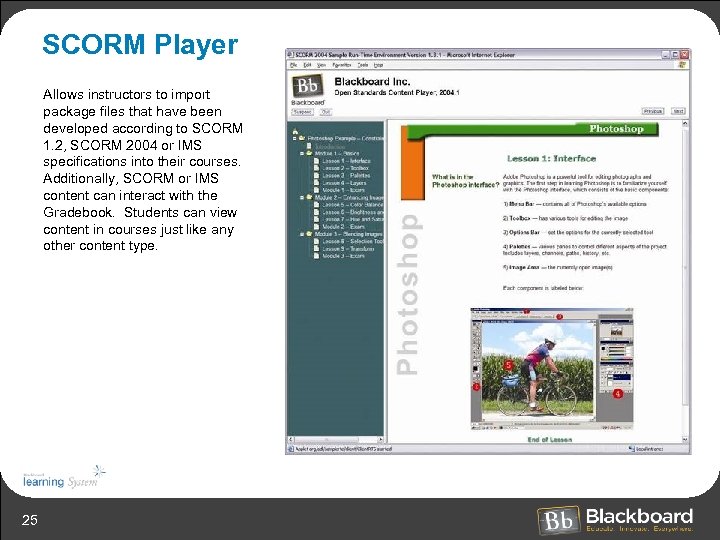 SCORM Player Allows instructors to import package files that have been developed according to SCORM 1. 2, SCORM 2004 or IMS specifications into their courses. Additionally, SCORM or IMS content can interact with the Gradebook. Students can view content in courses just like any other content type. 25
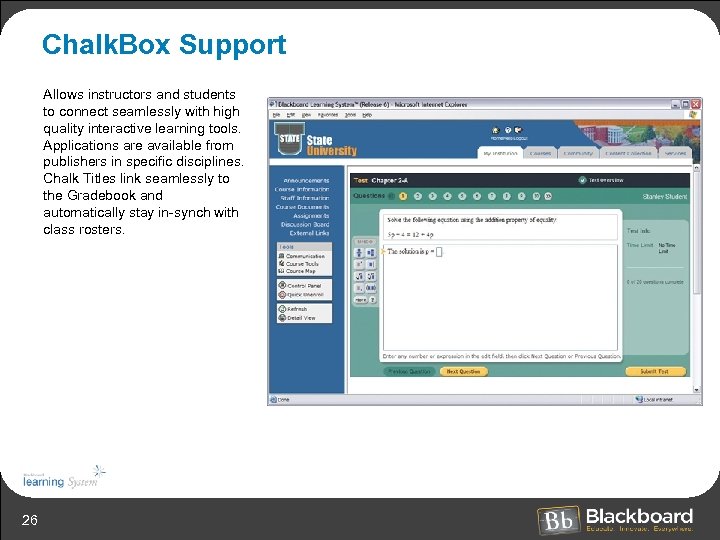 Chalk. Box Support Allows instructors and students to connect seamlessly with high quality interactive learning tools. Applications are available from publishers in specific disciplines. Chalk Titles link seamlessly to the Gradebook and automatically stay in-synch with class rosters. 26
 Application Pack 3 ü ü ü 27 Multi-Language Support by Institution, Course and User Advanced Course Menu Syllabus Builder Review Status Adaptive Release Performance Dashboard Advanced Assessment Questions Assessment Question Completion Status Randomize Multiple Choice Answers Assessment Creation Metadata Options SCORM 2004 Gradebook Null Option
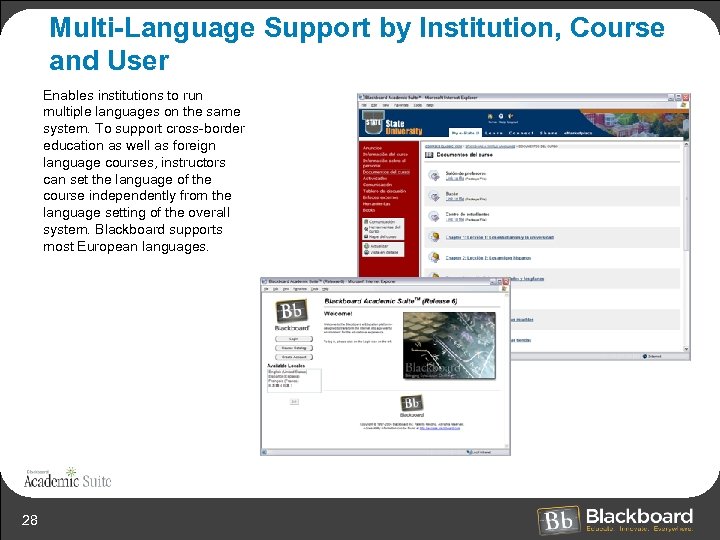 Multi-Language Support by Institution, Course and User Enables institutions to run multiple languages on the same system. To support cross-border education as well as foreign language courses, instructors can set the language of the course independently from the language setting of the overall system. Blackboard supports most European languages. 28
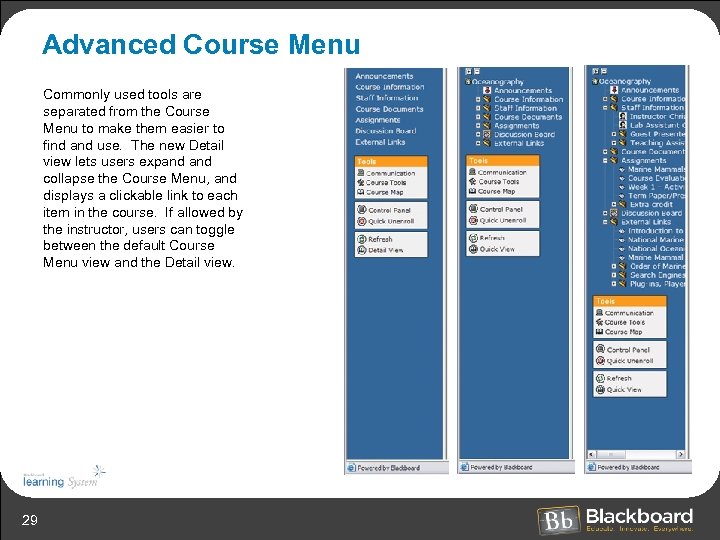 Advanced Course Menu Commonly used tools are separated from the Course Menu to make them easier to find and use. The new Detail view lets users expand collapse the Course Menu, and displays a clickable link to each item in the course. If allowed by the instructor, users can toggle between the default Course Menu view and the Detail view. 29
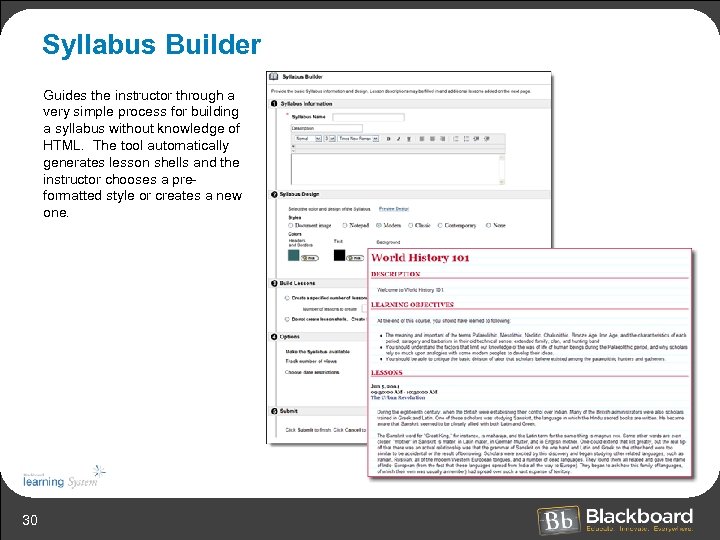 Syllabus Builder Guides the instructor through a very simple process for building a syllabus without knowledge of HTML. The tool automatically generates lesson shells and the instructor chooses a preformatted style or creates a new one. 30
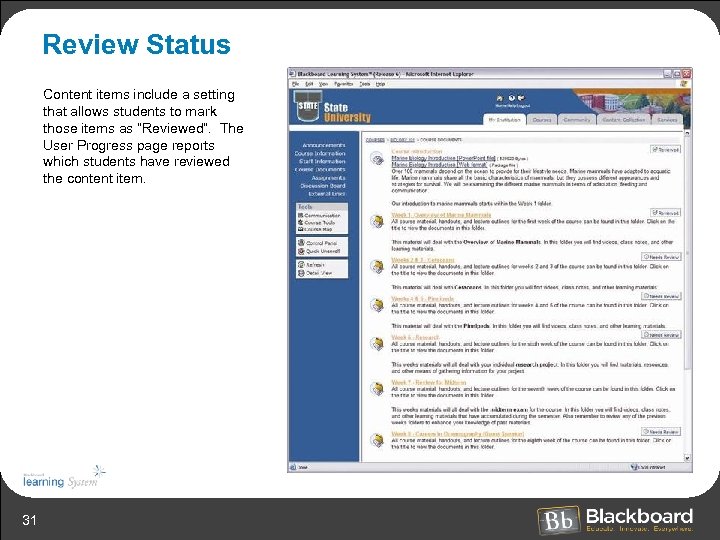 Review Status Content items include a setting that allows students to mark those items as “Reviewed”. The User Progress page reports which students have reviewed the content item. 31
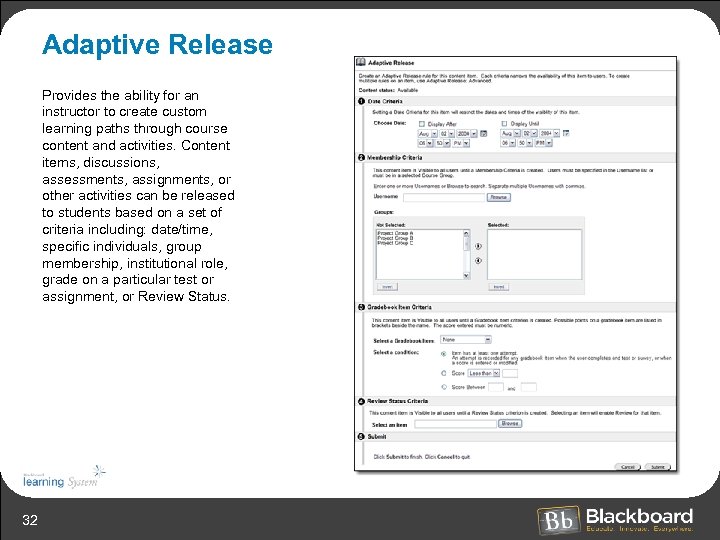 Adaptive Release Provides the ability for an instructor to create custom learning paths through course content and activities. Content items, discussions, assessments, assignments, or other activities can be released to students based on a set of criteria including: date/time, specific individuals, group membership, institutional role, grade on a particular test or assignment, or Review Status. 32
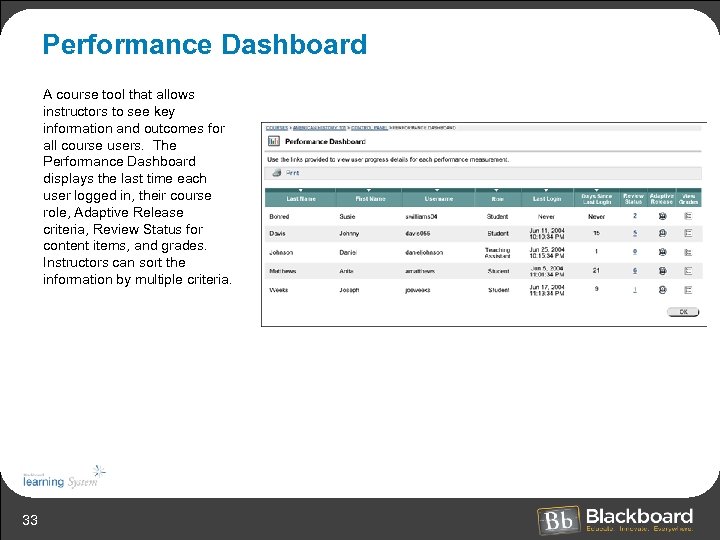 Performance Dashboard A course tool that allows instructors to see key information and outcomes for all course users. The Performance Dashboard displays the last time each user logged in, their course role, Adaptive Release criteria, Review Status for content items, and grades. Instructors can sort the information by multiple criteria. 33
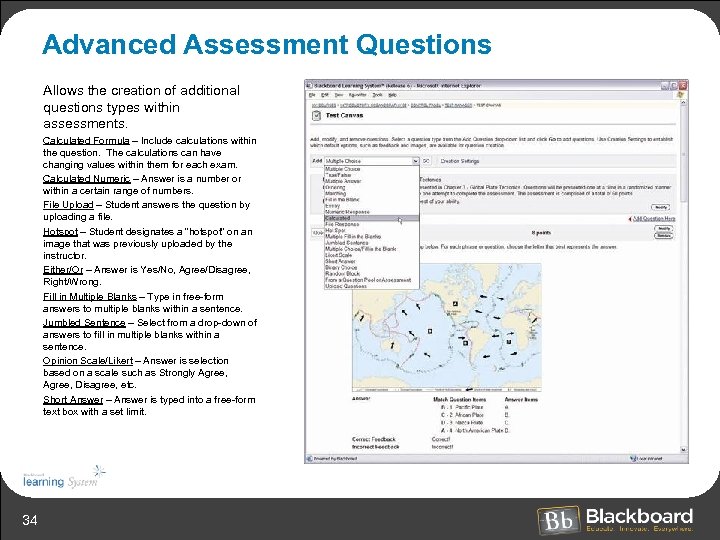 Advanced Assessment Questions Allows the creation of additional questions types within assessments. Calculated Formula – Include calculations within the question. The calculations can have changing values within them for each exam. Calculated Numeric – Answer is a number or within a certain range of numbers. File Upload – Student answers the question by uploading a file. Hotspot – Student designates a “hotspot” on an image that was previously uploaded by the instructor. Either/Or – Answer is Yes/No, Agree/Disagree, Right/Wrong. Fill in Multiple Blanks – Type in free-form answers to multiple blanks within a sentence. Jumbled Sentence – Select from a drop-down of answers to fill in multiple blanks within a sentence. Opinion Scale/Likert – Answer is selection based on a scale such as Strongly Agree, Disagree, etc. Short Answer – Answer is typed into a free-form text box with a set limit. 34
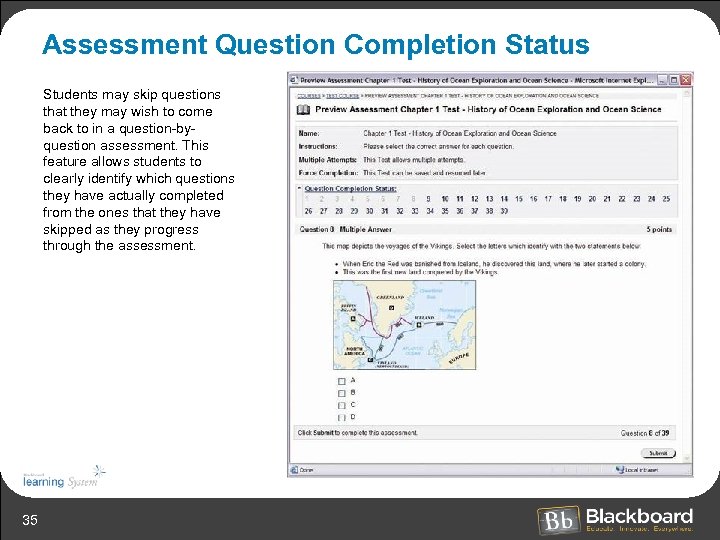 Assessment Question Completion Status Students may skip questions that they may wish to come back to in a question-byquestion assessment. This feature allows students to clearly identify which questions they have actually completed from the ones that they have skipped as they progress through the assessment. 35
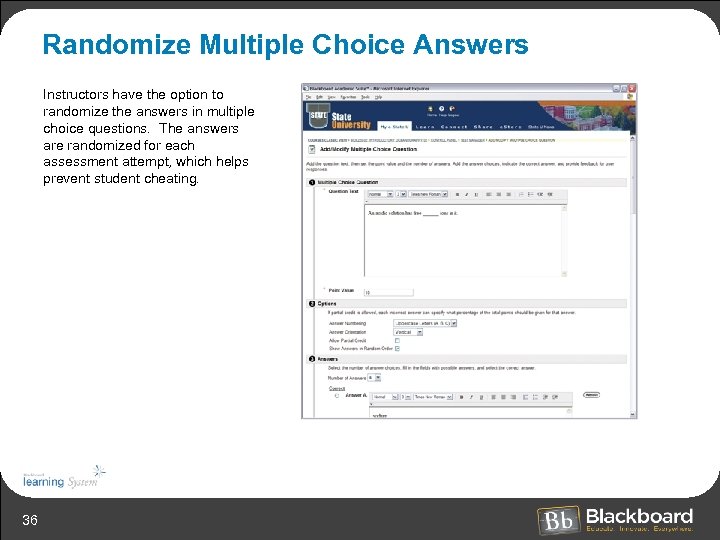 Randomize Multiple Choice Answers Instructors have the option to randomize the answers in multiple choice questions. The answers are randomized for each assessment attempt, which helps prevent student cheating. 36
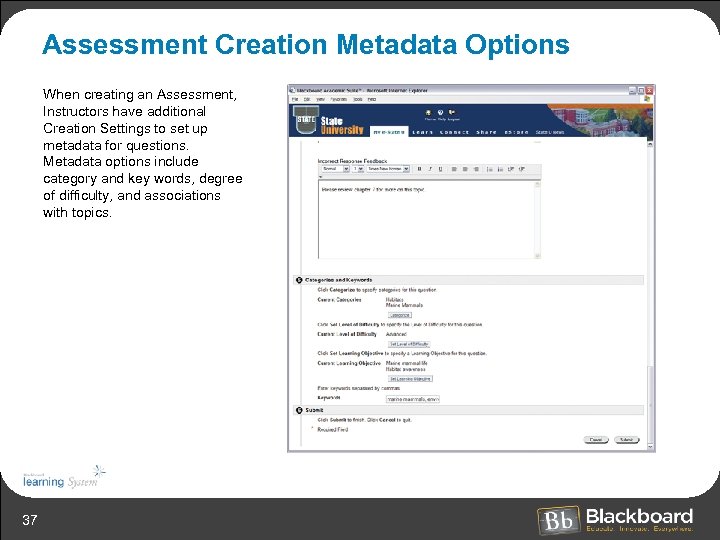 Assessment Creation Metadata Options When creating an Assessment, Instructors have additional Creation Settings to set up metadata for questions. Metadata options include category and key words, degree of difficulty, and associations with topics. 37
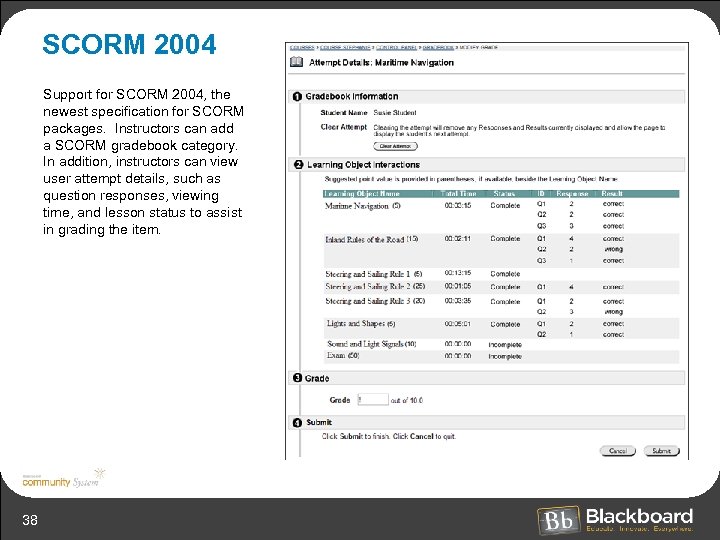 SCORM 2004 Support for SCORM 2004, the newest specification for SCORM packages. Instructors can add a SCORM gradebook category. In addition, instructors can view user attempt details, such as question responses, viewing time, and lesson status to assist in grading the item. 38
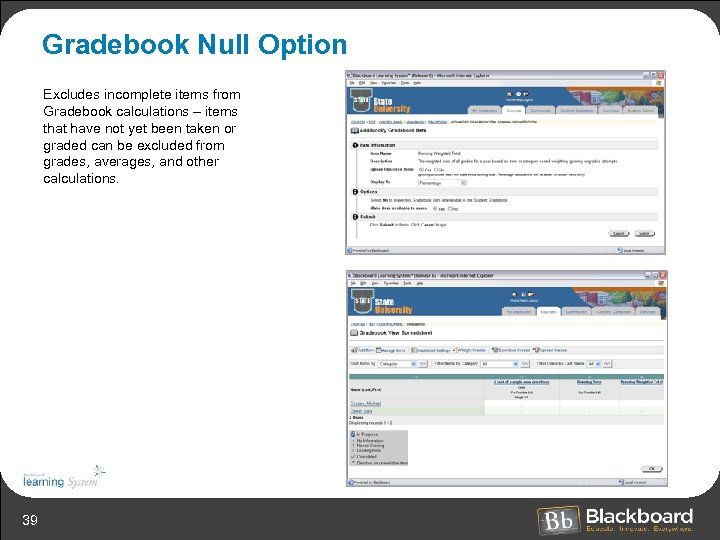 Gradebook Null Option Excludes incomplete items from Gradebook calculations – items that have not yet been taken or graded can be excluded from grades, averages, and other calculations. 39
 Release 7. 0 ü Multi-byte Language Support ü Language Pack Editor ü Blackboard Backpack (Offline Synchronization Application) ü Embedded Quick Tutorials ü New Installers and Updaters ü Course/Community/Services as Module Tabs ü Improved Email ü Asynchronous Import/Export/Archive/Restore 40
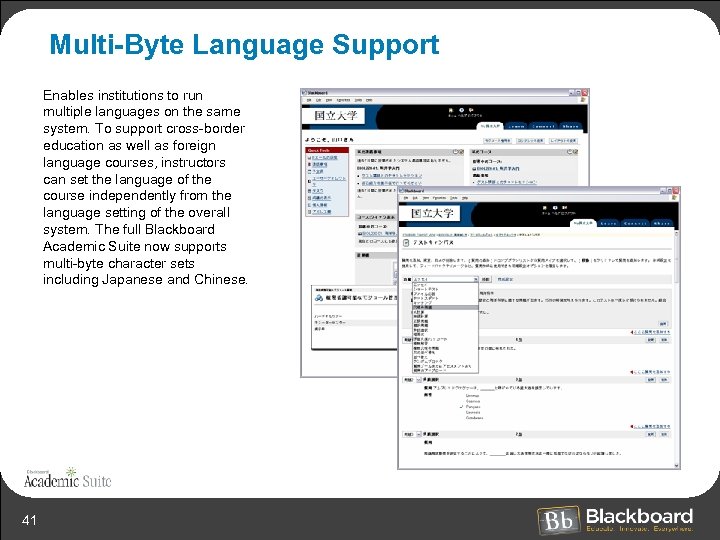 Multi-Byte Language Support Enables institutions to run multiple languages on the same system. To support cross-border education as well as foreign language courses, instructors can set the language of the course independently from the language setting of the overall system. The full Blackboard Academic Suite now supports multi-byte character sets including Japanese and Chinese. 41
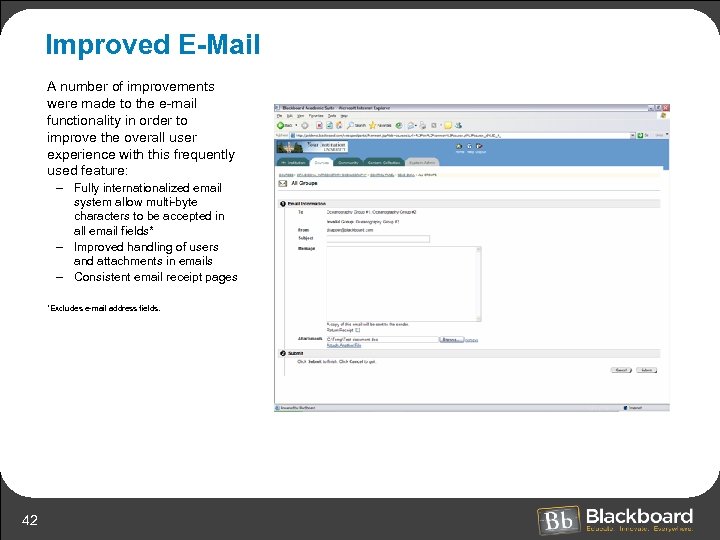 Improved E-Mail A number of improvements were made to the e-mail functionality in order to improve the overall user experience with this frequently used feature: – Fully internationalized email system allow multi-byte characters to be accepted in all email fields* – Improved handling of users and attachments in emails – Consistent email receipt pages *Excludes e-mail address fields. 42
 Language Pack Editor Enables institutions to add new Language Packs or modify existing Language Packs for their Bb Academic Suite implementations. 43
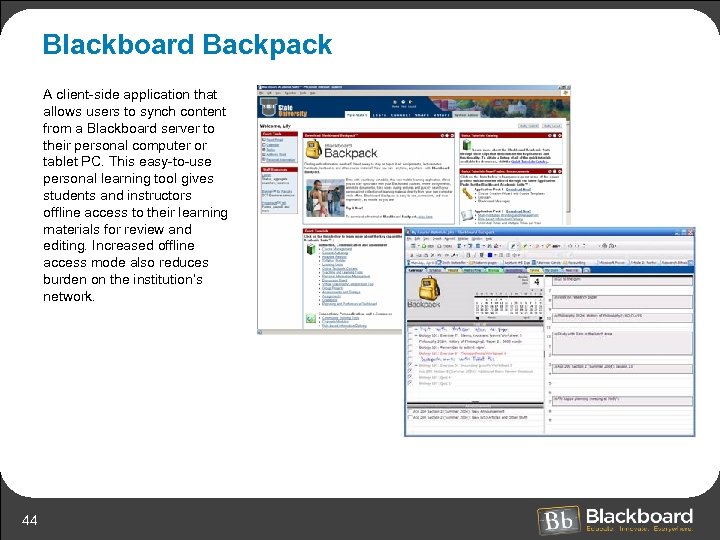 Blackboard Backpack A client-side application that allows users to synch content from a Blackboard server to their personal computer or tablet PC. This easy-to-use personal learning tool gives students and instructors offline access to their learning materials for review and editing. Increased offline access mode also reduces burden on the institution’s network. 44
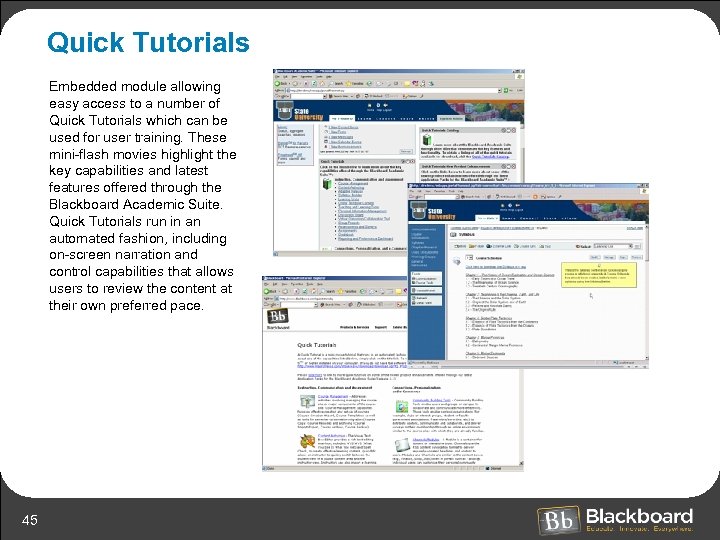 Quick Tutorials Embedded module allowing easy access to a number of Quick Tutorials which can be used for user training. These mini-flash movies highlight the key capabilities and latest features offered through the Blackboard Academic Suite. Quick Tutorials run in an automated fashion, including on-screen narration and control capabilities that allows users to review the content at their own preferred pace. 45
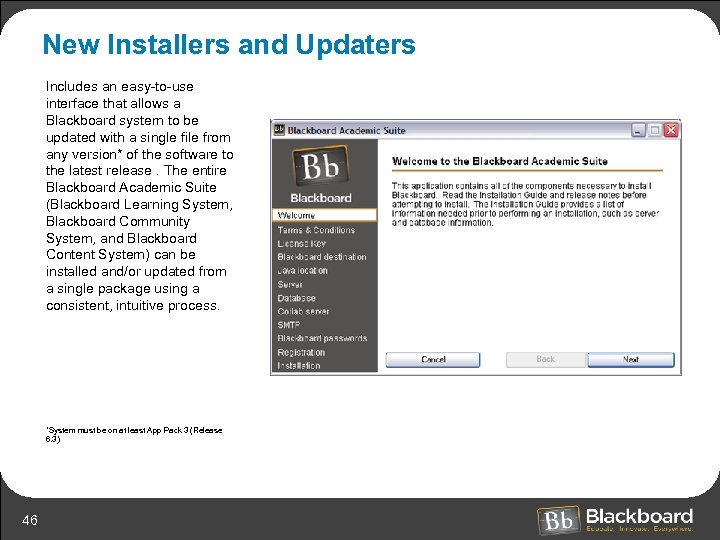 New Installers and Updaters Includes an easy-to-use interface that allows a Blackboard system to be updated with a single file from any version* of the software to the latest release. The entire Blackboard Academic Suite (Blackboard Learning System, Blackboard Community System, and Blackboard Content System) can be installed and/or updated from a single package using a consistent, intuitive process. *System must be on at least App Pack 3 (Release 6. 3) 46
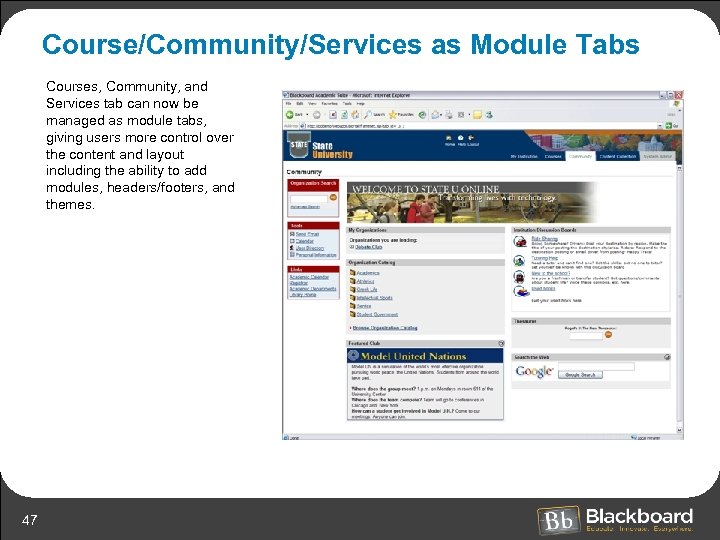 Course/Community/Services as Module Tabs Courses, Community, and Services tab can now be managed as module tabs, giving users more control over the content and layout including the ability to add modules, headers/footers, and themes. 47
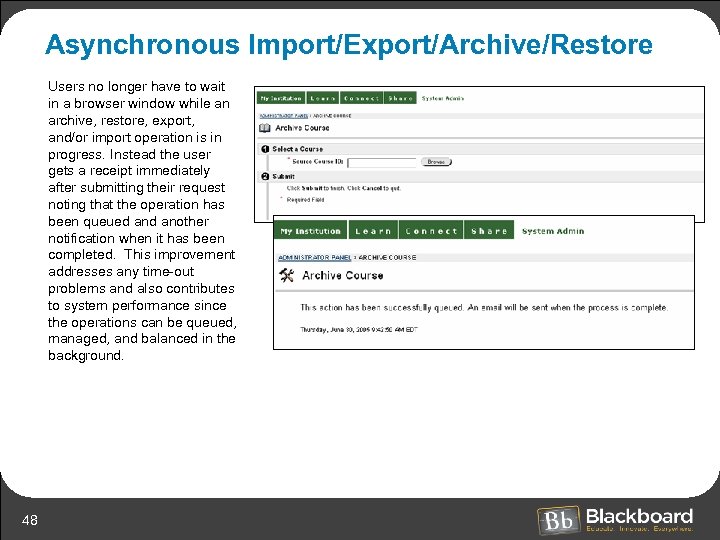 Asynchronous Import/Export/Archive/Restore Users no longer have to wait in a browser window while an archive, restore, export, and/or import operation is in progress. Instead the user gets a receipt immediately after submitting their request noting that the operation has been queued another notification when it has been completed. This improvement addresses any time-out problems and also contributes to system performance since the operations can be queued, managed, and balanced in the background. 48
 Release 7, Application Pack 1 Instructors & Students ü ü 49 Visual Text Box Editor and Spell Check Discussion Board Assessments Language Packs
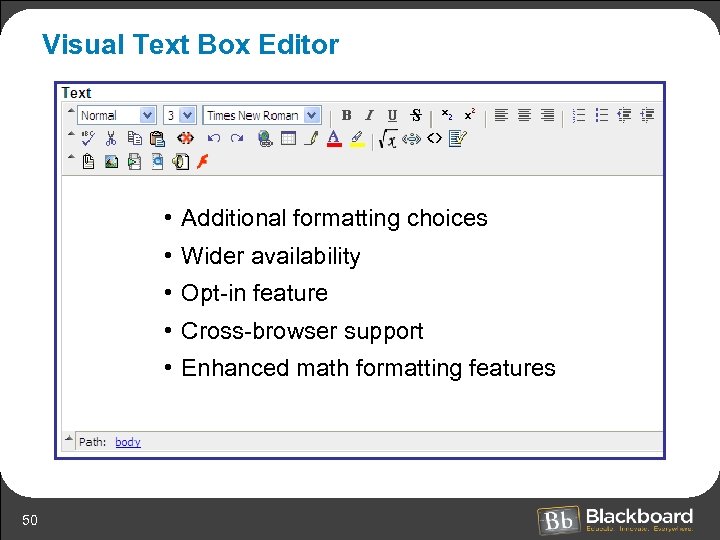 Visual Text Box Editor • Additional formatting choices • Wider availability • Opt-in feature • Cross-browser support • Enhanced math formatting features 50
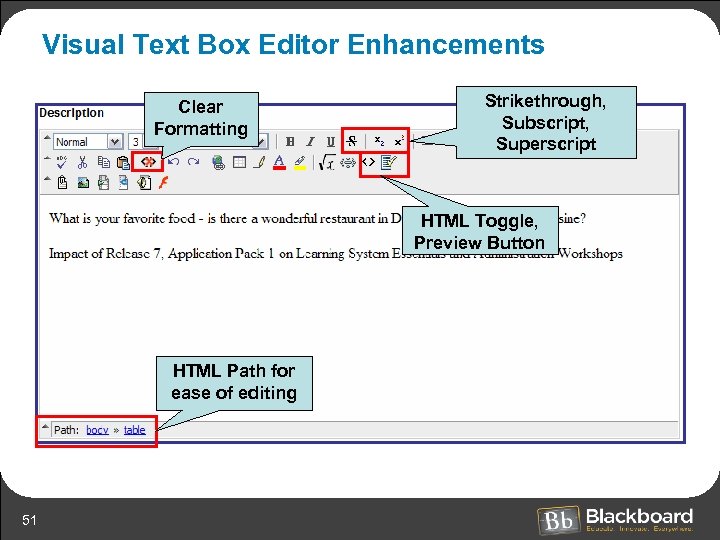 Visual Text Box Editor Enhancements Clear Formatting Strikethrough, Subscript, Superscript HTML Toggle, Preview Button HTML Path for ease of editing 51
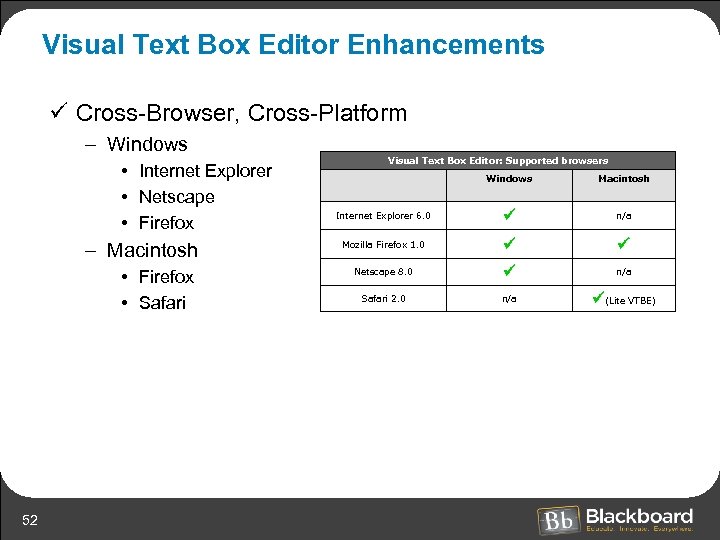 Visual Text Box Editor Enhancements ü Cross-Browser, Cross-Platform – Windows • Internet Explorer • Netscape • Firefox – Macintosh • Firefox • Safari 52 Visual Text Box Editor: Supported browsers Windows Macintosh Internet Explorer 6. 0 n/a Mozilla Firefox 1. 0 Netscape 8. 0 n/a Safari 2. 0 n/a (Lite VTBE)
 Visual Text Box Editor Enhancements ü Opt-In Setting on Personal Information page – System Administrator enables Opt-in – Older browsers • Minimize support issues for browsers that do not fully support the Visual Text Box Editor – Novice users • May prefer a simpler editor • May opt-in when they are ready to use the full features of the Visual Text Box Editor 53
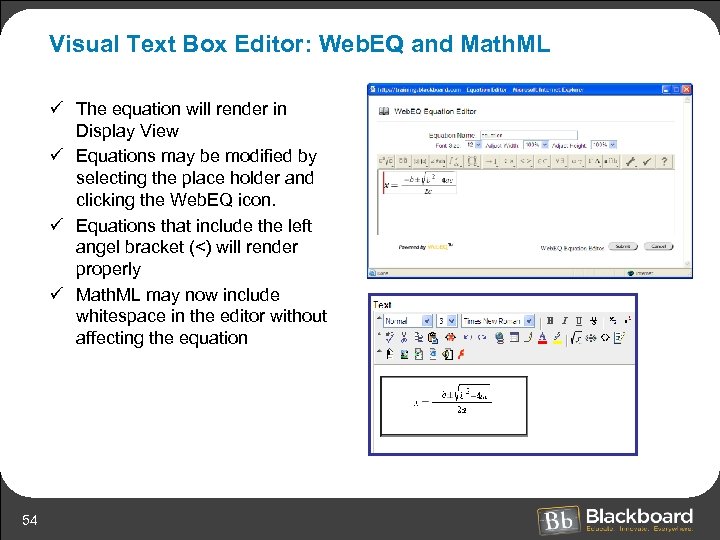 Visual Text Box Editor: Web. EQ and Math. ML ü The equation will render in Display View ü Equations may be modified by selecting the place holder and clicking the Web. EQ icon. ü Equations that include the left angel bracket (<) will render properly ü Math. ML may now include whitespace in the editor without affecting the equation 54
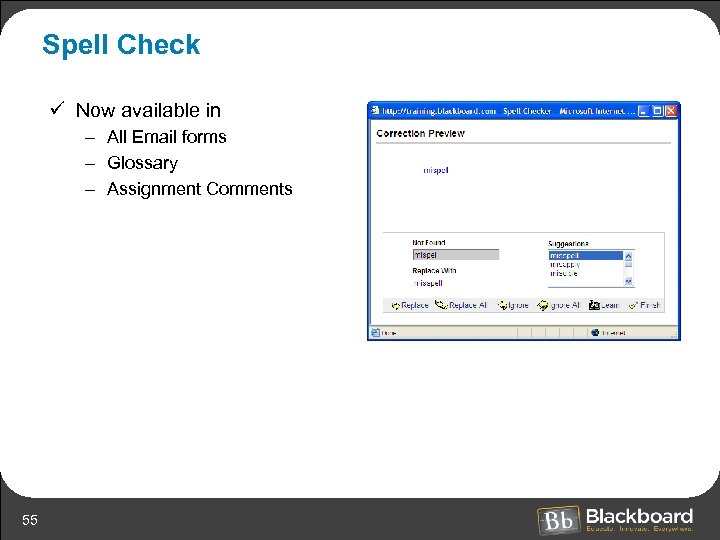 Spell Check ü Now available in – All Email forms – Glossary – Assignment Comments 55
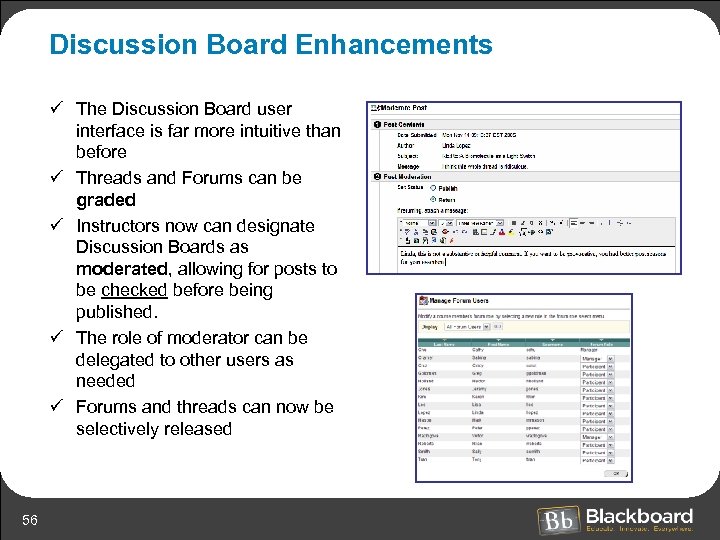 Discussion Board Enhancements ü The Discussion Board user interface is far more intuitive than before ü Threads and Forums can be graded ü Instructors now can designate Discussion Boards as moderated, allowing for posts to be checked before being published. ü The role of moderator can be delegated to other users as needed ü Forums and threads can now be selectively released 56
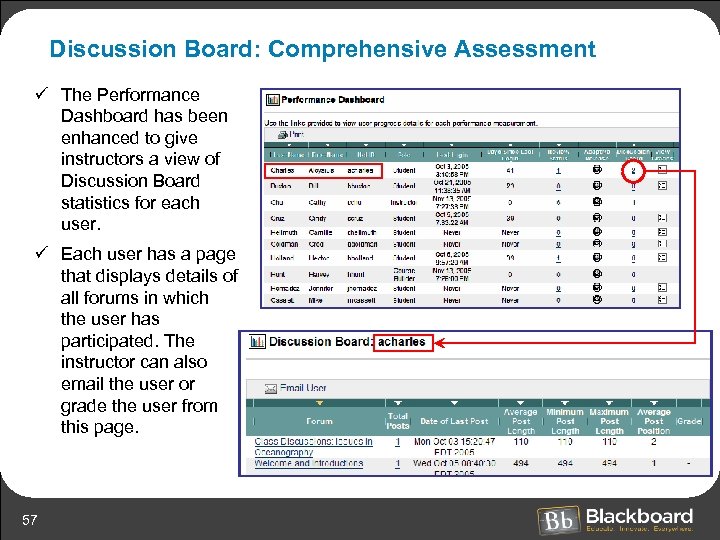 Discussion Board: Comprehensive Assessment ü The Performance Dashboard has been enhanced to give instructors a view of Discussion Board statistics for each user. ü Each user has a page that displays details of all forums in which the user has participated. The instructor can also email the user or grade the user from this page. 57
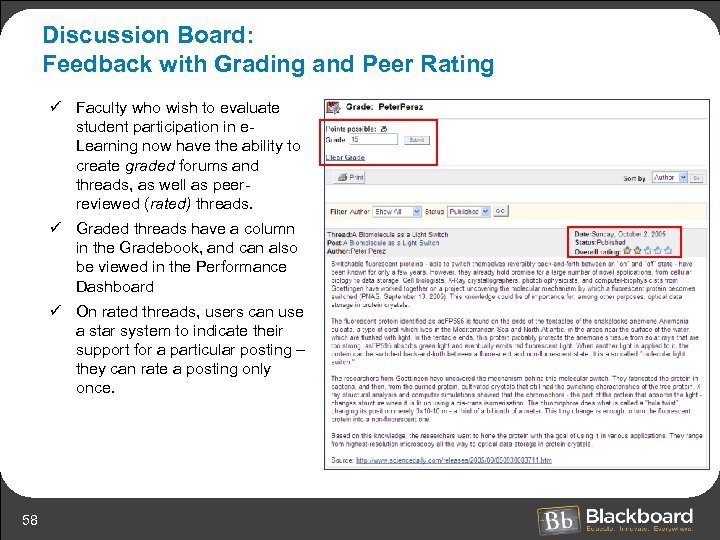 Discussion Board: Feedback with Grading and Peer Rating ü Faculty who wish to evaluate student participation in e. Learning now have the ability to create graded forums and threads, as well as peerreviewed (rated) threads. ü Graded threads have a column in the Gradebook, and can also be viewed in the Performance Dashboard ü On rated threads, users can use a star system to indicate their support for a particular posting – they can rate a posting only once. 58
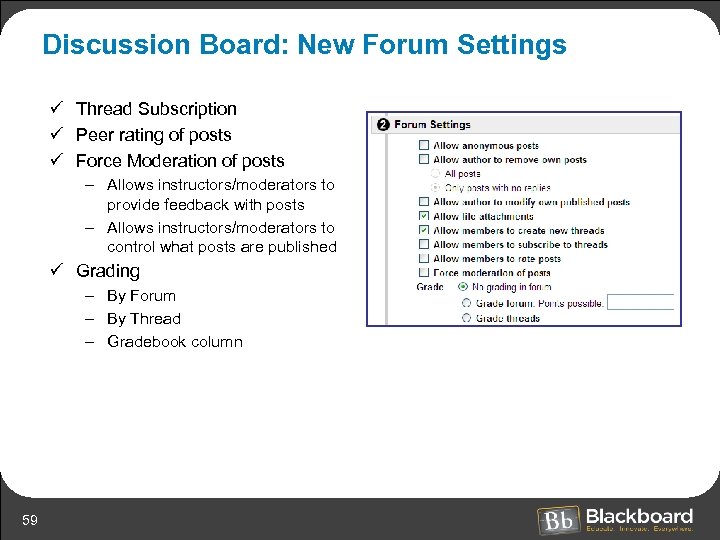 Discussion Board: New Forum Settings ü Thread Subscription ü Peer rating of posts ü Force Moderation of posts – Allows instructors/moderators to provide feedback with posts – Allows instructors/moderators to control what posts are published ü Grading – By Forum – By Thread – Gradebook column 59
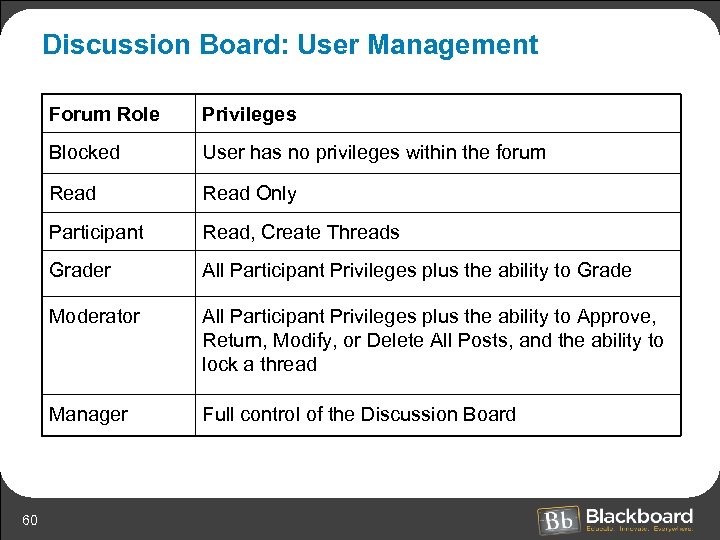 Discussion Board: User Management Forum Role Blocked User has no privileges within the forum Read Only Participant Read, Create Threads Grader All Participant Privileges plus the ability to Grade Moderator All Participant Privileges plus the ability to Approve, Return, Modify, or Delete All Posts, and the ability to lock a thread Manager 60 Privileges Full control of the Discussion Board
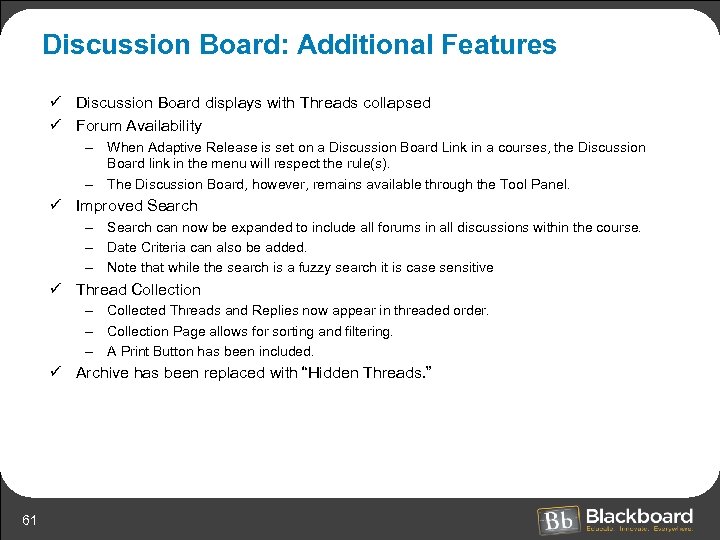 Discussion Board: Additional Features ü Discussion Board displays with Threads collapsed ü Forum Availability – When Adaptive Release is set on a Discussion Board Link in a courses, the Discussion Board link in the menu will respect the rule(s). – The Discussion Board, however, remains available through the Tool Panel. ü Improved Search – Search can now be expanded to include all forums in all discussions within the course. – Date Criteria can also be added. – Note that while the search is a fuzzy search it is case sensitive ü Thread Collection – Collected Threads and Replies now appear in threaded order. – Collection Page allows for sorting and filtering. – A Print Button has been included. ü Archive has been replaced with “Hidden Threads. ” 61
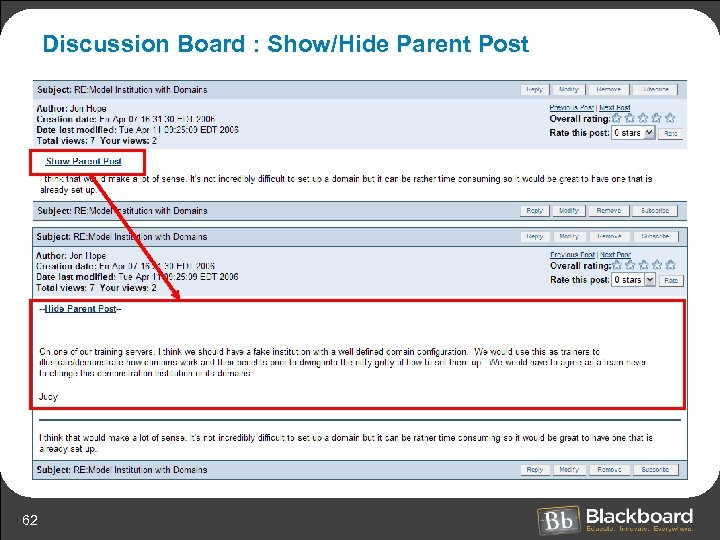 Discussion Board : Show/Hide Parent Post 62
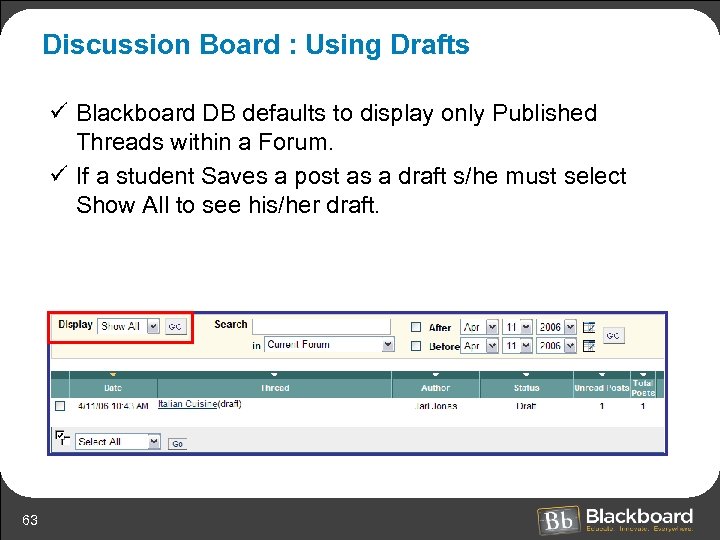 Discussion Board : Using Drafts ü Blackboard DB defaults to display only Published Threads within a Forum. ü If a student Saves a post as a draft s/he must select Show All to see his/her draft. 63
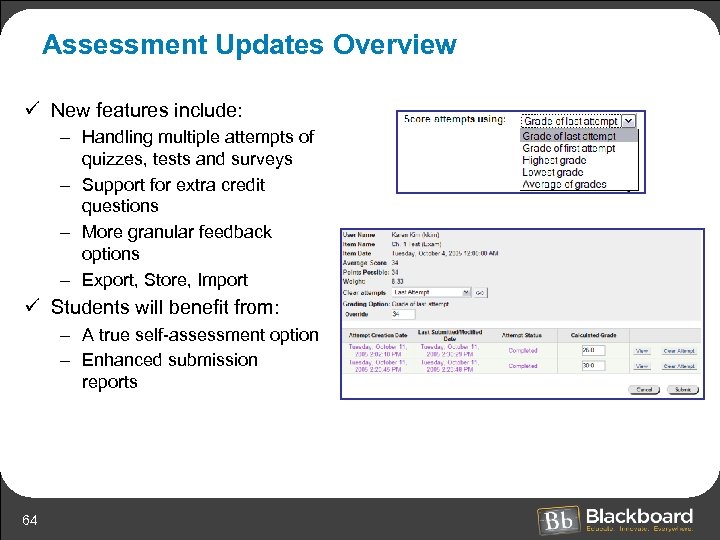 Assessment Updates Overview ü New features include: – Handling multiple attempts of quizzes, tests and surveys – Support for extra credit questions – More granular feedback options – Export, Store, Import ü Students will benefit from: – A true self-assessment option – Enhanced submission reports 64
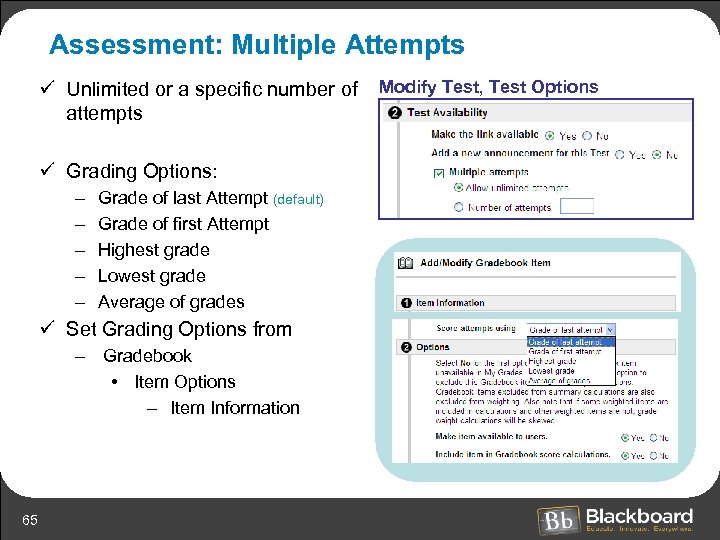 Assessment: Multiple Attempts ü Unlimited or a specific number of Modify Test, Test Options attempts ü Grading Options: – – – Grade of last Attempt (default) Grade of first Attempt Highest grade Lowest grade Average of grades ü Set Grading Options from – Gradebook • Item Options – Item Information 65
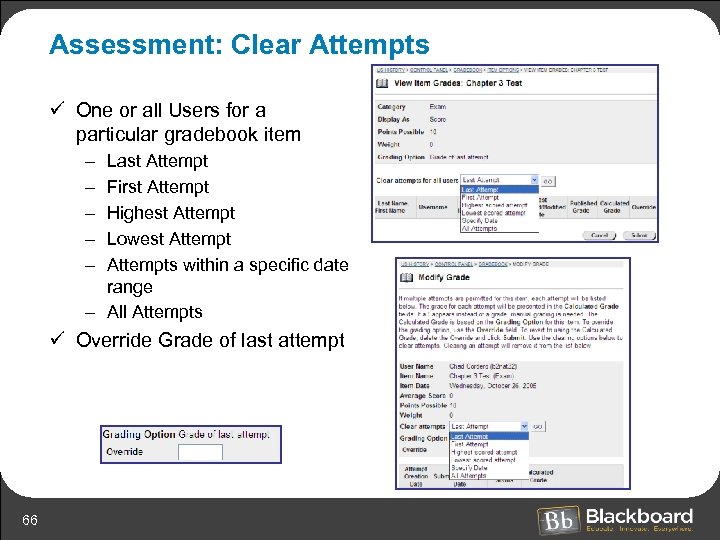 Assessment: Clear Attempts ü One or all Users for a particular gradebook item – – – Last Attempt First Attempt Highest Attempt Lowest Attempts within a specific date range – All Attempts ü Override Grade of last attempt 66
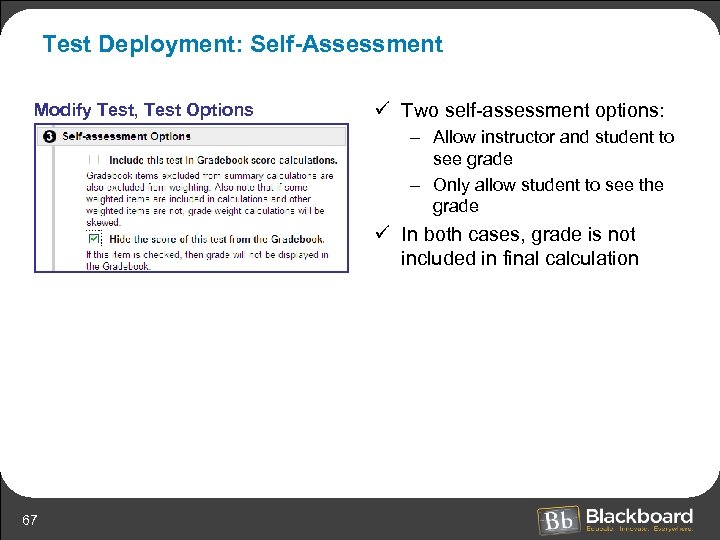 Test Deployment: Self-Assessment Modify Test, Test Options ü Two self-assessment options: – Allow instructor and student to see grade – Only allow student to see the grade ü In both cases, grade is not included in final calculation 67
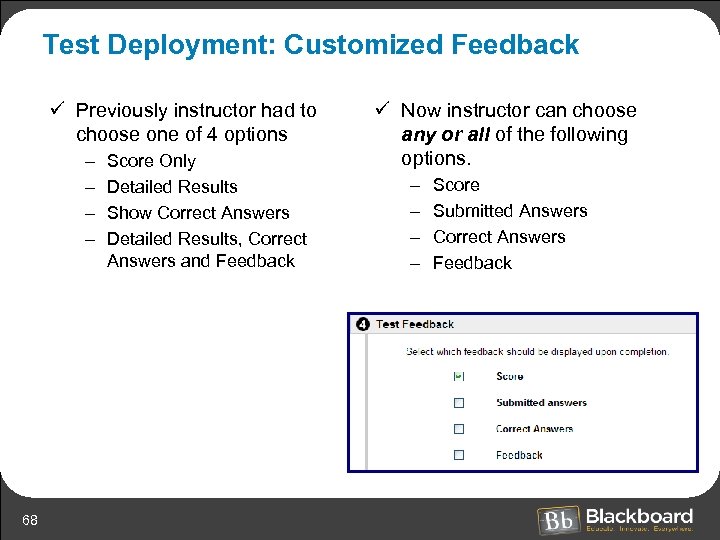 Test Deployment: Customized Feedback ü Previously instructor had to choose one of 4 options – – 68 Score Only Detailed Results Show Correct Answers Detailed Results, Correct Answers and Feedback ü Now instructor can choose any or all of the following options. – – Score Submitted Answers Correct Answers Feedback
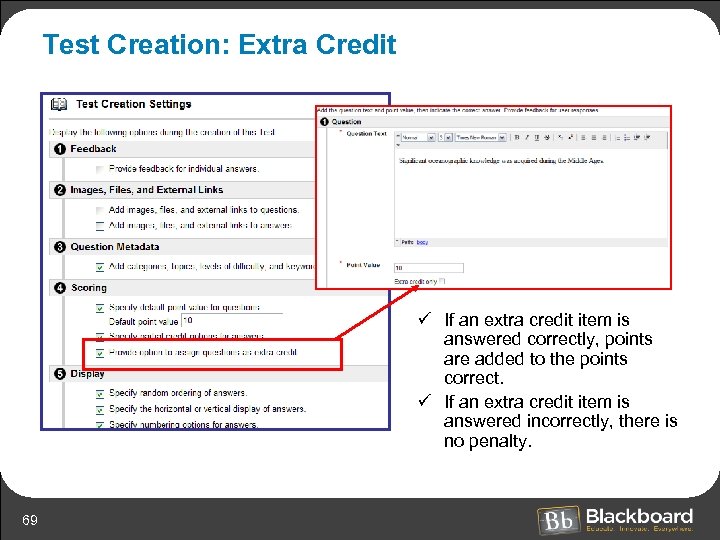 Test Creation: Extra Credit ü If an extra credit item is answered correctly, points are added to the points correct. ü If an extra credit item is answered incorrectly, there is no penalty. 69
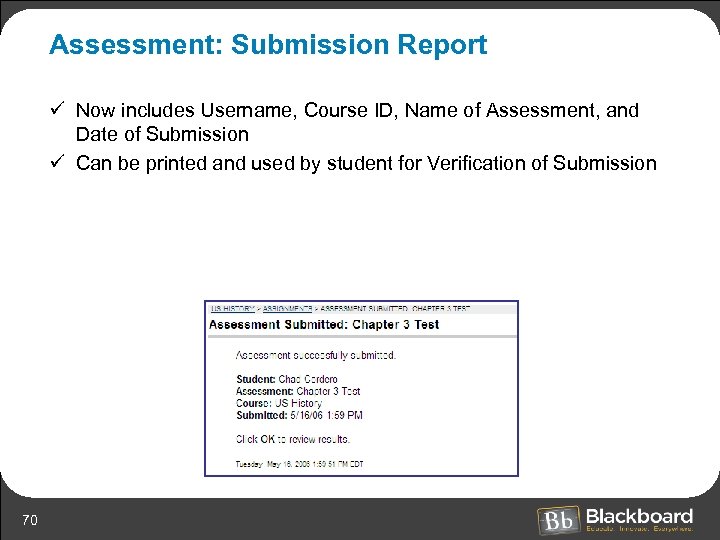 Assessment: Submission Report ü Now includes Username, Course ID, Name of Assessment, and Date of Submission ü Can be printed and used by student for Verification of Submission 70
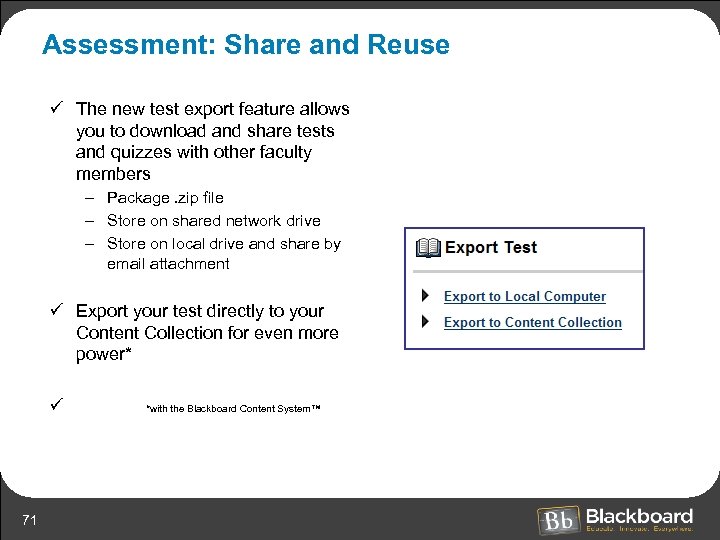 Assessment: Share and Reuse ü The new test export feature allows you to download and share tests and quizzes with other faculty members – Package. zip file – Store on shared network drive – Store on local drive and share by email attachment ü Export your test directly to your Content Collection for even more power* ü 71 *with the Blackboard Content System™
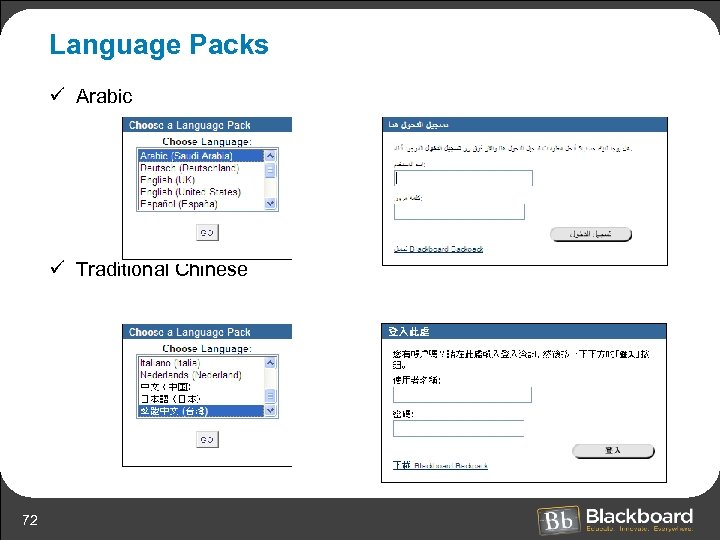 Language Packs ü Arabic ü Traditional Chinese 72
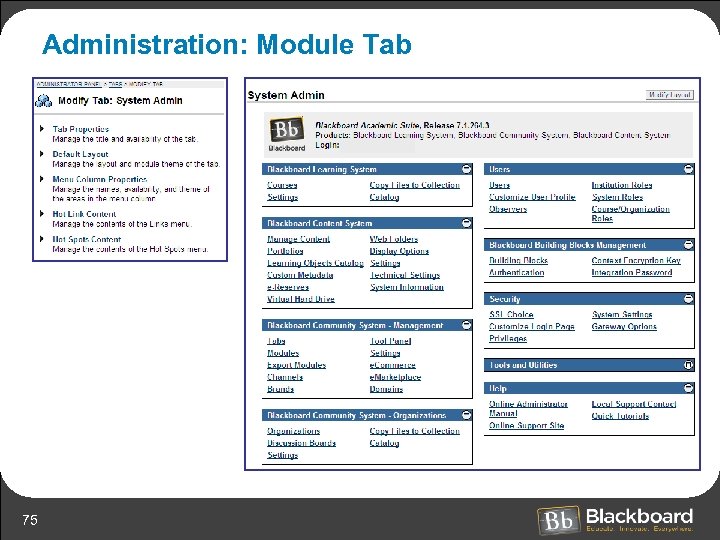
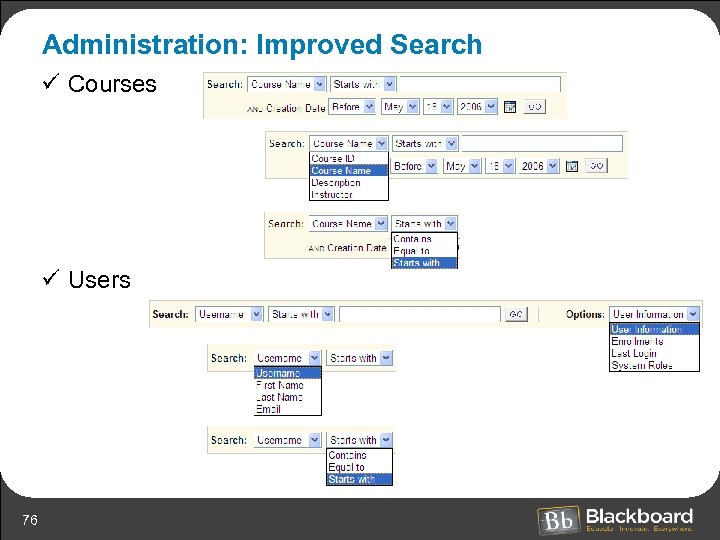
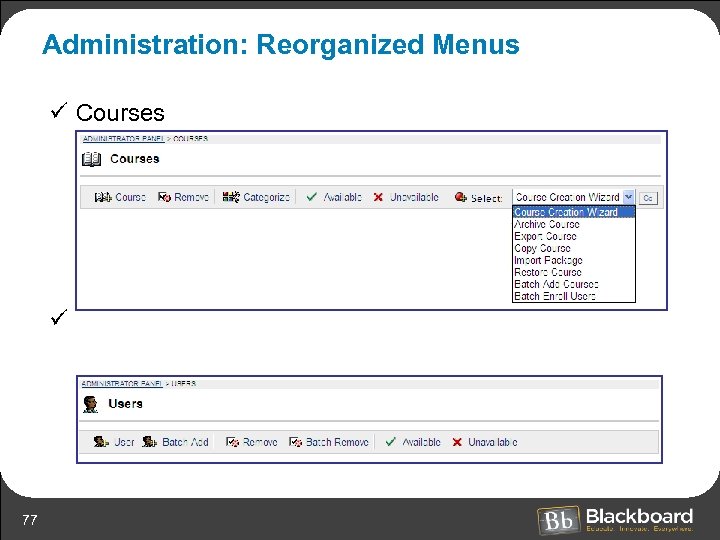
 Release 7, Application Pack 1 Administrators and Developers ü ü 73 Administration Tab Enhancements Visual Text Box Editor Settings and API Language Packs Flexible definition of System Roles and privileges
 Administration Tab ü ü 74 Module Tab Minimize Modules Improved search Reorganized Users and Courses menus
 Administration: Module Tab 75
 Administration: Improved Search ü Courses ü Users 76
 Administration: Reorganized Menus ü Courses ü Users 77
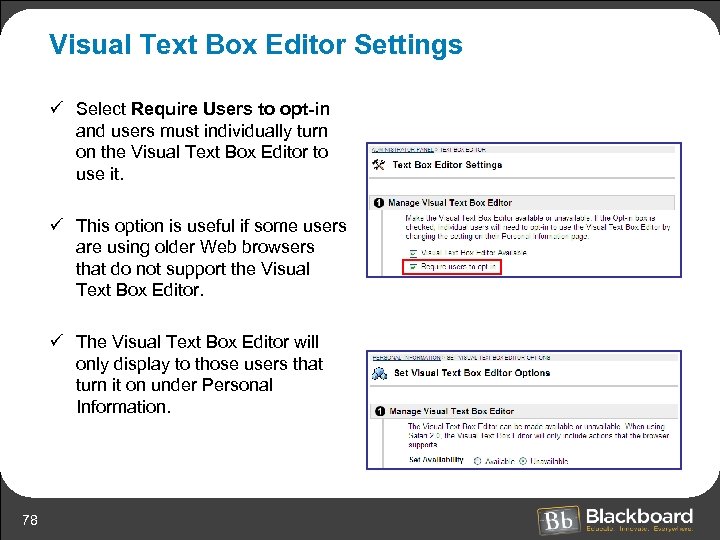 Visual Text Box Editor Settings ü Select Require Users to opt-in and users must individually turn on the Visual Text Box Editor to use it. ü This option is useful if some users are using older Web browsers that do not support the Visual Text Box Editor. ü The Visual Text Box Editor will only display to those users that turn it on under Personal Information. 78
 Visual Text Box Editor API ü New APIs available to Building Block Developers (Enables Visual Text Box Editor to be included on pages created by Building Blocks Developers) – – – 79
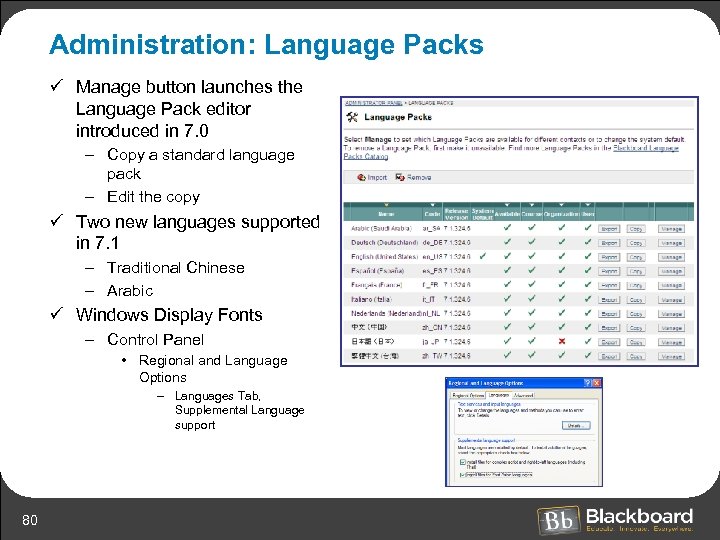 Administration: Language Packs ü Manage button launches the Language Pack editor introduced in 7. 0 – Copy a standard language pack – Edit the copy ü Two new languages supported in 7. 1 – Traditional Chinese – Arabic ü Windows Display Fonts – Control Panel • Regional and Language Options – Languages Tab, Supplemental Language support 80
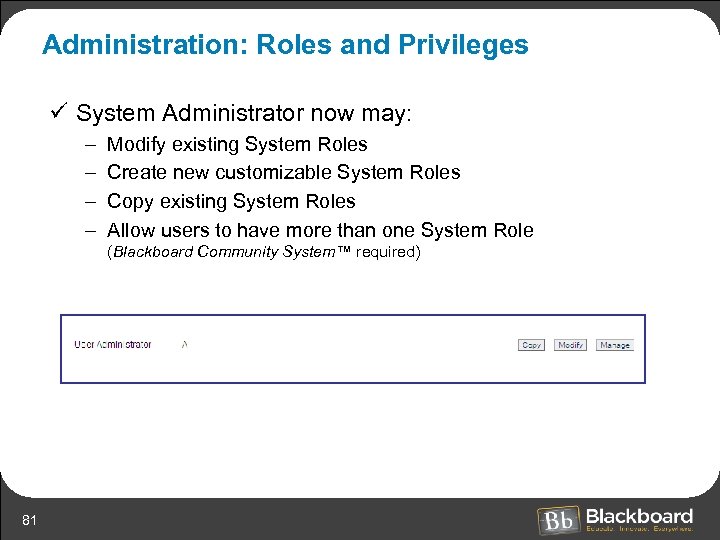 Administration: Roles and Privileges ü System Administrator now may: – – Modify existing System Roles Create new customizable System Roles Copy existing System Roles Allow users to have more than one System Role (Blackboard Community System™ required) 81
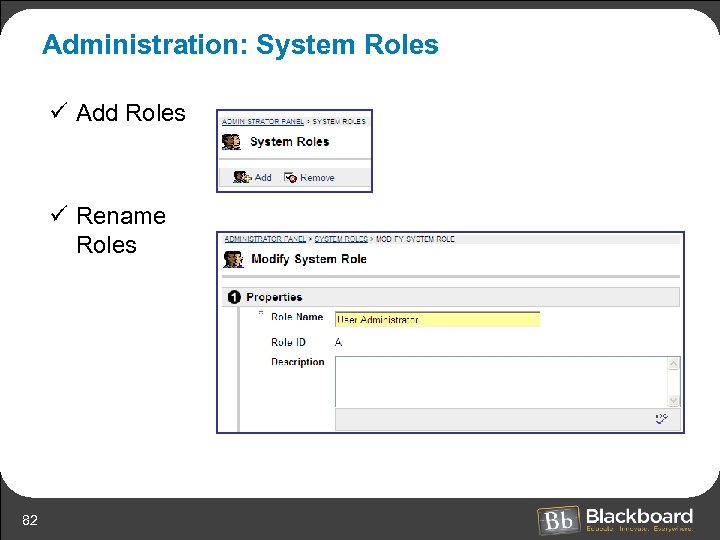 Administration: System Roles ü Add Roles ü Rename Roles 82
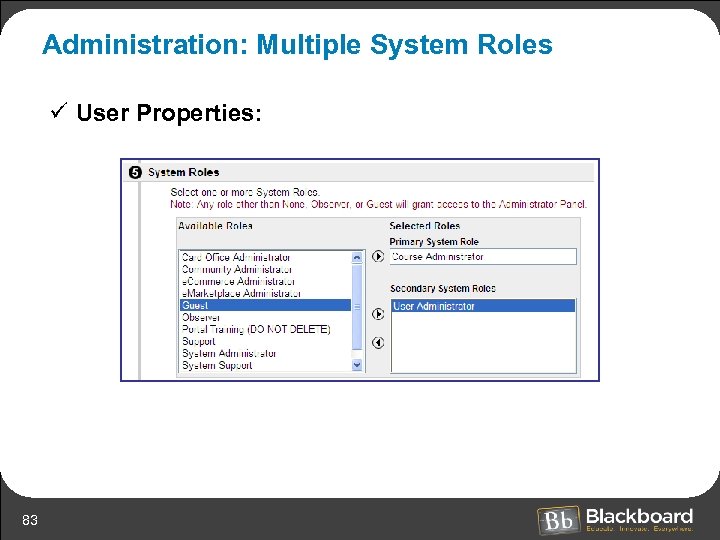 Administration: Multiple System Roles ü User Properties: 83
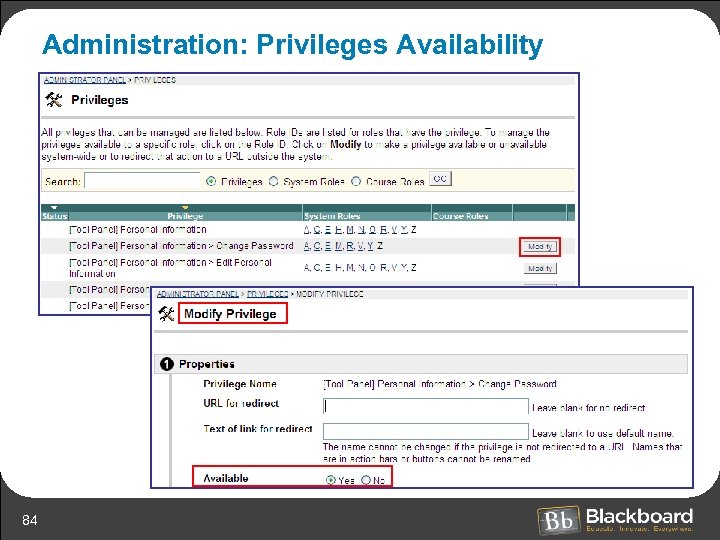 Administration: Privileges Availability 84
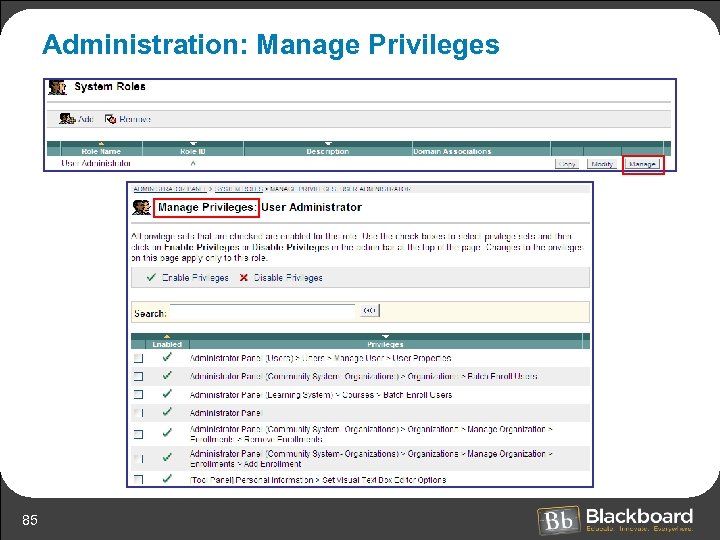 Administration: Manage Privileges 85