 Скачать презентацию ADS and IIS Training 16 -17 September 2006
c0efde983a61c90e5e0517f9448137b1.ppt
- Количество слайдов: 143



ADS and IIS Training 16 -17 September 2006
ADS and IIS Training
Windows Server History l l l 1993: Windows NT Advanced Server 3. 1 was launched in July 1993 as a dedicated server for a client/server environment. It provided the power, scalability, enhanced fault tolerance, and standards-based interoperability required for enterprise computing. 1994: Windows NT Server 3. 5 The next release of Windows NT Server was built on the stability of version 3. 1, but with greatly enhanced processing speed and improved connectivity to other systems, particularly in Novell Net. Ware and UNIX environments. Enhancements included new administration tools, improved client software configuration, an auto-reboot and dump facility, better tools for Net. Ware, and better remote access capabilities.
Windows Server History Contd… l l l 1995: Windows NT Server 3. 51 This incremental release of Windows NT Server in June 1995, included a tool to help customers manage Client Access Licenses (CALs) for a suite of server products called the Microsoft Back. Office® family. This release also featured a utility that enabled over-the-network installation of Windows 95. 1996: Windows NT Server 4. 0 With this upgrade, Windows NT Server gained the popular look and feel of Windows 95 and added many advanced features for business and technical users. Enhancements included: Higher network throughput. Faster file and print services. Robust application support. Standards-based communications features. An integrated Web server, Internet Information Server (IIS) 2. 0. Support for the Microsoft Front. Page® Web editing and management tool. A toolset for developing and managing intranets. Subsequent service packs and option packs offered additional features, including public-key and certificate authority functionality, smart card support, improved symmetric multiprocessing (SMP) scalability, clustering capabilities, and component object model (COM) support.
Windows Server History Contd… l l l l 1997: Windows NT Server 4. 0, Enterprise Edition, built on the strengths of Windows NT Server 4. 0 by adding features and capabilities designed to appeal to large corporate customers. Windows NT Server 4. 0, Enterprise Edition, added greater performance and scalability, higher availability, and expanded services for developing enterprise applications. The product also included Microsoft Transaction Server to facilitate the development of Internet and intranet applications, and Microsoft Message Queue Server (MSMQ), which enabled applications running at different times to communicate across heterogeneous networks and systems that may be temporarily offline. In October 1998, Microsoft announced that it would drop the "NT" suffix in the next major version of the Windows NT operating system, which would become known as Windows 2000. For more information, see the Enterprise Edition page on the Windows NT Server 4. 0 Web site. 1998: Windows NT Server 4. 0, Terminal Server Edition gave the Windows NT Server operating system the ability to serve 32 -bit Windows operating system–based applications to terminals and terminal emulators running on PC and non-PC desktops. This technology offered a bridge for organizations that were transitioning to a pure 32 -bit desktop environment by allowing their existing non-Windows–based computers to connect to a Windows network.
Windows Server History Contd… l l 2000: Windows 2000 Server Family In February 2000, Bill Gates unveiled the Windows 2000 client and server family. The client side was represented by Windows 2000 Professional, which went on to become Windows XP Professional. To support businesses of all sizes, three server versions were offered: l Windows 2000 Server provided a multipurpose network operating system for departmental file, print, Web, and entry-level application servers. l Windows 2000 Advanced Server was designed to support business-critical Web and line-of-business application on a reliable, manageable operating system. l Windows 2000 Datacenter Server delivered the highest levels of operating system scalability and availability for the most demanding server applications. For IT professionals, the Windows 2000 Server family introduced new, centralized, policy-based management with Microsoft Intelli. Mirror® management technologies and the Microsoft Active Directory® directory service. In addition, a highperformance Web server featuring Active Server Pages (ASP) was included, as well as COM+ component services, transaction and message queuing support, and end-toend XML support. l
Windows Server History l l l l 2003: Windows Server 2003 Launched in April 2003, the Windows Server™ 2003 family takes the best of Windows 2000 Server technology and makes it easier and more cost-effective to deploy, manage, and use. The result is a highly productive infrastructure that helps organizations "do more with less. " The first server operating system to feature built-in Microsoft. NET functionality, Windows Server 2003 delivers significantly greater dependability, security, and scalability compared to earlier versions. Four versions are tailored to the varying needs of organizations: Windows Server 2003, Standard Edition, provides a solution for departmental and standard workloads and supports file and printer sharing, helps secure Internet connectivity, centralizes deployment of desktop applications, and enhances collaboration among employees, partners, and customers. Windows Server 2003, Enterprise Edition, is the platform for mission-critical server workloads. By delivering high reliability, scalability, and performance, it offers a superior value to businesses of all sizes. Windows Server 2003, Datacenter Edition, is designed to support the highest levels of scalability and reliability. Windows 2003, Datacenter Edition, is available in both 32 -bit and 64 -bit versions through original equipment manufacturer (OEM) partners. Windows Server 2003, Web Edition, a new offering, is a single-purpose operating system for dedicated Web serving and hosting. It provides a platform for rapidly developing and deploying Web services and applications.
Windows Server 2003 l Windows Server Family Products l l Windows Server 2003 Web Edition Windows Server 2003 Standard Edition Windows Server 2003 Enterprise Edition Windows Server 2003 Datacenter Edition
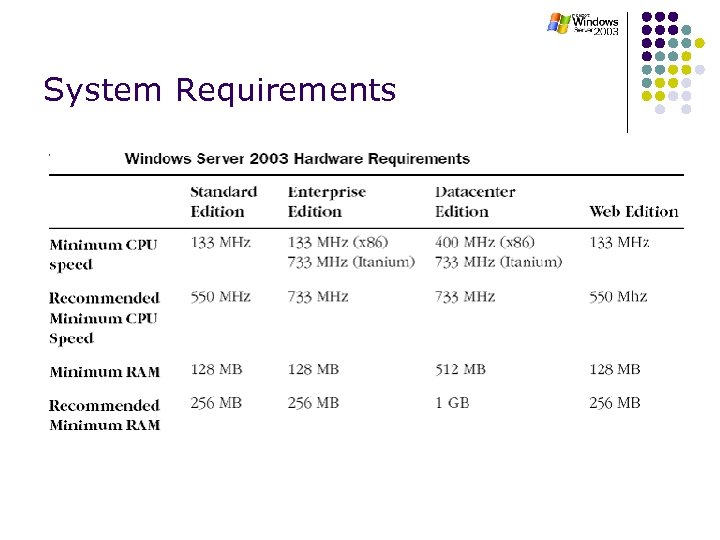
System Requirements
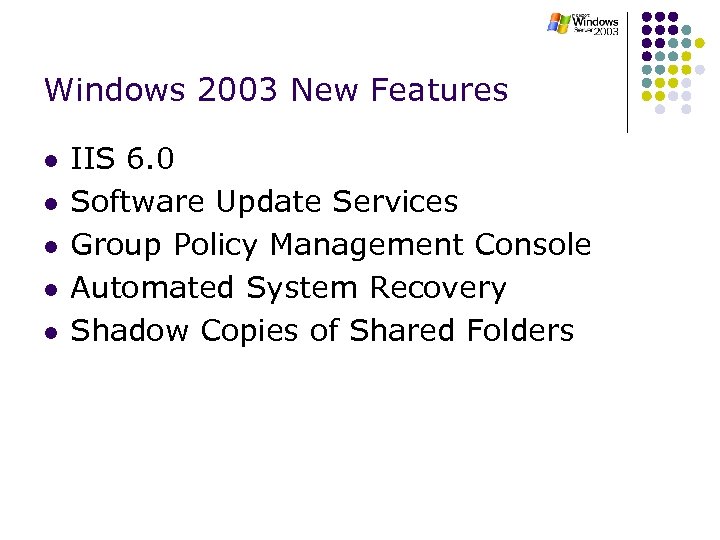
Windows 2003 New Features l l l IIS 6. 0 Software Update Services Group Policy Management Console Automated System Recovery Shadow Copies of Shared Folders
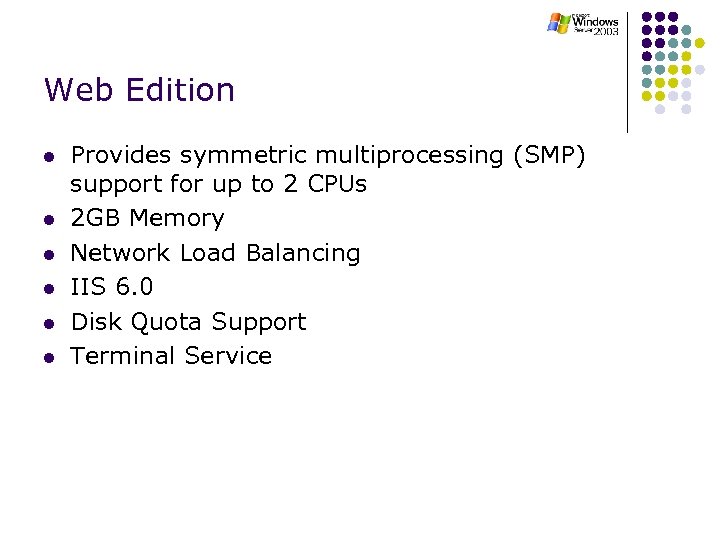
Web Edition l l l Provides symmetric multiprocessing (SMP) support for up to 2 CPUs 2 GB Memory Network Load Balancing IIS 6. 0 Disk Quota Support Terminal Service
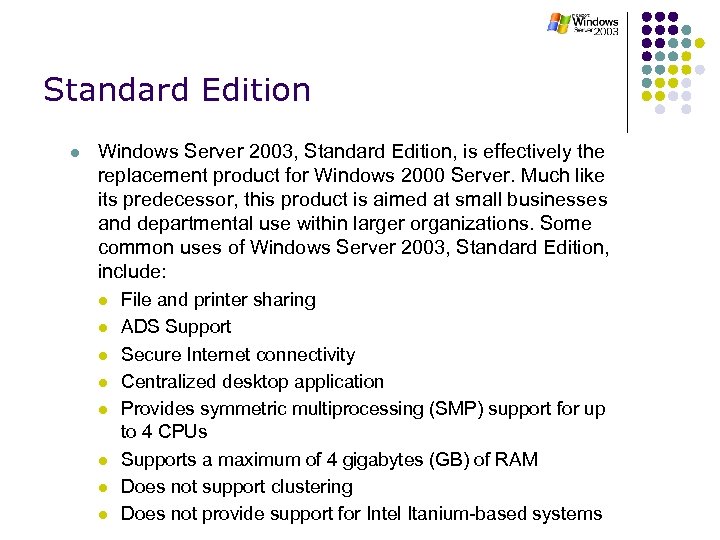
Standard Edition l Windows Server 2003, Standard Edition, is effectively the replacement product for Windows 2000 Server. Much like its predecessor, this product is aimed at small businesses and departmental use within larger organizations. Some common uses of Windows Server 2003, Standard Edition, include: l l l l File and printer sharing ADS Support Secure Internet connectivity Centralized desktop application Provides symmetric multiprocessing (SMP) support for up to 4 CPUs Supports a maximum of 4 gigabytes (GB) of RAM Does not support clustering Does not provide support for Intel Itanium-based systems
Enterprise Edition l Includes features l l l Server Clusters (8 nodes!) Provides symmetric multiprocessing (SMP) support for up to 8 CPUs Supports Itanium Processors 32 GB memory (x 86); 64 GB memory (Itanium) Integration with Microsoft Metadirectory Services ADS Support
Datacenter Edition l Only available from Datacenter OEMs l Includes features in Enterprise Edition, plus l l l 64 -way SMP 64 GB memory (x 86); 512 GB memory (Itanium) Windows Sockets: Direct access for SANs (Winsock Direct)
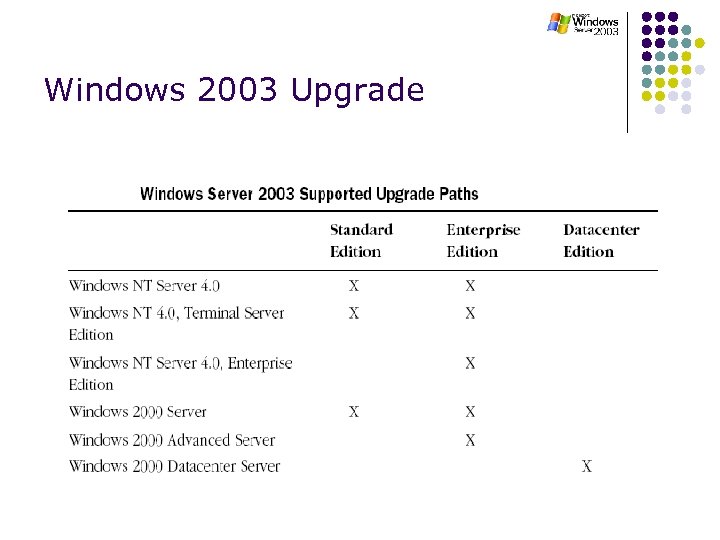
Windows 2003 Upgrade
The Hardware Compatibility List l The role of the Hardware Compatibility List (HCL) in Windows Server 2003 is effectively the same as it was in Windows 2000—to provide a list of hardware devices that are supported under the new version of Windows (in this case, Windows Server 2003). This list is constantly updated over the life cycle of the operating system as new hardware is developed and then tested for compliance with Windows Server 2003. l Prior to installing any Windows Server 2003 edition, you should check to ensure that all your server’s hardware appears on this list. An online and searchable version of the HCL can be found at http: //www. microsoft. com/whdc/hcl/default. mspx.
Active Directory
Active Directory is the directory service for Windows 2000 Server. It stores information about objects on the network and makes this information easy for administrators and users to find and use. Active Directory directory service uses a structured data store as the basis for a logical, hierarchical organization of directory information l l Domain Name System (DNS) Lightweight Directory Access Protocol (LDAP)
Benefits of Active Directory l l l l l Active Directory provides: Information security Policy-based administration Extensibility Scalability Replication of information Integration with DNS Interoperability with other directory services Flexible querying
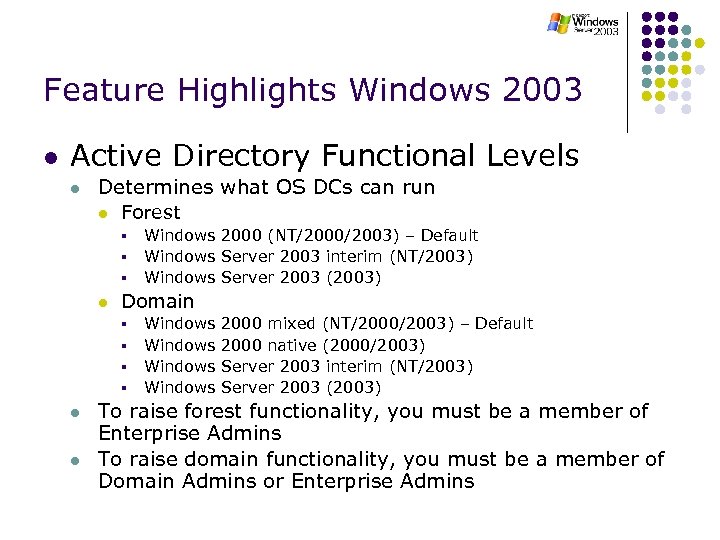
Feature Highlights Windows 2003 l Active Directory Functional Levels l Determines what OS DCs can run l Forest § § § l Domain § § l l Windows 2000 (NT/2000/2003) – Default Windows Server 2003 interim (NT/2003) Windows Server 2003 (2003) Windows 2000 mixed (NT/2000/2003) – Default Windows 2000 native (2000/2003) Windows Server 2003 interim (NT/2003) Windows Server 2003 (2003) To raise forest functionality, you must be a member of Enterprise Admins To raise domain functionality, you must be a member of Domain Admins or Enterprise Admins
Feature Highlights Windows 2003 l Active Directory l Domain Renaming l Domain Controller Renaming l Forest-to-Forest Kerberos transitive trusts l Attribute added to GC does not trigger full GC replication (Windows Server 2003 forest mode) DC’s can cache Universal Group membership (Site level option – only in Sites without GC) l
What we will cover: l l l Domain, Trees, Forests Domain Controllers, Sites The Domain Naming Service Replication Operations Masters
Agenda l l l Active Directory Logical Concepts Active Directory Physical Concepts DNS Replication Operations Masters
Active Directory Logical Concepts
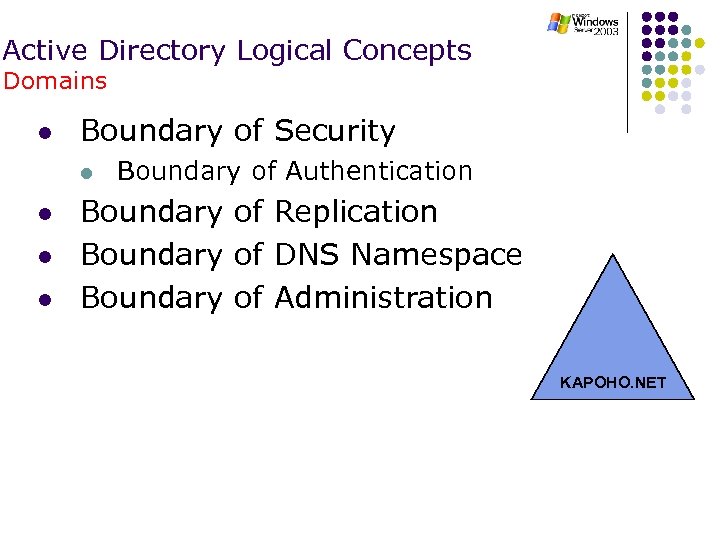
Active Directory Logical Concepts Domains l Boundary of Security l l Boundary of Authentication Boundary of Replication Boundary of DNS Namespace Boundary of Administration KAPOHO. NET
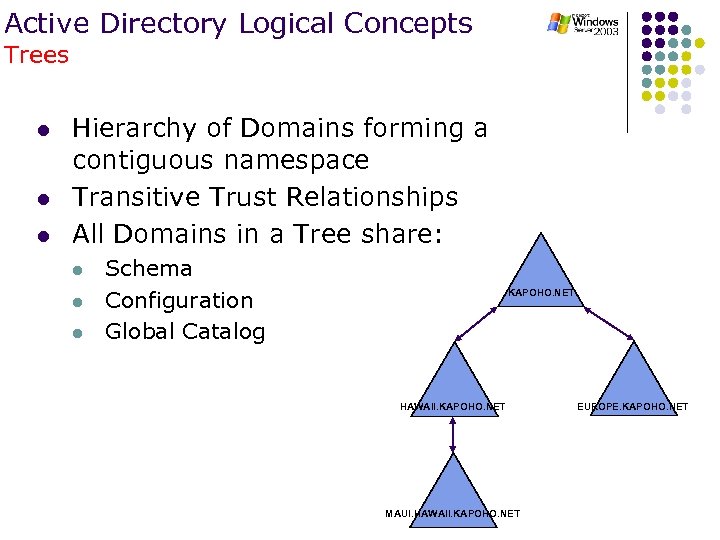
Active Directory Logical Concepts Trees l l l Hierarchy of Domains forming a contiguous namespace Transitive Trust Relationships All Domains in a Tree share: l l l Schema Configuration Global Catalog KAPOHO. NET HAWAII. KAPOHO. NET MAUI. HAWAII. KAPOHO. NET EUROPE. KAPOHO. NET
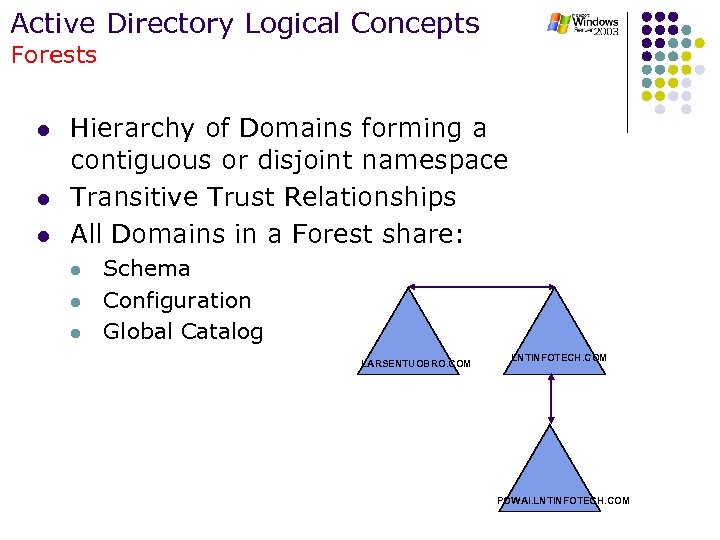
Active Directory Logical Concepts Forests l l l Hierarchy of Domains forming a contiguous or disjoint namespace Transitive Trust Relationships All Domains in a Forest share: l l l Schema Configuration Global Catalog LARSENTUOBRO. COM LNTINFOTECH. COM POWAI. LNTINFOTECH. COM
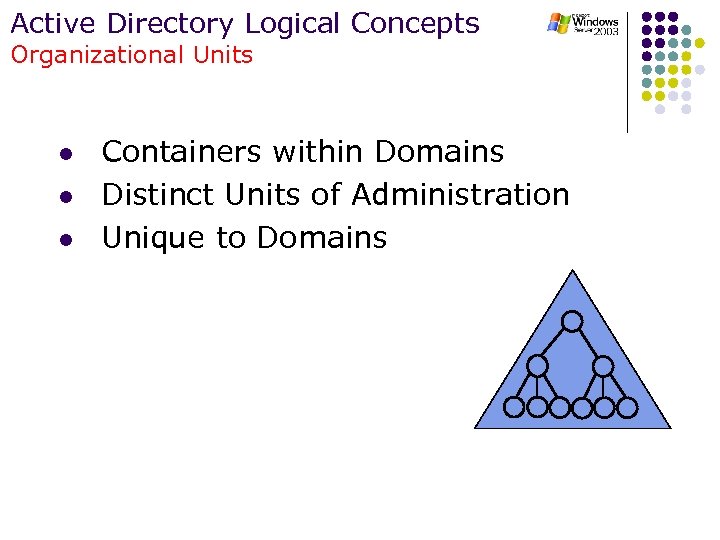
Active Directory Logical Concepts Organizational Units l l l Containers within Domains Distinct Units of Administration Unique to Domains
Agenda l l l Active Directory Logical Concepts Active Directory Physical Concepts DNS Replication Operations Masters
Active Directory Physical Concepts
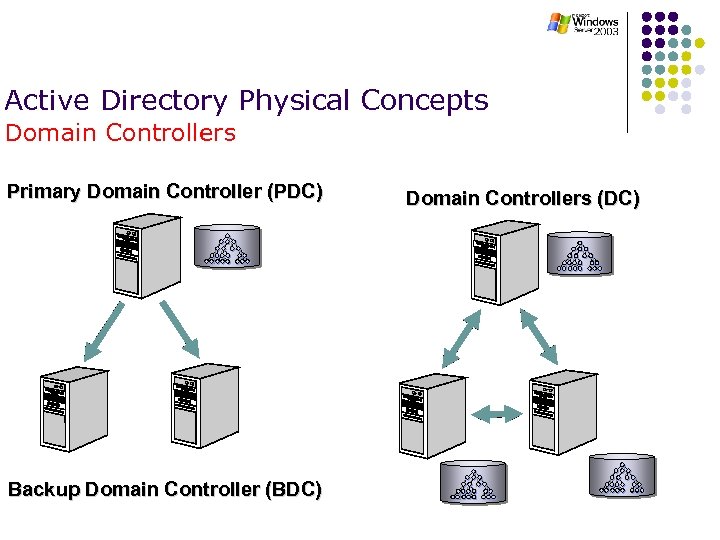
Active Directory Physical Concepts Domain Controllers Primary Domain Controller (PDC) Backup Domain Controller (BDC) Domain Controllers (DC)
Active Directory Physical Concepts Sites l What is a Site? l l Site Usage l l A set of well-connected IP subnets Locating Services (e. g. Logon, DFS) Replication Group Policy Application Sites are connected with Site Links l Connects two or more sites
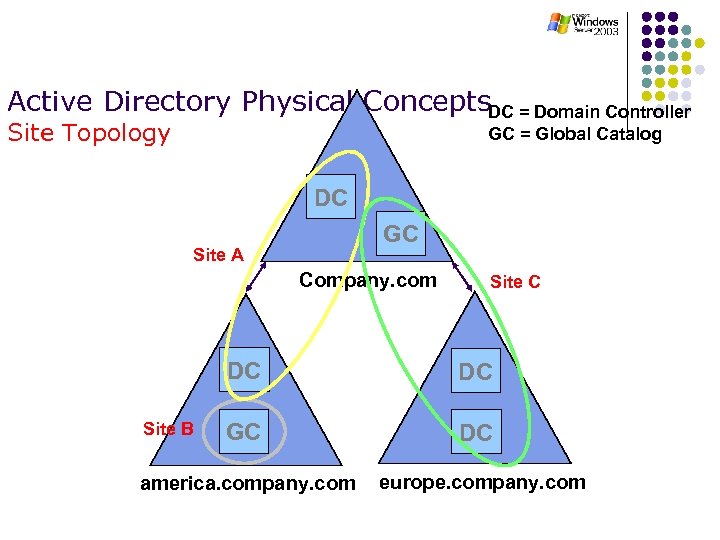
Active Directory Physical Concepts. DC = Domain Controller Site Topology GC = Global Catalog DC GC Site A Company. com Site C DC Site B DC GC DC america. company. com europe. company. com
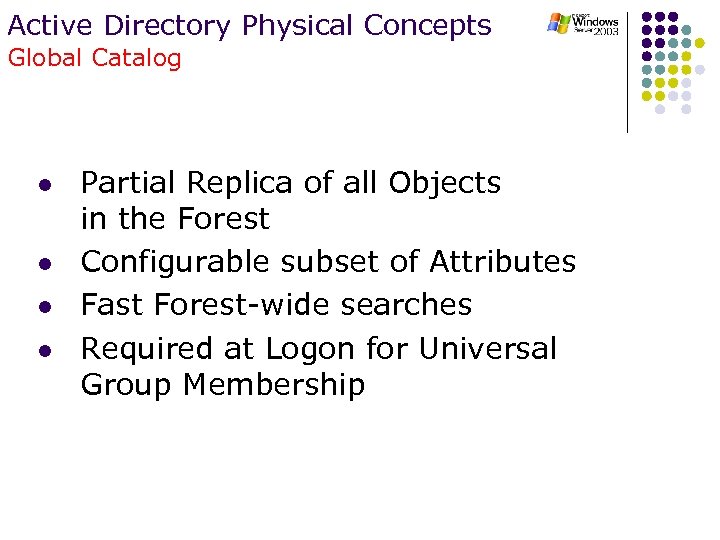
Active Directory Physical Concepts Global Catalog l l Partial Replica of all Objects in the Forest Configurable subset of Attributes Fast Forest-wide searches Required at Logon for Universal Group Membership
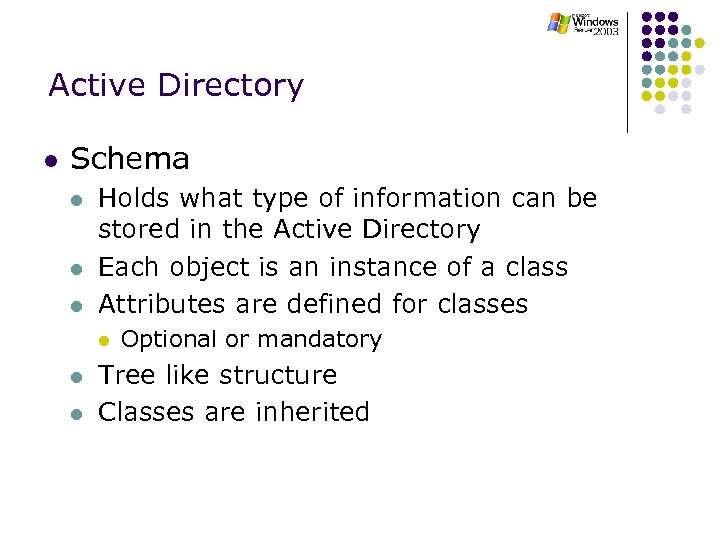
Active Directory l Schema l l l Holds what type of information can be stored in the Active Directory Each object is an instance of a class Attributes are defined for classes l l l Optional or mandatory Tree like structure Classes are inherited
Active Directory l Schema Cont’d l l l Schema is cached in memory Only one Schema for the entire forest Cannot actually delete anything from the Schema after it has been extended. l The only option you have is to deactivate any non used classes
Agenda l l l Active Directory Logical Concepts Active Directory Physical Concepts DNS Replication Operations Masters
Active Directory DNS
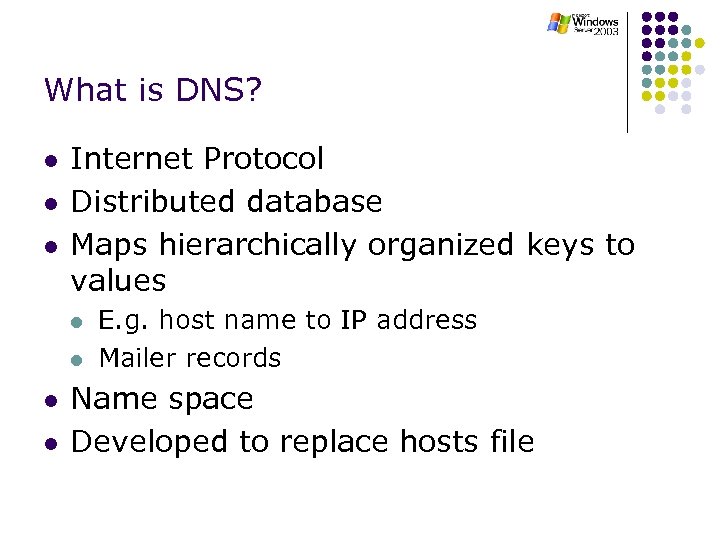
What is DNS? l l l Internet Protocol Distributed database Maps hierarchically organized keys to values l l E. g. host name to IP address Mailer records Name space Developed to replace hosts file
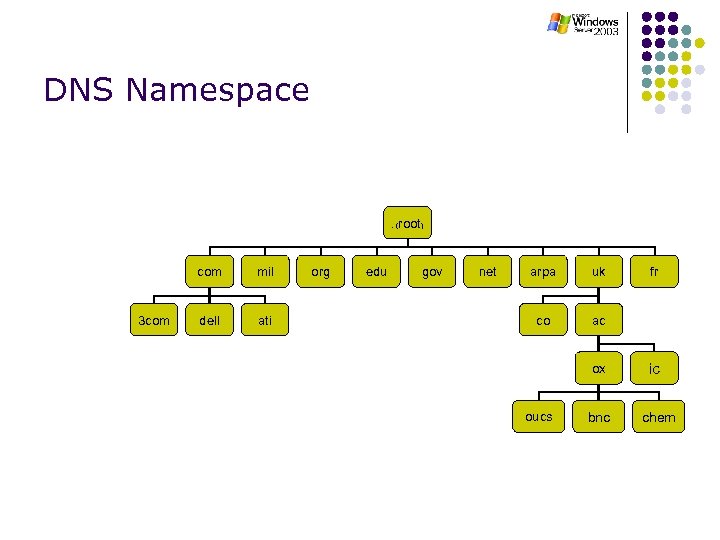
DNS Namespace . ( com 3 com mil dell ati org edu root) gov net arpa uk co ac ox oucs bnc fr ic chem
DNS Namespace l Hierarchical tree of domains l l l Root Top level domains (gov, edu, com, fr, se, uk etc. ) Some countries have subdomains denoting organisation type (e. g. ac. uk, co. uk) Subdomains generally for specific organisations (e. g. mit. edu, microsoft. com etc. ) Subdomains within organisation (e. g. oucs. ox. ac. uk) Technically, a domain is the part of the name space at or below the domain name identifying the domain.
Delegation of Responsibility l l Vital to understand this concept DNS Database is distributed l l No one server is responsible for the whole namespace Given name server is responsible for part of the namespace l l Called a zone Server is “authoritative” for the zone
Delegation of Authority l l Authority is delegated from the top down Cannot simply set up a name server for a domain and expect clients to resolve names correctly l l l Will not work Name servers for parent domain must know that authority has been delegated to new domain E. g. if new ac. uk domain xxx. ac. uk is created, name servers for ac. uk must be configured with information about name servers responsible for new domain
DNS Queries l l Client queries DNS Server l l Checks its cache Checks whether it contains the information in its own zone files Queries other name servers iteratively Returns an answer
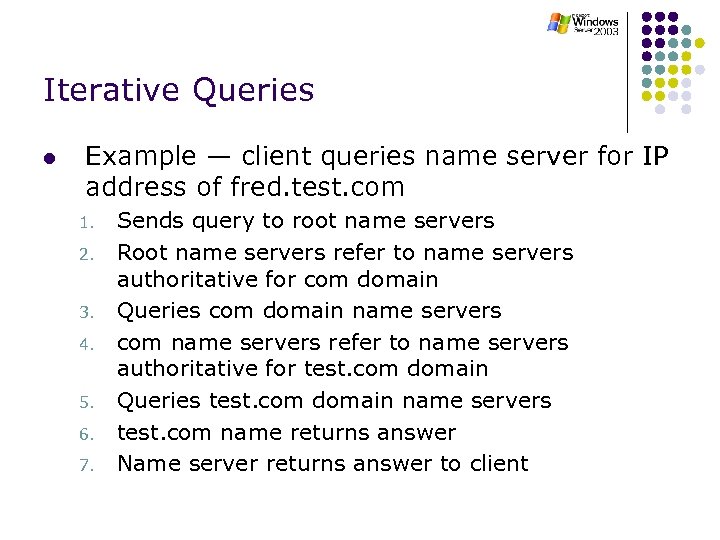
Iterative Queries l Example — client queries name server for IP address of fred. test. com 1. 2. 3. 4. 5. 6. 7. Sends query to root name servers Root name servers refer to name servers authoritative for com domain Queries com domain name servers com name servers refer to name servers authoritative for test. com domain Queries test. com domain name servers test. com name returns answer Name server returns answer to client
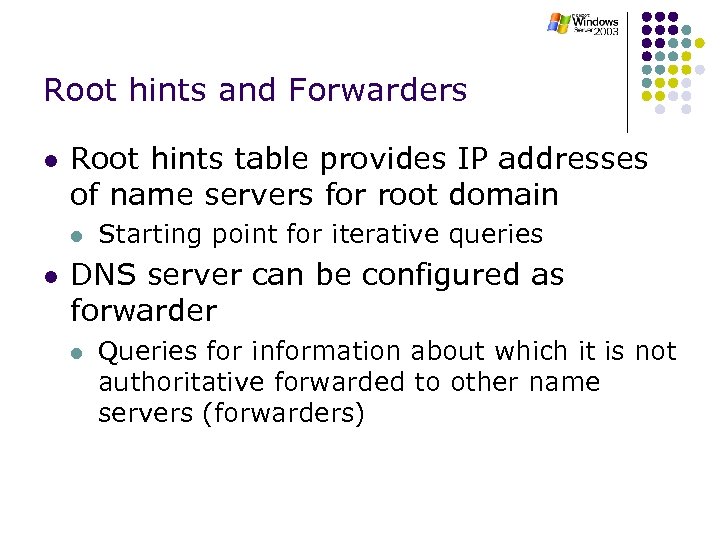
Root hints and Forwarders l Root hints table provides IP addresses of name servers for root domain l l Starting point for iterative queries DNS server can be configured as forwarder l Queries for information about which it is not authoritative forwarded to other name servers (forwarders)
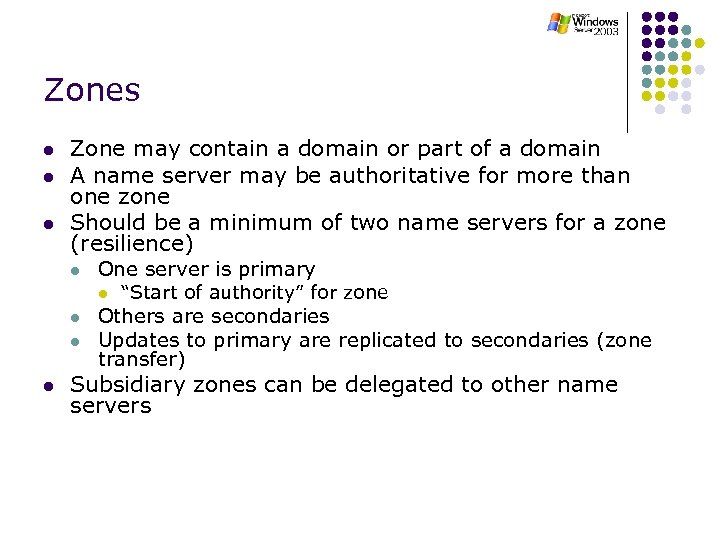
Zones l l l Zone may contain a domain or part of a domain A name server may be authoritative for more than one zone Should be a minimum of two name servers for a zone (resilience) l One server is primary l l “Start of authority” for zone Others are secondaries Updates to primary are replicated to secondaries (zone transfer) Subsidiary zones can be delegated to other name servers
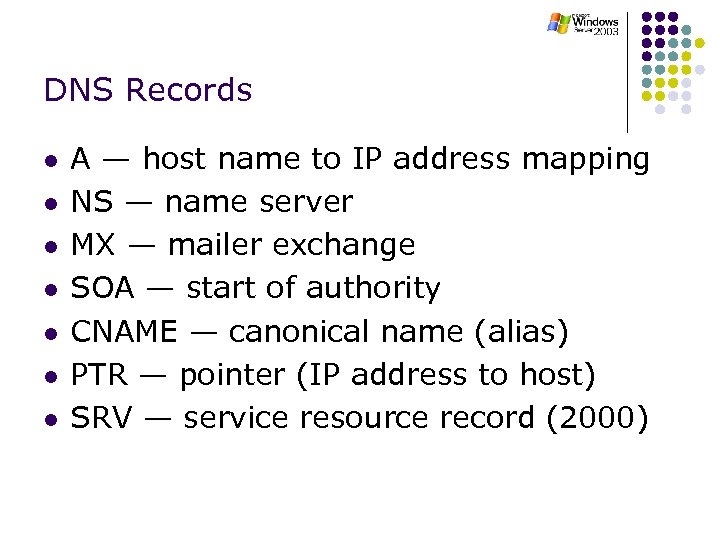
DNS Records l l l l A — host name to IP address mapping NS — name server MX — mailer exchange SOA — start of authority CNAME — canonical name (alias) PTR — pointer (IP address to host) SRV — service resource record (2000)
Active Directory and the DNS l Active Directory requires DNS l Used to locate services l l E. g. client locating domain controller Domain controller locating replication partners Active Directory requires SRV record support Active Directory prefers dynamic registration (DDNS)
How does AD use the DNS l l l A 2000 system will attempt to register its A record in the DNS Domain controllers will attempt to register around 20 SRV records in the DNS Things will break if the correct records for DCs are not in the DNS
Active Directory and DNS l 1. 2. 3. Active Directory is integrated with DNS in the following ways: Active Directory and DNS have the same hierarchical structure. Although separate and implemented differently for different purposes, an organization's namespace for DNS and Active Directory have an identical structure. For example, microsoft. com is a DNS domain and an Active Directory domain. DNS zones can be stored in Active Directory. If you are using the Windows 2000/3 DNS service, primary zone files can be stored in Active Directory for replication to other Active Directory domain controllers. Active Directory clients use DNS to locate domain controllers. To locate a domain controller for a specified domain, Active Directory clients query their configured DNS server for specific resource records.
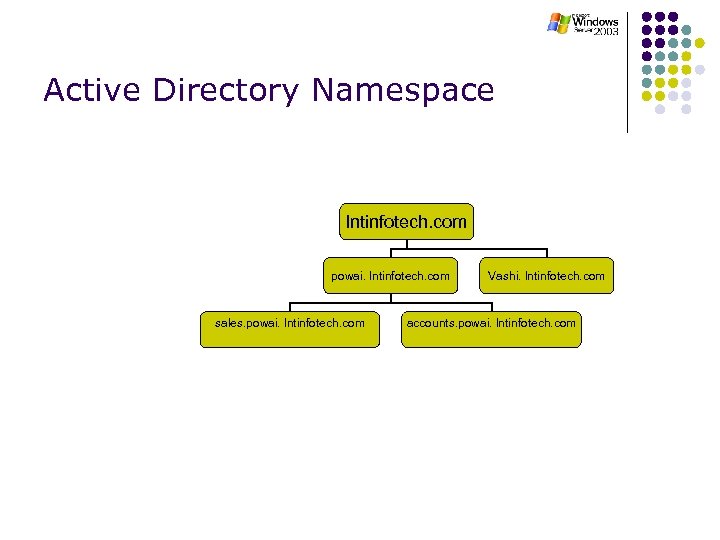
Active Directory Namespace lntinfotech. com powai. lntinfotech. com sales. powai. lntinfotech. com Vashi. lntinfotech. com accounts. powai. lntinfotech. com
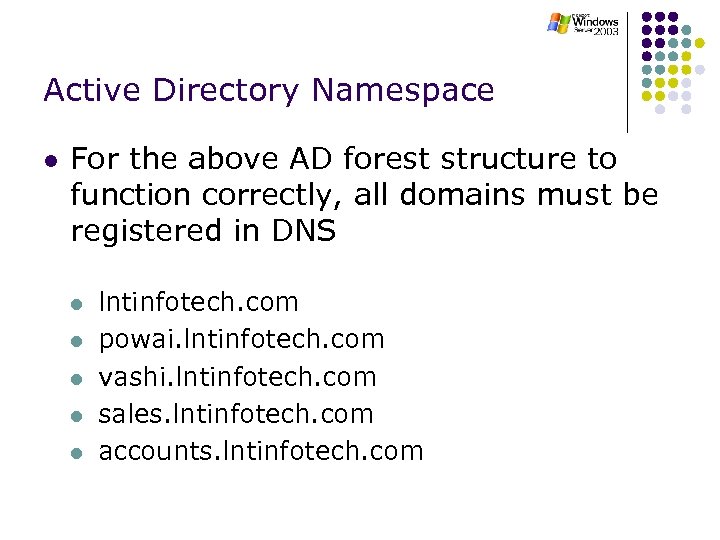
Active Directory Namespace l For the above AD forest structure to function correctly, all domains must be registered in DNS l l lntinfotech. com powai. lntinfotech. com vashi. lntinfotech. com sales. lntinfotech. com accounts. lntinfotech. com
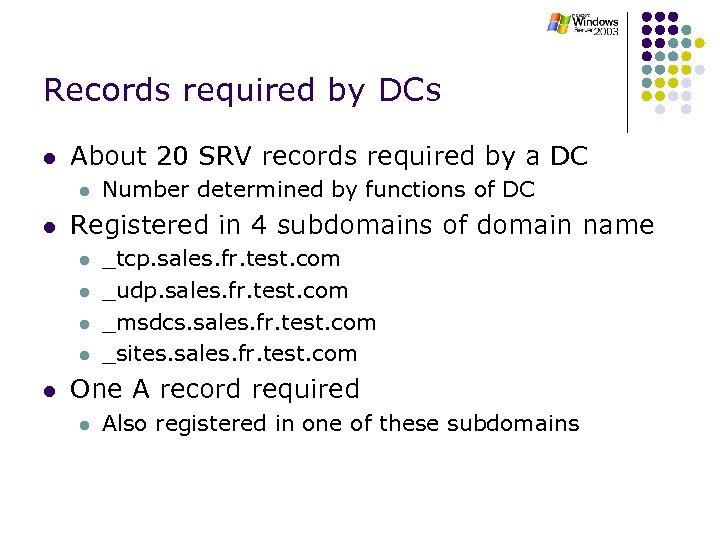
Records required by DCs l About 20 SRV records required by a DC l l Registered in 4 subdomains of domain name l l l Number determined by functions of DC _tcp. sales. fr. test. com _udp. sales. fr. test. com _msdcs. sales. fr. test. com _sites. sales. fr. test. com One A record required l Also registered in one of these subdomains
Agenda l l l Active Directory Logical Concepts Active Directory Physical Concepts DNS Replication Operations Masters
Active Directory Replication
Replication Details l Naming Partition that are replicated l l l Schema Partition Configuration Partition Domain Naming Partition Intra-site Inter-site l l Synchronous RPC over TCP/IP Asynchronous SMTP
Replication Partitions l Schema l l l Configuration l l l Definitions of attributes Replicated to all DCs in the forest AD Structure (domains, sites, and where the DCs are) Replicated to all DCs in the forest Domain l l Domain specific objects (users, groups, computers, and OUs) Replicated to all DCs in its domain
Replication Topologies l l Intra-Site Replication: AD replication between DCs within a Site Inter-site Replication: AD replication between Sites
Replication Intra-Site Replication l l RPC Replication in a Site No compression l l Uses notification process l l l Assumes good network connections 5 minutes -2 k Less – 2 k 3 KCC Generates a bi-directional Ring with extra edges
Replication Inter-Site Replication l l Replication between Sites DS-RPC (RPC over IP) or SMTP Transports SMTP can be used only between l GCs across Sites l DCs of different domains and in different sites Compression l l 10%-20% of original size Scheduled
Replication Site-Links, Bridges and Bridgehead Servers l Site Links link two or more sites l l l Site-Link Bridges l l l Cost and schedules can be specified Transitive (can be disabled) Bridge two or more site links Bridgehead servers KCC generates a minimum cost spanning tree
Agenda l l l Active Directory Logical Concepts Active Directory Physical Concepts DNS Replication Operations Masters
Active Directory Operations Masters
Operations Master Roles l l Five roles in total Two roles where there is one per forest l l l Schema master Domain naming master Three roles where there is one per domain l l l Relative Identifier (RID) master Primary Domain Controller (PDC) Emulator Infrastructure master
Schema Master l l Responsible for schema updates Only DC that can process schema updates l l After update, replicates changes to other DCs If this Operations master is unavailable, no schema changes can be made
Domain Naming Master l Responsible for changes to configuration naming context l l l Adding and removing domains Adding and removing cross references to domains in external directories After update, replicates to other DCs If unavailable, cannot add or remove domains Domain Naming Master must also be a global catalog server l May be unnecessary in single-domain forest?
RID Master l Objects e. g. users and groups, each have a unique security identifier (SID) l l l Consists of domain SID and unique relative identifier (RID) RID master allocates each DC a pool of RIDs When a DC’s RID pool falls too low, it requests additional RIDs from RID master also controls moving objects between domains With no RID master, when a DC runs out of RIDs, new security principals (i. e. users, groups etc. ) cannot be created on that DC
Infrastructure Master l Object in domain referencing object in another domain uses GUID, SID and DN l l Infrastructure master updates SID and DN in cross-domain references l l E. g. group in one domain referencing user or group in another domain E. g. if referenced object moves Multiple-domain, infrastructure master role must not be held by GC server l Not a problem in single-domain forests (because no external references)
PDC Emulator l Mixed Mode l l Acts as NT PDC to NT BDCs l Supports Netlogon replication Native and Mixed Modes l l Password changes replicated preferentially to PDC emulator l Authentication failures due to bad password at another DC forwarded to PDC emulator before failing completely Manages password changes from 95, 98, NT clients
PDC Emulator cont. l Native and Mixed Modes l By default, Group Policy snap-in runs on PDC emulator l l Reduces potential for Group Policy replication conflicts Can be changed
PDC Emulator cont. l Miscellaneous l All DCs synchronize their clock to that of the PDC emulator l l l PDC emulator of forest root domain should be synchronized to external time source In multi-domain forest, PDC emulator for domain synchronizes with PDC emulator of forest root domain Acts as Domain Master Browser
Default Placement of Roles l l First DC in a forest holds all roles First DC in a new domain within existing forest holds all domain roles l l l RID master Infrastructure master PDC emulator
Guidelines for the Placement of Roles l Keep schema master and domain naming master roles on same DC l l l DC should also be a global catalog server Put RID master and PDC emulator roles on the same DC In multi-domain forest, the infrastructure master must not be a global catalog server l Should have good connection to global catalog server
Guidelines for the Placement of Roles cont. l Single-domain forest l l Keep all five roles on same DC which should also be a global catalog server Multiple-domain forest l Move infrastructure master role to a DC that is not a global catalog server
Determining Role Placement l l l Replication Monitor l Easiest — Support Tools (2000 CD) Active Directory Users and Computers l PDC Emulator, Infrastructure master, RID master Active Directory Domains and Trusts l Domain Naming master Active Directory Schema Snap-In l Schema master l NB Schmmgmt. dll must be registered before first use Dumpfsmos l Resource kit NTDSUTIL l Command line tool included with 2000 server
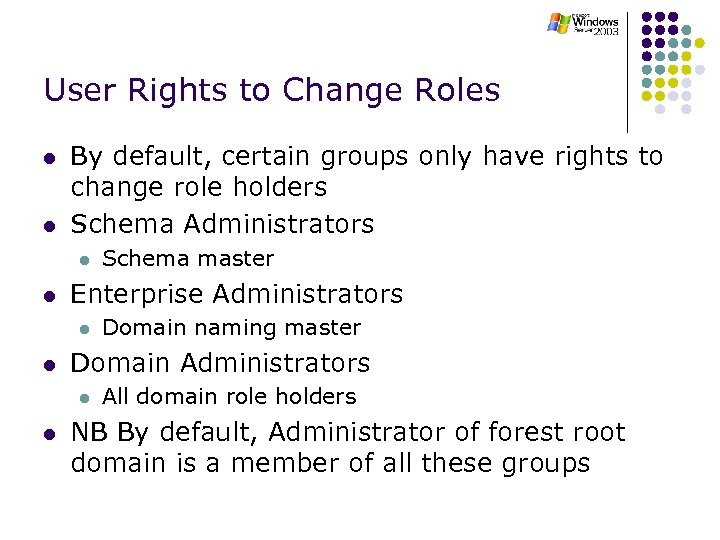
User Rights to Change Roles l l By default, certain groups only have rights to change role holders Schema Administrators l l Enterprise Administrators l l Domain naming master Domain Administrators l l Schema master All domain role holders NB By default, Administrator of forest root domain is a member of all these groups
Modifying Permissions to Change Roles l Adsiedit (support tools) tool allows all permissions to be changed
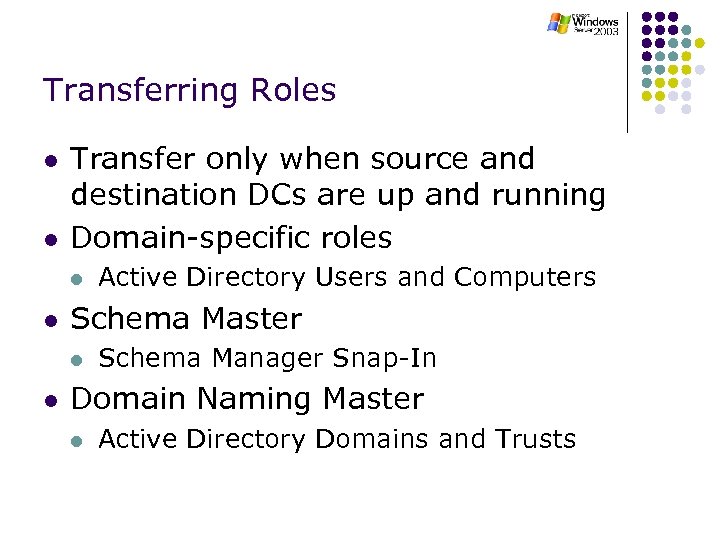
Transferring Roles l l Transfer only when source and destination DCs are up and running Domain-specific roles l l Schema Master l l Active Directory Users and Computers Schema Manager Snap-In Domain Naming Master l Active Directory Domains and Trusts
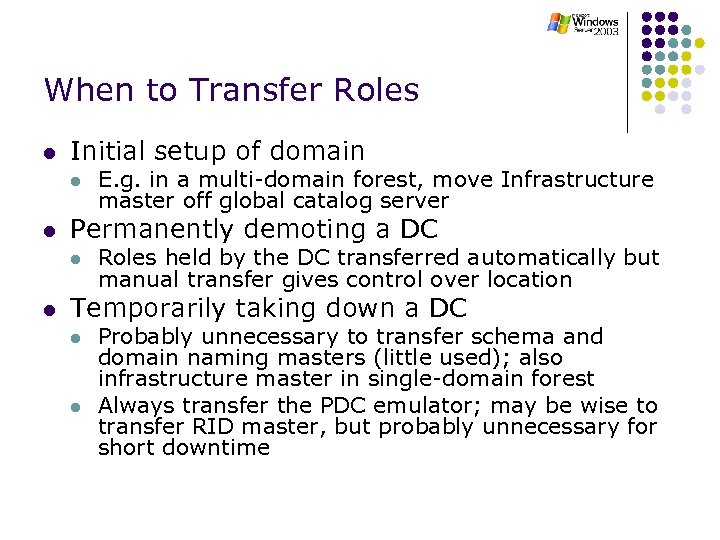
When to Transfer Roles l Initial setup of domain l l Permanently demoting a DC l l E. g. in a multi-domain forest, move Infrastructure master off global catalog server Roles held by the DC transferred automatically but manual transfer gives control over location Temporarily taking down a DC l l Probably unnecessary to transfer schema and domain naming masters (little used); also infrastructure master in single-domain forest Always transfer the PDC emulator; may be wise to transfer RID master, but probably unnecessary for short downtime
Seizing Roles l Generally only seize when originally role holder has failed irrecoverably and will not be restored from backup l l Exception — can fairly safely seize PDC emulator role Strangely, this is also the role that you can least do without
IIS 6. 0
IIS 6. 0 l l l Nearly 100% completely re-written Stack Overrun detection Components added/removed via Add or Remove Programs in Control Panel IIS Lockdown Tool built-in and called ‘Web Service Extensions’. NET Passport Integration
IIS 6. 0 – WWW Service l l Includes health monitoring, fault-tolerance and error detection Request Processing l l IIS 5. 0 has a single process (inetinfo) that farms out requests to out-of-process applications (dllhost’s) IIS 6. 0 splits this functionality across two new components: l l l HTTP. SYS (kernel-mode listener) WWW Service Administration and Monitoring (usermode admin tool) On a test server w/8 CPUs, IIS 6. 0 showed a 100% performance gain over IIS 5. 0 on the same hardware
IIS 6. 0 – WWW Service l Web Administration Service (WAS) l l l Part of core WWW Service Handles configuration changes and process management l Loads configuration from IIS metabase on startup Responsible for life cycle of worker processes l When to start l When to recycle l When to restart
IIS 6. 0 – HTTP. SYS/KM Queuing l Uses Worker Processes and Application Pools l l l Worker process executable (w 3 wp. exe) loads WWW service DLL into its working set to perform loading/unloading of ISAPI modules and for authorization and authentication HTTP. sys listens for requests and routes them to the appropriate application pool queue Application Pool is nothing more than an HTTP. sys queue and at least one worker process. Application pools serve requests for a unique Web application
IIS 6. 0 – HTTP. SYS/KM Queuing l l l Prevents third-party code from crashing IIS Failed worker processes automatically restarted There may be a temporary disruption in the processing of a request, but the request will be processed, and end-user experience is preserved
IIS 6. 0 – Worker Process Isolation l l l Isolation mode introduced in IIS 4. 0 No more in-process applications Admins create Application Pools l l Set of web applications that share one or more worker processes Application pools separated by process boundaries Can move running applications between application pools Application Pool ≈ Namespace Group
IIS 6. 0 – Worker Process Isolation l l l l Prevents worker process from harming IIS Eliminates lots of reboots Enables live debugging/development Self-healing (checks for faults, leaks, hangs, etc. ) Treats ‘applications’ as unit of administration Patches can be applied without interruption in service IIS 5. 0 Isolation Mode l l Backward compatibility Same as IIS 5. 0, but shoehorns into IIS 6. 0 HTTP. SYS model
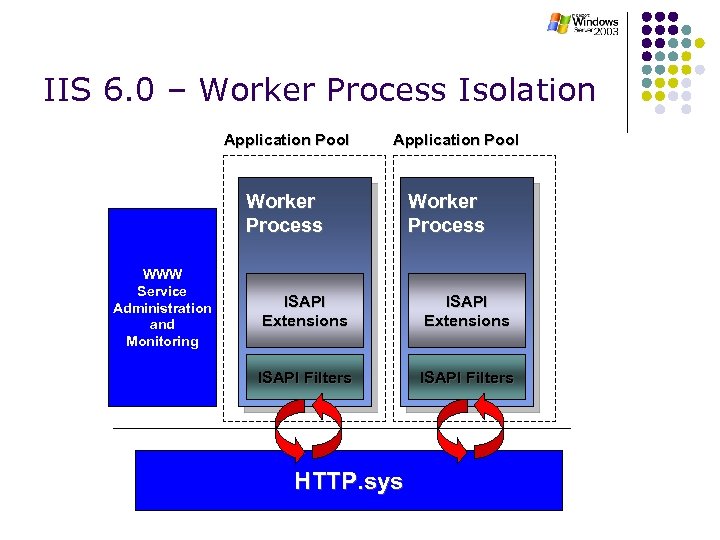
IIS 6. 0 – Worker Process Isolation Application Pool Worker Process WWW Service Administration and Monitoring Worker Process ISAPI Extensions ISAPI Filters HTTP. sys
IIS 6. 0 – FTP Service l FTP User Isolation l l Like a ‘home directory’ for FTP users Isolates their folder from other users’ folders User’s top-level folder appears as root of FTP Configurable PASV Port Range l PASV requires add’l connection (formerly ephemeral port but now configurable)
IIS 6. 0 – Security l l l l Ships in locked down state – only static content can be served New lower privilege service account (low privilege user context) ASP more secure (always run as a lowprivileged account – anonymous user) Auto-rejects requests for unknown file extensions More aggressive timeouts, limits on uploads, etc. to further harden against attacks Buffer overflow protection File verification before passing file requests to request handler (e. g. , ISAPI extension)
IIS 6. 0 – Metabase l XML format l l l Can be edited while IIS is running Improved backup/restore Extensible schema Backward compatible with metabase APIs and ADSI Smaller footprint, faster reading Configuration rollback
IIS 6. 0 – Command Line Tools l l l l iisweb. vbs: Create, delete, start, stop, and list Web sites iisftp. vbs: Create, delete, start, stop, and list FTP sites iisvdir. vbs: Create and delete virtual directories, or display the virtual directories of a given root iisftpdr. vbs: Create, delete, or display virtual directories under a given root iisconfg. vbs: Export/import IIS configuration to XML file iisback. vbs: Backup and restore IIS configuration iisapp. vbs: List process IDs and application pool IDs for currently running worker processes (W 3 WP. EXE) iisext. vbs: Configure Web service extensions
IIS 6. 0 - Performance l l l 20, 000 pooled applications in IIS 6 vs < 3, 000 in IIS 5 1, 000 isolated apps on a single machine, each with its own security identity on IIS 6 vs maximum of 100 on IIS 5 Support for Web Gardens l Where a set of equivalent processes on a computer each receive a share of the requests that are normally served by a single process
DHCP
l l l l DHCP Overview Types of Address Allocation DHCP Operation Configuration Guidelines Security Issues Troubleshooting Tips IP Address Management Products References
DHCP Overview l Dynamic Host Configuration Protocol l A tool for centralized management of TCP/IP addresses Address assignment for TCP/IP hosts is often an administrative burden l A recent Forrester survey found l § § 72% of respondents were having TCP/IP addressing problems 80% of respondents used manual configuration
DHCP Overview (Cont’d) l Dynamic Host Configuration Protocol l Provides configuration parameters to hosts l l IP address, address mask, router address, host name, and others Extension of the BOOTP protocol Allows use of existing BOOTP relay agents and configuration information l Expands functionality of BOOTP which just had support for manual address allocation l
DHCP Address Allocation l Three mechanisms for IP address allocation l l Automatic allocation - IP address is permanently assigned to a client Dynamic allocation - IP address is temporarily assigned (leased) to a client Manual allocation - IP address is assigned by a network administrator to a client All three can operate at same time
Automatic Address Allocation l l l Once an address is assigned to a client, that client has that same address “forever” (infinite lease) Assignment is based on client’s identifier (name or hardware address) Address can only be reclaimed by modifying configuration file/database and by removing address from client
Dynamic Address Allocation l l Client assigned address when it requests one for a limited time (lease time) Client must renew address request to extend lease (if granted) Addresses can be reclaimed by disallowing leases (new and extensions) after lease time expires Most useful for laptops and temporary users
Manual Address Allocation l l Network administrator enters IP address and client’s network address in DHCP/BOOTP configuration database Most useful for blackbox devices such as routers, gateways, printers, and terminal servers that need to have fixed and well-known IP addresses
DHCP Operation l l l DHCP uses UDP datagrams Client and server use broadcasts to communicate until client has assigned address Basic address assignment takes 5 steps . . .
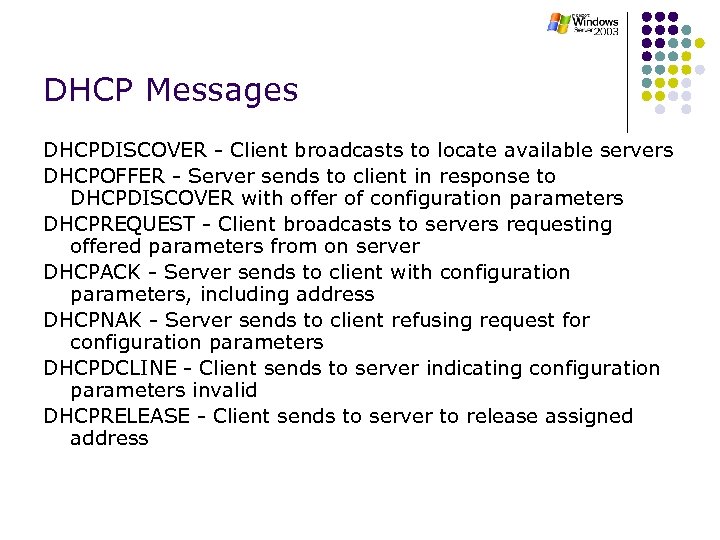
DHCP Messages DHCPDISCOVER - Client broadcasts to locate available servers DHCPOFFER - Server sends to client in response to DHCPDISCOVER with offer of configuration parameters DHCPREQUEST - Client broadcasts to servers requesting offered parameters from on server DHCPACK - Server sends to client with configuration parameters, including address DHCPNAK - Server sends to client refusing request for configuration parameters DHCPDCLINE - Client sends to server indicating configuration parameters invalid DHCPRELEASE - Client sends to server to release assigned address
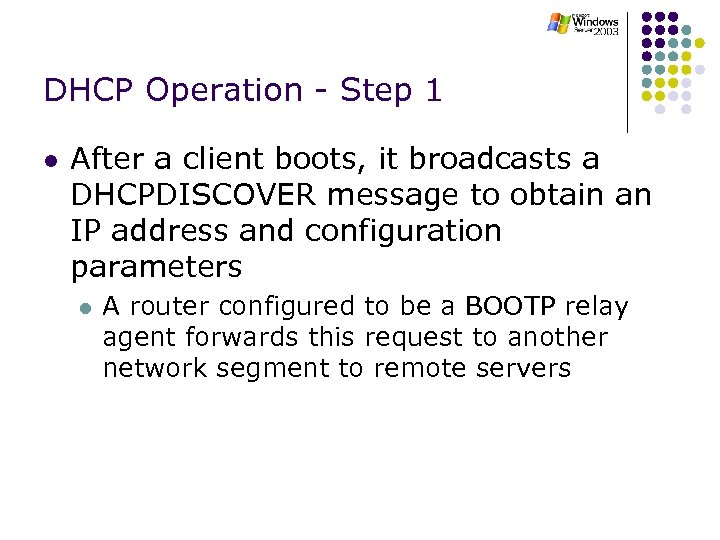
DHCP Operation - Step 1 l After a client boots, it broadcasts a DHCPDISCOVER message to obtain an IP address and configuration parameters l A router configured to be a BOOTP relay agent forwards this request to another network segment to remote servers
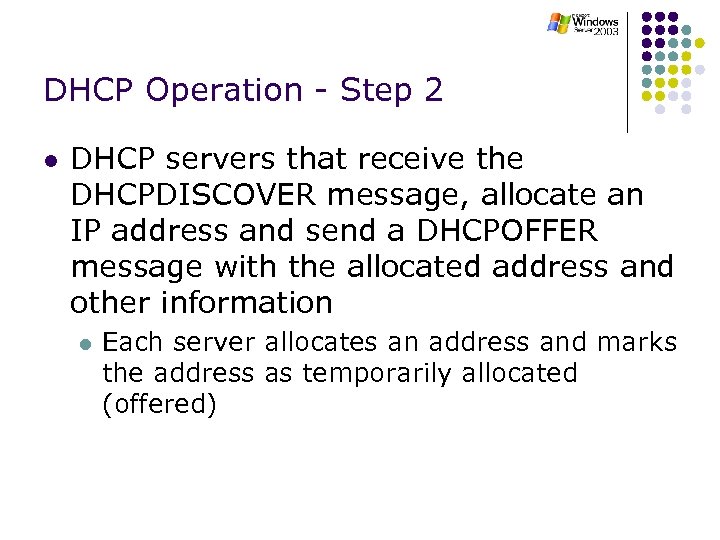
DHCP Operation - Step 2 l DHCP servers that receive the DHCPDISCOVER message, allocate an IP address and send a DHCPOFFER message with the allocated address and other information l Each server allocates an address and marks the address as temporarily allocated (offered)
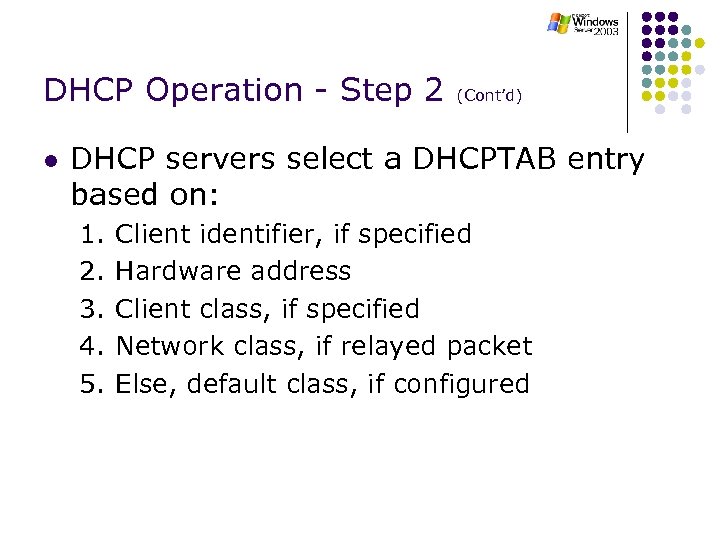
DHCP Operation - Step 2 (Cont’d) l DHCP servers select a DHCPTAB entry based on: 1. 2. 3. 4. 5. Client identifier, if specified Hardware address Client class, if specified Network class, if relayed packet Else, default class, if configured
DHCP Operation - Step 2 (Cont’d) l DHCP servers then assign an address: 1. If address already assigned to client, use it 2. If client requested address, try to assign it and use it if available 3. Otherwise, allocate an unallocated address from the address range usable for the client (first available address starting with end of range is used)
DHCP Operation - Step 3 l The client awaits DHCPOFFER messages l l If none received in a short time period, it broadcasts another DHCPDISCOVER message If received, selects one of the offers and broadcasts a DHCPREQUEST message indicating the selected address and server name
DHCP Operation - Step 4 l Servers receive the DHCPREQUEST message l l The selected server marks the leased address as in use and sends the client a DHCPACK message with the negotiated IP address, lease time, and network configuration parameters Other servers that offered an address now release their earlier temporary allocation
DHCP Operation - Step 5 l The client receives the DHCPACK message and now has a lease on the address and configuration parameters
DHCP Operation - Step 6 l After about 50% of the lease time has elapsed, the client sends the server a DHCPREQUEST message to renew the lease l l If server responds with DHCPACK, the lease and configuration parameters are updated If server responds with DHCPNAK message, client must give up address and start over at Step 1
DHCP Operation - Step 7 l If the client hasn’t been able to renew the lease (the server is down), it tries again at 87. 5% of the lease time and broadcasts a DHCPREQUEST to all servers l Any DHCP server can now return a DHCPACK containing the extended lease and updated parameters
DHCP Operation - Step 8 l l If client wasn’t able to renew lease, it must give up address when lease time expires and start over at Step 1 OR If client wants to give up address (such as during graceful shutdown), it sends server a DHCPRELEASE
Configuration Guidelines l Have at least two DHCP servers for redundancy l l Both can’t have same address ranges though! Exception: TCPware for Open. VMS DHCP on VMSclusters Work in progress on server-to-server communication (see draft-ietf-dhc-interserver-02. txt) Configure routers to be a BOOTP relay agent to forward requests between networks
Active Directory Group Policy
Group Policy l Who is this Group Policy Section for? l l Administrators who want to plan their Windows 2003 Group Policy. Experienced network managers who wish to lockdown their users' Start menu. Network Architects who need to turn a desktop vision into reality. Those upgrading from Windows 9 x or NT 4 who want an overview of XP policies.
Using Group Policy and its extensions, you can: l l Manage registry-based policy through Administrative Templates. Group Policy creates a file that contains registry settings that are written to the User or Local Machine portion of the registry database. User profile settings that are specific to a user who logs on to a given workstation or server are written to the registry under HKEY_CURRENT_USER (HKCU), and computer-specific settings are written under HKEY_LOCAL_MACHINE (HKLM). Assign scripts (such as computer startup and shutdown, and logon and logoff). Redirect folders from the Documents and Settings folder on the local computer to network locations. Manage applications (assign, publish, update, or repair). To do this, you use the Software Installation extension.
Group Policy Order of application l Policies are applied in this order: 1. 2. 3. 4. The unique local Group Policy object. Site Group Policy objects, in administratively specified order. Domain Group Policy objects, in administratively specified order. Organizational unit Group Policy objects, from largest to smallest organizational unit (parent to child organizational unit), and in administratively specified order at the level of each organizational unit.
What Can Group Policy Manage? l l Administrative Templates — registrybased settings Security settings Software installation Scripts l l Login, logout, startup, shutdown Folder redirection Remote Installation Services Internet Explorer maintenance
Registry-based Settings l l l Control over desktop, control panel access, Start Menu and Taskbar, some Windows components, and more… Generally three settings — Not configured, Enabled, Disabled Implemented via Administrative Templates l l Text file with. adm extension Extensible Can create your own Some programs ship with their own (Office)
Security Policy Settings l l l l l Account Policies — password, account, Kerberos Local Policies — auditing, user rights, security options Event Log — e. g. maximum size Restricted Group — group membership System Services — security and startup settings Registry — registry key security File System — file system security Public Key Policies — encryped data, certificate authorities IP Security Policies — IP security
Software Installation l l l Use to install software Use to upgrade software Three methods l l l Assign applications to users Assign applications to computers Publish applications to users l Available to users, but not installed unless requested
Script Settings l l Assign scripts (login, logout etc. ) Set processing order
Folder Redirection l Redirect special folders l l Start Menu, Desktop My Pictures, My Documents, Application Data
Parts of Group Policy Objects l Each GPO has two sections l l l Each part may be disabled l l Computer Configuration User Configuration Properties of GPO/General Recommended — if a section is unused, disable it l E. g. On GPO to configure user desktop, disable Computer Configuration section
Creating Group Policy Objects l AD Users and Computers l l l AD Sites and Services l l Properties of Domain/OU Creates new GPO linked to that domain/OU To create site GPO Also via MMC Group Policy Snap-in l To create a GPO not linked to a site, domain or OU
How are Group Policy Objects Applied l GPOs may be linked to AD containers l l Sites, Domains and Organizational Units (OUs) Apply to users and computers within container l Objects in child OUs inherit GPO settings from parent OUs, domain and site unless explicitly blocked l l No inheritance across domain boundaries One GPO may be linked to multiple containers Multiple GPOs may be linked to a container GPOs are not linked to groups
Modifying GPO Inheritance l Block Inheritance l l If enabled on a container, objects in container do not receive any GPO settings from parent containers No Override l l If enabled on a GPO link, inheritance of GPO settings cannot be stopped via block inheritance NB Applied to link, not the GPO itself
Filtering Group Policy Settings l l GPO settings applied to all objects in container Filter using security groups l Change default GPO permissions l l Need Read and Apply GP ACEs to be able to apply a GPO Need Read and Write GP ACEs to be able to read and modify a GPO
Disabling and Inheriting: — What do the Properties Belong to? l Properties of a given GPO l l l Properties of a given container l l Disable Computer Configuration Settings Disable User Configuration Settings Block policy inheritance Properties of a given link l l No override Disabled: the GPO is not applied to this container
Storage of Group Policy Settings l Stored in client registry l l l Special registry keys used l l l HKEY_LOCAL_MACHINE (Computer settings) HKEY_CURRENT_USER (User settings) SoftwarePolicies (preferred) SoftwareMicrosoftWindowsCurrent. Versi onPolicies Removed when GPO no longer applies
When are GP Settings Applied? l Computer settings l l l User settings l l l On boot According to periodic refresh cycle On user logon According to periodic refresh cycle If computer and user settings conflict, computer settings take precedence
Refreshing Group Policy l Default refresh intervals l l For User and Computers— very 90 minutes Domain controllers — every five minutes Changed by altering administrative template settings for user or computers Exception — software installation and folder redirection policies only applied on boot or user logon, not periodically
Conflicts l l Where settings for GPO of parent container conflict with those for GPO of child, child container settings win Where settings from different GPOs linked to same container conflict, settings of GPO highest in list are win l l Use Up/Down to change position Exception — where computer and user settings conflict, computer settings win l Except IP Security and User Rights settings
Managing Group Policy Objects l Creating or editing GPOs controlled by PDC emulator by default l l To change l l Minimise conflicts Group Policy mmc snap-in/View/DC Options Or use Group Policy Recommended that this is left unchanged NB By default, only Domain Admins, Enterprise Admins, Group Policy Creator Owners and System account can create and edit GPOs
Loopback Processing l l l Computer settings part of GPO linked to OU apply only to computers within OU Similarly, user settings apply only to users within OU Therefore, normally, user in OU A logging on to computer in OU B gets combination of user settings from OU A GPOs and computer settings from OU B GPOs (and any inherited etc. )
Loopback Processing cont. l May want to apply same user settings to any user logging on to a given workstation, regardless of user OU l l E. g. classroom, public area workstations Loopback processing does this l l Merge mode applies normal GPOs for user as well (but those from computer take precedence) Replace mode does not apply normal GPOs for user
Local Group Policy l l l Computers also have a single Local Group Policy Object (LGPO) Only supports Security Settings, Administrative Templates and Scripts Processed before AD GPOs l l Block inheritance does not stop its application Generally unused in an AD setup l Most useful for configuring standalone computers
Delegation l It is possible to delegate responsibility for the following tasks l l l Managing links Creating GPOs Editing GPOs
Recommendations l l Disable unused parts of GPO (computer, user settings) Limit use of inheritance blocking, no override, loopback processing and filtering l l Simplifies troubleshooting Limit total number of GPOs that apply to a user or computer l Improves logon times
Recommendations cont. l l l Limit the number of admins who can edit GPOs Test thoroughly before applying to users/computers Document settings l Use spreadsheets from Common Desktop Management Scenarios package
Скачать презентацию ADS and IIS Training 16 -17 September 2006
c0efde983a61c90e5e0517f9448137b1.ppt