 Скачать презентацию Adobe Photoshop 7 0 Design Professional ENHANCING SPECIFIC
8905d80be063a7486ed58695f1fb56e1.ppt
- Количество слайдов: 36



Adobe Photoshop 7. 0 Design Professional ENHANCING SPECIFIC SELECTIONS
Unit Lessons Create an alpha channel Use Extract to isolate an object Erase areas in an image to enhance appearance Fix imperfections in an image Use the Magic Wand tool to select objects Learn how to create snapshots Create multiple-image layouts Working with Layers Unit I 2
Using Channels Nearly every image opened or created in Photoshop is separated into channels Channels are used to house the color information for each layer and layer mask in an image Working with Layers Unit I 3
Fixing Imperfections Isolate areas using the Extract feature Erase areas using a variety of eraser tools Take a sample and then paint that sample over an area using the Clone Stamp tool Working with Layers Unit I 4
Creating Snapshots Use the snapshot command to make a temporary copy of any state of an image The snapshot is added to the top of the History palette Working with Layers Unit I 5
Advantages of Snapshots Name a snapshot to make it easy to identify and manage Compare changes to documents easily: take a snapshot before and after making changes Recover work easily Working with Layers Unit I 6
Using Automation Features Create a document that contains various sizes of the same image or several different images Use the Picture Package feature to print images in a variety of sizes and shapes on a single sheet Create a contact sheet consisting of thumbnail images Working with Layers Unit I 7
Defining Channels Created automatically in a new document Used to store color information about images Example: – A CMYK image has at least four channels (cyan, magenta, yellow, black) Working with Layers Unit I 8
More on Channels An image can consist of from 1 to 24 color channels Default channels are color channels contained in a document and created automatically Add Alpha or Spot channels to documents displayed in all color modes, except the bitmap modes Working with Layers Unit I 9
Alpha and Spot Channels Alpha Channels and Spot Channel specific color information added to the document Alpha channel is used to: – Create and store masks to manipulate, isolate, or protect parts of an image Spot channel contains: – Information about special pre-mixed inks used in CYMK color printing Working with Layers Unit I 10
Understanding Alpha Channels Create on the Channels palette Can create an alpha channel that masks all or specific areas of a layer Use alpha channels to: – Preserve a selection to experiment with – Use later – Create special effects – Save and reuse in other documents Working with Layers Unit I 11
Saving an Alpha Channel Use the following formats to save an alpha channel: – PSD – PDF – PICT – TIFF – Raw Working with Layers Alpha channels do not print Unit I 12
Understanding the Channels Palette Lists all the default channels contained in a layer Manages all the document’s channels To access: – Click the Channels tab next to the Layers tab Working with Layers Unit I 13
Order of Channels On the Channels palette, channels appear in the following order: – Composite channel: combination of other default channels – Additional default channels that are based on existing color modes – Spot color channels – Alpha channels Working with Layers Unit I 14
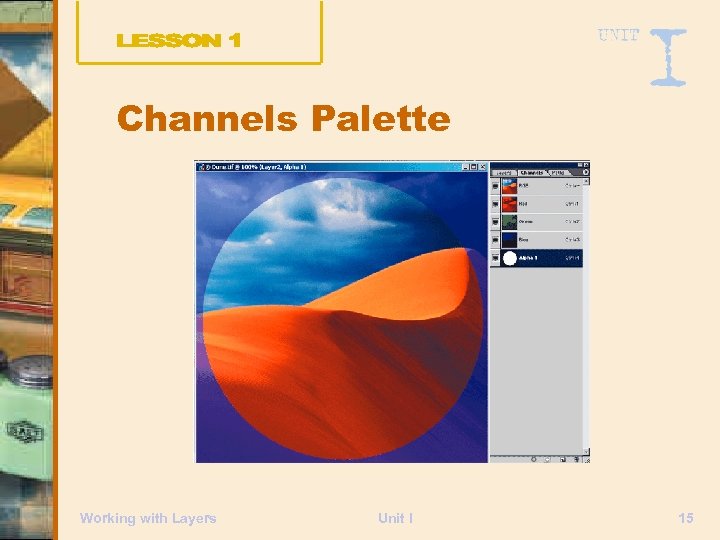
Channels Palette Working with Layers Unit I 15
Channel Properties Hide channels Re-order channels View channels as thumbnails on the Channels palette Working with Layers Unit I 16
Creating an Alpha Channel Select a portion of an image Click the Save selection as channel button on the Channels palette Double-click the Alpha 1 thumbnail on the Channels palette Click the color box in the Channel Options dialog box Set the color and select options Working with Layers Unit I 17
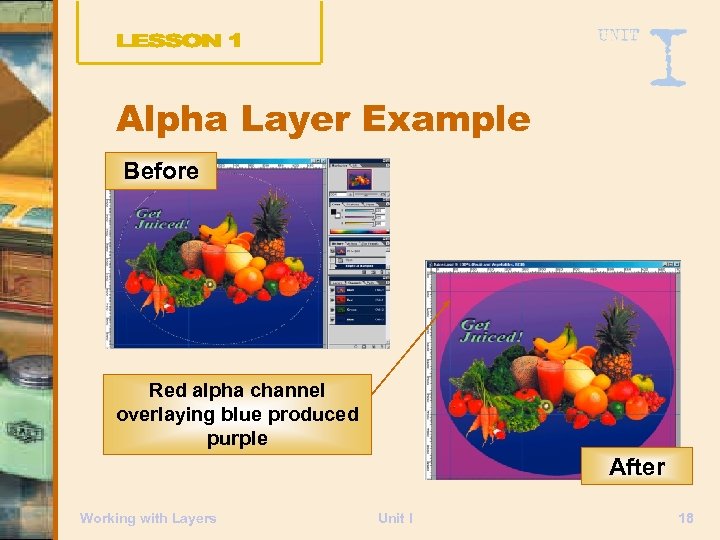
Alpha Layer Example Before Red alpha channel overlaying blue produced purple After Working with Layers Unit I 18
Isolating Objects Use the Extract feature to isolate a foreground object from its background After extracting an image, modify the extracted object layer as required Working with Layers Unit I 19
Using Extract Use tools in the Extract dialog box to extract objects: – Use the Edge Highlighter tool to trace the edge of the object to extract – Use the Fill tool to select everything inside the edge Working with Layers Unit I 20
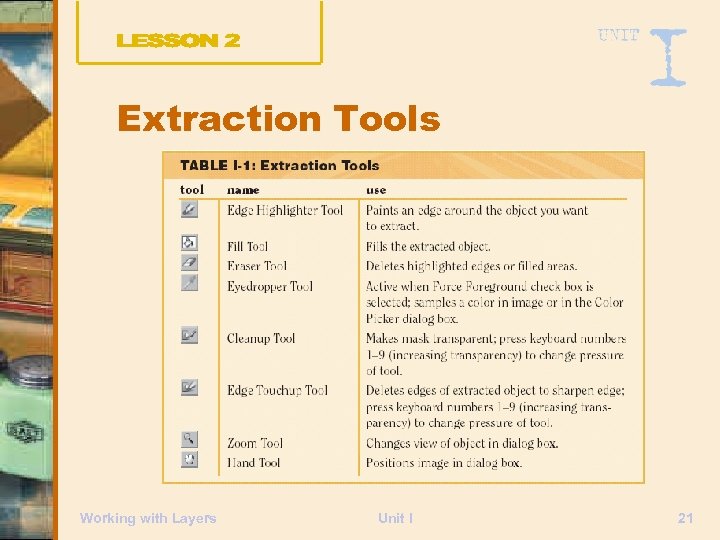
Extraction Tools Working with Layers Unit I 21
Erasing Areas Use Eraser tools to erase an area without going through the extraction process Three Eraser tools are available: – Eraser tool – Background Eraser tool – Magic Eraser tool Working with Layers Unit I 22
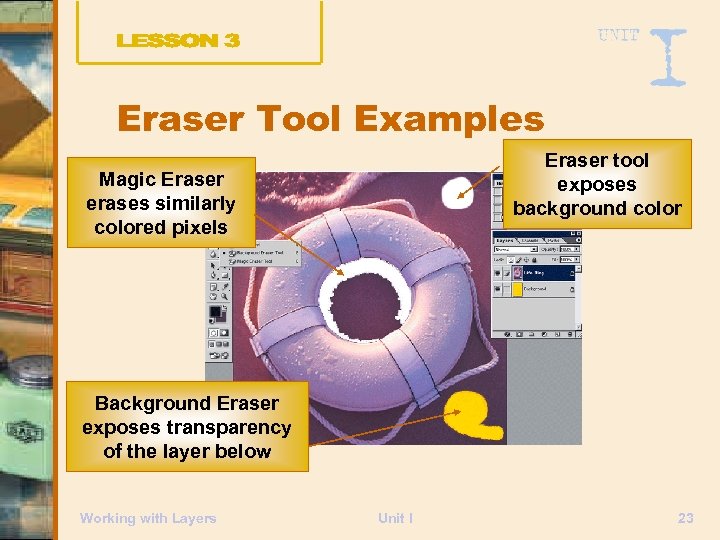
Eraser Tool Examples Eraser tool exposes background color Magic Eraser erases similarly colored pixels Background Eraser exposes transparency of the layer below Working with Layers Unit I 23
Touching Up Areas Use the Clone Stamp tool to copy a sample in an image, then paste it over an area to cover Size of the sample taken depends on the brush tip size selected Working with Layers Unit I 24
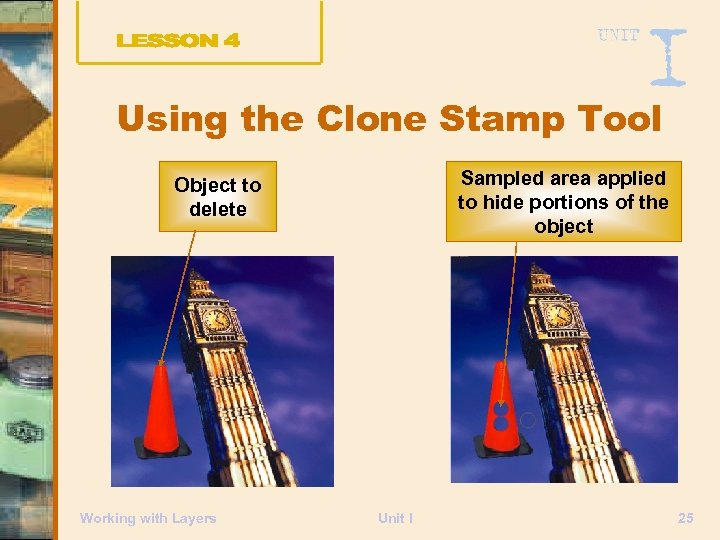
Using the Clone Stamp Tool Sampled area applied to hide portions of the object Object to delete Working with Layers Unit I 25
Using the Magic Wand Tool Use the Magic Wand tool to choose pixels that are similar to pixels clicked in an image Specific tolerance settings Specify whether to select only contiguous pixels Working with Layers Unit I 26
Understanding Tolerance setting determines the range of colors that can be selected with the Magic Wand Tool Example: – Low tolerance: Magic Wand tool selects a narrow range of pixels – High tolerance: Magic Wand tool selects a wider range of pixels Working with Layers Unit I 27
Using the Eyedropper Tool Area selected by the Magic Wand tool is related to the settings for the Eyedropper tool While working with the Magic Wand tool, verify or change Eyedropper Tool settings as needed Working with Layers Unit I 28
Understanding Snapshots Create a snapshot of of the History palette image: – Before beginning an editing session – After crucial changes have been made Use the snapshot to revert to original image settings, if required Working with Layers Unit I 29
Creating a Snapshot Click the Create new snapshot button on the History palette Each new snapshot is numbered consecutively Snapshots appear in order at the top of the History palette Working with Layers Unit I 30
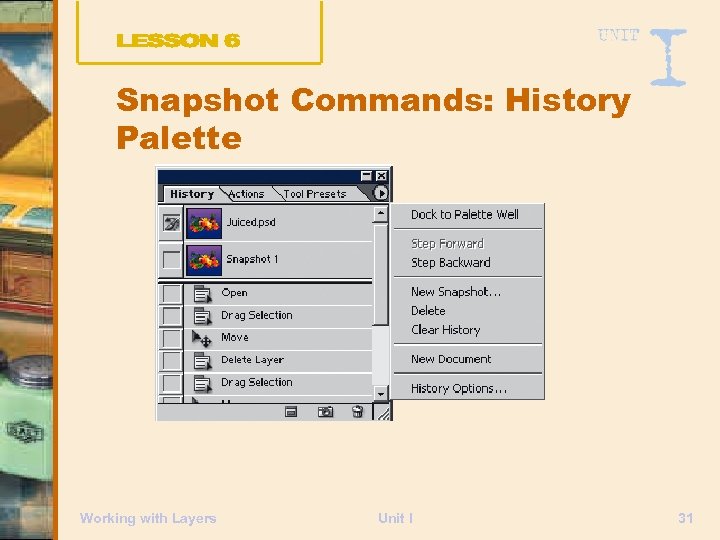
Snapshot Commands: History Palette Working with Layers Unit I 31
Understanding a Picture Package Generate 20 types of multipleimage layouts A picture package can contain multiple sizes of a single document Working with Layers Unit I 32
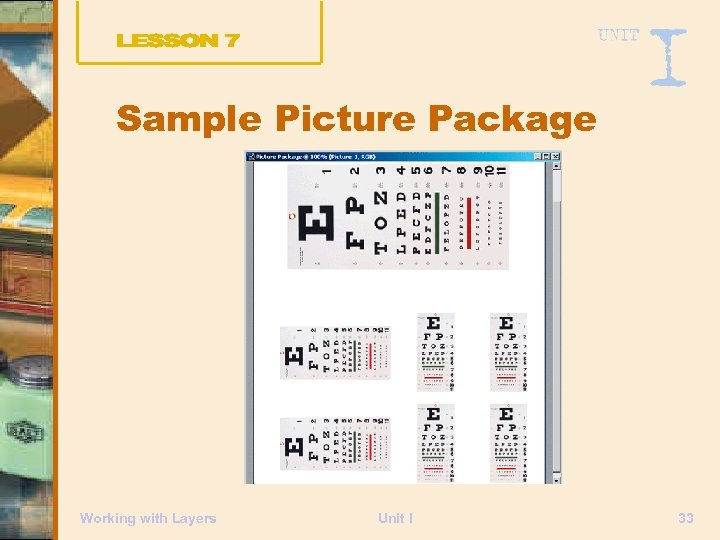
Sample Picture Package Working with Layers Unit I 33
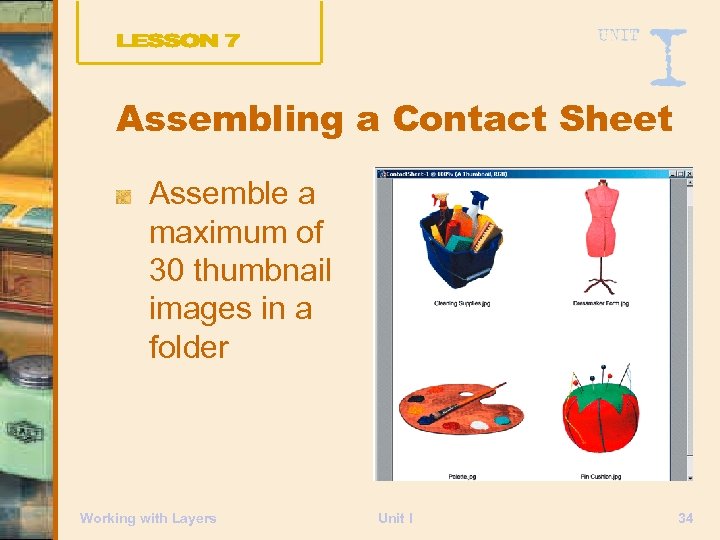
Assembling a Contact Sheet Assemble a maximum of 30 thumbnail images in a folder Working with Layers Unit I 34
Unit I Tasks Define channels and create an alpha channel Use the Extract feature to isolate objects Use Eraser tools Use the Clone Stamp tool to fix errors Working with Layers Unit I 35
Unit I Tasks Use the Image Wand tool to select objects Create and use snapshots Use the Picture Package feature to create multiple-image layouts Working with Layers Unit I 36
Скачать презентацию Adobe Photoshop 7 0 Design Professional ENHANCING SPECIFIC
8905d80be063a7486ed58695f1fb56e1.ppt