 Скачать презентацию Adding Network Printers Training By Gary Lane
4606f987501e13f26c303b4685aea2d5.ppt
- Количество слайдов: 13




Adding Network Printers Training By Gary Lane
Overview • Checking to see which printers are loaded • Adding network printers 2

Checking Printers • Click start • For Windows 2000 click Settings, Printers • For Windows XP click Printers and Faxes 3

Checking Printers • • Local Printers will state name only Network Printers will state the -name of the printer - on - the network computer that controls ex. ESColor on msserver 4
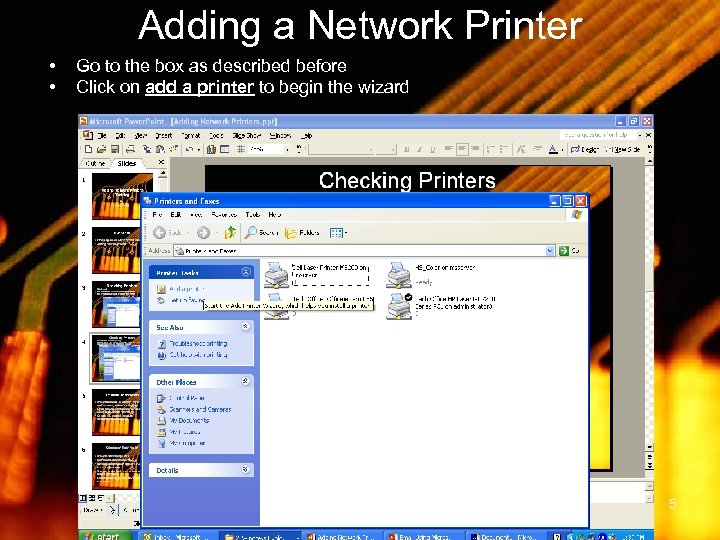
Adding a Network Printer • • Go to the box as described before Click on add a printer to begin the wizard 5
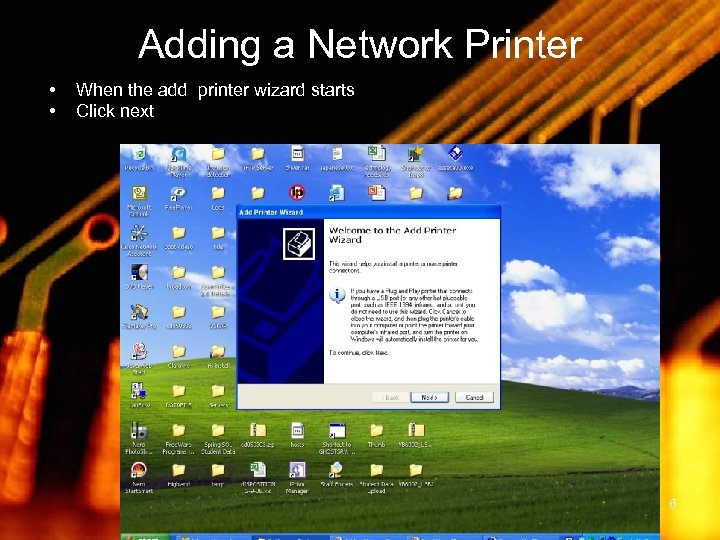
Adding a Network Printer • • When the add printer wizard starts Click next 6

Adding a Network Printer • • Click on the radio button with A network printer or a printer attached to another computer Click next 7

• • • Adding a Network Printer The Computer will ask you how do you want to locate the printer Leave the default selection of find printer in a directory marked Click Next 8
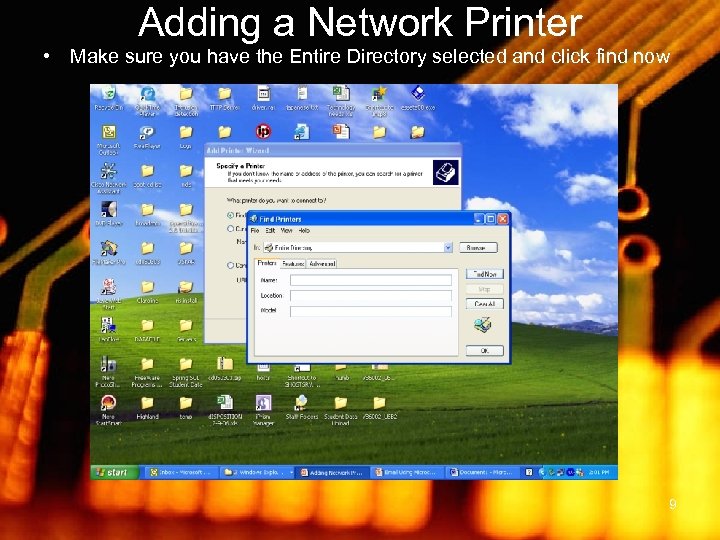
Adding a Network Printer • Make sure you have the Entire Directory selected and click find now 9

Adding a Network Printer • After the box appears make sure you click the single box in the upper right had corner to maximize the screen 10
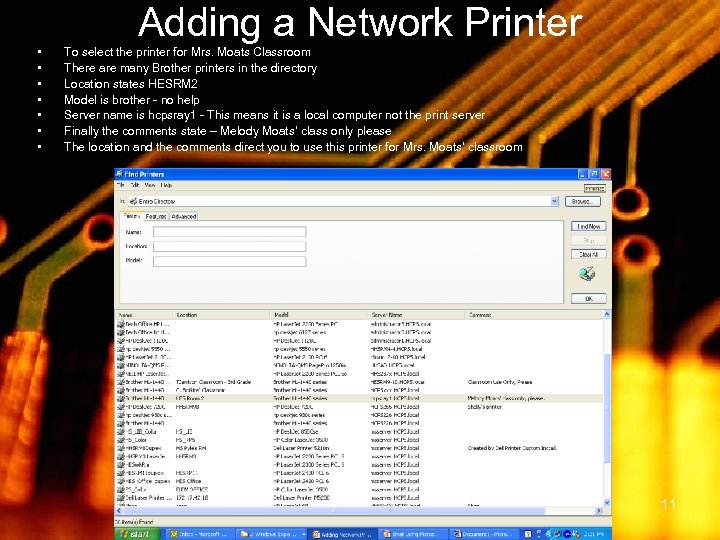
Adding a Network Printer • • To select the printer for Mrs. Moats Classroom There are many Brother printers in the directory Location states HESRM 2 Model is brother - no help Server name is hcpsray 1 - This means it is a local computer not the print server Finally the comments state – Melody Moats’ class only please The location and the comments direct you to use this printer for Mrs. Moats’ classroom 11
Adding a Network Printer • Finally Highlight the printer you selected • Click OK • Check to see if the printer loaded following the steps for checking printers 12
Review • Checking printers • Adding network printers • Questions? 13
Скачать презентацию Adding Network Printers Training By Gary Lane
4606f987501e13f26c303b4685aea2d5.ppt