


 Скачать презентацию ACSC 299 Visual Programming Windows Phone UI
Lecture 11 - Windows Phone UI.pptx
- Количество слайдов: 23
 ACSC 299 – Visual Programming Windows Phone UI 1
 Agenda Silverlight and XNA Templates Emulator Grid Layout 2
 Agenda Templates Navigating to the UI Editor (Source: http: //www. jeffblankenburg. com/2010/09/30/31 days-of-windows-phone-7/) 3
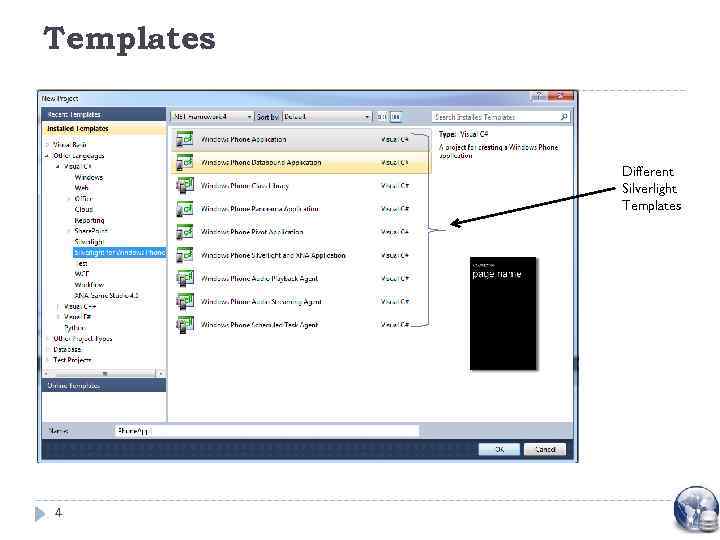 Templates Different Silverlight Templates 4
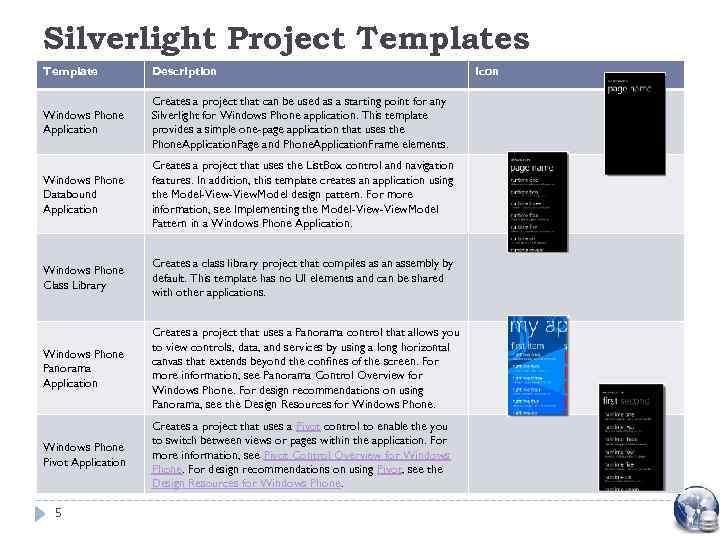 Silverlight Project Templates Template Description Windows Phone Application Creates a project that can be used as a starting point for any Silverlight for Windows Phone application. This template provides a simple one-page application that uses the Phone. Application. Page and Phone. Application. Frame elements. Windows Phone Databound Application Creates a project that uses the List. Box control and navigation features. In addition, this template creates an application using the Model-View. Model design pattern. For more information, see Implementing the Model-View. Model Pattern in a Windows Phone Application. Windows Phone Class Library Creates a class library project that compiles as an assembly by default. This template has no UI elements and can be shared with other applications. Windows Phone Panorama Application Creates a project that uses a Panorama control that allows you to view controls, data, and services by using a long horizontal canvas that extends beyond the confines of the screen. For more information, see Panorama Control Overview for Windows Phone. For design recommendations on using Panorama, see the Design Resources for Windows Phone Pivot Application Creates a project that uses a Pivot control to enable the you to switch between views or pages within the application. For more information, see Pivot Control Overview for Windows Phone. For design recommendations on using Pivot, see the Design Resources for Windows Phone. 5 Icon
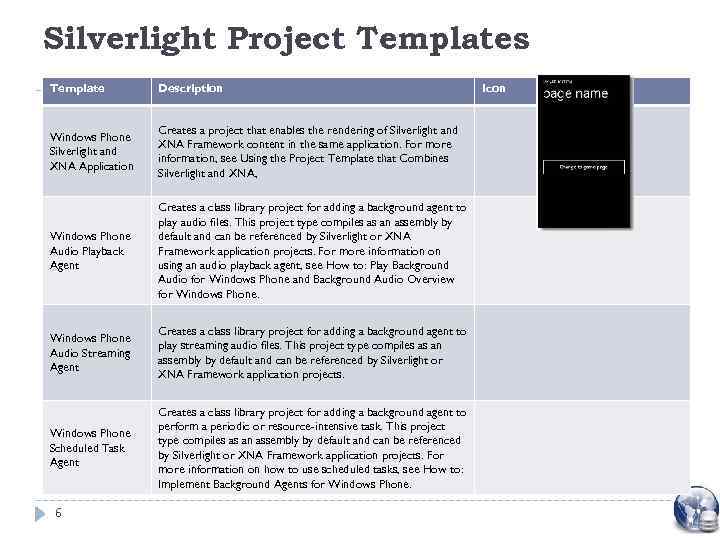 Silverlight Project Templates Template Description Windows Phone Silverlight and XNA Application Creates a project that enables the rendering of Silverlight and XNA Framework content in the same application. For more information, see Using the Project Template that Combines Silverlight and XNA, Windows Phone Audio Playback Agent Creates a class library project for adding a background agent to play audio files. This project type compiles as an assembly by default and can be referenced by Silverlight or XNA Framework application projects. For more information on using an audio playback agent, see How to: Play Background Audio for Windows Phone and Background Audio Overview for Windows Phone Audio Streaming Agent Creates a class library project for adding a background agent to play streaming audio files. This project type compiles as an assembly by default and can be referenced by Silverlight or XNA Framework application projects. Windows Phone Scheduled Task Agent Creates a class library project for adding a background agent to perform a periodic or resource-intensive task. This project type compiles as an assembly by default and can be referenced by Silverlight or XNA Framework application projects. For more information on how to use scheduled tasks, see How to: Implement Background Agents for Windows Phone. 6 Icon
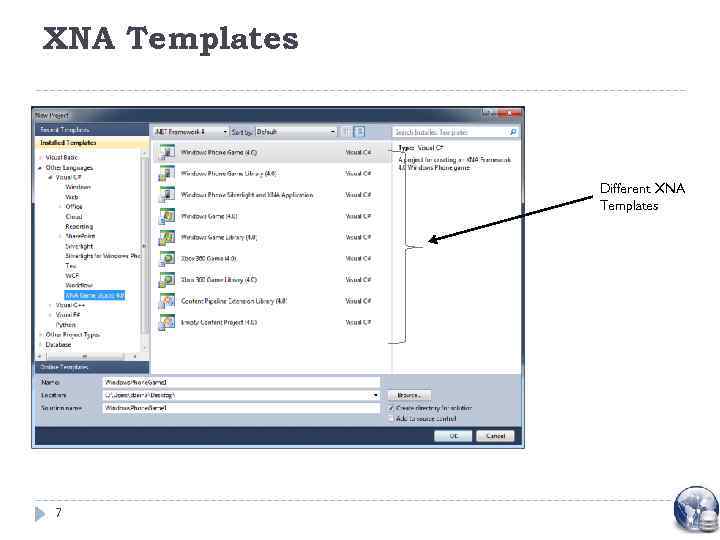 XNA Templates Different XNA Templates 7
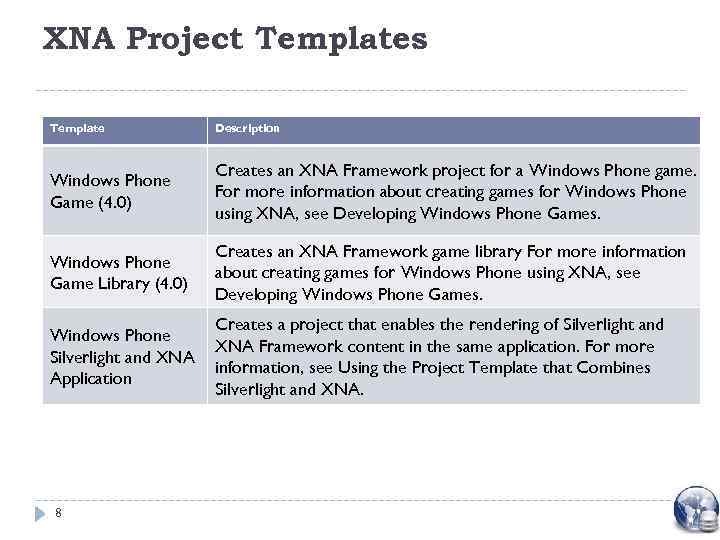 XNA Project Templates Template Description Windows Phone Game (4. 0) Creates an XNA Framework project for a Windows Phone game. For more information about creating games for Windows Phone using XNA, see Developing Windows Phone Games. Windows Phone Game Library (4. 0) Creates an XNA Framework game library For more information about creating games for Windows Phone using XNA, see Developing Windows Phone Games. Windows Phone Silverlight and XNA Application Creates a project that enables the rendering of Silverlight and XNA Framework content in the same application. For more information, see Using the Project Template that Combines Silverlight and XNA. 8
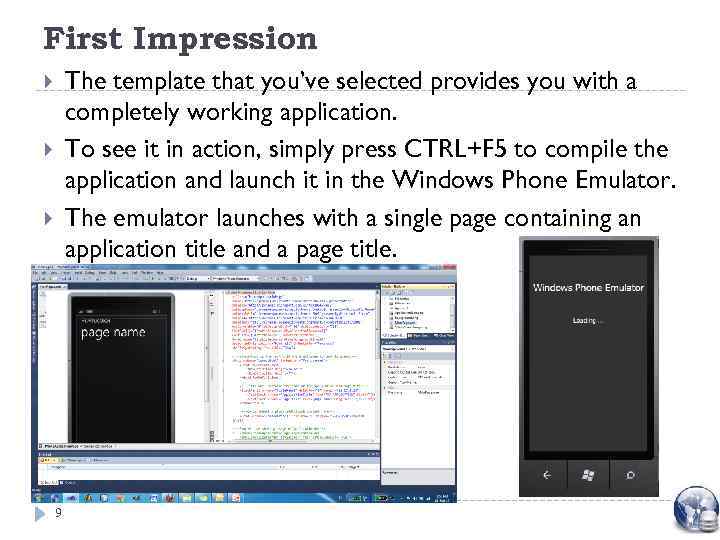 First Impression The template that you’ve selected provides you with a completely working application. To see it in action, simply press CTRL+F 5 to compile the application and launch it in the Windows Phone Emulator. The emulator launches with a single page containing an application title and a page title. 9
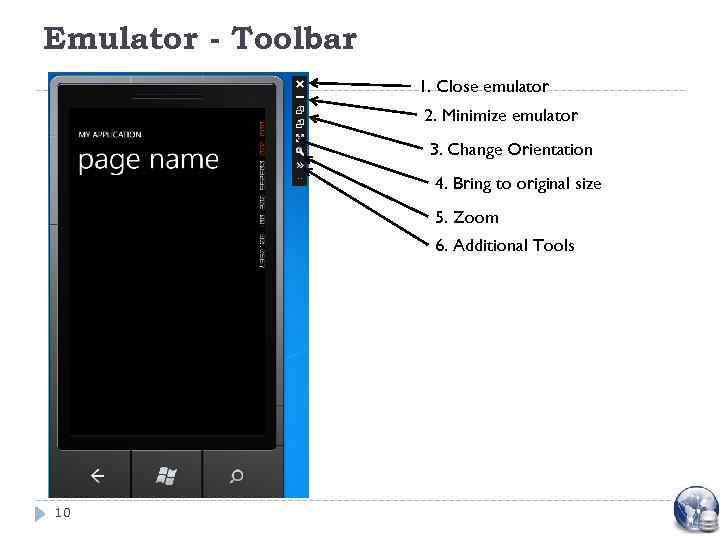 Emulator - Toolbar 1. Close emulator 2. Minimize emulator 3. Change Orientation 4. Bring to original size 5. Zoom 6. Additional Tools 10
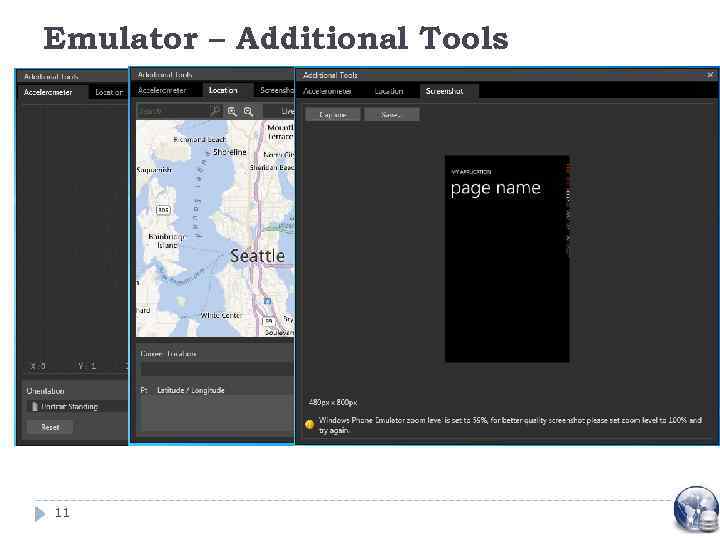 Emulator – Additional Tools 11
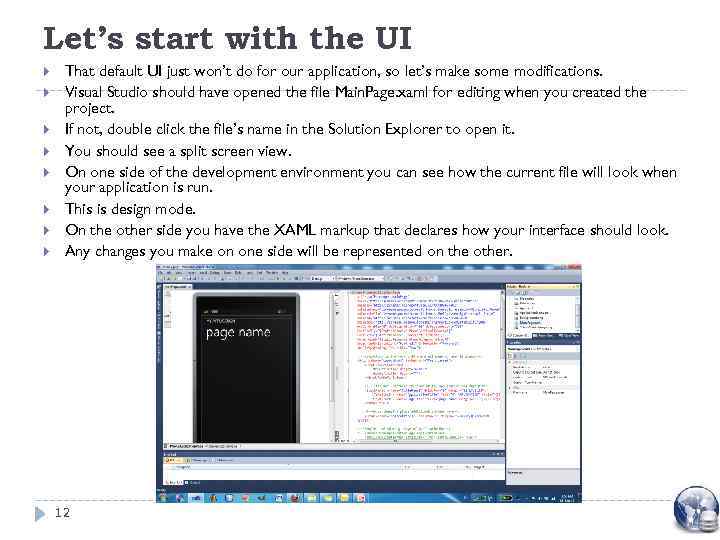 Let’s start with the UI That default UI just won’t do for our application, so let’s make some modifications. Visual Studio should have opened the file Main. Page. xaml for editing when you created the project. If not, double click the file’s name in the Solution Explorer to open it. You should see a split screen view. On one side of the development environment you can see how the current file will look when your application is run. This is design mode. On the other side you have the XAML markup that declares how your interface should look. Any changes you make on one side will be represented on the other. 12
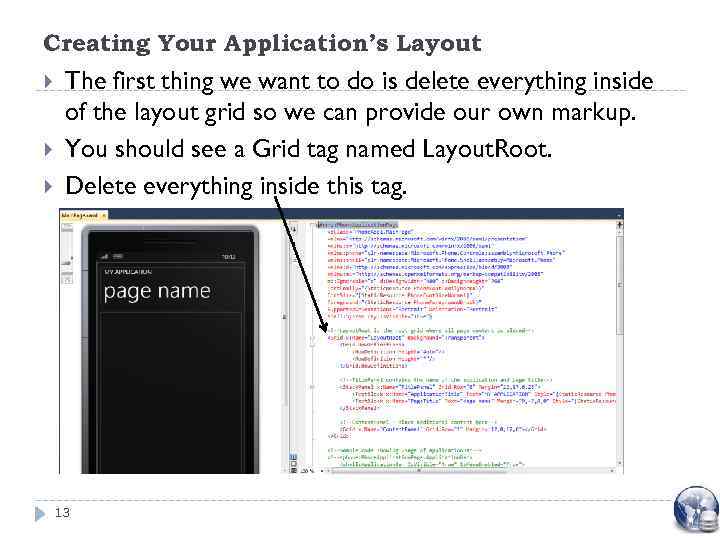 Creating Your Application’s Layout The first thing we want to do is delete everything inside of the layout grid so we can provide our own markup. You should see a Grid tag named Layout. Root. Delete everything inside this tag. 13
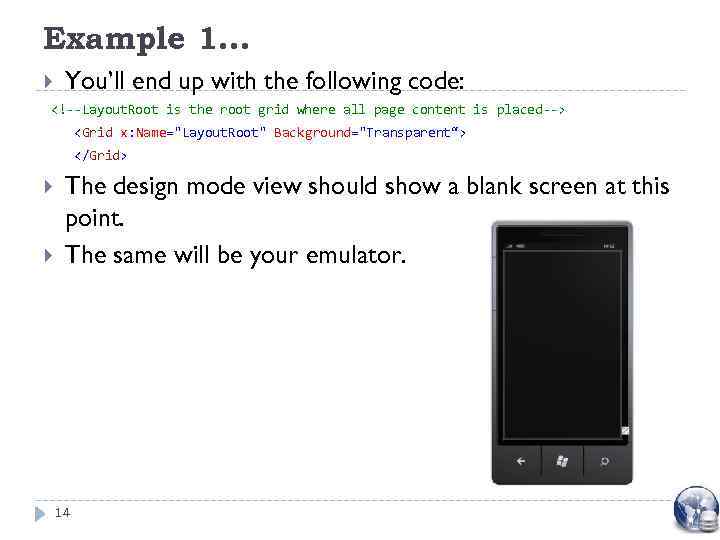 Example 1. . . You’ll end up with the following code:
 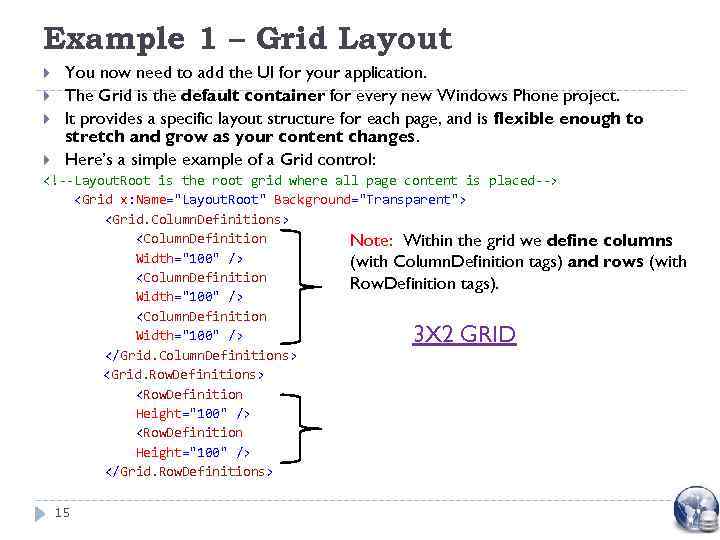 Example 1 – Grid Layout You now need to add the UI for your application. The Grid is the default container for every new Windows Phone project. It provides a specific layout structure for each page, and is flexible enough to stretch and grow as your content changes. Here’s a simple example of a Grid control:
OUTPUT:
 From XAML TO C# The previous example is written in Xaml; and thus is very descriptive and both human and machine readable. However, many times you’re not going to know how many rows your table needs, or even how many elements you’ll have to place in it. In those cases, you can recreate any Xaml element via code in your code-behind file. Here’s what the exact same grid would look like created dynamically in C#. You should notice that it’s significantly more difficult to determine what the end result looks like: 17
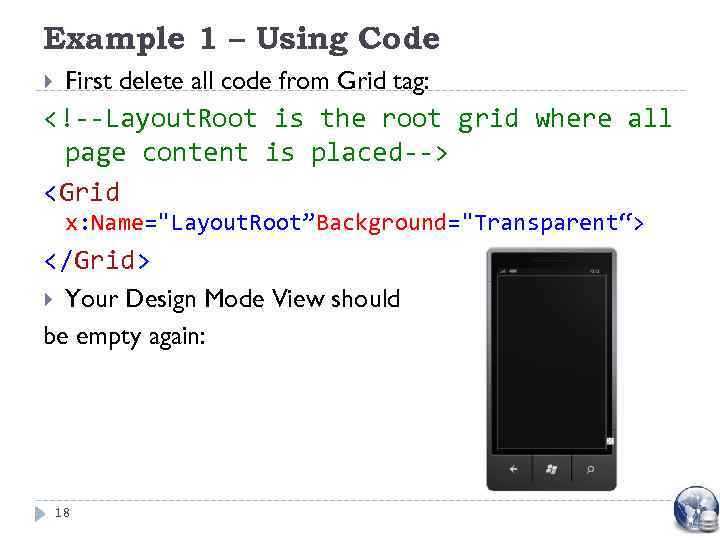 Example 1 – Using Code First delete all code from Grid tag:
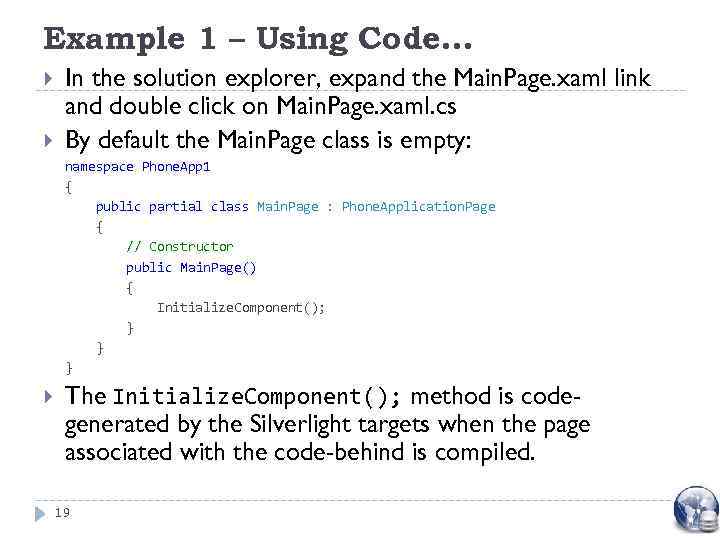 Example 1 – Using Code… In the solution explorer, expand the Main. Page. xaml link and double click on Main. Page. xaml. cs By default the Main. Page class is empty: namespace Phone. App 1 { public partial class Main. Page : Phone. Application. Page { // Constructor public Main. Page() { Initialize. Component(); } } } The Initialize. Component(); method is codegenerated by the Silverlight targets when the page associated with the code-behind is compiled. 19
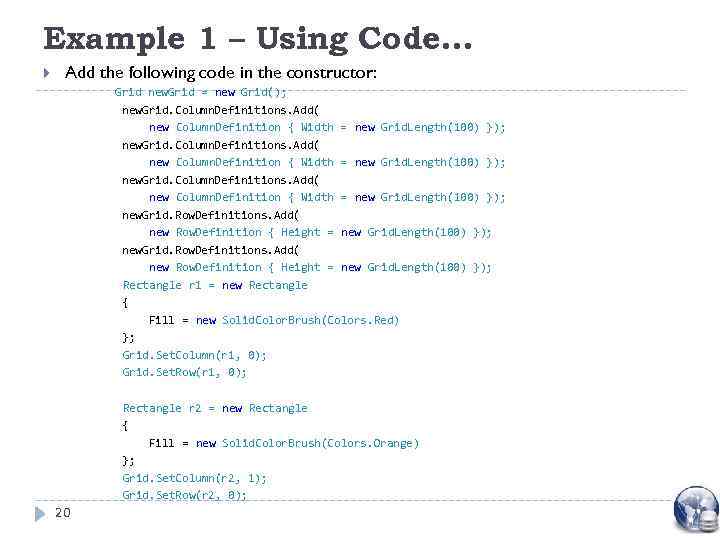 Example 1 – Using Code… Add the following code in the constructor: Grid new. Grid = new Grid(); new. Grid. Column. Definitions. Add( new Column. Definition { Width = new Grid. Length(100) }); new. Grid. Row. Definitions. Add( new Row. Definition { Height = new Grid. Length(100) }); Rectangle r 1 = new Rectangle { Fill = new Solid. Color. Brush(Colors. Red) }; Grid. Set. Column(r 1, 0); Grid. Set. Row(r 1, 0); Rectangle r 2 = new Rectangle { Fill = new Solid. Color. Brush(Colors. Orange) }; Grid. Set. Column(r 2, 1); Grid. Set. Row(r 2, 0); 20
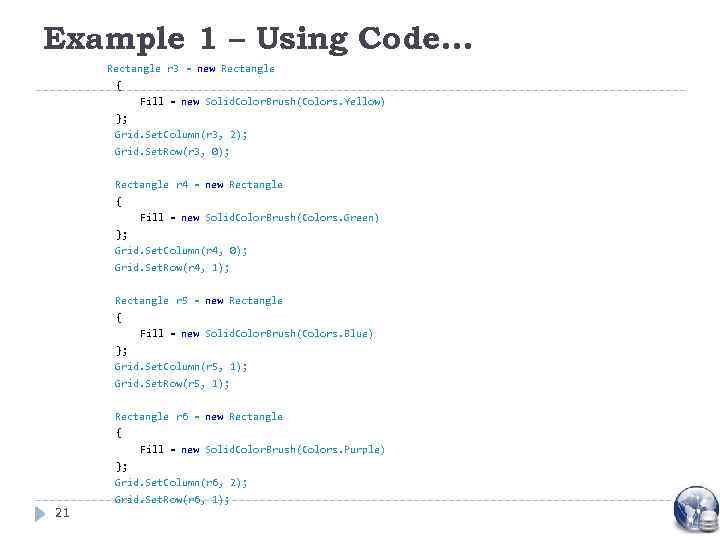 Example 1 – Using Code… Rectangle r 3 = new Rectangle { Fill = new Solid. Color. Brush(Colors. Yellow) }; Grid. Set. Column(r 3, 2); Grid. Set. Row(r 3, 0); Rectangle r 4 = new Rectangle { Fill = new Solid. Color. Brush(Colors. Green) }; Grid. Set. Column(r 4, 0); Grid. Set. Row(r 4, 1); Rectangle r 5 = new Rectangle { Fill = new Solid. Color. Brush(Colors. Blue) }; Grid. Set. Column(r 5, 1); Grid. Set. Row(r 5, 1); Rectangle r 6 = new Rectangle { Fill = new Solid. Color. Brush(Colors. Purple) }; Grid. Set. Column(r 6, 2); 21 Grid. Set. Row(r 6, 1);
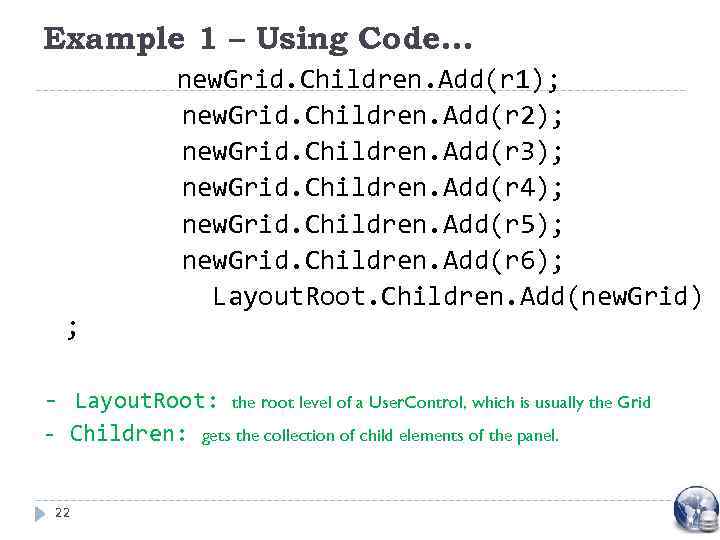 Example 1 – Using Code… ; new. Grid. Children. Add(r 1); new. Grid. Children. Add(r 2); new. Grid. Children. Add(r 3); new. Grid. Children. Add(r 4); new. Grid. Children. Add(r 5); new. Grid. Children. Add(r 6); Layout. Root. Children. Add(new. Grid) - Layout. Root: - Children: 22 the root level of a User. Control, which is usually the Grid gets the collection of child elements of the panel.
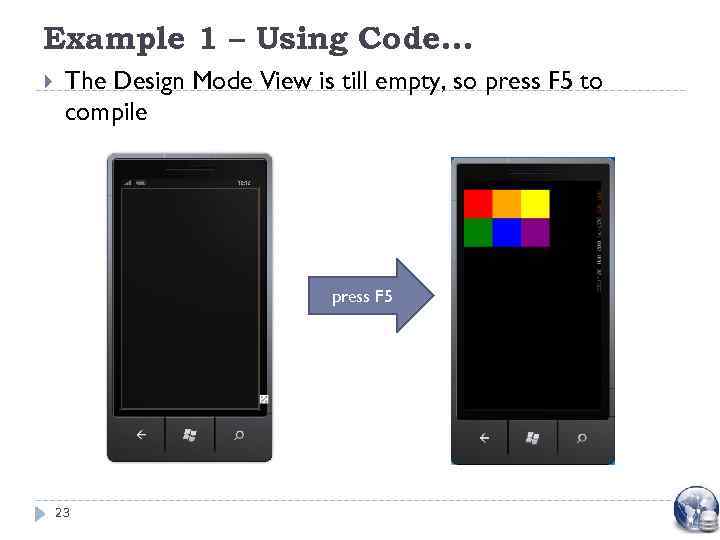 Example 1 – Using Code… The Design Mode View is till empty, so press F 5 to compile press F 5 23