


 Скачать презентацию Accuray Online Fulfillment Tutorial Agenda Outline
541996e87ce5c49e65d13f7ded529ca5.ppt
- Количество слайдов: 29
 Accuray Online Fulfillment Tutorial
 Agenda Outline • • • Browser Settings Login and Search Ordering Shipping Check Out Order Tracking
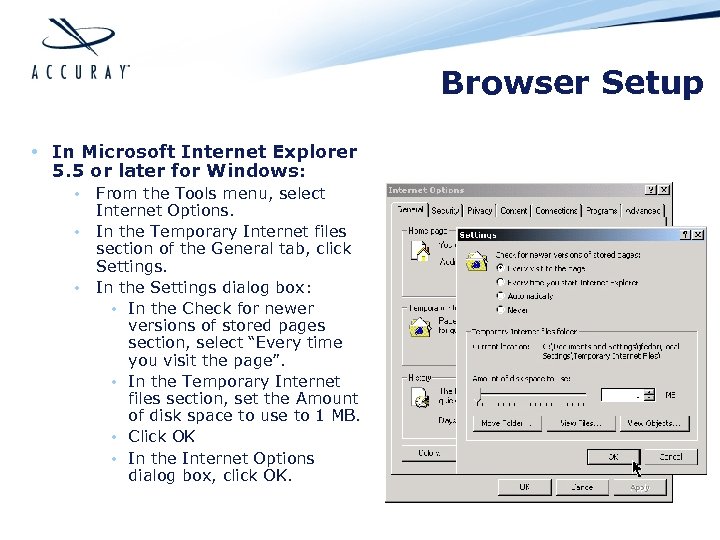 Browser Setup • In Microsoft Internet Explorer 5. 5 or later for Windows: • • • From the Tools menu, select Internet Options. In the Temporary Internet files section of the General tab, click Settings. In the Settings dialog box: • In the Check for newer versions of stored pages section, select “Every time you visit the page”. • In the Temporary Internet files section, set the Amount of disk space to use to 1 MB. • Click OK • In the Internet Options dialog box, click OK.
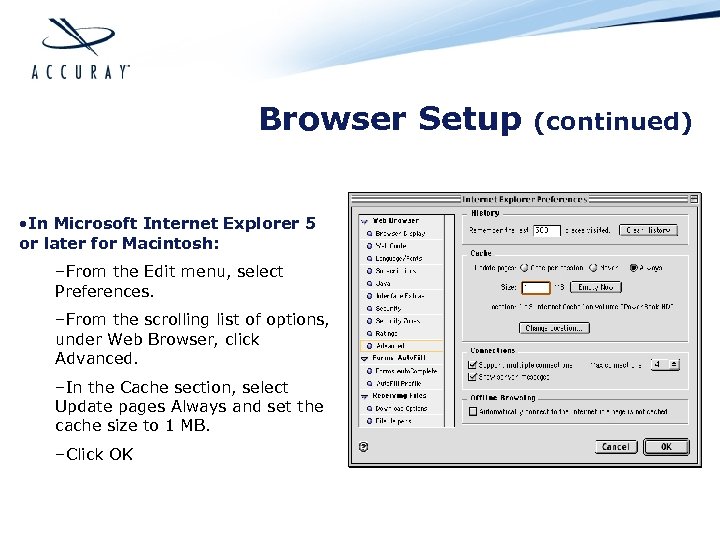 Browser Setup • In Microsoft Internet Explorer 5 or later for Macintosh: –From the Edit menu, select Preferences. –From the scrolling list of options, under Web Browser, click Advanced. –In the Cache section, select Update pages Always and set the cache size to 1 MB. –Click OK (continued)
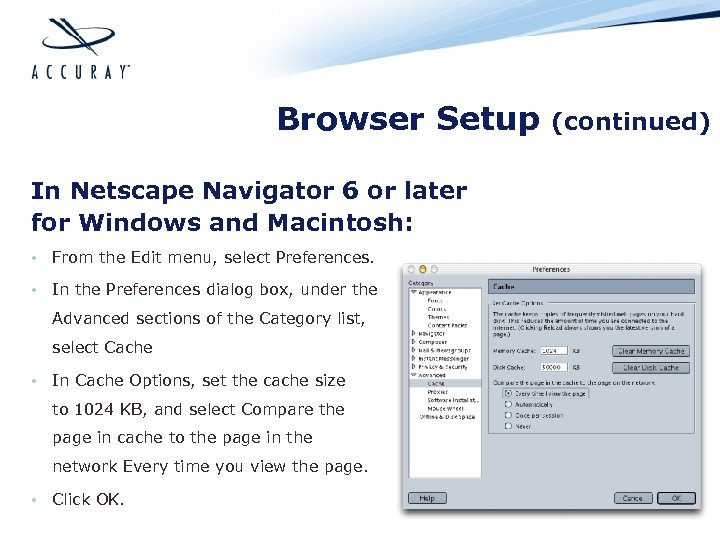 Browser Setup In Netscape Navigator 6 or later for Windows and Macintosh: • From the Edit menu, select Preferences. • In the Preferences dialog box, under the Advanced sections of the Category list, select Cache • In Cache Options, set the cache size to 1024 KB, and select Compare the page in cache to the page in the network Every time you view the page. • Click OK. (continued)
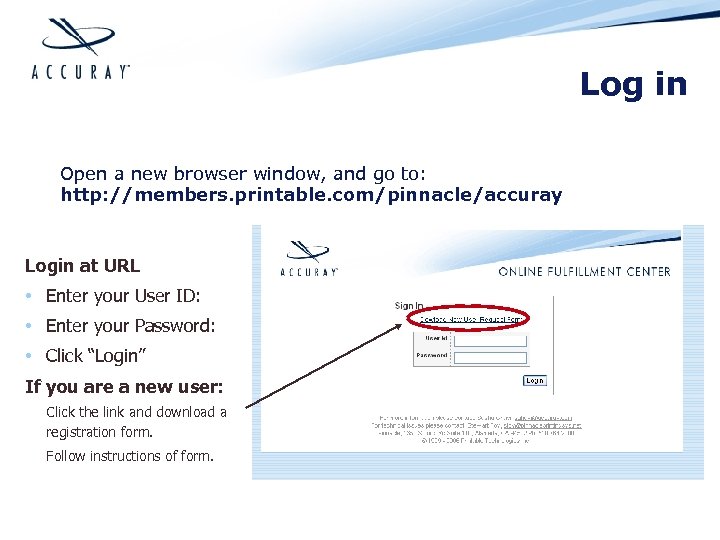 Log in Open a new browser window, and go to: http: //members. printable. com/pinnacle/accuray Login at URL • Enter your User ID: • Enter your Password: • Click “Login” If you are a new user: Click the link and download a registration form. Follow instructions of form.
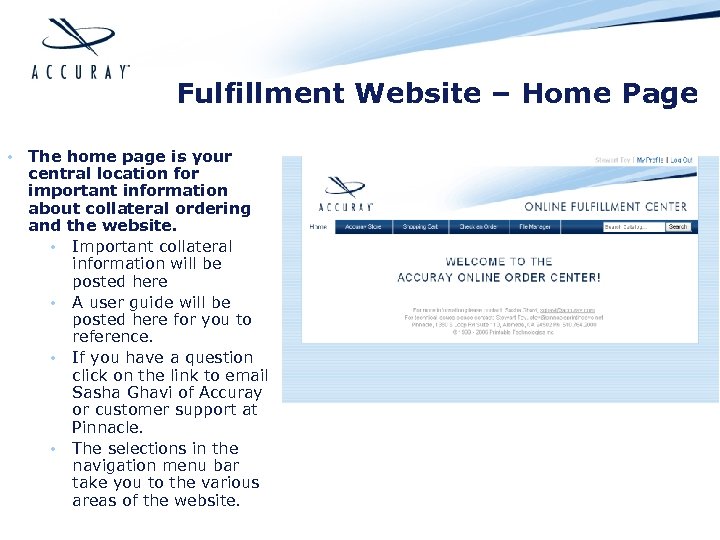 Fulfillment Website – Home Page • The home page is your central location for important information about collateral ordering and the website. • Important collateral information will be posted here • A user guide will be posted here for you to reference. • If you have a question click on the link to email Sasha Ghavi of Accuray or customer support at Pinnacle. • The selections in the navigation menu bar take you to the various areas of the website.
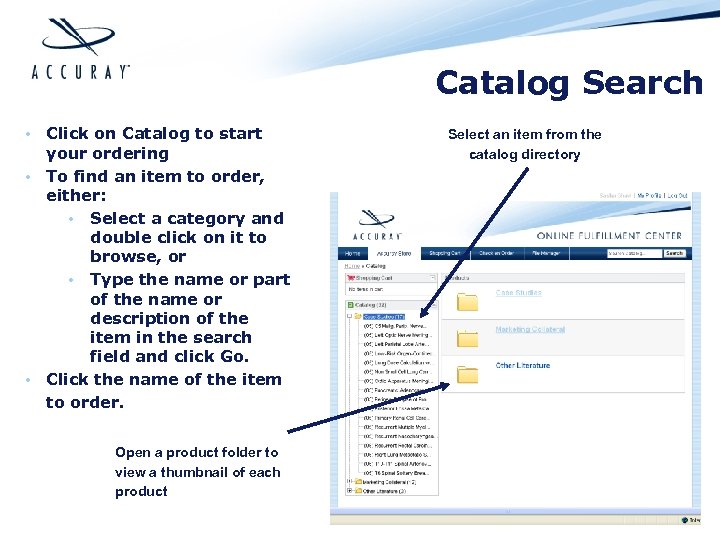 Catalog Search • Click on Catalog to start your ordering • To find an item to order, either: • Select a category and double click on it to browse, or • Type the name or part of the name or description of the item in the search field and click Go. • Click the name of the item to order. Open a product folder to view a thumbnail of each product Select an item from the catalog directory
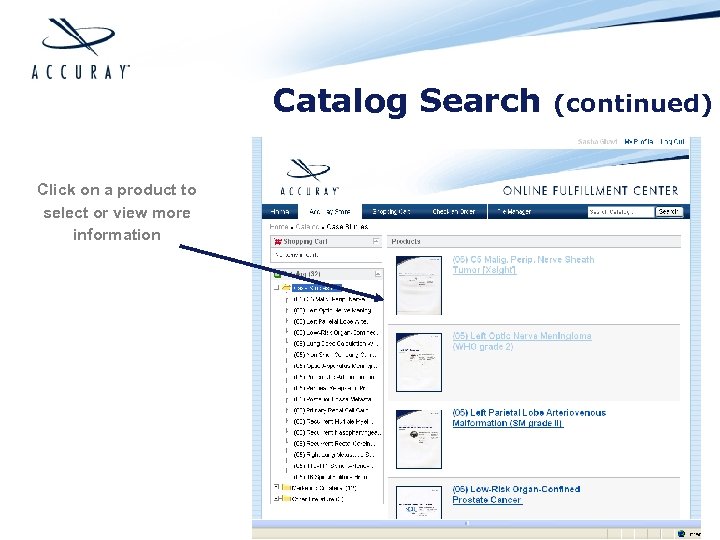 Catalog Search Click on a product to select or view more information (continued)
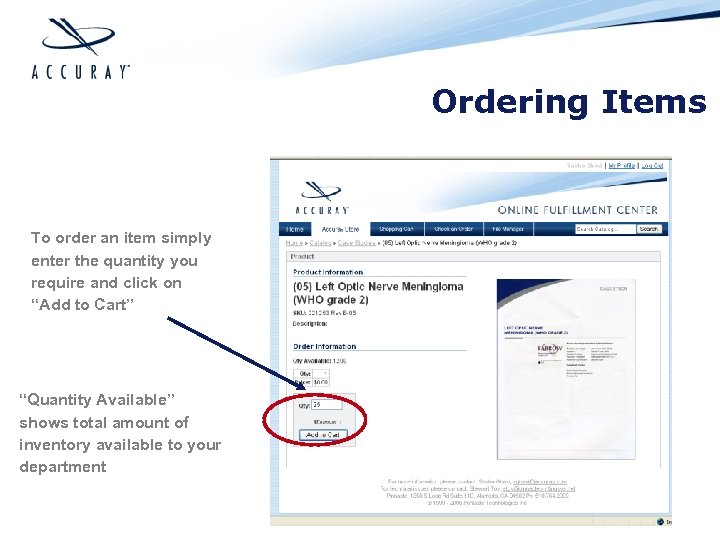 Ordering Items To order an item simply enter the quantity you require and click on “Add to Cart” “Quantity Available” shows total amount of inventory available to your department
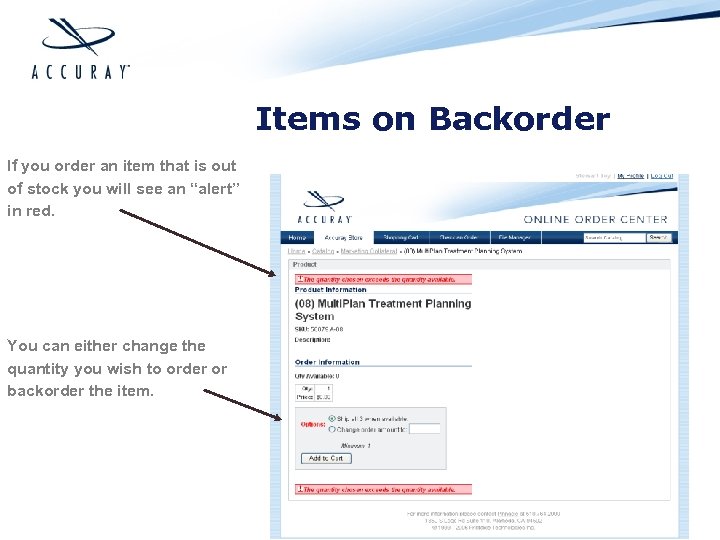 Items on Backorder If you order an item that is out of stock you will see an “alert” in red. You can either change the quantity you wish to order or backorder the item.
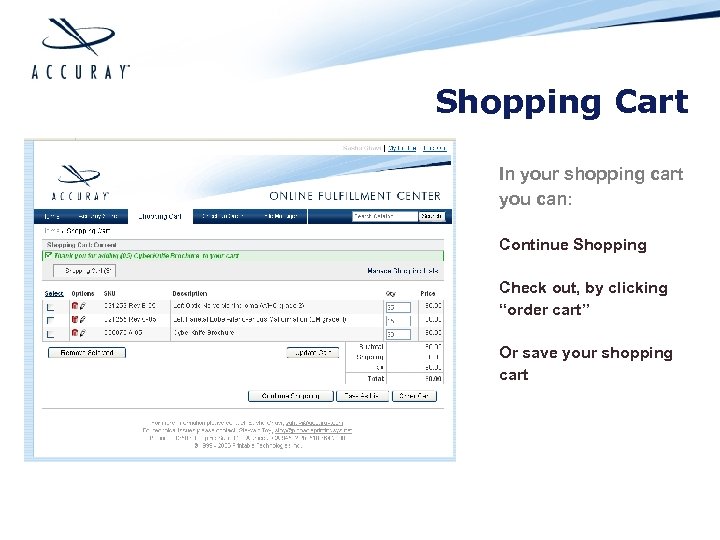 Shopping Cart In your shopping cart you can: Continue Shopping Check out, by clicking “order cart” Or save your shopping cart
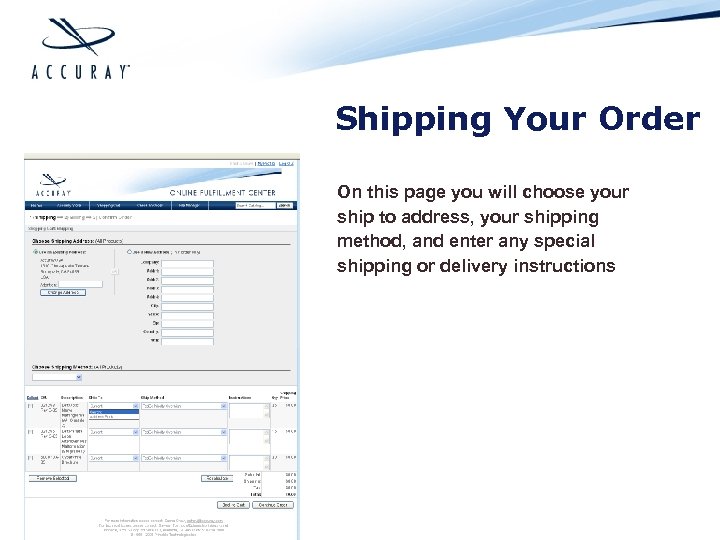 Shipping Your Order On this page you will choose your ship to address, your shipping method, and enter any special shipping or delivery instructions
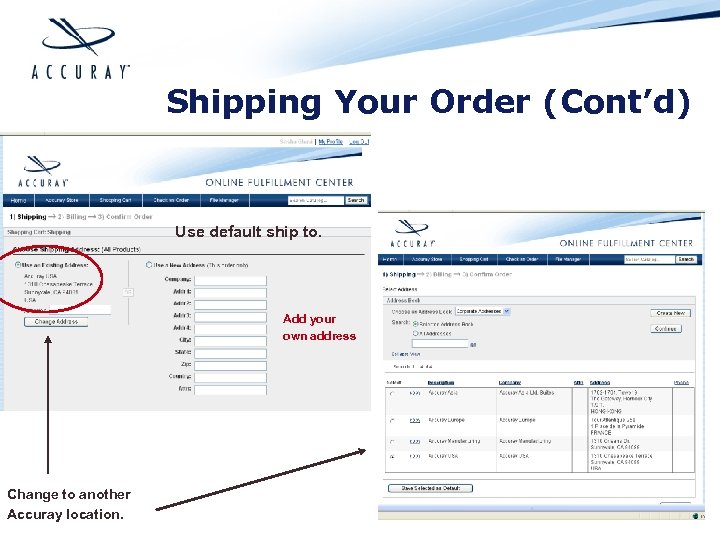 Shipping Your Order (Cont’d) Use default ship to. Add your own address Change to another Accuray location.
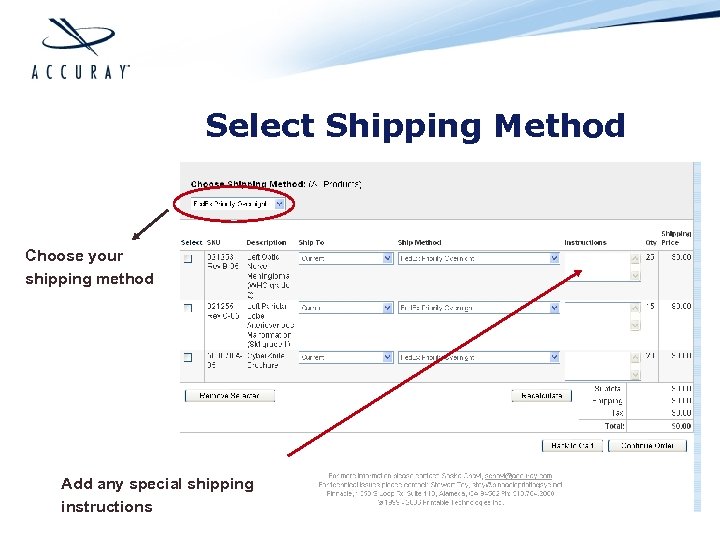 Select Shipping Method Choose your shipping method Add any special shipping instructions
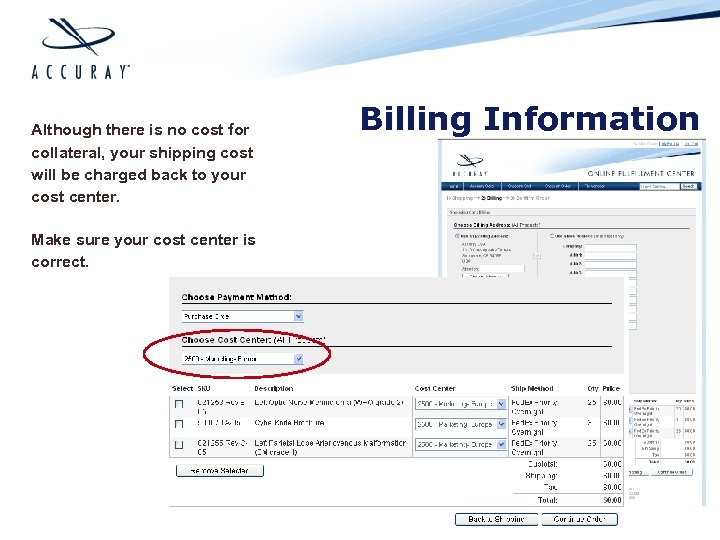 Although there is no cost for collateral, your shipping cost will be charged back to your cost center. Make sure your cost center is correct. Billing Information
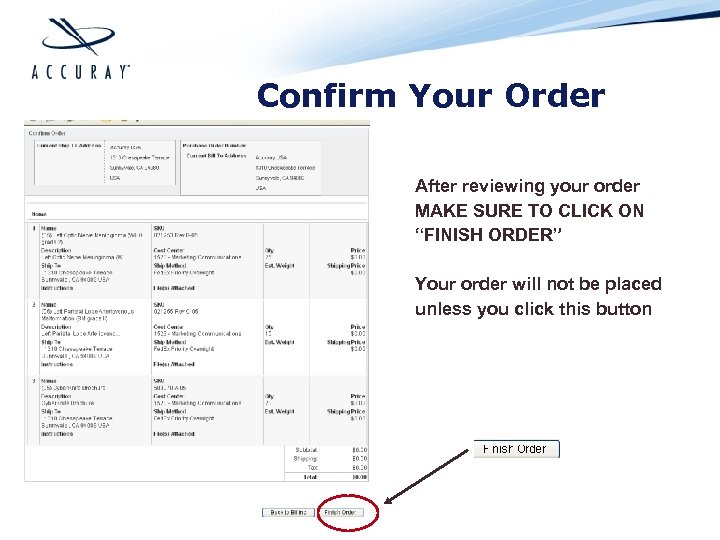 Confirm Your Order After reviewing your order MAKE SURE TO CLICK ON “FINISH ORDER” Your order will not be placed unless you click this button
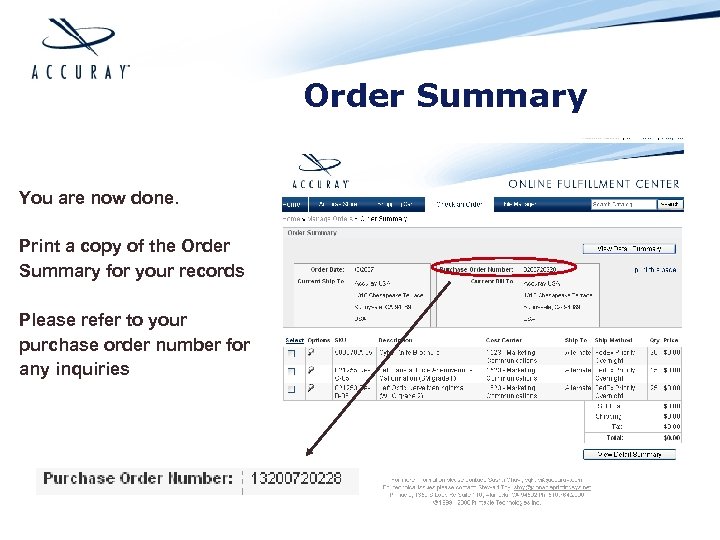 Order Summary You are now done. Print a copy of the Order Summary for your records Please refer to your purchase order number for any inquiries
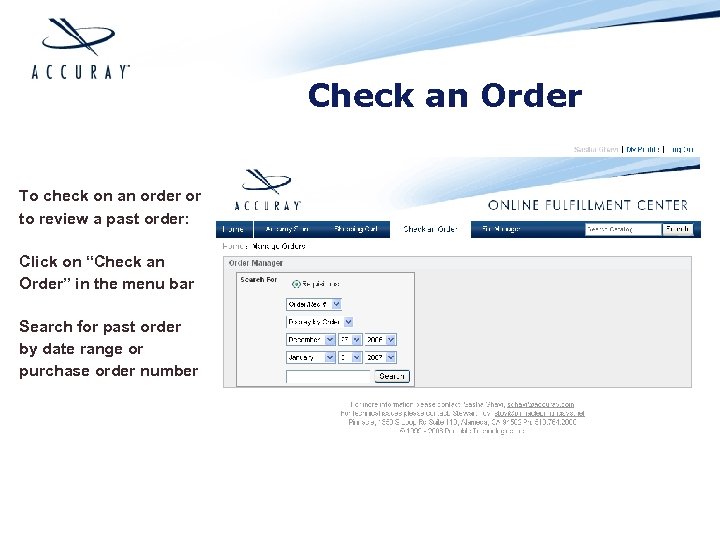 Check an Order To check on an order or to review a past order: Click on “Check an Order” in the menu bar Search for past order by date range or purchase order number
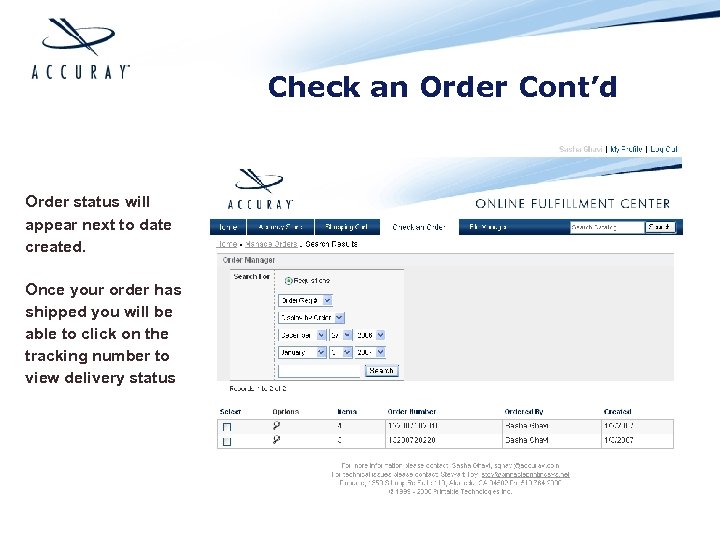 Check an Order Cont’d Order status will appear next to date created. Once your order has shipped you will be able to click on the tracking number to view delivery status
 A Few Things to Remember Domestic orders placed by 3 pm will ship same day. If you are placing a large order a longer lead time will be appreciated. International orders placed by noon will ship same day. We will handle the commercial airbill. Always check the shipping method you have selected. If you have any special or complex instructions or requests use the “special instruction” box or send an email to Pinnacle.
 A Few Things to Remember Cont’d • All fulfillment orders are subject to department manager approval. • No order is “Live” until manager approval has been given • For RUSH orders we suggest you contact your manager so they can approve your request promptly • If you have a Emergency Rush order and cannot contact your manager we suggest contacting Sasha Ghavi.
 Questions If you have any questions or comments please contact: Accuray: Sasha Ghavi Email: sghavi@accuray. com Pinnacle: Stewart Toy Phone: 510 -748 -8244 Email: stoy@pinnacleprintingsys. net
 Order Approval You will receive email notification when someone has placed a fulfillment requisition. You must then log into the online fulfillment site and approve or deny the request. * Please note that when you place a fulfillment order no approval is necessary.
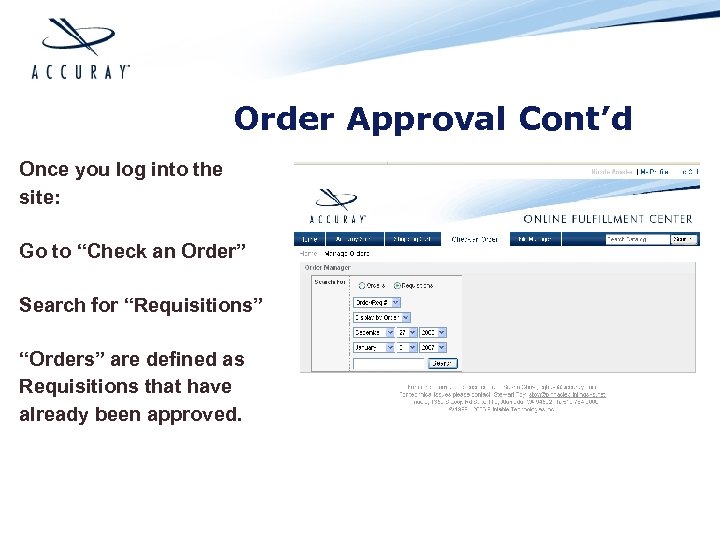 Order Approval Cont’d Once you log into the site: Go to “Check an Order” Search for “Requisitions” “Orders” are defined as Requisitions that have already been approved.
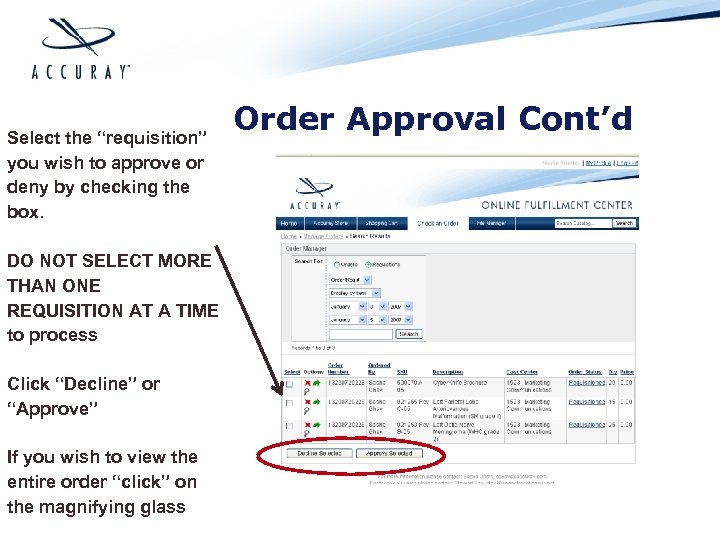 Select the “requisition” you wish to approve or deny by checking the box. DO NOT SELECT MORE THAN ONE REQUISITION AT A TIME to process Click “Decline” or “Approve” If you wish to view the entire order “click” on the magnifying glass Order Approval Cont’d
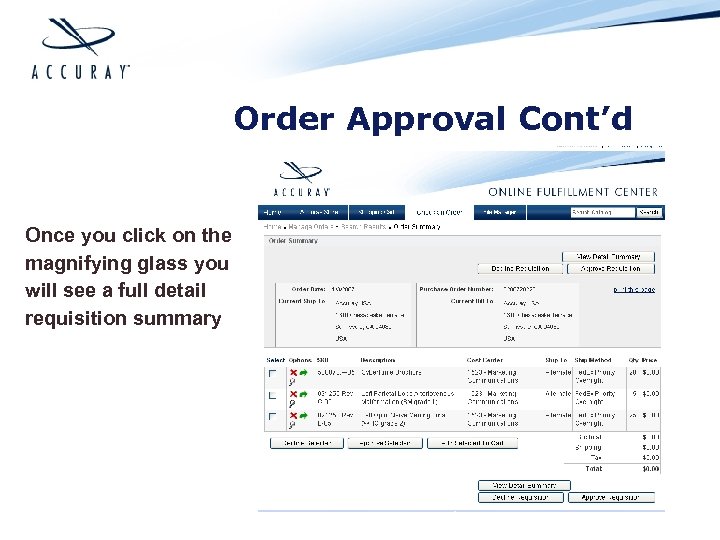 Order Approval Cont’d Once you click on the magnifying glass you will see a full detail requisition summary
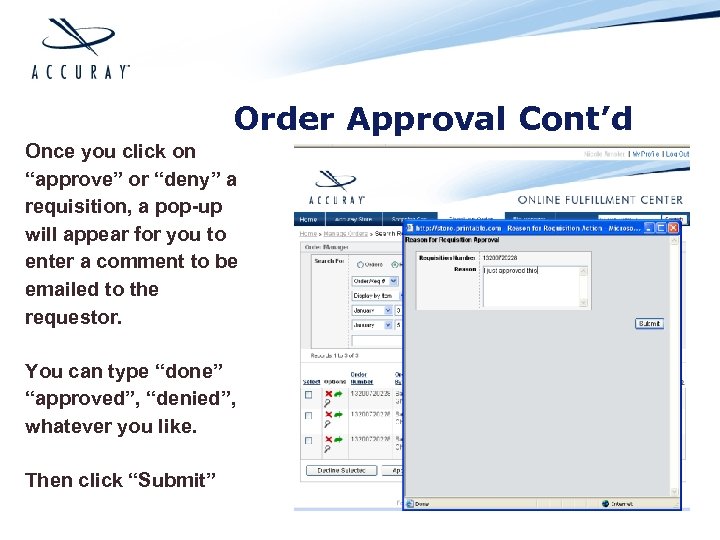 Order Approval Cont’d Once you click on “approve” or “deny” a requisition, a pop-up will appear for you to enter a comment to be emailed to the requestor. You can type “done” “approved”, “denied”, whatever you like. Then click “Submit”
 Order Completed • The requisition you just approved is now in process. • Please note that until you approve a requisition, “nothing happens”. • Before approving requests, keep in mind that you have a an allotted quantity of collateral