 Скачать презентацию Accessibility in Education WORKSHOP Accessibility in education
a5355c625c6a9dccd4e72b9eeb798817.ppt
- Количество слайдов: 59




Accessibility in Education WORKSHOP
Accessibility in education • Accessibility for all students, including those with disabilities and special needs • A workshop for school leaders and teachers www. microsoft. com/education/enable/
This workshop presentation covers Personalized Learning and Accessibility • The importance of accessibility • Impacts in the classroom • What is accessibility? Overview of Accessibility Features • Windows, Internet Explorer, Office • Try it out Impairments and Technology Solutions • Types of impairments Selecting Accessible Technology • Impact of accessibility on the role of different school stakeholders • Scenarios and accessibility solutions for students with different types of abilities including special needs Accessibility in Practice • Breakout sessions: 4 student scenarios Resources
Top 3 learning objectives 1. Every classroom has a student who can benefit from accessibility 2. Accessibility features in Windows and how to use • Personalization • Ease of Access Center 3. Where to find accessibility info for teachers • www. microsoft. com/education/enable/
Guide to workshop timings • Introduction 5 minutes • Personalized Learning & Accessibility 5 minutes • Overview of Accessibility Features 30 minutes » Try it out: Personalization & Ease of Access Center » Try it out: Magnifier in Windows 7 » Try it out: On-Screen Keyboard in Windows 7 » Try it out: Internet Explorer Zoom » Try it out: Office 2010 Accessibility Checker • Impairment Types & Technology Solutions 15 minutes • Selecting Accessible Technology 15 minutes • Accessibility in Practice 15 minutes • Resources 5 minutes
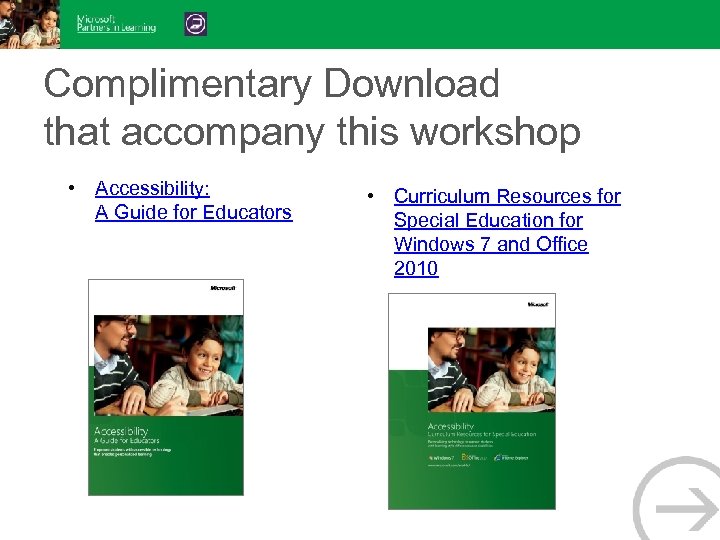
Complimentary Download that accompany this workshop • Accessibility: A Guide for Educators • Curriculum Resources for Special Education for Windows 7 and Office 2010
Personalized Learning & Accessibility
Every classroom has a student who can benefit from using accessibility Every classroom has a student who: • Has a hard time seeing the board and can benefit from making the PC easier to see. • Finds concentrating difficult and can benefit from making the PC less cluttered. • Experiences difficulty hearing the teacher speak and can benefit from making the PC easier to hear. Accessibility empowers all students with accessible technology that enables personalized learning.
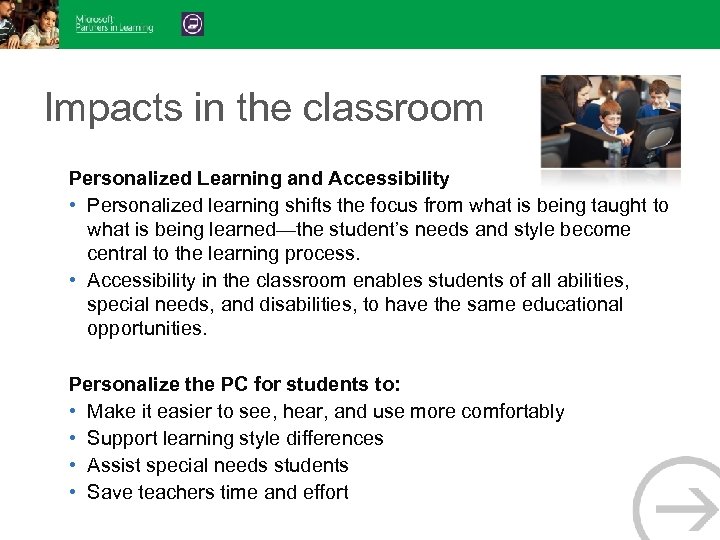
Impacts in the classroom Personalized Learning and Accessibility • Personalized learning shifts the focus from what is being taught to what is being learned—the student’s needs and style become central to the learning process. • Accessibility in the classroom enables students of all abilities, special needs, and disabilities, to have the same educational opportunities. Personalize the PC for students to: • Make it easier to see, hear, and use more comfortably • Support learning style differences • Assist special needs students • Save teachers time and effort
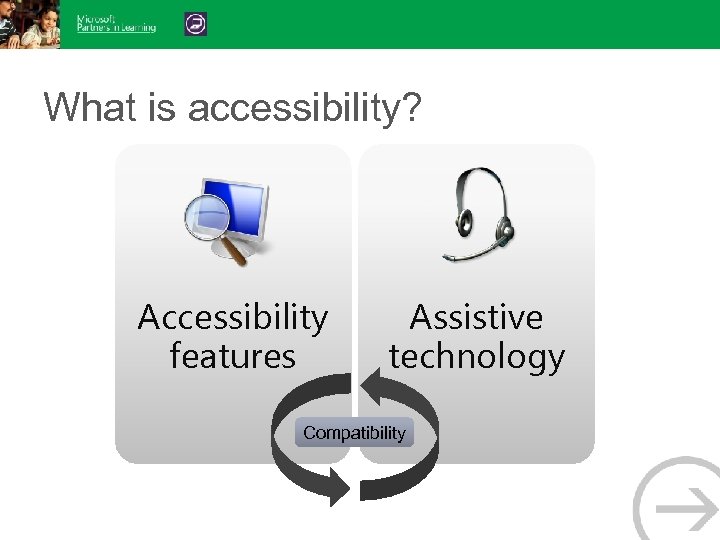
What is accessibility? Accessibility features Assistive technology Compatibility
As school leaders, increase awareness of accessibility solutions All teachers • Help every teacher understand the basics of accessibility and how to recognize students who need to personalize their PCs to make them easier to see, hear, or use. Special education teachers • Ensure each special education teacher has Accessibility: A Guide for Educators (www. microsoft. com/education/enable/to help students with accessibility needs personalize their PCs to make them easier to see, hear, and use. • Recommend Microsoft Accessibility Update newsletter to stay up to date on features: www. microsoft. com/enable/
Overview of Accessibility Features
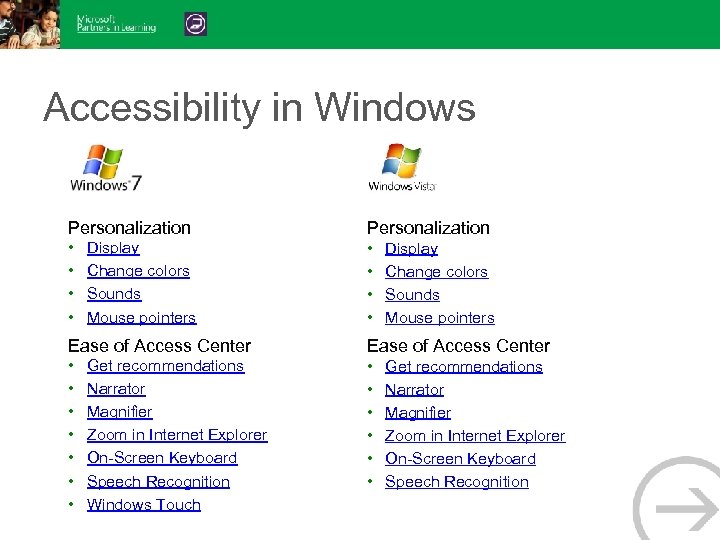
Accessibility in Windows Personalization • • Display Change colors Sounds Mouse pointers Ease of Access Center • • • • Get recommendations Narrator Magnifier Zoom in Internet Explorer On-Screen Keyboard Speech Recognition Windows Touch Get recommendations Narrator Magnifier Zoom in Internet Explorer On-Screen Keyboard Speech Recognition
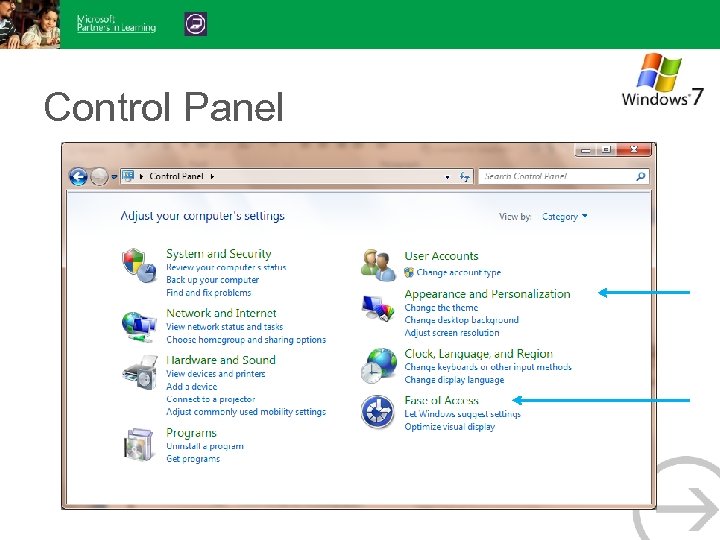
Control Panel
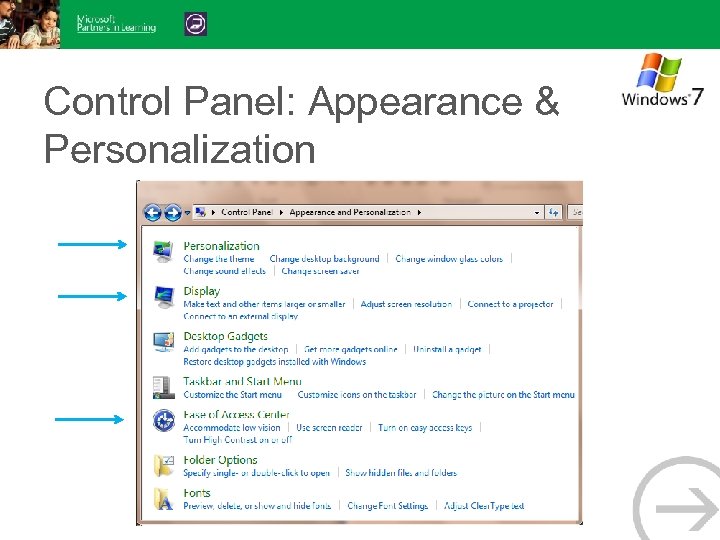
Control Panel: Appearance & Personalization
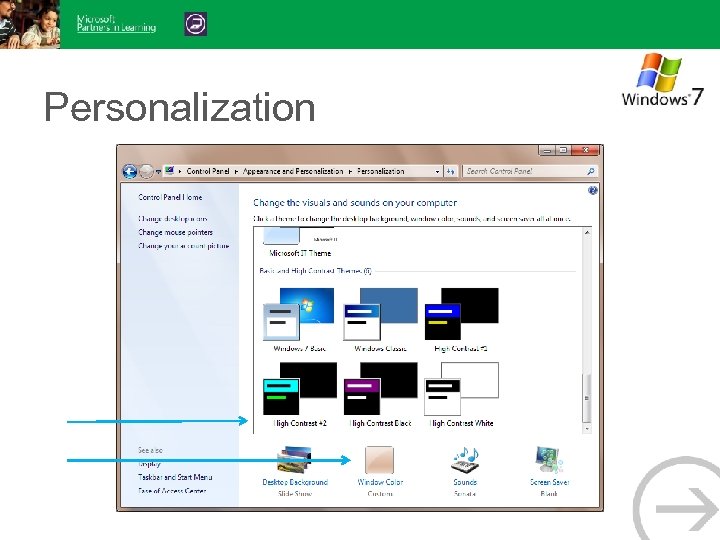
Personalization
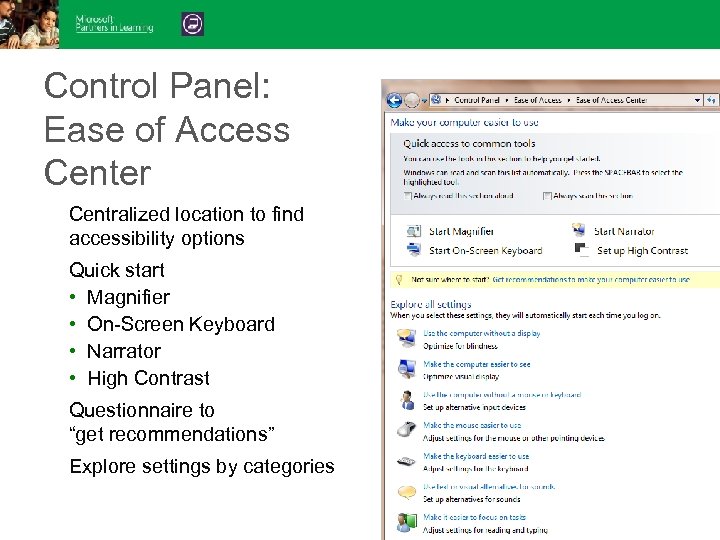
Control Panel: Ease of Access Center Centralized location to find accessibility options Quick start • Magnifier • On-Screen Keyboard • Narrator • High Contrast Questionnaire to “get recommendations” Explore settings by categories
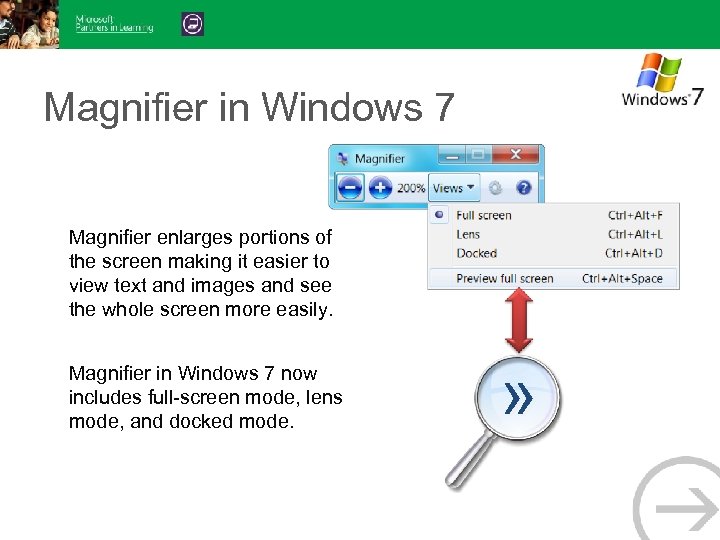
Magnifier in Windows 7 Magnifier enlarges portions of the screen making it easier to view text and images and see the whole screen more easily. Magnifier in Windows 7 now includes full-screen mode, lens mode, and docked mode. »
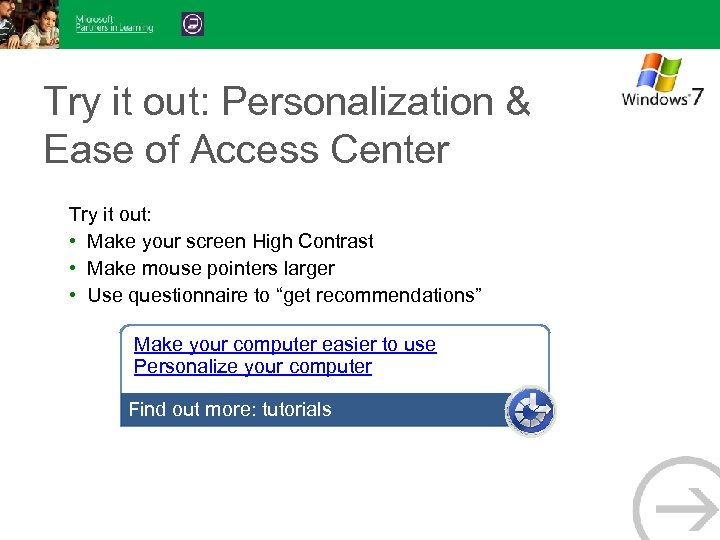
Try it out: Personalization & Ease of Access Center Try it out: • Make your screen High Contrast • Make mouse pointers larger • Use questionnaire to “get recommendations” Make your computer easier to use Personalize your computer Find out more: tutorials
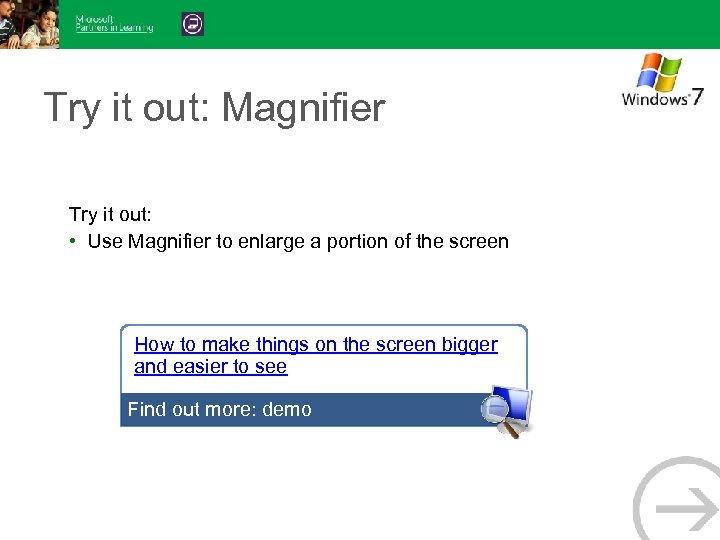
Try it out: Magnifier Try it out: • Use Magnifier to enlarge a portion of the screen How to make things on the screen bigger and easier to see Find out more: demo
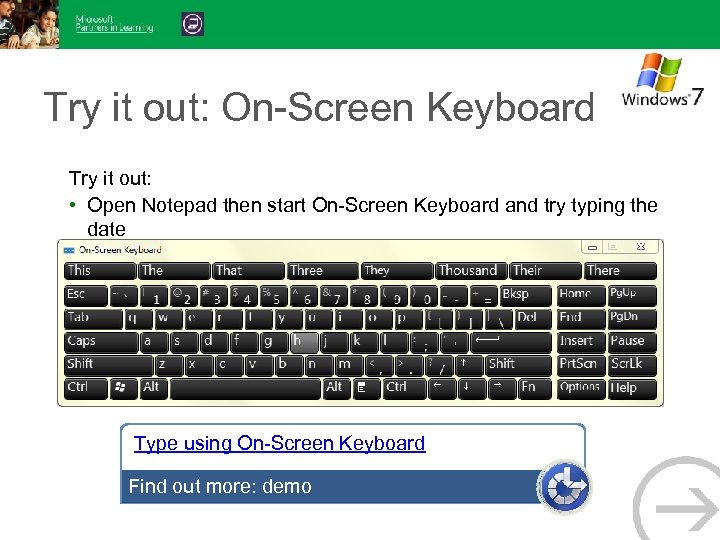
Try it out: On-Screen Keyboard Try it out: • Open Notepad then start On-Screen Keyboard and try typing the date Type using On-Screen Keyboard Find out more: demo
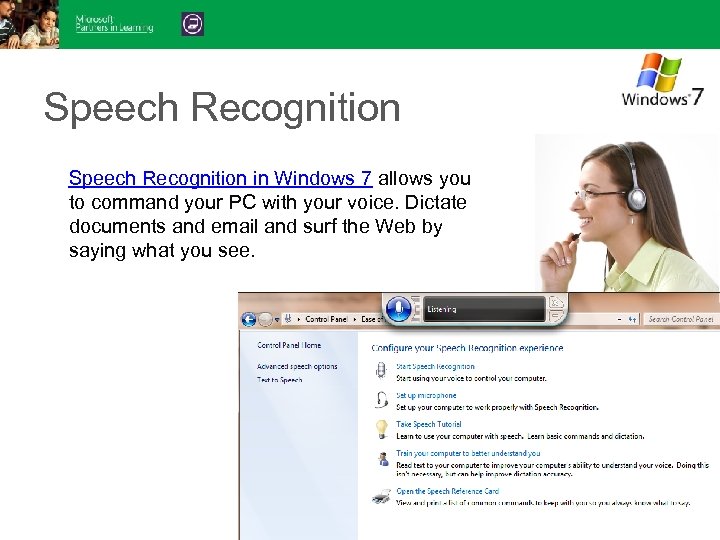
Speech Recognition in Windows 7 allows you to command your PC with your voice. Dictate documents and email and surf the Web by saying what you see.
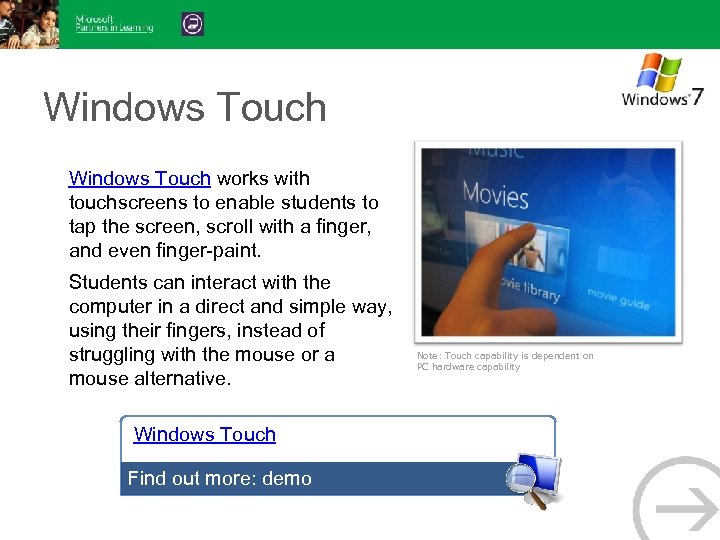
Windows Touch works with touchscreens to enable students to tap the screen, scroll with a finger, and even finger-paint. Students can interact with the computer in a direct and simple way, using their fingers, instead of struggling with the mouse or a mouse alternative. Windows Touch Find out more: demo Note: Touch capability is dependent on PC hardware capability
Accessibility in Internet Explorer Accessibility features in Internet Explorer • • • Zoom in on a webpage Select text and move around a webpage with a keyboard Change the font size, formatting, and screen colors Use the keyboard to surf the Web Keyboard shortcuts
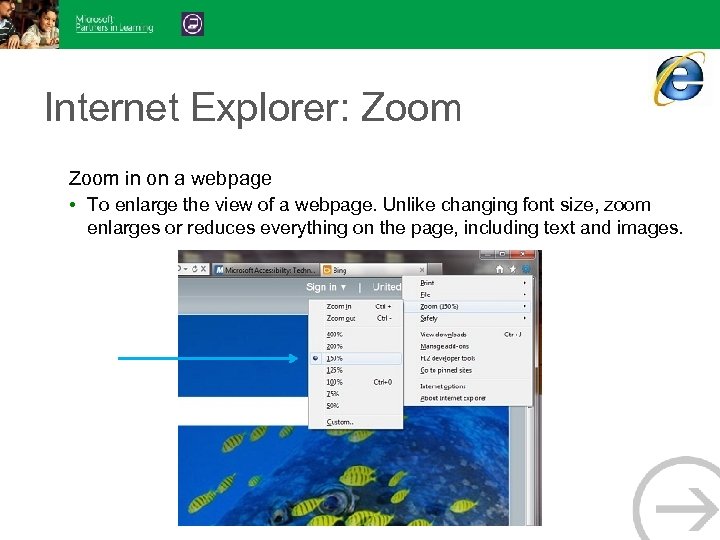
Internet Explorer: Zoom in on a webpage • To enlarge the view of a webpage. Unlike changing font size, zoom enlarges or reduces everything on the page, including text and images.
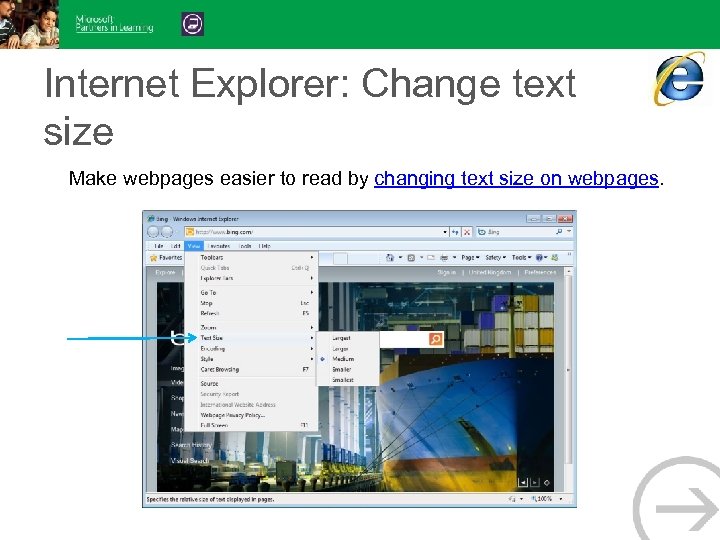
Internet Explorer: Change text size Make webpages easier to read by changing text size on webpages.
Try it Out: Internet Explorer Try it out: • Open Internet Explorer • Go to www. bing. com • Try zooming in on a webpage • Try to change webpage text size Zoom in on a webpage Change webpage text size Find out more: tutorials
Accessibility in Office Accessibility features in Office 2010 • Accessibility Checker • Add captions, subtitles, and audio in slides with Sub-Titling Add-in for Microsoft Power. Point (STAMP) • Use the Save as DAISY add-in for Word to convert files to an accessible format • Create accessible web portals • Use the Speak text-to-speech feature • Customize the ribbon • Use the keyboard to work with ribbon programs • Create accessible PDFs • Use Full Screen Reading view
Microsoft Office: Make sure your documents are accessible Accessibility Checker in Word 2010, Excel 2010, and Power. Point 2010 helps you identify and fix potential accessibility problems that would prevent people with disabilities from reading the file. Find and fix accessibility issues in Word 2010 documents Find out more: demo
Microsoft Office: Making presentations accessible Add closed captions to video and audio files you include in your Power. Point presentations. You are delivering a presentation and some individuals are not able to see details from the back of the room. You also want to be able to show certain students how to set up Internet Explorer to display larger text. Adding Subtitles to Power. Point Find out more: demo
Working from anywhere: “cloud computing” Office 365 for education gives educators and students access to world-class productivity solutions to help them succeed in school and beyond. Includes: » » Email & Calendar with Exchange Online Office Web Apps with Office Professional Plus Websites and Collaboration with Share. Point Online IM & Online Meetings with Microsoft Lync Office 365 and Live@EDU Outlook Web Apps Find out more: tutorials
Impairments & Technology Solutions
Types of impairments/disabilities • Vision • Learning • Mobility and dexterity • Hearing and deafness • Language and speech
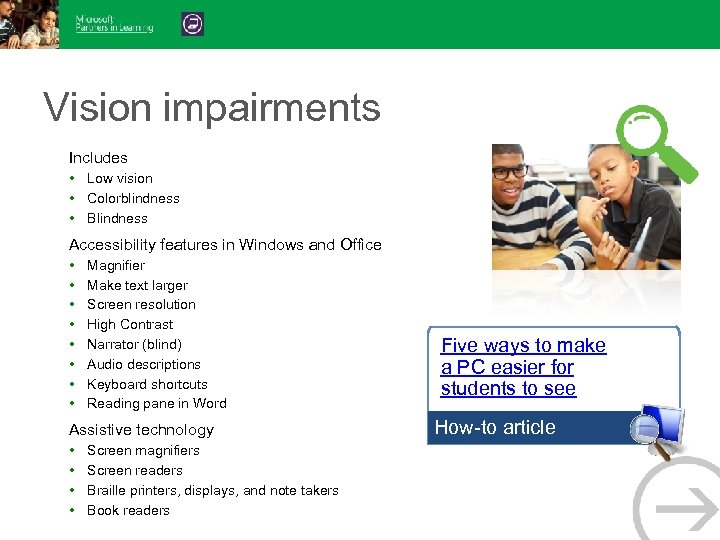
Vision impairments Includes • Low vision • Colorblindness • Blindness Accessibility features in Windows and Office • • Magnifier Make text larger Screen resolution High Contrast Narrator (blind) Audio descriptions Keyboard shortcuts Reading pane in Word Assistive technology • • Screen magnifiers Screen readers Braille printers, displays, and note takers Book readers Five ways to make a PC easier for students to see How-to article
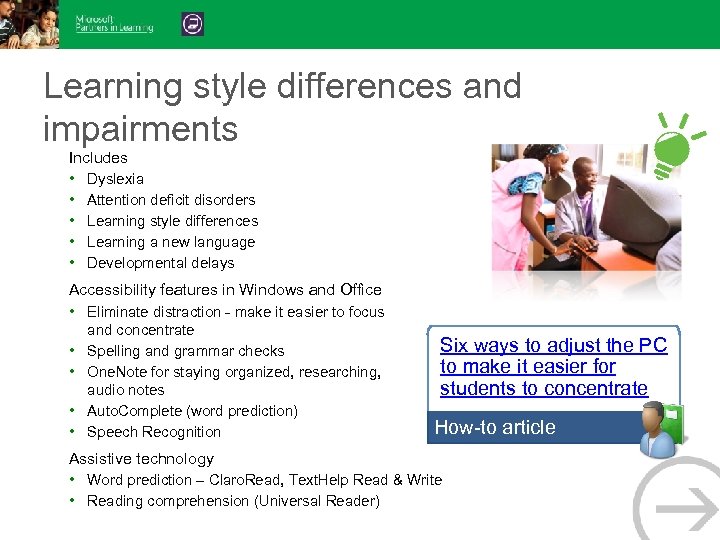
Learning style differences and impairments Includes • Dyslexia • Attention deficit disorders • Learning style differences • Learning a new language • Developmental delays Accessibility features in Windows and Office • Eliminate distraction - make it easier to focus • • and concentrate Spelling and grammar checks One. Note for staying organized, researching, audio notes Auto. Complete (word prediction) Speech Recognition Six ways to adjust the PC to make it easier for students to concentrate How-to article Assistive technology • Word prediction – Claro. Read, Text. Help Read & Write • Reading comprehension (Universal Reader)
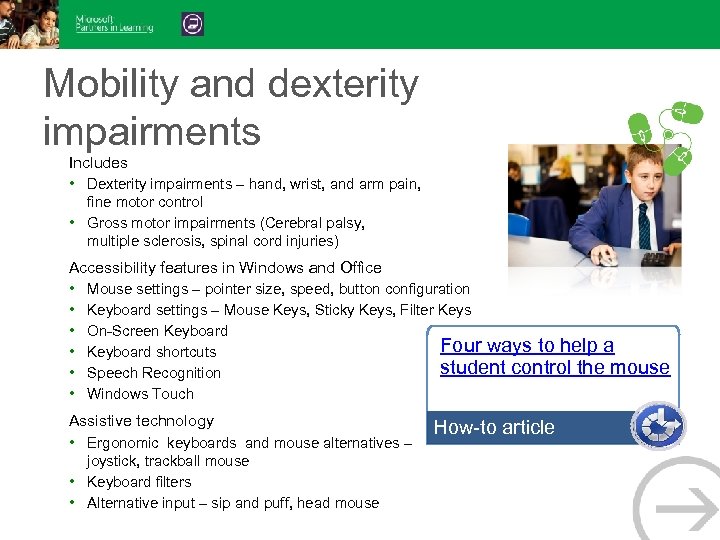
Mobility and dexterity impairments Includes • Dexterity impairments – hand, wrist, and arm pain, fine motor control • Gross motor impairments (Cerebral palsy, multiple sclerosis, spinal cord injuries) Accessibility features in Windows and Office • Mouse settings – pointer size, speed, button configuration • Keyboard settings – Mouse Keys, Sticky Keys, Filter Keys • On-Screen Keyboard Four ways to help a • Keyboard shortcuts student control the mouse • Speech Recognition • Windows Touch Assistive technology • Ergonomic keyboards and mouse alternatives – joystick, trackball mouse • Keyboard filters • Alternative input – sip and puff, head mouse How-to article
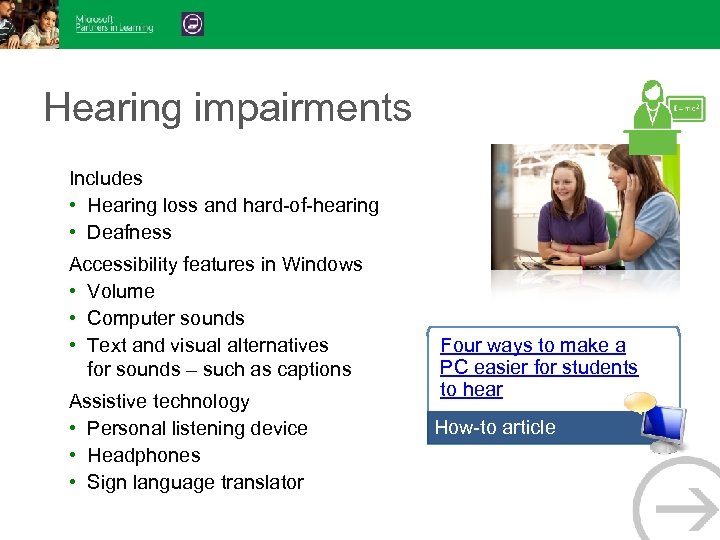
Hearing impairments Includes • Hearing loss and hard-of-hearing • Deafness Accessibility features in Windows • Volume • Computer sounds • Text and visual alternatives for sounds – such as captions Assistive technology • Personal listening device • Headphones • Sign language translator Four ways to make a PC easier for students to hear How-to article
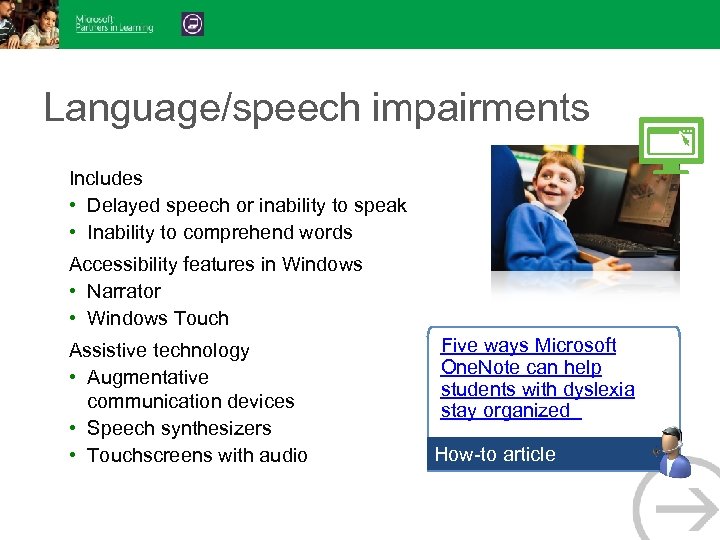
Language/speech impairments Includes • Delayed speech or inability to speak • Inability to comprehend words Accessibility features in Windows • Narrator • Windows Touch Assistive technology • Augmentative communication devices • Speech synthesizers • Touchscreens with audio Five ways Microsoft One. Note can help students with dyslexia stay organized How-to article
Selecting Accessible Technology
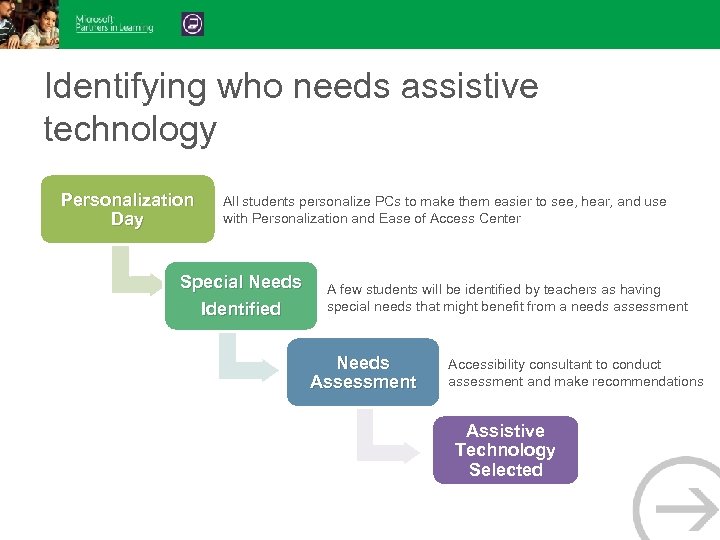
Identifying who needs assistive technology Personalization Day All students personalize PCs to make them easier to see, hear, and use with Personalization and Ease of Access Center Special Needs Identified A few students will be identified by teachers as having special needs that might benefit from a needs assessment Needs Assessment Accessibility consultant to conduct assessment and make recommendations Assistive Technology Selected
Accessible technology for special needs students Identifying the right mix of accessibility solutions • Most students can benefit from using built-in accessibility features. • For students with special needs or disabilities, each student may need to use a unique mix of accessibility features and assistive technology products. Needs assessment • Identifying the best accessibility solution often requires an in-depth assessment to understand how a difficulty or impairment impacts computer use. Find an accessibility consultant • Locate an accessibility expert in your school/district or local community (www. microsoft. com/enable/centers/) • Many assistive technology centers and occupational therapists have accessibility consultants to help individuals identify the right mix of accessibility features and products. • Resources available » Assessment » Product recommendation » Lending libraries (try before you buy) » Training
Questions for school leaders Part 1 Do special needs teachers know who to go to for computer accessibility support for their students with special needs? • Microsoft offers resources at www. microsoft. com/education/ Does your school technology plan include accessibility? • See Considerations for IT Technicians
Questions for school leaders Part 2 Helping Teachers • Do your teachers know how to help students with mild special needs adjust their PCs to make them easier to see, hear, and use? » Microsoft has tutorials that can help. • Do teachers, IT technicians, and students have information about accessibility for the software they are using? » Microsoft has accessibility information for schools at www. microsoft. com/education/enable/. • Do students and staff have the opportunity to personalize their PCs to make them easier to see, hear, and use? » Consider a Personalization Day to let students personalize their PCs and save their settings in unique profiles.
Good practice in schools Create an accessibility team • Assign accessibility responsibilities to interested teachers, special needs teachers, and an IT professional for technical issues. • Ensure all teachers know who to go to if they notice a student who needs to make the PC easier to see, hear, and use. • Distribute Microsoft’s Accessibility: A Guide for Educators • Identify an assistive technology expert in your community to help with assistive technology assessments for students with disabilities.
Considerations for special needs educators • Can you advise and show others how to use the Personalization and the Ease of Access Center? • Have you been trained on how to use assistive technologies like ergonomic keyboards and screen readers in the classroom? • Do you have a copy of Accessibility: A Guide for Educators you can reference? • Do you know who in your school or district to go to if you have a student who needs additional accessibility support?
Considerations for IT technicians • Ensure PCs are deployed so Ease of Access Center and Personalization are available to students. • Consider allowing individuals to create a user account (rather than generic accounts) so their accessibility and personalization settings are saved and available when they log in with their user profile. • Set up PCs with working speakers, volume controls, and headsets for student who have hearing impairments. • Have a selection of ergonomic, comfort keyboard and mice available for students with dexterity impairments. • Identify an assistive technology expert in your area to help with assistive technology assessments for students with disabilities. • Implement web accessibility to ensure your school website is accessible.
Considerations for IT technicians Scenario: IT technicians have many computers to manage and often lock Control Panel settings when creating group settings; however, this prevents teachers and students from adjusting accessibility and personalization settings in the Control Panel. Solutions: • Ensure PCs are deployed to allow Ease of Access Center and personalization settings to be adjusted. • Set up profiles so each time the students log in, their accessibility and personalization settings are saved. For shared PCs, consider a standard set of profiles. Example: » Profile name: Large. Text » Basic features are already set up like fonts that are 16 -point rather than 10 -point, larger icons, zoom in Internet Explorer set to 125% • Depending on your Windows version, consider using ‘Roaming Profiles’ so user account profiles can be stored on a memory stick and transferred to any PC. Resources: • User Configuration Group Policy Settings in Windows 7 • Group Policy Settings for Control Panel | Display in Control Panel | Action Center | Personalization
Accessibility in Practice
Scenarios for accessibility solutions We’ll explore four scenarios for accessibility solutions: 1. Alex has a visual impairment and is colorblind 2. Christina is hard-of-hearing 3. Sam has muscle fatigue and wrist pain 4. Mary has difficulty concentrating Your task is to discuss and determine specific accessibility features that might help these students. • Where would you look for more ideas and information? • Who else might you seek help from to find accessibility solutions for these students?
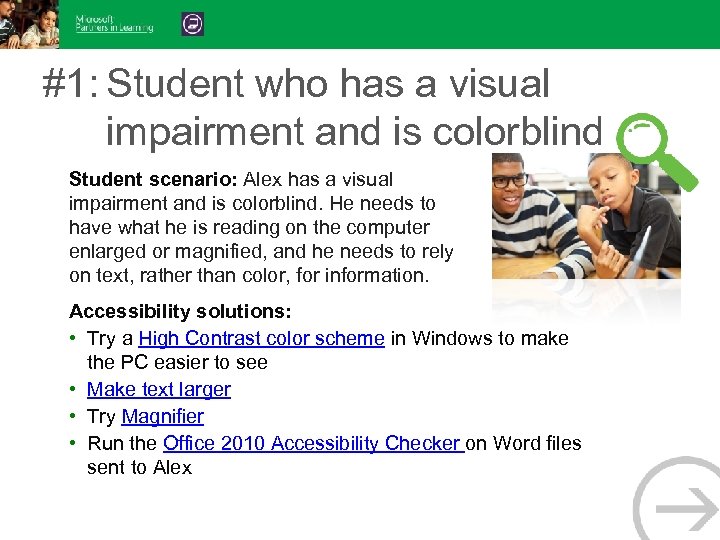
#1: Student who has a visual impairment and is colorblind Student scenario: Alex has a visual impairment and is colorblind. He needs to have what he is reading on the computer enlarged or magnified, and he needs to rely on text, rather than color, for information. Accessibility solutions: • Try a High Contrast color scheme in Windows to make the PC easier to see • Make text larger • Try Magnifier • Run the Office 2010 Accessibility Checker on Word files sent to Alex
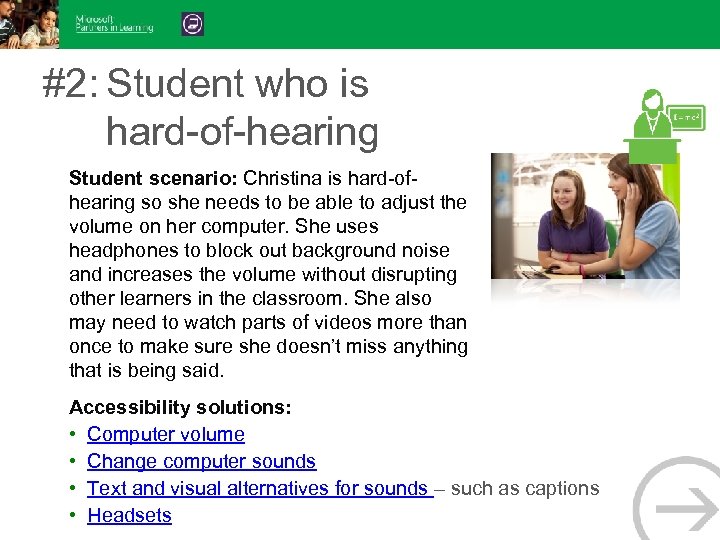
#2: Student who is hard-of-hearing Student scenario: Christina is hard-ofhearing so she needs to be able to adjust the volume on her computer. She uses headphones to block out background noise and increases the volume without disrupting other learners in the classroom. She also may need to watch parts of videos more than once to make sure she doesn’t miss anything that is being said. Accessibility solutions: • Computer volume • Change computer sounds • Text and visual alternatives for sounds – such as captions • Headsets
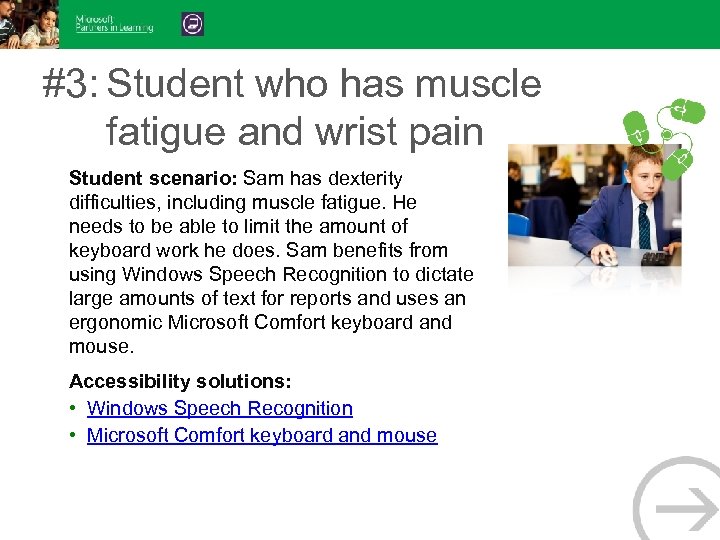
#3: Student who has muscle fatigue and wrist pain Student scenario: Sam has dexterity difficulties, including muscle fatigue. He needs to be able to limit the amount of keyboard work he does. Sam benefits from using Windows Speech Recognition to dictate large amounts of text for reports and uses an ergonomic Microsoft Comfort keyboard and mouse. Accessibility solutions: • Windows Speech Recognition • Microsoft Comfort keyboard and mouse
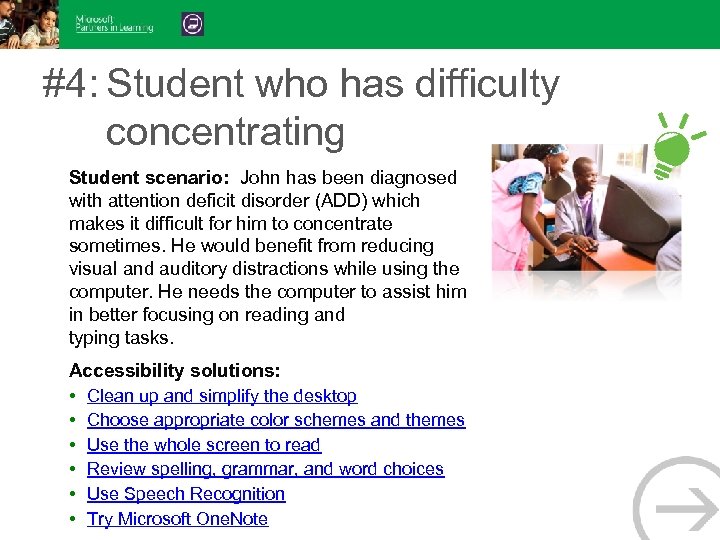
#4: Student who has difficulty concentrating Student scenario: John has been diagnosed with attention deficit disorder (ADD) which makes it difficult for him to concentrate sometimes. He would benefit from reducing visual and auditory distractions while using the computer. He needs the computer to assist him in better focusing on reading and typing tasks. Accessibility solutions: • Clean up and simplify the desktop • Choose appropriate color schemes and themes • Use the whole screen to read • Review spelling, grammar, and word choices • Use Speech Recognition • Try Microsoft One. Note
Review of students’ solutions Review how-to articles and videos to give you ideas of what to try • • • Five ways to make a PC easier to see Four ways to make a PC easier to hear Four ways to help a student control the mouse Six ways to help students stay focused Five ways to help dyslexic students get organized

Resources
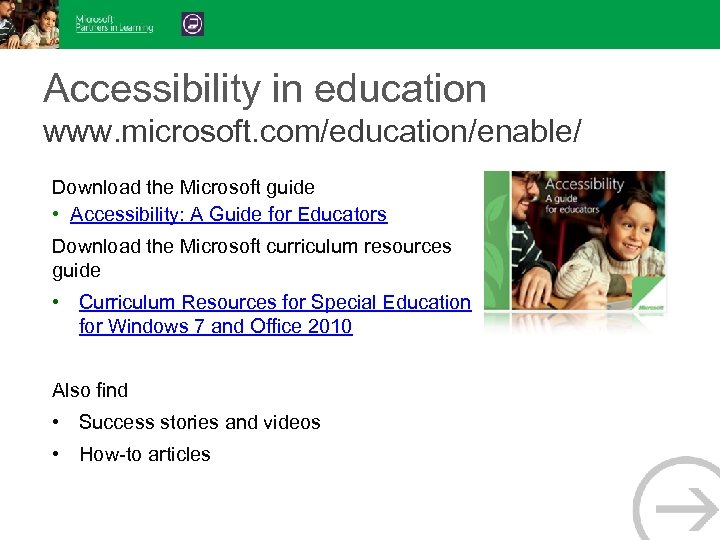
Accessibility in education www. microsoft. com/education/enable/ Download the Microsoft guide • Accessibility: A Guide for Educators Download the Microsoft curriculum resources guide • Curriculum Resources for Special Education for Windows 7 and Office 2010 Also find • Success stories and videos • How-to articles
Microsoft Accessibility www. microsoft. com/enable/ • Accessibility features in Microsoft Products www. microsoft. com/enable/products/ • Accessibility demos www. microsoft. com/enable/demos/ • Accessibility tutorials www. microsoft. com/enable/training/default. aspx • Assistive technology products www. microsoft. com/enable/at/ • Accessibility resources in 41 languages www. microsoft. com/enable/worldwide/
3 things to remember 1. Every classroom has a student who can benefit from accessibility 2. Accessibility features in Windows and how to use • Personalization • Ease of Access Center 3. Where to find accessibility info for teachers • www. microsoft. com/education/enable/

end slide Microsoft and Partners in Learning logos 59 © 2011 Microsoft
Скачать презентацию Accessibility in Education WORKSHOP Accessibility in education
a5355c625c6a9dccd4e72b9eeb798817.ppt