 Скачать презентацию Access Tutorial 19 th APAN Meeting Bangkok Thailand
72bbbb973bd69e0071c516c496df0fdb.ppt
- Количество слайдов: 112



Access Tutorial 19 th APAN Meeting Bangkok, Thailand
Agenda • • Introduction to access grid technology Design consideration Installation Using access grid 2
Introduction to access grid technology
Introduction to access grid • Access Grid is a – Group-to-Group collaborative environment – Provided live , immersive experience over a long distance – Sharing facilities between participants • • Web Browser Presentation Camera Controller Aplications • The AG technology was developed by the Futures Laboratory at Argonne National Laboratory and is deployed by the NCSA PACI Alliance. 4
Definitions • Access Grid (AG) – The infrastructure and software technologies • Access Grid Node (AGN) – The ensemble of systems and services managed and scheduled as a coherent unit • Access Grid Site (AGS) – A physical site that supports one or more AGNs 5
Benefits • Enable group to group interaction and collaboration • Improve the user experience – Go beyond teleconferencing – Provide a sense of presence – Support natural interaction • Use quality but affordable digital IP based audio/video • Enable complex multi-site visual and collaborative experiences • Build on integrated grid services architecture 6
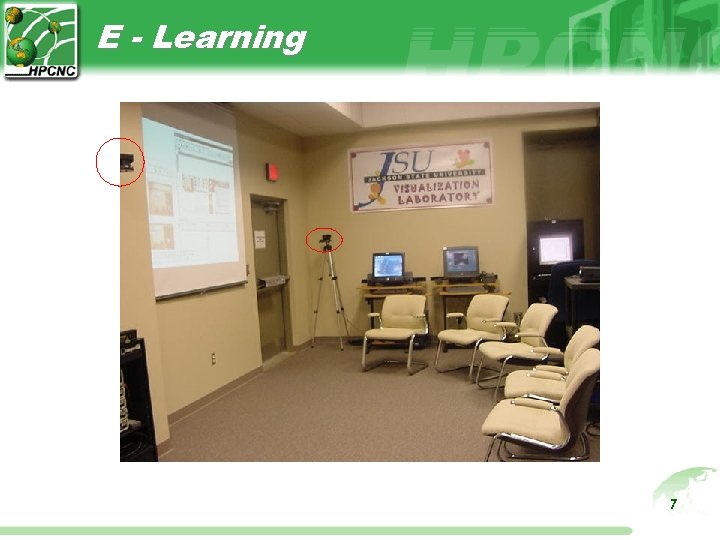
E - Learning 7
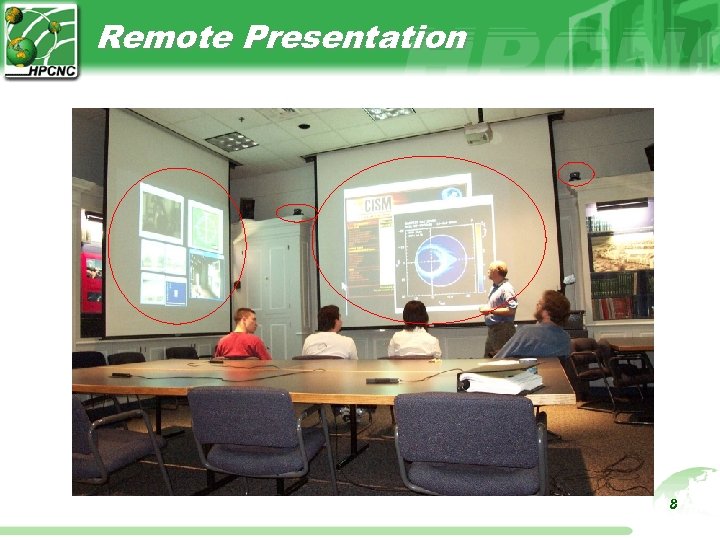
Remote Presentation 8
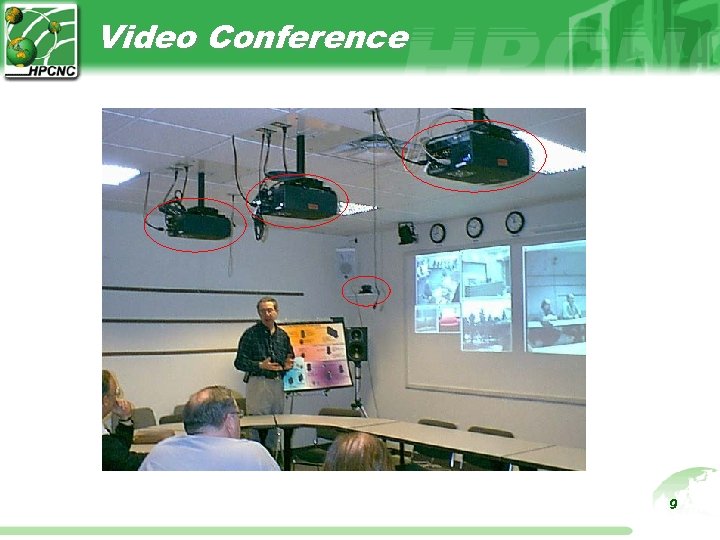
Video Conference 9
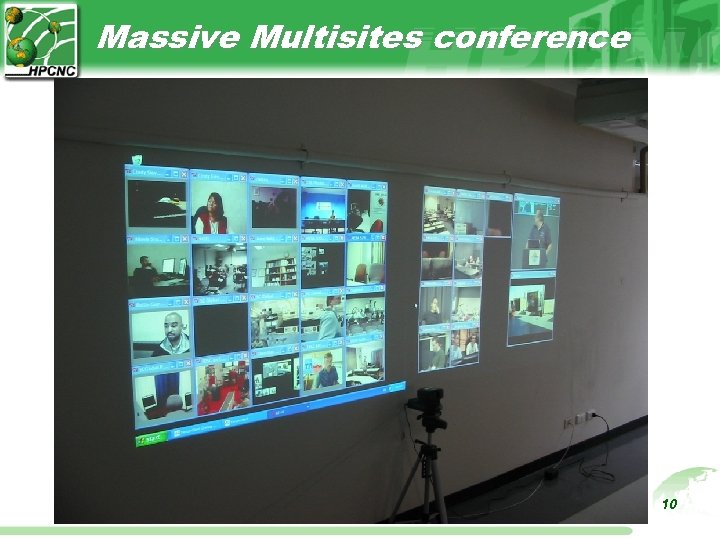
Massive Multisites conference 10

Design Consideration
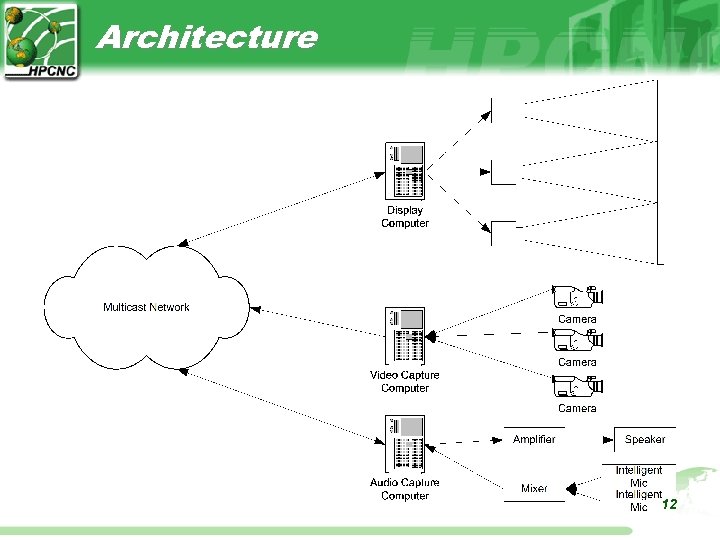
Architecture 12
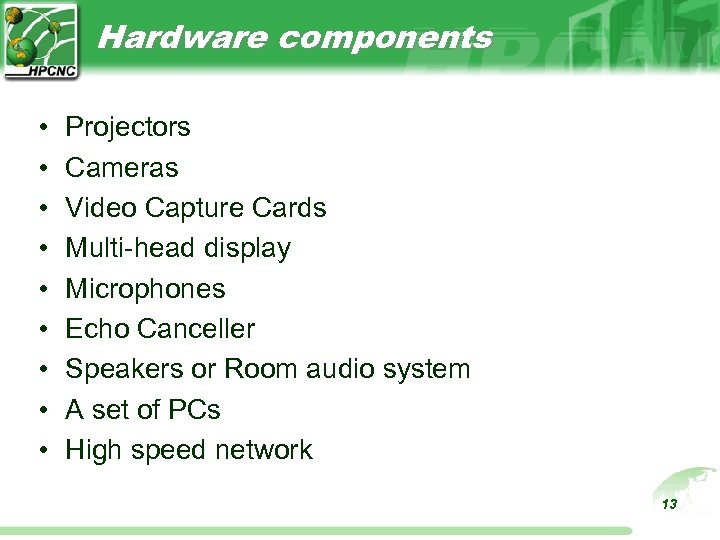
Hardware components • • • Projectors Cameras Video Capture Cards Multi-head display Microphones Echo Canceller Speakers or Room audio system A set of PCs High speed network 13
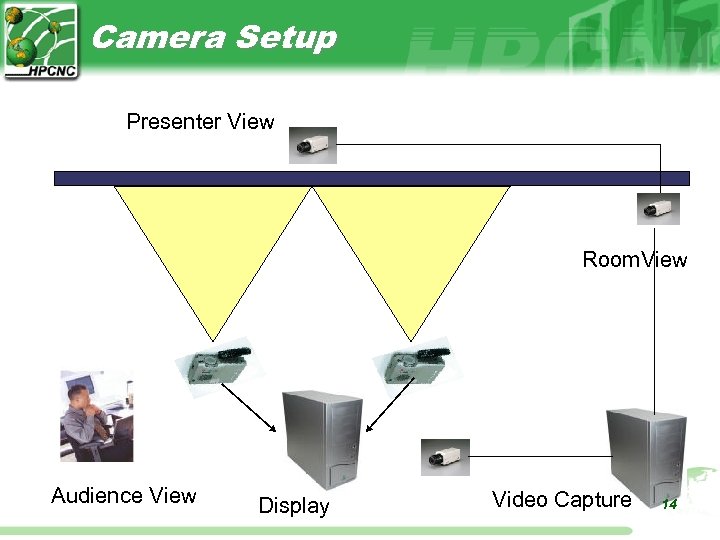
Camera Setup Presenter View Room. View Audience View Display Video Capture 14
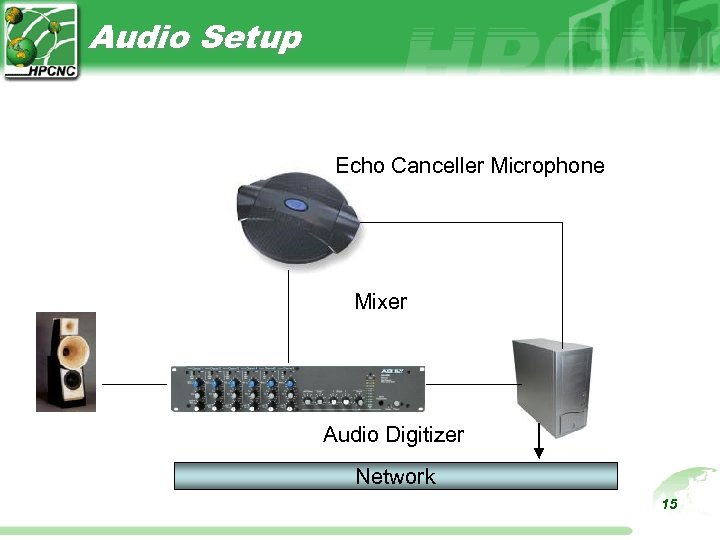
Audio Setup Echo Canceller Microphone Mixer Audio Digitizer Network 15
The Access Grid Toolkit (AGTk) • AGTK is a set of software need to install and operate access grid – Venue Server – Venue Client – Video, Audio service application – Shared application components • Latest version is AGTK 2. 3 • Information: www. accessgrid. org 16
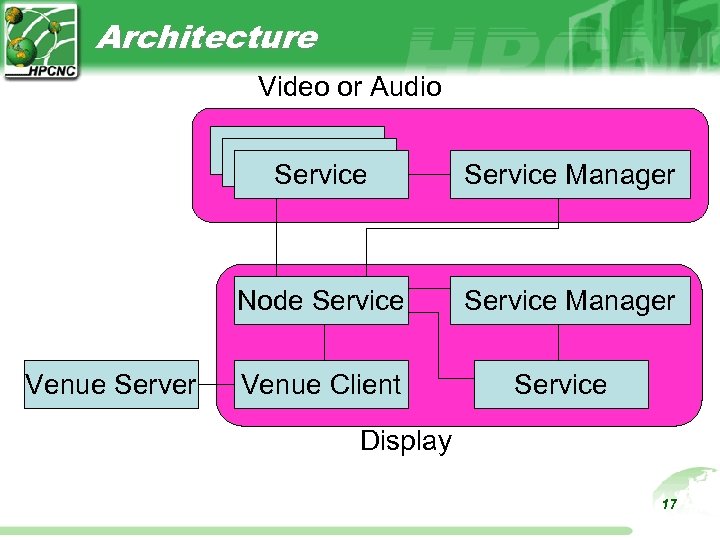
Architecture Video or Audio Service Node Service Venue Server Venue Client Service Manager Service Display 17
Virtual Venue • Virtual Meeting Place on Intetrnet – Emulate the allocation of Meeting room in Conference Center – Support collaboration services • Event distribution • Session initiation • Data and Control channel 18
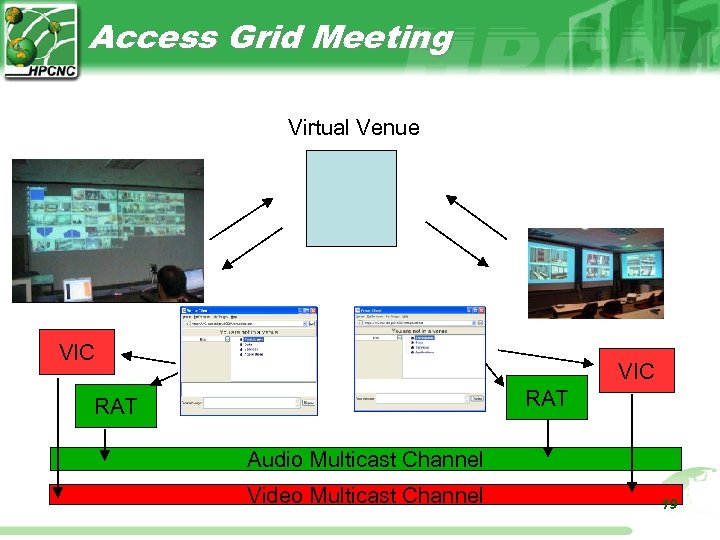
Access Grid Meeting Virtual Venue VIC RAT Audio Multicast Channel Video Multicast Channel 19
Personal Node Installation on Windows
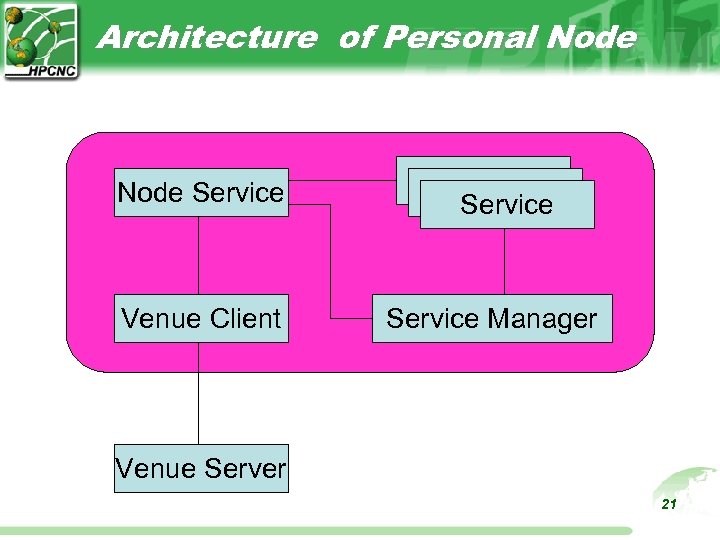
Architecture of Personal Node Service Venue Client Service Manager Venue Server 21
Required Software • Active. Python – Python Interpreter • wx. Python. WIN 32 – Python GUI • AGTk (Access Grid Toolkits) Windows version • AG certificate 22
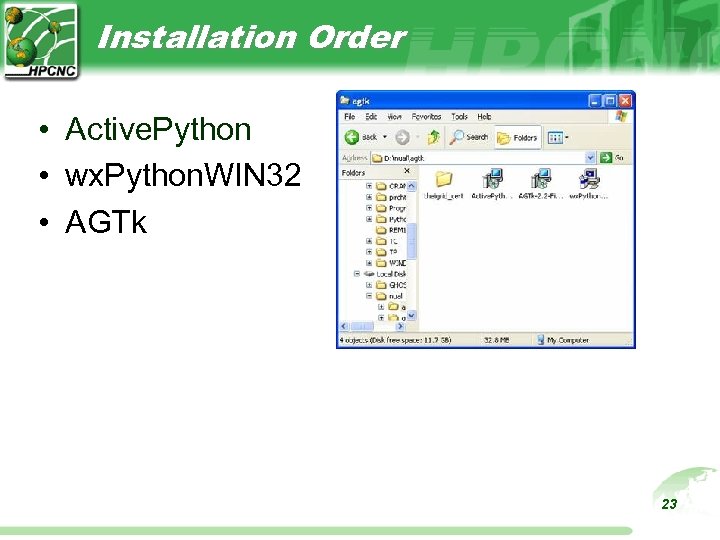
Installation Order • Active. Python • wx. Python. WIN 32 • AGTk 23
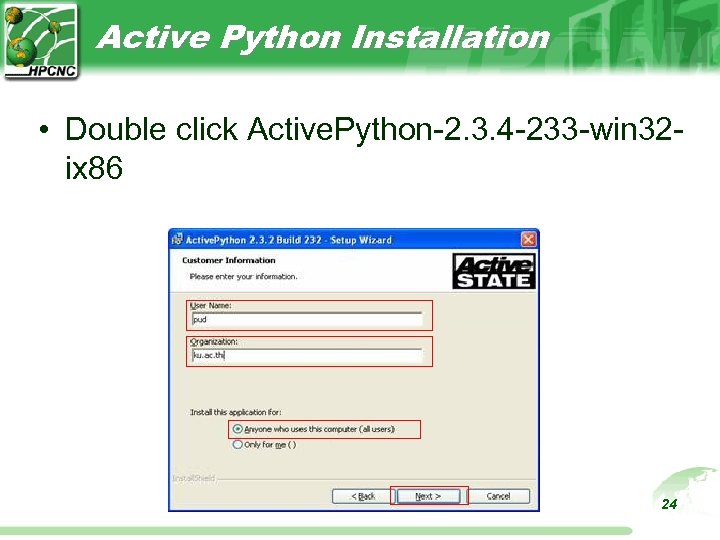
Active Python Installation • Double click Active. Python-2. 3. 4 -233 -win 32 ix 86 24
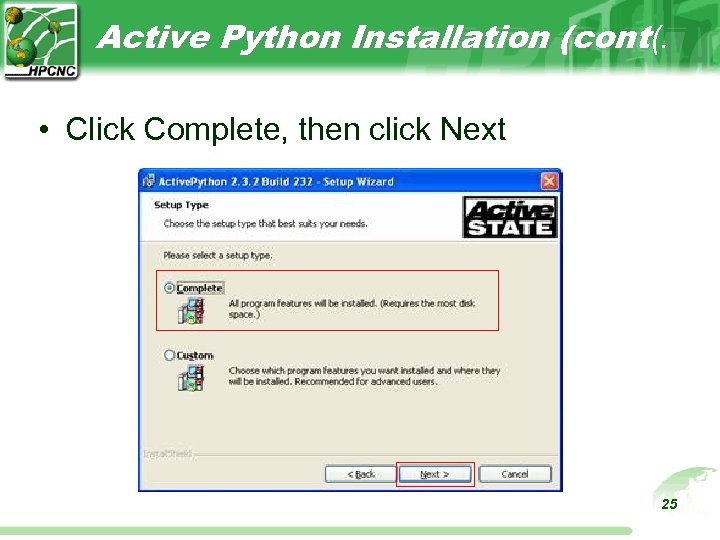
Active Python Installation (cont(. • Click Complete, then click Next 25
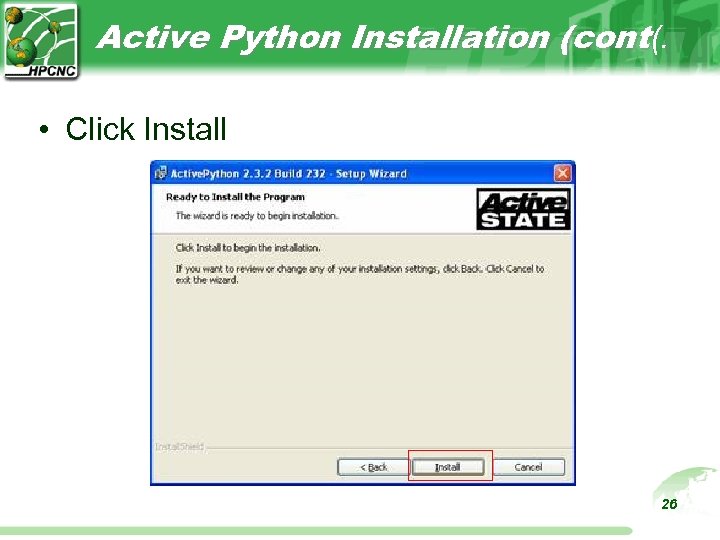
Active Python Installation (cont(. • Click Install 26
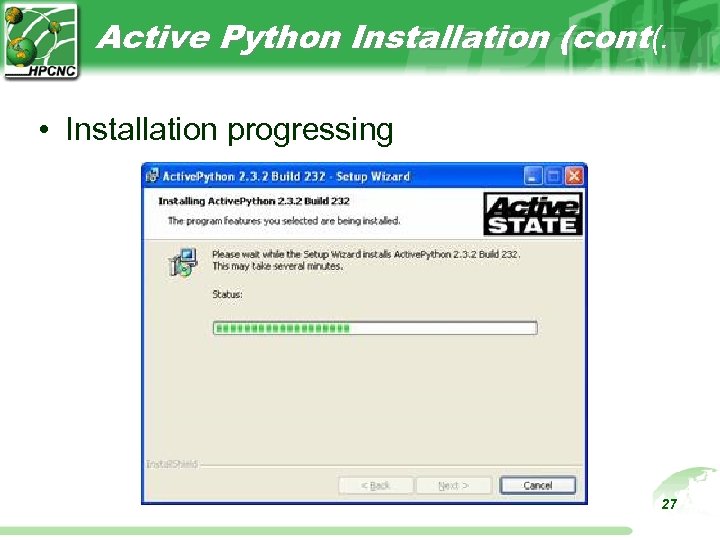
Active Python Installation (cont(. • Installation progressing 27
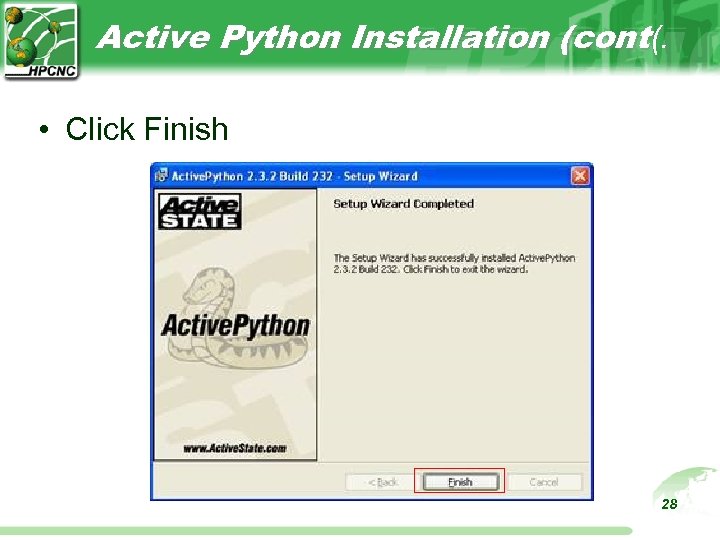
Active Python Installation (cont(. • Click Finish 28
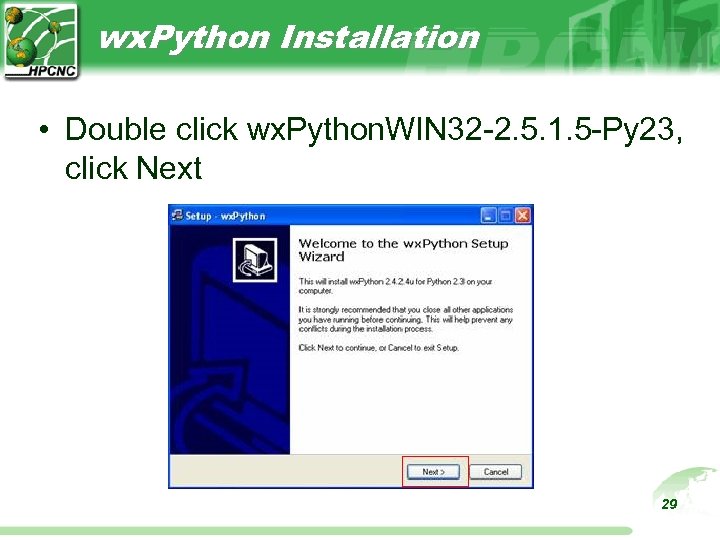
wx. Python Installation • Double click wx. Python. WIN 32 -2. 5. 1. 5 -Py 23, click Next 29
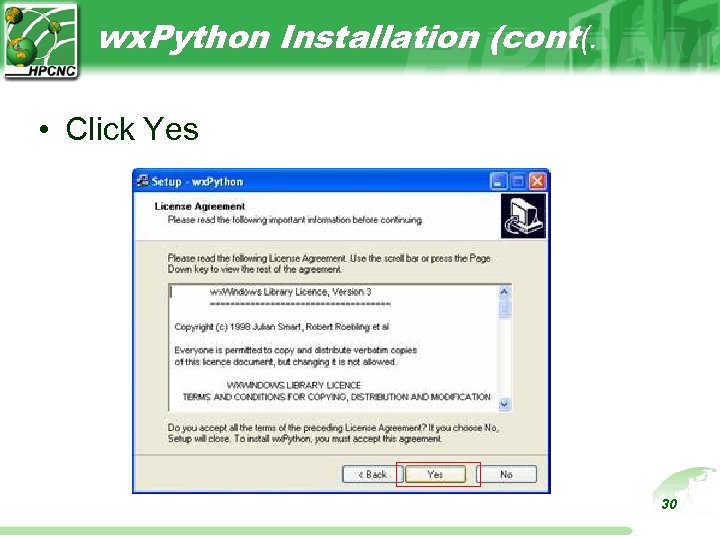
wx. Python Installation (cont(. • Click Yes 30
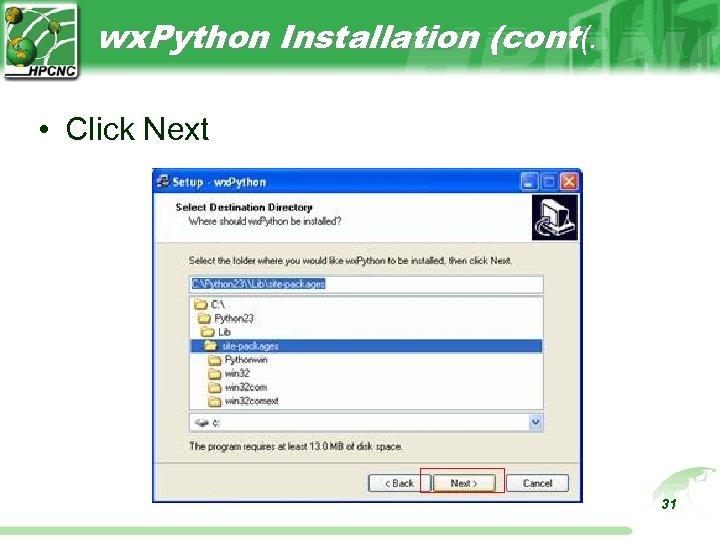
wx. Python Installation (cont(. • Click Next 31
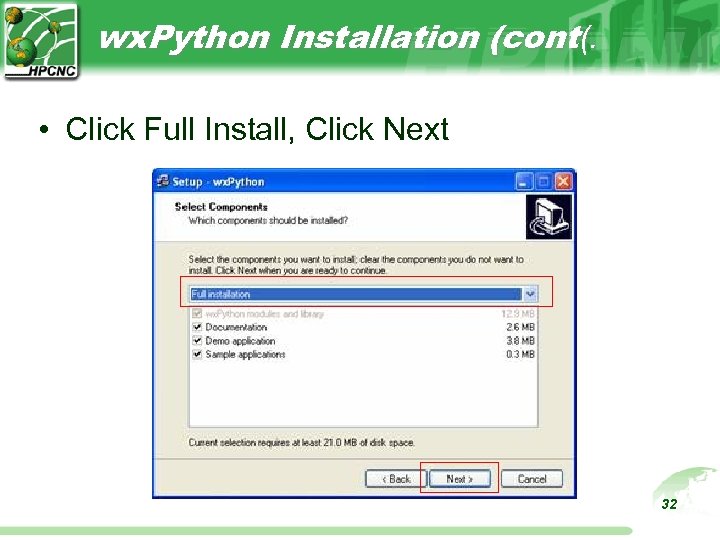
wx. Python Installation (cont(. • Click Full Install, Click Next 32
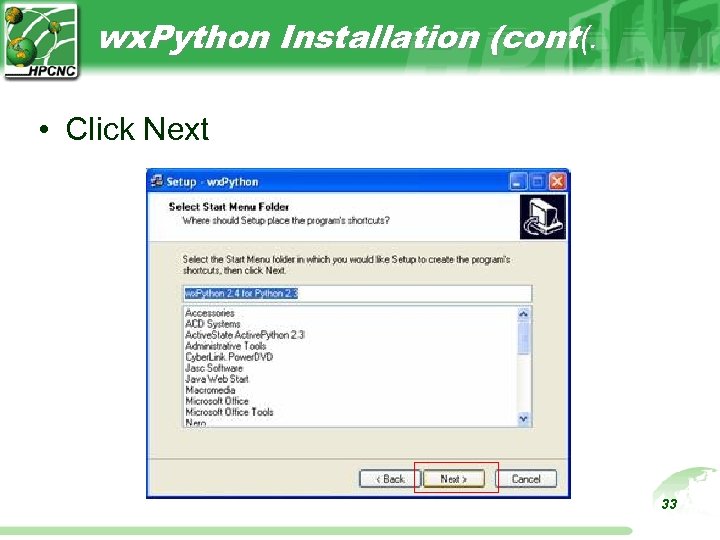
wx. Python Installation (cont(. • Click Next 33
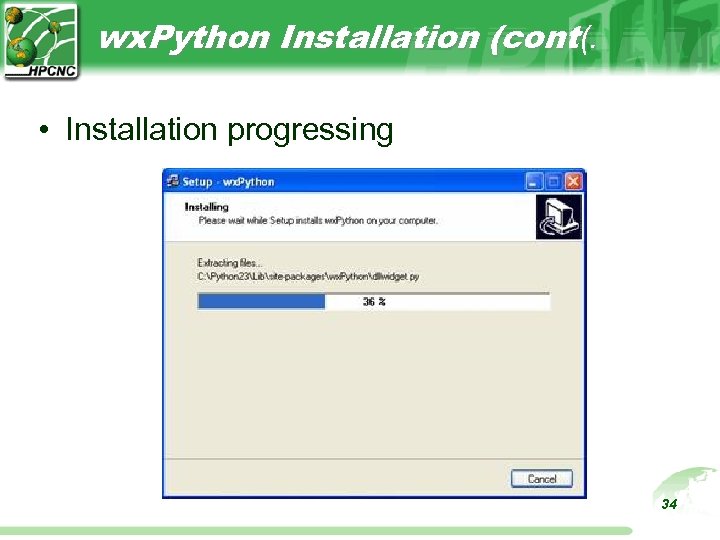
wx. Python Installation (cont(. • Installation progressing 34
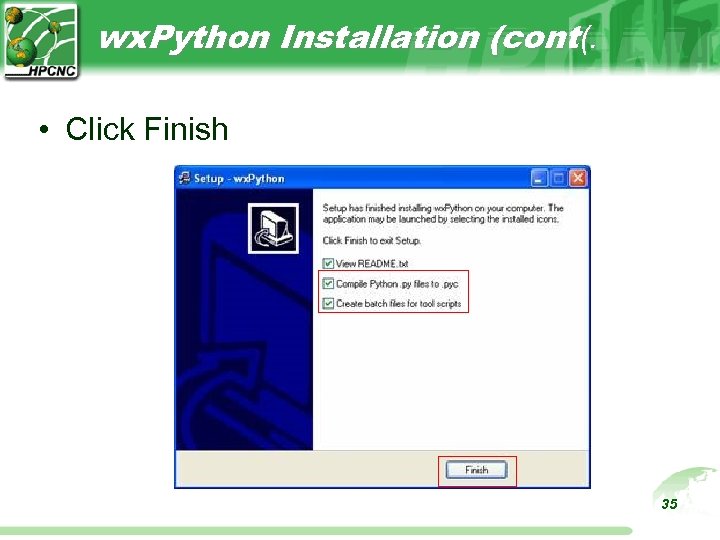
wx. Python Installation (cont(. • Click Finish 35
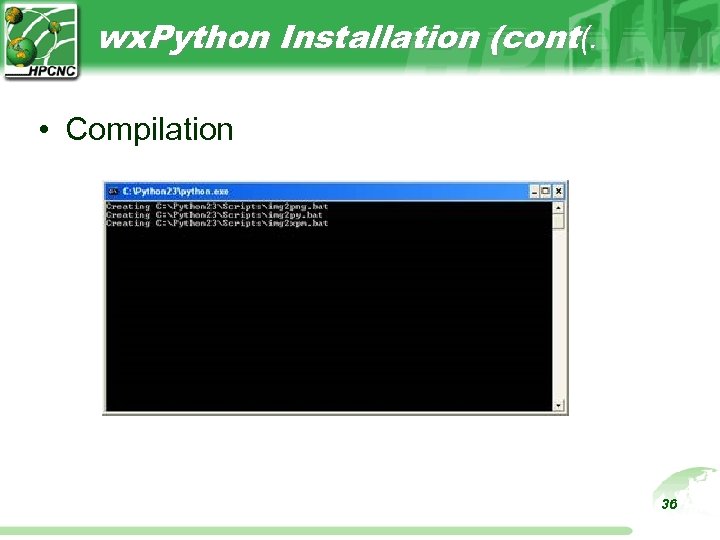
wx. Python Installation (cont(. • Compilation 36
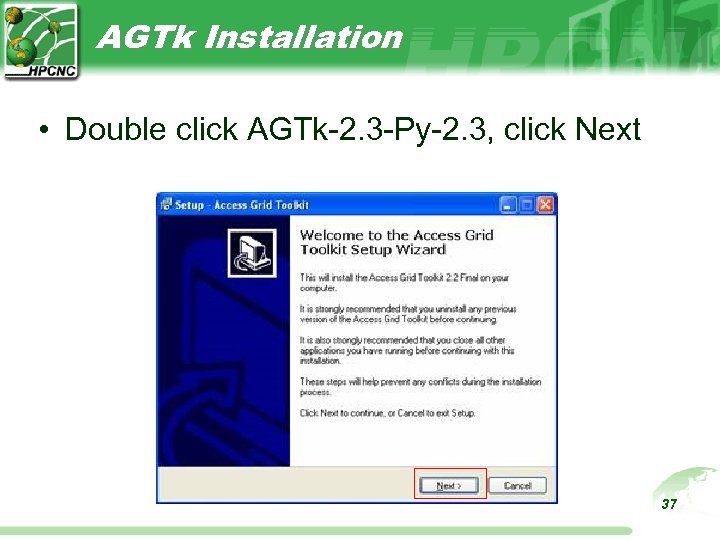
AGTk Installation • Double click AGTk-2. 3 -Py-2. 3, click Next 37
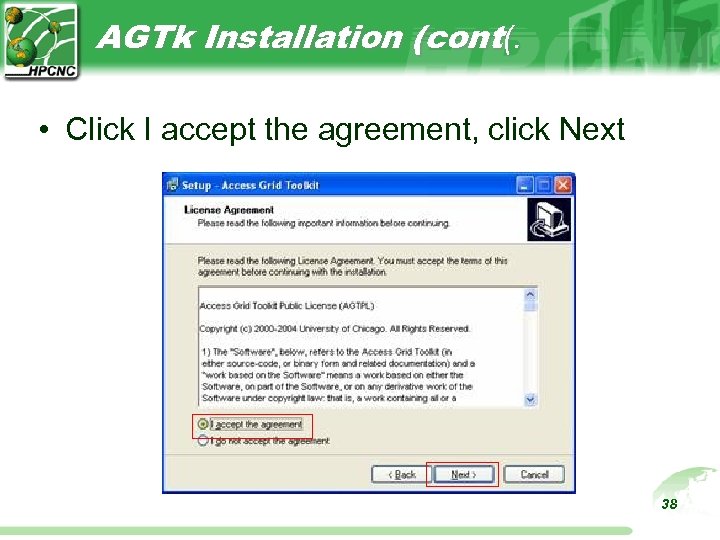
AGTk Installation (cont(. • Click I accept the agreement, click Next 38
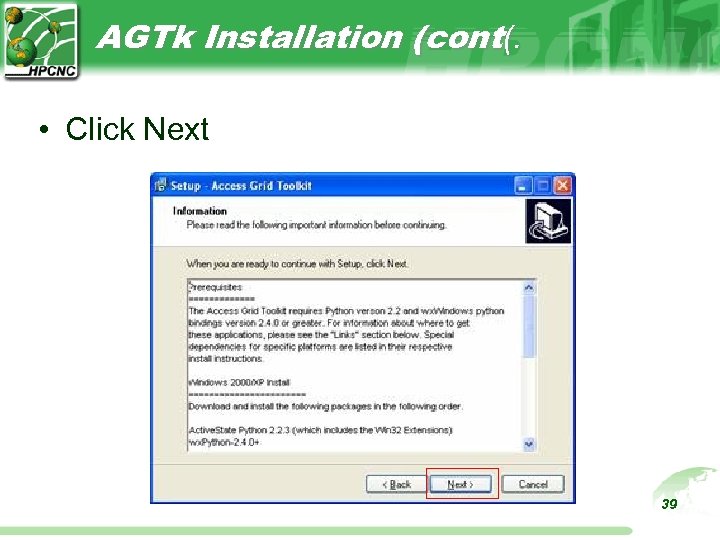
AGTk Installation (cont(. • Click Next 39
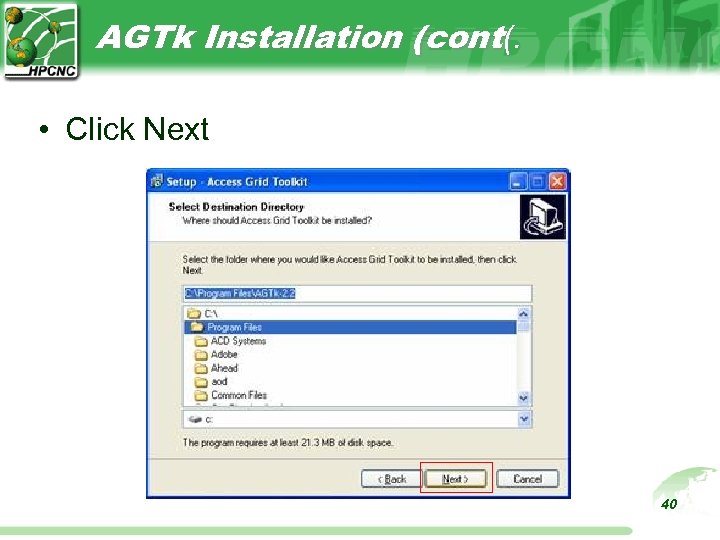
AGTk Installation (cont(. • Click Next 40
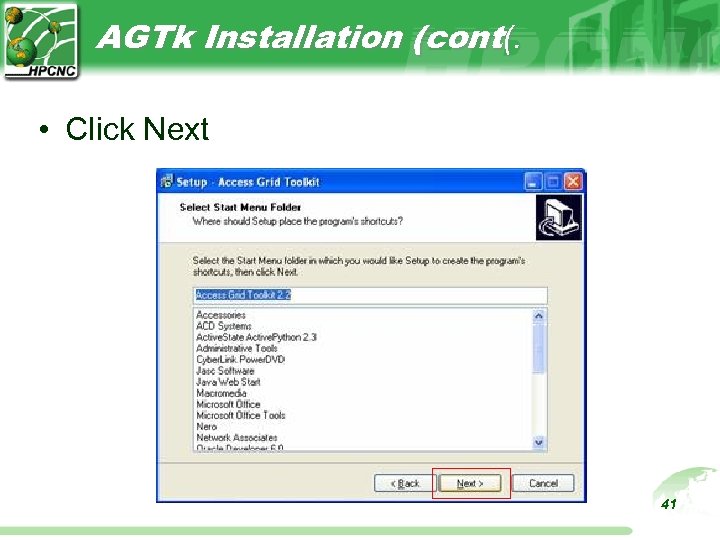
AGTk Installation (cont(. • Click Next 41
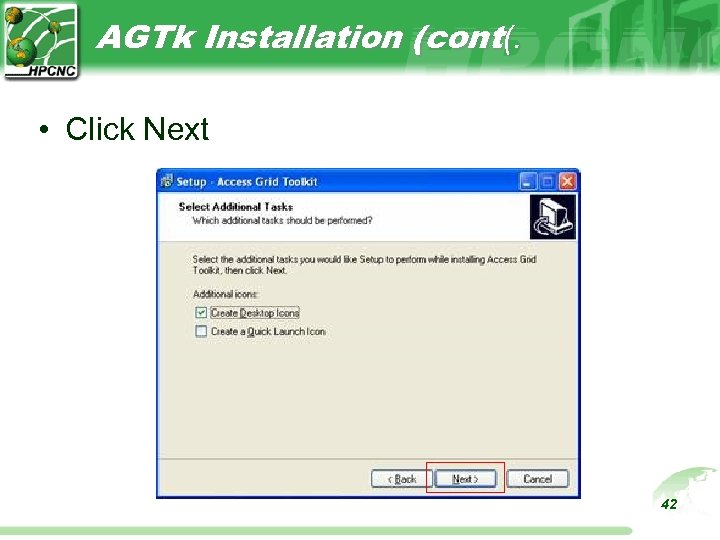
AGTk Installation (cont(. • Click Next 42
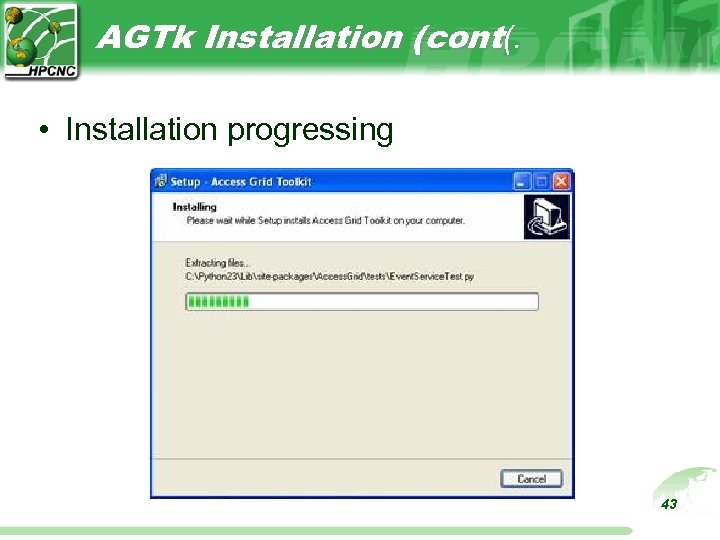
AGTk Installation (cont(. • Installation progressing 43
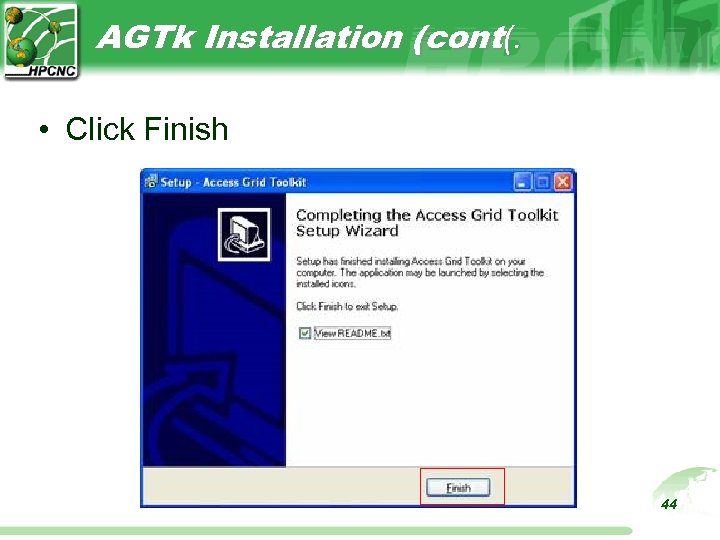
AGTk Installation (cont(. • Click Finish 44
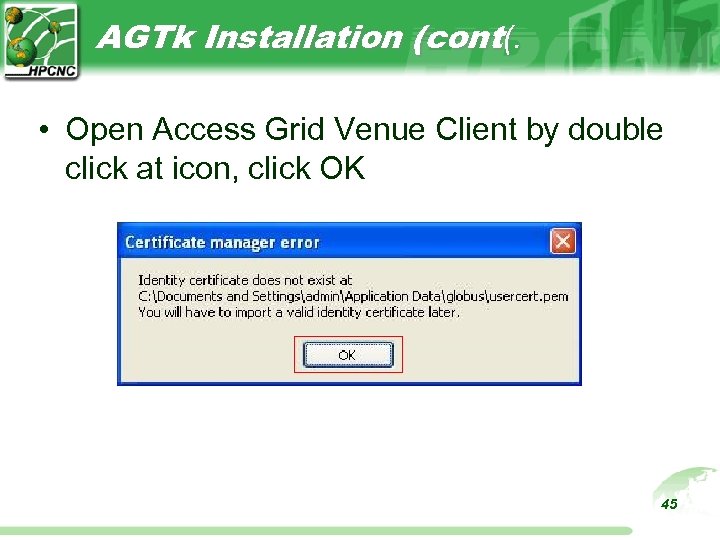
AGTk Installation (cont(. • Open Access Grid Venue Client by double click at icon, click OK 45
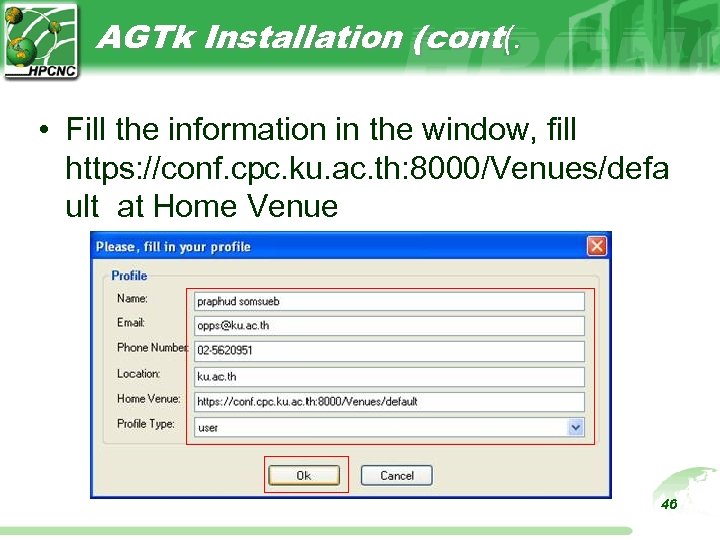
AGTk Installation (cont(. • Fill the information in the window, fill https: //conf. cpc. ku. ac. th: 8000/Venues/defa ult at Home Venue 46
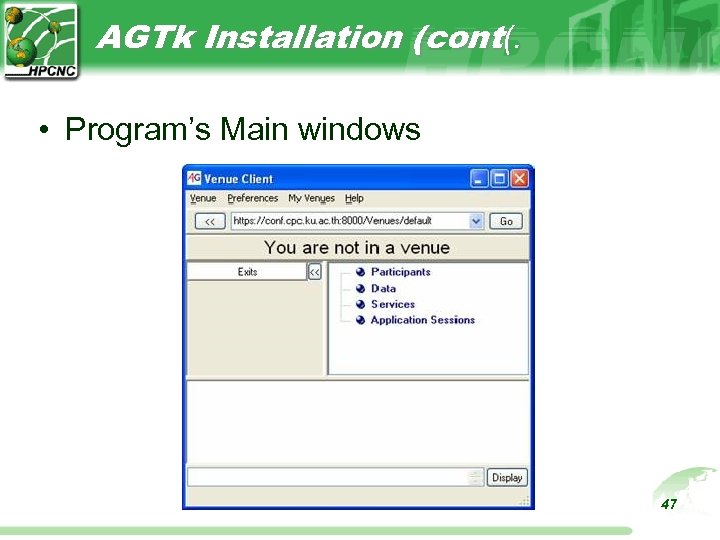
AGTk Installation (cont(. • Program’s Main windows 47
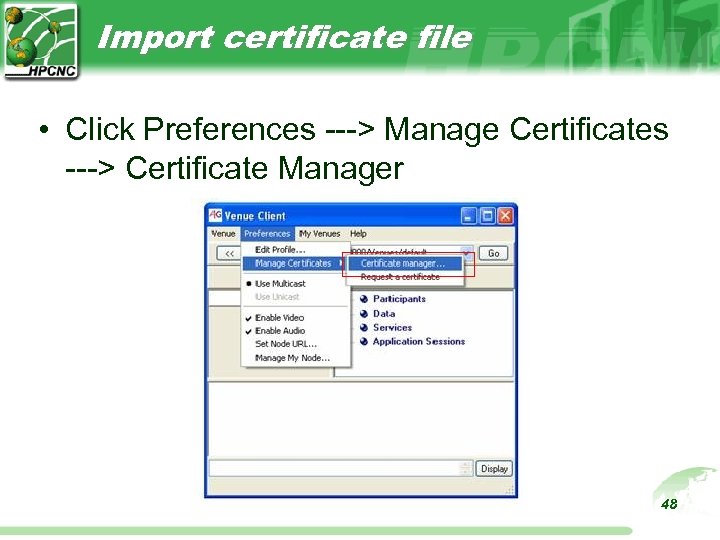
Import certificate file • Click Preferences ---> Manage Certificates ---> Certificate Manager 48
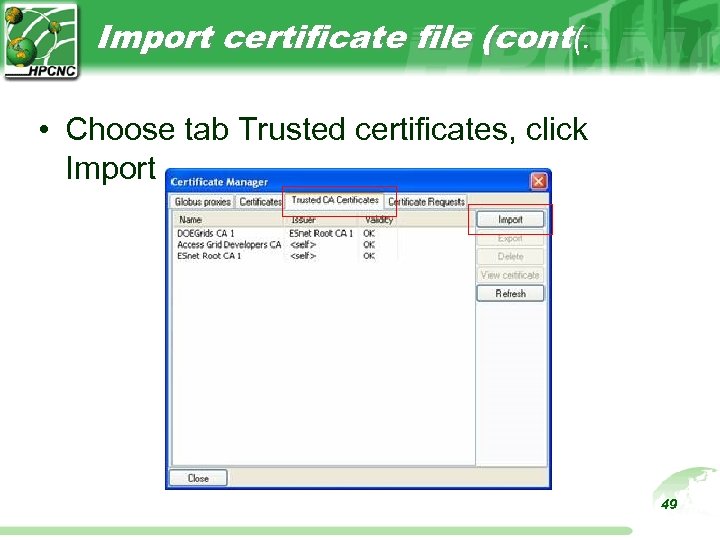
Import certificate file (cont(. • Choose tab Trusted certificates, click Import 49
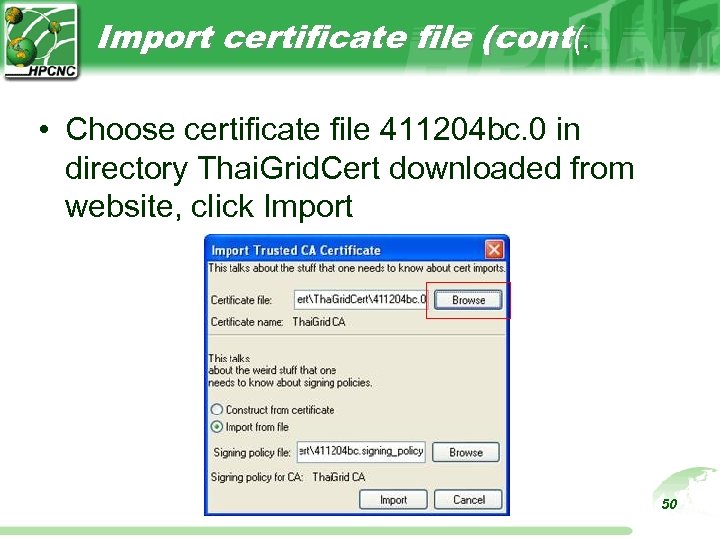
Import certificate file (cont(. • Choose certificate file 411204 bc. 0 in directory Thai. Grid. Cert downloaded from website, click Import 50
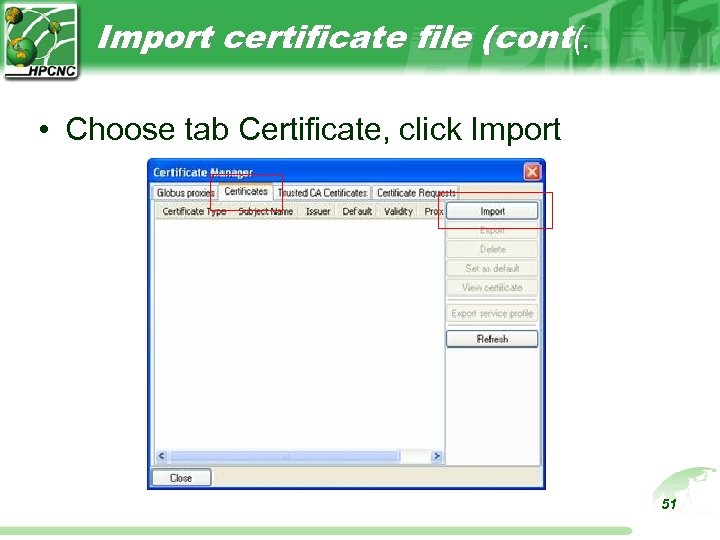
Import certificate file (cont(. • Choose tab Certificate, click Import 51
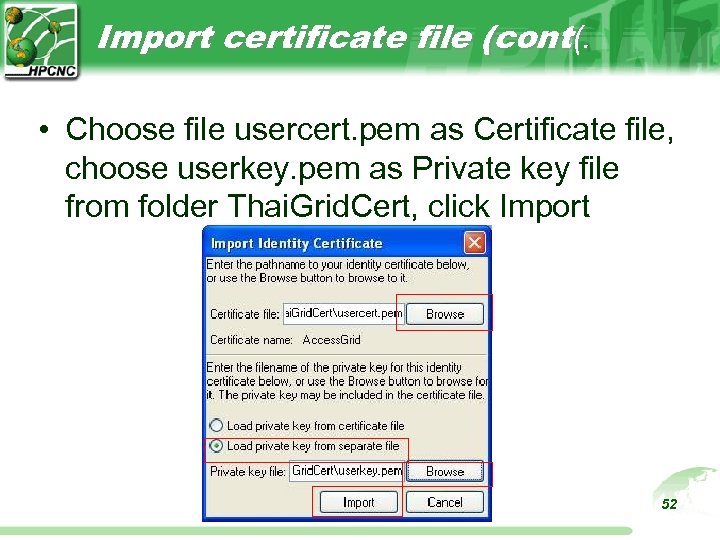
Import certificate file (cont(. • Choose file usercert. pem as Certificate file, choose userkey. pem as Private key file from folder Thai. Grid. Cert, click Import 52
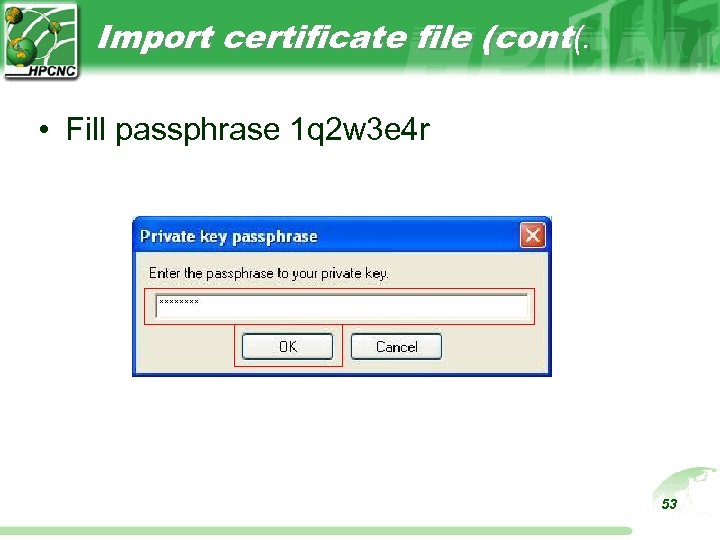
Import certificate file (cont(. • Fill passphrase 1 q 2 w 3 e 4 r 53
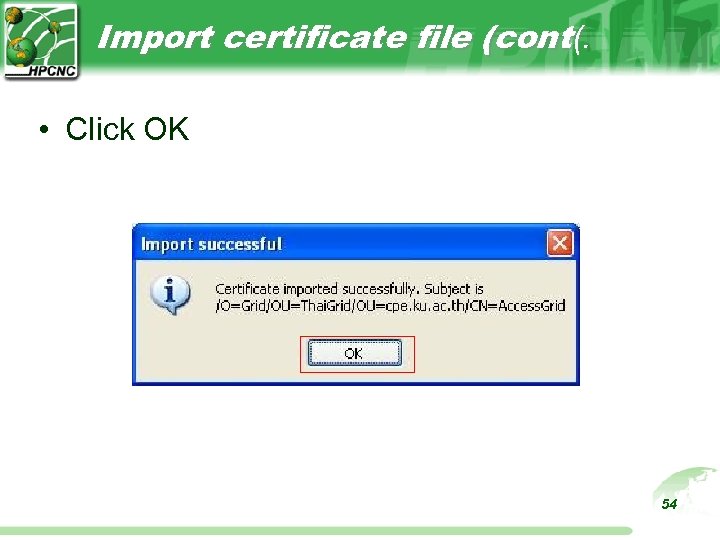
Import certificate file (cont(. • Click OK 54
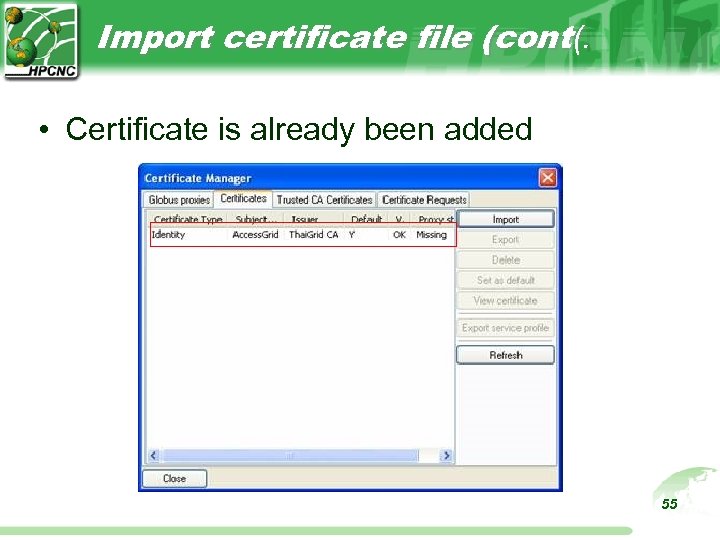
Import certificate file (cont(. • Certificate is already been added 55
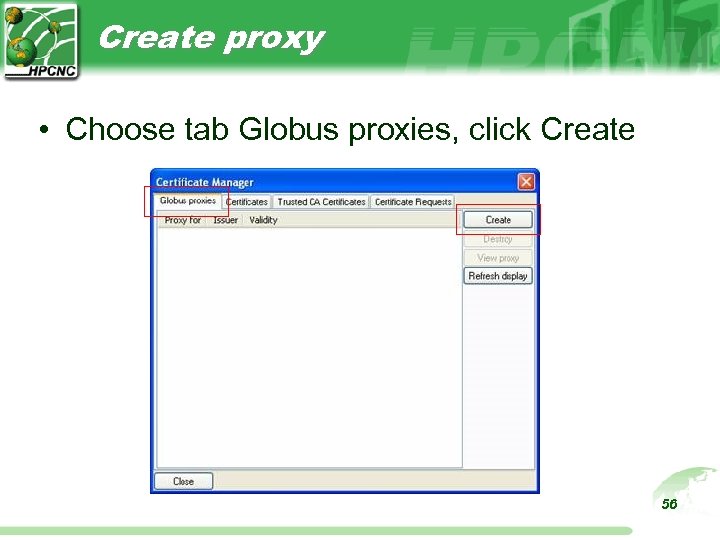
Create proxy • Choose tab Globus proxies, click Create 56
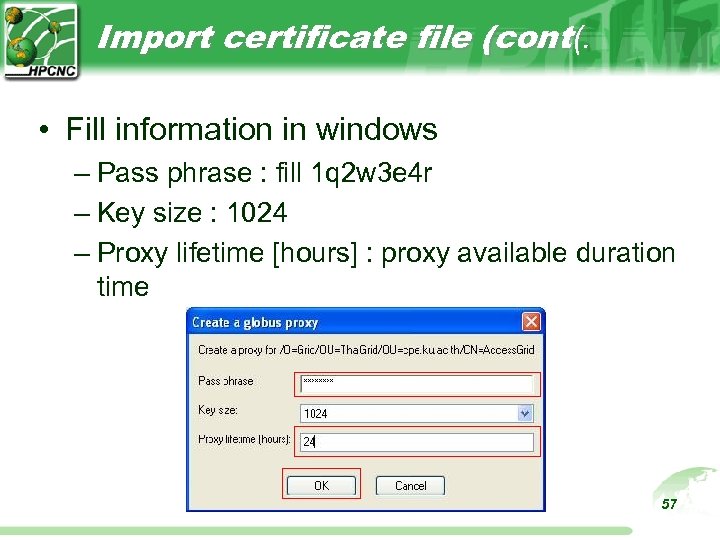
Import certificate file (cont(. • Fill information in windows – Pass phrase : fill 1 q 2 w 3 e 4 r – Key size : 1024 – Proxy lifetime [hours] : proxy available duration time 57
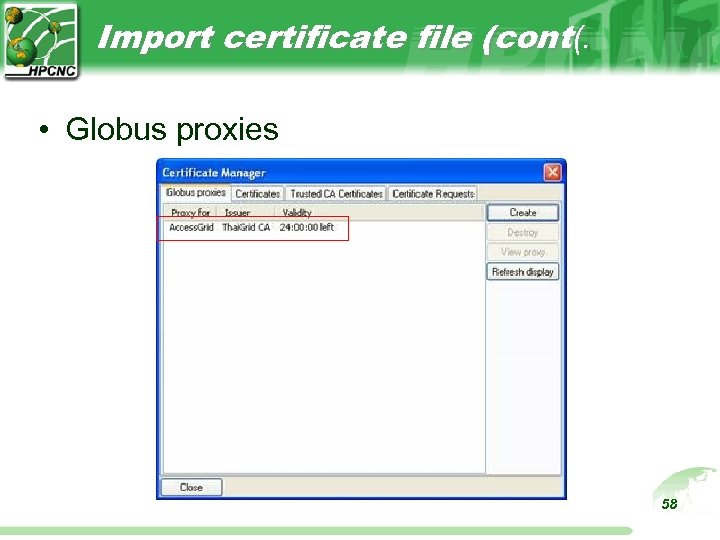
Import certificate file (cont(. • Globus proxies 58
Activating certificate • Restart Venue client to activate all the setup – Exit venue client – Start venue client 59
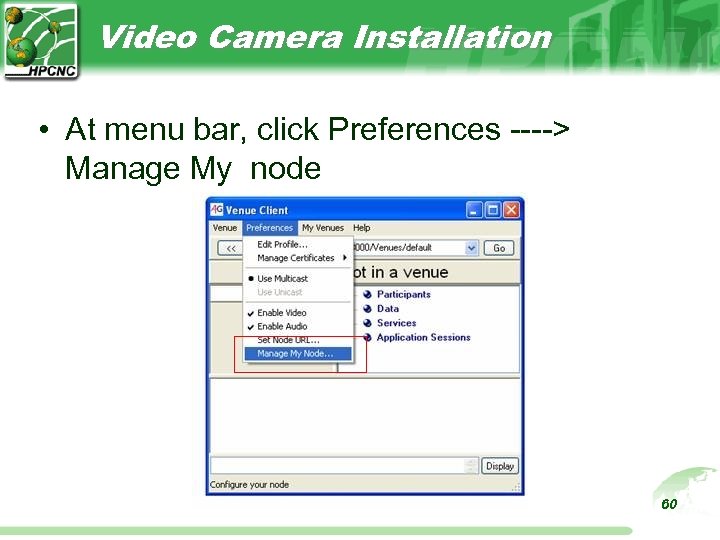
Video Camera Installation • At menu bar, click Preferences ----> Manage My node 60
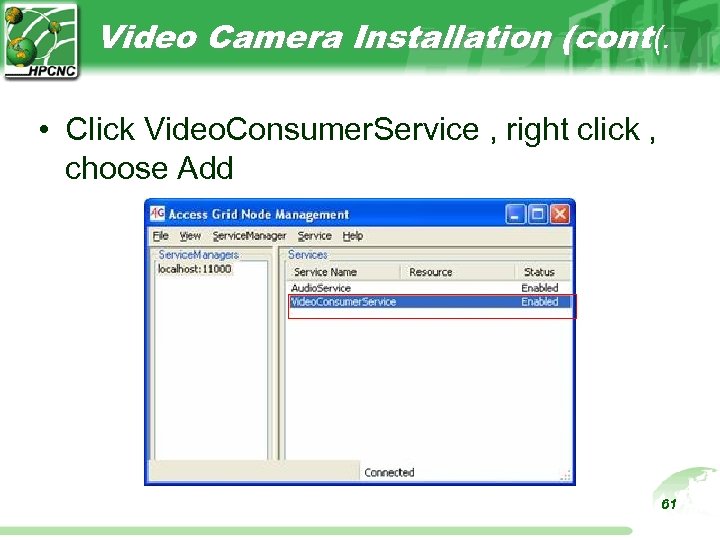
Video Camera Installation (cont(. • Click Video. Consumer. Service , right click , choose Add 61
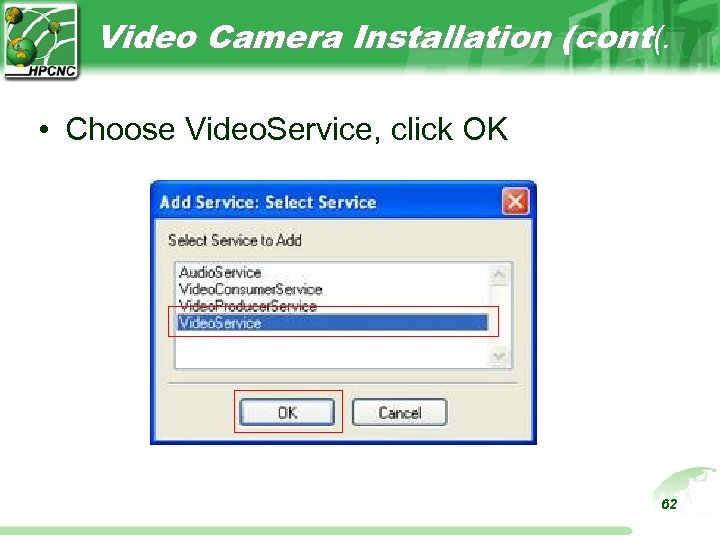
Video Camera Installation (cont(. • Choose Video. Service, click OK 62
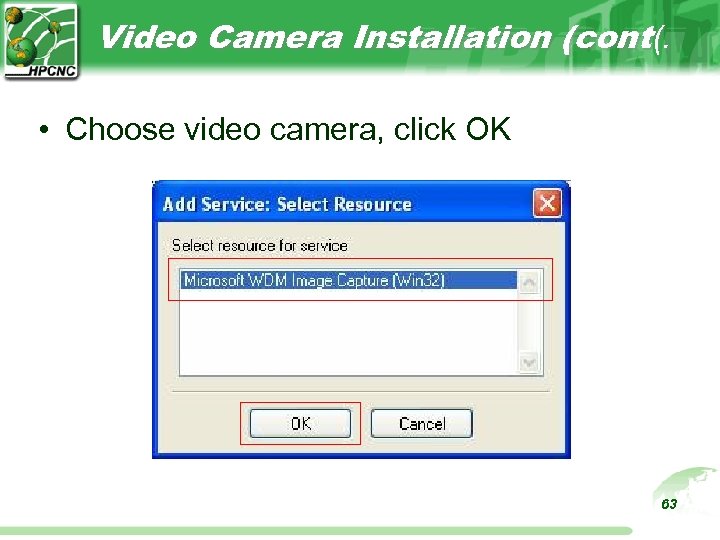
Video Camera Installation (cont(. • Choose video camera, click OK 63
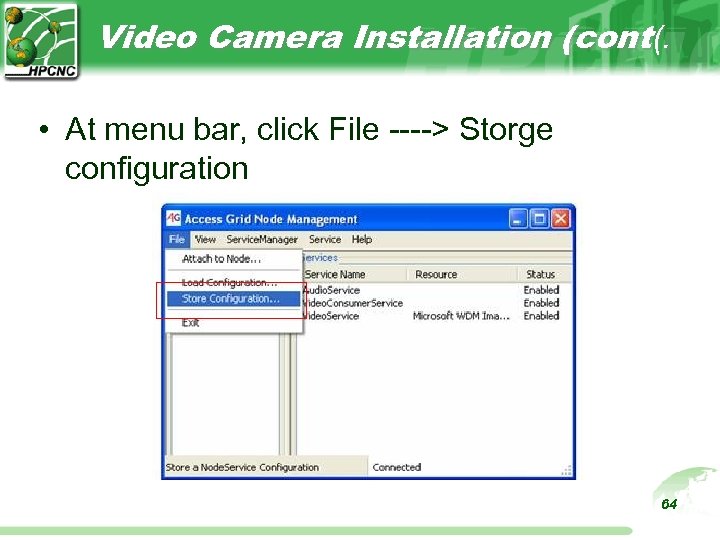
Video Camera Installation (cont(. • At menu bar, click File ----> Storge configuration 64
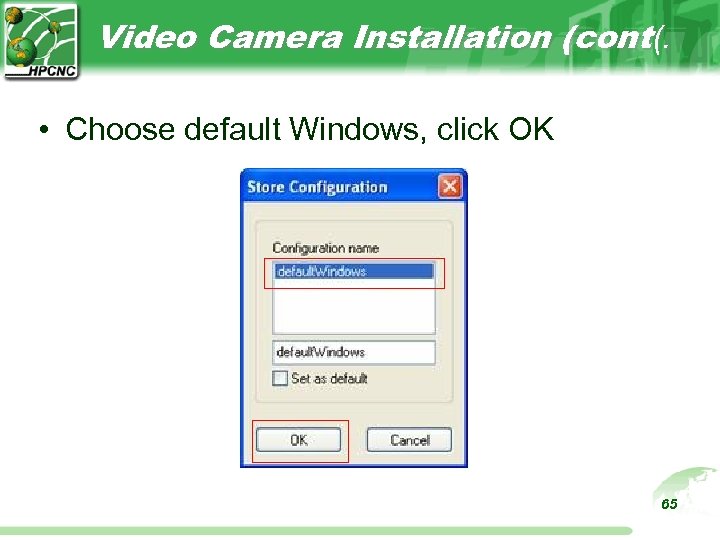
Video Camera Installation (cont(. • Choose default Windows, click OK 65
Using Access Grid
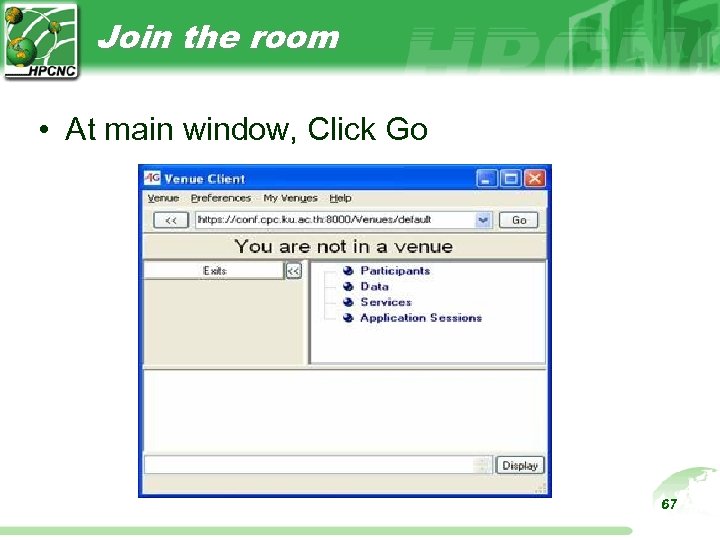
Join the room • At main window, Click Go 67
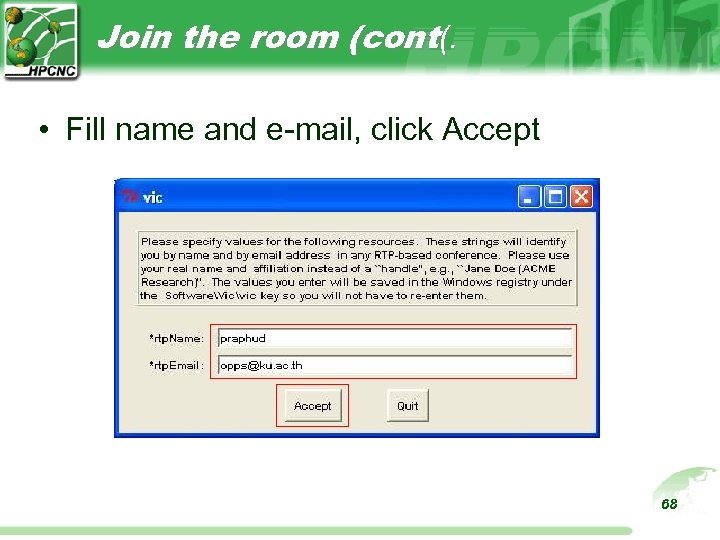
Join the room (cont(. • Fill name and e-mail, click Accept 68
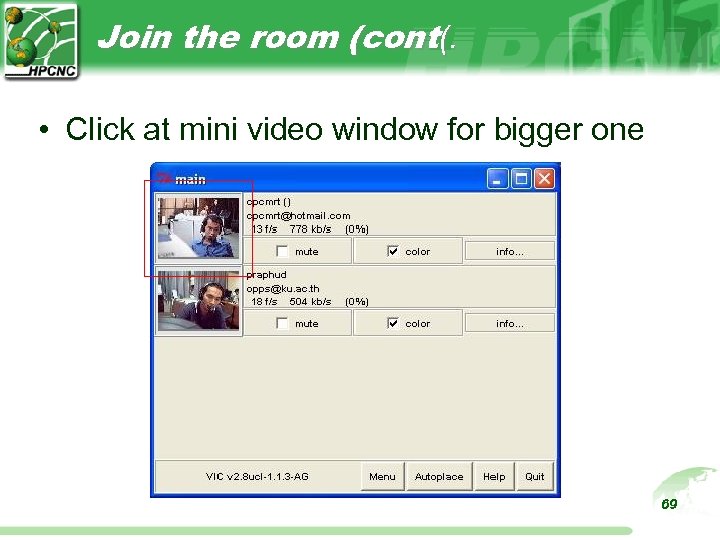
Join the room (cont(. • Click at mini video window for bigger one 69
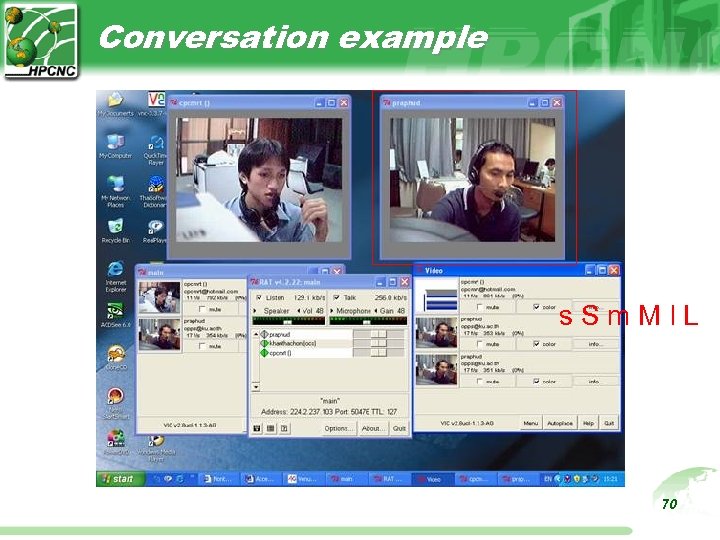
Conversation example s. Sm. Ml. L 70
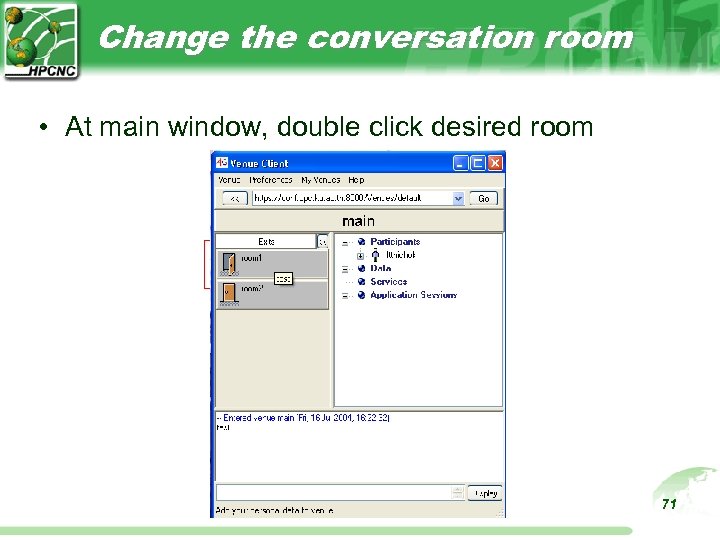
Change the conversation room • At main window, double click desired room 71
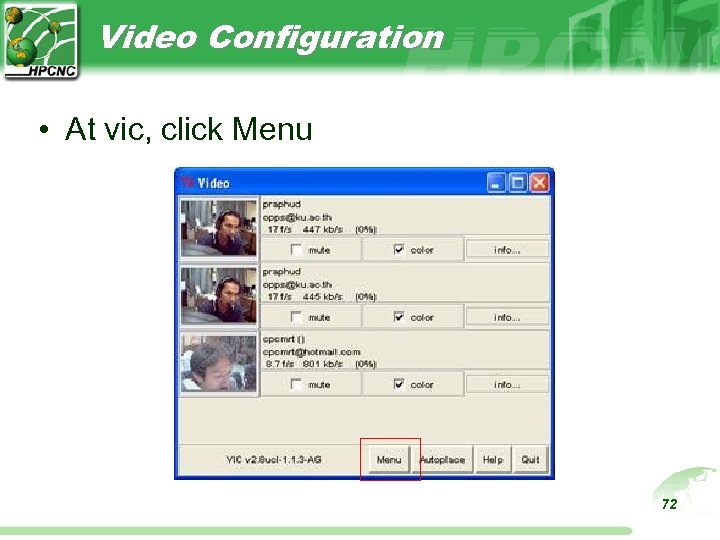
Video Configuration • At vic, click Menu 72
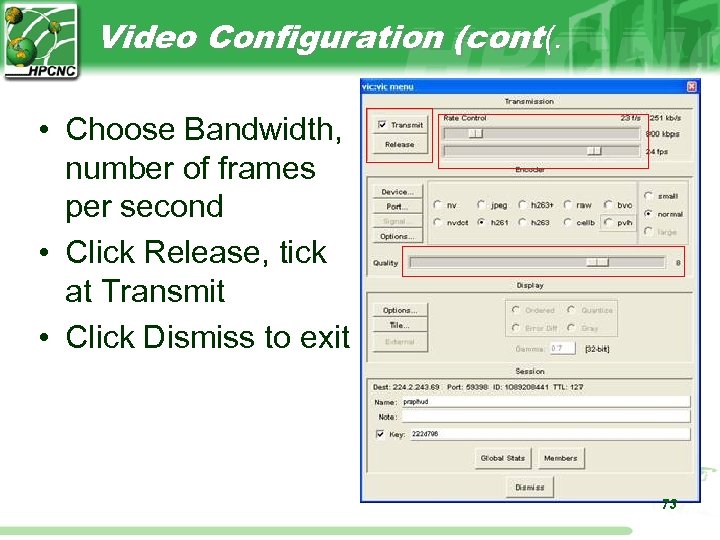
Video Configuration (cont(. • Choose Bandwidth, number of frames per second • Click Release, tick at Transmit • Click Dismiss to exit 73
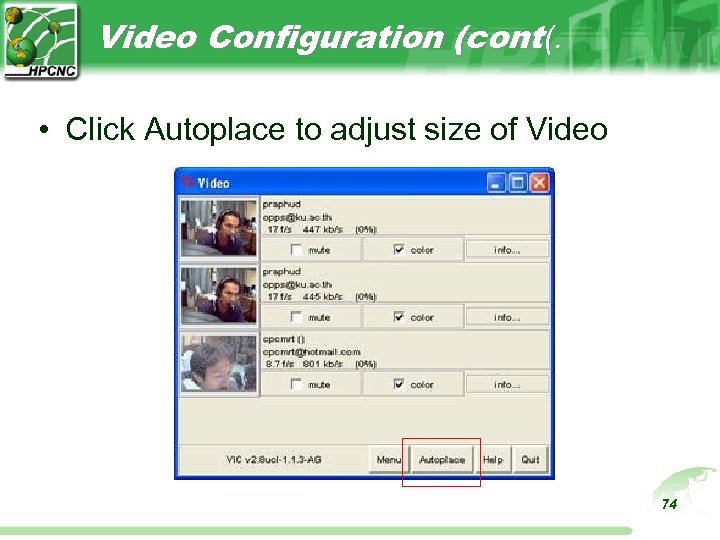
Video Configuration (cont(. • Click Autoplace to adjust size of Video 74
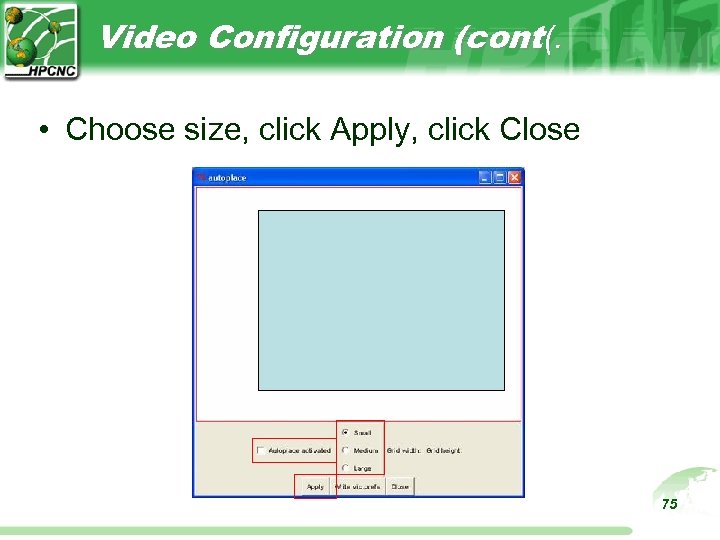
Video Configuration (cont(. • Choose size, click Apply, click Close 75
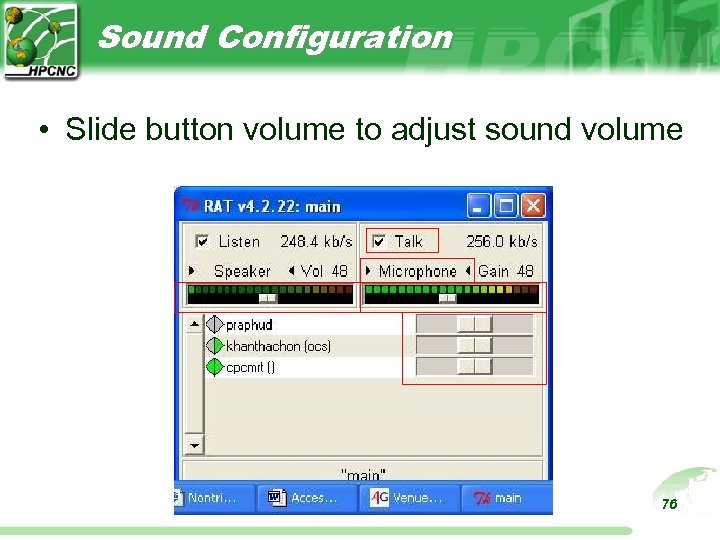
Sound Configuration • Slide button volume to adjust sound volume 76
Thank You
Using more access grid features
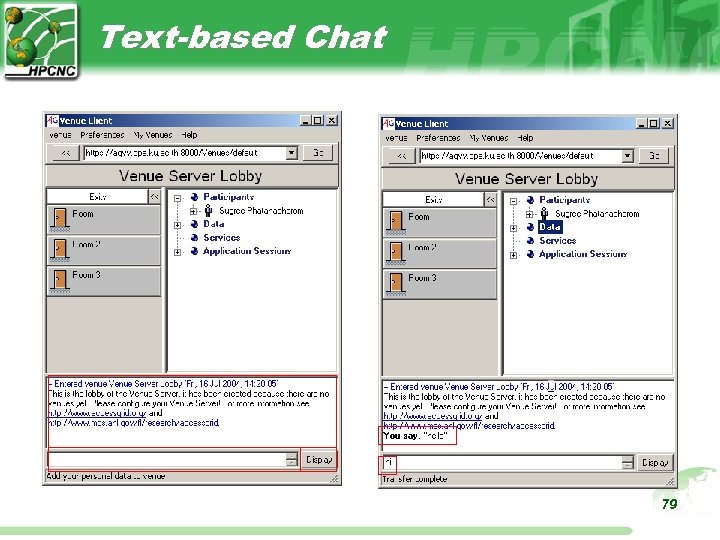
Text-based Chat 79
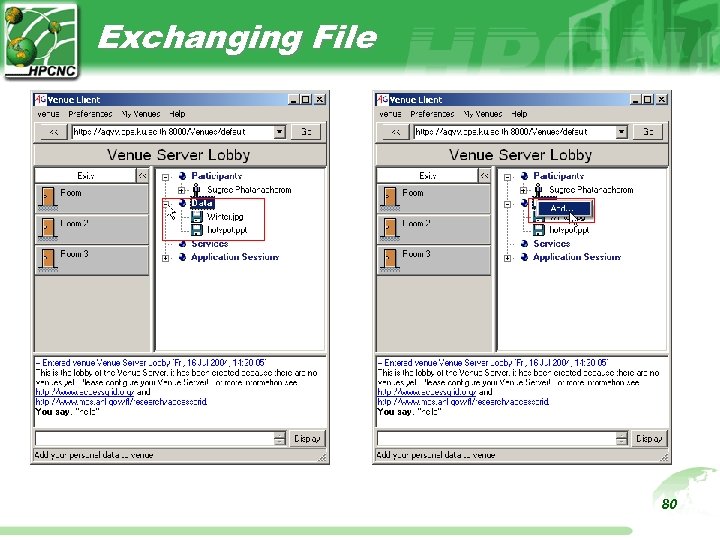
Exchanging File 80
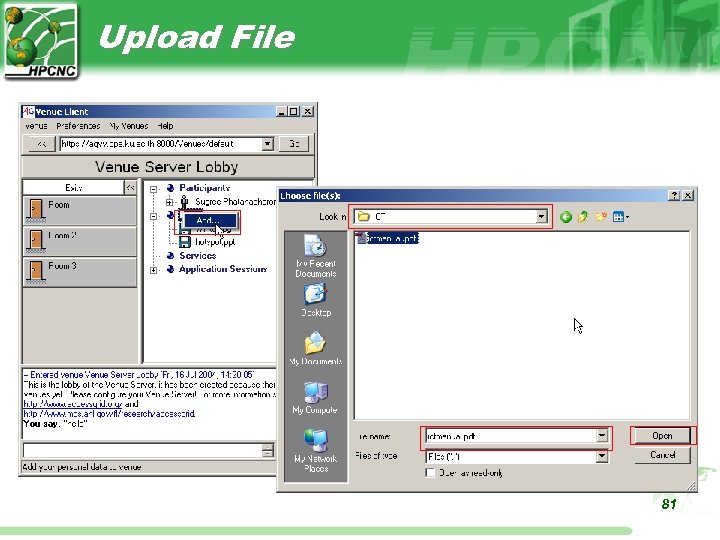
Upload File 81
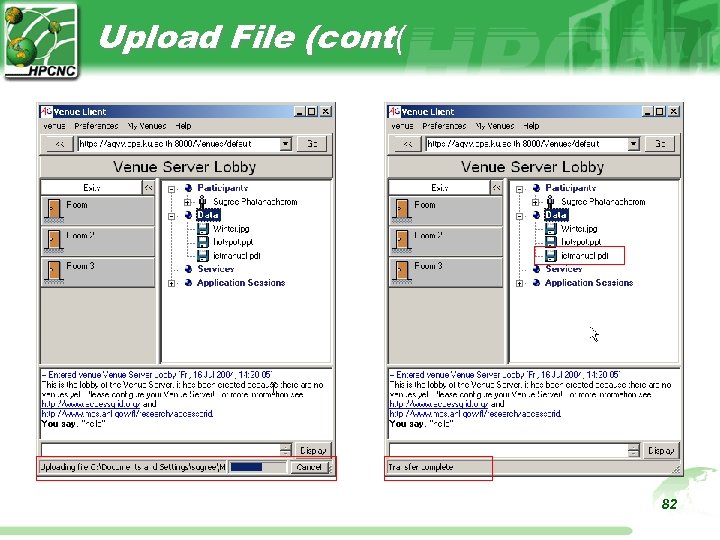
Upload File (cont( 82
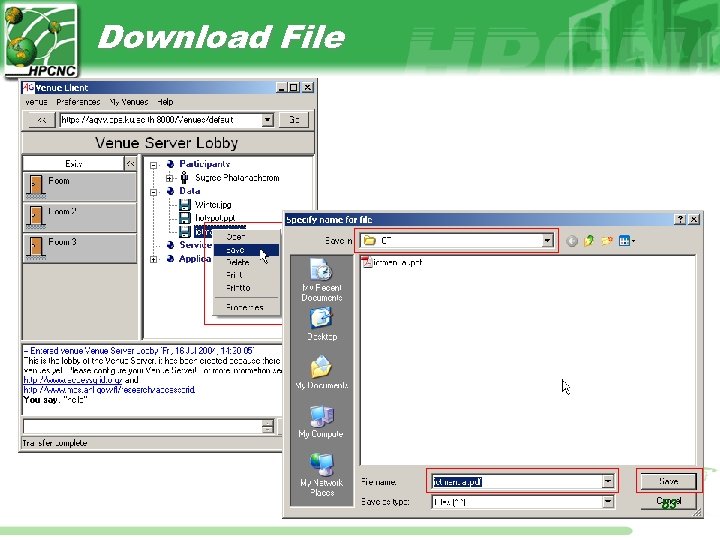
Download File 83
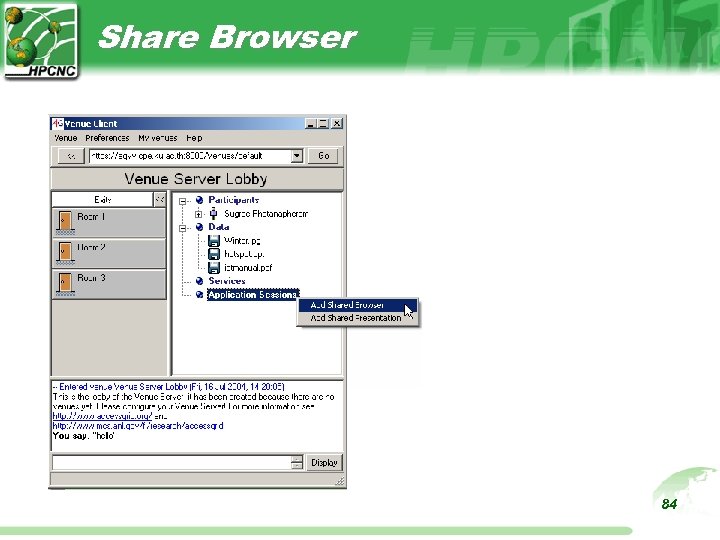
Share Browser 84
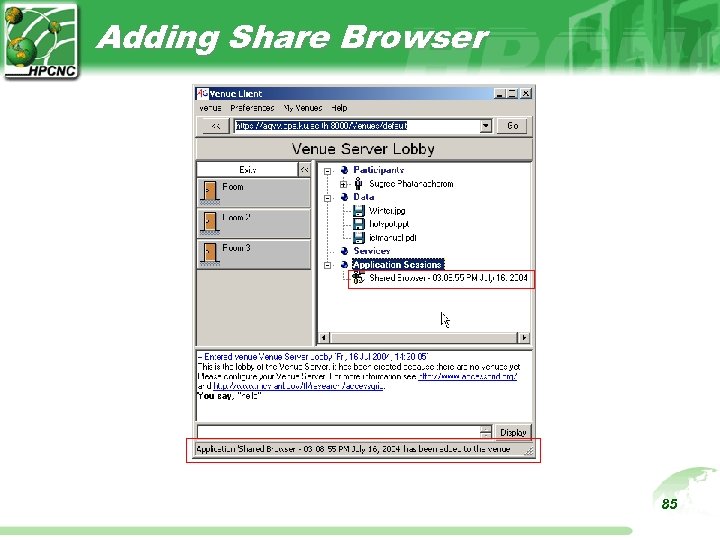
Adding Share Browser 85
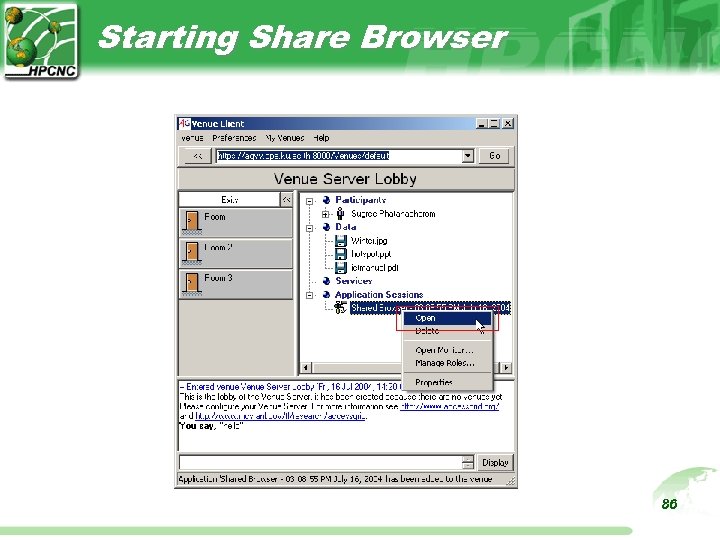
Starting Share Browser 86
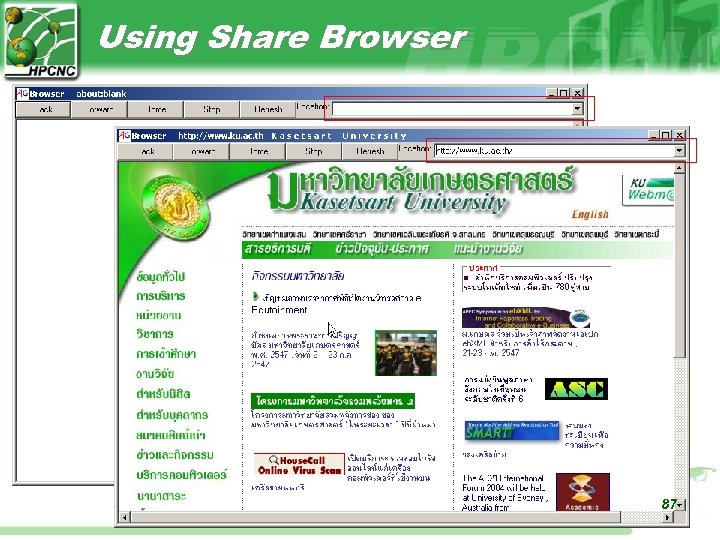
Using Share Browser 87
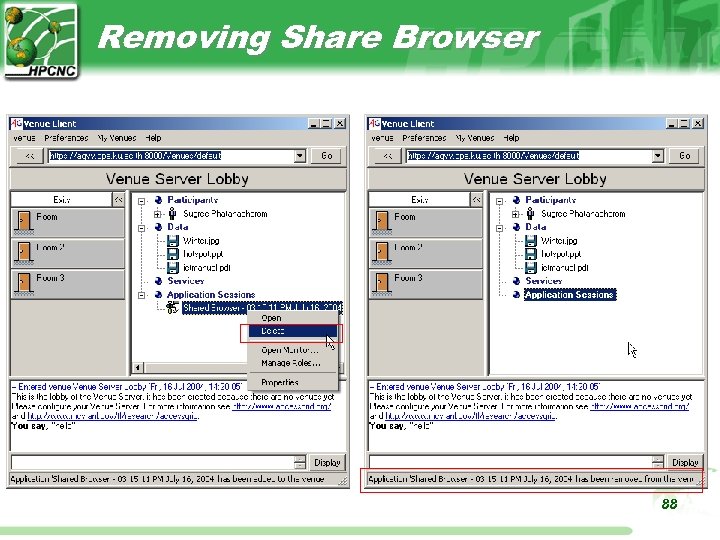
Removing Share Browser 88
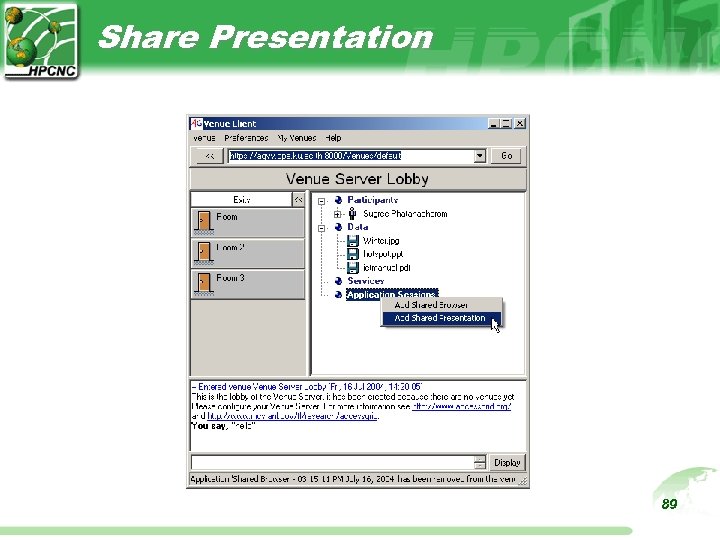
Share Presentation 89
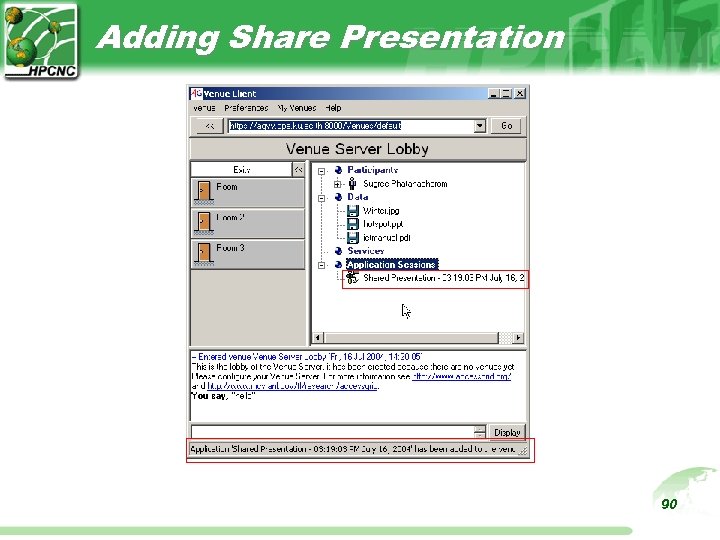
Adding Share Presentation 90
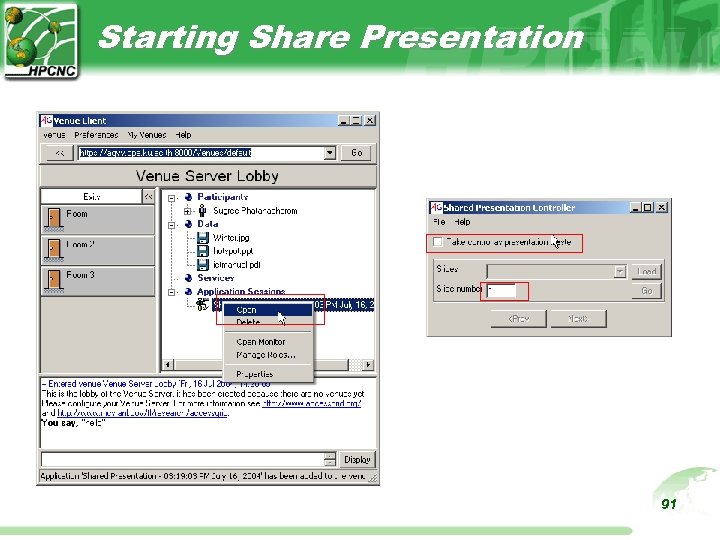
Starting Share Presentation 91
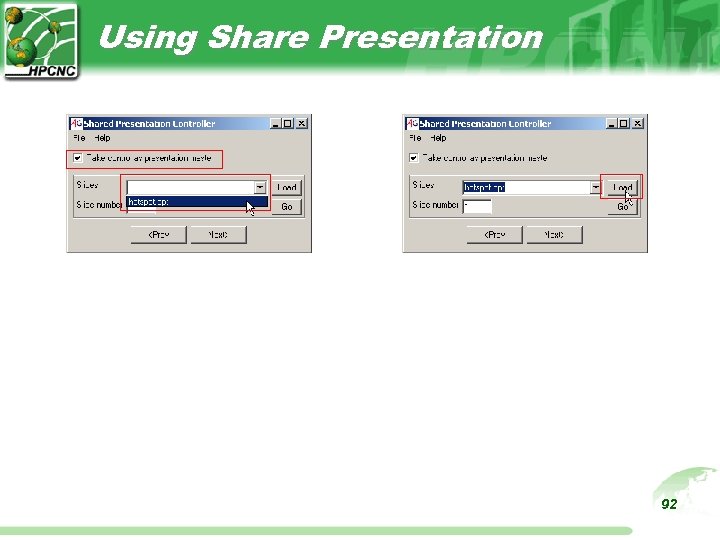
Using Share Presentation 92
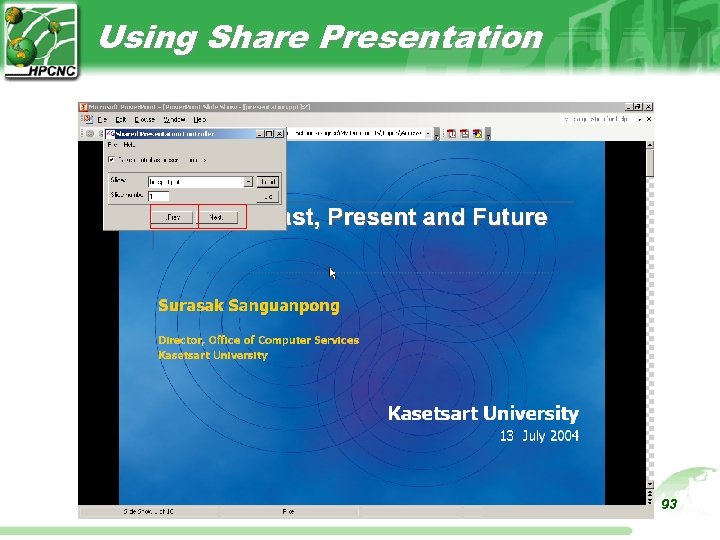
Using Share Presentation 93
System Tests • Assess the state of network connectivity • Test audio with remote site – Normalize transmission levels across nodes – Eliminate poor-quality audio – Ensure that node operator can speak in a normal voice and type w/o being detected on public channel • Power. Point dry runs – Download ppt files before event if very large – Remote animations and transitions • Participate on the mud 94
Runtime Adjustments • • • Display Audio Video Back. Channel Communications Distributed Power. Point Participate on the mud 95
Display • Presenter should be able to see – Remote audiences – His own video – Remote nodes' displays • If cpu is pegged on display, mute noncritical video streams to save decoding • Place video window of remote presenter on the same side of his ppt as he appears in real life 96
Audio • Closely monitor audio transmit levels • Turn off transmission when another node has the floor for an extended period • Turn off silence suppression during presentations • Inform local participants when you turn transmit on and off • Relaunch rat if experiencing bad audio distortion 97
Video • Keep presenter framed in camera, but avoid Blair Witch syndrome • Ensure presenter looks in the camera during presentation • When an audience member ask a question, zoom audience cam in for a closeup • Adjust hue/saturation/contrast/brightness • Clamp transmission bandwidth to improve outgoing audio quality 98
Distributed Power. Point • Announce slide changes on backchannel • Relaunch master if clients stop following • Kill master process after presentation 99
Backup Slides
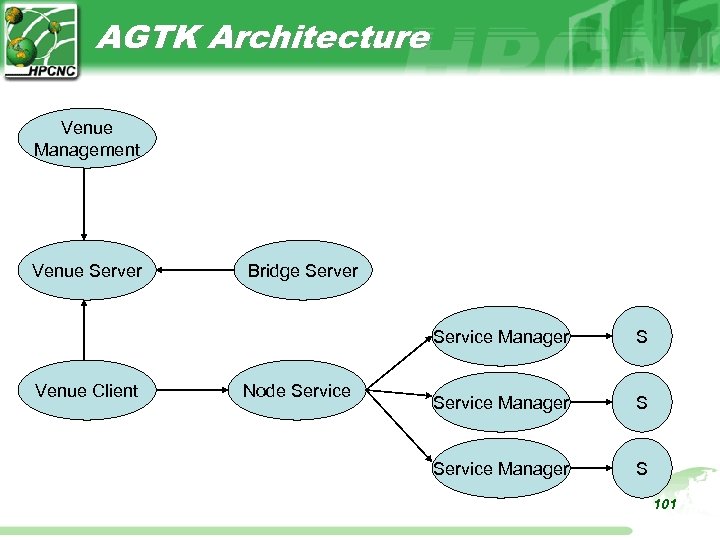
AGTK Architecture Venue Management Venue Server Bridge Server Service Manager Venue Client Node Service S Service Manager S 101
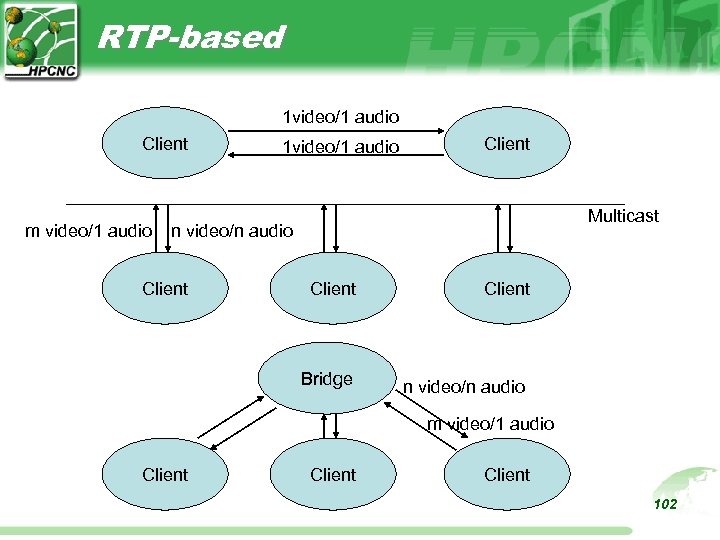
RTP-based 1 video/1 audio Client m video/1 audio 1 video/1 audio Client Multicast n video/n audio Client Bridge n video/n audio m video/1 audio Client 102
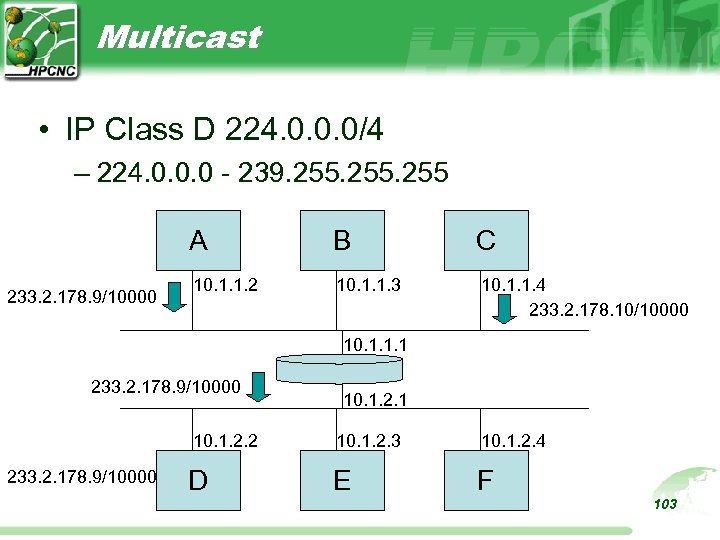
Multicast • IP Class D 224. 0. 0. 0/4 – 224. 0. 0. 0 - 239. 255 A 233. 2. 178. 9/10000 B C 10. 1. 1. 2 10. 1. 1. 3 10. 1. 1. 4 233. 2. 178. 10/10000 10. 1. 1. 1 233. 2. 178. 9/10000 10. 1. 2. 1 10. 1. 2. 2 233. 2. 178. 9/10000 10. 1. 2. 3 10. 1. 2. 4 D E F 103
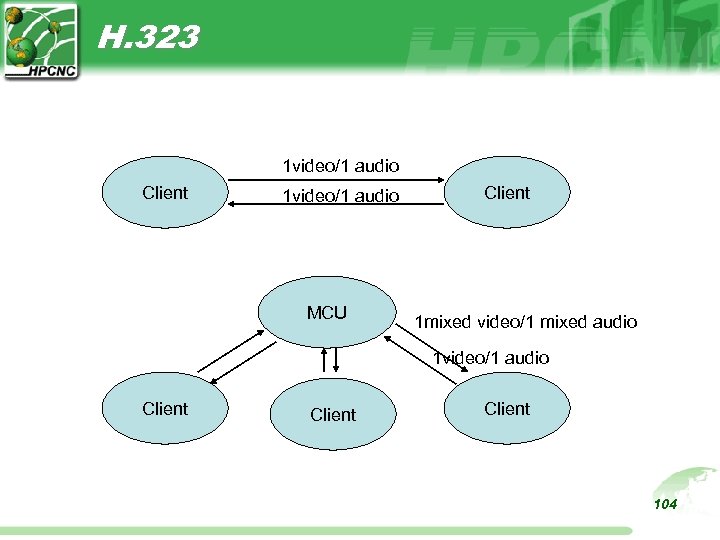
H. 323 1 video/1 audio Client 1 video/1 audio MCU Client 1 mixed video/1 mixed audio 1 video/1 audio Client 104
PKI Properties • A key pair consists of a private key and a public key – Data encrypted by the private key can only be decrypted by the public key – Data encrypted by the public key can only be decrypted by the private key • Private key must be kept in a secure place accessed by the owner • Public key can be distributed freely 105
PKI Properties (cont(. • Usage – Encryption • Encrypted by the public key of remote peer – Authentication • Encrypted by the private key of local peer • General Usage – Encrypt data by the local private key then – Encrypt the data again by the remote public key 106
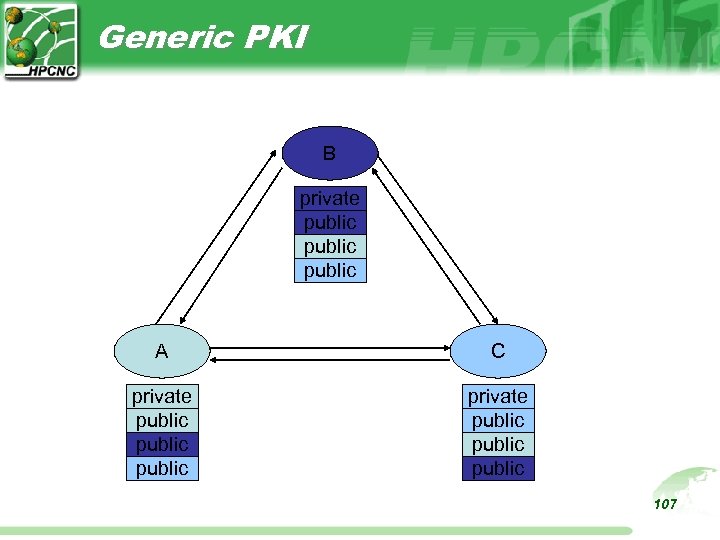
Generic PKI B private public A C private public public 107
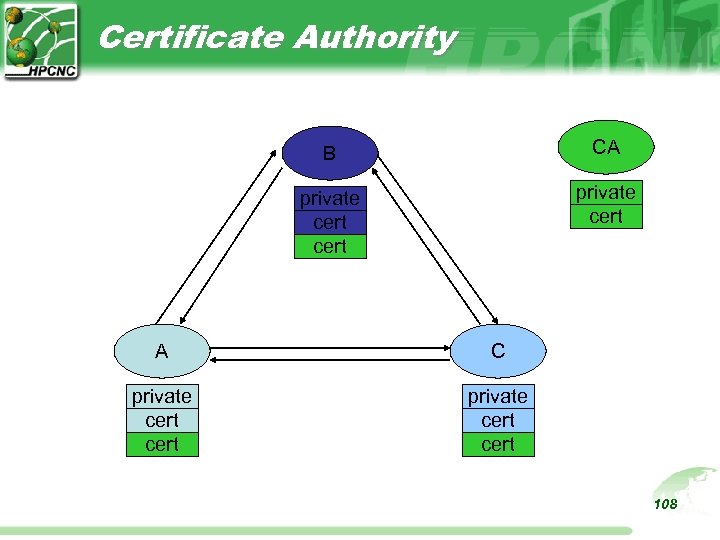
Certificate Authority B CA private cert A C private cert 108
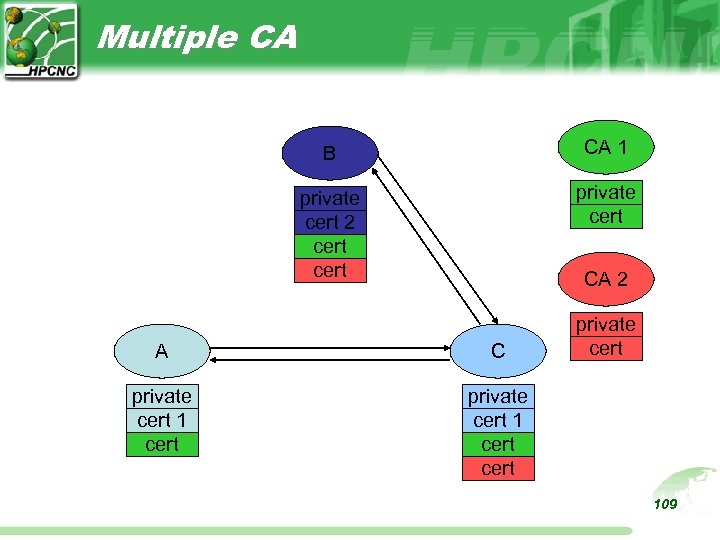
Multiple CA B CA 1 private cert 2 cert private cert CA 2 A C private cert 1 cert 109
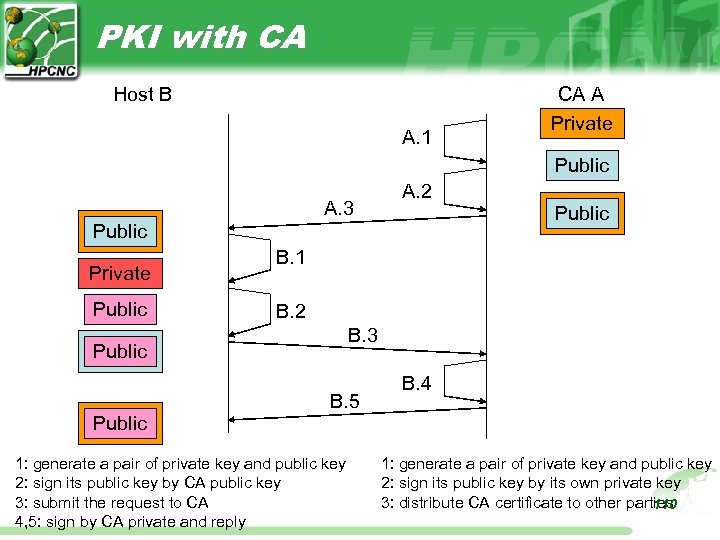
PKI with CA Host B A. 1 CA A Private Public A. 3 A. 2 Public Private Public B. 1 B. 2 B. 3 Public B. 5 B. 4 Public 1: generate a pair of private key and public key 2: sign its public key by CA public key 3: submit the request to CA 4, 5: sign by CA private and reply 1: generate a pair of private key and public key 2: sign its public key by its own private key 3: distribute CA certificate to other parties 110
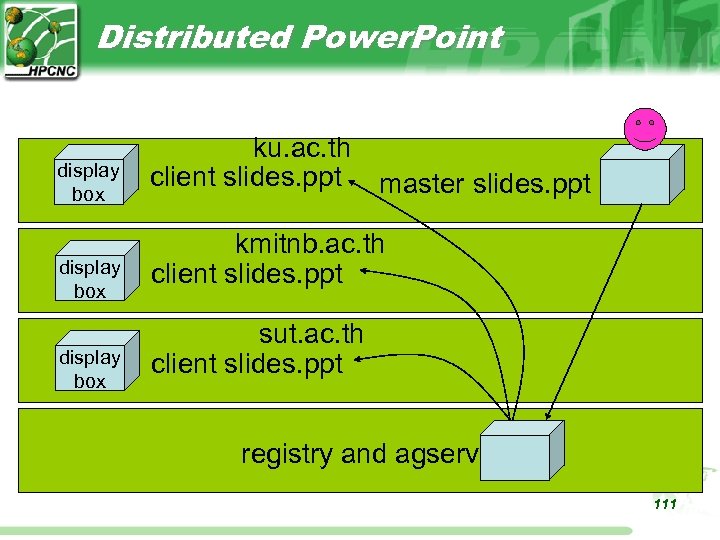
Distributed Power. Point display box ku. ac. th client slides. ppt master slides. ppt kmitnb. ac. th client slides. ppt sut. ac. th client slides. ppt registry and agserv 111
Access Grid use PKI as key infrastructure • Usage – Encryption • Encrypted by the public key of remote peer – Authentication • Encrypted by the private key of local peer • General Usage – Encrypt data by the local private key then – Encrypt the data again by the remote public key 112
Скачать презентацию Access Tutorial 19 th APAN Meeting Bangkok Thailand
72bbbb973bd69e0071c516c496df0fdb.ppt