


 Скачать презентацию Academic Search Premier How to search an international
407af8864c6f8fa888e443d5aa374de7.ppt
- Количество слайдов: 39
 Academic Search Premier How to search an international database with bibliographic references, including some full text articles for the Social Sciences Click to move to next slide Designed and compiled by Elsabé Olivier August 2005
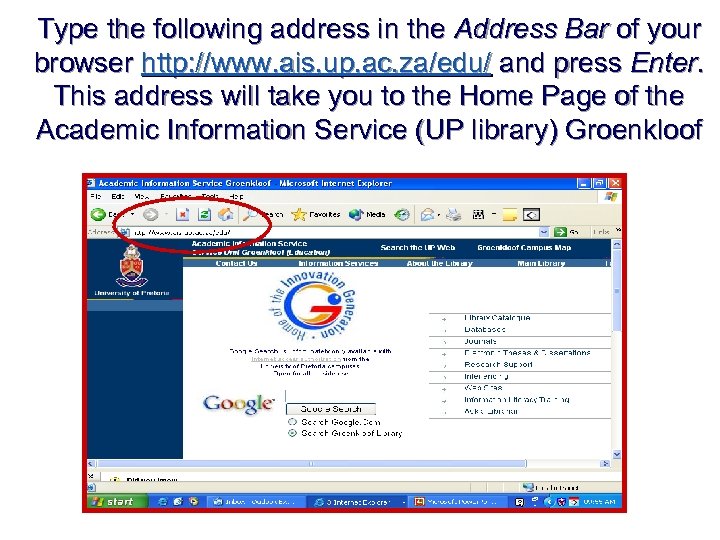 Type the following address in the Address Bar of your browser http: //www. ais. up. ac. za/edu/ and press Enter. This address will take you to the Home Page of the Academic Information Service (UP library) Groenkloof
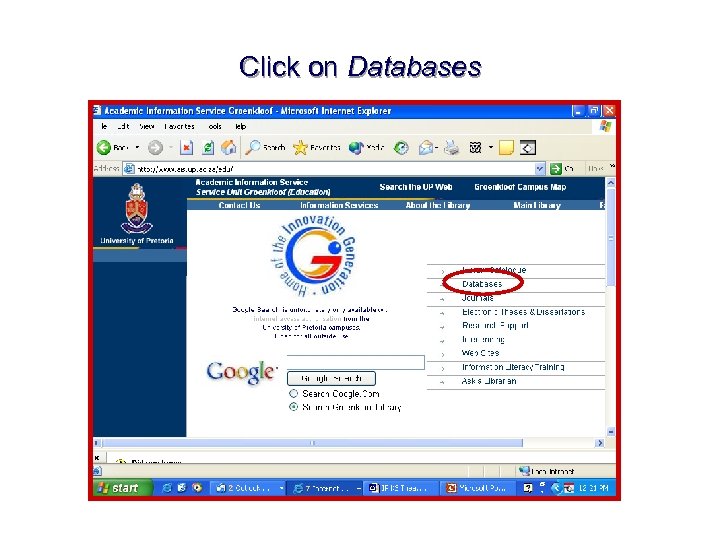 Click on Databases
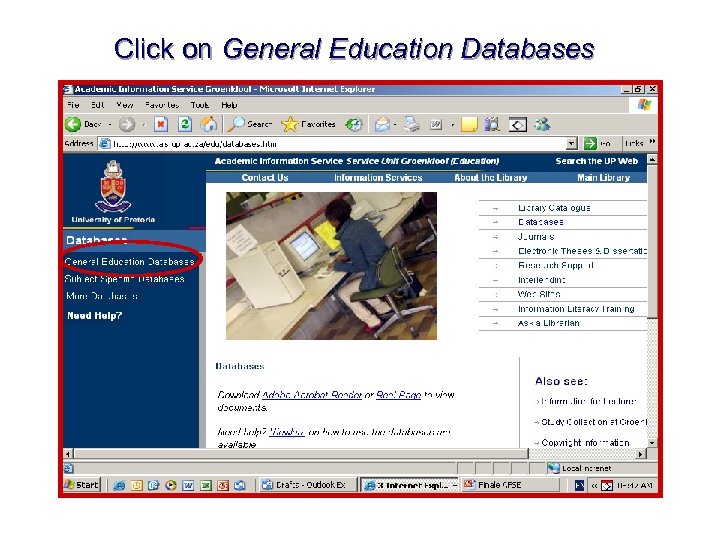 Click on General Education Databases
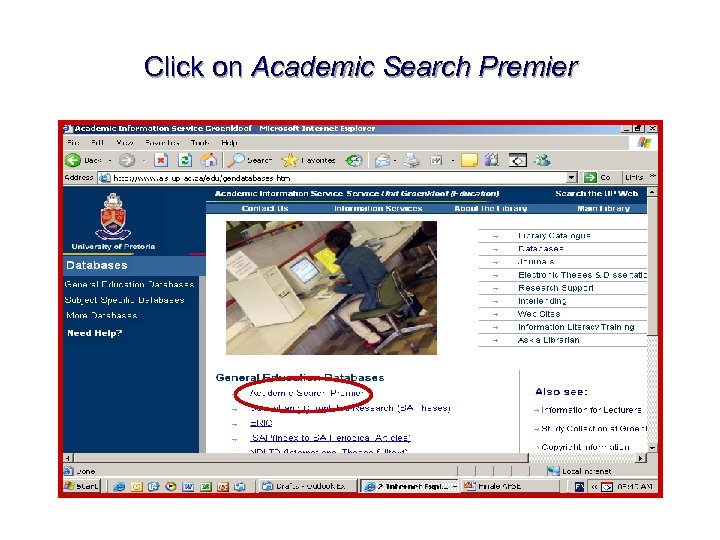 Click on Academic Search Premier
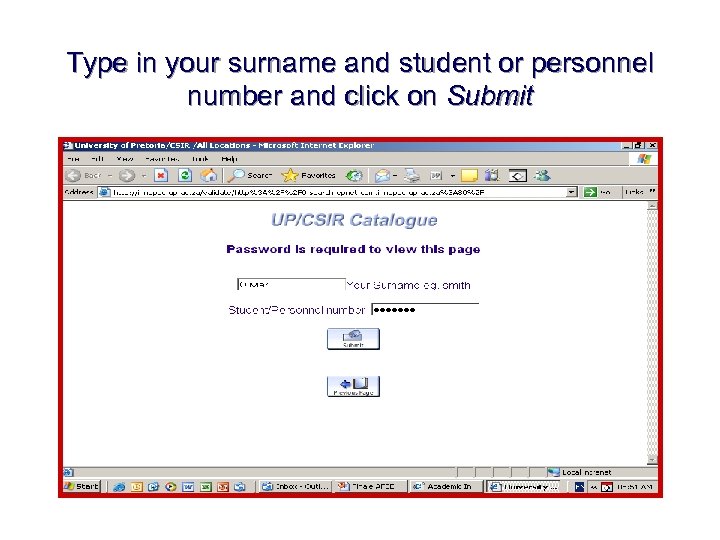 Type in your surname and student or personnel number and click on Submit
 Please note! n n To access our catalogue or databases, all users have to register annually at the AIS (Library). Passwords will no longer be used. Please register personally at the counter, or electronically at http: //www. ais. up. ac. za/edu/tips. htm Confirm your registration by signing the registration form at the counter accompanied by your valid student card or proof of registration.
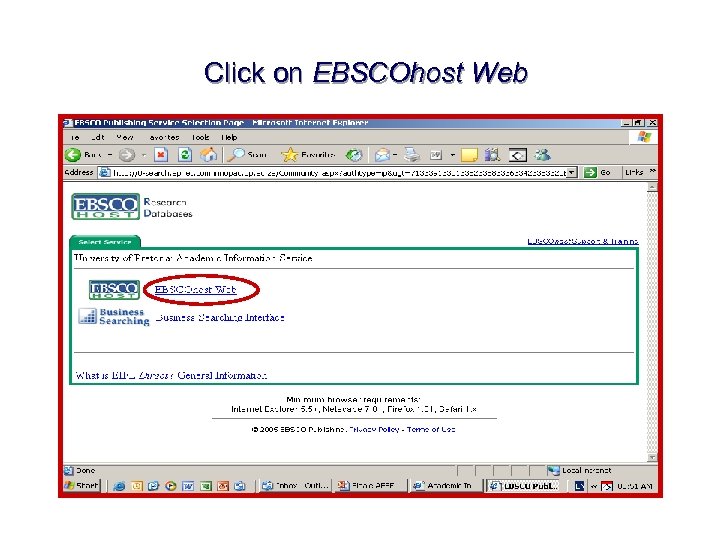 Click on EBSCOhost Web
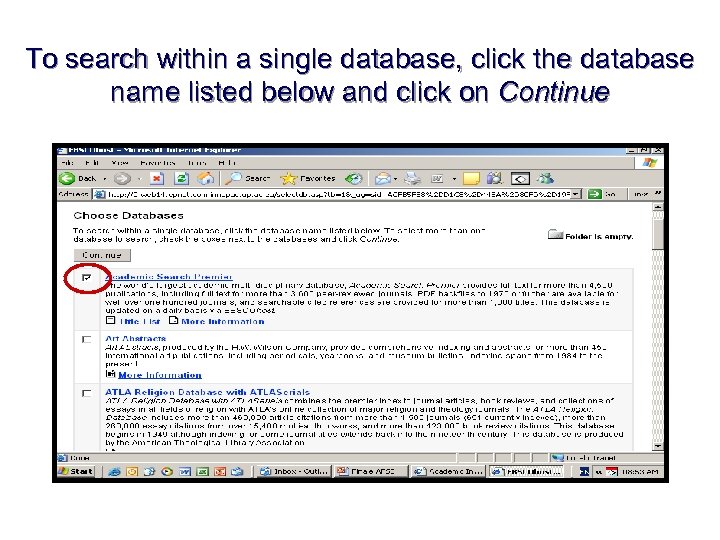 To search within a single database, click the database name listed below and click on Continue
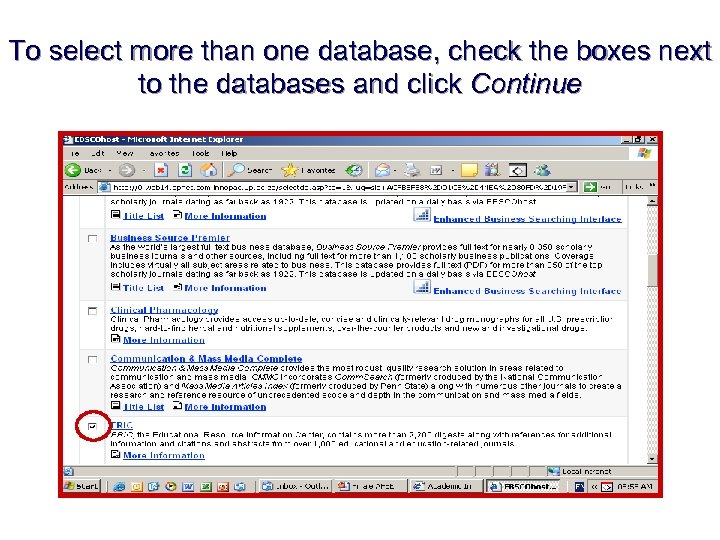 To select more than one database, check the boxes next to the databases and click Continue
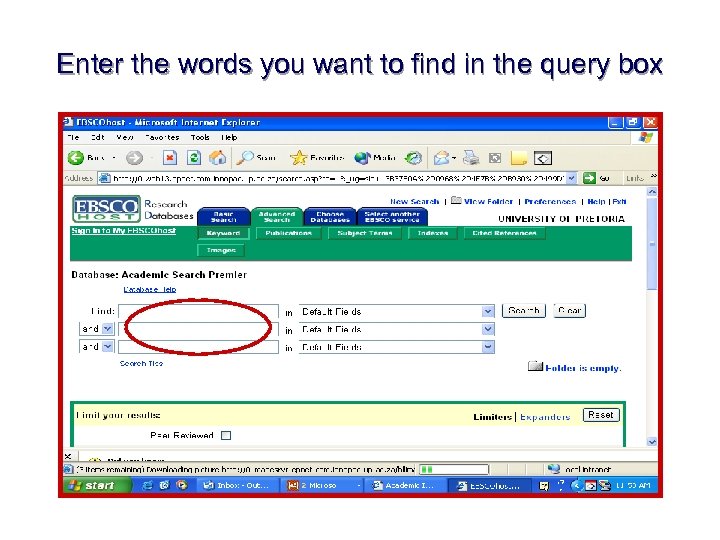 Enter the words you want to find in the query box
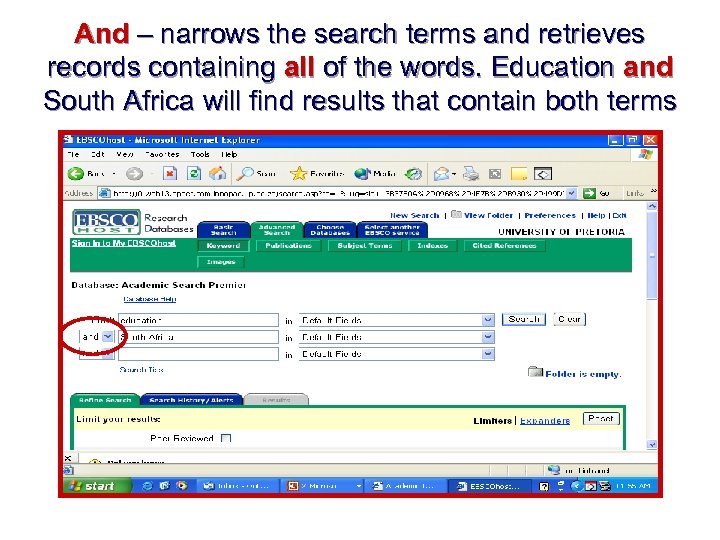 And – narrows the search terms and retrieves records containing all of the words. Education and South Africa will find results that contain both terms
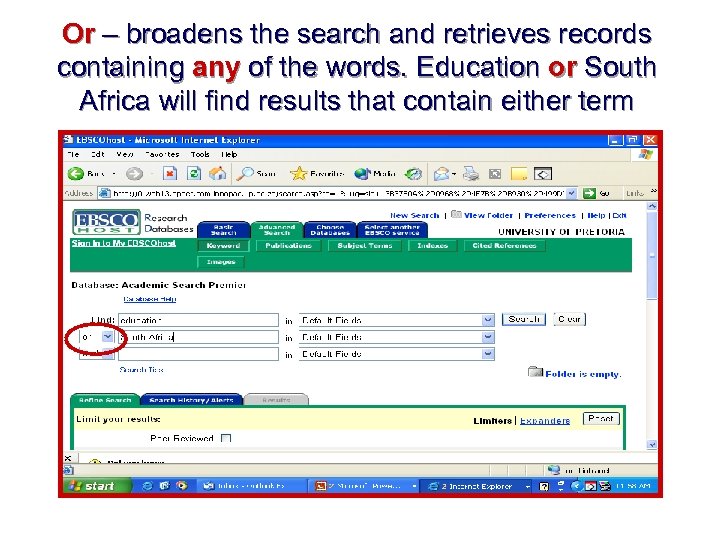 Or – broadens the search and retrieves records containing any of the words. Education or South Africa will find results that contain either term
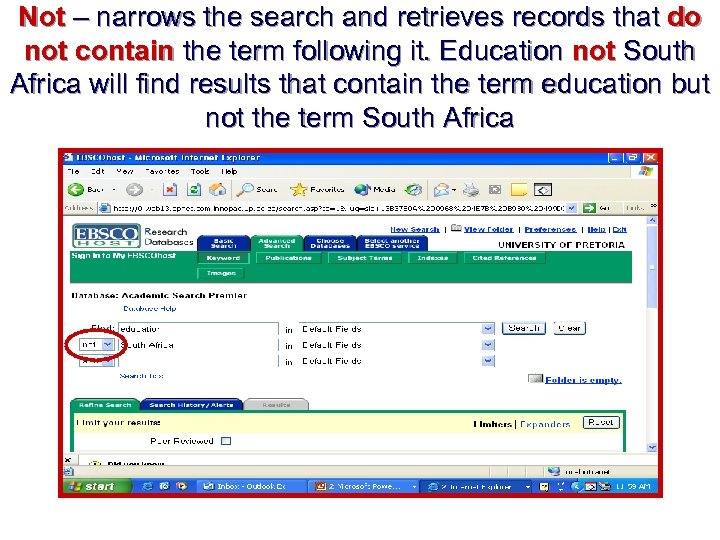 Not – narrows the search and retrieves records that do not contain the term following it. Education not South Africa will find results that contain the term education but not the term South Africa
 Search tools n ? will find alternative spellings. Wom? n finds woman as well as women. n * will expand a search term. Adolescen* finds adolescence, adolescent and adolescents. n Near Operator (N) - N 5 finds the words if they are within five words of one another regardless of the order in which they appear. n Within Operator (W) - W 8 finds the words if they are within eight words of one another and in the order in which you entered them.
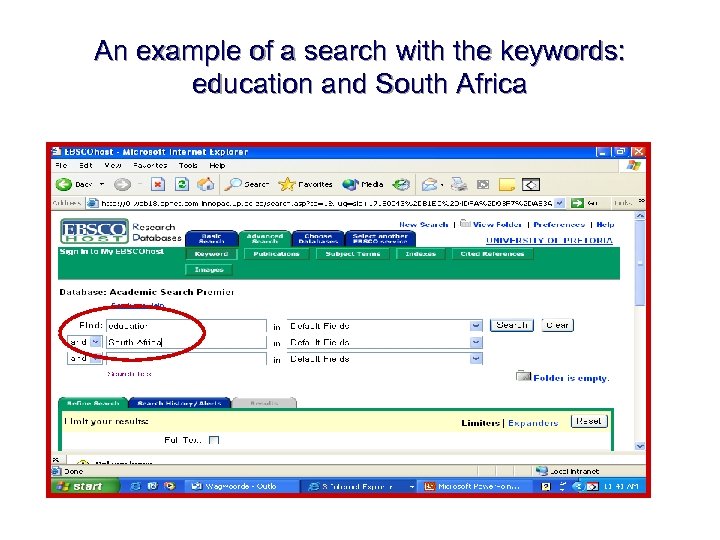 An example of a search with the keywords: education and South Africa
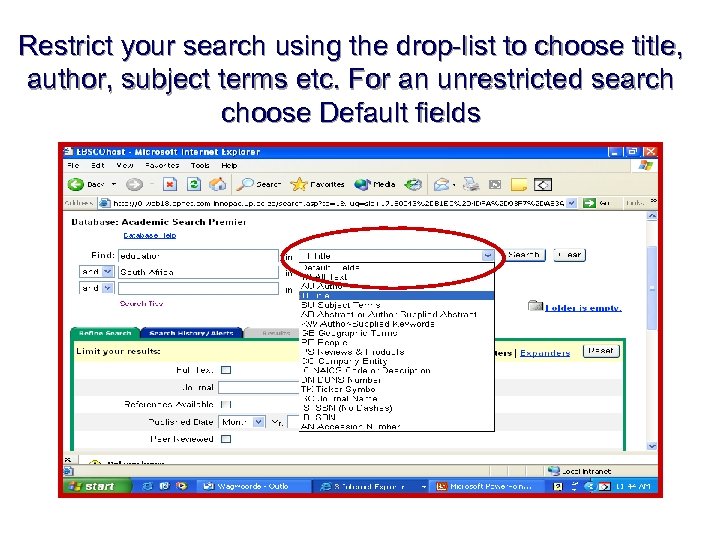 Restrict your search using the drop-list to choose title, author, subject terms etc. For an unrestricted search choose Default fields
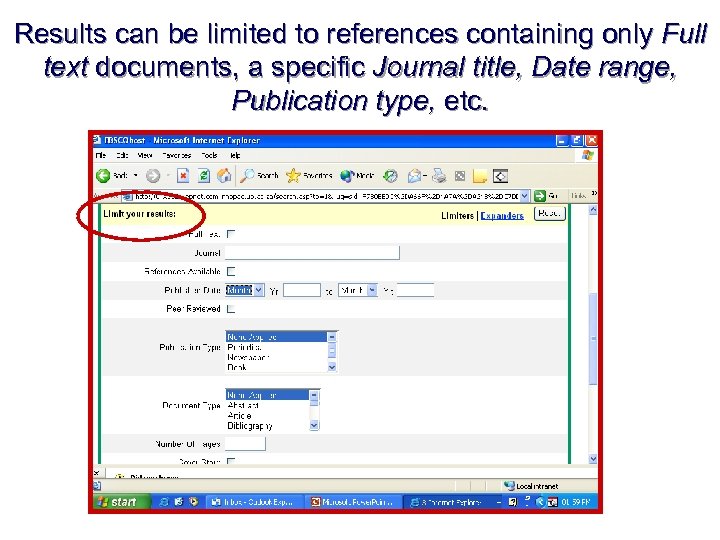 Results can be limited to references containing only Full text documents, a specific Journal title, Date range, Publication type, etc.
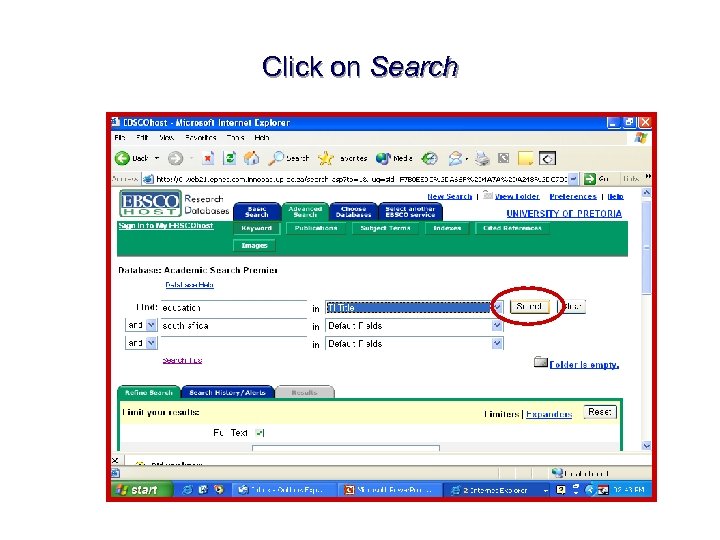 Click on Search
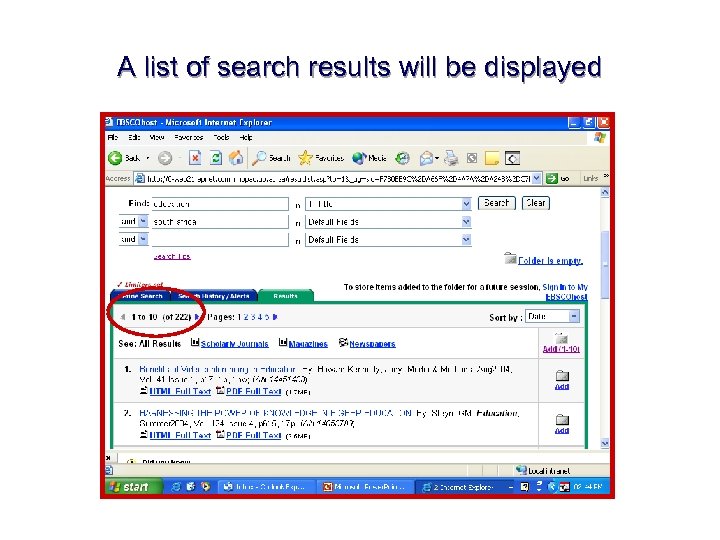 A list of search results will be displayed
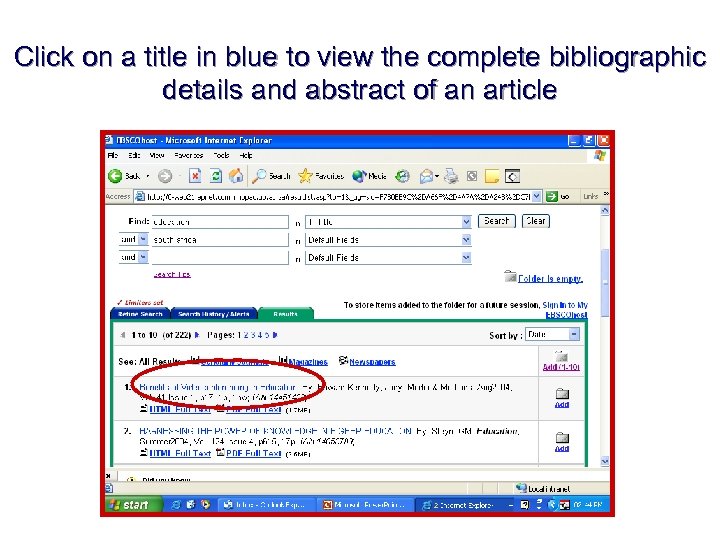 Click on a title in blue to view the complete bibliographic details and abstract of an article
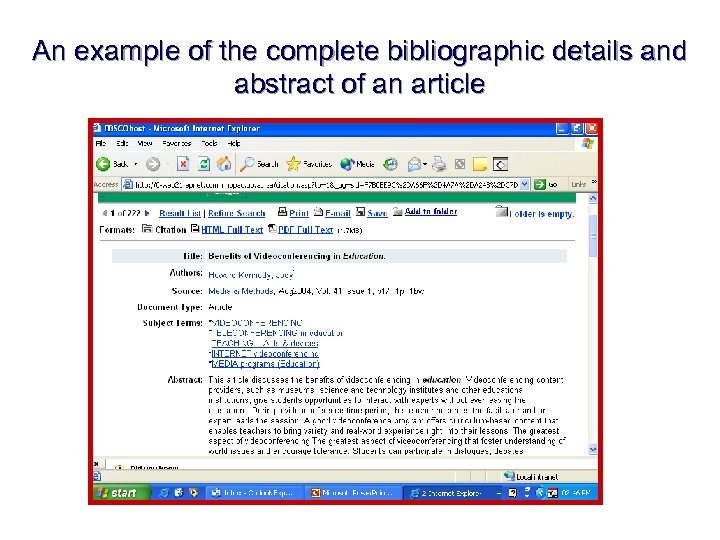 An example of the complete bibliographic details and abstract of an article
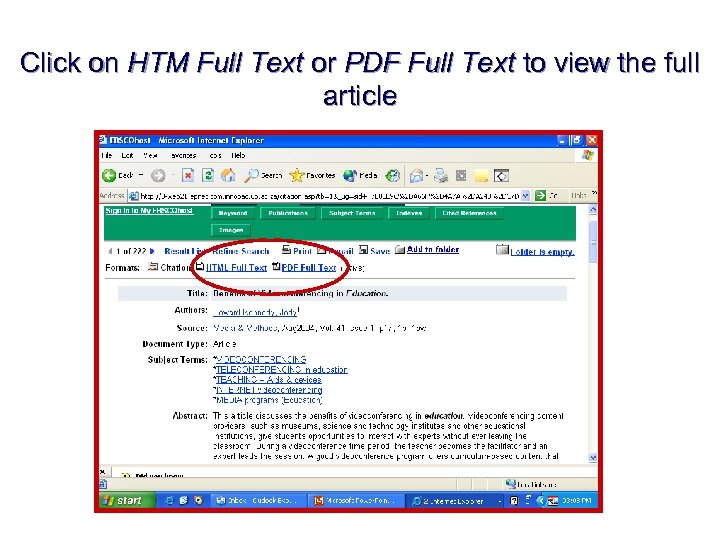 Click on HTM Full Text or PDF Full Text to view the full article
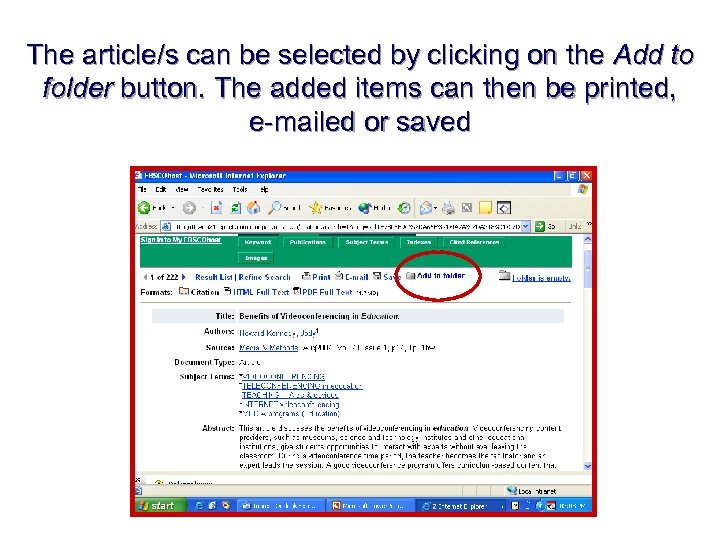 The article/s can be selected by clicking on the Add to folder button. The added items can then be printed, e-mailed or saved
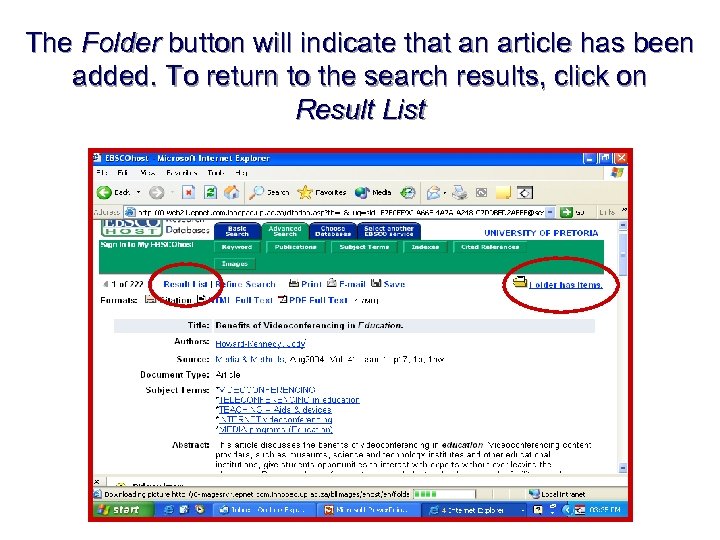 The Folder button will indicate that an article has been added. To return to the search results, click on Result List
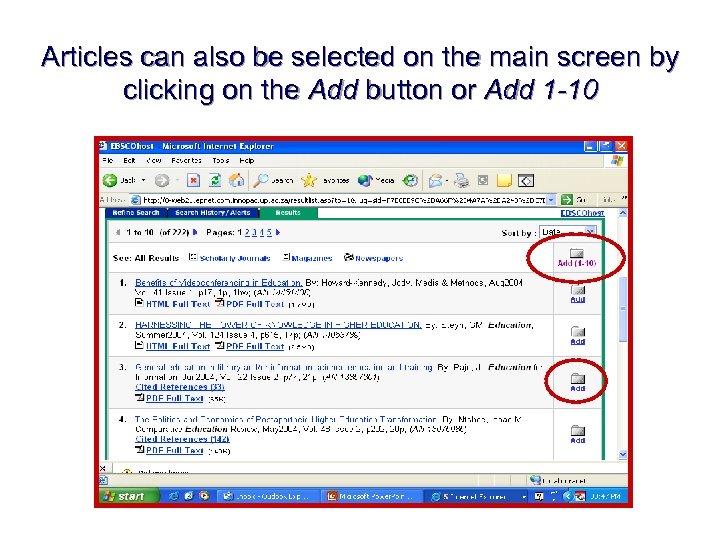 Articles can also be selected on the main screen by clicking on the Add button or Add 1 -10
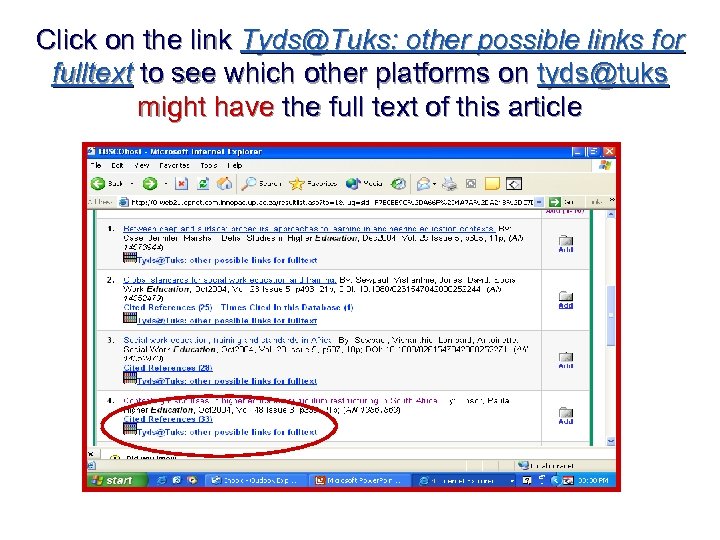 Click on the link Tyds@Tuks: other possible links for fulltext to see which other platforms on tyds@tuks might have the full text of this article
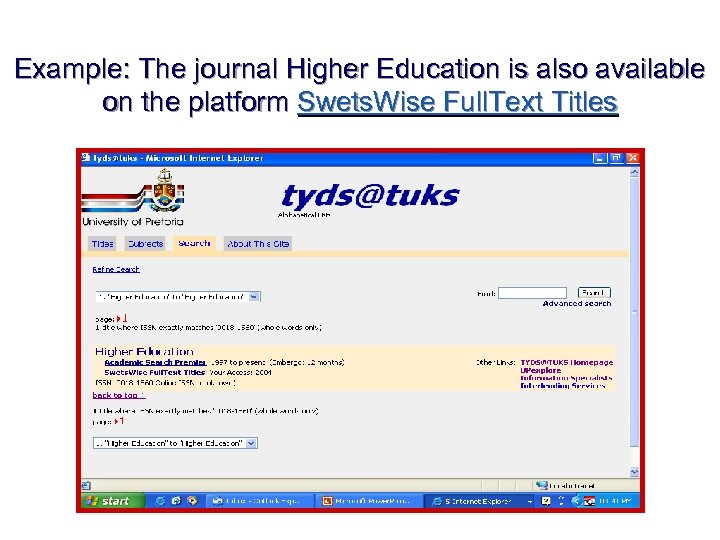 Example: The journal Higher Education is also available on the platform Swets. Wise Full. Text Titles
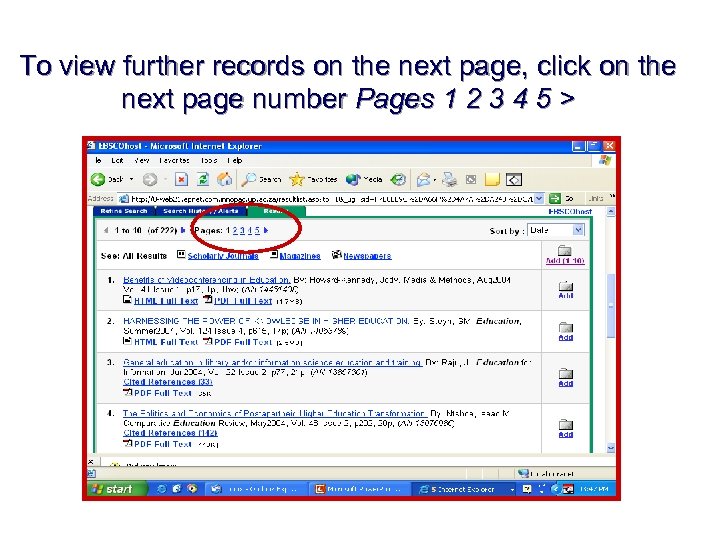 To view further records on the next page, click on the next page number Pages 1 2 3 4 5 >
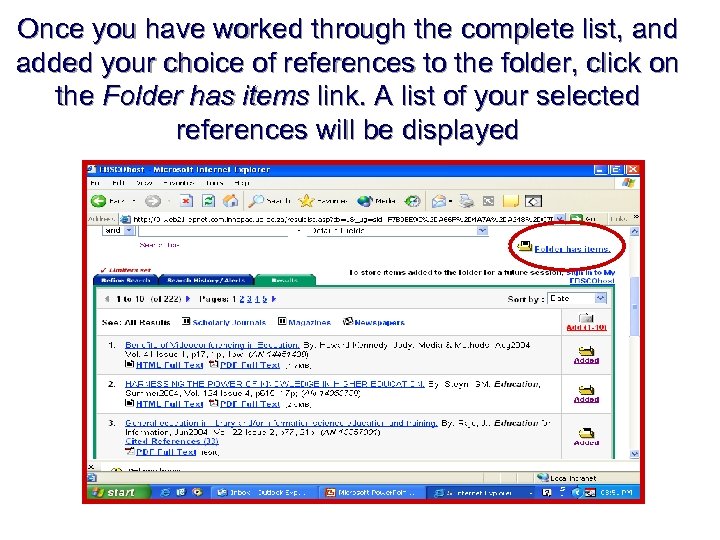 Once you have worked through the complete list, and added your choice of references to the folder, click on the Folder has items link. A list of your selected references will be displayed
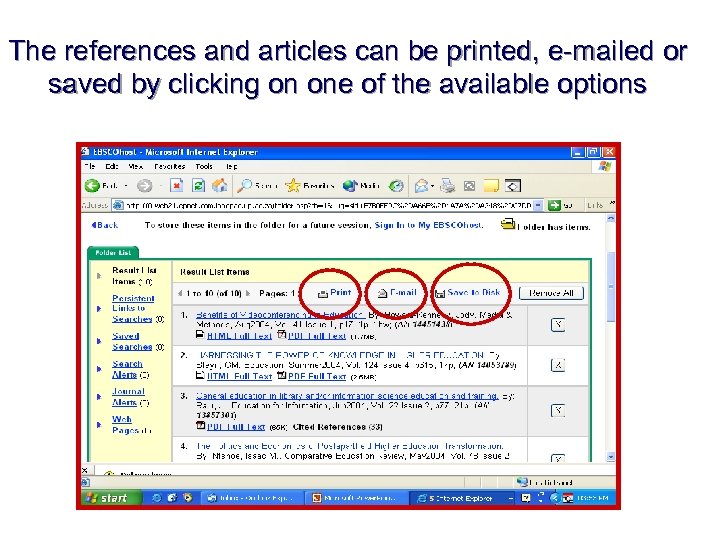 The references and articles can be printed, e-mailed or saved by clicking on one of the available options
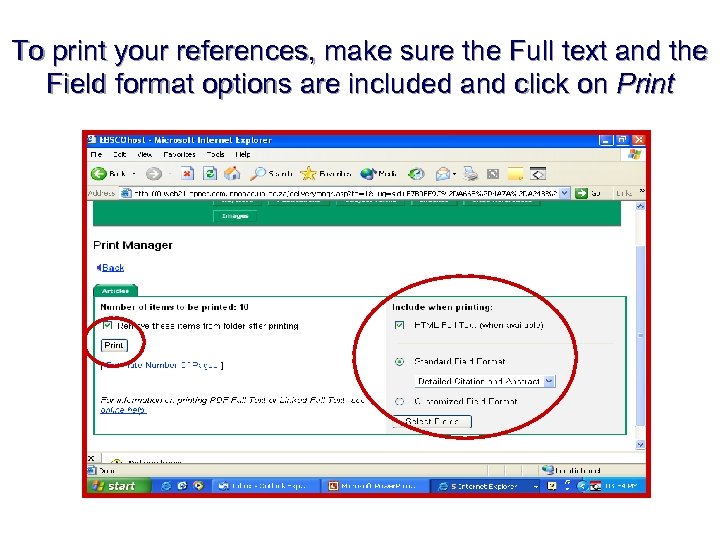 To print your references, make sure the Full text and the Field format options are included and click on Print
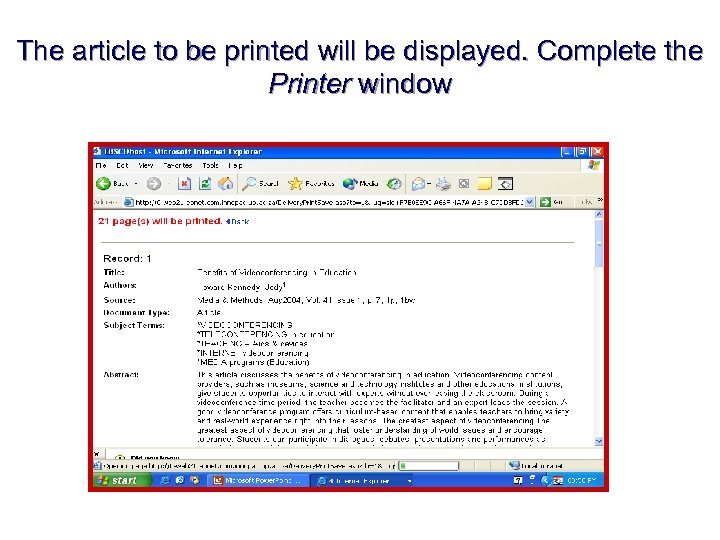 The article to be printed will be displayed. Complete the Printer window
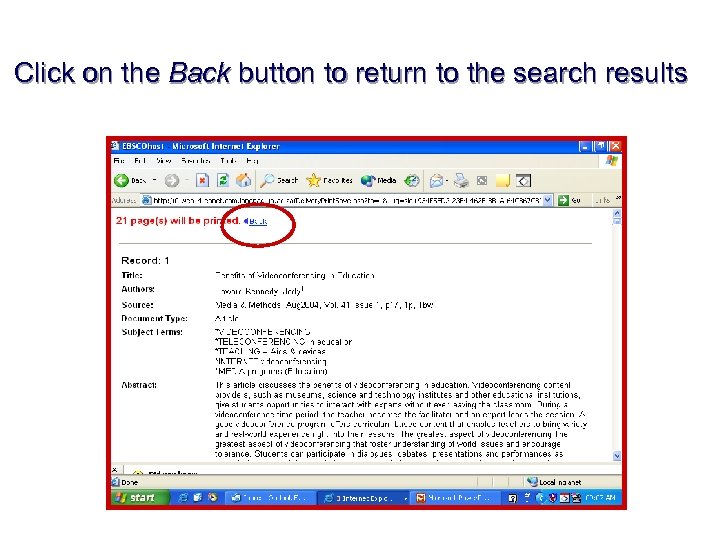 Click on the Back button to return to the search results
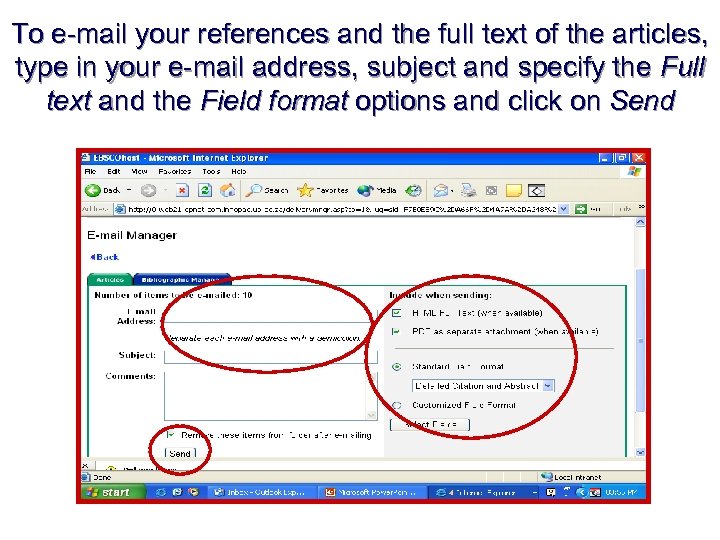 To e-mail your references and the full text of the articles, type in your e-mail address, subject and specify the Full text and the Field format options and click on Send
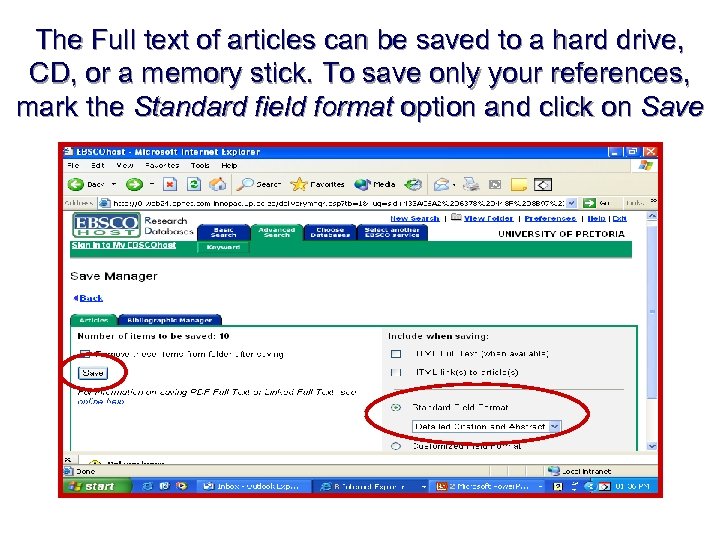 The Full text of articles can be saved to a hard drive, CD, or a memory stick. To save only your references, mark the Standard field format option and click on Save
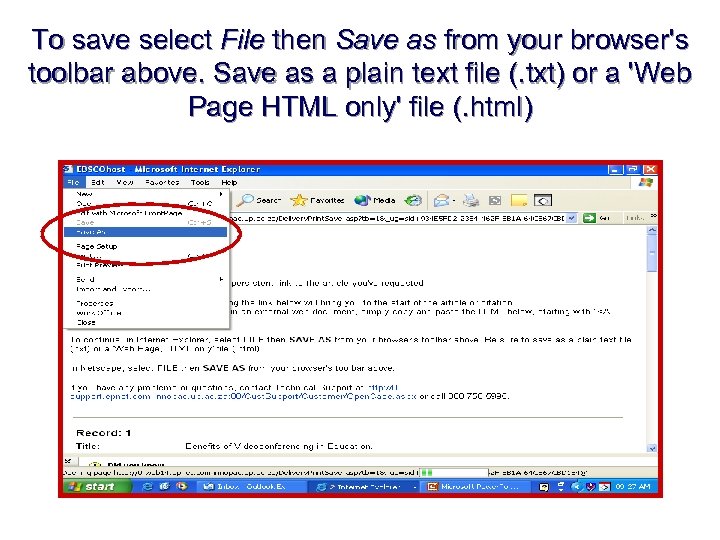 To save select File then Save as from your browser's toolbar above. Save as a plain text file (. txt) or a 'Web Page HTML only' file (. html)
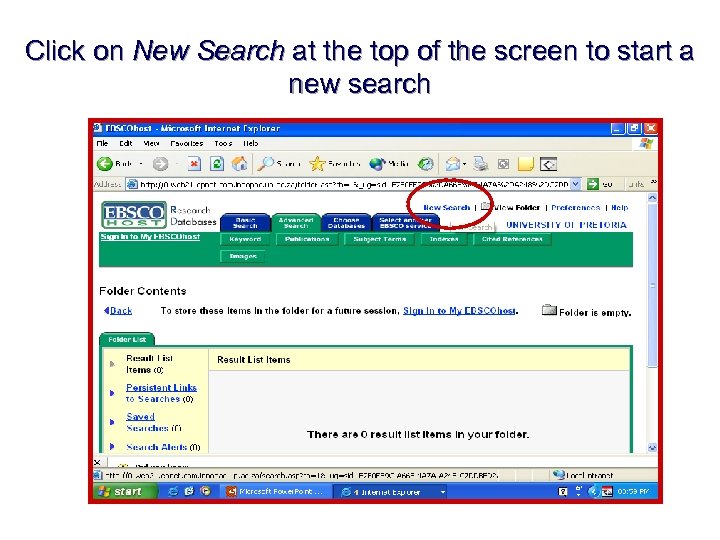 Click on New Search at the top of the screen to start a new search
 Good luck! Also contact your information specialist for assistance n Information specialists: n – Mrs. Elsabé Olivier: Dept. Educational Management & Policy Studies – Ms. Clarisse Venter: Dept. Educational Psychology & Dept. Curriculum Studies – Mrs. Sonja Delport: All undergraduate, honours and coursework Masters’ students