


 Скачать презентацию Academia Sinica Grid Computing Certification Authority ASGCCA
25c20b39ed8660a634338b1d0856bd86.ppt
- Количество слайдов: 32
 Academia Sinica Grid Computing Certification Authority (ASGCCA)
 Outline • • • Introduction Procedural Security Physical Security Technical Security Contact Information Walk Through
 Introduction • The ASGCCA locates at Academia Sinica Grid Computing Centre in Taiwan and has been running since July 2002. • It is managed by Academia Sinica Grid Computing Centre • It provides X. 509 certificate to support the secure environment in grid computing.
 Procedural Security • • • End Entity and Certificate Type Identification and Authentication Certificate Request Certificate Revocation Records Archival
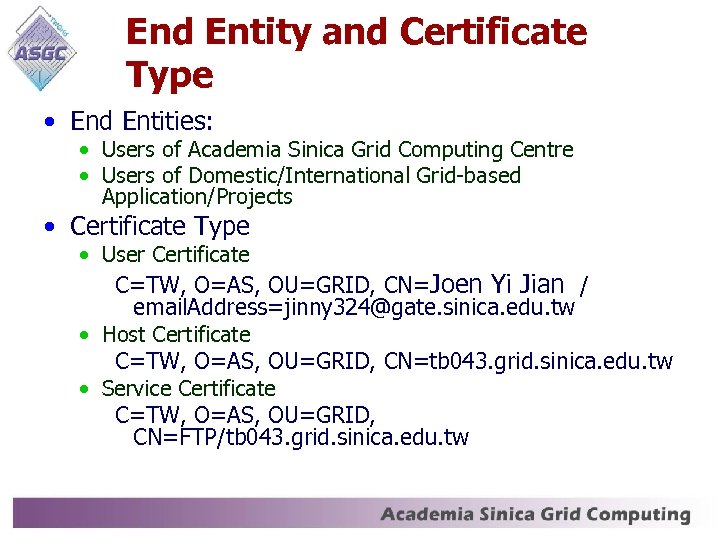 End Entity and Certificate Type • End Entities: • Users of Academia Sinica Grid Computing Centre • Users of Domestic/International Grid-based Application/Projects • Certificate Type • User Certificate C=TW, O=AS, OU=GRID, CN=Joen Yi Jian / email. Address=jinny 324@gate. sinica. edu. tw • Host Certificate C=TW, O=AS, OU=GRID, CN=tb 043. grid. sinica. edu. tw • Service Certificate C=TW, O=AS, OU=GRID, CN=FTP/tb 043. grid. sinica. edu. tw
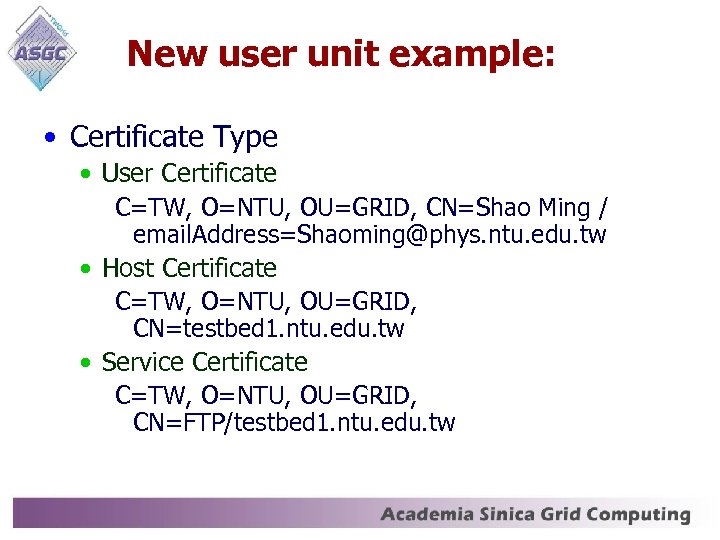 New user unit example: • Certificate Type • User Certificate C=TW, O=NTU, OU=GRID, CN=Shao Ming / email. Address=Shaoming@phys. ntu. edu. tw • Host Certificate C=TW, O=NTU, OU=GRID, CN=testbed 1. ntu. edu. tw • Service Certificate C=TW, O=NTU, OU=GRID, CN=FTP/testbed 1. ntu. edu. tw
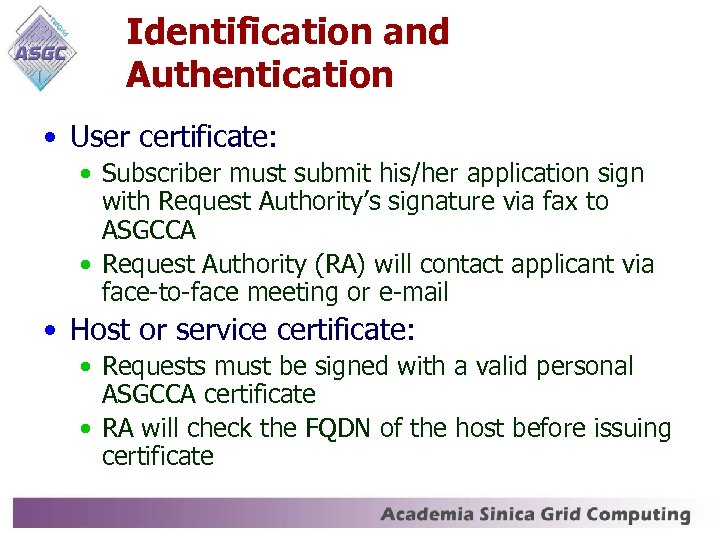 Identification and Authentication • User certificate: • Subscriber must submit his/her application sign with Request Authority’s signature via fax to ASGCCA • Request Authority (RA) will contact applicant via face-to-face meeting or e-mail • Host or service certificate: • Requests must be signed with a valid personal ASGCCA certificate • RA will check the FQDN of the host before issuing certificate
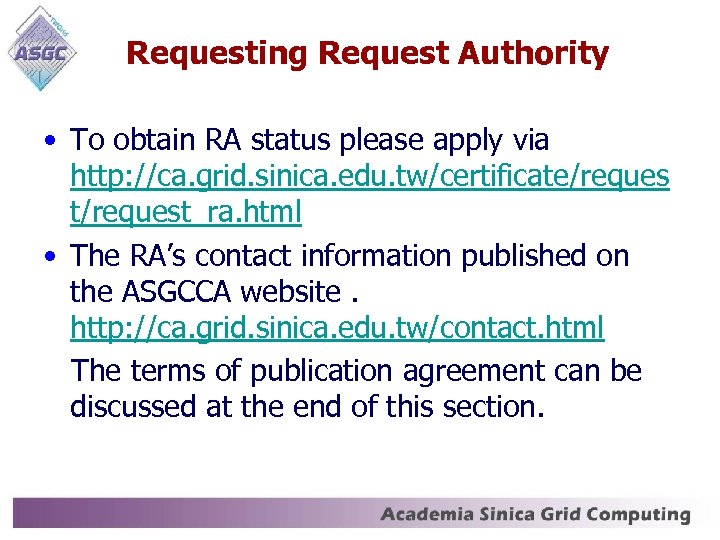 Requesting Request Authority • To obtain RA status please apply via http: //ca. grid. sinica. edu. tw/certificate/reques t/request_ra. html • The RA’s contact information published on the ASGCCA website. http: //ca. grid. sinica. edu. tw/contact. html The terms of publication agreement can be discussed at the end of this section.
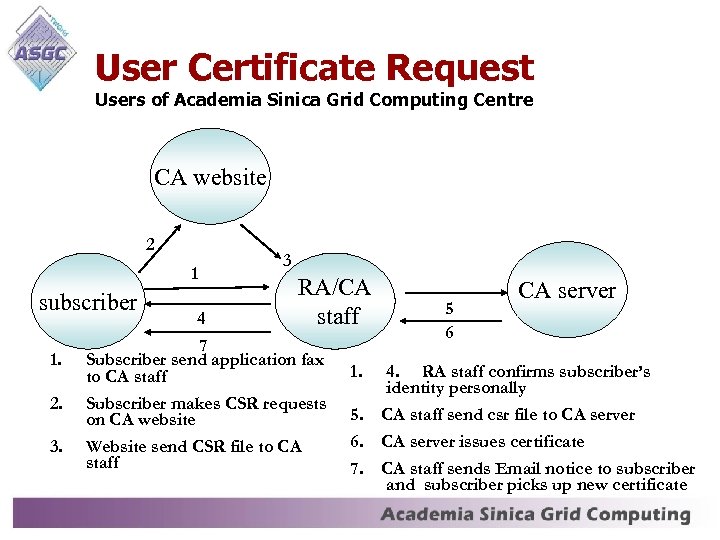 User Certificate Request Users of Academia Sinica Grid Computing Centre CA website 2 1 subscriber 1. 2. 3. 4 3 RA/CA staff 7 Subscriber send application fax to CA staff Subscriber makes CSR requests on CA website Website send CSR file to CA staff 1. 5. 6. 7. 5 6 CA server 4. RA staff confirms subscriber’s identity personally CA staff send csr file to CA server issues certificate CA staff sends Email notice to subscriber and subscriber picks up new certificate
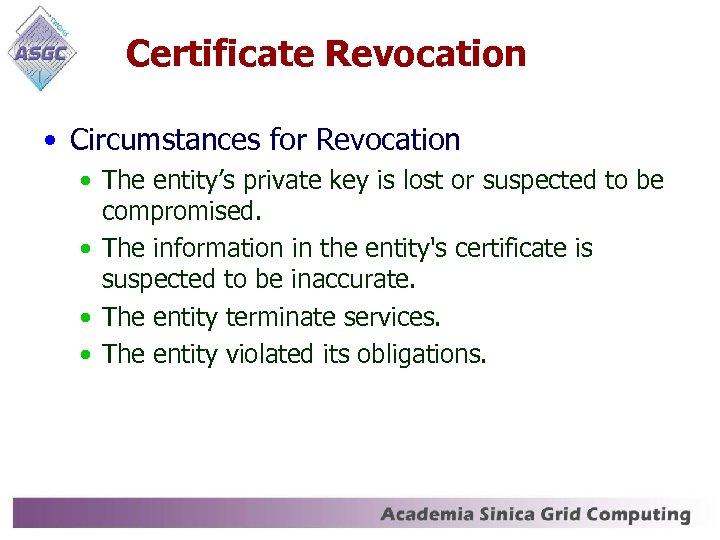 Certificate Revocation • Circumstances for Revocation • The entity’s private key is lost or suspected to be compromised. • The information in the entity's certificate is suspected to be inaccurate. • The entity terminate services. • The entity violated its obligations.
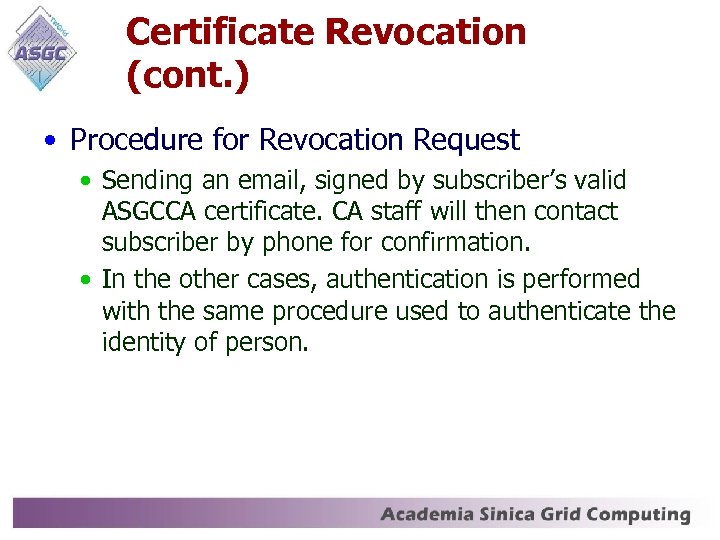 Certificate Revocation (cont. ) • Procedure for Revocation Request • Sending an email, signed by subscriber’s valid ASGCCA certificate. CA staff will then contact subscriber by phone for confirmation. • In the other cases, authentication is performed with the same procedure used to authenticate the identity of person.
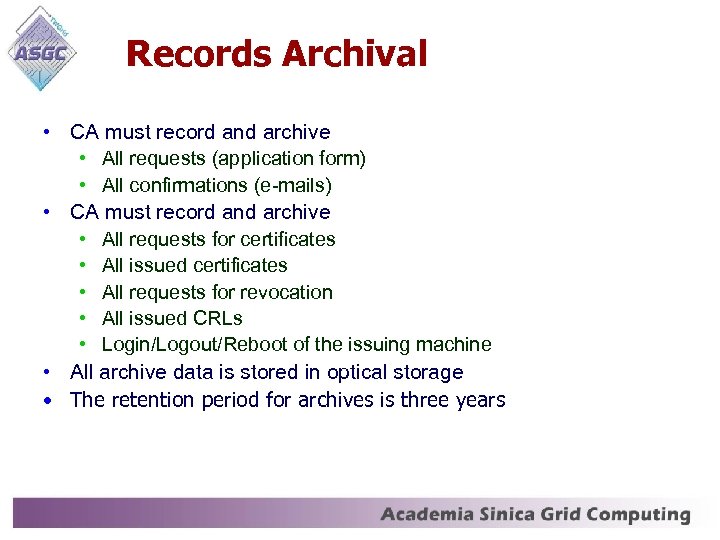 Records Archival • CA must record and archive • All requests (application form) • All confirmations (e-mails) • CA must record and archive • All requests for certificates • All issued certificates • All requests for revocation • All issued CRLs • Login/Logout/Reboot of the issuing machine • All archive data is stored in optical storage • The retention period for archives is three years
 Physical Security • The CA issuing machine is • a dedicated machine • not connected to any network • located in a secure environment only accessible by CA administrator • configured to have private key and pass phrase stored in optical storage and locked in a safe place
 Technical Security • • Key Generation Key Restriction Certificate Restriction CRL Policy
 Key Generation • Private key is generated by browsers on the users’ machine. • CA will never generate private key on user’s behalf. • CA have no access to the users’ private key.
 Key Restriction • Key Length • • ASGCCA private key is 2048 bits User private key must have at least 1024 bits Host private key must has at least 1024 bits Service private key must has at least 1024 bits • Pass phrase • The pass phrase of CA’s private key is at least 15 characters • The pass phrase of end entity’s private key is at minimum 8 characters. • Protecting the pass phrase from others
 Certificate Restriction • Certificate Lifetime for • • ASGCCA certificate is five years user certificate is one year host certificate is one year service certificates is one year • User certificate should not be shared. • The certificate issued by ASGCCA must not be used for financial transaction.
 CRL Policy • The lifetime of CRL is 30 days • CRL is updated immediately after every revocation • CRL is reissued 7 days before expiration even if there have been no revocations
 Staff Contact Information Jinny Chien Phone: 886 -2 -2788 -0058 # 1090 or 1050 Fax: 886 -2 -2789 -6793 Email: asgcca@grid. sinica. edu. tw Mail Box: Nankang PO BOX 1 -8 Taipei, Taiwan 11529 Address: 128, Sec. 2, Academic Rd. , Nankang, Taipei, Taiwan 11529
 Walk Through • Homepage • http: //ca. grid. sinica. edu. tw • Apply for user certificate steps • http: //ca. grid. sinica. edu. tw/certificate/request_user_cert. html • Apply for RA status steps • http: //ca. grid. sinica. edu. tw/certificate/request_ra. html • Apply for host certificate steps • http: //ca. grid. sinica. edu. tw/certificate/request_host_cert. html
 Apply for user certificate checklist • Read and understand ASGCCA CP/CPS • RA’s signature on application • Fax the application and send an notify e-mail to asgcca@grid. sinica. edu. tw • Generate CSR file via CA website
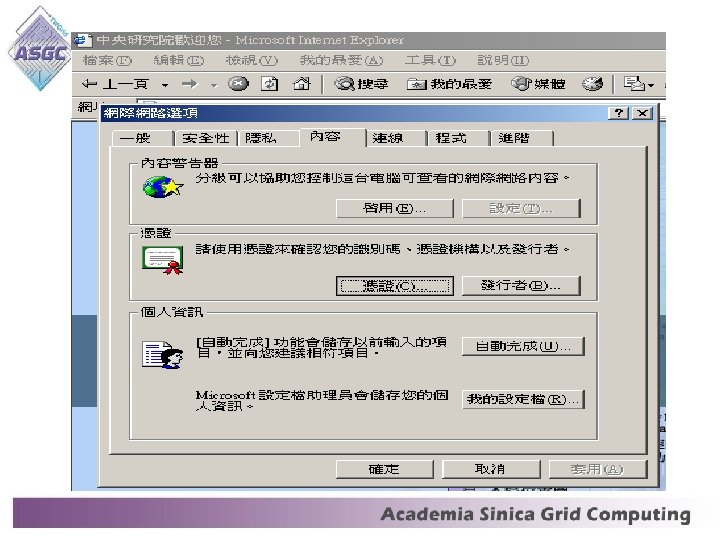
 Importing the digital certificate for IE: • Open the IE browser, choice the "Tools" menu, and click "Internet Options". • Click the "Content" tab, and then choose "Certificates".
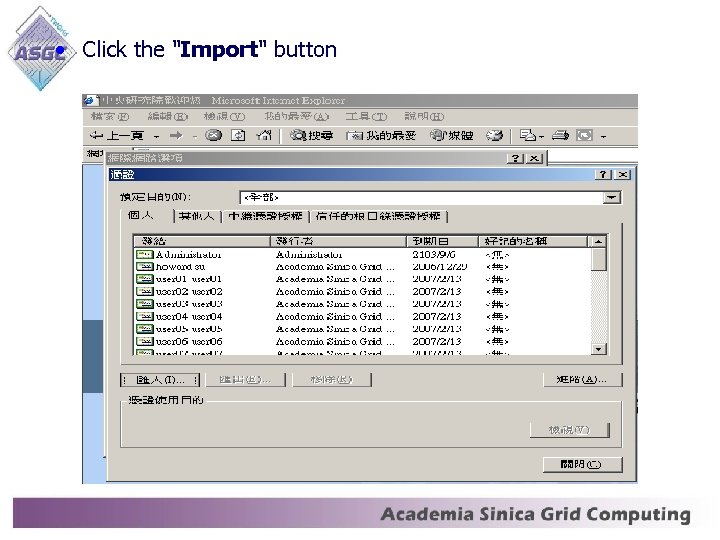 • Click the "Import" button
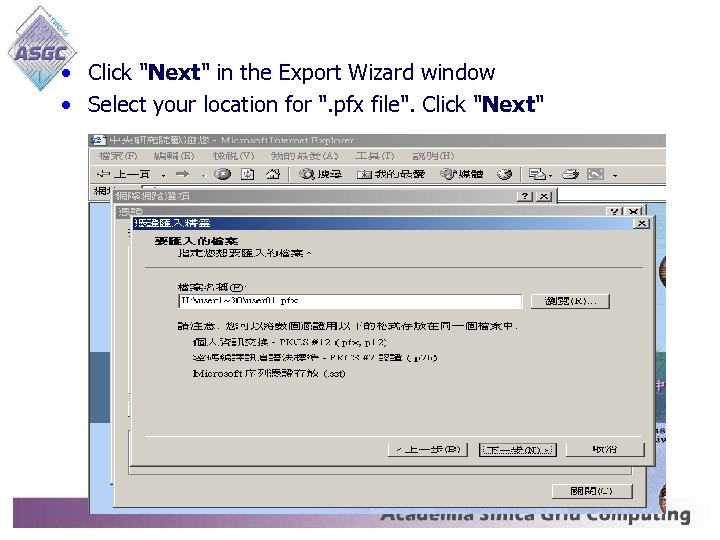 • Click "Next" in the Export Wizard window • Select your location for ". pfx file". Click "Next"
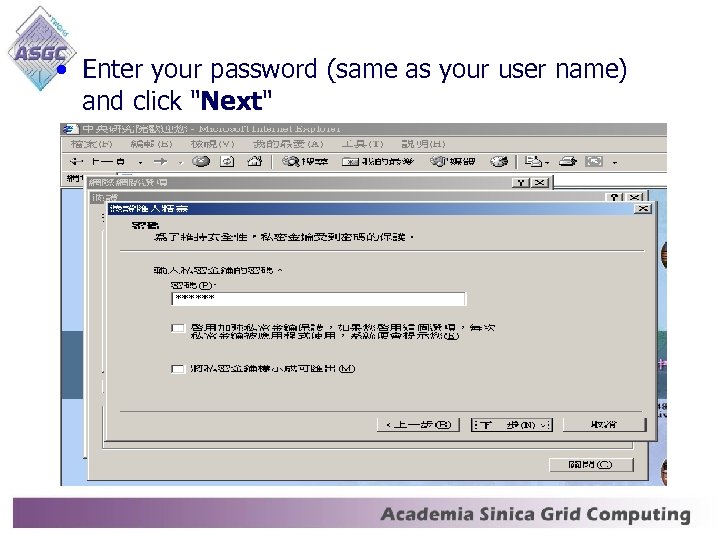 • Enter your password (same as your user name) and click "Next"
 • Check the default value for certificate location and click "Next" • Click "Finished"
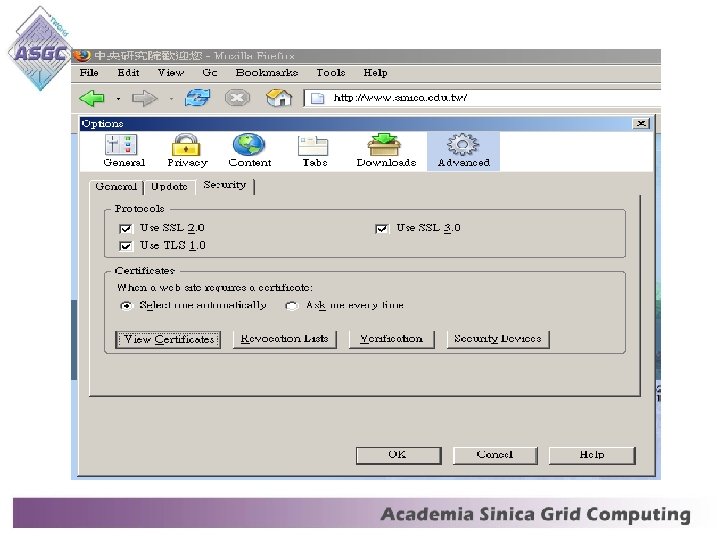
 Importing the digital certificate for Mozilla: • Open the Mozilla browser, choice the "Tools" menu, and click "Options". • Click the "Advance" tab, and then choose "View certificates".
 • Click the "Import" button • Select your location for ". pfx file". Click "Open" • Enter your password (same as your user name) and click "OK"
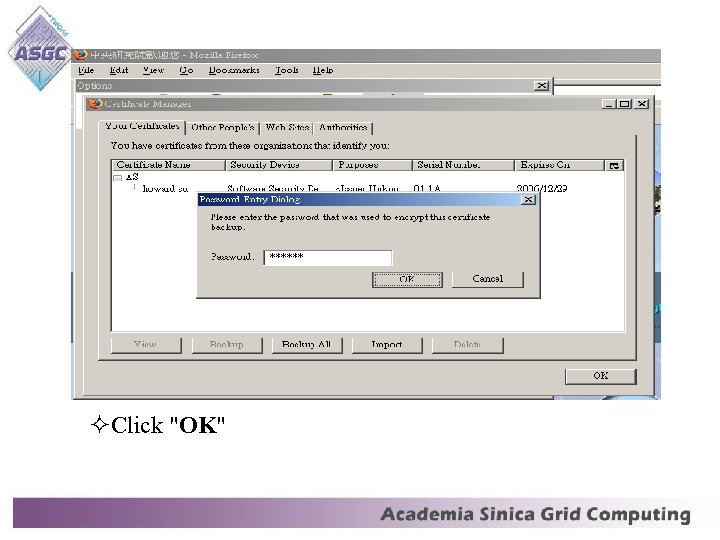 Click "OK"
 The End