


 Скачать презентацию A Picture says more Using Digital Pictures
ac31110e6bd458136b61bf4766d90d0d.ppt
- Количество слайдов: 15
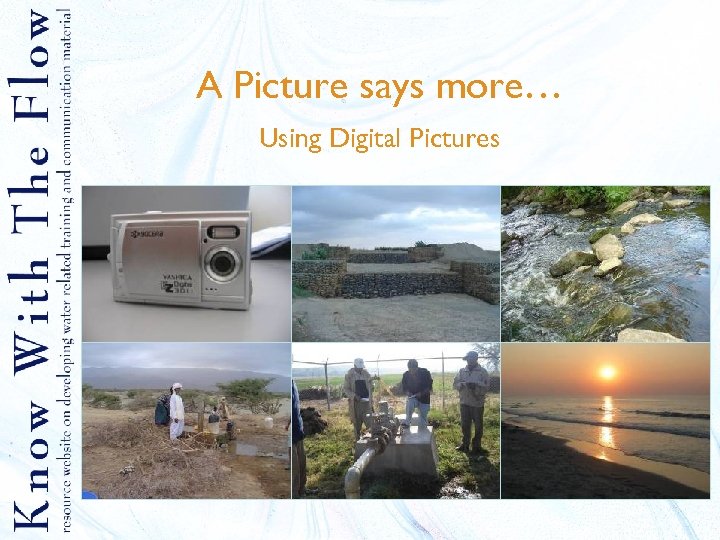 A Picture says more… Using Digital Pictures
 Table of Contents 1. 2. 3. 4. 5. 6. 7. Why using digital pictures When using digital pictures How to use your camera Tips on photographing Editing pictures Editing tips Interesting links
 1. Why using digital pictures? § § § § § A picture says more than a thousand words Many people don’t have much time to read or listen A picture needs no translation A picture is an idea and proof at the same time You can show many things with pictures Makes local knowledge clear Over time you will see more Fast and convincing communication Can directly be used in training/ presentation Easy
 2. When using digital pictures? § § § In presentations Reports Explanations on field visits Trainings Websites
 3. How to use your camera § § § When you are in the field, try to see things through the camera and take pictures Ask local experts and resource persons to explain and ‘show’ what they mean Try to capture the knowledge of local specialists
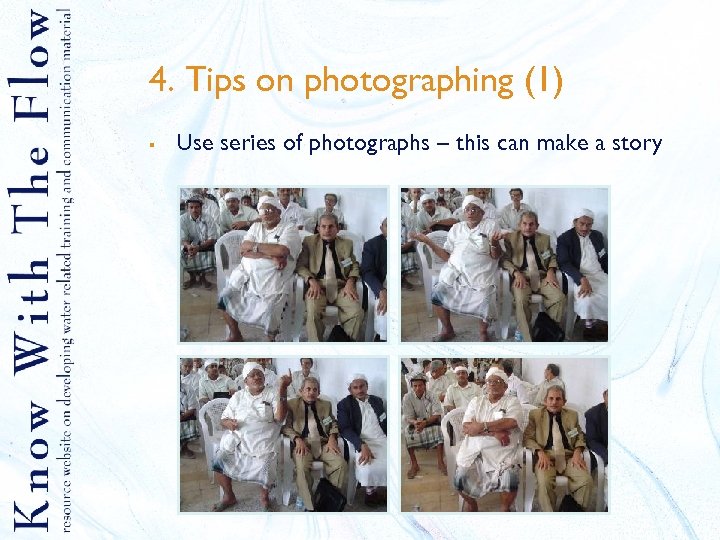 4. Tips on photographing (1) § Use series of photographs – this can make a story
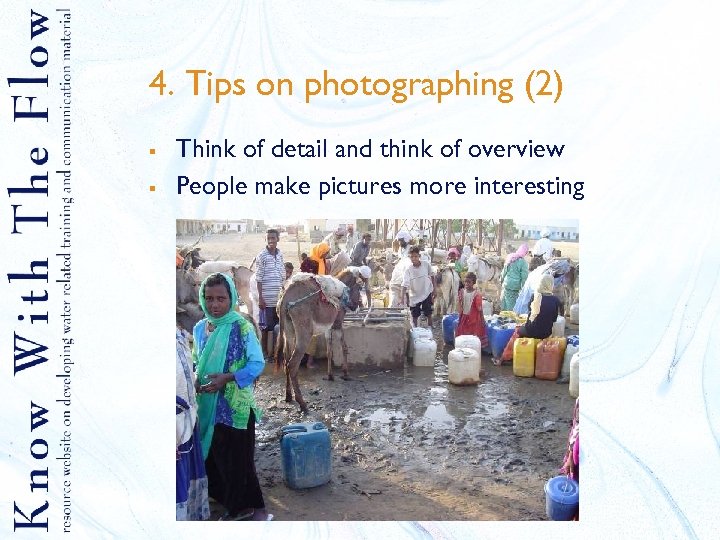 4. Tips on photographing (2) § § Think of detail and think of overview People make pictures more interesting
 5. Editing pictures § § A lot of software is available for editing pictures. It is recommended to use ‘real’ edit programs. This means do not use Word or other text editors to edit your pictures. Examples of picture editing programs are: § § Adobe Photoshop(very advanced, not free) Paint(not many options, but standard in MS Office) VCW Vic. Man's Photo Editor (Free) Image. Magick (free)
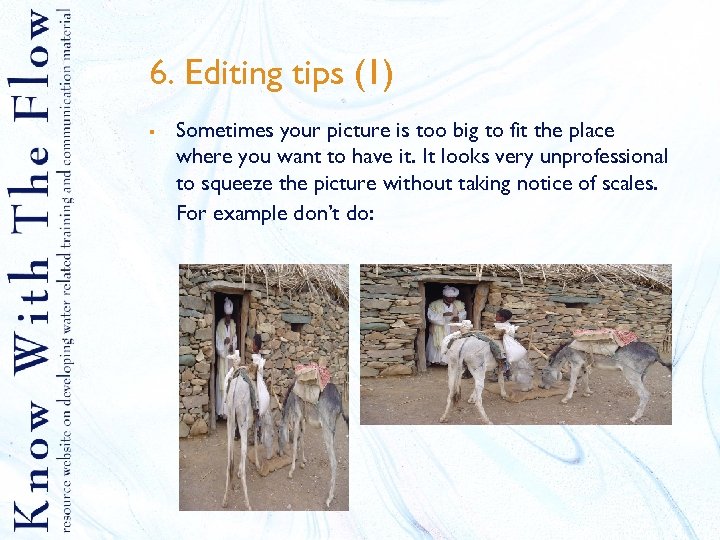 6. Editing tips (1) § Sometimes your picture is too big to fit the place where you want to have it. It looks very unprofessional to squeeze the picture without taking notice of scales. For example don’t do:
 6. Editing tips (2) How to keep original scales § § Most editing programs will keep scales of pictures when you hold down the shift key while you resize your picture by dragging a corner. Another option is to go to ‘Format picture’, then look for an option like: ‘Lock aspect ratio’. When this option is active, the picture will keep the original scales when you adjust the size.
 6. Editing tips (3) § § The quality of a picture is related to the amount of pixels a picture contains. The higher the quality the larger the file. If you want to place a picture on the internet it might be better to use a low quality. Smaller files can be downloaded faster. You can decrease the size of your picture (compressing) by: § § By changing settings in your digital camera. Look in your camera for ‘image size, image quality or compression’. Afterwards for example in a Power. Point presentation: right click your mouse, choose: ‘format picture > compress > change resolution to web/screen’.
 7. Interesting links (1) Editing software § § www. adobe. com/products/photoshop Adobe Photoshop. Very advanced, not free www. microsoft. com Paint. It has not many options, but it is a standard program in MS Office www. vicman. net VCW Vic. Man's Photo Editor (free) www. imagemagick. org Image. Magick (free)
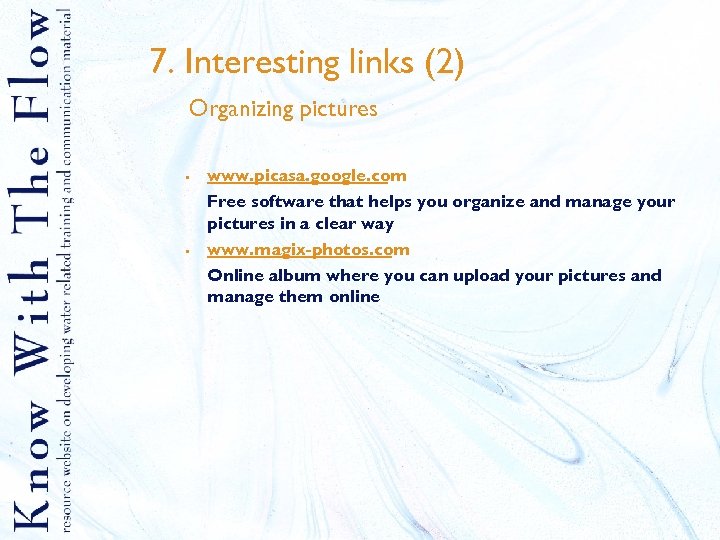 7. Interesting links (2) Organizing pictures § § www. picasa. google. com Free software that helps you organize and manage your pictures in a clear way www. magix-photos. com Online album where you can upload your pictures and manage them online
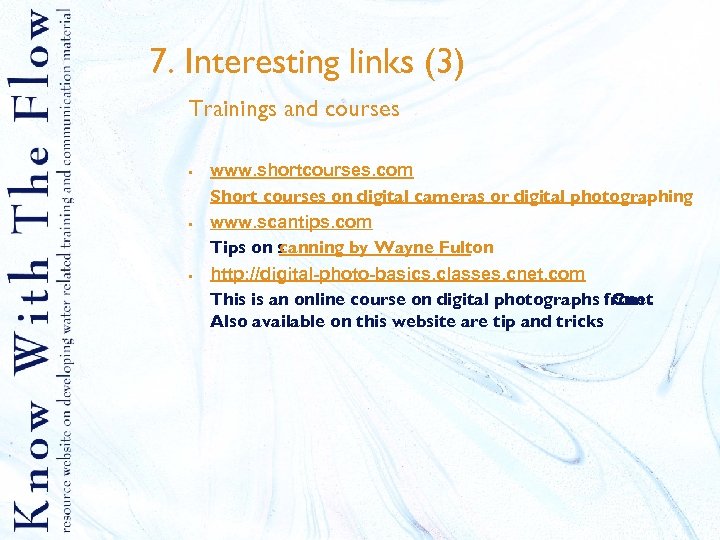 7. Interesting links (3) Trainings and courses § § § www. shortcourses. com Short courses on digital cameras or digital photographing www. scantips. com Tips on s canning by Wayne Fulton http: //digital-photo-basics. classes. cnet. com This is an online course on digital photographs from. Cnet Also available on this website are tip and tricks
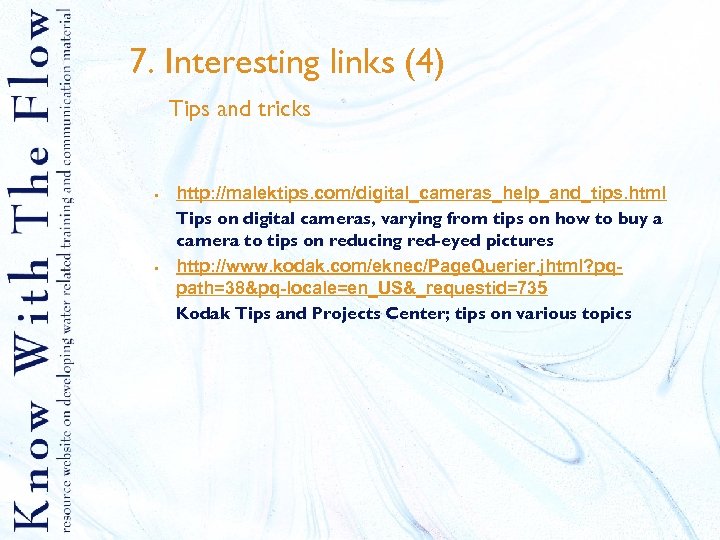 7. Interesting links (4) Tips and tricks § § http: //malektips. com/digital_cameras_help_and_tips. html Tips on digital cameras, varying from tips on how to buy a camera to tips on reducing red-eyed pictures http: //www. kodak. com/eknec/Page. Querier. jhtml? pqpath=38&pq-locale=en_US&_requestid=735 Kodak Tips and Projects Center; tips on various topics