


 Скачать презентацию A GANGA tutorial Professor Roger W
a591ec166822d53abe29b56c91716586.ppt
- Количество слайдов: 20
 A GANGA tutorial § § Professor Roger W. L. Jones Lancaster University
 Introduction § § § § This tutorial gives a short introduction to using the Grid with GANGA = user front end GANGA is used by several communities, and by ATLAS and LHCb - may be useful for your other local users You will submit some simple tasks to the Grid with GANGA You will see a demonstration of running ATLAS software on the Grid using GANGA Those with ATLAS softare set up can try this This tutorial is based on the material here: https: //twiki. cern. ch/twiki/bin/view/Atlas/Ganga. Tutorial 44 I invite you to try all the tutorial material offline. The tutorial normally runs over 2 days, so there is a lot in it, but it is well documented
 Ganga 3
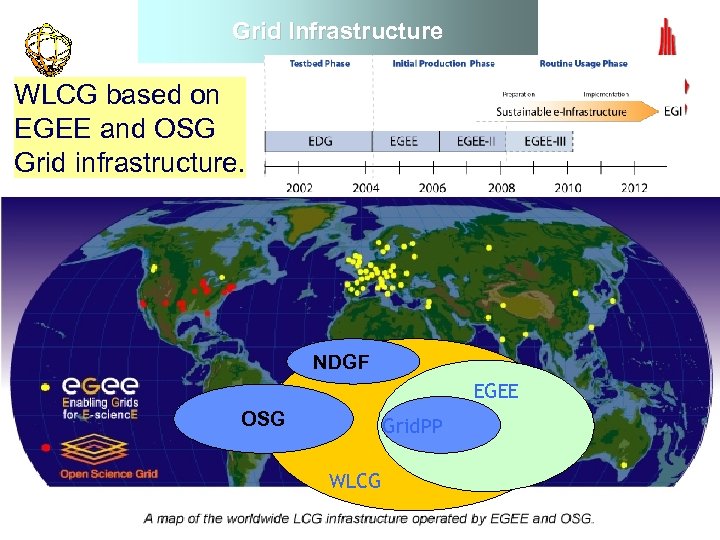 Grid Infrastructure WLCG based on EGEE and OSG Grid infrastructure. NDGF EGEE OSG Grid. PP WLCG 4
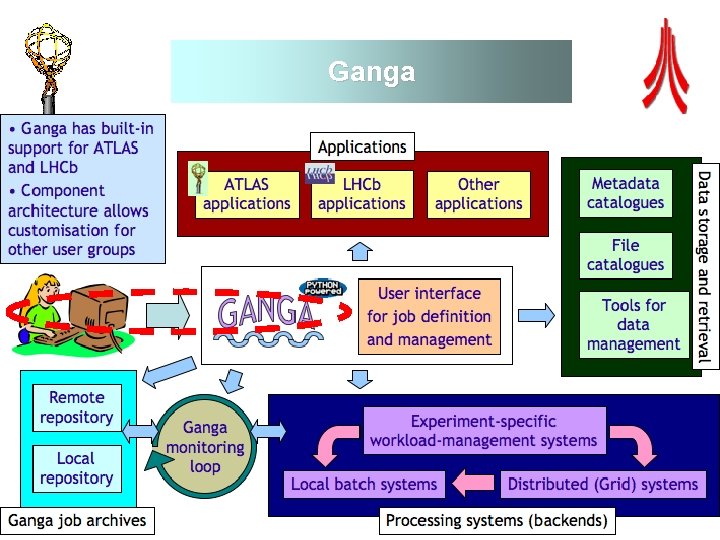
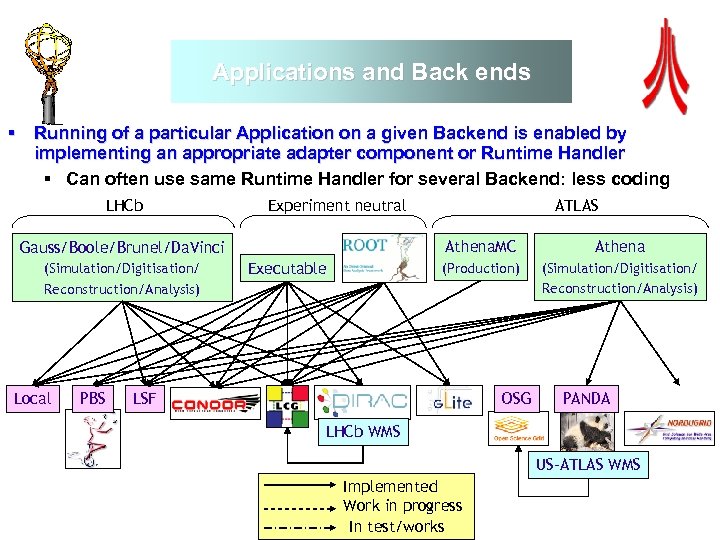 Applications and Back ends § Running of a particular Application on a given Backend is enabled by implementing an appropriate adapter component or Runtime Handler § Can often use same Runtime Handler for several Backend: less coding LHCb Experiment neutral Athena. MC Local PBS Executable Athena (Production) Gauss/Boole/Brunel/Da. Vinci (Simulation/Digitisation/ Reconstruction/Analysis) ATLAS (Simulation/Digitisation/ Reconstruction/Analysis) LSF OSG PANDA LHCb WMS US-ATLAS WMS Implemented Work in progress In test/works
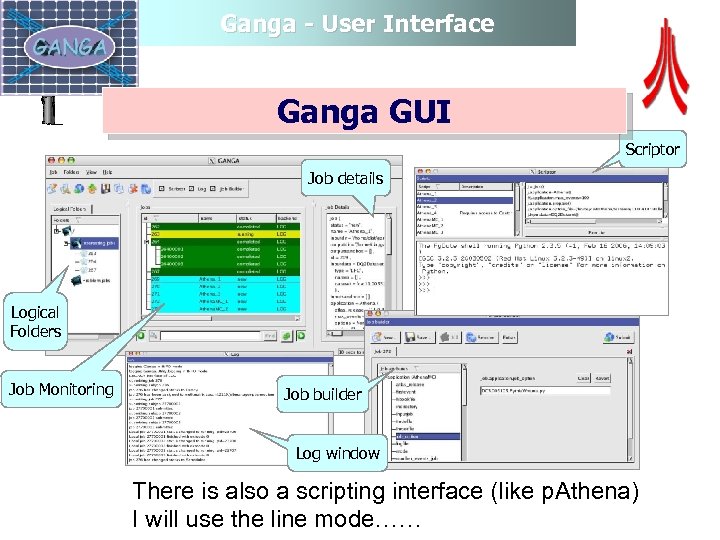 Ganga - User Interface Ganga GUI Scriptor Job details Logical Folders Job Monitoring Job builder Log window There is also a scripting interface (like p. Athena) I will use the line mode……
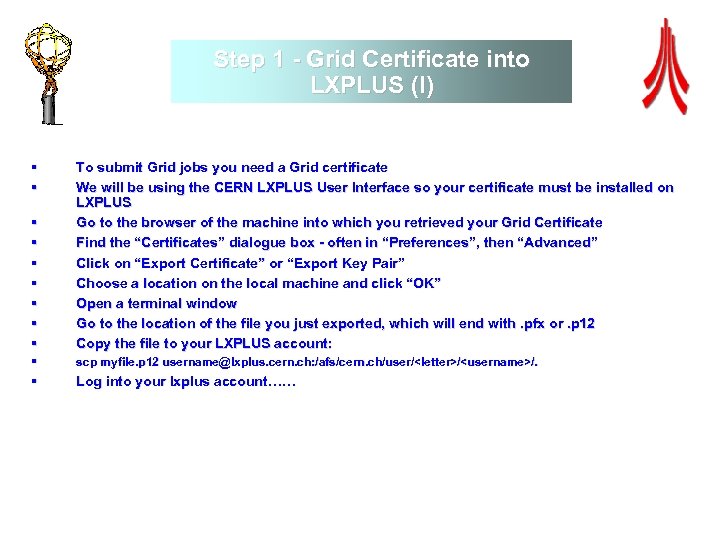 Step 1 - Grid Certificate into LXPLUS (I) § § § § § To submit Grid jobs you need a Grid certificate We will be using the CERN LXPLUS User Interface so your certificate must be installed on LXPLUS Go to the browser of the machine into which you retrieved your Grid Certificate Find the “Certificates” dialogue box - often in “Preferences”, then “Advanced” Click on “Export Certificate” or “Export Key Pair” Choose a location on the local machine and click “OK” Open a terminal window Go to the location of the file you just exported, which will end with. pfx or. p 12 Copy the file to your LXPLUS account: § scp myfile. p 12 username@lxplus. cern. ch: /afs/cern. ch/user/
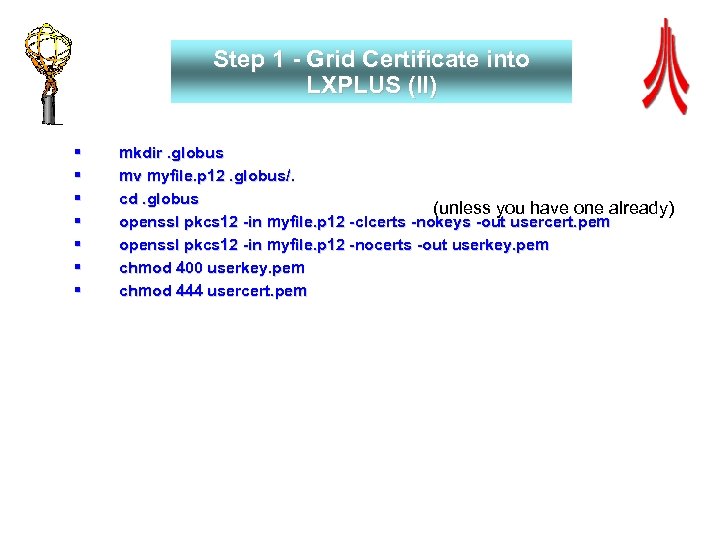 Step 1 - Grid Certificate into LXPLUS (II) § § § § mkdir. globus mv myfile. p 12. globus/. cd. globus (unless you have one already) openssl pkcs 12 -in myfile. p 12 -clcerts -nokeys -out usercert. pem openssl pkcs 12 -in myfile. p 12 -nocerts -out userkey. pem chmod 400 userkey. pem chmod 444 usercert. pem
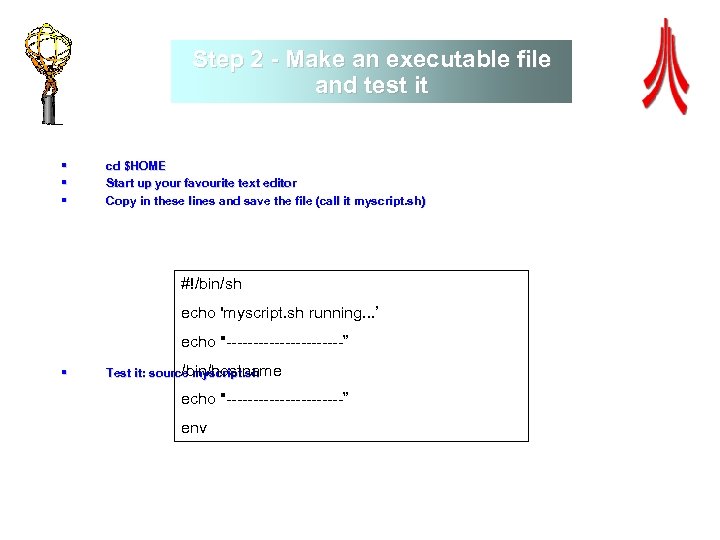 Step 2 - Make an executable file and test it § § § cd $HOME Start up your favourite text editor Copy in these lines and save the file (call it myscript. sh) #!/bin/sh echo 'myscript. sh running. . . ’ echo "-----------” § /bin/hostname Test it: source myscript. sh myscript. echo "-----------” env
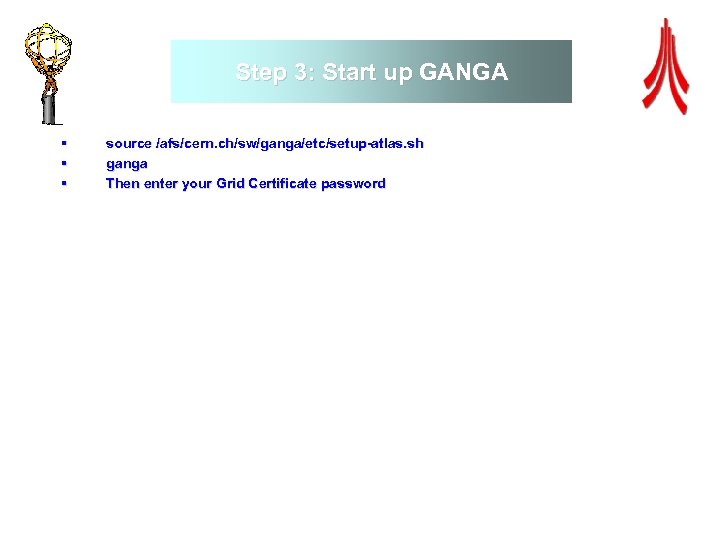 Step 3: Start up GANGA § § § source /afs/cern. ch/sw/ganga/etc/setup-atlas. sh ganga Then enter your Grid Certificate password
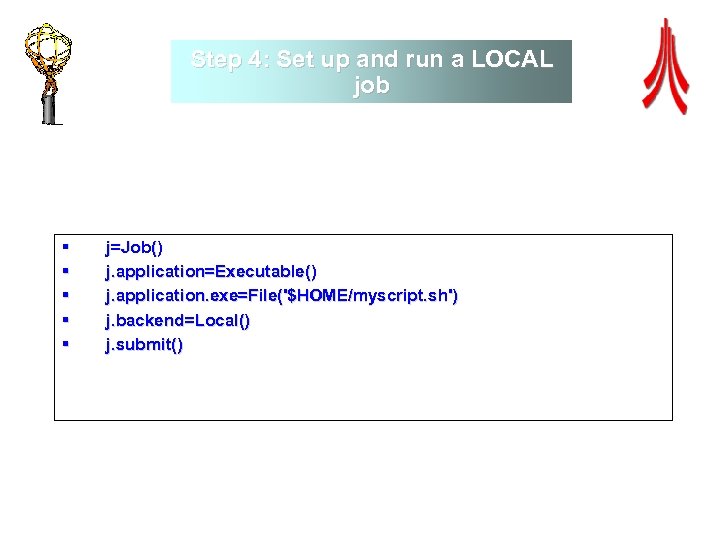 Step 4: Set up and run a LOCAL job § § § j=Job() j. application=Executable() j. application. exe=File('$HOME/myscript. sh') j. backend=Local() j. submit()
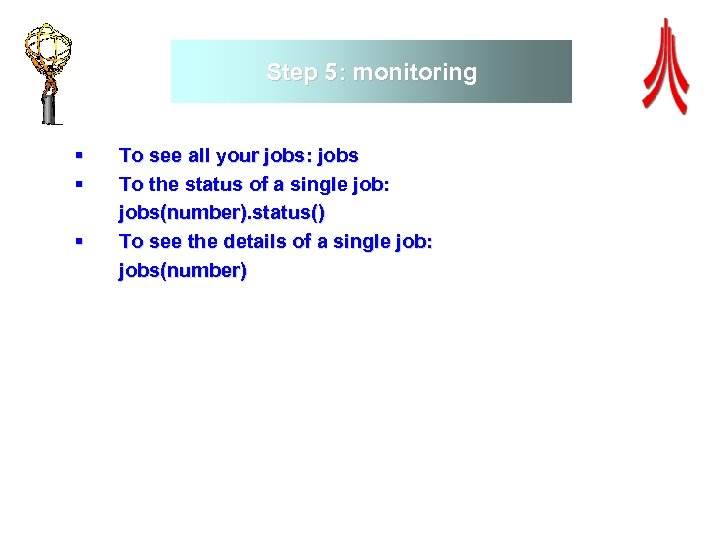 Step 5: monitoring § § § To see all your jobs: jobs To the status of a single job: jobs(number). status() To see the details of a single job: jobs(number)
 Step 6: collect your results § Exit ganga: CTRL+D § § cd $HOME/gangadir/Local/number/output Open the file stdout with your favourite editor. This should show the output from your script. You can look at the files from within GANGA as well: !less $j. outputdir/stdout (note that ‘!’ means ‘execute this command in the shell, not GANGA) § §
 Step 7: Copy the job and switch to LCG mode § § § § Start up GANGA again jobs(number). copy() jobs(number+1). backend=LCG() jobs(number+1). submit() Do your monitoring, etc again When the job status is “completed”, check the output file again In general this is how you should work; set up and test a LOCAL job, then copy and switch to LCG only when it is working You can see where in the world the job ran by typing jobs(number) and looking in the back-end section of the report (under ‘CE’)
 Step 8: Try the GANGA graphical interface § § § The GANGA graphical interface (GUI) can do everything that the command line can do, but allows you to point and click You can only use it if x-forwarding is set up on your terminal; to test this type xclock; you should see a clock on the screen. To open the GUI, quit GANGA and re-start but with an additonal --gui option after ganga --gui Can you see your two jobs? Can you submit a new job through the GUI?
 Help on GANGA § Several Ganga-related mailing lists have been set up, as detailed below. Most of these are managed within the framework of the CERN Simba List. Box Service, so that you can subscribe using the Simba web interface, and to access the archives you may need to give your username and password for the CERN Mail Server. The ATLAS Hyper. News list is an exception, and to subscribe to this, or access the forum, you need to have registered using the ATLAS Hyper. News New Membership page. General information on Ganga project § project-ganga@cern. ch List for Ganga developers § project-ganga-developers@cern. ch ATLAS Hyper. News forum for Ganga user support § hn-atlas-GANGAUser. Developer@cern. ch
 What’s next § A demonstration of how to run the ATLAS software framework in GANGA
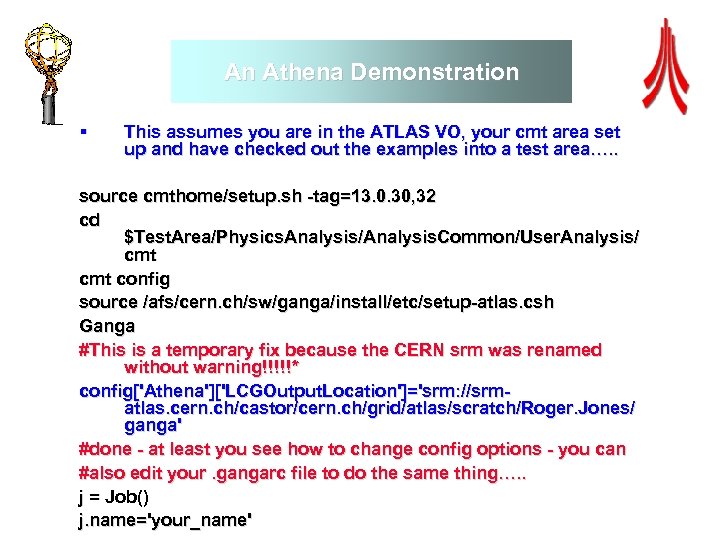 An Athena Demonstration § This assumes you are in the ATLAS VO, your cmt area set up and have checked out the examples into a test area…. . source cmthome/setup. sh -tag=13. 0. 30, 32 cd $Test. Area/Physics. Analysis/Analysis. Common/User. Analysis/ cmt config source /afs/cern. ch/sw/ganga/install/etc/setup-atlas. csh Ganga #This is a temporary fix because the CERN srm was renamed without warning!!!!!* config['Athena']['LCGOutput. Location']='srm: //srmatlas. cern. ch/castor/cern. ch/grid/atlas/scratch/Roger. Jones/ ganga' #done - at least you see how to change config options - you can #also edit your. gangarc file to do the same thing…. . j = Job() j. name='your_name'
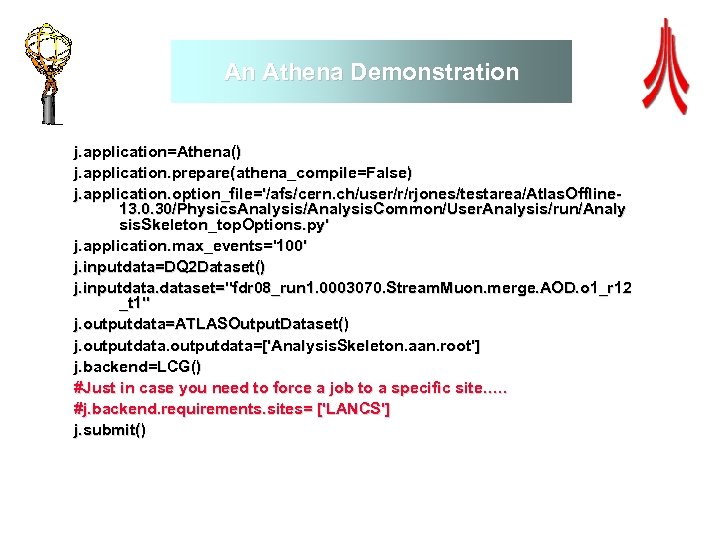 An Athena Demonstration j. application=Athena() j. application. prepare(athena_compile=False) j. application. option_file='/afs/cern. ch/user/r/rjones/testarea/Atlas. Offline 13. 0. 30/Physics. Analysis/Analysis. Common/User. Analysis/run/Analy sis. Skeleton_top. Options. py' j. application. max_events='100' j. inputdata=DQ 2 Dataset() j. inputdataset="fdr 08_run 1. 0003070. Stream. Muon. merge. AOD. o 1_r 12 _t 1" j. outputdata=ATLASOutput. Dataset() j. outputdata=['Analysis. Skeleton. aan. root'] j. backend=LCG() #Just in case you need to force a job to a specific site…. . #j. backend. requirements. sites= ['LANCS'] j. submit()
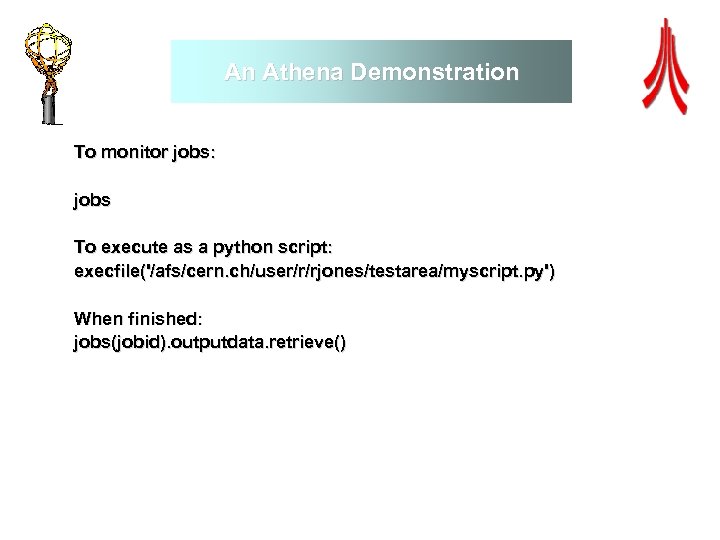 An Athena Demonstration To monitor jobs: jobs To execute as a python script: execfile('/afs/cern. ch/user/r/rjones/testarea/myscript. py') When finished: jobs(jobid). outputdata. retrieve()