


 Скачать презентацию A Digital Imaging Primer Nick Dvoracek Instructional Resources
ceb9613c851a2d53ab9610220922f01e.ppt
- Количество слайдов: 50
 A Digital Imaging Primer Nick Dvoracek Instructional Resources Center University of Wisconsin Oshkosh
 Often not an end in itself � Files created for use On the World Wide Web In presentation programs In desktop publishing For scientific analysis
 In order to get The best image quality For the least amount of disk space You must consider Image type Intended use (output device) Size in final application
 Digital Images are made from a pattern of dots � � Called pixels Short for picture element
 2 x 3 pixels less that 1 K
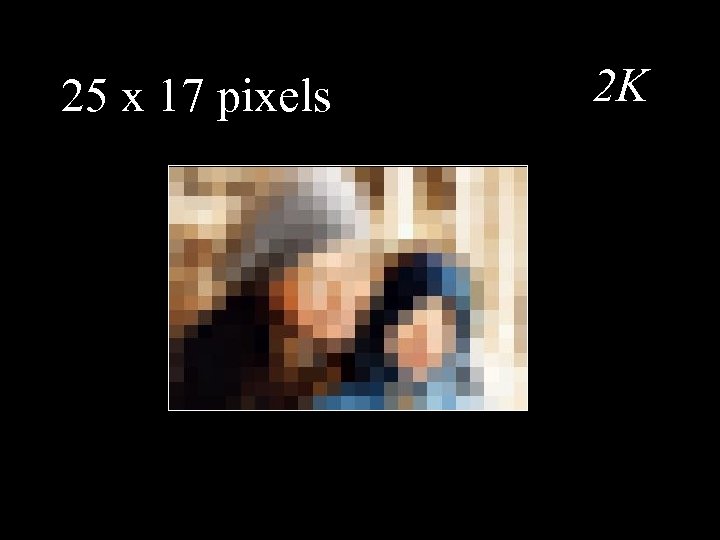 25 x 17 pixels 2 K
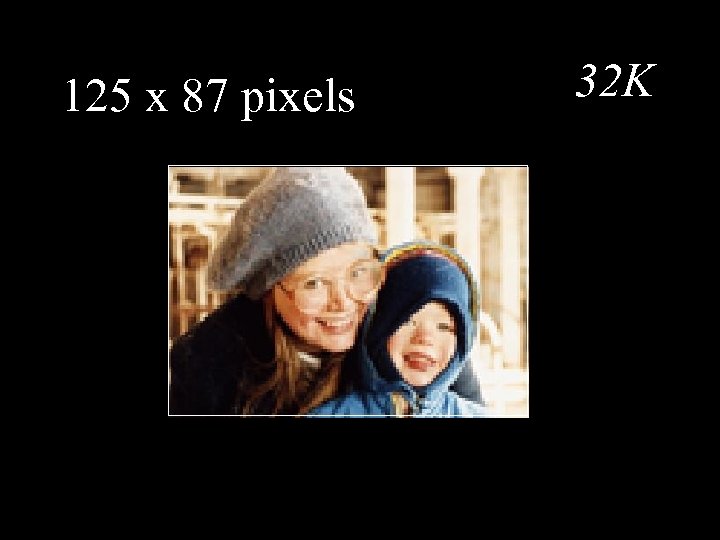 125 x 87 pixels 32 K
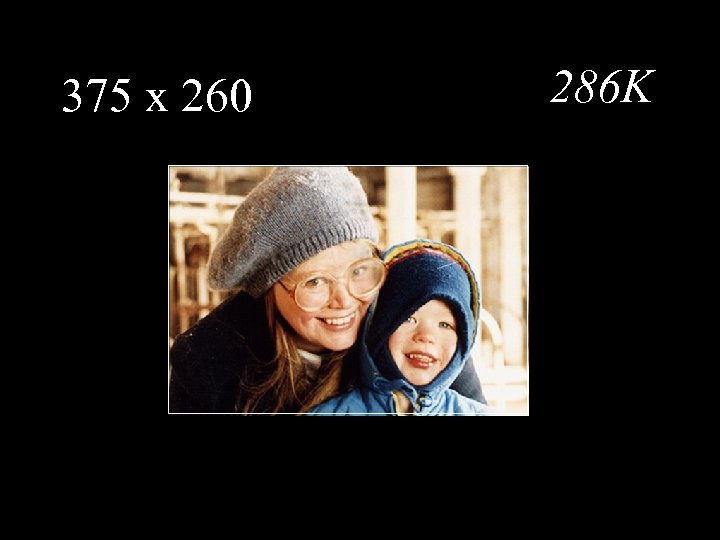 375 x 260 286 K
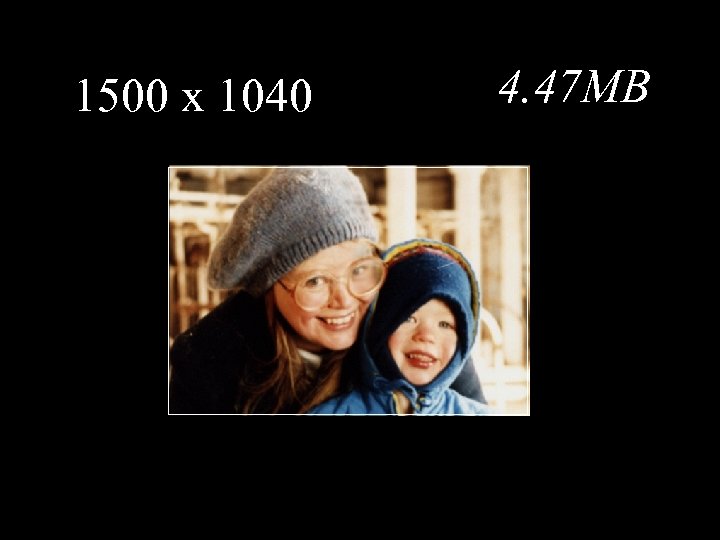 1500 x 1040 4. 47 MB
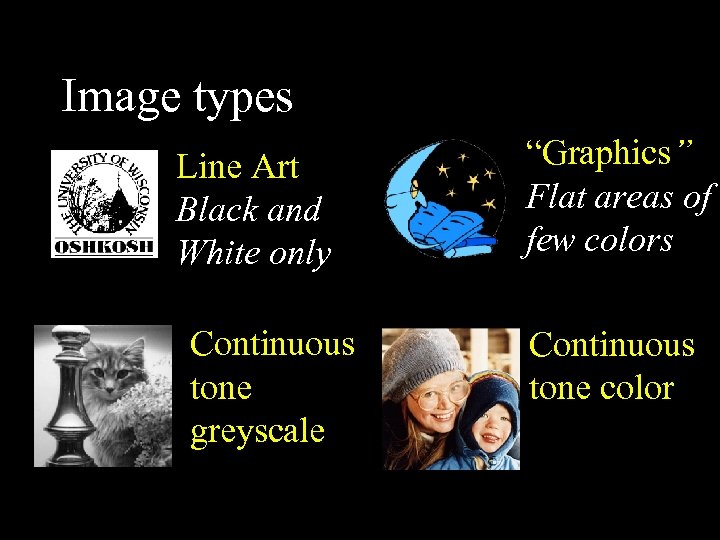 Image types Line Art Black and White only Continuous tone greyscale “Graphics” Flat areas of few colors Continuous tone color
 Color Depth � The amount of data for each pixel determines the number of possible colors
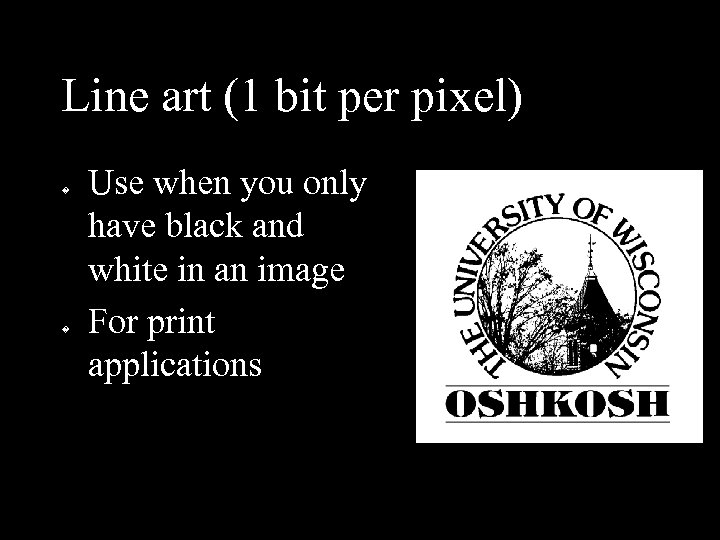 Line art (1 bit per pixel) � � Use when you only have black and white in an image For print applications
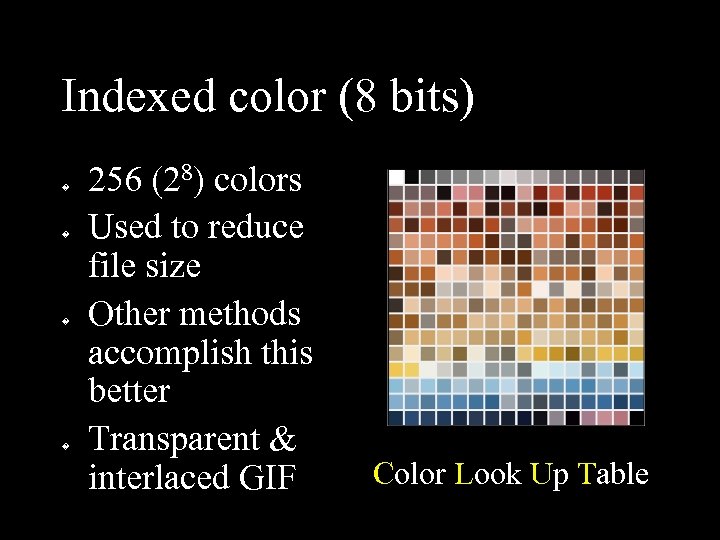 Indexed color (8 bits) � � 256 (28) colors Used to reduce file size Other methods accomplish this better Transparent & interlaced GIF Color Look Up Table
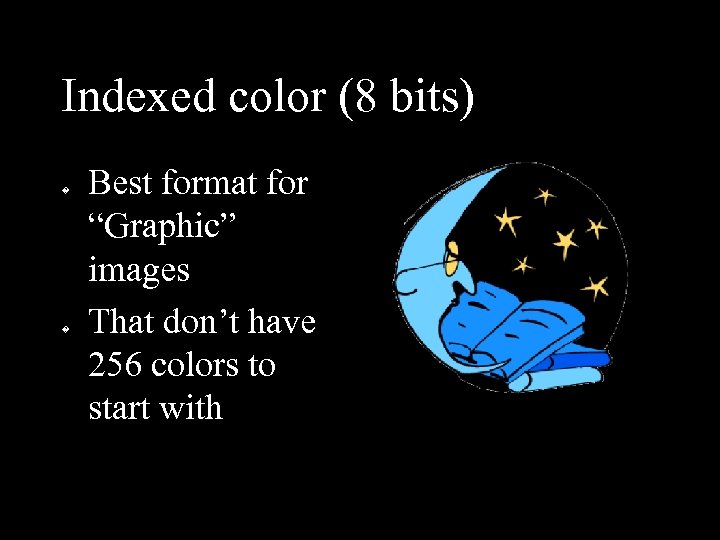 Indexed color (8 bits) � � Best format for “Graphic” images That don’t have 256 colors to start with
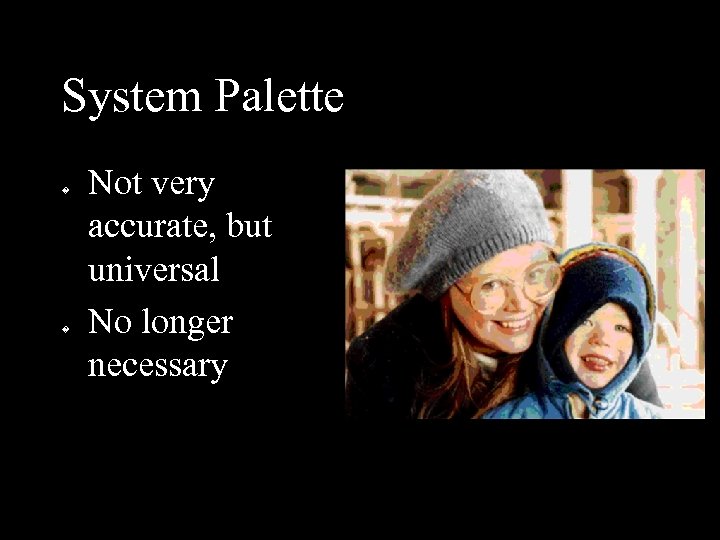 System Palette � � Not very accurate, but universal No longer necessary
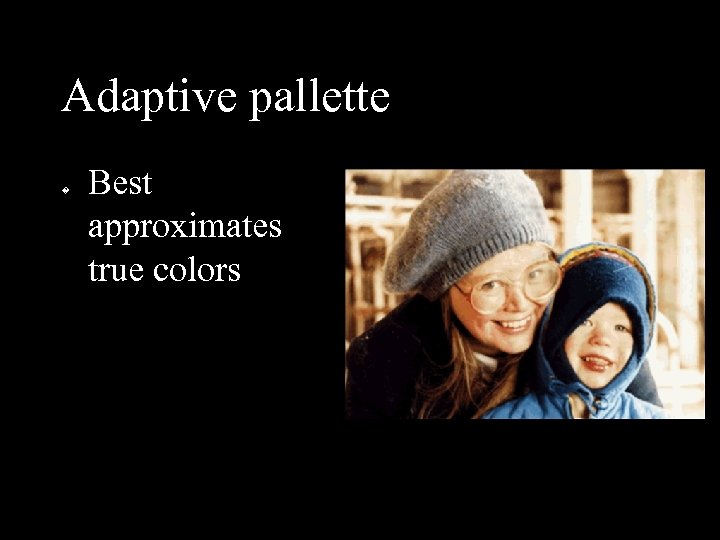 Adaptive pallette � Best approximates true colors
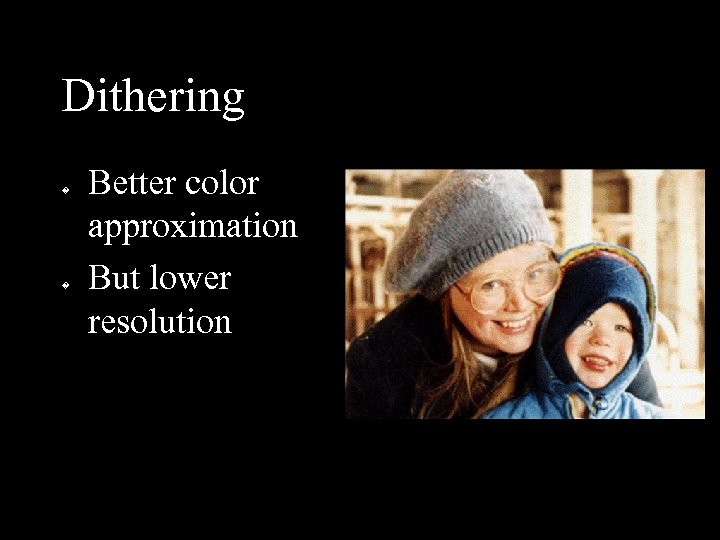 Dithering � � Better color approximation But lower resolution
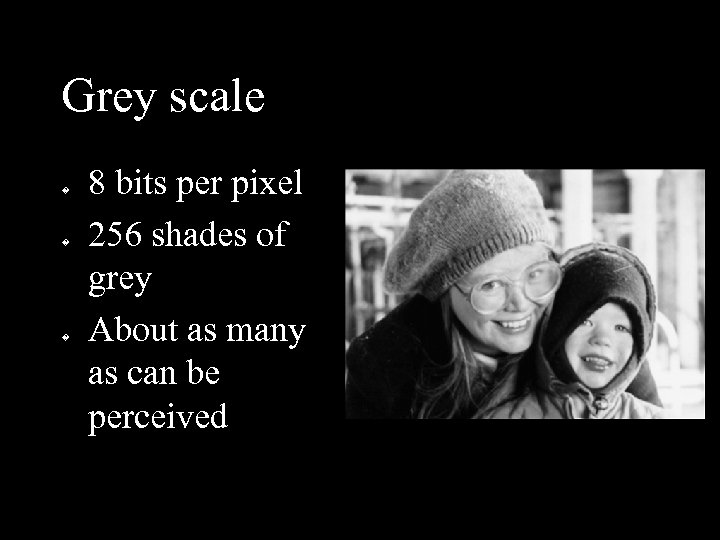 Grey scale � � � 8 bits per pixel 256 shades of grey About as many as can be perceived
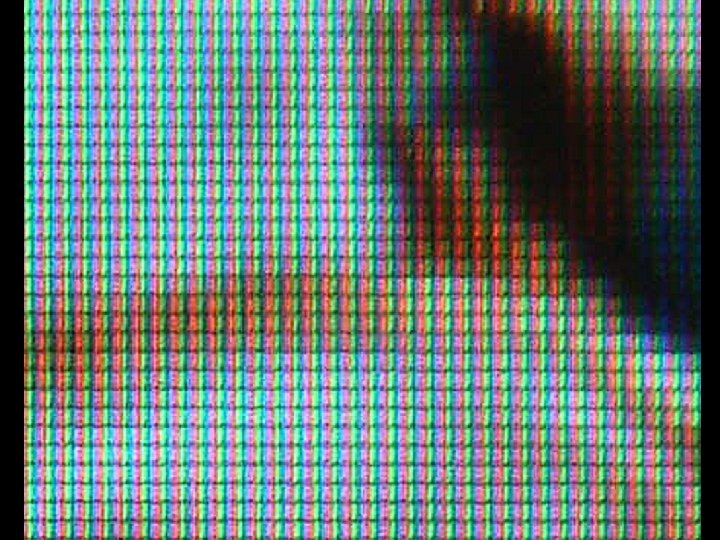
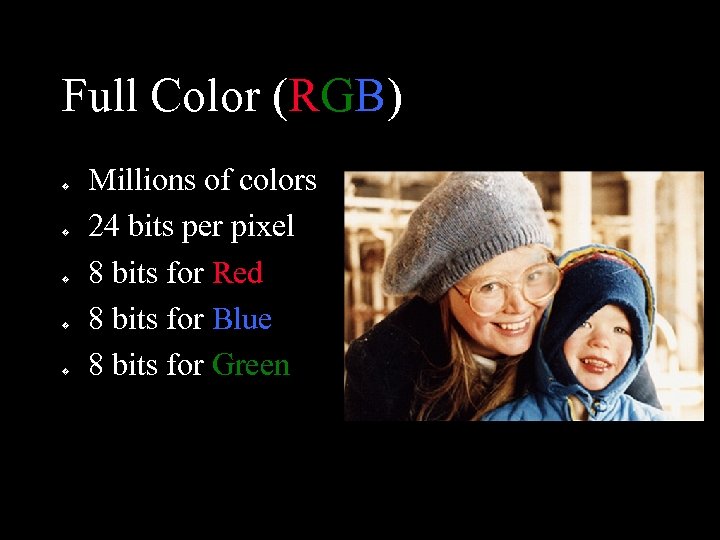 Full Color (RGB) � � � Millions of colors 24 bits per pixel 8 bits for Red 8 bits for Blue 8 bits for Green
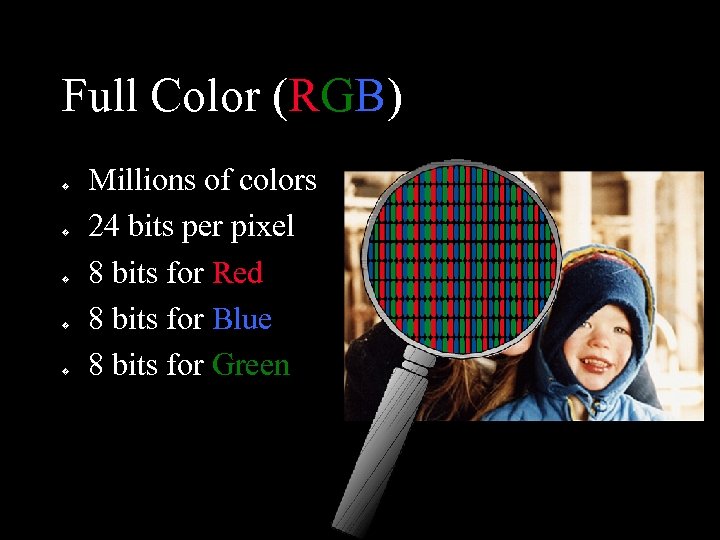 Full Color (RGB) � � � Millions of colors 24 bits per pixel 8 bits for Red 8 bits for Blue 8 bits for Green
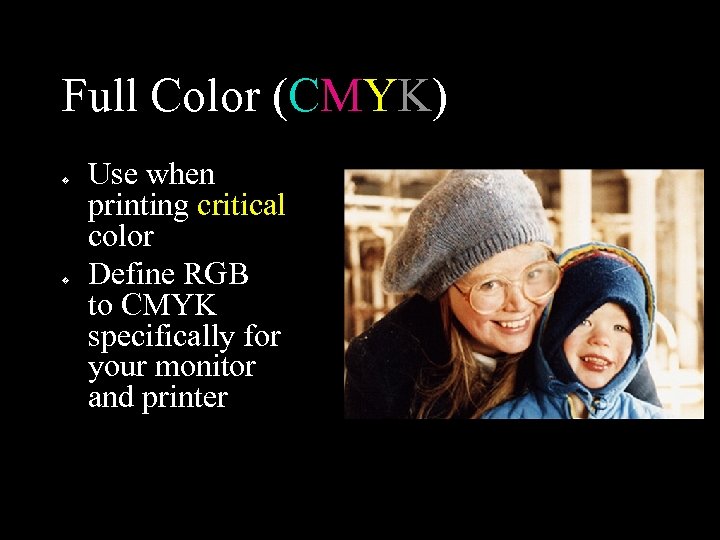 Full Color (CMYK) � � Use when printing critical color Define RGB to CMYK specifically for your monitor and printer
 Resolution equals number of pixels divided by size
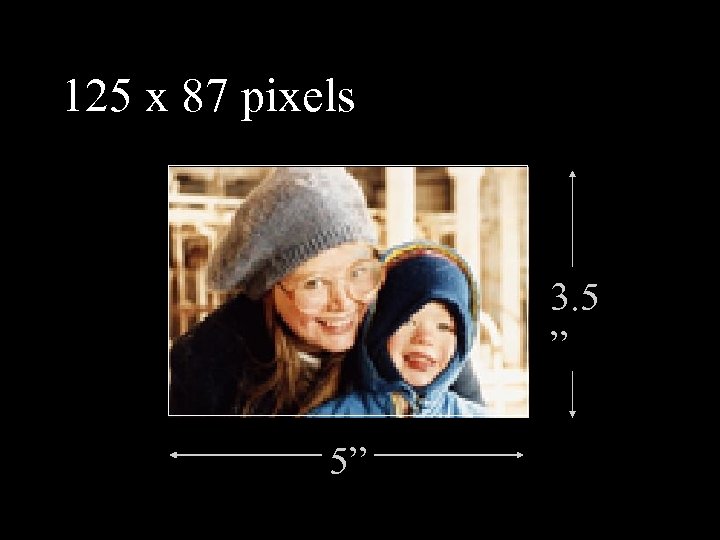 125 x 87 pixels 3. 5 ” 5”
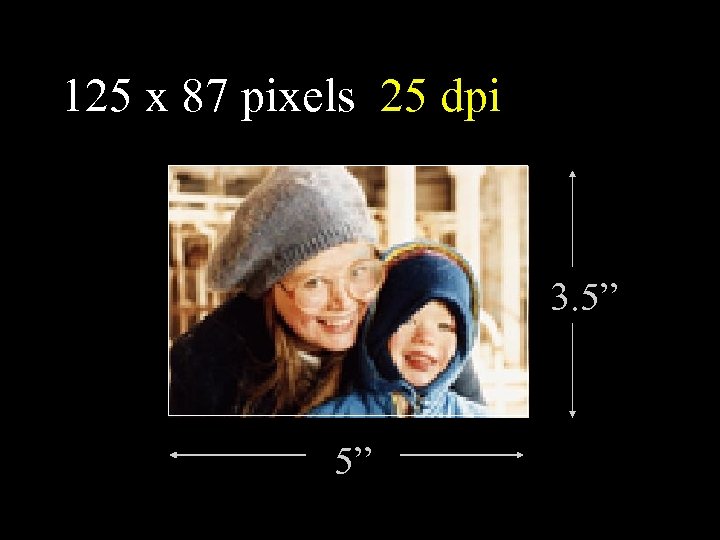 125 x 87 pixels 25 dpi 3. 5” 5”
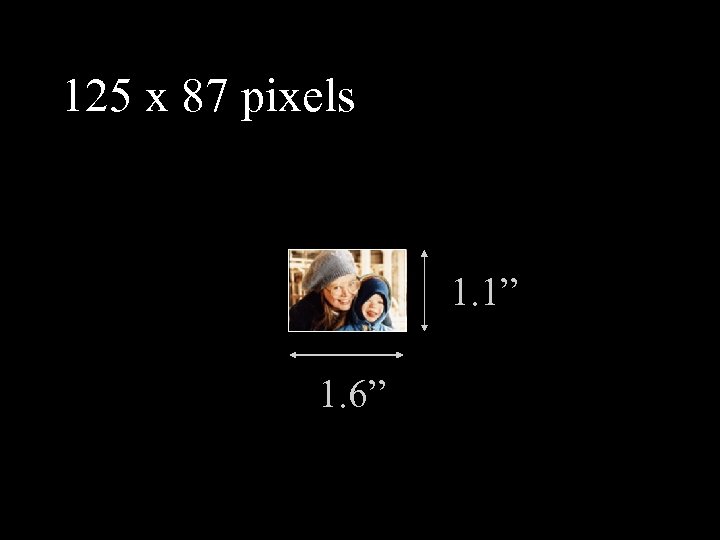 125 x 87 pixels 1. 1” 1. 6”
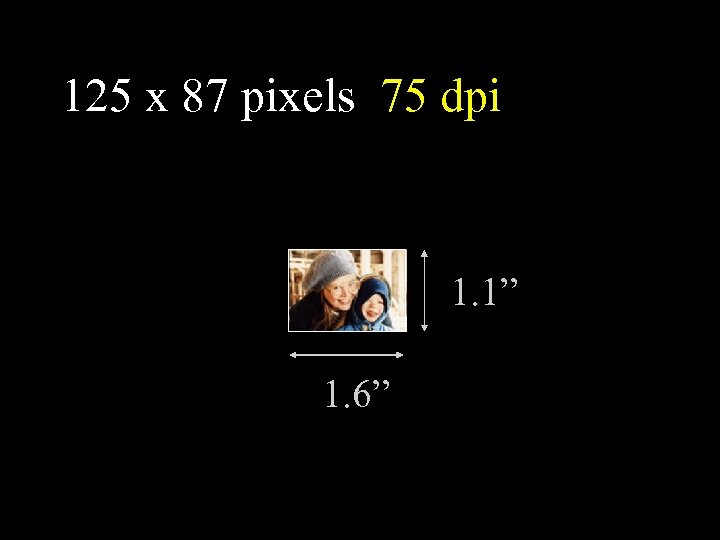 125 x 87 pixels 75 dpi 1. 1” 1. 6”
 The right resolution � Depends on Image type What is output device capable of? There is no “universal” scan. Too high saves immense amounts of data without improving image Too low results in poor image quality � � �
 The right resolution - Print � � Line copy Use the full resolution of the output device Printers range from 300 dpi to 1440 Anything over 400 is hard to see the difference See Page 7
 The right resolution - Print Color or Greyscale Printers simulate colors and shades of grey by “halftoning”
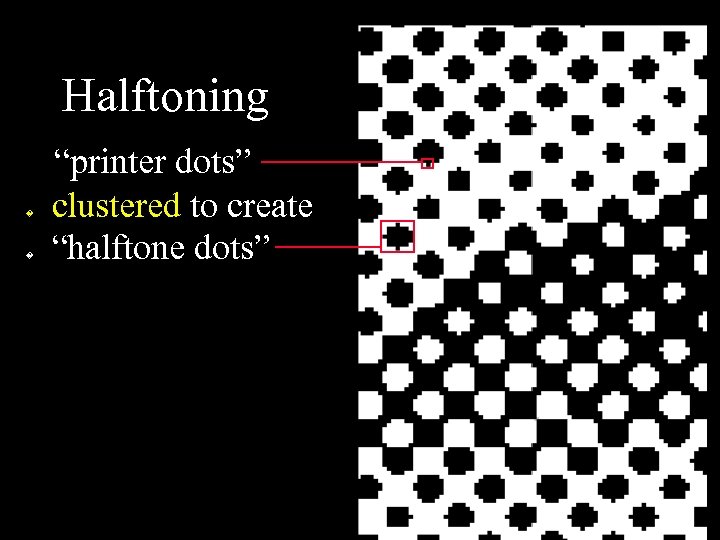 Halftoning � � “printer dots” clustered to create “halftone dots”
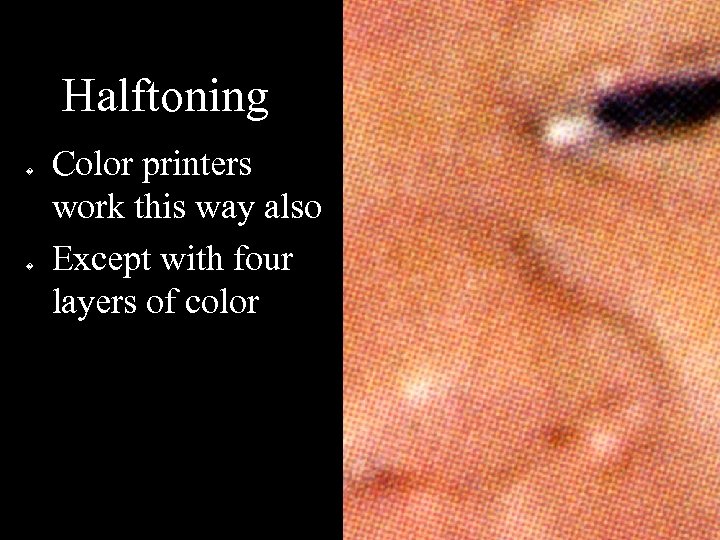 Halftoning � � Color printers work this way also Except with four layers of color
 The right resolution - Print Color or Grey One and a half to two times the printer’s “halftone frequency” 125 to 200 dots per inch � See Page 9
 The right resolution - Print � � � Be sure to specify final size of the image. Resolution (dots per inch) changes if the number of inches changes. i. e. if you resize in the final application
 The right resolution - The screen � Monitors and projectors can display any color for each pixel The size of monitors and projectors is commonly expressed in numbers of pixels rather than physical size 640 x 480, 800 x 600, 1024 x 768 � �
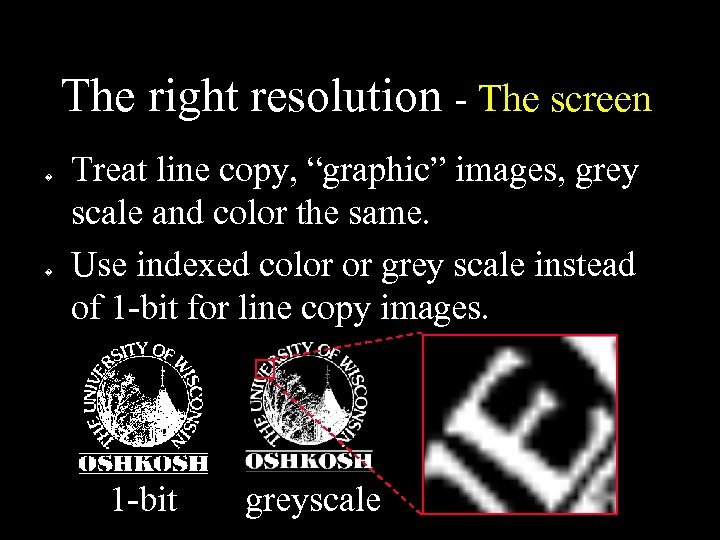 The right resolution - The screen � � Treat line copy, “graphic” images, grey scale and color the same. Use indexed color or grey scale instead of 1 -bit for line copy images. 1 -bit greyscale
 The right resolution - The screen � � � Powerpoint Assume you will be using a 1024 x 768 projector. Powerpoint thinks its slides are 10 x 7. 5 inches Acquiring 10 x 7. 5 inches at 100 dpi gives you the right number of pixels if your image is intended to fill the screen
 The right resolution - The screen � � � The web Web browsers ignore any information that refers to physical size. Only dimensions in pixels are taken into account
 The right resolution - The screen � � The web Different users may have different sized monitors at different resolution. Assume a browser window 750 pixels wide. It won’t always be right, but it’s the most common.
 The right resolution - The screen � � � The web You can resize images with HTML commands But it’s a really bad idea.
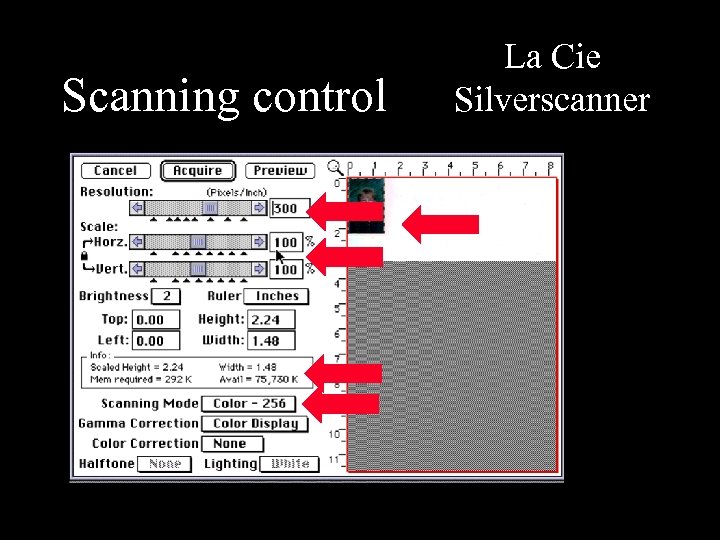 Scanning control La Cie Silverscanner
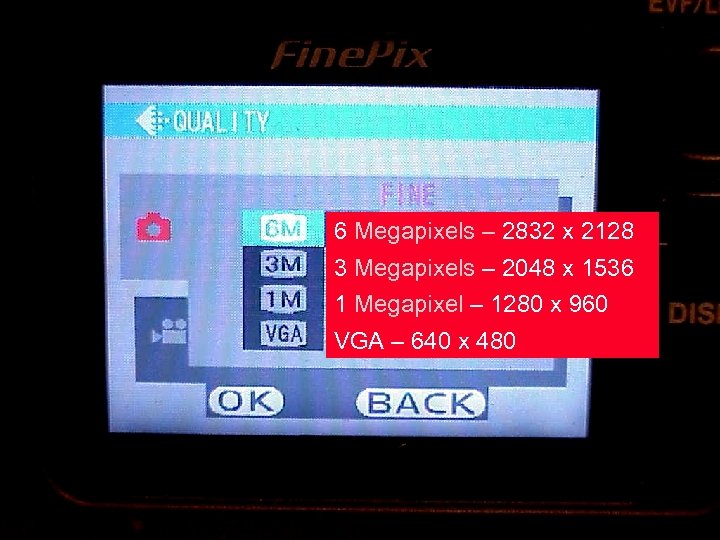 Digital Camera resolution 6 Megapixels – 2832 x 2128 3 Megapixels – 2048 x 1536 1 Megapixel – 1280 x 960 VGA – 640 x 480
 File formats - TIFF Supports any size, resolution or color depth. Best format for “desktop publishing” Modest file compression (LZW)
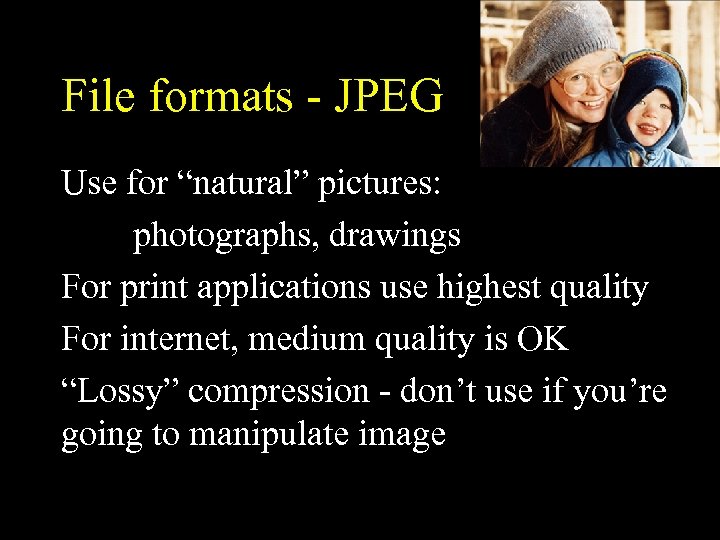 File formats - JPEG Use for “natural” pictures: photographs, drawings For print applications use highest quality For internet, medium quality is OK “Lossy” compression - don’t use if you’re going to manipulate image
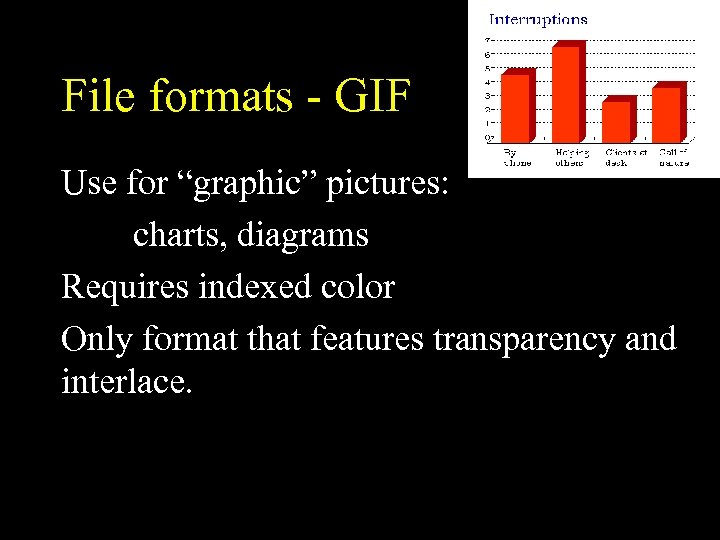 File formats - GIF Use for “graphic” pictures: charts, diagrams Requires indexed color Only format that features transparency and interlace.
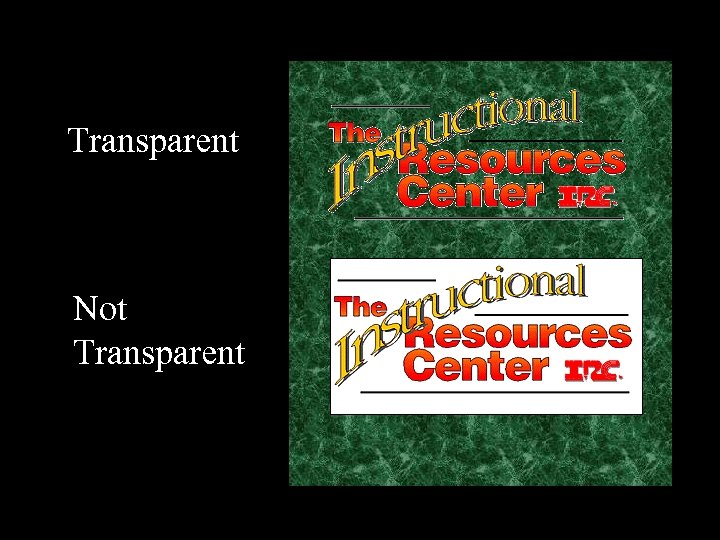 Transparent Not Transparent
 Embedded files When you place a file in Power. Point… your file size increases by the size of the placed files.
 Linked files When you place a file in Pagemaker… your file size increases only slightly but, you have keep the image file in the same place for Pagemaker to use when it needs to display or print the file Put everything in a folder If you move it, move the whole folder.
 Optical Character Recognition � � Requires scanner and OCR program Results are pretty good but not perfect Images and text saved as separate files Make sure original is placed in scanner straight.
 dvoracek@uwosh. edu