 Скачать презентацию 3 M Track and Trace Solutions Magellan Mobile
73a4fb9957d9cdfd34ba41c1841c8838.ppt
- Количество слайдов: 11



3 M Track and Trace Solutions Magellan Mobile. Mapper 6 1
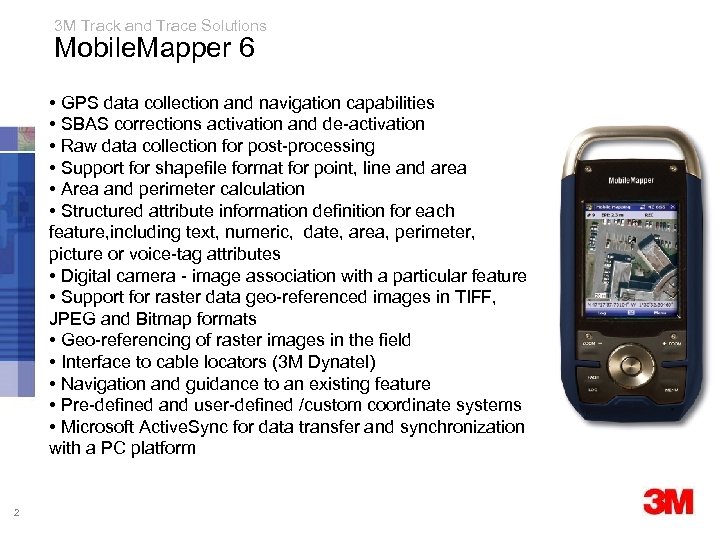
3 M Track and Trace Solutions Mobile. Mapper 6 • GPS data collection and navigation capabilities • SBAS corrections activation and de-activation • Raw data collection for post-processing • Support for shapefile format for point, line and area • Area and perimeter calculation • Structured attribute information definition for each feature, including text, numeric, date, area, perimeter, picture or voice-tag attributes • Digital camera - image association with a particular feature • Support for raster data geo-referenced images in TIFF, JPEG and Bitmap formats • Geo-referencing of raster images in the field • Interface to cable locators (3 M Dynatel) • Navigation and guidance to an existing feature • Pre-defined and user-defined /custom coordinate systems • Microsoft Active. Sync for data transfer and synchronization with a PC platform 2
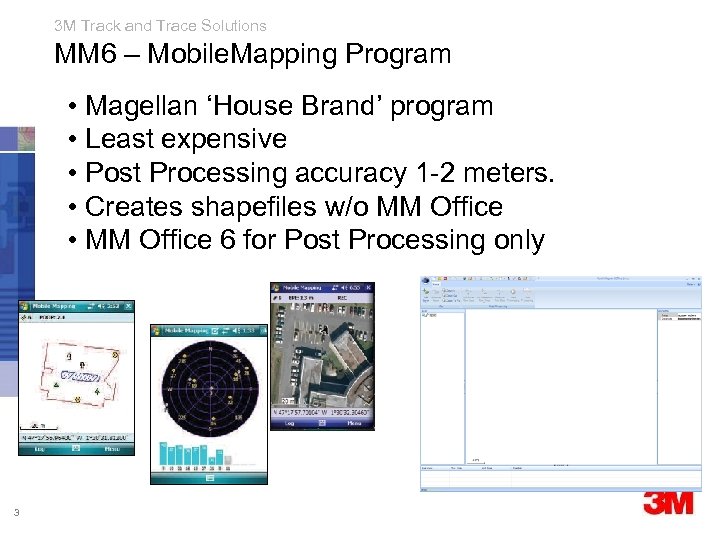
3 M Track and Trace Solutions MM 6 – Mobile. Mapping Program • Magellan ‘House Brand’ program • Least expensive • Post Processing accuracy 1 -2 meters. • Creates shapefiles w/o MM Office • MM Office 6 for Post Processing only 3
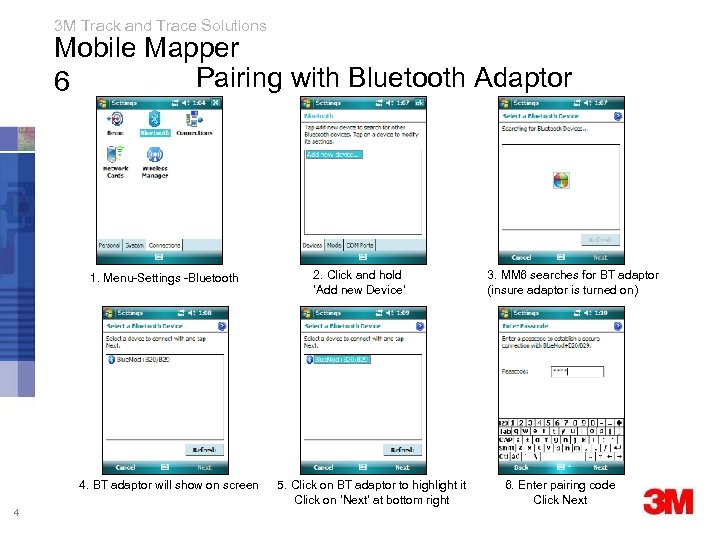
3 M Track and Trace Solutions Mobile Mapper Pairing with Bluetooth Adaptor 6 1. Menu-Settings -Bluetooth 4. BT adaptor will show on screen 4 2. Click and hold ‘Add new Device’ 5. Click on BT adaptor to highlight it Click on ‘Next’ at bottom right 3. MM 6 searches for BT adaptor (insure adaptor is turned on) 6. Enter pairing code Click Next
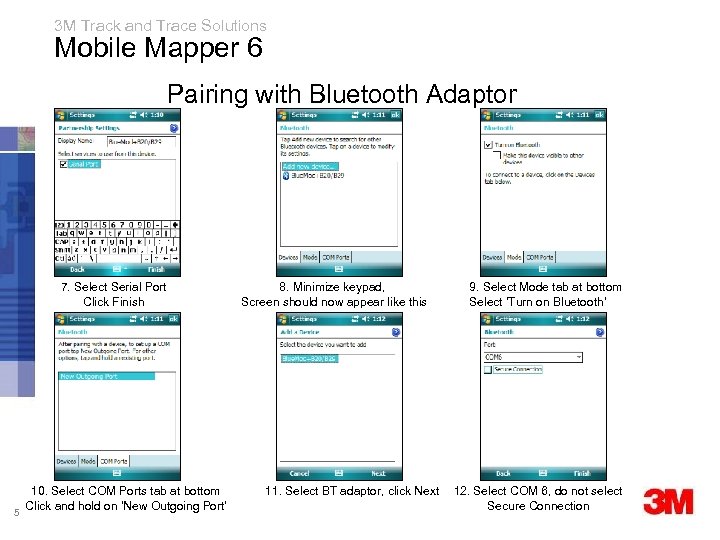
3 M Track and Trace Solutions Mobile Mapper 6 Pairing with Bluetooth Adaptor 7. Select Serial Port Click Finish 5 10. Select COM Ports tab at bottom Click and hold on ‘New Outgoing Port’ 8. Minimize keypad, Screen should now appear like this 11. Select BT adaptor, click Next 9. Select Mode tab at bottom Select ‘Turn on Bluetooth’ 12. Select COM 6, do not select Secure Connection
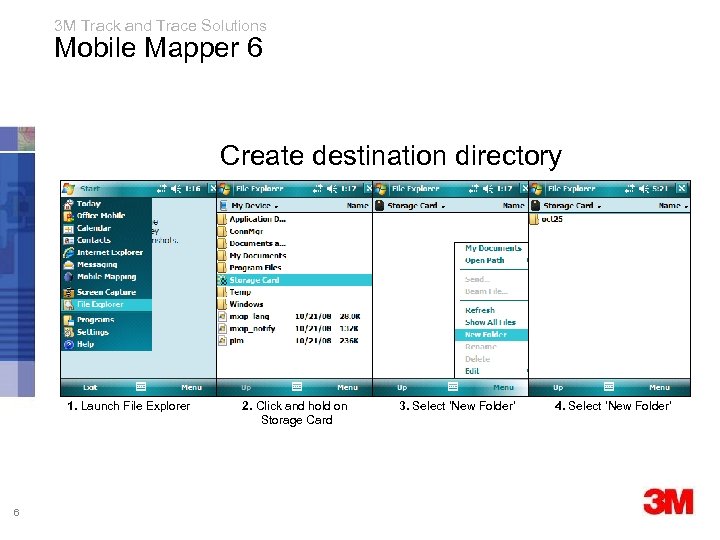
3 M Track and Trace Solutions Mobile Mapper 6 Create destination directory 1. Launch File Explorer 6 2. Click and hold on Storage Card 3. Select ‘New Folder’ 4. Select ‘New Folder’
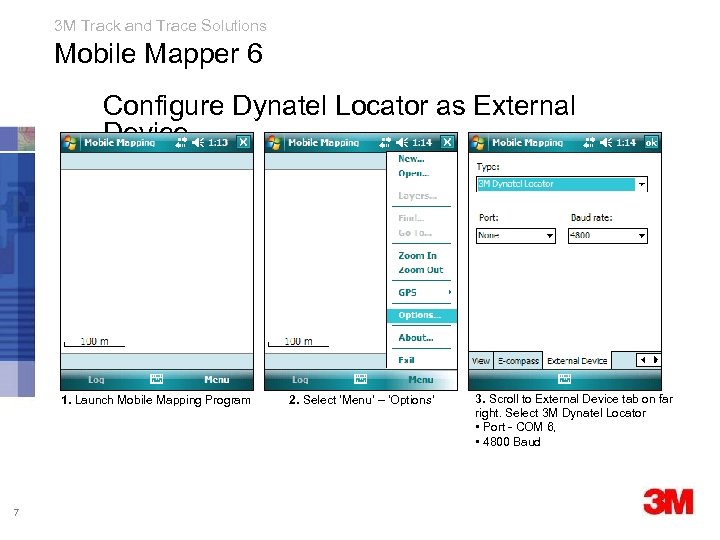
3 M Track and Trace Solutions Mobile Mapper 6 Configure Dynatel Locator as External Device 1. Launch Mobile Mapping Program 7 2. Select ‘Menu’ – ‘Options’ 3. Scroll to External Device tab on far right. Select 3 M Dynatel Locator • Port - COM 6, • 4800 Baud
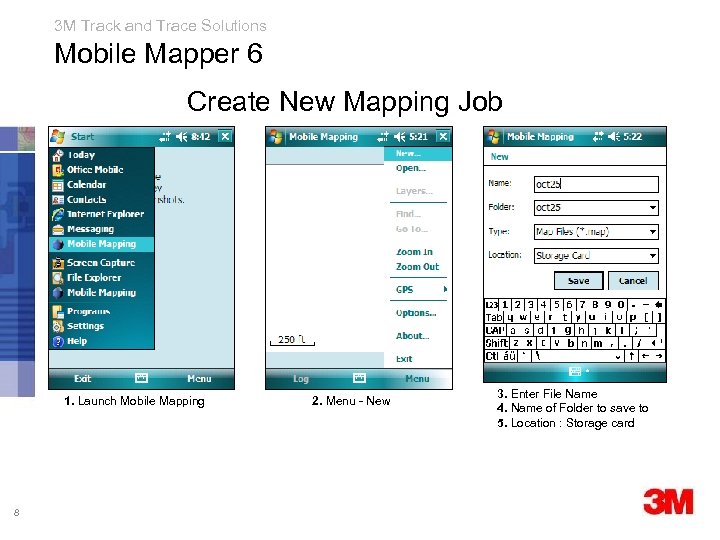
3 M Track and Trace Solutions Mobile Mapper 6 Create New Mapping Job 1. Launch Mobile Mapping 8 2. Menu - New 3. Enter File Name 4. Name of Folder to save to 5. Location : Storage card
3 M Track and Trace Solutions MM 6 Procedure Must Do’s § Load Mobile. Mapper today and set it so that the clock is automatically updated by the GPS signal § Always perform a complete shut down of the MM 6 by holding the on/off key for 5 seconds until the screen goes blank § Disable sleep mode in ‘Settings-Power-Advanced’ § Turn on Bluetooth adaptor before launching Mobile. Mapping or Arcpad programs § Always exit the Mobile. Mapping and Arcpad programs by the ‘Menu-Exit’ method vs. minimizing the program Menu-Exit § Save new layer in unique destination directory so you can find it later when doing customer demos § Read the Manual !!! 9
3 M Track and Trace Solutions MM 6 Procedure Don’ts - Things to Avoid § Don’t ever exit Arcpad or Mobile. Mapping by clicking on the ‘x’ key in the upper right hand corner § Don’t ever turn off the bluetooth adaptor while the application program is running § Don’t turn off the GPS unit while it is in communication with the bluetooth adaptor (solid green light) 10
3 M Track and Trace Solutions MM 6 - Fixes (after you do a don’t) § Maximize Mobile. Mapping prog. then exit it correctly (menu -exit) § Then relaunch the program § Power down GPS fully by pressing on/off button and holding it. § Then power on. § If communication is not re-established after launching Mobile. Mapping program, verify COM port setup in Menu. Options-External Device § If all else fails, turn everything completely off then turn everything completely on. 11
Скачать презентацию 3 M Track and Trace Solutions Magellan Mobile
73a4fb9957d9cdfd34ba41c1841c8838.ppt