


 Скачать презентацию 3 15 2018 Slide 1 Care Manager User Training
c5c217ab45b0c675a9c6187d9487af7e.ppt
- Количество слайдов: 57
 3/15/2018 Slide 1
 Care. Manager User Training version 3. 5_072209 • Introduction to Care. Manager & Diabetes Module
 Class Agenda What is Care. Manager? Care. Manager Control Panel Diabetes Dashboard Care. Manager Application Diabetes Identification Tab Diabetes Treatment Tab Diabetes Drug Safety Tab Diabetes Performance Tab Diabetes Services Due Tab Patient Communications Resources & Help 3/15/2018 Slide 3
 What is Care. Manager? Disease Management software for: Asthma Cervical Cancer Screening Coronary Heart Disease Diabetes Drug Safety Heart Failure Osteoporosis Stroke Prevention Tobacco Cessation 3/15/2018 Slide 4
 Care. Manager has two main components - one is accessed within the EHR and one via Web The Care. Manager Control Panel and Dashboards are Encounter Forms in the EHR where you can: View individual patient status Easily enter data that will flow to the Care. Manager application The Web based Care. Manager application: Allows you to track a single patient or your entire population of patients by disease state Generally you do NOT make entries directly in the Care. Manager application. Most data entry is done in the EHR. 3/15/2018 Slide 5
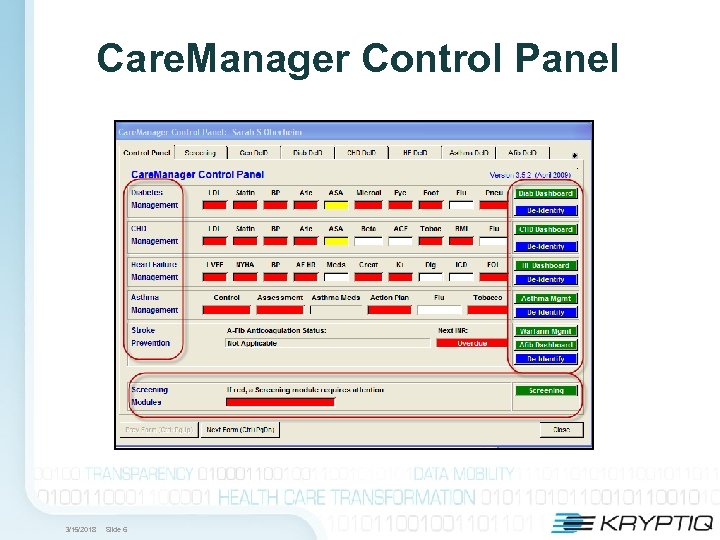 Care. Manager Control Panel 3/15/2018 Slide 6
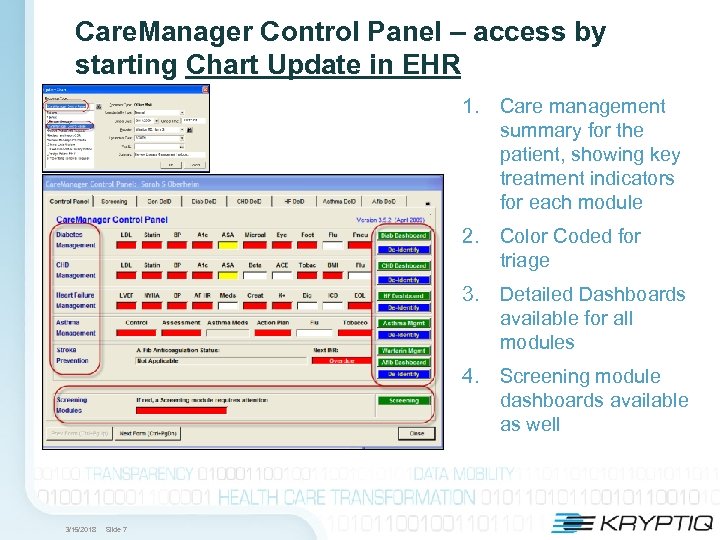 Care. Manager Control Panel – access by starting Chart Update in EHR 1. Care management summary for the patient, showing key treatment indicators for each module 2. Color Coded for triage 3. Detailed Dashboards available for all modules 4. Screening module dashboards available as well 3/15/2018 Slide 7
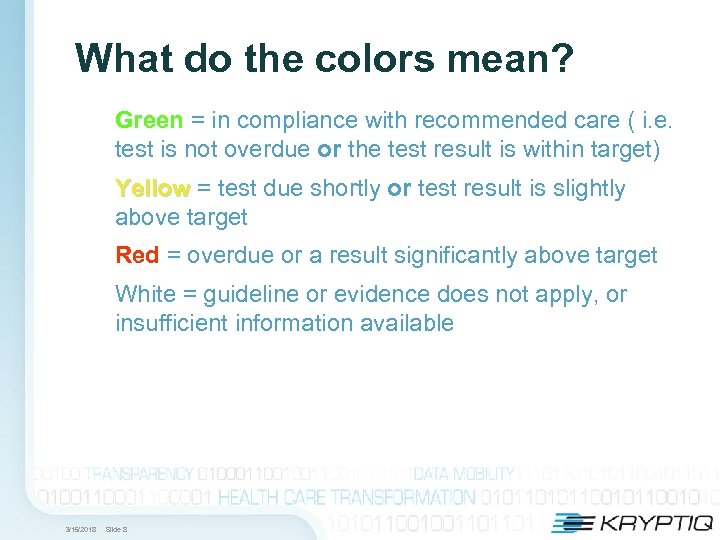 What do the colors mean? Green = in compliance with recommended care ( i. e. test is not overdue or the test result is within target) Yellow = test due shortly or test result is slightly above target Red = overdue or a result significantly above target White = guideline or evidence does not apply, or insufficient information available 3/15/2018 Slide 8
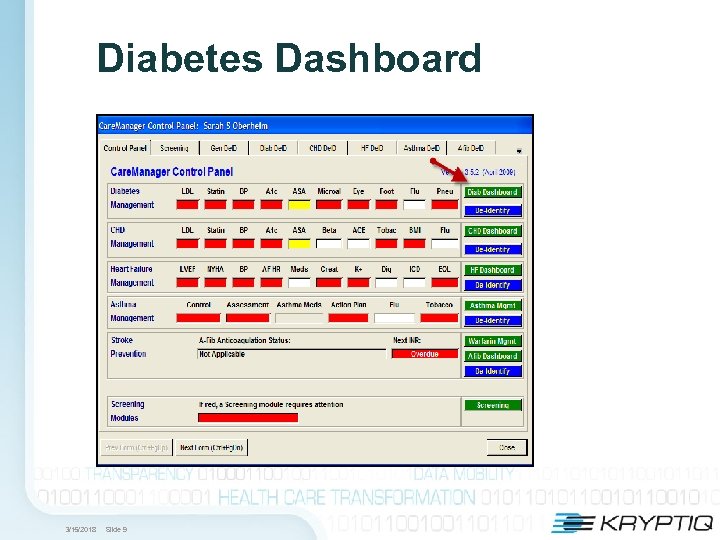 Diabetes Dashboard 3/15/2018 Slide 9
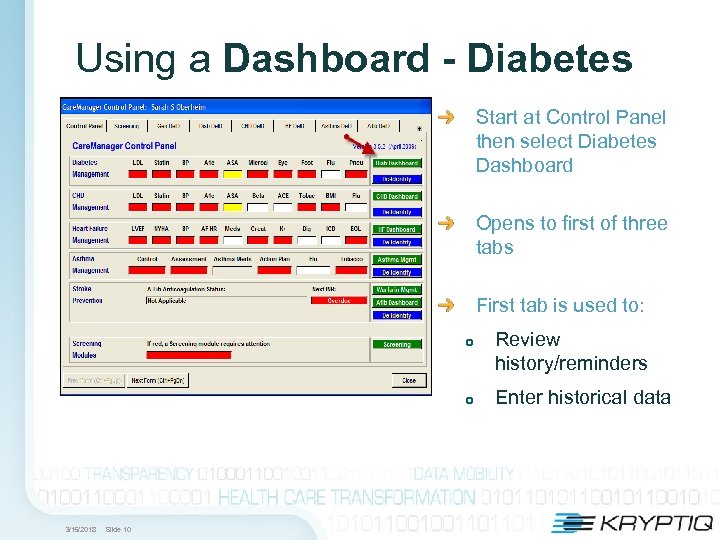 Using a Dashboard - Diabetes Start at Control Panel then select Diabetes Dashboard Opens to first of three tabs First tab is used to: Review history/reminders Enter historical data 3/15/2018 Slide 10
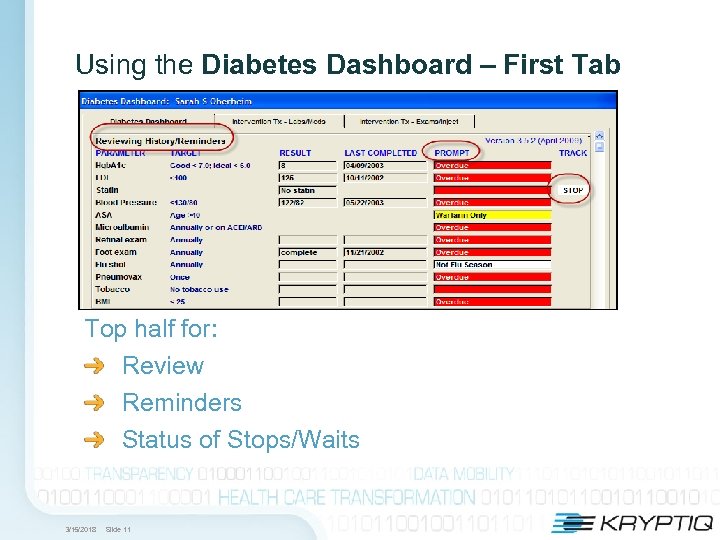 Using the Diabetes Dashboard – First Tab Top half for: Review Reminders Status of Stops/Waits 3/15/2018 Slide 11
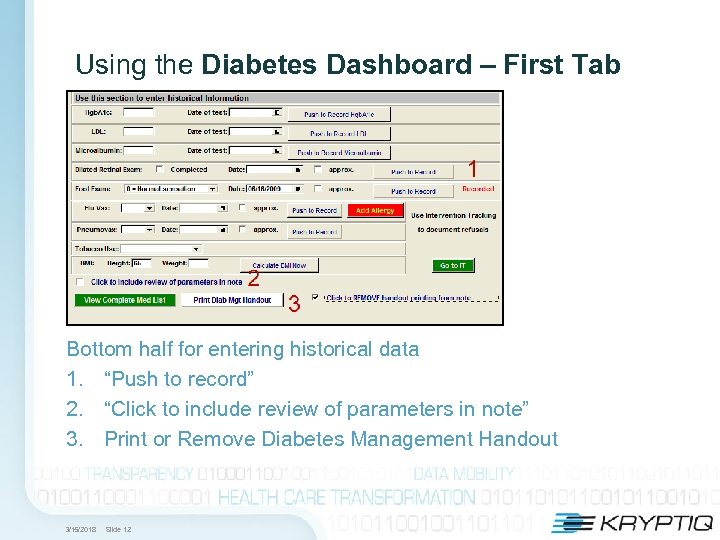 Using the Diabetes Dashboard – First Tab Bottom half for entering historical data 1. “Push to record” 2. “Click to include review of parameters in note” 3. Print or Remove Diabetes Management Handout 3/15/2018 Slide 12
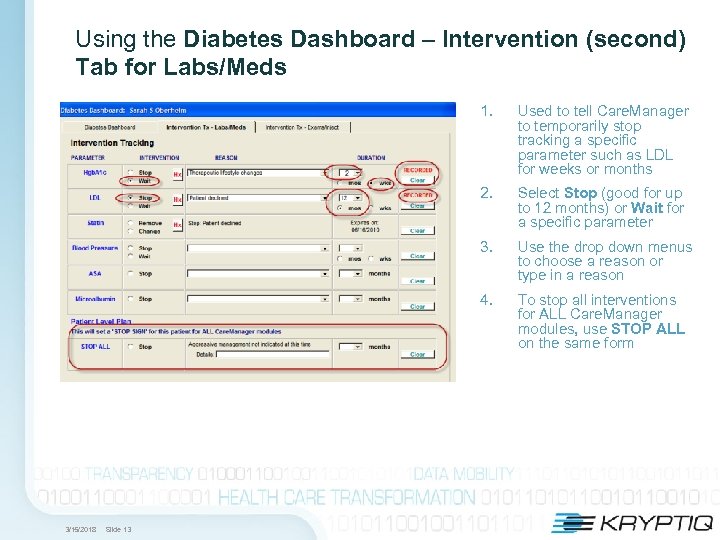 Using the Diabetes Dashboard – Intervention (second) Tab for Labs/Meds 1. 2. Use the drop down menus to choose a reason or type in a reason 4. Slide 13 Select Stop (good for up to 12 months) or Wait for a specific parameter 3. 3/15/2018 Used to tell Care. Manager to temporarily stop tracking a specific parameter such as LDL for weeks or months To stop all interventions for ALL Care. Manager modules, use STOP ALL on the same form
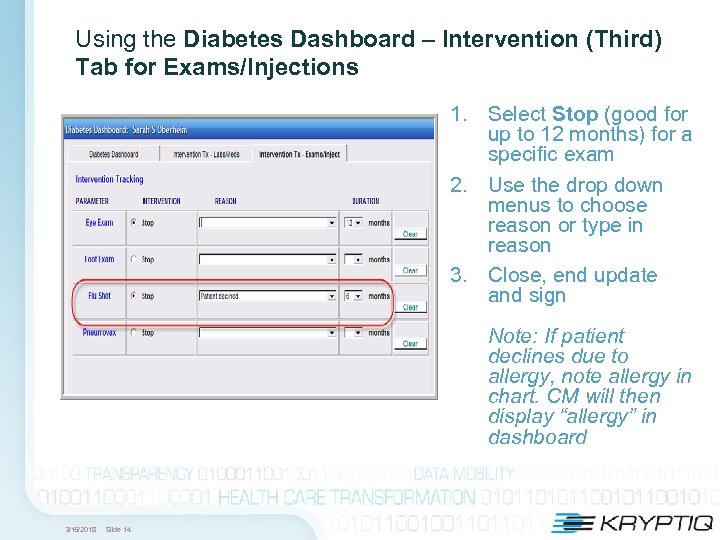 Using the Diabetes Dashboard – Intervention (Third) Tab for Exams/Injections 1. Select Stop (good for up to 12 months) for a specific exam 2. Use the drop down menus to choose reason or type in reason 3. Close, end update and sign Note: If patient declines due to allergy, note allergy in chart. CM will then display “allergy” in dashboard 3/15/2018 Slide 14
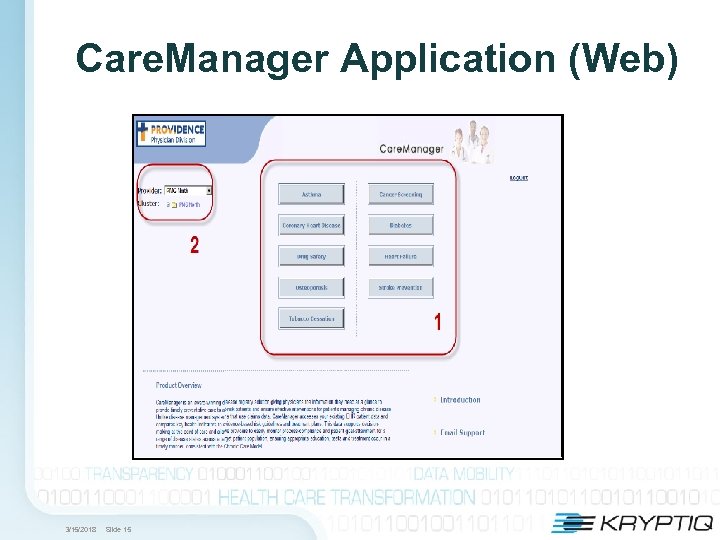 Care. Manager Application (Web) 3/15/2018 Slide 15
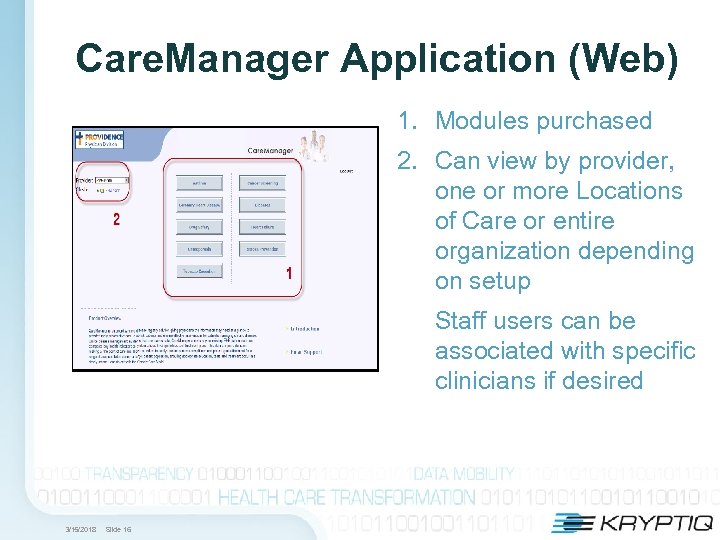 Care. Manager Application (Web) 1. Modules purchased 2. Can view by provider, one or more Locations of Care or entire organization depending on setup Staff users can be associated with specific clinicians if desired 3/15/2018 Slide 16
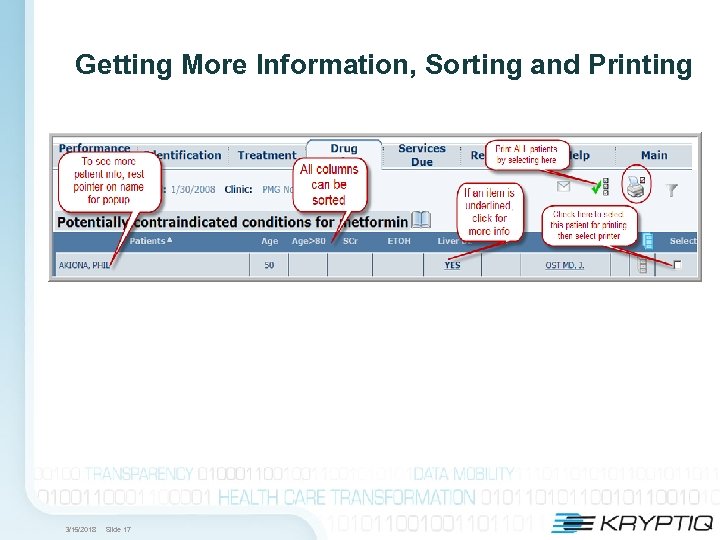 Getting More Information, Sorting and Printing 3/15/2018 Slide 17
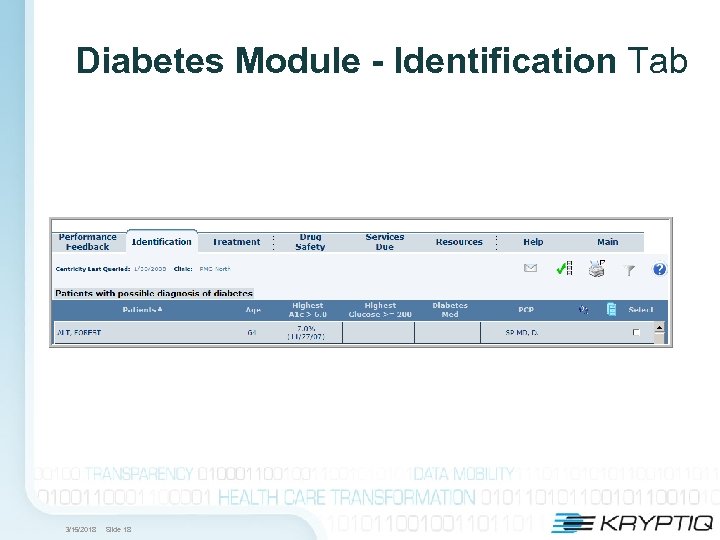 Diabetes Module - Identification Tab 3/15/2018 Slide 18
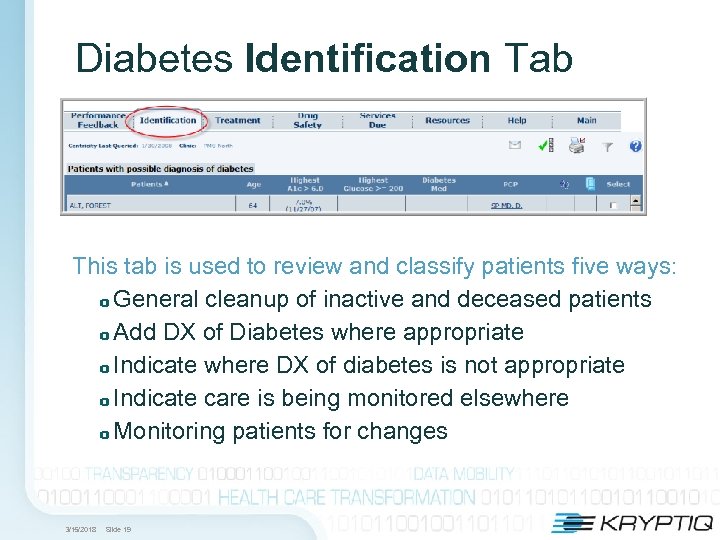 Diabetes Identification Tab This tab is used to review and classify patients five ways: General cleanup of inactive and deceased patients Add DX of Diabetes where appropriate Indicate where DX of diabetes is not appropriate Indicate care is being monitored elsewhere Monitoring patients for changes 3/15/2018 Slide 19
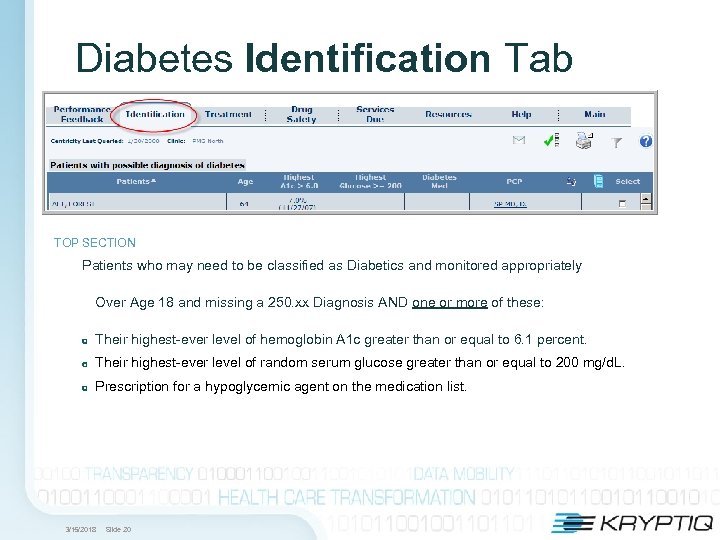 Diabetes Identification Tab TOP SECTION Patients who may need to be classified as Diabetics and monitored appropriately Over Age 18 and missing a 250. xx Diagnosis AND one or more of these: Their highest-ever level of hemoglobin A 1 c greater than or equal to 6. 1 percent. Their highest-ever level of random serum glucose greater than or equal to 200 mg/d. L. Prescription for a hypoglycemic agent on the medication list. 3/15/2018 Slide 20
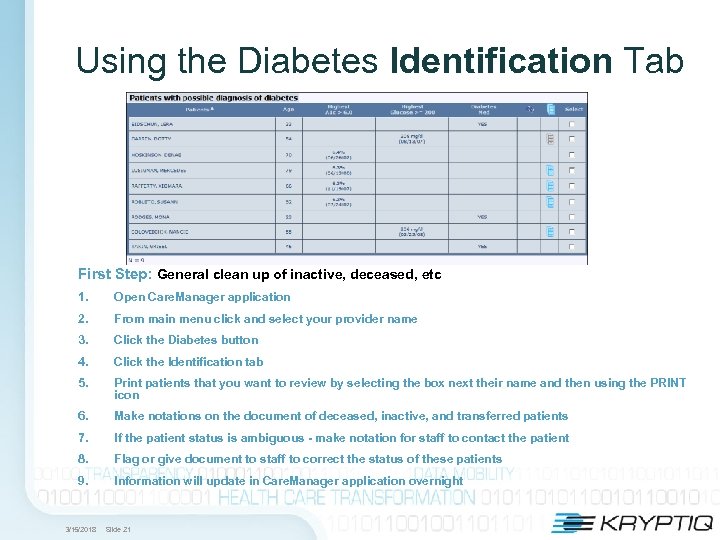 Using the Diabetes Identification Tab First Step: General clean up of inactive, deceased, etc 1. Open Care. Manager application 2. From main menu click and select your provider name 3. Click the Diabetes button 4. Click the Identification tab 5. Print patients that you want to review by selecting the box next their name and then using the PRINT icon 6. Make notations on the document of deceased, inactive, and transferred patients 7. If the patient status is ambiguous - make notation for staff to contact the patient 8. Flag or give document to staff to correct the status of these patients 9. Information will update in Care. Manager application overnight 3/15/2018 Slide 21
 Using the Diabetes Identification Tab Second Step: Review remaining patients to either add DX of Diabetes or Indicate NO DX appropriate 1. Open Care. Manager application 2. From main menu, click and select your name (provider) 3. Click the Diabetes button 4. Click the Identification tab 5. Print patient list for review 6. Toggle to the EMR and open each chart for review 7. Decide whether you will add a DX or note a reason for no DX. Use Care. Manager Encounter Form – Control Panel for data entry 3/15/2018 Slide 22
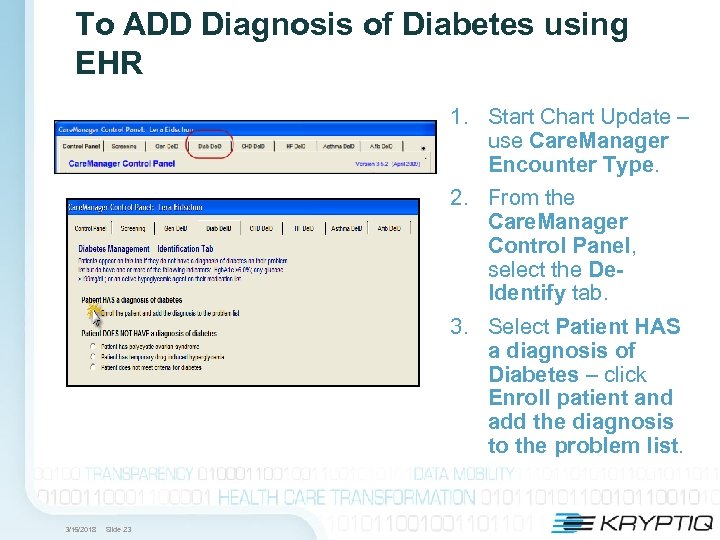 To ADD Diagnosis of Diabetes using EHR 1. Start Chart Update – use Care. Manager Encounter Type. 2. From the Care. Manager Control Panel, select the De. Identify tab. 3. Select Patient HAS a diagnosis of Diabetes – click Enroll patient and add the diagnosis to the problem list. 3/15/2018 Slide 23
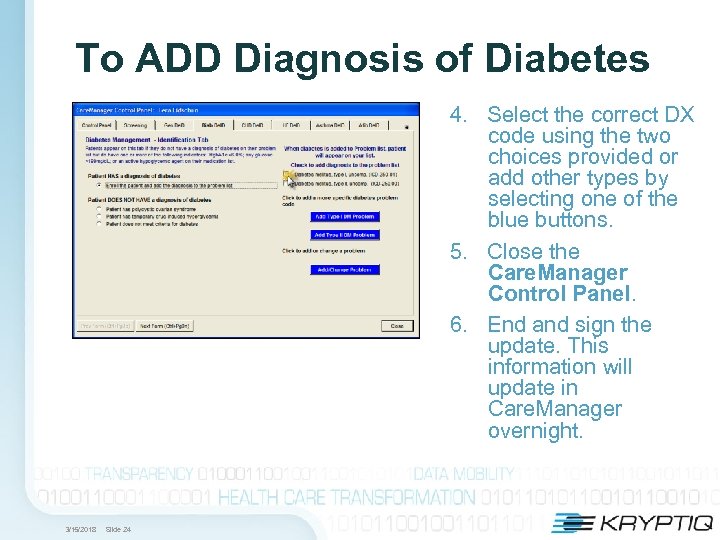 To ADD Diagnosis of Diabetes 4. Select the correct DX code using the two choices provided or add other types by selecting one of the blue buttons. 5. Close the Care. Manager Control Panel. 6. End and sign the update. This information will update in Care. Manager overnight. 3/15/2018 Slide 24
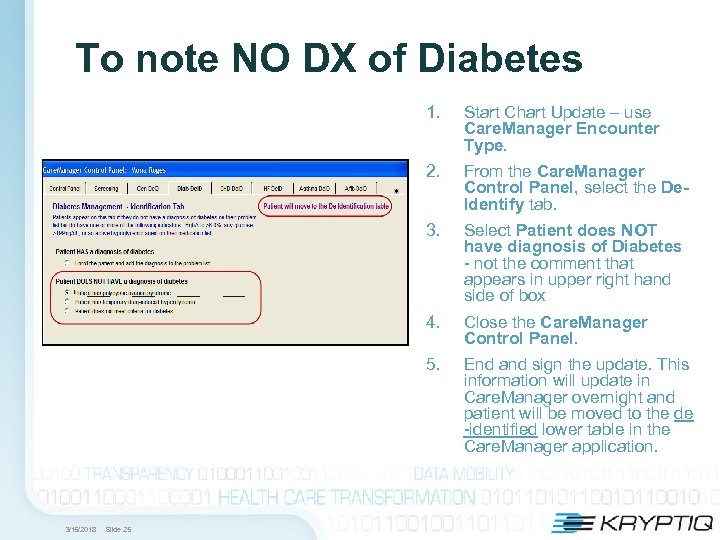 To note NO DX of Diabetes 1. 2. Select Patient does NOT have diagnosis of Diabetes - not the comment that appears in upper right hand side of box 4. Close the Care. Manager Control Panel. 5. Slide 25 From the Care. Manager Control Panel, select the De. Identify tab. 3/15/2018 Start Chart Update – use Care. Manager Encounter Type. End and sign the update. This information will update in Care. Manager overnight and patient will be moved to the de -identified lower table in the Care. Manager application.
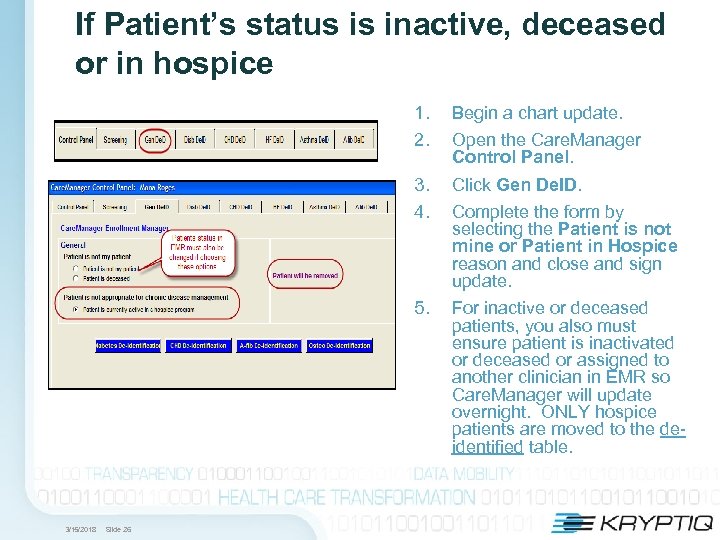 If Patient’s status is inactive, deceased or in hospice 1. 2. 3. 4. Slide 26 Click Gen De. ID. 5. 3/15/2018 Begin a chart update. For inactive or deceased patients, you also must ensure patient is inactivated or deceased or assigned to another clinician in EMR so Care. Manager will update overnight. ONLY hospice patients are moved to the deidentified table. Open the Care. Manager Control Panel. Complete the form by selecting the Patient is not mine or Patient in Hospice reason and close and sign update.
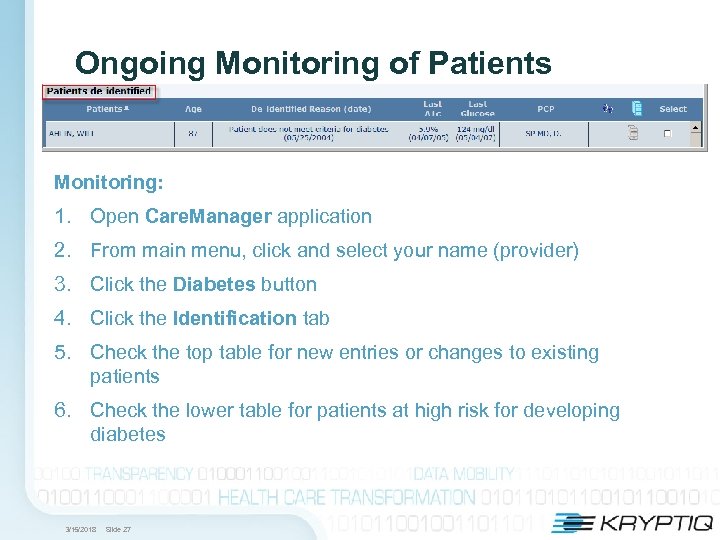 Ongoing Monitoring of Patients Monitoring: 1. Open Care. Manager application 2. From main menu, click and select your name (provider) 3. Click the Diabetes button 4. Click the Identification tab 5. Check the top table for new entries or changes to existing patients 6. Check the lower table for patients at high risk for developing diabetes 3/15/2018 Slide 27
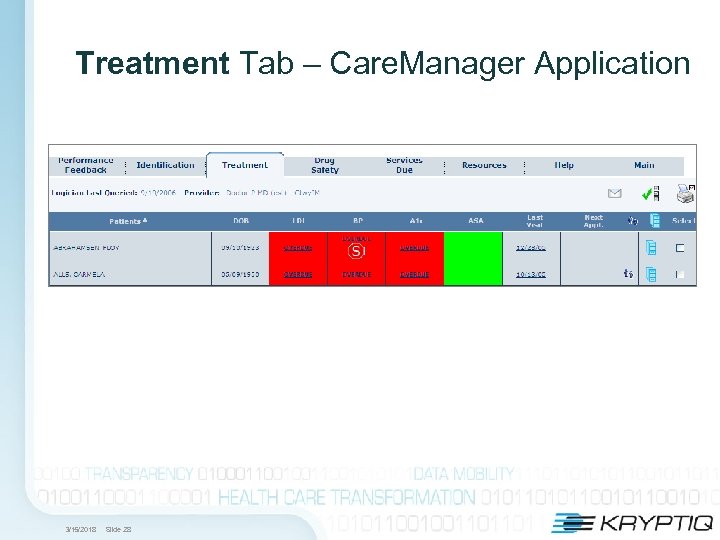 Treatment Tab – Care. Manager Application 3/15/2018 Slide 28
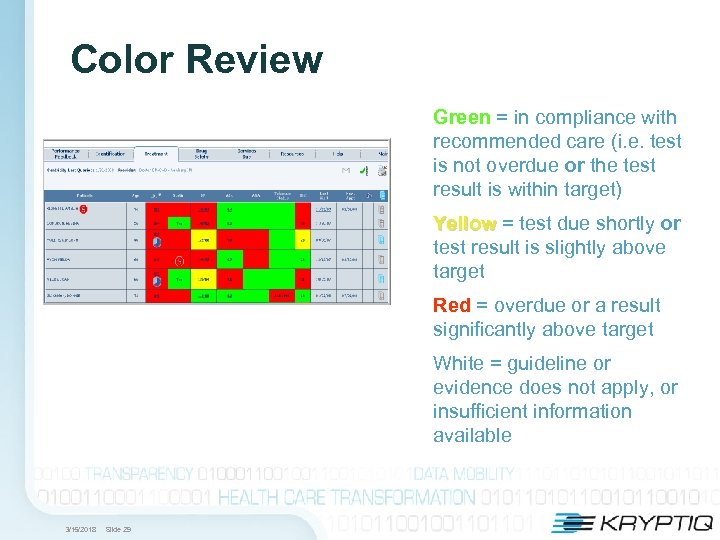 Color Review Green = in compliance with recommended care (i. e. test is not overdue or the test result is within target) Yellow = test due shortly or test result is slightly above target Red = overdue or a result significantly above target White = guideline or evidence does not apply, or insufficient information available 3/15/2018 Slide 29
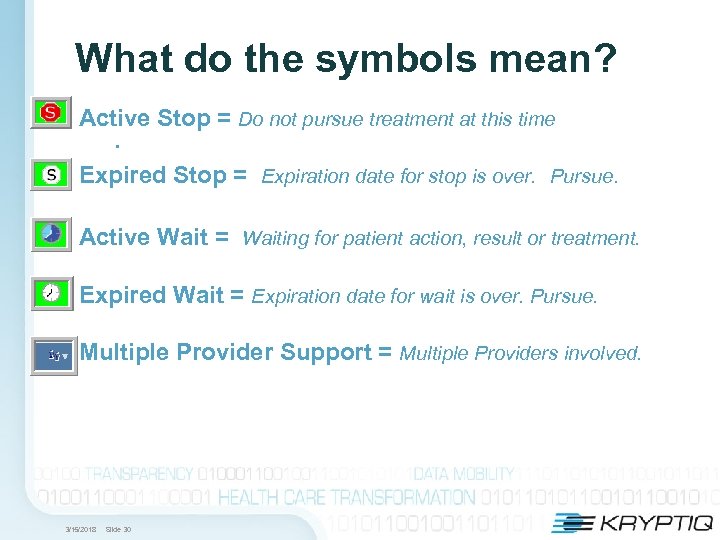 What do the symbols mean? Active Stop = Do not pursue treatment at this time. Expired Stop = Expiration date for stop is over. Pursue. Active Wait = Waiting for patient action, result or treatment. Expired Wait = Expiration date for wait is over. Pursue. Multiple Provider Support = Multiple Providers involved. 3/15/2018 Slide 30
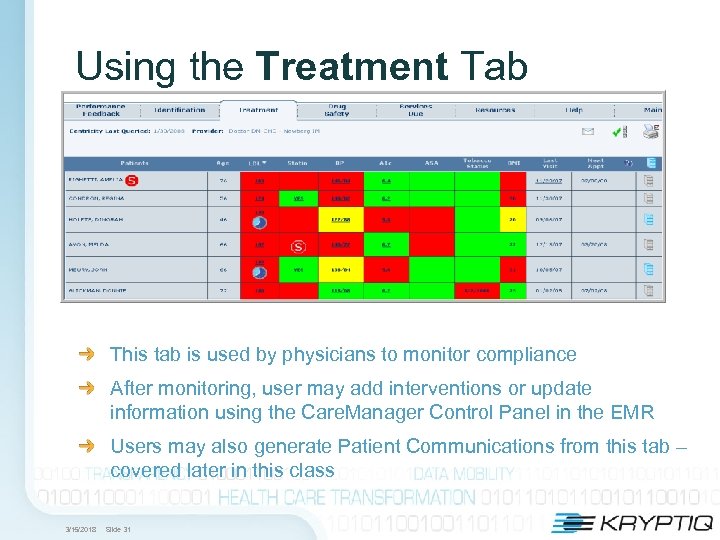 Using the Treatment Tab This tab is used by physicians to monitor compliance After monitoring, user may add interventions or update information using the Care. Manager Control Panel in the EMR Users may also generate Patient Communications from this tab – covered later in this class 3/15/2018 Slide 31
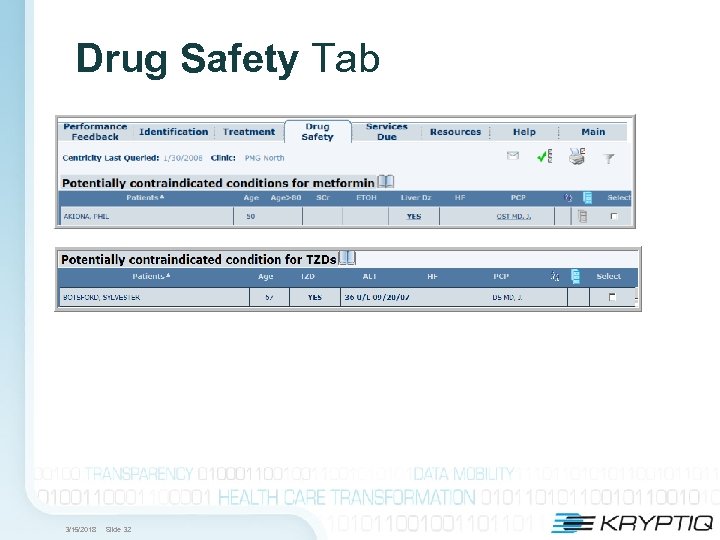 Drug Safety Tab 3/15/2018 Slide 32
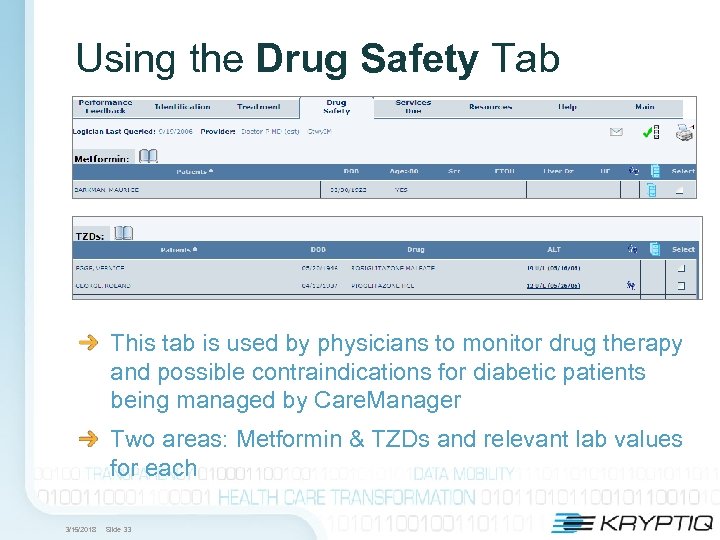 Using the Drug Safety Tab This tab is used by physicians to monitor drug therapy and possible contraindications for diabetic patients being managed by Care. Manager Two areas: Metformin & TZDs and relevant lab values for each 3/15/2018 Slide 33
 Using the Drug Safety Tab 1. Open Care. Manager application. 2. From main menu, click and select your name (provider). 3. Click the Diabetes button. 4. Click the Drug Safety tab. 5. For all patients with elevated or overdue parameters – Select ALL and Print. 6. Using the list, open the chart in EHR and review. 7. Determine if the patient is still on the medication. If no, remove the drug from the Medication List using the EMR. 8. Identify patients needing follow up based on monitoring criteria. Goal is to help you quickly identify patients who need intervention of some kind. 3/15/2018 Slide 34
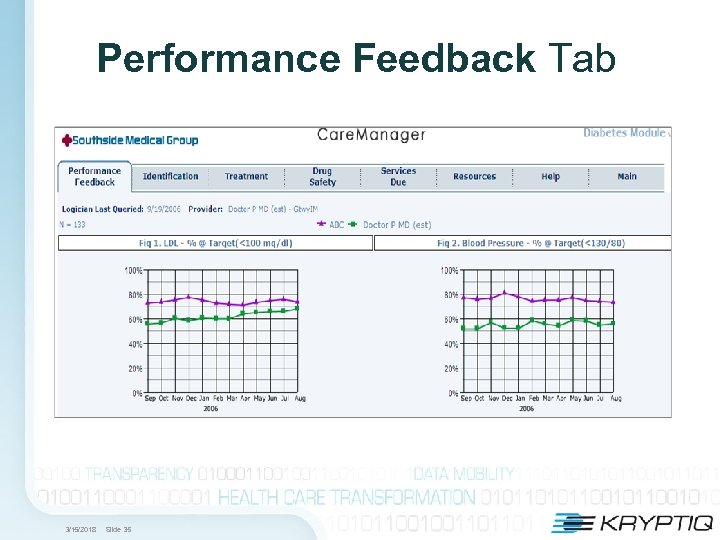 Performance Feedback Tab 3/15/2018 Slide 35
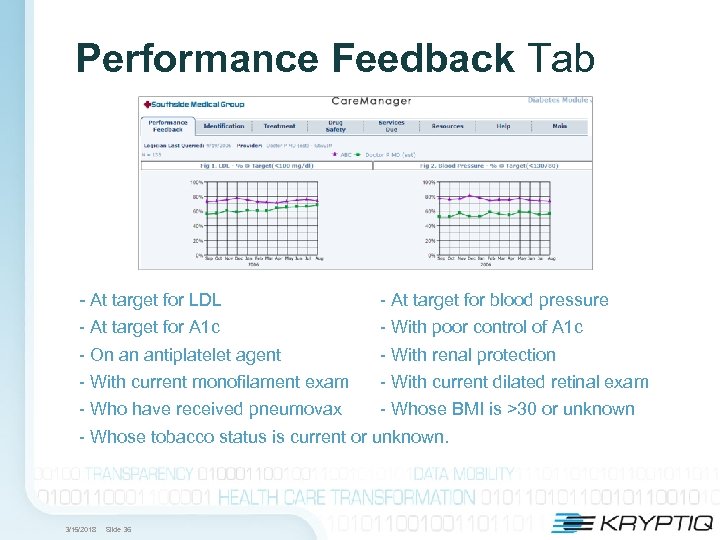 Performance Feedback Tab - At target for LDL - At target for blood pressure - At target for A 1 c - With poor control of A 1 c - On an antiplatelet agent - With renal protection - With current monofilament exam - With current dilated retinal exam - Who have received pneumovax - Whose BMI is >30 or unknown - Whose tobacco status is current or unknown. 3/15/2018 Slide 36
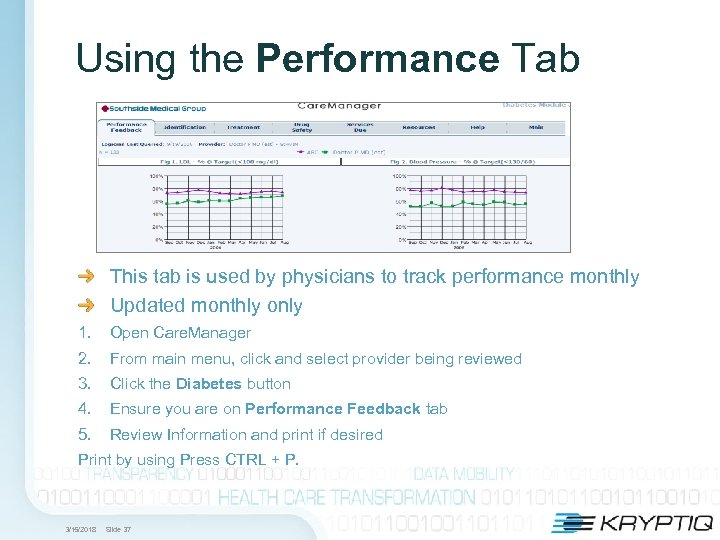 Using the Performance Tab This tab is used by physicians to track performance monthly Updated monthly only 1. Open Care. Manager 2. From main menu, click and select provider being reviewed 3. Click the Diabetes button 4. Ensure you are on Performance Feedback tab 5. Review Information and print if desired Print by using Press CTRL + P. 3/15/2018 Slide 37
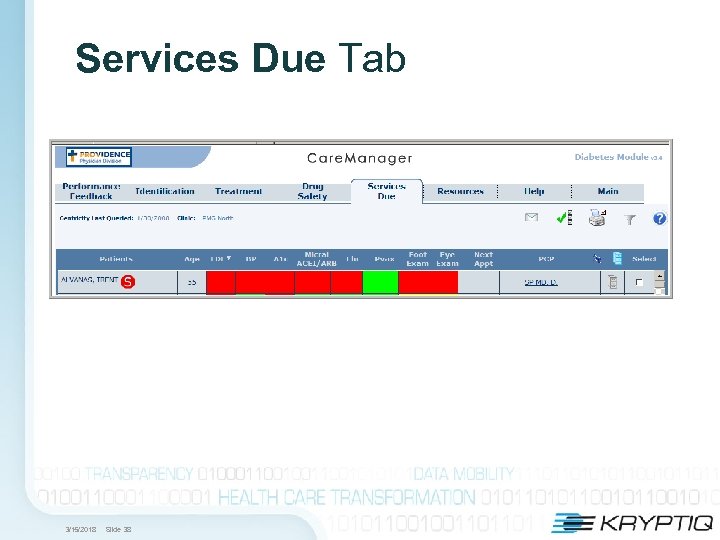 Services Due Tab 3/15/2018 Slide 38
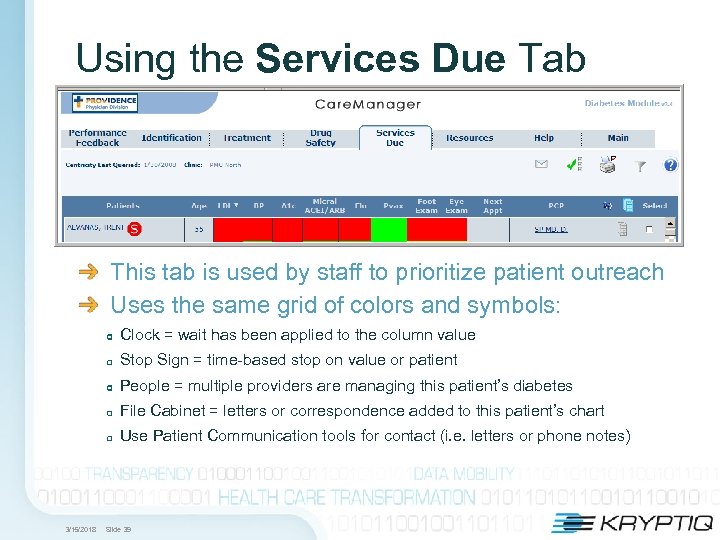 Using the Services Due Tab This tab is used by staff to prioritize patient outreach Uses the same grid of colors and symbols: Clock = wait has been applied to the column value Stop Sign = time-based stop on value or patient People = multiple providers are managing this patient’s diabetes File Cabinet = letters or correspondence added to this patient’s chart Use Patient Communication tools for contact (i. e. letters or phone notes) 3/15/2018 Slide 39
 Strategies for Working the Services Due Tab This tab is a “safety net” for patients who have not had recent contact with their PCP and are overdue on labs or have high out of range values Focus on patients who do not have appointments scheduled in the next 30 days Focus on patients with multiple red boxes First contact attempt might be letter or secure message with lab order for overdue labs attached Second contact – repeat letter and lab order If no response contact patient by phone Advise PCP if no response 3/15/2018 Slide 40
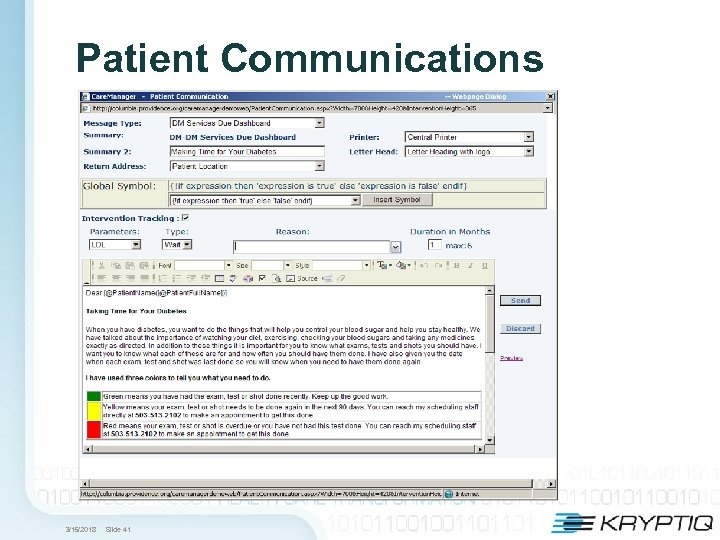 Patient Communications 3/15/2018 Slide 41
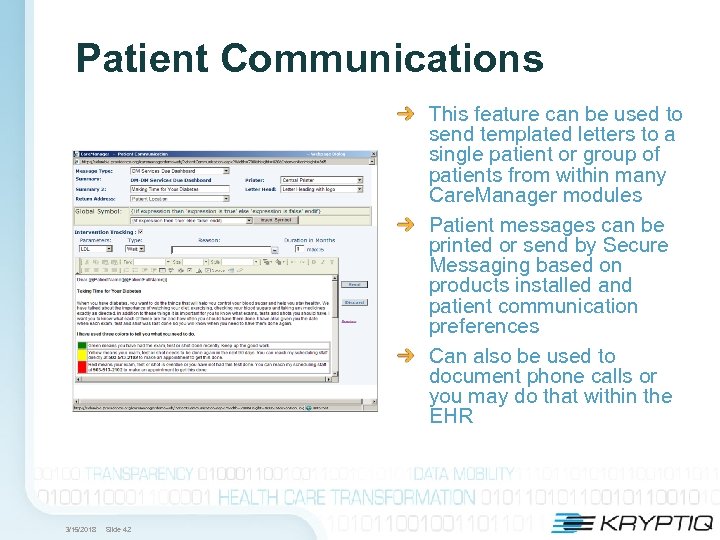 Patient Communications This feature can be used to send templated letters to a single patient or group of patients from within many Care. Manager modules Patient messages can be printed or send by Secure Messaging based on products installed and patient communication preferences Can also be used to document phone calls or you may do that within the EHR 3/15/2018 Slide 42
 Patient Communications All documents created are imported to the patient chart Use Cases: Send an individual, personal letter or email to a patient who is due for a particular lab test. Document a phone call made to an individual patient to explain a lab result. Create a customized message that is designed for a group of people who need to come in for a particular test, and personalize the message for each patient in the group by using symbols that Care. Manager replaces with patient-specific EHR data. 3/15/2018 Slide 43
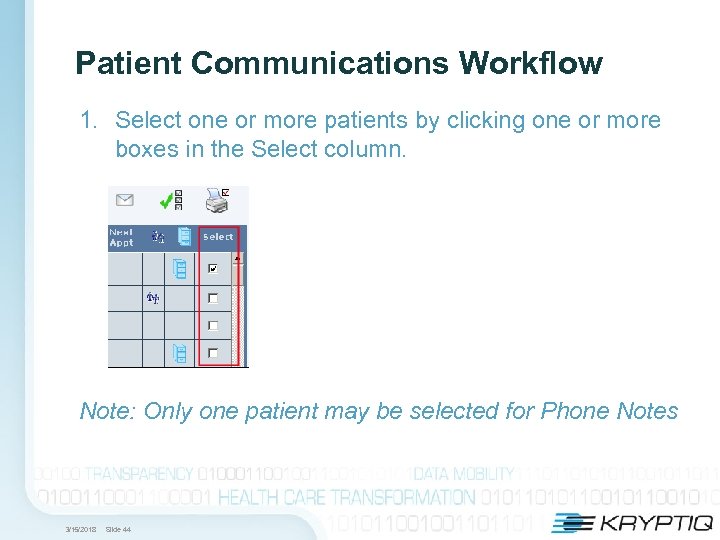 Patient Communications Workflow 1. Select one or more patients by clicking one or more boxes in the Select column. Note: Only one patient may be selected for Phone Notes 3/15/2018 Slide 44
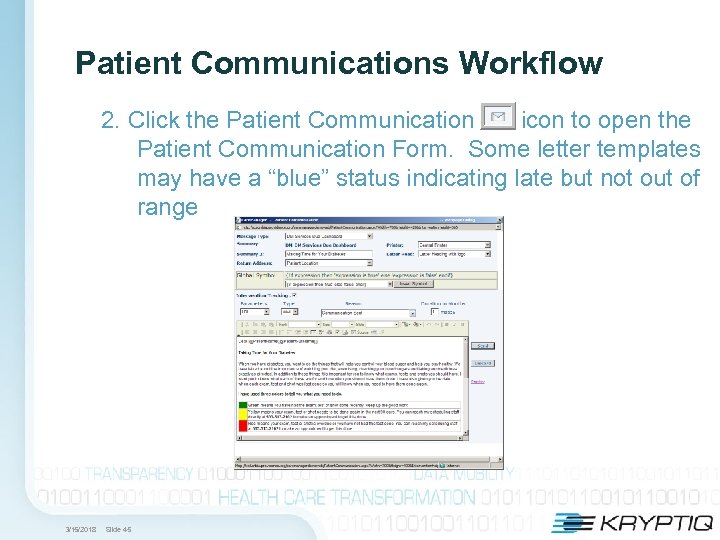 Patient Communications Workflow 2. Click the Patient Communication icon to open the Patient Communication Form. Some letter templates may have a “blue” status indicating late but not out of range 3/15/2018 Slide 45
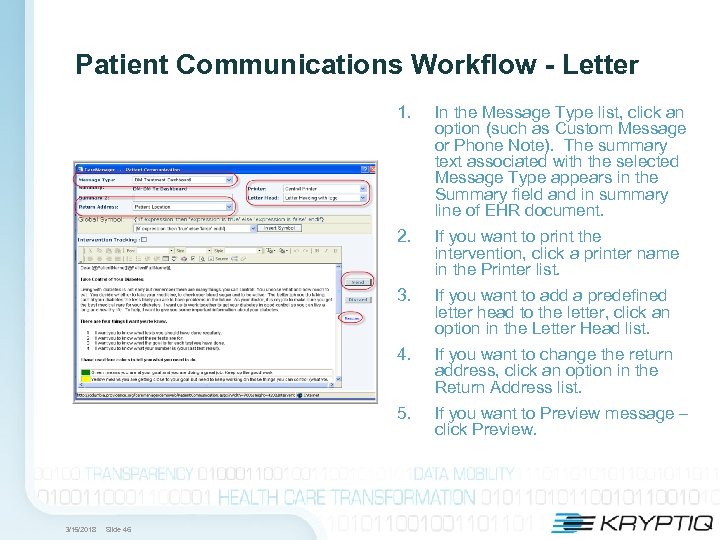 Patient Communications Workflow - Letter 1. 2. If you want to add a predefined letter head to the letter, click an option in the Letter Head list. 4. If you want to change the return address, click an option in the Return Address list. 5. Slide 46 If you want to print the intervention, click a printer name in the Printer list. 3/15/2018 In the Message Type list, click an option (such as Custom Message or Phone Note). The summary text associated with the selected Message Type appears in the Summary field and in summary line of EHR document. If you want to Preview message – click Preview.
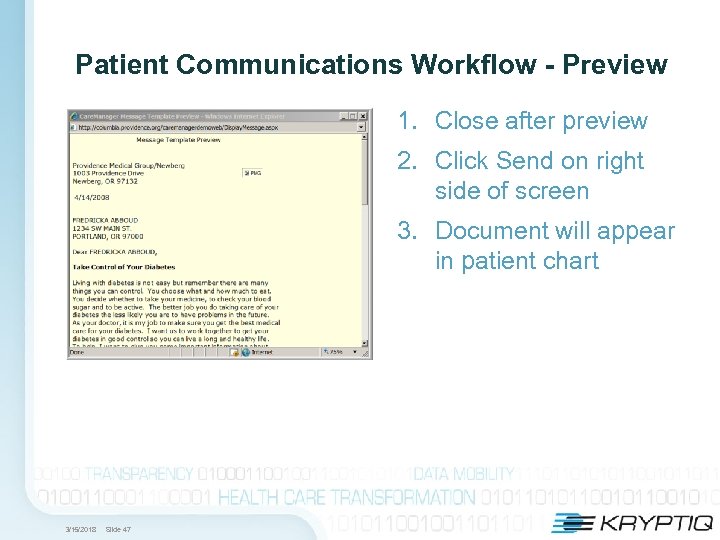 Patient Communications Workflow - Preview 1. Close after preview 2. Click Send on right side of screen 3. Document will appear in patient chart 3/15/2018 Slide 47
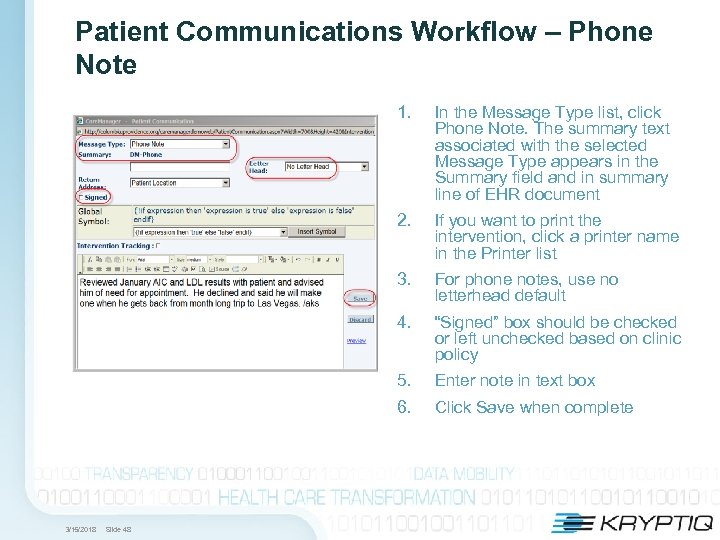 Patient Communications Workflow – Phone Note 1. 2. For phone notes, use no letterhead default 4. “Signed” box should be checked or left unchecked based on clinic policy 5. Enter note in text box 6. Slide 48 If you want to print the intervention, click a printer name in the Printer list 3. 3/15/2018 In the Message Type list, click Phone Note. The summary text associated with the selected Message Type appears in the Summary field and in summary line of EHR document Click Save when complete
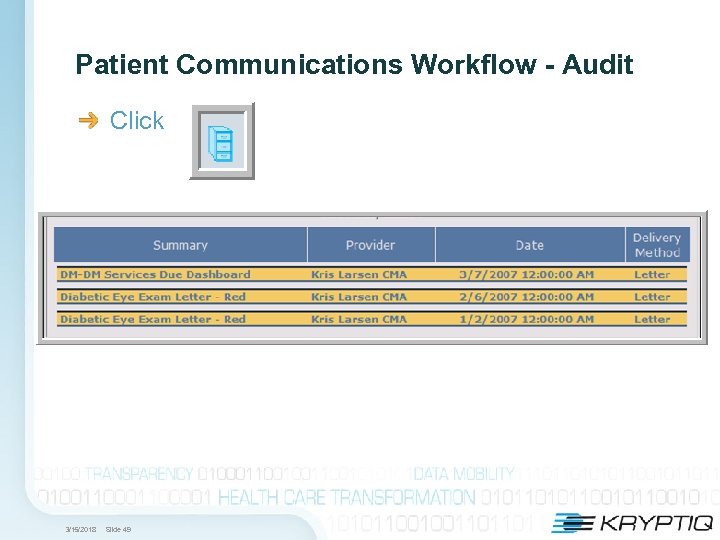 Patient Communications Workflow - Audit Click 3/15/2018 Slide 49
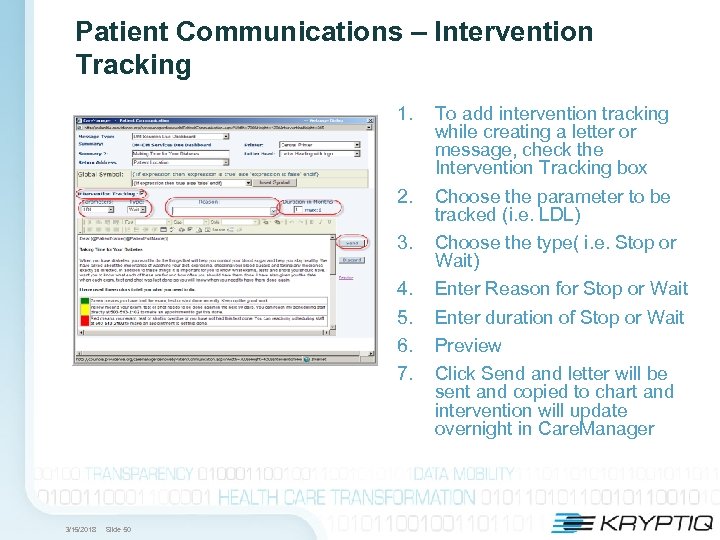 Patient Communications – Intervention Tracking 1. 2. 3. 4. 5. 6. 7. 3/15/2018 Slide 50 To add intervention tracking while creating a letter or message, check the Intervention Tracking box Choose the parameter to be tracked (i. e. LDL) Choose the type( i. e. Stop or Wait) Enter Reason for Stop or Wait Enter duration of Stop or Wait Preview Click Send and letter will be sent and copied to chart and intervention will update overnight in Care. Manager
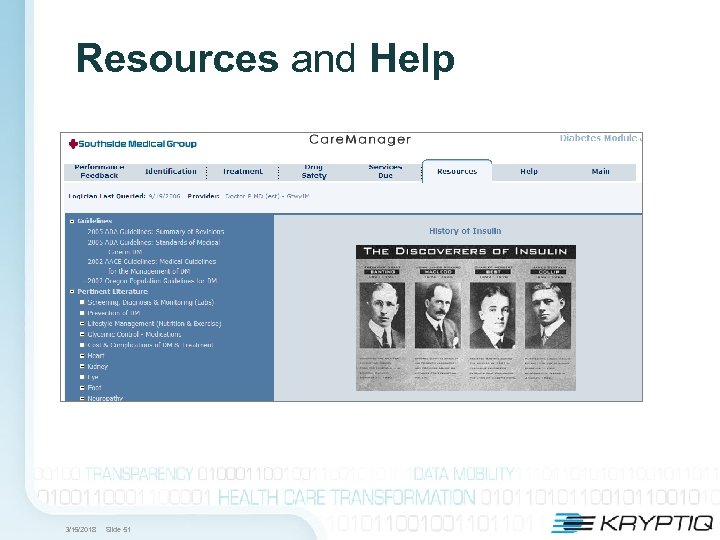 Resources and Help 3/15/2018 Slide 51
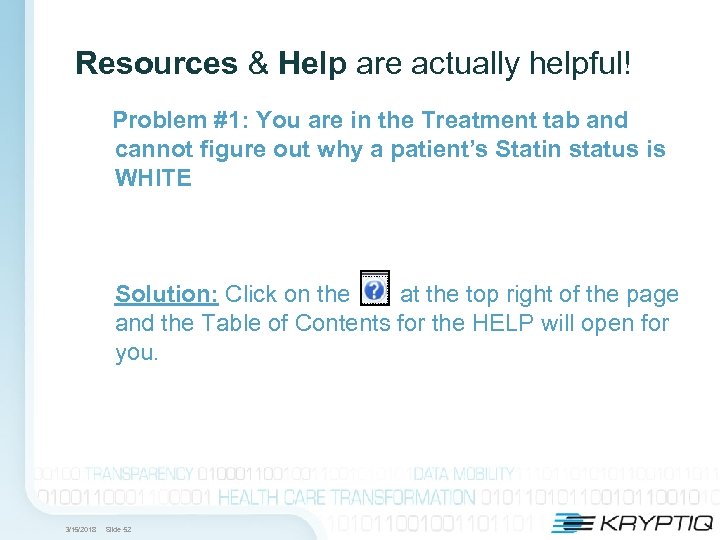 Resources & Help are actually helpful! Problem #1: You are in the Treatment tab and cannot figure out why a patient’s Statin status is WHITE Solution: Click on the at the top right of the page and the Table of Contents for the HELP will open for you. 3/15/2018 Slide 52
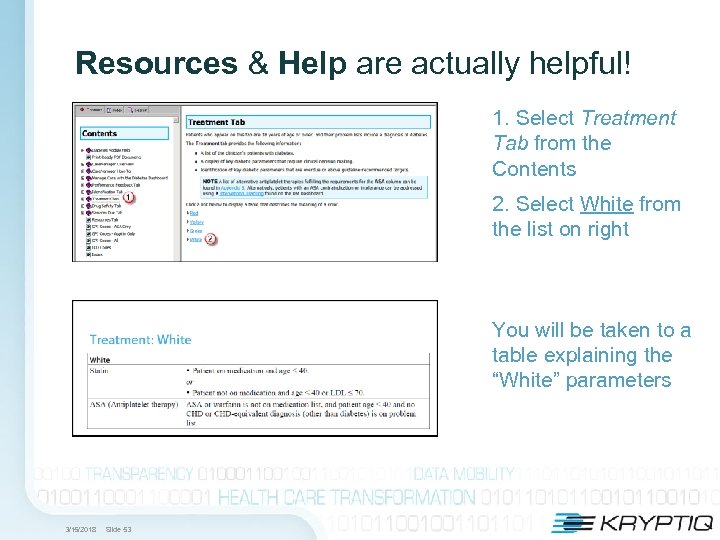 Resources & Help are actually helpful! 1. Select Treatment Tab from the Contents 2. Select White from the list on right You will be taken to a table explaining the “White” parameters 3/15/2018 Slide 53
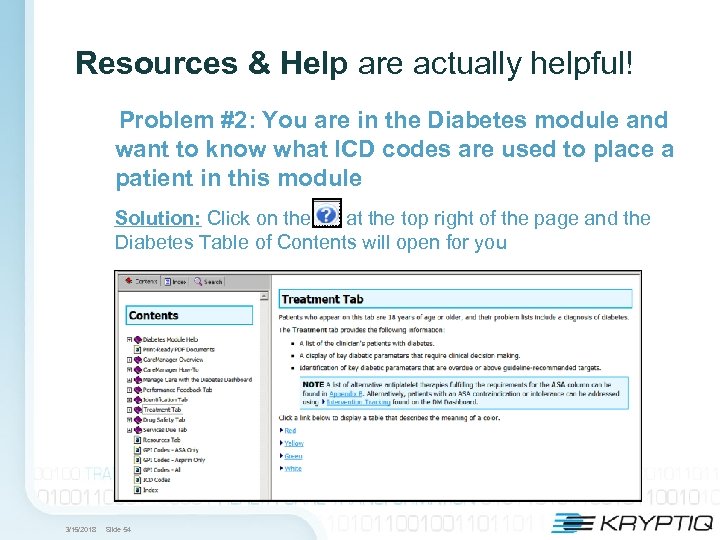 Resources & Help are actually helpful! Problem #2: You are in the Diabetes module and want to know what ICD codes are used to place a patient in this module Solution: Click on the at the top right of the page and the Diabetes Table of Contents will open for you 3/15/2018 Slide 54
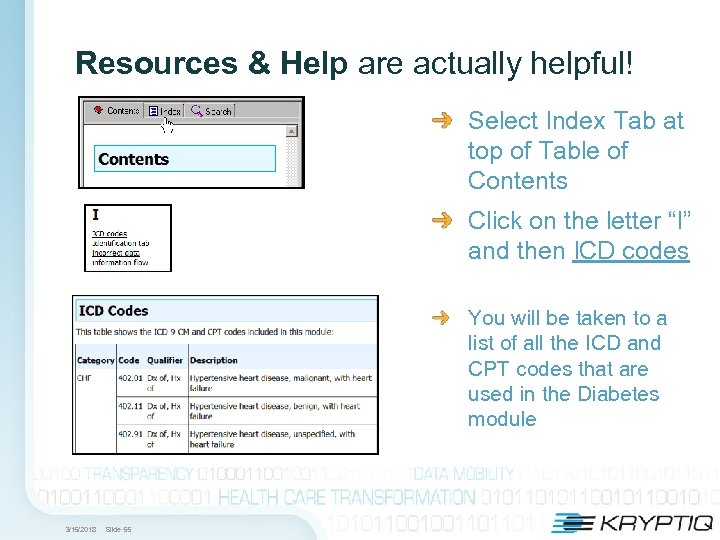 Resources & Help are actually helpful! Select Index Tab at top of Table of Contents Click on the letter “I” and then ICD codes You will be taken to a list of all the ICD and CPT codes that are used in the Diabetes module 3/15/2018 Slide 55
 Resources & Help are actually helpful! Problem #3: You are in the Diabetes module and would like to check the latest ADA guidelines Solution: Select the Resources Tab in the Care. Manager module 1. You will see a list of the latest guidelines 2. Click on the area you would like to review 3/15/2018 Slide 56
 Care. Manager Introduction & Diabetes Module Questions? Thanks for attending! 3/15/2018 Slide 57