 Скачать презентацию 3 02 F Principles of Good Webpage Design
72c9953402924cf15b42e922e5aa4cf8.ppt
- Количество слайдов: 24



3. 02 F Principles of Good Webpage Design 3. 02 Develop webpages.
Webpage Design vs. Print Document Design § Many design principles apply to both webpages and print documents. § Apply a few fundamental principles to every webpage created.
Webpage Design vs. Print Document Design q Use clear titles to capture the reader’s attention. q Include a title in the <head> section in case viewers bookmark your page. q Place a link to the “home” URL on at least the main pages of the site. q Provides connection back to where a page originated.
Overall Page Layout § Place the most important items or information near the top! § Be consistent in all design elements used on all pages —fonts, colors, graphic size and location, alignment, and backgrounds. § Use white space to divide the page into “chunks” of information that readers can quickly scan.
The Home/Index Page § Creates a positive first impression of site § Communicates the purpose of the website § Place the company’s logo on the page and use it in a consistent location throughout the website. § Include navigational links or menus to provide viewers with the links they will need to navigate the website.
The Home/Index Page Continued § Limit to one screen of information. § Limit amount of prose text on home page. § Show all major options on home page. § Enable access to home page from any other page on the website. § Announce changes to the website on home page.
Using Color § Use contrasting colors for background and text. § Light text on dark background OR § Dark text on light background § Improves readability
Text Issues § Cascading Style Sheets § Help ensure consistency throughout the website. § Increase editing speed § Change settings of the style once to update all documents using that style § Similar to styles in word processor § Consider the intent of the site and the target audience when selecting: • Typefaces • Size • Alignment • Line length • Paragraphs • Type as a graphic
Text Issues—Typefaces § Use typefaces designed for on-screen viewing § Sans serif typefaces are easier to read on computer screens. § Use “font-family” property in styles to specify typeface.
Text Issues–Size § Display resolutions and operating systems vary. § 12 point on one machine may display as 14 point on another. § Windows web browsers typically display type that is 2 to 3 points larger than a Macintosh.
Text Issues—Alignment § Left justified text § Justified text is not recommended for use is the most legible in webpages. option for web § Poor spacing pages. § Left margin is even and predictable. § Ragged right margin will not interfere with legibility. § Excessive hyphenation § Centered and right justified text are not recommended. § § Scanning more difficult Ragged left margins make scanning extremely difficult
Text Issues Continued § Use indents or a blank line to indicate a new paragraph. § Use paragraph tag <p> in html to leave a blank line. § Use non-breaking spaces ( ) to indent.
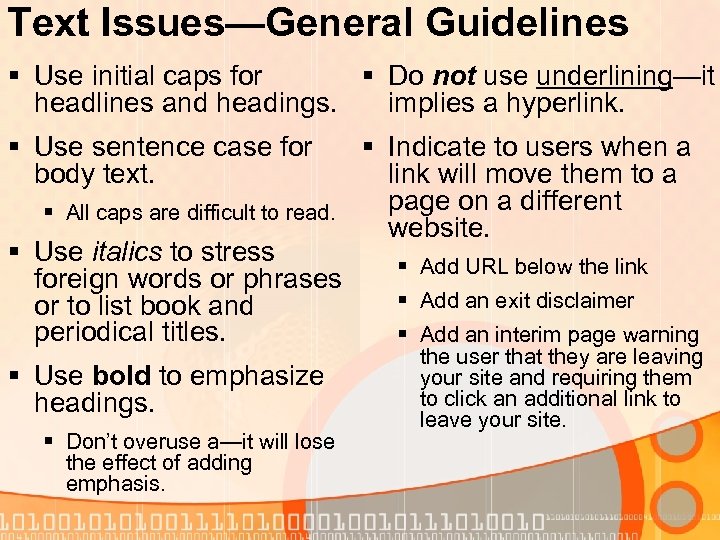
Text Issues—General Guidelines § Use initial caps for § Do not use underlining—it headlines and headings. implies a hyperlink. § Use sentence case for body text. § All caps are difficult to read. § Use italics to stress foreign words or phrases or to list book and periodical titles. § Use bold to emphasize headings. § Don’t overuse a—it will lose the effect of adding emphasis. § Indicate to users when a link will move them to a page on a different website. § Add URL below the link § Add an exit disclaimer § Add an interim page warning the user that they are leaving your site and requiring them to click an additional link to leave your site.
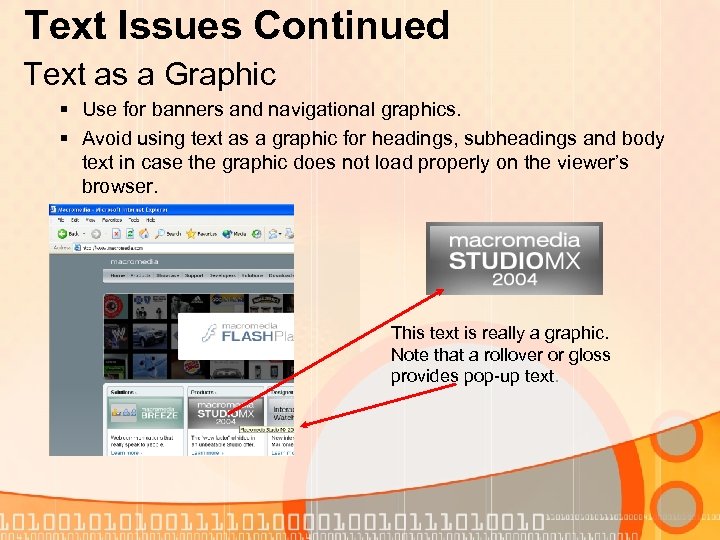
Text Issues Continued Text as a Graphic § Use for banners and navigational graphics. § Avoid using text as a graphic for headings, subheadings and body text in case the graphic does not load properly on the viewer’s browser. This text is really a graphic. Note that a rollover or gloss provides pop-up text.
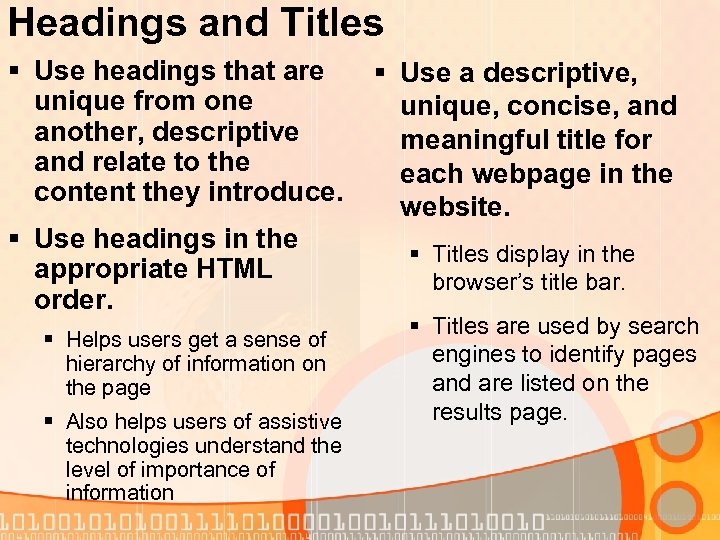
Headings and Titles § Use headings that are unique from one another, descriptive and relate to the content they introduce. § Use headings in the appropriate HTML order. § Helps users get a sense of hierarchy of information on the page § Also helps users of assistive technologies understand the level of importance of information § Use a descriptive, unique, concise, and meaningful title for each webpage in the website. § Titles display in the browser’s title bar. § Titles are used by search engines to identify pages and are listed on the results page.
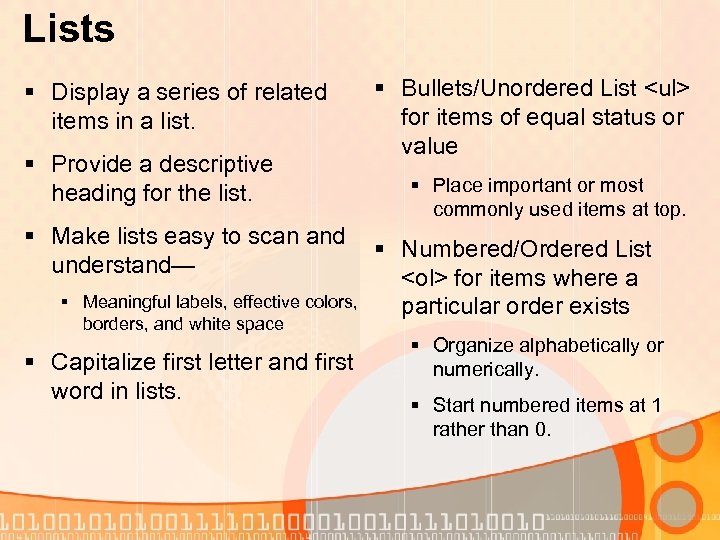
Lists § Display a series of related items in a list. § Provide a descriptive heading for the list. § Make lists easy to scan and understand— § Meaningful labels, effective colors, borders, and white space § Capitalize first letter and first word in lists. § Bullets/Unordered List <ul> for items of equal status or value § Place important or most commonly used items at top. § Numbered/Ordered List <ol> for items where a particular order exists § Organize alphabetically or numerically. § Start numbered items at 1 rather than 0.
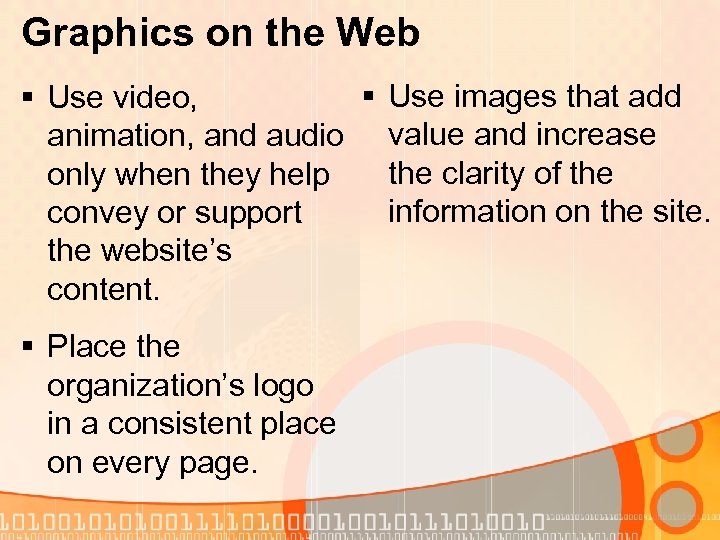
Graphics on the Web § Use images that add § Use video, animation, and audio value and increase the clarity of the only when they help information on the site. convey or support the website’s content. § Place the organization’s logo in a consistent place on every page.
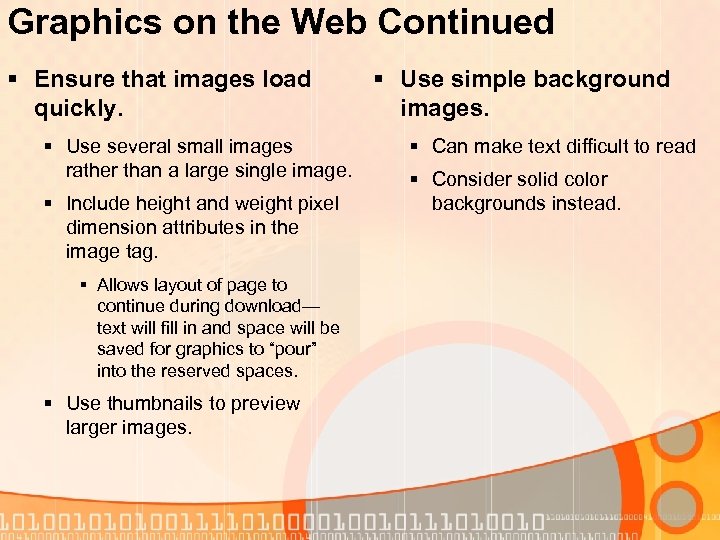
Graphics on the Web Continued § Ensure that images load quickly. § Use several small images rather than a large single image. § Include height and weight pixel dimension attributes in the image tag. § Allows layout of page to continue during download— text will fill in and space will be saved for graphics to “pour” into the reserved spaces. § Use thumbnails to preview larger images. § Use simple background images. § Can make text difficult to read § Consider solid color backgrounds instead.
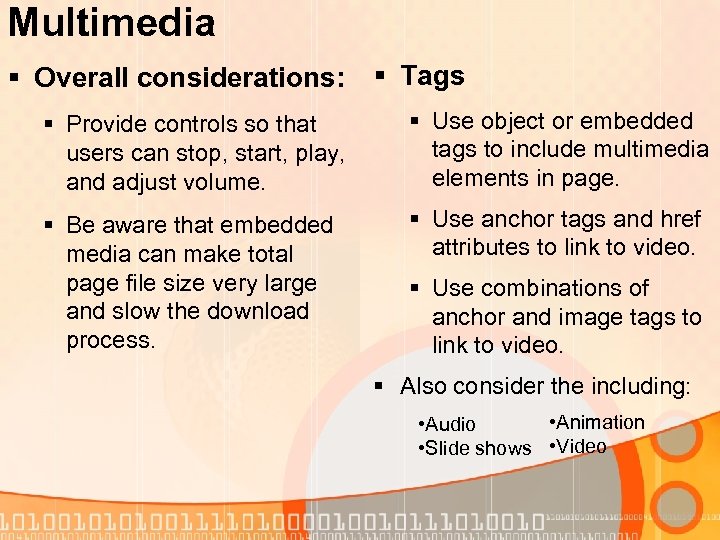
Multimedia § Overall considerations: § Tags § Provide controls so that users can stop, start, play, and adjust volume. § Use object or embedded tags to include multimedia elements in page. § Be aware that embedded media can make total page file size very large and slow the download process. § Use anchor tags and href attributes to link to video. § Use combinations of anchor and image tags to link to video. § Also consider the including: • Animation • Audio • Slide shows • Video
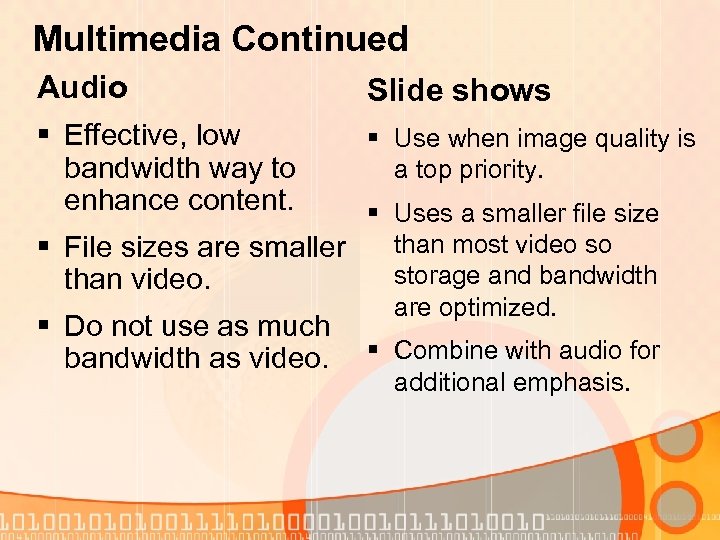
Multimedia Continued Audio § Effective, low bandwidth way to enhance content. Slide shows § Use when image quality is a top priority. § Uses a smaller file size than most video so § File sizes are smaller storage and bandwidth than video. are optimized. § Do not use as much bandwidth as video. § Combine with audio for additional emphasis.
Multimedia Continued Animation Video § GIF format § Use video sparingly. § Doesn’t require special plug-in § Video files tend to be large. § Has no interface control. § They require more storage and slow the download speed of the webpage. § Flash becoming dominant animation format.
Writing Web Content § Define acronyms and § Use active voice. abbreviations. § “John hit the baseball. ” § Use abbreviations sparingly. § Avoid jargon. § Use familiar words. § Make first sentences descriptive. rather than “The baseball was hit by John. ” § Minimize the number of words in sentences and the number of sentences in paragraphs. § Sentence: 20 words § Paragraph: 6 sentences
Accessibility Issues § Section 508 of the Rehabilitation Act § All US government websites must meet the needs of all users including people with disabilities. § About 8% of all users have a disability that makes using a traditional website very difficult or impossible. § Vision-related, movement -related, hearing-related and learning-related are the most common.
Accessibility Issues Continued § Provide text § Provide equivalent for non-text alternatives for elements. multimedia elements that are synchronized: § Ensure that all information conveyed § A text caption or in color is also auditory description of the visual track with the available without color. presentation § Provide text only pages that are useful § Do not require style for screen readers. sheets.
Скачать презентацию 3 02 F Principles of Good Webpage Design
72c9953402924cf15b42e922e5aa4cf8.ppt