


 Скачать презентацию 20 technical tips and tricks to speed SAP
ab6d99b28fc849a99db3e6a212694d77.ppt
- Количество слайдов: 56
 20 technical tips and tricks to speed SAP Net. Weaver Business Intelligence query, report, and dashboard performance Dr. Bjarne Berg © 2009 Wellesley Information Services. All rights reserved.
 What We’ll Cover … • Introduction • Performance Issues & Tips Multi. Providers and Partitioning Aggregates Query Design & Caching Hardware & Servers • Designing for Performance Info. Cubes and DSOs • BI- Accelerator Sizing and Implementation Management and Costs • Early. Watch Reports • Wrap-up 2
 In this session. § In this session we will cover the top 20 must-do technical performance tricks to help you optimize SAP Net. Weaver BI reporting for your end users. § We will look at performance modeling of Info. Cubes, how to improve memory utilization by caching and how to use diagnostics to analyze performance issues. § We will also explore best practices on how to develop and manage aggregates and Multi. Providers, and see what the BI- Accelerator (BIA) can do for your organization. § Finally, we will look at how to analyze Early. Watch reports from Solution Manager 4. 0 so they become actionable. 3
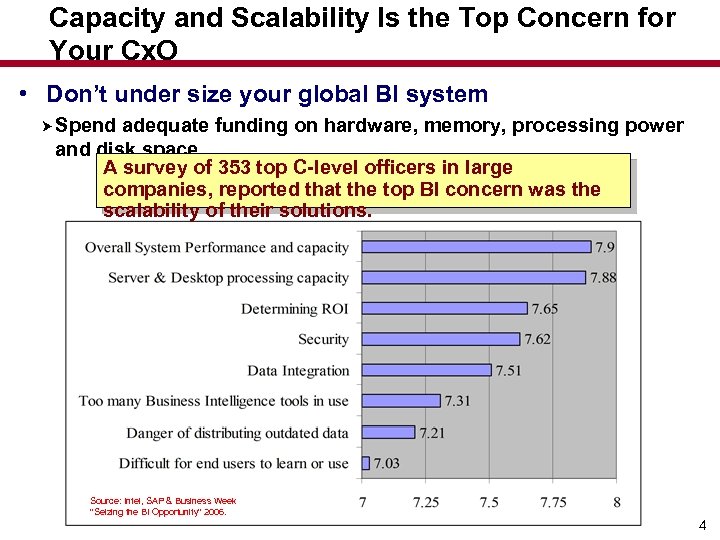 Capacity and Scalability Is the Top Concern for Your Cx. O • Don’t under size your global BI system Spend adequate funding on hardware, memory, processing power and disk space A survey of 353 top C-level officers in large companies, reported that the top BI concern was the scalability of their solutions. Source: Intel, SAP & Business Week "Seizing the BI Opportunity" 2006. 4
 What We’ll Cover … • Introduction • Performance Issues & Tips Multi. Providers and Partitioning Aggregates Query Design & Caching Hardware & Servers • Designing for Performance Info. Cubes and DSOs BI- Accelerator Sizing and Implementation Management and Costs • Early. Watch Reports • Wrap-up 5
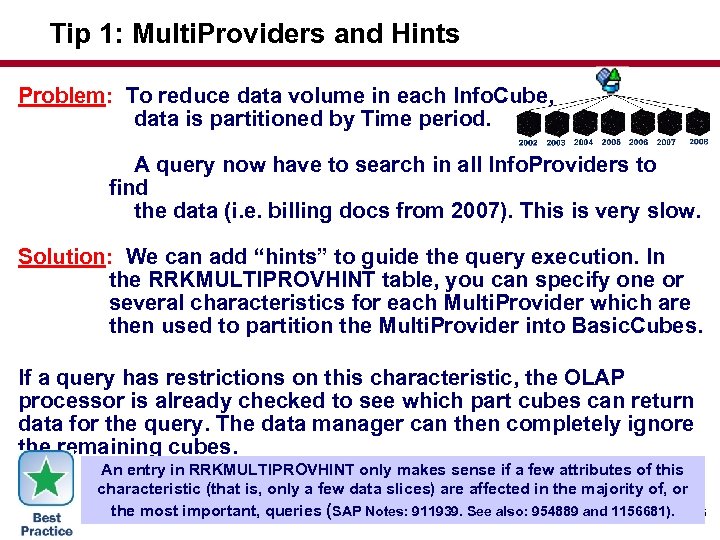 Tip 1: Multi. Providers and Hints Problem: To reduce data volume in each Info. Cube, data is partitioned by Time period. A query now have to search in all Info. Providers to find the data (i. e. billing docs from 2007). This is very slow. Solution: We can add “hints” to guide the query execution. In the RRKMULTIPROVHINT table, you can specify one or several characteristics for each Multi. Provider which are then used to partition the Multi. Provider into Basic. Cubes. If a query has restrictions on this characteristic, the OLAP processor is already checked to see which part cubes can return data for the query. The data manager can then completely ignore the remaining cubes. An entry in RRKMULTIPROVHINT only makes sense if a few attributes of this characteristic (that is, only a few data slices) are affected in the majority of, or the most important, queries (SAP Notes: 911939. See also: 954889 and 1156681). 6
 Tip 2: The Secret about Multi. Providers & Parallel Processing • To avoid an overflow of the memory, parallel processing is cancelled as soon as the collected result contains 30, 000 rows or more and there is at least one incomplete sub process The Multi. Provider query is then restarted automatically and processed sequentially What appears to be parallel processing corresponds to sequential processing plus the preceding phase of parallel processing up to the termination • Generally, it’s recommended that you keep the number of Info. Providers of a Multi. Provider to no more than 10. However, even at 4 -5 large Info. Providers you may experience performance 7
 Multi. Providers and Parallel Processing (cont. ) • Consider deactivating parallel processing for those queries that are Multi. Provider queries and have large result sets (and ‘hints’ cannot be used). With SAP BW 3. 0 B SP 14 (SAP BW 3. 1 SP 8 and later versions, you can change the default value of 30, 000 rows — refer to SAP Notes 629541, 622841, 607164, and 630500. • A larger number of base Info. Providers is likely to result in a scenario where there are many more base Info. Providers than available dialog processes, resulting in limited parallel processing and many pipelined sub-queries You can also change the number of dialogs (increase the use of parallel processing) in RSADMIN by changing the settings for QUERY_MAX_WP_DIAG. 8
 What We’ll Cover … • Introduction • Performance Issues & Tips Multi. Providers and Partitioning Aggregates Query Design & Caching Hardware & Servers • Designing for Performance Info. Cubes and DSOs • BI- Accelerator Sizing and Implementation Management and Costs • Early. Watch Reports • Wrap-up 9
 Aggregates • Aggregates are much less used by the SAP installation base than training and common sense should dictate. • The interface to build the summary tables (aggregates) are intuitive and easy to master, but few are taking real advantage of them. • Even among those that are using aggregates, many have poorly defined solutions & seldom monitor the usage, thereby limiting the benefits of this simple technology. To avoid poor definition and usage, aggregates should be developed after the system has been in production for a while and real user statistics are captured. 10
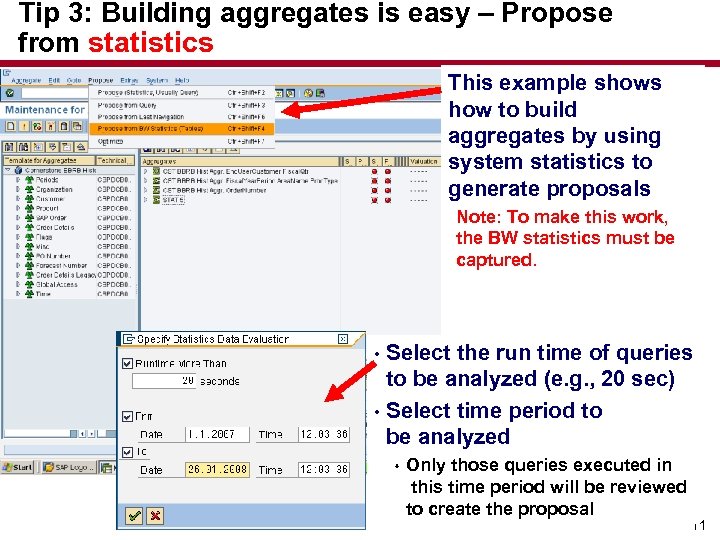 Tip 3: Building aggregates is easy – Propose from statistics This example shows how to build aggregates by using system statistics to generate proposals Note: To make this work, the BW statistics must be captured. Select the run time of queries to be analyzed (e. g. , 20 sec) • Select time period to be analyzed • s Only those queries executed in this time period will be reviewed to create the proposal 11
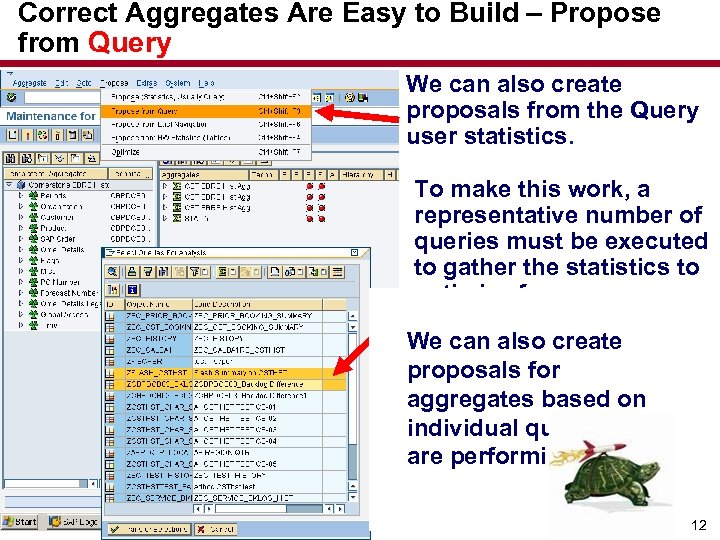 Correct Aggregates Are Easy to Build – Propose from Query We can also create proposals from the Query user statistics. To make this work, a representative number of queries must be executed to gather the statistics to optimize from. We can also create proposals for aggregates based on individual queries that are performing poorly. 12
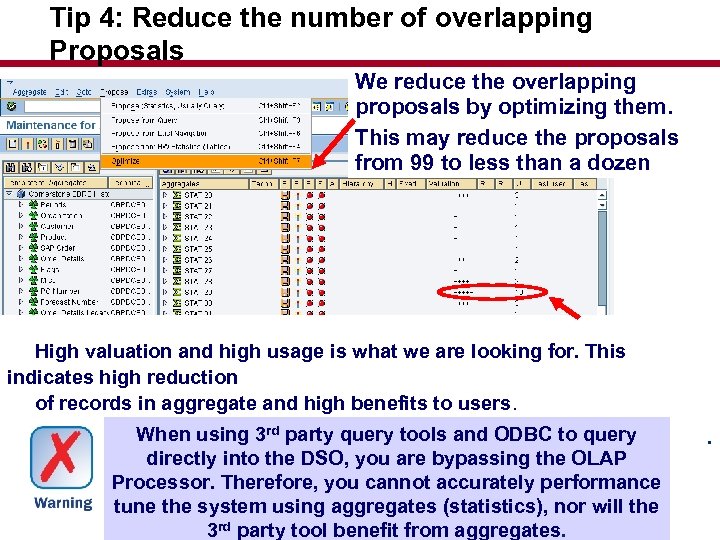 Tip 4: Reduce the number of overlapping Proposals We reduce the overlapping proposals by optimizing them. This may reduce the proposals from 99 to less than a dozen High valuation and high usage is what we are looking for. This indicates high reduction of records in aggregate and high benefits to users. When using 3 rd party query tools and ODBC to query directly into the DSO, you are bypassing the OLAP Processor. Therefore, you cannot accurately performance tune the system using aggregates (statistics), nor will the 3 rd party tool benefit from aggregates. . 13
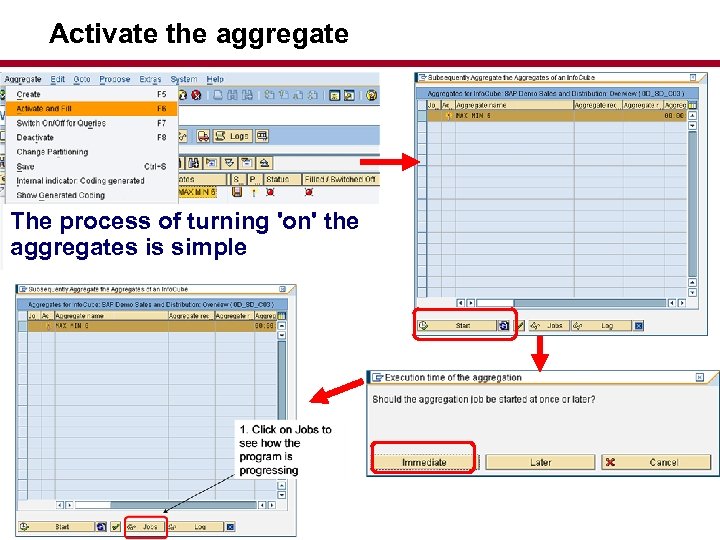 Activate the aggregate The process of turning 'on' the aggregates is simple
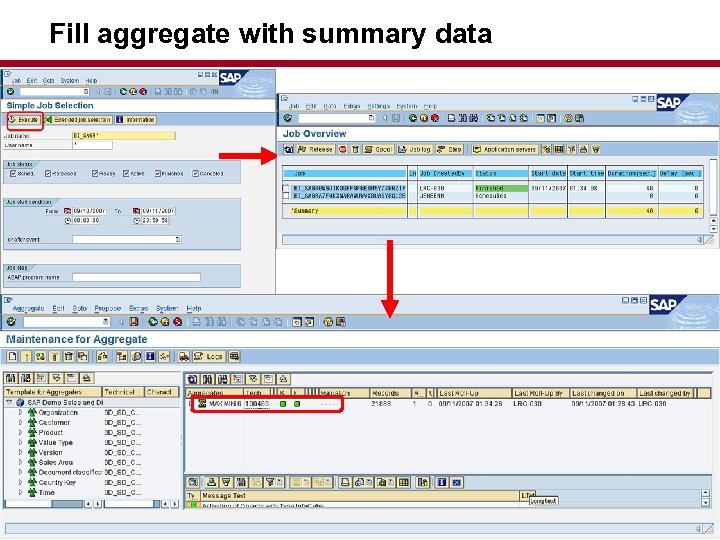 Fill aggregate with summary data
 What We’ll Cover … • Introduction • Performance Issues & Tips Multi. Providers and Partitioning Aggregates Query Design & Caching Hardware & Servers • Designing for Performance Info. Cubes and DSOs BI- Accelerator Sizing and Implementation Management and Costs • Early. Watch Reports • Wrap-up 16
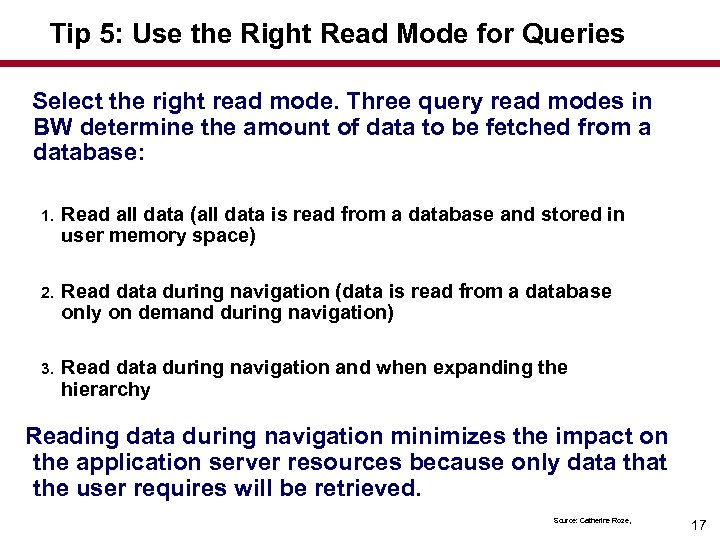 Tip 5: Use the Right Read Mode for Queries Select the right read mode. Three query read modes in BW determine the amount of data to be fetched from a database: 1. Read all data (all data is read from a database and stored in user memory space) 2. Read data during navigation (data is read from a database only on demand during navigation) 3. Read data during navigation and when expanding the hierarchy Reading data during navigation minimizes the impact on the application server resources because only data that the user requires will be retrieved. Source: Catherine Roze, 17
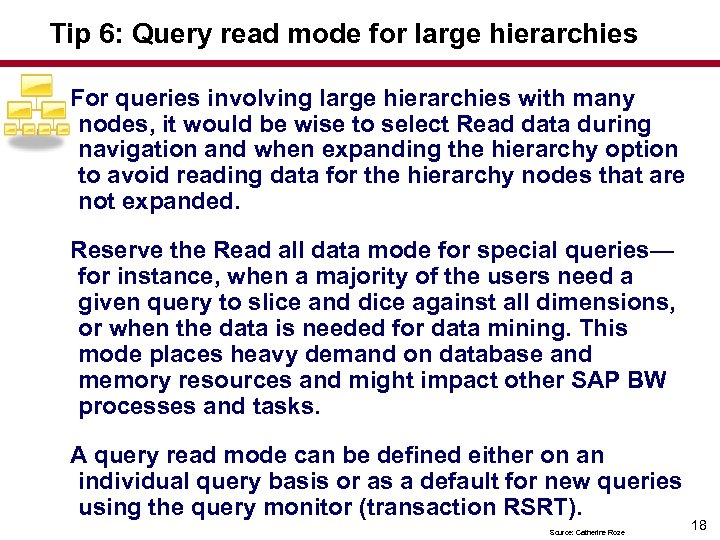 Tip 6: Query read mode for large hierarchies For queries involving large hierarchies with many nodes, it would be wise to select Read data during navigation and when expanding the hierarchy option to avoid reading data for the hierarchy nodes that are not expanded. Reserve the Read all data mode for special queries— for instance, when a majority of the users need a given query to slice and dice against all dimensions, or when the data is needed for data mining. This mode places heavy demand on database and memory resources and might impact other SAP BW processes and tasks. A query read mode can be defined either on an individual query basis or as a default for new queries using the query monitor (transaction RSRT). Source: Catherine Roze 18
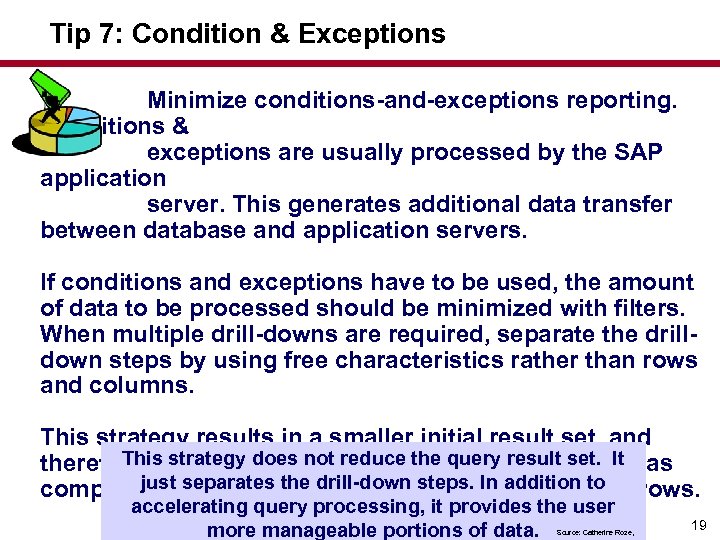 Tip 7: Condition & Exceptions Minimize conditions-and-exceptions reporting. Conditions & exceptions are usually processed by the SAP application server. This generates additional data transfer between database and application servers. If conditions and exceptions have to be used, the amount of data to be processed should be minimized with filters. When multiple drill-downs are required, separate the drilldown steps by using free characteristics rather than rows and columns. This strategy results in a smaller initial result set, and This strategy does not reduce the query result set. It therefore faster query processing and data transport as just a query where all characteristics are compared toseparates the drill-down steps. In addition to in rows. accelerating query processing, it provides the user more manageable portions of data. Source: Catherine Roze, 19
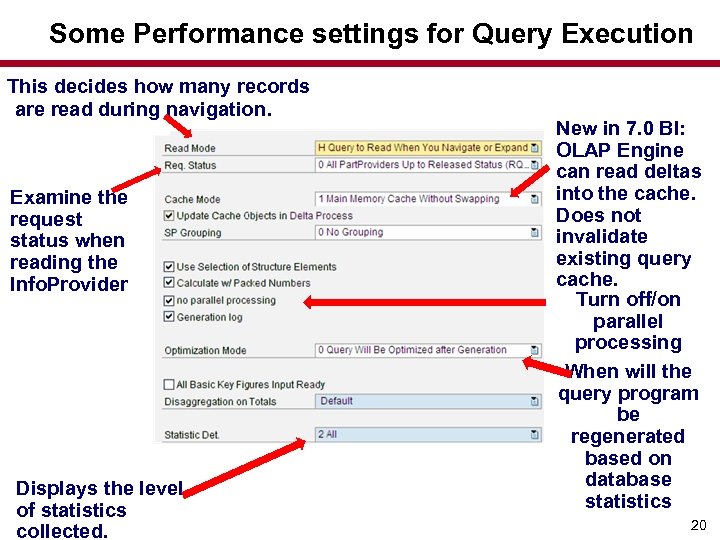 Some Performance settings for Query Execution This decides how many records are read during navigation. Examine the request status when reading the Info. Provider Displays the level of statistics collected. New in 7. 0 BI: OLAP Engine can read deltas into the cache. Does not invalidate existing query cache. Turn off/on parallel processing When will the query program be regenerated based on database statistics 20
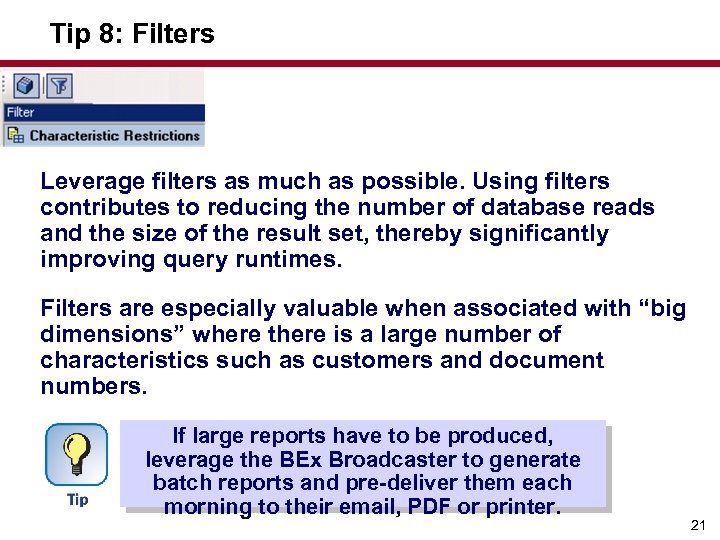 Tip 8: Filters Leverage filters as much as possible. Using filters contributes to reducing the number of database reads and the size of the result set, thereby significantly improving query runtimes. Filters are especially valuable when associated with “big dimensions” where there is a large number of characteristics such as customers and document numbers. If large reports have to be produced, leverage the BEx Broadcaster to generate batch reports and pre-deliver them each morning to their email, PDF or printer. 21
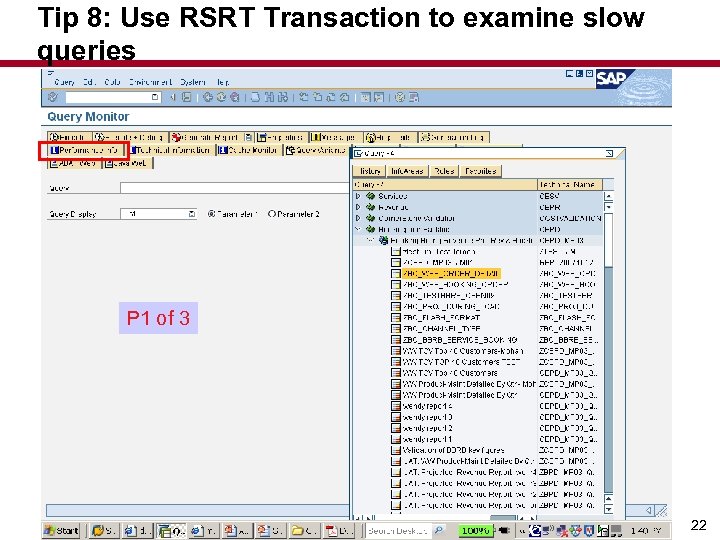 Tip 8: Use RSRT Transaction to examine slow queries P 1 of 3 22
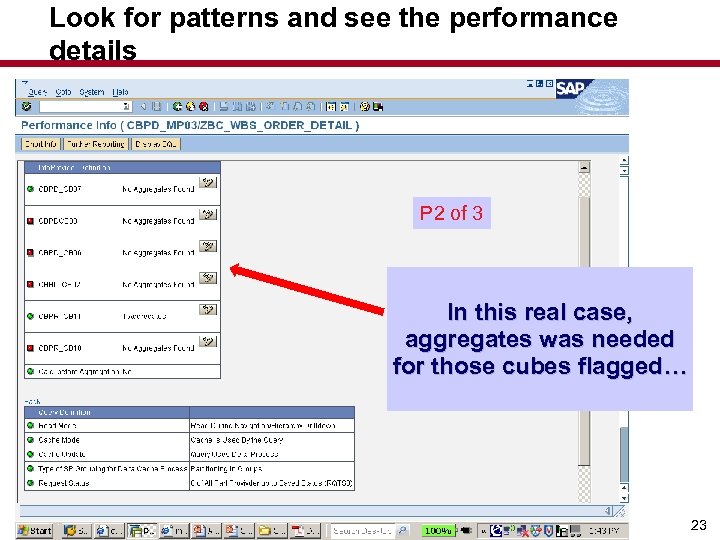 Look for patterns and see the performance details P 2 of 3 In this real case, aggregates was needed for those cubes flagged… 23
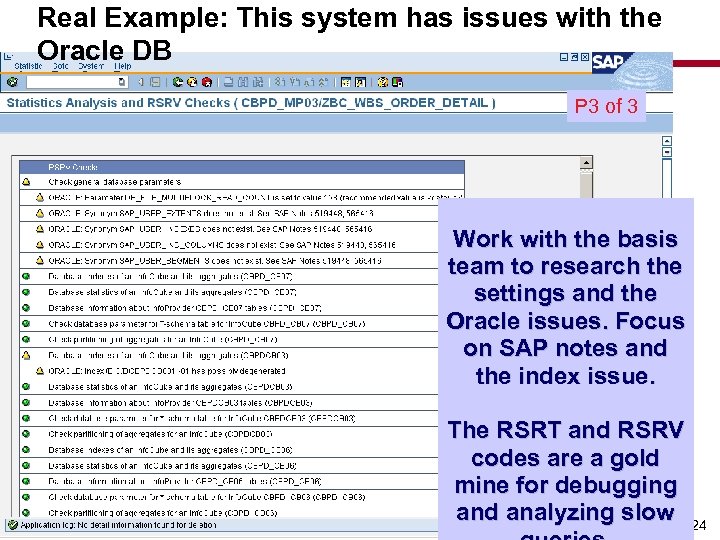 Real Example: This system has issues with the Oracle DB P 3 of 3 Work with the basis team to research the settings and the Oracle issues. Focus on SAP notes and the index issue. The RSRT and RSRV codes are a gold mine for debugging and analyzing slow 24
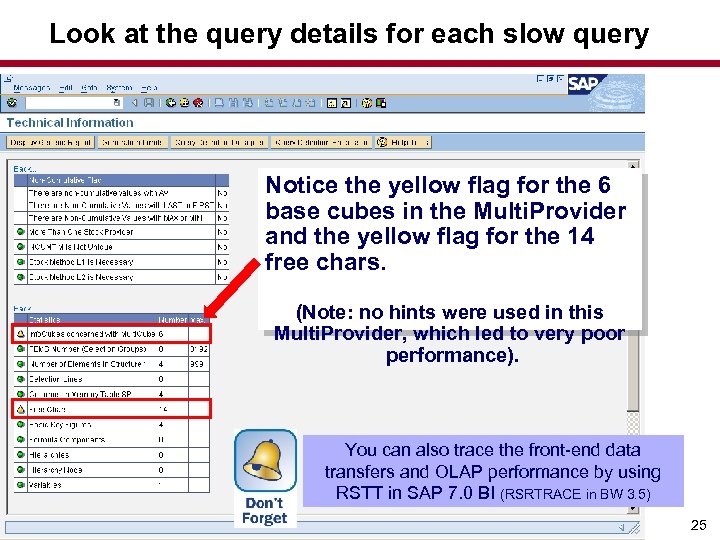 Look at the query details for each slow query Notice the yellow flag for the 6 base cubes in the Multi. Provider and the yellow flag for the 14 free chars. (Note: no hints were used in this Multi. Provider, which led to very poor performance). You can also trace the front-end data transfers and OLAP performance by using RSTT in SAP 7. 0 BI (RSRTRACE in BW 3. 5) 25
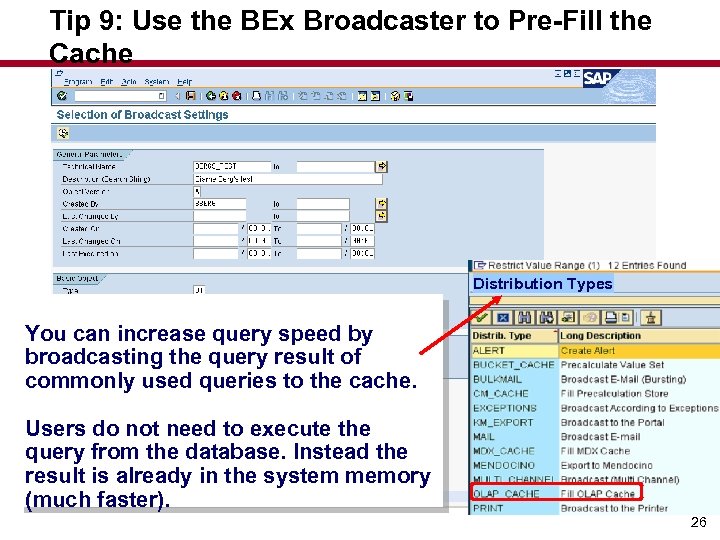 Tip 9: Use the BEx Broadcaster to Pre-Fill the Cache Distribution Types You can increase query speed by broadcasting the query result of commonly used queries to the cache. Users do not need to execute the query from the database. Instead the result is already in the system memory (much faster). 26
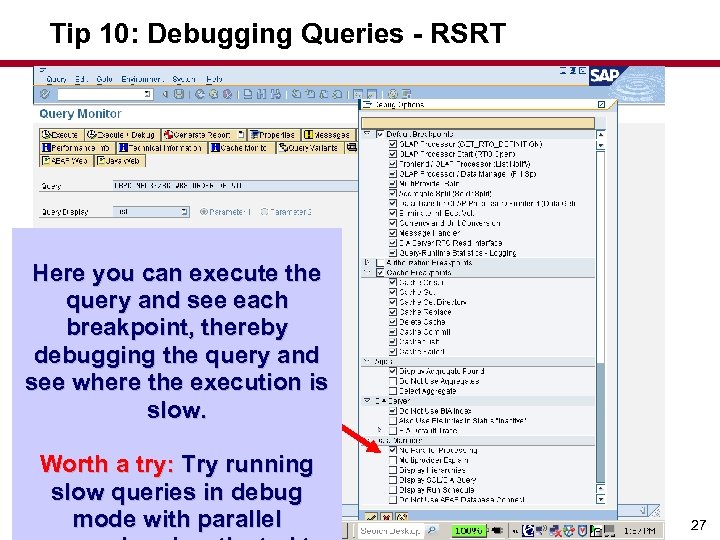 Tip 10: Debugging Queries - RSRT Here you can execute the query and see each breakpoint, thereby debugging the query and see where the execution is slow. Worth a try: Try running slow queries in debug mode with parallel 27
 Tip 11: Upgrade to AS-Java service pack 14 asap. In service pack 14 we find several performance improvements including: - Better Java execution and performance - Increased OLAP cache abilities (Enhanced Cluster table -BLOB) In 7. 0 BI at all service packs upto number 14, it is also impossible to populate the OLAP cache by broadcasting query views. If you use earlier service packs, you may be forced to create many different queries to provide this performance. The implementation of service pack 14 is highly recommended by SAP for these performance reasons. When implemented the Java execution will also improve. 28
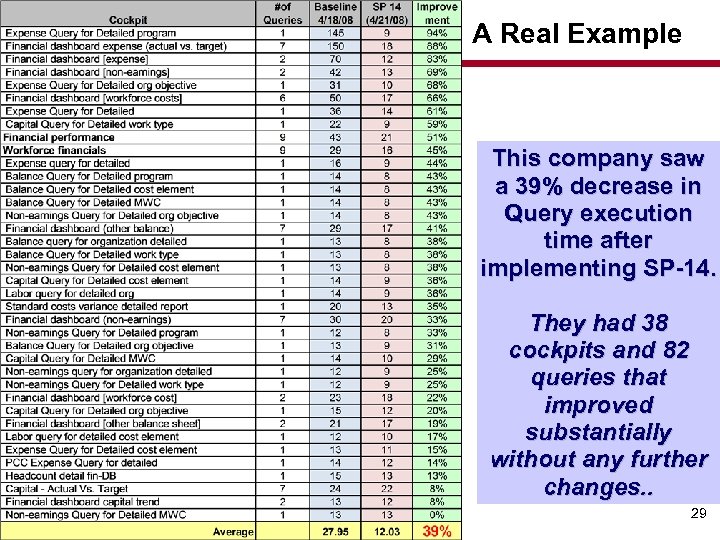 A Real Example This company saw a 39% decrease in Query execution time after implementing SP-14. They had 38 cockpits and 82 queries that improved substantially without any further changes. . 29
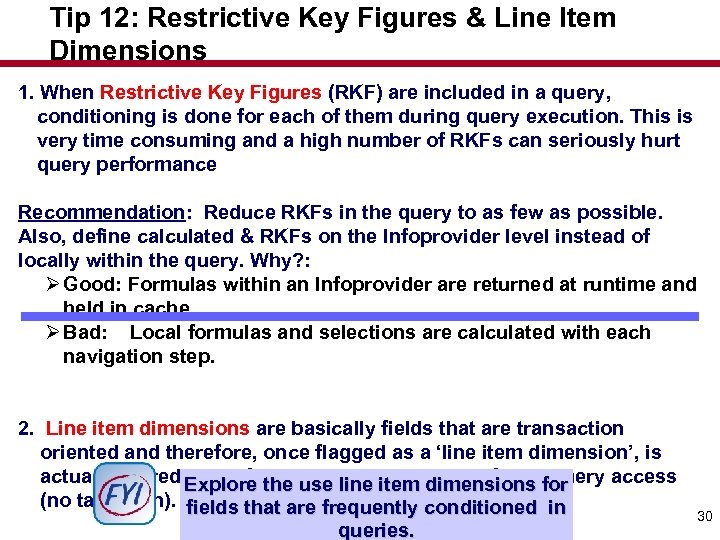 Tip 12: Restrictive Key Figures & Line Item Dimensions 1. When Restrictive Key Figures (RKF) are included in a query, conditioning is done for each of them during query execution. This is very time consuming and a high number of RKFs can seriously hurt query performance Recommendation: Reduce RKFs in the query to as few as possible. Also, define calculated & RKFs on the Infoprovider level instead of locally within the query. Why? : Ø Good: Formulas within an Infoprovider are returned at runtime and held in cache. Ø Bad: Local formulas and selections are calculated with each navigation step. 2. Line item dimensions are basically fields that are transaction oriented and therefore, once flagged as a ‘line item dimension’, is actually stored Explore the use line item dimensions for in the fact table. This results in faster query access (no table join). fields that are frequently conditioned in queries. 30
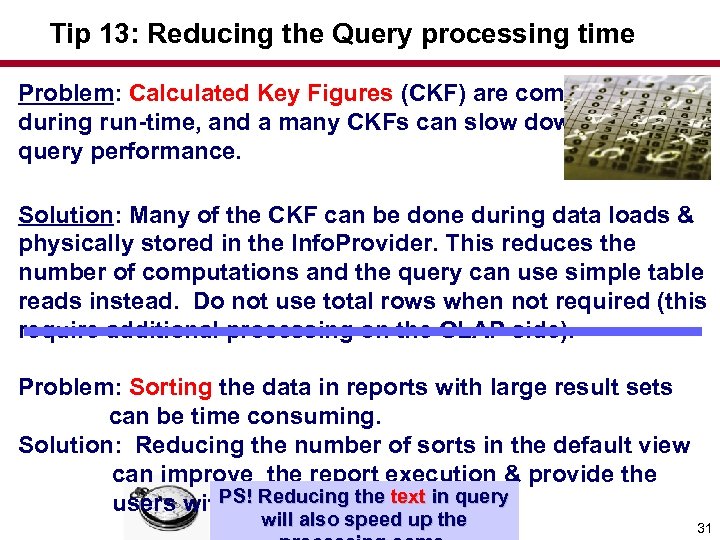 Tip 13: Reducing the Query processing time Problem: Calculated Key Figures (CKF) are computed during run-time, and a many CKFs can slow down the query performance. Solution: Many of the CKF can be done during data loads & physically stored in the Info. Provider. This reduces the number of computations and the query can use simple table reads instead. Do not use total rows when not required (this require additional processing on the OLAP side). Problem: Sorting the data in reports with large result sets can be time consuming. Solution: Reducing the number of sorts in the default view can improve the report execution & provide the PS! Reducing the users with data faster. text in query will also speed up the 31
 Tip 14: Make your web templates Smaller Web templates in SAP BI can become really large. Since they contain both scripts and Cascading Stylesheets (CSS), the code can become really comprehensive. To reduce the CSS, you can try several compression tools that may help you limit the overall size of your web templates. There are no lack of free tools available, and the quality varies. Therefore you must remember to test, test and test…. (but the benefits can also be great). Compression tools for CSS and Java scripts can reduce the overall web template size. If you have thousands of users, this can be a ‘life saver’’ 32
 What We’ll Cover … • Introduction • Performance Issues & Tips Multi. Providers and Partitioning Aggregates Query Design & Caching Hardware & Servers • Designing for Performance Info. Cubes and DSOs BI- Accelerator Sizing and Implementation Management and Costs Early. Watch Reports Wrap-up 33
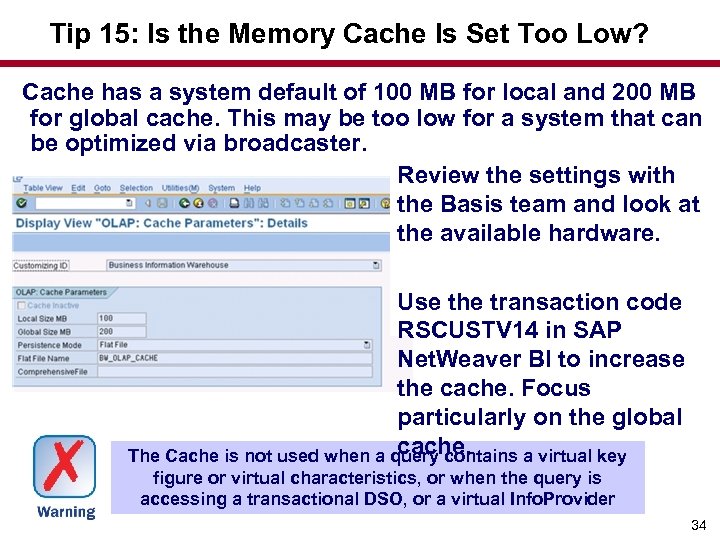 Tip 15: Is the Memory Cache Is Set Too Low? Cache has a system default of 100 MB for local and 200 MB for global cache. This may be too low for a system that can be optimized via broadcaster. Review the settings with the Basis team and look at the available hardware. Use the transaction code RSCUSTV 14 in SAP Net. Weaver BI to increase the cache. Focus particularly on the global cache. The Cache is not used when a query contains a virtual key figure or virtual characteristics, or when the query is accessing a transactional DSO, or a virtual Info. Provider 34
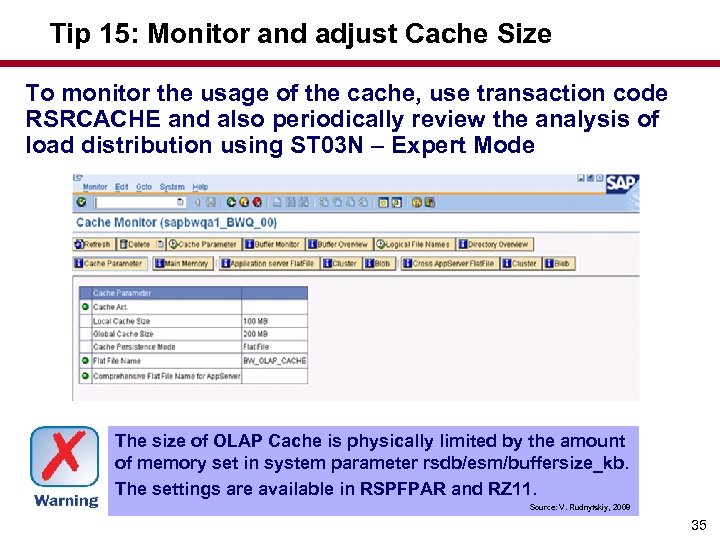 Tip 15: Monitor and adjust Cache Size To monitor the usage of the cache, use transaction code RSRCACHE and also periodically review the analysis of load distribution using ST 03 N – Expert Mode The size of OLAP Cache is physically limited by the amount of memory set in system parameter rsdb/esm/buffersize_kb. The settings are available in RSPFPAR and RZ 11. Source: V. Rudnytskiy, 2008 35
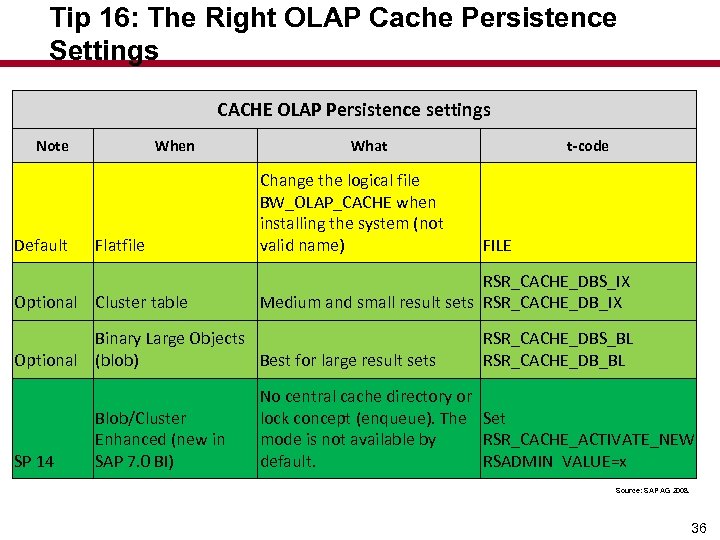 Tip 16: The Right OLAP Cache Persistence Settings CACHE OLAP Persistence settings Note Default When Flatfile Optional Cluster table What Change the logical file BW_OLAP_CACHE when installing the system (not valid name) SP 14 FILE RSR_CACHE_DBS_IX Medium and small result sets RSR_CACHE_DB_IX Binary Large Objects Optional (blob) Best for large result sets Blob/Cluster Enhanced (new in SAP 7. 0 BI) t-code RSR_CACHE_DBS_BL RSR_CACHE_DB_BL No central cache directory or lock concept (enqueue). The Set mode is not available by RSR_CACHE_ACTIVATE_NEW default. RSADMIN VALUE=x Source: SAP AG 2008. 36
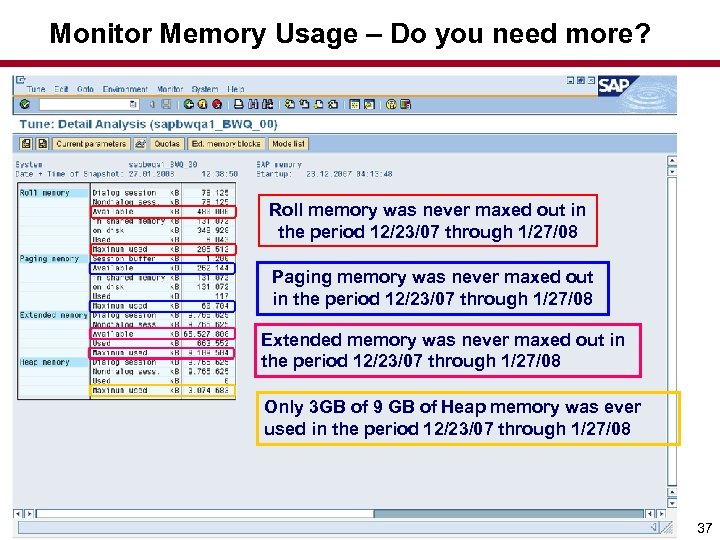 Monitor Memory Usage – Do you need more? Roll memory was never maxed out in the period 12/23/07 through 1/27/08 Paging memory was never maxed out in the period 12/23/07 through 1/27/08 Extended memory was never maxed out in the period 12/23/07 through 1/27/08 Only 3 GB of 9 GB of Heap memory was ever used in the period 12/23/07 through 1/27/08 37
 What We’ll Cover … • Introduction • Performance Issues & Tips Multi. Providers and Partitioning Aggregates Query Design & Caching Hardware & Servers • Designing for Performance Info. Cubes and DSOs BI- Accelerator Sizing and Implementation Management and Costs • Early. Watch Reports • Wrap-up 38
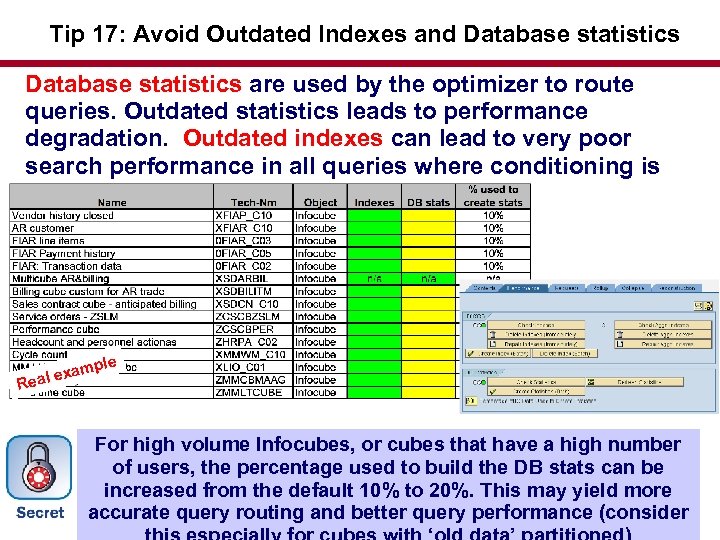 Tip 17: Avoid Outdated Indexes and Database statistics are used by the optimizer to route queries. Outdated statistics leads to performance degradation. Outdated indexes can lead to very poor search performance in all queries where conditioning is used (i. e. mandatory prompts). le xamp al e Re For high volume Infocubes, or cubes that have a high number of users, the percentage used to build the DB stats can be increased from the default 10% to 20%. This may yield more accurate query routing and better query performance (consider
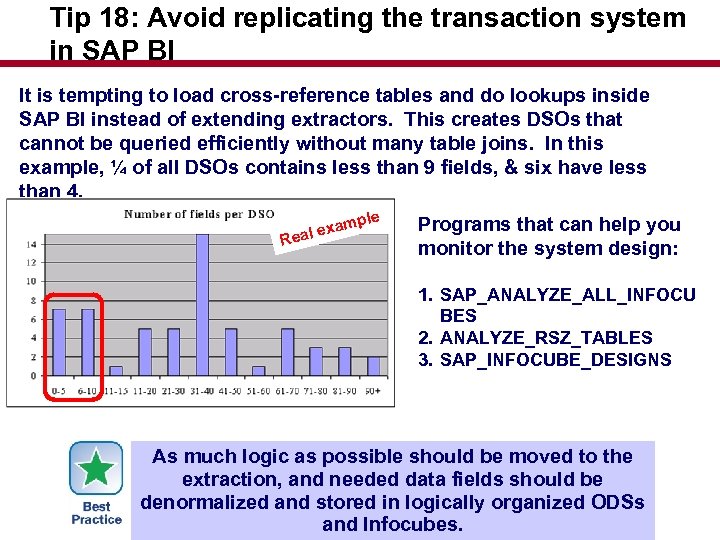 Tip 18: Avoid replicating the transaction system in SAP BI It is tempting to load cross-reference tables and do lookups inside SAP BI instead of extending extractors. This creates DSOs that cannot be queried efficiently without many table joins. In this example, ¼ of all DSOs contains less than 9 fields, & six have less than 4. le xamp al e Re Programs that can help you monitor the system design: 1. SAP_ANALYZE_ALL_INFOCU BES 2. ANALYZE_RSZ_TABLES 3. SAP_INFOCUBE_DESIGNS As much logic as possible should be moved to the extraction, and needed data fields should be denormalized and stored in logically organized ODSs and Infocubes.
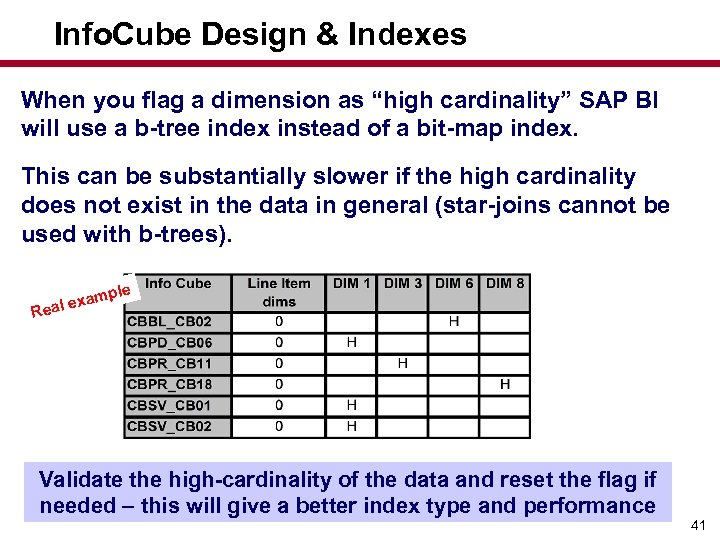 Info. Cube Design & Indexes When you flag a dimension as “high cardinality” SAP BI will use a b-tree index instead of a bit-map index. This can be substantially slower if the high cardinality does not exist in the data in general (star-joins cannot be used with b-trees). Re le xamp al e Validate the high-cardinality of the data and reset the flag if needed – this will give a better index type and performance 41
 What We’ll Cover … • Introduction • Performance Issues & Tips Multi. Providers and Partitioning Aggregates Query Design & Caching Hardware & Servers • Designing for Performance Info. Cubes and DSOs BI- Accelerator Sizing and Implementation Management and Costs Early. Watch Reports • Wrap-up • 42
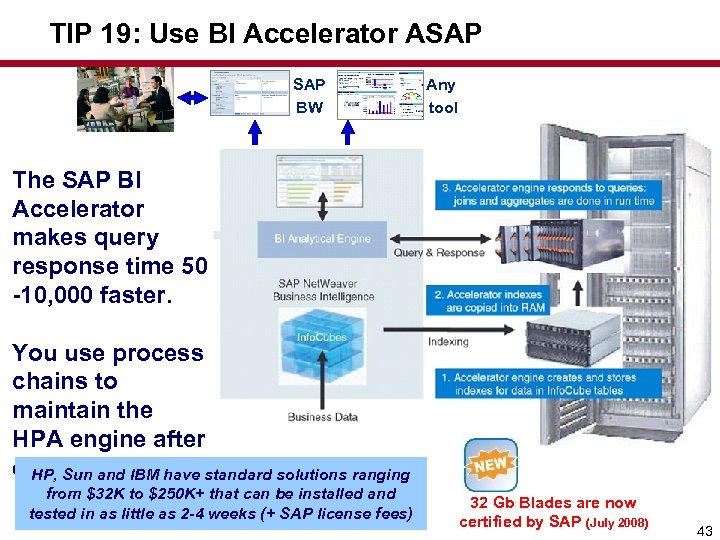 TIP 19: Use BI Accelerator ASAP BW Any tool The SAP BI Accelerator makes query response time 50 -10, 000 faster. You use process chains to maintain the HPA engine after each. Sun and load standard solutions ranging HP, data IBM have from $32 K to $250 K+ that can be installed and tested in as little as 2 -4 weeks (+ SAP license fees) 32 Gb Blades are now certified by SAP (July 2008) 43
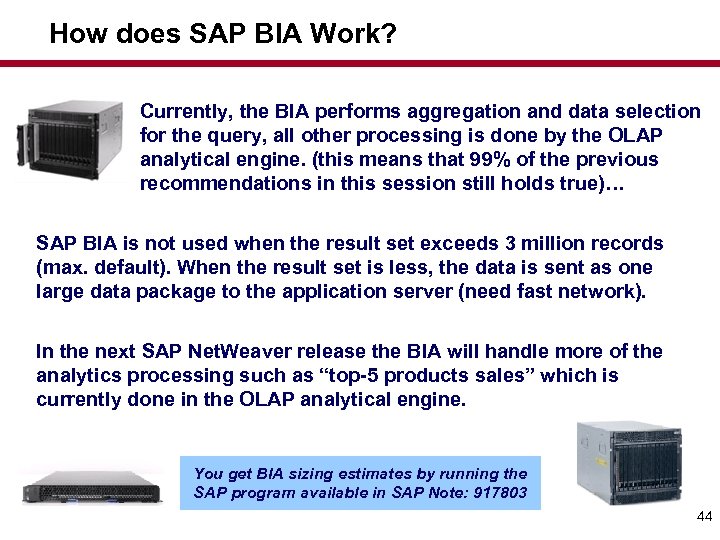 How does SAP BIA Work? Currently, the BIA performs aggregation and data selection for the query, all other processing is done by the OLAP analytical engine. (this means that 99% of the previous recommendations in this session still holds true)… SAP BIA is not used when the result set exceeds 3 million records (max. default). When the result set is less, the data is sent as one large data package to the application server (need fast network). In the next SAP Net. Weaver release the BIA will handle more of the analytics processing such as “top-5 products sales” which is currently done in the OLAP analytical engine. You get BIA sizing estimates by running the SAP program available in SAP Note: 917803 44
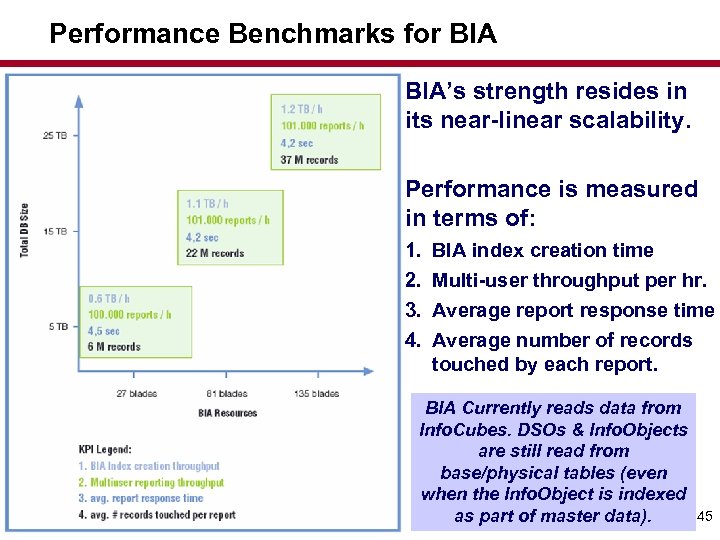 Performance Benchmarks for BIA’s strength resides in its near-linear scalability. Performance is measured in terms of: 1. 2. 3. 4. BIA index creation time Multi-user throughput per hr. Average report response time Average number of records touched by each report. BIA Currently reads data from Info. Cubes. DSOs & Info. Objects are still read from base/physical tables (even when the Info. Object is indexed as part of master data). 45
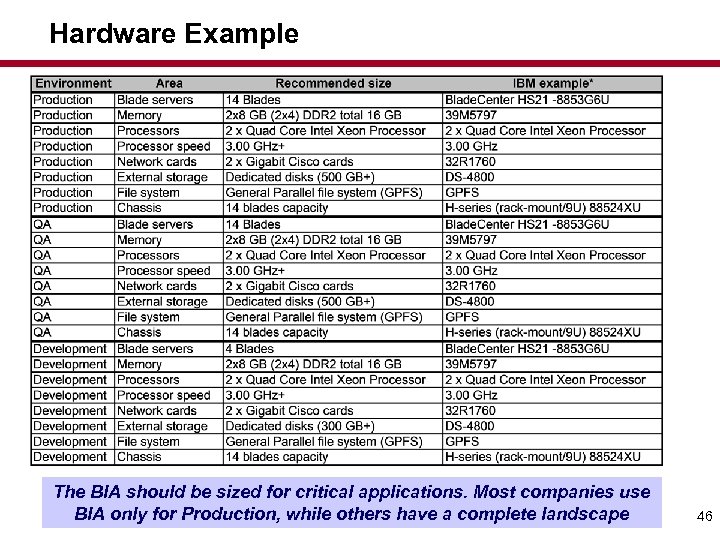 Hardware Example The BIA should be sized for critical applications. Most companies use BIA only for Production, while others have a complete landscape 46
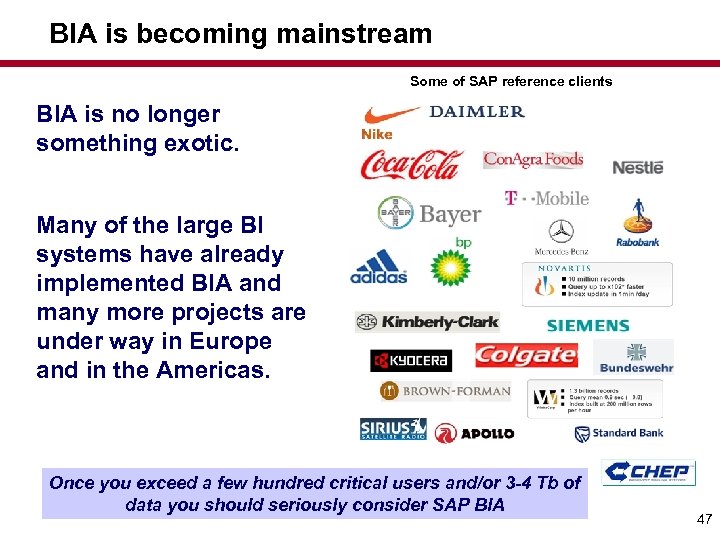 BIA is becoming mainstream Some of SAP reference clients BIA is no longer something exotic. Many of the large BI systems have already implemented BIA and many more projects are under way in Europe and in the Americas. Once you exceed a few hundred critical users and/or 3 -4 Tb of data you should seriously consider SAP BIA 47
 What We’ll Cover … • Introduction • Performance Issues & Tips Multi. Providers and Partitioning Aggregates Query Design & Caching Hardware & Servers • Designing for Performance Info. Cubes and DSOs BI- Accelerator Sizing and Implementation Management and Costs Early. Watch Reports Wrap-up 48
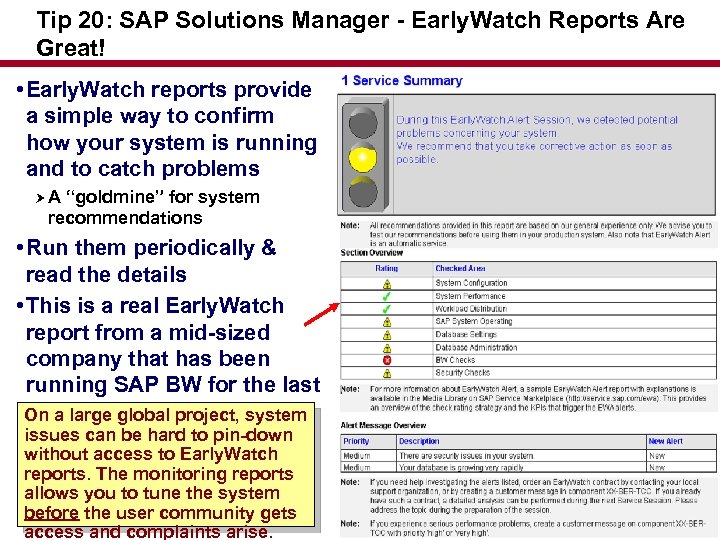 Tip 20: SAP Solutions Manager - Early. Watch Reports Are Great! • Early. Watch reports provide a simple way to confirm how your system is running and to catch problems A “goldmine” for system recommendations • Run them periodically & read the details • This is a real Early. Watch report from a mid-sized company that has been running SAP BW for the last four years On a large global project, system issues can be hard to pin-down without access to Early. Watch reports. The monitoring reports allows you to tune the system before the user community gets access and complaints arise. 49
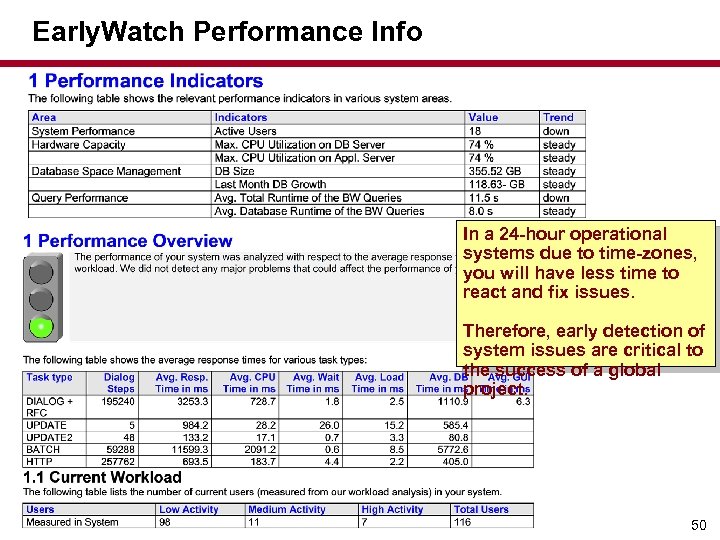 Early. Watch Performance Info In a 24 -hour operational systems due to time-zones, you will have less time to react and fix issues. Therefore, early detection of system issues are critical to the success of a global project. 50
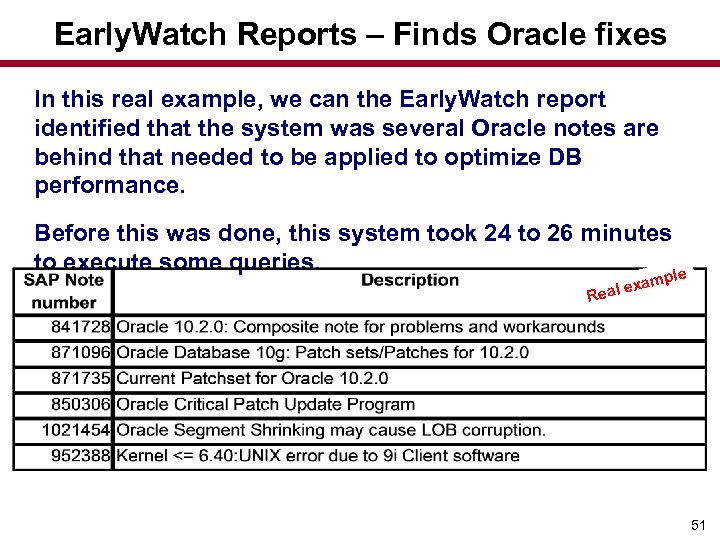 Early. Watch Reports – Finds Oracle fixes In this real example, we can the Early. Watch report identified that the system was several Oracle notes are behind that needed to be applied to optimize DB performance. Before this was done, this system took 24 to 26 minutes to execute some queries. le mp exa Real 51
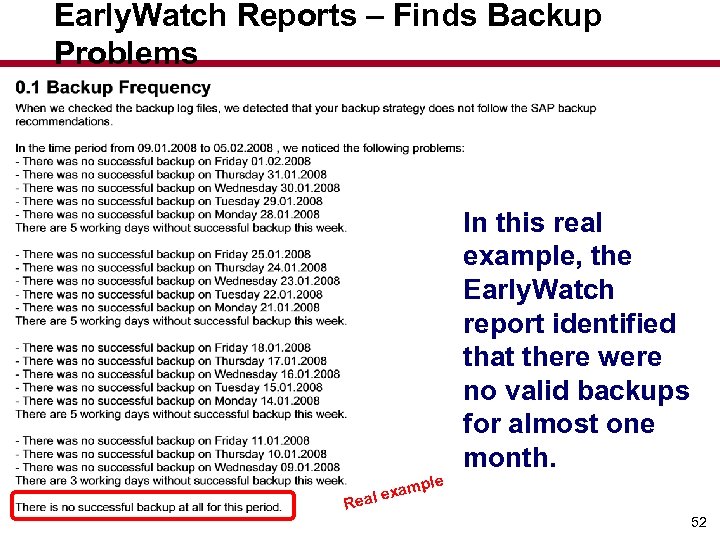 Early. Watch Reports – Finds Backup Problems le xamp al e In this real example, the Early. Watch report identified that there were no valid backups for almost one month. Re 52
 What We’ll Cover … • Introduction • Performance Issues & Tips Multi. Providers and Partitioning Aggregates Query Design & Caching Hardware & Servers • Designing for Performance Info. Cubes and DSOs BI- Accelerator Sizing and Implementation Management and Costs Early. Watch Reports Wrap-up 53
 7 Key Points to Take Home • Use best practices for query design before you start massive hardware performance tuning efforts. • Plan for growth – what is the plan when you have 200, 500, 1000+ users? • Start with aggregates (poor man’s BIA), thereafter go with caching. • Monitor the system usage- do you need more app servers, memory, HW? • Check database statistics and indexes and keep them up to date. • If you are building an Enterprise Data Warehouse, plan and budget for a BIA installation. 54
 Resources Presentations, tutorials & articles www. Comerit. net SAP SDN Community web page for Business Intelligence Performance Tuning https: //www. sdn. sap. com/irj/sdn/biperformance-tuning ASUG 407 - SAP BW Query Performance Tuning with Aggregates by Ron Silberstein (requires SDN or Marketplace log-on). 54 min movie. https: //www. sdn. sap. com/irj/sdn/go/portal/prtroot/docs/me dia/uuid/d 9 fd 84 ad-0701 -0010 -d 9 a 5 -ba 726 caa 585 d Large scale testing of SAP BI Accelerator on a Net. Weaver Platform 55
 Your Turn! How to contact me: Dr. Bjarne Berg bberg@comerit. net 56