


 Скачать презентацию 2 Deploying Windows XP Thomas Lee Chief Technologist
cc6fbd9a093a569b02ffbde06cff7391.ppt
- Количество слайдов: 58
 2. Deploying Windows XP Thomas Lee Chief Technologist – QA plc
 Agenda Windows XP Setup Improvements • Three Types of Automated Setup • – Scripted Install – Sysprep – RIS
 Windows XP Setup • Improvements – Windows Welcome – Dynamic Update – Compatibility Checker – Uninstall – Sys. Prep - Factory
 Setup Design Goals Enhance user experience • Enable OS serviceability • Improve system stability • Unblock deployments •
 Setup Agenda • • • Unattended setup Win. PE Imaging RIS Setup Tools
 Why not use OEM Build? Breaks the license • Sys. Prep is different • Lots of “OEM Stuff” • Product Keys •
 Automated Installations • Unattended setup – Scripted automated Windows Setup – Used to build “Master PC” • Imaging – Uses Sys. Prep and 3 rd Party Disk Imaging products – Copies “Master PC” to many PCs • Remote Installation Services – Unattended Setup from Server – Imaging from Server (without 3 rd party products)
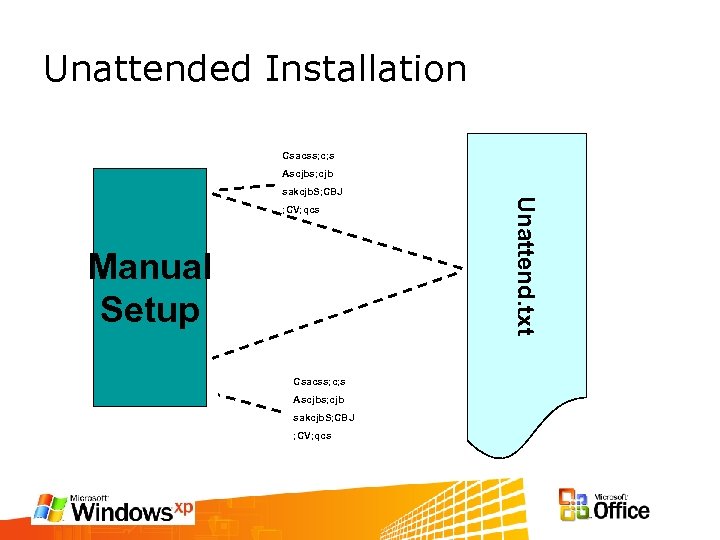
 Unattended Setup • • • Most flexible deployment option Starts and runs Windows XP Setup on each computer individually What you need: – Winnt. exe, Winnt 32. exe or CD (BIOS must support bootable CD) – A distribution share with Setup files or Windows XP CD – An answer file (text file) or winnt. sif if running unattended from CD
 Unattended Installation Csacss; c; s Ascjbs; cjb ; CV; qcs Manual Setup Csacss; c; s Ascjbs; cjb sakcjb. S; CBJ ; CV; qcs Unattend. txt sakcjb. S; CBJ
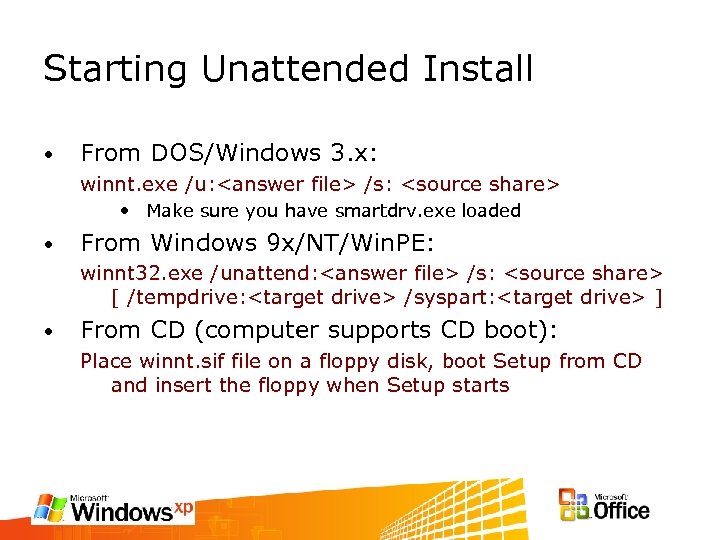 Starting Unattended Install • From DOS/Windows 3. x: winnt. exe /u:
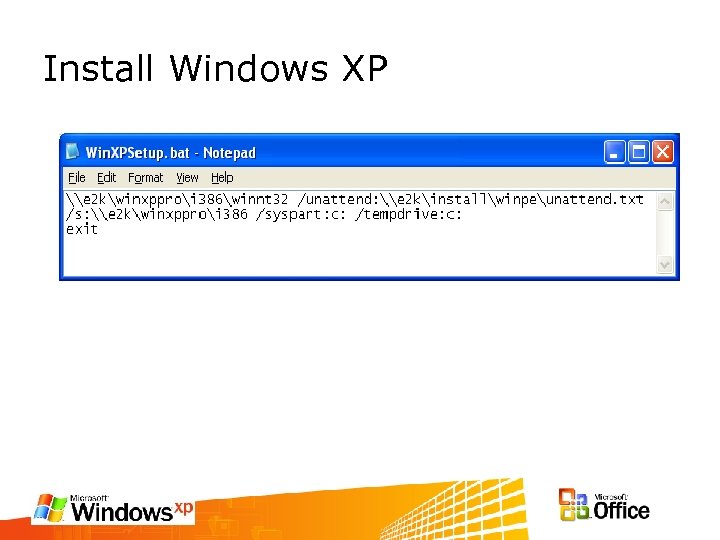 Install Windows XP
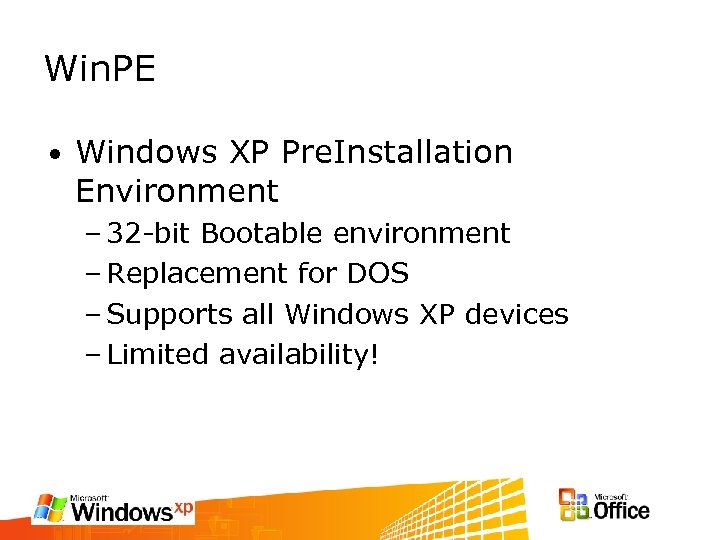 Win. PE • Windows XP Pre. Installation Environment – 32 -bit Bootable environment – Replacement for DOS – Supports all Windows XP devices – Limited availability!
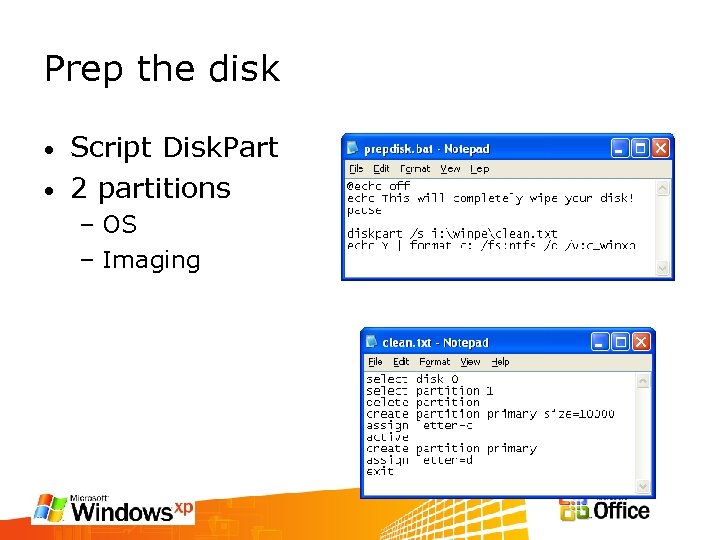 Prep the disk Script Disk. Part • 2 partitions • – OS – Imaging
 Show me… Building unattended text files • Diskpart. exe •
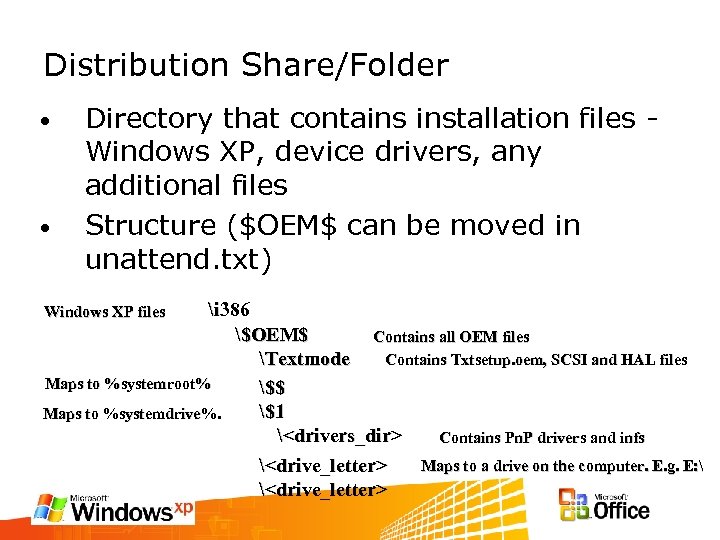 Distribution Share/Folder • • Directory that contains installation files Windows XP, device drivers, any additional files Structure ($OEM$ can be moved in unattend. txt) i 386 $OEM$ Contains all OEM files Contains Txtsetup. oem, SCSI and HAL files Textmode Maps to %systemroot% $$ $1 Maps to %systemdrive%.
 Installing Windows XP • Windows XP – Copy i 386 folder from XP CD ROM • Windows XP SP 1 – Run XPSP 1. EXE /S: d: winxp (see supporttoolsspdeploy. htm) Let SUS/WU add the rest • SP 2 due in Summer •
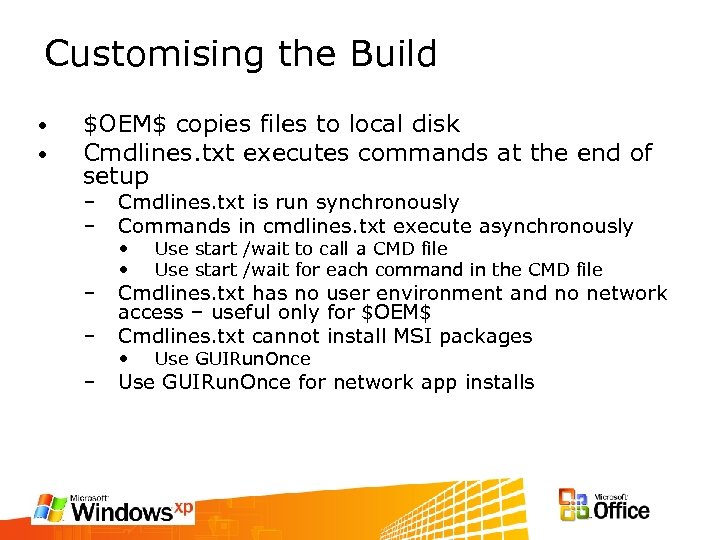 Customising the Build • • $OEM$ copies files to local disk Cmdlines. txt executes commands at the end of setup – – Cmdlines. txt is run synchronously Commands in cmdlines. txt execute asynchronously – – Cmdlines. txt has no user environment and no network access – useful only for $OEM$ Cmdlines. txt cannot install MSI packages – Use GUIRun. Once for network app installs • • Use start /wait to call a CMD file Use start /wait for each command in the CMD file • Use GUIRun. Once
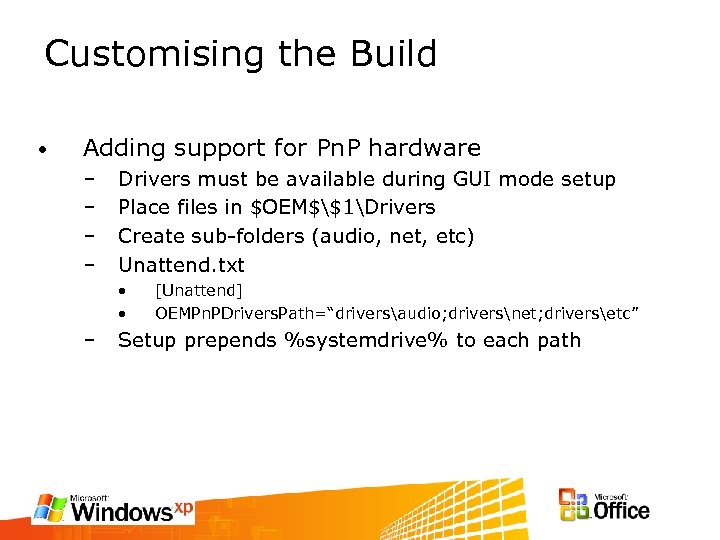 Customising the Build • Adding support for Pn. P hardware – – Drivers must be available during GUI mode setup Place files in $OEM$$1Drivers Create sub-folders (audio, net, etc) Unattend. txt • • – [Unattend] OEMPn. PDrivers. Path=“driversaudio; driversnet; driversetc” Setup prepends %systemdrive% to each path
 What’s new In XP Setup… Windows Welcome • Dynamic Update • Compatibility Checker • Uninstall •
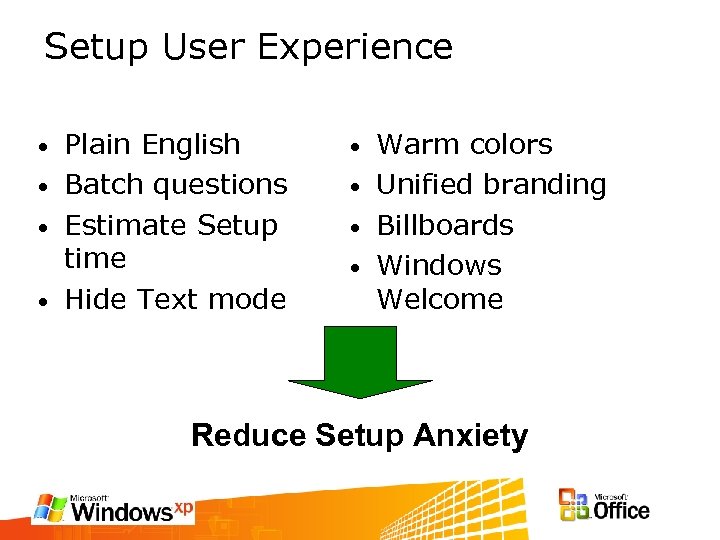 Setup User Experience Plain English • Batch questions • Estimate Setup time • Hide Text mode • Warm colors • Unified branding • Billboards • Windows Welcome • Reduce Setup Anxiety
 Windows Welcome (Out Of The Box Experience) • “Engaging” new look at installation – Animations – Simplified language – Adopted new Windows XP Visual Design • Smart Internet detection – Display pages appropriate to hardware – Use detected Internet to register • Highlights key consumer features – User accounts – Auto-configure Home Network • OOBEINFO. INF – Used to customize the setup routines – OOBE ASP pages can also be customized.
 Dynamic Update • Address top PSS/Consumer installation problems before setup starts – Deliver any emergency fixes – Deliver new device drivers – Update any Windows file (including setup) after RTM First experience only gets better!
 Dynamic Update hint: See Windows XP Pro Resource Kit • See Dynamic Update link on http: //www. microsoft. com/windows/reskits /webresources •
 Built-in Compatibility Checker Scans system and program files Compares results against a list of known/potential problems • List view bubbles up ‘top’ issues • • – Device Driver – Application warnings – Application Re-Install • • Details button provides further explanation Builds list of system files used for uninstall
 Compatibility Checker hint: • Can run: WINNT 32 -checkupgradeonly
 Uninstall • Enables Restoration to previous OS after upgrading to Windows XP – All hardware devices and applications installed prior to upgrade will work – User data created with new OS will be maintained
 Uninstall • Included as part of Professional or Personal upgrade – Win 98, Win 98 SE or Millennium upgrades only – Automatically done as part of upgrade User can recover to old OS at any point in Setup process • Uninstall Archive generally 150 -300 M • – User reminder to remove back up files after 30 days to save disk space
 Sys. Prep Creates a deployable image • Sys. Prep creates the image • Use 3 rd party tools to deploy/copy images • Image contains OS, apps, customisation •
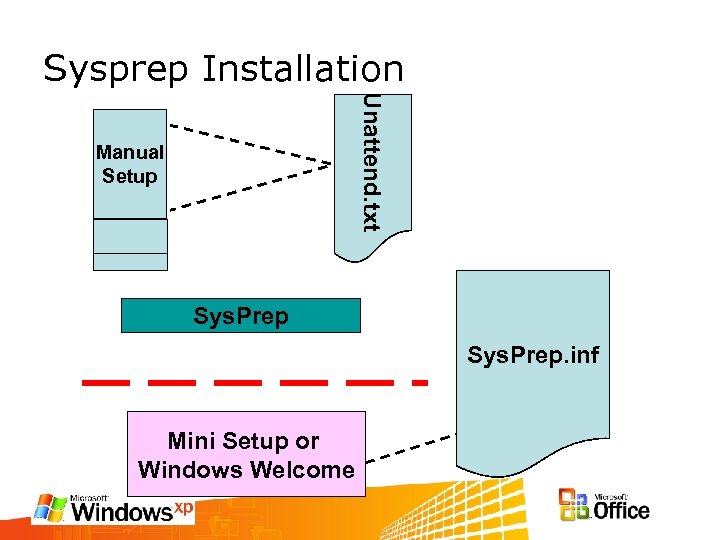 Sysprep Installation Unattend. txt Manual Setup Sys. Prep. inf Mini Setup or Windows Welcome
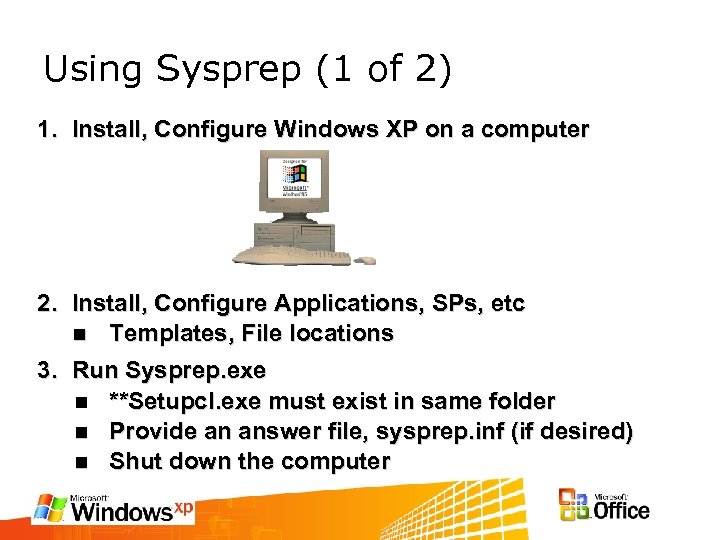 Using Sysprep (1 of 2) 1. Install, Configure Windows XP on a computer 2. Install, Configure Applications, SPs, etc n Templates, File locations 3. Run Sysprep. exe n **Setupcl. exe must exist in same folder n Provide an answer file, sysprep. inf (if desired) n Shut down the computer
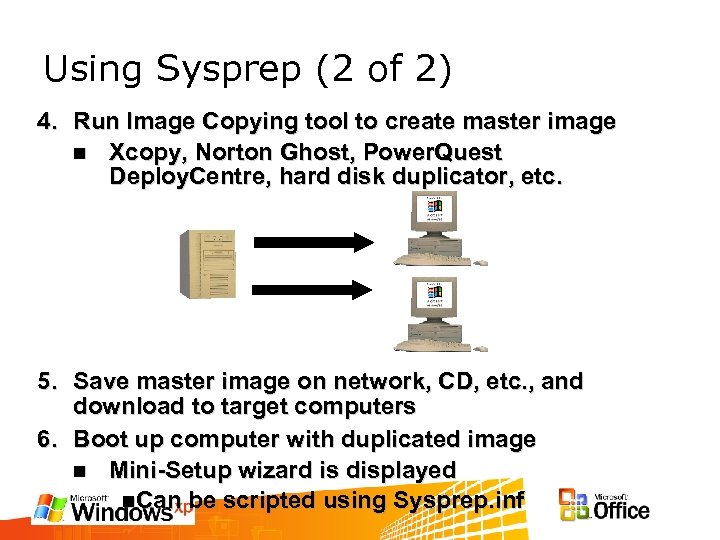 Using Sysprep (2 of 2) 4. Run Image Copying tool to create master image n Xcopy, Norton Ghost, Power. Quest Deploy. Centre, hard disk duplicator, etc. 5. Save master image on network, CD, etc. , and download to target computers 6. Boot up computer with duplicated image n Mini-Setup wizard is displayed n. Can be scripted using Sysprep. inf
 Sysprep - improvements • Sysprep –Factory – Allows for updated / out of box drivers to be picked up by image at install time – Per machine customizations applied – Enables audit capabilities – Takes ~1 minute to desktop for auditing vs. ~4 in Win 2 k • Sysprep –Mini – Mini Setup (not Windows Welcome) • Better cleanup – Pagefile – MRU / LRU
 Sysprep – sysprep. inf • Sysprep. inf – Same format as previous versions – Tweak file by hand – Comprehensive reference in deploy. cab help files • Build. Mass. Storage. Section=1 – Allows multiple disk subsystems in one image. – Sysprep -BMSD • Sysprep –clean – Cleans mass storage section – Runs automatically first time Sysprep is run after a Build. Mass. Storage. Section=1
 Sys. Prep - Factory New mode of Sys. Prep • Allows more Windows configuration • Allows modification of images • – Install new drivers – Install or uninstall applications.
 Win. BOM. ini (Windows Bill Of Materials) • • • Drives sysprep –factory Scriptable audit / OS customization environment Allows gathering of files (e. g. drivers, apps) from network Handles application install Applies Per-Machine information: – Identity information – Machine name – ISP information
 Remote Installation Service
 Remote Installation Service • • Remote Installation provides an easy way to install the base OS onto a PC Remote Installation provides a way to create an Image of a PC and store the image on a server Remote Installation can be used for machine replacement with other Intelli. Mirror features Remote Installation does not mirror the hard disk to the server (not a back-up tool)
 Remote Installation Services • Requirements – Ability for a user to wipe a Computer clean and install selected OS or Image – Ability for non-technical staff to install OS without staging – Admins can control which Images the user has access to • Benefits – Reduced cost of deploying new hardware – Basic disaster recovery ability – Reduce the size of Images on the server • NB Requires Active Directory & PXE
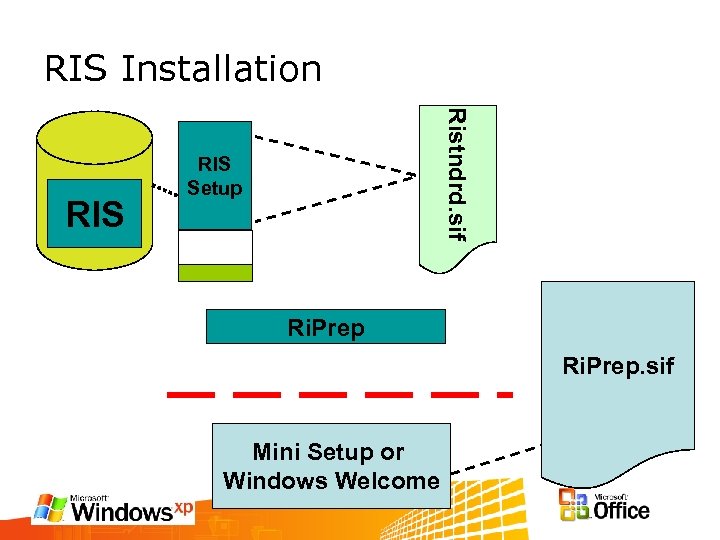 RIS Installation Ristndrd. sif RIS Setup Ri. Prep. sif Mini Setup or Windows Welcome
 RIS Server Set-up Install RIS 2. Run RISetup * 1. Configures server Installs W 2 K/WXP Professional image Installs Admin Property pages Ensure DHCP server is accessible to clients 4. Authorise RIS servers in DHCP admin 3. * If RIS was installed at system install this is also accessible via “Configure your server”
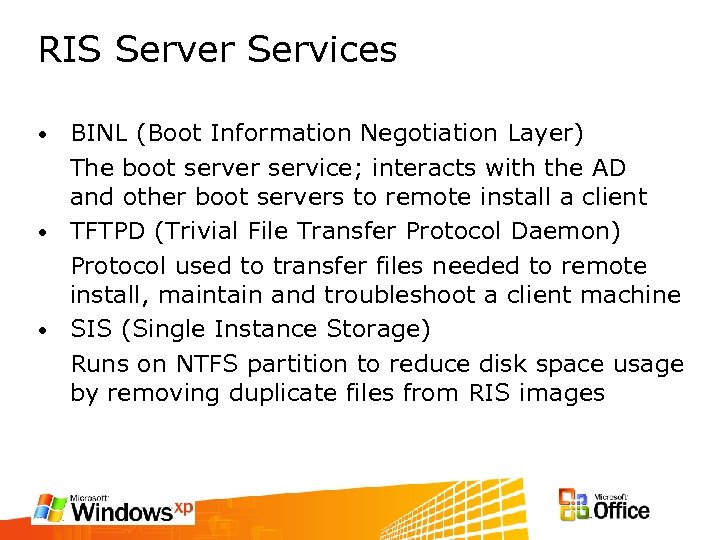 RIS Server Services BINL (Boot Information Negotiation Layer) The boot server service; interacts with the AD and other boot servers to remote install a client • TFTPD (Trivial File Transfer Protocol Daemon) Protocol used to transfer files needed to remote install, maintain and troubleshoot a client machine • SIS (Single Instance Storage) Runs on NTFS partition to reduce disk space usage by removing duplicate files from RIS images •
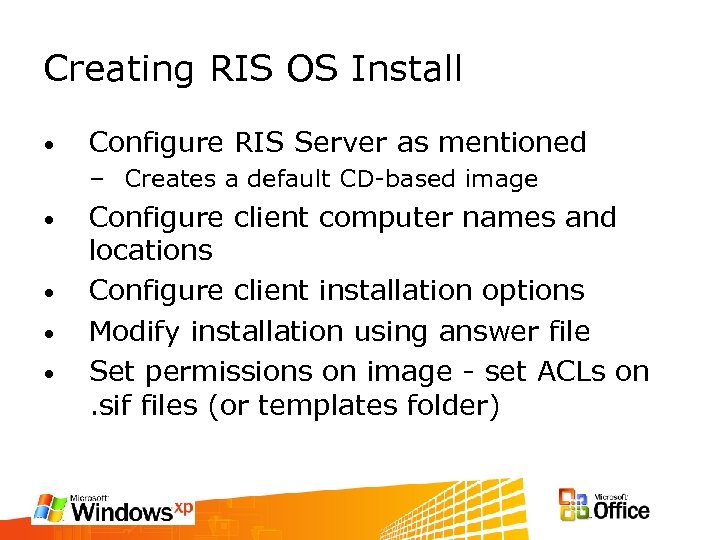 Creating RIS OS Install • Configure RIS Server as mentioned – Creates a default CD-based image • • Configure client computer names and locations Configure client installation options Modify installation using answer file Set permissions on image - set ACLs on. sif files (or templates folder)
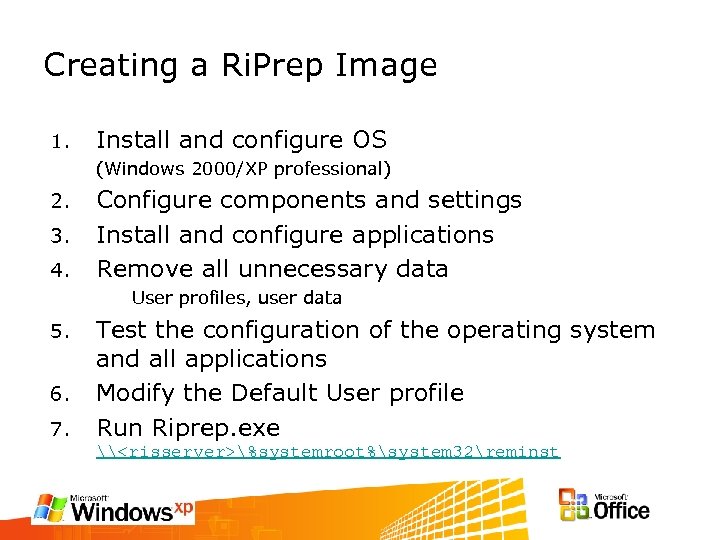 Creating a Ri. Prep Image 1. Install and configure OS (Windows 2000/XP professional) 2. 3. 4. Configure components and settings Install and configure applications Remove all unnecessary data User profiles, user data 5. 6. 7. Test the configuration of the operating system and all applications Modify the Default User profile Run Riprep. exe \
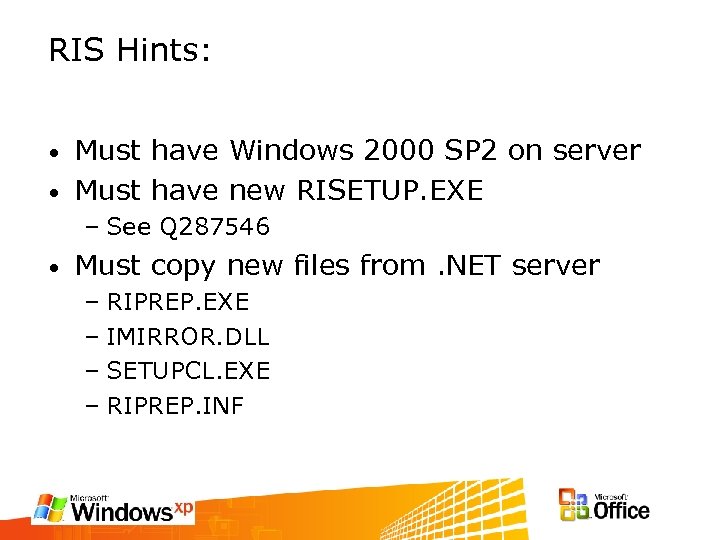 RIS Hints: Must have Windows 2000 SP 2 on server • Must have new RISETUP. EXE • – See Q 287546 • Must copy new files from. NET server – RIPREP. EXE – IMIRROR. DLL – SETUPCL. EXE – RIPREP. INF
 Setup Tools Deploy. cab • Setup Manager • – Unattend. txt • Sysprep – Factory – Sysprep. inf • Winbom. ini
 Windows XP SP 2 What is it? • What’s new and different • Why does it matter? •
 XP SP 2 is. . . A LOT More than just a service pack • A new security baseline for our client OS • The start of Springboard. . . • NOT XP reloaded •
 What is Springboard Get secure and stay secure with less cost, less stress and less effort • Impacts many products: • • XP SP 2 (where it starts!) Windows update V 5, update. exe Windows Installer 3 (. msp/. msi) Windows Update Services Windows Server SP 1 Big changes in functionality & baseline security level for Microsoft products
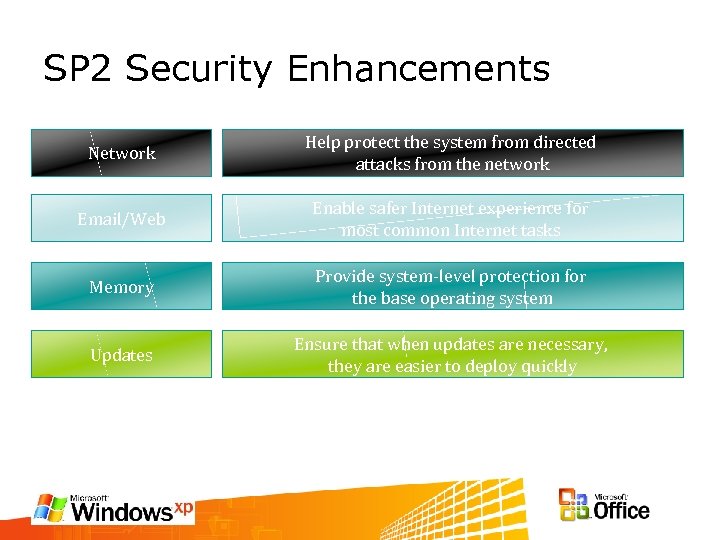 SP 2 Security Enhancements Network Help protect the system from directed attacks from the network Email/Web Enable safer Internet experience for most common Internet tasks Memory Provide system-level protection for the base operating system Updates Ensure that when updates are necessary, they are easier to deploy quickly
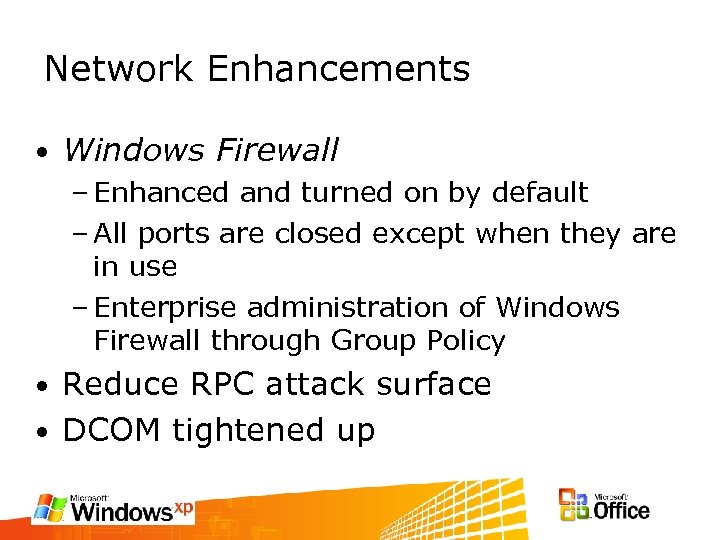 Network Enhancements • Windows Firewall – Enhanced and turned on by default – All ports are closed except when they are in use – Enterprise administration of Windows Firewall through Group Policy Reduce RPC attack surface • DCOM tightened up •
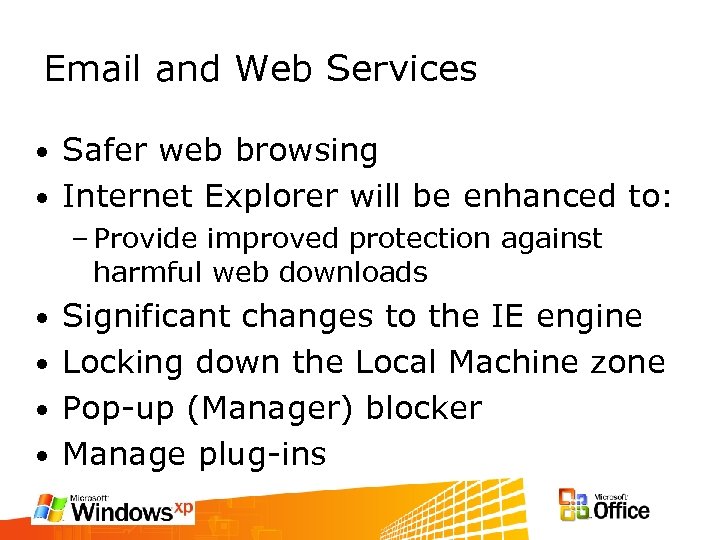 Email and Web Services Safer web browsing • Internet Explorer will be enhanced to: • – Provide improved protection against harmful web downloads Significant changes to the IE engine • Locking down the Local Machine zone • Pop-up (Manager) blocker • Manage plug-ins •
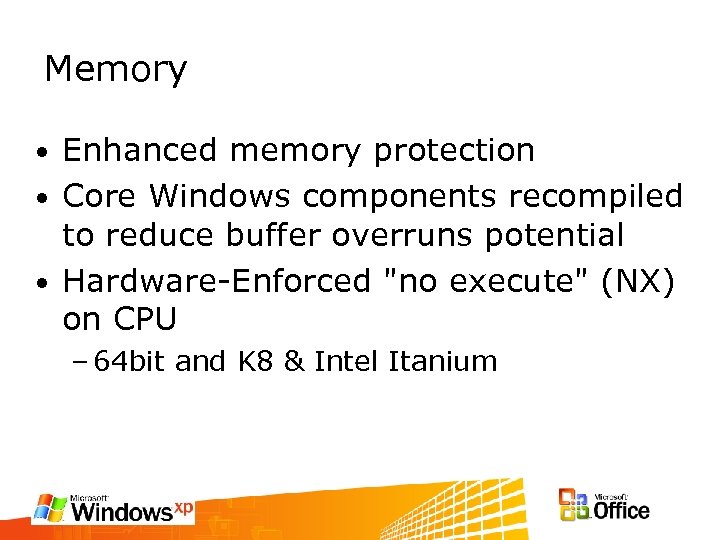 Memory Enhanced memory protection • Core Windows components recompiled to reduce buffer overruns potential • Hardware-Enforced "no execute" (NX) on CPU • – 64 bit and K 8 & Intel Itanium
 Other XP SP 2 Features • Automatic Update – Easier to download – Doenload and install critical updates automaticaly • WUS Client – Improved over SUS client – Downloads restartable
 Still More XP SP 2 Features • Media Player 9 – Security scrubbed – More robust security settings • No execute of scripts by default Direct. X 9. 0 b • Bluetooth Update • Improved wireless client •
 How do I get SP 2? XP SP 2 “Technical preview program” http: //www. microsoft. com/SP 2 Preview • SP 2 newsgroups – msnews. microsoft. com MSDN subscriber downloads • Technet • Etc •
 Well show me then…
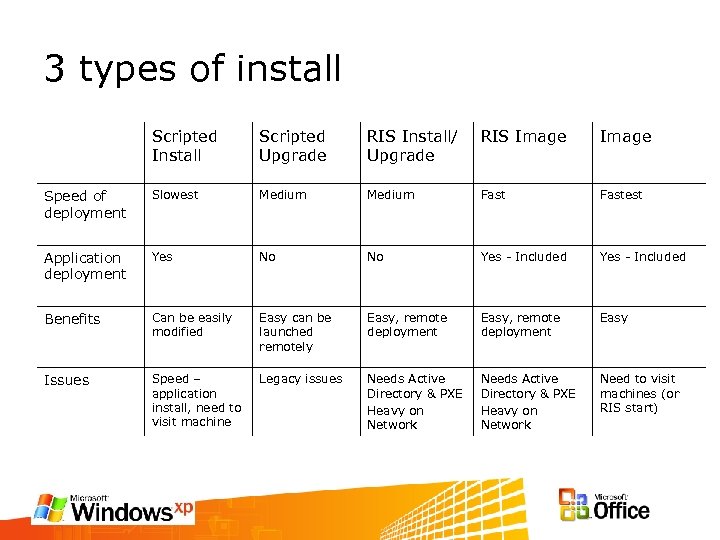 3 types of install Scripted Install Scripted Upgrade RIS Install/ Upgrade RIS Image Speed of deployment Slowest Medium Fastest Application deployment Yes No No Yes - Included Benefits Can be easily modified Easy can be launched remotely Easy, remote deployment Easy Issues Speed – application install, need to visit machine Legacy issues Needs Active Directory & PXE Heavy on Network Need to visit machines (or RIS start)
 Questions