


 Скачать презентацию 2 D Guidance for Excavators on the 3
88756ee57a4edaf7833091b7111550f3.ppt
- Количество слайдов: 69
 2 D Guidance for Excavators on the 3 D Display
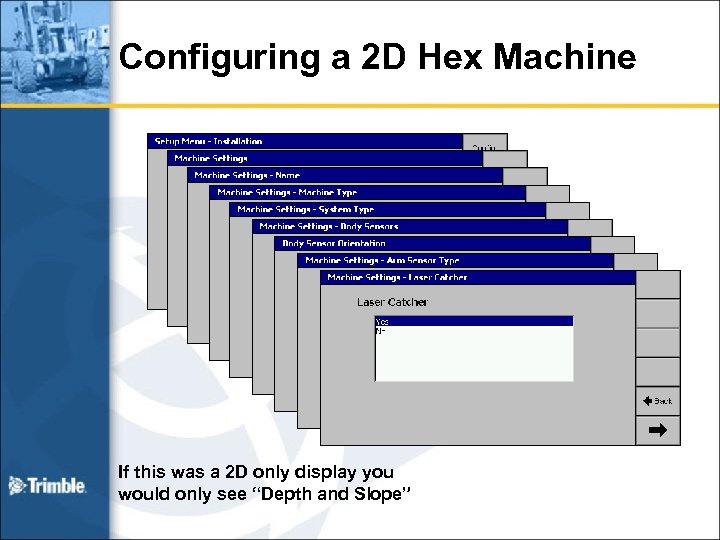 Configuring a 2 D Hex Machine If this was a 2 D only display you would only see “Depth and Slope”
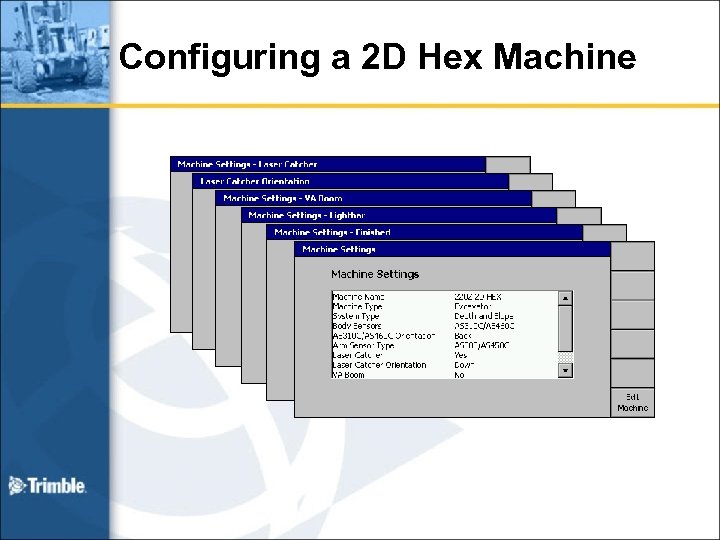 Configuring a 2 D Hex Machine
 Accu. Grade/GCS 900 2 D Excavator Operating Modes • Accu. Grade/GCS 900 2 D Excavator has the same core functions as the Accu. Grade/GCS 600 Hex • 5 Operating Modes – – – Depth Mode Depth & Slope Mode Measure Mode Profile Mode Level Mode
 Accu. Grade/GCS 900 2 D Excavator Operating Modes • Differences – Vertical Setup contains the main Accu. Grade/GCS 600 Hex Guidance modes – Level Mode is now a view – Measure mode has its own dialog and can be accessed in any mode
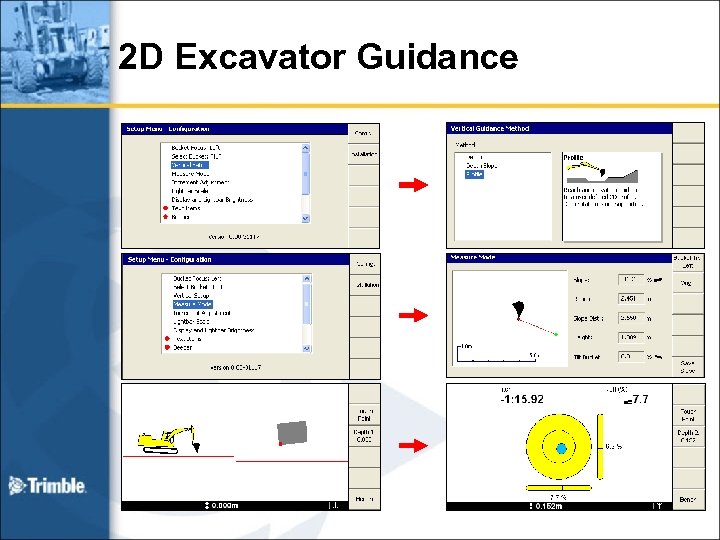 2 D Excavator Guidance
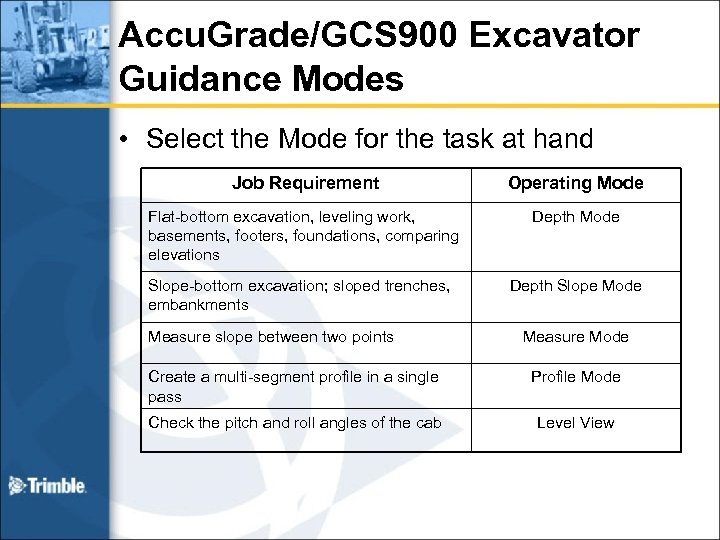 Accu. Grade/GCS 900 Excavator Guidance Modes • Select the Mode for the task at hand Job Requirement Operating Mode Flat-bottom excavation, leveling work, basements, footers, foundations, comparing elevations Depth Mode Slope-bottom excavation; sloped trenches, embankments Depth Slope Mode Measure slope between two points Measure Mode Create a multi-segment profile in a single pass Profile Mode Check the pitch and roll angles of the cab Level View
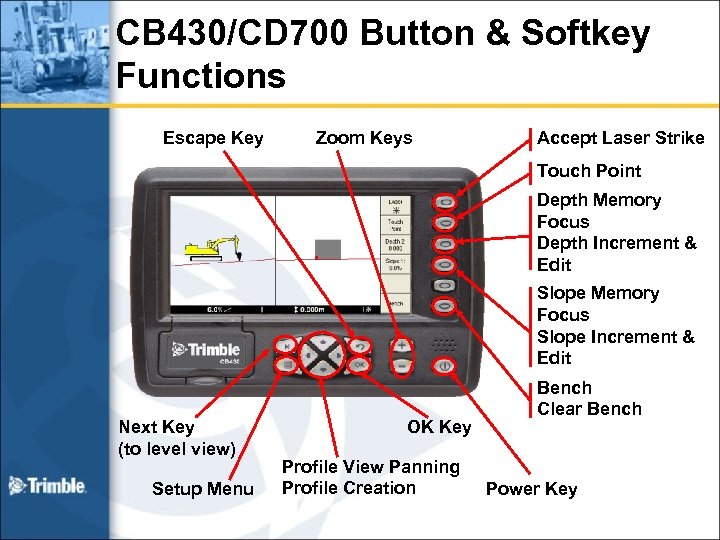 CB 430/CD 700 Button & Softkey Functions Escape Key Zoom Keys Accept Laser Strike Touch Point Depth Memory Focus Depth Increment & Edit Slope Memory Focus Slope Increment & Edit Next Key (to level view) Setup Menu OK Key Profile View Panning Profile Creation Bench Clear Bench Power Key
 Vertical Set-up : Depth Flat-bottom excavation, leveling work, basements, footers, foundations, comparing elevations
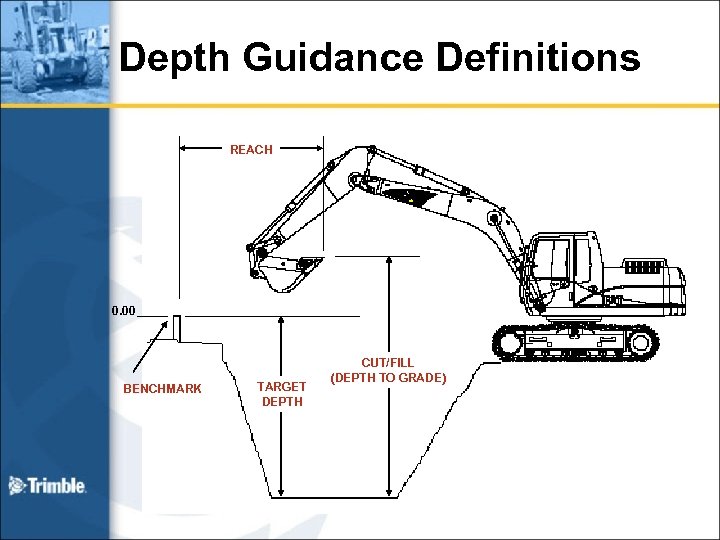 Depth Guidance Definitions REACH 0. 00 BENCHMARK TARGET DEPTH CUT/FILL (DEPTH TO GRADE)
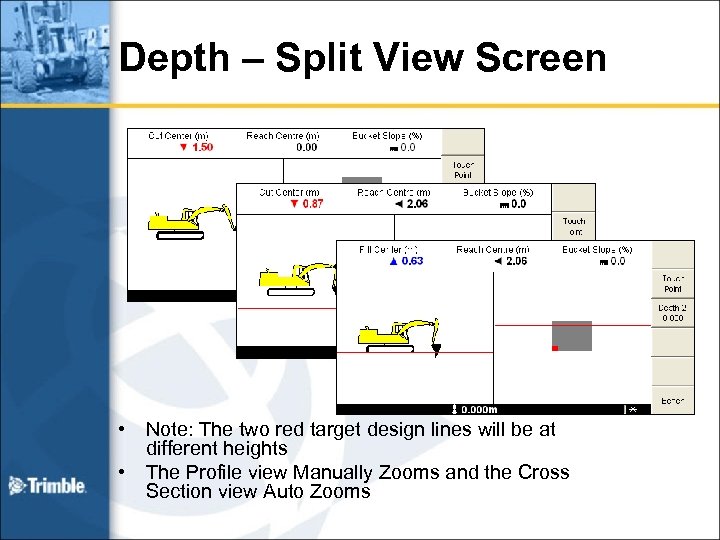 Depth – Split View Screen • • Note: The two red target design lines will be at different heights The Profile view Manually Zooms and the Cross Section view Auto Zooms
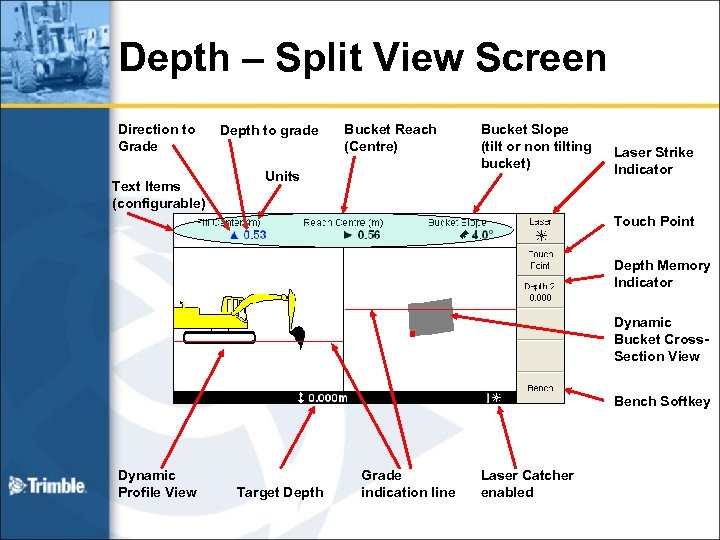 Depth – Split View Screen Direction to Grade Text Items (configurable) Depth to grade Bucket Reach (Centre) Units Bucket Slope (tilt or non tilting bucket) Laser Strike Indicator Touch Point Depth Memory Indicator Dynamic Bucket Cross. Section View Bench Softkey Dynamic Profile View Target Depth Grade indication line Laser Catcher enabled
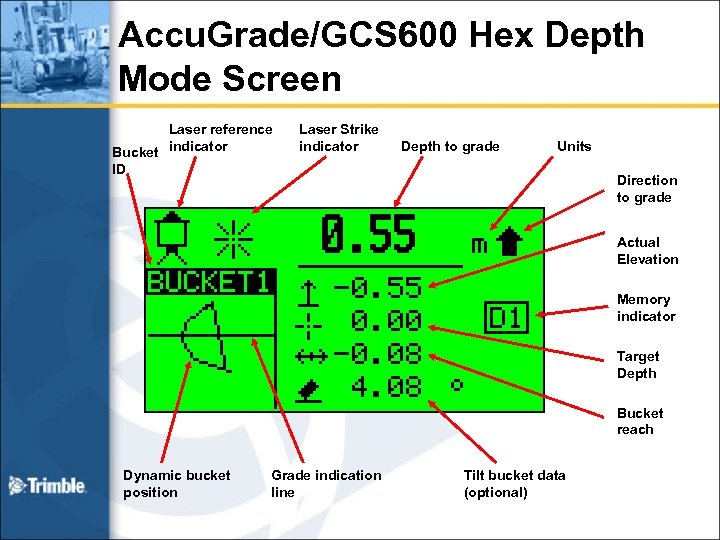 Accu. Grade/GCS 600 Hex Depth Mode Screen Laser reference Bucket indicator ID Laser Strike indicator Depth to grade Units Direction to grade Actual Elevation Memory indicator Target Depth Bucket reach Dynamic bucket position Grade indication line Tilt bucket data (optional)
 Accu. Grade/GCS 900 2 D Excavator Terminology • Benchmark: this is the defined “zero” point for depth and reach values • Target Depth: the vertical distance to the trench bottom from Bench (zero) – This value is adjusted by the operator at any time using the depth menu softkey – Values are stored in Memories D 1, D 2, and D 3, etc.
 Accu. Grade/GCS 900 2 D Excavator Terminology • Reach: radial distance (in/out) of the bucket tip with respect to Bench (zero) – This value is calculated and changes dynamically – Accu. Grade/GCS 900 displays an arrow next to the reach text item indicating which way the bucket has moved from the bench point – No sign is displayed • Cut/Fill: vertical distance from the bucket tip to the Target Depth – This value is calculated and changes dynamically – Arrow indicates direction to grade – No sign is displayed
 Vertical Set-up : Depth - Features • Benchmark – • Set the zero point Multiple Buckets – Accu. Grade/GCS 900 has no limit of the number of defined buckets • – • Edit bucket names Depth Memories – Accu. Grade/GCS 900 has no limit to the number of depth memories • • Accu. Grade/GCS 600 Hex has 2 to 7 depth memories Touch-Point – • Accu. Grade/GCS 600 Hex has up to 9 buckets Use to maintain benchmark when machine is moved Laser Reference – – requires additional equipment Use to maintain benchmark when machine is moved
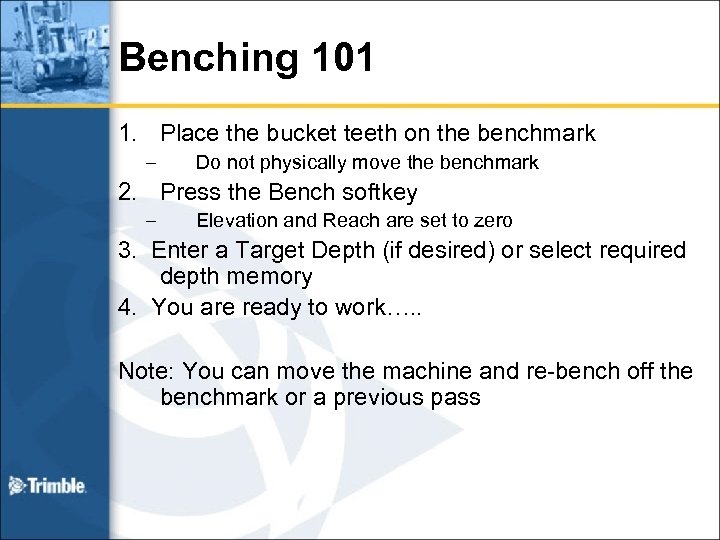 Benching 101 1. Place the bucket teeth on the benchmark – Do not physically move the benchmark 2. Press the Bench softkey – Elevation and Reach are set to zero 3. Enter a Target Depth (if desired) or select required depth memory 4. You are ready to work…. . Note: You can move the machine and re-bench off the benchmark or a previous pass
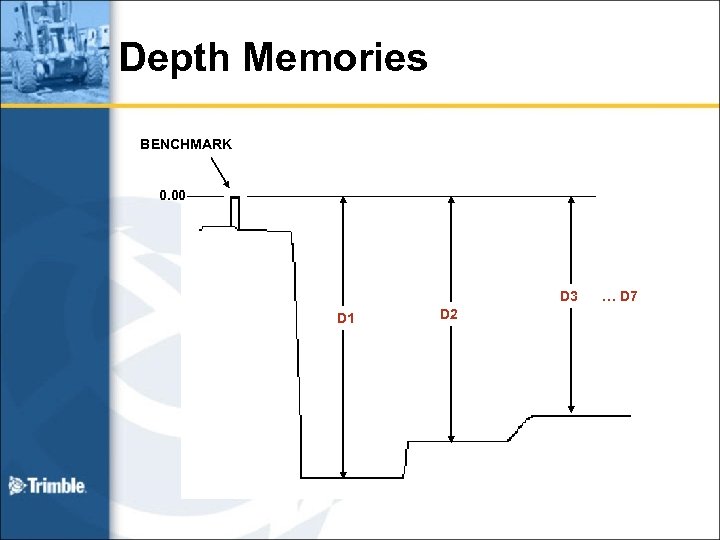 Depth Memories BENCHMARK 0. 00 D 3 D 1 D 2 … D 7
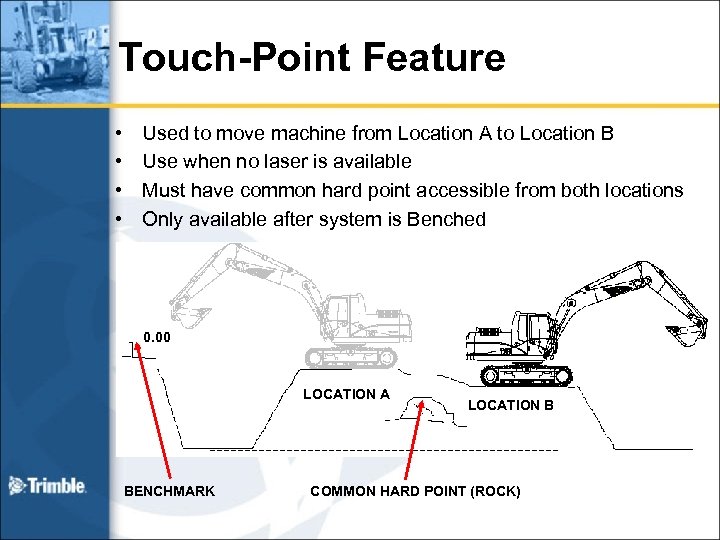 Touch-Point Feature • • Used to move machine from Location A to Location B Use when no laser is available Must have common hard point accessible from both locations Only available after system is Benched 0. 00 LOCATION A BENCHMARK LOCATION B COMMON HARD POINT (ROCK)
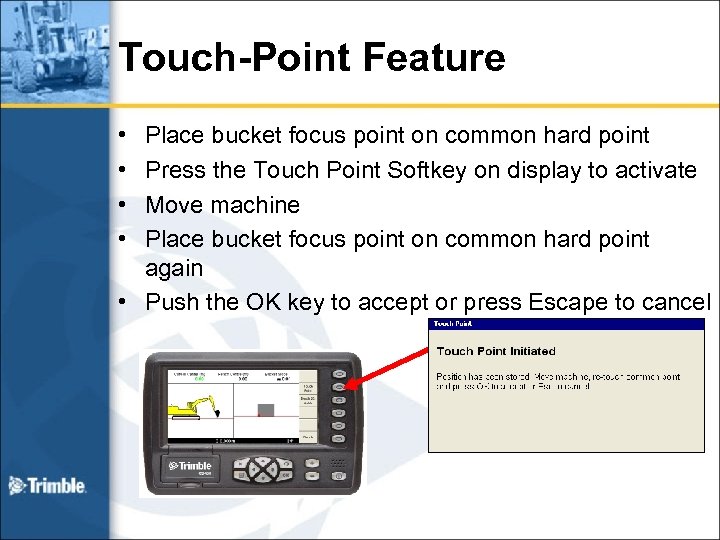 Touch-Point Feature • • Place bucket focus point on common hard point Press the Touch Point Softkey on display to activate Move machine Place bucket focus point on common hard point again • Push the OK key to accept or press Escape to cancel
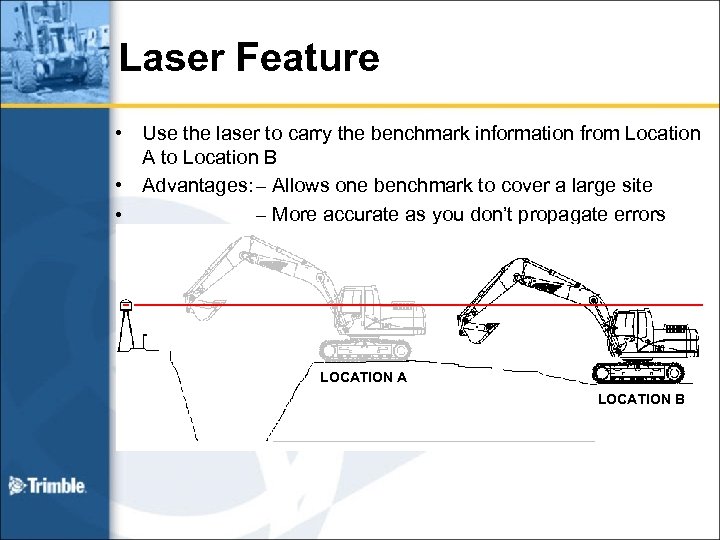 Laser Feature • Use the laser to carry the benchmark information from Location A to Location B • Advantages: – Allows one benchmark to cover a large site • – More accurate as you don’t propagate errors LOCATION A LOCATION B
 Using the Laser 1 -2 -3 1) Bench the system • as before 2) Reference the laser 3) Dig 4) Move the machine 5) Reference the laser 6) Continue Digging
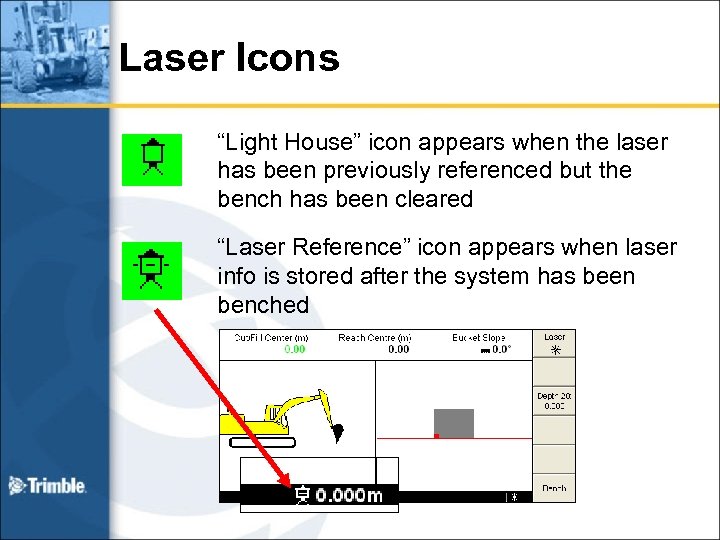 Laser Icons “Light House” icon appears when the laser has been previously referenced but the bench has been cleared “Laser Reference” icon appears when laser info is stored after the system has been benched
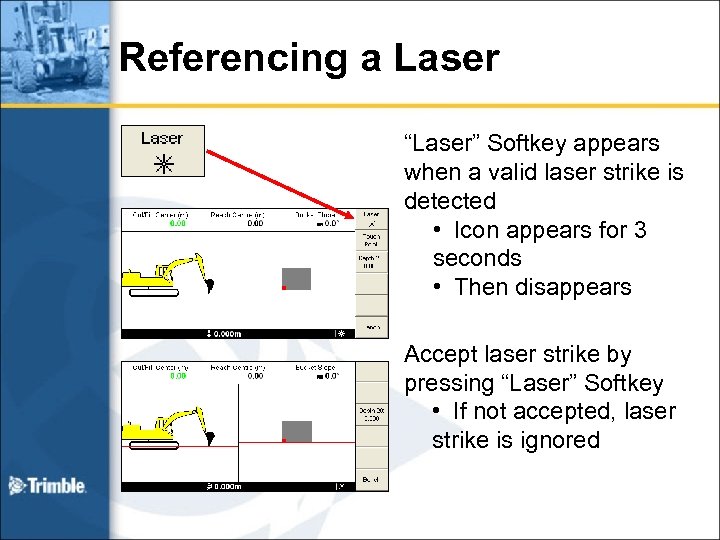 Referencing a Laser “Laser” Softkey appears when a valid laser strike is detected • Icon appears for 3 seconds • Then disappears Accept laser strike by pressing “Laser” Softkey • If not accepted, laser strike is ignored
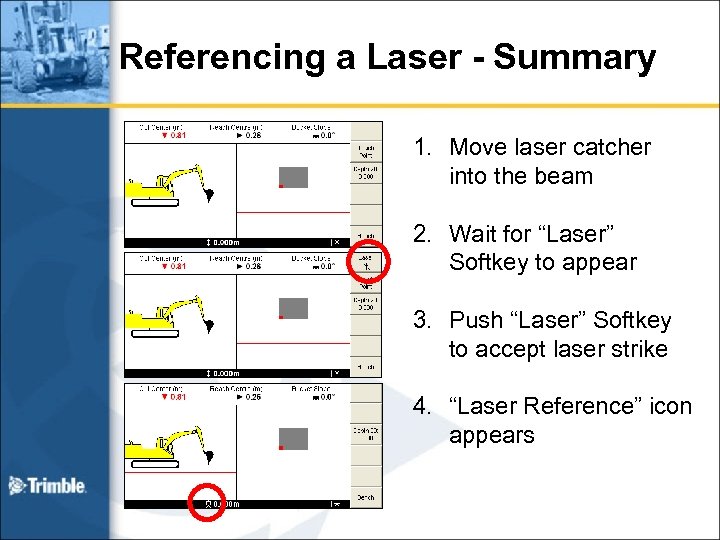 Referencing a Laser - Summary 1. Move laser catcher into the beam 2. Wait for “Laser” Softkey to appear 3. Push “Laser” Softkey to accept laser strike 4. “Laser Reference” icon appears
 Referencing a Laser – Maximizing Accuracy • Accuracy is best when Laser Catcher is vertical – Near vertical is fine • Also better when you move slowly through the beam – Experiment to find out how fast is OK for your job • If millimetre accuracy is not required on the job, then relax these requirements to what suits you best
 Advanced Feature – Depth From Laser • Used when no benchmark is available near machine • Calculates Depth values from the Laser, not from the Benchmark • Laser is defined to be 0. 00 Elevation • Depth Memories calculated from Laser
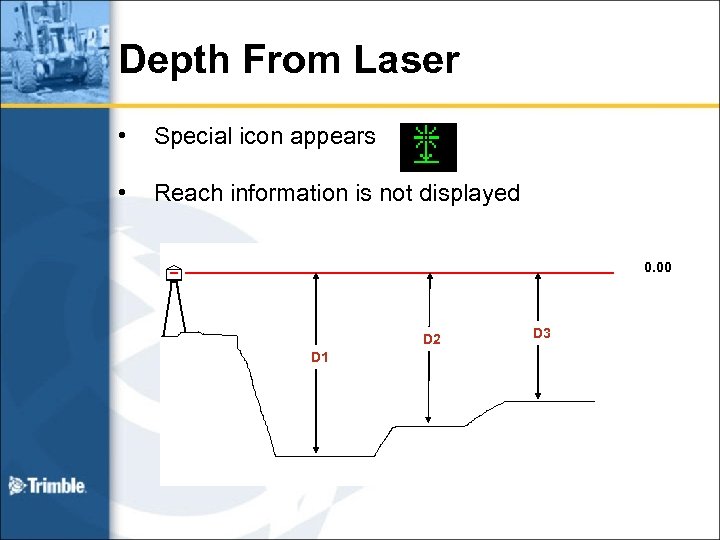 Depth From Laser • Special icon appears • Reach information is not displayed 0. 00 D 2 D 1 D 3
 Method – Depth From Laser 1. Ensure that the system is in an “unbenched” state – Hold Bench Softkey down for two seconds 2. Position the machine so that the laser catcher detects the laser transmitter’s beam 3. Reference the laser – – As before Depth from laser icon is now shown 4. You are ready to use the Depth from Laser functionality
 Operation Considerations: Depth Mode • Grade guidance is to bucket center by default • You can configure the bucket focus position in the configuration menu • Accu. Grade/GCS 600 Hex supported on bucket centre • Cab rotation is supported • Only for Depth Mode • Dual axis pitch/roll sensor will compensate for depth change as cab rotates • Laser transmitter beam must be level for Depth Mode operation
 Vertical Set-up Depth Slope-bottom excavation; sloped trenches, embankments
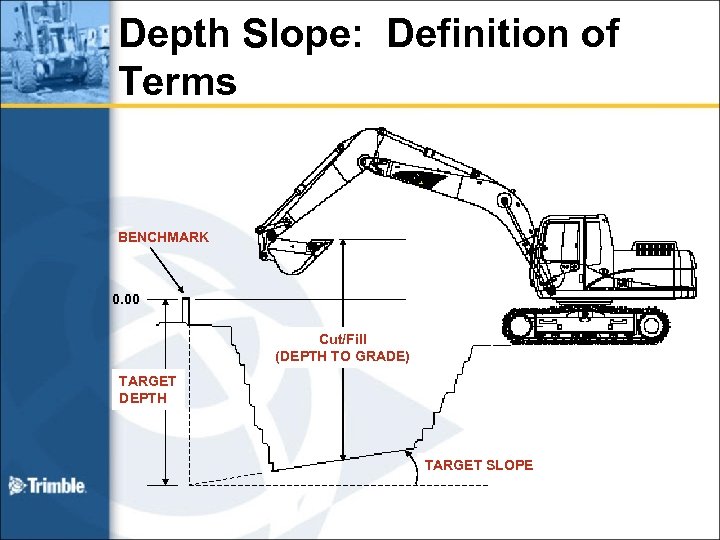 Depth Slope: Definition of Terms BENCHMARK 0. 00 Cut/Fill (DEPTH TO GRADE) TARGET DEPTH TARGET SLOPE
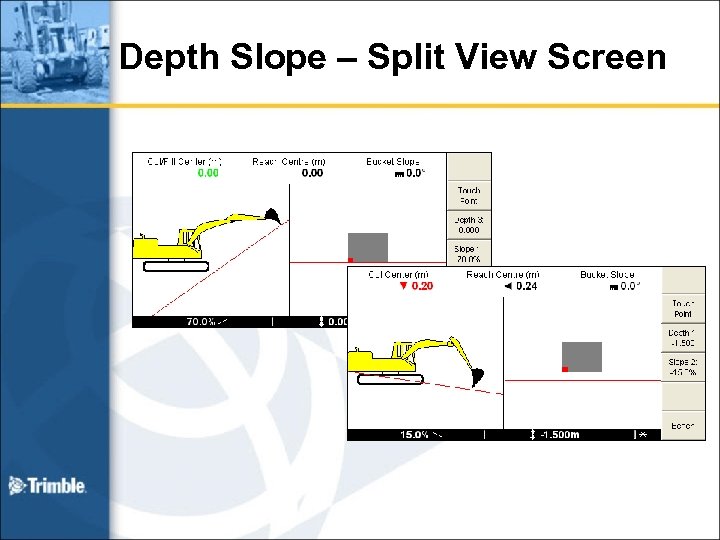 Depth Slope – Split View Screen
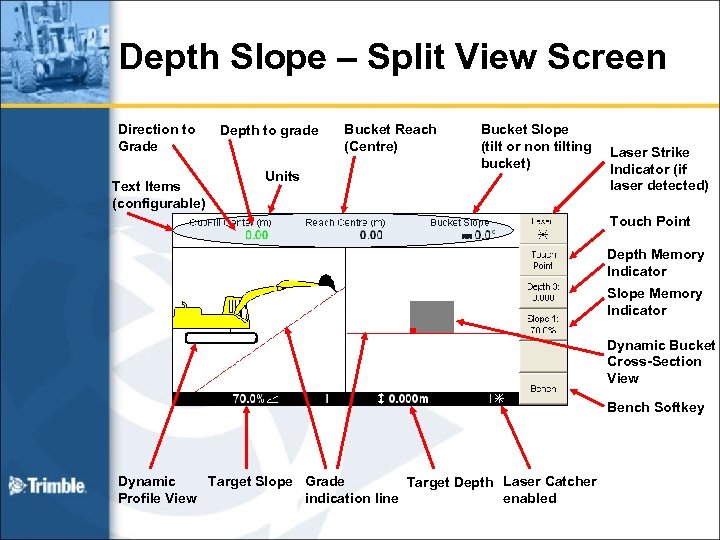 Depth Slope – Split View Screen Direction to Grade Text Items (configurable) Depth to grade Units Bucket Reach (Centre) Bucket Slope (tilt or non tilting bucket) Laser Strike Indicator (if laser detected) Touch Point Depth Memory Indicator Slope Memory Indicator Dynamic Bucket Cross-Section View Bench Softkey Dynamic Target Slope Grade Target Depth Laser Catcher Profile View indication line enabled
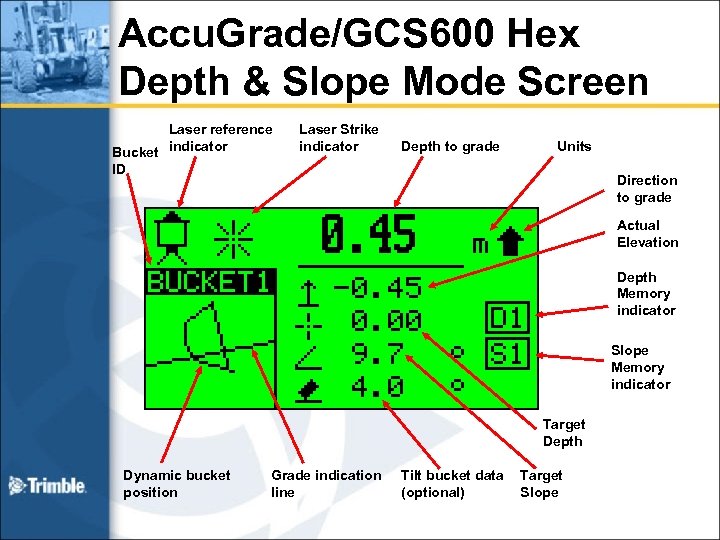 Accu. Grade/GCS 600 Hex Depth & Slope Mode Screen Laser reference Bucket indicator ID Laser Strike indicator Depth to grade Units Direction to grade Actual Elevation Depth Memory indicator Slope Memory indicator Target Depth Dynamic bucket position Grade indication line Tilt bucket data (optional) Target Slope
 Depth Slope Mode Features Same features as Depth Mode except: • Target slope information is displayed • GSC 600 Hex did not display reach • On-grade line shows slope • Slope memories displayed • Use the Depth Softkey and Slope Softkey to select required memory
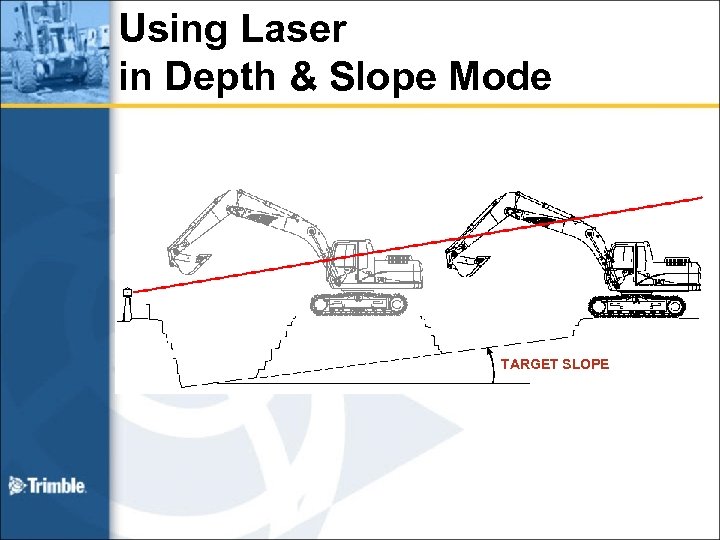 Using Laser in Depth & Slope Mode TARGET SLOPE
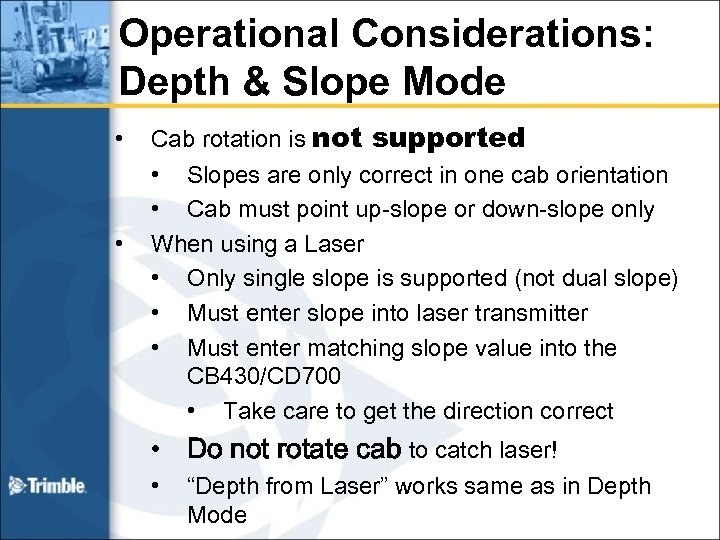 Operational Considerations: Depth & Slope Mode • • Cab rotation is not supported • Slopes are only correct in one cab orientation • Cab must point up-slope or down-slope only When using a Laser • Only single slope is supported (not dual slope) • Must enter slope into laser transmitter • Must enter matching slope value into the CB 430/CD 700 • Take care to get the direction correct • Do not rotate cab to catch laser! • “Depth from Laser” works same as in Depth Mode
 Vertical Set-up Profile Mode Create a multi-segment profile in a single pass
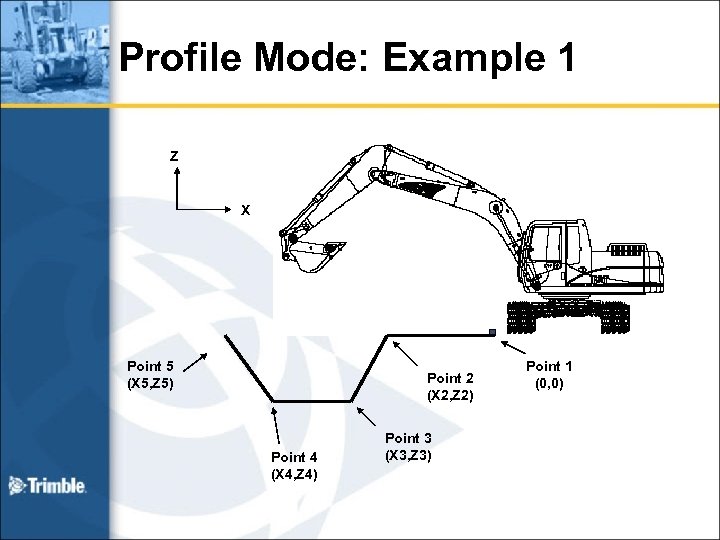 Profile Mode: Example 1 Z X Point 5 (X 5, Z 5) Point 2 (X 2, Z 2) Point 4 (X 4, Z 4) Point 3 (X 3, Z 3) Point 1 (0, 0)
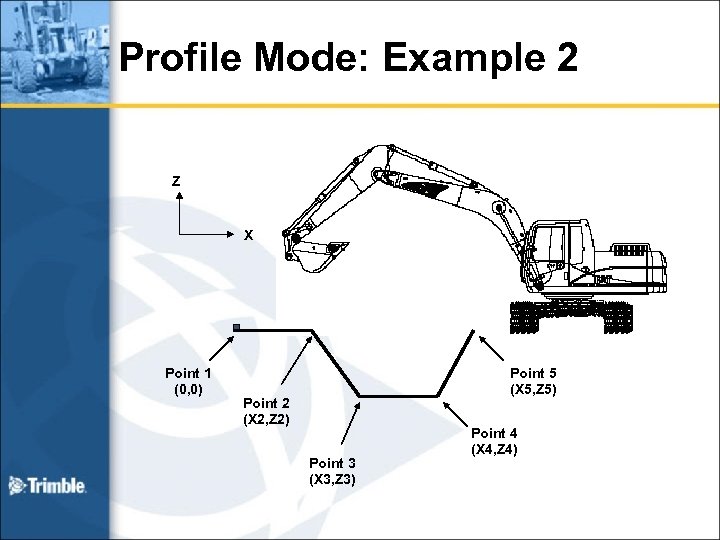 Profile Mode: Example 2 Z X Point 1 (0, 0) Point 5 (X 5, Z 5) Point 2 (X 2, Z 2) Point 3 (X 3, Z 3) Point 4 (X 4, Z 4)
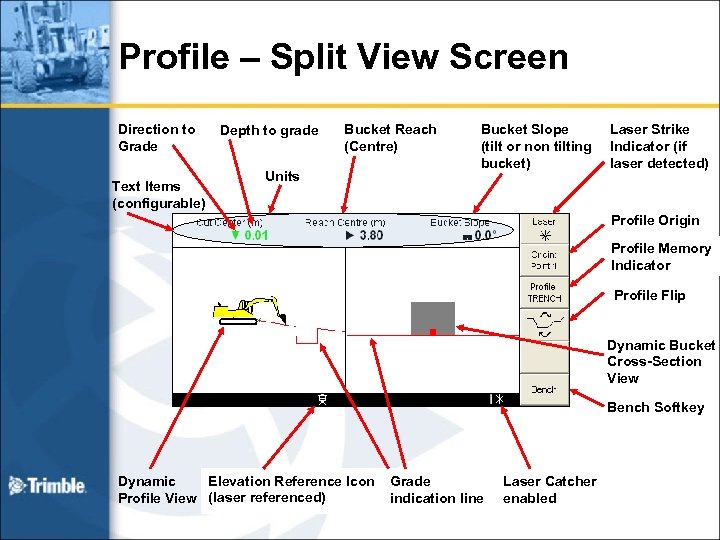 Profile – Split View Screen Direction to Grade Text Items (configurable) Depth to grade Bucket Reach (Centre) Units Bucket Slope (tilt or non tilting bucket) Laser Strike Indicator (if laser detected) Profile Origin Profile Memory Indicator Profile Flip Dynamic Bucket Cross-Section View Bench Softkey Elevation Reference Icon Dynamic Profile View (laser referenced) Grade indication line Laser Catcher enabled
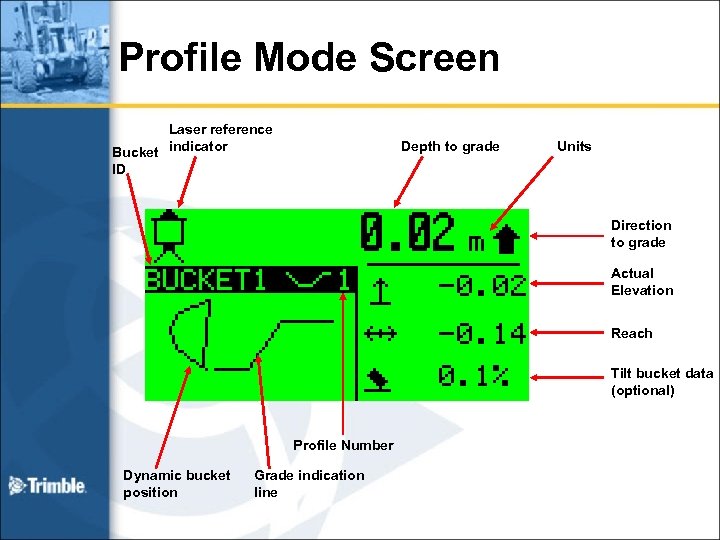 Profile Mode Screen Laser reference Bucket indicator ID Depth to grade Units Direction to grade Actual Elevation Reach Tilt bucket data (optional) Profile Number Dynamic bucket position Grade indication line
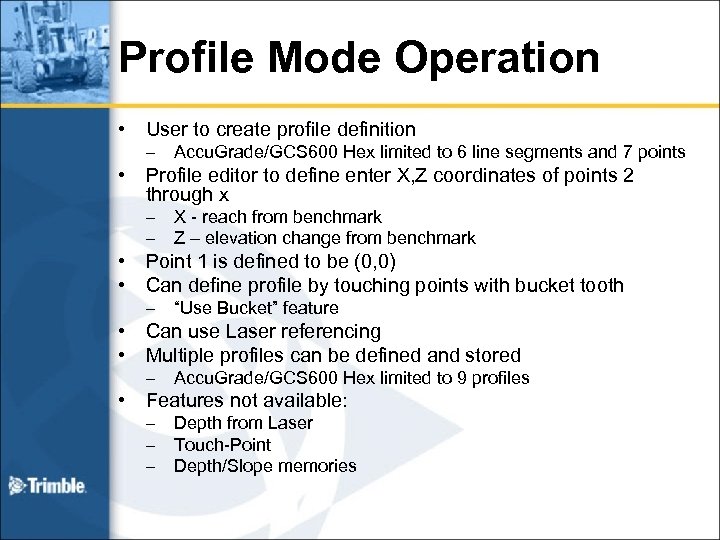 Profile Mode Operation • • User to create profile definition – Profile editor to define enter X, Z coordinates of points 2 through x – – • • • Accu. Grade/GCS 600 Hex limited to 6 line segments and 7 points X - reach from benchmark Z – elevation change from benchmark Point 1 is defined to be (0, 0) Can define profile by touching points with bucket tooth – “Use Bucket” feature Can use Laser referencing Multiple profiles can be defined and stored – Accu. Grade/GCS 600 Hex limited to 9 profiles Features not available: – – – Depth from Laser Touch-Point Depth/Slope memories
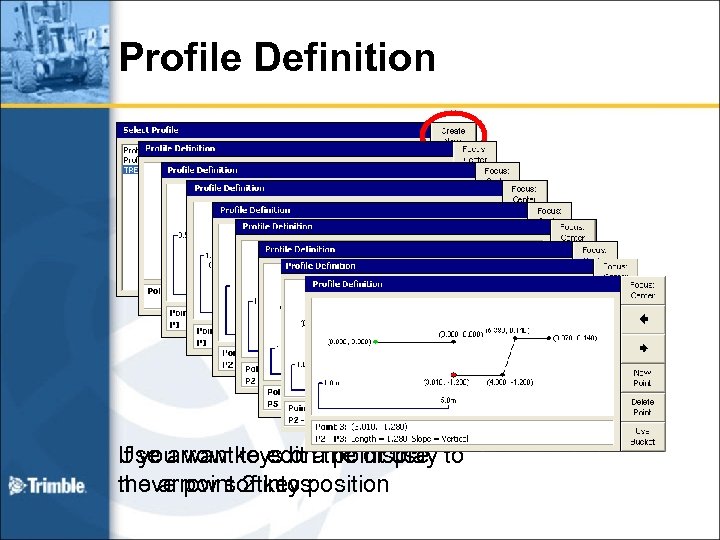 Profile Definition If you want to edit point use Use arrow keys onathe display to the arrow softkeys move point 2 into position
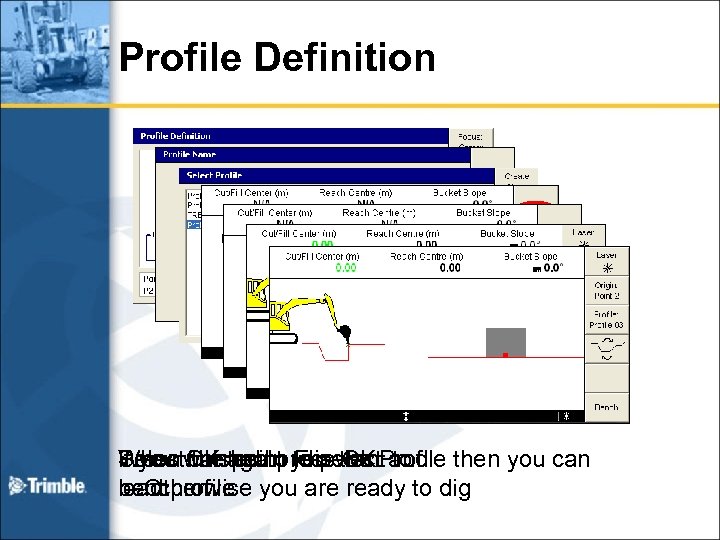 Profile Definition Select finished press the to Press OK again to select. Profile When wanted to you want and then you can If you the point Flip OK bench on load profile you are ready to dig – Otherwise
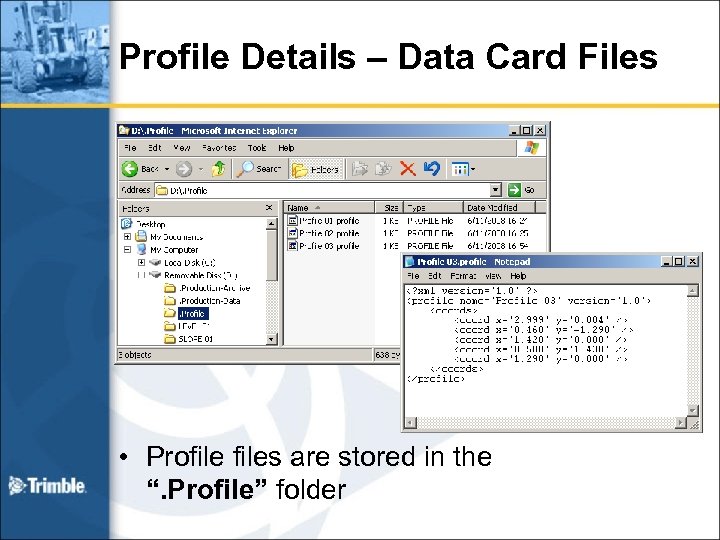 Profile Details – Data Card Files • Profiles are stored in the “. Profile” folder
 Measure Mode Measure slope between two points
 Measure Mode Operation • • • Very simple mode Used to measure slope between two points Only inputs available are “Origin” & “Bucket Tip: xxx” to measure between points Rotation of cab is not supported – Points must be measured without rotating the cab Accu. Grade/GCS 900 adds an extra feature here that Accu. Grade/GCS 600 Hex did not do – Accu. Grade/GCS 900 lets you measure a between two points and save the resulting slope – This slope is added as a new Slope Memory
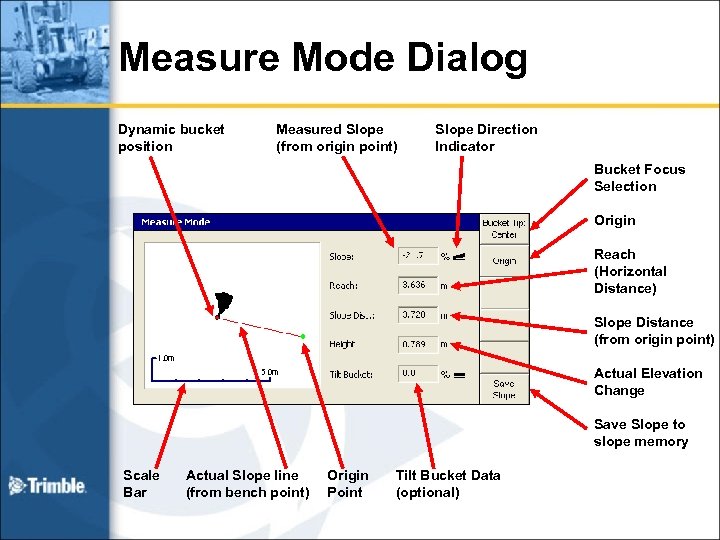 Measure Mode Dialog Dynamic bucket position Measured Slope (from origin point) Slope Direction Indicator Bucket Focus Selection Origin Reach (Horizontal Distance) Slope Distance (from origin point) Actual Elevation Change Save Slope to slope memory Scale Bar Actual Slope line (from bench point) Origin Point Tilt Bucket Data (optional)
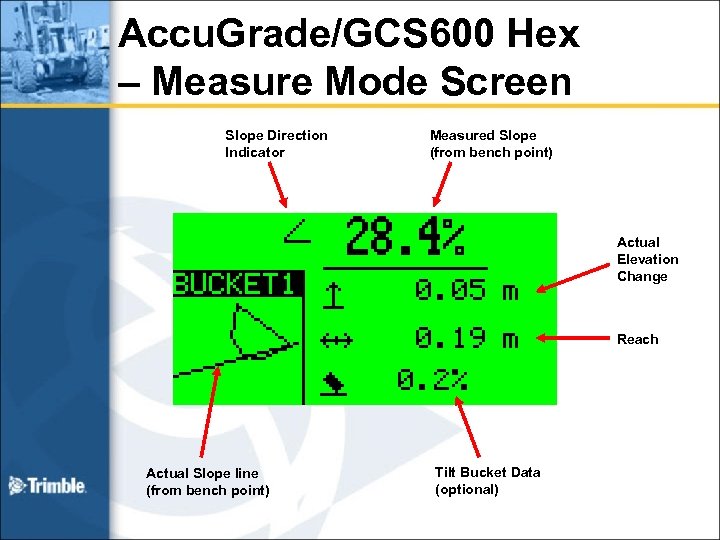 Accu. Grade/GCS 600 Hex – Measure Mode Screen Slope Direction Indicator Measured Slope (from bench point) Actual Elevation Change Reach Actual Slope line (from bench point) Tilt Bucket Data (optional)
 Measuring 1. Put bucket on a starting point 2. Select the required bucket focus • Left, centre, or right 3. Press Origin • To select a different origin, re-press Origin 4. Move the boom / stick and bucket • The slope, elevation change and reach information with respect to the starting point is displayed along with the bucket
 Saving a Slope • Repeat the steps for measuring a slope • Once you move the bucket and have pressed “Origin”, the “Save Slope” Softkey will be displayed • When you have measured the desired slope then press “Save Slope” • The measured slope will be added as a new slope memory – If you are currently in Depth Slope mode the saved slope will become the active slope – If you are running in Profile or Depth modes the saved slope will be active when you next run Depth Slope mode
 Level View Check the pitch and roll angles of the cab
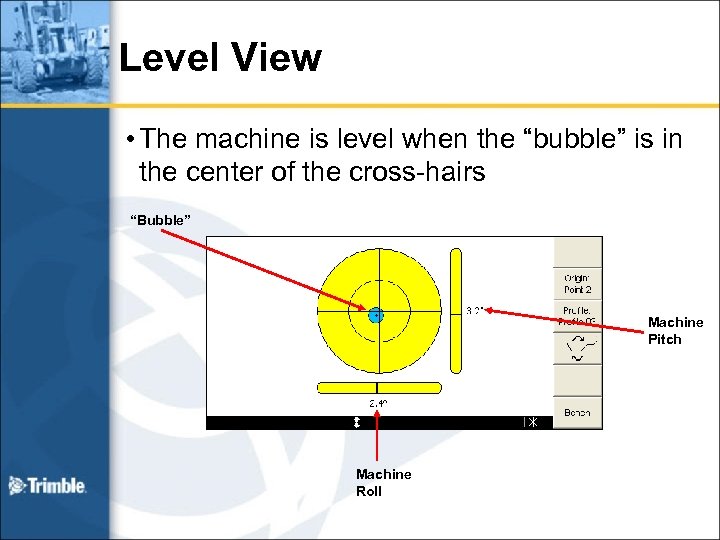 Level View • The machine is level when the “bubble” is in the center of the cross-hairs “Bubble” Machine Pitch Machine Roll
 Miscellaneous
 Miscellaneous Sections • • • Laser Catcher Dialog Text Items Reach to Surface Text Items Bucket Focus New Arm/Body Measurements for Accu. Grade/GCS 900 • Increment Adjustment
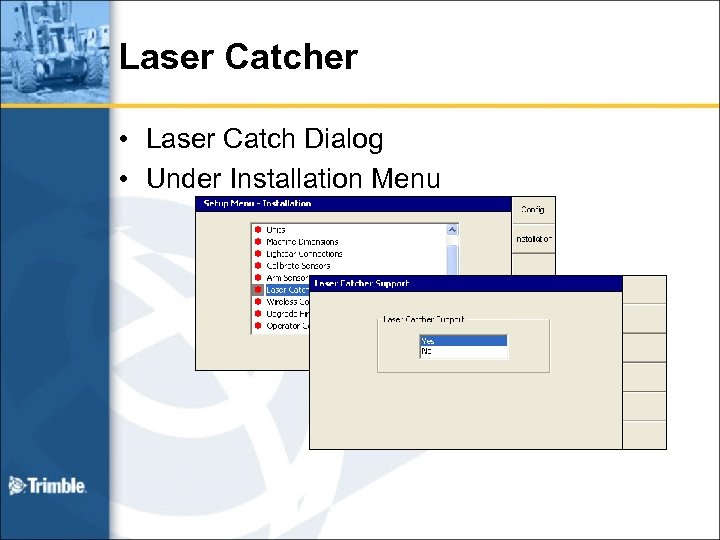 Laser Catcher • Laser Catch Dialog • Under Installation Menu
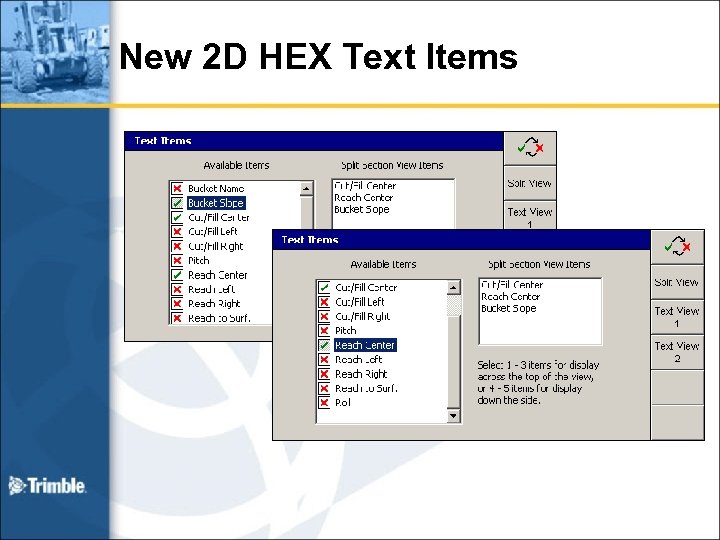 New 2 D HEX Text Items
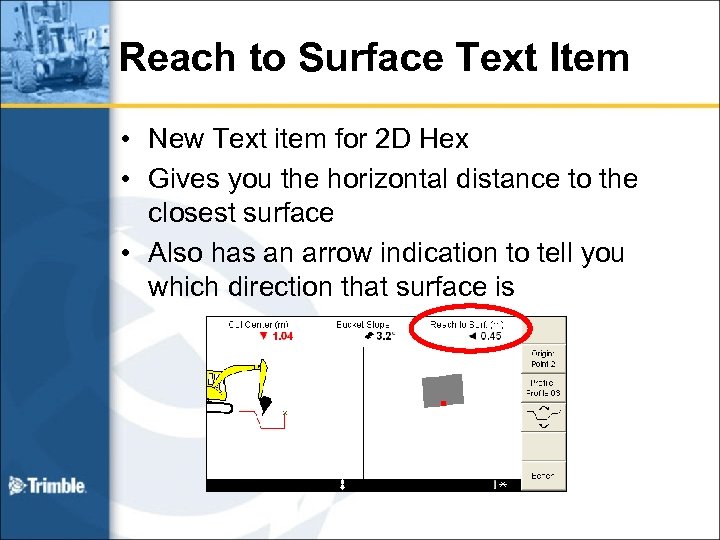 Reach to Surface Text Item • New Text item for 2 D Hex • Gives you the horizontal distance to the closest surface • Also has an arrow indication to tell you which direction that surface is
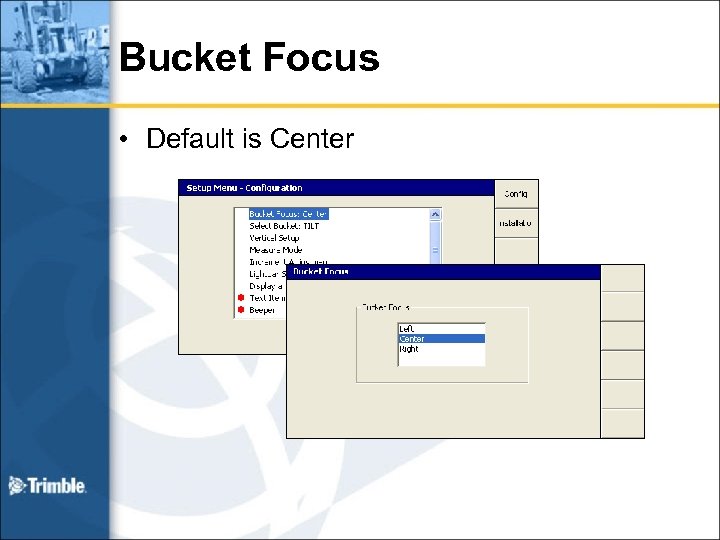 Bucket Focus • Default is Center
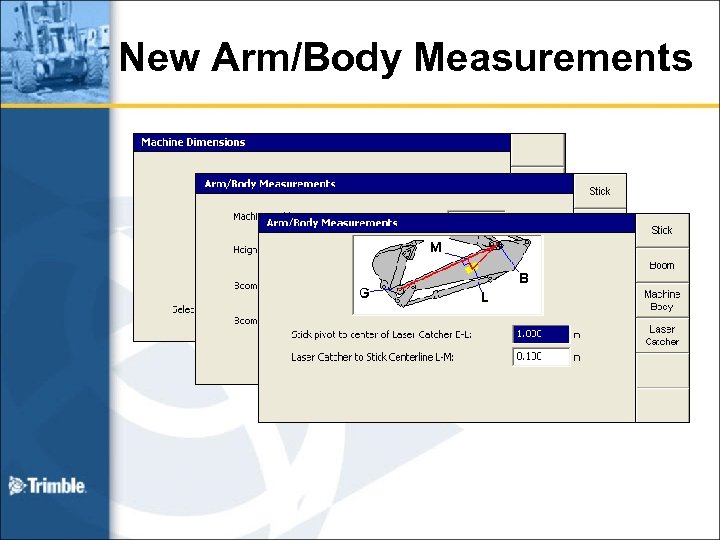 New Arm/Body Measurements
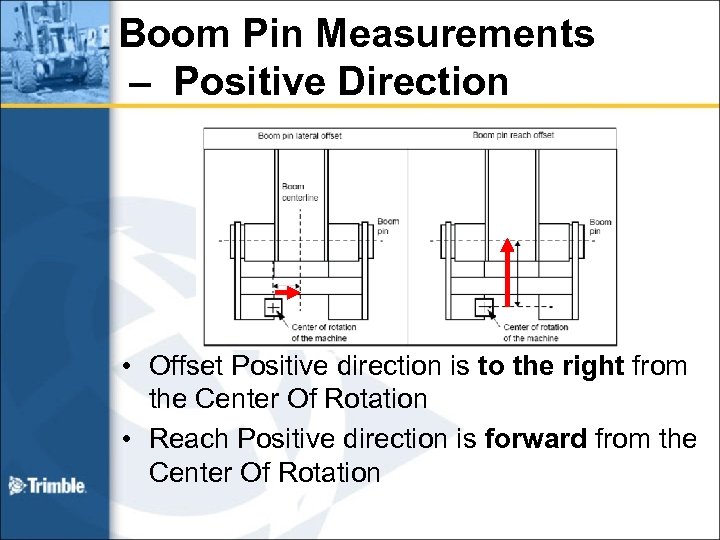 Boom Pin Measurements – Positive Direction • Offset Positive direction is to the right from the Center Of Rotation • Reach Positive direction is forward from the Center Of Rotation
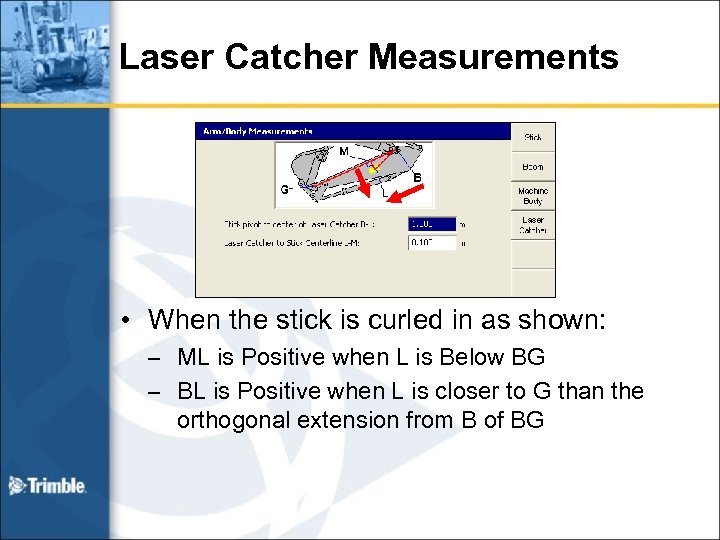 Laser Catcher Measurements • When the stick is curled in as shown: – ML is Positive when L is Below BG – BL is Positive when L is closer to G than the orthogonal extension from B of BG
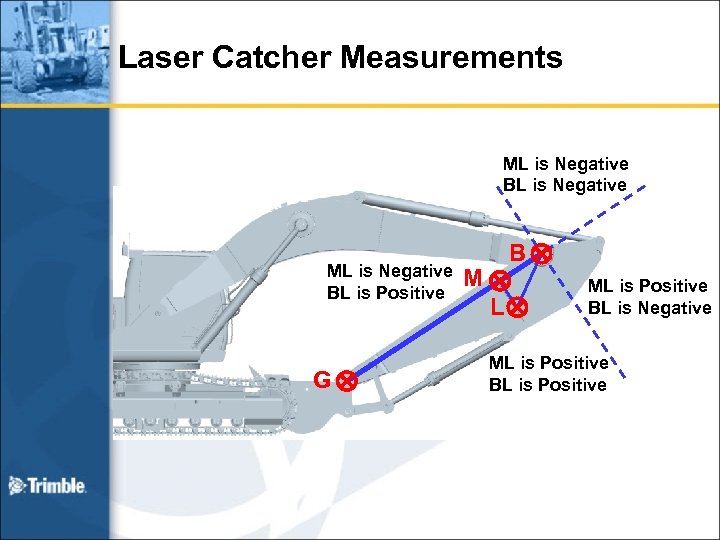 Laser Catcher Measurements ML is Negative BL is Negative ML is Negative BL is Positive G B M L ML is Positive BL is Negative ML is Positive BL is Positive
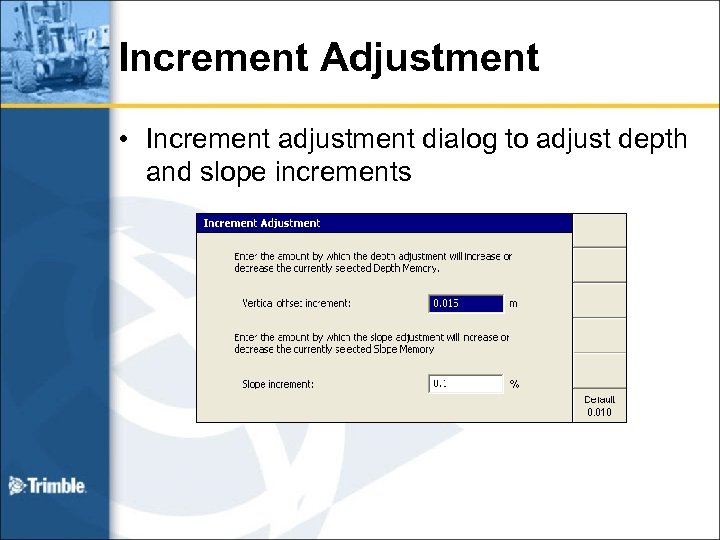 Increment Adjustment • Increment adjustment dialog to adjust depth and slope increments
 Increments Cont. • To edit your depth or slope memory press and hold the memory Softkey you want to edit • Example, want to edit the slope – Press and hold the Slope Memory Softkey • You are taken to the Slope Memory dialog • Use the increment Softkeys to edit the slope
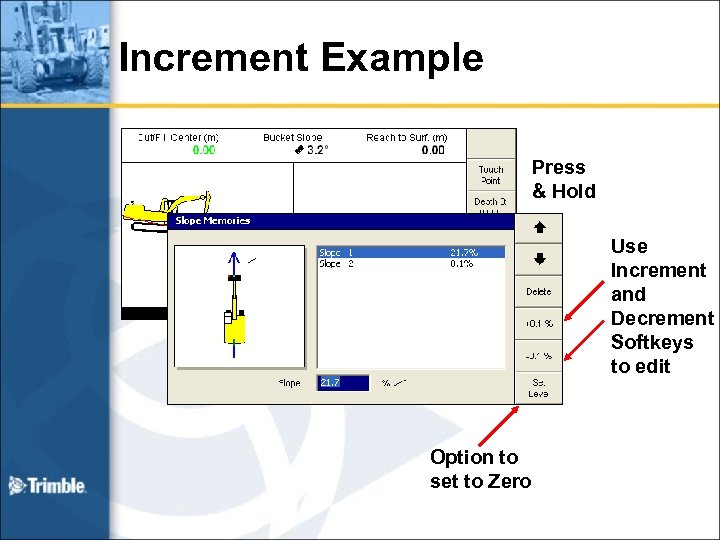 Increment Example Press & Hold Use Increment and Decrement Softkeys to edit Option to set to Zero
 Questions ?