


 Скачать презентацию 1 Software Shelf International Inc Print Manager
8b77854f5bc8dfaf71103b0221ae7a7d.ppt
- Количество слайдов: 81
 1 Software Shelf International, Inc. ® Print Manager Plus 2010 ®
 2 Print Manager Plus 2010 Introduction
 3 Print Server Based Tracking Server Based Support Includes: v. Server 2000, 2003 & Server 2008 v. X 86 and X 64 Implementations Fully Supported v. Supports any Printing Processed by the Windows Spooler v. Virtual Setups such as VMware ESX & MS Virtual Server v. Fail Over Implementations such as Microsoft Cluster Services and AMT Software’s Doubletake
 4 Printing Handled by Print Manager Plus Job Sources Supported • Windows Clients NT, 2000, XP, Vista, Window 7 • Other Windows Servers • Linux/Unix Servers and Clients • Mac OS 9 and Later • AS/400 and more • Any other client printing through the Windows Spooler Job Destinations Supported • Network Printers via TCP & LPR • Network Shares using Local Ports • Large Format Printers • Locally Attached Devices (LPT, USB) • Print to File Tracking • Any other port provided it spools through the Windows
 5 What Print Manager Plus Does v Tracks Printing from any client or source, that is spooled by Windows v Provides Summary and Detailed reporting on printing v Save on printing costs via Restrictions and Quotas v Integrates tracking with Microsoft Active Directory v Prompts for Job Authentication v Apply restrictions per Printer, User, Group or Organizational Unit v Keeps users informed about their printing usage
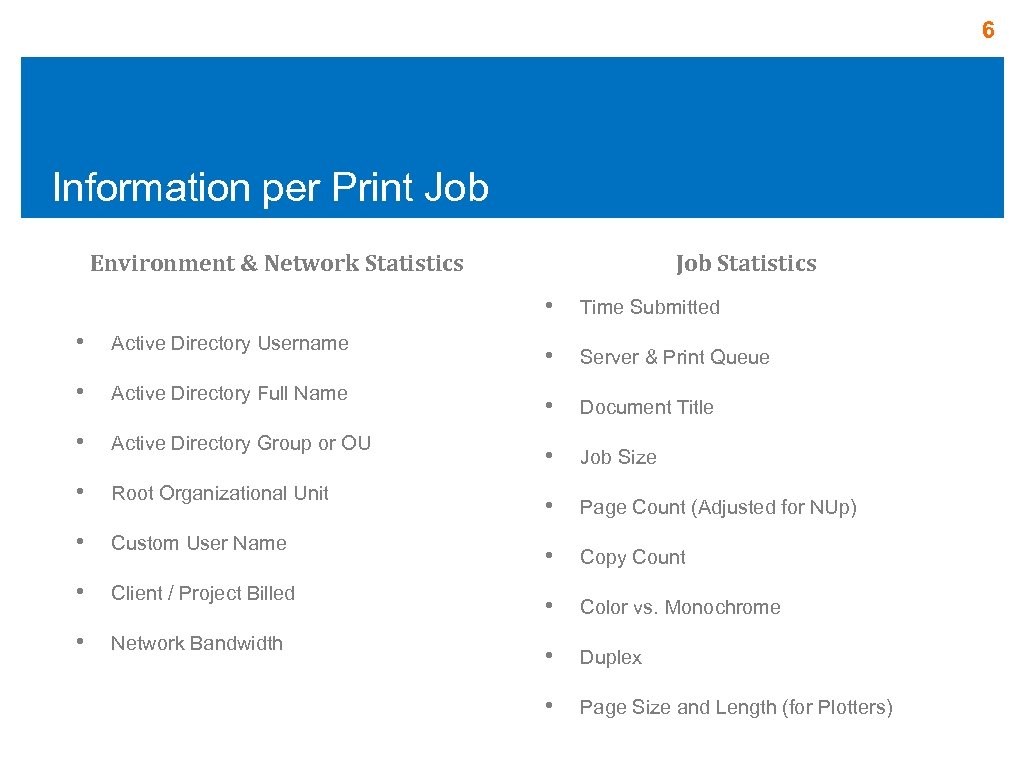 6 Information per Print Job Environment & Network Statistics Job Statistics • Time Submitted • Active Directory Username • Server & Print Queue • Active Directory Full Name • Document Title • Active Directory Group or OU • Job Size • Root Organizational Unit • Page Count (Adjusted for NUp) • Custom User Name • Copy Count • Client / Project Billed • Color vs. Monochrome • Network Bandwidth • Duplex • Page Size and Length (for Plotters)
 7 Common Print Manager Plus Setup Types v Single Stand Alone Print Server with a Local Database v Multiple Print Server’s Sharing a single MSSQL Database v Multiple Print Servers, each using it own local Database v Single or Multiple Print Servers, sharing a Central SQL Database with Workstation Connected Printer Agents v Print Server and Workstation Connected Printers / Direct IP Printing
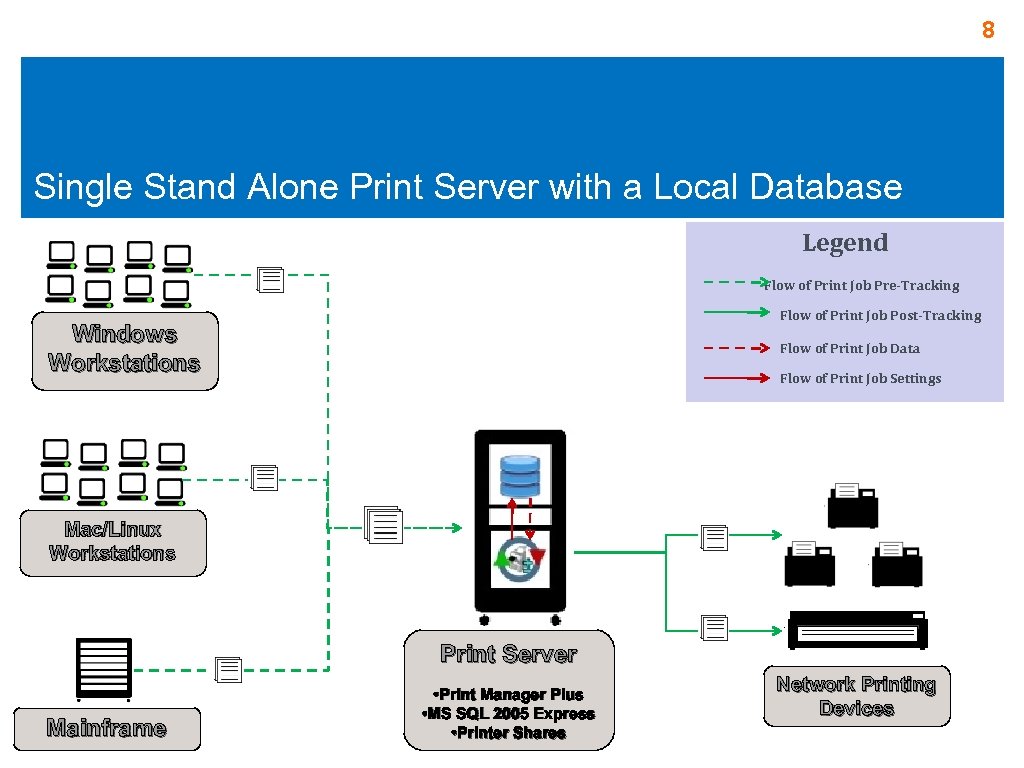 8 Single Stand Alone Print Server with a Local Database Legend Flow of Print Job Pre-Tracking Flow of Print Job Post-Tracking Windows Workstations Flow of Print Job Data Flow of Print Job Settings Mac/Linux Workstations Print Server Mainframe • Print Manager Plus • MS SQL 2005 Express • Printer Shares Network Printing Devices
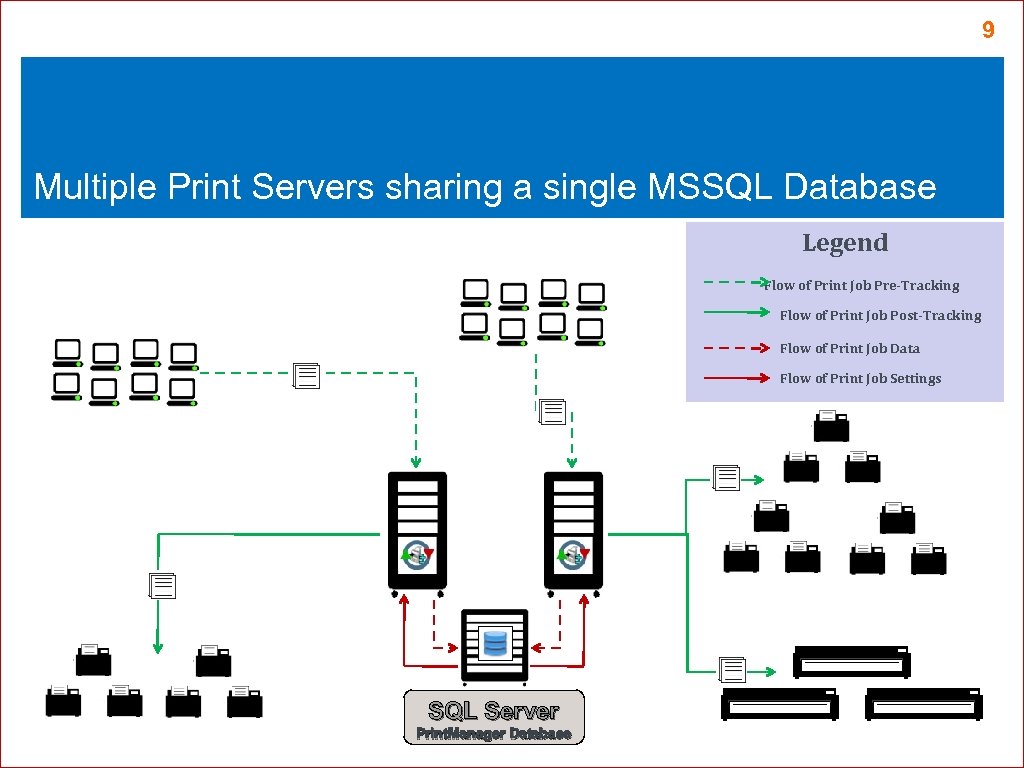 9 Multiple Print Servers sharing a single MSSQL Database Legend Flow of Print Job Pre-Tracking Flow of Print Job Post-Tracking Flow of Print Job Data Flow of Print Job Settings SQL Server Print. Manager Database
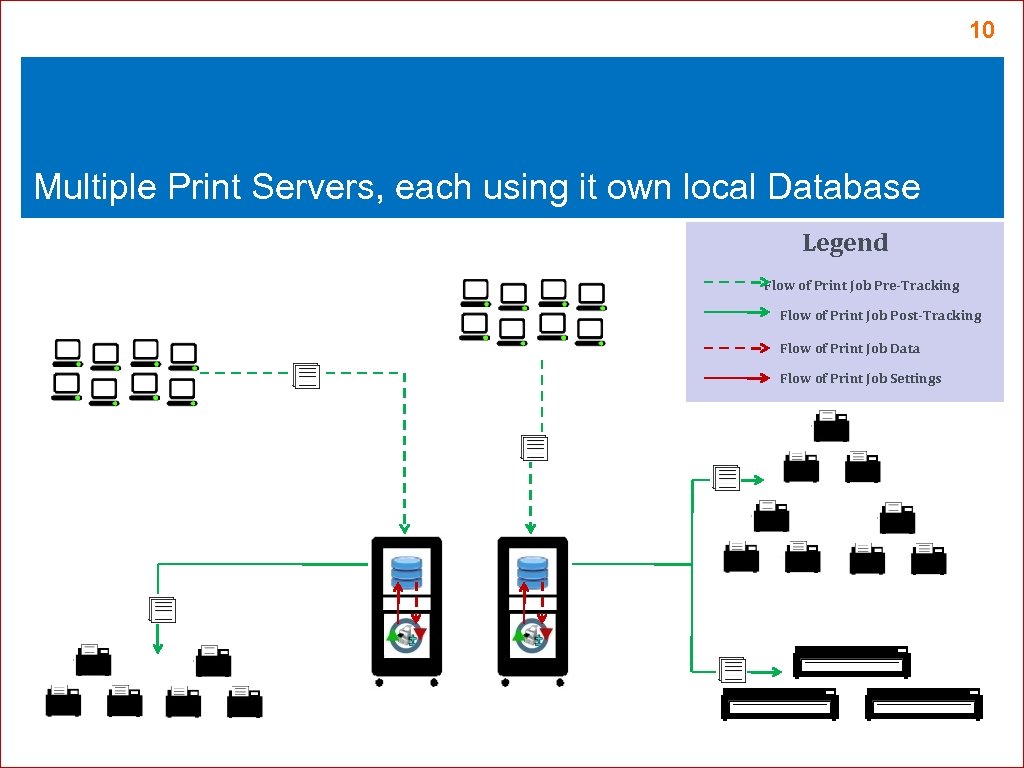 10 Multiple Print Servers, each using it own local Database Legend Flow of Print Job Pre-Tracking Flow of Print Job Post-Tracking Flow of Print Job Data Flow of Print Job Settings
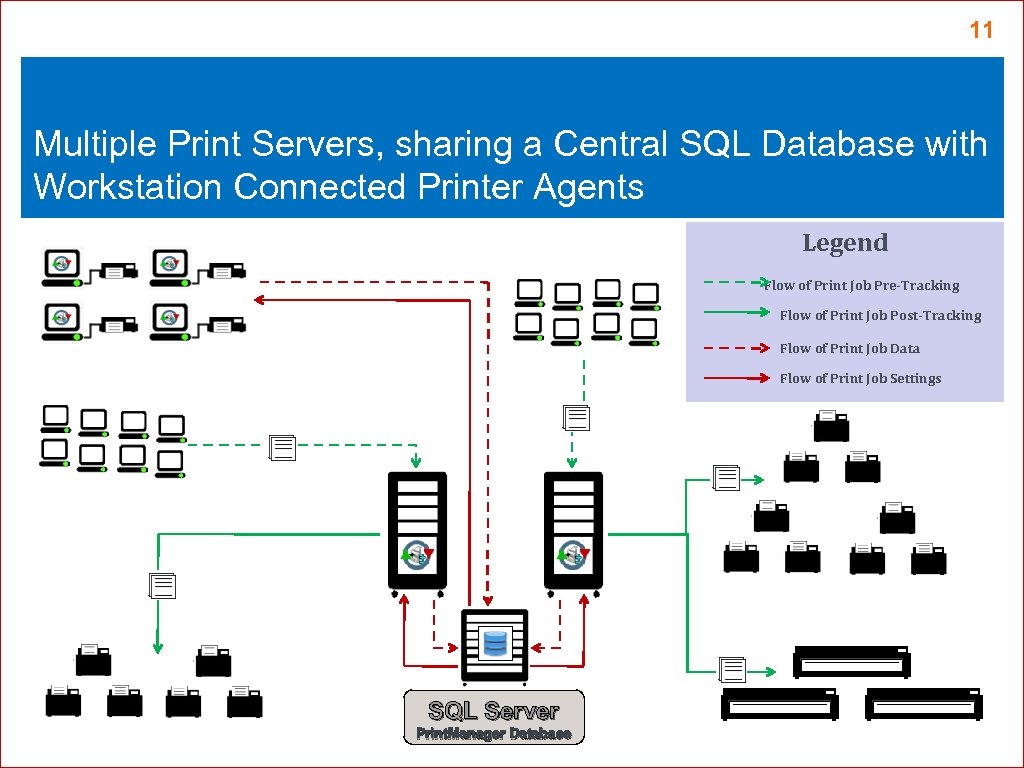 11 Multiple Print Servers, sharing a Central SQL Database with Workstation Connected Printer Agents Legend Flow of Print Job Pre-Tracking Flow of Print Job Post-Tracking Flow of Print Job Data Flow of Print Job Settings SQL Server Print. Manager Database
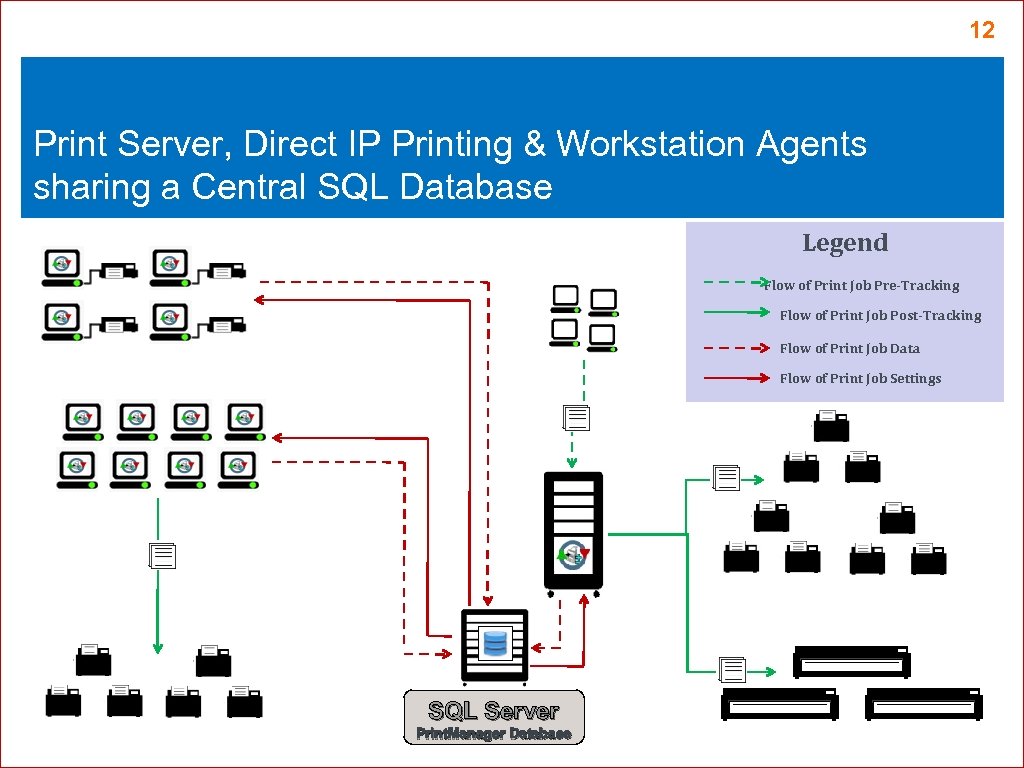 12 Print Server, Direct IP Printing & Workstation Agents sharing a Central SQL Database Legend Flow of Print Job Pre-Tracking Flow of Print Job Post-Tracking Flow of Print Job Data Flow of Print Job Settings SQL Server Print. Manager Database
 13 Print Manager Plus 2010 Main Product Overview
 14 Main Product Overview v Print Manager Plus - Administrator Ø Ø Ø Graphical Interface to view the Users, Groups, Organizational Units and Printers being tracked. Customization of Tracking Settings, Restrictions and Quotas which are stored in the database. Provides Reporting using over 150 different Reports. v Print Manager Plus - Service Ø Ø Ø Passively monitors traffic through the Windows Spooler and logs and stores it within the database. Reads Active Directory on an as needed basis and stores this information to the database. Enforces Restrictions, Quotas and Authentication rules it finds in the database. v Print Manager Plus - Database Ø Ø Ø Stores Configuration, Job History and Restriction/Quota information. Usually SQL 7. 0/2005/2008 Full or Express Version. Can be MS Access in small Standalone setups. Connected to using ODBC and Windows Authentication by the Server and Administrator
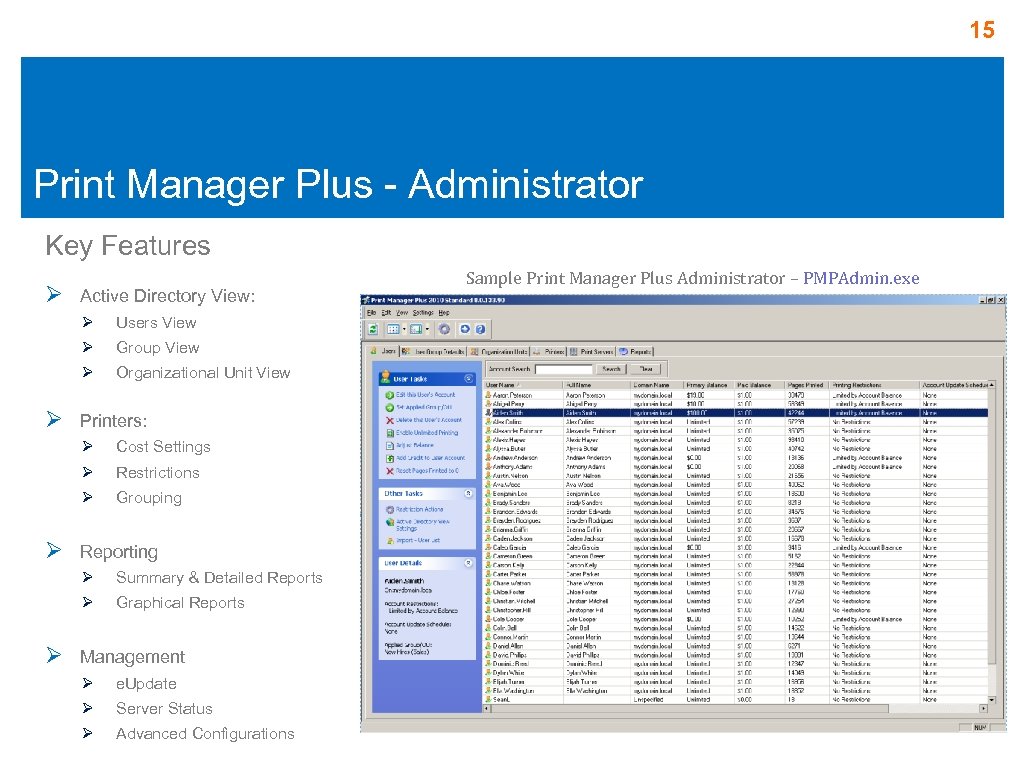 15 Print Manager Plus - Administrator Key Features Ø Active Directory View: Ø Ø Group View Ø Ø Users View Organizational Unit View Printers: Ø Ø Restrictions Ø Ø Cost Settings Grouping Reporting Ø Ø Ø Summary & Detailed Reports Graphical Reports Management Ø e. Update Ø Server Status Ø Advanced Configurations Sample Print Manager Plus Administrator – PMPAdmin. exe
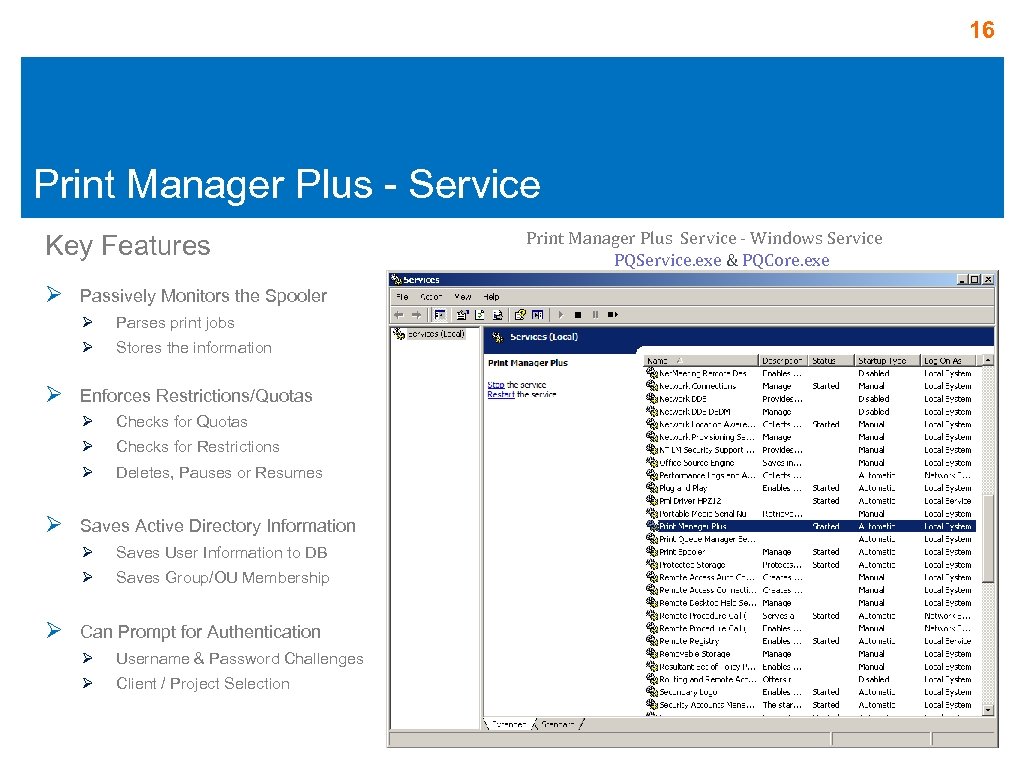 16 Print Manager Plus - Service Key Features Ø Passively Monitors the Spooler Ø Ø Ø Parses print jobs Stores the information Enforces Restrictions/Quotas Ø Ø Checks for Restrictions Ø Ø Checks for Quotas Deletes, Pauses or Resumes Saves Active Directory Information Ø Ø Ø Saves User Information to DB Saves Group/OU Membership Can Prompt for Authentication Ø Username & Password Challenges Ø Client / Project Selection Print Manager Plus Service - Windows Service PQService. exe & PQCore. exe
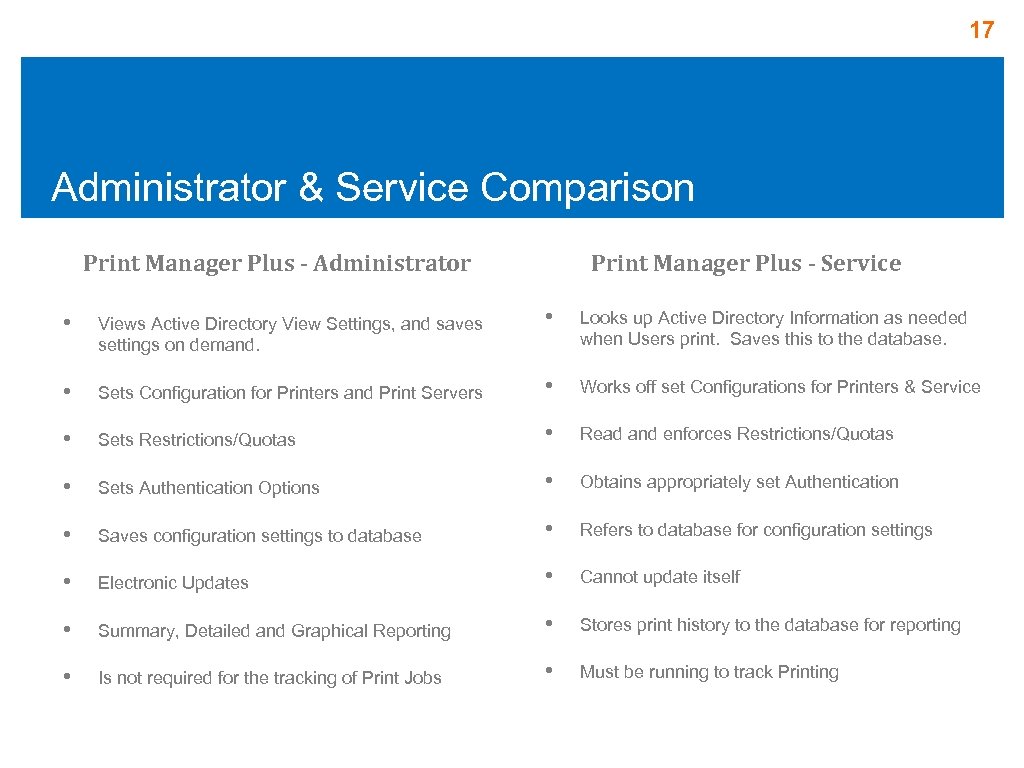 17 Administrator & Service Comparison Print Manager Plus - Administrator Print Manager Plus - Service • Looks up Active Directory Information as needed when Users print. Saves this to the database. Sets Configuration for Printers and Print Servers • Works off set Configurations for Printers & Service • Sets Restrictions/Quotas • Read and enforces Restrictions/Quotas • Sets Authentication Options • Obtains appropriately set Authentication • Saves configuration settings to database • Refers to database for configuration settings • Electronic Updates • Cannot update itself • Summary, Detailed and Graphical Reporting • Stores print history to the database for reporting • Is not required for the tracking of Print Jobs • Must be running to track Printing • Views Active Directory View Settings, and saves settings on demand. •
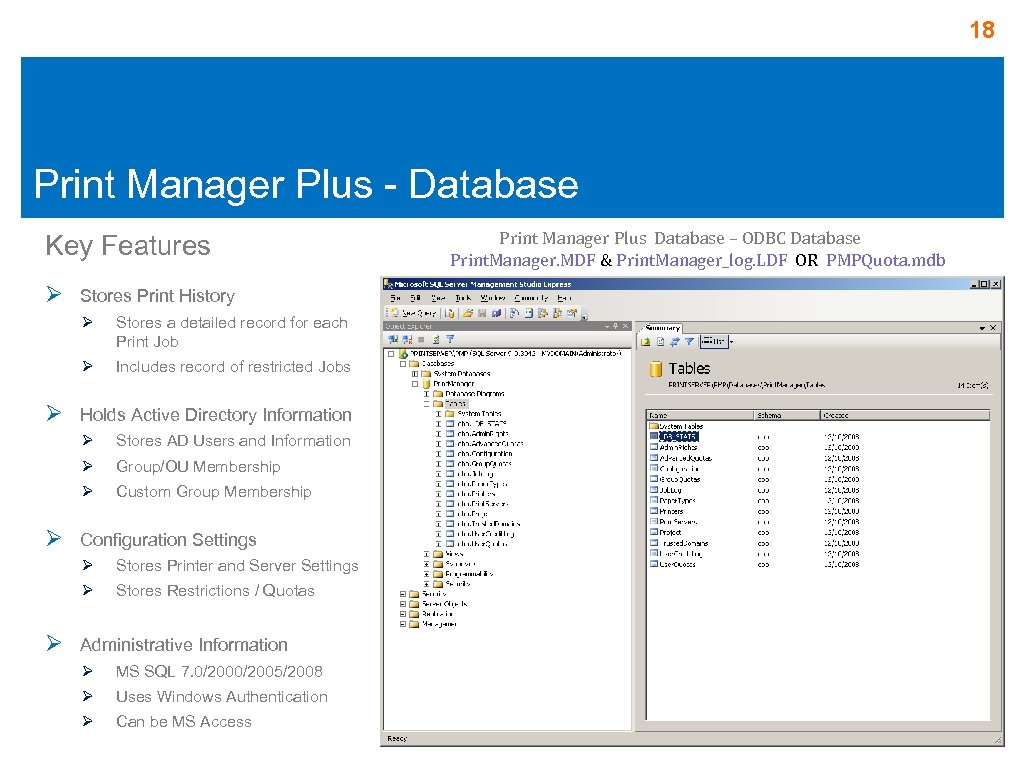 18 Print Manager Plus - Database Key Features Ø Stores Print History Ø Ø Ø Stores a detailed record for each Print Job Includes record of restricted Jobs Holds Active Directory Information Ø Ø Group/OU Membership Ø Ø Stores AD Users and Information Custom Group Membership Configuration Settings Ø Ø Ø Stores Printer and Server Settings Stores Restrictions / Quotas Administrative Information Ø MS SQL 7. 0/2005/2008 Ø Uses Windows Authentication Ø Can be MS Access Print Manager Plus Database – ODBC Database Print. Manager. MDF & Print. Manager_log. LDF OR PMPQuota. mdb
 19 Print Manager Plus 2010 The Process of a Print Job
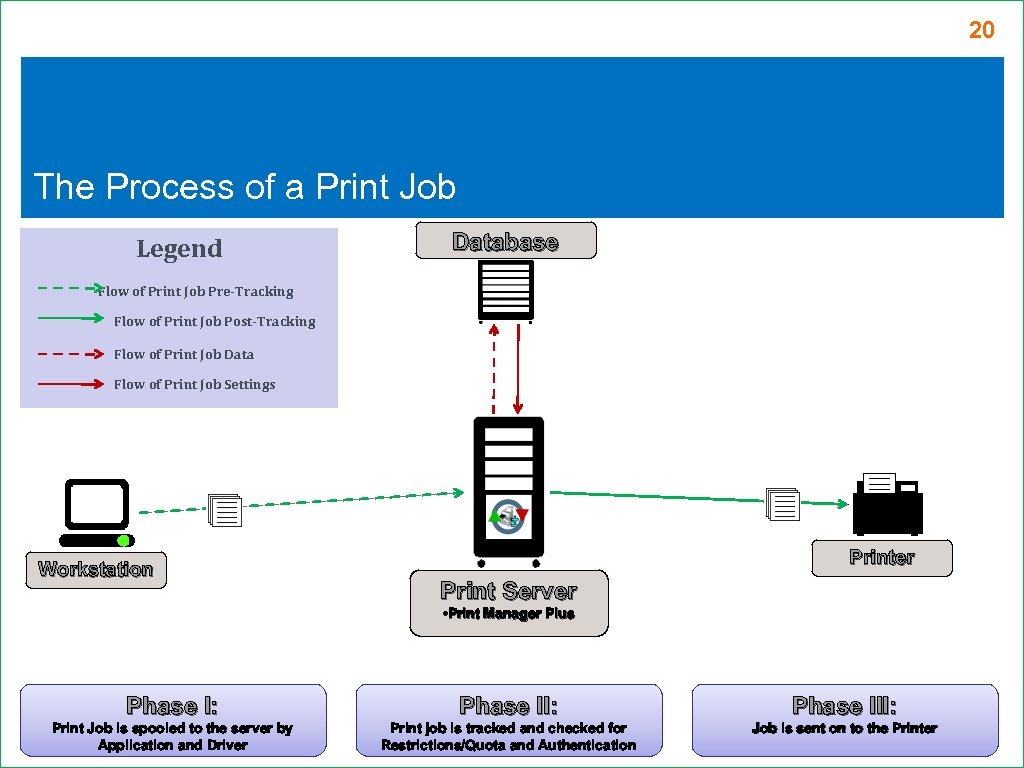 20 The Process of a Print Job Legend Database Flow of Print Job Pre-Tracking Flow of Print Job Post-Tracking Flow of Print Job Data Flow of Print Job Settings Workstation Printer Print Server • Print Manager Plus Phase I: Phase III: Print Job is spooled to the server by Application and Driver Print job is tracked and checked for Restrictions/Quota and Authentication Job is sent on to the Printer
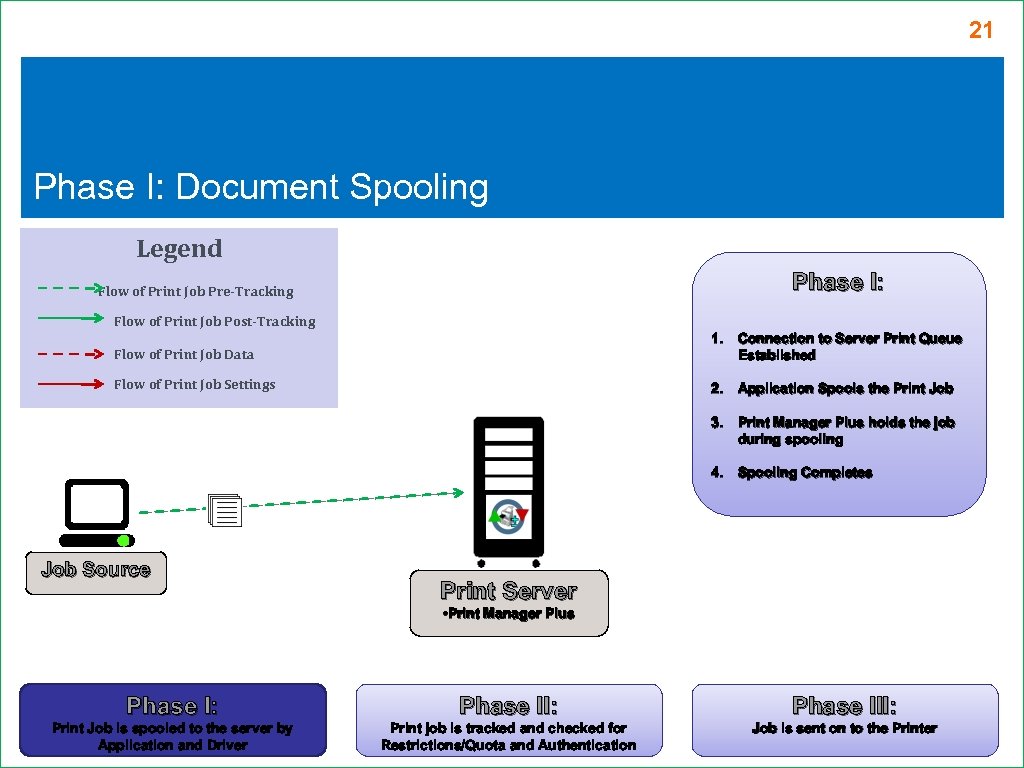 21 Phase I: Document Spooling Legend Phase I: Flow of Print Job Pre-Tracking Flow of Print Job Post-Tracking Flow of Print Job Data 1. Connection to Server Print Queue Established Flow of Print Job Settings 2. Application Spools the Print Job 3. Print Manager Plus holds the job during spooling 4. Spooling Completes Job Source Print Server • Print Manager Plus Phase I: Phase III: Print Job is spooled to the server by Application and Driver Print job is tracked and checked for Restrictions/Quota and Authentication Job is sent on to the Printer
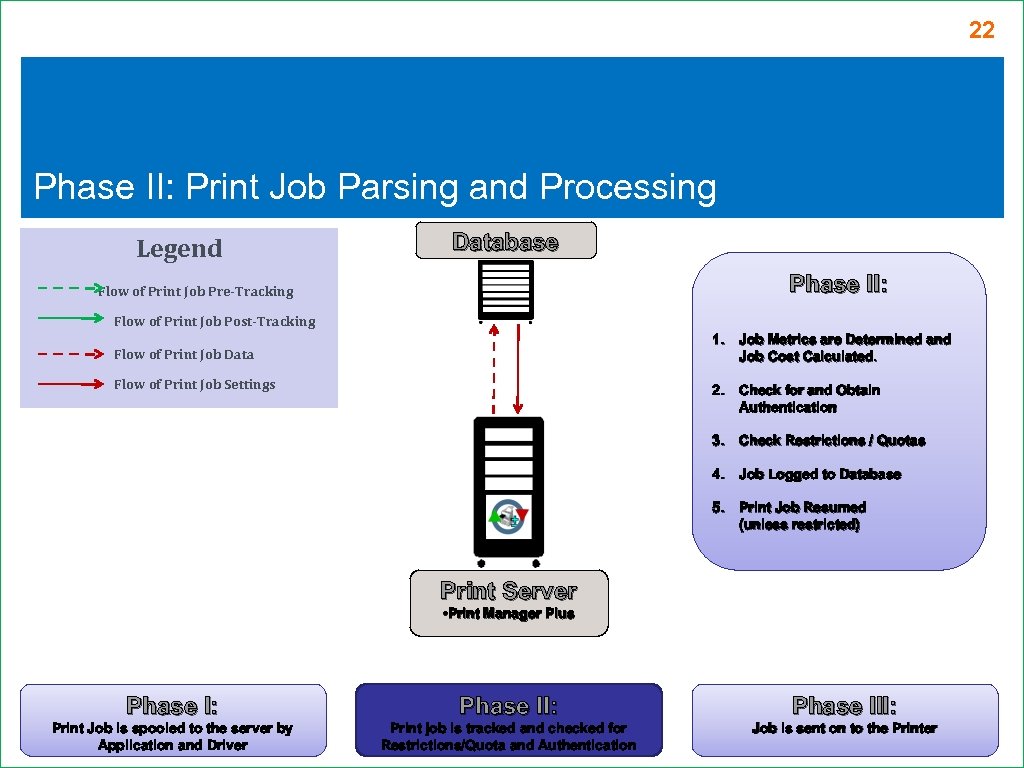 22 Phase II: Print Job Parsing and Processing Legend Database Phase II: Flow of Print Job Pre-Tracking Flow of Print Job Post-Tracking 1. Job Metrics are Determined and Job Cost Calculated. Flow of Print Job Data Flow of Print Job Settings 2. Check for and Obtain Authentication 3. Check Restrictions / Quotas 4. Job Logged to Database 5. Print Job Resumed (unless restricted) Print Server • Print Manager Plus Phase I: Phase III: Print Job is spooled to the server by Application and Driver Print job is tracked and checked for Restrictions/Quota and Authentication Job is sent on to the Printer
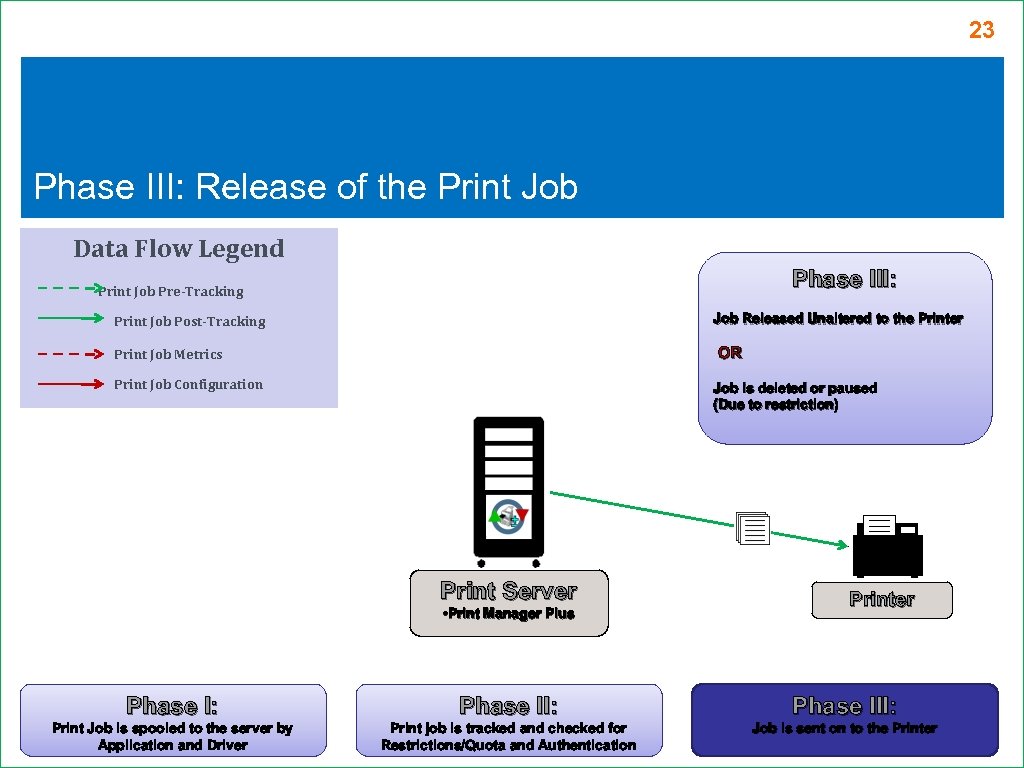 23 Phase III: Release of the Print Job Data Flow Legend Phase III: Print Job Pre-Tracking Job Released Unaltered to the Printer Print Job Post-Tracking OR Print Job Metrics Print Job Configuration Job is deleted or paused (Due to restriction) Print Server • Print Manager Plus Printer Phase I: Phase III: Print Job is spooled to the server by Application and Driver Print job is tracked and checked for Restrictions/Quota and Authentication Job is sent on to the Printer
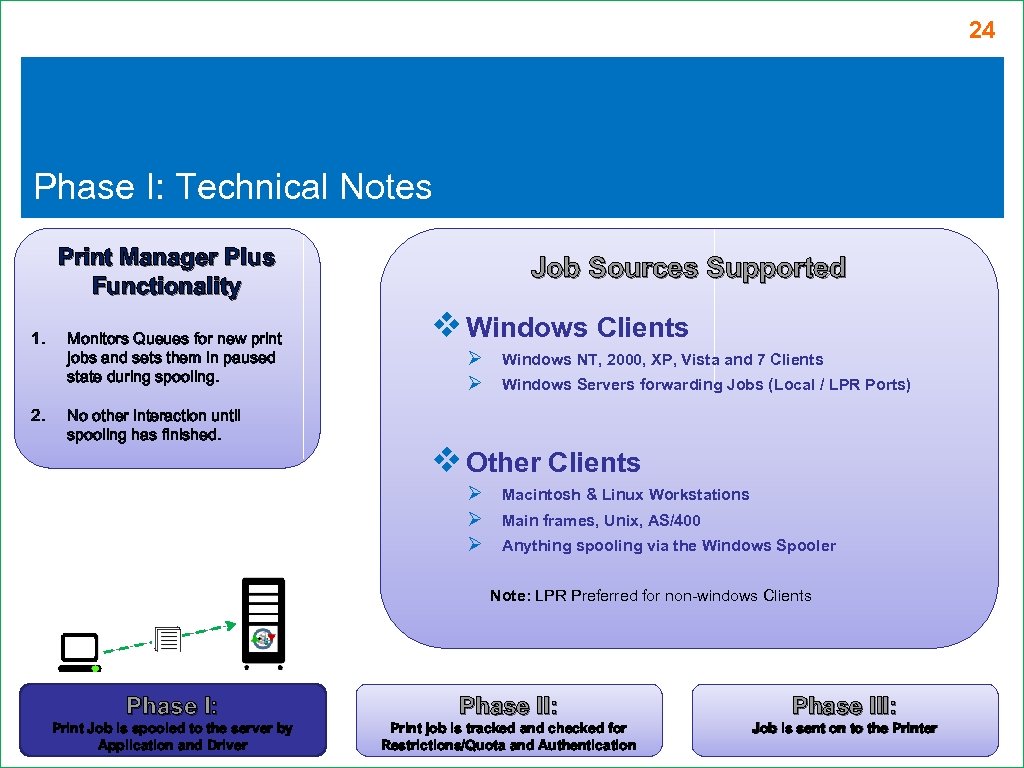 24 Phase I: Technical Notes Print Manager Plus Functionality 1. 2. Monitors Queues for new print jobs and sets them in paused state during spooling. No other interaction until spooling has finished. Job Sources Supported v Windows Clients Ø Ø Windows NT, 2000, XP, Vista and 7 Clients Windows Servers forwarding Jobs (Local / LPR Ports) v Other Clients Ø Ø Ø Macintosh & Linux Workstations Main frames, Unix, AS/400 Anything spooling via the Windows Spooler Note: LPR Preferred for non-windows Clients Phase I: Phase III: Print Job is spooled to the server by Application and Driver Print job is tracked and checked for Restrictions/Quota and Authentication Job is sent on to the Printer
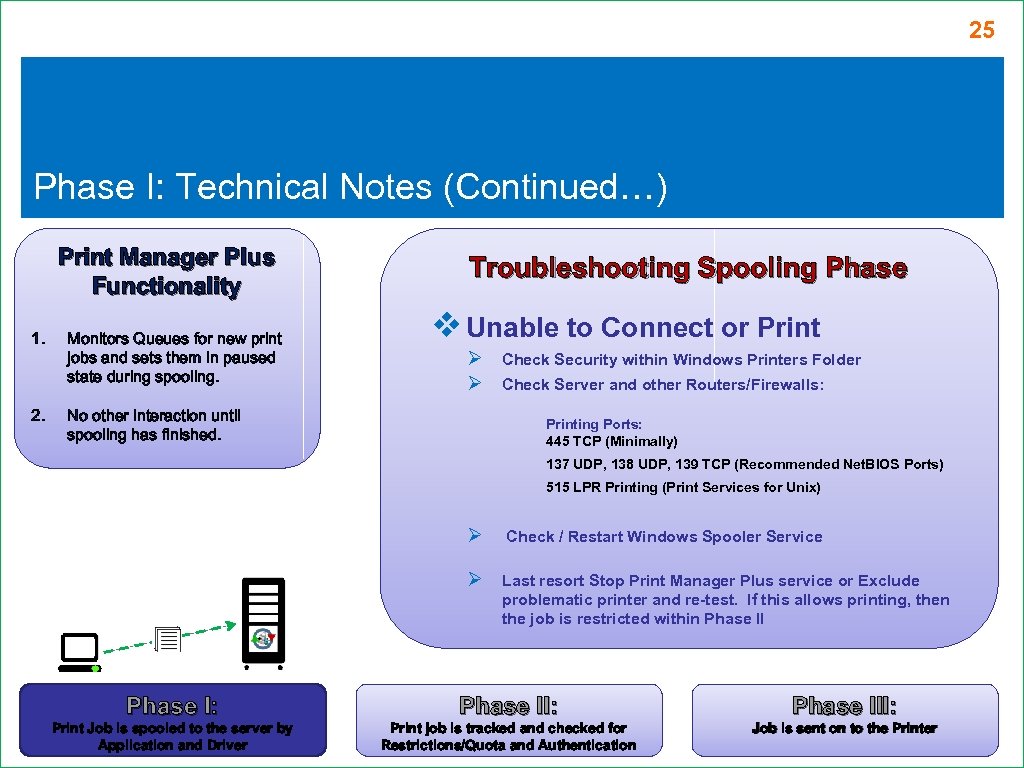 25 Phase I: Technical Notes (Continued…) Print Manager Plus Functionality 1. 2. Monitors Queues for new print jobs and sets them in paused state during spooling. Troubleshooting Spooling Phase v Unable to Connect or Print Ø Ø No other interaction until spooling has finished. Check Security within Windows Printers Folder Check Server and other Routers/Firewalls: Printing Ports: 445 TCP (Minimally) 137 UDP, 138 UDP, 139 TCP (Recommended Net. BIOS Ports) 515 LPR Printing (Print Services for Unix) Ø Check / Restart Windows Spooler Service Ø Last resort Stop Print Manager Plus service or Exclude problematic printer and re-test. If this allows printing, then the job is restricted within Phase II Phase I: Phase III: Print Job is spooled to the server by Application and Driver Print job is tracked and checked for Restrictions/Quota and Authentication Job is sent on to the Printer
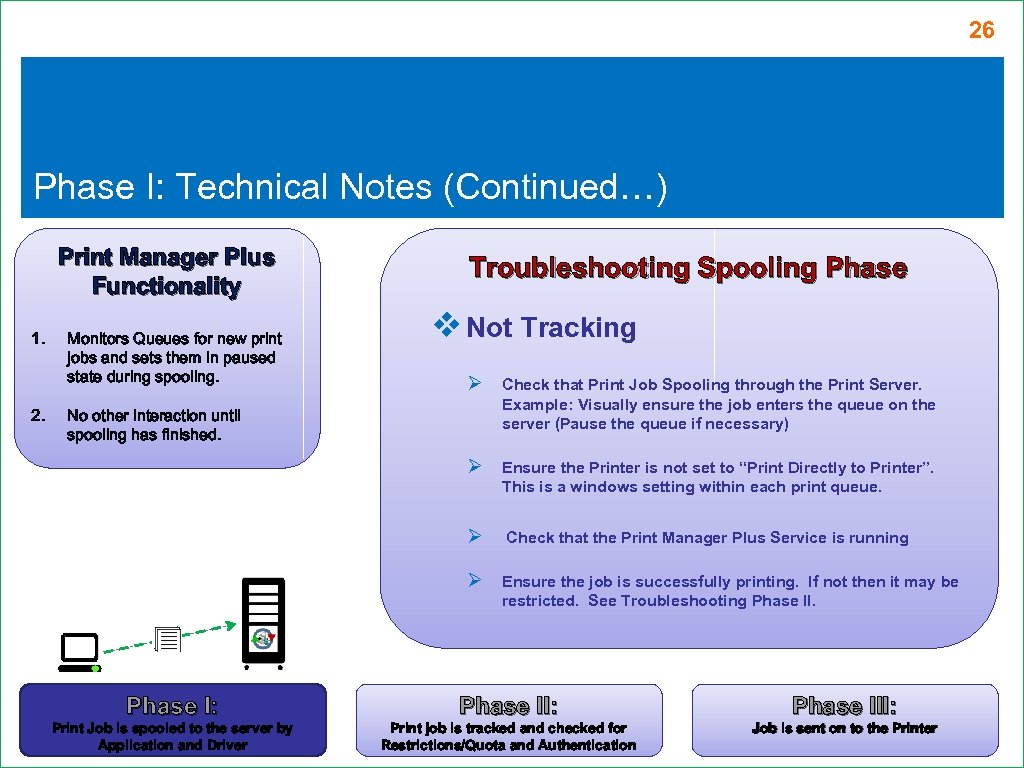 26 Phase I: Technical Notes (Continued…) Print Manager Plus Functionality 1. 2. Monitors Queues for new print jobs and sets them in paused state during spooling. Troubleshooting Spooling Phase v Not Tracking Ø Check that Print Job Spooling through the Print Server. Example: Visually ensure the job enters the queue on the server (Pause the queue if necessary) Ø Ensure the Printer is not set to “Print Directly to Printer”. This is a windows setting within each print queue. Ø Check that the Print Manager Plus Service is running Ø Ensure the job is successfully printing. If not then it may be restricted. See Troubleshooting Phase II. No other interaction until spooling has finished. Phase I: Phase III: Print Job is spooled to the server by Application and Driver Print job is tracked and checked for Restrictions/Quota and Authentication Job is sent on to the Printer
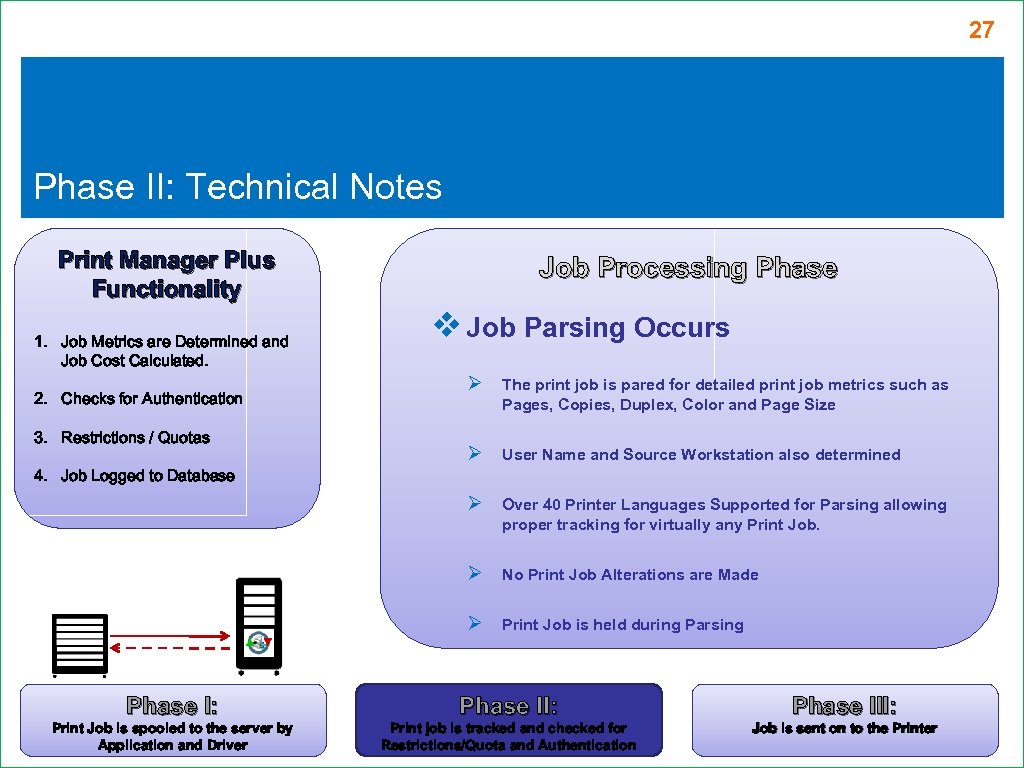 27 Phase II: Technical Notes Print Manager Plus Functionality 1. Job Metrics are Determined and Job Cost Calculated. Job Processing Phase v Job Parsing Occurs Ø User Name and Source Workstation also determined Over 40 Printer Languages Supported for Parsing allowing proper tracking for virtually any Print Job. Ø No Print Job Alterations are Made Ø 3. Restrictions / Quotas The print job is pared for detailed print job metrics such as Pages, Copies, Duplex, Color and Page Size Ø 2. Checks for Authentication Ø Print Job is held during Parsing 4. Job Logged to Database Phase I: Phase III: Print Job is spooled to the server by Application and Driver Print job is tracked and checked for Restrictions/Quota and Authentication Job is sent on to the Printer
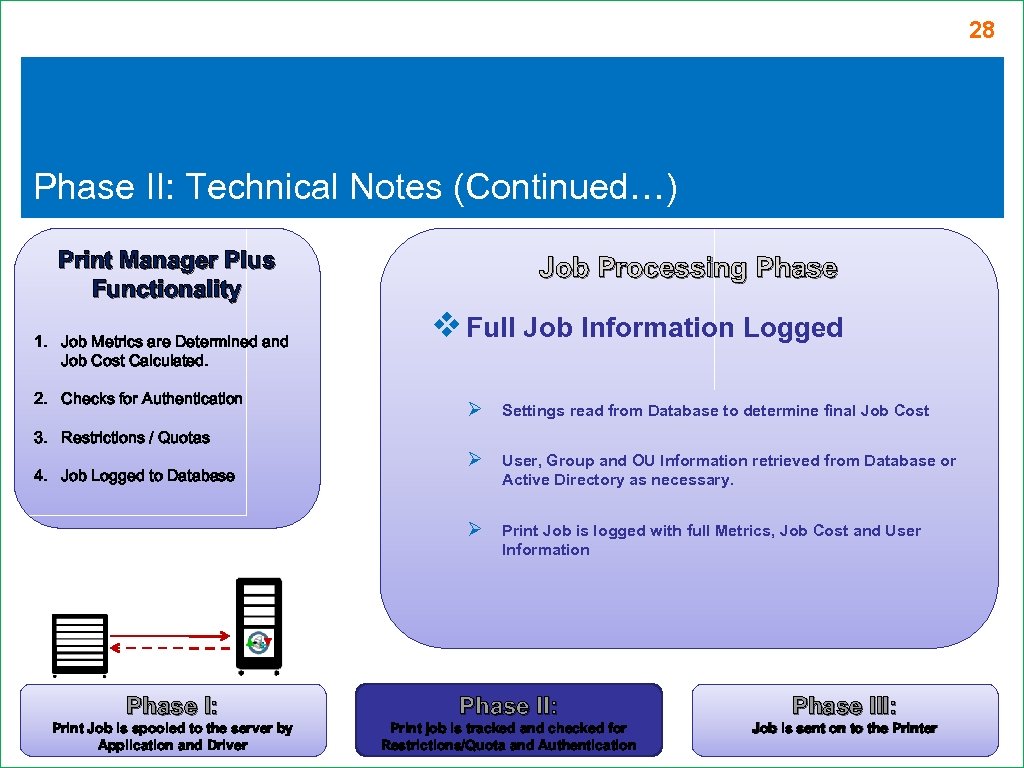 28 Phase II: Technical Notes (Continued…) Print Manager Plus Functionality 1. Job Metrics are Determined and Job Cost Calculated. 2. Checks for Authentication Job Processing Phase v Full Job Information Logged Ø Settings read from Database to determine final Job Cost Ø User, Group and OU Information retrieved from Database or Active Directory as necessary. Ø Print Job is logged with full Metrics, Job Cost and User Information 3. Restrictions / Quotas 4. Job Logged to Database Phase I: Phase III: Print Job is spooled to the server by Application and Driver Print job is tracked and checked for Restrictions/Quota and Authentication Job is sent on to the Printer
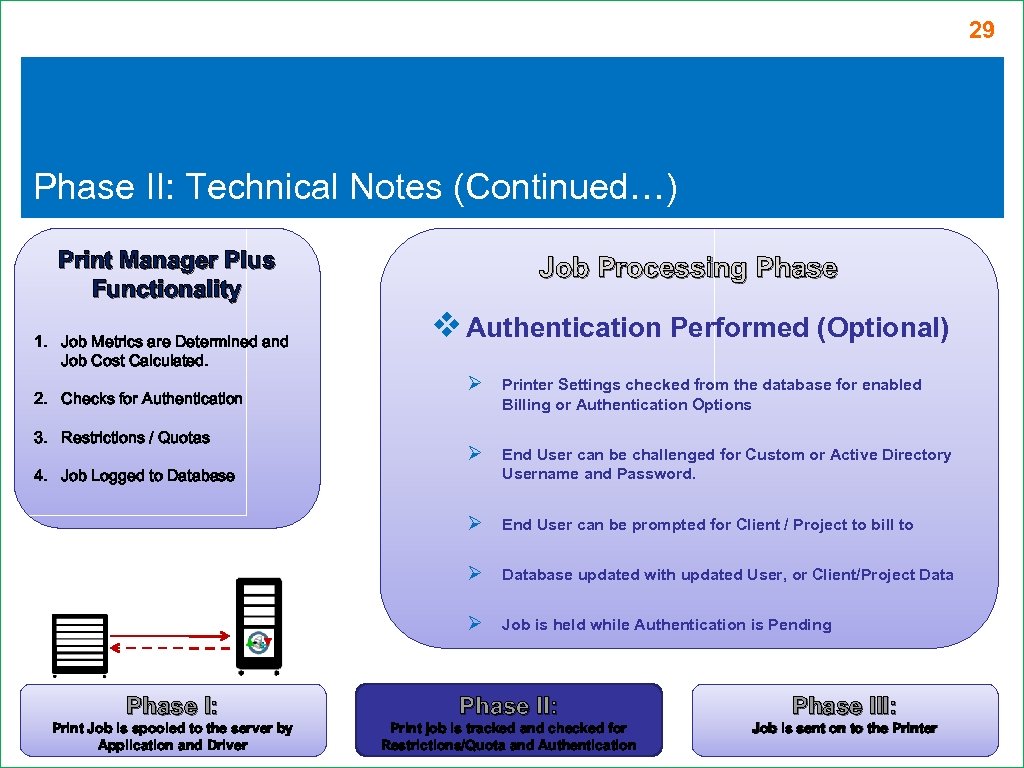 29 Phase II: Technical Notes (Continued…) Print Manager Plus Functionality 1. Job Metrics are Determined and Job Cost Calculated. Job Processing Phase v Authentication Performed (Optional) Ø End User can be challenged for Custom or Active Directory Username and Password. End User can be prompted for Client / Project to bill to Ø Database updated with updated User, or Client/Project Data Ø 3. Restrictions / Quotas Printer Settings checked from the database for enabled Billing or Authentication Options Ø 2. Checks for Authentication Ø Job is held while Authentication is Pending 4. Job Logged to Database Phase I: Phase III: Print Job is spooled to the server by Application and Driver Print job is tracked and checked for Restrictions/Quota and Authentication Job is sent on to the Printer
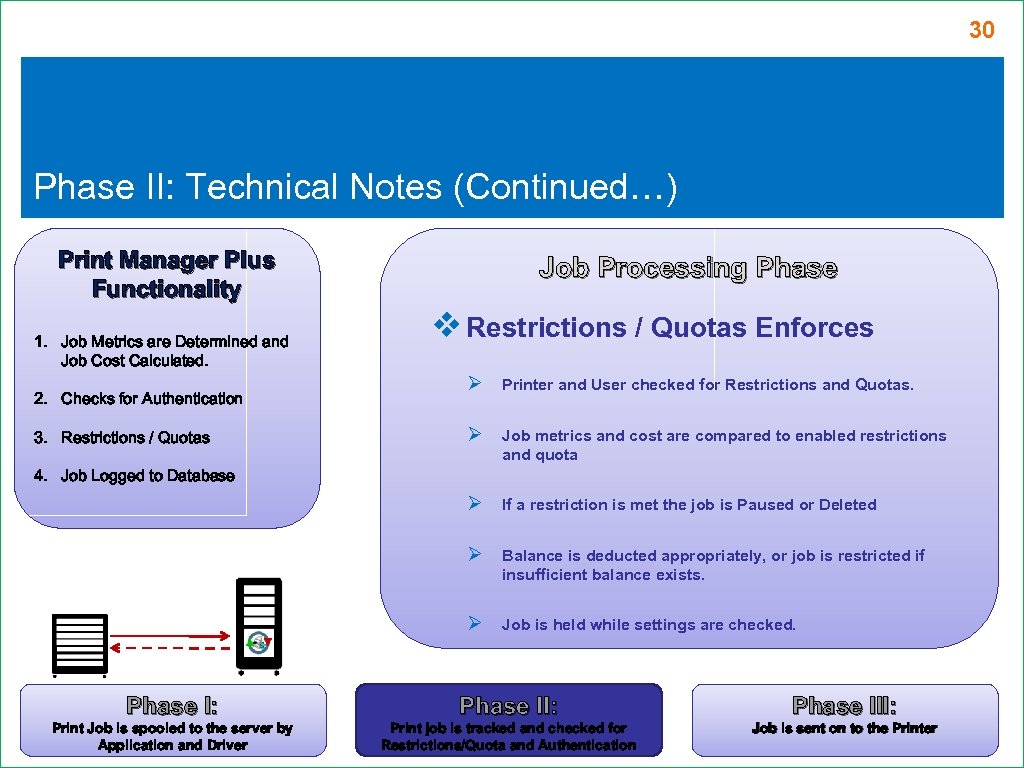 30 Phase II: Technical Notes (Continued…) Print Manager Plus Functionality 1. Job Metrics are Determined and Job Cost Calculated. Job Processing Phase v Restrictions / Quotas Enforces Ø Job metrics and cost are compared to enabled restrictions and quota If a restriction is met the job is Paused or Deleted Ø Balance is deducted appropriately, or job is restricted if insufficient balance exists. Ø 3. Restrictions / Quotas Printer and User checked for Restrictions and Quotas. Ø 2. Checks for Authentication Ø Job is held while settings are checked. 4. Job Logged to Database Phase I: Phase III: Print Job is spooled to the server by Application and Driver Print job is tracked and checked for Restrictions/Quota and Authentication Job is sent on to the Printer
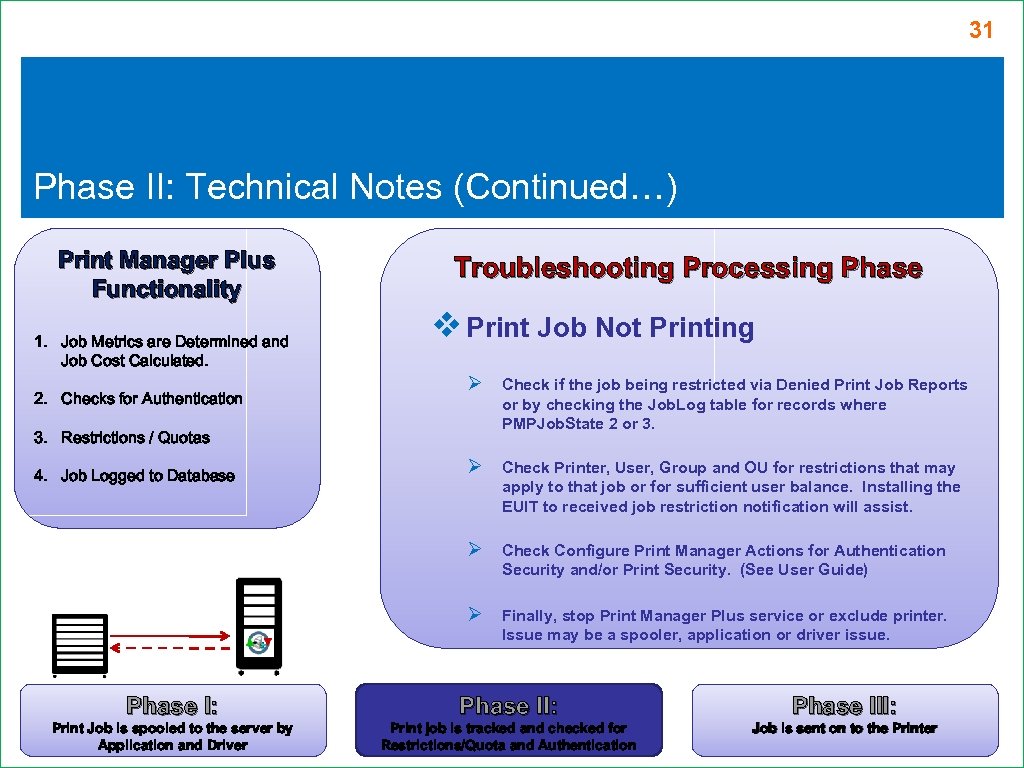 31 Phase II: Technical Notes (Continued…) Print Manager Plus Functionality 1. Job Metrics are Determined and Job Cost Calculated. Troubleshooting Processing Phase v Print Job Not Printing Check if the job being restricted via Denied Print Job Reports or by checking the Job. Log table for records where PMPJob. State 2 or 3. Ø Check Printer, User, Group and OU for restrictions that may apply to that job or for sufficient user balance. Installing the EUIT to received job restriction notification will assist. Ø Check Configure Print Manager Actions for Authentication Security and/or Print Security. (See User Guide) Ø 2. Checks for Authentication Ø Finally, stop Print Manager Plus service or exclude printer. Issue may be a spooler, application or driver issue. 3. Restrictions / Quotas 4. Job Logged to Database Phase I: Phase III: Print Job is spooled to the server by Application and Driver Print job is tracked and checked for Restrictions/Quota and Authentication Job is sent on to the Printer
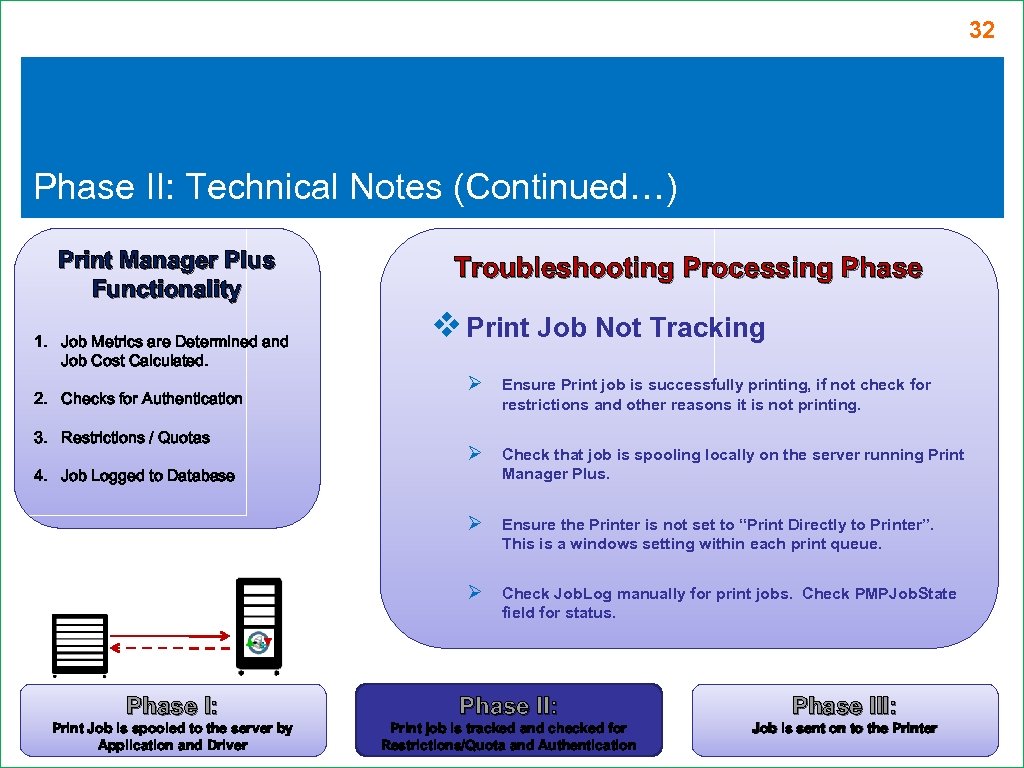 32 Phase II: Technical Notes (Continued…) Print Manager Plus Functionality 1. Job Metrics are Determined and Job Cost Calculated. Troubleshooting Processing Phase v Print Job Not Tracking Ø Check that job is spooling locally on the server running Print Manager Plus. Ensure the Printer is not set to “Print Directly to Printer”. This is a windows setting within each print queue. Ø 3. Restrictions / Quotas Ensure Print job is successfully printing, if not check for restrictions and other reasons it is not printing. Ø 2. Checks for Authentication Ø Check Job. Log manually for print jobs. Check PMPJob. State field for status. 4. Job Logged to Database Phase I: Phase III: Print Job is spooled to the server by Application and Driver Print job is tracked and checked for Restrictions/Quota and Authentication Job is sent on to the Printer
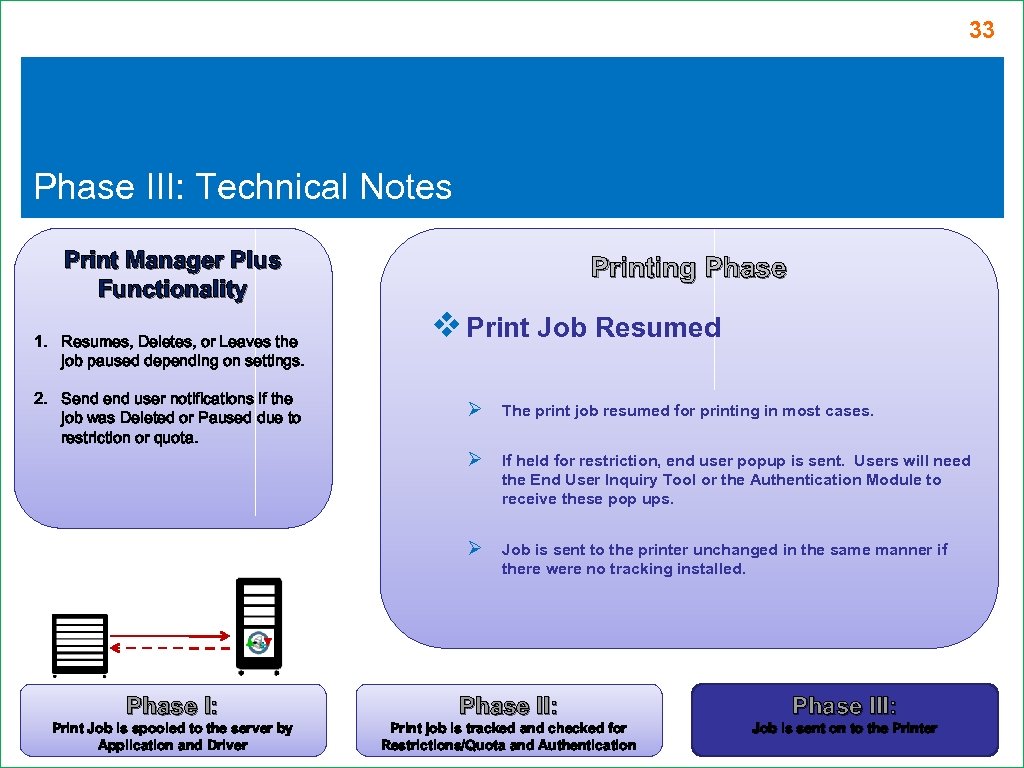 33 Phase III: Technical Notes Print Manager Plus Functionality 1. Resumes, Deletes, or Leaves the job paused depending on settings. 2. Send user notifications if the job was Deleted or Paused due to restriction or quota. Printing Phase v Print Job Resumed Ø The print job resumed for printing in most cases. Ø If held for restriction, end user popup is sent. Users will need the End User Inquiry Tool or the Authentication Module to receive these pop ups. Ø Job is sent to the printer unchanged in the same manner if there were no tracking installed. Phase I: Phase III: Print Job is spooled to the server by Application and Driver Print job is tracked and checked for Restrictions/Quota and Authentication Job is sent on to the Printer
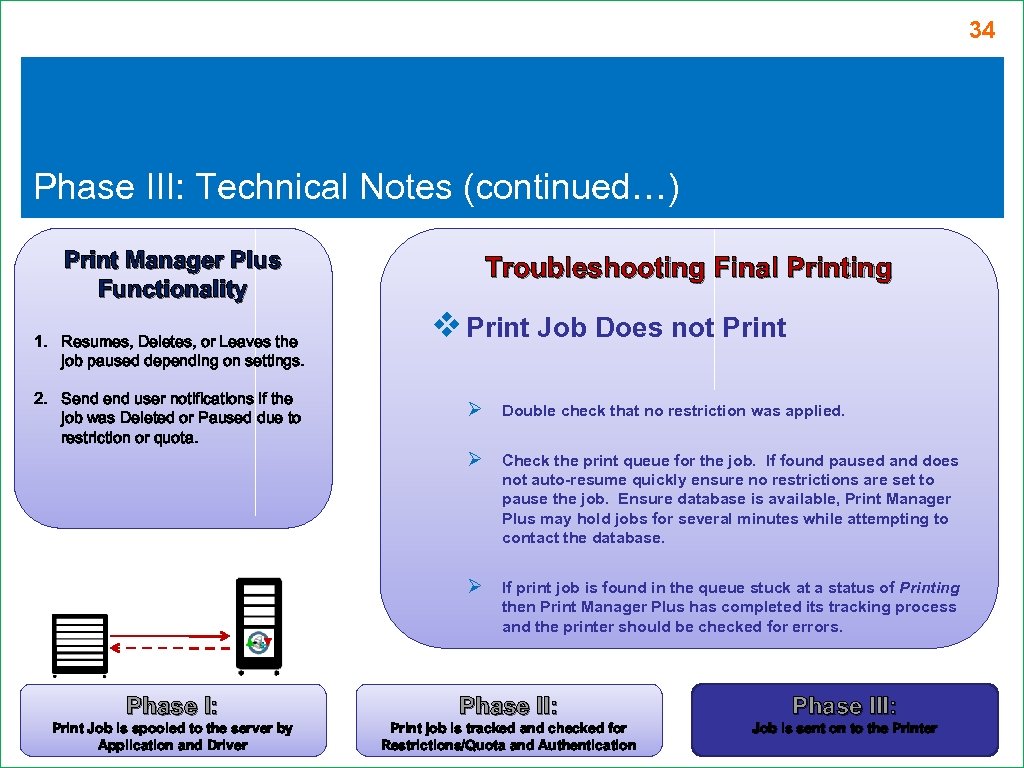 34 Phase III: Technical Notes (continued…) Print Manager Plus Functionality 1. Resumes, Deletes, or Leaves the job paused depending on settings. 2. Send user notifications if the job was Deleted or Paused due to restriction or quota. Troubleshooting Final Printing v Print Job Does not Print Ø Double check that no restriction was applied. Ø Check the print queue for the job. If found paused and does not auto-resume quickly ensure no restrictions are set to pause the job. Ensure database is available, Print Manager Plus may hold jobs for several minutes while attempting to contact the database. Ø If print job is found in the queue stuck at a status of Printing then Print Manager Plus has completed its tracking process and the printer should be checked for errors. Phase I: Phase III: Print Job is spooled to the server by Application and Driver Print job is tracked and checked for Restrictions/Quota and Authentication Job is sent on to the Printer
 35 Print Manager Plus 2010 Main Product Install
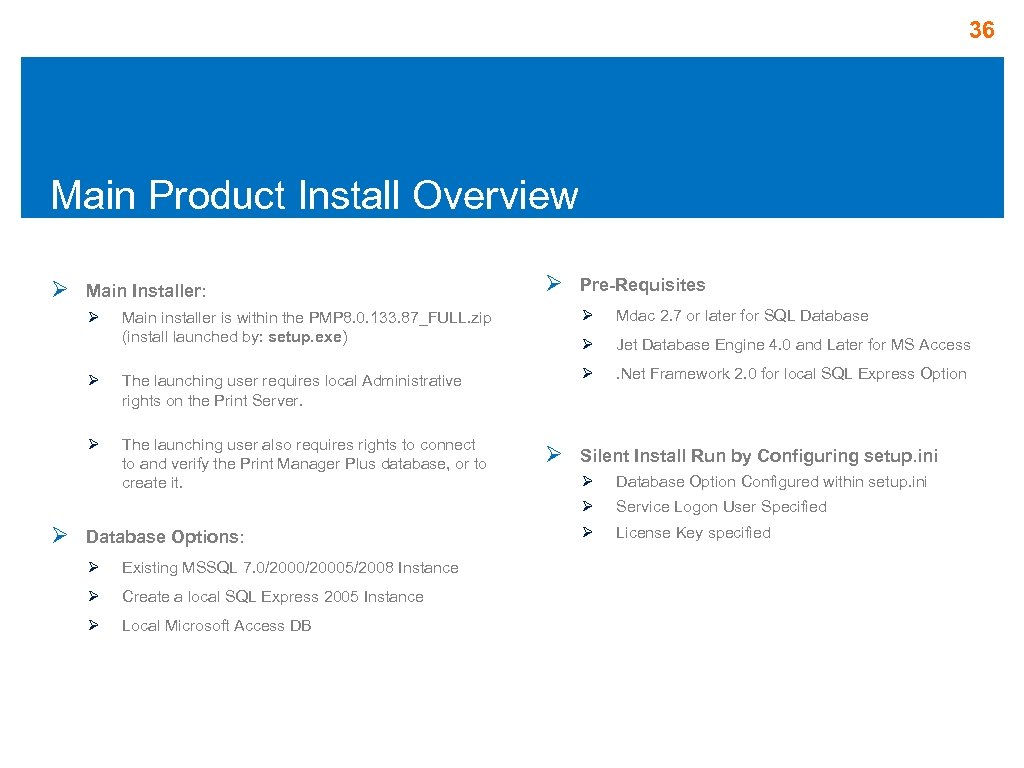 36 Main Product Install Overview Ø Main Installer: Ø Pre-Requisites Main installer is within the PMP 8. 0. 133. 87_FULL. zip (install launched by: setup. exe) Ø Mdac 2. 7 or later for SQL Database Ø Jet Database Engine 4. 0 and Later for MS Access Ø The launching user requires local Administrative rights on the Print Server. Ø . Net Framework 2. 0 for local SQL Express Option Ø The launching user also requires rights to connect to and verify the Print Manager Plus database, or to create it. Ø Ø Silent Install Run by Configuring setup. ini Database Options: Ø Existing MSSQL 7. 0/20005/2008 Instance Ø Create a local SQL Express 2005 Instance Ø Local Microsoft Access DB Database Option Configured within setup. ini Ø Ø Ø Service Logon User Specified Ø License Key specified
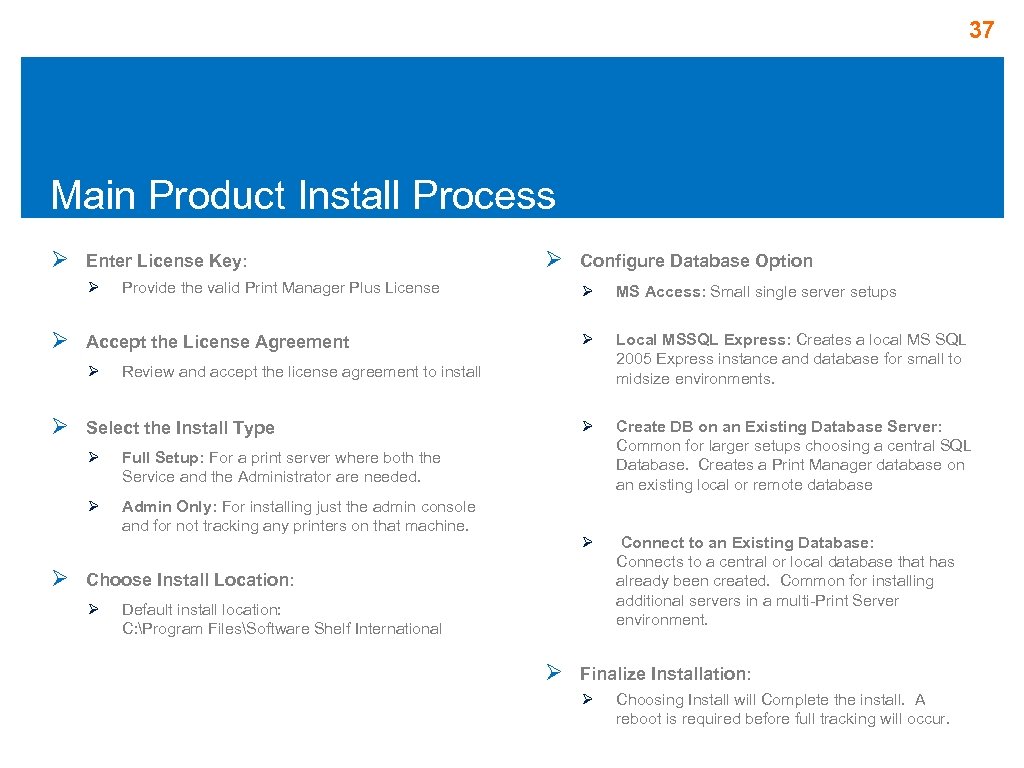 37 Main Product Install Process Ø Enter License Key: Ø Ø Provide the valid Print Manager Plus License MS Access: Small single server setups Ø Local MSSQL Express: Creates a local MS SQL 2005 Express instance and database for small to midsize environments. Ø Create DB on an Existing Database Server: Common for larger setups choosing a central SQL Database. Creates a Print Manager database on an existing local or remote database Ø Connect to an Existing Database: Connects to a central or local database that has already been created. Common for installing additional servers in a multi-Print Server environment. Review and accept the license agreement to install Select the Install Type Ø Full Setup: For a print server where both the Service and the Administrator are needed. Ø Ø Configure Database Option Ø Accept the License Agreement Ø Ø Ø Admin Only: For installing just the admin console and for not tracking any printers on that machine. Choose Install Location: Ø Default install location: C: Program FilesSoftware Shelf International Ø Finalize Installation: Ø Choosing Install will Complete the install. A reboot is required before full tracking will occur.
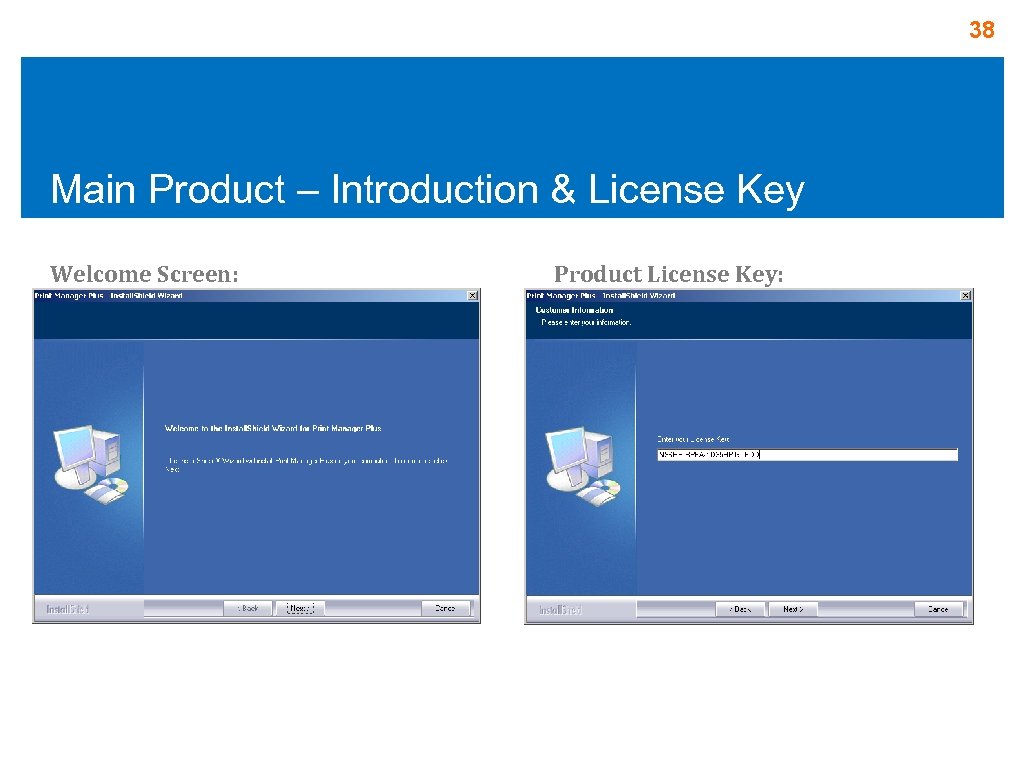 38 Main Product – Introduction & License Key Welcome Screen: Product License Key:
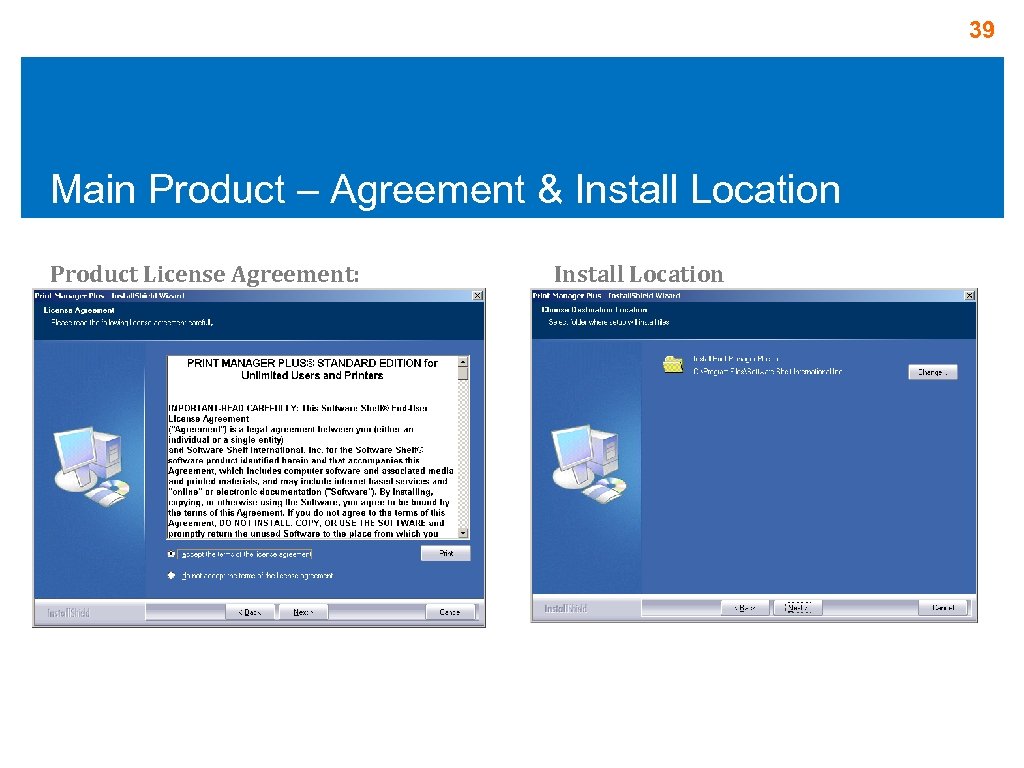 39 Main Product – Agreement & Install Location Product License Agreement: Install Location
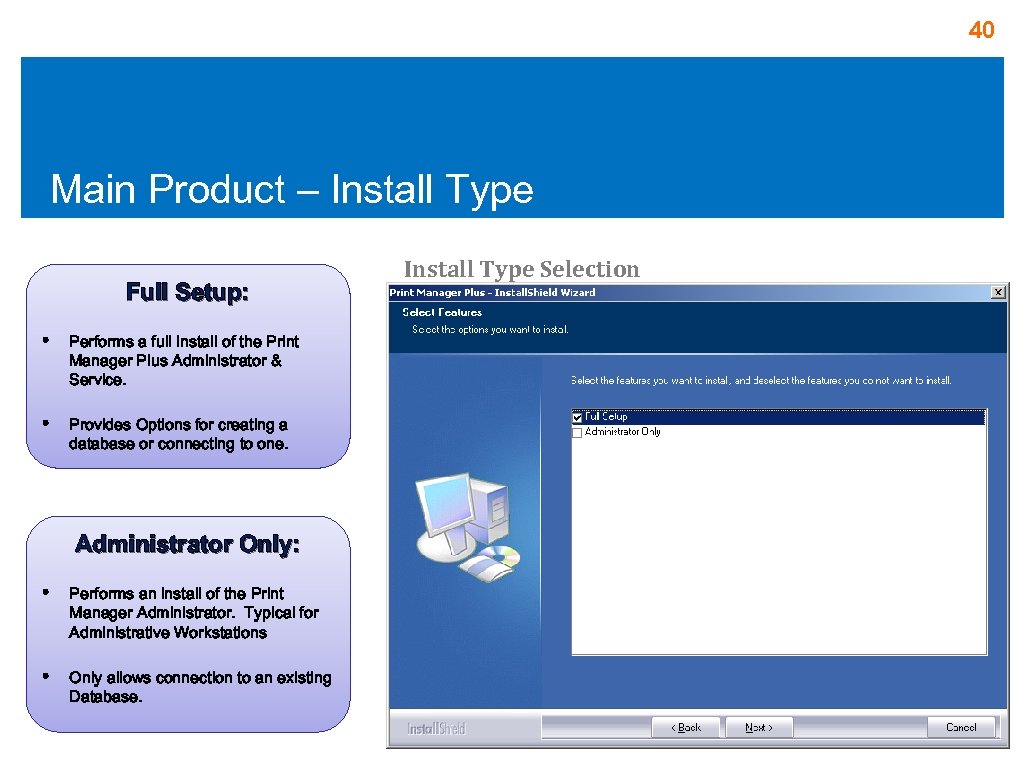 40 Main Product – Install Type Full Setup: • Performs a full install of the Print Manager Plus Administrator & Service. • Provides Options for creating a database or connecting to one. Administrator Only: • Performs an install of the Print Manager Administrator. Typical for Administrative Workstations • Only allows connection to an existing Database. Install Type Selection
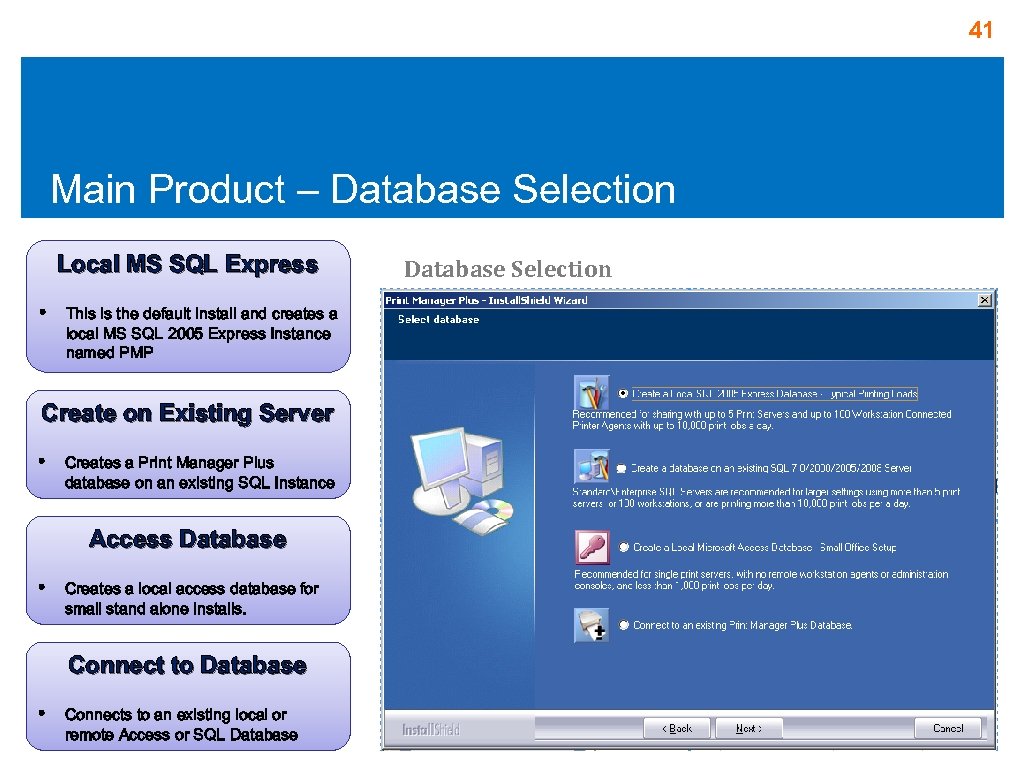 41 Main Product – Database Selection Local MS SQL Express • This is the default install and creates a local MS SQL 2005 Express Instance named PMP Create on Existing Server • Creates a Print Manager Plus database on an existing SQL Instance Access Database • Creates a local access database for small stand alone installs. Connect to Database • Connects to an existing local or remote Access or SQL Database Selection
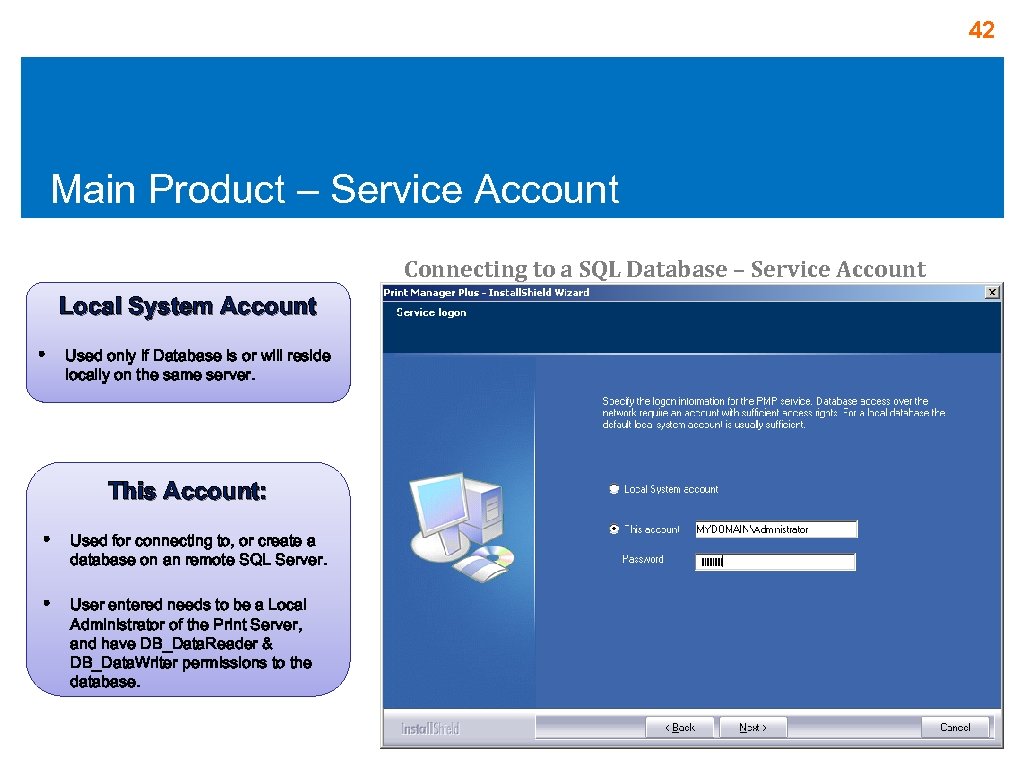 42 Main Product – Service Account Connecting to a SQL Database – Service Account Local System Account • Used only if Database is or will reside locally on the same server. This Account: • Used for connecting to, or create a database on an remote SQL Server. • User entered needs to be a Local Administrator of the Print Server, and have DB_Data. Reader & DB_Data. Writer permissions to the database.
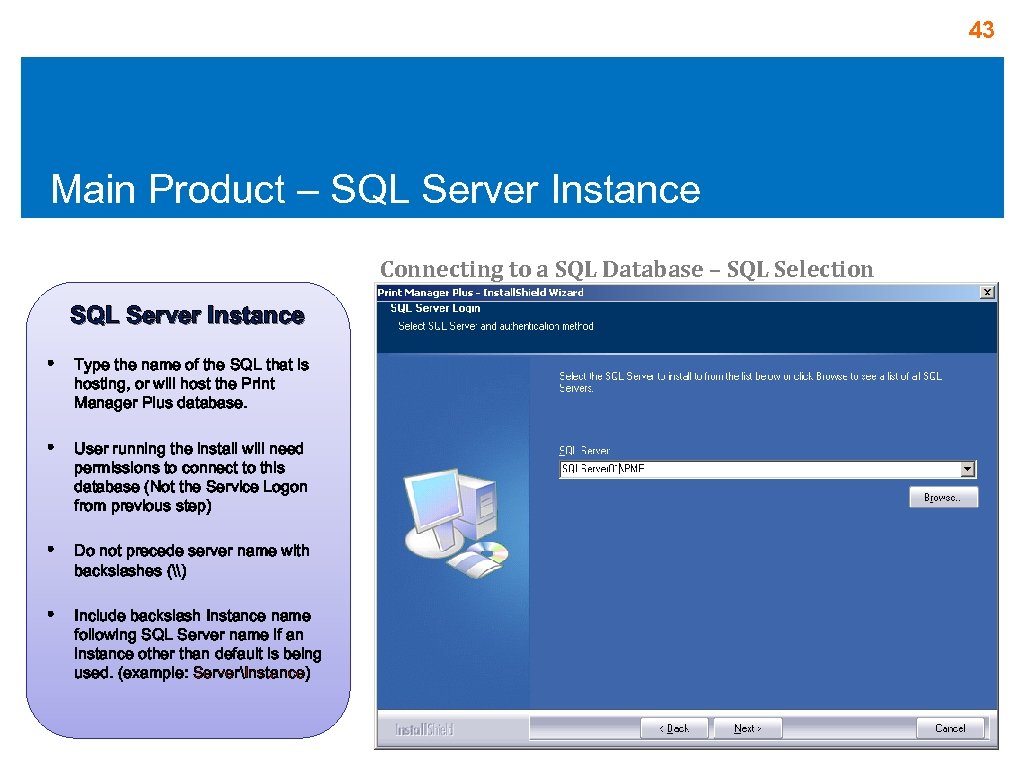 43 Main Product – SQL Server Instance Connecting to a SQL Database – SQL Selection SQL Server Instance • Type the name of the SQL that is hosting, or will host the Print Manager Plus database. • User running the install will need permissions to connect to this database (Not the Service Logon from previous step) • Do not precede server name with backslashes (\) • Include backslash Instance name following SQL Server name if an instance other than default is being used. (example: ServerInstance)
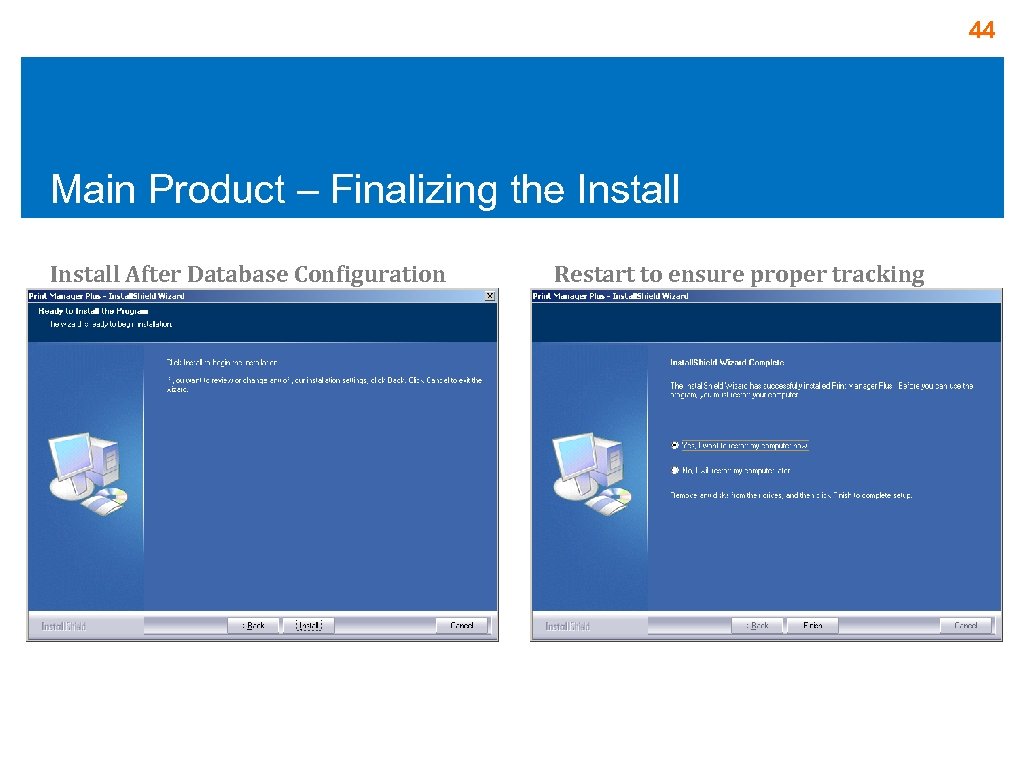 44 Main Product – Finalizing the Install After Database Configuration Restart to ensure proper tracking
 45 Print Manager Plus 2010 Administrator Introduction
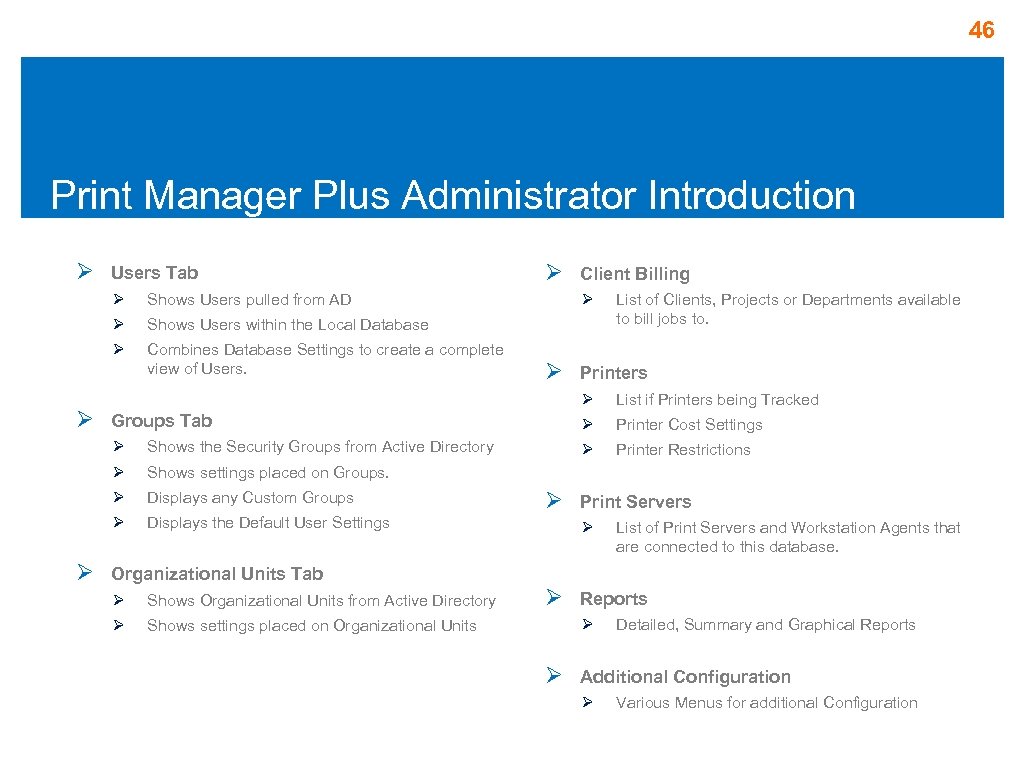 46 Print Manager Plus Administrator Introduction Ø Users Tab Ø Shows Users pulled from AD Ø Combines Database Settings to create a complete view of Users. Client Billing Shows Users within the Local Database Ø Ø List of Clients, Projects or Departments available to bill jobs to. Printers Groups Tab Ø Printer Cost Settings Shows the Security Groups from Active Directory Ø Printer Restrictions Ø Shows settings placed on Groups. Ø Displays any Custom Groups Ø Ø List if Printers being Tracked Ø Ø Ø Displays the Default User Settings Ø Print Servers Ø List of Print Servers and Workstation Agents that are connected to this database. Organizational Units Tab Ø Shows Organizational Units from Active Directory Ø Ø Shows settings placed on Organizational Units Reports Ø Ø Detailed, Summary and Graphical Reports Additional Configuration Ø Various Menus for additional Configuration
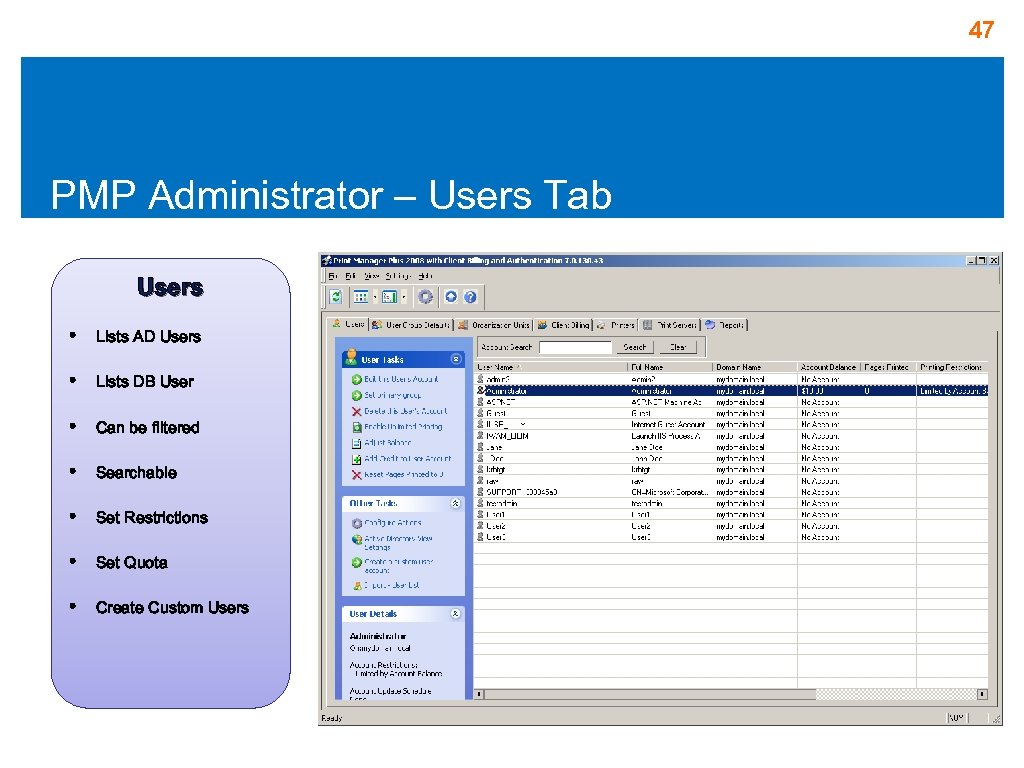 47 PMP Administrator – Users Tab Users • Lists AD Users • Lists DB User • Can be filtered • Searchable • Set Restrictions • Set Quota • Create Custom Users
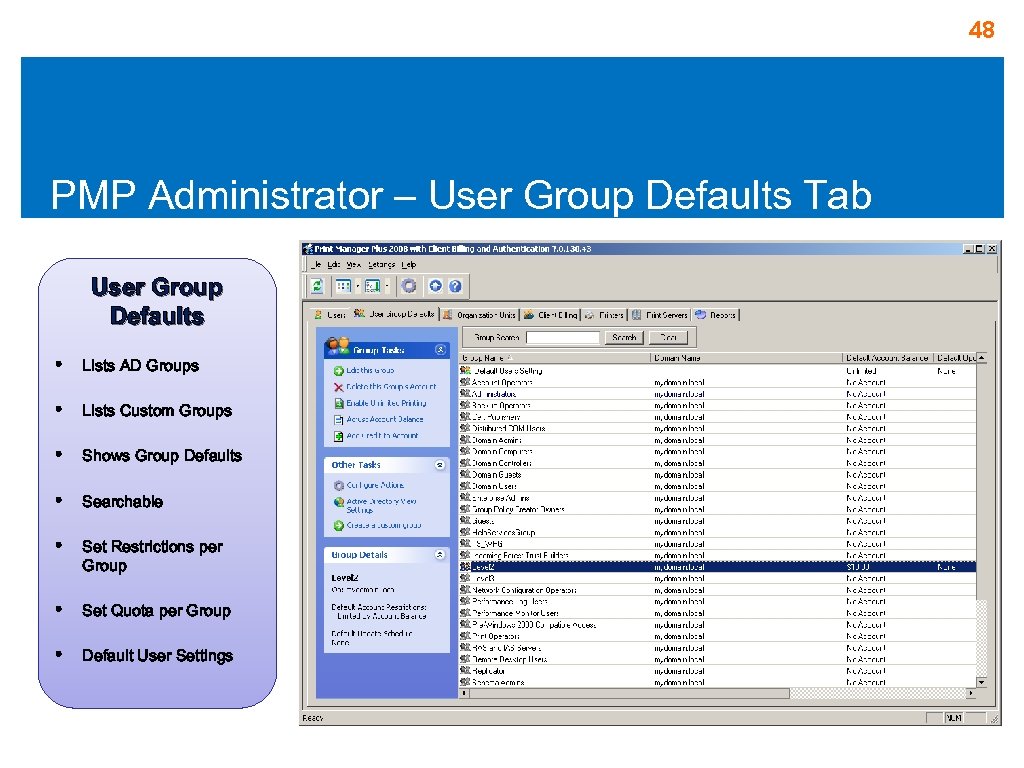 48 PMP Administrator – User Group Defaults Tab User Group Defaults • Lists AD Groups • Lists Custom Groups • Shows Group Defaults • Searchable • Set Restrictions per Group • Set Quota per Group • Default User Settings
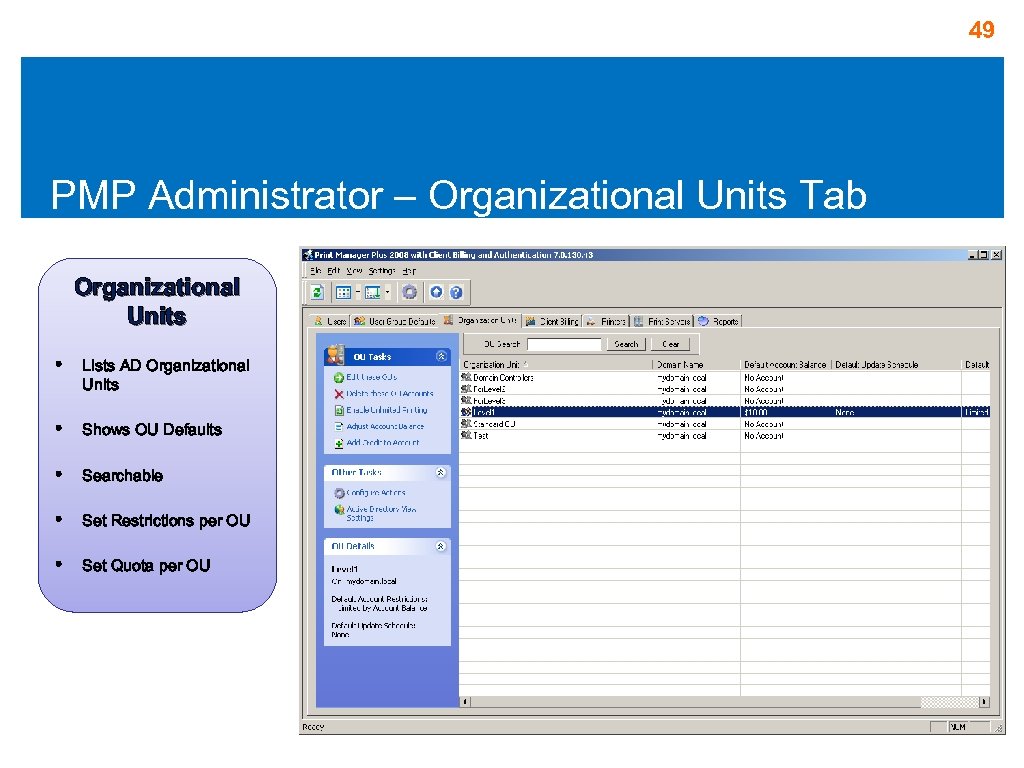 49 PMP Administrator – Organizational Units Tab Organizational Units • Lists AD Organizational Units • Shows OU Defaults • Searchable • Set Restrictions per OU • Set Quota per OU
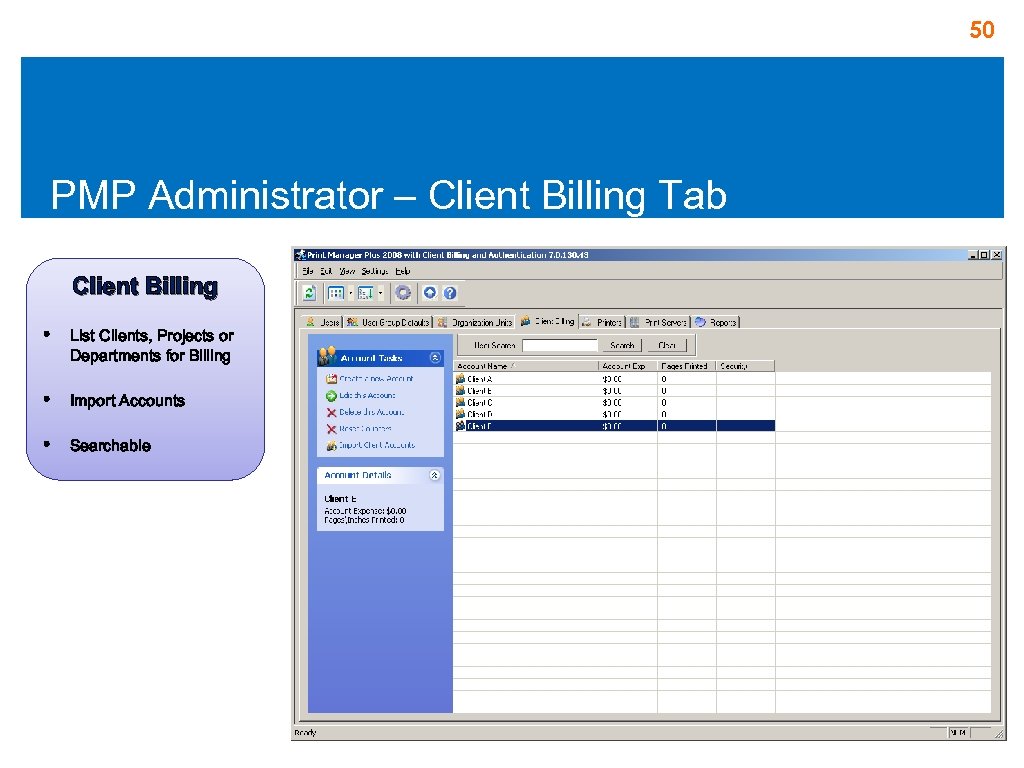 50 PMP Administrator – Client Billing Tab Client Billing • List Clients, Projects or Departments for Billing • Import Accounts • Searchable
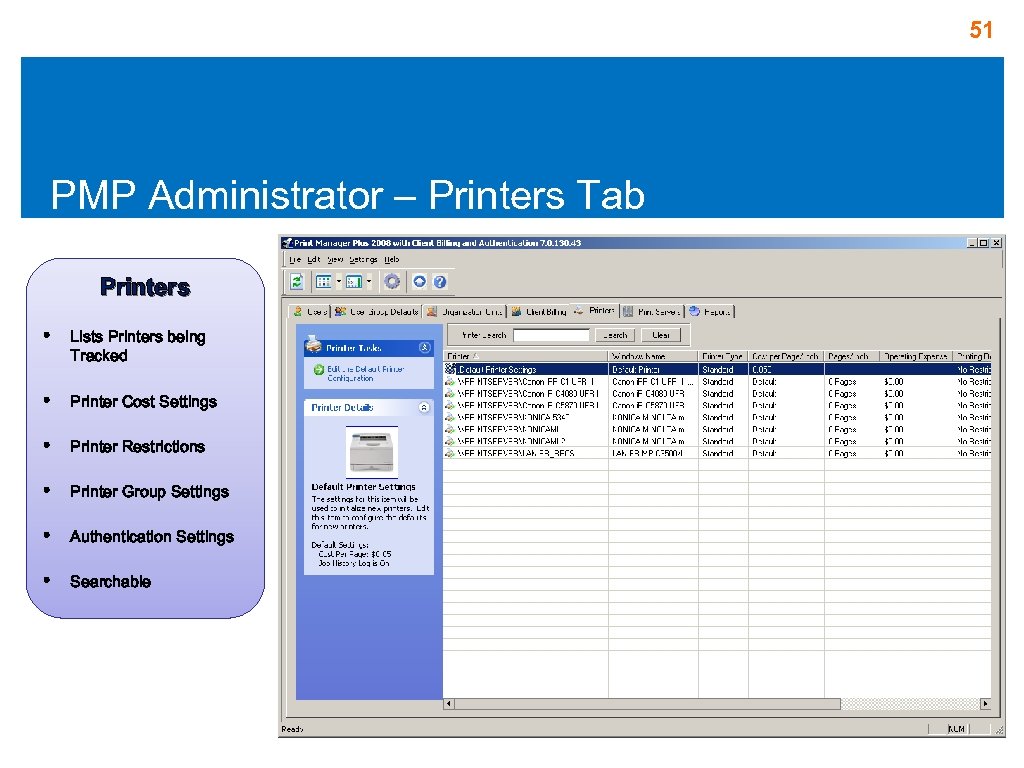 51 PMP Administrator – Printers Tab Printers • Lists Printers being Tracked • Printer Cost Settings • Printer Restrictions • Printer Group Settings • Authentication Settings • Searchable
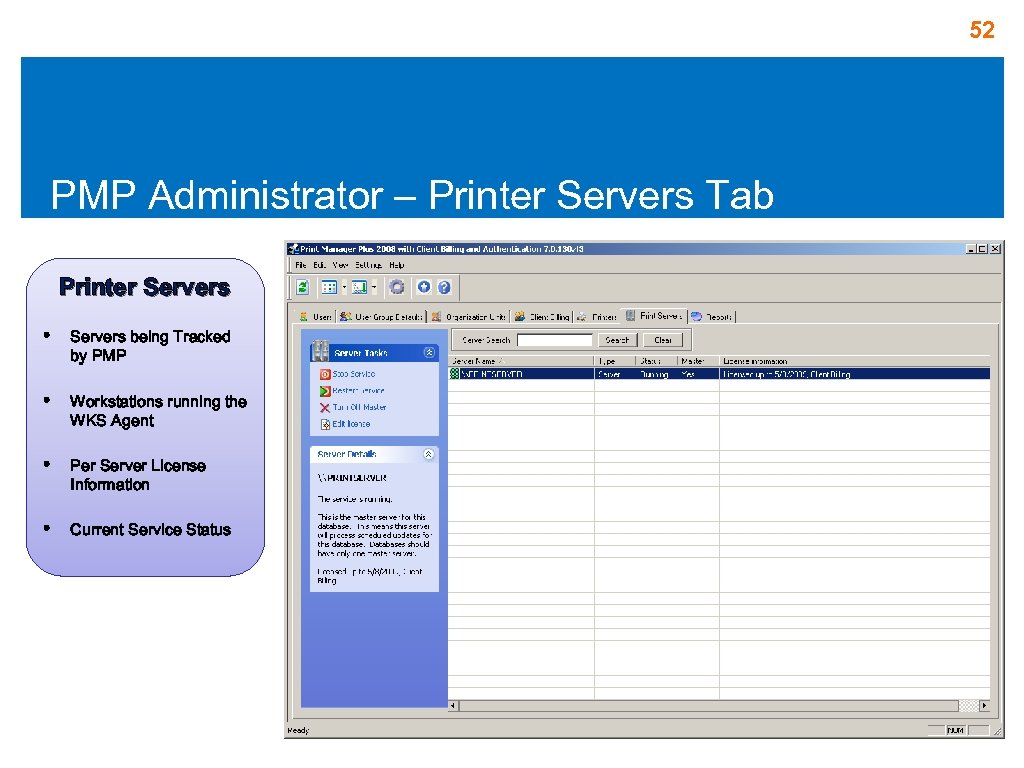 52 PMP Administrator – Printer Servers Tab Printer Servers • Servers being Tracked by PMP • Workstations running the WKS Agent • Per Server License Information • Current Service Status
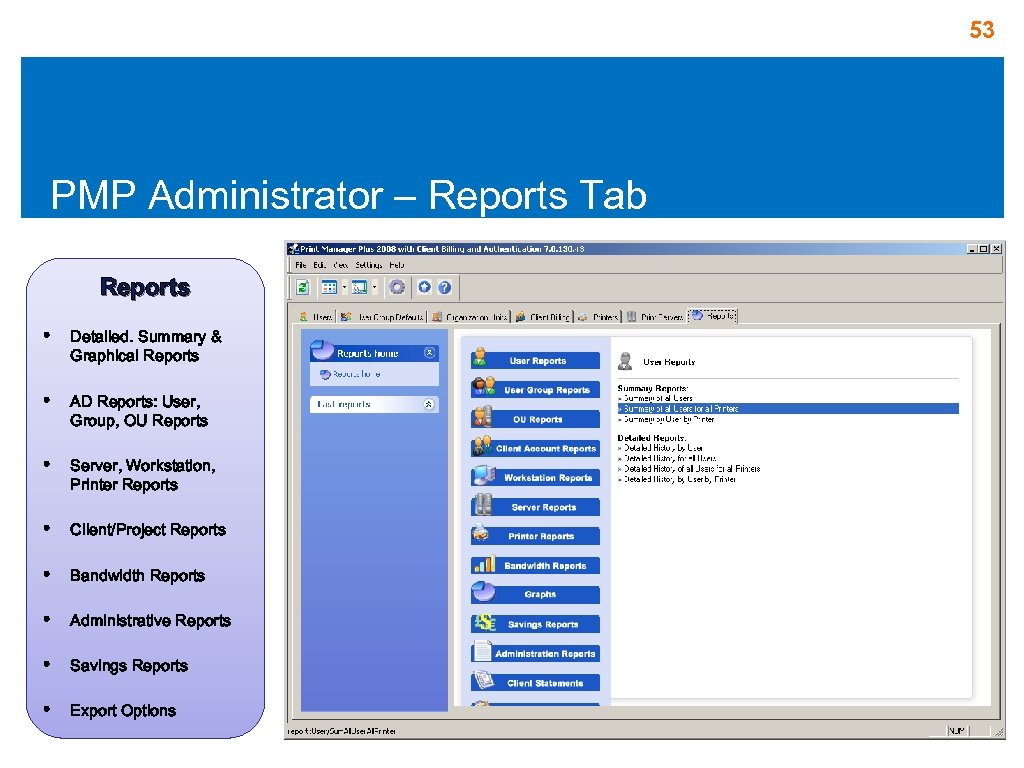 53 PMP Administrator – Reports Tab Reports • Detailed. Summary & Graphical Reports • AD Reports: User, Group, OU Reports • Server, Workstation, Printer Reports • Client/Project Reports • Bandwidth Reports • Administrative Reports • Savings Reports • Export Options
 54 Print Manager Plus 2010 Using the Active Directory View
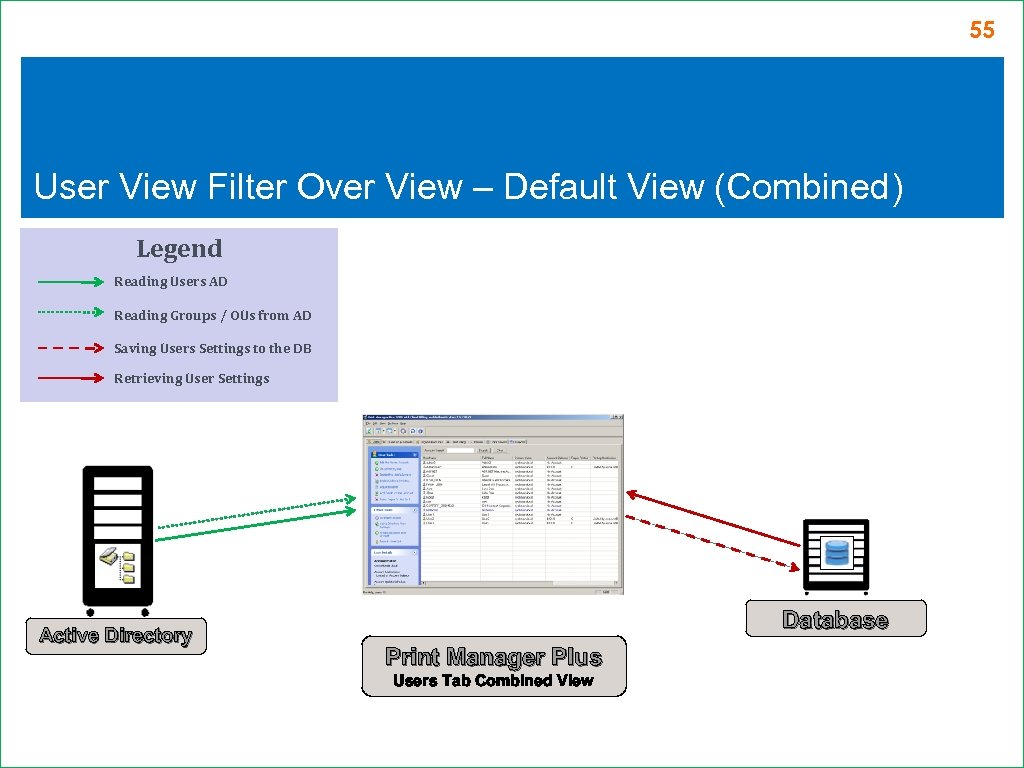 55 User View Filter Over View – Default View (Combined) Legend Reading Users AD Reading Groups / OUs from AD Saving Users Settings to the DB Retrieving User Settings Active Directory Database Print Manager Plus Users Tab Combined View
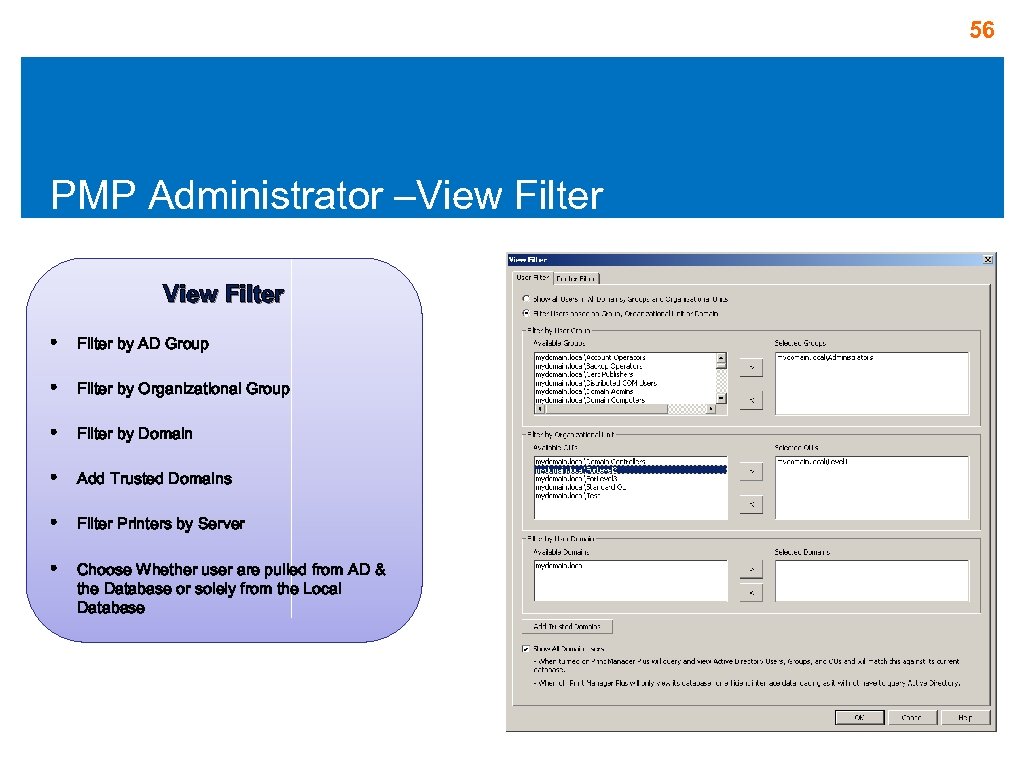 56 PMP Administrator –View Filter • Filter by AD Group • Filter by Organizational Group • Filter by Domain • Add Trusted Domains • Filter Printers by Server • Choose Whether user are pulled from AD & the Database or solely from the Local Database
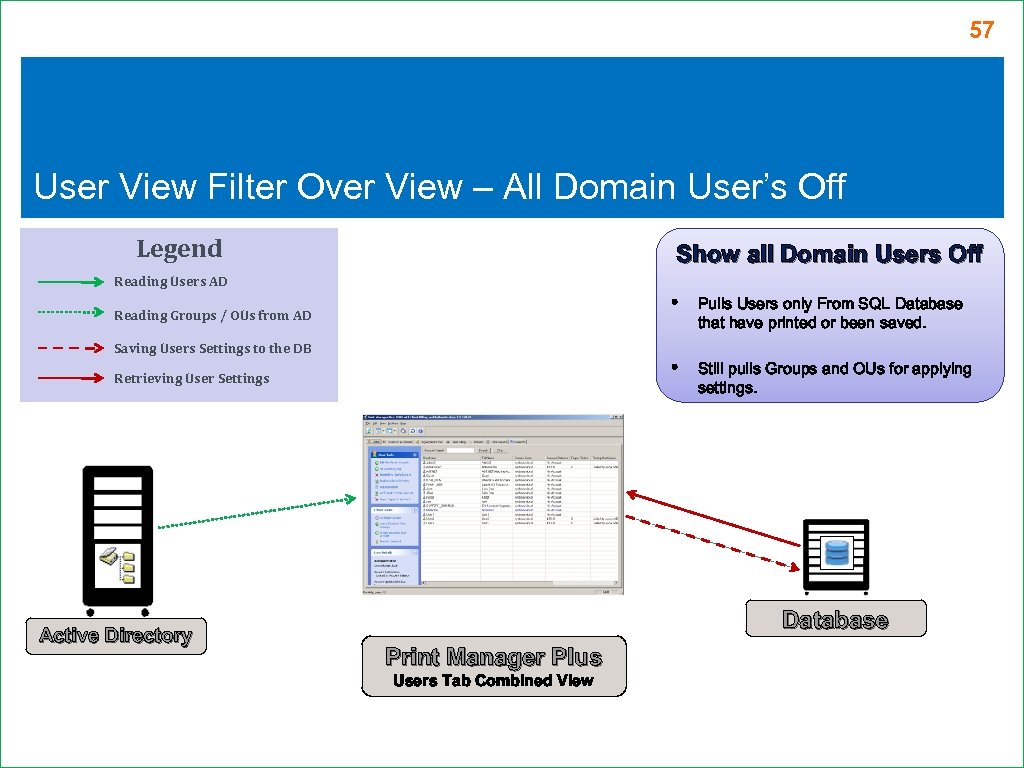 57 User View Filter Over View – All Domain User’s Off Legend Show all Domain Users Off Reading Users AD • Saving Users Settings to the DB Retrieving User Settings Active Directory Pulls Users only From SQL Database that have printed or been saved. • Reading Groups / OUs from AD Still pulls Groups and OUs for applying settings. Database Print Manager Plus Users Tab Combined View
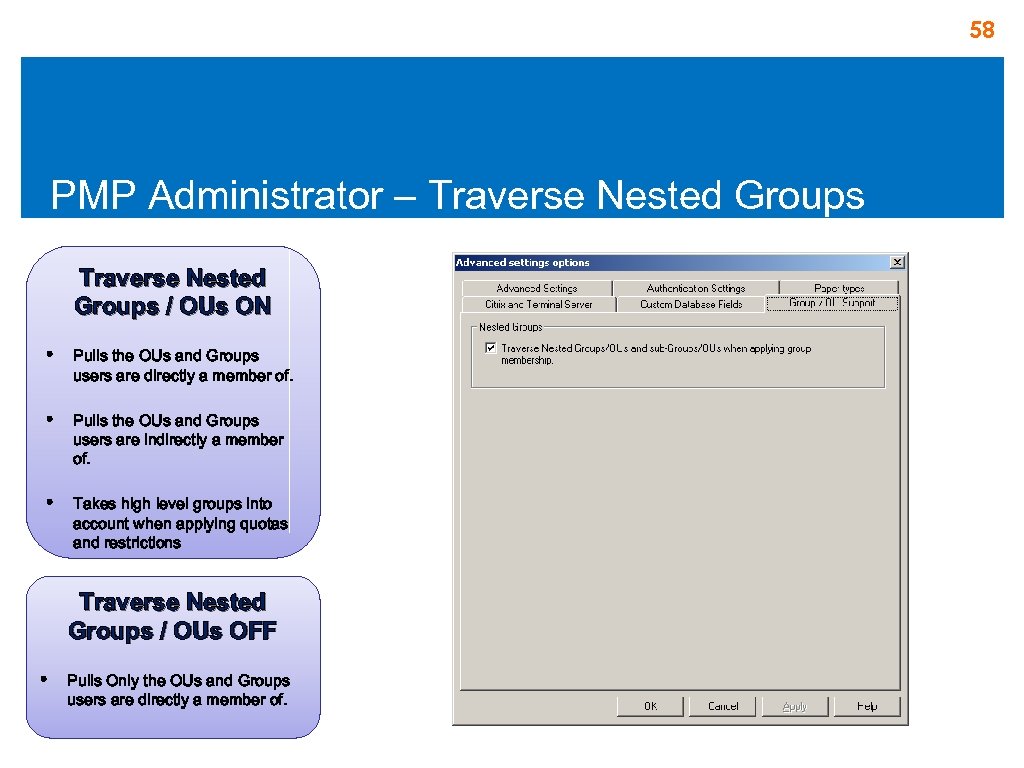 58 PMP Administrator – Traverse Nested Groups / OUs ON • Pulls the OUs and Groups users are directly a member of. • Pulls the OUs and Groups users are indirectly a member of. • Takes high level groups into account when applying quotas and restrictions Traverse Nested Groups / OUs OFF • Pulls Only the OUs and Groups users are directly a member of.
 59 Print Manager Plus 2010 Database Information
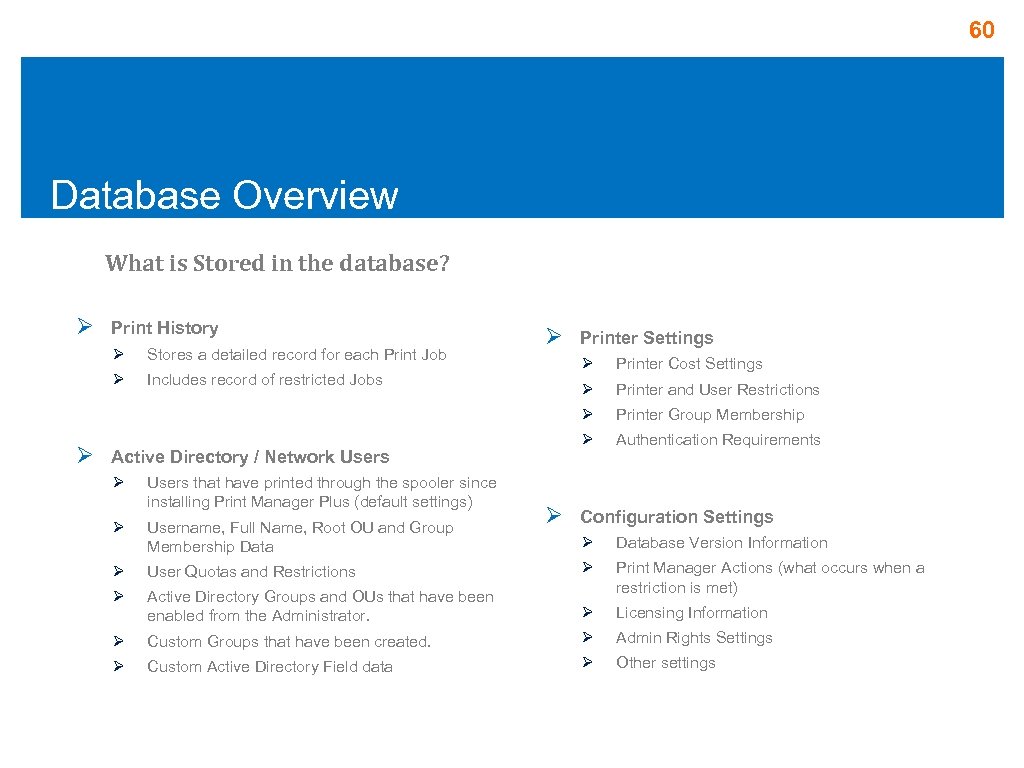 60 Database Overview What is Stored in the database? Ø Print History Ø Stores a detailed record for each Print Job Ø Ø Includes record of restricted Jobs Printer Settings Ø Ø Users that have printed through the spooler since installing Print Manager Plus (default settings) Ø Username, Full Name, Root OU and Group Membership Data Ø Ø Printer and User Restrictions Printer Group Membership Ø Active Directory / Network Users Printer Cost Settings Ø Ø Ø Authentication Requirements Configuration Settings Ø Database Version Information User Quotas and Restrictions Ø Ø Active Directory Groups and OUs that have been enabled from the Administrator. Print Manager Actions (what occurs when a restriction is met) Ø Licensing Information Ø Custom Groups that have been created. Ø Admin Rights Settings Ø Custom Active Directory Field data Ø Other settings
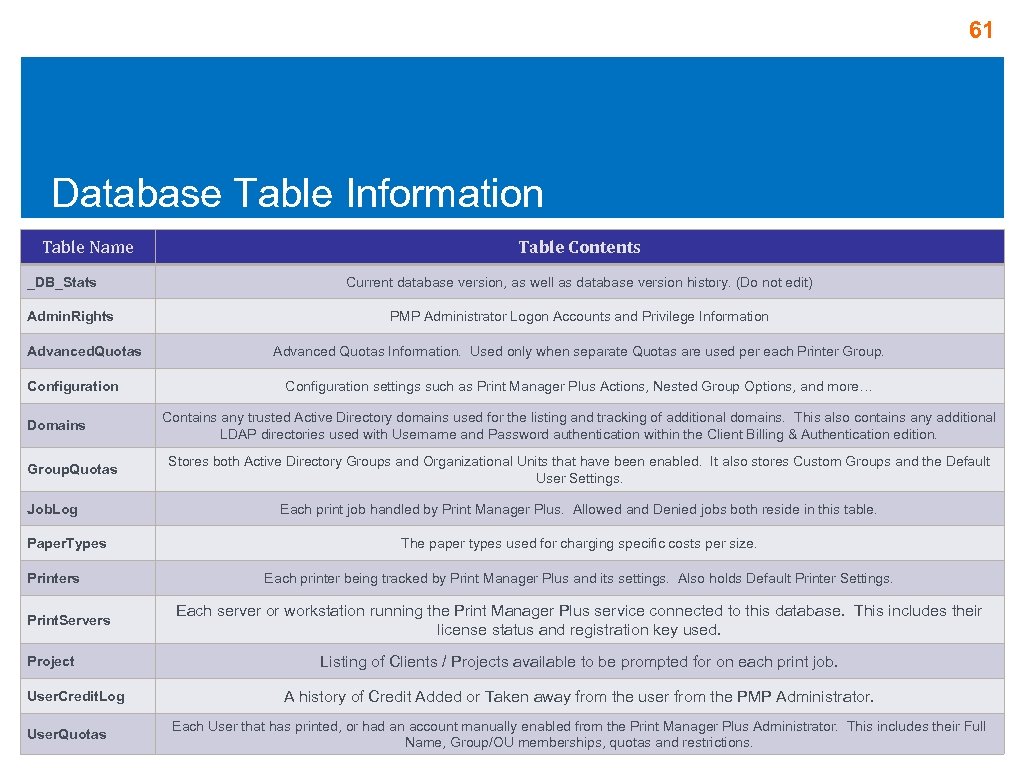 61 Database Table Information Table Name _DB_Stats Admin. Rights Advanced. Quotas Configuration Domains Group. Quotas Job. Log Paper. Types Printers Print. Servers Project User. Credit. Log User. Quotas Table Contents Current database version, as well as database version history. (Do not edit) PMP Administrator Logon Accounts and Privilege Information Advanced Quotas Information. Used only when separate Quotas are used per each Printer Group. Configuration settings such as Print Manager Plus Actions, Nested Group Options, and more… Contains any trusted Active Directory domains used for the listing and tracking of additional domains. This also contains any additional LDAP directories used with Username and Password authentication within the Client Billing & Authentication edition. Stores both Active Directory Groups and Organizational Units that have been enabled. It also stores Custom Groups and the Default User Settings. Each print job handled by Print Manager Plus. Allowed and Denied jobs both reside in this table. The paper types used for charging specific costs per size. Each printer being tracked by Print Manager Plus and its settings. Also holds Default Printer Settings. Each server or workstation running the Print Manager Plus service connected to this database. This includes their license status and registration key used. Listing of Clients / Projects available to be prompted for on each print job. A history of Credit Added or Taken away from the user from the PMP Administrator. Each User that has printed, or had an account manually enabled from the Print Manager Plus Administrator. This includes their Full Name, Group/OU memberships, quotas and restrictions.
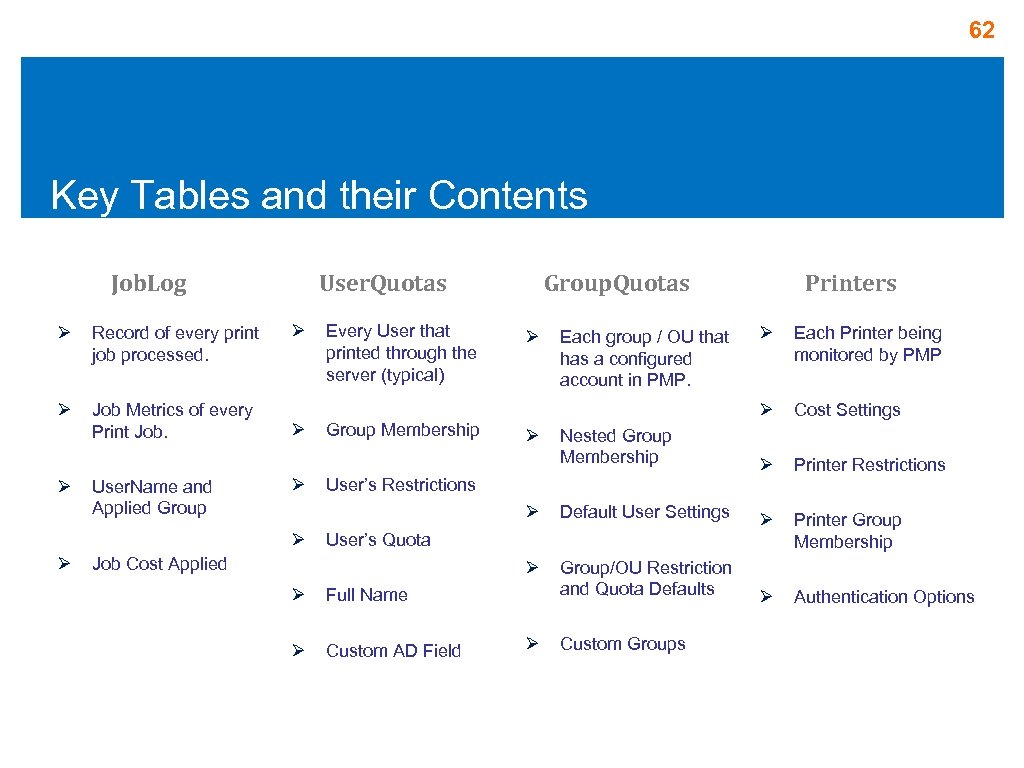 62 Key Tables and their Contents Job. Log Ø Record of every print job processed. Ø Job Metrics of every Print Job. Ø User. Name and Applied Group User. Quotas Ø Printers Each Printer being monitored by PMP Ø Cost Settings Nested Group Membership Ø Printer Restrictions Default User Settings Ø Printer Group Membership Ø Ø Ø Ø Ø Every User that printed through the server (typical) Group. Quotas Group/OU Restriction and Quota Defaults Ø Authentication Options Ø Ø Each group / OU that has a configured account in PMP. User’s Restrictions User’s Quota Job Cost Applied Ø Full Name Ø Custom AD Field Ø Custom Groups
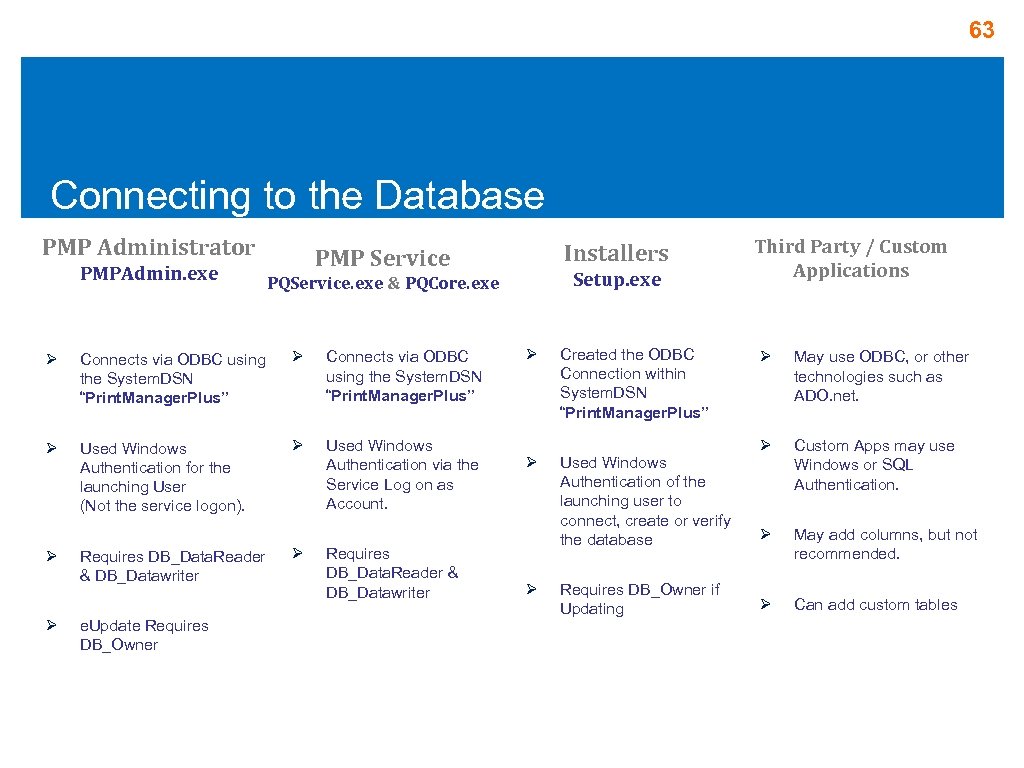 63 Connecting to the Database PMP Administrator PMPAdmin. exe Connects via ODBC using the System. DSN “Print. Manager. Plus” Ø Used Windows Authentication for the launching User (Not the service logon). Ø Used Windows Authentication via the Service Log on as Account. Ø Requires DB_Data. Reader & DB_Datawriter e. Update Requires DB_Owner Setup. exe PQService. exe & PQCore. exe Ø Ø Installers PMP Service Ø Requires DB_Data. Reader & DB_Datawriter Ø Ø Ø Created the ODBC Connection within System. DSN “Print. Manager. Plus” Used Windows Authentication of the launching user to connect, create or verify the database Requires DB_Owner if Updating Third Party / Custom Applications Ø May use ODBC, or other technologies such as ADO. net. Ø Custom Apps may use Windows or SQL Authentication. Ø May add columns, but not recommended. Ø Can add custom tables
 64 Print Manager Plus 2010 Agents and Options
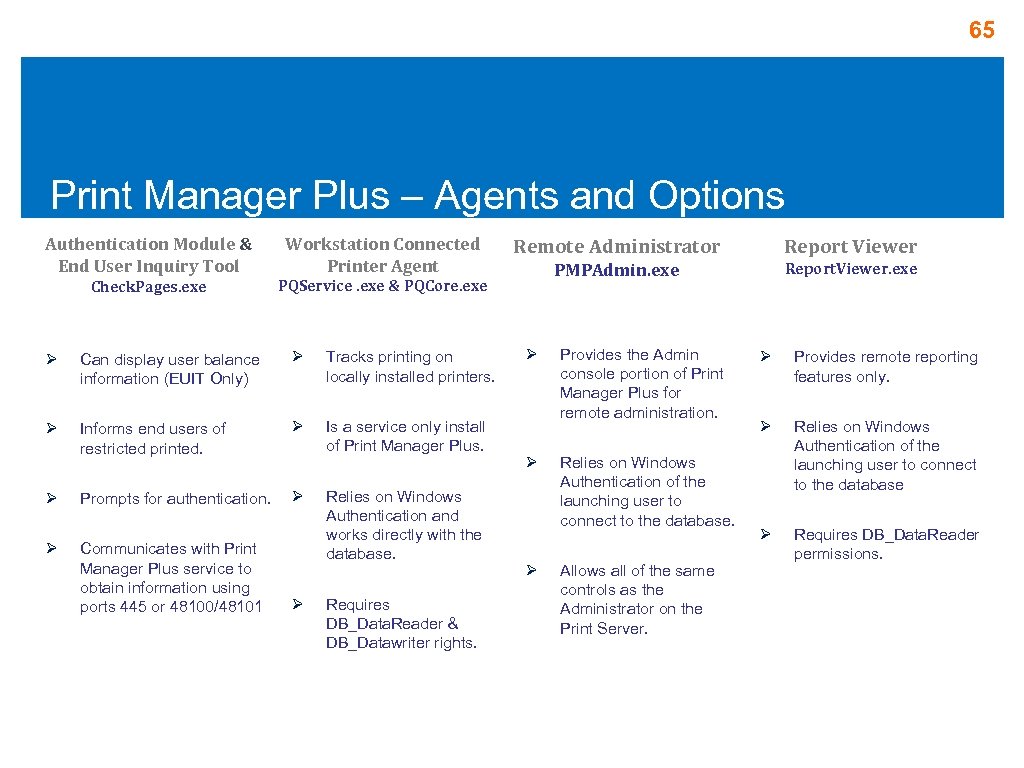 65 Print Manager Plus – Agents and Options Authentication Module & End User Inquiry Tool Workstation Connected Printer Agent Check. Pages. exe PQService. exe & PQCore. exe Ø Can display user balance information (EUIT Only) Ø Tracks printing on locally installed printers. Ø Informs end users of restricted printed. Ø Is a service only install of Print Manager Plus. Prompts for authentication. Ø Ø Ø Communicates with Print Manager Plus service to obtain information using ports 445 or 48100/48101 Ø Relies on Windows Authentication and works directly with the database. Requires DB_Data. Reader & DB_Datawriter rights. Remote Administrator Report Viewer PMPAdmin. exe Report. Viewer. exe Ø Ø Ø Provides the Admin console portion of Print Manager Plus for remote administration. Relies on Windows Authentication of the launching user to connect to the database. Allows all of the same controls as the Administrator on the Print Server. Ø Provides remote reporting features only. Ø Relies on Windows Authentication of the launching user to connect to the database Ø Requires DB_Data. Reader permissions.
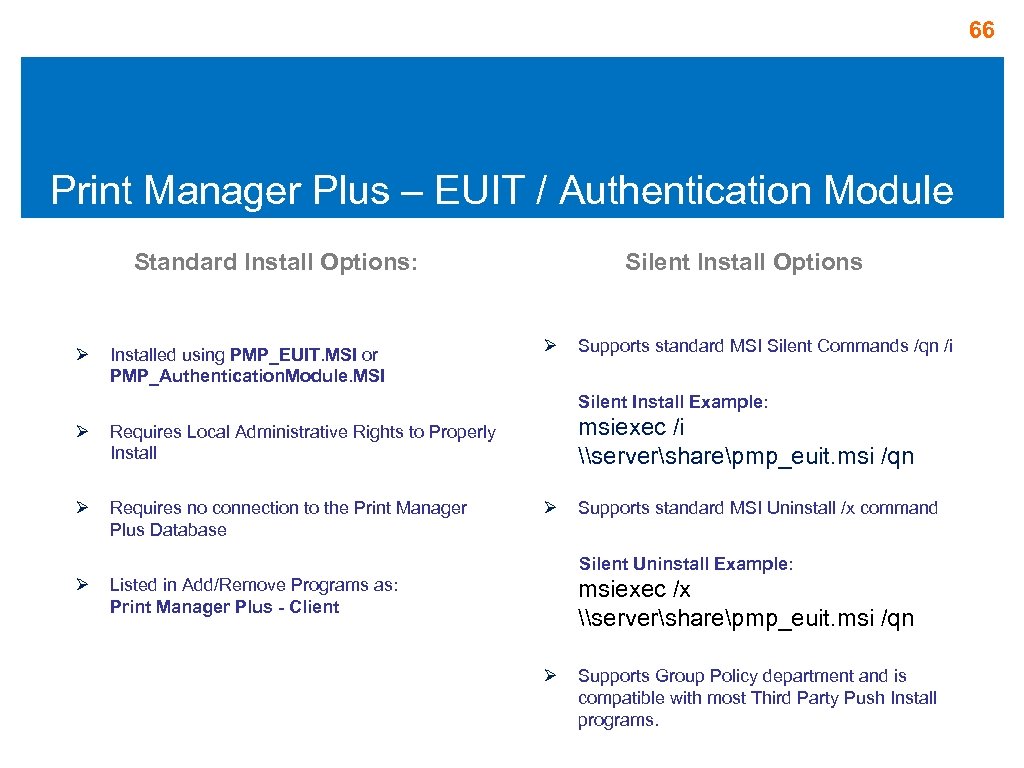 66 Print Manager Plus – EUIT / Authentication Module Standard Install Options: Ø Installed using PMP_EUIT. MSI or PMP_Authentication. Module. MSI Silent Install Options Ø Supports standard MSI Silent Commands /qn /i Silent Install Example: Ø Ø Requires no connection to the Print Manager Plus Database msiexec /i \serversharepmp_euit. msi /qn Requires Local Administrative Rights to Properly Install Ø Supports standard MSI Uninstall /x command Silent Uninstall Example: Ø Listed in Add/Remove Programs as: Print Manager Plus - Client msiexec /x \serversharepmp_euit. msi /qn Ø Supports Group Policy department and is compatible with most Third Party Push Install programs.
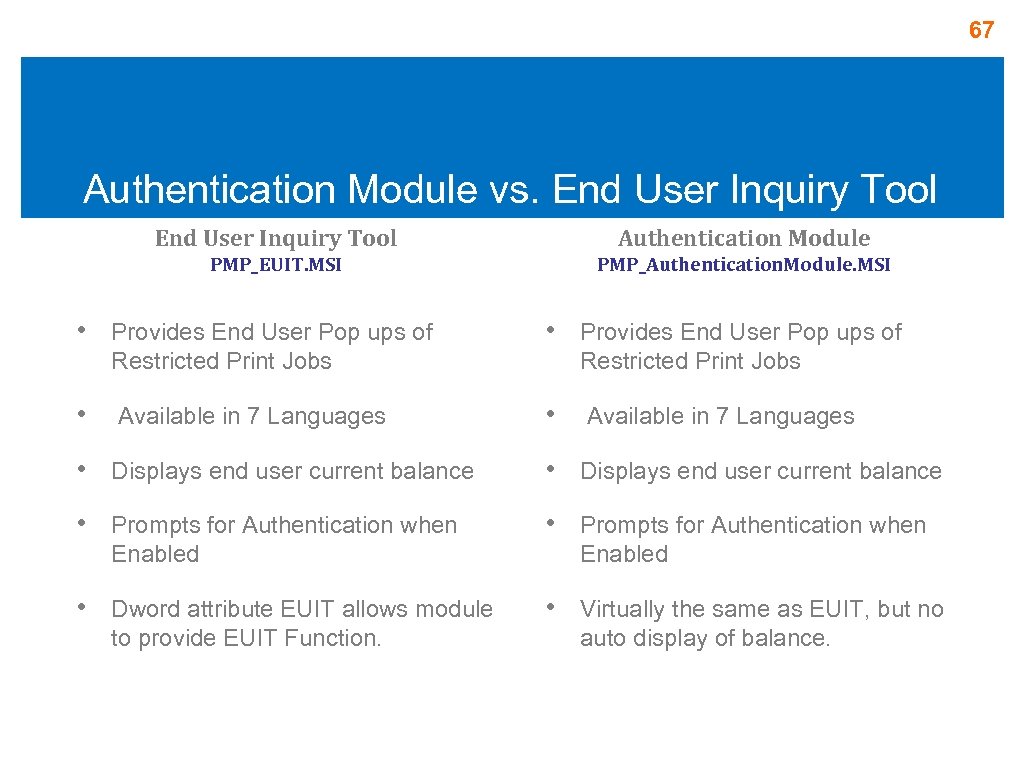 67 Authentication Module vs. End User Inquiry Tool Authentication Module PMP_EUIT. MSI PMP_Authentication. Module. MSI • Provides End User Pop ups of Restricted Print Jobs • Available in 7 Languages • Displays end user current balance • Prompts for Authentication when Enabled • Dword attribute EUIT allows module to provide EUIT Function. • Virtually the same as EUIT, but no auto display of balance.
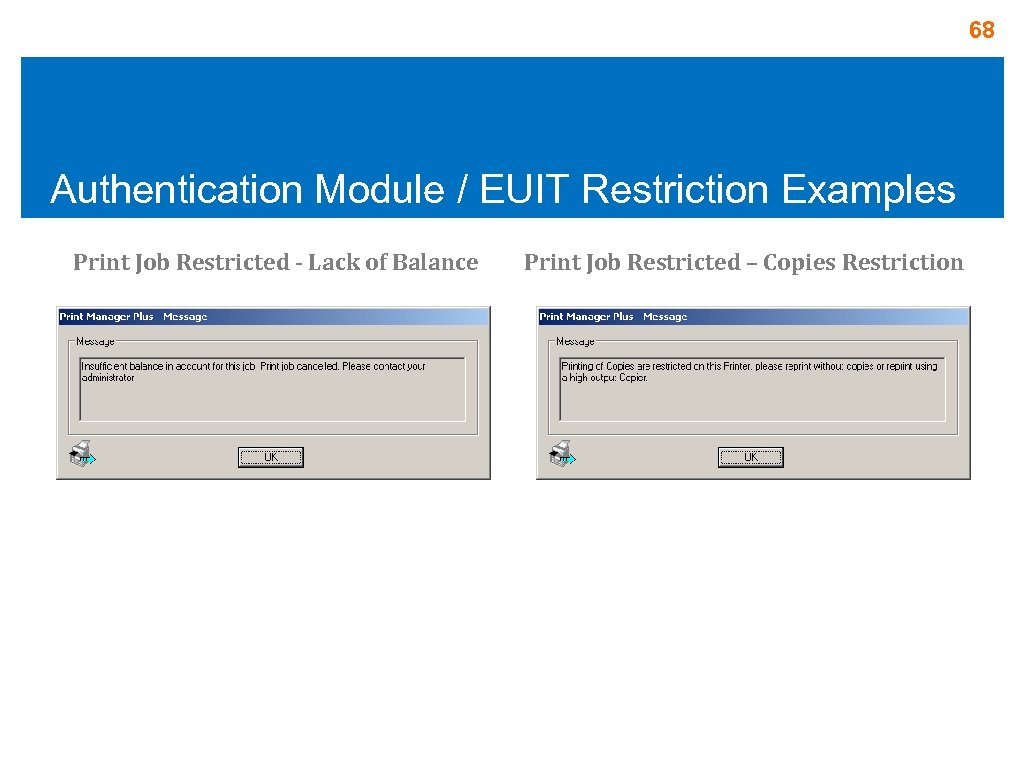 68 Authentication Module / EUIT Restriction Examples Print Job Restricted - Lack of Balance Print Job Restricted – Copies Restriction
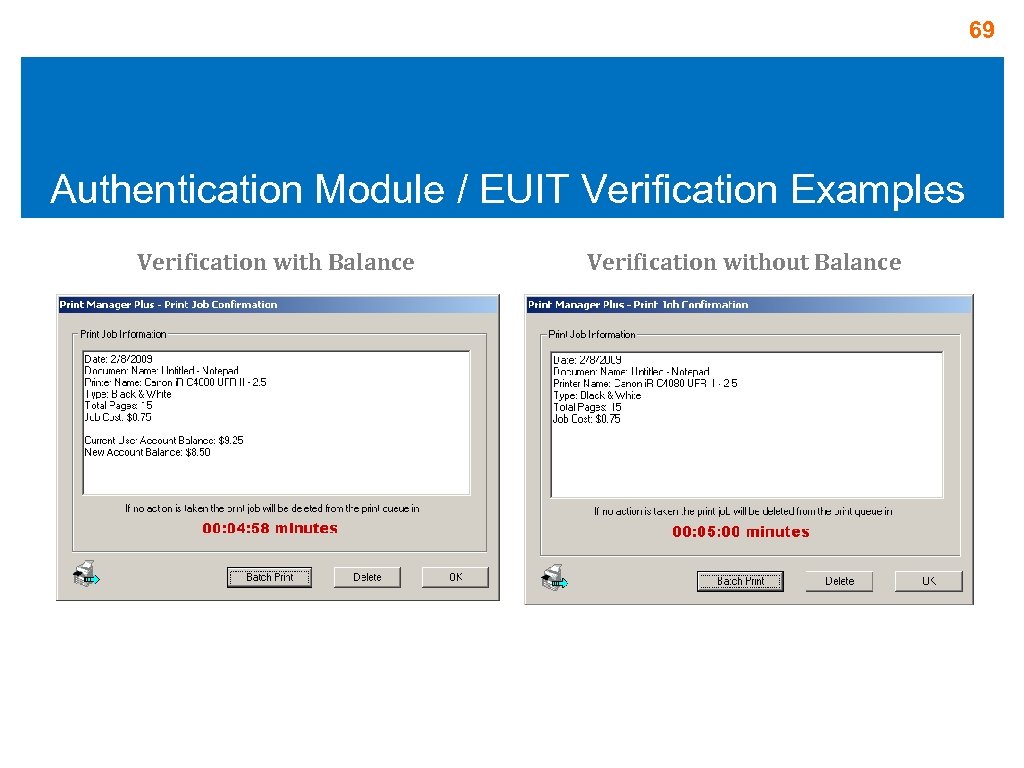 69 Authentication Module / EUIT Verification Examples Verification with Balance Verification without Balance
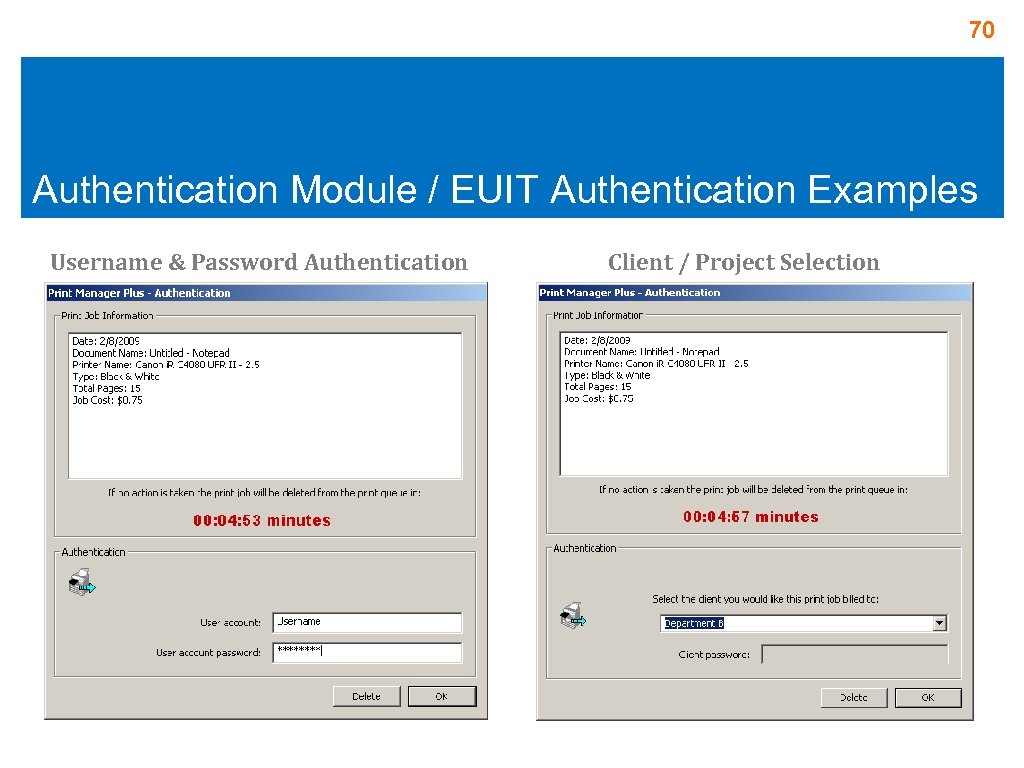 70 Authentication Module / EUIT Authentication Examples Username & Password Authentication Client / Project Selection
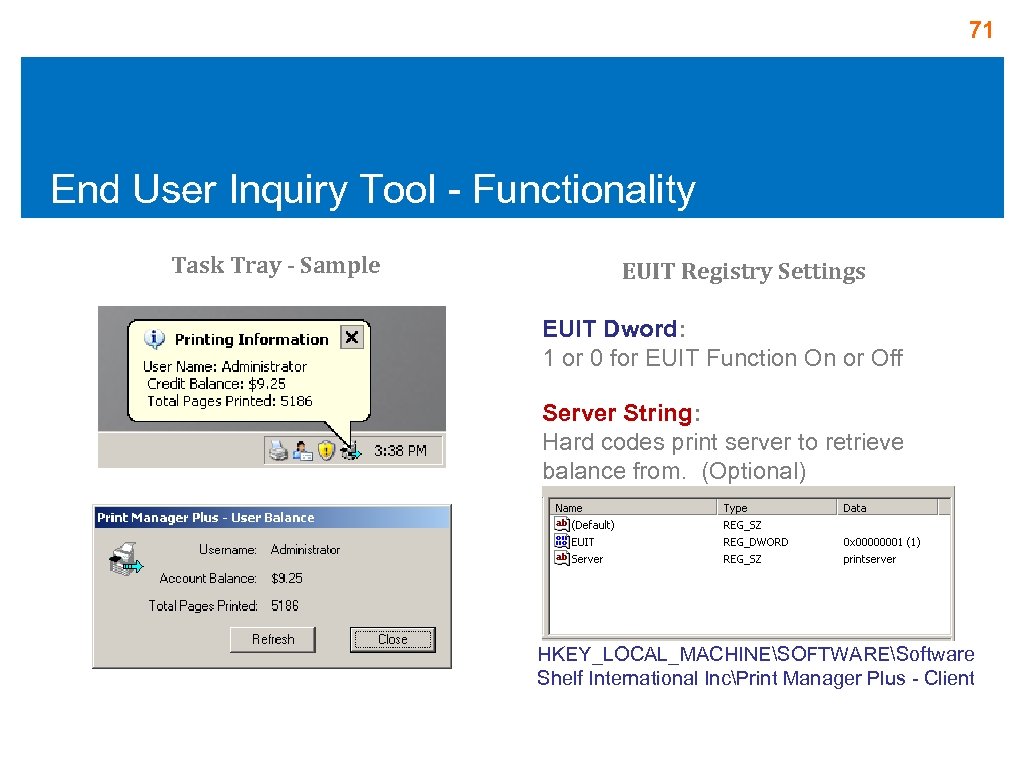 71 End User Inquiry Tool - Functionality Task Tray - Sample EUIT Registry Settings EUIT Dword: 1 or 0 for EUIT Function On or Off Server String: Hard codes print server to retrieve balance from. (Optional) HKEY_LOCAL_MACHINESOFTWARESoftware Shelf International IncPrint Manager Plus - Client
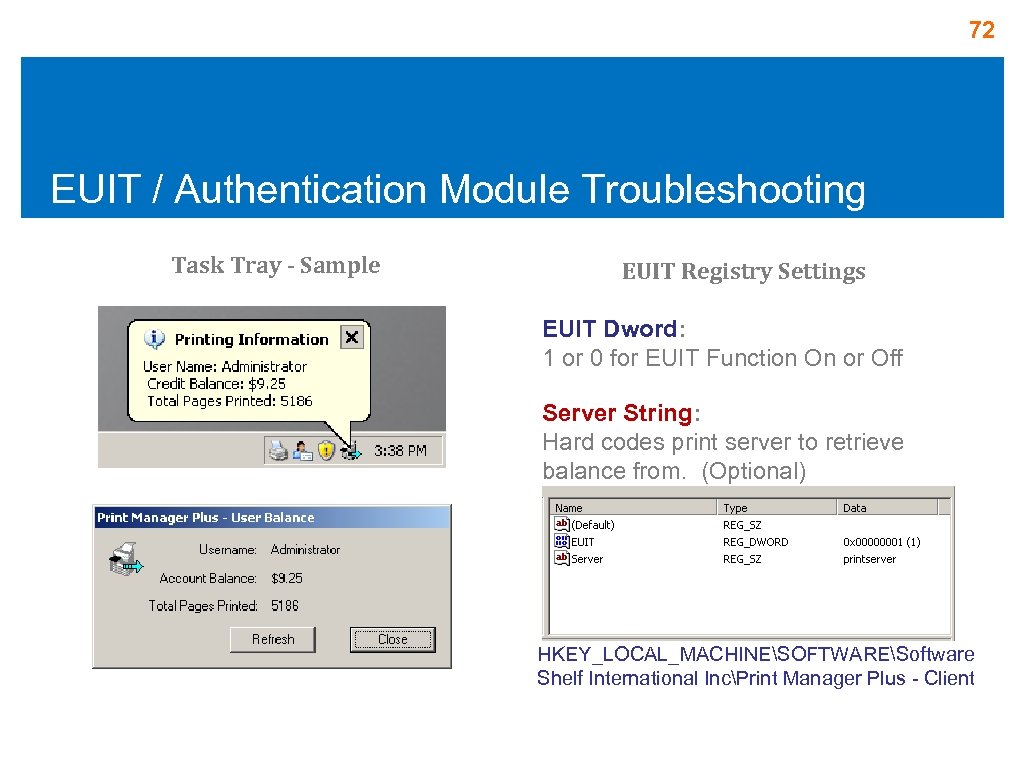 72 EUIT / Authentication Module Troubleshooting Task Tray - Sample EUIT Registry Settings EUIT Dword: 1 or 0 for EUIT Function On or Off Server String: Hard codes print server to retrieve balance from. (Optional) HKEY_LOCAL_MACHINESOFTWARESoftware Shelf International IncPrint Manager Plus - Client
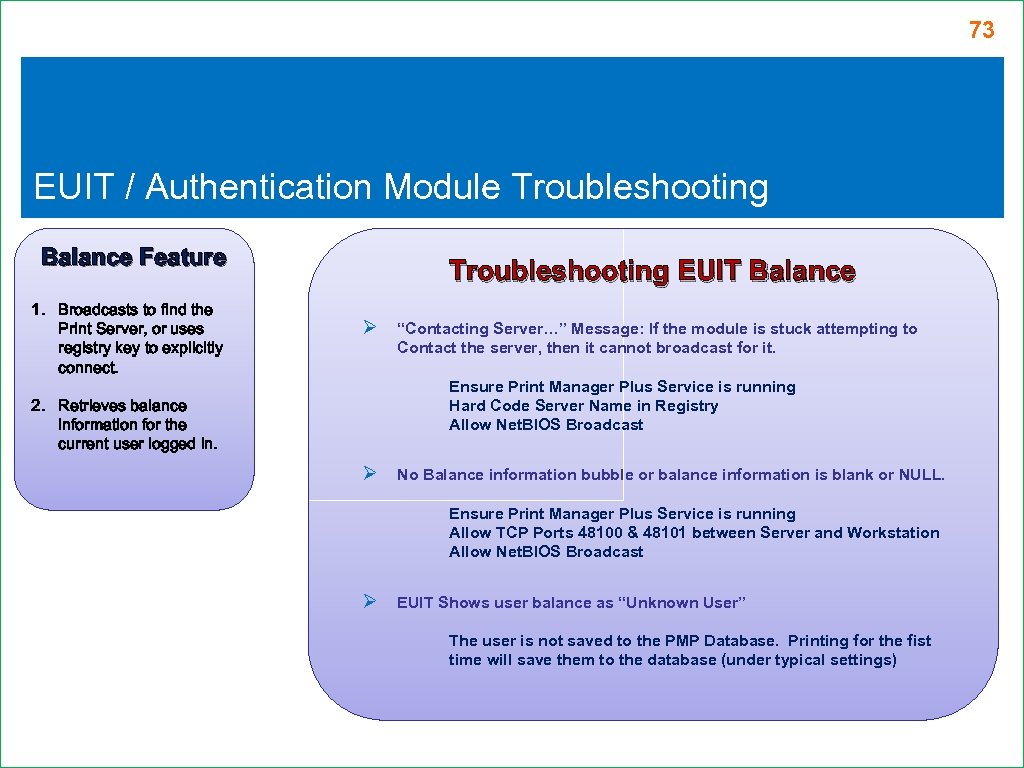 73 EUIT / Authentication Module Troubleshooting Balance Feature 1. Broadcasts to find the Print Server, or uses registry key to explicitly connect. Troubleshooting EUIT Balance Ø “Contacting Server…” Message: If the module is stuck attempting to Contact the server, then it cannot broadcast for it. Ensure Print Manager Plus Service is running Hard Code Server Name in Registry Allow Net. BIOS Broadcast 2. Retrieves balance information for the current user logged in. Ø No Balance information bubble or balance information is blank or NULL. Ensure Print Manager Plus Service is running Allow TCP Ports 48100 & 48101 between Server and Workstation Allow Net. BIOS Broadcast Ø EUIT Shows user balance as “Unknown User” The user is not saved to the PMP Database. Printing for the fist time will save them to the database (under typical settings)
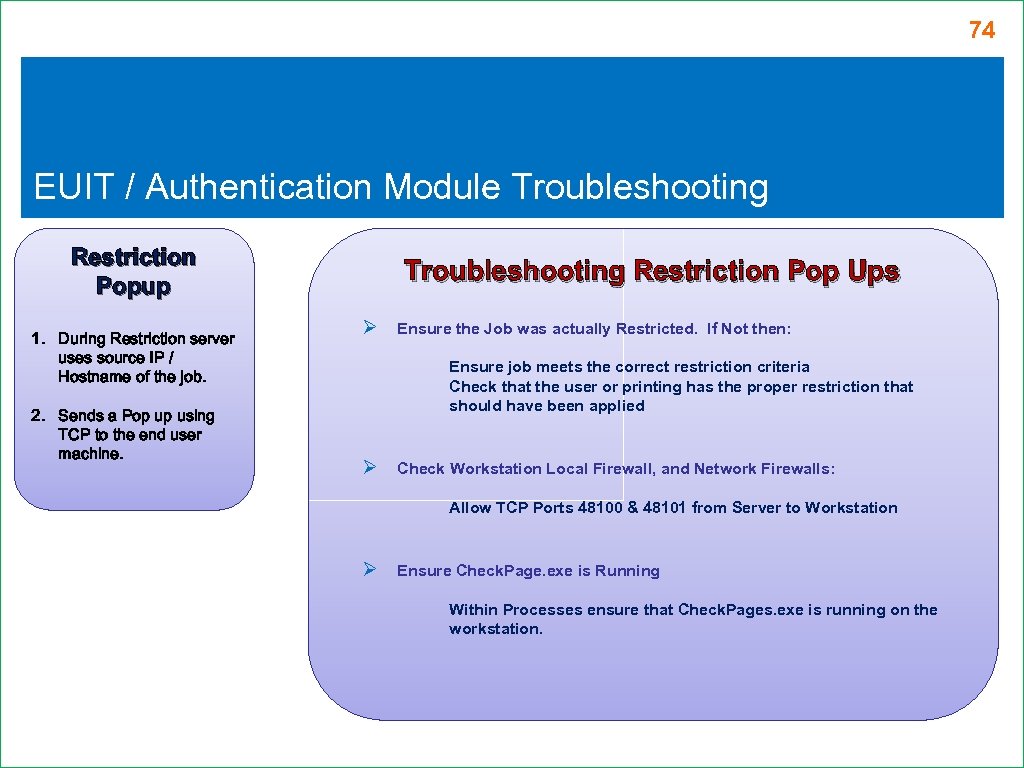 74 EUIT / Authentication Module Troubleshooting Restriction Popup 1. During Restriction server uses source IP / Hostname of the job. 2. Sends a Pop up using TCP to the end user machine. Troubleshooting Restriction Pop Ups Ø Ensure the Job was actually Restricted. If Not then: Ensure job meets the correct restriction criteria Check that the user or printing has the proper restriction that should have been applied Ø Check Workstation Local Firewall, and Network Firewalls: Allow TCP Ports 48100 & 48101 from Server to Workstation Ø Ensure Check. Page. exe is Running Within Processes ensure that Check. Pages. exe is running on the workstation.
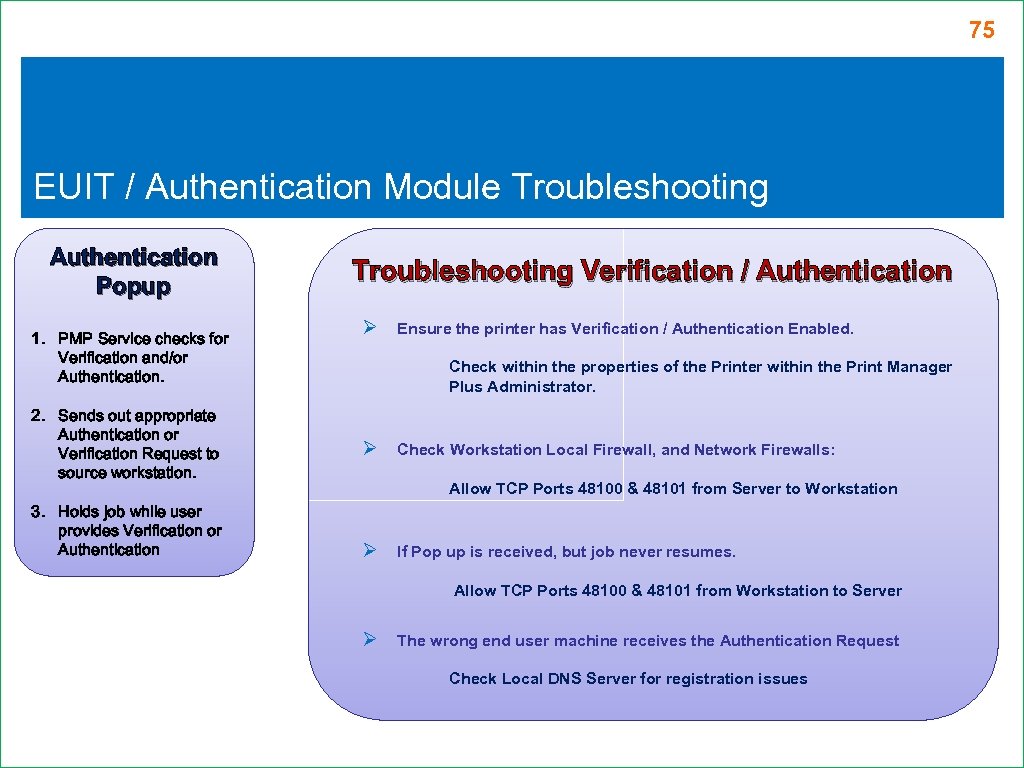 75 EUIT / Authentication Module Troubleshooting Authentication Popup 1. PMP Service checks for Verification and/or Authentication. 2. Sends out appropriate Authentication or Verification Request to source workstation. 3. Holds job while user provides Verification or Authentication Troubleshooting Verification / Authentication Ø Ensure the printer has Verification / Authentication Enabled. Check within the properties of the Printer within the Print Manager Plus Administrator. Ø Check Workstation Local Firewall, and Network Firewalls: Allow TCP Ports 48100 & 48101 from Server to Workstation Ø If Pop up is received, but job never resumes. Allow TCP Ports 48100 & 48101 from Workstation to Server Ø The wrong end user machine receives the Authentication Request Check Local DNS Server for registration issues
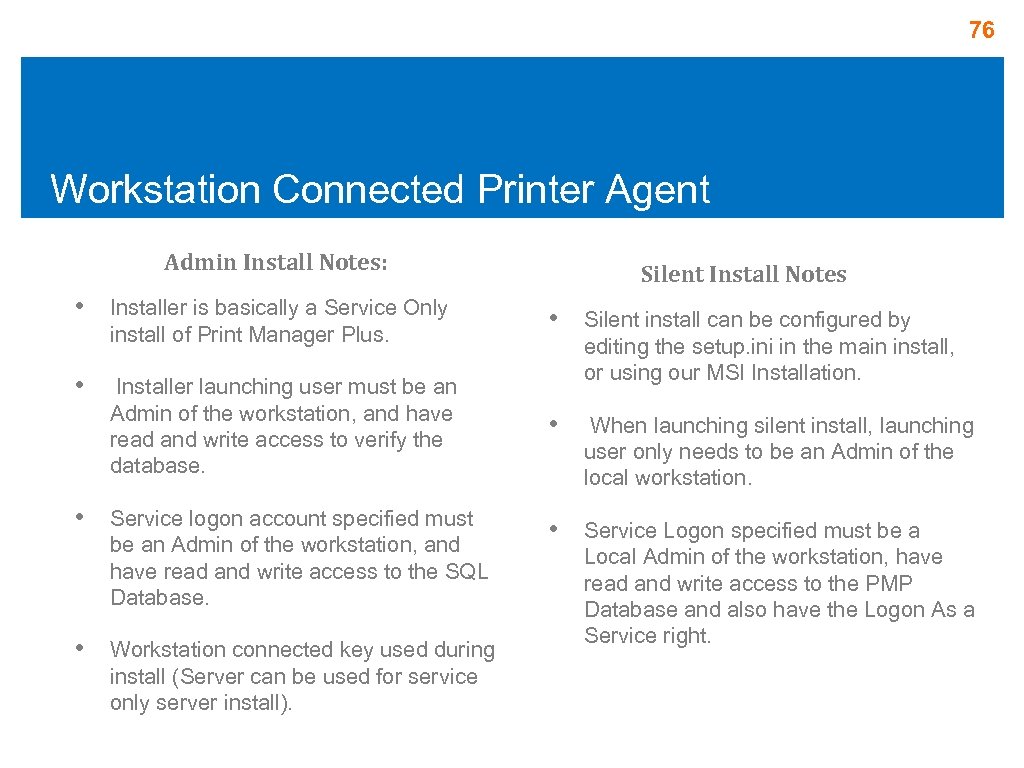 76 Workstation Connected Printer Agent Admin Install Notes: Silent Install Notes • Installer is basically a Service Only install of Print Manager Plus. • • Installer launching user must be an Admin of the workstation, and have read and write access to verify the database. Silent install can be configured by editing the setup. ini in the main install, or using our MSI Installation. • When launching silent install, launching user only needs to be an Admin of the local workstation. • Service Logon specified must be a Local Admin of the workstation, have read and write access to the PMP Database and also have the Logon As a Service right. • Service logon account specified must be an Admin of the workstation, and have read and write access to the SQL Database. • Workstation connected key used during install (Server can be used for service only server install).
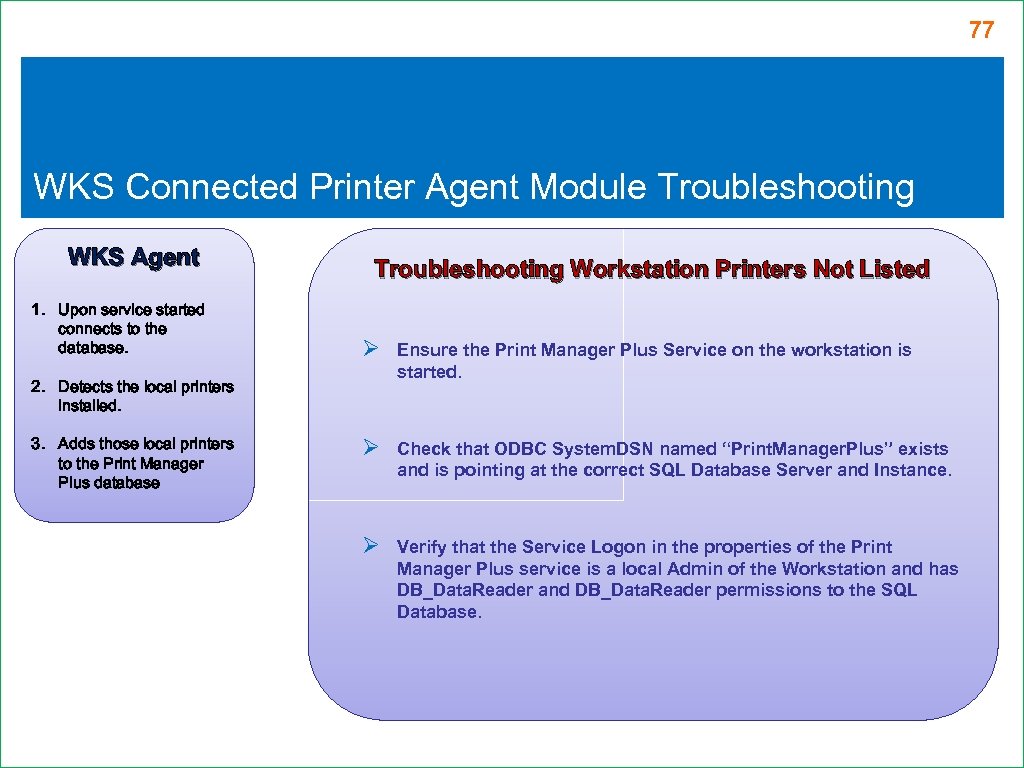 77 WKS Connected Printer Agent Module Troubleshooting WKS Agent 1. Upon service started connects to the database. Troubleshooting Workstation Printers Not Listed Ø Ensure the Print Manager Plus Service on the workstation is started. Ø Check that ODBC System. DSN named “Print. Manager. Plus” exists and is pointing at the correct SQL Database Server and Instance. Ø Verify that the Service Logon in the properties of the Print Manager Plus service is a local Admin of the Workstation and has DB_Data. Reader and DB_Data. Reader permissions to the SQL Database. 2. Detects the local printers installed. 3. Adds those local printers to the Print Manager Plus database
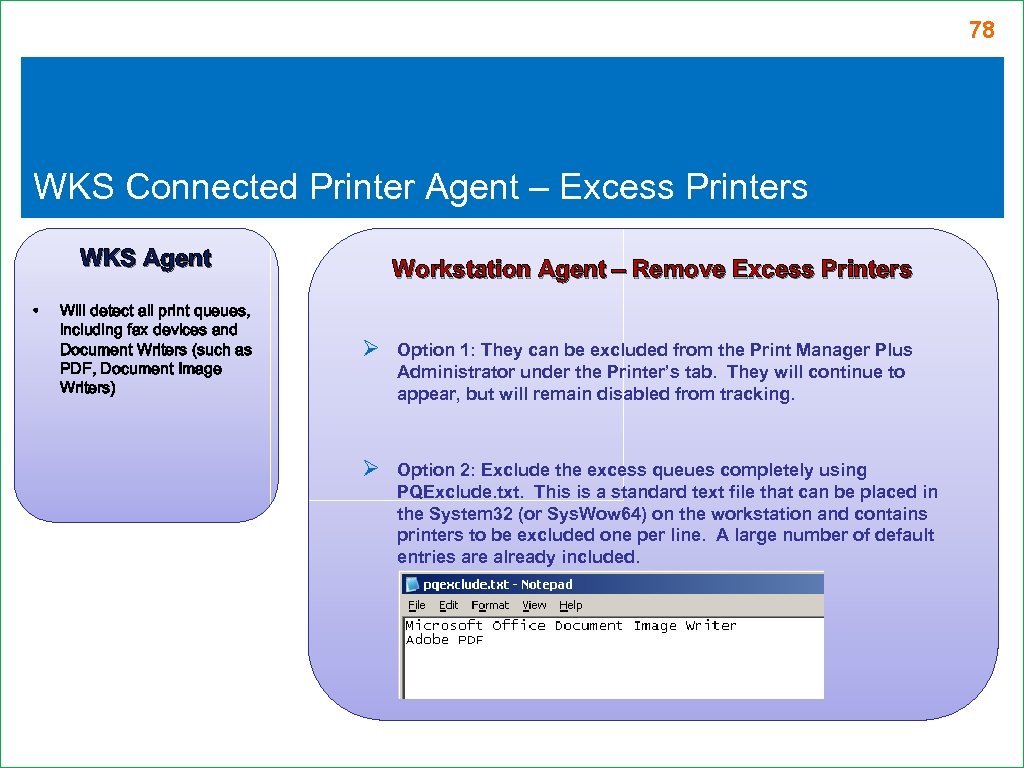 78 WKS Connected Printer Agent – Excess Printers WKS Agent • Will detect all print queues, including fax devices and Document Writers (such as PDF, Document Image Writers) Workstation Agent – Remove Excess Printers Ø Option 1: They can be excluded from the Print Manager Plus Administrator under the Printer’s tab. They will continue to appear, but will remain disabled from tracking. Ø Option 2: Exclude the excess queues completely using PQExclude. txt. This is a standard text file that can be placed in the System 32 (or Sys. Wow 64) on the workstation and contains printers to be excluded one per line. A large number of default entries are already included.
 79 Remote Administration Console Admin Notes: • Uses the same installer as the main product by selecting Administrator Only Install. • Installing & Launching user must have read and write permissions to the Print Manager Plus database. • Can be silently installed by configuring setup. ini file. • • Use Admin Rights Security to restrict user access by Group, OU and Print Server Provides same functionality as the Admin console on the Print server. • • Must be e. Update separated of the main server. Supported on Windows 2000, XP, Vista & 7 Workstations. • Unlimited installs allows.
 80 Remote Report Viewer Notes: • Uses its own Installer • • Prompts for database location upon first launch Can be silently installed using standard MSI Commands • • Uses Print. Manager. Plus ODBC connection within System. DSN. Provides same reports as the Print Manager Plus Administrator. • • Requires DB_Reader permissions on the Print Manager Database Supported on Windows 2000, XP, Vista & 7 Workstations. • Unlimited installs allows.
 81 End