


 Скачать презентацию 1 P-Grade Grid Portal installation configuration handson
a5b0b2a464aaa1c8b44120af6da3ff89.ppt
- Количество слайдов: 18
 1 P-Grade Grid Portal installation & configuration handson Gabor Kecskemeti • MTA SZTAKI, Hungary • Univ. Westminster, UK kecskemeti@sztaki. hu
 2 Prerequisites • Software dependencies: – Scientific Linux 3. 0. 8 – g. Lite UI 3. 0. 0 – GT-2 development headers (use gtp-build --nosrc gcc 32 dbgpthr) – For further details, see: http: //portal. pgrade. hu/v 24/index. php? m=6&s=0 • Hardware requirements: – 1 MB memory – Strong processor (~3 GHz) – 20 GB disk or more depending on usage
 3 Installation • Create a user for the portal: adduser pgportal • Unpack the gzipped tarball: tar zxf pgportal 2. 4. 1. tgz ; cd pgportal • Configure the portal installation with the portal_config. txt – Be aware that the portal interprets this file as a shell script so quoting is necessary
 4 Configurable items #1 • HOSTNAME: hostname of the machine running P -GRADE Portal. Optional the installer can detect it with the hostname command. • Supporting multiple tomcat installations on the host: – DEFAULT_PORT: non-secure listening port of PGRADE Portal – DEFAULT_SECURE_PORT: HTTPS listening port of P-GRADE Portal – SHUTDOWN_PORT: shutdown port of Apache Tomcat
 5 Configurable items #2 • Portal appearance: – DEFAULT_VO: default VO of P-GRADE Portal. This VO name will appear on the welcome screen – PORTAL_NAME: name of the Portal – REG_URL: registration URL link on the welcome screen – EMAIL: support team e-mail address on the welcome screen • Automatically generated certificates: – KEYSTORE_PASS: Tomcat keystore password for HTTPS key. – JAR_PASS: Tomcat keystore password for jar-file key.
 6 Configurable items #3 • MDS 2 Query setup – MYPROXY_HOSTNAME: hostname of the My. Proxy server for MDS 2 authentication – MYPROXY_PORT: My. Proxy port for MDS 2 authentication – USER_NAME: user name on My. Proxy server for MDS 2 authentication • Example workflow store setup: – FTP_URL: URL of the example FTP repository – FTP_PORT: port of the example FTP repository – FTP_USER: login username of the example FTP repository – FTP_PASS: password of the example FTP repository
 7 Configurable items #GEMLCA • PWC_ALLOWED_HOSTS: list here the allowed hosts (FQDNs or IP numbers separated by spaces) for the PWC servlet. • GT 4_LOCATION: the path where the gt 4 resides. (improper globus location will give security exceptions - see catalina. out)
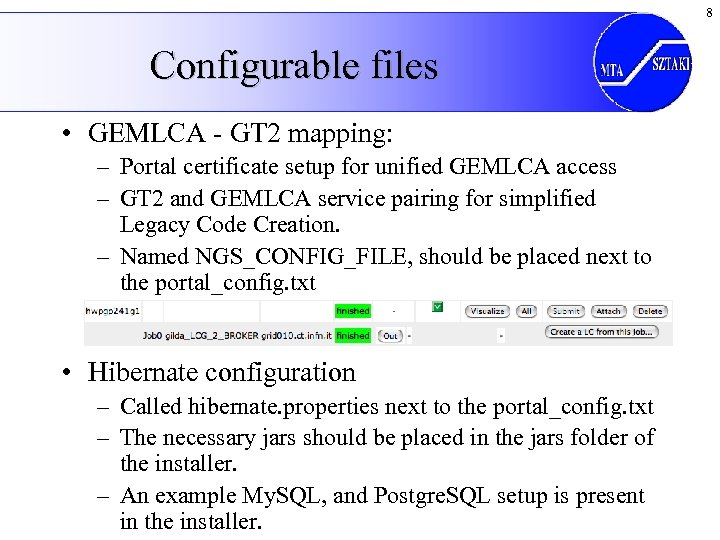 8 Configurable files • GEMLCA - GT 2 mapping: – Portal certificate setup for unified GEMLCA access – GT 2 and GEMLCA service pairing for simplified Legacy Code Creation. – Named NGS_CONFIG_FILE, should be placed next to the portal_config. txt • Hibernate configuration – Called hibernate. properties next to the portal_config. txt – The necessary jars should be placed in the jars folder of the installer. – An example My. SQL, and Postgre. SQL setup is present in the installer.
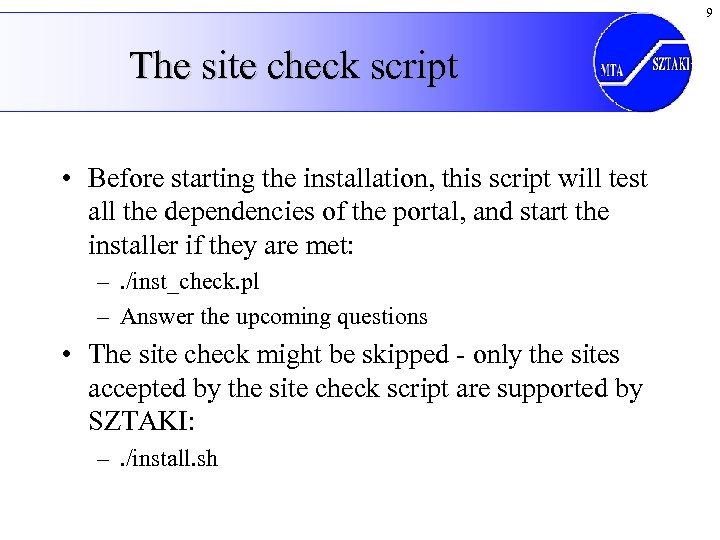 9 The site check script • Before starting the installation, this script will test all the dependencies of the portal, and start the installer if they are met: –. /inst_check. pl – Answer the upcoming questions • The site check might be skipped - only the sites accepted by the site check script are supported by SZTAKI: –. /install. sh
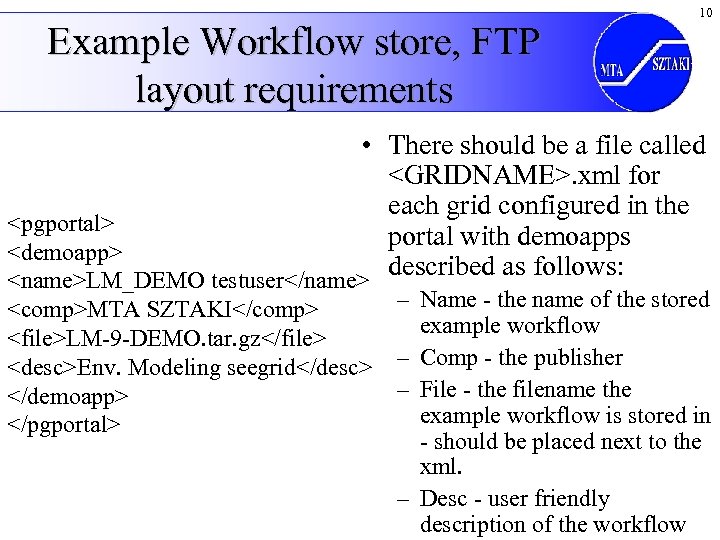 Example Workflow store, FTP layout requirements 10 • There should be a file called
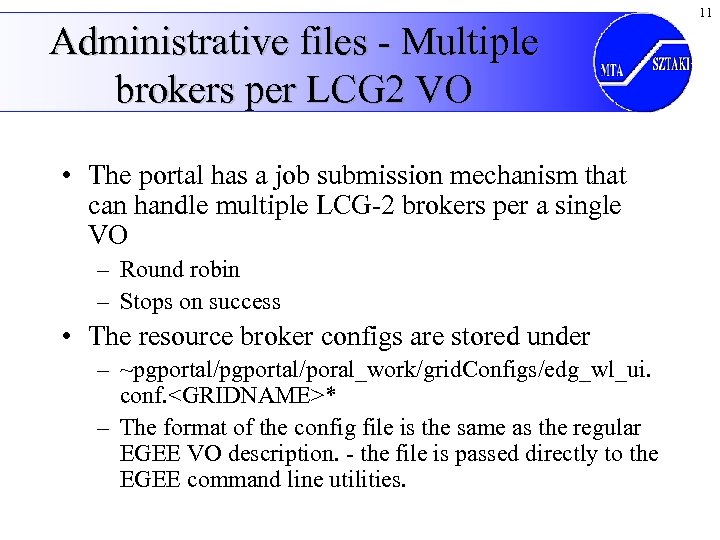 Administrative files - Multiple brokers per LCG 2 VO • The portal has a job submission mechanism that can handle multiple LCG-2 brokers per a single VO – Round robin – Stops on success • The resource broker configs are stored under – ~pgportal/poral_work/grid. Configs/edg_wl_ui. conf.
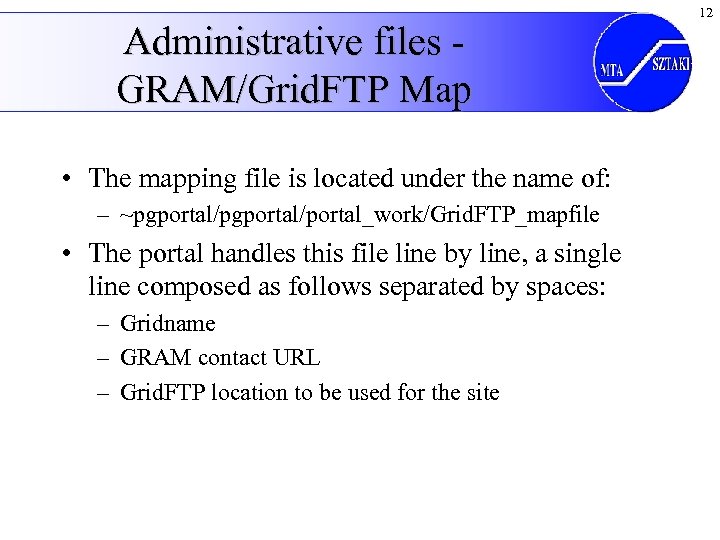 Administrative files GRAM/Grid. FTP Map • The mapping file is located under the name of: – ~pgportal/portal_work/Grid. FTP_mapfile • The portal handles this file line by line, a single line composed as follows separated by spaces: – Gridname – GRAM contact URL – Grid. FTP location to be used for the site 12
 13 Portal startup • Execute ~/pgportal/portalstart. sh • Open a web browser: – http: //yourhost: NOSECPORT/gridsphere – https: //yourhost: SECPORT/gridsphere • Give the name of the root user and password, then login.
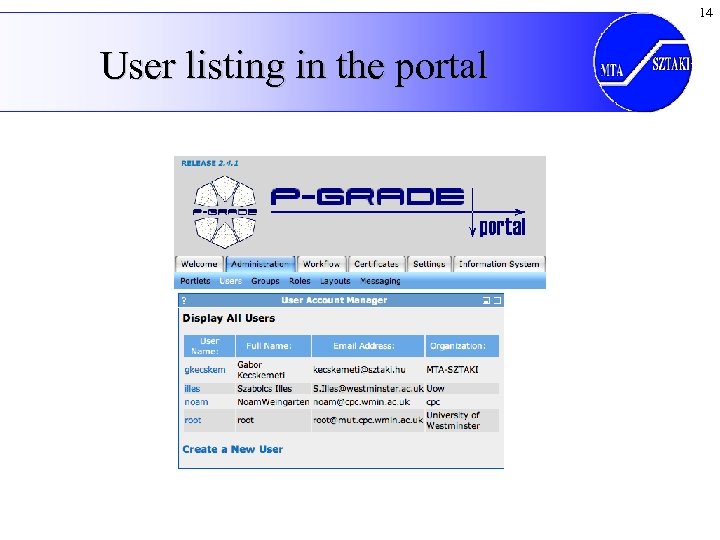 14 User listing in the portal
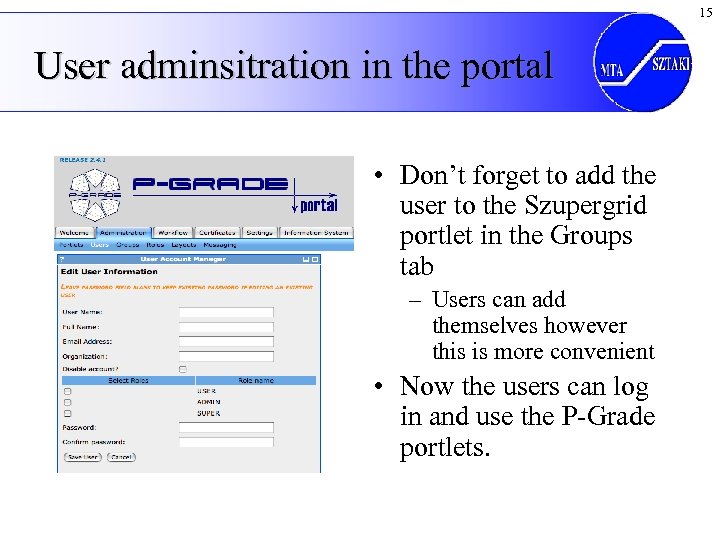 15 User adminsitration in the portal • Don’t forget to add the user to the Szupergrid portlet in the Groups tab – Users can add themselves however this is more convenient • Now the users can log in and use the P-Grade portlets.
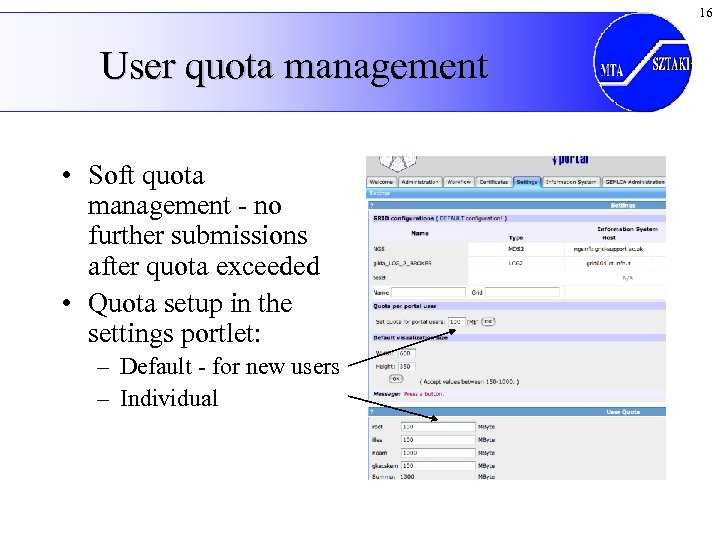 16 User quota management • Soft quota management - no further submissions after quota exceeded • Quota setup in the settings portlet: – Default - for new users – Individual
 17 Grid and VO management • Broker - naming scheme of the brokered grids: – VOname_LCG_2_BROKER, VOname_GLITE_BROKER – The Voname is the same as in the configuration of the UI machine • Resources – Contact URL and jobmanager defaults for the users – GEMLCA Services should use their URL and GEMLCA as jm • Information system integration – MDS 2 • Basic info: hostname, port and base. DN of the MDS 2 • Access info: username, password for the myproxy server to acces a certificate - remember MYPROXY_* configuration values. – BDII • Named LCG 2 • Same basic info has to be given
 18 Further information See any installed portal’s help portlet.