


 Скачать презентацию 1 2014 -15 Alt-MSA School Test Coordinator Training
073ddba8ce47ab2e29bda0705331aec8.ppt
- Количество слайдов: 48
 1 2014 -15 Alt-MSA School Test Coordinator Training September 2 - 15, 2014 Denise D. Taylor, MSM, MBA Test Integrity Specialist Office of Achievement and Accountability
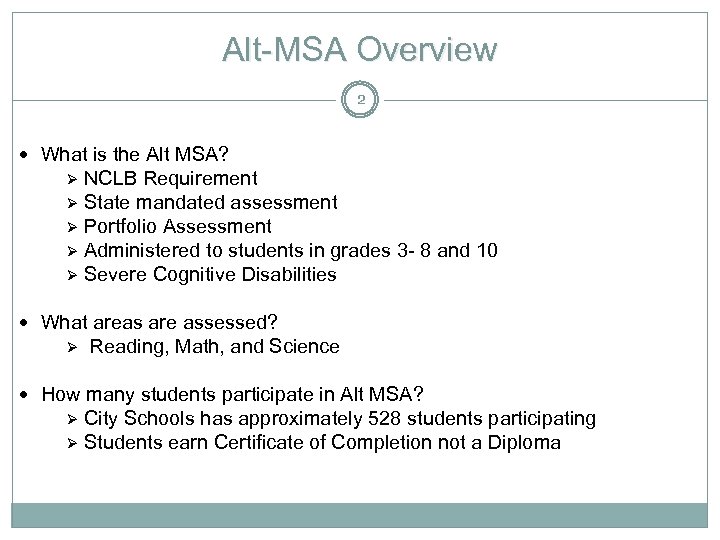 Alt-MSA Overview 2 What is the Alt MSA? NCLB Requirement Ø State mandated assessment Ø Portfolio Assessment Ø Administered to students in grades 3 - 8 and 10 Ø Severe Cognitive Disabilities Ø What areas are assessed? Ø Reading, Math, and Science How many students participate in Alt MSA? City Schools has approximately 528 students participating Ø Students earn Certificate of Completion not a Diploma Ø
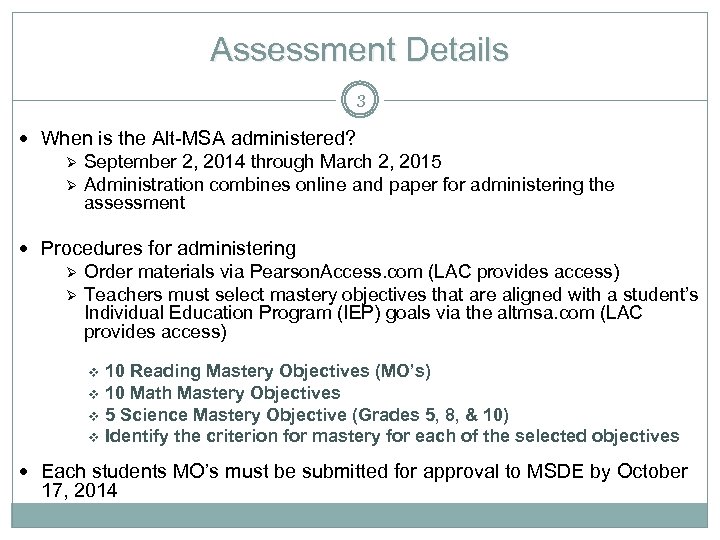 Assessment Details 3 When is the Alt-MSA administered? Ø Ø September 2, 2014 through March 2, 2015 Administration combines online and paper for administering the assessment Procedures for administering Ø Ø Order materials via Pearson. Access. com (LAC provides access) Teachers must select mastery objectives that are aligned with a student’s Individual Education Program (IEP) goals via the altmsa. com (LAC provides access) v v 10 Reading Mastery Objectives (MO’s) 10 Math Mastery Objectives 5 Science Mastery Objective (Grades 5, 8, & 10) Identify the criterion for mastery for each of the selected objectives Each students MO’s must be submitted for approval to MSDE by October 17, 2014
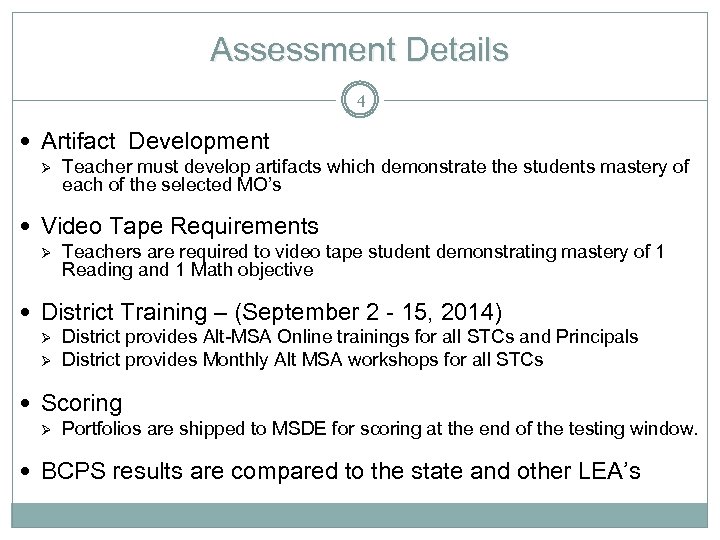 Assessment Details 4 Artifact Development Ø Teacher must develop artifacts which demonstrate the students mastery of each of the selected MO’s Video Tape Requirements Ø Teachers are required to video tape student demonstrating mastery of 1 Reading and 1 Math objective District Training – (September 2 - 15, 2014) Ø Ø District provides Alt-MSA Online trainings for all STCs and Principals District provides Monthly Alt MSA workshops for all STCs Scoring Ø Portfolios are shipped to MSDE for scoring at the end of the testing window. BCPS results are compared to the state and other LEA’s
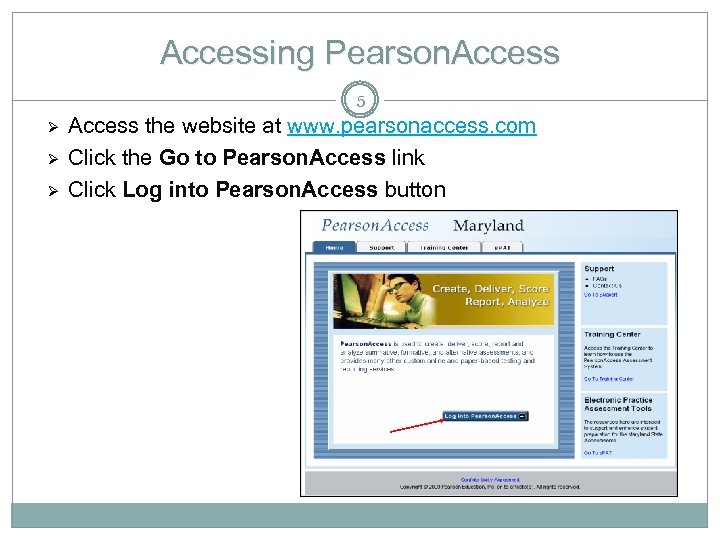 Accessing Pearson. Access 5 Ø Ø Ø Access the website at www. pearsonaccess. com Click the Go to Pearson. Access link Click Log into Pearson. Access button
 Ordering Test Materials 6 Order materials at www. pearsonaccess. com Ø Use existing Pearson. Access user name and password Handbooks, portfolios and media – will be shipped 3 days before the “need by” date Portfolio kits, media and informational brochures are available for ordering from September 2 – 30, 2014 Pages 8 -1 to 8 -4 of Alt-MSA handbook illustrates the equipment and media types
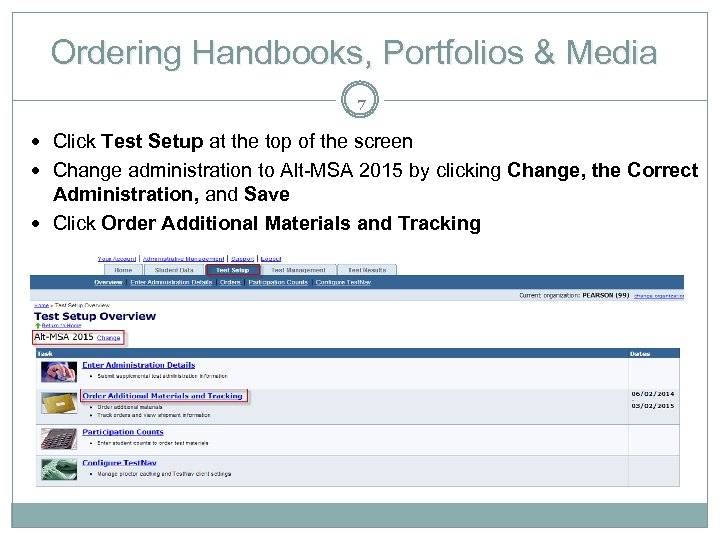 Ordering Handbooks, Portfolios & Media 7 Click Test Setup at the top of the screen Change administration to Alt-MSA 2015 by clicking Change, the Correct Administration, and Save Click Order Additional Materials and Tracking
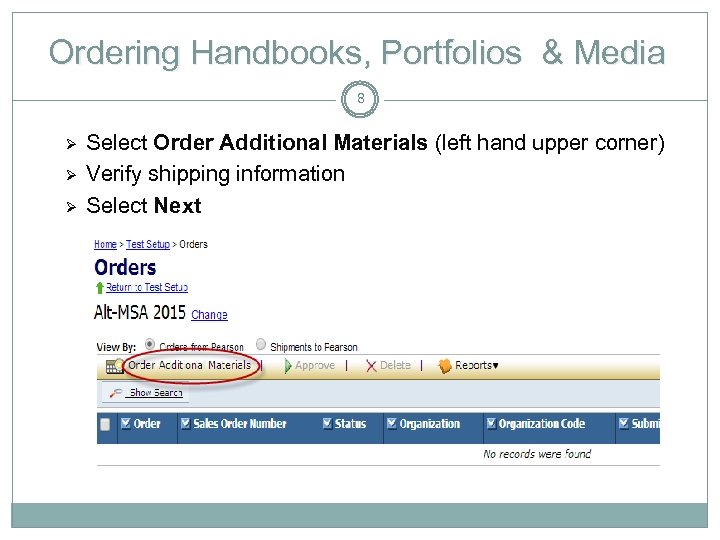 Ordering Handbooks, Portfolios & Media 8 Ø Ø Ø Select Order Additional Materials (left hand upper corner) Verify shipping information Select Next
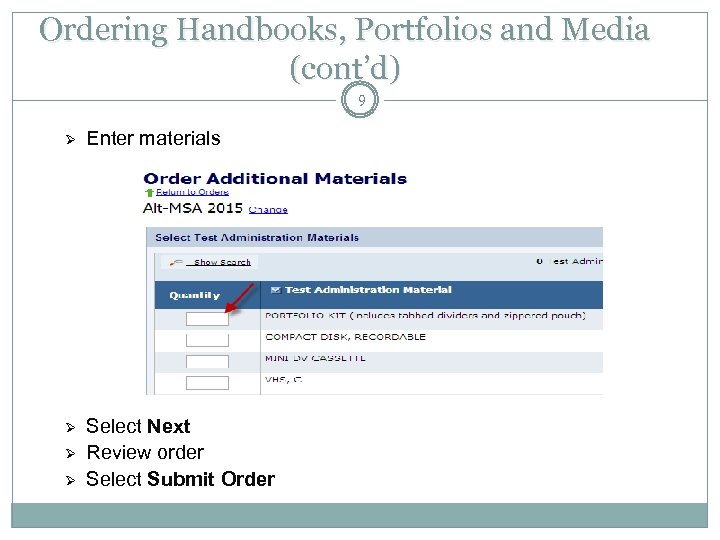 Ordering Handbooks, Portfolios and Media (cont’d) 9 Ø Enter materials Ø Select Next Review order Select Submit Order Ø Ø
 Pearson. Access 10 QUESTIONS?
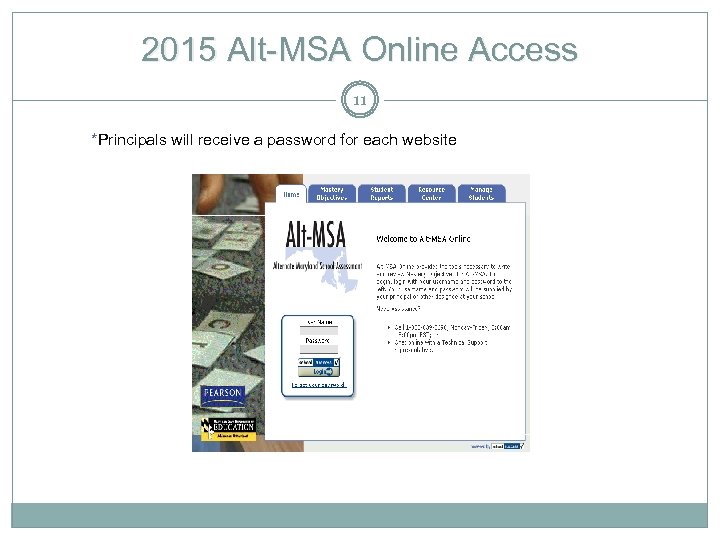 2015 Alt-MSA Online Access 11 *Principals will receive a password for each website
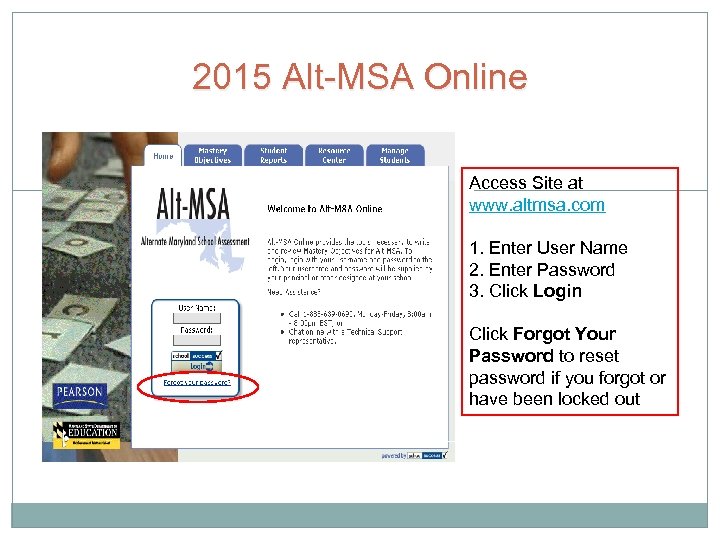 2015 Alt-MSA Online Access Site at www. altmsa. com 1. Enter User Name 2. Enter Password 3. Click Login Click Forgot Your Password to reset password if you forgot or have been locked out
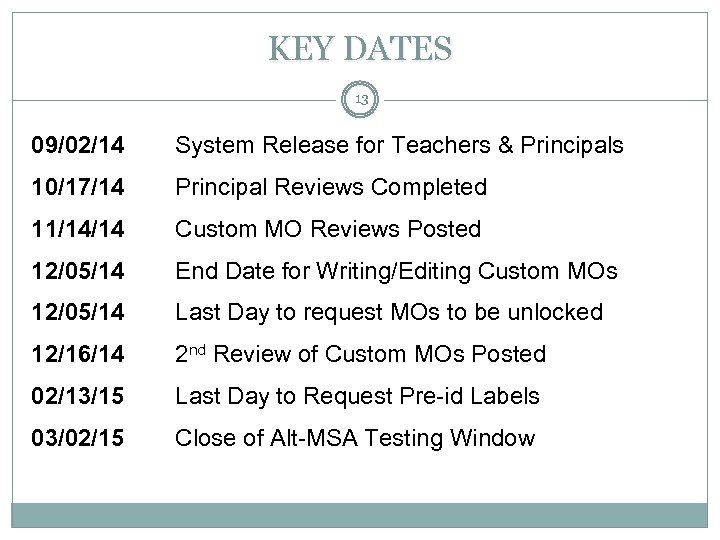 KEY DATES 13 09/02/14 System Release for Teachers & Principals 10/17/14 Principal Reviews Completed 11/14/14 Custom MO Reviews Posted 12/05/14 End Date for Writing/Editing Custom MOs 12/05/14 Last Day to request MOs to be unlocked 12/16/14 2 nd Review of Custom MOs Posted 02/13/15 Last Day to Request Pre-id Labels 03/02/15 Close of Alt-MSA Testing Window
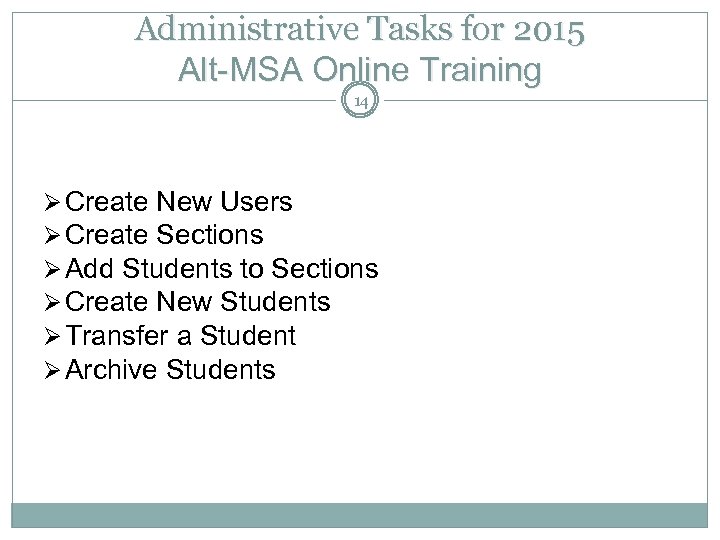 Administrative Tasks for 2015 Alt-MSA Online Training 14 Ø Create New Users Ø Create Sections Ø Add Students to Sections Ø Create New Students Ø Transfer a Student Ø Archive Students
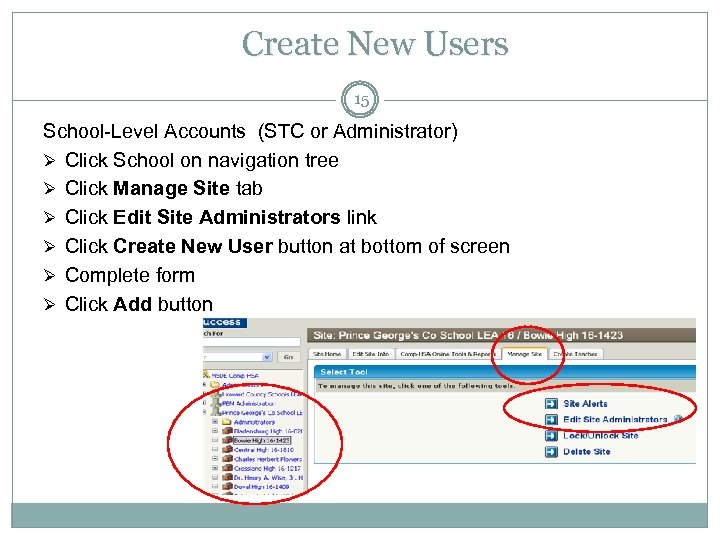 Create New Users 15 School-Level Accounts (STC or Administrator) Ø Click School on navigation tree Ø Click Manage Site tab Ø Click Edit Site Administrators link Ø Click Create New User button at bottom of screen Ø Complete form Ø Click Add button
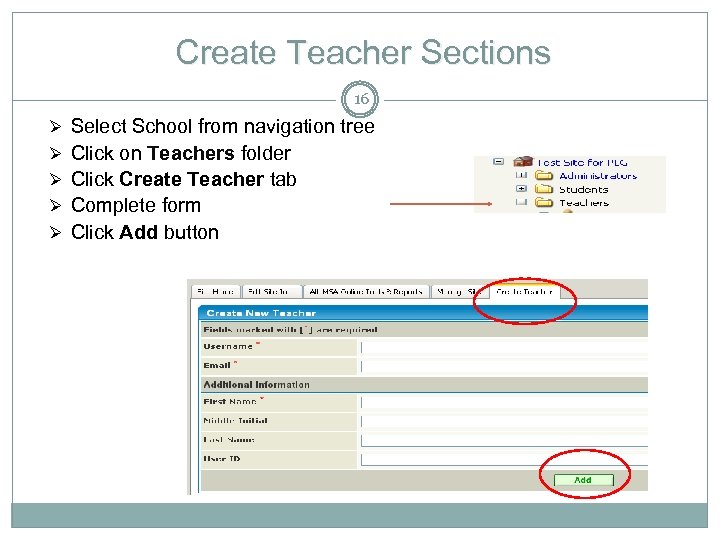 Create Teacher Sections 16 Ø Select School from navigation tree Ø Click on Teachers folder Ø Click Create Teacher tab Ø Complete form Ø Click Add button
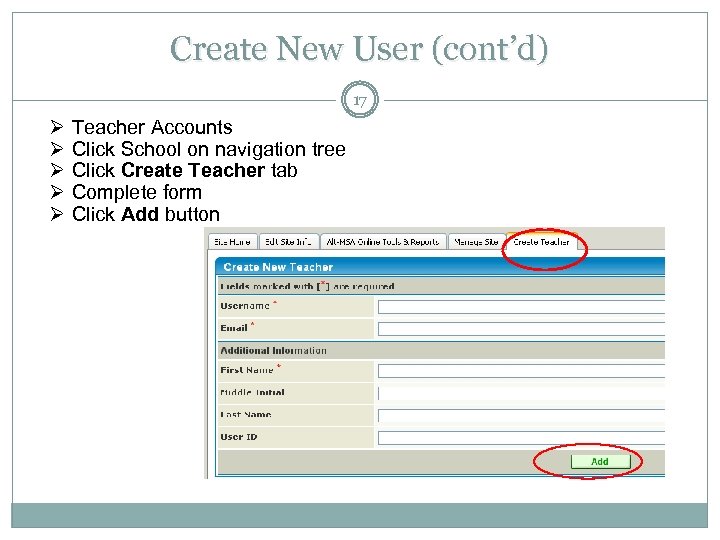 Create New User (cont’d) 17 Ø Ø Ø Teacher Accounts Click School on navigation tree Click Create Teacher tab Complete form Click Add button
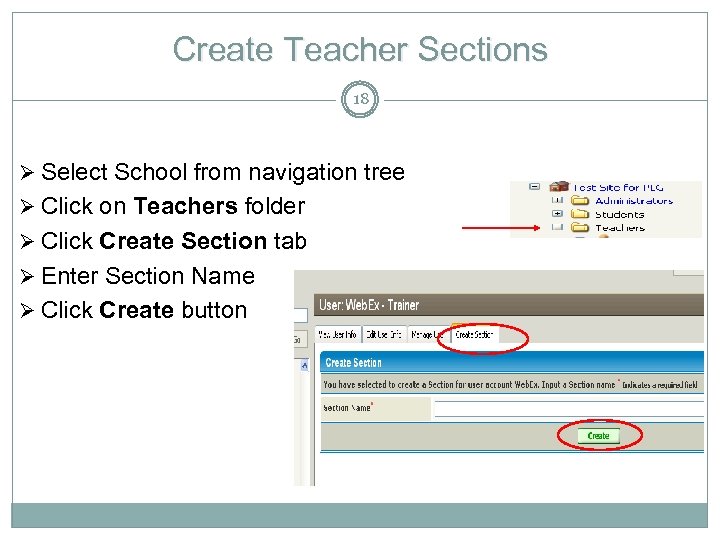 Create Teacher Sections 18 Ø Select School from navigation tree Ø Click on Teachers folder Ø Click Create Section tab Ø Enter Section Name Ø Click Create button
 Add Students to Teacher Sections 19 Ø Click the Manage Students link Ø Click on the + beside the heading Add Existing Student Ø Scroll down and locate your student’s name Ø Highlight the student’s name by clicking on their name Ø Click Add button Note: LAC’s and STC’s must select the Teacher’s section prior to completing actions listed above
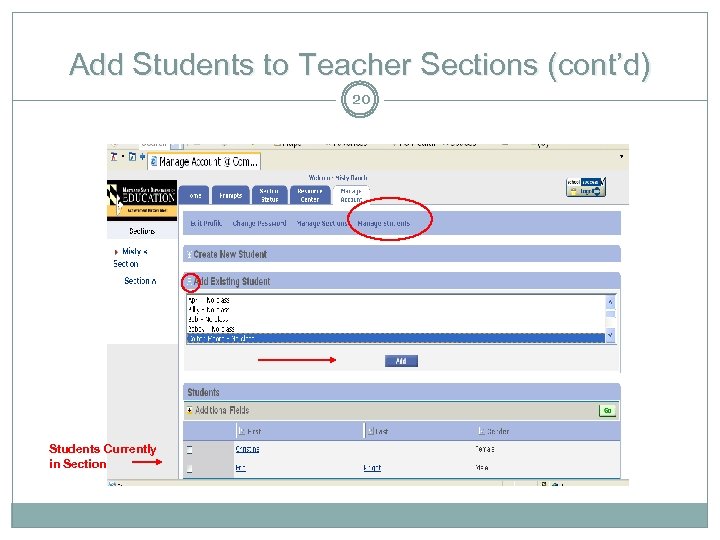 Add Students to Teacher Sections (cont’d) 20 Students Currently in Section
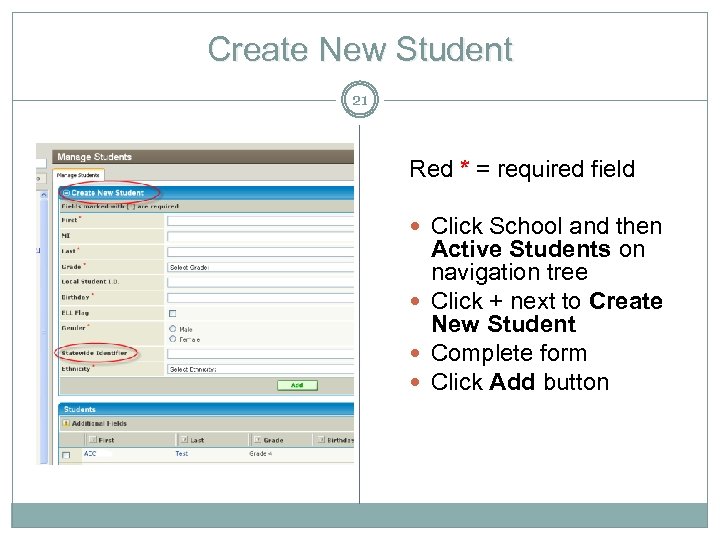 Create New Student 21 Red * = required field Click School and then Active Students on navigation tree Click + next to Create New Student Complete form Click Add button
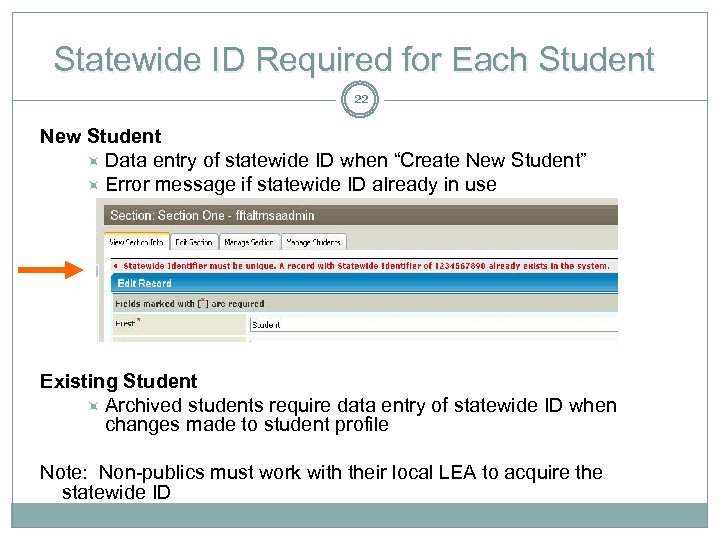 Statewide ID Required for Each Student 22 New Student Data entry of statewide ID when “Create New Student” Error message if statewide ID already in use Existing Student Archived students require data entry of statewide ID when changes made to student profile Note: Non-publics must work with their local LEA to acquire the statewide ID
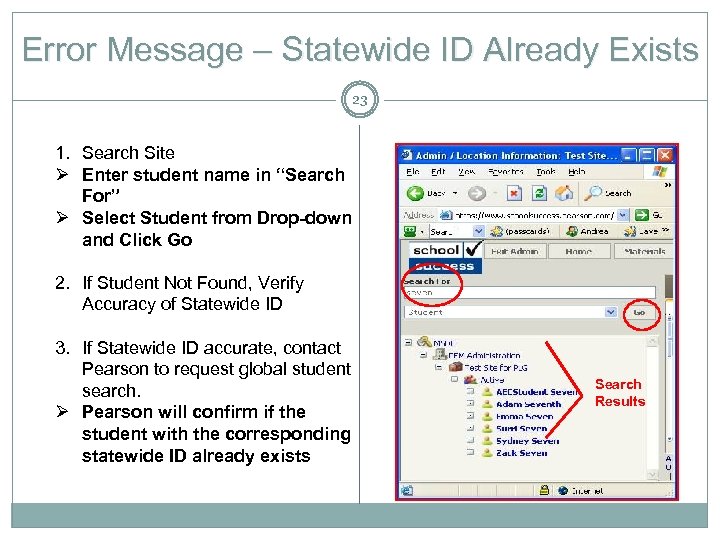 Error Message – Statewide ID Already Exists 23 1. Search Site Ø Enter student name in “Search For” Ø Select Student from Drop-down and Click Go 2. If Student Not Found, Verify Accuracy of Statewide ID 3. If Statewide ID accurate, contact Pearson to request global student search. Ø Pearson will confirm if the student with the corresponding statewide ID already exists Search Results
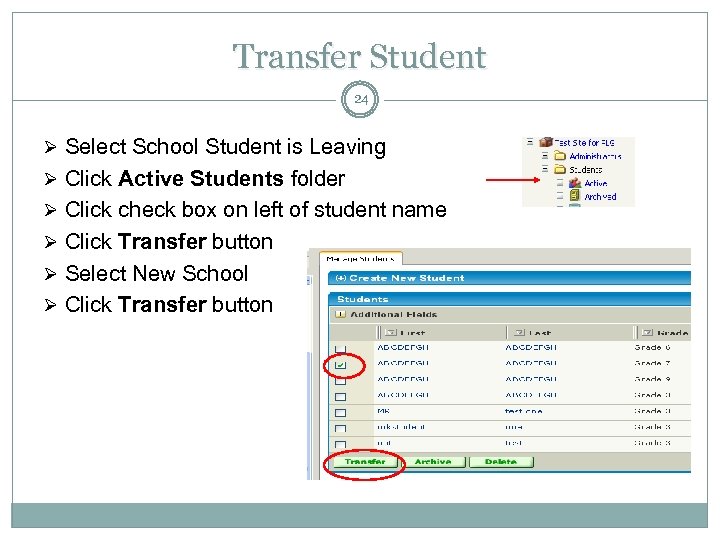 Transfer Student 24 Ø Select School Student is Leaving Ø Click Active Students folder Ø Click check box on left of student name Ø Click Transfer button Ø Select New School Ø Click Transfer button
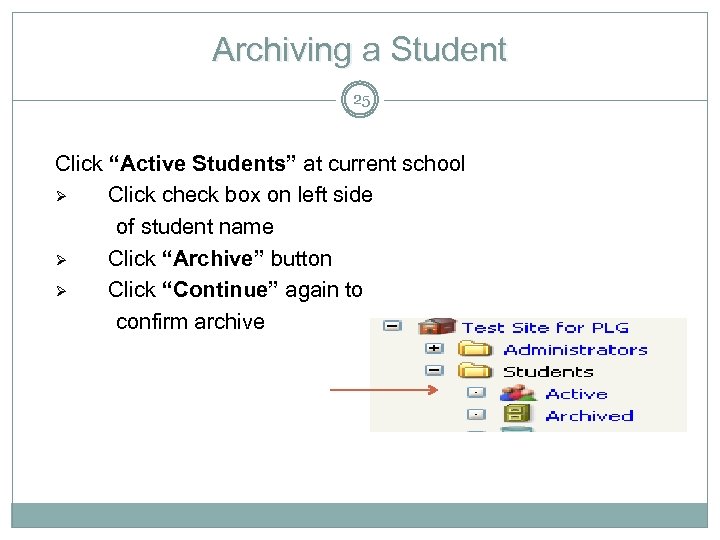 Archiving a Student 25 Click “Active Students” at current school Ø Click check box on left side of student name Ø Click “Archive” button Ø Click “Continue” again to confirm archive
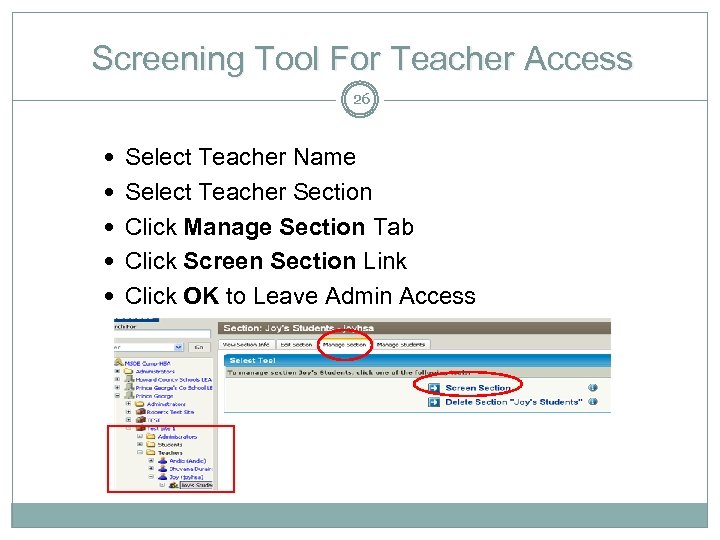 Screening Tool For Teacher Access 26 Select Teacher Name Select Teacher Section Click Manage Section Tab Click Screen Section Link Click OK to Leave Admin Access
 Administrative Tasks 27 QUESTIONS?
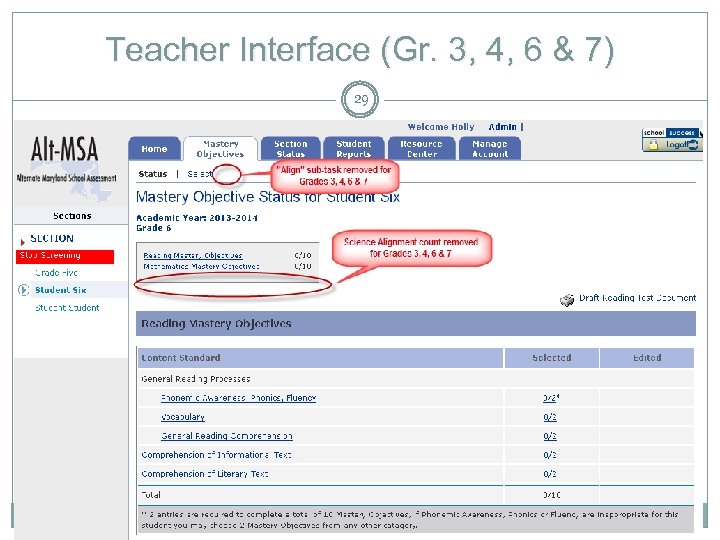
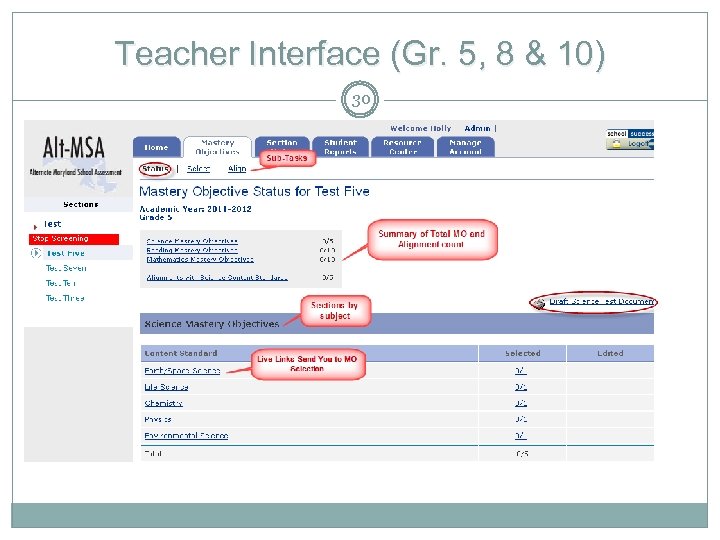
 Teacher Interface 28 Ø Select / Write Mastery Objectives Using 3 Sub-Tasks: Status, Select or Align Ø Status Subtask Ø Ø Displays how many MOs are selected and how many MOs are required Direct Links to make selections in specific content area Link to Select Subtask and Align Subtask Link to Draft or Final Test Document
 Teacher Interface (Gr. 3, 4, 6 & 7) 29
 Teacher Interface (Gr. 5, 8 & 10) 30
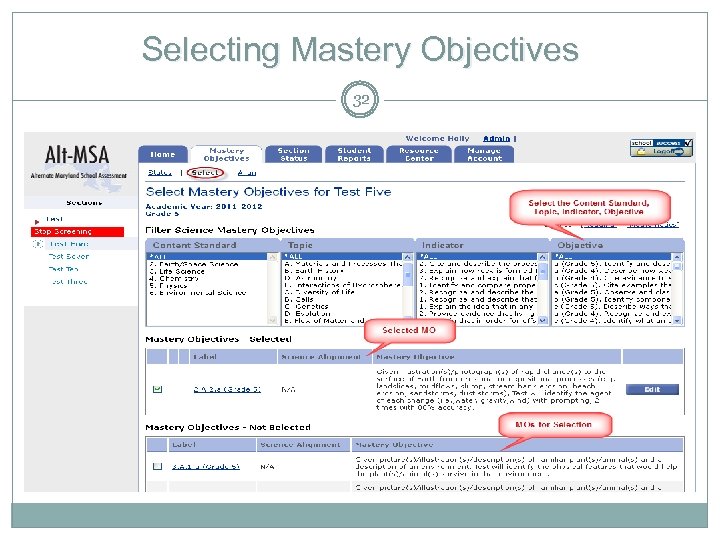
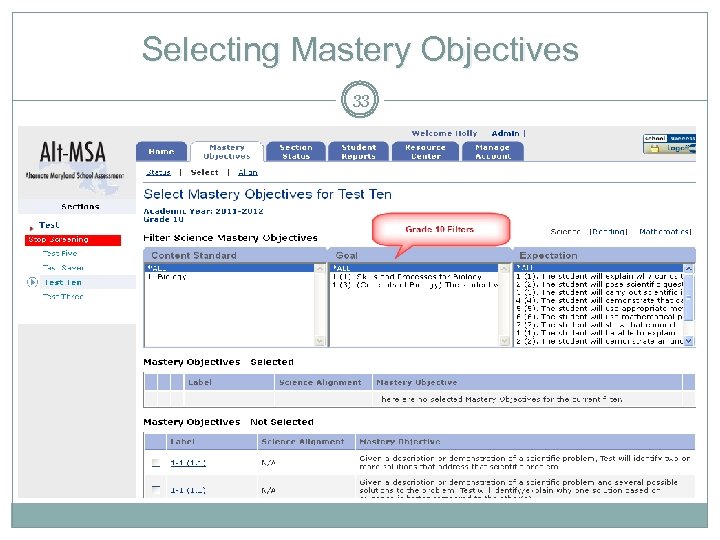
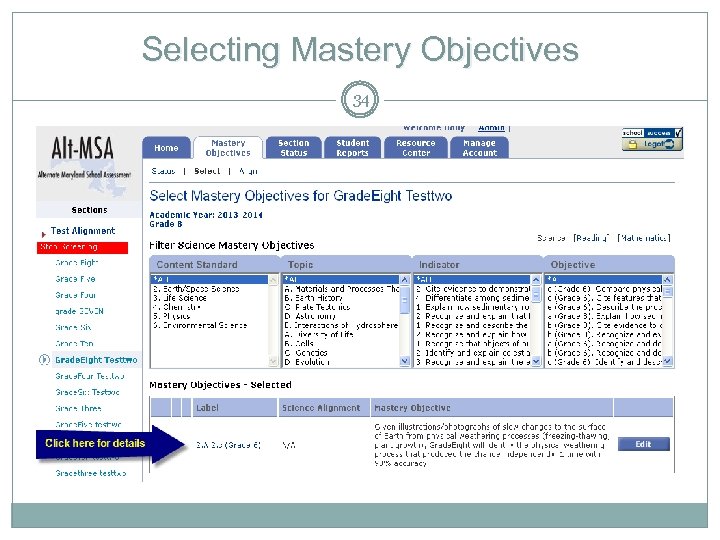
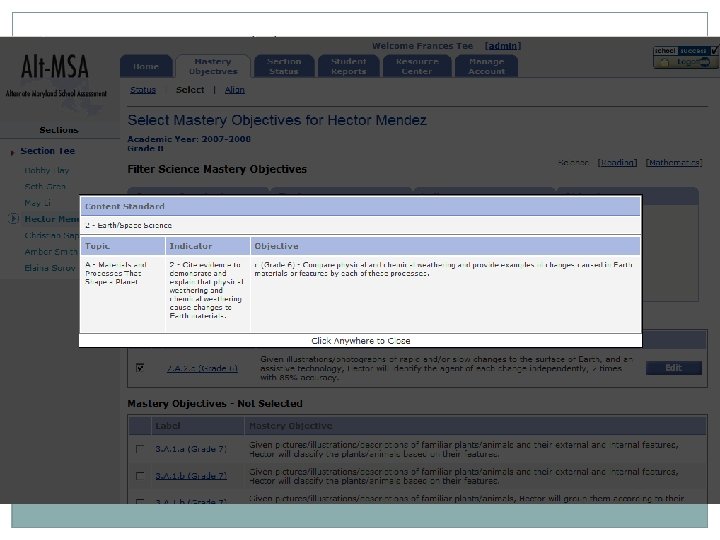
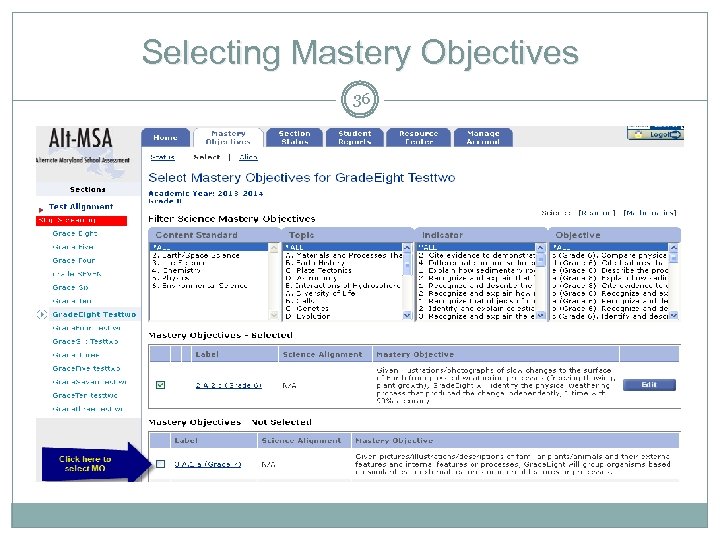
 Selecting Mastery Objectives 31 Ø Use Select Subtask to Select or Write Mastery Objectives Ø To Select a Mastery Objective § § § By Subject - Filter on Standard, Topic, Indicator, Objective, Goal or Expectation Check box to select a MO Complete Mastery Objective by Identifying: § Need for Assistive Technology § With Prompting or Independently § Criterion • Click Save Mastery Objective button
 Selecting Mastery Objectives 32
 Selecting Mastery Objectives 33
 Selecting Mastery Objectives 34
 35
35
 Selecting Mastery Objectives 36
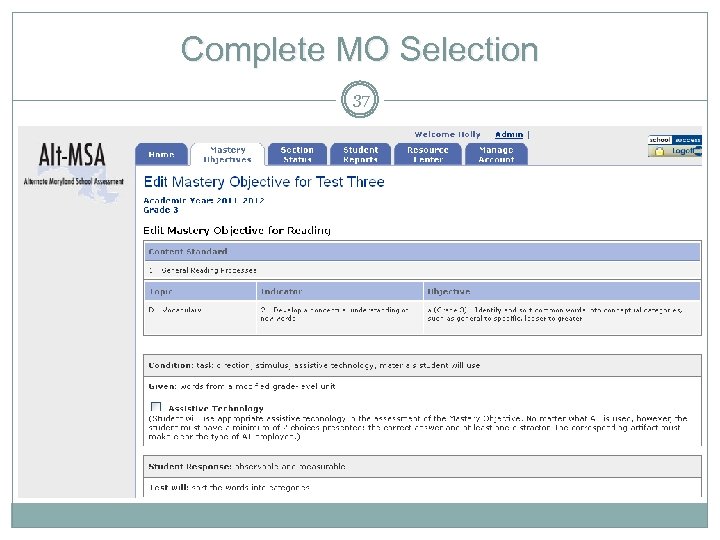 Complete MO Selection 37
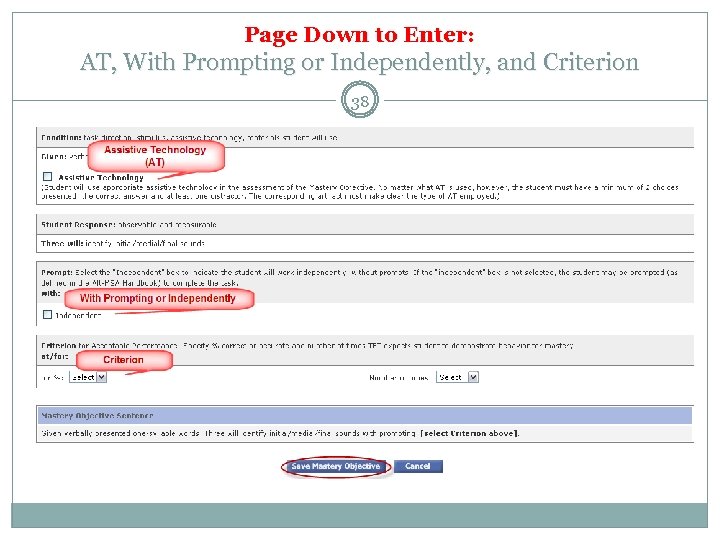 Page Down to Enter: AT, With Prompting or Independently, and Criterion 38
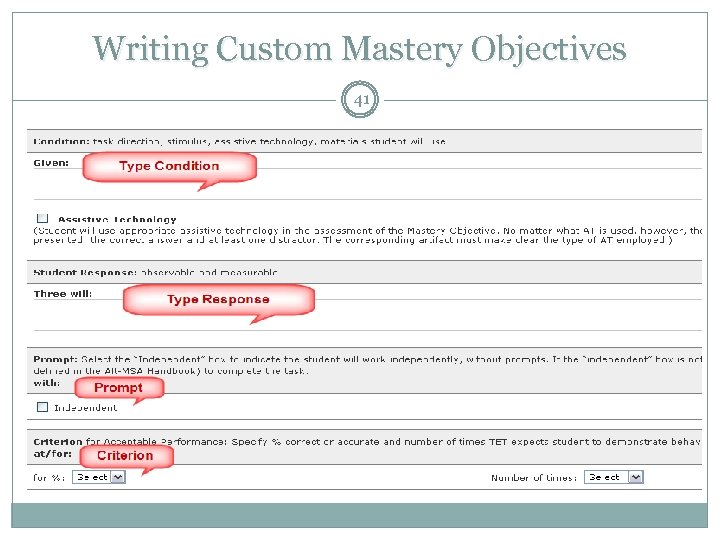
 Writing Custom Mastery Objectives 39 Ø Use Select Subtask to Write Custom MOs Ø To Write a Mastery Objective • Filter on Standard, Topic, Indicator, Objective, Goal or Expectation • Check box to select a MO where there are no Bank MOs • Complete Mastery Objective by Writing Condition and Response Identify Need for Assistive Technology With Prompting or Independently Criterion • Click Save Mastery Objective button No MOs can be custom-written or edited after December 5, 2014.
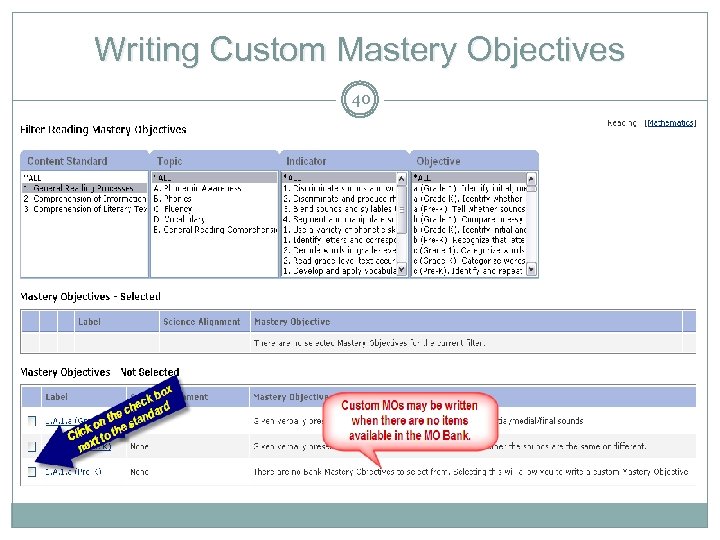 Writing Custom Mastery Objectives 40
 Writing Custom Mastery Objectives 41
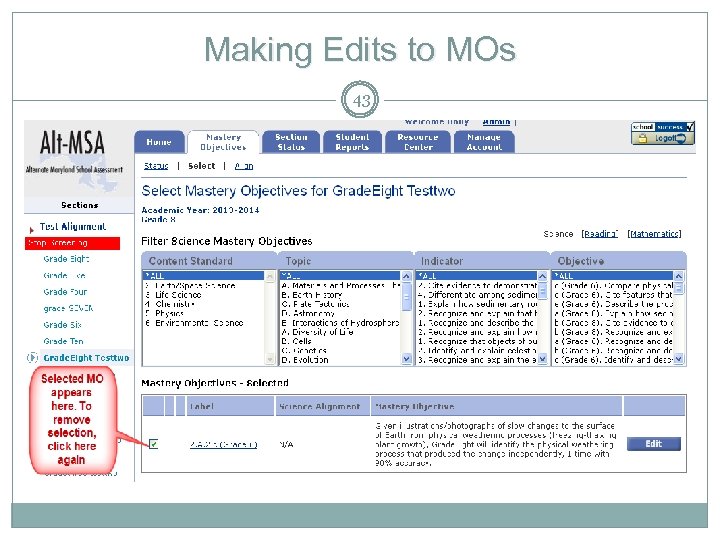
 Making Edits to MOs 42 Ø Uncheck box next to MO you wish to replace Ø Click the Edit button to change • • • Need for Assistive Technology With Prompting or Independently Criterion
 Making Edits to MOs 43
 Alt-MSA Online 44 QUESTIONS?
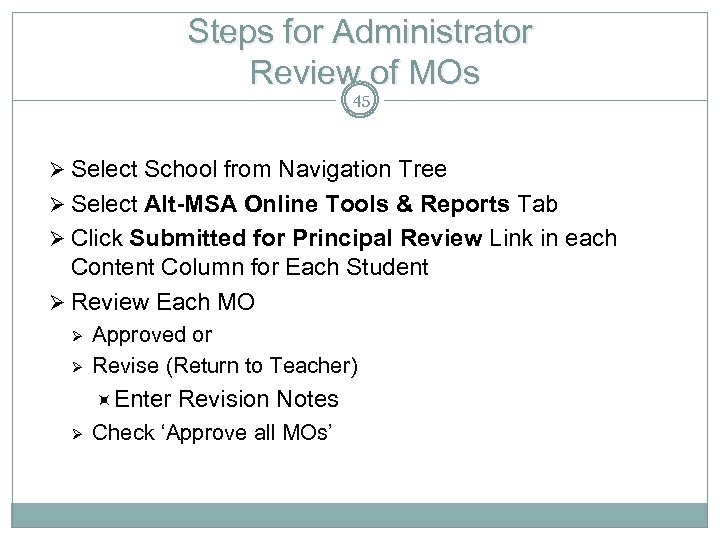 Steps for Administrator Review of MOs 45 Ø Select School from Navigation Tree Ø Select Alt-MSA Online Tools & Reports Tab Ø Click Submitted for Principal Review Link in each Content Column for Each Student Ø Review Each MO Ø Ø Approved or Revise (Return to Teacher) Enter Ø Revision Notes Check ‘Approve all MOs’
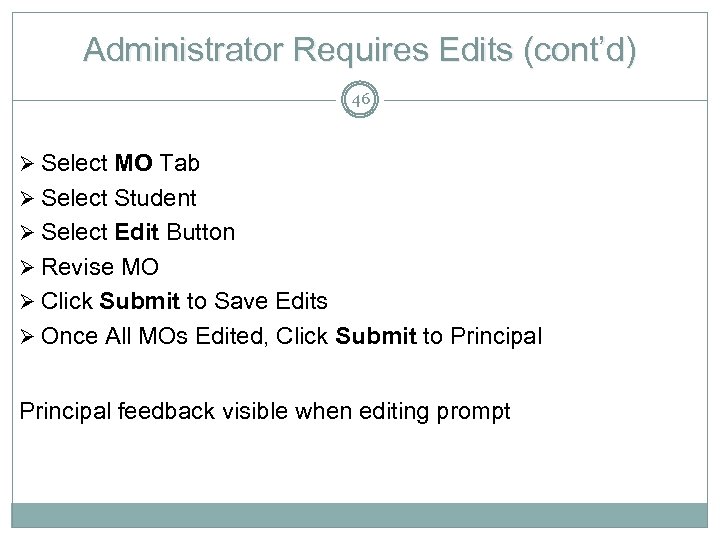 Administrator Requires Edits (cont’d) 46 Ø Select MO Tab Ø Select Student Ø Select Edit Button Ø Revise MO Ø Click Submit to Save Edits Ø Once All MOs Edited, Click Submit to Principal feedback visible when editing prompt
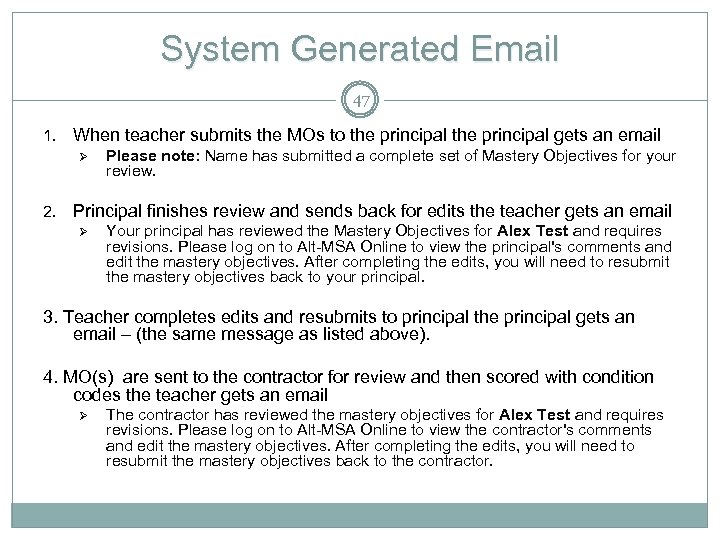 System Generated Email 47 1. When teacher submits the MOs to the principal gets an email Ø 2. Please note: Name has submitted a complete set of Mastery Objectives for your review. Principal finishes review and sends back for edits the teacher gets an email Ø Your principal has reviewed the Mastery Objectives for Alex Test and requires revisions. Please log on to Alt-MSA Online to view the principal's comments and edit the mastery objectives. After completing the edits, you will need to resubmit the mastery objectives back to your principal. 3. Teacher completes edits and resubmits to principal the principal gets an email – (the same message as listed above). 4. MO(s) are sent to the contractor for review and then scored with condition codes the teacher gets an email Ø The contractor has reviewed the mastery objectives for Alex Test and requires revisions. Please log on to Alt-MSA Online to view the contractor's comments and edit the mastery objectives. After completing the edits, you will need to resubmit the mastery objectives back to the contractor.
 Information 48 For additional information contact: James Gresham, Ed. D. Office of Achievement and Accountability JGresham@bcps. k 12. md. us 410 -396 -8962